
QUICK START GUIDE
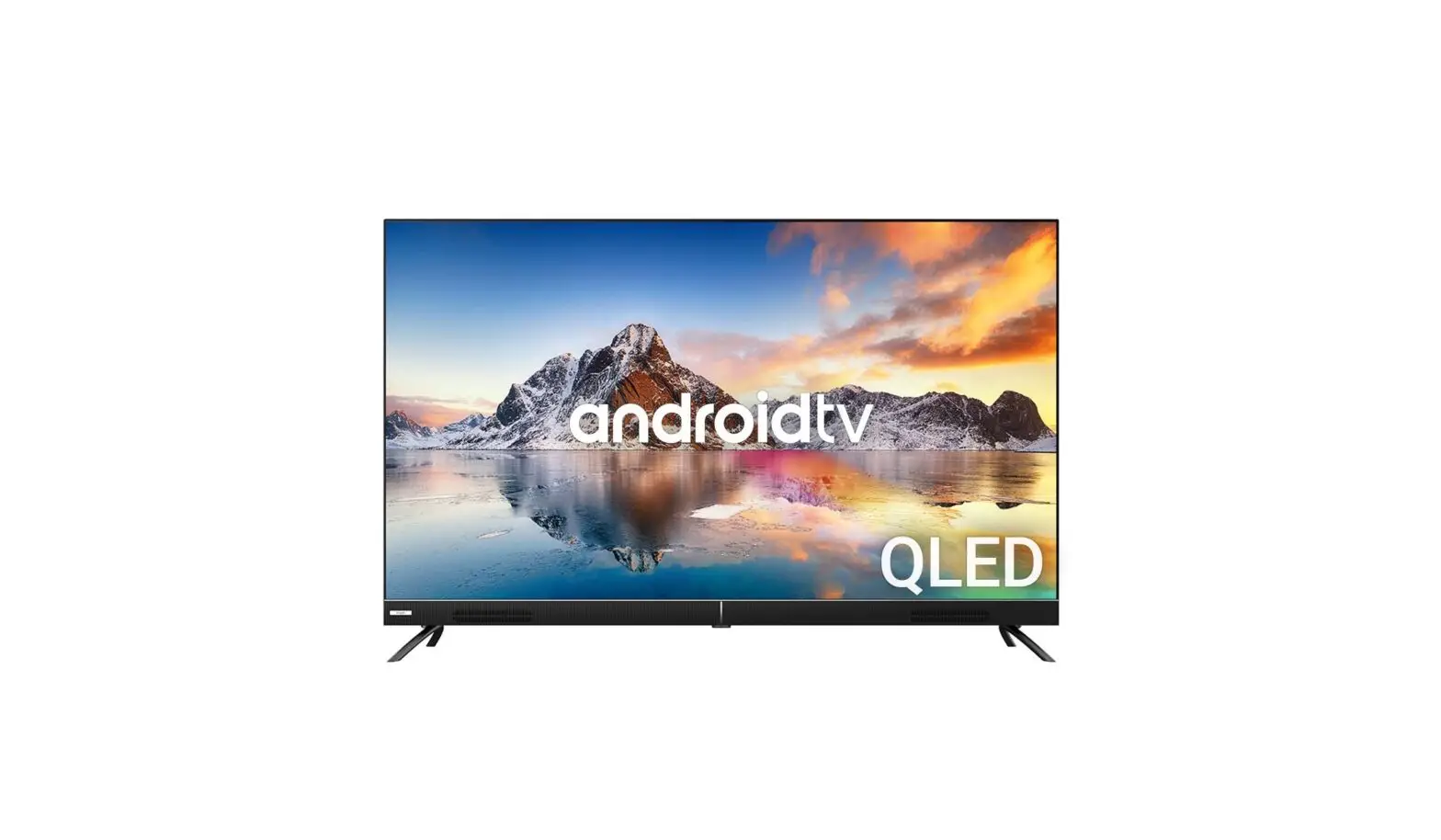
KOGAN QLED 55” SMART HDR 4K TV
SERIES 8 RU8510 (KAQLED55RU8510STA)
COMPONENTS
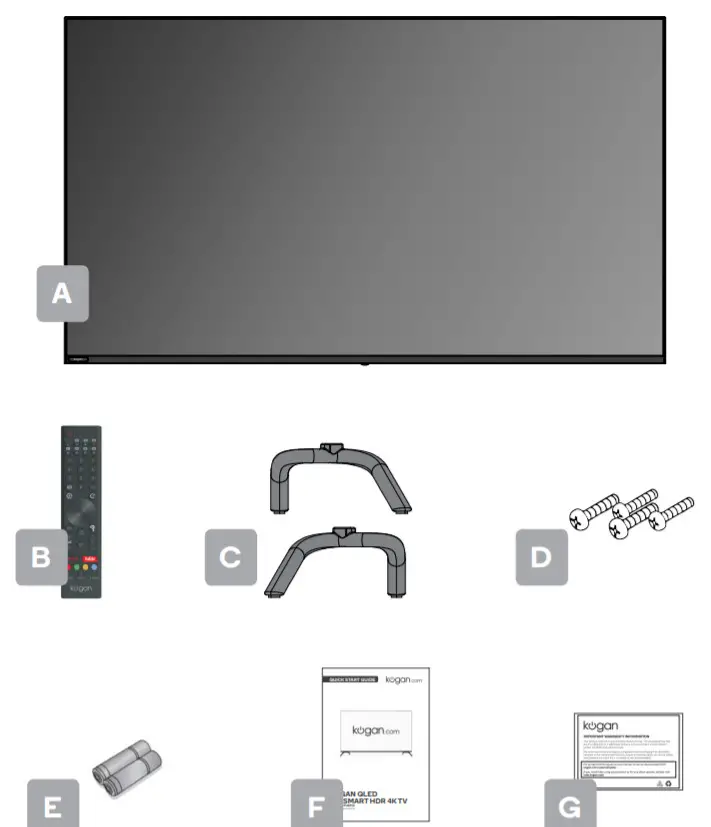
| A Kogan QLED 55” Smart HDR 4K TV B Remote control C Stand (x2) | D M4 x 20mm screw (x4) E AAA battery (x2) F Quick-start guide G Warranty card |
REMOTE CONTROL OVERVIEW
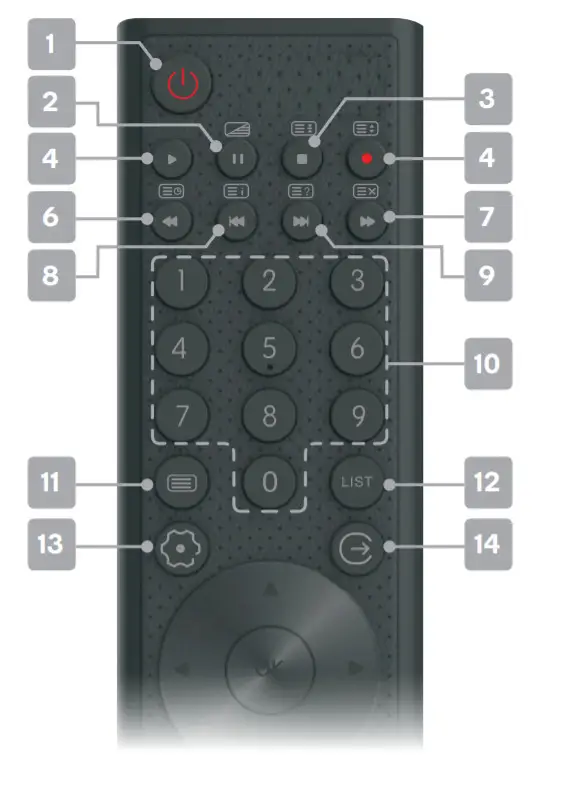
 Power, press to enter or exit standby mode
 Pause in media/PVR mode;
Timeshift function in DTV mode; MIX mode in Teletext
 Stop in media/PVR mode;
 Hold Teletext page on display, press again to release
 Start playback in media mode
 Record in DTV mode;
 Change the size of the Teletext screen
 Reverse playback rapidly in media mode;
  Subtitle mode, or Submenu
 Advance playback rapidly in media mode;
 Cancel Teletext but not exit
 Skip to previous in media mode;
 Index page
 Skip to next in media mode;
 Reveal hidden information in some Teletext pages
- Number buttons, press to select channels, or input passwords
 Enter Teletext mode, press again
to exit Channel list, press again to exit
 Menu to bring up the full menu screen with optional, adjustable settings
 Exit to quit the current interface
 Direction buttons for navigating menus and settings
 Enter selects the current item or confirm the selection
 Electronic Program Guide in DTV mode
 Delete button;
 Return to the previous menu
 Home Access the home page
 Volume to adjust the volume up or down
 Program to scroll channels
 Mute to toggle sound on/off
 to open app homepage
 to open app homepage
- Colour buttons for navigational use within apps
- P.mode to change the picture mode
- S.mode to change sound mode
- INFO displays the current program information
 Pause in media/PVR mode;
 MIX mode in Teletext
 Stop in media/PVR mode;
 Hold Teletext page on display, press again to release
 Start playback in media mode
 Record in DTV mode;
 Change the size of the Teletext screen
 Reverse playback rapidly in media mode;
  Subtitle mode, or Submenu
 Advance playback rapidly in media mode;
 Cancel Teletext but not exit
 Skip to previous in media mode;
 Index page
 Skip to next in media mode;
 Reveal hidden information in some Teletext pages
 Enter Teletext mode, press again
 Channel list, press again to exit
 Menu to bring up the full menu screen with optional, adjustable settings
 Exit to quit the current interface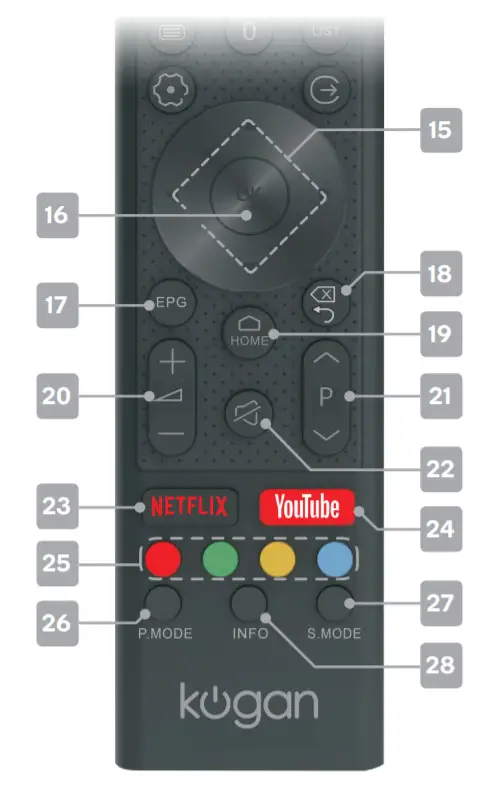
 Direction buttons for navigating menus and settings
 Enter selects the current item or confirm the selection
 Electronic Program Guide in DTV mode
 Delete button;
 Return to the previous menu
 Volume to adjust the volume up or down
 Program to scroll channels
 Mute to toggle sound on/off
 to open app homepage
 to open app homepage
ASSEMBLY AND INSTALLATION
BEFORE YOU GET STARTED
Spread cushioning flat to lay the TV on. This will help to prevent damage.
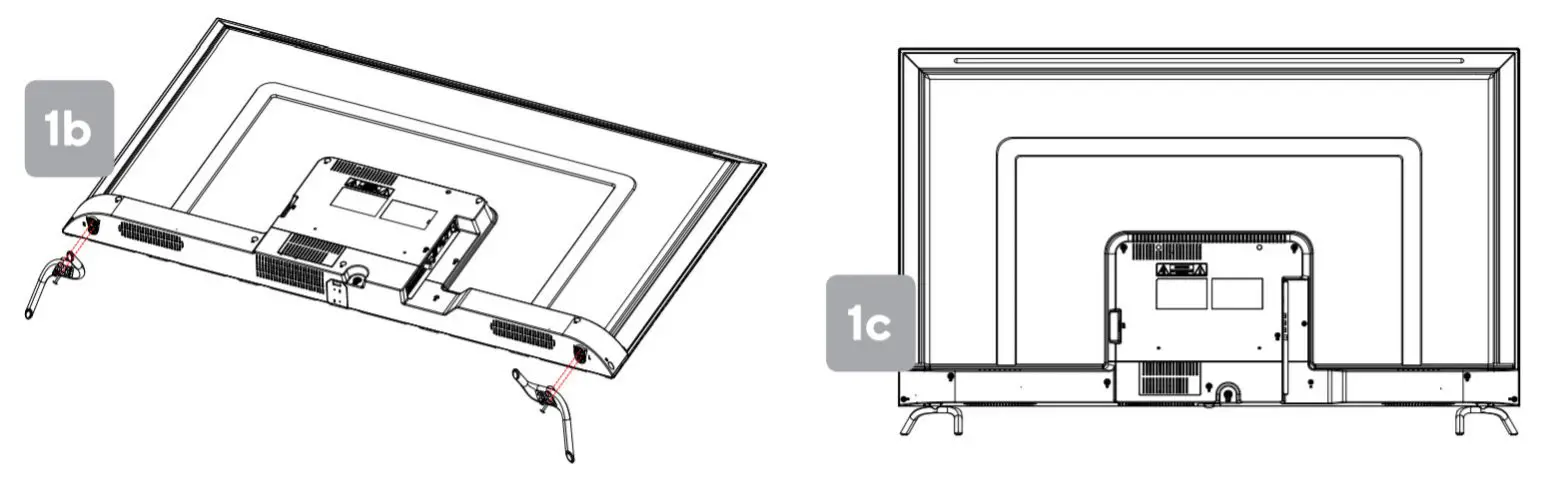
1. Stand assembly
- Attach the stand to the base of the TV.
- Insert two 20mm screws and use a Phillips head screwdriver (not supplied) to tighten.
- Repeat these steps for the second stand.
2. Remote control assembly
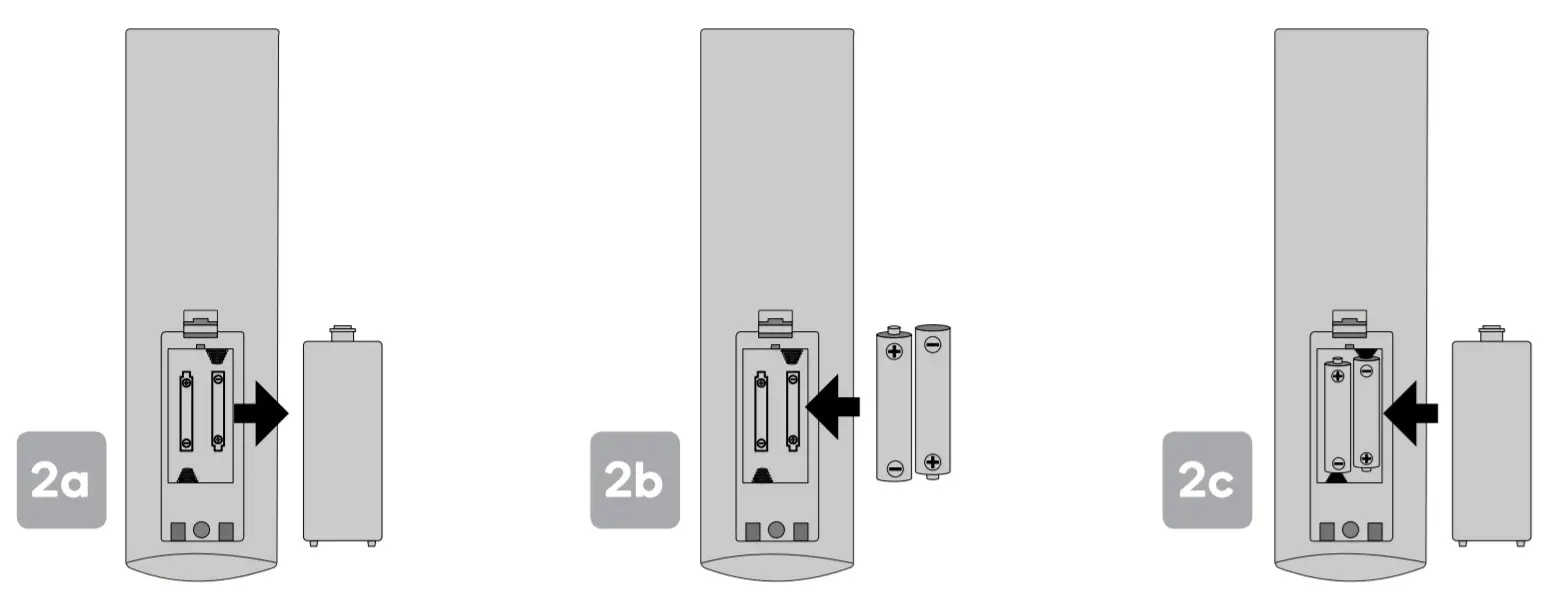
- Open the battery compartment cover on the backside.
- Insert two 1.5V AAA size batteries, making sure to match the polarity markings (+ / -) of the batteries with the diagram inside
the compartment. - Replace battery compartment cover.
3. Connect to an antenna
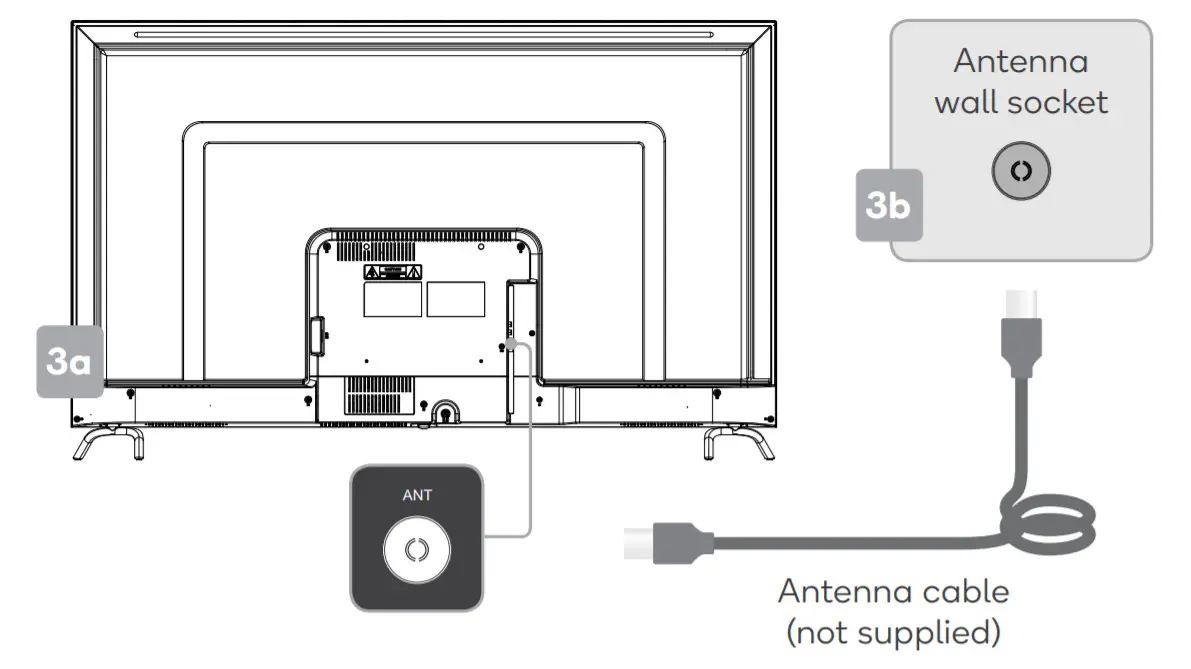
- Connect an antenna cable (not supplied) via the ‘ANT’ input port at the back of the TV.
- Ensure the antenna cable is also connected to a working antenna, either via an antenna wall socket in your home or directly.
4. Turning the TV on
Plug the power cord into a suitable power outlet, then press the POWER (  ) button on the remote control, making sure to aim it at the sensor at the front of the TV. Alternatively, you can press the power button on the lower side of the back panel on the TV.
TURNING TV OFF
Press the POWER ( ) button on the remote control to enter standby mode. To power down the TV completely, unplug the power cord from the power outlet.
Do not leave your set in standby mode for long periods of time. If you will not use the TV for a long time, it is recommended to unplug the set from both the power outlet and aerial.
FIRST TIME SETUP
When turning the TV on for the first time, the Setup Wizard screen will appear. Use the ▲, ▼ and OK buttons to navigate the following options.
Language
Select your menu language.
Data Collection and Firmware Updates Notice
Accept terms and conditions, or select to view additional details.
Connecting to the Internet
Select between wireless or wired connectivity.
- Wi-Fi: For wireless connectivity, select ‘Wi-Fi’. The TV will automatically scan for wireless networks nearby. Ensure the TV is within range of your wireless modem or router, and have your password handy. Follow the prompts to input your password and connect your TV to your selected network.
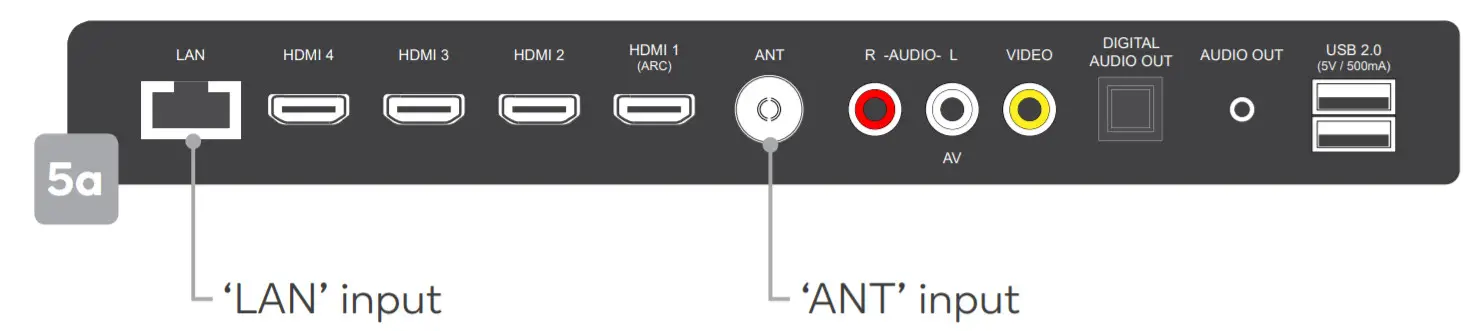
- Wired: To select ‘Wired’, ensure you have connected an ethernet cable (not supplied) to the ‘LAN’ input port at the back of the TV (pictured below), and that it is correctly connected to the internet.
Netflix
If you already have a Netflix account, you can log in during the Setup Wizard so it is ready to go as soon as the TV is running. If you do not have an account, this can be skipped now and set up later.
Country
Select your country.
Timezone
Select your time zone.
Following these options, the Auto Tuning screen will appear. Ensure you have an antenna cable connected to the ‘ANT’ input port at the back of the TV (pictured below).
USING APPS
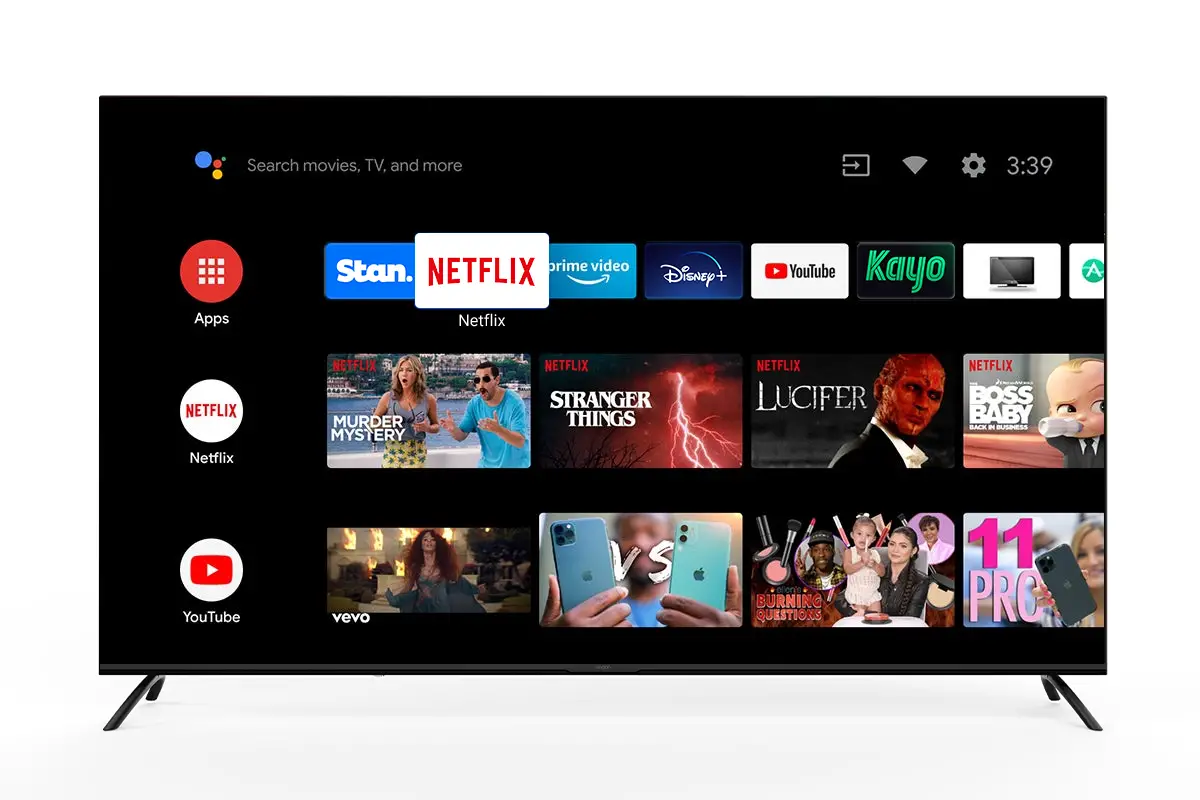
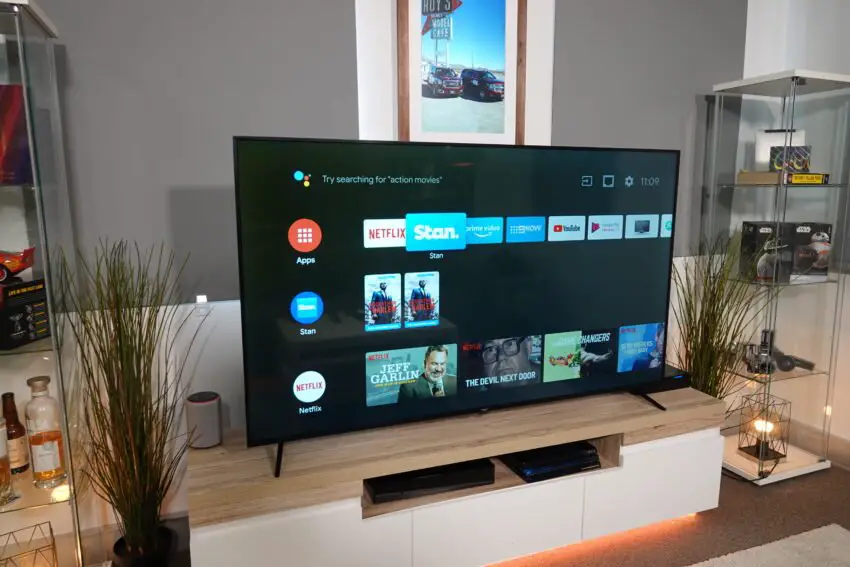
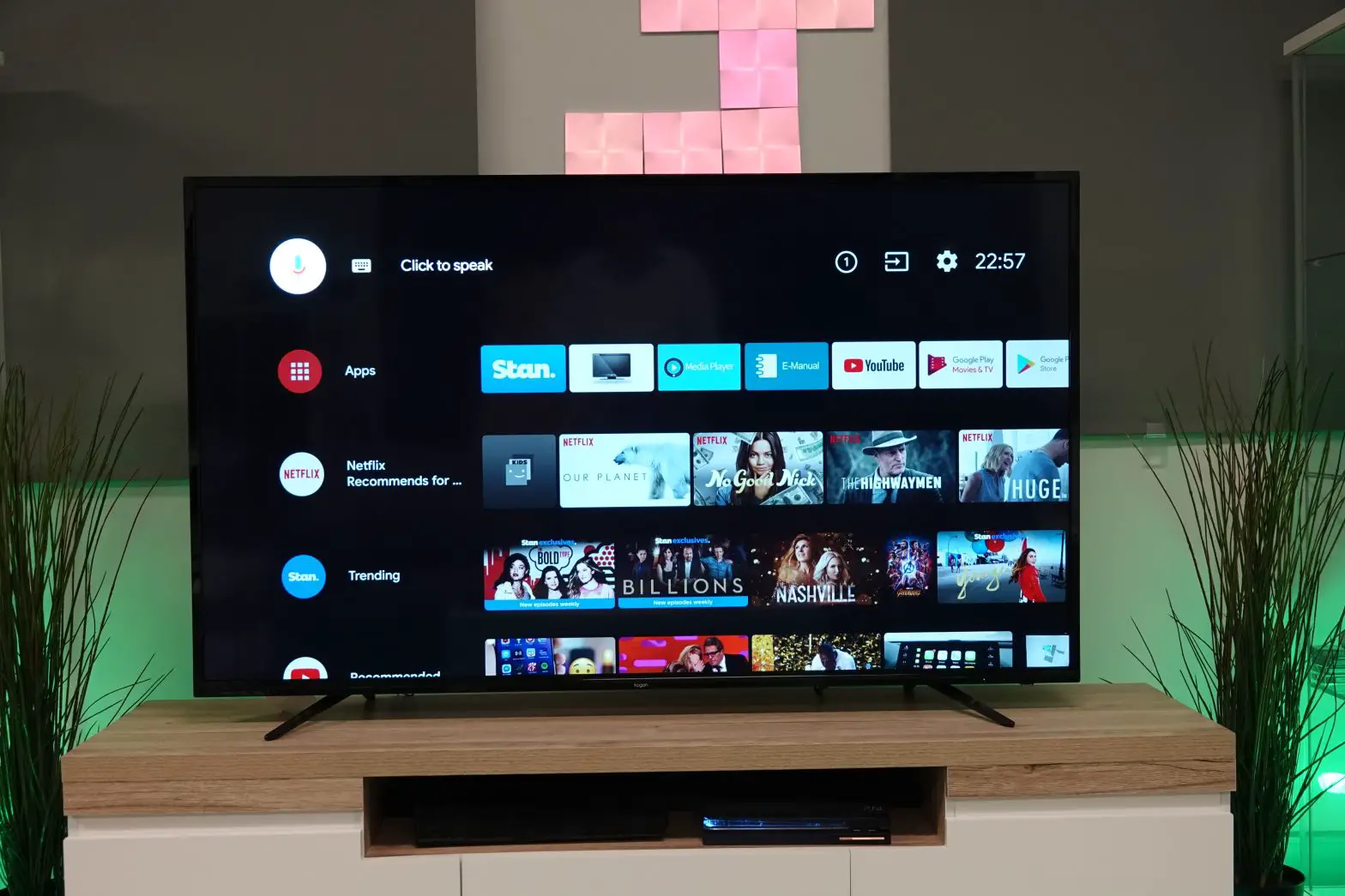
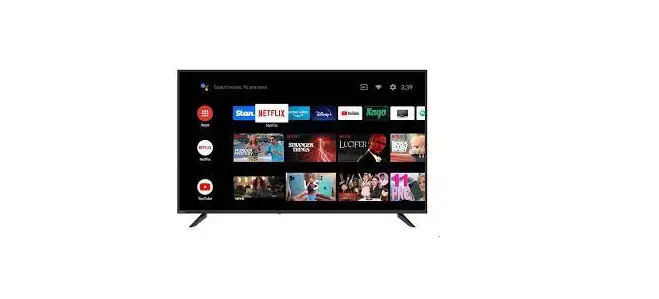
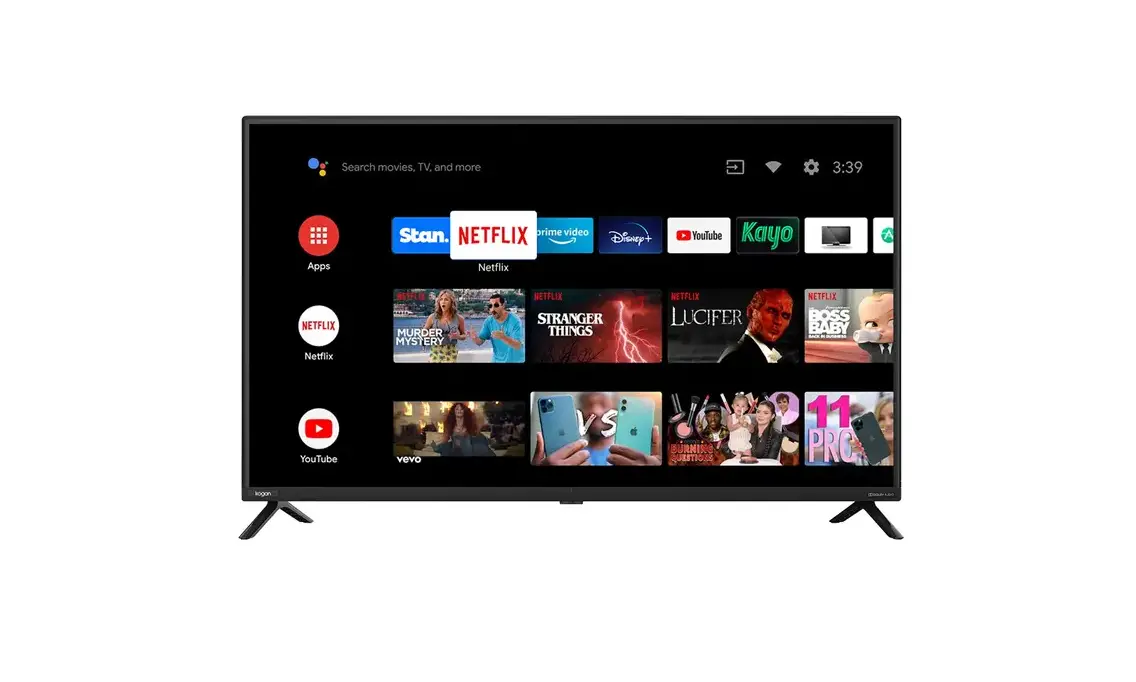
Press the Home ( ) button on the remote to display the main interface.
Use the directional buttons on your remote control to navigate, and press the OK button to launch the selected app. For Netflix and YouTube, you can launch the apps directly using the remote control hotkeys.
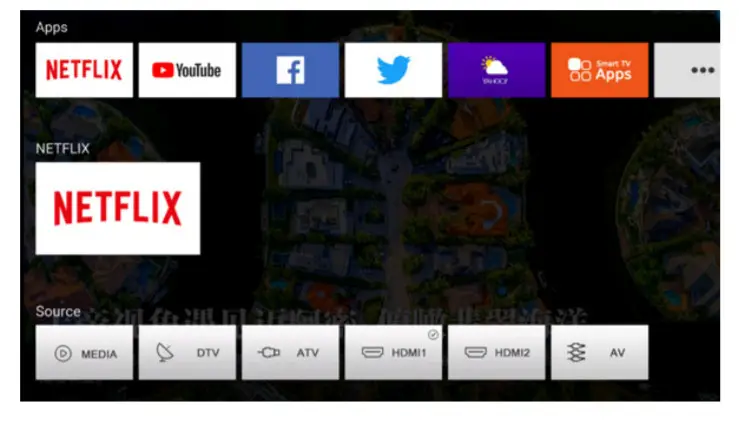
Netflix
Sign in to your Netflix account to browse by genre, search for titles, manage your Instant Queue and review Netflix recommendations all from your TV. If you do not already have a Netflix account, you will need to sign up to use this feature. For more information, visit netflix.com
YouTube
Enjoy the videos and music you love, upload original content, and share it all with friends, family, and the world on YouTube.
Facebook
Connect with friends, family, and other people you know. Share photos and videos, send messages, and get updates.
Twitter
From breaking news and entertainment to sports and politics, get the full story with all the live commentary.
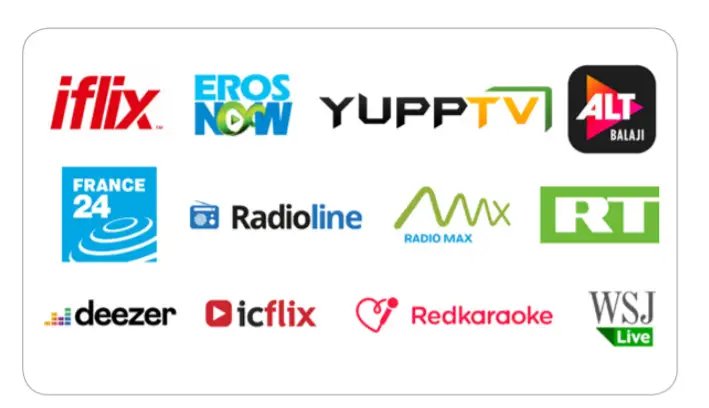
Some of the many streaming applications on the Smart
TV Apps portal
Smart TV Apps
The app portal lets you access a range of streaming applications like Netflix, Eros Now, YuppTV, and many more. A paid subscription may be required for some services.
Yahoo Weather
See the weather like never before – Yahoo Weather’s immersive experience makes checking the weather inspiring and entertaining.
Toon Goggles
The premier on-demand entertainment destination for children, offering a vast and diverse amount of programs.
Screencast
Mirror your Android phone or tablet with the TV to display your personal pictures and videos.
Browser
Take advantage of the TV’s inbuilt browser to search the internet at your leisure.
BASIC TROUBLESHOOTING
Poor picture and sound quality
- Try a different channel
- Adjust the antenna
- Check all connections
No picture or sound in TV status
- Try another channel
- Press the TV/AV button
- Make sure TV is plugged in
- Check the antenna connection
No sound or sound is too low at maximum volume
- Check the volume settings on any external speakers connected to your television
- Adjust the TV volume accordingly
- Check another channel or input
- Check that MUTE hasn’t been turned on
No color, wrong color, or tints
- Make sure the program itself is broadcast in color
- Select the picture menu, then adjust the color and tint submenus
Picture rolls vertically
- Check all connections
Blurred or snowy picture, distorted sound
- Check the direction, location, and connections to your antenna
- Issues may be caused by the use of an indoor antenna (poor signal)
Remote control malfunctions
- Replace remote control batteries
- Check battery terminals
- Remote is out of range, move closer to TV
- Remove any obstructions between the remote and IR sensor of the TV
- Make sure the power cord to your TV is plugged in and turned on
Image is not centered on the screen
- Adjust the horizontal and vertical position
“No Signal” on HDMI source
- Test the device with a different HDMI cable
- Plug the device into another HDMI port
- Try a different device connected to the same cable and port
- Perform a factory reset on your TV
For our full TV troubleshooting guide and extended User Manual for this TV, head online to help.kogan.com
Need more information?
This is a Quick Start Guide, and while we hope that this has given you the assistance needed for a simple set-up, a full user guide outlining all of this product’s instructions and features can be found online at help.kogan.com
 Netflix - Watch TV Shows Online, Watch Movies Online