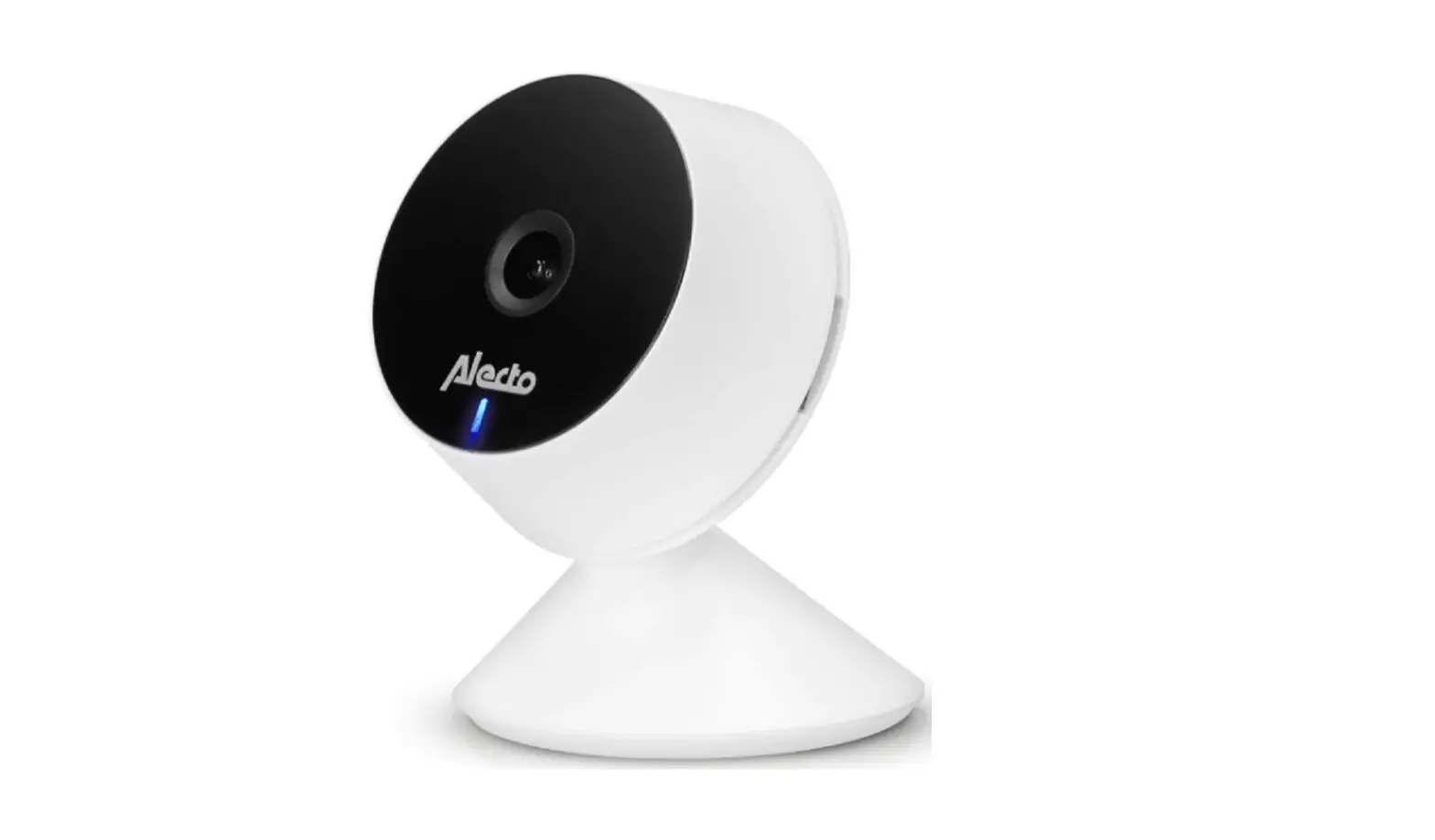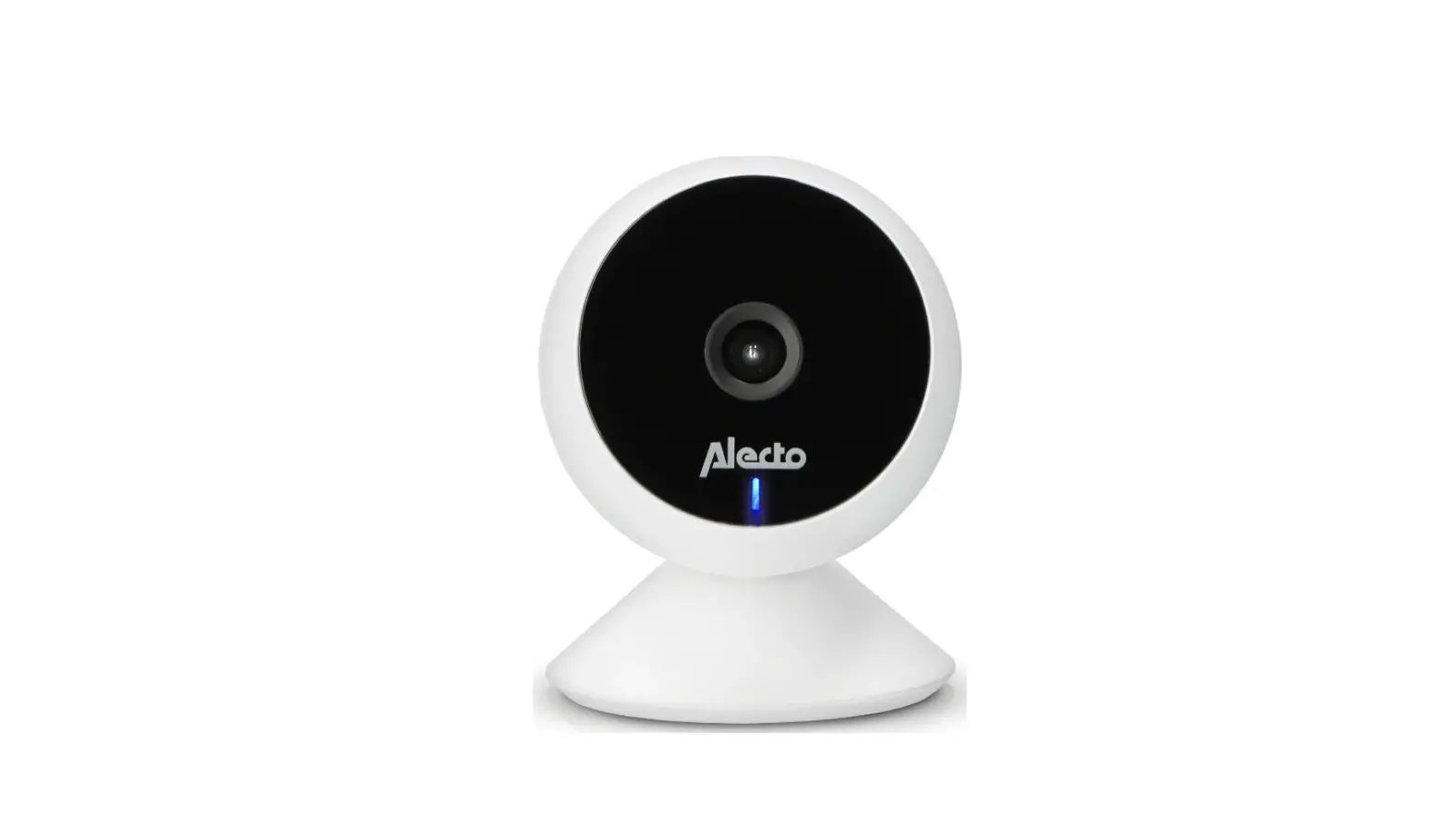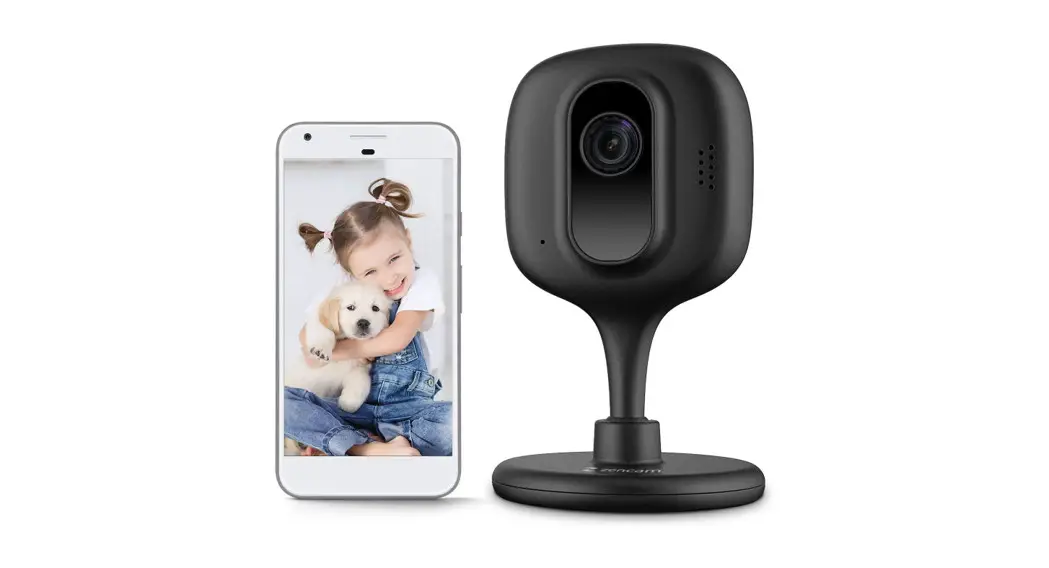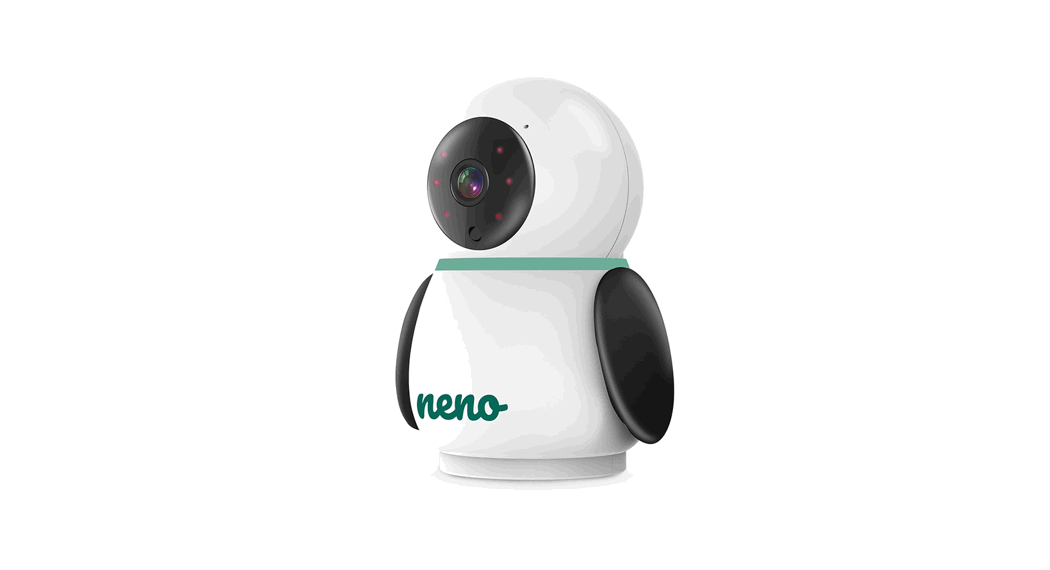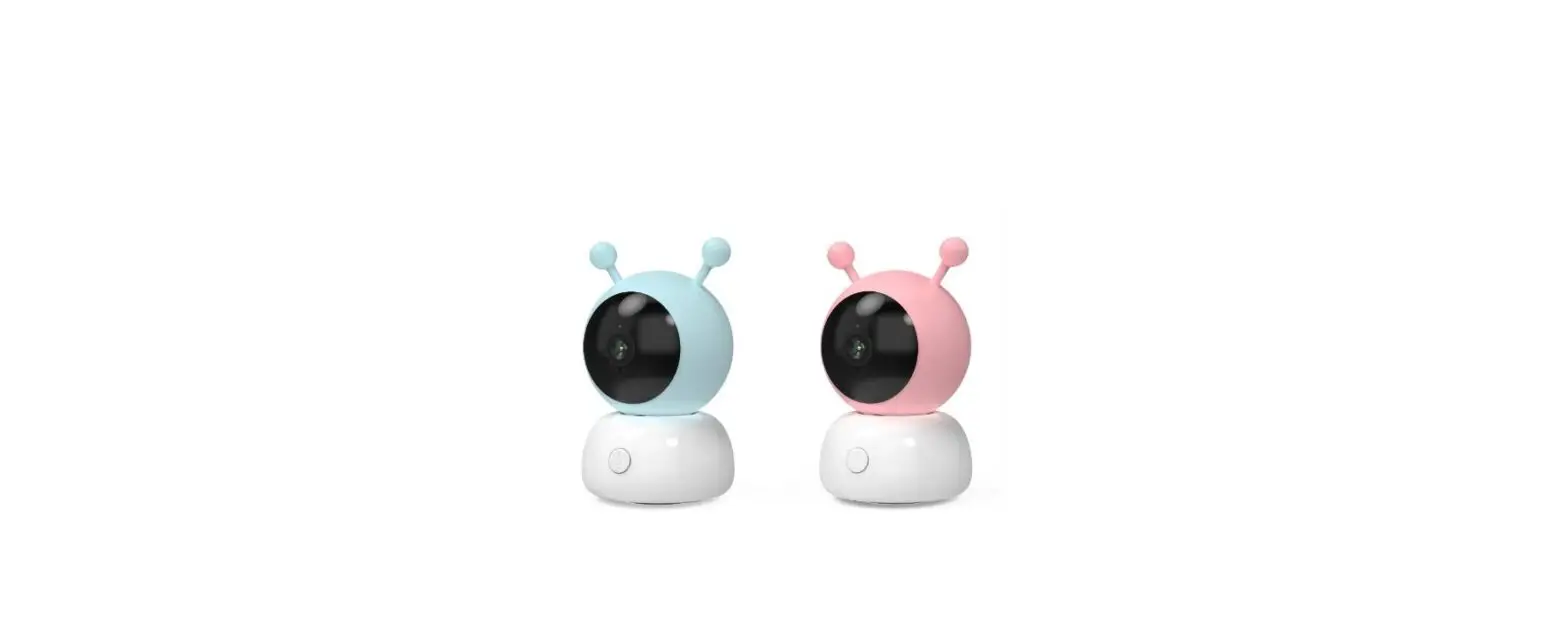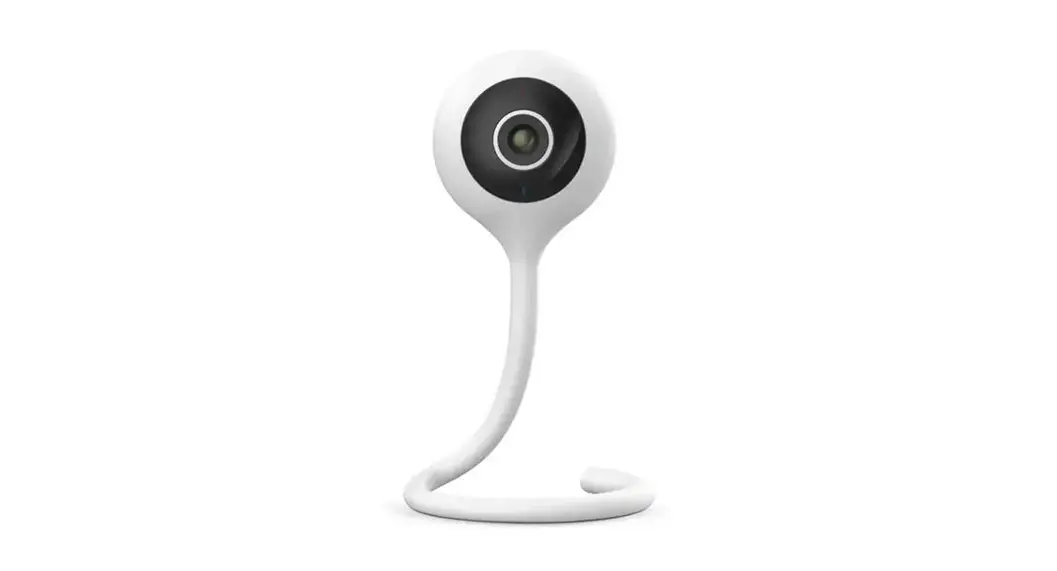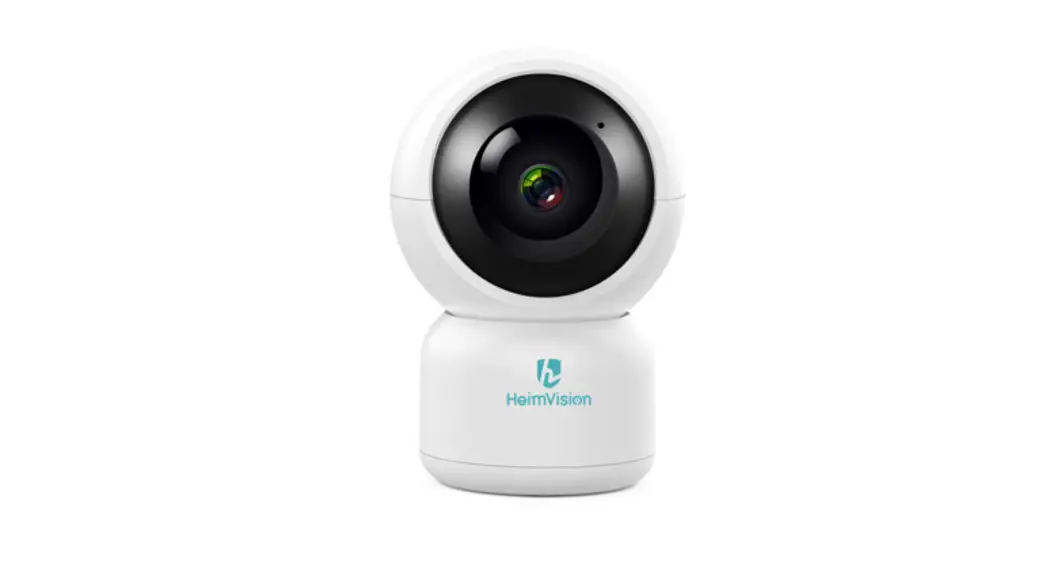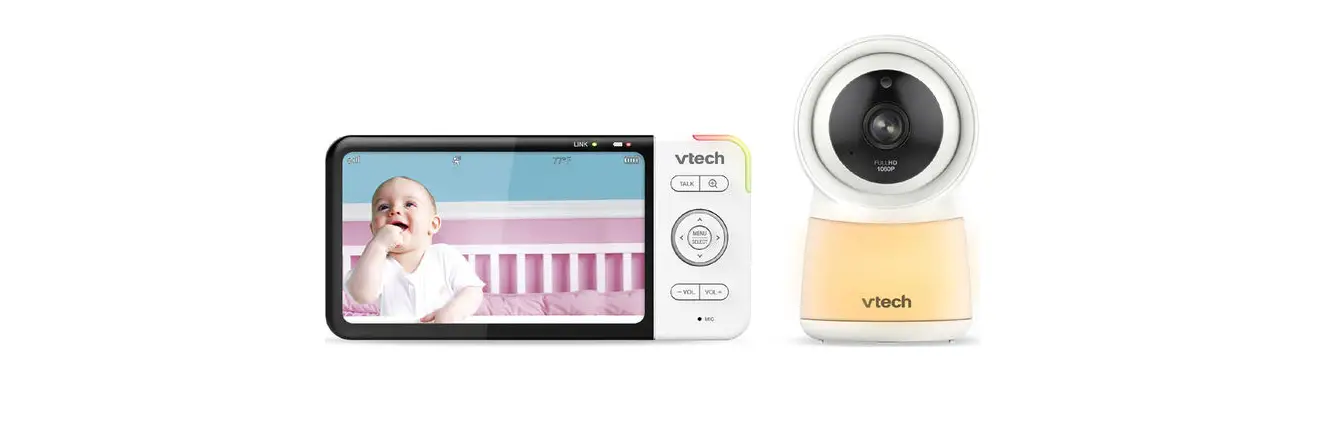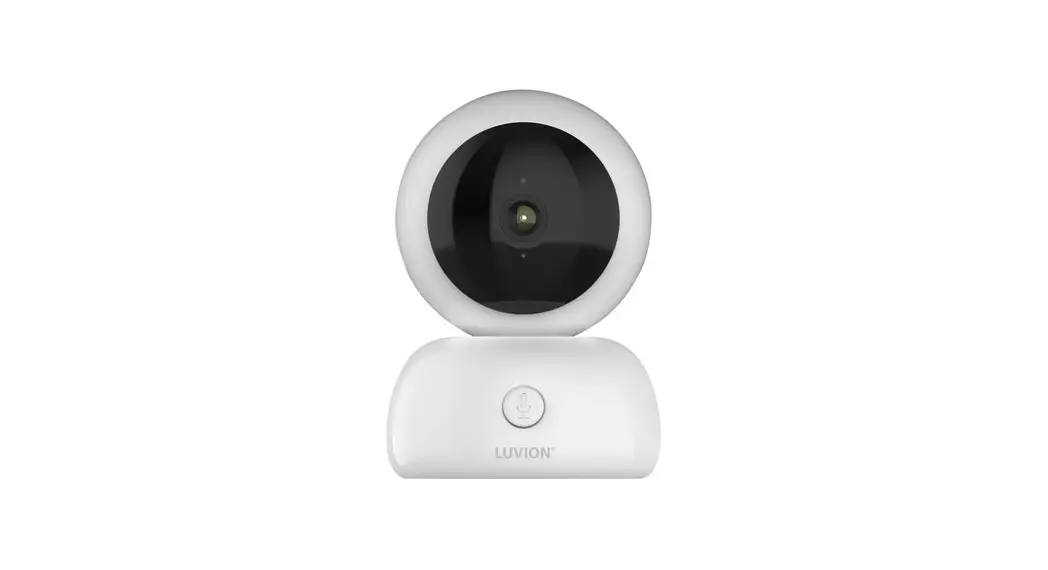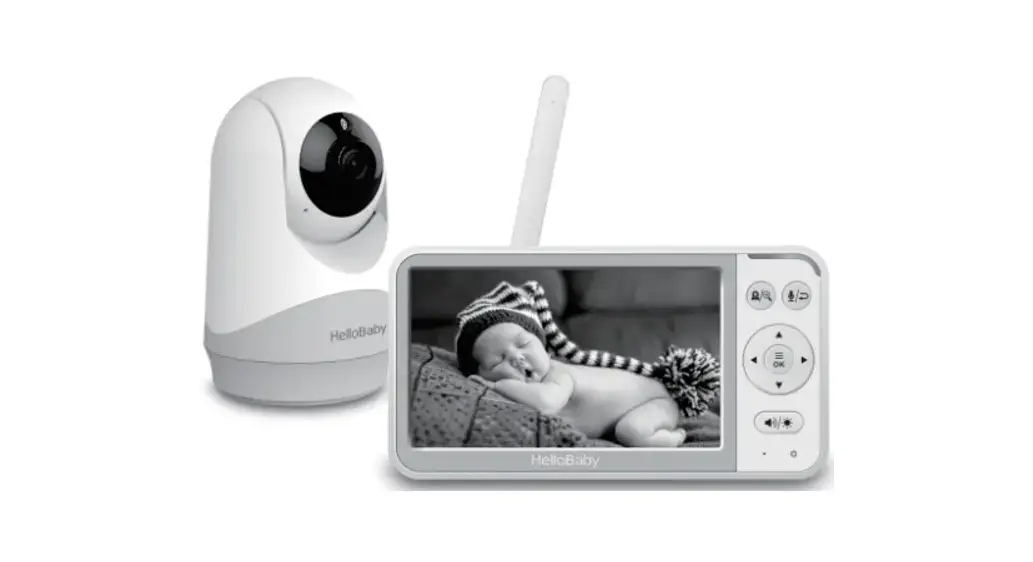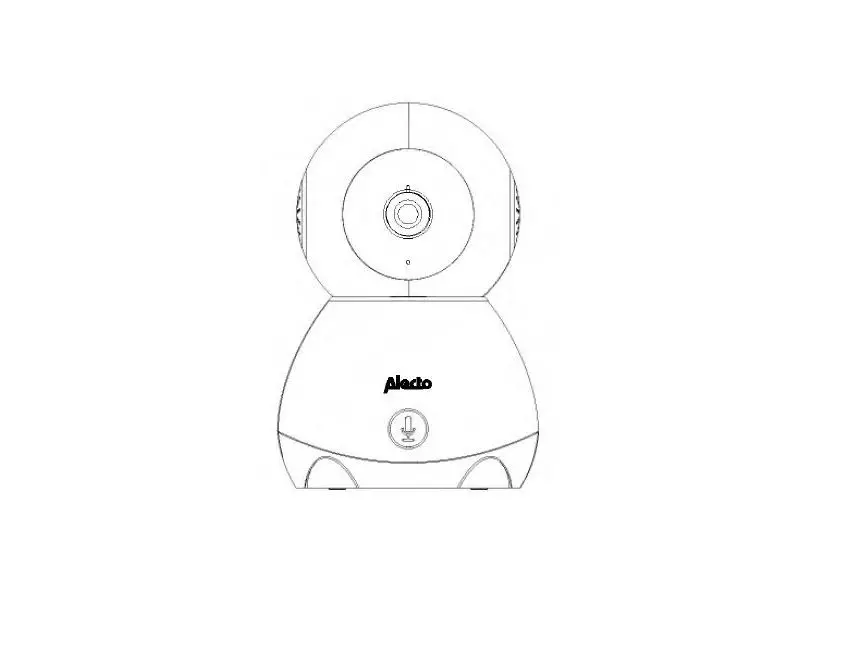
 iQ-SPEED HD Baby Monitor Camera With Wifi
User Manual
Thank you for choosing electriQ
Please read the manual before using this camera and keep it safe for future reference.
Visit our page www.electriQ.co.uk for our entire product range
With your new HD baby camera, you can rest easy knowing that you can see your baby with a few easy clicks. Watch your camera feed from the comfort of anywhere in your home and know that you can always be sure that your baby is safe.
Other features include:
| • FHD 1080P IP Camera | • Android /iOS System Mobile Devices |
| • Support Echo/Google Assistant | • Pan/Tilt |
| • Motion Sensor, Instant Accurate Alerts | • IR Distance Max 10m |
| • Cry Detection | • Music Playing |
| • Movement detection(16M Flash support) | • Temperature & Humidity Sensor |
| • Two-way Audio | • One-touch Call |
| • Micro SD Card (max 128 GB) Storage | |
SAFETY WARNINGS
- Do not undertake repairs yourself. This will void the warranty. If the camera is broken or there is an issue, contact the supplier.
- Only use the original accessories from the manufacturer.
- Disconnect the device from all power sources before cleaning it. Use a clean, dry cloth to clean the product. Never submerge it in water.
- Do not use any abrasive agents, corrosive cleaning products, or any substances that contain bleach or solvents to clean the product.
- Do not position the camera behind glass or any other object, this may impair the vision of the camera and leave you unable to view the camera feed.
Before installation always ensure that the camera’s viewpoint is unobstructed. - DO NOT mount the camera above the baby or anywhere that could lead to the camera falling and injuring the baby. Maintain a safe distance between the camera and the baby at all times.
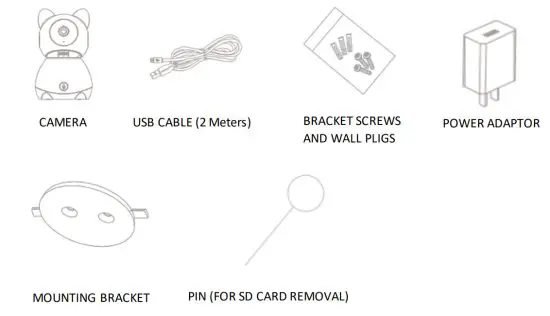
PARTS LIST
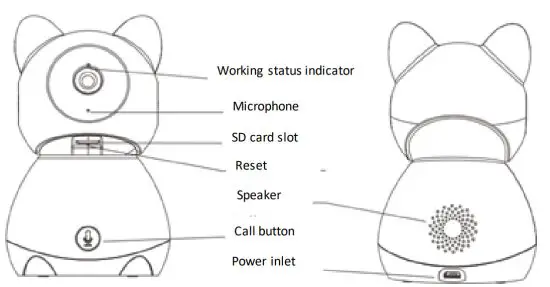
PRODUCT OVERVIEW
INSTALLATION
Your baby monitor can be installed in two ways for increased adaptability. You can install your camera by simply standing the camera on a flat surface, or use the provided tools for wall mounting.
FLAT SURFACE INSTALLATION
Simply unpackage your new baby monitor, attach the provided USB cable to the provided plug, and plug it into the mains. Insert the power cable into the back of the camera and place it on a solid flat surface. 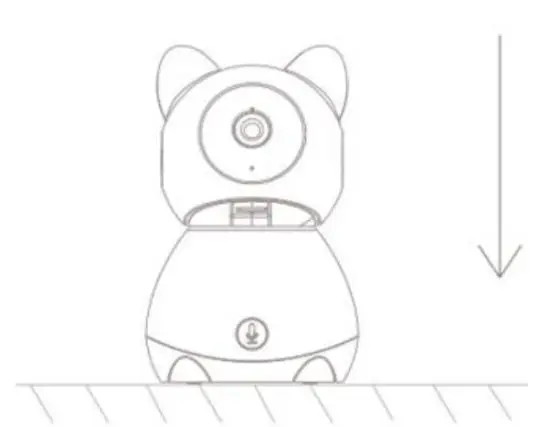
WALL-MOUNTED INSTALLATION
To wall mount your camera, first decide where you would like the camera to be mounted. Please ensure that the location for mounting is not too far from a plug socket, as the power cable may not reach the final installation point. DO NOT mount the camera above the baby or anywhere that could lead to the camera falling and injuring the baby. Maintain a safe distance between the camera and the baby at all times.
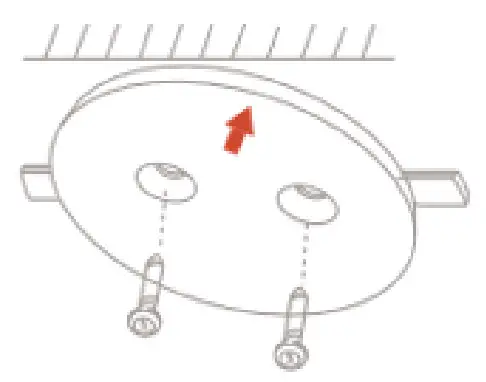 When you have decided where you want to mount your camera, make a note of the distance between the two holes on the wall mounting plate. Mark two holes on the wall of the same distance and drill both holes.
Once both holes are drilled insert the wall plugs provided and screw the mounting plate onto the wall using the screws provided as shown to the right. Ensure that the mounting plate is secure before installing the camera.
CAMERA FUNCTIONS
| WORKING STATUS INDICATOR | Red light: The camera network is abnormal. Flashing red light: Awaiting Wi-Fi connection Blue light: Camera running correctly Flashing blue light: Currently connecting |
| MICROPHONE | Captures sound for your video |
| SD CARD | Supports local SD Card storage (Max.128G) |
| RESET | Press and hold for 5 seconds with a provided pin to reset the camera (if you have modified settings, they will return to factory defaults). |
| CALL | Press the call button to receive an incoming call. You will be able to speak with the caller. |
SETTING UP YOUR CAMERA FOR CONNECTION
Ensure that your camera is set up and plugged into the power source.
When the camera is on, you can begin the wifi connection set up as detailed on pages 7 – 13.
INSTALLING THE APP
The app can be downloaded to your phone either by using the QR codes below, or by searching for “Tuya Smart App” in your chosen app store
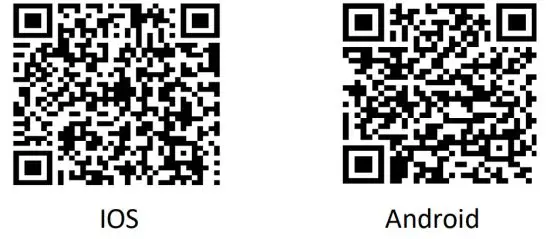 https://itunes.apple.com/gb/app/tuyasmart-smart-life-smart-living/id1034649547?mt=8
https://play.google.com/store/apps/details?id=com.tuya.smart&hl=en
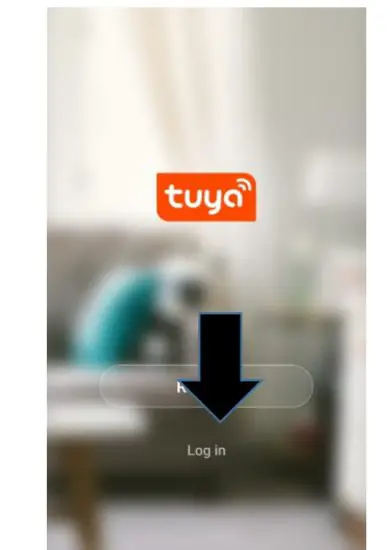
- Once installed the app needs to be registered, following the next steps: Press the register button at the bottom of the screen.

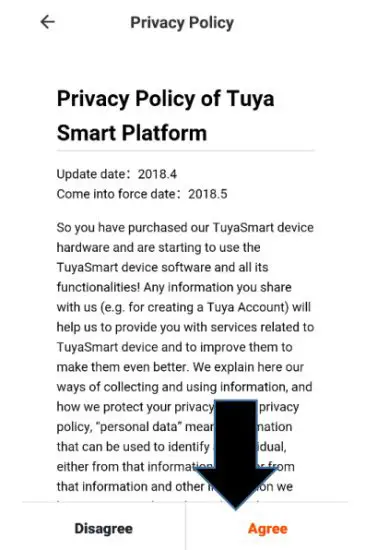
- Read the Privacy policy and press the Agree button.

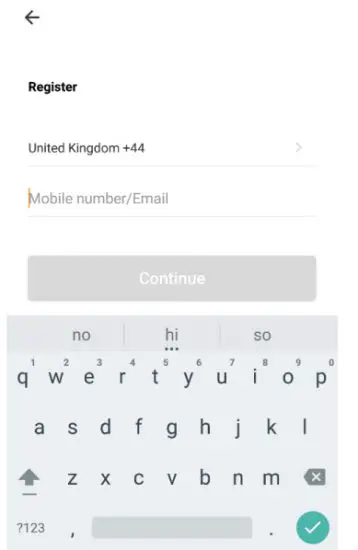
- Enter your email address or phone number and press continue to register.

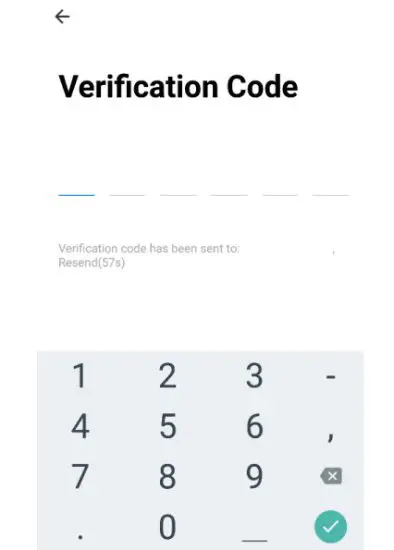
- A verification code will be sent by the method selected in step 3. Enter the code into the app.

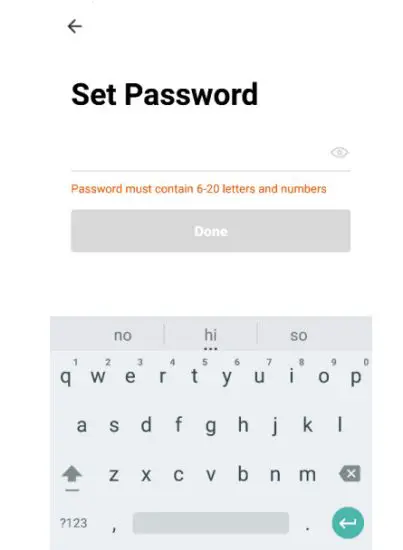
- Type in the password you would like to create. This needs to be 6-20 characters, containing letters and numbers.

- The app is now registered. It will automatically log you in the following registration. You are now ready to add your camera to your app.


SETTING UP YOUR HOME WITHIN THE APP
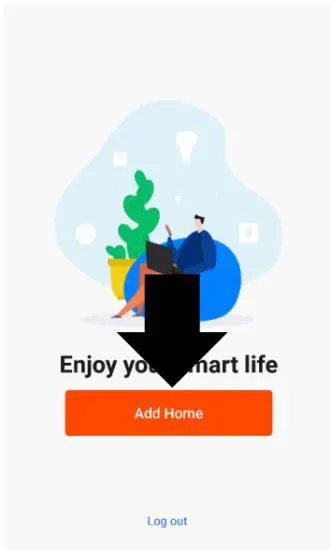
TUYA is designed so it can work with a large number of compatible smart devices within your home. It can also be set up to work with multiple devices within different houses. As such during the setup process, the app requires that different areas are created and named to allow easy management of all your devices. When devices are then added, they are assigned to one of the rooms you have created.
- Press the ADD HOMEbutton.

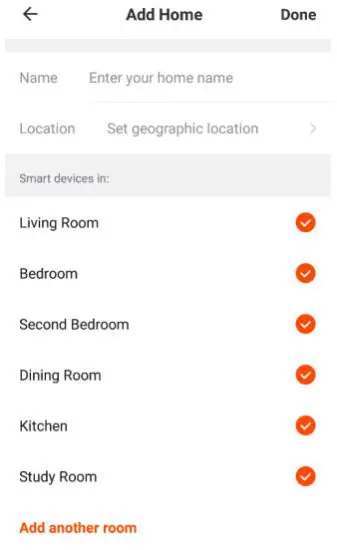
- Type in a name for your home.
- Press on the Location button to select the location of your home.

- New rooms can be added by pressing the ADD ANOTHER ROOM option at the bottom.
- Untick any rooms that are not required on the app.
- Press DONE in the top right corner.
SETTING YOUR LOCATION
Use your finger to move the orange HOME symbol.
When the symbol is in the approximate location of your home, press the CONFIRM button in the top right corner.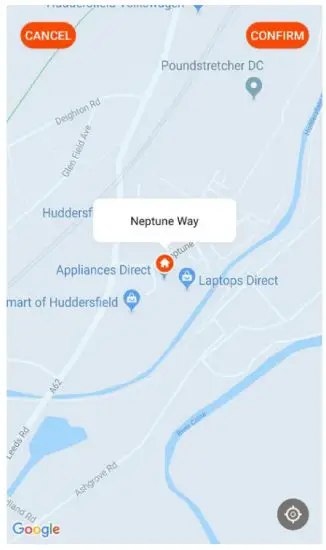
ADD ANOTHER ROOM
Type the name of the room to add, and press Done in the top right corner.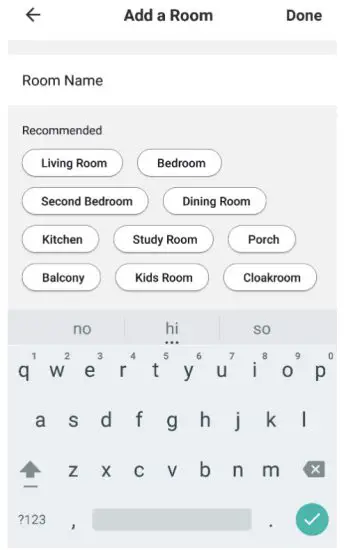
CONNECTING USING QR CODE
Before initiating the connection, make sure your phone is connected to the WiFi network you wish to connect the camera.
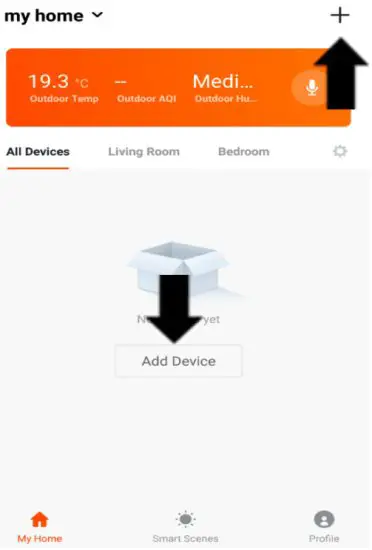
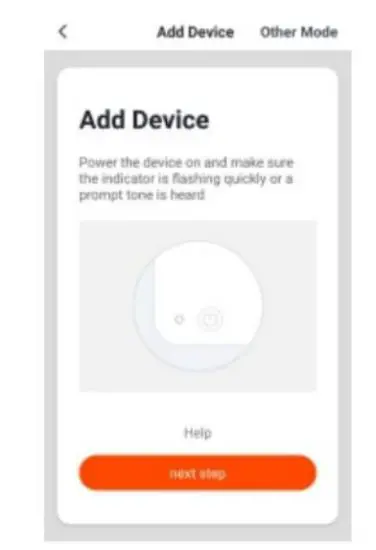
- Open the app and press “+” to add a device, or use the add device button.

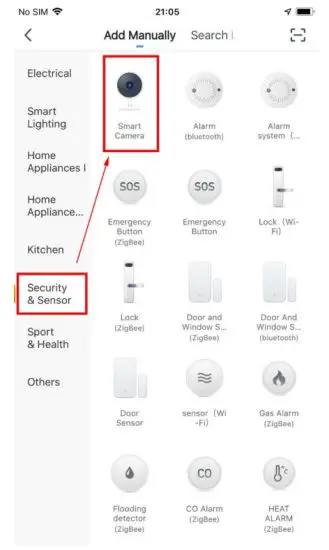
- Select the type of device as “Smart video Camera”

- Press the orange button at the bottom of the screen to confirm.

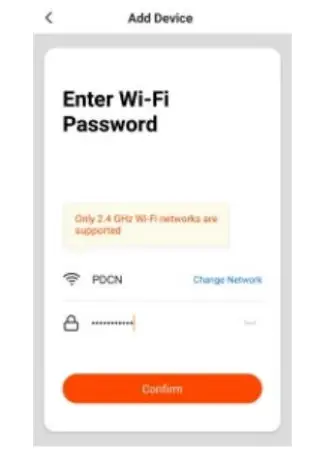
- Enter the password for your WIFI network (Please note this is case sensitive)

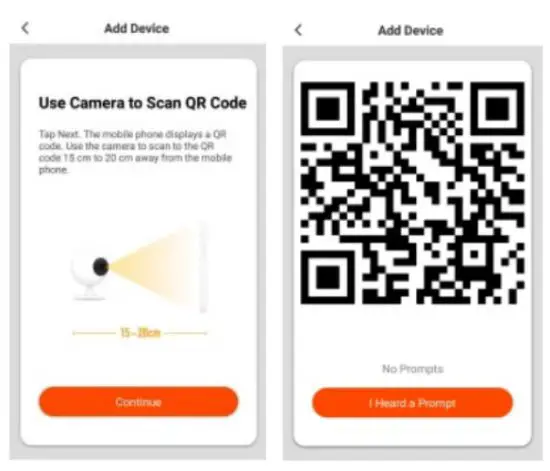
- Choose “Continue” and use the camera to scan the QR Code shown on your phone. Hold your phone about 15-20cm from the camera to scan the code and wait for the device to connect. (EXAMPLE)

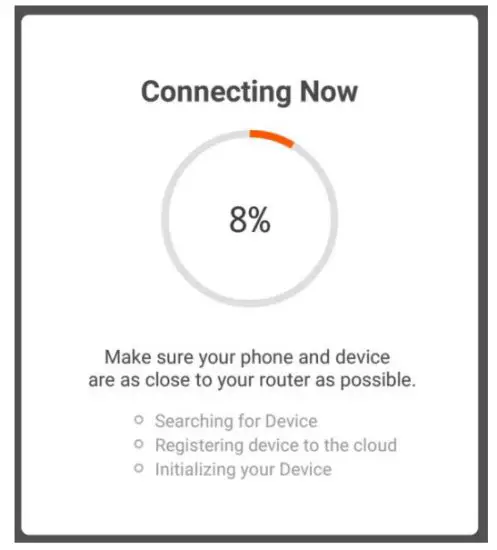
- The camera will then attempt to connect to your network, which can take around 30 seconds.

DEVICE SCREEN – LIVE VIEW
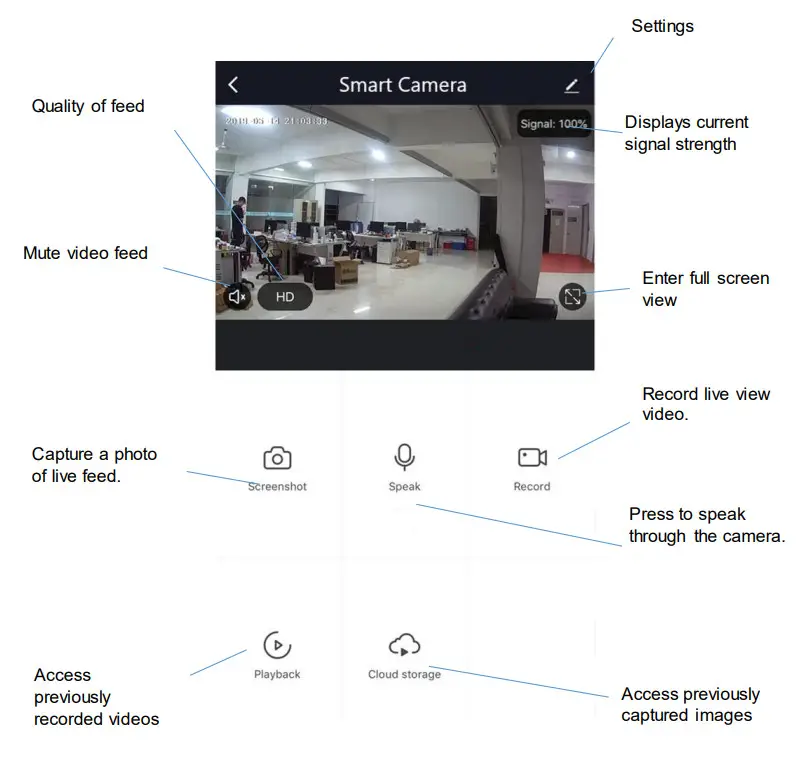
CHANGING THE NAME OF YOUR DEVICE
When on any of the device screens further settings for the device can be accessed, by pressing on the three dots in the top right-hand corner. The top option within this allows you to change the name of the device to something relevant to the use of the product, such as “FRONT DOOR”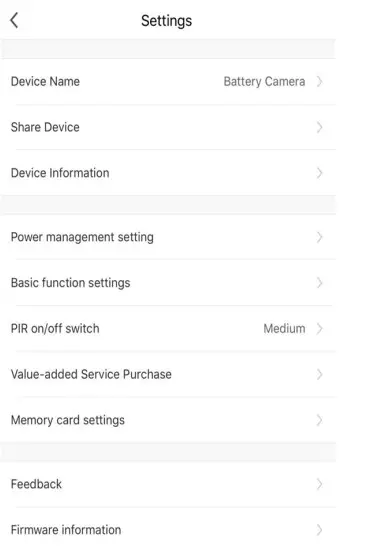 SHARE DEVICES
Create a QR code to share control and access to the camera with a friend or relative.
POWER MANAGEMENT
Shows the remaining battery power, and the power source and allows the user to set a low battery warning alarm. This can be between 50 percent and 10 percent.
The camera can be charged using the supplied USB charging cable.
BASIC FUNCTION SETTINGS
Allows camera features to be changed, such as flipping the image, time watermark, and audio mode.
PIR
Press “PIR” to set the motion sensor sensitivity.
Low/Medium/High/Off
Low: Wake up and record footage if any motion.
Medium: Wake up and record footage if any motion in front of the camera lasts for more than 5 seconds. A
notification will be sent to mobile devices at the same time.
High: Wake up and record footage if any motion in front of the camera last for more than 1 second. A notification will be sent to mobile devices at the same time.
Off: Motion detection will be turned off.
MEMORY CARD SETTINGS
Shows the capacity and free space on the memory card, along with giving the option of formatting the memory card.
FIRMWARE INFORMATION
Use to update the device’s firmware.
TROUBLESHOOTING
CONNECTION
- Ensure the WiFi password has been entered into the app correctly ( Case sensitive)
- Check that the phone is connected to the WiFi you are connecting the device to.
- Ensure the network you are connecting it to is 2.4Ghz (5Ghz WiFi networks are not supported), and that there is a strong WiFi signal to the item.
- Check the settings on the router. Encryption should be WPA2-PSK and the authorization type should be set to AES
- If you are unable to connect through one connection method, try the alternative connection method.
CANNOT DETECT SD CARD
The SD card should be inserted while the camera is disconnected. Please also ensure that the format of the memory card is FAT32.
NOT GETTING NOTIFICATIONS FOR ALARM
Ensure the TUYA app is running on your phone, and that notifications have not been deactivated through your phone’s operating system.
TECHNICAL SPECIFICATION
| Camera | |
| Image sensor | 1080P Colour Sensor 1/2.9”CMOS |
| Shutter | 1/25~1/100,000 per second |
| Adjust angle | Tilt:0°~60°; Pan:0~355° |
| Lens | 3.6mm |
| Angle of view | 105° |
| Day & night | Electronic (IR-CUT filter with auto switch) |
| WDR | Digital WDR |
| Video Audio | |
| Video compression | H.264 |
| Bit rate | 32Kbps~2Mbps |
| Audio Input/output | Built-in microphone and speaker |
| Image | |
| Image resolution | 1080P (1920*1080) |
| Min illuminance | Colour [email protected] Black and White [email protected] |
| Image setting | Support HD/SD; support flip |
| Frame rate | 1~25fps |
| Network | |
| Alarm trigger | Intelligent motion detection/cry detection |
| Wireless Security | WPA/WPA2, WPA-PSK/WPA2-PSK, WPS |
| Communication Protocol | TCP/IP, HTTP, DHCP, DNS |
| Interface protocol | Private |
| Wireless | 2.4G WIFI(IEEE802.11b/g/n) |
| Supported mobile phone OS | iOS 8 or later, Android 4.2 or later |
| Data Security | AES128 |
| General | |
| Operating temperature | −20 °C to 50 °C |
| Power supply | Support DC 5V/1A |
| Storage | SD card (Max.128G), Cloud storage |
| IR distance | Night visibility up to 10m |
electriQ UK SUPPORT
www.electriQ.co.uk/support
Service Line: 03303903061
Office hours: 9AM – 5PM Monday to Friday
www.electriQ.co.uk
Unit J6, Lowfields Business Park
Lowfields Way, Elland
West Yorkshire, HX5 9DA
 Disposal: Do not dispose of this product as unsorted municipal waste. Collection of such waste must be handled separately as special treatment is necessary.
Recycling facilities are now available for all customers at which you can deposit your old electrical products. Customers will be able to take any old electrical equipment to participate in civic amenity sites run by their local councils. Please remember that this equipment will be further handled during the recycling process, so please be considerate when depositing your equipment. Please contact the local council for details of your local household waste recycling centers.
 Buy electriQ Appliances Online | TVs | Ovens | Dehumidifiers | Security