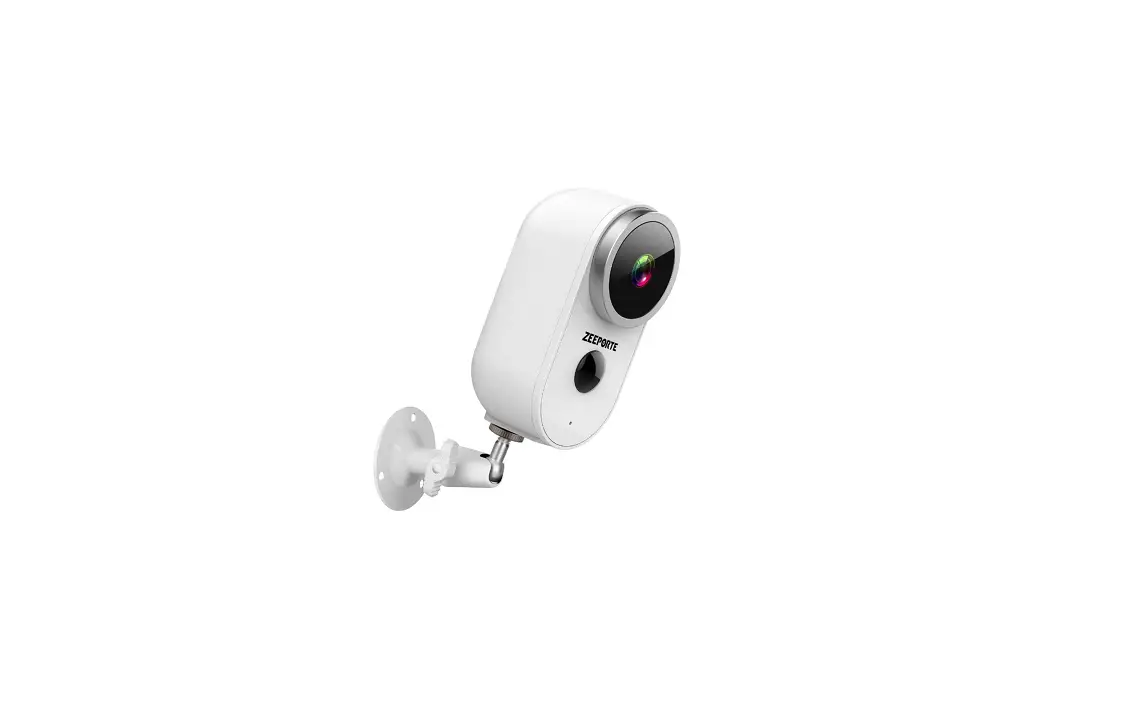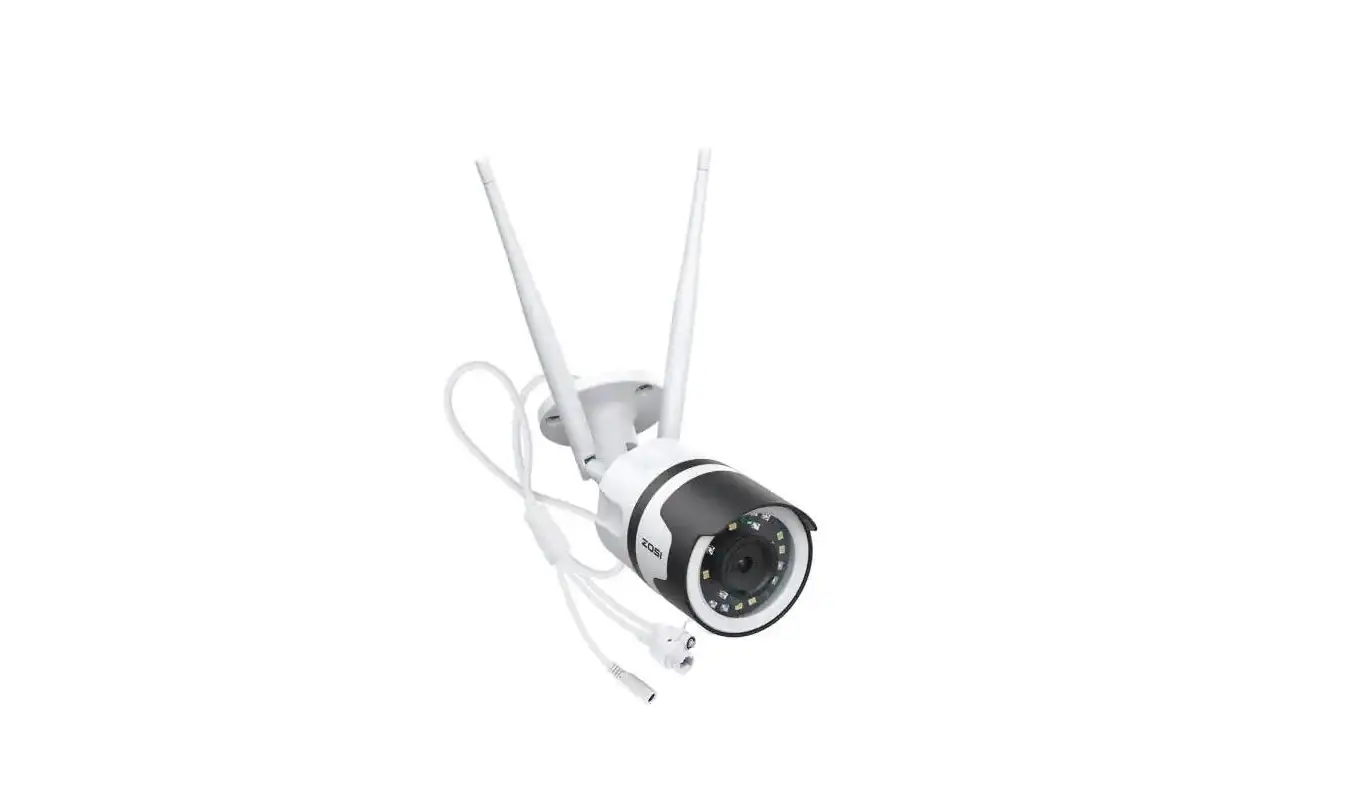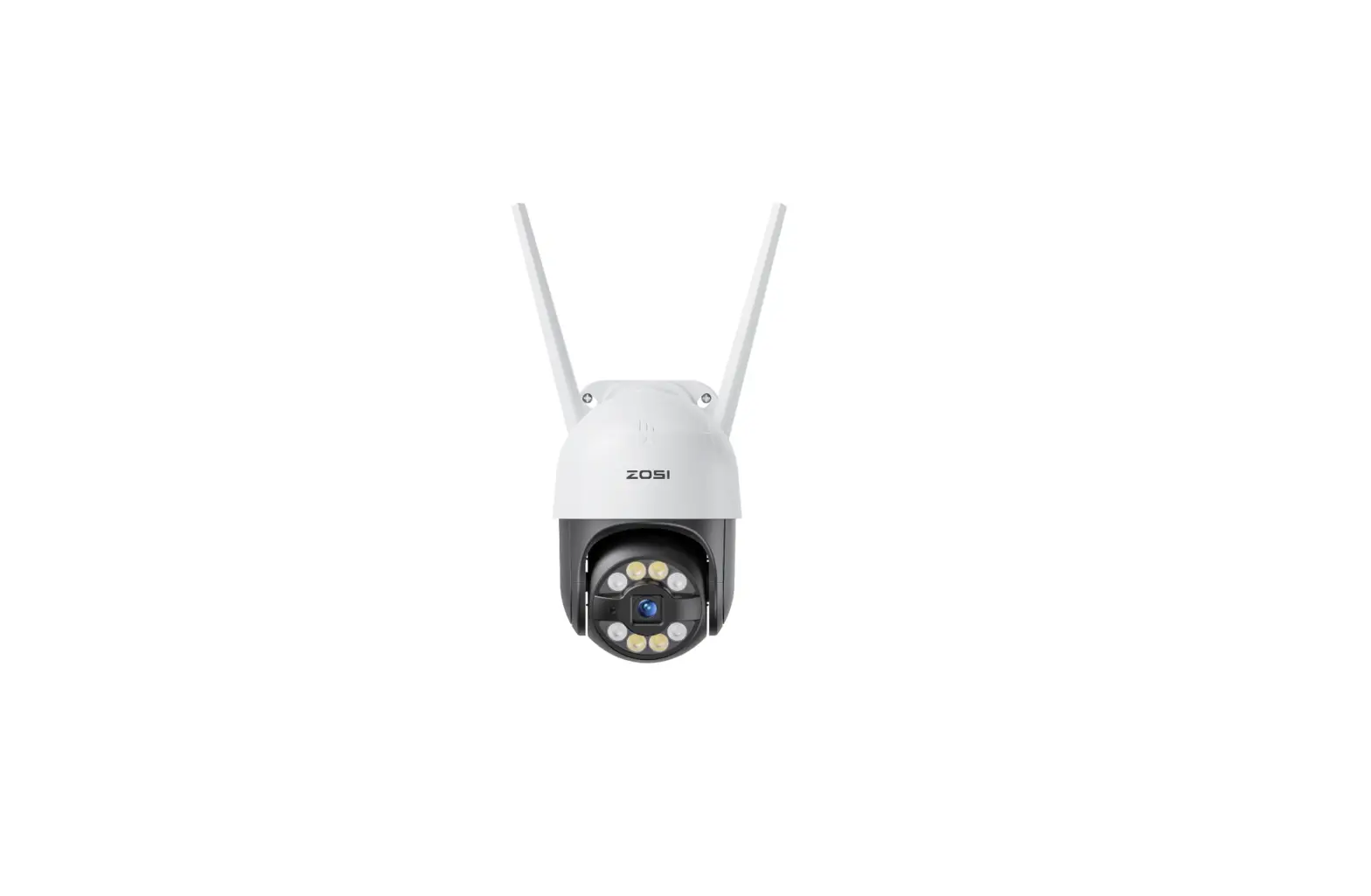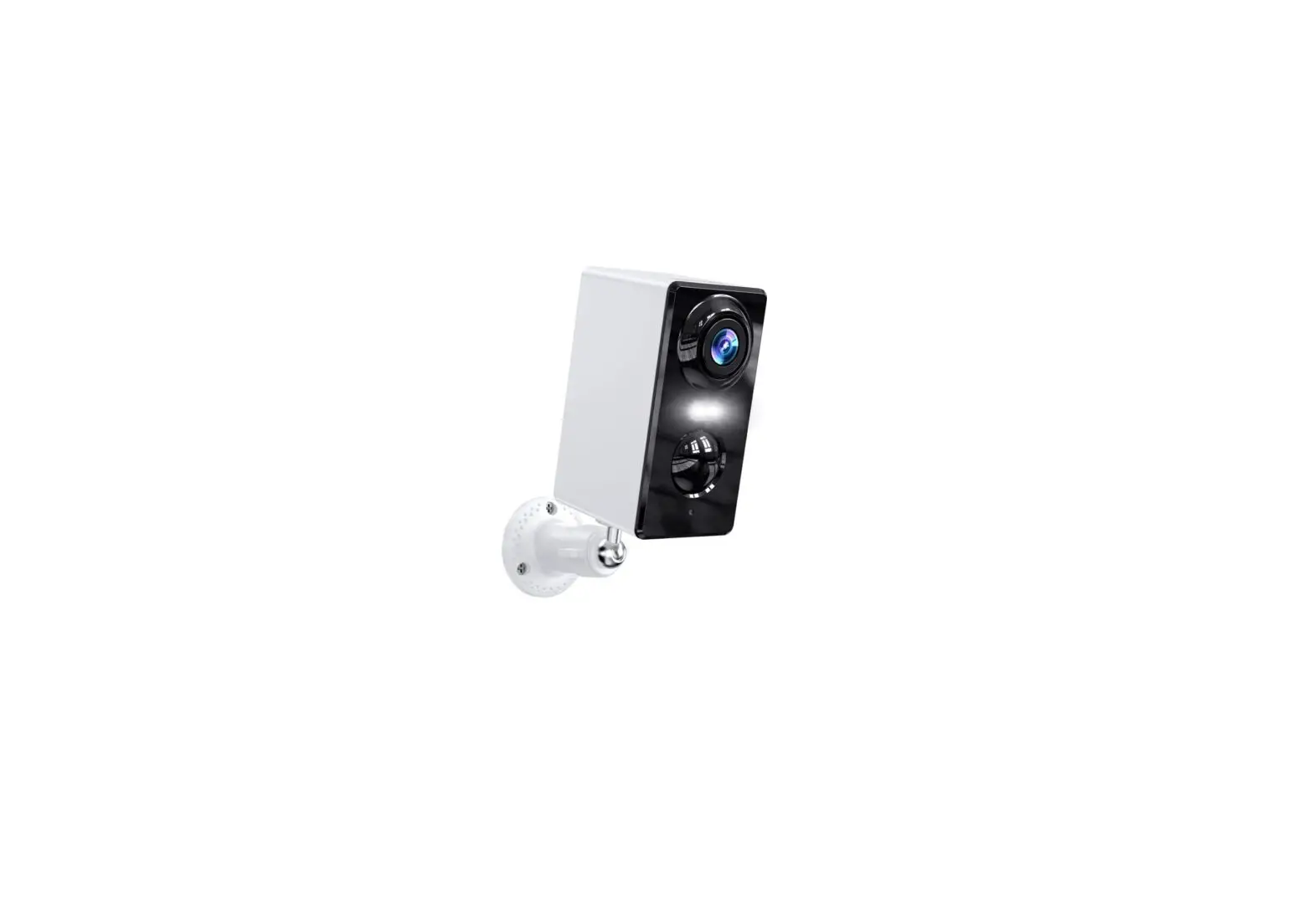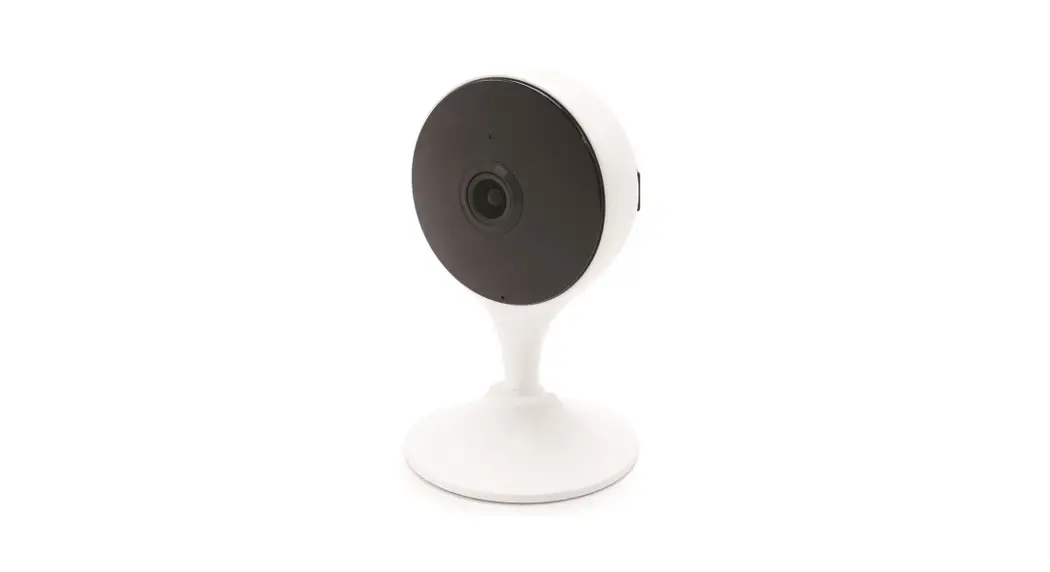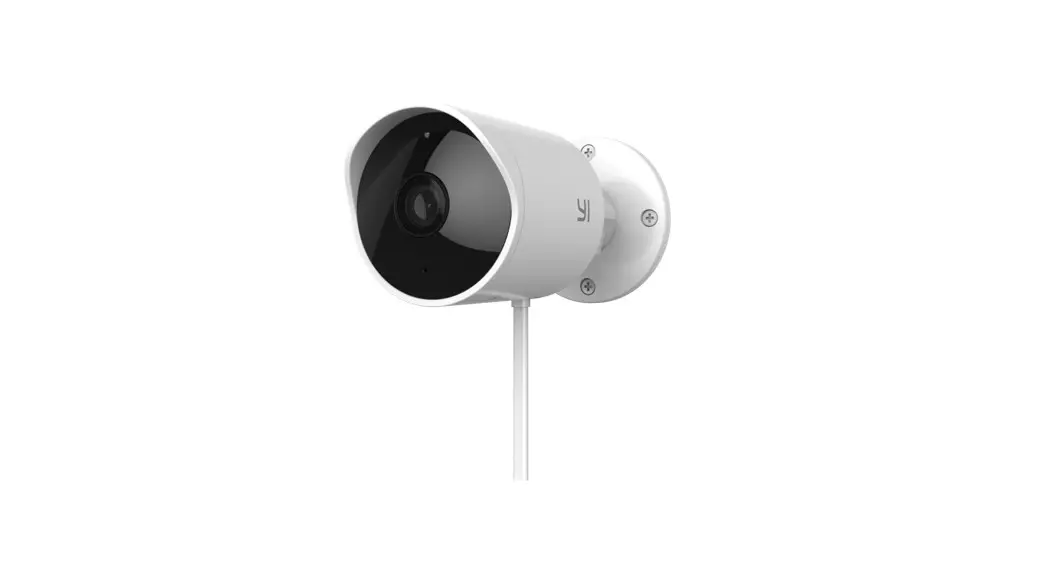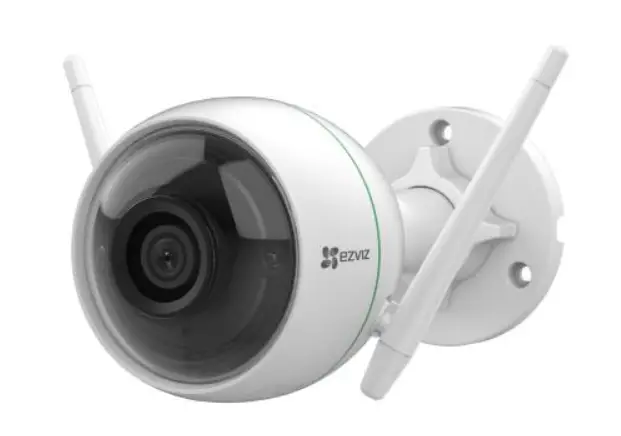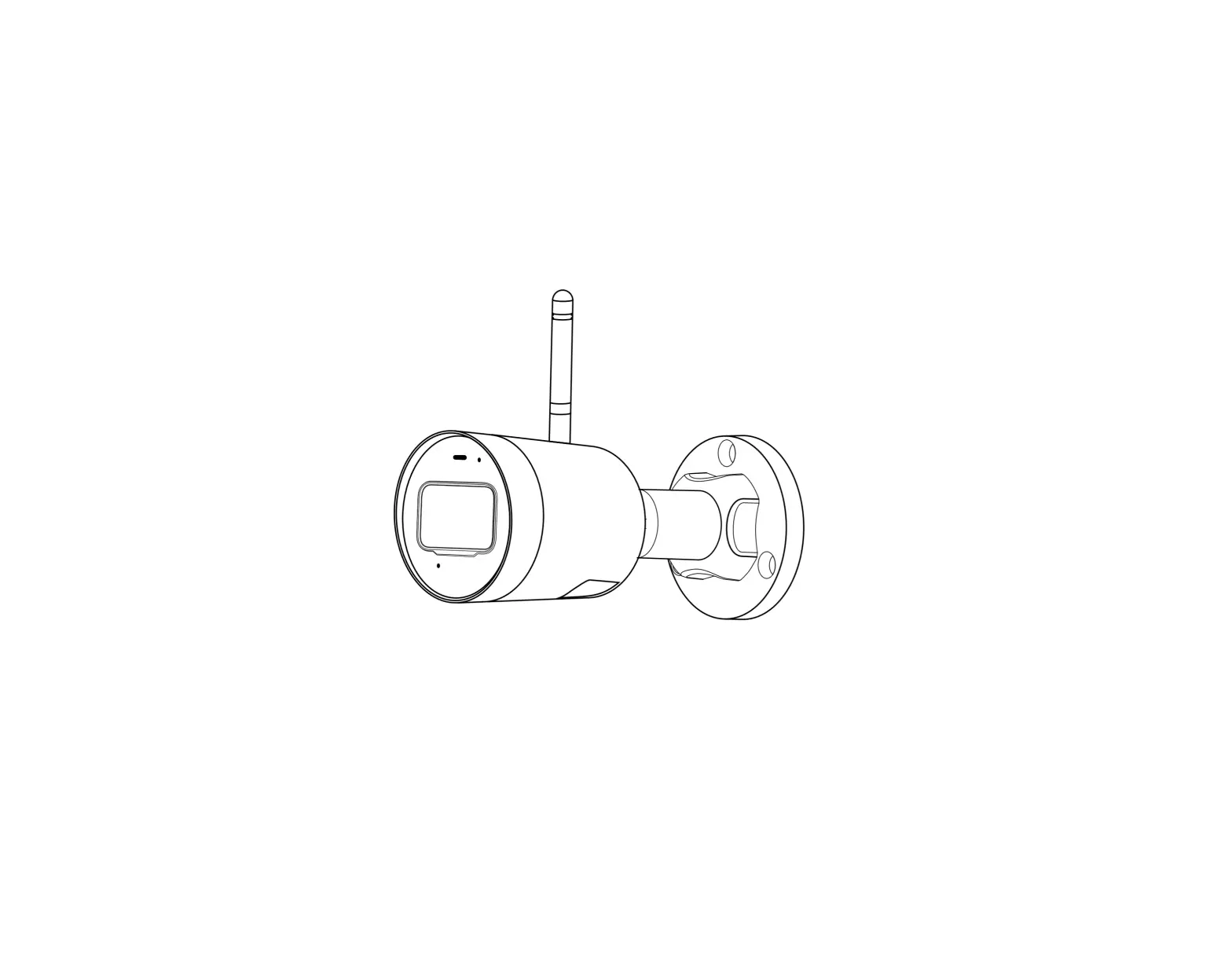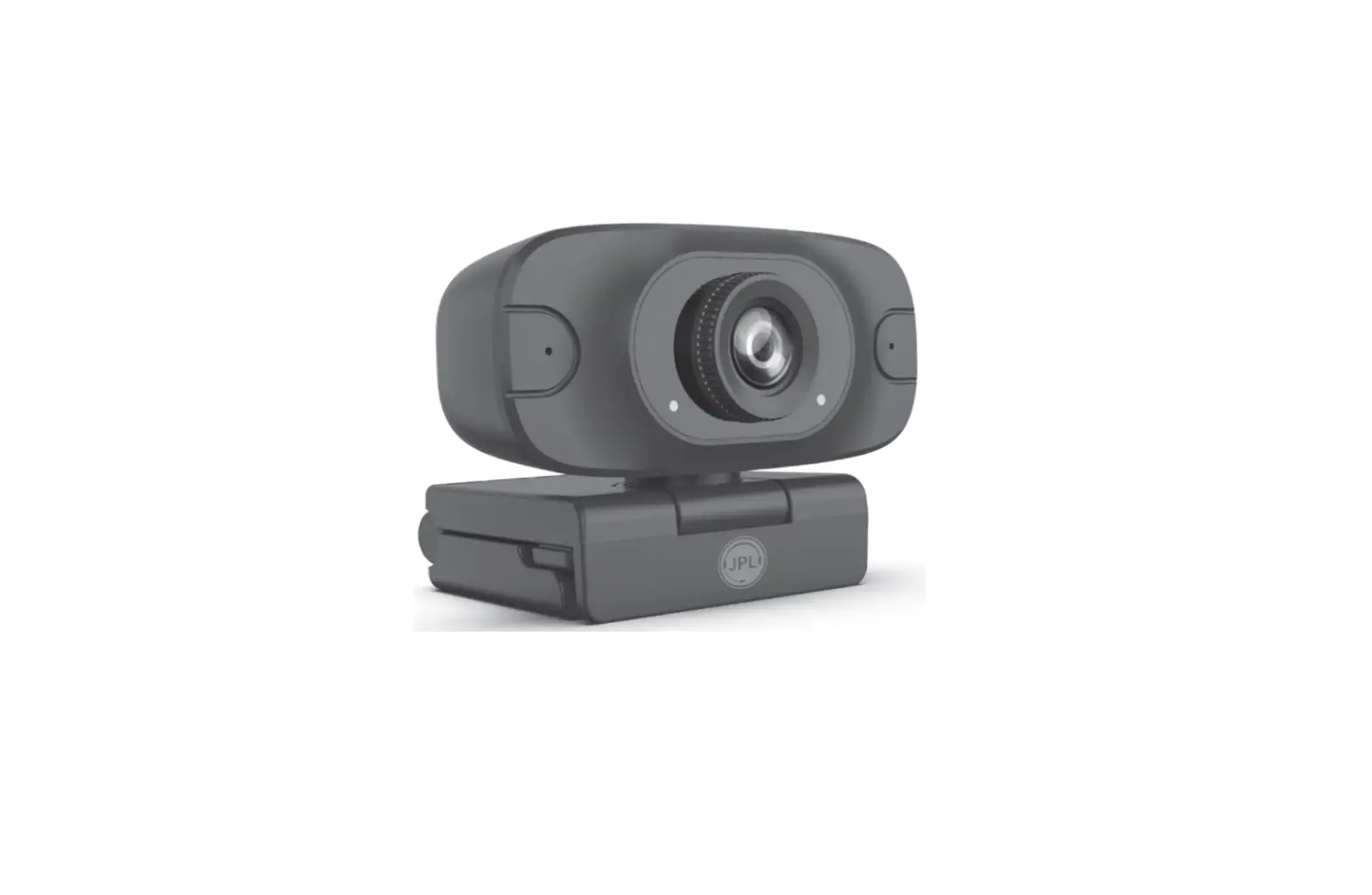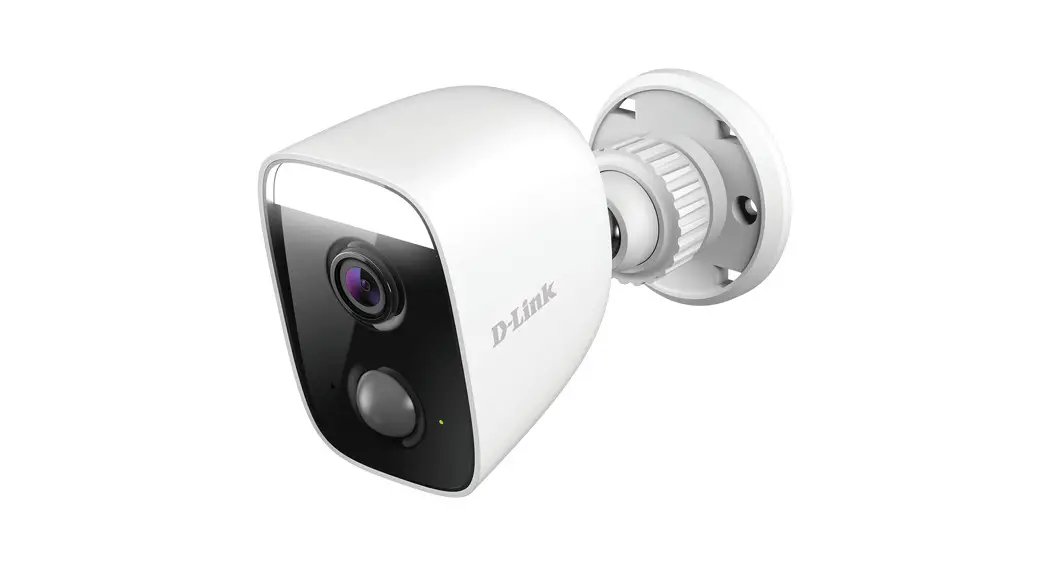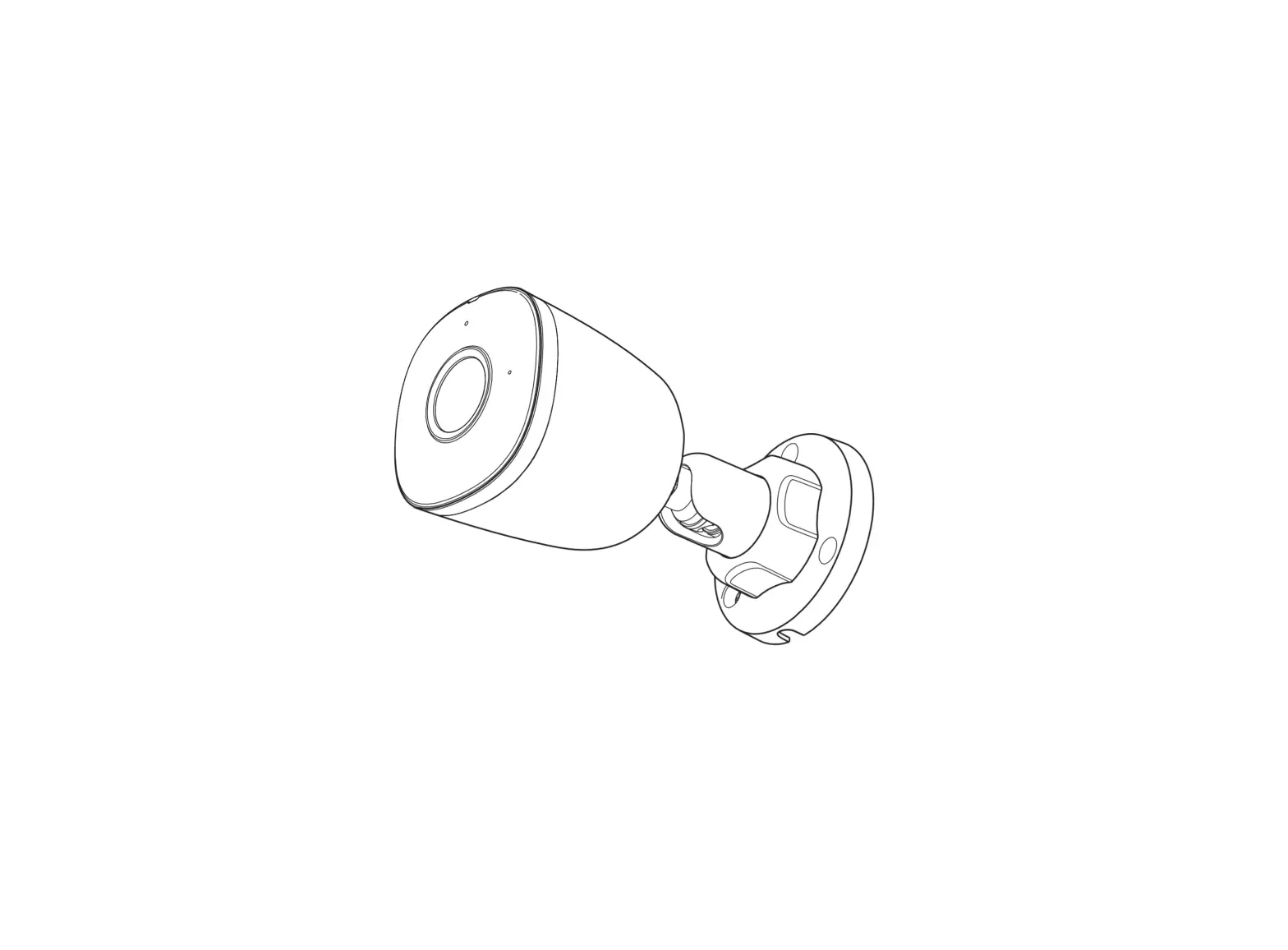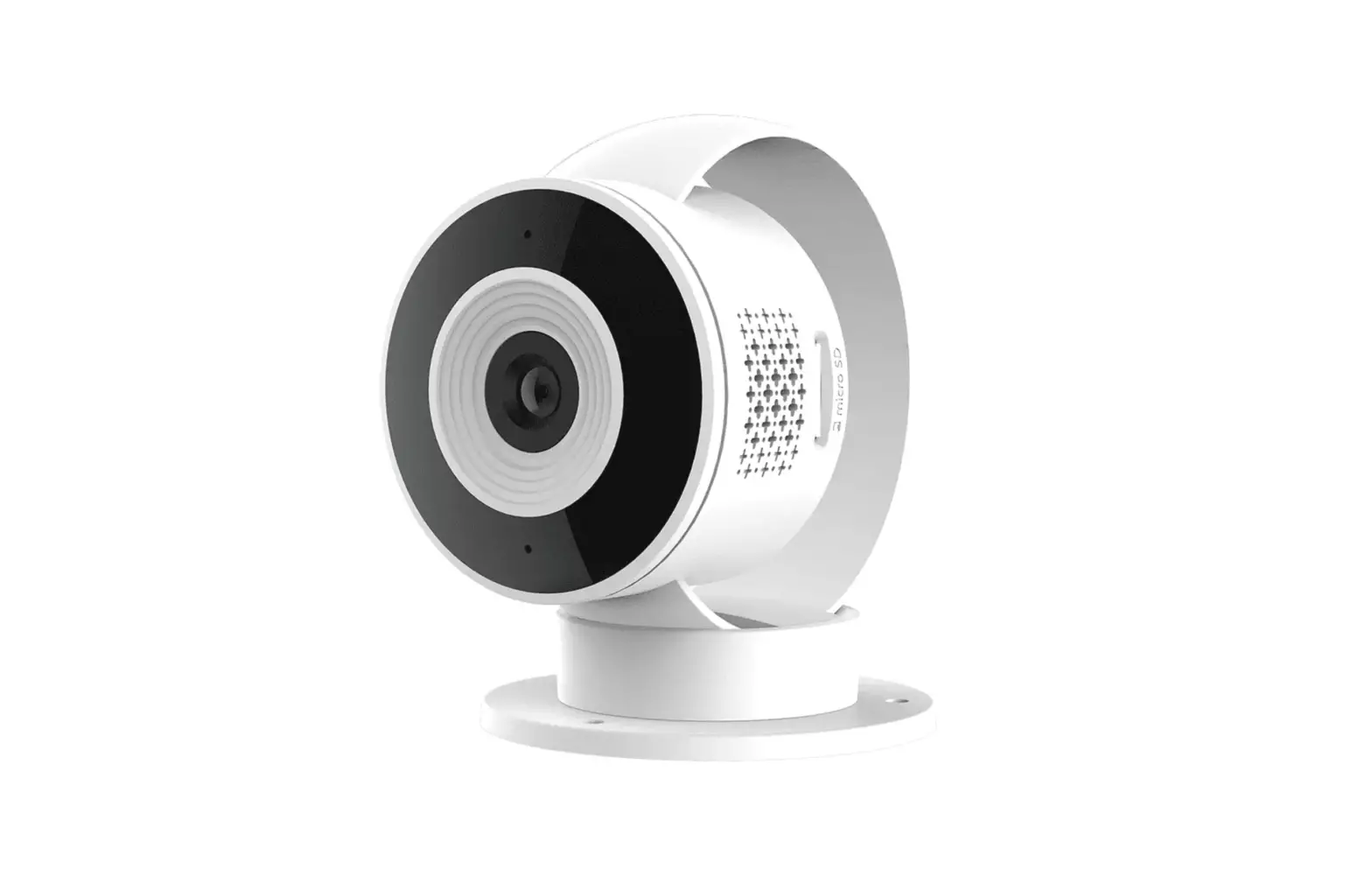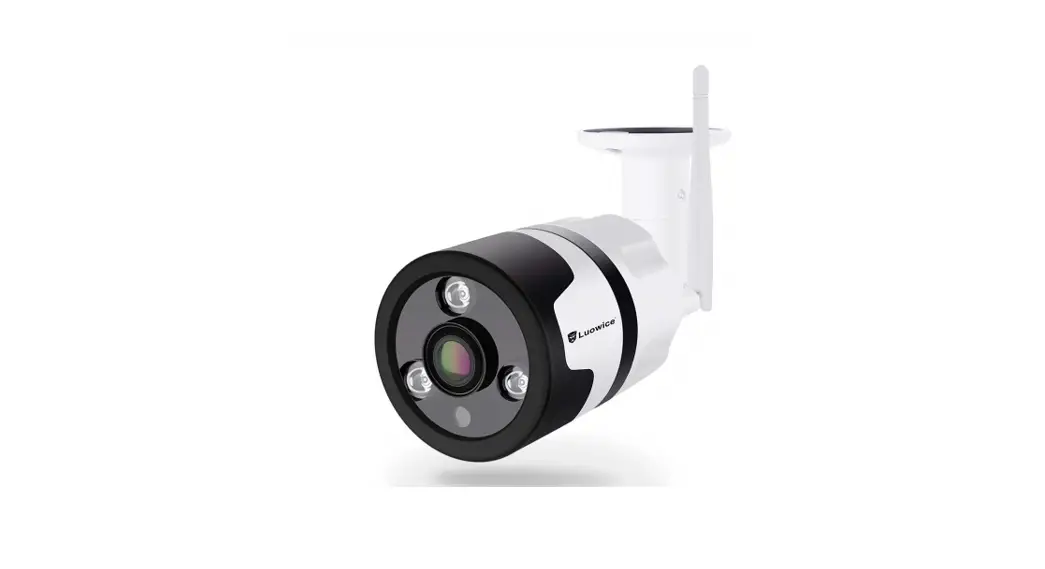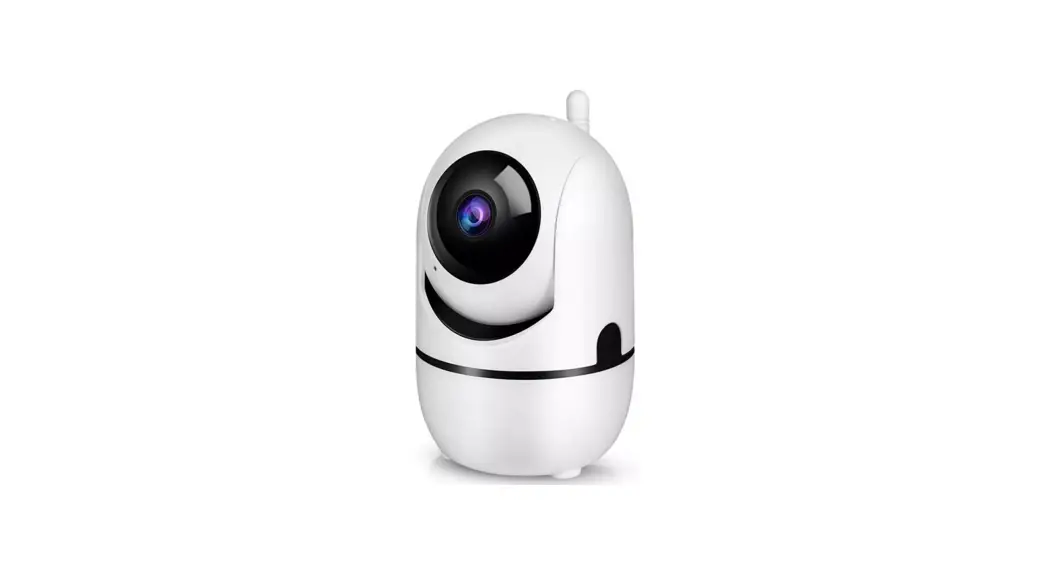

Y4C-ZA 2MP HD 1080p IP Wireless 3D Tracking Mini Camera
User Guide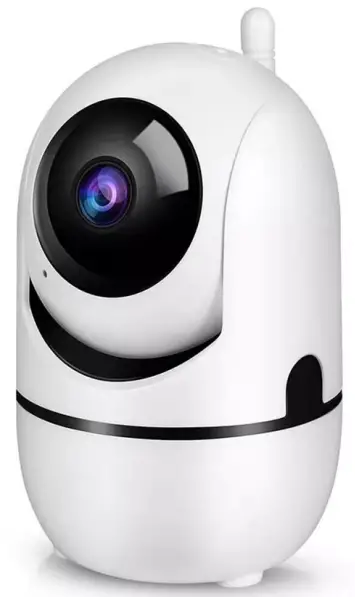
HD 1080P
Quick Guide
Wireless camera
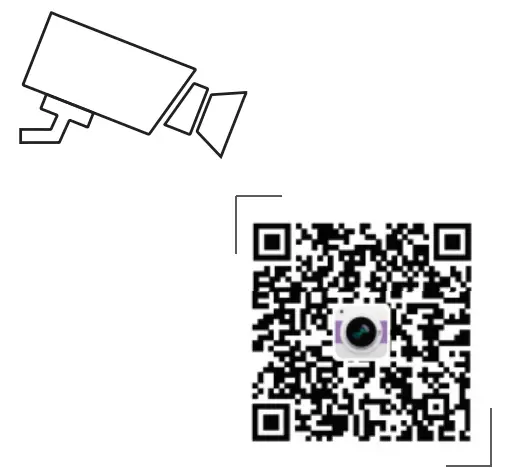
http://www.e-seenet.com/download/indexm.php?p=sunisee
Before operating this unit. please read these instructions carefully. and save them for future use.
Description
- Photosensitive Collect ambient luminosity value, turn on the infrared light when the current illuminance is less than 3 Lux.
- Reset button The working state of the device, long press 3-5 seconds to restore the video. , the camera will have a voice prompt broadcast.
- SD card slot TF card, storage video and playback video.
- DC power supply Power input
- Network port and indicator light Connect the Lan cable and check the current device status indicator light ( flashes once /1 s on hotspot mode)
Software Installation
APP Download and Installation
Users can search “Sunrise” on APP store or Google Play, or scan the QR code below to install the APP.
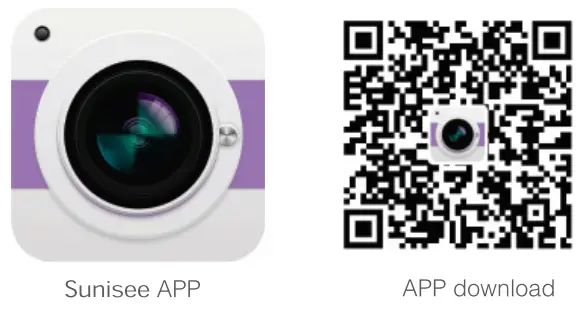 http://www.e-seenet.com/download/indexm.php?p=sunisee
Note: For iOS system, it requires iOS 9.0 version or above. For Android, Android 5.1 or above.
Account login
Account login: On the login interface, enter the account/ phone number/email, and the corresponding password, and click the “OK’ button to log in.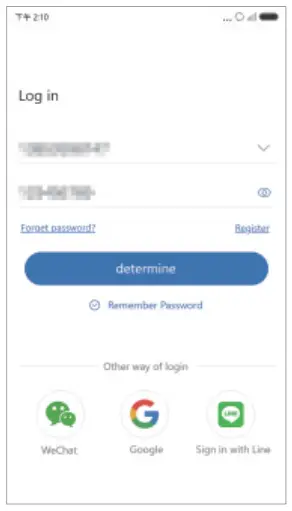
Third-party login: APP supports third-party login. Click the third-party social software icon, jump to the APP to complete the authorization and log in.
Camera adding process description
- Open the ‘Sunrise APP and click the “+” icon in the middle of the interface to enter the scan QR code interface;

- Scan the QR code on the device ;

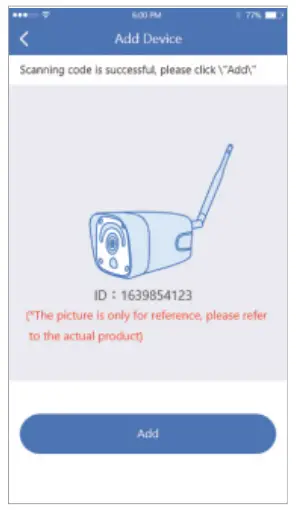
- On the Add device interface, click “Add”;

- Reset the device and wait for the device indicator to flash and proceed to the next step;

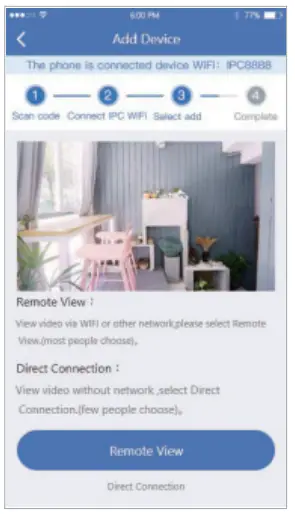
- To view and use via WiFi or other networks, please select Remote View; lb there is no network, if you connect to the camera at close range. please select local Direct Connection

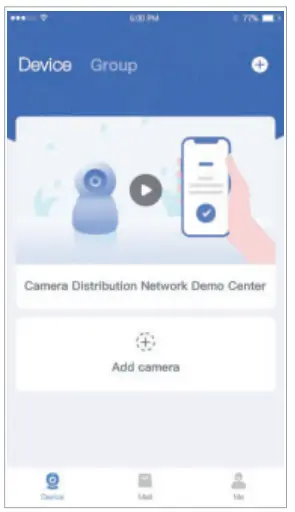
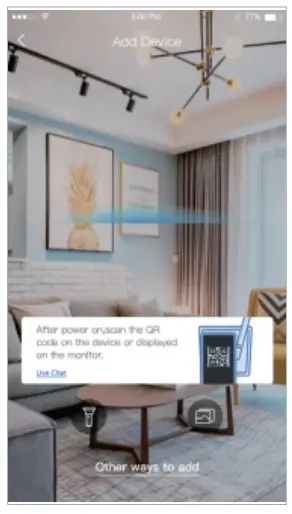
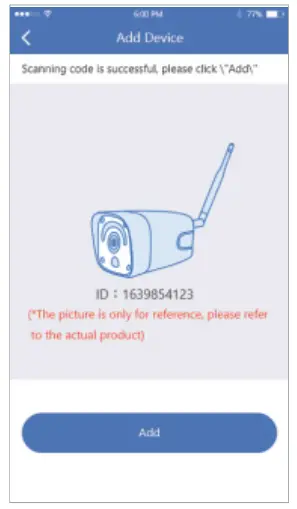
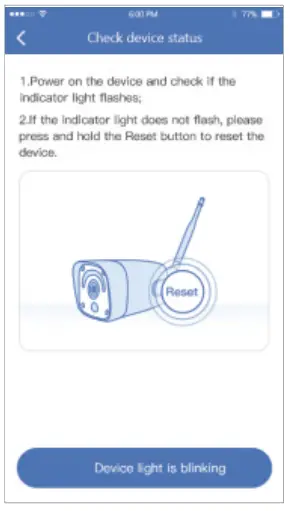
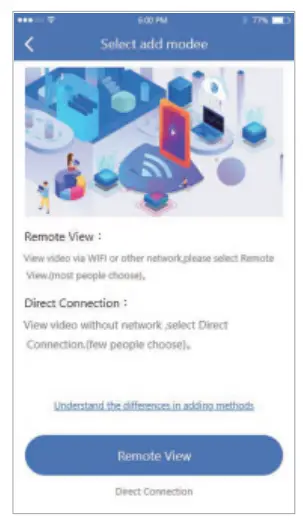
Remote View adding process
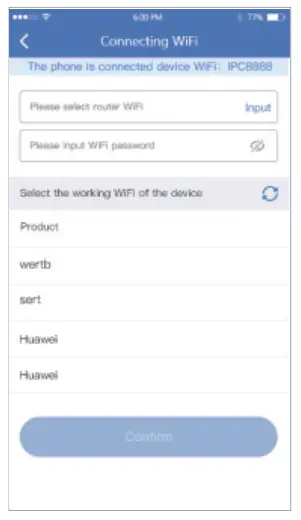
- Select ‘Remote View’ to add, connect the device to WiFi, select the working WiFi that the device needs to connect to, enter the password, and click Next;

- Use the device to scan the OR code of the mobile phone according to the operation shown in the figure, and proceed to the next step after hearing the prompt tone or the device indicator light no longer flashes;

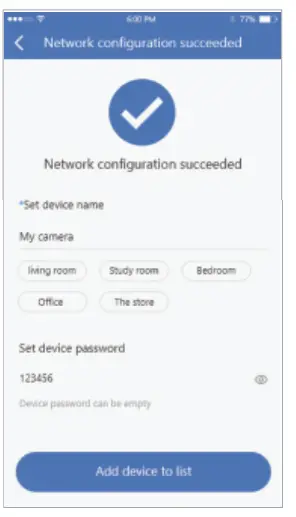
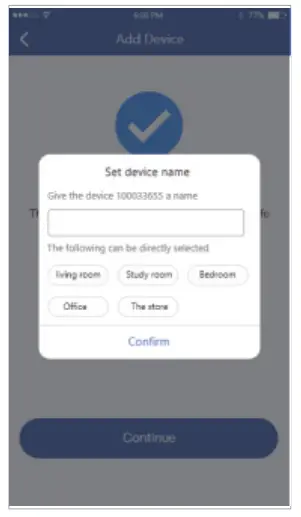
- After the network configuration is successful, the device name can be added successfully.

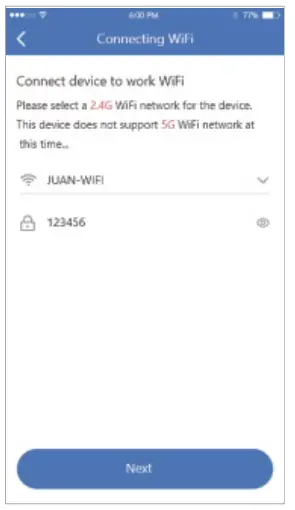
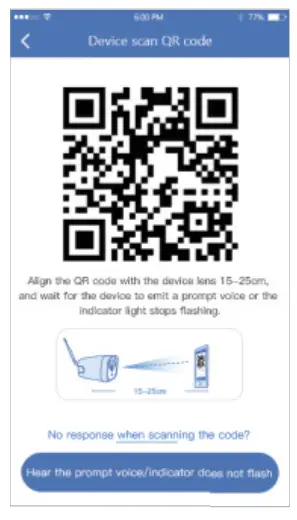
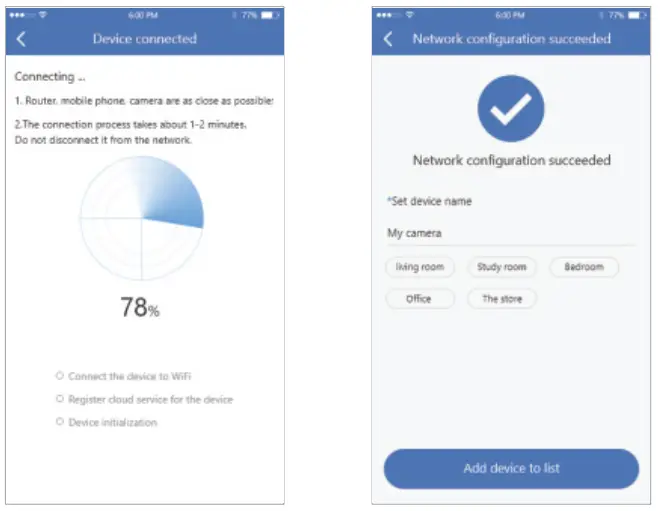
Local direct connection add
- Click ” Direct Connection”, set a password for the WiFi of the device, and enter the next step; (Direct connection can only be connected to the camera for viewing locally);

- Use the device to scan the QA code of the mobile phone according to the operation shown in the figure, and go to the next step after hearing the prompt tone or the device indicator light no longer flashes;

- According to the interface guide, after connecting the device with its own WiFi, return to the APP;

- The device is successfully added, please set a name for the device.

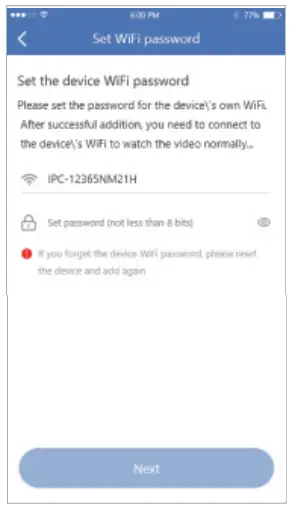
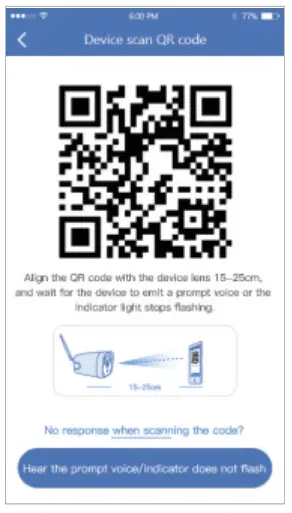
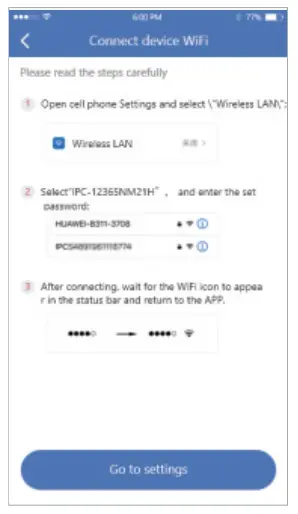
Note: the local direct connection needs to maintain a WiFi connection with the device to properly preview the device screen.
When the QR code of the device cannot be found (or the scan code is unsuccessful):
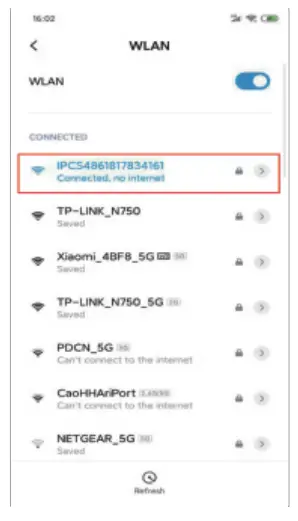
- Connect to the IPCXXX hotspot in the phone settings, the password is 11111111;

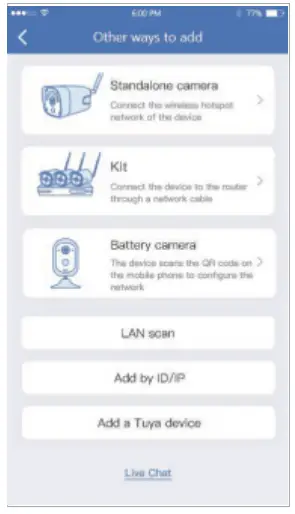
- Click ‘Other ways to add” in the code scan interface, and select the “Standalone camera”.

- To view and use via WiFi or other networks, please select “Remote View “; if there is no network, to view the camera at close range, please select “Direct Connection”;
Remote View adding process
- Select “Remote View’ to add, connect the device to WiFi, select the working WiFi that the device needs to connect to, enter the password, and click Next;

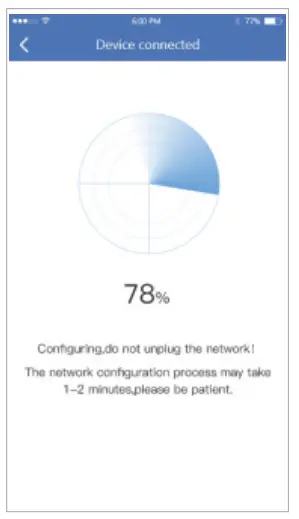
- Please wait patiently during the device configuration network;

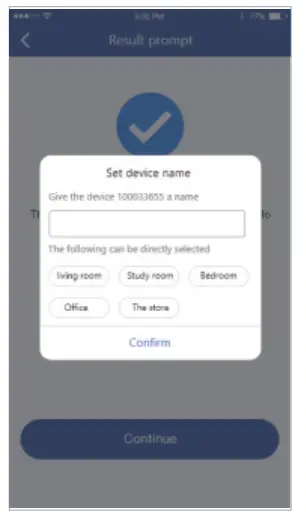
- The device is successfully added, please set a name for the device.

Direct Connection adding process
Select Direct Connection’ to add, and set the name and password for the device to add successfully;
Note: The Direct Connection needs to be connected to the device hotspot to preview the device screen normally.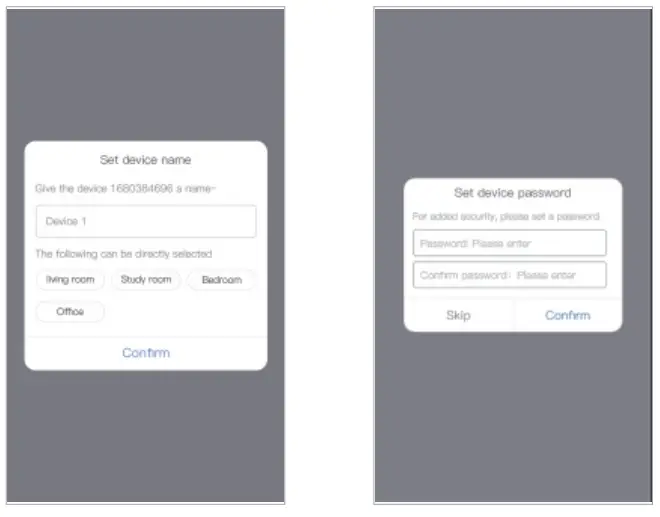
Wired add configuration process
Power on the device, connect it to a router with internet access with a network cable.
- Scan the QR code of the device, and click “Add”;

- After setting the name for the device, it can be added successfully.

Warning In case of fire or lightning, pls don’t put product in damp and raining place, operate or maintain according to the user manual.
 Be careful when you see attachment with a Dangerous Voltage which might cause serious electric accident.
 | |
| Warning | To reduce electric shock, unprofessional people please don’t open product front panel or rear panel |
Warning In case of electric shock and fire, pies don’t use power supply beyond power list in user manual
Notice:
- Ensure your equity, pls read the user manual carefully before you use the product
- Pls contact professional people if you need install and maintain the product
- Working Environment: temperature of -20°C-‘+60°C, relative humidity under 85%
- PIs don’t exceed the user manual’s standard range of temperature, humidity and voltage.
FCC Caution:
Any Changes or modifications not expressly approved by the party responsible for compliance could void the user’s authority to operate the equipment.
This device complies with part 15 of the FCC Rules. Operation is subject to the following two conditions: (1) This device may not cause harmful interference, and (2) this device must accept any interference received, including interference that may cause undesired operation.
IMPORTANT NOTE:
Note: This equipment has been tested and found to comply with the limits for a Class B digital device, pursuant to part 15 of the FCC Rules. These limits are designed to provide reasonable protection against harmful interference in a residential installation. This equipment generates, uses and can radiate radio frequency energy and, if not installed and used in accordance with the instructions, may cause harmful interference to radio communications. However, there is no guarantee that interference will not occur in a particular installation. If this equipment does cause harmful interference to radio or television reception, which can be determined by turning the equipment off and on, the user is encouraged to try to correct the interference by one or more of the following measures:
- Reorient or relocate the receiving antenna.
- Increase the separation between the equipment and receiver.
- Connect the equipment into an outlet on a circuit different from that to which the receiver is connected.
- Consult the dealer or an experienced radio/TV technician for help.
FCC Radiation Exposure Statement:
This equipment complies with FCC radiation exposure limits set forth for an uncontrolled environment. This equipment should be installed and operated with minimum distance 20cm between the radiator& your body.