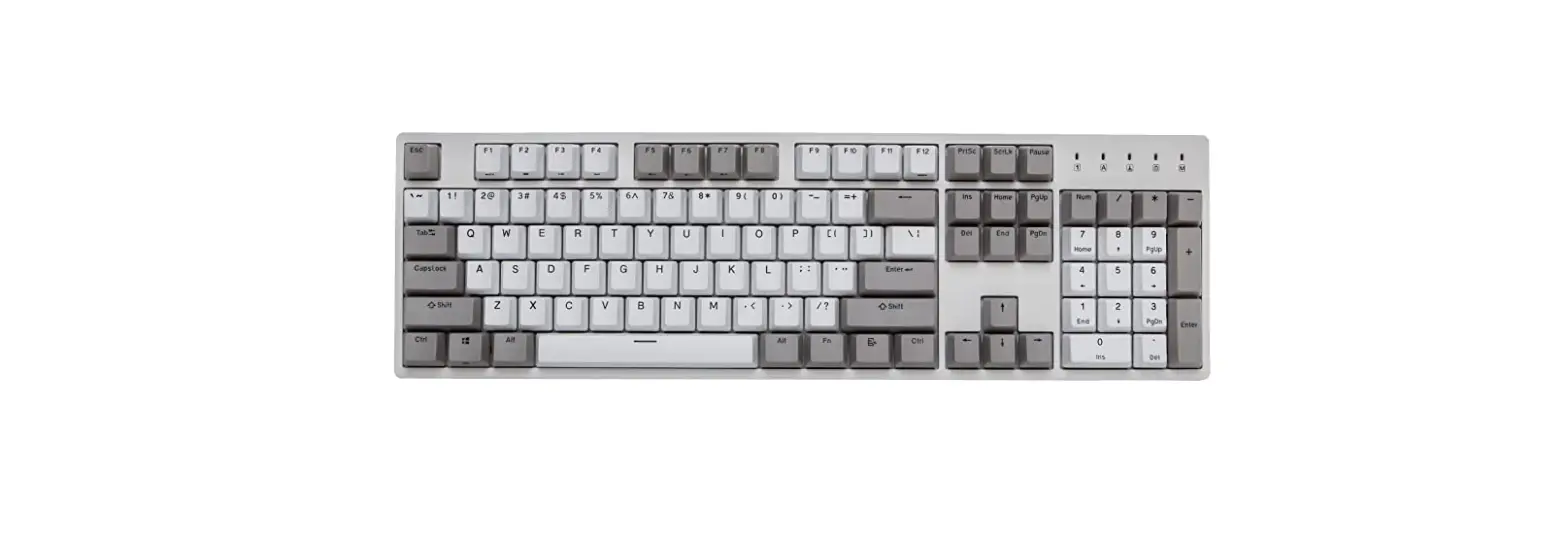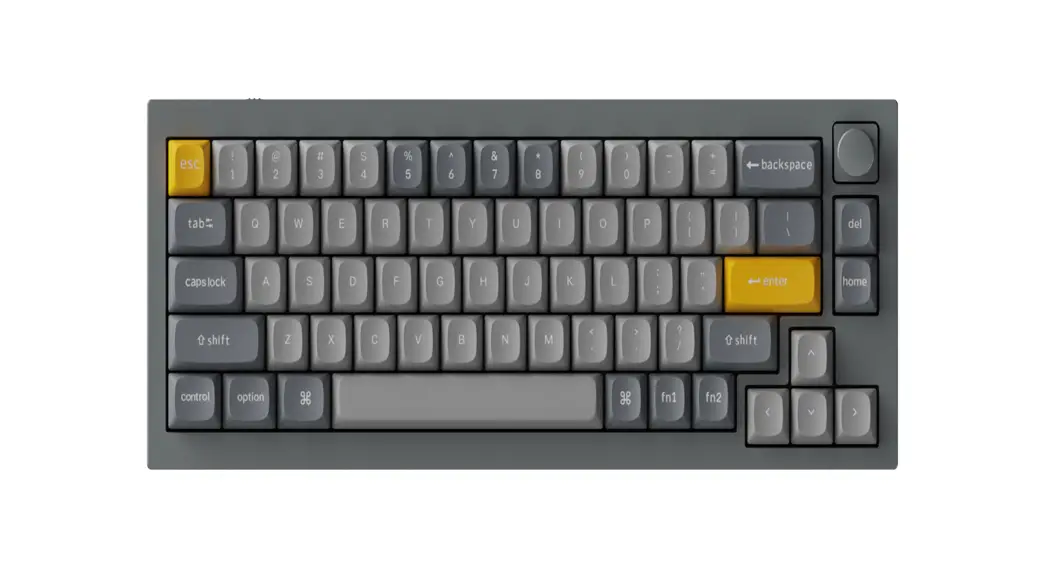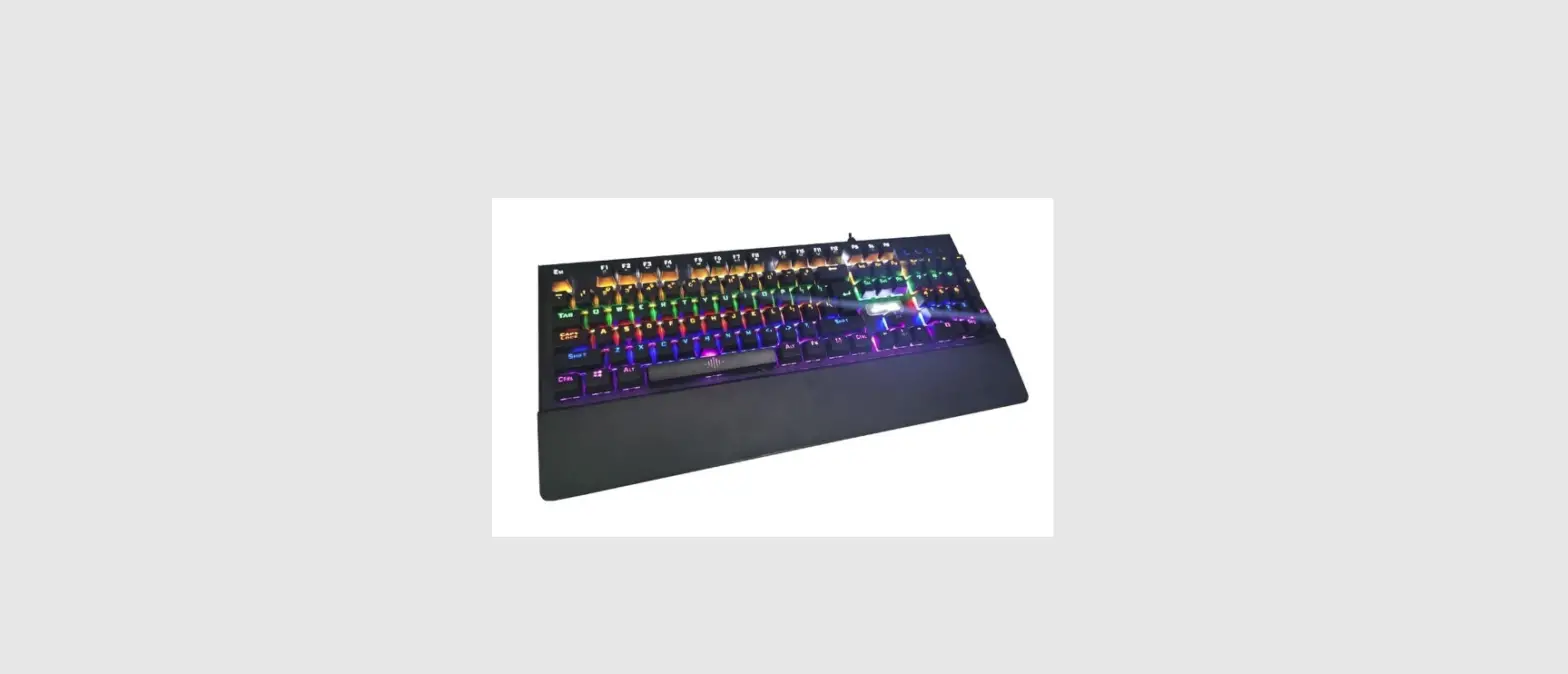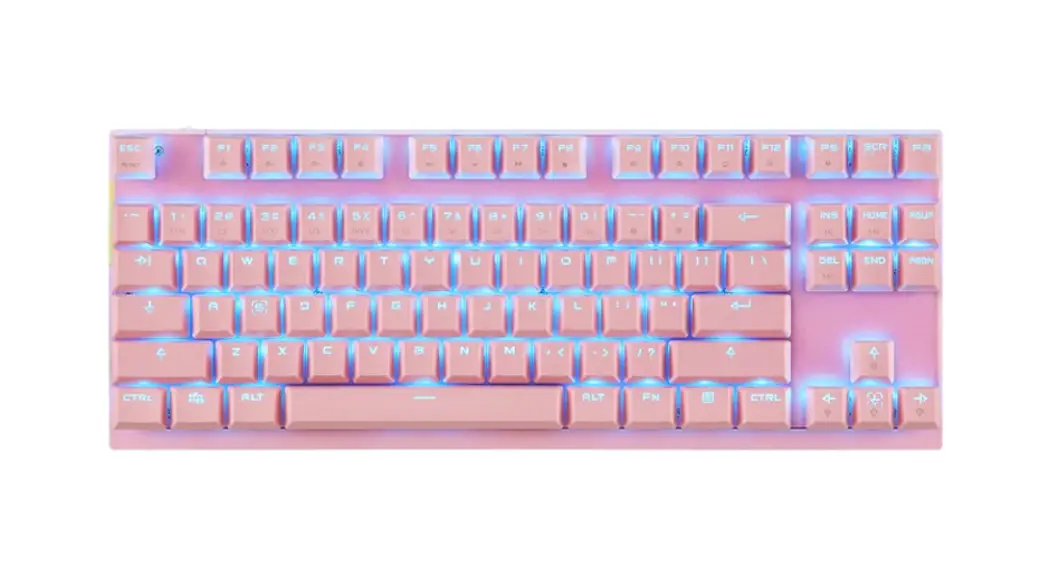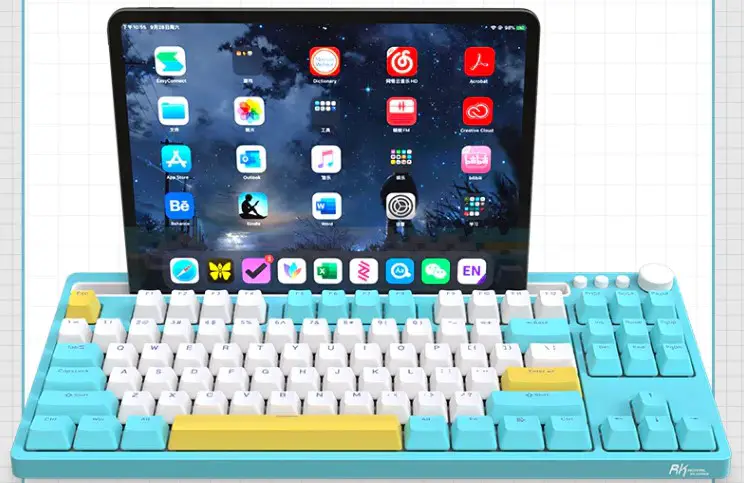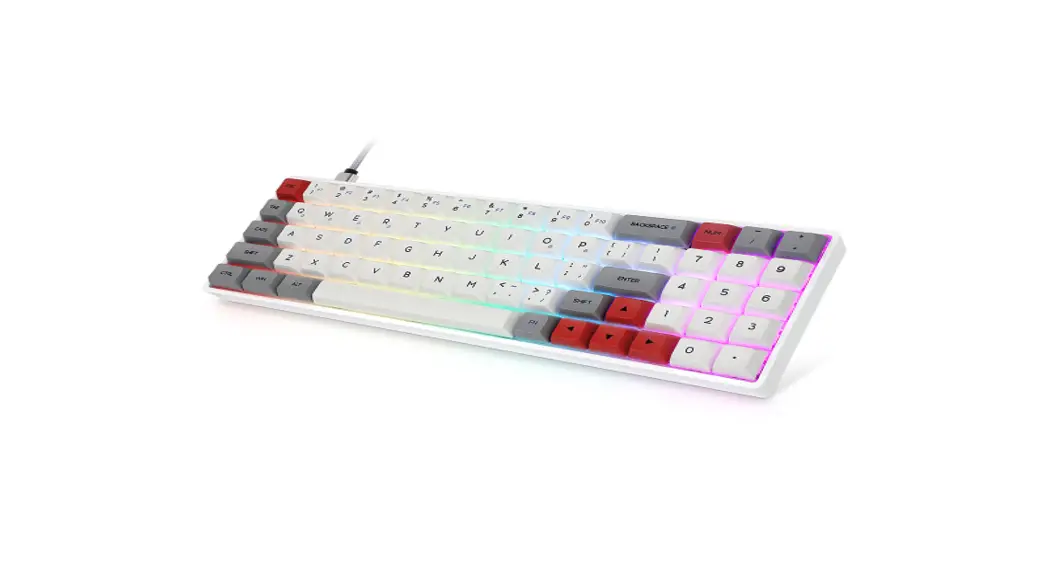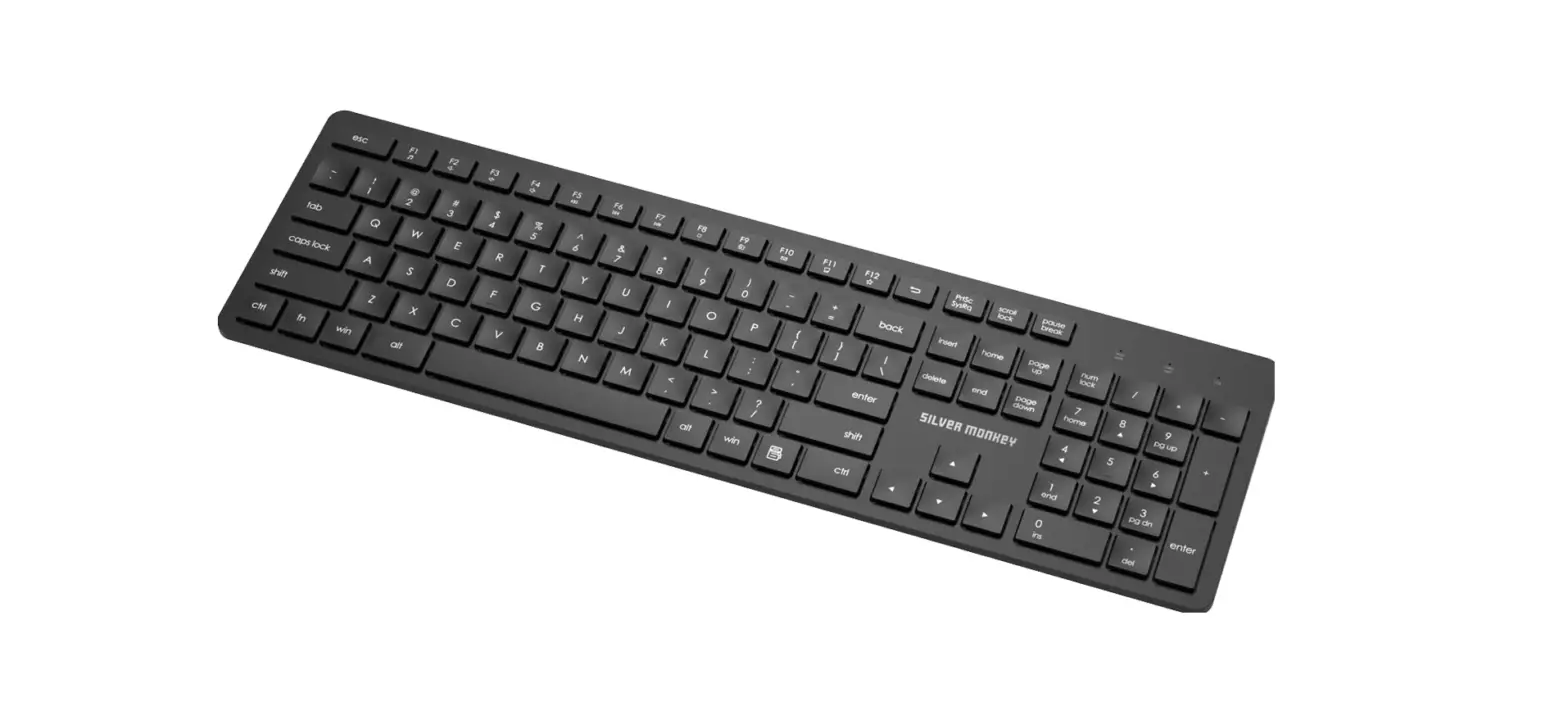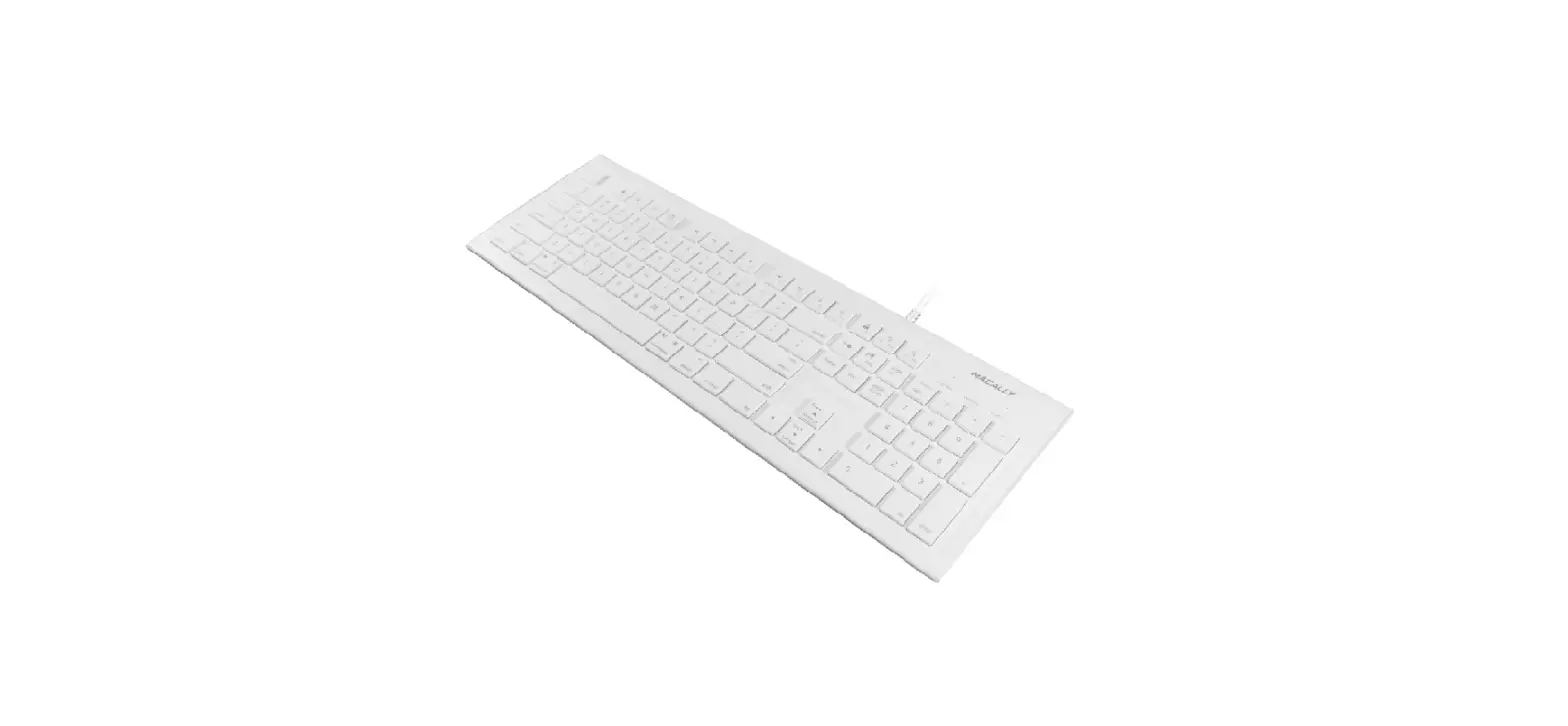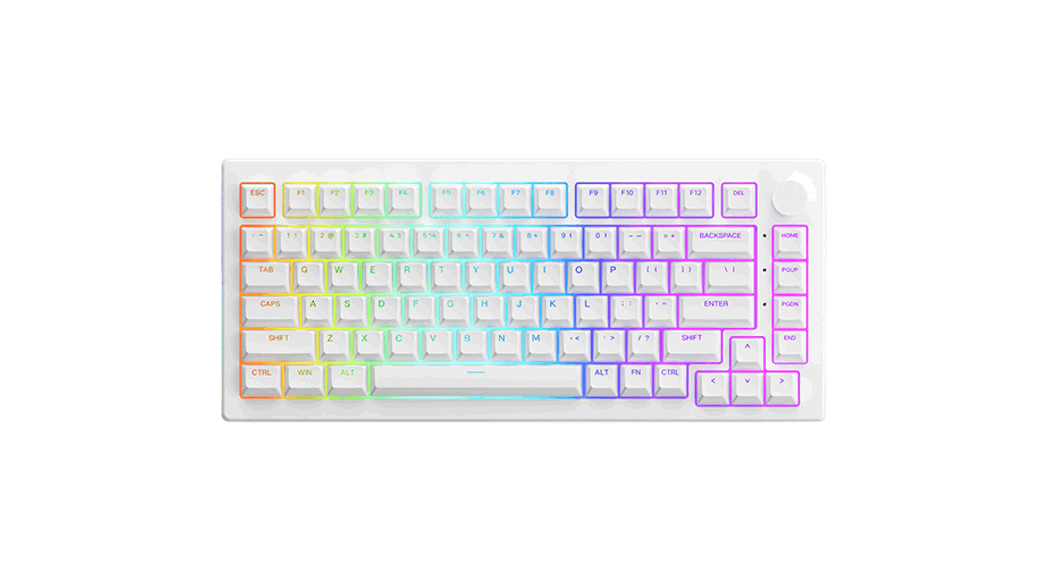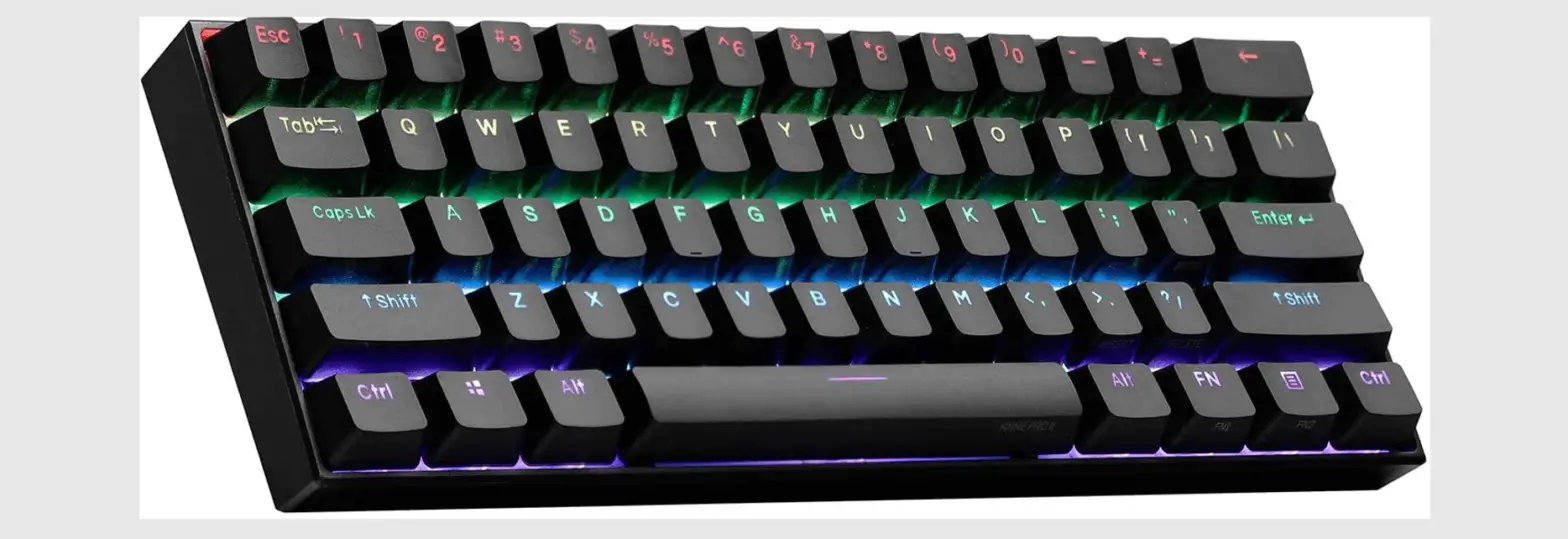

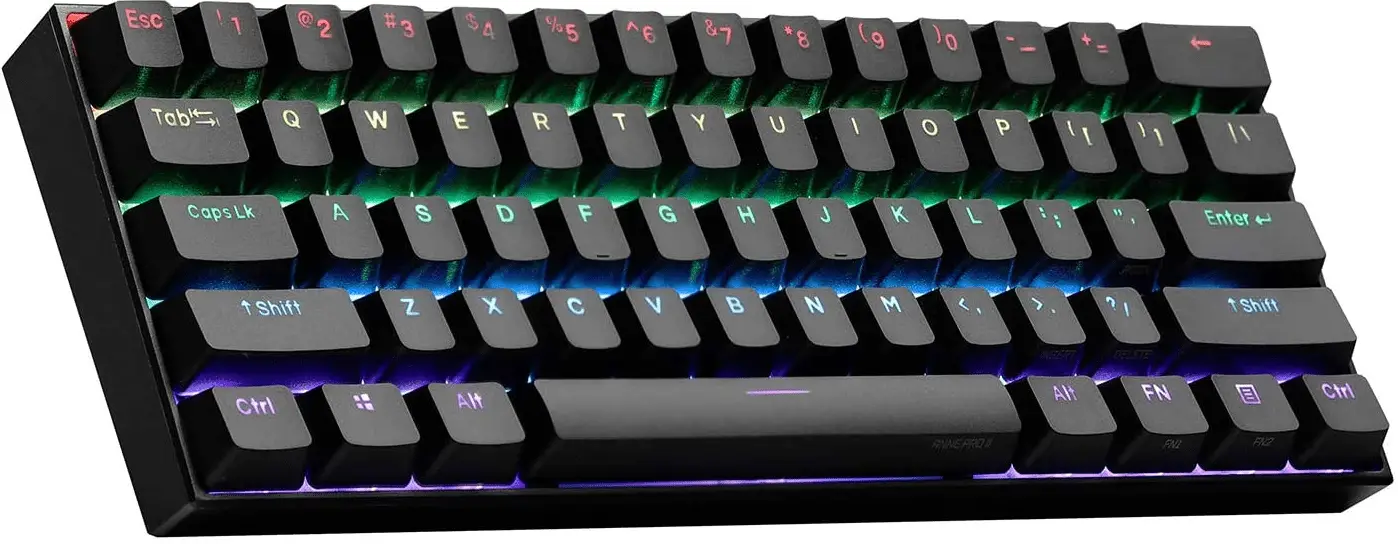
KSI WB108XM Pine Pro Professional Mechanical Keyboard for Mac
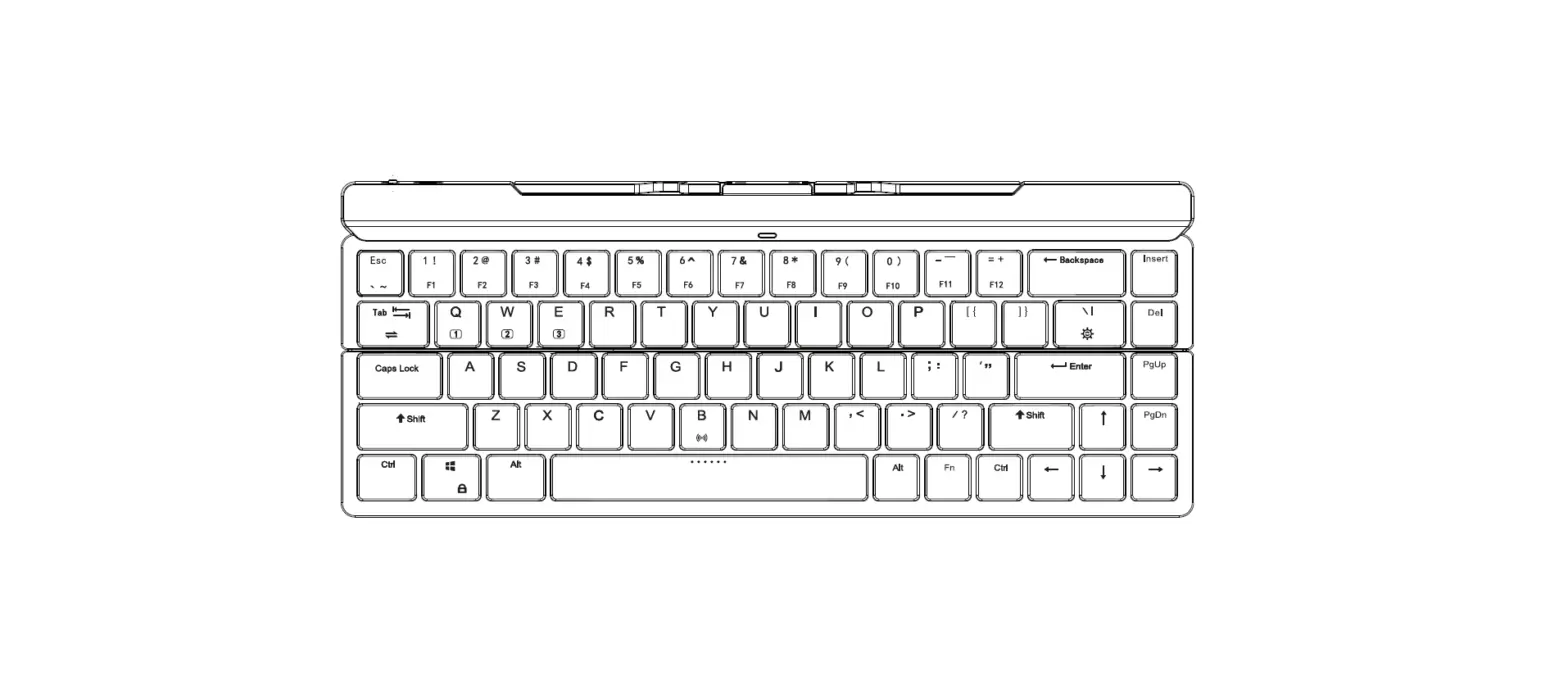
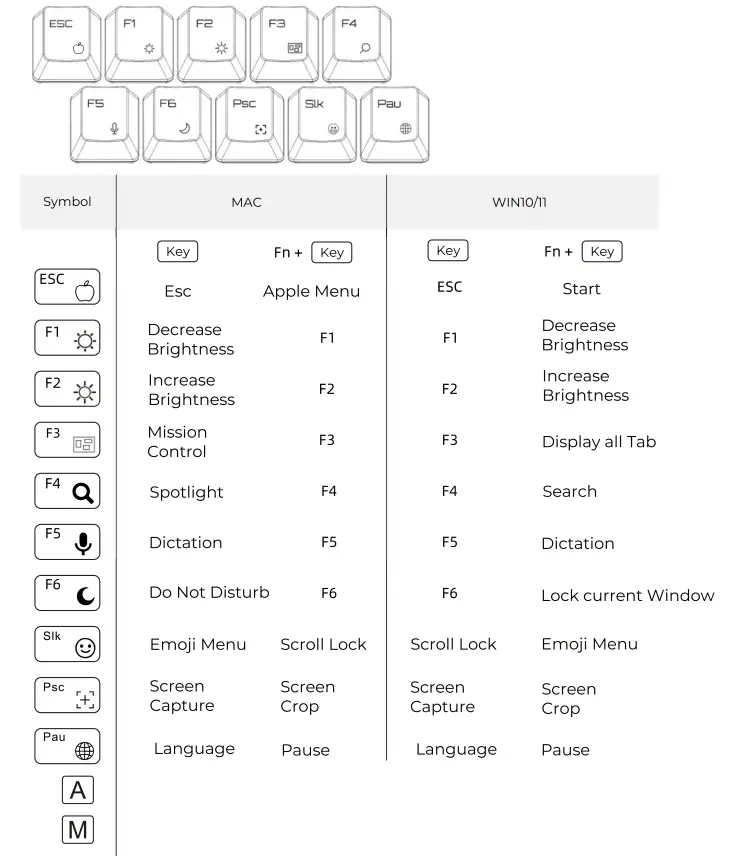
FUNCTION KEY 
WIRELESS COMMUNICATION 
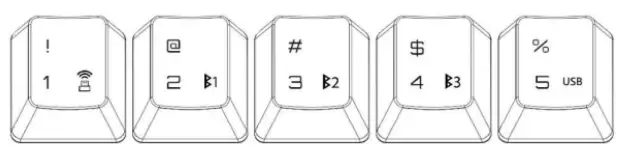
- Fn
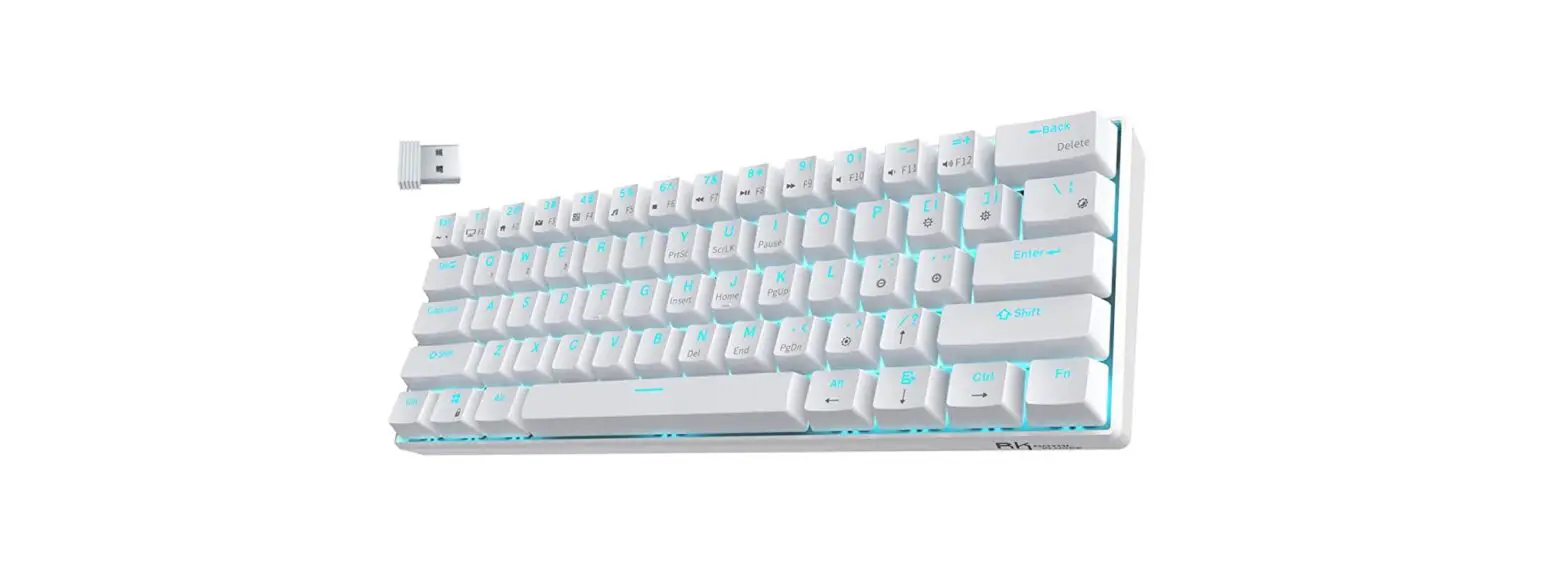
 + RF 2.4GHz
 - Fn+B1 = BT device #1
- Fn+B2= BT device # 2
- Fn+B3= BT device #3
- Fn+ USB= USB
 + RF 2.4GHz
Bluetooth Pairing / RE setting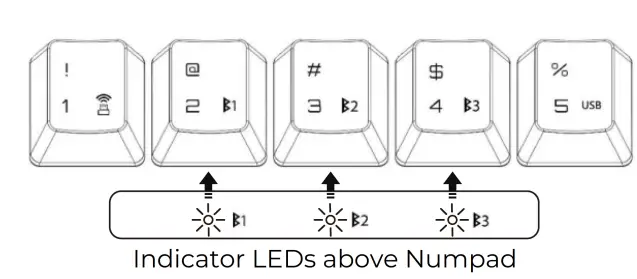
- Press Fn+ to select RF connection, dongle is required.
- Press Fn+ B1 to select BT device#1 connection,
- Wbkeyboard#l will be displayed on BT device#1, select it to pair.
- Press Fn+ B2 to select BT device#2 connection,
- Wbkeyboard#2 will be displayed on BT device#2, select it to pair.
- Press Fn+ B3 to select BT device#3 connection,
- Wbkeyboard#3 will be displayed on BT device#3, select it to pair.
- BT devices will being saved automatically for invoking the connection.
- If pairing is not succeeded, please forget the corresponding Wbkeyboard#on the BT devices and pairing again.
How to delete the saved BT devices
Holding Fn + corresponding BT device slot for 2secs above to delete the setting, the corresponding indicator LED will blinks once and following by all three Leds blinking three times to complete the steps.
MOUSE FEATURES
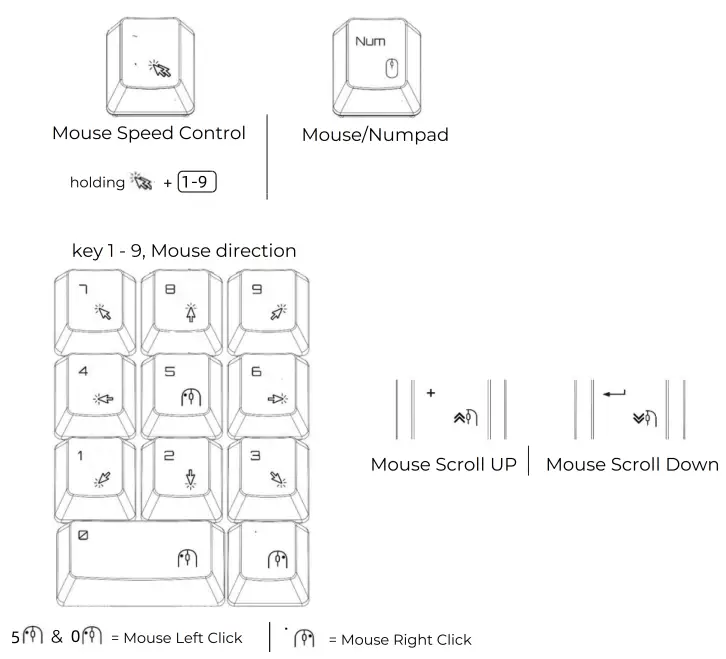
MULTIMEDIA KEYS
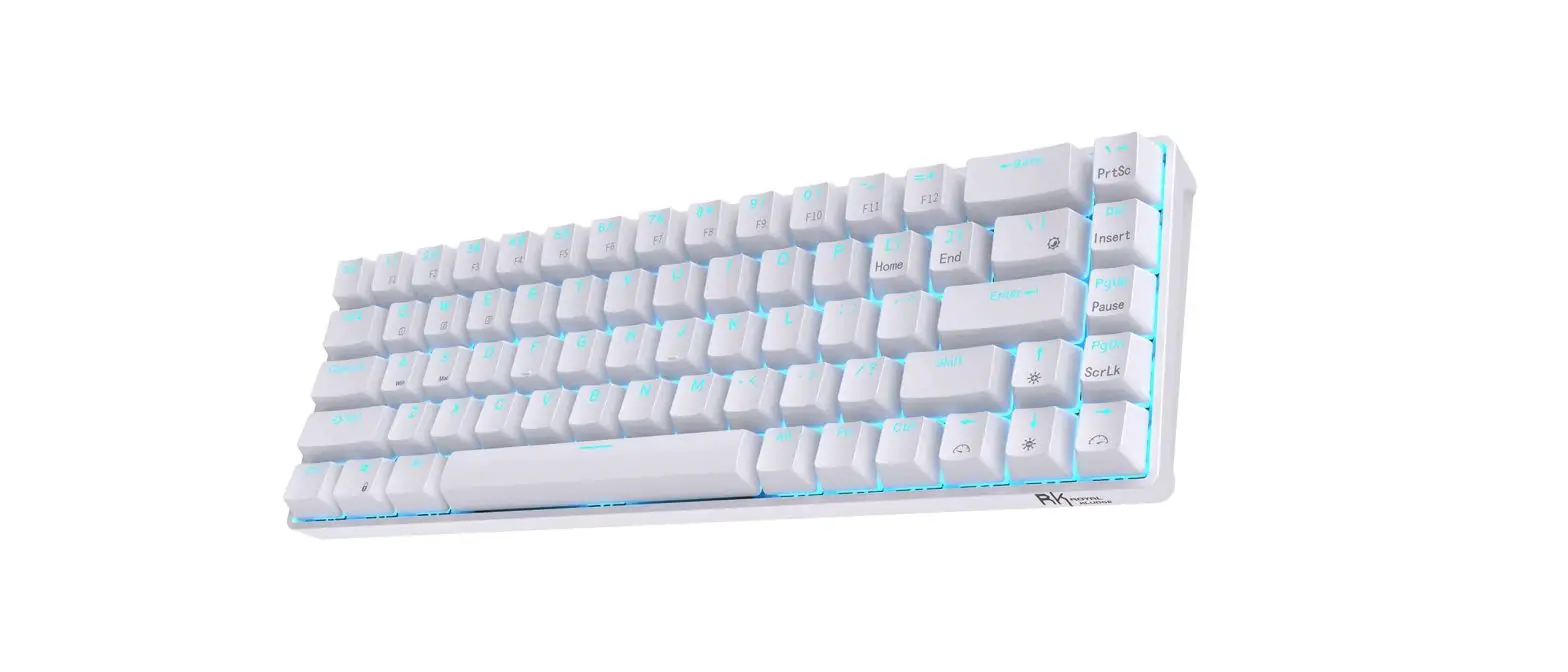
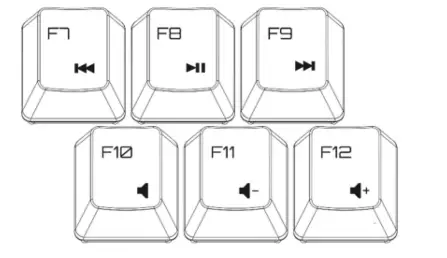
- Fn + F7 = Previous Track | Fn+ F8 = Play/Pause | Fn + F9 Next Track

- Fn + FI0 = Mute | Fn+ F11 = Vol – | Fn + F12 Vol+
SPECIAL FUNCTION KEY 
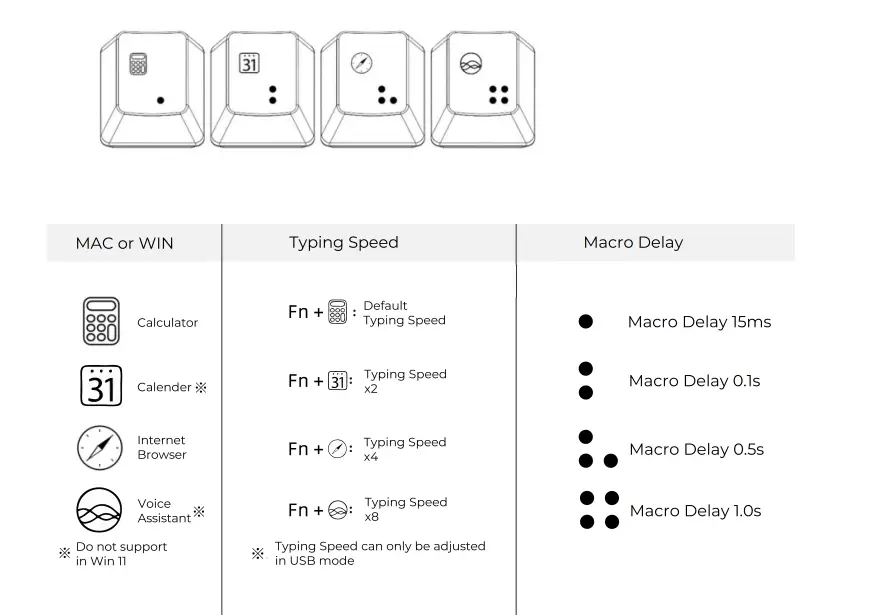
Entering the Macro Programming Mode
- Press Fn + Ins to activate the programming function all three indictation LEDs blinking
- Press any one of the Q/W/E/R/TY/U//O/P key to program
- key in the content on the keyboard, e.g. “[email protected]“, you can add delay in between any characters, just press Fn+ /Fn+3/Fn+. /Fn+3
- Press Fn +Enter to save the result
- Repeat above step 2 and 3 to program more Macros if needed
- Press Fn + Ins to quit the Macro Programming mode
Attention:
While in any Wireless connection mode, keyboard will draw power from the internal LipO battery, User can also recharge the LiPO battery via USB connection, please make sure the switch on the back of the keyboard is switched to “ON”
FCC RULES
This device complies with part 15 of the FCC Rules. Operation is subject to the following two conditions:
- this device may not cause harmful interference, and
- this device must accept any interference received, including interference that may cause undesired operation.
Any changes or modifications not expressly approved by the party responsible for compliance could void the user’s authority to operate the equipment. NOTE: This equipment has been tested and found to comply with the limits for a Class B digital device, pursuant to Part 15 of the FCC Rules. These limits are designed to provide reasonable protection against harmful interference in a residential installation. This equipment generates, uses and can radiate radio frequency energy and, if not installed and used in accordance with the instructions, may cause harmful interference to radio communications. However, there is no guarantee that interference will not occur in a particular installation. If this equipment does cause harmful interference to radio or television reception, which can be determined by turning the equipment off and on, the user is encouraged to try to correct the interference by one or more of the following measures:
- Reorient or relocate the receiving antenna.
- Increase the separation between the equipment and receiver.
- Connect the equipment into an outlet on a circuit different from that to which the receiver is connected.
- Consult the dealer or an experienced radio/TV technician for help. The device has been evaluated to meet general
RF exposure requirement.
The device can be u sed in portable exposure condition without restriction