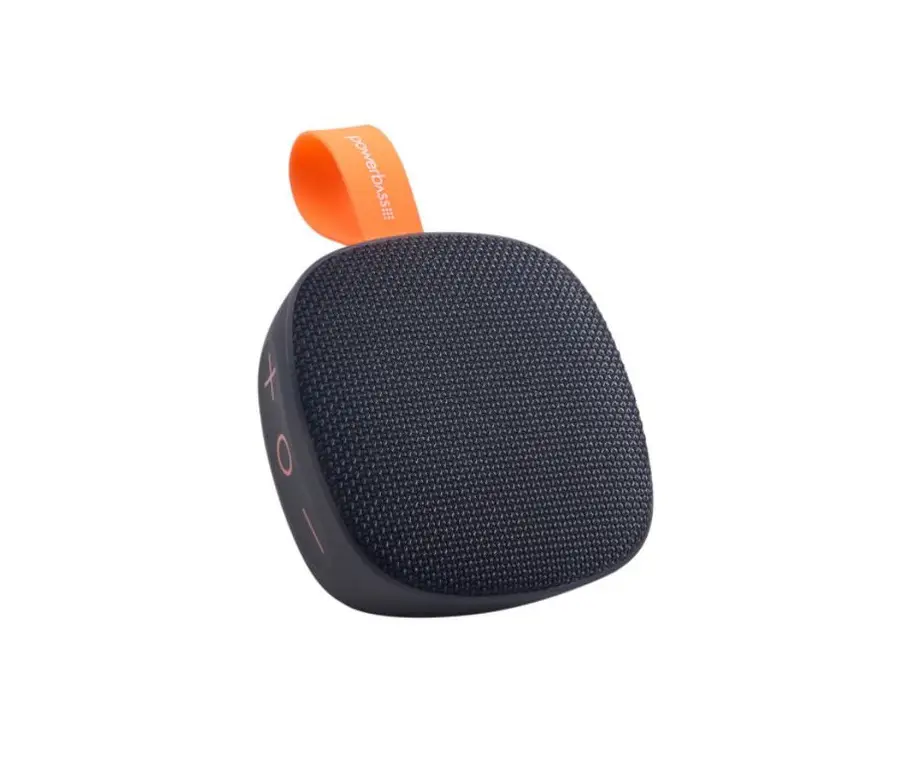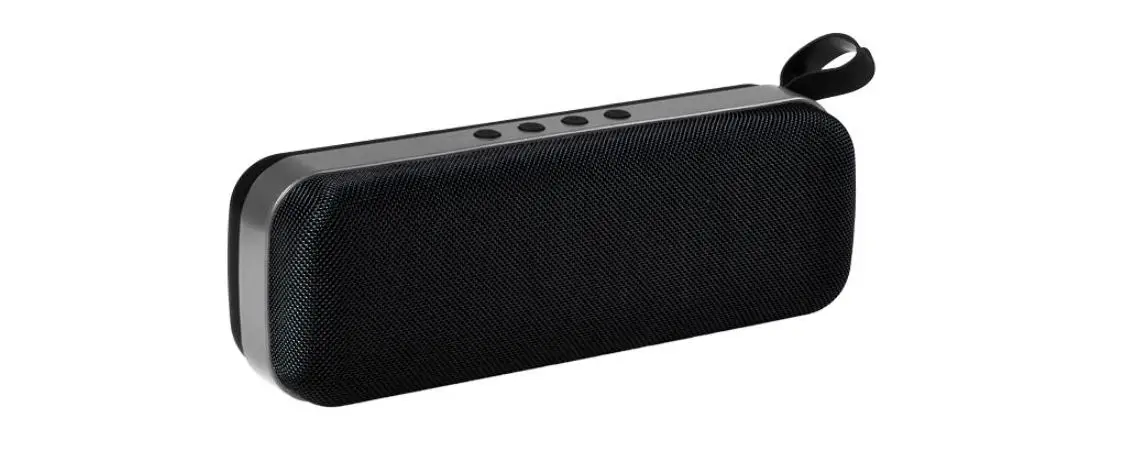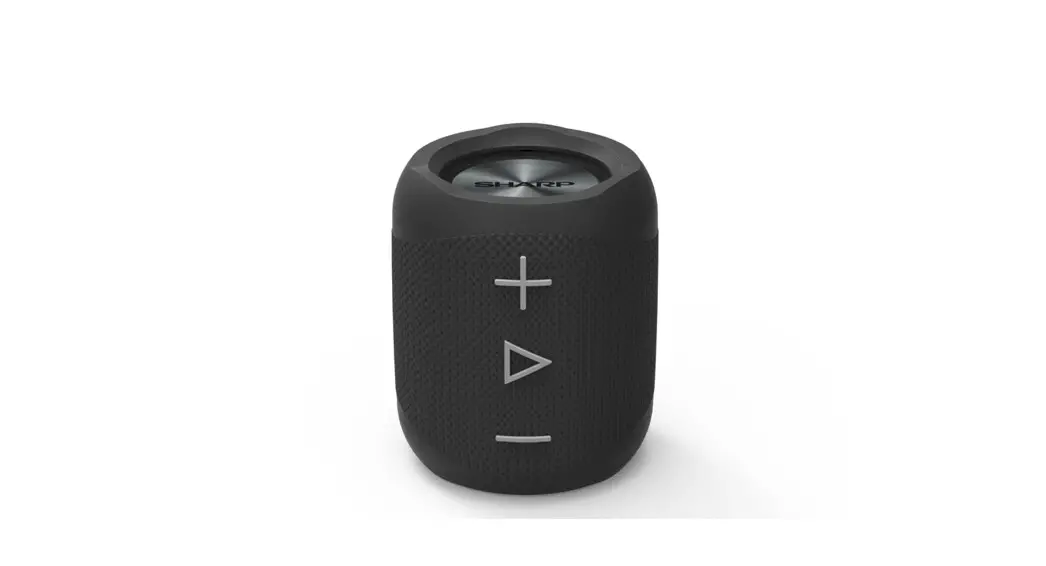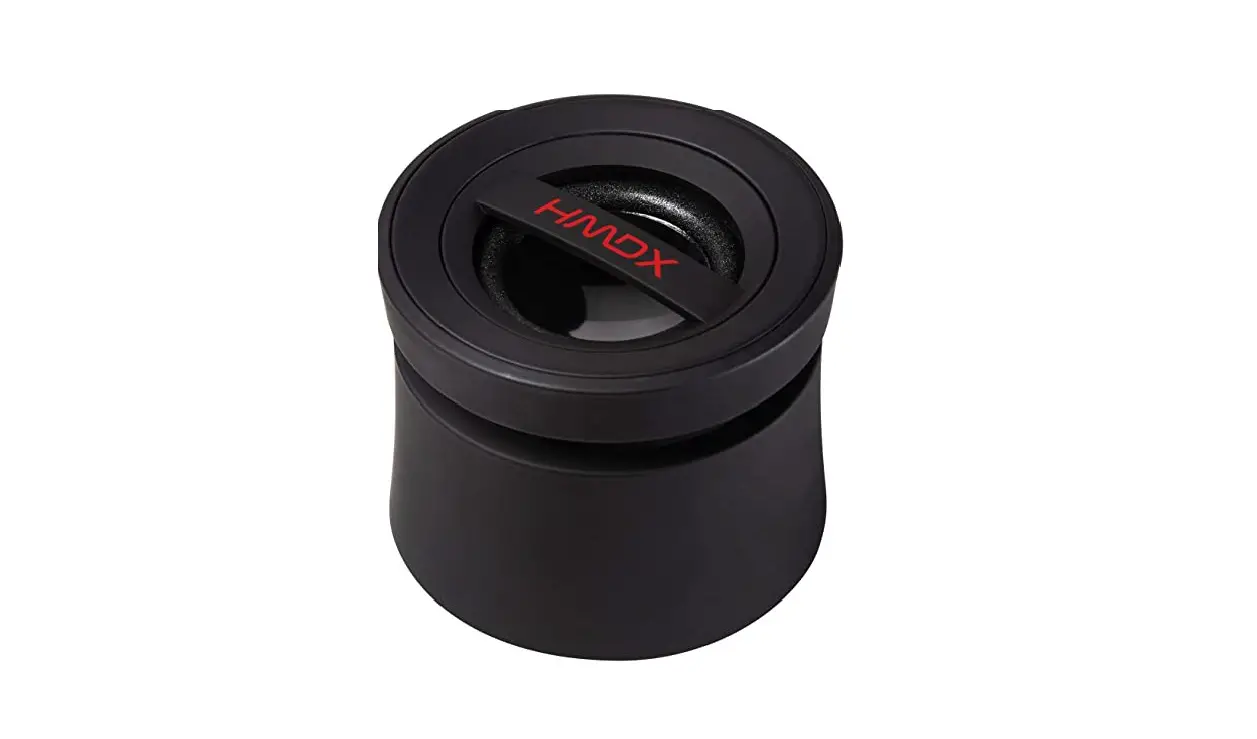

HMDX HX-P110BK Amp Bluetooth Speaker
Specification
- Product Dimensions 3.5 x 2.42 x 5.5 inches
- Item Weight 4.5 ounces
- Item model number HX-P110BK
- Batteries 1 Lithium Ion battery is required. (included)
- Mounting Type Plug Mount, Freestanding
- Connectivity Technology Bluetooth, USB
Regarding this item
- 4 hours or more of playtime
- Speakerphone with mono sound
- An integrated microphone
- includes a charging Micro USB to USB cable
What’s in the box
- Bluetooth Speaker
Product Description
- HMDX amp portable Bluetooth speaker
How to connect with Bluetooth
By choosing HMDX Jam from your device’s Bluetooth listings or by selecting YES, you can pair your device with the gadget. If prompted, enter the passcode “0000”. 5. Start your device up and adjust the volume using the buttons on the device.
Water Resistant
- HMDX speaker is water-resistant.
- Waterproofing is rather good.
- It has successfully endured being submerged in rushing water.
FAQ’s
If the gadget won’t power on, try charging it for at least 3 to 4 hours on your laptop or PC with a USB to Micro USB connector. Aux-in audio jack connections can last up to 12 hours, while wireless connections can last up to 4 hours. If charging doesn’t work, your battery might need to be changed.
It functioned for me:
On the speaker.
Click the reset button.
Switch back on.
Press the “PLAY” and “+” buttons at the same time to make the blue light blink more quickly (2-3 timers per second).
The speaker ought to now appear on your tablet/phone pairing list.
Connect the speakers. And you are prepared to go!
If the portable wireless speaker won’t turn on, check these things:
Check to see if your speaker has enough power.
Make sure the USB AC adapter is firmly (not loosely) attached to the speaker and the wall outlet.
Hold down the power button while waiting for the speaker to start up.
It’s pretty well waterproofed. It has no problems withstanding exposure to running water.
By choosing HMDX Jam from your device’s Bluetooth listings or by selecting YES, you can pair your device with the gadget. If prompted, enter the passcode “0000”. 5. Play a video on your smartphone, then use the buttons to change the volume to your liking.
A strong connection may be indicated by a blue light that blinks continuously. The headphones may be in pairing mode if they have a slow blue light that pulses. Blinking red and blue lights are the most typical pairing mode light pattern.
Installing software updates, replacing the battery, purchasing a new cable, repairing a fractured solder joint, replacing the charging port, and replacing the charging circuit are all necessary fixes for a Bluetooth speaker that won’t charge.
If the battery is fully charged, the CHARGE indicator won’t turn on. Depending on the model, the speaker’s CHARGE indication could not turn on while it is being charged. The CHARGE indicator will turn on if the battery is charging while the speaker is off.
You can reset a Bluetooth device on your Android phone or tablet by following these steps:
Select System under Settings.
Tap Advanced.
Choose the Reset option.
Select Reset Bluetooth, cell phone, and Wi-Fi.
Select Reset settings. When prompted, enter your phone’s PIN.
Using Your Smartphone to Charge
Simply use your smartphone to charge the wireless speaker. All you have to do is attach your smartphone to it using the USB cord. You won’t need to worry about using a charger if you do it this way. You don’t need to purchase anything additional because you always carry your phone with you.
If your Bluetooth devices won’t connect, it’s likely because the devices are out of range, or aren’t in pairing mode. If you’re having persistent Bluetooth connection problems, try resetting your devices, or having your phone or tablet “forget” the connection.
If the gadget won’t power on, try charging it for at least 3 to 4 hours on your laptop or PC with a USB to Micro USB connector. Aux-in audio jack connections can last up to 12 hours, while wireless connections can last up to 4 hours. If charging doesn’t work, your battery might need to be changed.
Turning Bluetooth on manually in your Android’s settings should prevent it from automatically turning on and off. It’s possible that you need to adjust your power-saving settings if your Bluetooth connection is cutting out due to a low battery.