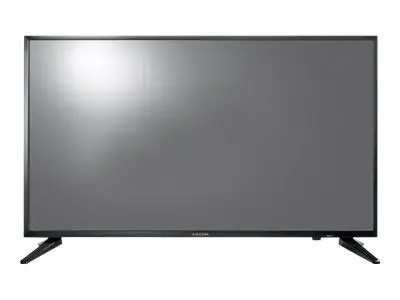

croma 272127 80 cm LED TV
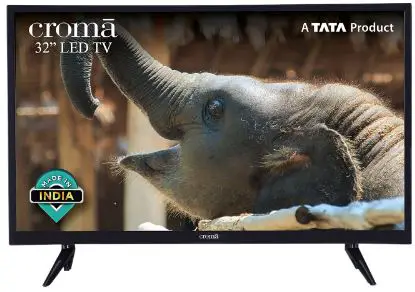
Congratulations on your purchase and welcome to the Family! You are now a proud owner of a TV. Please follow the operating, usage and cleaning instructions in this manual and we’re sure your TV will provide you with efficient service for many years.
STAND ASSEMBLY INSTRUCTIONS
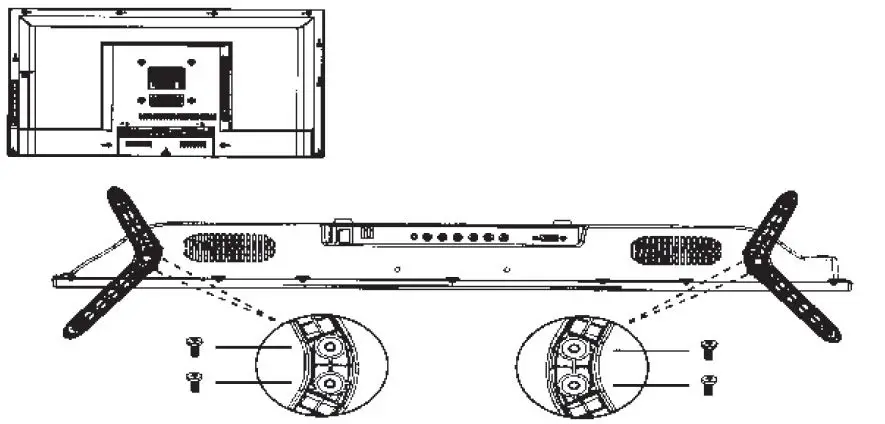
- Disconnect all the cable connections before installation
- Please place the TV set on a soft cloth or cushion with face down.
- Please place the TV in a horizontal position and fix the base stand with screws
- Use only the matching screws provided to install the TV unit stand, to avoid damaging the unit
- You may reverse the steps for removing the base stand
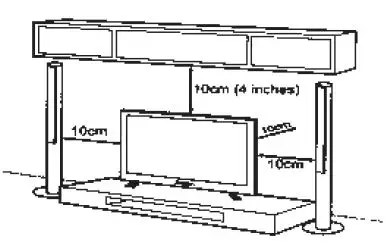
- Place your TV on a firm place which can bear its weight. To avoid any danger do not expose the TV to any water or heat source. Do not block TV ventilation.
MULTIMEDIA CONNECTIONS
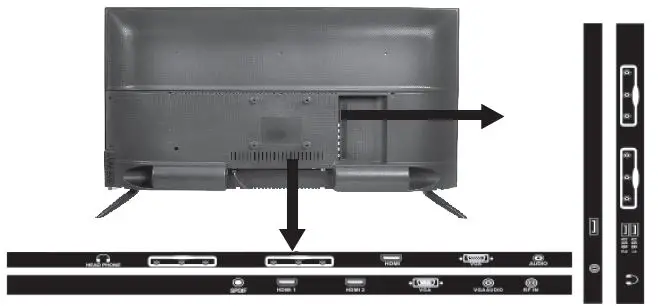
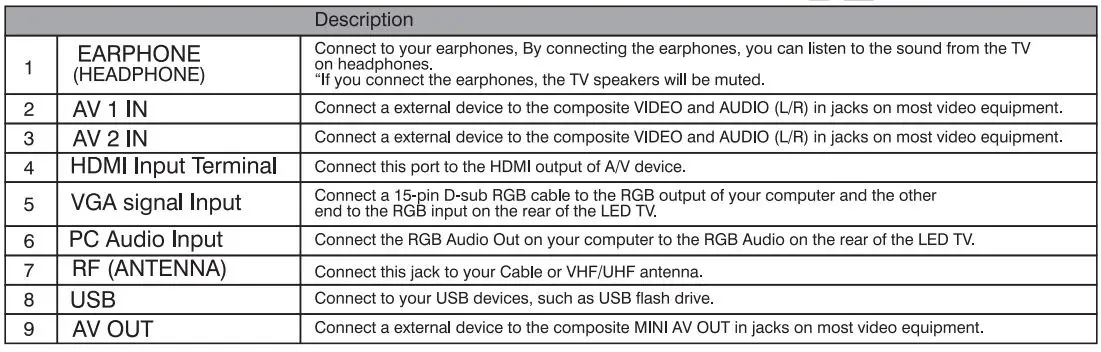
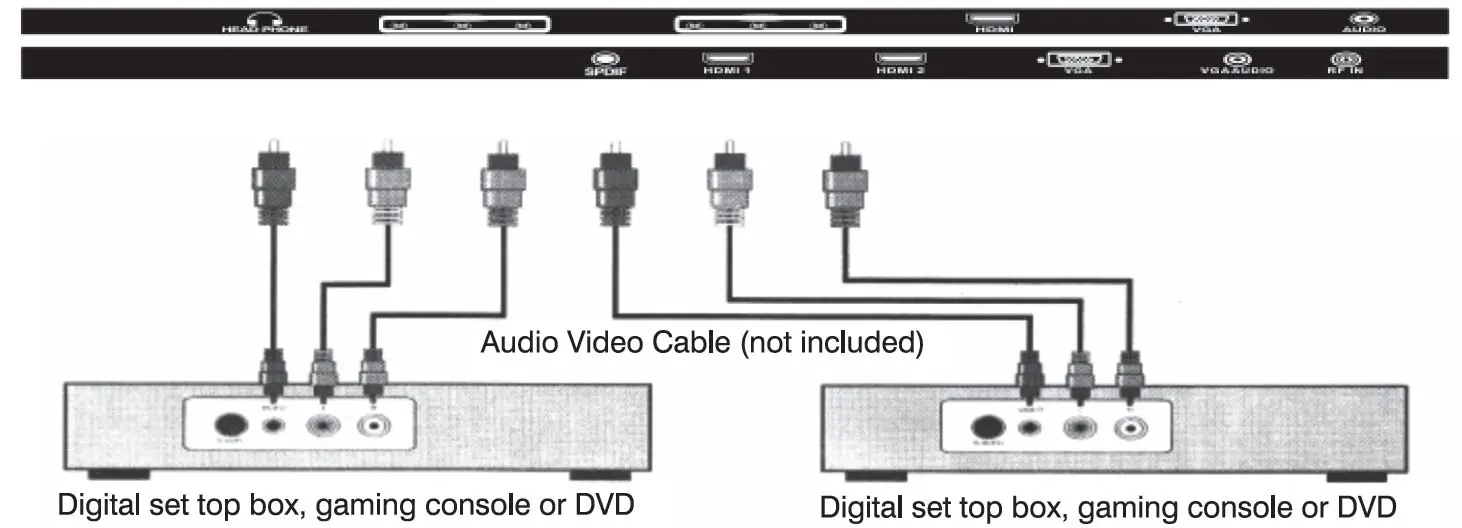
Please switch off the power while connecting the TV to an external device. The TV can play media from multiple sources by connecting different terminals with multimedia devices such as DVD players, PCs etc. and selecting the required input source.
Rear View
Connect the Power Cord
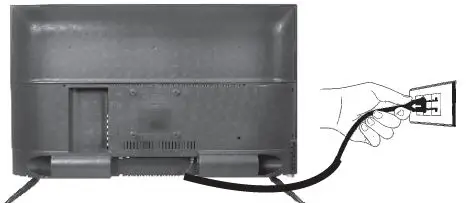
How to connect with power cord Plug the power cord into the power outlet. Ensuring that the cord is tightly connected at both ends It is strongly recommended for best broadcast reception, to use digital cable, satellite, or a high quality roof top antenna.
Connet to Antenna or Cable
Typical wall antenna jack is used in apartment buildings, connect the antenna cable, as shown in below diagram (Please use the correct type or antenna cable). We strongly recommend that you connect the antenna/cable input using a 75-ohm coaxial cable (not supplied) to ensure the best picture quality. Cable or VHF/UHF

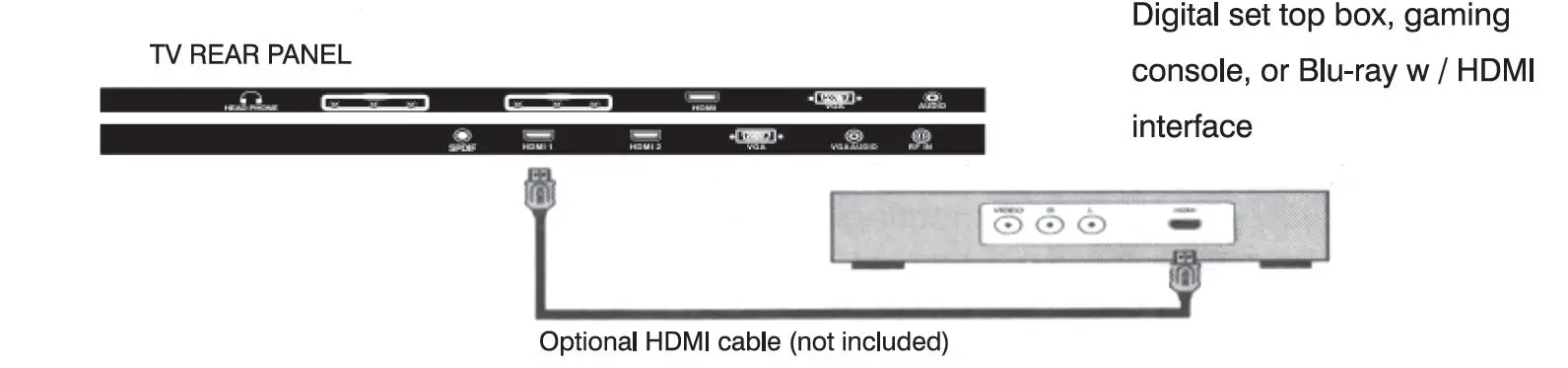
Connet Device via HDMI interface
You can also enjoy high-defination porgramming by subscribing to a high-defination cable service or a high-defination satellite service. For the optimum picture quality, be sure to connect this device to your TV via the HDMI or component video (with audio) input on the back of your LED TV.
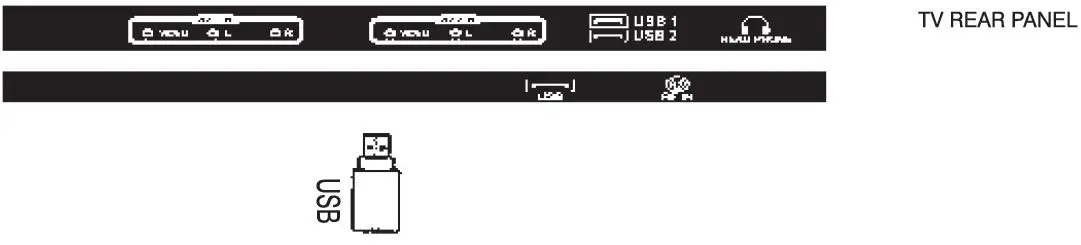
Connect Devices Via RF IN/ USB / AV Out Interface
Connect PC Via VGA/ HDMI Interface
Use the LED lV as the monitor of your computer. The picture below shows the connection for PC. The LED lV can also be connected to PC with VGA or HDMI output.
Supporting signals
| VGA | HDMI |
| 640X480 / 60 | 480i |
| 800X600 / 60 | 576i |
| 1024X768 / 60 | 480P |
| 1280X1024 / 60 | 576P |
| 1366X768 / 60 | 720P / 50 |
| 720P / 60 | |
| 1080i / 50 | |
| 1080i / 60 | |
| 1080P / 50 | |
| 1080P / 60 |
Using the Remote Control
Remote Control
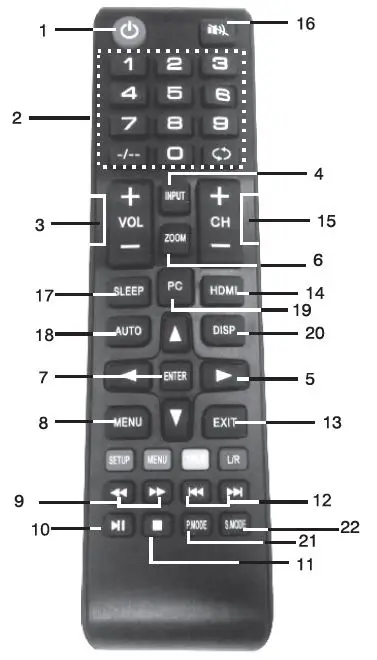
Summary of Remote Control function buttons
| 1 | Stand by (power key) | Stand by or switch on the tv. |
| 2 | Number key | Select the tv channel you want to view by using the numbers buttons |
| 3 | Volume key +/ – | Select to increase or decrease volume |
| 4 | Input | Select to use all the input function. |
| 5 | Direction button | Select to move left/right & up /down |
| 6 | Zoom | Select to zoom large or short picture |
| 7 | Enter | Select to entering the content. |
| 8 | Menu | Select to menu settings. |
| 9 | Fast forward/Fast backward | Play back the video faster in forward to backward motion. |
| 10 | Play/Pause | Play or pause the video |
| 11 | Stop | Select to Stop the video content. |
| 12 | NexV Previous | Play next and previous in USB mode |
| 13 | Exit | Select to exit from running content |
| 14 | HDMI | Select touse HOMl function directly. |
| 15 | Channel key +/ · | Channel up and down |
| 16 | Mute | Turns sound olf/on. |
| 17 | Sleep mode | Select sleep timer except when you want to see the next program after |
| 18 | Auto | Select time |
| 19 | PC | Select to use Computer function directly. |
| 20 | Display | Confirms your selection |
| 21 | Picture Mode | Cycle though available various picture modes. |
| 22 | Sound Mode | Cycle though available various sound modes |
- Check if the batteries are drained out (leakage, spring rusty)
- Check for IR Interference from other devices like CCFL, Tube light, etc.
- Use of sub-standard batteries in lV remote may lead to leakage and permanent gamage to remote. Remove batteries from remote If not using If for long time.
No Image display and no sound in produced
- Check if the product is turned on
- Check if the power cord is connected to a well outlet
- Check if there is a problem in the well outlet by connecting other products
TV turns off suddenly
- Check the power control settings. The power supply may be interrupted
- If there is no signal while the lV is on, the TV will tum off automatically after 15 minutes of inactivity
- Check for electrical supply interruption (Switch, Fuse, MCB, etc.)
- Check if too many electrical devices plugged Into a multiple electrical outlet causing spar1<s (Recommended to use standard power socket).
- Check if auto sleep feature Is activated by the time (clock) settings.
- Check if there is no signal from external device (STD.DVD/Blu-ray player)
When connecting to the PC (HDMI/RGB), •No signal” or •invalid fomiar is displayed
- Turn the TV off/on using the remote control
- Reconnect the HDMI/RGB cable
- Restart the PC with the lV on.
TV cleaning
- While cleaning the TV screen. unplug the power and wipe if with a soft cloth. Applying excessive force may cause scratches or discoloration.
- Do not spray water or cleaner directly on to the TV screen.
- Make sure to spray just enough of water or cleaner on to a dry cloth to wipe the screen.
- Make sure to wipe off excess water or cleaner by the cloth.
TV audio
| No sound is produced while images are displaying | Press volume+/- button Check if the sound is muted by pressing mute Scroll to other channels. There may be a problem with the broadcast Check if the audio cables are connected property | |
| One of the speakers produce noises or does not produce sound | A Change in ambient humidity or temperature may resuit in an unusual noise when the product turns on/off There is no problem with your product. | |
| Low sound | Check the lV and source volume level (STB, DVD player. etc.) Check auto volume funct io n on/off. |
TV video
| An image displays in black and white or the color quality is poor | Adjust the color setting in the picture menu Keep a sufficient distance between this product and other electronic products. Scroll to other channels. There may be a problem with the broadcast. |
| Horizontal or vertical bars appears or images blur | Check if there are local interferences such as an electrical appliance or power tool. |
| Lines or streaks appear on images | Check the antenna or aim the antenna to the proper direction. |
| After images (Ghosts ) appear when the product turns off | Pixels may have been damaged from a fixed image displayed for a long time (image burn) Use a screen saver to prevent the pixel damage on the screen. |
| The power is on but the screen appears extremely dark | Adjust the brightness and contrast in the picture menu |
| “No signal” appears on the screen | Check if the signal cable is connected between the lV and products properly. Check the selected input source by pressing input. |
| Thin lines appear in the background of the screen | Check the video cable connections. |
| The reception on some channels is poor | Scroll to other channels. There may be a problem with the broadcast. The station signal may be weak, Aim the antenna to the proper direction Check if there is local interference such as an electrical appliance or power tool. |
Functionality of the keys, may vary as per the Product.
Note: Picture may not match exactly with the Original.