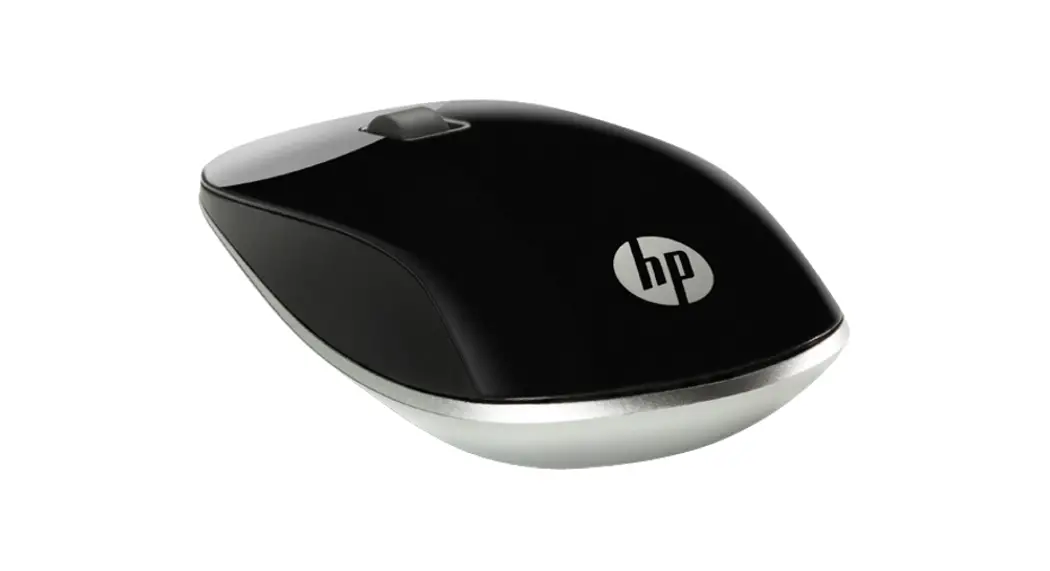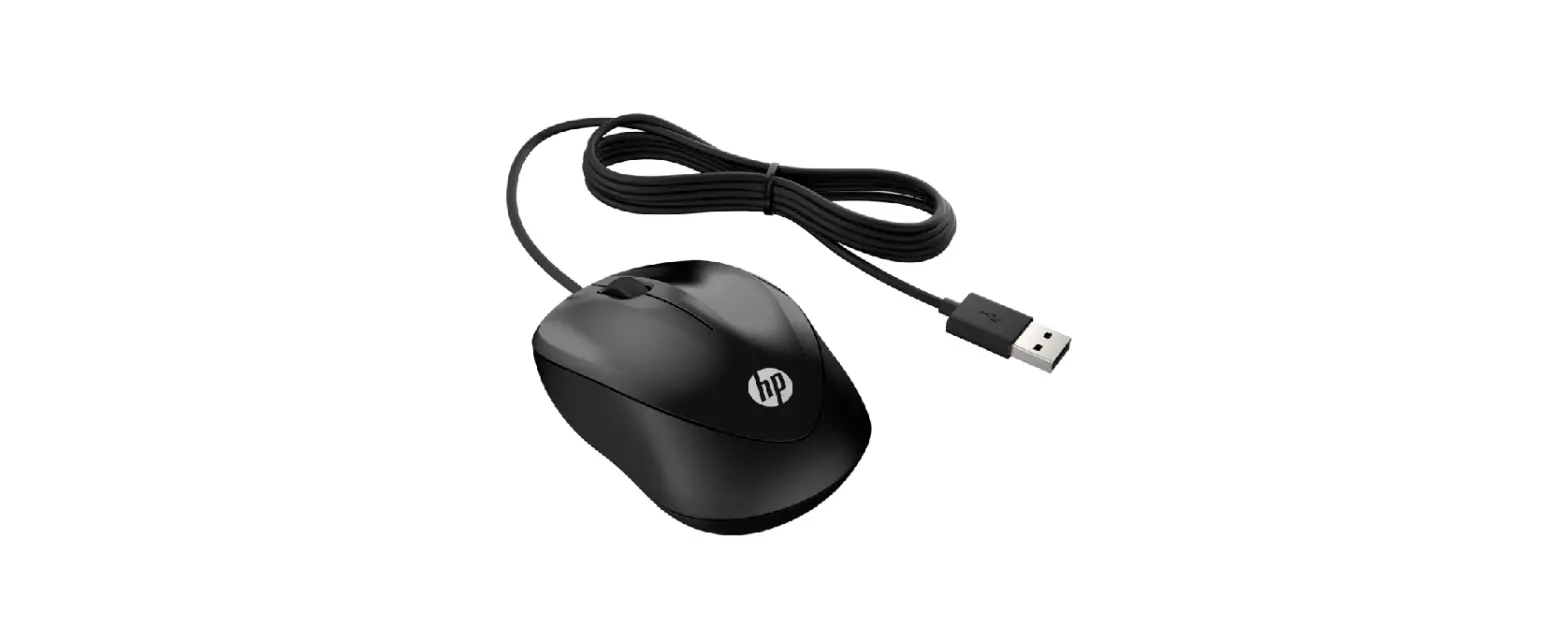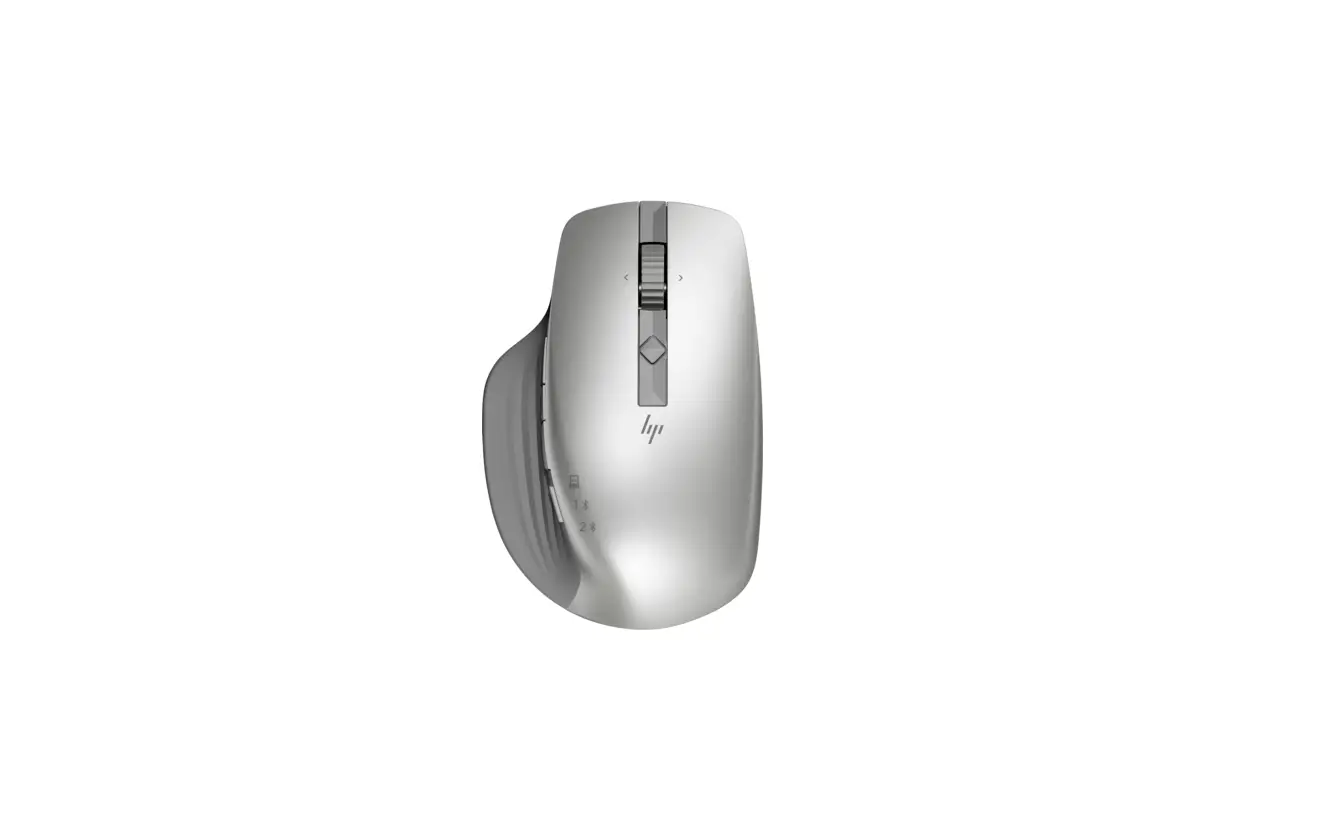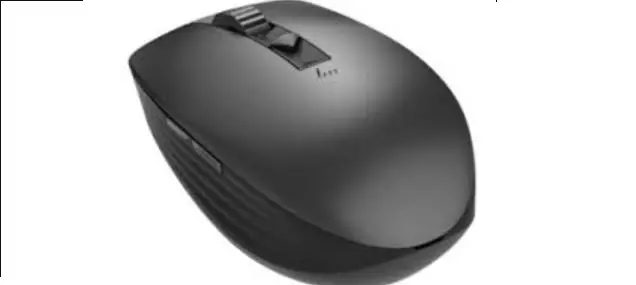

hp TPAD003D Mouse
Product Information:
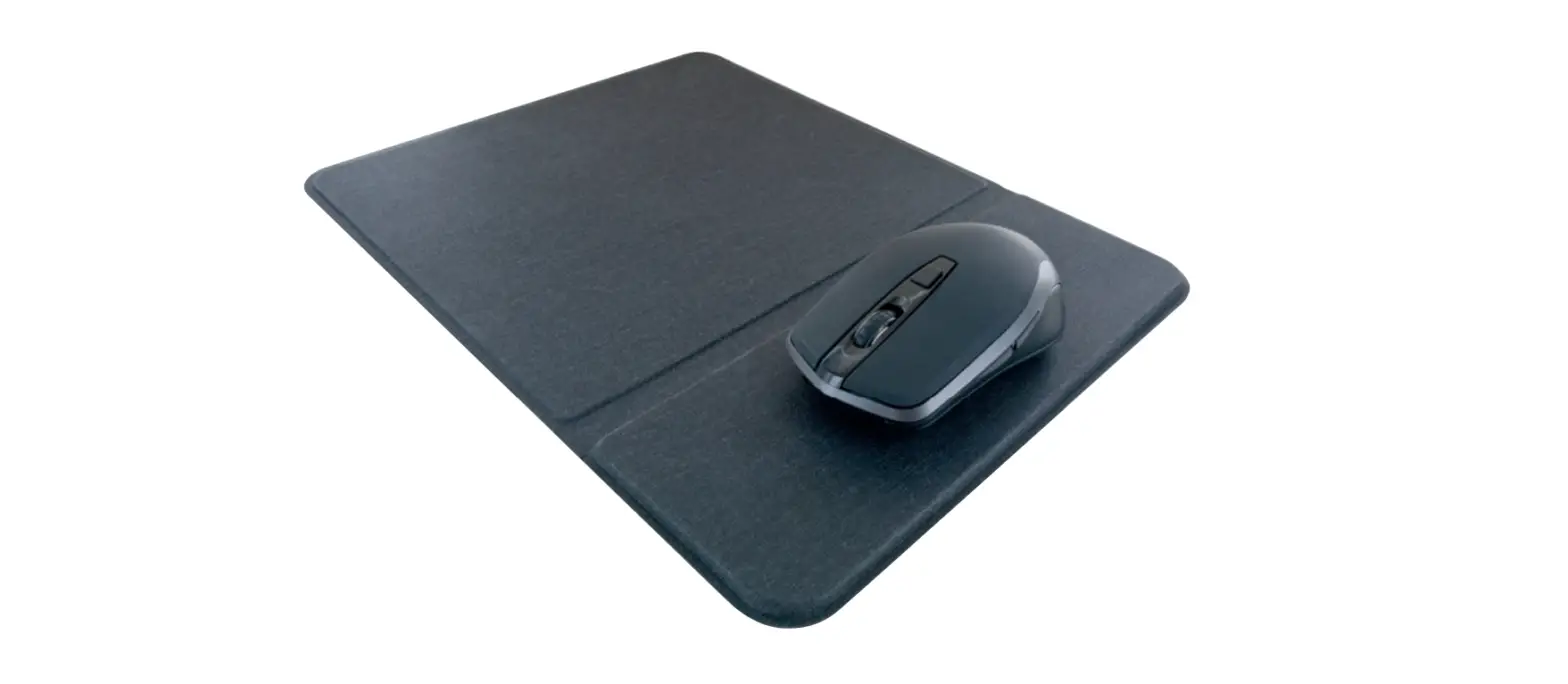
- Color Side 1: Flat size: BLACK, 30.66 x 21 in.
- Color Side 2: Finished size: BLACK, 3.83 x 2.625 in – Fold 1: 8-panel accordion – Fold 2: 8-panel accordion
Product Usage Instructions:
- Programmable forward button: Press this button to display the next page in your application history.
- Programmable back button: Press this button to display the previous page in your application history.
- Thumb button (programmable through HPAC): By default, press quickly to switch between virtual desktops in Windows 10 and Windows 11 (task view) or macOS (Mission Control).
Components description: –
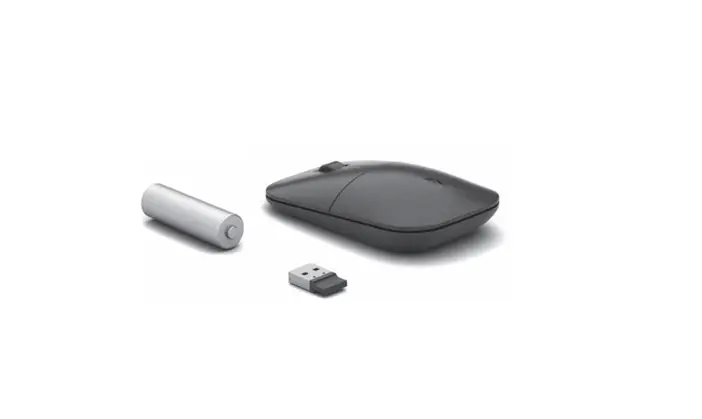
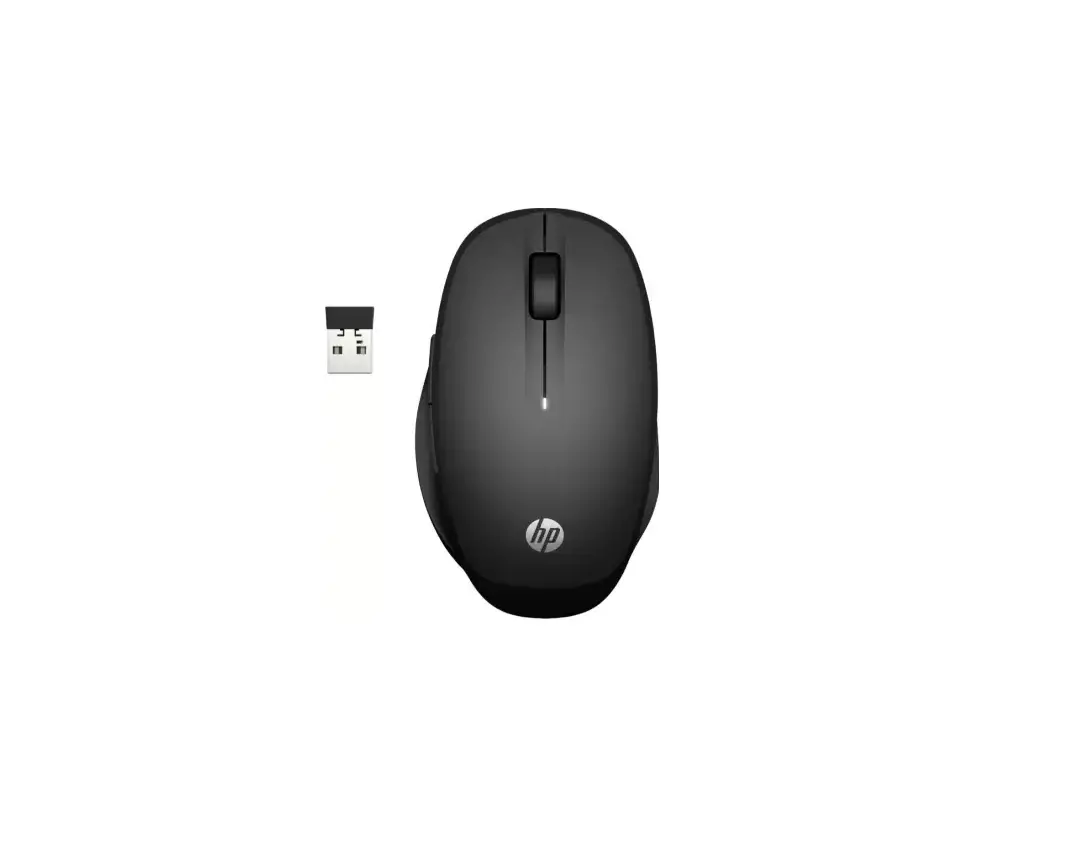
HP Unifying Dongle: Used for connecting the product to a computer wirelessly
Bluetooth: Supports Bluetooth connectivity.
HP Accessory Center (HPAC): Software for programming and customizing the product’s buttons and settings.
DPI (1200 DPI): Default DPI setting for the product.
Microsoft Store: Online store for downloading applications compatible with the product
Apple Store: Online store for downloading applications compatible with the product.
Note: The provided text contains information in multiple languages. The relevant information for product information and usage instructions has been extracted and provided here.
Color Side 1:
BLACK
Color Side 2:
BLACK
Flat size:
30.66 x 21 in.
Finished size:
3.83 x 2.625 in
Fold 1:
8-panel accordion
Fold 2:
8-panel accordion
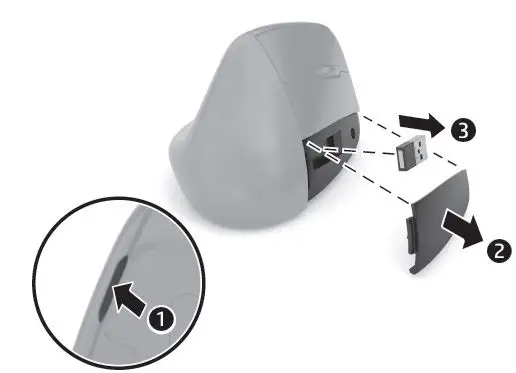
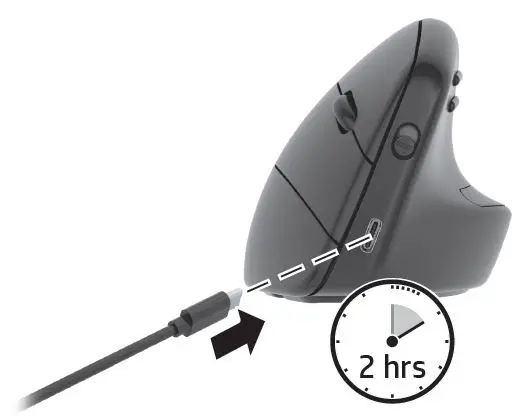
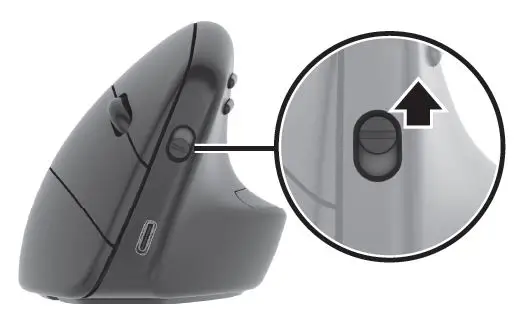
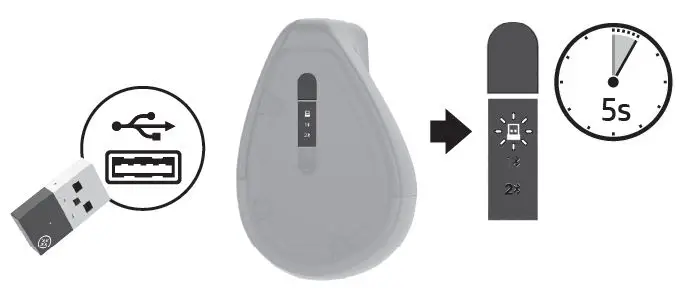
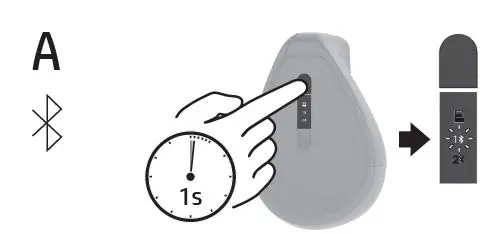
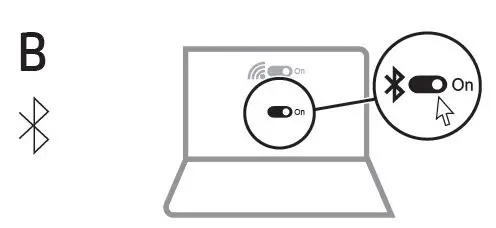
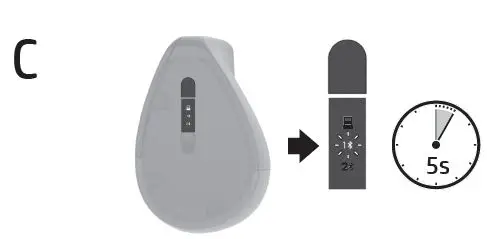
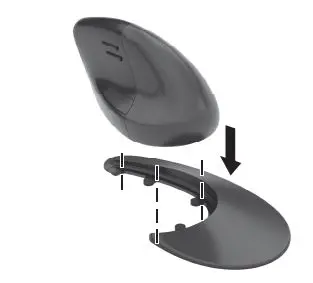
Connect the mouse to one computer using the HP Unifying Dongle and up to two computers via Bluetooth®.
Use the HP Accessory Center (HPAC) software to program the mouse buttons, change the DPI setting (1200 DPI by default), and use the dongle with the mouse’s pairing button. If the software does not download automatically, on your computer, open Microsoft Store or App Store. Search for HP Accessory Center, and then download the app.
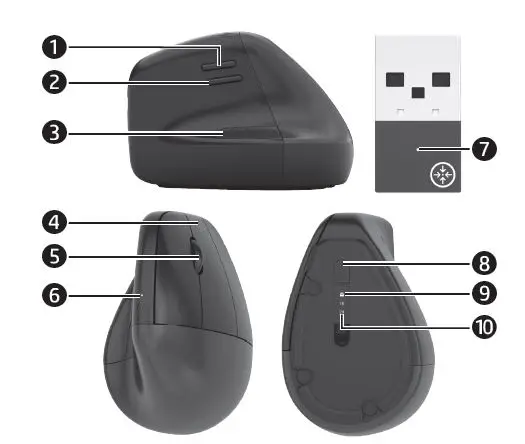
Components description
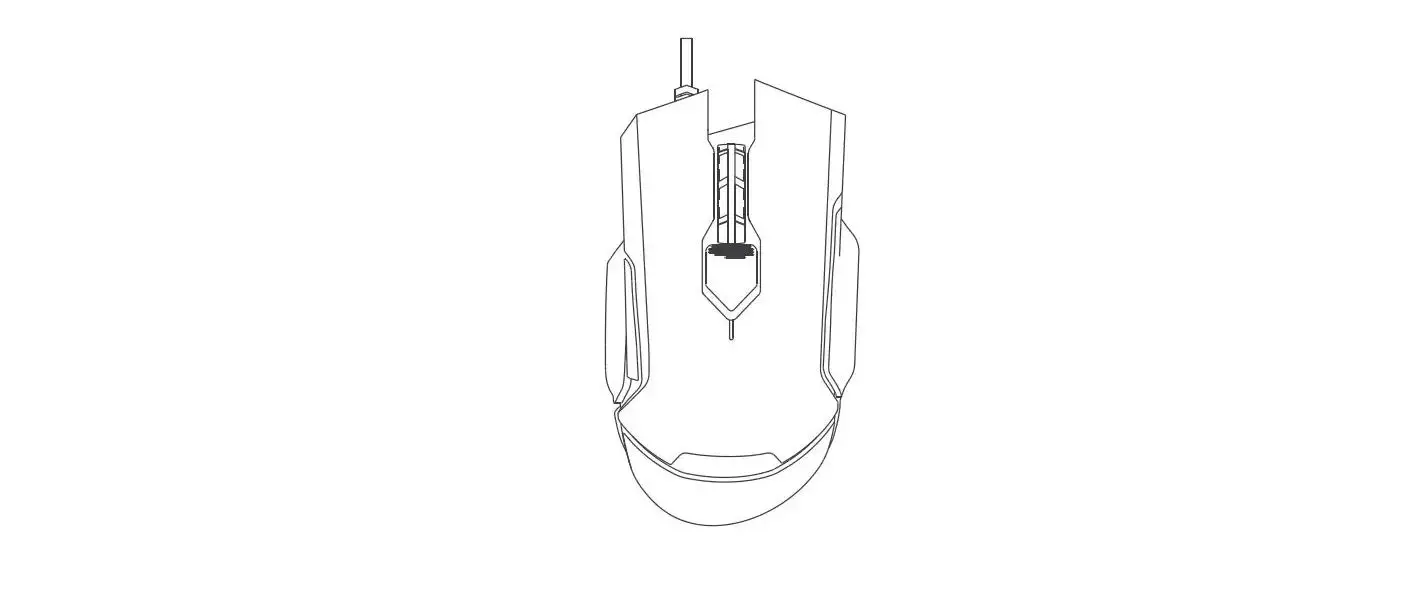
Programmable forward button By default, press to display the next page in your application history
Programmable back button
By default, press to display the previous page in your application history.3 Thumb button (programmable by HPAC)
By default, quick press to display all virtual desktops in Windows® 10 and Windows 11 (Task View) or macOS® (Mission Control). When HPAC is installed and Gesture function is enabled, press and hold the thumb button and move the mouse to use the default Gesture functions. Mouse up: Zoom in
Mouse down: Zoom out
Mouse left: Brightness –
Mouse right: Brightness +
Scroll up: Scroll left
Scroll down: Scroll right
Programmable right-click button
Programmable scroll wheel
Scrolls the screen up or down. Click to use functions programmed in the app. By default, click to use application-specific functions, and click and hold to scroll when you move the mouse up or down.
Battery light
White (5 s): The mouse is on.
Blinking amber: The mouse needs to be charged.
Solid amber: The mouse is charging.
Solid white: The mouse is fully charged and connected to power.
HP Unifying Dongle light
Slowly blinking (180 s): The dongle is in pairing mode. Solid (5 s): The dongle is connected to the mouse successfully.
Pairing button
Press to switch between channels. Press and hold for 2 s to enter pairing mode for the selected channel.
Mouse dongle light
Two blinks and a pause (180 s): The mouse is reconnecting to a previously paired dongle.
Solid (5 s): The mouse connection or reconnection was successful. Slowly blinking (180 s): The dongle channel is currently selected and the mouse is in pairing mode.
Bluetooth pairing lights
Two blinks and a pause (180 s): The mouse is reconnecting to a previously paired device.
Solid (5 s): The mouse connection or reconnection was successful. Slowly blinking (180 s): The Bluetooth channel is currently selected and the mouse is in pairing mode.
 HP Regulatory, Safety, Compliance, and Warranty Information | HP® Customer Support