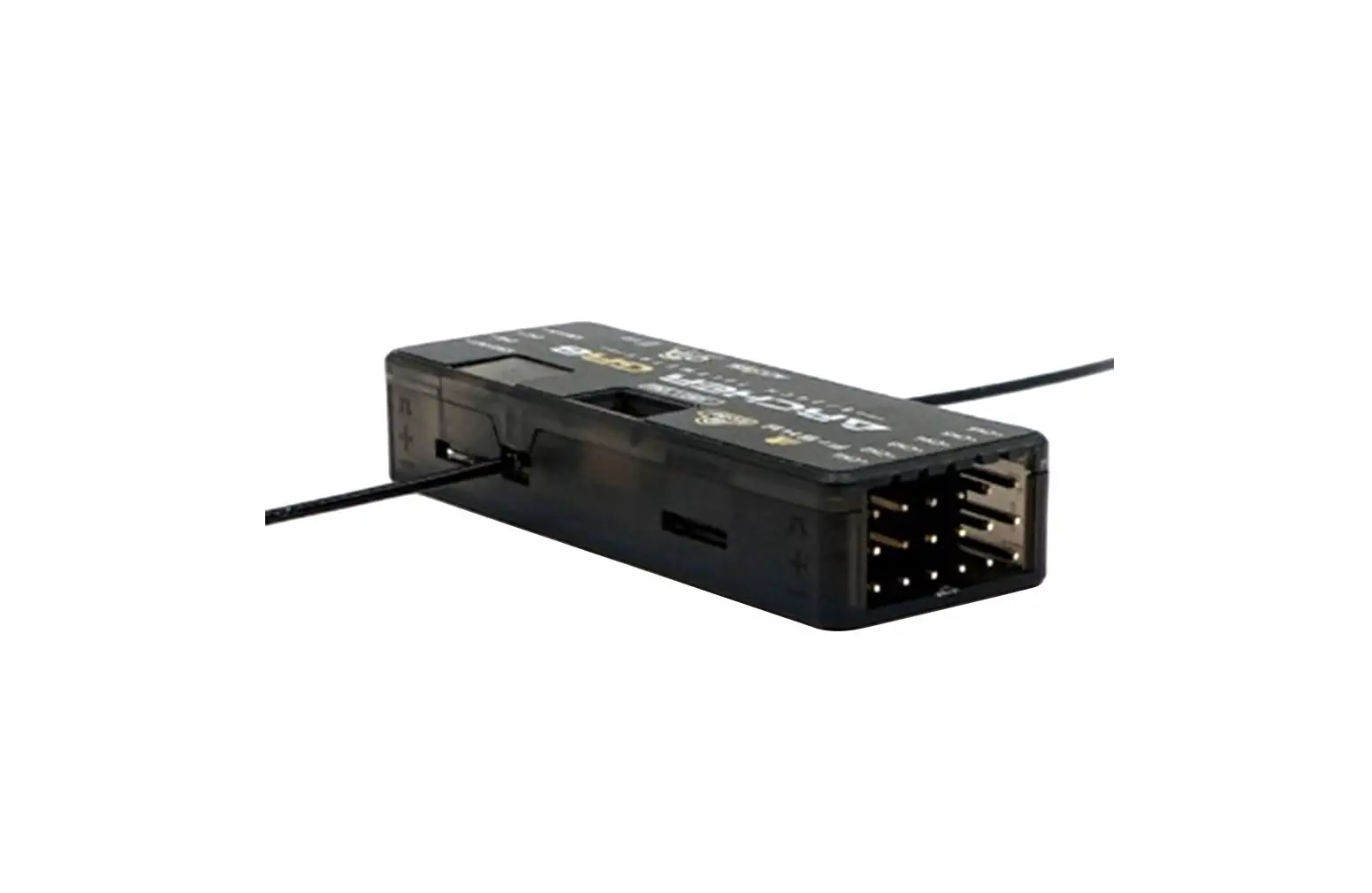
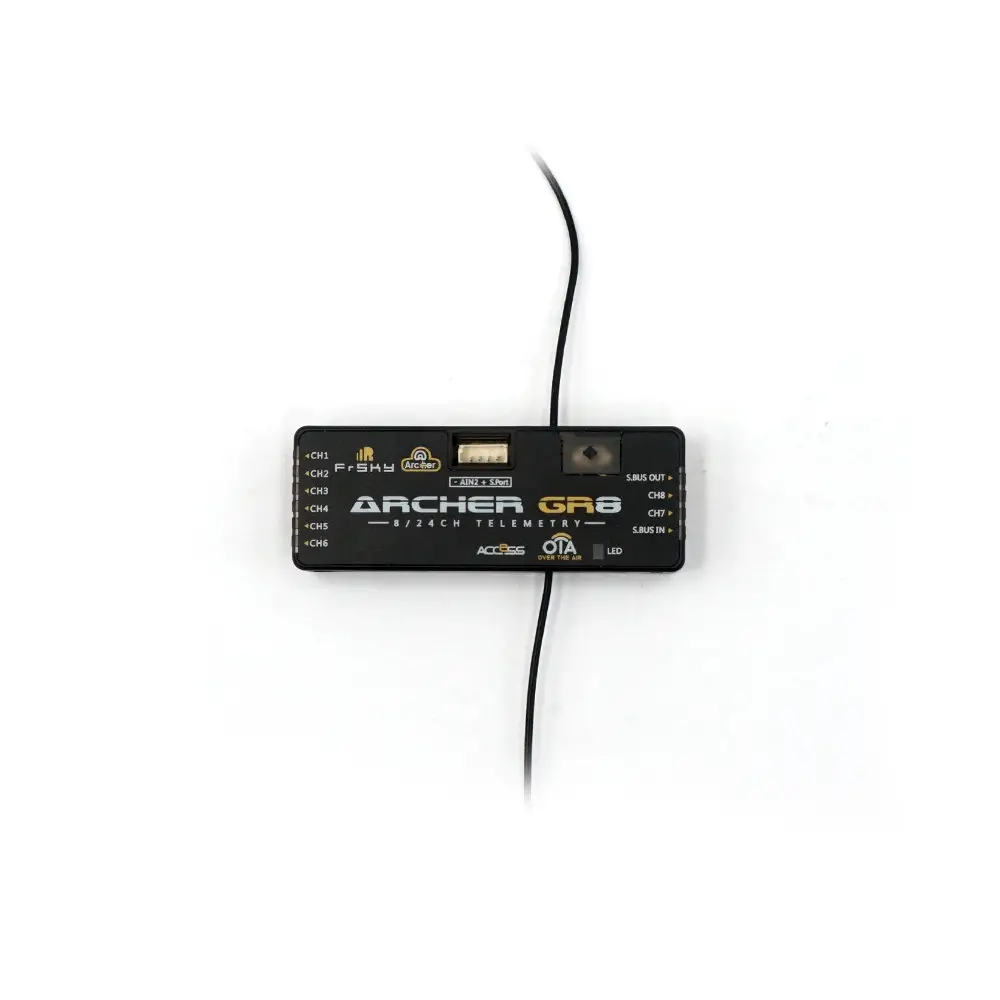
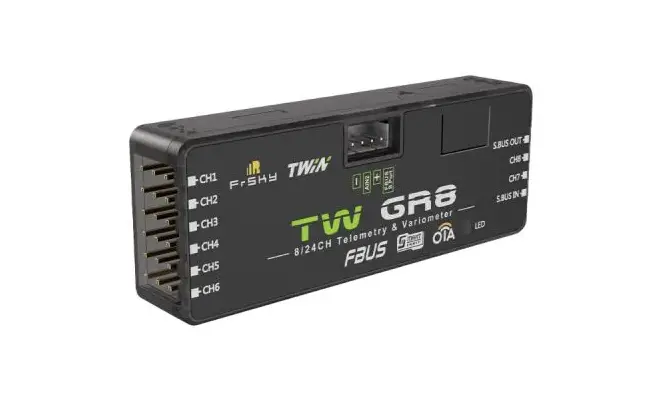
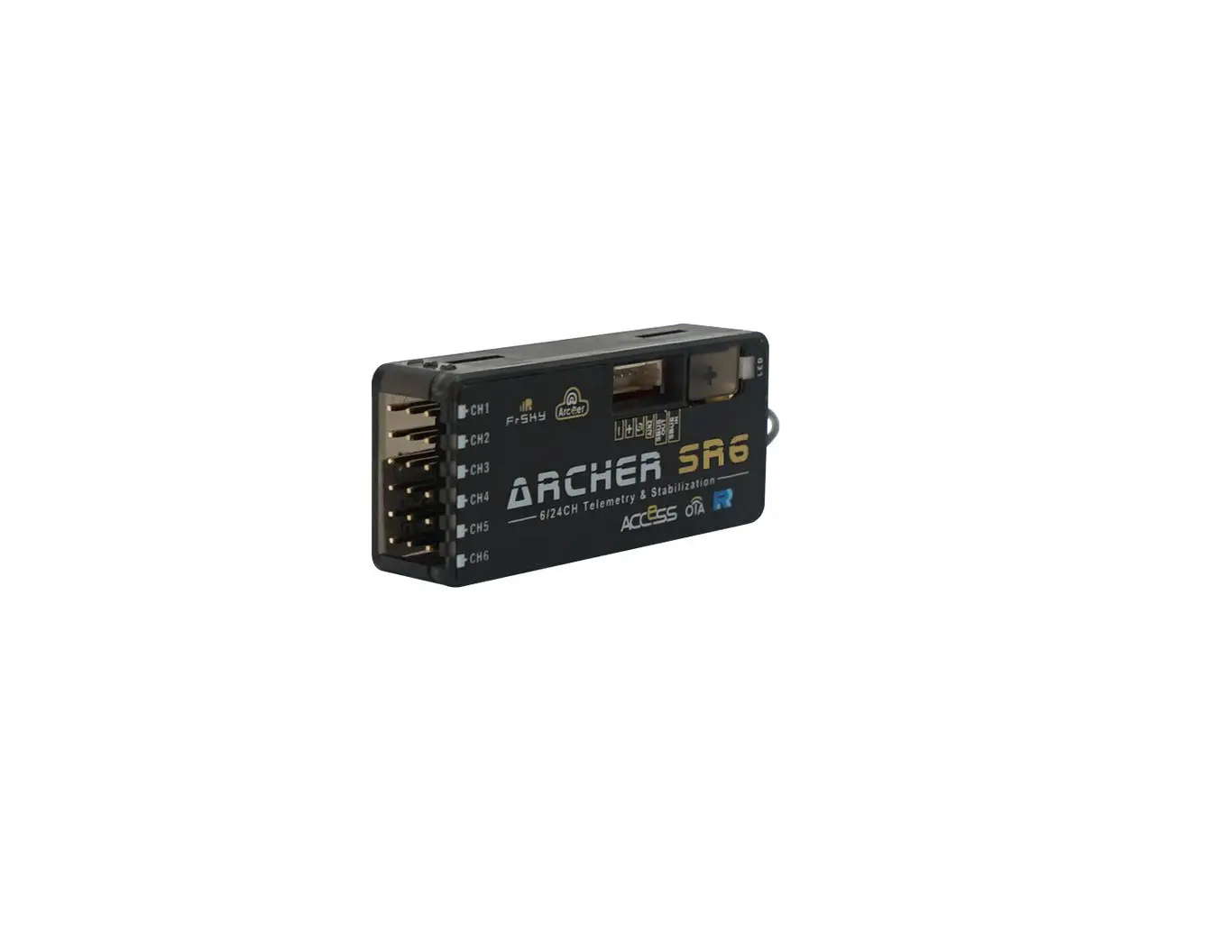
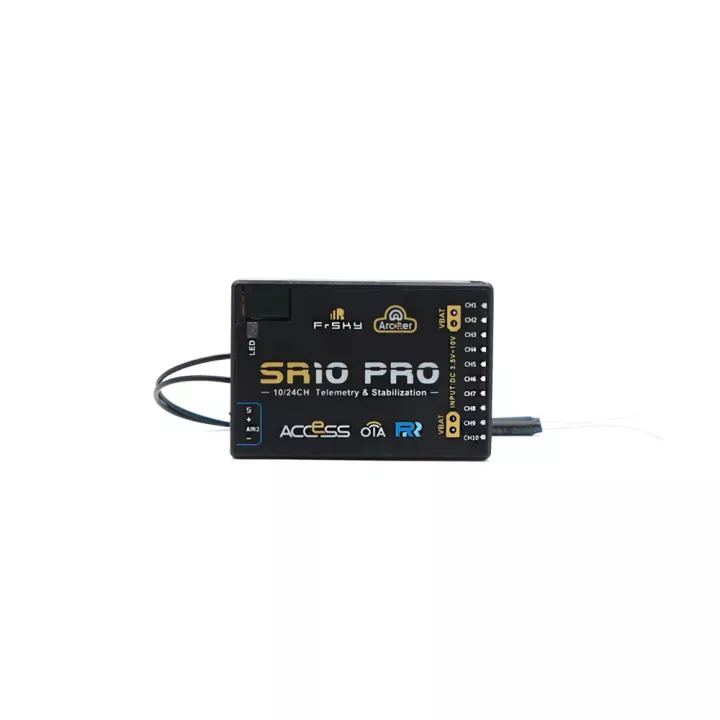
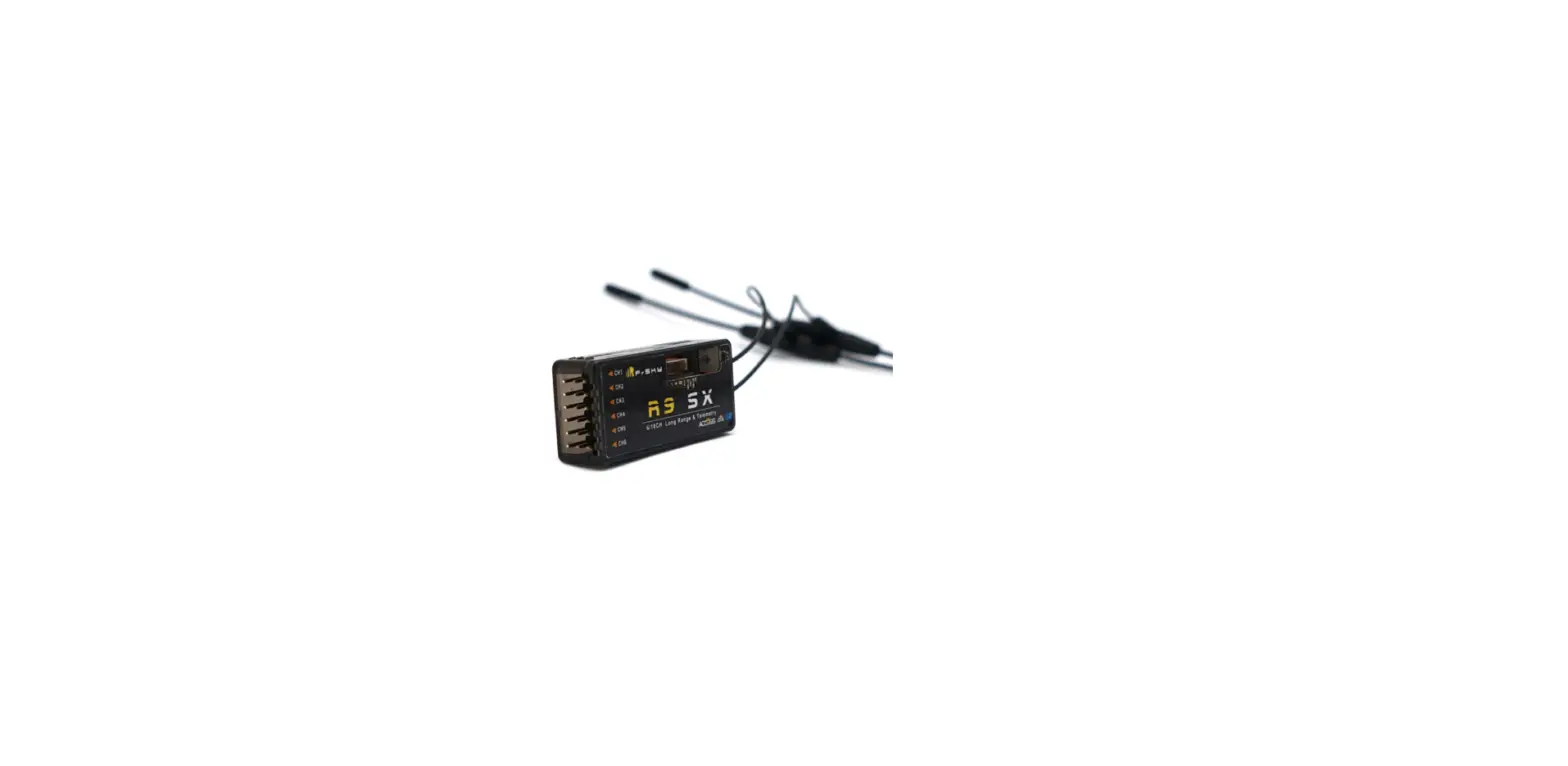
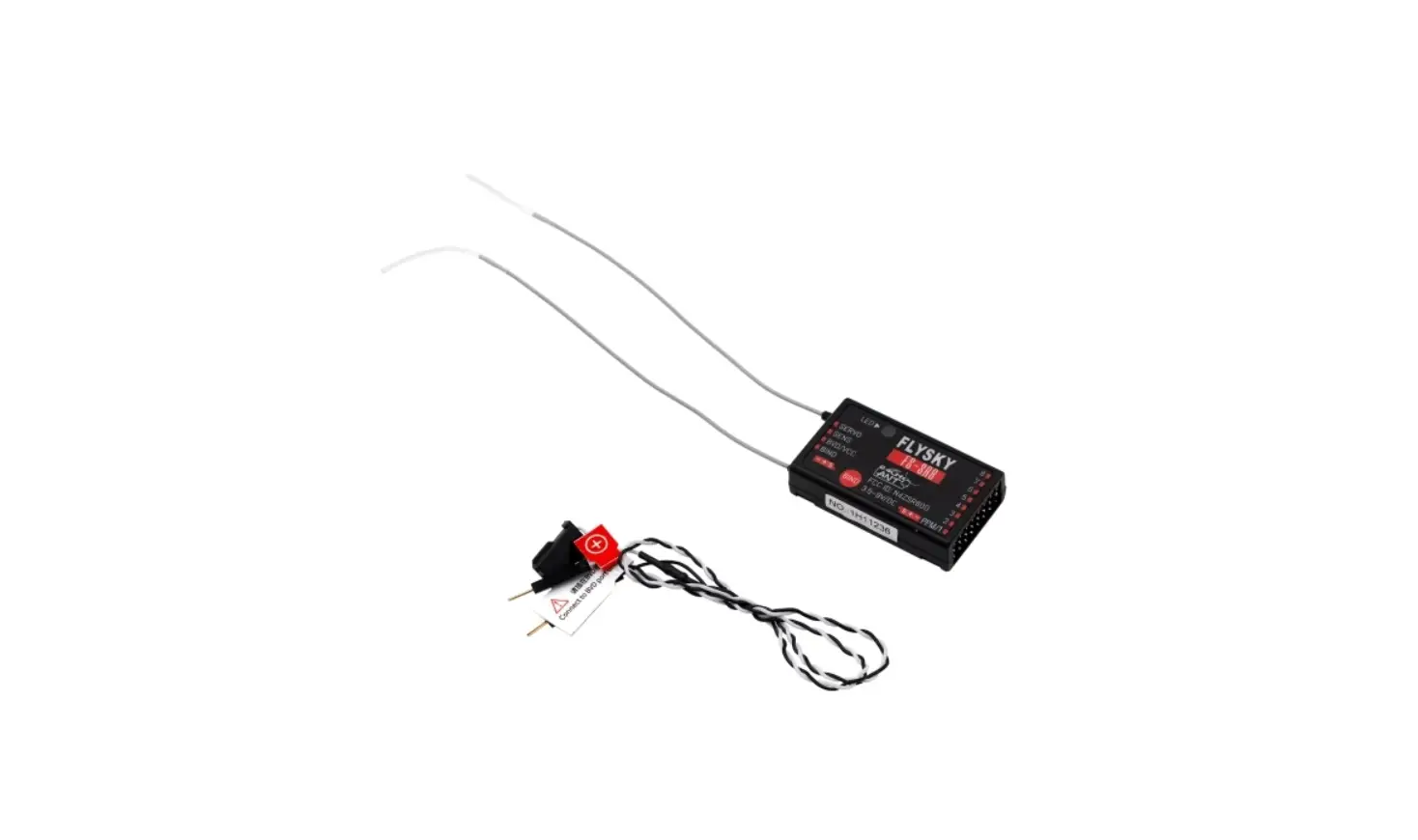
Archer Plus SR8 Receiver
Product Information:
| Product Name | FrSky ARCHER PLUS SR8 Receiver |
|---|---|
| Version | 1.0 |
| Features |
|
| Specifications |
|
Product Usage Instructions:
Registration & Automatic Binding:
- Enter into the Model, select RF System, turn on the internal
module, select. - Note: Once the receiver is registered, the button is not needed
anymore in the binding process (ACCESS mode).
Gyroscope Sensor Calibration:
- Ensure the Archer Plus SR8 stabilization function is
enabled. - Select [System] > [SRX Stable].
- Select [SRX Stable] > [Stabilizing] > [On].
- Move to [SRX Calibration] tool and calibrate the gyroscope
sensor. - The gyroscope of the device (6 surfaces) must be calibrated
before mounting into the model. Please place the device on each
surface and follow the calibration instructions.
Version
Instruction Manual for FrSky ARCHER PLUS SR8 Receiver 1.0
Introduction
The Archer line of receivers has been enhanced further with the addition of the new Archer Plus Series.
The Archer Plus Series receivers include some new features. Firstly an enhanced anti-RF-Interference capability can offer a more solid RF performance, and this is in addition to the receivers with anti-interfere performance in the spark ignition process. These Plus series receivers are also with both ACCESS and ACCST D16 modes, where the RF protocol is smart matched during the binding process on the radio. With the Black-Box function, some basic flight data (like Power & Signal related) can be well preserved.
The Archer Plus SR8 are gyro-stabilized receivers with a built-in 3-axis gyroscope and 3-axis accelerometer and feature multiple flight modes (Auto-level, Stabilization, Knife-Edge, etc.) and configuration methods.supports full-range signal strength with dual detachable antennas and guarantees optimal antenna reception and range.The Archer Plus SR8 can be used as a Primary receiver in a redundant solution by wiring the SBUS In port and connecting to any other FrSky receiver equipped with an SBUS Out port. With the FBUS protocol, the Archer Plus series receivers can open up the possibility of seamlessly pairing with multiple telemetry devices (XACT servos, ADV Sensors, etc.) as well as simplifying the builds setup.
(*Some features require the support of ACCESS and ETHOS.)
Overview
54mm
10mm
20mm
8/24CH Telemetry & Stabilization
AIN2 FBUS S.Port
REG BUTTON
SR8
Specifications
Dimension: 54*20*10mm (L*W*H) Weight: 9.8g Number of Channels: 8/24 channels
8 High-precision PWM & 16 SBUS channels Mode 8 High-precision PWM & 24 SBUS channels Mode Operating Voltage Range: 3.5 -10V Operating Current: 65mA@5V Operating Range: 2km (Full range) (*Range may vary based on local conditions.) Voltage Measurement Range via AIN2 (External device): 0-35V (Battery Voltage Divider Ratio: 1:10) Antenna connector: IPEX4 Compatibility: FrSky 2.4GHz ACCESS / ACCST D16 capable transmitters
Features
Enhanced Anti RF-Interference capability with more solid RF performance Smart-matched ACCESS & ACCST D16 modes Supports basic Black-Box function Built-in 3-axis gyroscope and 3-axis accelerometer sensor Multiple flight modes and configuration tools (ETHOS, LUA scripts, etc.) SBUS Out port (Supports 16CH / 24CH mode)
FrSky Electronic Co., Ltd.
www.frsky-rc.com
Contact us : [email protected]
Add: F-4,Building C, Zhongxiu Technology Park, No.3 Yuanxi Road, Wuxi, 214125, Jiangsu, China Technical Support: [email protected]
Version
Instruction Manual for FrSky ARCHER PLUS SR8 Receiver 1.0
SBUS In port (Supports Signal Redundancy) Full control range with telemetry (S.Port or FBUS) Over-The-Air (OTA) FW update External battery / device voltage detection
LED State
Green LED Red LED
Status
Yellow LED State (Calibration of Accelerometer) Blue LED State (Self-check)
On Flash
On Flash
Register Register successfully
ON OFF
exceeding limits (0.9G,1.1G) In normal status
ON
Center detection of
channel in progress
On
On
Bind
Flashing
On
Off
Bind successfully
Calibration is completed
Max & Min of Flashing channels in detecting
On
Off
Working normally
OFF Self-check is completed
Off
On
Failsafe
Registration & Automatic Binding
Follow the step below to finish the registration & binding procedure: 1. For TANDEM X20 as an example, enter into the Model, select RF System, turn on the internal module, select
status [ON] and ACCESS, Then determine the antennas (internal or external) and choose the RF power according to the actual usage, the ACCESS receiver can be registered to the radio at the moment. (Notice: the “Registration” process is not required while binding the receiver in ACCST D16 mode.) 2. Connect the battery to the receiver while holding the button on the receiver. The RED LED and GREEN LED on the receiver will be on, indicating into the [Reg] status. 3. When it shows the Register ID, RX name and UID, click [Register]. The RED LED and GREEN LED on the receiver will flash, and the transmitter displays [Registration OK ]. 4. Power off the receiver. 5. Move the cursor to select any one of the 3 receivers and press [Bind]. 6. Connect the battery to the receiver. 7. Select the RX, the GREEN will keep lit, then the transmitter displays [Bind successful].
Note: Once the receiver is registered, the button is not needed anymore in the binding process (ACCESS mode).
Basic Step Guides-Stabilization Function
a. Model Creation & Make sure the connected receiver is bound to the radio; b. Ensure stabilization is enabled & Calibrate the gyroscope sensor of the device; c. Servo connection & Build the stabilization device to the model; d. Set up the mixer channel and radio switches; e. Determine the [Wing Type] & [Mounting Type]; f. Check the stabilized channel outputs of the receiver in the Auto-Level mode; g. Check the stick control of the transmitter in the manual mode; h. Self-Check of the receiver; I. Failsafe setting.
Note: Please move to the [DOWNLOAD] section from the product page to download the functional Lua scripts (Place the decompressed folder in the root directory of the [Scripts] folder on the memory card to use.)
FrSky Electronic Co., Ltd.
www.frsky-rc.com
Contact us : [email protected]
Add: F-4,Building C, Zhongxiu Technology Park, No.3 Yuanxi Road, Wuxi, 214125, Jiangsu, China Technical Support: [email protected]
Version
Instruction Manual for FrSky ARCHER PLUS SR8 Receiver 1.0
Gyroscope Sensor Calibration
Ensure the Archer Plus SR8 stabilization function is enabled.
Move to [SRX Calibration] tool and calibrate the gyroscope sensor 1. The gyroscope of device (6 surfaces) must be calibrated before mounting into the model. Please place the
device on a flat ground or a table, and follow the instruction steps below to calibrate the gyrosope sensor;
2. Make sure the stabilization device with the Logo label side facing upwards laying on the desktop, move to the radio and enter the [SRX Calibration] tool, and select “click to confirm”. At this moment, the yellow LED light will flash until it lits off, then follow the prompts to calibrate the sensor;
3. Complete the calibration of all the device surfaces. Ensure the values of each axis (X, Y, Z, Mod) is about 1.000 while placing the device in the corresponding direction, and the deviation could be ±0.1;
4. The calibration is completed if all the steps above are done.
FrSky Electronic Co., Ltd.
www.frsky-rc.com
Contact us : [email protected]
Add: F-4,Building C, Zhongxiu Technology Park, No.3 Yuanxi Road, Wuxi, 214125, Jiangsu, China Technical Support: [email protected]
Version
Instruction Manual for FrSky ARCHER PLUS SR8 Receiver 1.0
Servo connection & Build the device to the model
Connect the servos to the ports of the stabilization device according to the Channel List.
Backward
Note: Please make sure the 4-pin Port forwards the nose direction of airplane model.
Number of Channel
Corresponding parts on the model
Full name
Forward
CH1
AIL 1
Aileron
CH2
ELE 1
Elevator
CH3
THR
Throttle
CH4
RUD
Rudder
CH5
AIL 2
Aileron
CH6
ELE 2
Elevator
CH7
AIL 3
Aileron
CH8
ELE 3
Elevator
CH9
RUD 2
Rudder
CH10
AIL 4
Aileron
CH11
ELE 4
Elevator
CH12
User-defined
CH13
User-defined
Gyro gain adjustment
CH14&CH15
User-defined
Flight modes
CH16
User-defined
Emergency mode
FrSky Electronic Co., Ltd.
www.frsky-rc.com
Contact us : [email protected]
Add: F-4,Building C, Zhongxiu Technology Park, No.3 Yuanxi Road, Wuxi, 214125, Jiangsu, China Technical Support: [email protected]
Version
Instruction Manual for FrSky ARCHER PLUS SR8 Receiver 1.0
Gyro gain adjustment of CH13: When the the value of CH13 is in the center, the gain is zero. The gain increases as the value get bigger. Until the value is ±100%, the gain reaches maximum.
Attentions CH1~CH12 should be connected to the corresponding servos.
Set up the mixer channel and radio switches
Refer to the Channel List to set the channel and switches. The switch setting of CH13-16 on the picture is for reference.
Move to the [SRX Stable] tool, determine the [WingType] & [Mounting Type];
1 2
1Wing Type 2Mounting Type
[Gain] and [Offset] configurations of flight modes
1
2
3
1 Gain – Stab Mode 2 Gain – Auto-Level Mode 3 Gain – Hover Mode
1
2
3
4
1 Gain – Knife Mode 2 Angle Offset – Auto-Level Mode 3 Angle Offset – Hover Mode 4 Angle Offset – Knife Mode
FrSky Electronic Co., Ltd.
www.frsky-rc.com
Contact us : [email protected]
Add: F-4,Building C, Zhongxiu Technology Park, No.3 Yuanxi Road, Wuxi, 214125, Jiangsu, China Technical Support: [email protected]
Version
Instruction Manual for FrSky ARCHER PLUS SR8 Receiver 1.0
Check whether the reaction of the wing servo is in line with the flight attitude caption below in the [Auto-Level] mode. If not, please try to invert the corresponding channel output in the [SRX Stable] tool.
Inspection of flight attitude
To ensure flight safety, checking the compensation direction of the model is strongly recommended. Activating auto level mode will produce a strong deflection on AIL and ELE, which is used to check the response of aileron and elevator. Also, activating Knife-edge and Hover mode will have the same reaction on the rudder.
When the plane is rotated left or right (Roll), ailerons should have the correcting actions as illustrated.
When the plane is rotated up or down (Pitch), elevators should have the correcting actions as illustrated.
When the plane is rotated to left or right (Yaw), rudders should have the correcting actions as illustrated.
After changing the compensation direction, make sure to check it again on the actual model.
FrSky Electronic Co., Ltd.
www.frsky-rc.com
Contact us : [email protected]
Add: F-4,Building C, Zhongxiu Technology Park, No.3 Yuanxi Road, Wuxi, 214125, Jiangsu, China Technical Support: [email protected]
Version
Instruction Manual for FrSky ARCHER PLUS SR8 Receiver 1.0
Note: If the compensation direction is incorrect, please reverse the corresponding channel as illustrated above through the [SRX Stable] tool.
Check whether the reaction of the wing servo is in line with the radio stick operation in the [Manual] mode. If not, please try to invert the corresponding channel output by pressing the channel bar in the [Output] tool.
Self Check
1. Make sure the model is in a horizontal position on the ground, then put the throttle to 0, and keep the other channels in the center position.
2. Move to [System] and enter the [SRX Stable] tool to turn on [Self Check], then the blue LED light turns on. Once the blue LED starts flashing, we can calibrate the maximum travel of stick channels (excluding the throttle channel).
3. If the calibration is completed, the LED turns off and the servos react left and right to indicate that the calibration process is completed.
Do the Self-Check in the [SRX Stable] tool.
[System] [SRX Stable] [Self-Check]Note: To do the Self-Check of the stabilization device, please ensure the stabilization function is enabled. Enter the [SRX Stable] tool and turn On the [Stabilizing], then quit the [SRX Stable] tool and back into this tool again, now the [Self-Check] function is capable to enable.
How to set the flight modes
Quick Mode
It supports stabilization mode, auto-level mode, and manual (Gyroscope is off) mode and configured through CH14. What’s more, an emergency mode is added to configure automatic level mode default through CH16. The precise configuration is written below.
FrSky Electronic Co., Ltd.
www.frsky-rc.com
Contact us : [email protected]
Add: F-4,Building C, Zhongxiu Technology Park, No.3 Yuanxi Road, Wuxi, 214125, Jiangsu, China Technical Support: [email protected]
Version
Instruction Manual for FrSky ARCHER PLUS SR8 Receiver 1.0
Note: The default mode of ARCHER PLUS SR8 is Quick Mode. – If Quick Mode is applied, there is no Knife Edge or (3D) Hover Mode. – CH15 is not used when using Quick Mode.
Enable the Quick Mode in the [SRX Stable] tool.
Channel CH14 (3 pos SW) CH16 (3 pos SW)
Position SW Down SW Mid
SW Up SW Down
Flight Mode None
Stabilization Mode Automatical Level Mode Emergency Mode (Automatic Level Mode)
Conventional Mode
It supports stabilization mode and manual (Gyroscope is off) mode and configured through CH14&15. What’s more, an Emergency mode is added to configure automatic level mode default through CH16. The precise
configuration is Written below.
Flight mode Stabilization
Automatic level
Hover
Knife-Edge
Off
Emergency Mode
CH14 (3 pos SW) CH14 SW Down CH14 SW Down CH14 SW Down CH14 SW Up
&
&
&
&
CH14 SW-Mid
CH15 (3 pos SW) CH15 SW Mid CH15 SW Down CH15 SW Up CH15 SW Mid
CH16 (3 pos SW)
CH16 SW Down
Model Configuration Reference
Conventional Model
Flight mode CH14 (3 pos SW) CH15 (3 pos SW)
Layout
Stabilization Automatic level
Hover
CH14>M+H
CH14>M+H
CH14>M+H
(CH14 SW Down) (CH14 SW Down) (CH14 SW Down)
M-H<CH15<M+H
CH15>M+H
(CH15 SW Mid) (CH15 SW Down)
CH15<M-H (CH15 SW Up)
Knife-Edge
CH14<M-H (CH14 SW Up)
M-H<CH15<M+H (CH15 SW Mid)
Off CH14 SW-Mid
FrSky Electronic Co., Ltd.
www.frsky-rc.com
Contact us : [email protected]
Add: F-4,Building C, Zhongxiu Technology Park, No.3 Yuanxi Road, Wuxi, 214125, Jiangsu, China Technical Support: [email protected]
Version
Instruction Manual for FrSky ARCHER PLUS SR8 Receiver 1.0
Note: M: represents a neutral signal period (1500s) H: represents the time of required signal change to activate the mode (50s). When the factory settings are
selected, the switch position shown above represents the required modes.
Delta wing & Flying wing & V-tail
Layout of Delta wing / Flying wing
Layout of V-tail
The available flight modes can be assigned to CH14 with a three-position switch.
Flight mode
Stabilization
Auto Level
CH14
CH14>M+H (CH14 SW Down)
CH14<M-H (CH14 SW Up)
Off CH14 SW-Mid
1. When Delta wing/Flying wing is selected, the signal produced by the transmitter should be without active mixes on the channels related to AIL and ELE. Archer Plus SR8 will mix the AIL (CH1) and ELE (CH2) input signal with a fixed mix percentage automatically.
2. When V-tail type is selected, the signal produced by the transmitter should be without active mixes on the channels related to ELE and RUD. Archer Plus SR8 will mix the ELE (CH2) and RUD (CH4) input signal with a fixed mix percentage automatically.
Stabilization: When the model is activated, Archer Plus SR8 will compensate with external forces (wind) as soon as receiving commands from the transmitter. This function is used to enhance the stability of the model on three axis (Pitch, Roll, YAW). CH13 could be used to adjust gyro gain by assigning a knob or a slider, changing the sensitivity of the counteracting signal produced by the internal three-axis gyroscope.
Automatic level: When the mode is activated, Archer Plus SR8 will make the model return to level orientation with internal three-axis accelerometer and three-axis gyroscope on AIL and ELE channels after the sticks being released to neutral. RUD channel works in stabilization mode only.
Hover: When the mode is activated, Archer Plus SR8 will make the nose of the model straight up with internal
three-axis accelerometer and three-axis gyroscope on RUD and ELE channels (ELE and RUD inputs are not required). Under this mode, AIL is used to control the rotation of the model and THR adjust the altitude. AIL channel works in stabilization mode only.
Knife-egde mode: When the mode is activated, Archer Plus SR8 will roll the plane on a certain side (wing points
up) with internal three-axis accelerometer and three-axis gyroscope on RUD and AIL channels.Thus, AIL inputs are not required. While the mode steering is done with ELE, altitude will be maintained with THR/RUD. ELE channel operates in stabilization mode only.
Off: When the mode is activated, Archer Plus SR8 will transmit the received commands produced by the transmitter to the model without compensating.
FrSky Electronic Co., Ltd.
www.frsky-rc.com
Contact us : [email protected]
Add: F-4,Building C, Zhongxiu Technology Park, No.3 Yuanxi Road, Wuxi, 214125, Jiangsu, China Technical Support: [email protected]
Version
Instruction Manual for FrSky ARCHER PLUS SR8 Receiver 1.0
How to Switch High PWM Speed mode
1. The factory default setting is OFF . 2. To go to the receiver [Options], select On to active high speed mode . Warning: High PWM speed mode is only applied for digital servos. Turn off High PWM Speed mode
when using analog servo, otherwise servos will get hot and may burn out.
How to switch the S.Port/F.Port/FBUS
Enter into the [Set] of receiver.
How to switch SBUS channel mode
Click the Telem.Port, and select S.Port/F.Port/FBUS.
Enter into RX Settings.
Click [SBUS], then select SBUS-16 mode or SBUS-24 mode.
FrSky Electronic Co., Ltd.
www.frsky-rc.com
Contact us : [email protected]
Add: F-4,Building C, Zhongxiu Technology Park, No.3 Yuanxi Road, Wuxi, 214125, Jiangsu, China Technical Support: [email protected]
Version
Instruction Manual for FrSky ARCHER PLUS SR8 Receiver 1.0
About OTA function
Go to the [File manager], and select the FW, press the enter button, select [Flash RX by int.OTA]. Power on the receiver, select the RX, go to the [ENTER], complete the flash process, the transmitter will display [Success]. Wait for 3 seconds, the receiver works properly at the moment. Note: Please do not do the binding operation in the near range while the firmware upgrading in progress.
Note: Update the firmware after the receiver getting registered (OTA).
Range Check
A pre-flight range check should be done before every flight, in case the signal loss is caused by the reflection of the signal by the nearby metal fence or concrete, and the shading of the signal by buildings or trees during the actual flight. 1. Place the model at least 60 cm (2 feet) above the non-metal contaminated ground (such as on a wooden
bench). The receiving antenna should be in a vertical position. 2. Ener the ETHOS system, move to the “RF System”, scroll the Encoder to select “RANGE” mode and press
Encoder. In range check mode, the effective distance will be decreased to 1/30.
How to set Failsafe
There are 3 failsafe modes when the setting is enabled: No Pulse, Hold, and Custom mode. No Pulses Mode: On loss of signal, the receiver produces no pulses on any pwm channel. To use this mode,
select it in the menu and wait 9 seconds for the failsafe to take effect.
Hold Mode: The receiver continues to output the last positions before the signal was lost. To use this mode, select it in the menu and wait 9 seconds for the failsafe to take effect.
Custom Mode: Pre-set to required positions on the lost signal. Move the cursor to the failsafe mode of the channel and press Encoder, then choose the Custom mode. Move the cursor to the channel you want to set failsafe On and press Encoder. Then rotate the Encoder to set your failsafe for each channel and short-press the Encoder to finish the setting. Wait 9 seconds for the failsafe to take effect.
FrSky Electronic Co., Ltd.
www.frsky-rc.com
Contact us : [email protected]
Add: F-4,Building C, Zhongxiu Technology Park, No.3 Yuanxi Road, Wuxi, 214125, Jiangsu, China Technical Support: [email protected]
Version
Instruction Manual for FrSky ARCHER PLUS SR8 Receiver 1.0
Note: If the failsafe is not set, the model will always work with the last working status before the signal is
lost. That could cause potential damage. When the failsafe is disabled on the RF module side, the receiver defaults to Hold mode. When in No Pulses Mode, do not set the Failsafe to No Pulses Mode for the SBUS port as it will keep
the signal output continuouslyPlease set “Hold” or “Custom” mode for the SBUS port.
FCC STATEMENT
1. This device complies with Part 15 of the FCC Rules. Operation is subject to the following two conditions: 1) This device may not cause harmful interference. 2) This device must accept any interference received, including interference that may cause undesired operation.
2. Changes or modifications not expressly approved by the party responsible for compliance could void the user’s authority to operate the equipment.
NOTE: This equipment has been tested and found to comply with the limits for a Class B digital device, pursuant to Part 15 of the FCC Rules. These limits are designed to provide reasonable protection against harmful interference in a residential installation. This equipment generates uses and can radiate transmitter frequency energy and, if not installed and used in accordance with the instructions, may cause harmful interference to transmitter communications. However, there is no guarantee that interference will not occur in a particular installation. If this equipment does cause harmful interference to transmitter or television reception, which can be determined by turning the equipment off and on, the user is encouraged to try to correct the interference by one or more of the following measures:
– Reorient or relocate the receiving antenna. – Increase the separation between the equipment and receiver. – Connect the equipment into an outlet on a circuit different from that to which the receiver is connected. – Consult the dealer or an experienced transmitter/TV technician for help.
FrSky is continuously adding features and improvements to our products. To get the most from your product, please check the download section of the FrSky website www.frsky-rc.com for the latest update firmware and manuals
FrSky Electronic Co., Ltd.
www.frsky-rc.com
Contact us : [email protected]
Add: F-4,Building C, Zhongxiu Technology Park, No.3 Yuanxi Road, Wuxi, 214125, Jiangsu, China Technical Support: [email protected]
 Robinson+Cole
 FrSky Top Rated RC Hobby Radio, Receiver and RC Model - Lets you set the limits