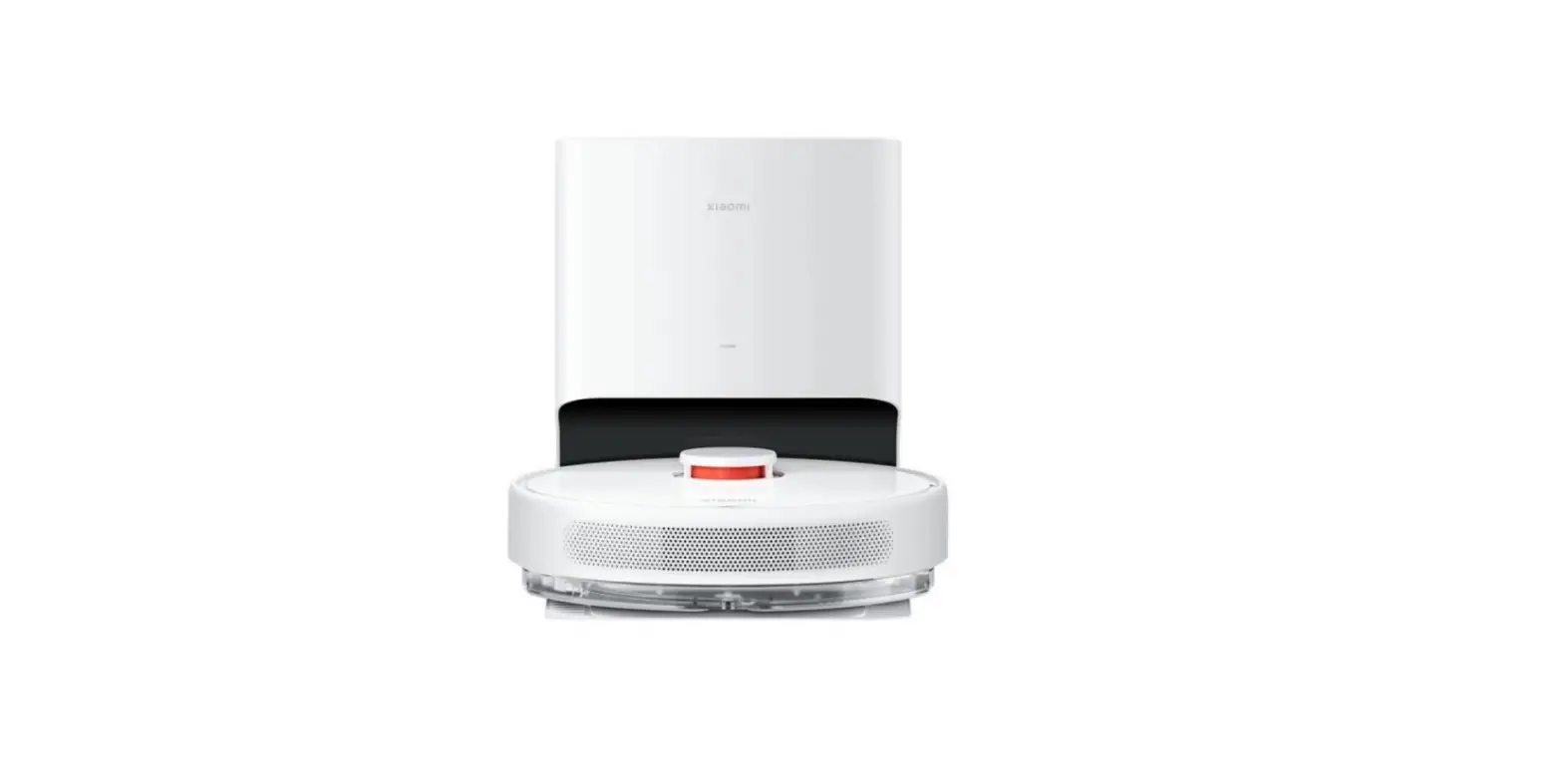
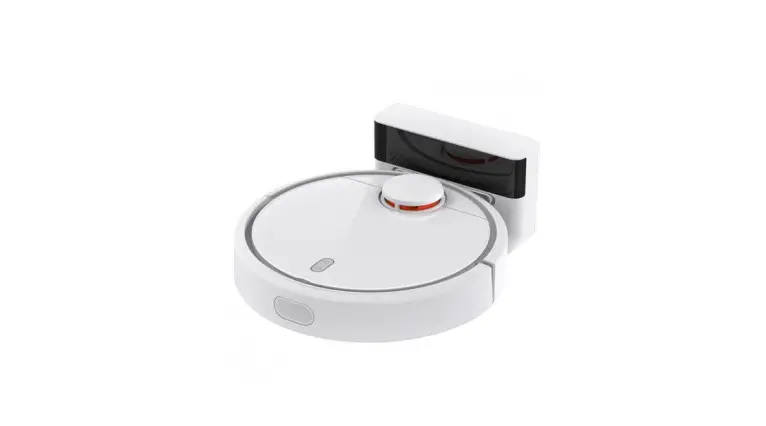
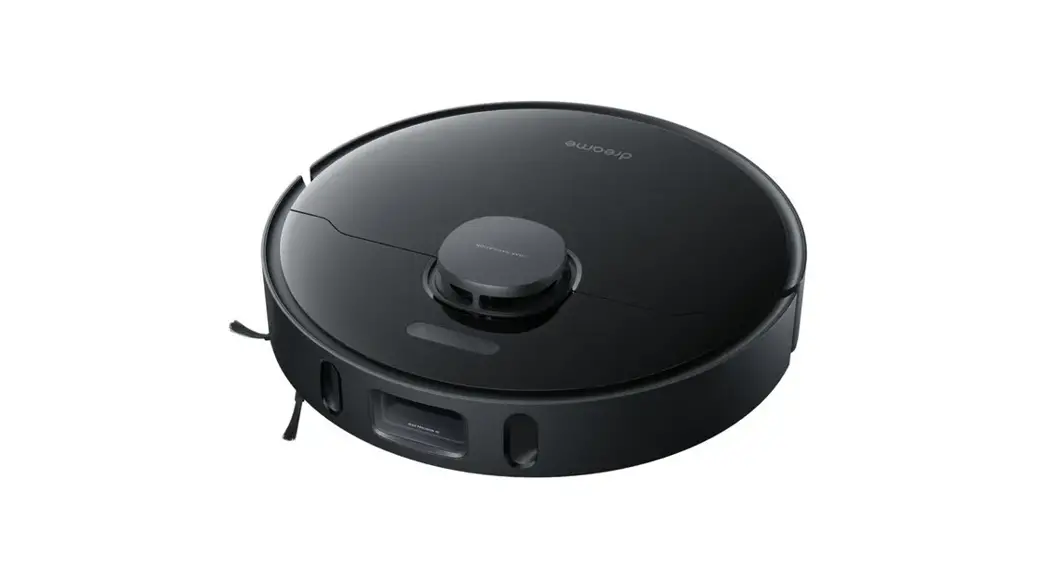
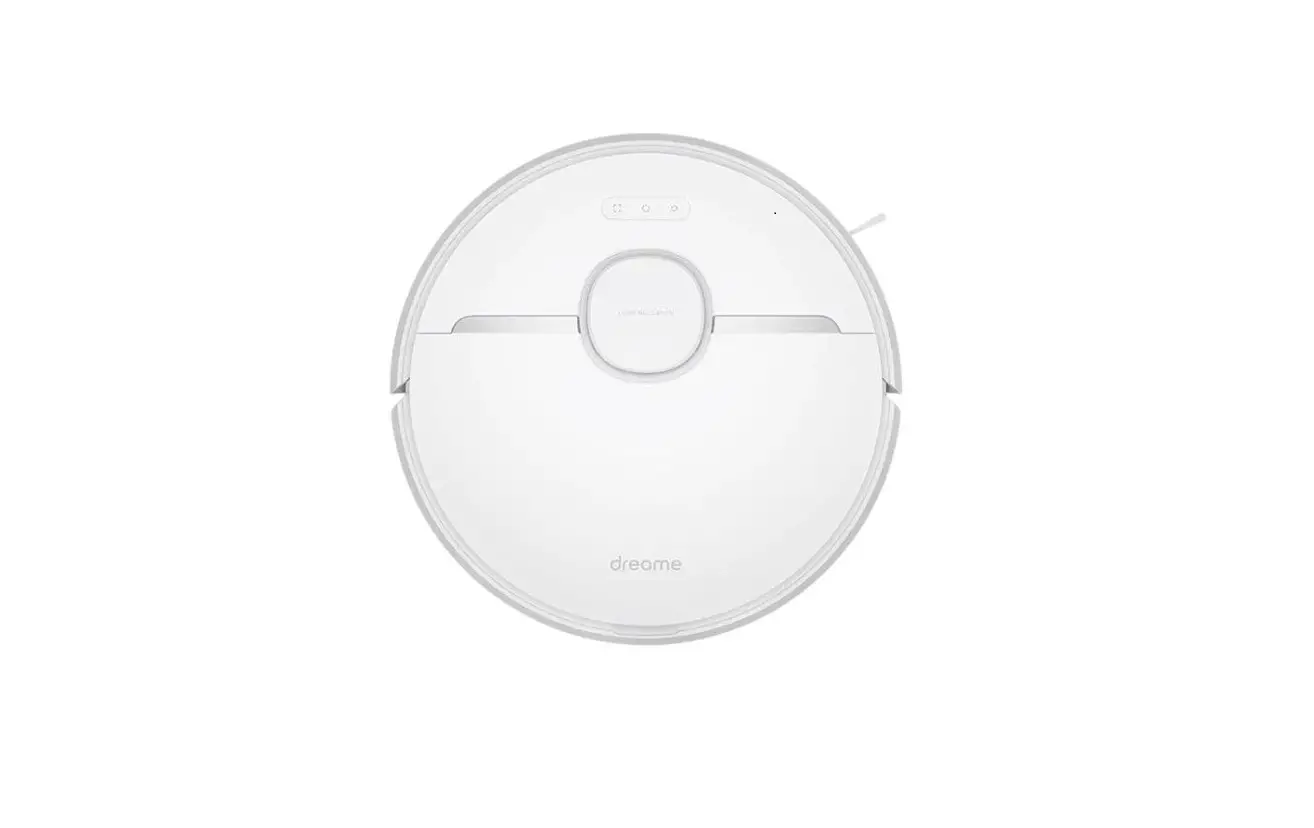
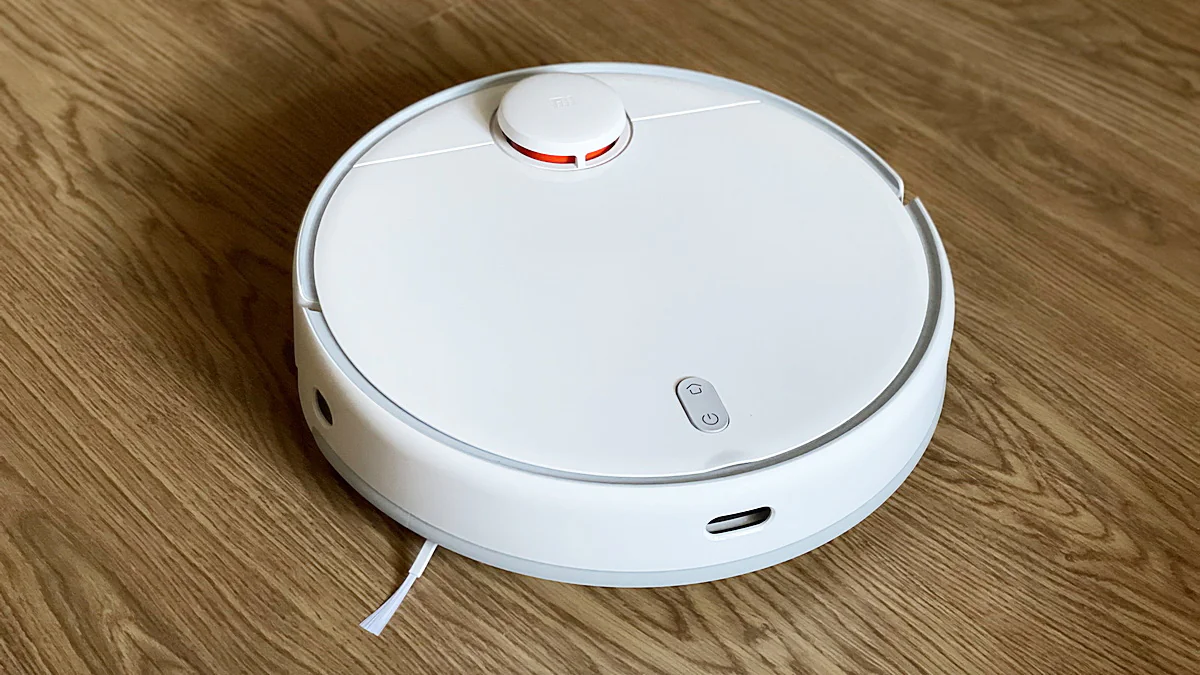
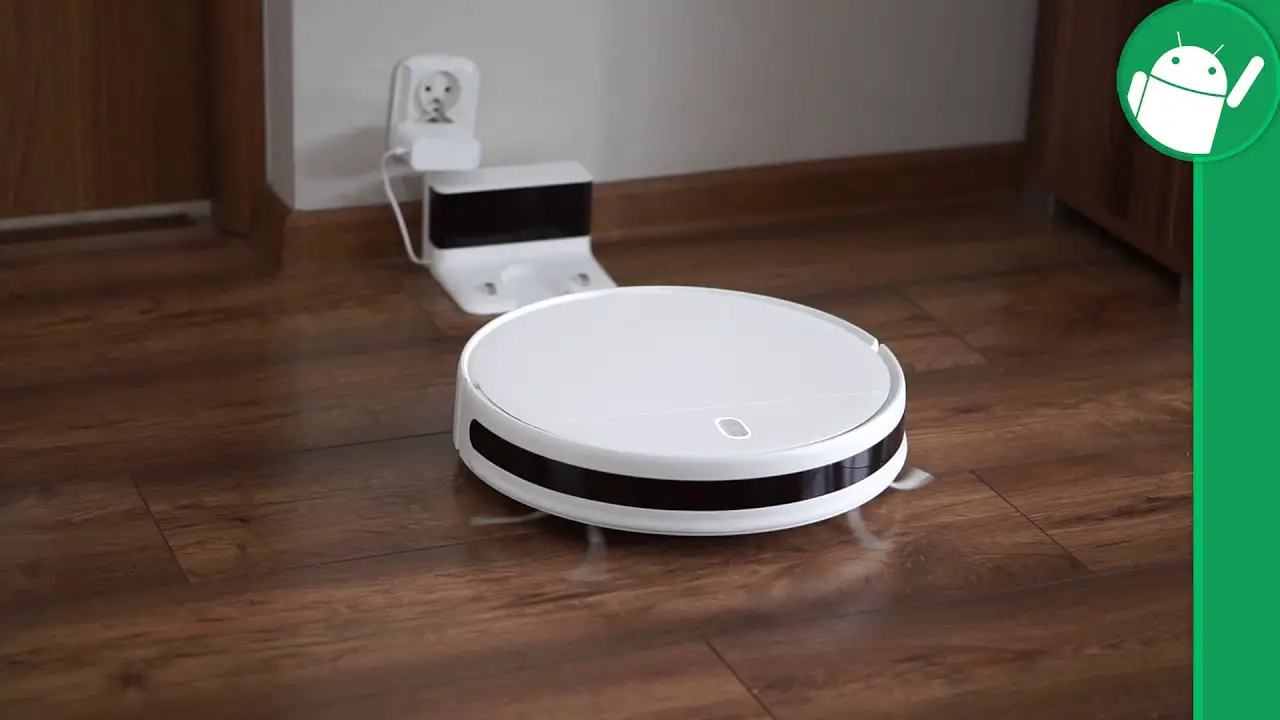
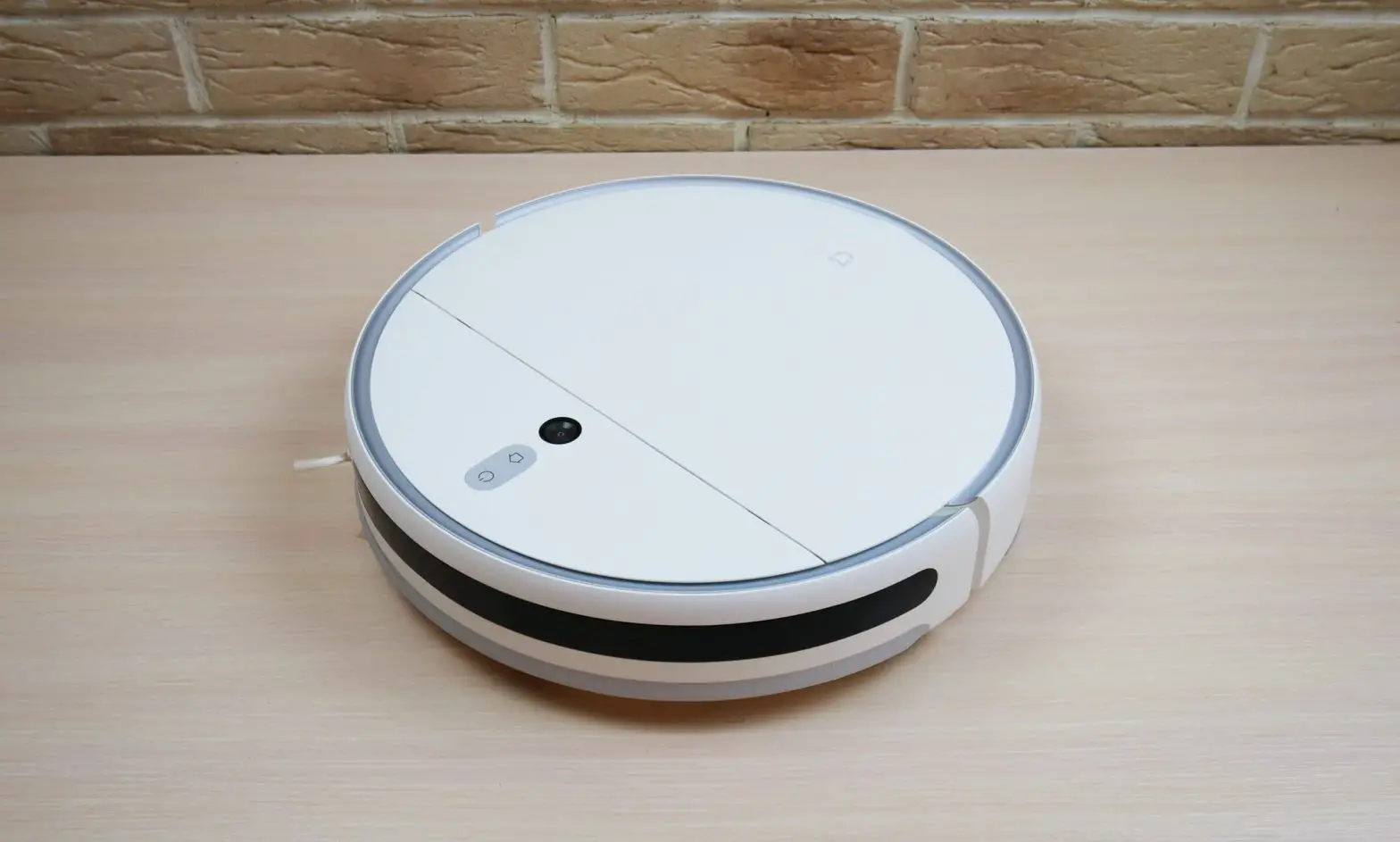
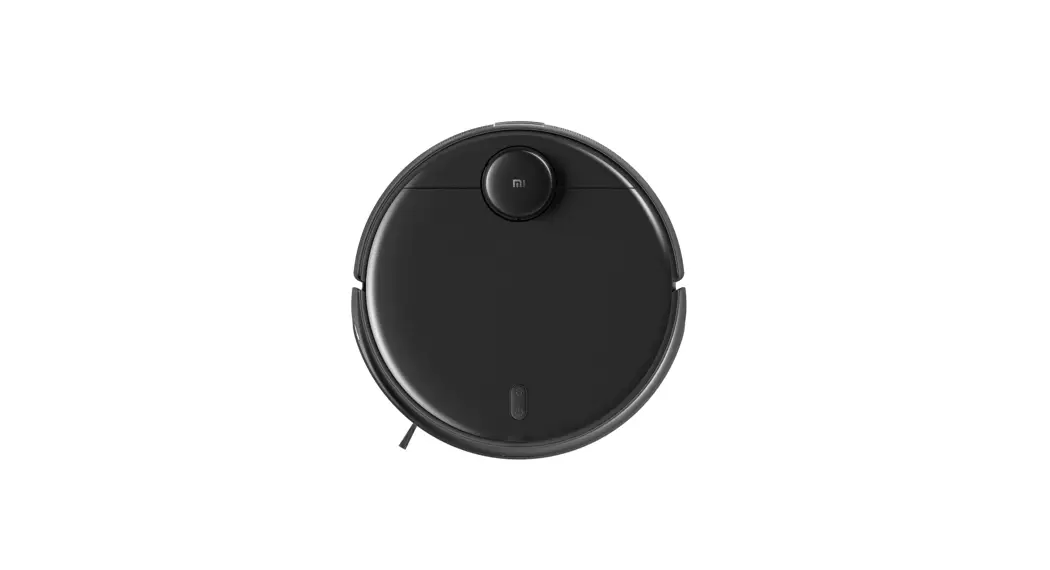
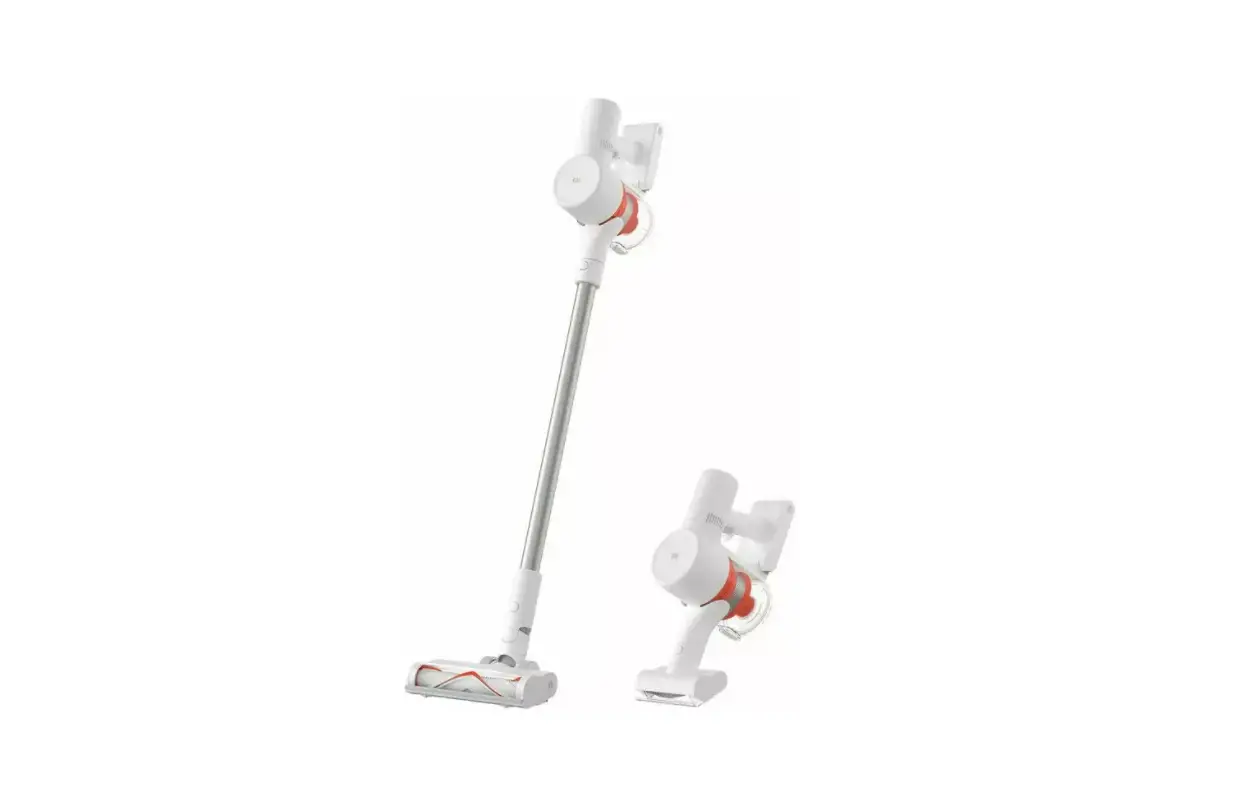
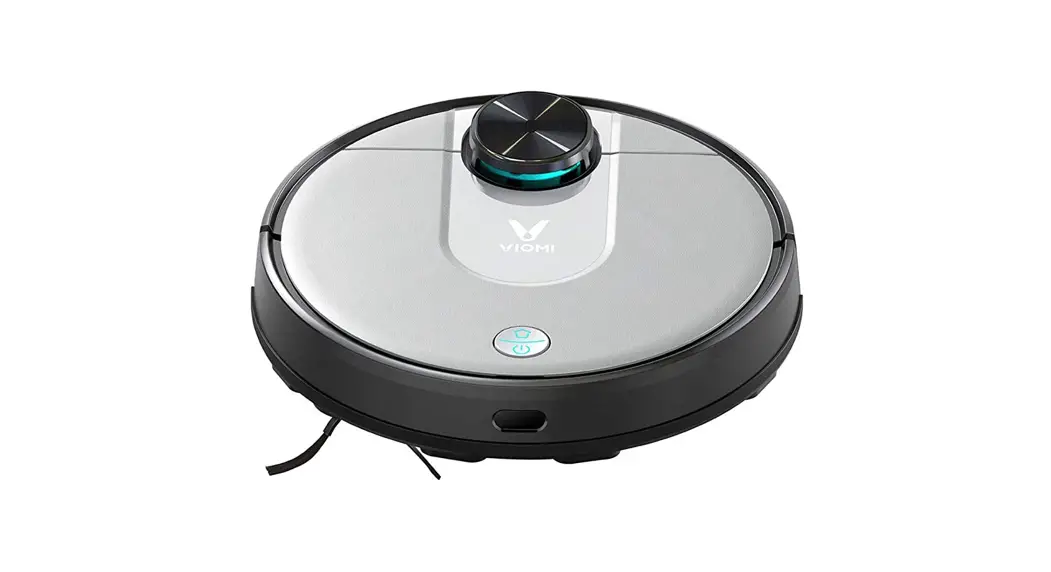
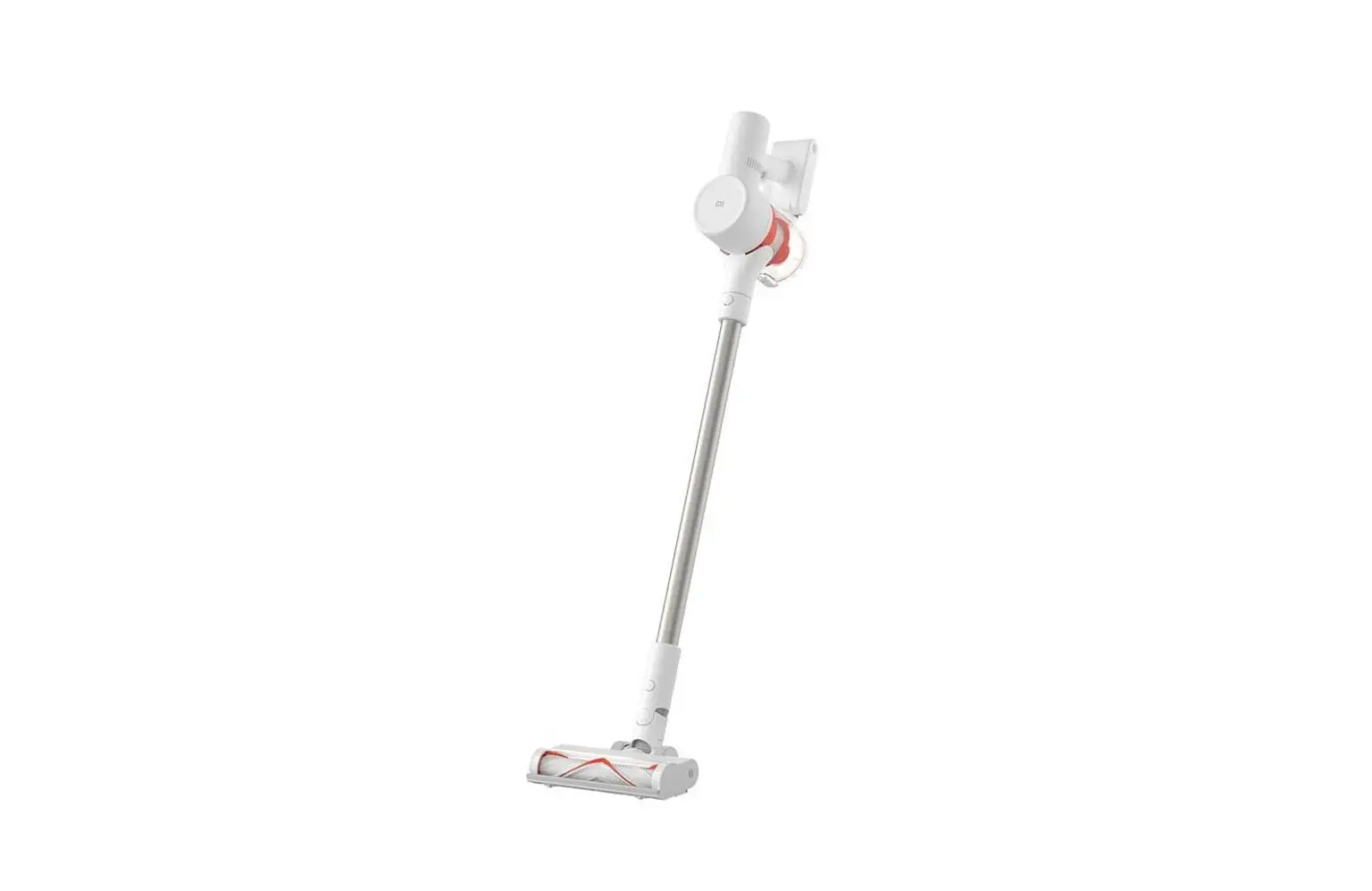
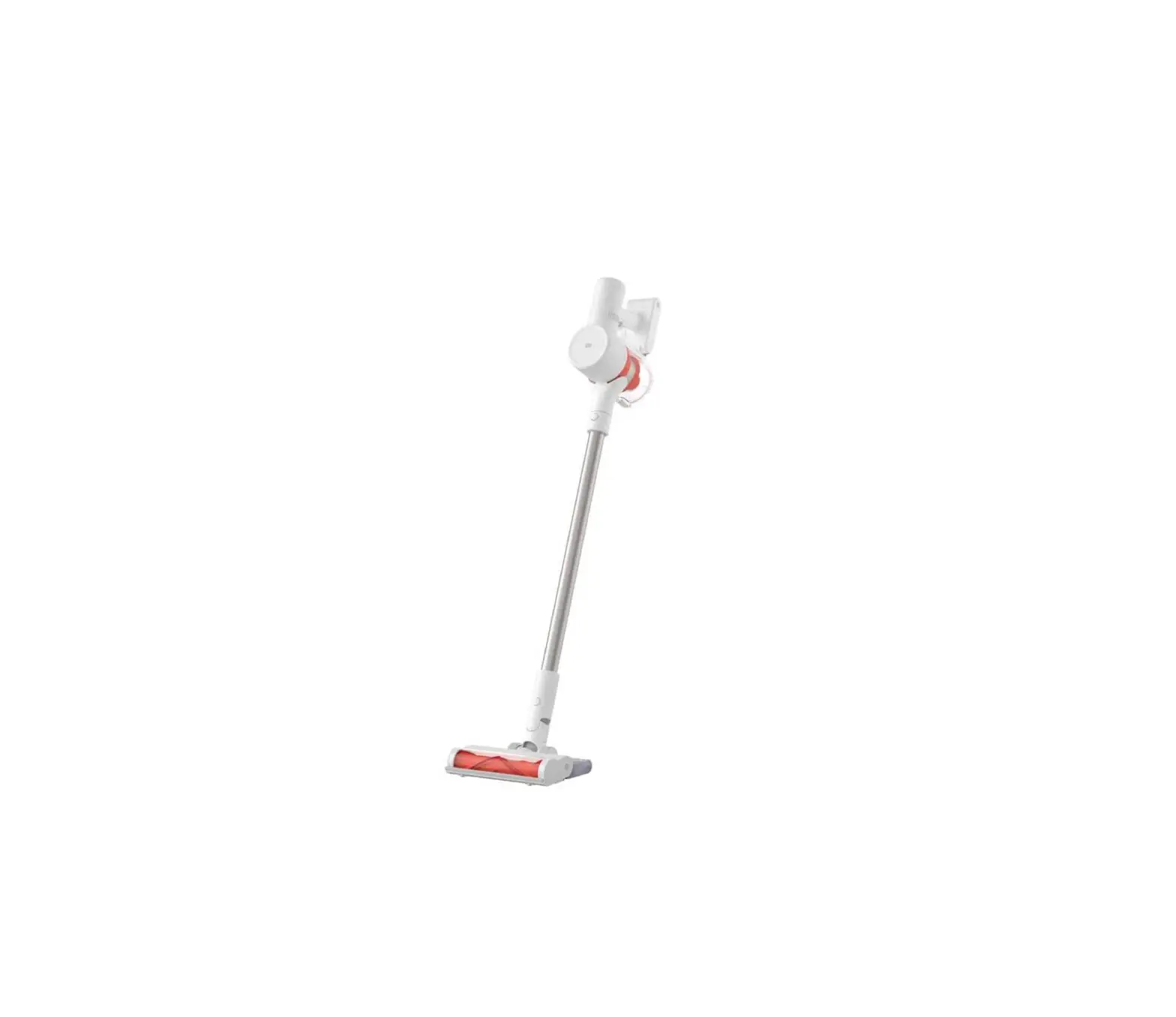
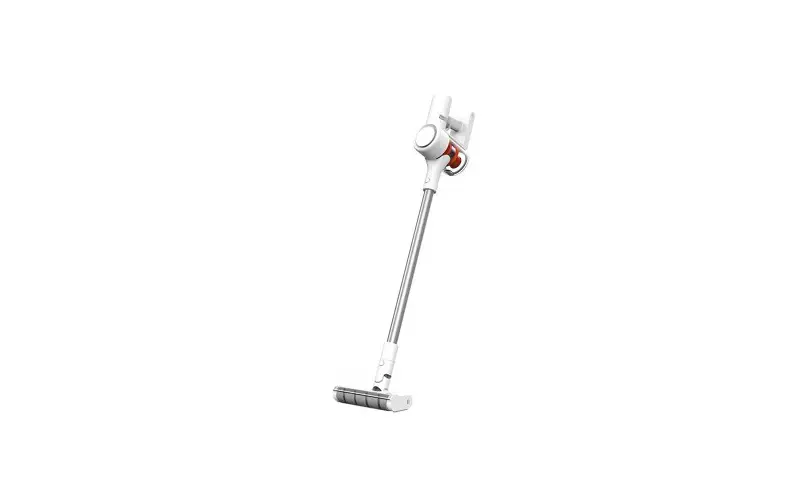
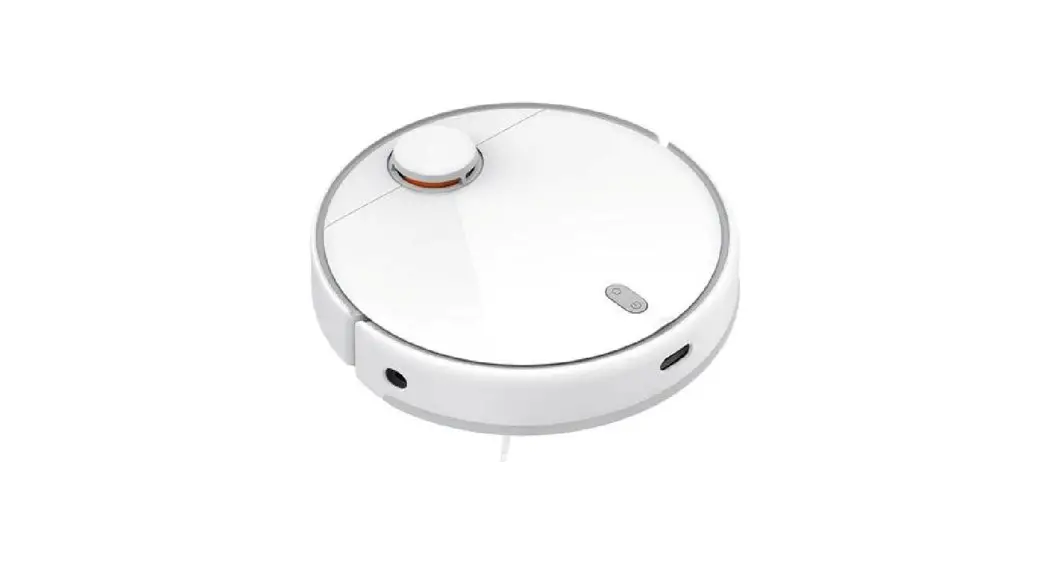
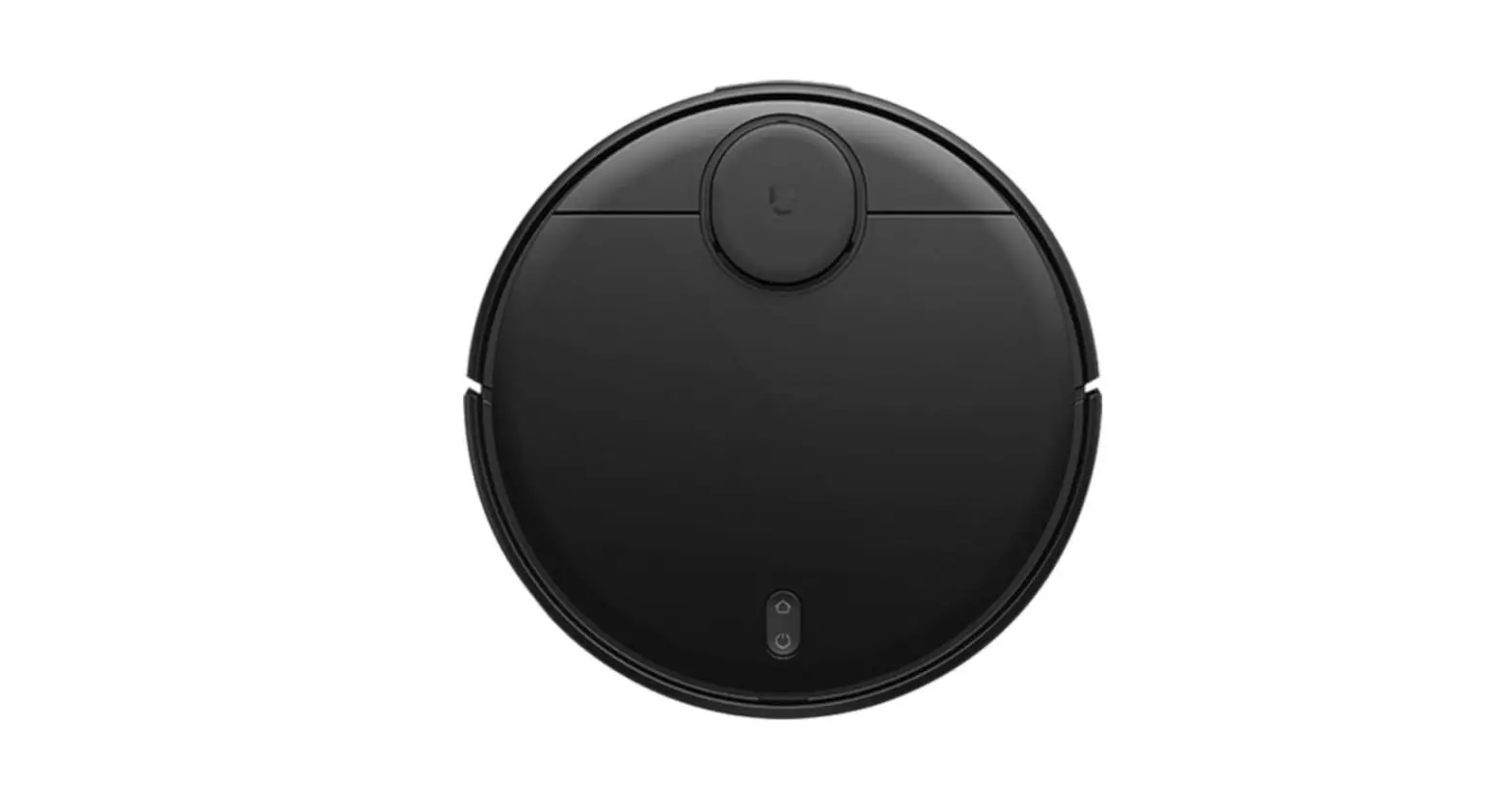
Robot Vacuum S10+
Product Information
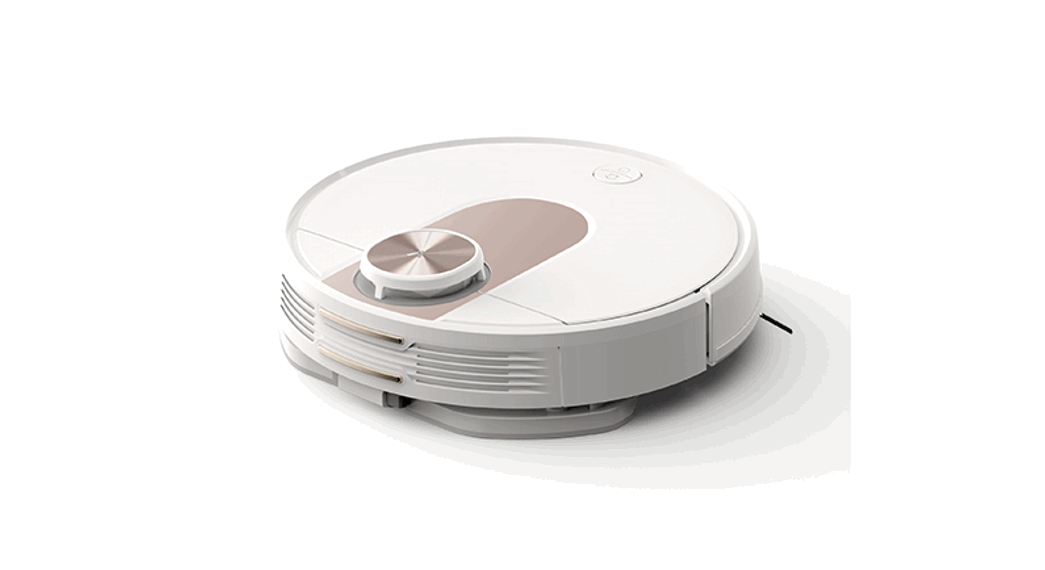
The Robot Vacuum S10+ is a robotic vacuum cleaner produced by
Dreame (Tianjin) Information Technology Co., Ltd. The product comes
with a charging dock, brush cover, dust compartment, water tank,
side brush, cleaning tool and power cord. It has a power/clean
button, dock button, reset button, and various sensors including a
cliff sensor, LDS laser sensor, line laser sensor, and bumper. The
product can be controlled through the Mi Home/Xiaomi Home app.
Product Usage Instructions
- Safety Information: Read the user manual
carefully before using the product and keep it for future
reference. When cleaning washable parts, ensure they are fully dry
before reinstalling and using them. - Batteries and Charging: Follow all warnings
provided in the user manual when using batteries and charging the
product. - EU Declaration of Conformity: The product is
in compliance with Directive 2014/53/EU. For detailed e-manual,
please go to www.mi.com/global/service/userguide - Product Overview: The product comes with
various accessories as listed above. Actual product and functions
may vary due to product enhancements. - Charging Dock: Place the charging dock near an
electrical outlet in an area with a good Wi-Fi signal. Connect the
charging dock to power. - Power/Clean Button: Press and hold for 3
seconds to power on/off. Press to start cleaning after the robot
vacuum is powered on. - Robot Vacuum and Sensors: The product comes
with various sensors as listed above. - Charging Dock: The charging dock comes with a
dust compartment and water tank. - How to Install: Before using the robot vacuum,
remove the protective strips from both sides. Install the side
brush onto the clip on the bottom of the robot vacuum. Place the
robot vacuum onto the charging dock ensuring that the charging
contacts on the robot vacuum and the dock are fully aligned. - How to Use: Connect the product with the Mi
Home/Xiaomi Home app to control and interact with other smart home
devices.
Robot Vacuum S10+ User Manual
Safety Information
Read this manual carefully before use, and retain it for future reference.
Usage Restrictions · This product is for floor cleaning in a home environment only. Do not use it outdoors, on non-floor
surfaces, or in a commercial or industrial setting. · This appliance can be used by children aged from 8 years and above and persons with reduced physical,
sensory or mental capabilities or lack of experience and knowledge if they have been given supervision or instruction concerning use of the appliance in a safe way and understand the hazards involved. Children shall not play with the appliance. Cleaning and user maintenance shall not be made by children without supervision. · The appliance is only to be used with the power supply unit provided with the appliance. · This appliance contains batteries that are only replaceable by skilled persons. · Children shall not play with this product. Ensure children and pets are kept at a safe distance from the robot vacuum while it is operating. · If the power cord is damaged, it must be replaced by a special cord or assembly available from the manufacturer or its service agent. · Do not use the robot vacuum in an area suspended above ground level without a protective barrier. · Do not place the robot vacuum upside down. Do not move the robot vacuum by using its LDS laser sensor
1
cover, cover, or bumper as a handle. · Do not use the robot vacuum at an ambient temperature above 40°C or below 0°C or on a floor with liquids
or sticky substances. · Do not install, charge, or use this robot vacuum outdoors, in bathrooms, or near a pool. · A hazard may occur if the appliance runs over the supply cord. · Remove fragile or small items from the floor to prevent the robot vacuum from bumping into and
damaging them. · Keep the cleaning tool out of reach of children. · Do not place children, pets, or any item on top of the robot vacuum regardless of whether it is stationary
or moving. · Keep hair, fingers, and other body parts away from the suction opening of the robot vacuum. · Do not use the robot vacuum to clean any burning substances. · Do not vacuum up hard or sharp objects. · The plug must be removed from the socket-outlet before cleaning or maintaining the appliance. · Do not wipe the robot vacuum or charging dock with a wet cloth or rinse them with any liquid. After
cleaning washable parts, fully dry the parts before reinstalling and using them.
2
· Make sure the robot vacuum is turned off when being transported and kept in its original packaging if possible.
· Please use this product in accordance with the instructions in the user manual. Users are responsible for any loss or damage arising from improper use of this product.
Batteries and Charging
WARNINGS:
· Do not use any third-party battery, power cord, or charging dock. The robot vacuum can only be used with the model CDZ2101 charging dock.
· No action needed from users to shift the charging dock between 50 Hz and 60 Hz, and the product can adapt itself for both 50 Hz and 60 Hz.
· Do not dismantle, repair, or modify the battery or charging dock on your own.
· Do not place the charging dock near a heat source.
· Do not use a wet cloth or wet hands to wipe or clean the dock’s charging contacts.
· If the robot vacuum will not be used for an extended period, fully charge it, then turn it off and store in a cool, dry place. Recharge the robot vacuum at least once every 3 months to avoid over-discharging the battery.
· The lithium-ion battery pack contains substances that are hazardous to the environment. Before disposing of the robot vacuum, please first remove the battery pack, then discard, or recycle it in
3
accordance with local laws and regulations of the country or region it is used in. · When removing the batteries from the product, it is better to use up the batteries and make sure your
product is disconnected from power. 1). Uninstall the screw on the bottom, then remove the cover. 2). Unplug the battery connector, then remove the batteries. Do not damage the battery case to avoid any risk of injuries. 3). Return the batteries to a professional recycling organization. Laser Safety Information · This product’s laser radar meets the IEC 60825-1:2014 Standard for Class I laser product safety and does not produce laser radiation hazardous to the human body.
EU Declaration of Conformity
Hereby, Dreame (Tianjin) Information Technology Co., Ltd. declares that the radio equipment type B105 is in compliance with Directive 2014/53/EU. The full text of the EU declaration of conformity is available at the following internet address: http://www.mi.com/global/service/support/declaration.html For detailed e-manual, please go to www.mi.com/global/service/userguide 4
Product Overview
Accessories
Pre-installed Accessories
Robot Vacuum
Brush Other Accessories
Brush Cover
Dust Compartment
Water Tank
Side Brush
Cleaning Tool
Power Cord
Note: Illustrations of product, accessories, and user interface in the user manual are for reference purposes only. Actual product and functions may vary due to product enhancements.
Mop Pad × 2 (Pre-installed)
Mop Pad Holder × 2
Charging Dock 5
Robot Vacuum
6
Power/Clean Button Power on/off: Press and hold for 3 seconds Clean: Press to start cleaning after the robot vacuum is powered on
Dock Button Press to send robot vacuum back to charging dock Enable/Disable child lock function: Press and hold for 3 seconds
Indicator · White: Cleaning/Cleanup completed/Fully charged · Blinking white: Returning to dock to charge/Updating firmware/
Repositioning/Awaiting connection/Connecting to Wi-Fi · Breathing white: Charging · Blinking orange: Error · Orange: Wi-Fi is not connected
Note: When the robot vacuum is cleaning or returning to the dock to charge, press any button to pause it.
Robot Vacuum and Sensors
Dust Compartment Water Tank
Air Outlet/Speaker
Cliff Sensor
LDS Laser Sensor Cover
LDS Laser Sensor
Side Brush
Bumper
Brush
Line Laser Sensor
Main Wheel
Omnidirectional Wheel Charging Contacts
Brush Cover Brush Cover Clip Main Wheel
Cover
Mop Pad Holder Mounting Hole
Reset Button Press and hold for 3 seconds to restore factory settings
Wi-Fi Indicator · On: Wi-Fi connected · Off: Wi-Fi is not connected · Blinking: Awaiting connection/Connecting
7
Charging Dock
Dust Compartment
Dust Compartment Clip Dust Compartment Cover Clip
Dust Compartment Cover
8
Signaling Area Charging Contacts Power Port
Water Tank
Water Filling Opening Water Tank Plug
Water Tank Release Button
Filter Filter Clip
Mop Assembly
Mop Pad Attachment Area
Mop Pad Holder
Mop Pad
How to Install
Remove Protective Coverings
Before using the robot vacuum, remove the protective strips from both sides.
Connect to An Electrical Outlet
Place the charging dock near an electrical outlet in an area with a good Wi-Fi signal. Then connect the charging dock to power.
Install the Side Brush
Install the side brush onto the clip on the bottom of the robot vacuum.
Side Brush Clip
0.5 m
1.5 m
0.5 m
Note: Do not place any items within the range of 0.5 m at either side or within 1.5 m in front of the charging dock.
Place the Robot Vacuum
Place the robot vacuum onto the charging dock, and the robot vacuum will automatically turn on and start charging. After 10 minutes of being fully charged, the indicator will go out. Fully charge the robot vacuum when using it for the first time.
Note: Make sure the charging contacts on the robot vacuum and the dock are fully aligned. 9
How to Use
Connect with the Mi Home/Xiaomi Home App
This product works with the Mi Home/Xiaomi Home app*. Use the Mi Home/ Xiaomi Home app to control your device, and to interact with other smart home devices.
Scan the QR code to download and install the app. You will be directed to the connection setup page if the app is installed already. Or search for “Mi Home/Xiaomi Home” in the app store to download and install it.
Open the Mi Home/Xiaomi app, tap on the upper right, and then follow the instructions to add your device.
5812D4E4
* The app is referred to as Xiaomi Home app in Europe (except for Russia). The name of the app displayed on your device should be taken as the default.
Notes: · This robot vacuum works with the Mi Home/Xiaomi Home app, and it supports Android 4.4 & iOS 10.0 or above. · Only 2.4 GHz Wi-Fi networks are supported. · The version of the app might have been updated, please follow the instructions based on the current app version.
Reset Wi-Fi
When there is a connection loss between your phone and the robot vacuum due to the router reconfiguration, wrong password or so, please follow the steps below: 1. Open the cover of the robot vacuum so that you can see the Wi-Fi indicator. 2. Simultaneously press and hold the buttons and until you hear a voice to
indicate that the robot vacuum is waiting for the network configuration. 3. When the Wi-Fi indicator blinks, the Wi-Fi connection has been reset successfully.
10
Start Cleaning
Press the button on the robot vacuum or tap the button in the app, and the robot vacuum will clean all areas by first cleaning along edges and walls and then in an S-shape pattern. Once the cleaning is complete, the robot vacuum will automatically return to the charging dock to charge. Method 1: Press the button on the robot vacuum to start cleaning.
Method 2: Tap the button in the app to start cleaning.
Notes: · Before a cleaning task, make sure the robot vacuum is on the charging dock and fully charged. Do not move the robot vacuum during cleaning. · When using the robot vacuum for the first time, it is recommended to follow the robot vacuum and remove any obstacles on the ground. If the robot vacuum may get stuck or scratch the surface of the furniture in some areas, you can set restricted areas in the app to prevent the robot vacuum from entering those areas.
Use the Vacuuming & Mopping Function
1. First dampen the mop pad and wring out excess water. Next, install and attach the mop pad onto the mop pad holder in place. Lastly, install the mop assembly onto the bottom of the robot vacuum.
3. Press the button on the robot vacuum or use the app to make the robot vacuum perform the vacuuming and mopping task.
2. Open the cover of the robot vacuum and take the water tank out. Fill the water tank with tap water and then reinstall the tank.
4. When the robot vacuum finishes a task and returns to the charging dock, remove the mop assembly and wash the mop pads in time.
CAUTIONS:
· Do not add hot water to the water tank, as this may cause the tank to become deformed. · To avoid clogging, do not add any cleaning agents or disinfectants to the water tank.
Note: If the robot vacuum will not be used for an extended period, remove the water tank and empty it to prevent odor and mildew.
11
Resume Cleanup
If the robot vacuum starts running low on battery during a cleaning task, it will automatically return to the charging dock to recharge, then resume cleanup where it left off after being charged sufficiently.
Pause
While the robot vacuum is running, press any button on the robot vacuum to pause it, and then press the button to resume the cleaning. Pressing the button will end the current cleaning task and send the robot vacuum back to the charging dock. Note: Do not pick up or move the robot vacuum while it is paused, so as to avoid navigation errors that could prevent the robot vacuum from returning to the charging dock or cause the loss of map.
Sleep Mode
The robot vacuum will automatically enter sleep mode after it is paused for 10 minutes, and its indicator will go out. To wake it up, press any button on the robot vacuum. Note: If the sleep time exceeds 12 hours, the robot vacuum will be turned off automatically.
Update the Firmware
You can update the firmware via the app. Before updating, make sure the robot vacuum is on the charging dock and has at least 15% battery left.
Restart the Robot Vacuum
If the robot vacuum stops responding or cannot be turned off, press and hold the button for 15 seconds to forcefully turn it off. Then press and hold the button for 3 seconds to turn the robot vacuum on.
Restore Factory Settings
If the robot vacuum does not function properly after being restarted, you can use a pin to press the reset button until you hear a voice to indicate that the robot vacuum is restoring factory settings. This will reset the robot vacuum to its original factory settings.
12
Care & Maintenance
Sensors and Charging Contacts* It is recommended to clean every month.
Use a soft cloth to clean all sensors and charging contacts in the robot vacuum: · The cliff sensors and the charging contacts at the bottom of the robot vacuum. · The LDS laser sensor on the top of the robot vacuum. · The bumper and the line laser sensors on the front of the robot vacuum.
LDS Laser Sensor Bumper Line Laser Sensor
Brush* It is recommended to clean every two weeks.
1. Flip the robot vacuum over and pinch the clips to remove the brush cover. 2. Lift the brush out of the robot vacuum, then clean the brush bearings. 3. Use the included cleaning tool to cut any tangled hairs on the brush, and
remove the hairs and other debris from the brush. 4. Reinstall the brush and the brush cover, and ensure they are securely in place.
Note: It is recommended to replace the brush every 612 months for optimal cleaning performance.
Brush Cover Clip Brush Brush Bearings
Cliff Sensor
Charging Contacts
CAUTION: If too much hair is tangled in the brush, or if the hair is tightly tangled, do not forcibly pull on it to avoid damaging the brush.
13
Side Brush* It is recommended to clean every two weeks.
1. Flip the robot vacuum over and remove the side brush upwards to clean it. 2. Reinstall the side brush to the robot vacuum.
Dust Compartment* It is recommended to clean every week.
1. Open the cover of the robot vacuum, and press the dust compartment clip to remove the dust compartment upwards.
Note: It is recommended to replace the side brush every 36 months for optimal cleaning performance.
Omnidirectional Wheel* Clean it as needed.
1. Flip the robot vacuum over and pull out the omnidirectional wheel.
2. Remove hair, dirt, and other debris from the wheel and axle.
3. Reinsert the wheel and press it firmly back into place.
Wheel Axle
Notes:
· A small screwdriver or other pry tool can be used to gently pop out and remove the wheel. · The wheel can be cleaned with water and reinstalled after drying.
14
2. Open the dust compartment cover, and empty out the contents.
Note: To prevent the filter from becoming clogged, lightly tap the dust compartment when emptying its contents.
Filter* It is recommended to clean every two weeks.
1. Remove the filter from the filter clip as illustrated.
3. Open the dust compartment cover, fill the dust compartment with clean water and close the dust compartment cover. Shake the dust compartment from side to side and then pour the dirty water out of the compartment.
2. Rinse and gently tap the edges of the filter to remove any dust and debris until it is clean.
CAUTION: Only use clean water to clean the filter. Do not use detergent. 4. Place the dust compartment and filter aside to dry before reinstallation.
Note: Do not attempt to clean the filter with a brush or finger.
Note: Thoroughly dry the dust compartment and the filter before putting them back. 15
Mop Pad* After-each-use cleaning is recommended.
1. Remove the mop pad from its holder.
Charging Dock* Clean it as needed.
Clean the charging contacts and the signaling area of the charging dock with a soft, dry cloth.
2. Clean and dry the mop pad.
Battery
The robot vacuum contains a high-performance lithium-ion battery pack. Please ensure that it remains well-charged during daily use to maintain optimal battery performance.
Note: If the robot vacuum is not used for an extended period, turn it off and put it away. To prevent damage from over-discharging, the robot vacuum should be recharged at least once every three months.
Note: It is recommended to replace the mop pad every 36 months for optimal cleaning performance.
16
Troubleshooting
Issue
The robot vacuum does not turn on.
The robot vacuum does not charge.
The robot vacuum cannot return to the dock to charge. The robot vacuum does not work as expected. The robot vacuum makes a strange noise. The robot vacuum does not clean as efficiently as before, or leave dust behind.
Network configuration fails.
Possible Cause and Solution
The battery level is low. Fully charge the robot vacuum, and then try again. The ambient temperature is lower than 0°C or higher than 40°C. Make sure to use the robot vacuum between 0°C and 40°C.
Check whether the power cord is properly plugged into both the charging dock and the power outlet, and make sure the charging contacts are clean. If not, please wipe the charging contacts on both the dock and the robot vacuum clean with a dry cloth.
Check whether there are too many obstacles around the charging dock, place the dock in a location without any obstacles around it. Make sure there are no obstacles within 0.5 meters on both sides, nor within 1.5 meters in front of the charging dock. Please clean the dock’s signaling area.
Turn off the robot vacuum, and turn it on again.
A foreign object might be caught in the brush, side brush, or one of the main wheels. Stop the robot vacuum and remove any debris.
Please check whether the dust compartment is full. If so, empty it. Furthermore, please check the filter and clean it if necessary, and also check whether there is anything wrapped around any of the brushes.
The Wi-Fi password is incorrect. Make sure the password entered is correct. Switch to a 2.4 GHz network, as 5 GHz networks and enterprise routers are not supported currently. Make sure the robot vacuum stays within an area with a good Wi-Fi signal. The robot vacuum may not be in the awaiting connection state. Exit and reopen the app, and follow the correct steps to try configuring the network again.
17
Issue The robot vacuum does not carry out the scheduled cleanup.
The mop pad is not wet enough.
The mop pad is too wet.
The robot vacuum consumes electricity when it is left at the dock after being fully charged. The robot vacuum does not resume cleaning after charging.
The robot vacuum does not return to the charging dock after being moved.
Possible Cause and Solution
Check whether the battery level is sufficient. The robot vacuum needs to have a battery level of 15% or more to start a scheduled cleanup.
Check whether the water in the water tank is sufficient. Dampen the mop pad and wring out excess water before mopping. Follow the instructions in the user manual to install the mop pads correctly.
Dampen the mop pad and make sure to wring out excess water. Make sure the plug of the water tank is tightened properly.
When the robot vacuum is left at the dock, it will consume a small amount of electricity to allow the battery to maintain optimal performance in sleep mode.
The robot vacuum does not resume cleaning in do not disturb (DND) mode, or after manually being returned to the dock to charge.
Moving the robot vacuum may cause it to re-position itself or re-map its surroundings. If the robot vacuum is too far from the charging dock, it might not be able to automatically return on its own, in which case you need to manually place the robot vacuum onto the charging dock.
The mop pad cannot rotate.
The mop pad may be stuck by a foreign object. Please remove the foreign object then try again.
18
Specifications
Robot Vacuum
Charging Dock
Name Model Item Dimensions Battery Charging Time Net Weight (Robot Vacuum) Net Weight (with Accessories) Compatible with
Wireless Connectivity
Rated Voltage Rated Power Operation Frequency Maximum Output Power
Robotic Vacuum Cleaner B105 350 × 350 × 97 mm 4800 mAh (Rated Capacity) Approx. 6 hours 3.8 kg 4.6 kg Android 4.4 & iOS 10.0 or above Wi-Fi IEEE 802.11 b/g/n 2.4 GHz, Bluetooth 4.2 14.4 V 55 W 24002483.5 MHz < 20 dBm
Model Item Dimensions Rated Input Rated Output
CDZ2101 130 × 126 × 93 mm 100240 V ~ 50/60 Hz 0.5 A 19.8 V 1 A
Under normal use of condition, this equipment should be kept a separation distance of at least 20 cm between the antenna and the body of the user.
WEEE Disposal and Recycling Information
All products bearing this symbol are waste electrical and electronic equipment (WEEE as in directive 2012/19/EU) which should not be mixed with unsorted household waste. Instead, you should protect human health and the environment by handing over your waste equipment to a designated collection point for the recycling of waste electrical and electronic equipment, appointed by the government or local authorities. Correct disposal and recycling will help prevent potential negative consequences to the environment and human health. Please contact the installer or local authorities for more information about the location as well as terms and conditions of such collection points.
19
· For further information, please go to www.mi.com · Manufactured for: Xiaomi Communications Co., Ltd. · Manufactured by: Dreame (Tianjin) Information Technology Co., Ltd. (a Mi Ecosystem company)
Address: Room 2112-1-1, South District, Finance and Trade Center, No.6975 Yazhou Road, Dongjiang Bonded Port Area, Tianjin Pilot Free Trade Zone, 300463 Tianjin, China Importer: Beryko s.r.o. Pod Vinicemi 931/2, 301 00 Plze www.beryko.cz
Made in China
 Beryko.cz
 Mi United States