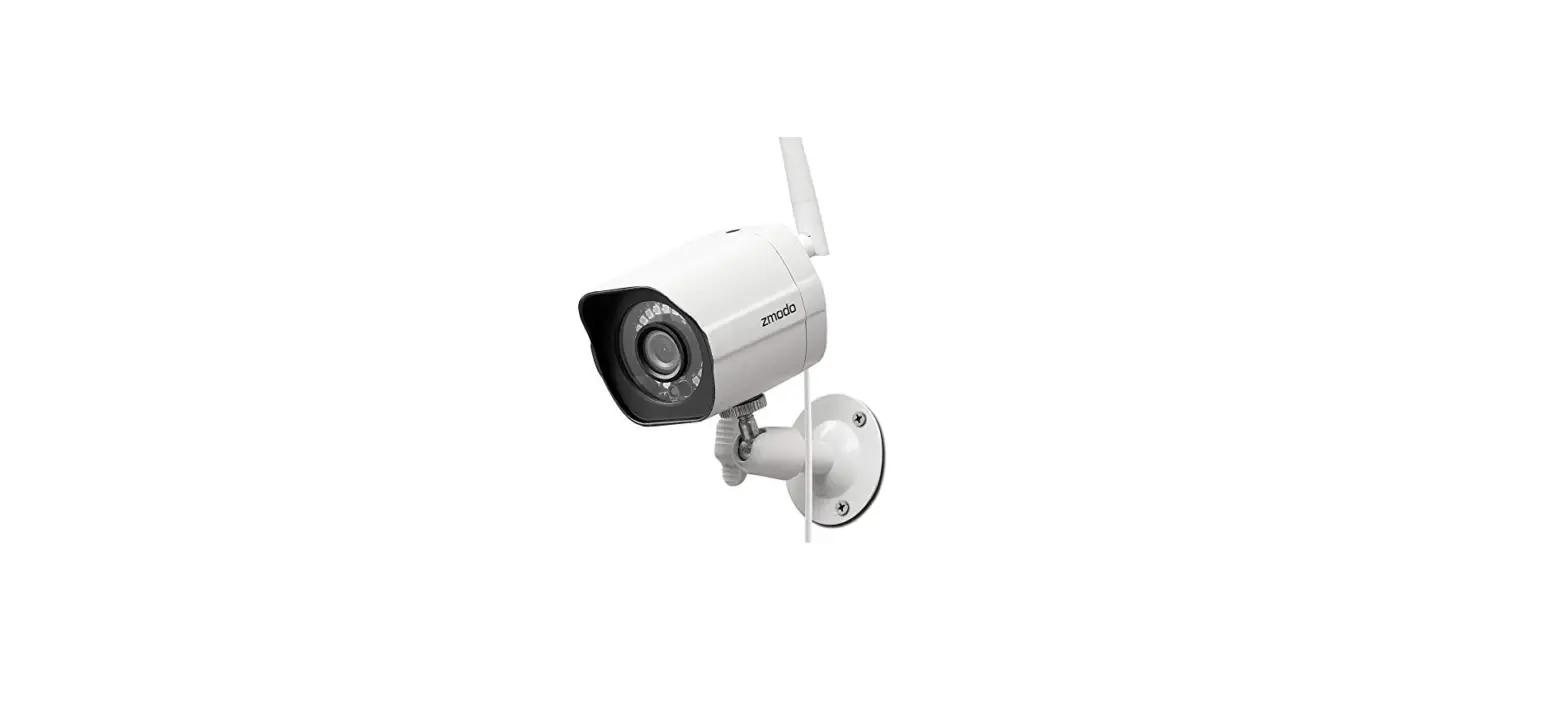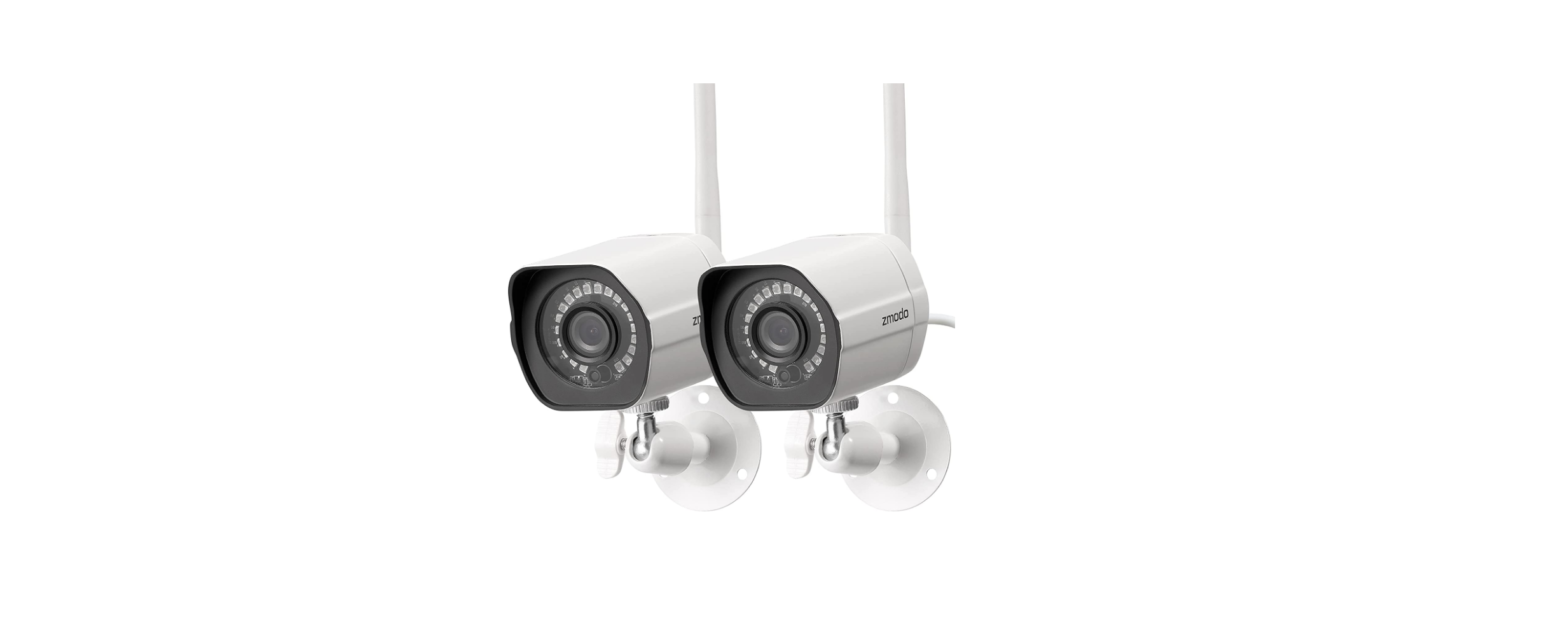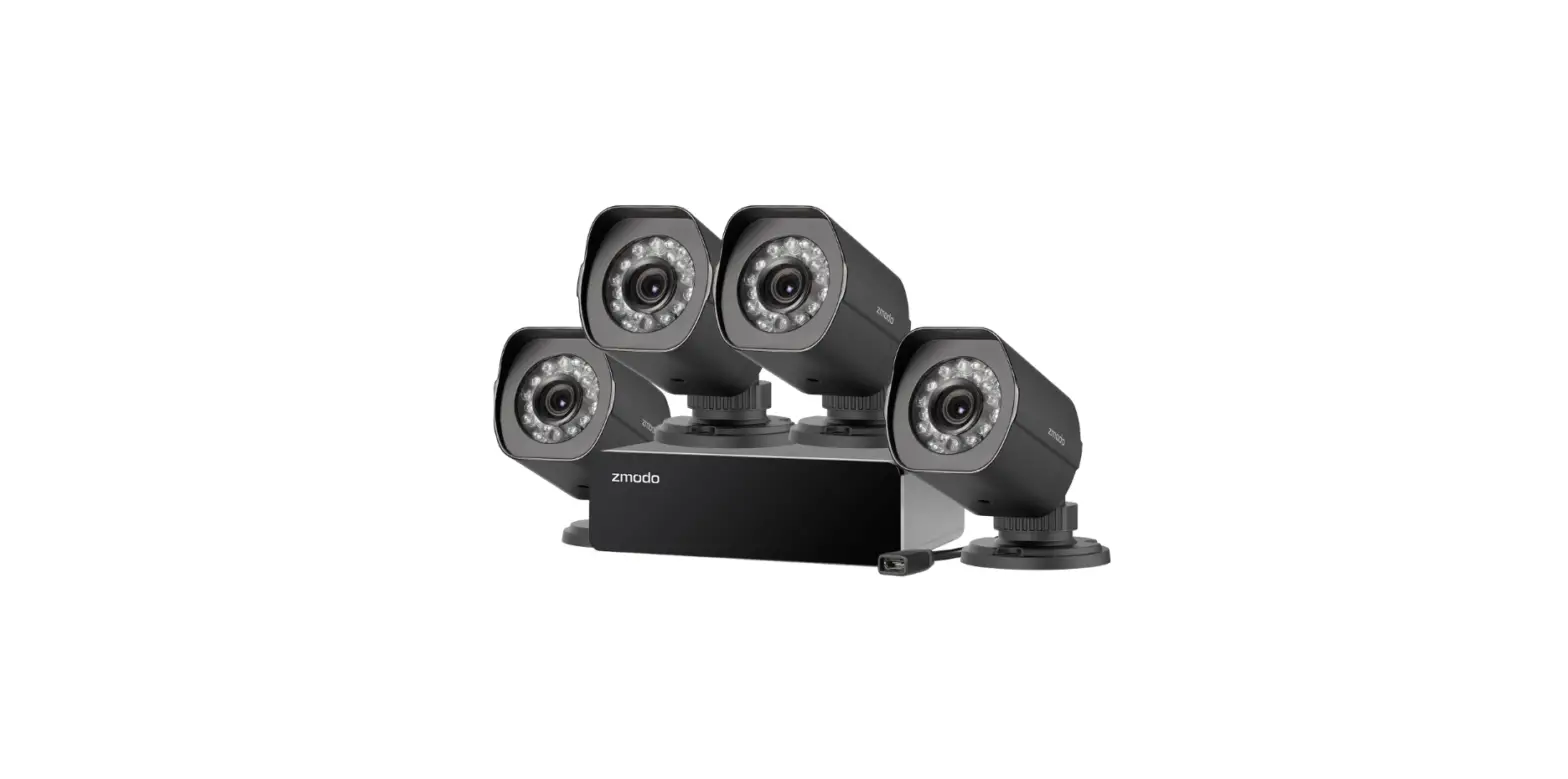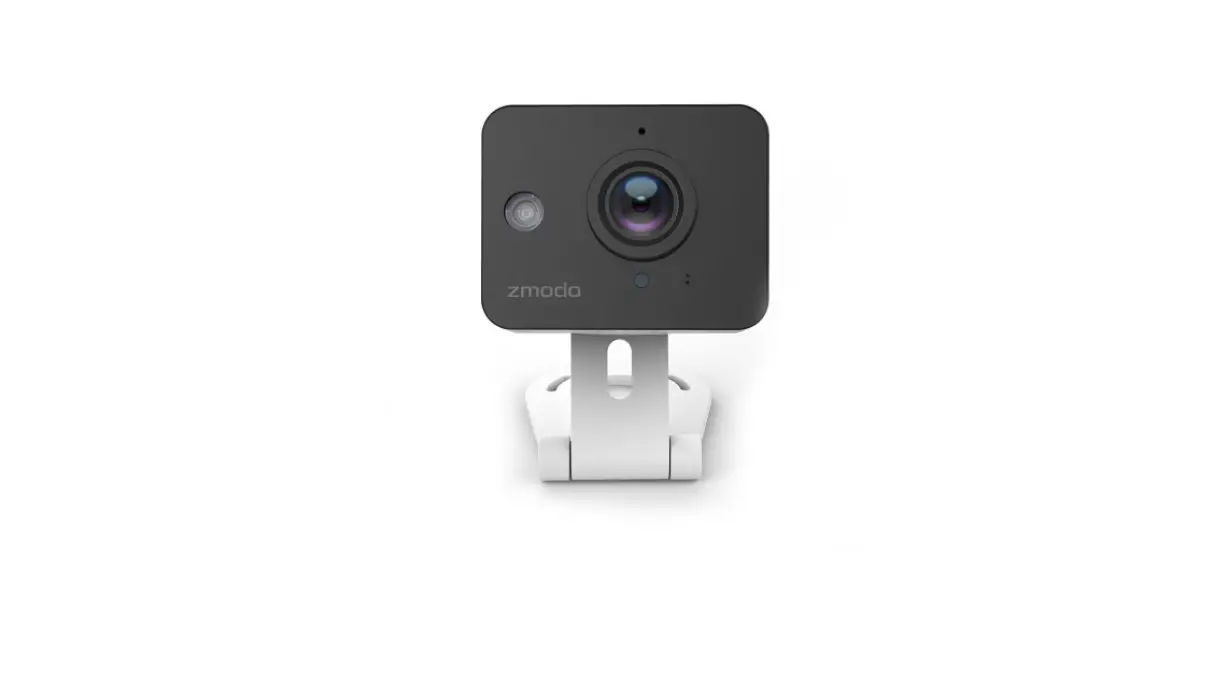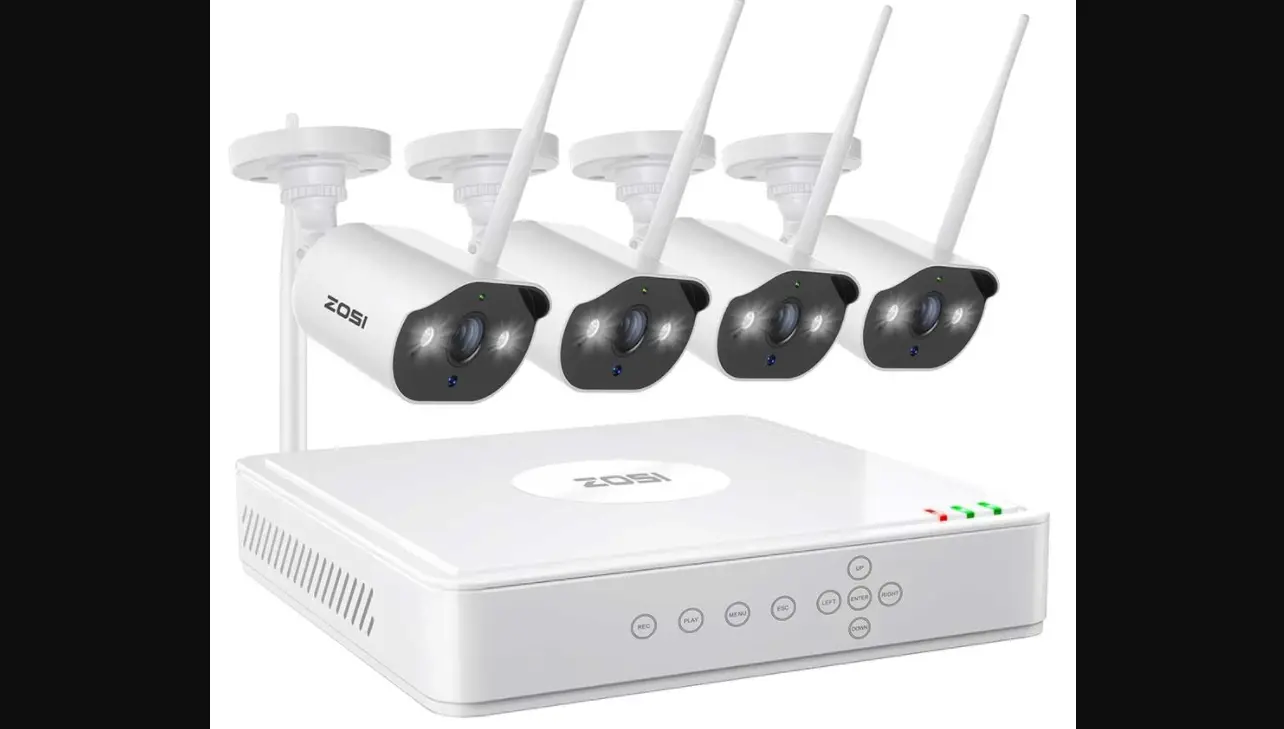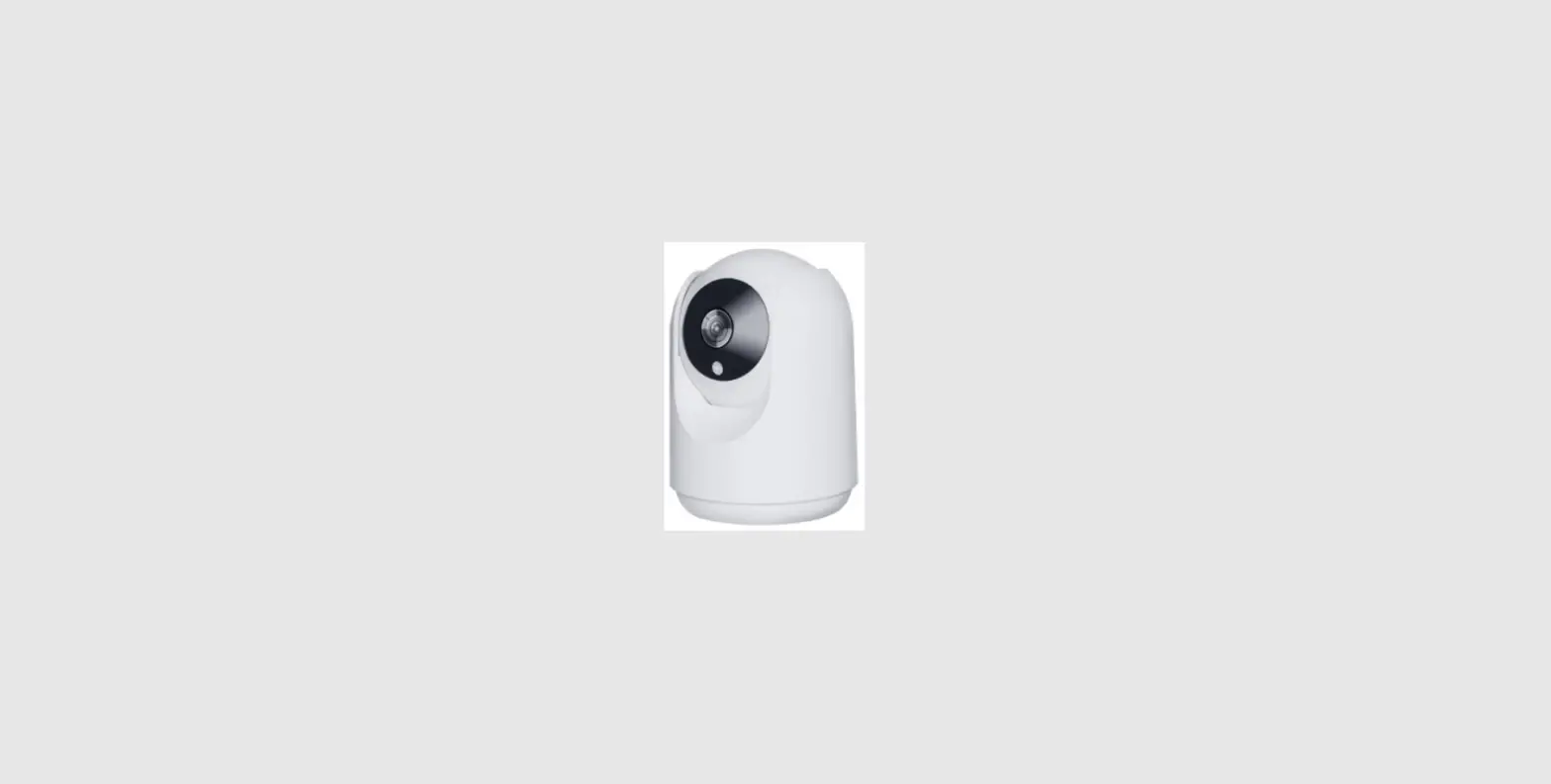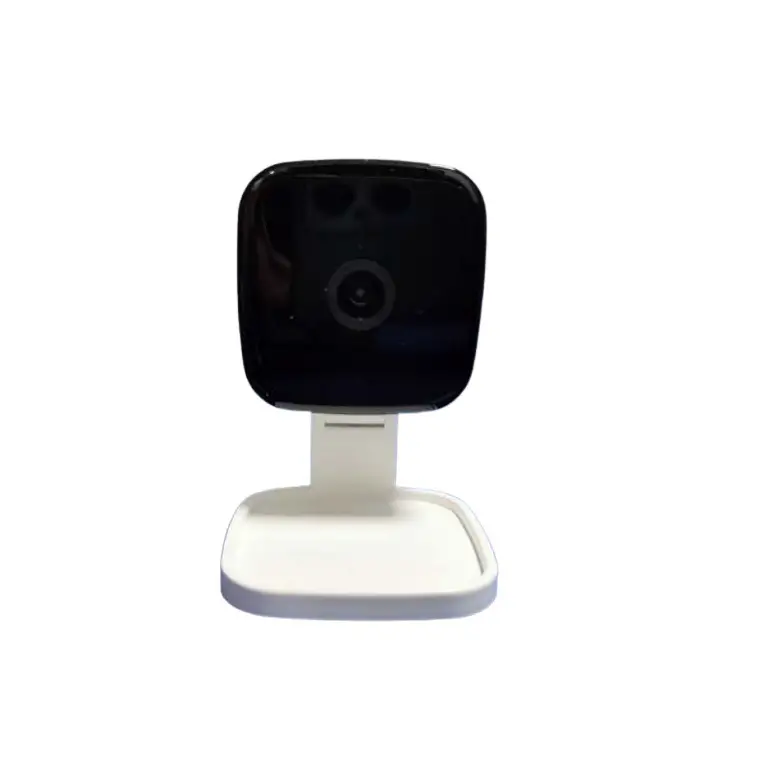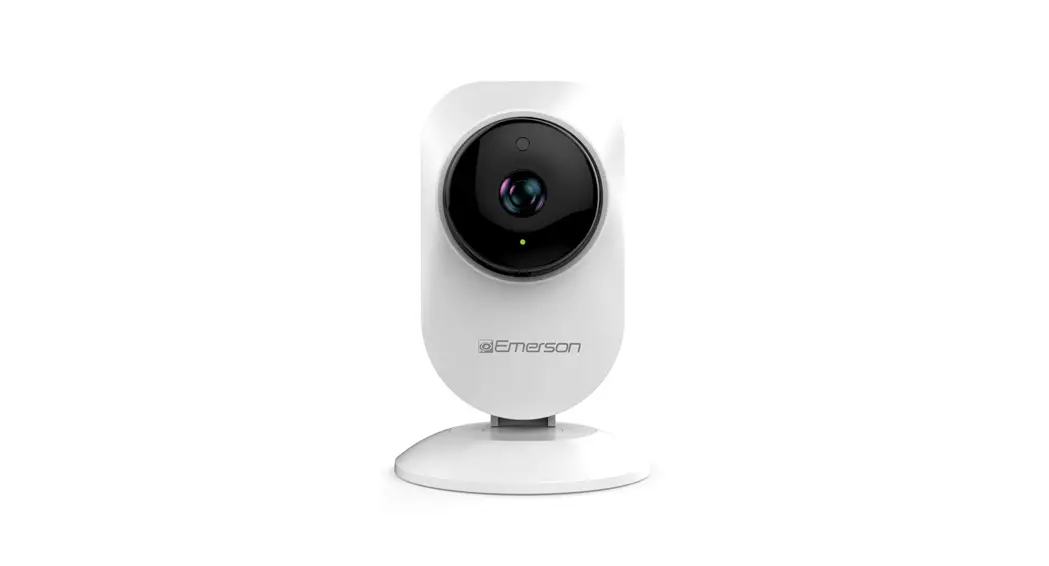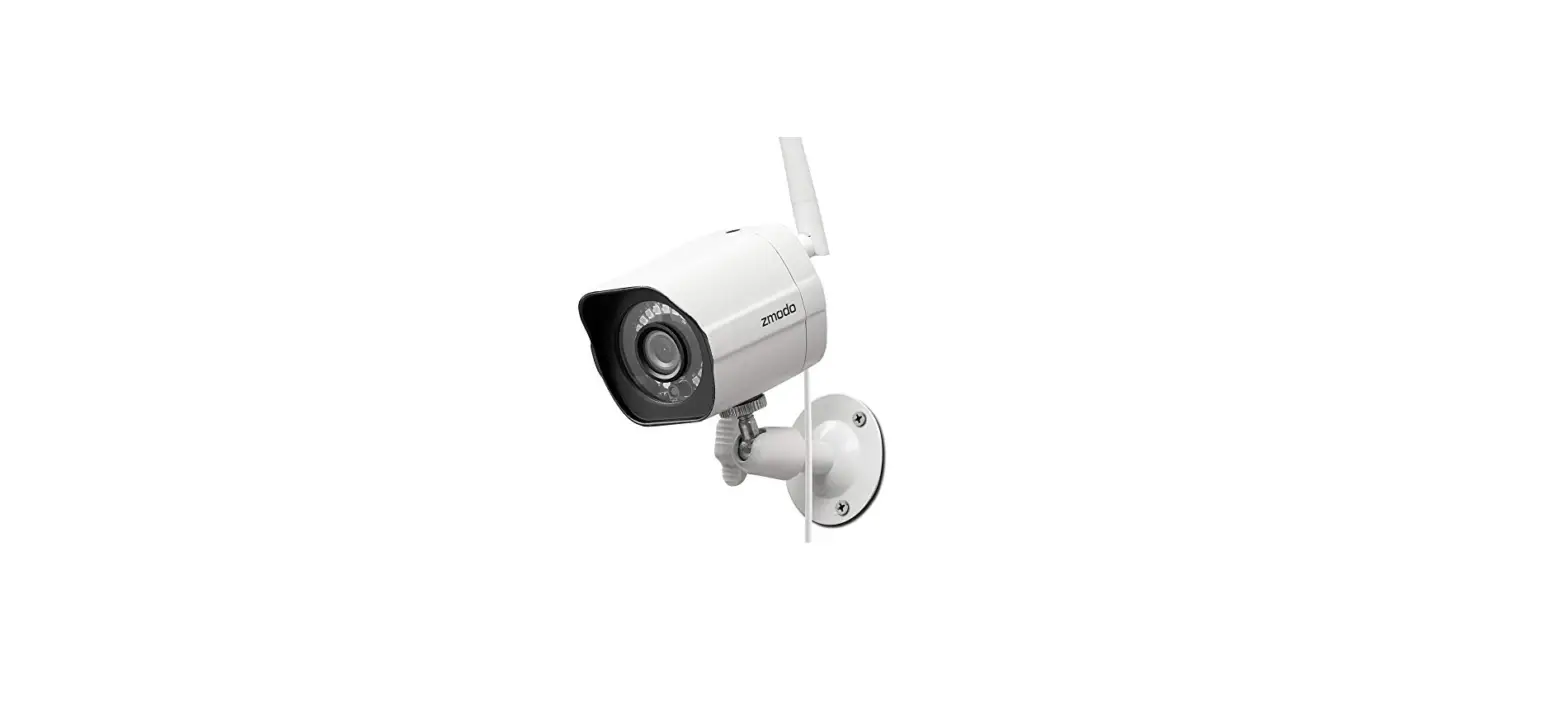

Zmodo SD-H1080P-Z Wireless Security Camera System
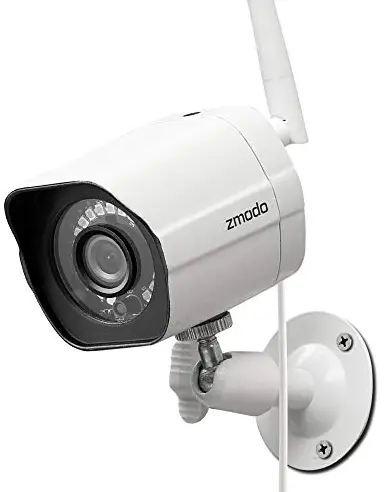
INTRODUCTION
Mobile Setup
This quick start guide will help you configure your WiFi camera kit for initial use. Before performing any permanent installation, we recommend that you complete the mobile setup in Section 1 to connect your cameras and make sure that nothing was damaged during shipping
Before you begin
- Plug in and power on all cameras near your router for initial setup. Fasten the antennas (if applicable) onto the cameras.
- Make sure that you have a strong WiFi connection at the location of your cameras
- Make sure you know the SSID (WiFi network name) and password of the 2.4GHz WPA-PSK/WPA2-PSK WiFi network that you want your cameras to connect to. Your network cannot be hidden
- Make sure your network has at least 1Mbps upload speed for each camera when live viewing or 2Mbps upload speed for each camera when using the cloud service
- Download and install the “Zmodo” app from Google Play or the App StoreTM (compatibility: iOS 9.0+ or Android TM 4.0+). Launch the app and sign up for a free
- Zmodo account. All of your devices will be bound to this account
INFORMATION
We are constantly working to improve our product and app. Please visit www.zmodo.com/support for updated instructions, manuals, and more.
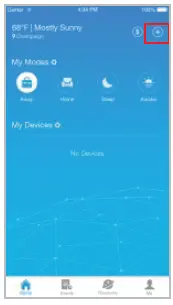
- Log in and press the Add Device option in the upper right corner of the Home Page.

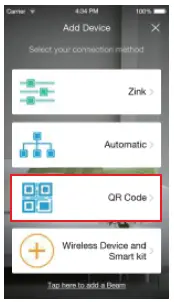
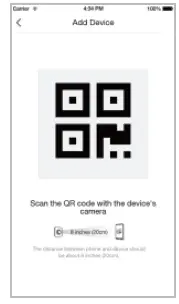
- Select the “QR Code” connection method to connect your device(s). Your device(s) will be added to your Zmodo account. You can follow the in-app instructions or refer to steps 3-9 to complete setup.

- Power on your device(s). The status light will blink green when the device has powered on. Tap “Next” to proceed.

- Turn up the volume on your phone for voice prompts during the mobile setup process. Tap “Next” to proceed

- Connect your phone to the 2.4GHz WPA-PSK/WPA2-PSK WiFi network that you want your device(s) to connect to (network cannot be hidden). Tap “Next” to proceed.

- Enter the password of the WiFi that you want your device(s) to connect to. Please make sure that your WiFi password is correct. Tap “Next” to proceed.

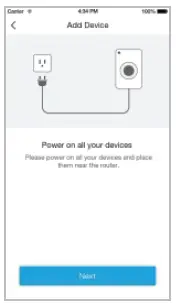
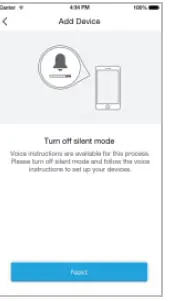
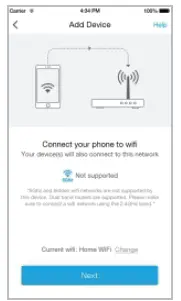
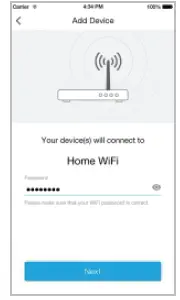
- Steadily hold your phone’s display in front of your Zmodo camera until you hear “Device connected”. The distance between your phone and the camera should be about 8 inches

- Name your device(s) and set a password for it. Tap “Next” to proceed.

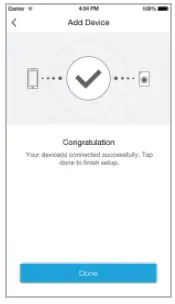
- Your device(s) have been successfully configured! Tap “Done” to finish. You can now share or view your device(


Mounting Your Cameras
- If you’re installing your cameras outdoors, all wired connections must be weatherproofed
- Before installing the cameras, carefully plan where and how they will be positioned, and how you will route the wiring that connects your cameras to the power adapters
- Try to avoid WiFi signal interference from concrete, cement, and metal as much as possible. Do not place cameras in a location where these materials stand between your cameras and your WiFi router
- Make sure that your cameras are within range of your WiFi network, and that your network meets all of the bandwidth requirements from Section 1.
- If you have a lot of obstacles between your camera and the WiFi router, the transmission range will be greatly reduced. In order to increase the range, you may purchase a WiFi range extender to place near the cameras.
- Unplug the cameras that have been configured in Section 1.
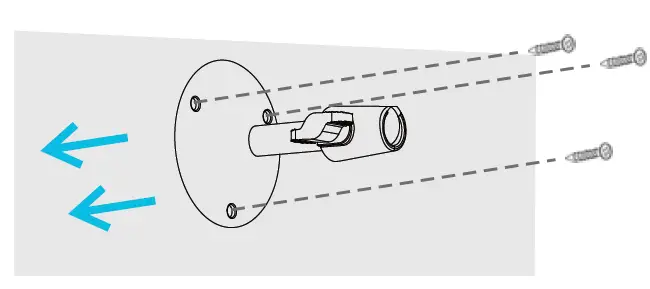
- Line the camera bracket against the wall where you would like to install the cameras, and mark the appropriate holes. Drill three holes slightly smaller than the wall anchors and use a hammer to gently insert the anchors into the wall. Fasten the three screws through the holes on the bracket and into the anchors as shown

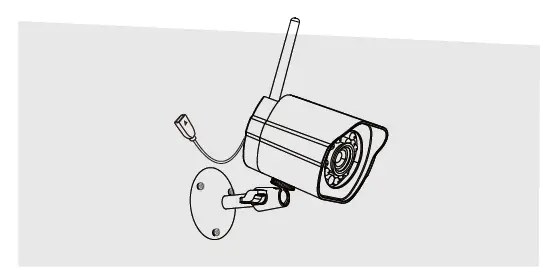
- Fasten the bracket to the camera. You will be able to adjust the camera position using the adjustable camera bracket. Position the camera for an optimal viewing angle, and tighten the bracket

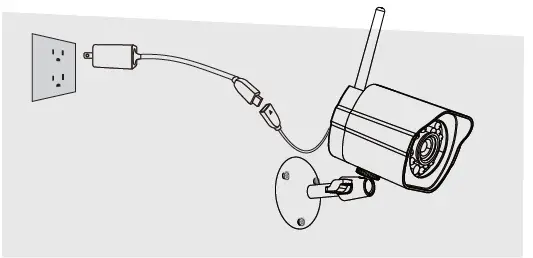
- Connect the supplied power adapter to the power port on the camera, and plug the adapter into a nearby power outlet. Repeat steps 1-4 for all cameras in your camera kit.

Recording and Viewing Options
This device is compatible with the cloud service. Please visit www.zmodo.com/support for more information and articles. The cloud service will allow you to:
- Record continuously and store footage on our secure cloud servers.
- Create and save video clips from your recordings
- Access your footage and clips at any time from any location
- Enjoy more smart features in the future!
Viewing Options
All of your Zmodo devices will be bound to your Zmodo user account. You can access your camera and other TM devices by using the Zmodo app with any Android or iOS device. Just download the Zmodo app from TM TM Google Play or the App Store You can also access your devices from any web browser with our web app. Visit user.zmodo.com and log in with your Zmodo user account information.
Status Light Definitions
Your camera has an LED light that indicates the status of the camera. Please refer to the guide below
- Solid green
- The camera is powering on.
- Blinking green
- The camera is ready for setup.
- Blinking blue
- The camera is connecting to the WiFi network. Please do NOT turn off or unplug your camera at this time
- Solid blue
- The camera has successfully connected to the WiFi network.
Troubleshooting
- Please make sure that you entered the network name and password correctly. Note: Both are case-sensitive.
- Make sure that you are connecting to a 2.4GHz WPAPSK/ WPA2-PSK WiFi network, and your network is not hidden.
- During the QR code scan, please make sure that your phone’s display brightness is high, and avoid glare on your phone’s display.
- Please make sure that your camera is not already bound to another user account.
- Make sure that you have fastened the antenna (if applicable) onto your camera, and try moving your camera closer to the router for the initial setup
Support
Having difficulty? You can use the Live Chat function in the Zmodo app if you have any technical problems. Please follow the steps below: Access the “Me” page in the lower right corner in Zmodo app and select “Zmodo Support”. For more instructions, troubleshooting, support, and other resources, please visit: www.zmodo.com/support
FAQS
Any suggestions on plugging them in for outside use?
When you are running the cable through the wall, remember to make a “drip loop” (part of the cable should loop down lower than where it enters the wall
Can I record with these cameras and if so what size sd card can I use.?
Yes, you can record with these cameras. The home camera comes with a basic cloud plan that stores video alerts for 12 hours.
Will these cameras work with any other apps/cloud storage? google drive, tinycam pro?
It works with AI-HomeGuard (also sell on Amazon). The software sends alerts when it identified moving human or cars without any false alarm. It runs on you PC, and use your PC as NVR/DVR.
What the pin out is at miniUSB connector at the camera side?
It looks like a mini USB connector but is is only used for A/C power. Not data. Data transfer is only Wi-Fi via antenna. it comes with the appropriate adapter (about 6′) to plug it into A/C.
Can I record with these cameras and if so what size sd card can I use.
Yes, you can record with these cameras. The home camera comes with a basic cloud plan that stores video alerts for 12 hours.
Will these cameras work with any other apps/cloud storage? google drive, tinycam pro?
It works with AI-HomeGuard (also sell on Amazon). The software sends alerts when it identified moving human or cars without any false alarm
What the pin out is at miniUSB connector at the camera side?
It looks like a mini USB connector but is is only used for A/C power. Not data. Data transfer is only Wi-Fi via antenna. it comes with the appropriate adapter (about 6′) to plug it into A/C.
Do these cameras work with Blue Iris Software?
We are sorry that these cameras don’t work with Blue Iris Software.
Can I record with these cameras and if so what size sd card can I use.
Yes, you can record with these cameras. The home camera comes with a basic cloud plan that stores video alerts for 12 hours.
What the pin out is at miniUSB connector at the camera side?
It looks like a mini USB connector but is is only used for A/C power. Not data. Data transfer is only Wi-Fi via antenna. it comes with the appropriate adapter (about 6′) to plug it into A/C.
Do these cameras work with Blue Iris Software?
We are sorry that these cameras don’t work with Blue Iris Software.
What is the range of each camera so my Wi-Fi will reach each camera ?
The Zmodo outdoor security camera comes with an enhanced antenna, It can reach the wifi signal up to 260m away with no barrier.
Do these cameras have an ethernet port for ethernet connection? Or are they only made for wireless use?
Only wireless and it needs a lot of signal
How long do the cameras record or how often ?
There is no automatic/continual recording feature with the system I purchased
Do I have to use the manufacturer’s app or can I use a hard drive?
As far as I know, the cameras cannot be connected to an external hard-drive.