Setting Up Your Mobile App
Android
This guide provides you with step-by-step instructions on how to get started with the Thrive Hearing Control app
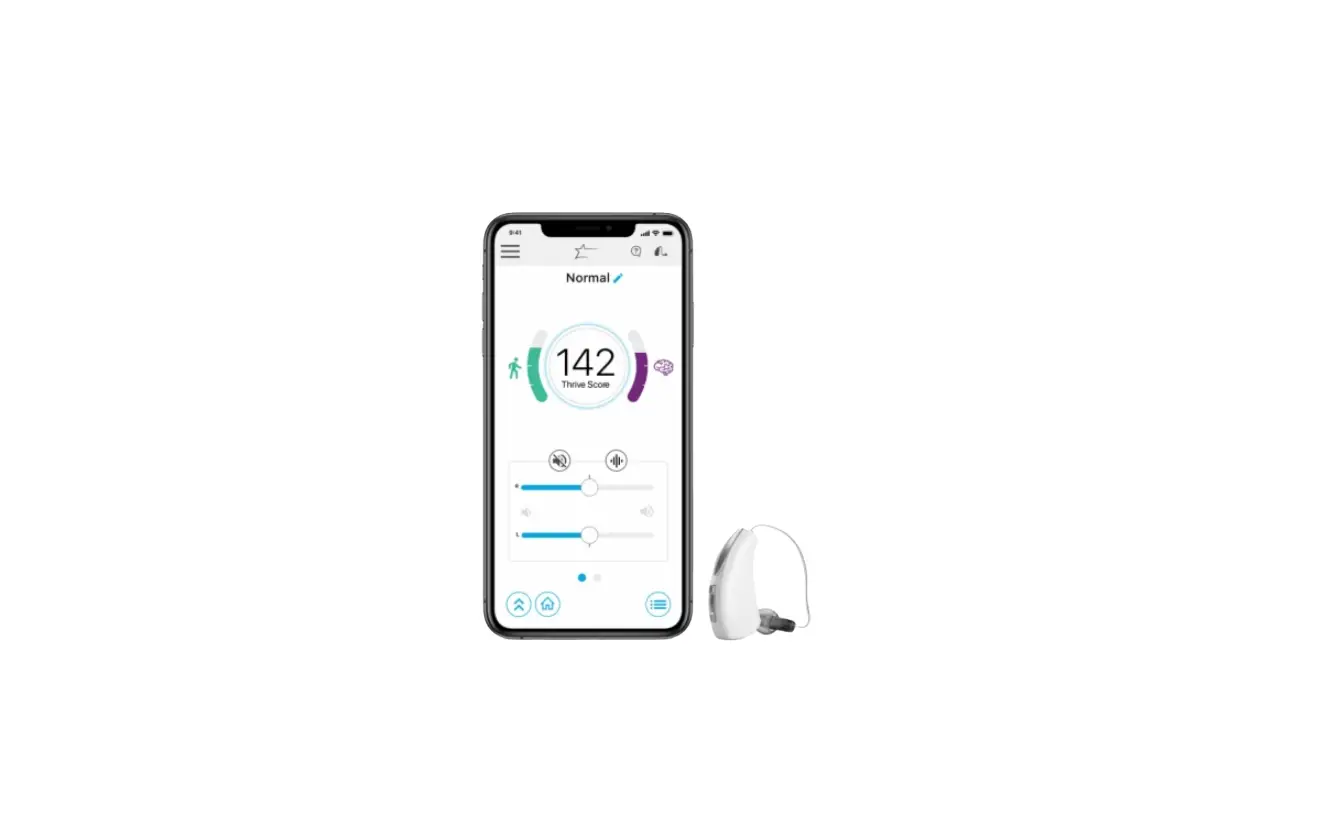
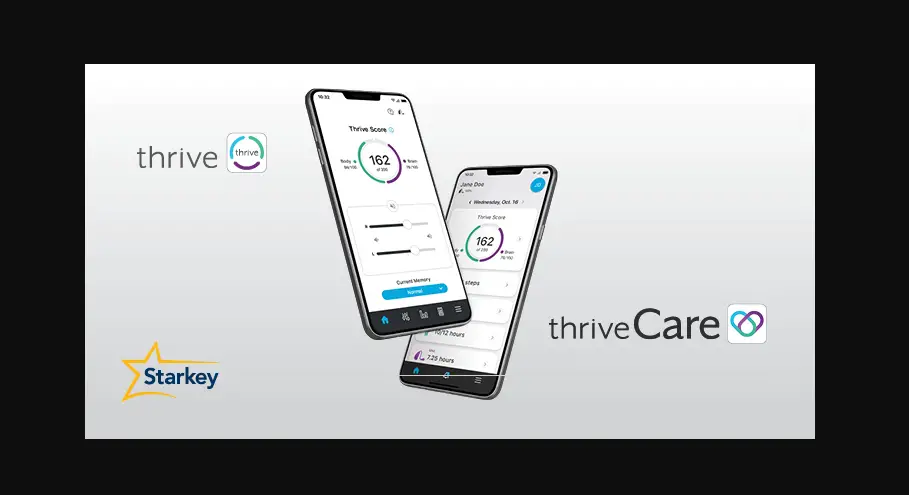
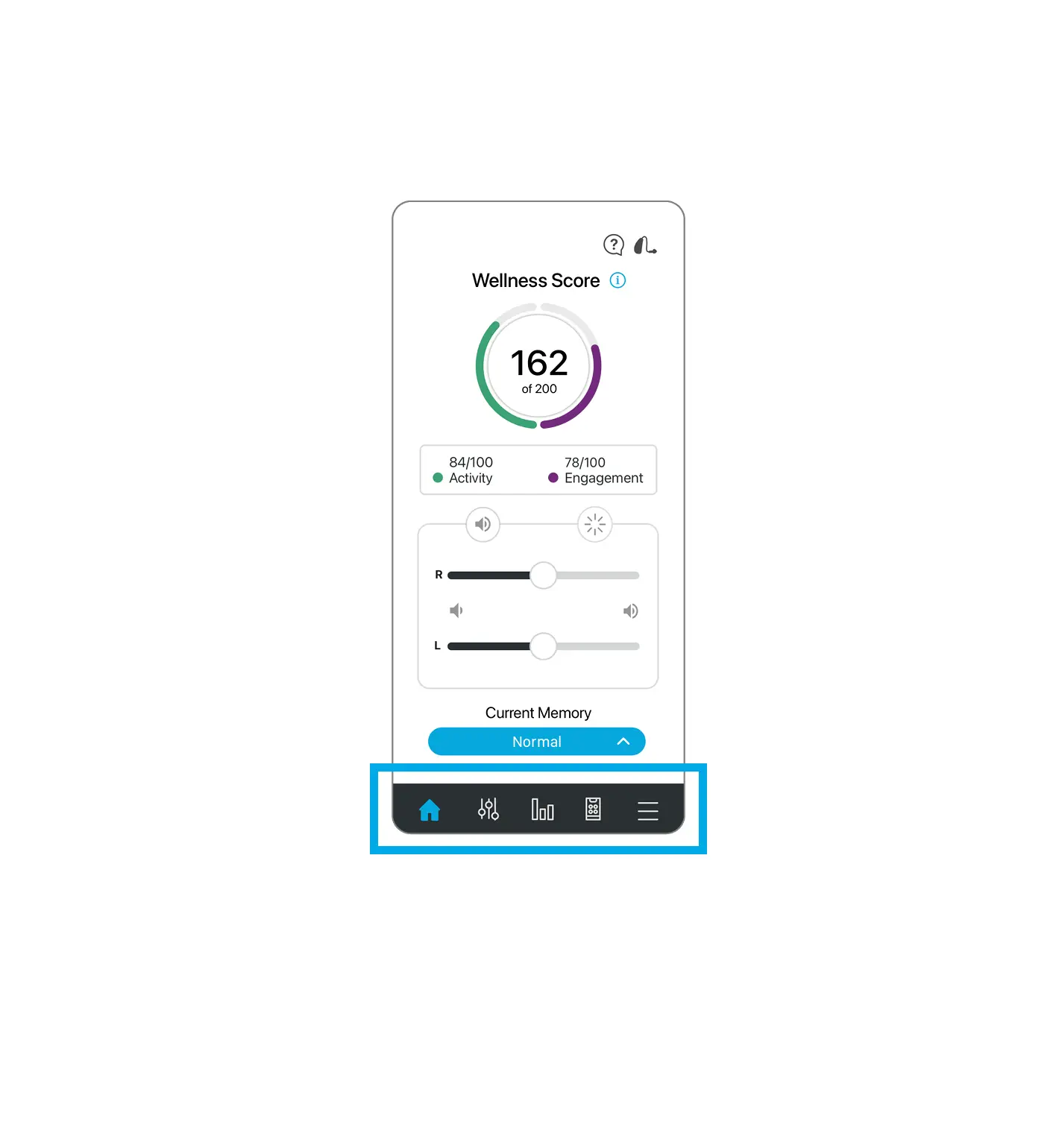
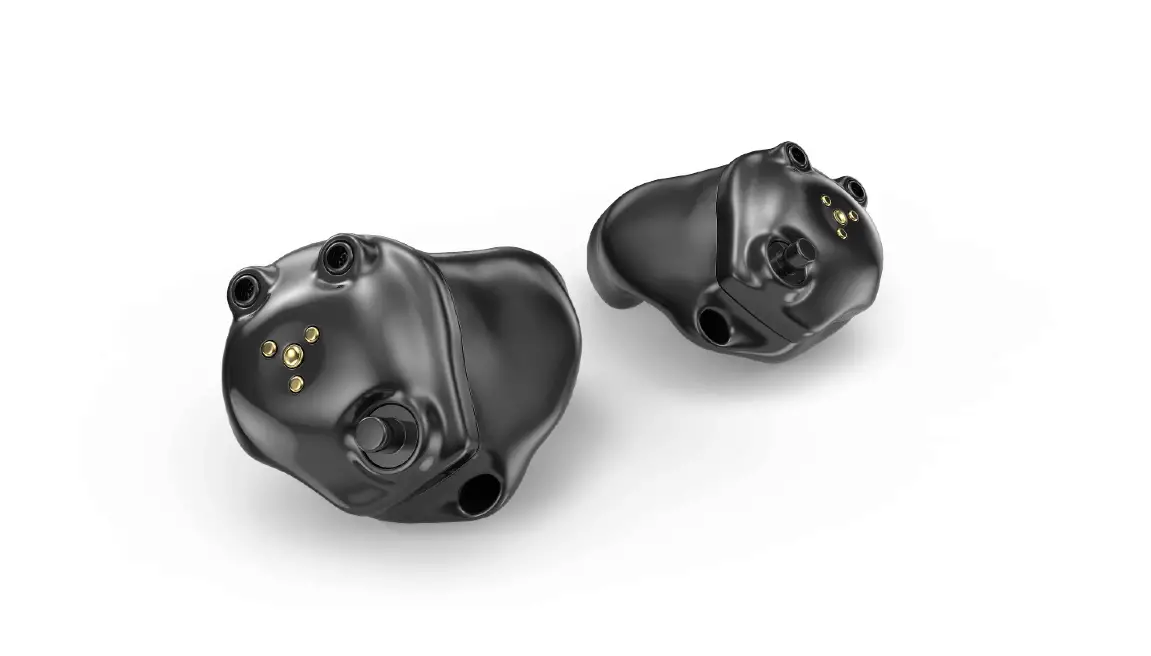
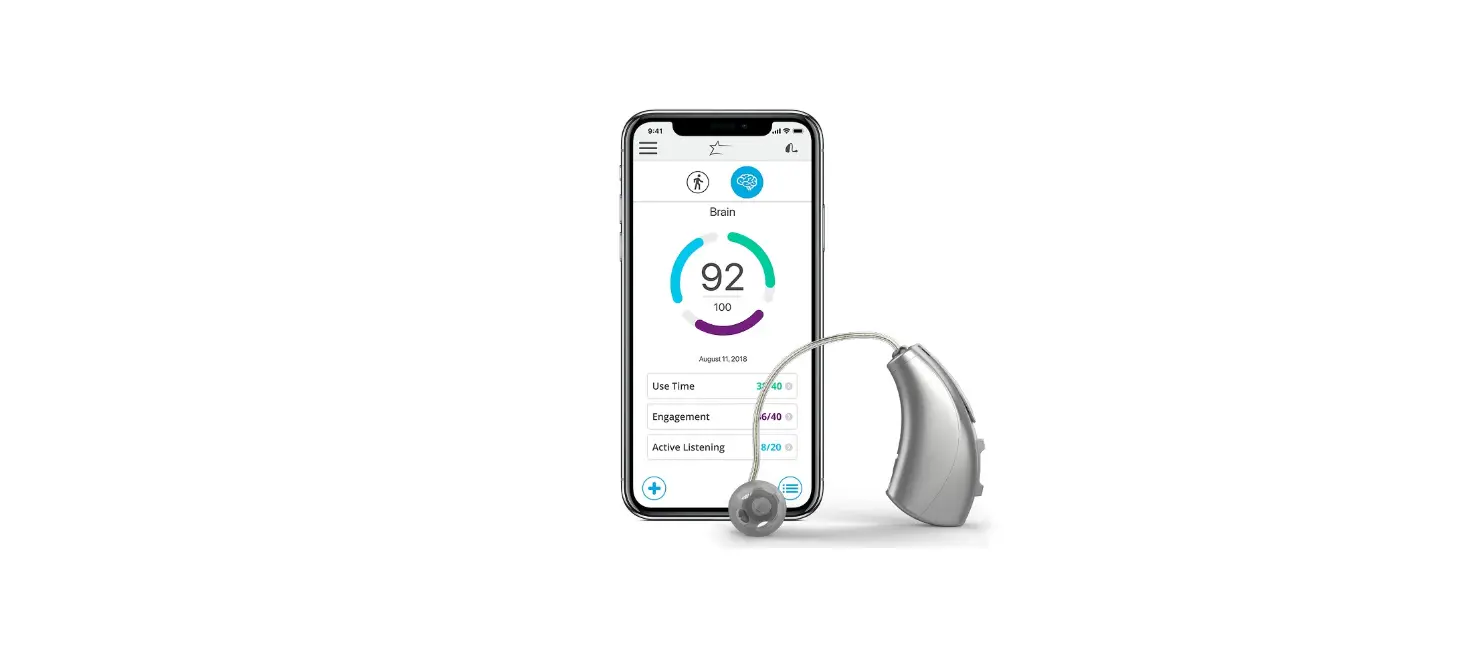
Your Starkey Livio Edge AI or Livio hearing aids can connect via Bluetooth® technology to a compatible app called the Thrive Hearing Control app.
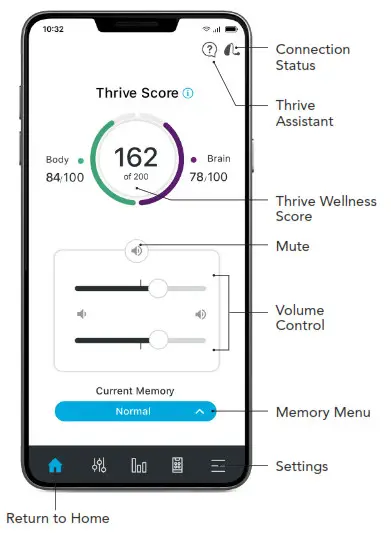
The Thrive app allows you to easily control your hearing aids and do things such as:
- Adjust the sound of your hearing aids
- Answer and stream phone calls
- Stream music, TV, and other media directly to your hearing aids
- Track health and fitness data and utilize convenient information features
For a list of compatible devices, visit https://www.starkey.com/thrive-compatibility
Download the Thrive Hearing Control app
- Open the Google Play Store™

- In the search box type
“Thrive Hearing Control” INSTALL
 - Tap INSTALL to download the app to your mobile device

 INSTALL
Connect your hearing aids to your mobile device
Follow the instructions below to connect your hearing aids to your Android mobile device. If your hearing aids ever lose connection to your mobile device, follow the Option 2 instructions below to reconnect.
Option 1 – In-app pairing:
- Skip to STEP THREE
Option 2 – Android Bluetooth menu:
- Tap the Settings icon on your mobile device
- Select Bluetooth
- While the Android mobile device searches for available devices, power your hearing aids off then on to put them into pairing mode
- When paired, they will appear in the Paired Devices list
Set up the Thrive Hearing Control app
Open the Thrive app. You will be prompted for setup. Tap Get Started to begin
Thrive User Agreement
Review the Thrive User Agreement and check the box to acknowledge. Tap Agree to Continue
Thrive App Sign in
Sign in using Facebook, Google or create an account using an active email and password
Connecting to the Hearing Aids
Select OK to allow the Thrive app to scan for the hearing aids. A prompt will ask permission to use location services. Select Allow. Power your hearing aids off then on to put them into pairing mode. Once the Thrive app finds the hearing aids they will display them on the screen. Tap to select each hearing aid. Tap Connect then tap OK. A congratulations message will display indicating that the hearing aids are now connected. Tap Continue
Thrive Function Overview
An overview of app functions provides quick information and practice of commonly used adjustments and features. Tap Continue to proceed
Thrive, Assistant,
Allows the app to access the mobile device microphone when using Thrive Assistant. Select Allow
You’re all set!
Tap Continue to begin using the Thrive app
 Want to learn more about the Thrive app?
Visit starkey.com/veterans-thrive
 Veteran technical support line: (8 0 0) 211-7789)
For Livio Edge AI, Livio, Thrive Hearing Control app and, IOS/Android compatibility information, please visit starkey.com/thrive-hearing Google, Android, and Google Play are trademarks of Google LLC. The Bluetooth® word mark and logos are registered trademarks owned by Bluetooth SIG, Inc. and any use of such marks by Starkey is under license. The Starkey logo, Starkey, Thrive, Thrive logo, Livio, and Livio Logo are registered trademarks of Starkey Laboratories, Inc.
©2021 Starkey. All Rights Reserved. 2/21 FLYR3817-00-EE-GS