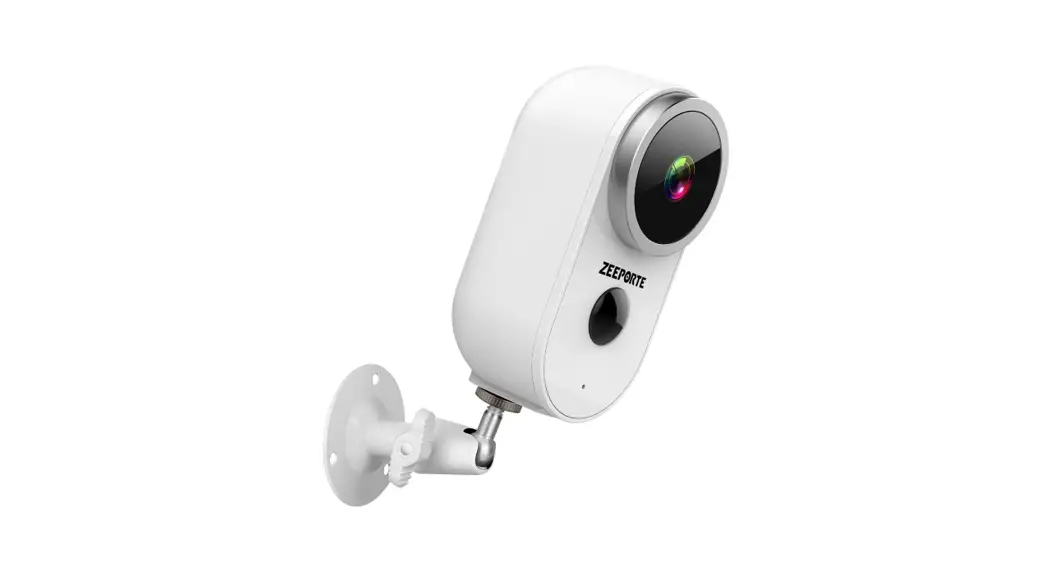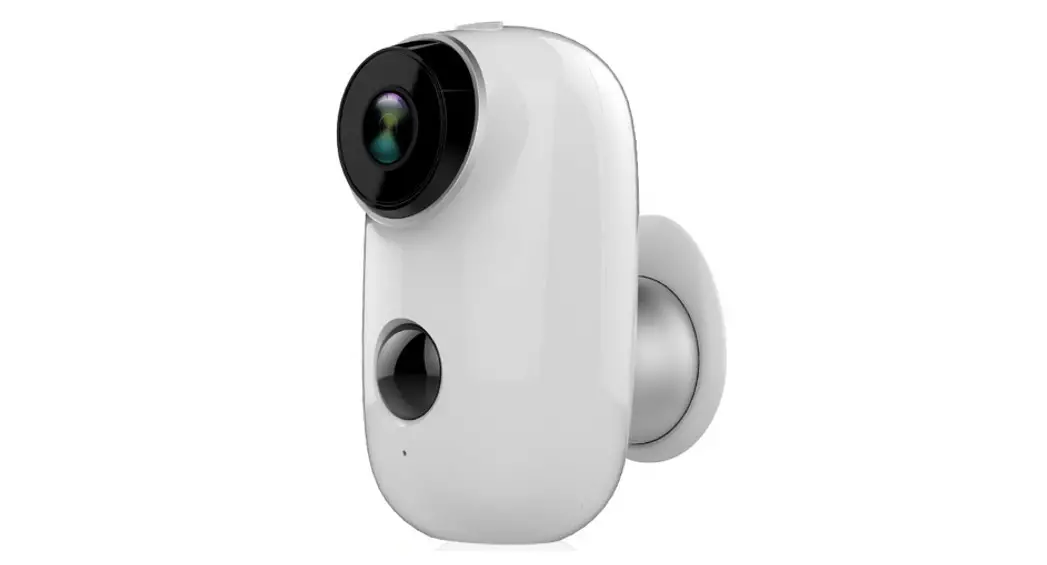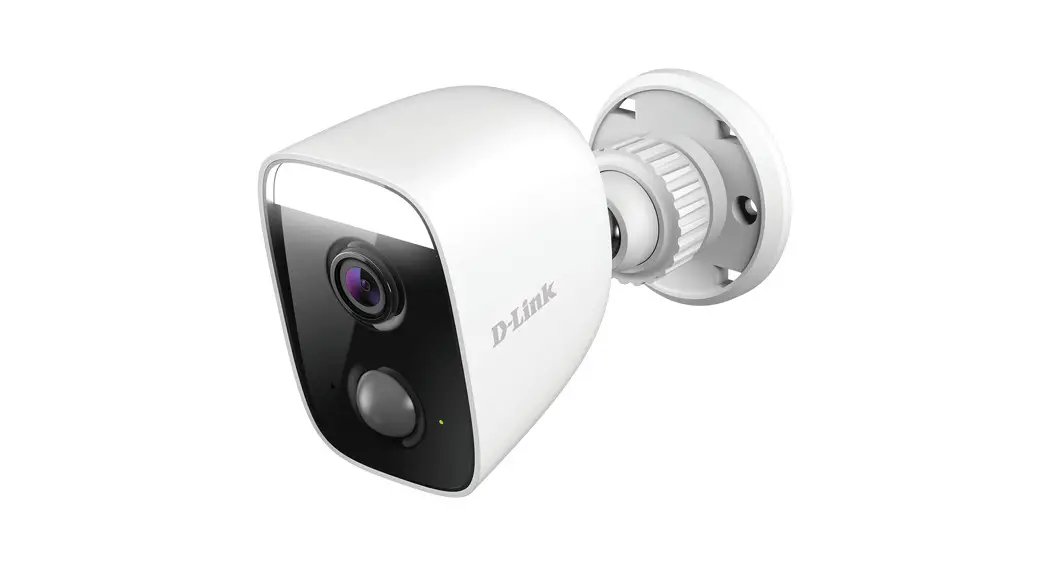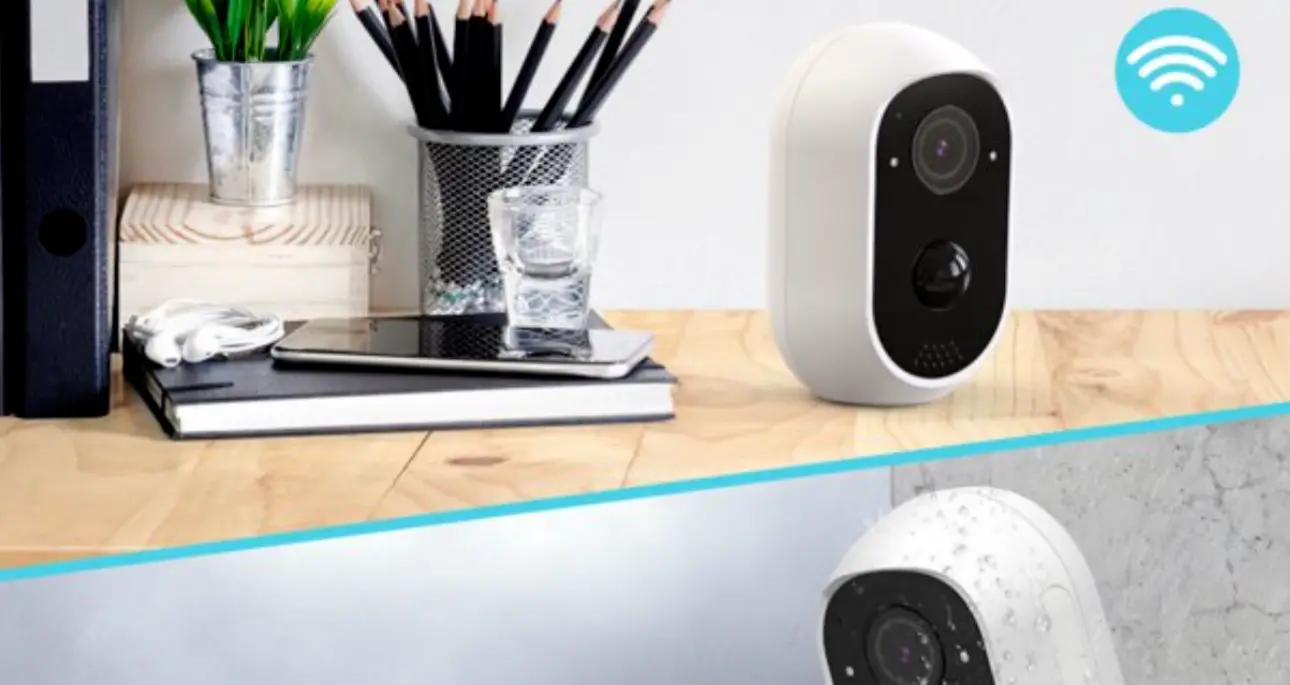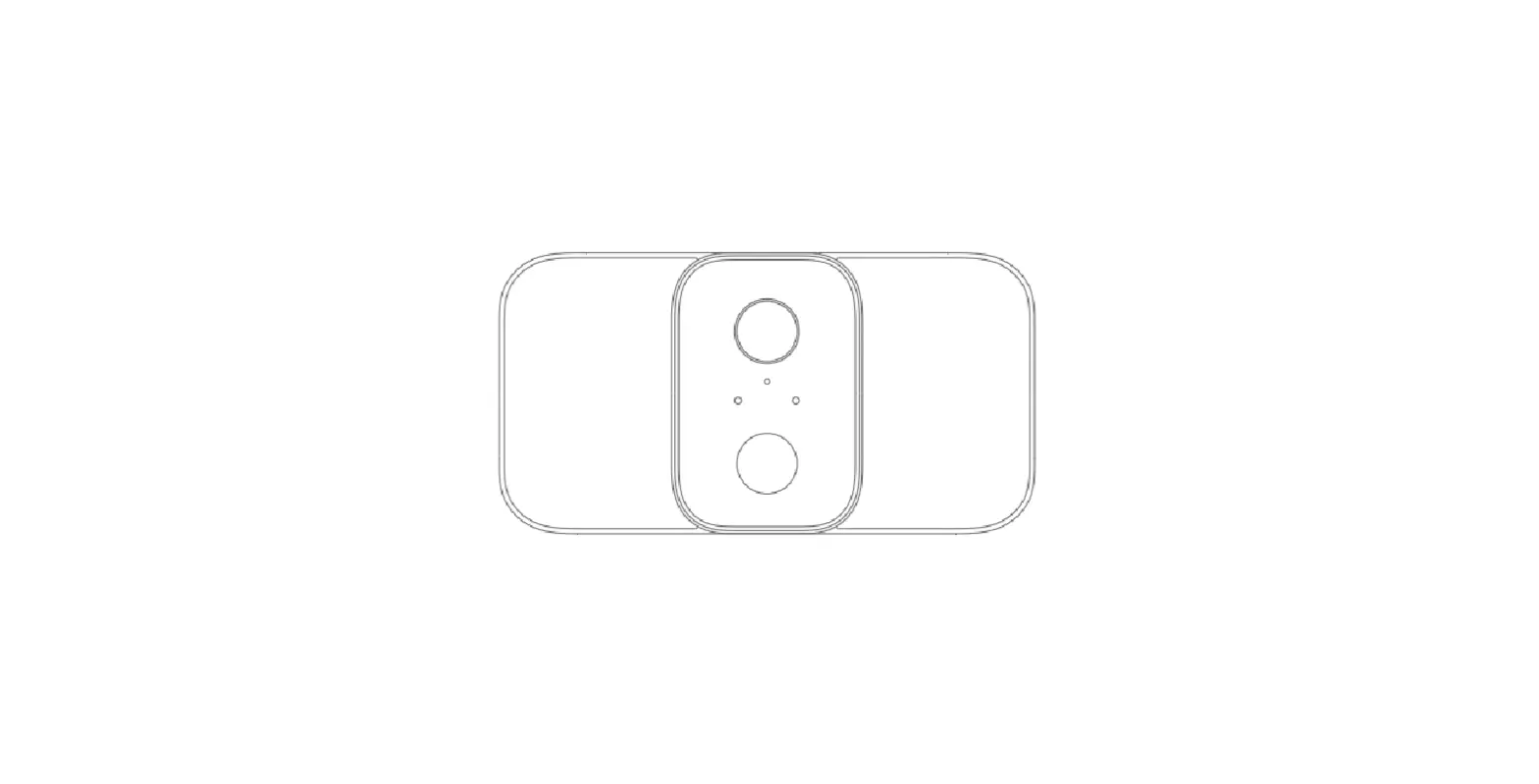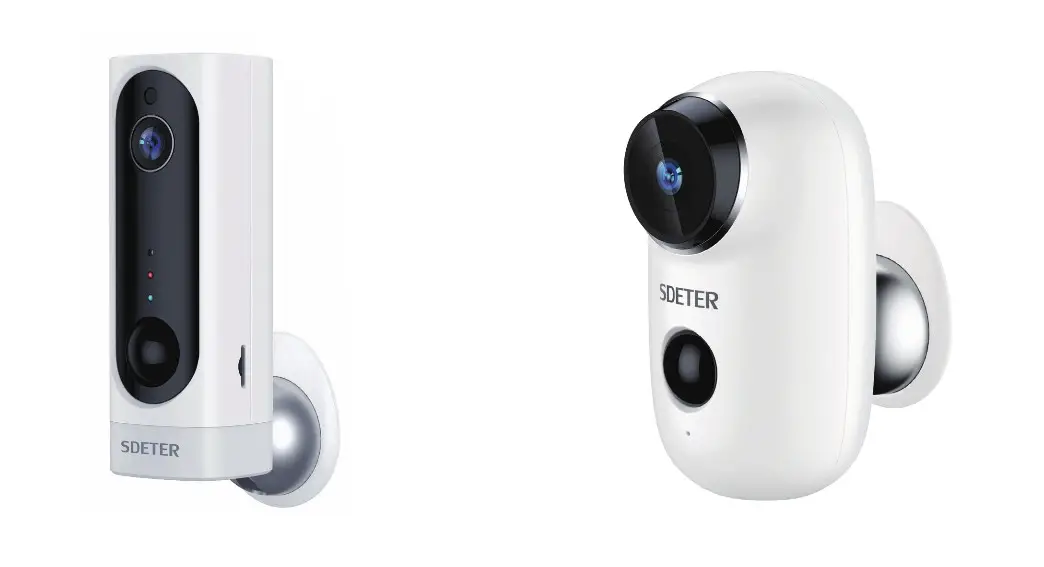
Smart IP Camera with Battery
Quick User Guide
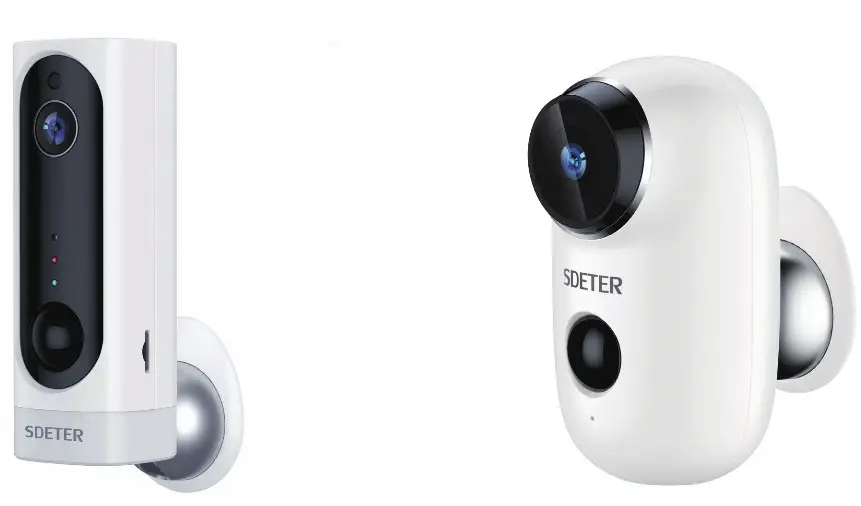
100% Wire-Free IP Camera with rechargeable battery Place it Anywhere, Watch on Phone Anytime
1. Packing list
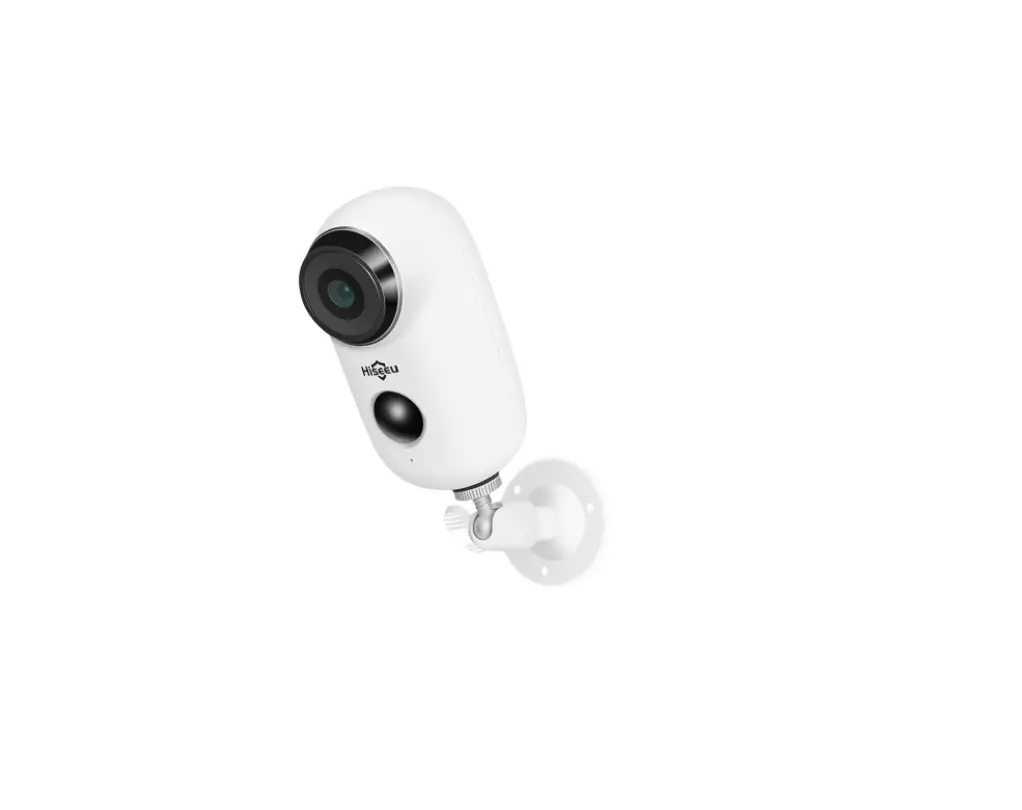
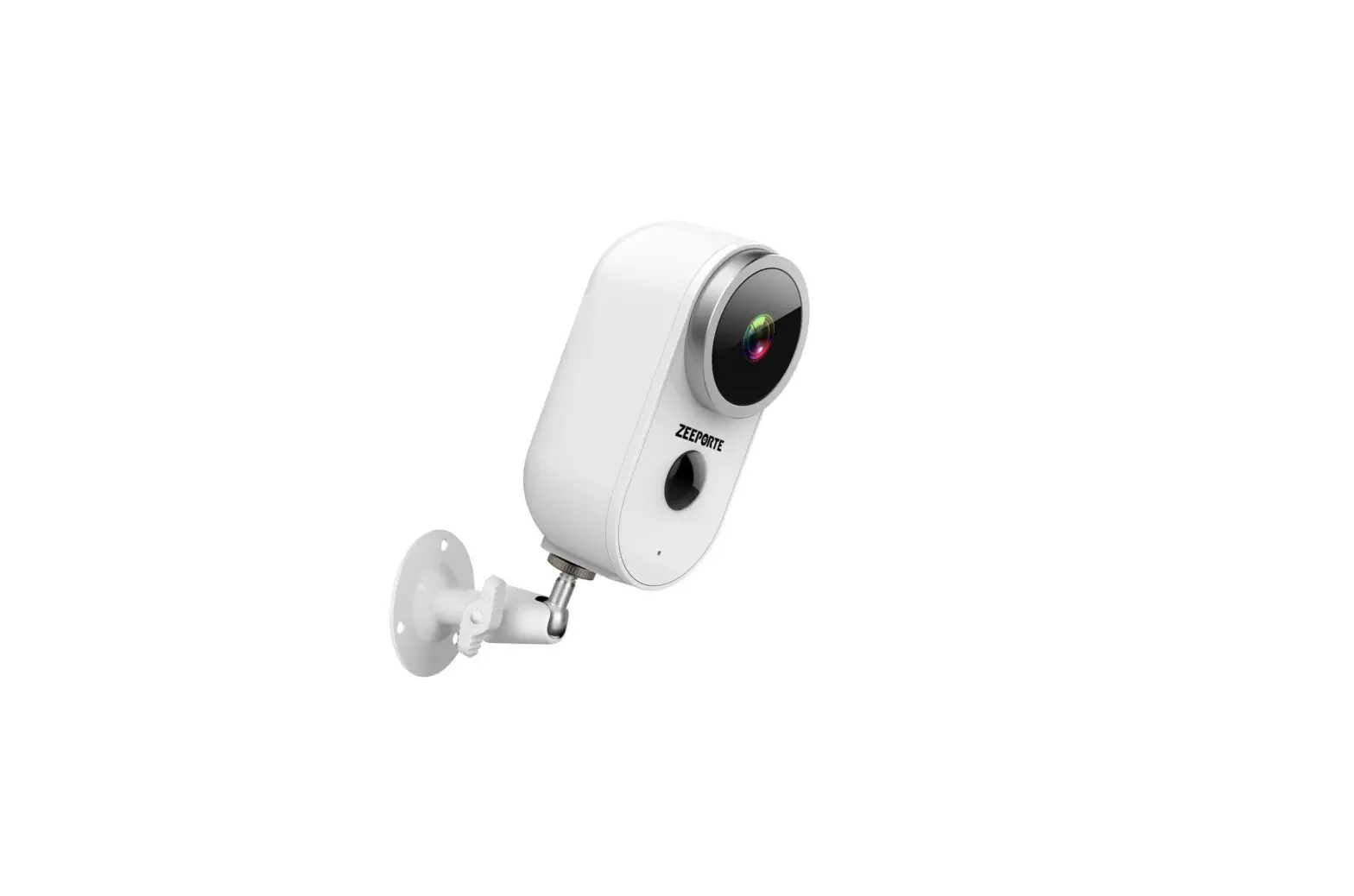
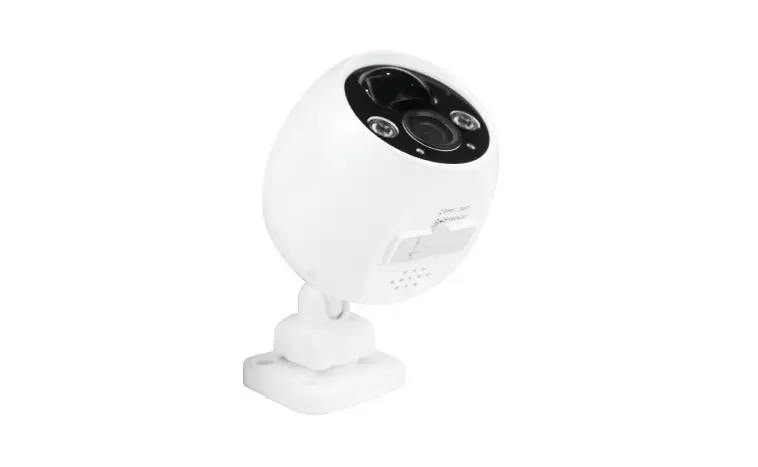
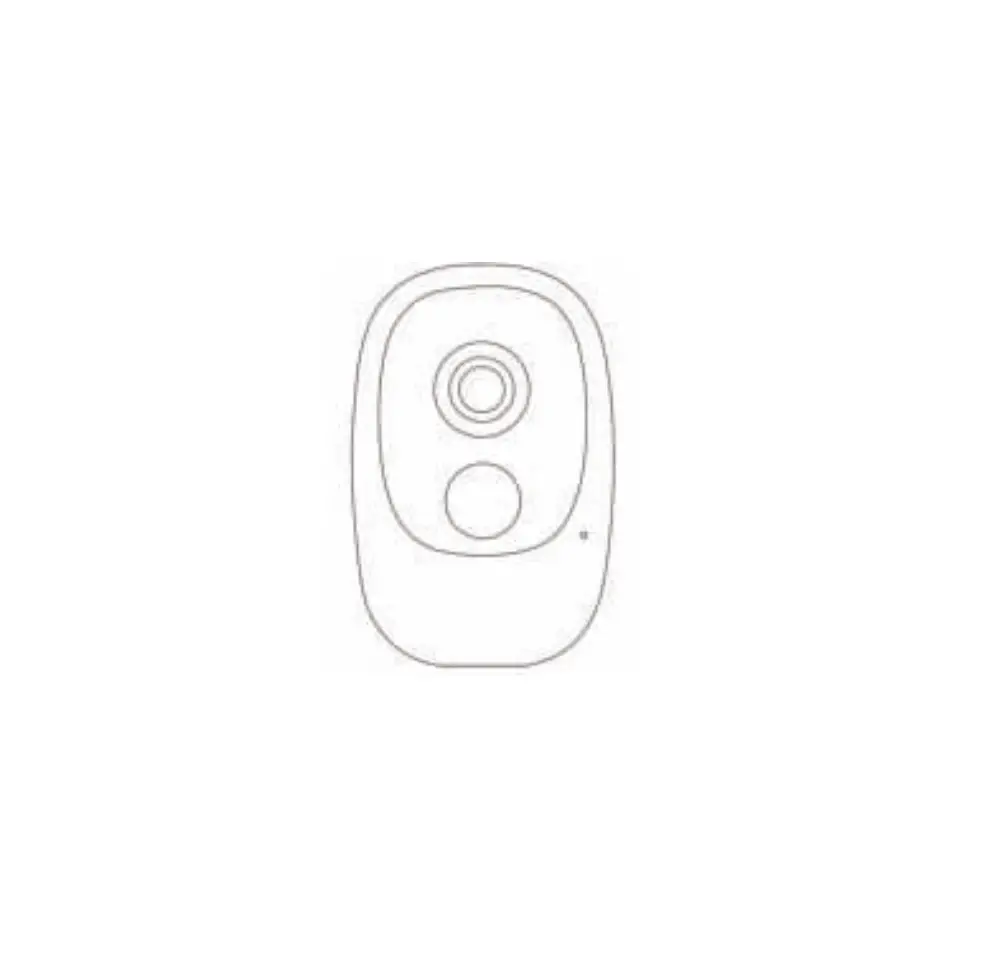
A1 Camera :
What is in the box?
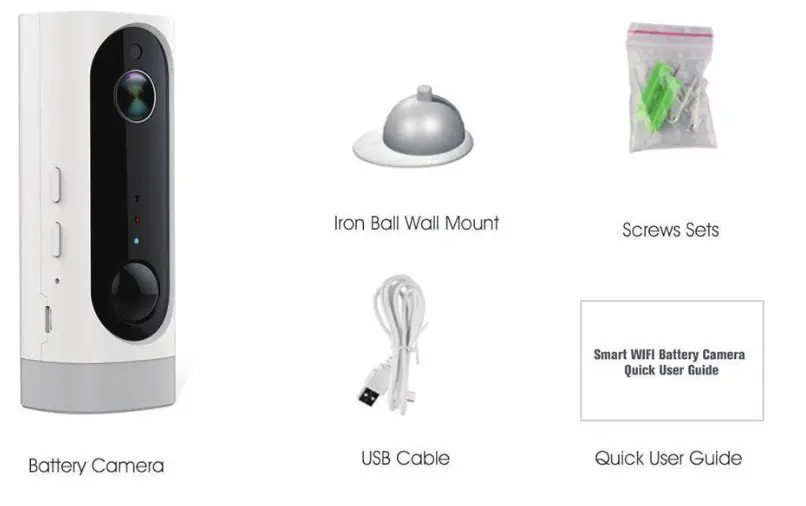
1x camera, 1x wall mount, 1x screws, 1x USB cable, 1x Quick User Guide
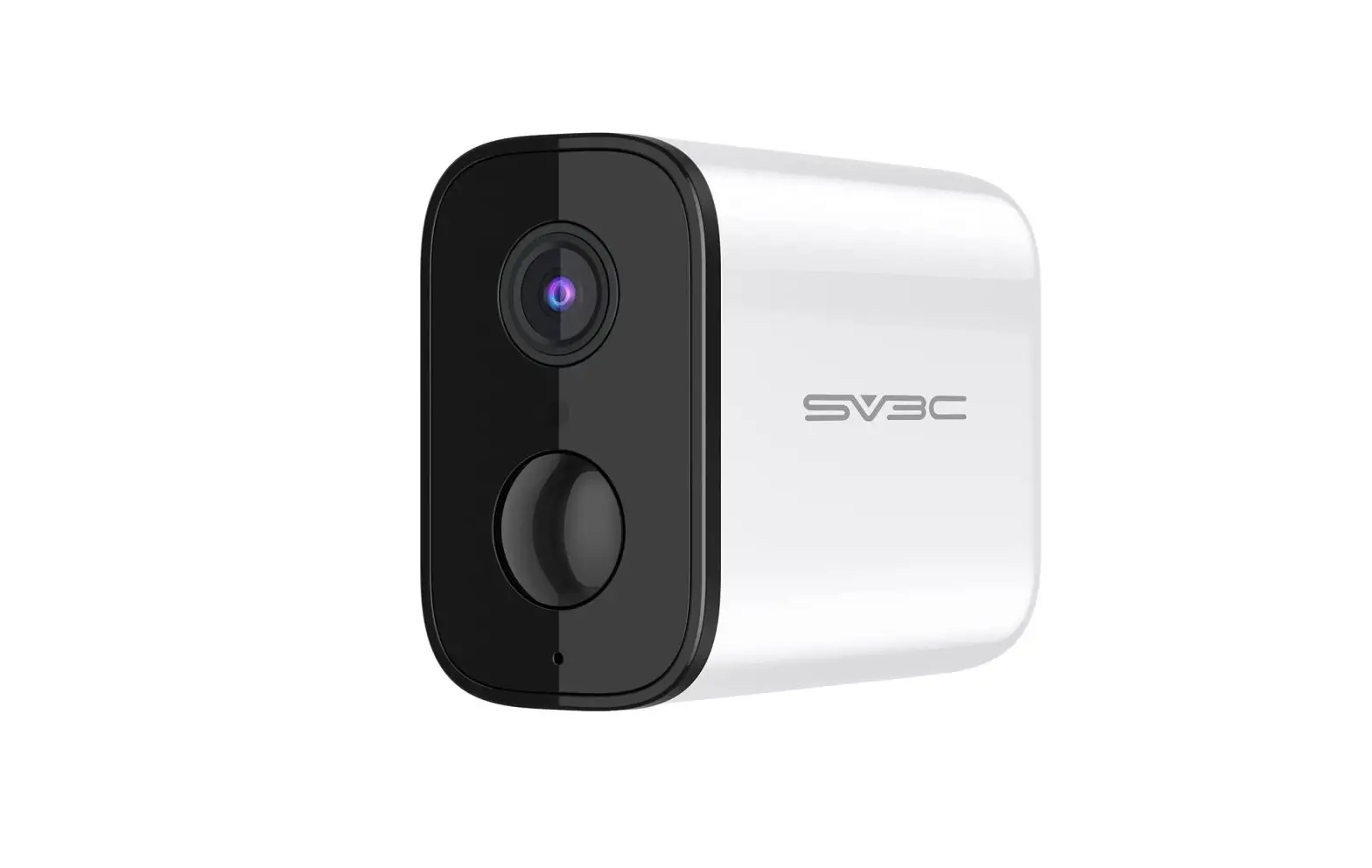
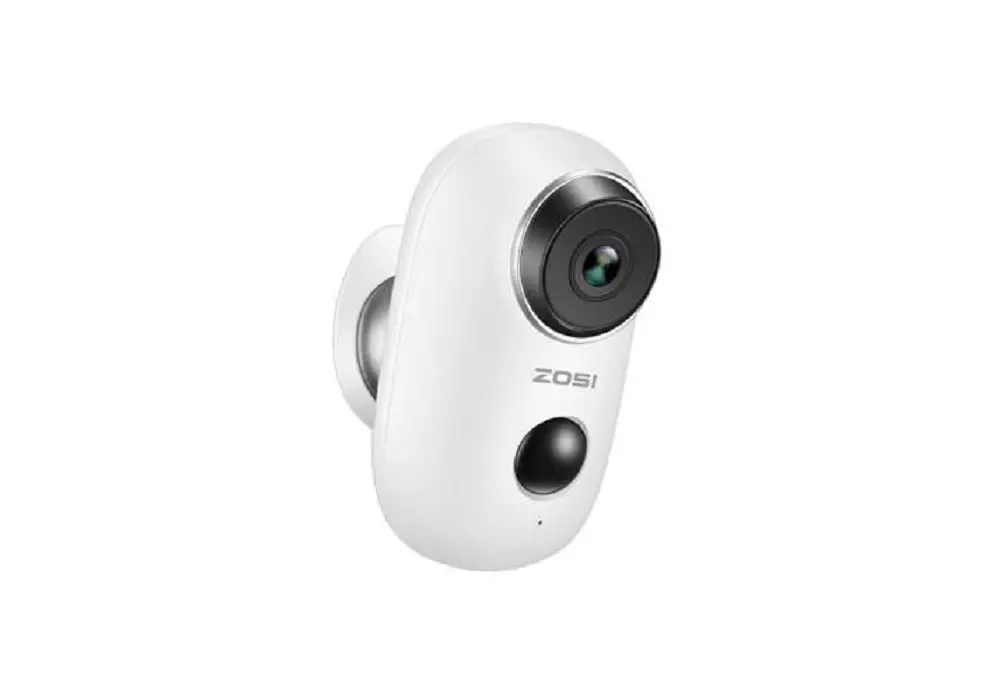
A3 Camera :
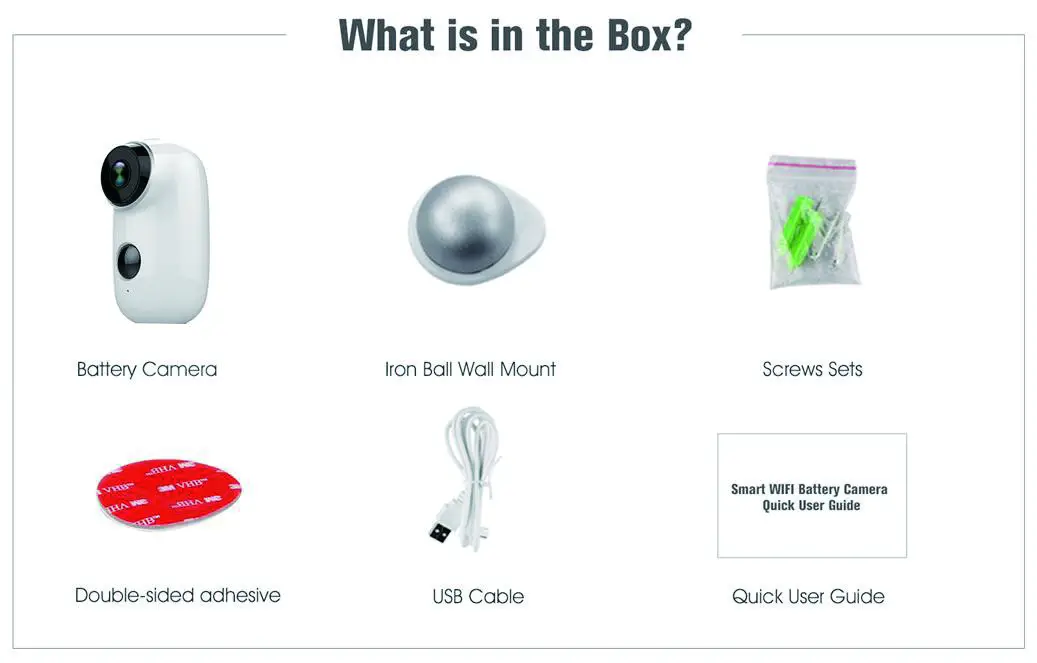 1x camera, 1x wall mount, 1x screws, 1x Double-sided adhesive, 1x USB cable, 1x Quick User Guide
Product Details
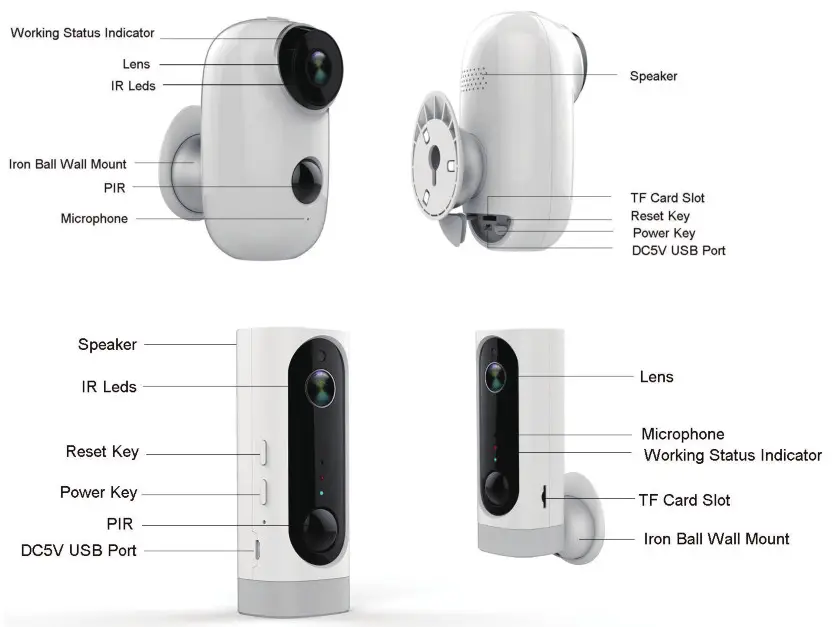
| No | Camera key | Operation |
| 1 | Power Key | Press and hold for 5 seconds to power on/power off |
| 2 | Power Key | Quick press 1 second to wake up the camera from standby mode |
| 3 | Reset Key | Press and hold for 5 seconds, it will reset and restart |
Install Cloudedge APP
Search “Cloudedge” in the App store or google play store, or scan below QR Code to download and install on the smartphone.

https://itunes.apple.com/app/id1294635090?mt=8

https://play.google.com/store/apps/details?id=com.cloudedge.smarteye
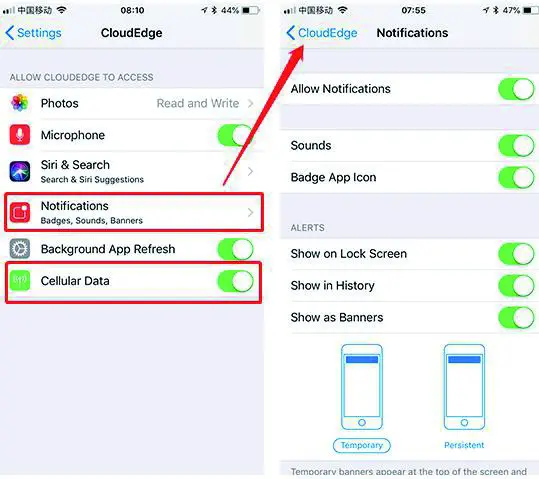
NOTE: Please ALLOW below 2 permissions when first running App.
1. Allow CloudEdge use mobile cellular data and wireless LAN (Function: If not allowed, it will be failed to add IP camera).
2. Allow CloudEdge to get system push message permissions (Function: When the camera triggers motion detection or audible alarm, the phone can receive alarm push).
Register Account:
New users need to register by e-mail, click “Register”, follow the steps to complete the registration of the account, and log in.
Add Camera to APP
Insert micro SD card
Please insert a micro SD card to record videos when motion is detected and playback. ( card not included, supports 128GB Max.)
* NOTE: Please insert the SD card before power on, otherwise, the SD Card cannot be read.
Power on the camera
Press and hold on the top Power Button for 5 seconds to Turn on the Camera (if can not power on, please plug in DC5V 1A/2A phone adapter to charge 15min first), ensure the indicator light slowly blinking in RED.
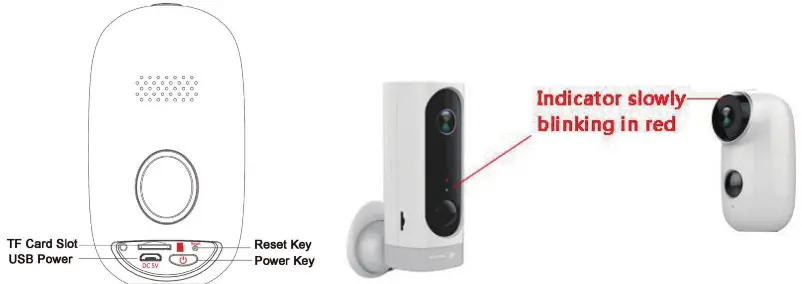
NOTE: DC5V1A/2A Power adapter is not included in packing list.
Setup Wi-Fi
1.Bring the camera and phone to the router within 1 to 3 feet (30 to 100 cm) and connect wifi.
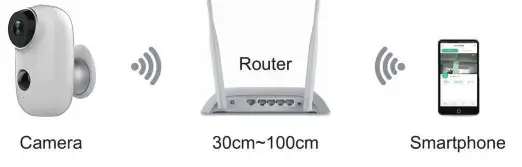
NOTE: Please note camera only works under 2.4G Wi-Fi, not supports 5G Wi-Fi.
2.Run CloudEdge App, Click
and select “BATTERY CAMERA”.
3. Select “The device has flashed red slowly or you hear a tone”, tap NEXT
4 . Select 2.4Ghz WiFi SSID and input password, tap NEXT
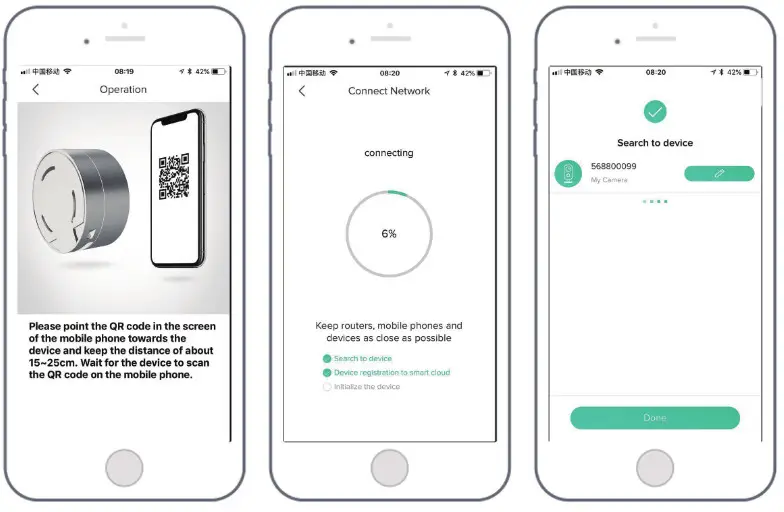
5.Put the QR code in front the camera lens 15cm.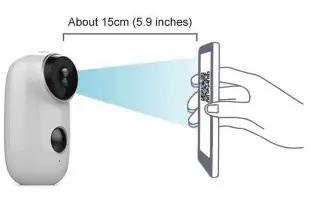
The device lens is aimed at the QR code on the phone screen with a distance of 15 cm. After the device recognizes the QR code, it
will sound “bug”, if heard it, then tap “Hear Tone”.
6.After clicking “Hear tone”, the camera will start connecting wifi and skip to the “Search to Device” page after setup is finished, you can edit the camera name here, then click “DONE” to open the camera in the My Device list, now you can watch a real-time video.
Device Menu
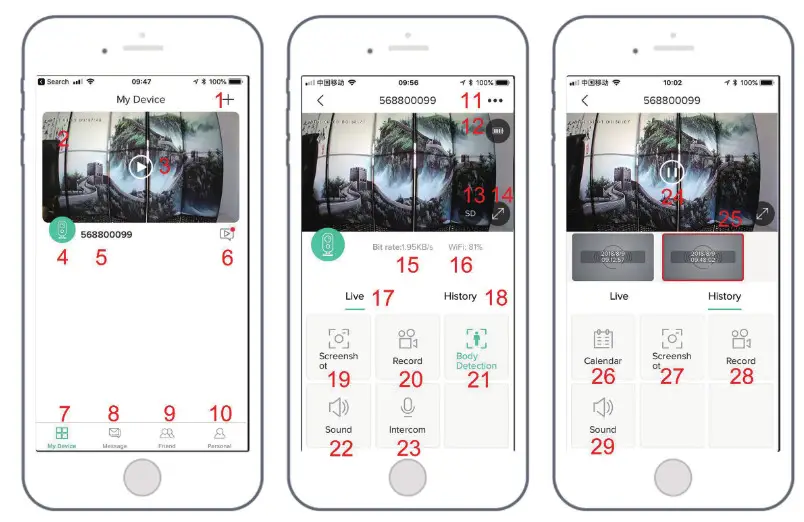
| 1. Add a camera | 16. Network signal strength |
| 2. Camera time | 17. Preview options |
| 3. Live view button | 18. Local playback options |
| 4. Camera type icon | 19. Screenshot button |
| 5. Camera name | 20.Record button |
| 5. Alarm information icon red dot indicates alarm occurs, click to view alarm | 21.Human body detection option, green is activated, default is on, and it is |
| screenshot or video | detected by human body infrared detection. |
| 7. My device list | 22. Sound options, start can listen |
| 8. Message options | 23. Intercom option, long press it and then can talk |
| 9. Friend options | 24. Alarm video, click on it to play/pause |
| 10. Personal homepage | 25. Alarm video clip |
| 11. Camera settings options, such as alarm SD card, etc. | 26. Calendar option, click on it to select the date |
| 12. Battery capacity | 27. Screenshot options |
| 13. SD, HD options | 28. Recording options |
| 14. Full-screen option | 29. Sound option, start to listen to the sound in playback |
| 15. Bit rate |
Adjust the PIR Detecting Distance
PIR “Body Detection” is defaulted on and the default sensitivity is at “Mid” and the detecting distance is 6 meters (20ft), and it is adjustable in “My Device” -> “Device Settings” -> “Body Detection”.
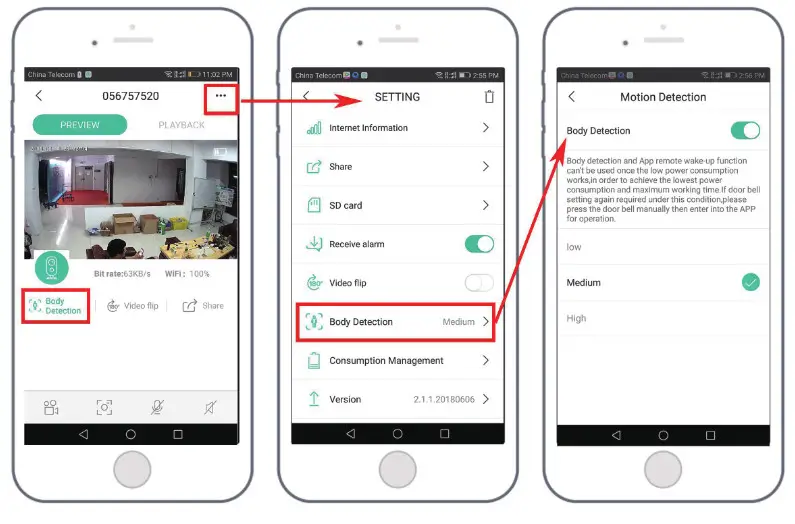
| Sensitivity | Detecting Distance (For moving and living things) |
| Low | Up to 4 meters (13ft) |
| Medium | Up to 6 meters (20ft) |
| High | Up to 8 meters (26ft) |
*NOTE: Higher sensitivity offers a longer detecting distance, but it would lead to more false alarms. You are advised to set up the sensitivity level to “Low” or “Medium” when you install the camera outdoors.
Alarm Push Notification and playback
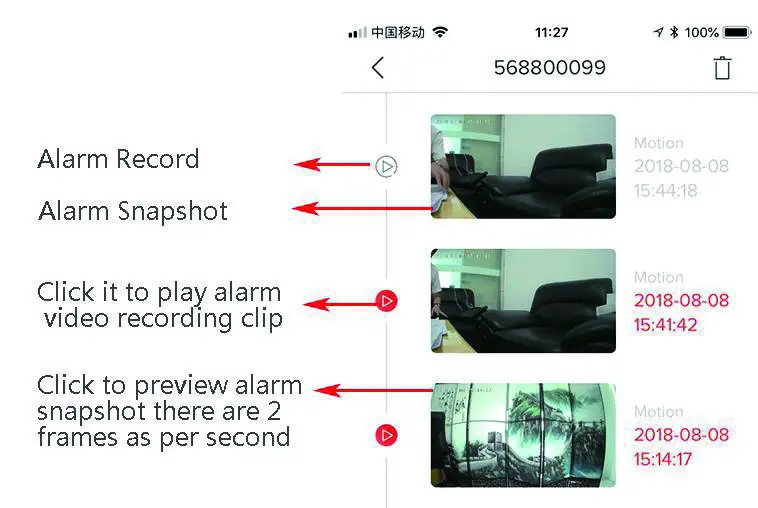
Battery camera with PIR sensor is not designed for 7X24 all day recording, but just push alarm message notification to phone app and record video to SD card when PIR sensor detected human body motion events, then you can playback the motion videos wherever you are via CloudEdge App.
When PIR is triggered, camera and system actions:
1. Alarm Sound in-app (please enable cloud edge app notification in mobile setting and also mobile volume is on )
2. Alarm Message Notification (please enable cloud edge app notification in a mobile setting)
3. Alarm snapshot and video record on SD card (please insert TF Card)
Camera Installation
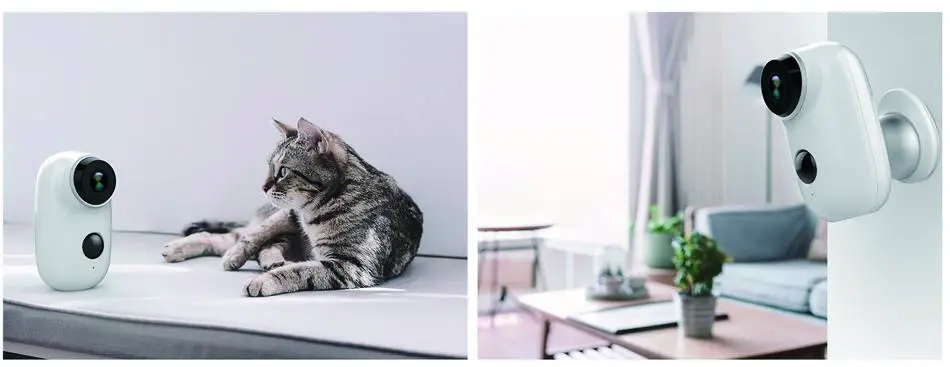
- You can put it on any flat place: table, chair, floor, etc.
- Install with Wall Mount:
-A3 Wall Mount Installation
Fix the iron ball bracket to the wall with screws or double-sided adhesive, and then magnetize the camera to the iron ball. Installation is very convenient and also easy to adjust the angle.
A1 Wall Mount Installation :
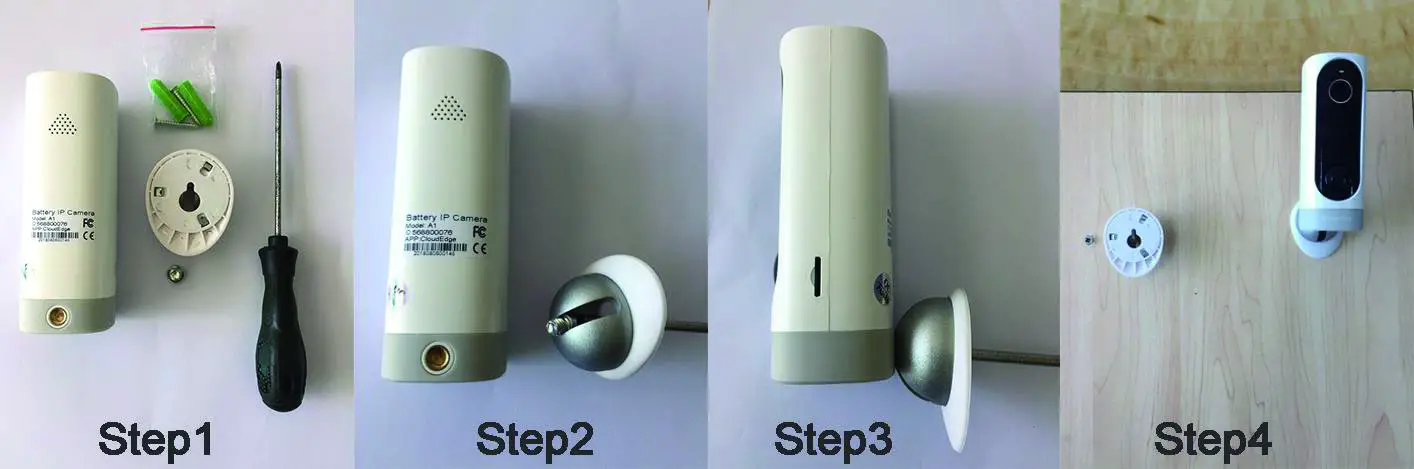
- Prepare one more cross screwdriver, which is not in the packing list
- Use the screwdriver to thread the screw through the 90-degree notch of the iron ball bracket
- Screw the screw into the threaded hole at the rear of the camera. The 90-degree slot can adjust the camera’s monitoring angle.
- Screw a screw into the wall and hang the camera on the wall with the iron ball bracket.
 Important Notes for Reducing False Alarms
To reduce false alarms, please note that:
- Do not install the camera facing any objects with bright lights, including sunshine, bright lamp lights, etc.
- Do not place the camera too close to a place where there frequently moving vehicles. Based on numerous tests, the recommended distance between the camera and vehicle is 15 meters (55ft).
- Stay away from the outlets, including air conditioner vents, humidifier outlets, the heat transfer vents of the projectors, etc.
- Do not install the camera facing the mirror.
- Keep the camera at least 1 meter away from any wireless devices, including Wi-Fi routers and phones, in order to avoid wireless interference.
Cover the Monitoring Area
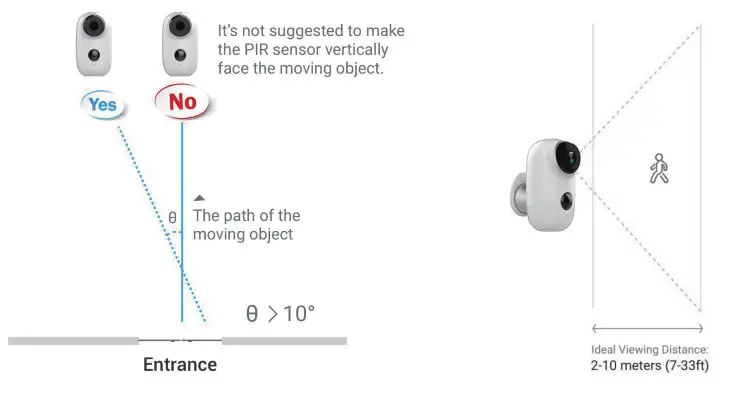
When installing the camera, it’s not suggested to make the PIR sensor vertically face the moving
object, otherwise, it may not detect the motion events. It is suggested to make the angular between PIR sensor and detected object larger than 10 degrees.
Appendix: LED Status Description and troubleshooting sheet
| LED Status Description | ||
| No. | LED Status | Camera Status |
| 1 | Slow blinking Red | Awaiting WiFi Connection |
| 2 | Fast blinking Red | WiFi Connecting |
| 3 | Solid on Red | Network is abnormal |
| 4 | Solid on Blue | WiFi Connected |
| Trouble Shooting Sheet | ||
| No. | Description | Solution and operation |
| 1 | Unable to connect | 1)Check your WiFi name and password 2)Ensure your WiFi is 2.4G, not support 5G 3)Ensure your camera and phone are close to the router |
| 2 | Reset | 1)Press and hold the reset button for 5 seconds 2)Hear one “bug” sound 3)Red light turns to slow blinking |
| 3 | Change to a new network | 1)Press reset key to the factory default setting 2)Re-connection |
| 4 | Failed to add Device | Please enable CloudEdge app cellular data on in mobile settings |
| 5 | No Alarm Push | Please enable CloudEdge app notification in mobile settings |
| 6 | No Alarm Video Record | Please insert TF Card |