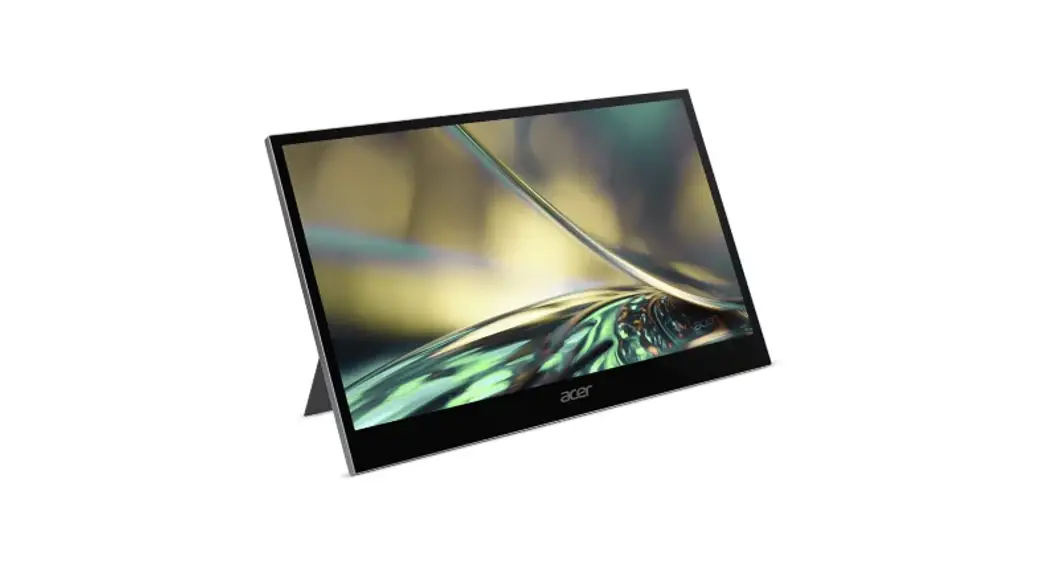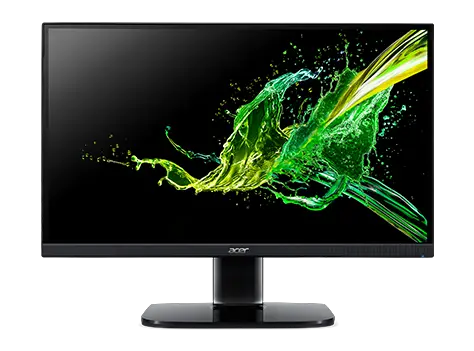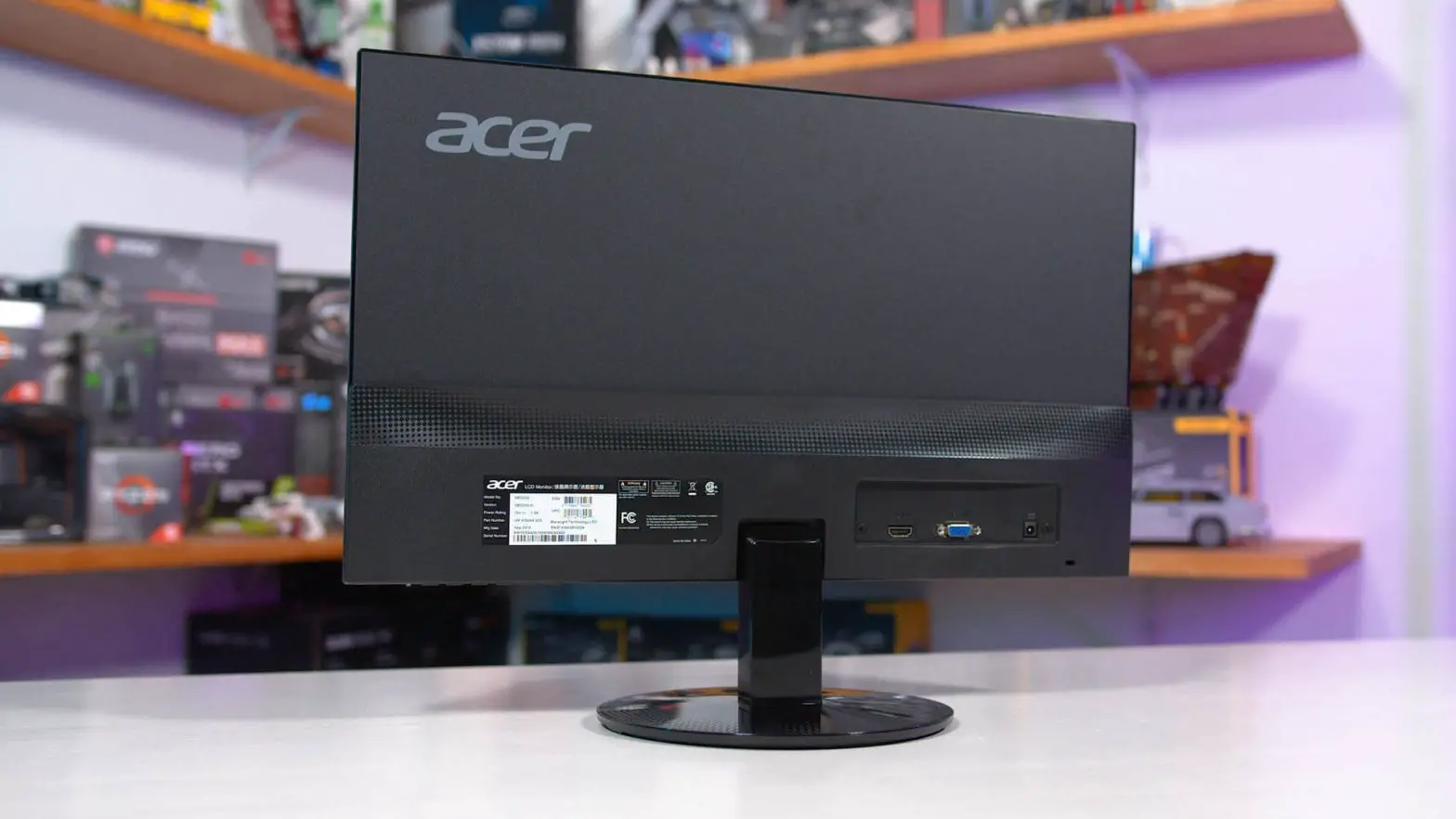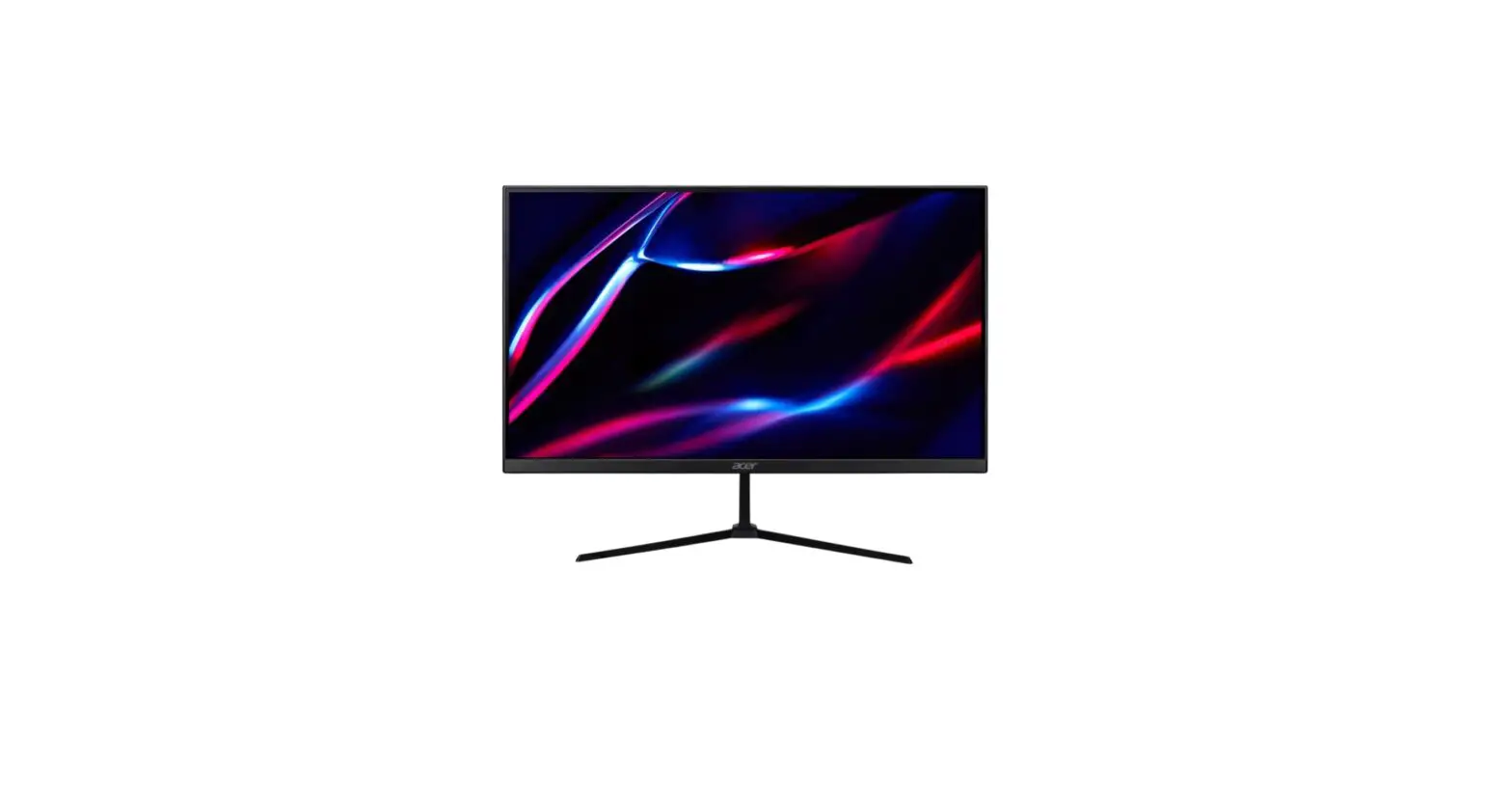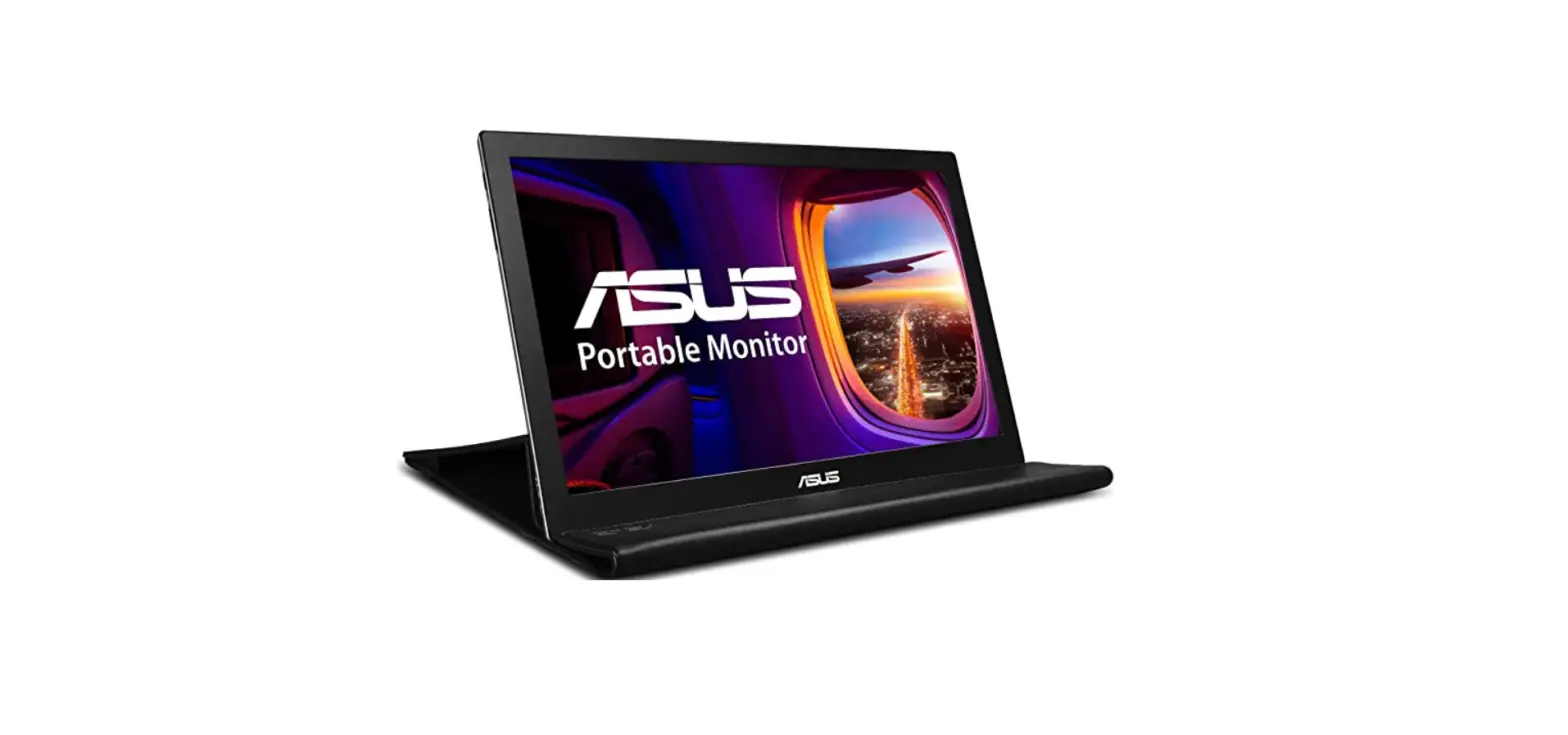

acer PM168QKT Portable Monitor NITRO PM8 Series
important safety instructions
Please read the following instructions carefully.
- To clean the OLED monitor screen: Be sure that your monitor is electrically rated to operate with the AC power available in your location.
- Turn off the OLED monitor and unplug the power cord.
- Spray a non-solvent cleaning solution onto a rag and clean the screen gently.
- NEVER SPRAY OR POUR ANY LIQUID DIRECTLY ONTO THE SCREEN OR CASE.
- PLEASE DO NOT USE ANY AMMONIA OR ALCOHOL-BASED CLEANERS ON THE LCD DISPLAY SCREEN OR CASE.
- Acer will not be liable for damage resulting from the use of any ammonia or alcohol-based cleaners.
- Do not place the OLED monitor near a window. Exposing the monitor to rain, moisture or sunlight can severely damage it.
- Do not apply pressure to the OLED screen. Excessive pressure may cause permanent damage to the display.
- Do not remove the cover or attempt to service this unit yourself. An authorized technician should perform servicing of any nature. 8. Store the OLED monitor in a room with a temperature of -20° to 60°C (-4° to 140°F). Storing the OLED monitor outside this range may result in permanent damage.
- Immediately unplug your monitor and call an authorized technician if any of the following circumstances occur:
- Monitor-to-PC signal cable is frayed or damaged.
- Liquid spills onto the OLED monitor or the monitor is exposed to rain.
- The OLED monitor or case is damaged.
- The adapter is only used for this monitor, do not use it for another purpose.
- Please make sure to connect the adapter to the main socket with a protective earthing
Package contents

Attaching the monitor to the base
- Remove the monitor from the packaging.
- Attach the footstand to the monitor by screw, and attach the base to the foot stand.
- Secure the base to the stand by turning the screw clockwise using a screwdriver or a suitable coin.
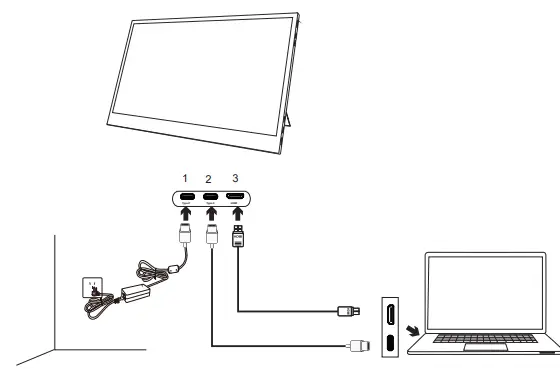
Connecting Your Monitor to a Computer
- Turn off your monitor and unplug your computer’s power cord.
- Connect Type-C cable(Optional, Only Type-C-input model)
- a. Make sure both the monitor and computer are powered-OFF.
- b. Connect the Type-C cable to the computer. 3-2 Connect HDMI cable (Optional, Only HDMI-input model)
- a. Make sure both the monitor and computer are powered-OF. F b. Connect the HDMI cable to the computer.
- Insert the monitor power cable into the power port under the monitor. 4. Plug the power cord of your computer and your monitor into a nearby electrical outlet.


External controls
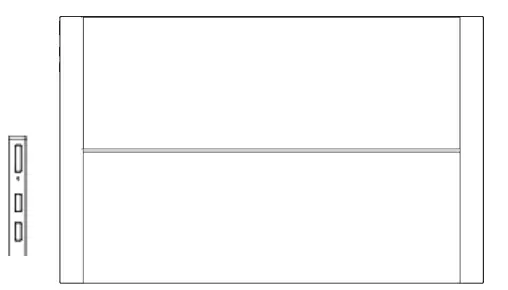
Function key
- a. Monitor power off status Press to switch power on. In the normal display, anytime to Press more than 5 seconds switch to turn off the power.
- b. Blue indicates power on. white indicates standby/power saving mode. No light display indicates Power off.
- c. Press to any directions switch key to display First Menu. Press again to enter next function in the First Menu.
Regulations and Safety Precautions
FCC WARNING: This equipment may generate or use radio frequency energy. Changes or modifications to this equipment may cause harmful interference unless the modifications are expressly approved in the instruction manual. The user could lose the authority to operate this equipment if an unauthorized change or modification is made.
This device complies with part 15 of the FCC Rules. Operation is subject to the following two conditions: (1) This device may not cause harmful interference, and (2) this device must accept any interference received, including interference that may cause undesired operation.
NOTE: This equipment has been tested and found to comply with the limits for a Class B digital device, pursuant to part 15 of the FCC Rules. These limits are designed to provide reasonable protection against harmful interference in a residential installation. This equipment generates, uses and can radiate radio frequency energy and, if not installed and used in accordance with the instructions, may cause harmful interference to radio communications. However, there is no guarantee that interference will not occur in a particular installation. If this equipment does cause harmful interference to radio or television reception, which can be determined by turning the equipment off and on, the user is encouraged to try to correct the interference by one or more of the following measures:
- Reorient or relocate the receiving antenna.
- Increase the separation between the equipment and receiver.
- Connect the equipment into an outlet on a circuit different from that to which the receiver is connected.
- Consult the dealer or an experienced radio/TV technician for help.
- The rating information is located at the bottom of the unit.
CE declaration of Conformity
Acer monitor is purposed for video and visual display of information obtained from electronic devices.
Battery Warning!
High capacity Li-ion Battery in the equipment, please store the monitor far away fire and high temperature surface. In case of explosion or fire, Don’t shock or extrude the battery, Don’t throw the battery into fire and water.Once the battery was wet by any liquid, stop use the monitor.
FCC/IC RF Radiation Exposure and SAR Statements
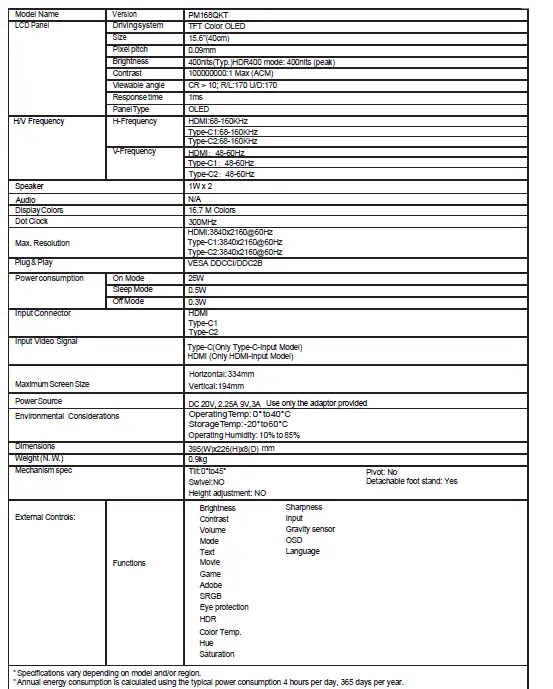
SPECIFICATION
Find manuals and other documents for your Acer product on the official Acer support website.
 Acer Group