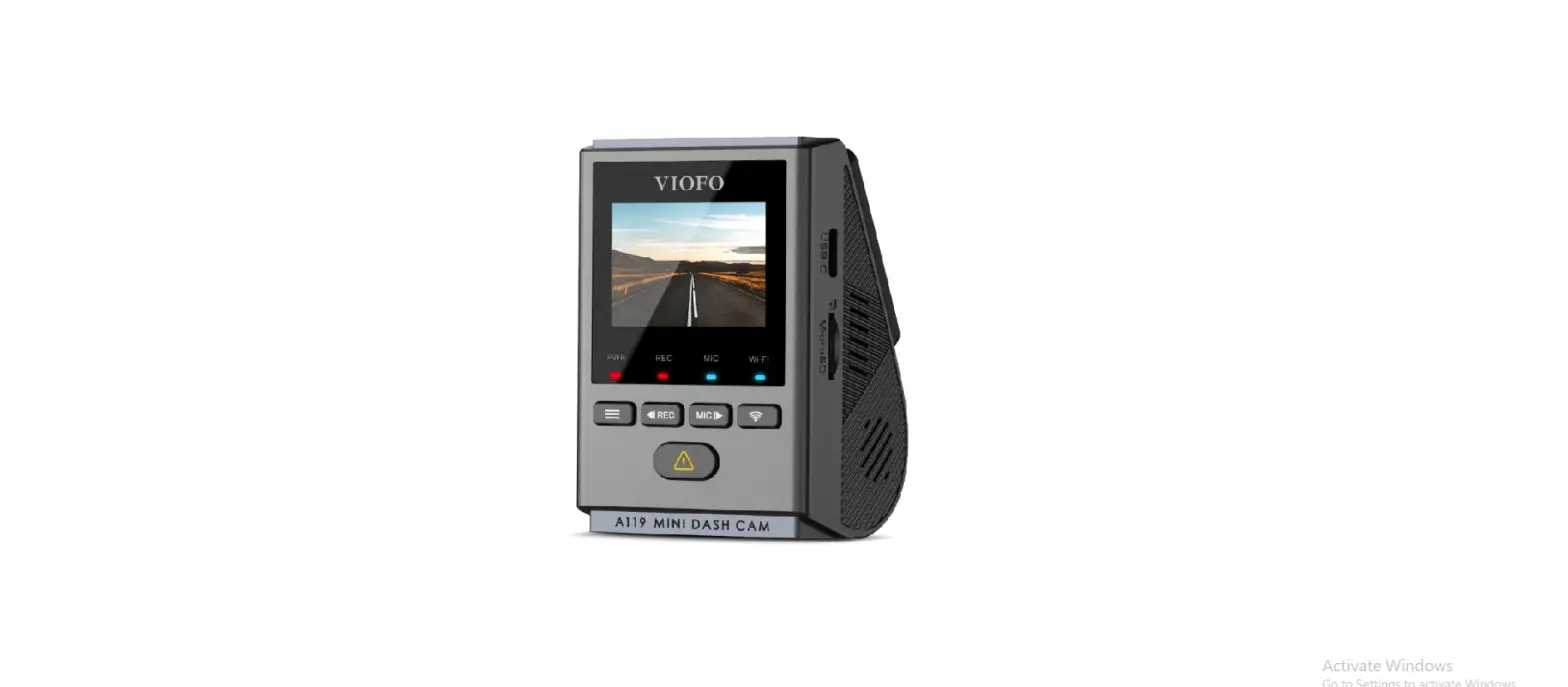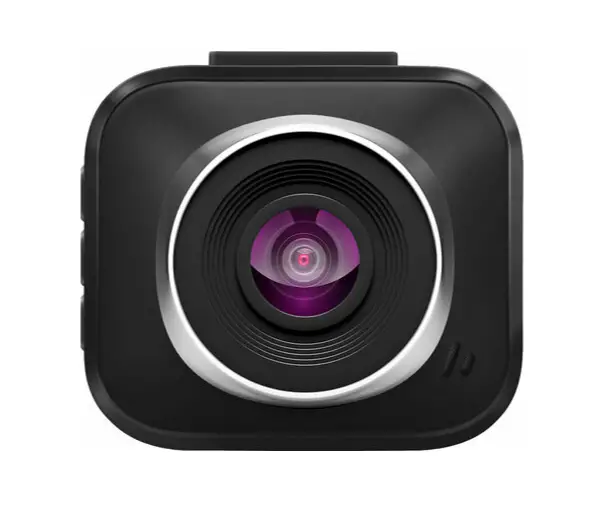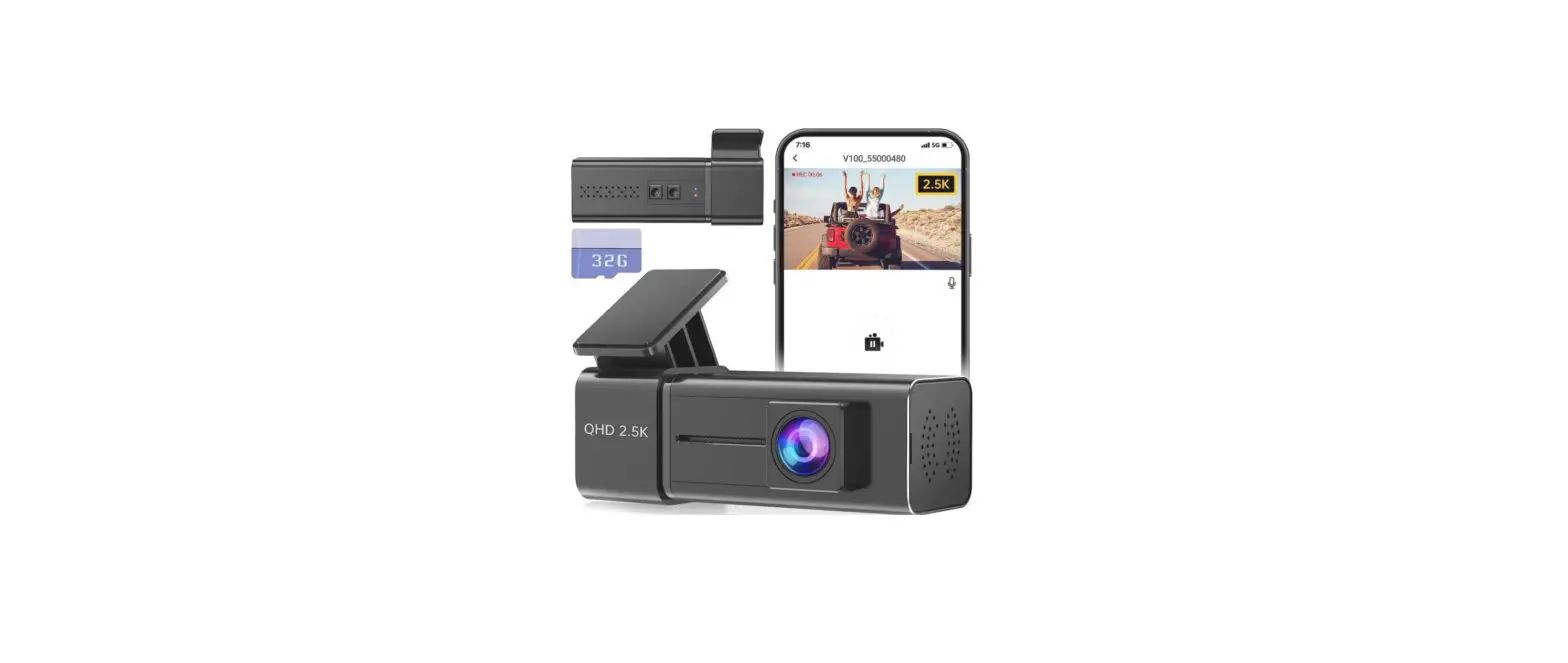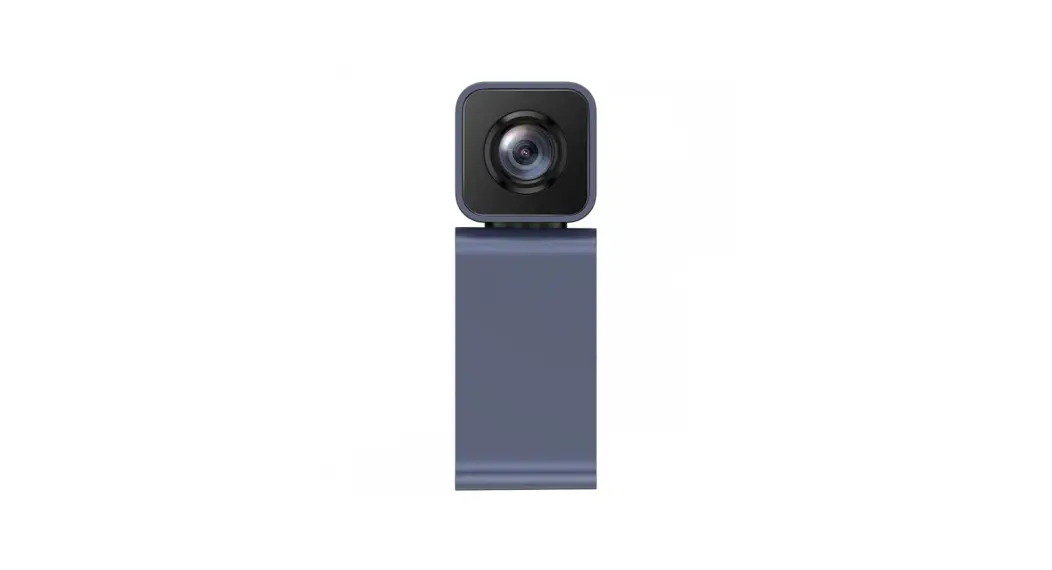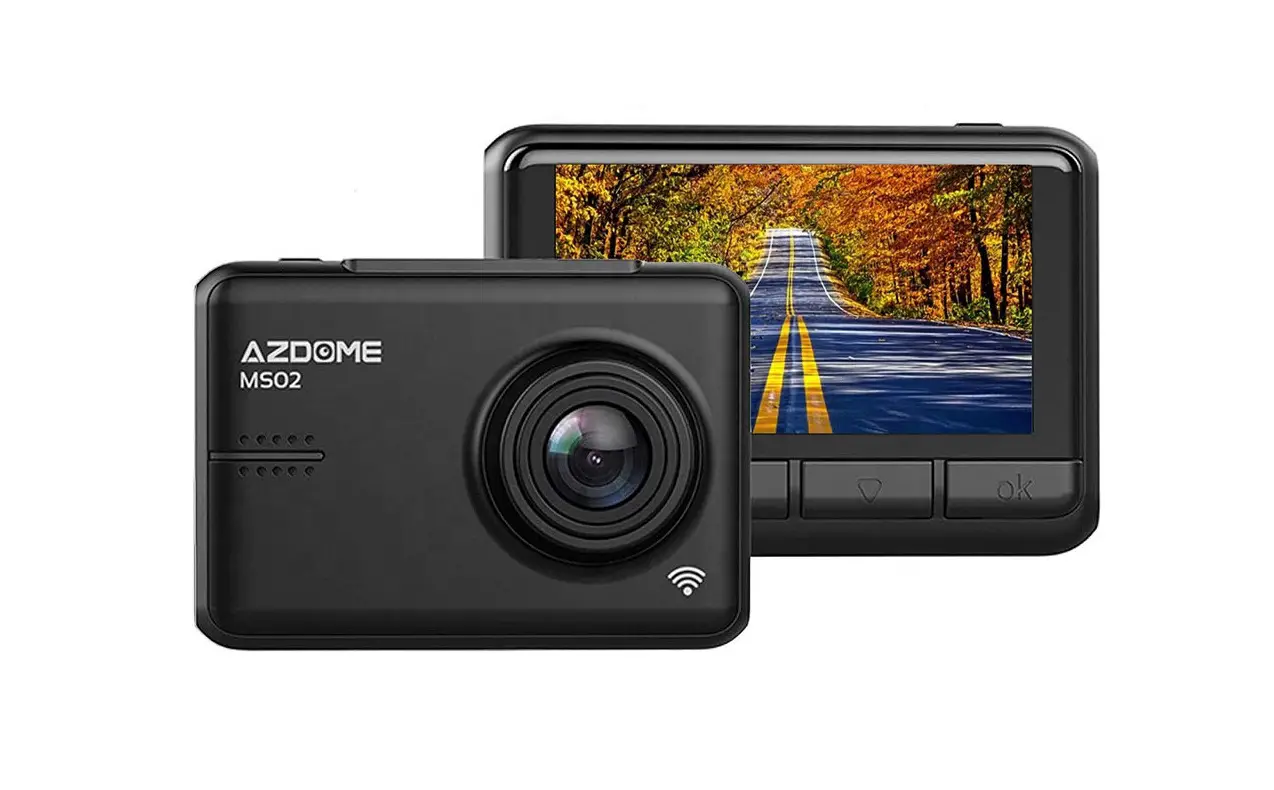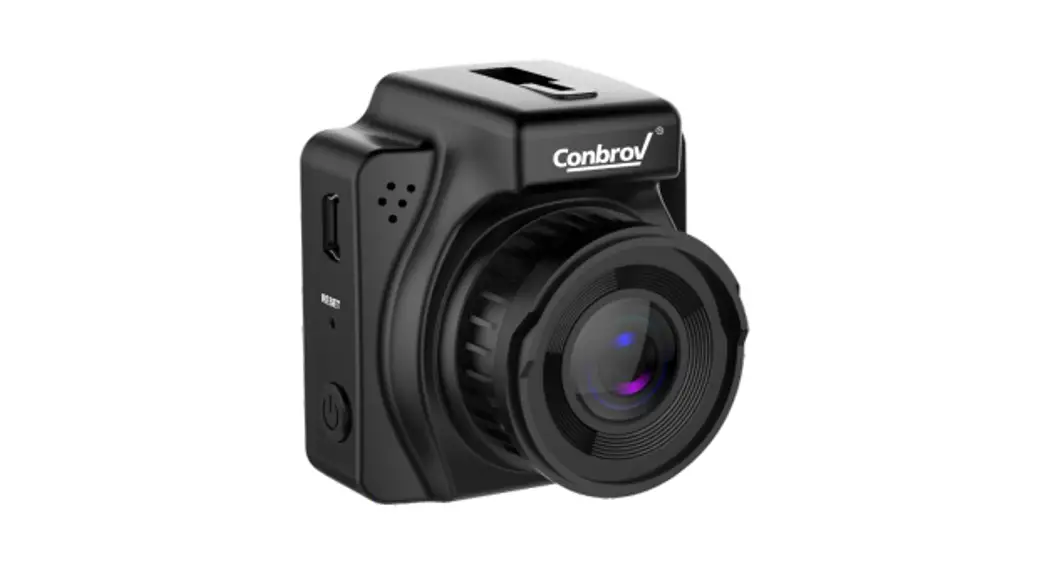

DC80 Mini WiFi Dash Cam
User Manual
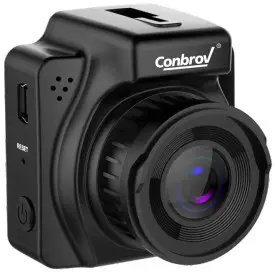 Model No.: DC80
Before First Use
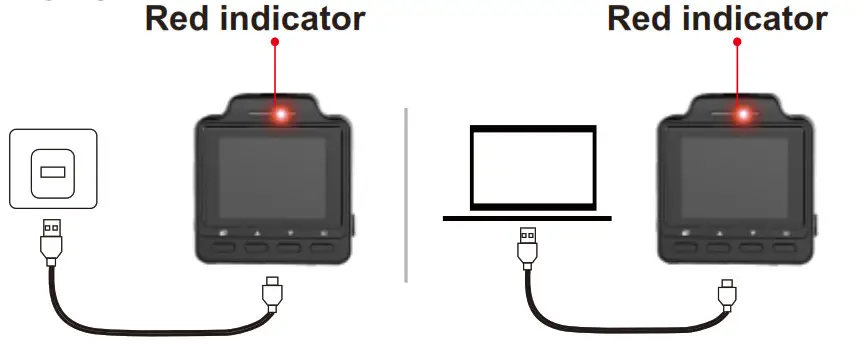
Charging the Camera
Before the first use, charge the camera via USB charger. The dashcam will turn on automatically when charging.
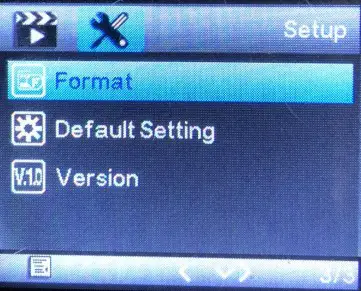
Formatting the Micro SD Card
Before the first use, format the Micro SD card to FAT32 format. The camera only supports class 10 micro SD
cards with at least an 8GB capacity.
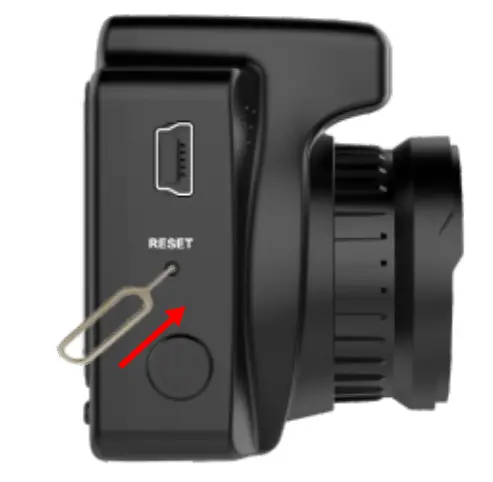
Resetting the Camera
If the cam malfunctions for any reason, reset it with the included pin or small paperclip.
Safety precautions
- Read this instruction manual carefully before using the camera. It contains important information for your safety as well as operating and maintenance instructions.
- Follow all safety precautions in order to prevent damage due to improper use of the camera.
- Keep this user manual for future use. Should this camera be passed along to a third party, this user manual should be handed on as well.
- Use the camera only for its intended purpose.
- In the event of improper use or erroneous handling, no liability can be assumed for any possible damage which may occur.
- Never try to repair the camera yourself. Only allow qualified personnel to repair the camera in the event of malfunctions.
- Warning! Never immerse the camera in water or other liquids while cleaning or operating it. Never hold the product under running water.
- Do not open the housing under any circumstances. Do not introduce any metal objects into the interior of the housing.
- Never use accessories that are not recommended by the manufacturer. Keep the camera away from all hot surfaces and flames. Protect the camera from extreme heat and cold, dust, direct sunlight, humidity, and water.
- Do not place heavy objects on the camera. The manufacturer is not responsible for any missing video data due to maloperation, microSD card malfunctions, camera angle limitation, etc.
What’s included?
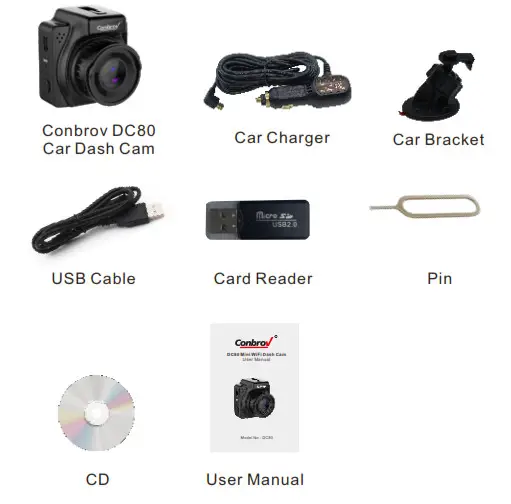
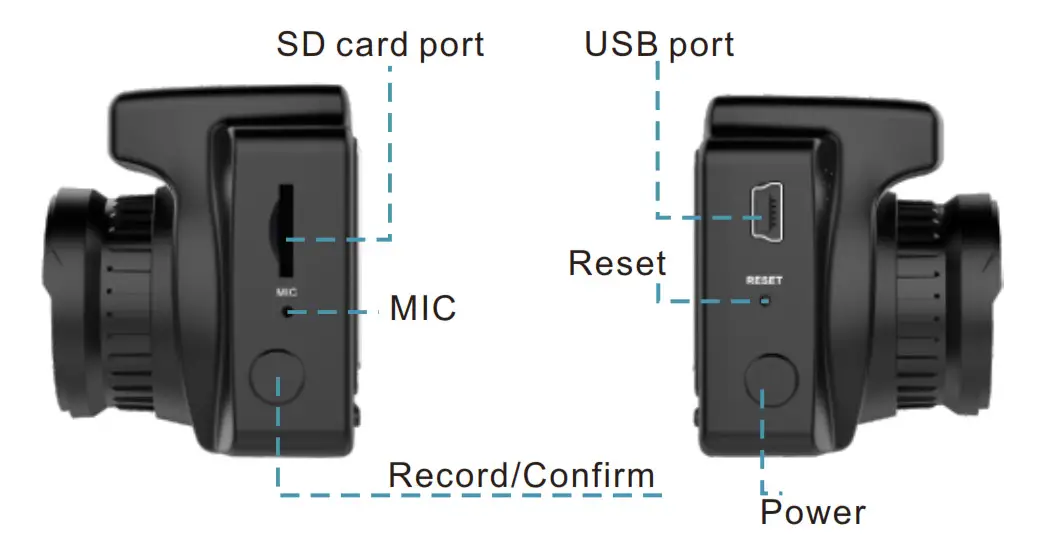
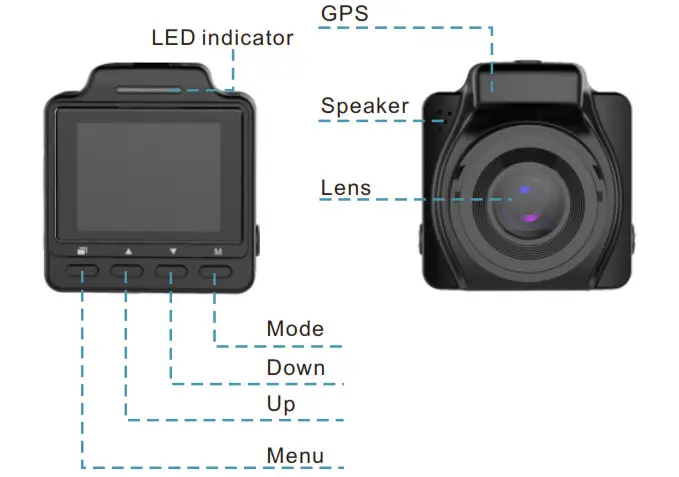
DC80 Diagram
Before Using Your Conbrov DC80 dashcam
1.Charging Your Camera
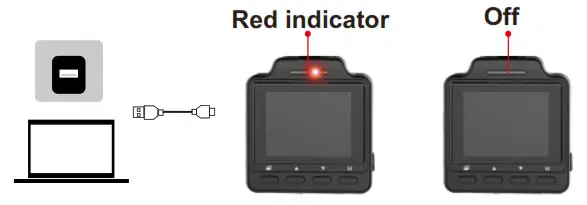
Steady red  | Charging |
Off  | Fully charged |
| The screen showing”Low Battery” | Low power |
- You cannot turn off the camera while charging.
- It will record automatically when starting the engine.
- The red LED turns off when the camera is fully charged.
2.Installing SD Card
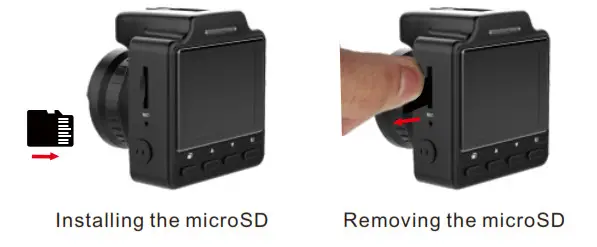 Caution! Format the Micro SD before first use. Doing this, however, will remove all data from the card. Make sure to back up any data before formatting.
- Only supports a Class 10 Micro SD with at least 8GB capacity for recording.
- Do not remove the Micro SD card during operation. It will damage both the memory card and camera.
- Push the Micro SD card into the memory card slot gently until it clicks into place. The card only fits one way, so do not force the card into the port.
- To remove the Micro SD card, make sure the camera is OFF. Press down on the Micro SD and it will pop up, you can then pull it out easily.
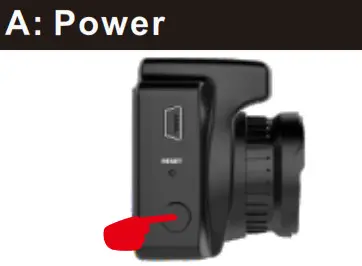 | Press the power button to turn on the dashcam, the camera makes a sound and the LCD screen lights up. |
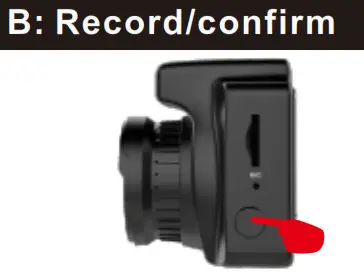 | Press the button to start recording or taking photo after the camera powers on. |
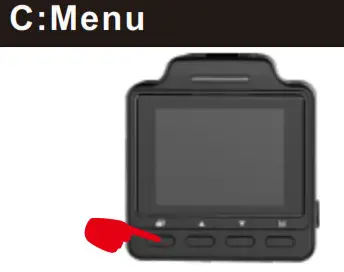 | In standby mode, press“ |
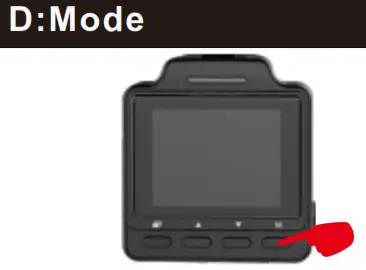 | In standby mode, short press modes button, then you can switch between photo and recording mode. F: Reset |
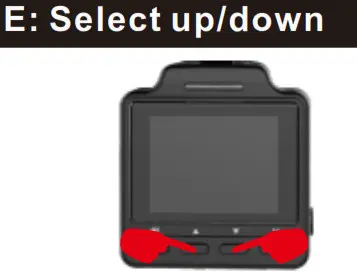 | In menu/mode, press the “up/down” button, then you can choose the menu items. |
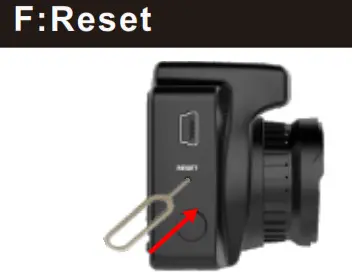 | If the camera malfunctions for any reason, You can click the reset button to reset. When resetting is successful, restart the camera to use. |
How to Use Your DC80 Dash Cam
1.Turn on/off the Camera
The camera will turn on automatically when charging or starting the engine and turn off when stop charging or the engine.
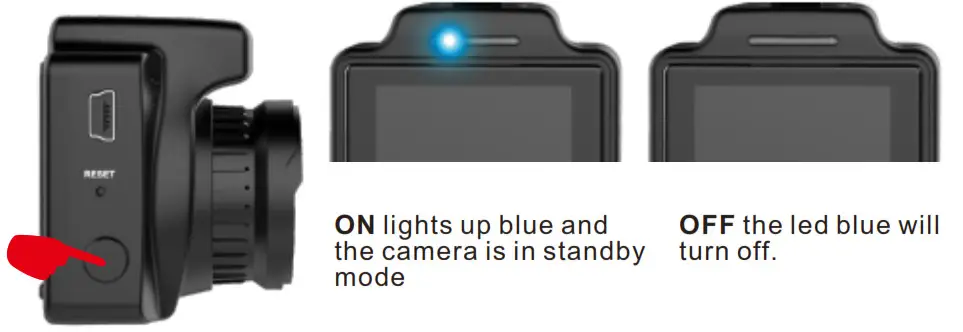
- Press the power button to switch the camera on. The led will light up blue on the left, which indicates that it is in standby mode.
- Press the power button again to switch the camera off. The led blue will turn off.
 Note:
Note:
- Stop recording first before turning off the dashcam.
- The battery power is too low and the camera must be charged
2.How to Record Manually
Power on the camera, press M button to switch to recording mode, then press the  button to start recording videos, the red icon flashes on the screen, and the Led flashes blue. In recording mode, press the button again to stop recording, the disappears and the LED stays blue.
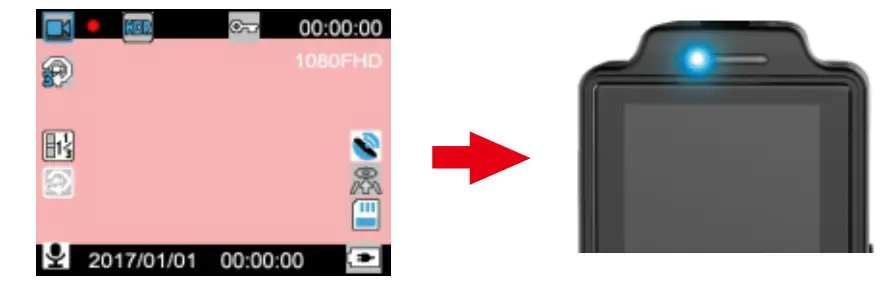
How to Use Your DC80 Dash Cam
3.How to Take Photos
Power on the camera, press M button to switch to photo mode, then pressthe button to take a photo, the Led stays blue. The photo will save automatically to the SD card. 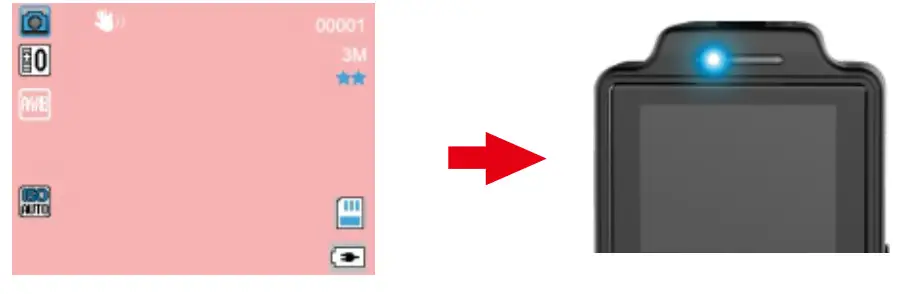
4.How to Playback the Video/Photo
In photo mode, press the M button to enter the playback mode, then press up/down to choose the video/ picture file, press the button to play the video.
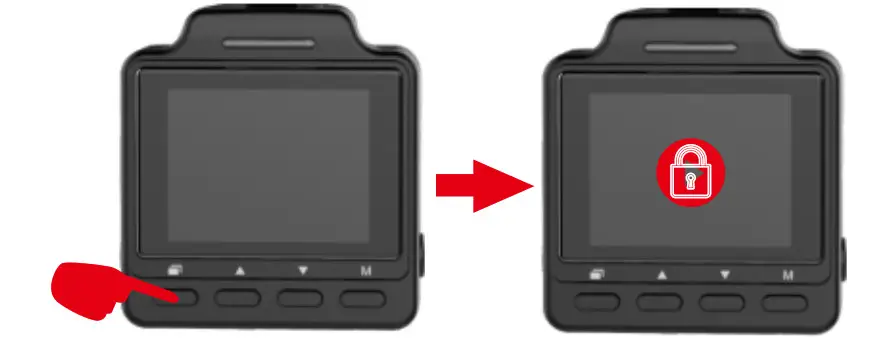
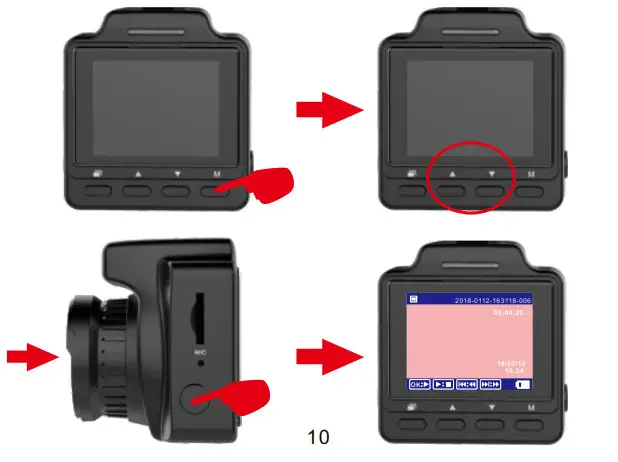 5.How to Use SOS
In recording mode, press the button to lock the video files and cannot be recovered.
 6.How to Play Video on Computer
Connect the dashcam to the computer via USB cable, power on the dashcam, and will show a folder on you computer, you can play the video/picture or save them as you want. 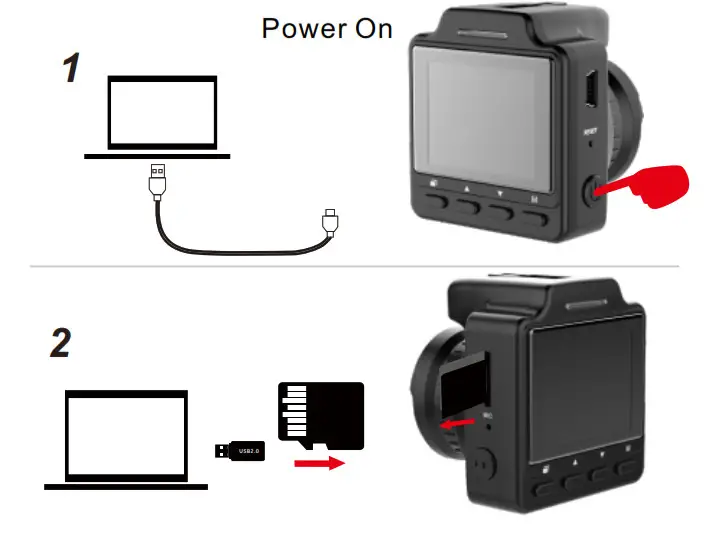
Press the button to format the sd card and set the date, parking monitoring, motion detection, record audio, frequency, loop recording, etc:
1. About G-sensor
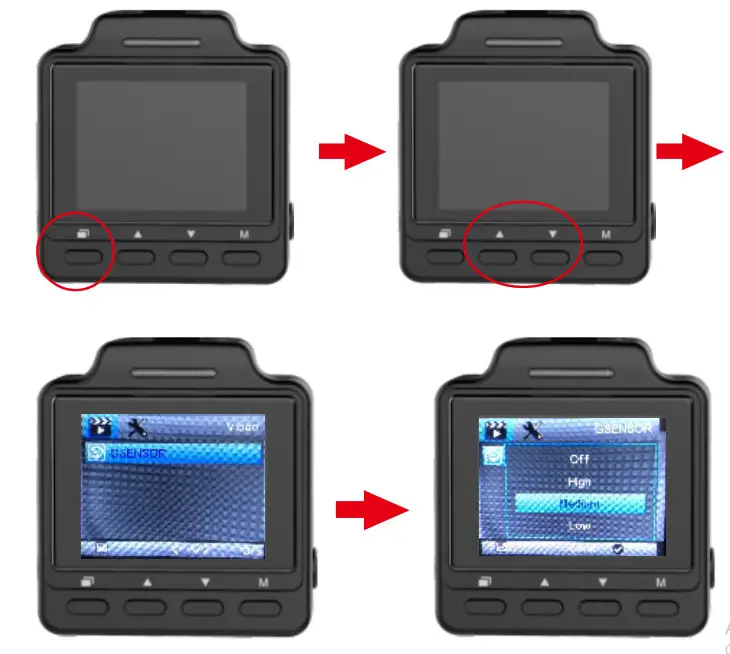
The dash camera will automatically lock videos of unexpected incidents, the sensitivity is optional, In the menu, press up/down button to find the “GSENSOR” then press the button to choose “off”, “low”, ”medium”,” high” , press button again to save the option. The sensitivity is default to “medium”.
2. About Parking monitoring
Short press button twice, then press down the button to choose “parking monitor”, and then press button to choose on or off. Press button again to save the option. In menu mode, press the button again to end menu settings.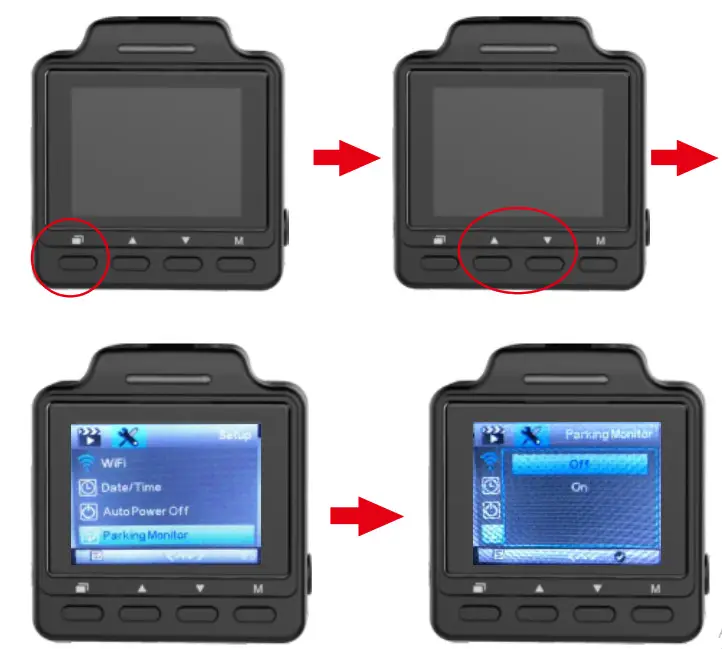 3. About GPS
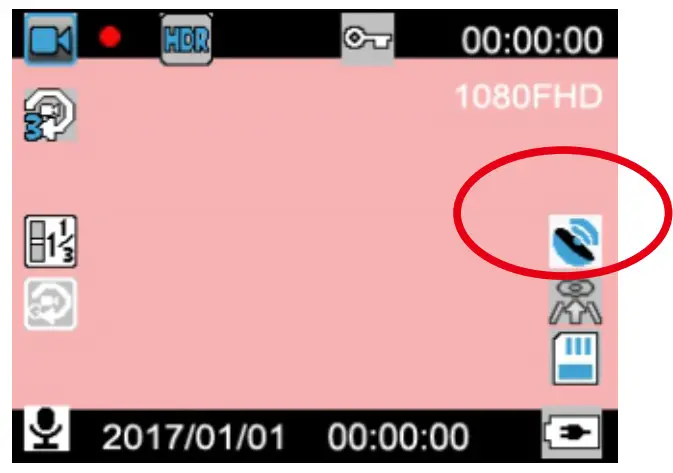
1.The dashcam will search GPS signal once powered on, the screen shows  flashing meaning in searching GPS, the stays on meaning GPS is working.
In menu mode, press the button again to end menu settings.
2. How to play GPS information
If the GPS is working when recording, you can play the videos with GPS on the player included in the package:
1.Please play the CD in the package to download the “Driving Recorder Player” to the computer. please choose the Google Driver.
| PlayerSetup-Baidu-DrivingRecorder… |
| PlayerSetup-Google-DrivingRecorder.. |
2.Install the player on the computer and open the player.
3.Click on the  right to choose the video that you want.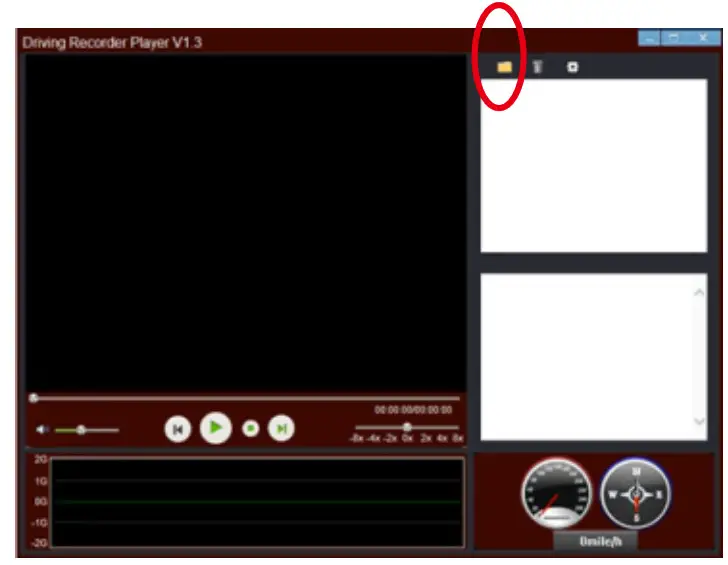
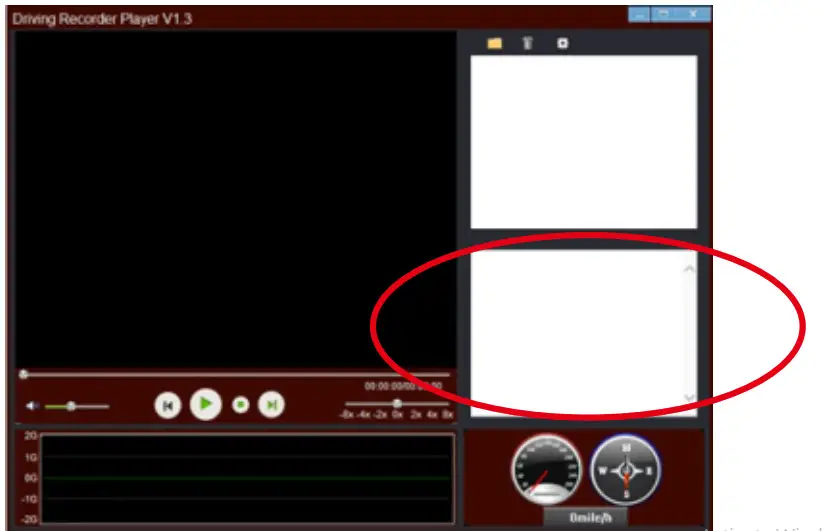
4.You can check the location on the player now.
How to Remote Control Your DC80 Dash Cam
- Download the APP “RoadCam”
Scan the code to download the APP RoadCam, or search the RoadCam on App Store or Google Play to download it. http://a.app.qq.com/o/simple.jsp?pkgname=com.camera.ligo
 - Connect DC80 Dash Cam to Your Phone
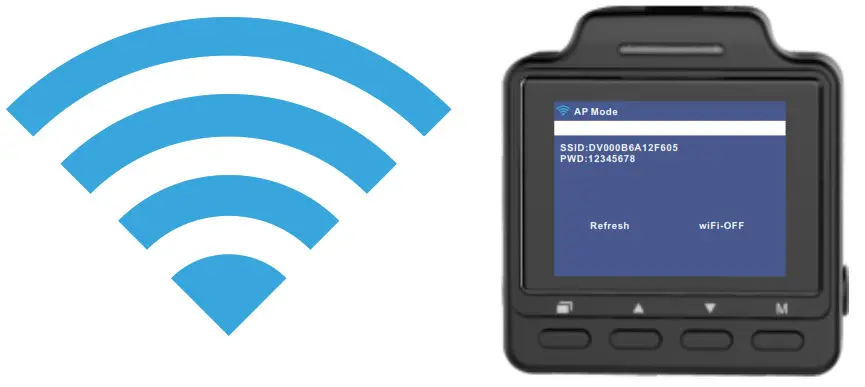
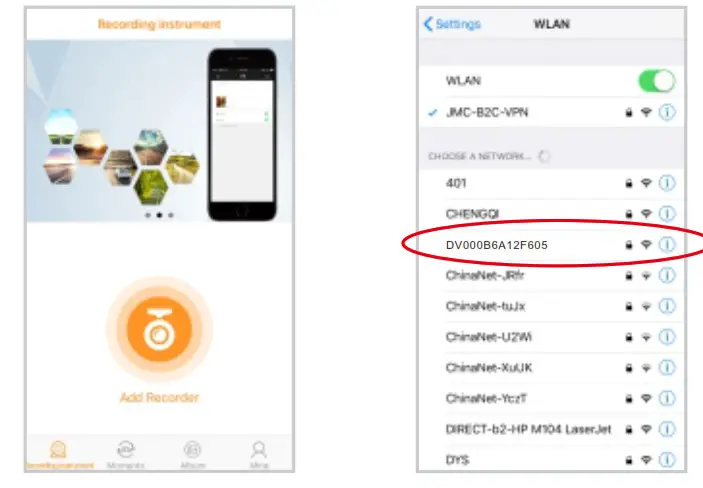
Power on the dashcam, press the button twice, press the button to choose the wifi, press
  the button to turn on wifi down, and press the button again to enter into wifi mode, the screen will show the wifi SSID and PWD.
- Enter into the RoadCam app, click “Add Recorder” to enter
your wifi connecting mode, find out the same SSID on the dashcam, and enter into the password as you see on the dashcam.
Please note: one dash have only one SSID.
- Now you have connected the dashcam to your phone successfully. In wifi mode, press the down button to choose “wifi off” then press the button to disconnect wifi.
- Please Note 1. In standby mode, press and hold the Power button for more than 5 seconds to enter wifi mode.In wifi mode, press and hold the Power button for more than 5 seconds to turn off the wifi.

LED status
| Power on | Led stays blue |
| Power off | Led blue turns off |
| Standby mode | Led stays on blue |
| Charging | Led stays on red on the right |
| Fully charged | Led red turns off |
| Recording | Led flashes blue |
| Taking photos | Led stays on blue |
Technical specifications
| Item | Parameter |
| LCD size | 1.5 inch |
| Power Supply | Car Charger: Output: 5V,1A |
| Battery Capacity | 170mAh |
| Video Format | H.264, Audio: AAC |
| Resolution | 720P 1280×720, 1080FHD 1920×1080 1296P 1728×1296 |
| SD Card Capacity Supported Range | MAX 64GB |
| Automatically power on/off | Recording when startthe engine |
| Picture Format | JPEG |
| Frequency | 50HZ/60HZ |
| File Format | MOV |
| Wifi | Optional |
| GPS | Support |
| Loop recording | Optional |
FAQS
- Q: What should I do when all the operations malfunction?
A: Please try to reset the camera, there is a pin included in the package and you can use it to press the reset button to reset the camera. - Q: The dashcam cannot record video or take photos?
A: Please check the capacity of the SD card, and if it is locked. - Q: What should I do when I can’t play the video on the computer or there is only sound without a frame?
A: We recommend replacing a VCL player on the market and restart the computer. - Q: What should I do when the Micro SD card can’t save the video?
A: Please try to format the micro SD card to FAT32, or you can change to a new micro SD card. We recommend using class 10 cards with 16GB capacity. - Q: What should I do if the G-sensor is very sensitive to trigger?
A: Please set the G sensor to low or mid sensitivity. - Q: Why the video file is disrupted by horizontal stripes?
A: Choose the right frequency according to local frequency.
Warranty
All products sold by the Conbrov Group are covered by a 12-month full replacement warranty.
Happy with it? Share your experience with an Amazon review.
Or any questions?
Our friendly customer service team is ready to
help: [email protected]
Contacting us via the above email address, which is the quickest way to reach our support team.
For the electronic user manual and more information,
please visit:

Disposal Electrical products should not be discarded with household waste. According to the European Directive 2012/19/EC on waste electrical and electronic equipment and its implementation into national law, electrical products used must be collected separately and disposed of at collection points provided for this purpose. Talk with your local authorities or dealer for advice on recycling.
Declaration of conformity
Conbrov Electron Co., Ltd., Room 908 Huiyicaifu Center, c/o Queshan and Longhua Roads, Shenzhen, China, declares under our sole responsibility that the product Starlight Mini Camera T19, to which this declaration relates, meets all relevant European standards and directives. For the complete declaration of conformity visit our website www.conbrov.com.
 Become a member of Conbrov,
Claim your FREE GIFT today!
http://vip.conbrov.com/

https://www.facebook.com/groups/ConbrovVIP/
Trademarks
All trademarks or registered trademarks are the property of their respective owners.
About Us
Conbrov Electron Co., Ltd. founded in 2003 is an innovative technology research company specialized in personal surveillance cameras and on-dash cameras. Conbrov products and technology are patent protected by PCT or U.S. Patent Office. Based on years of professional experience and knowledge, we are able to provide the best and most efficient products and customer service.
Manufacturer
Conbrov Electron Co., Ltd.
4th Floor, Building D of Baifuli,
Yuan Ye Industrial park
Shenzhen, People’s Republic of China
 Conbrov VIP Group