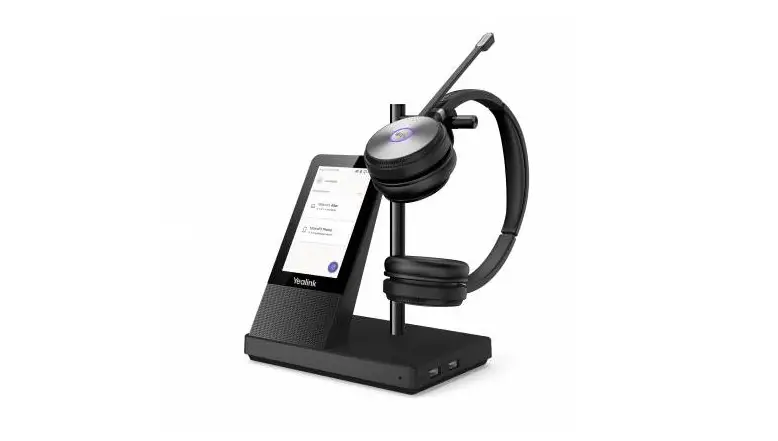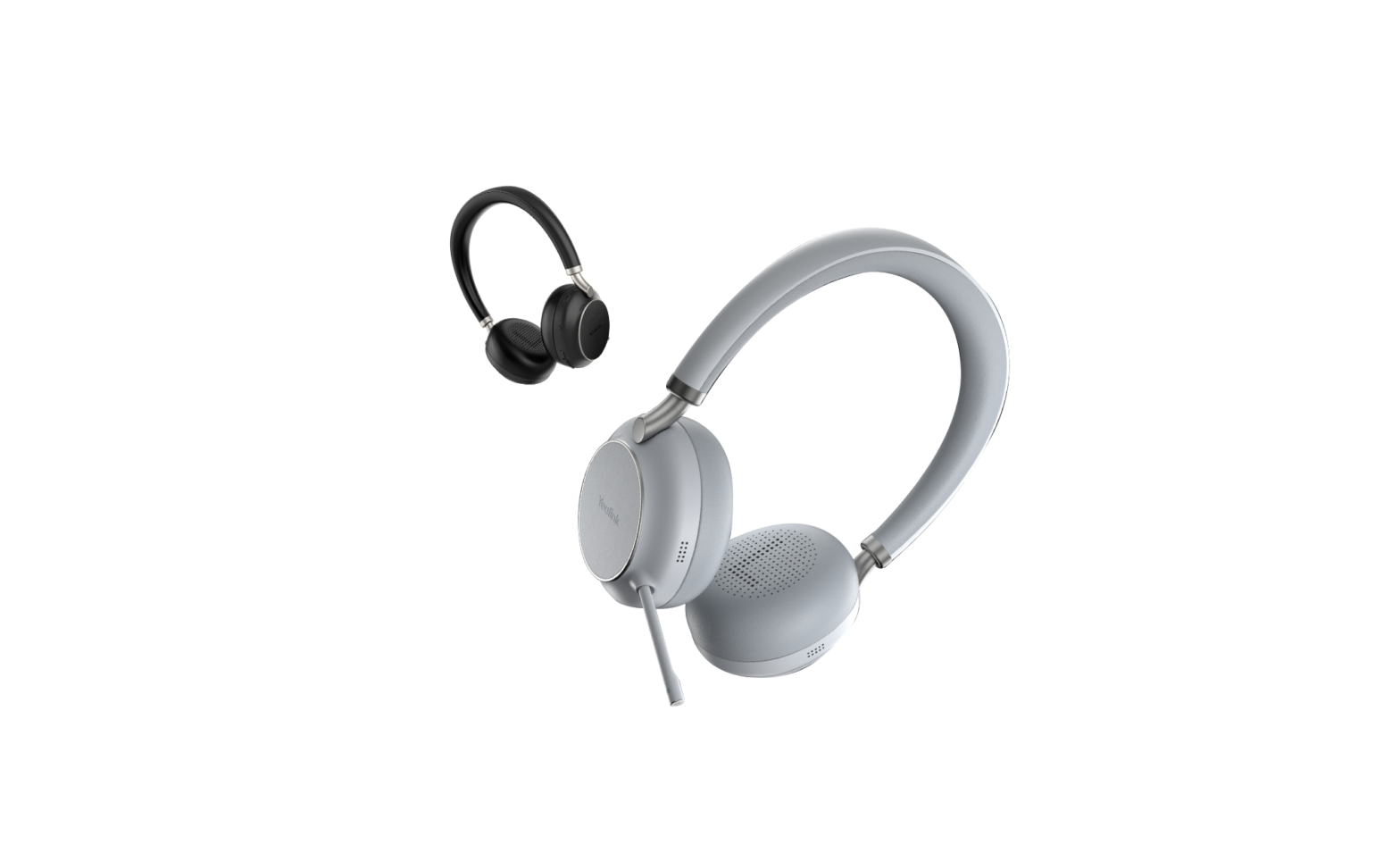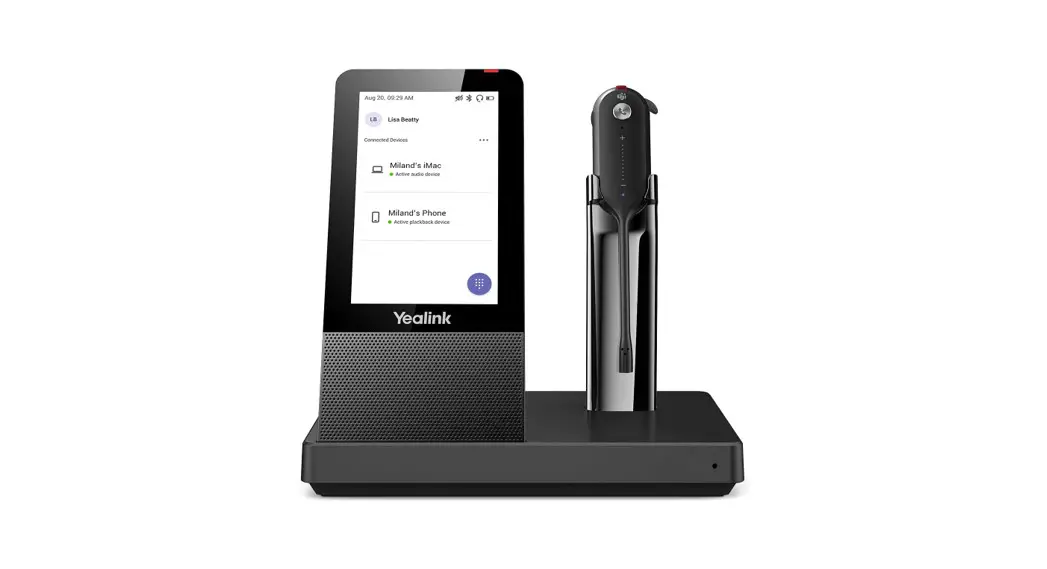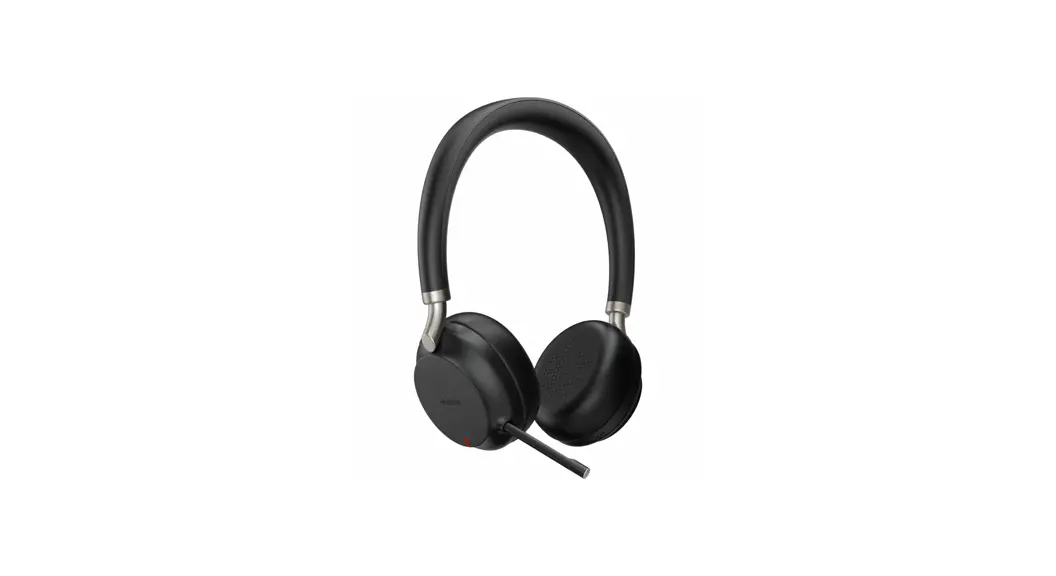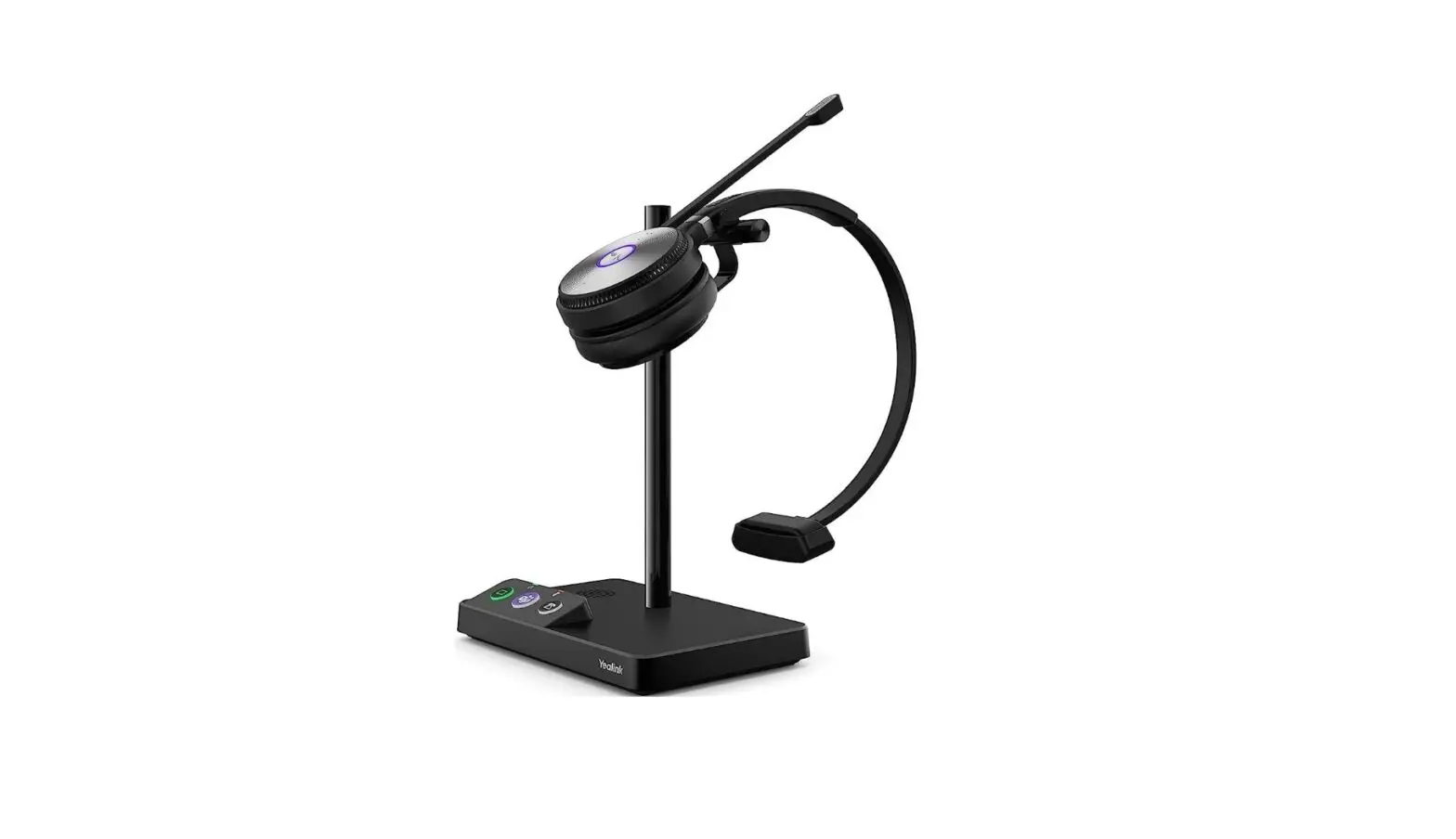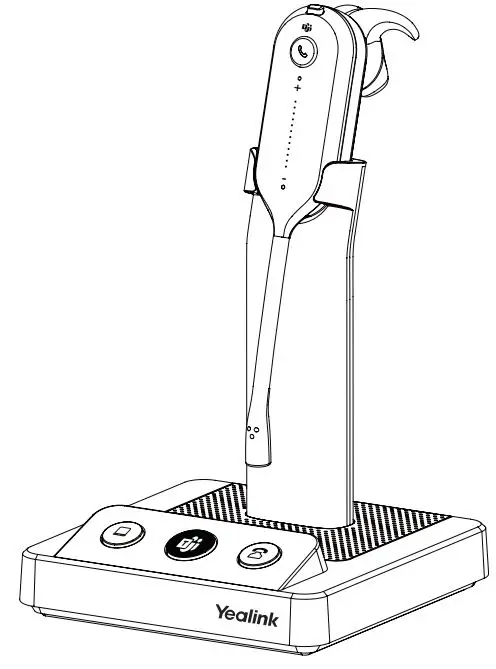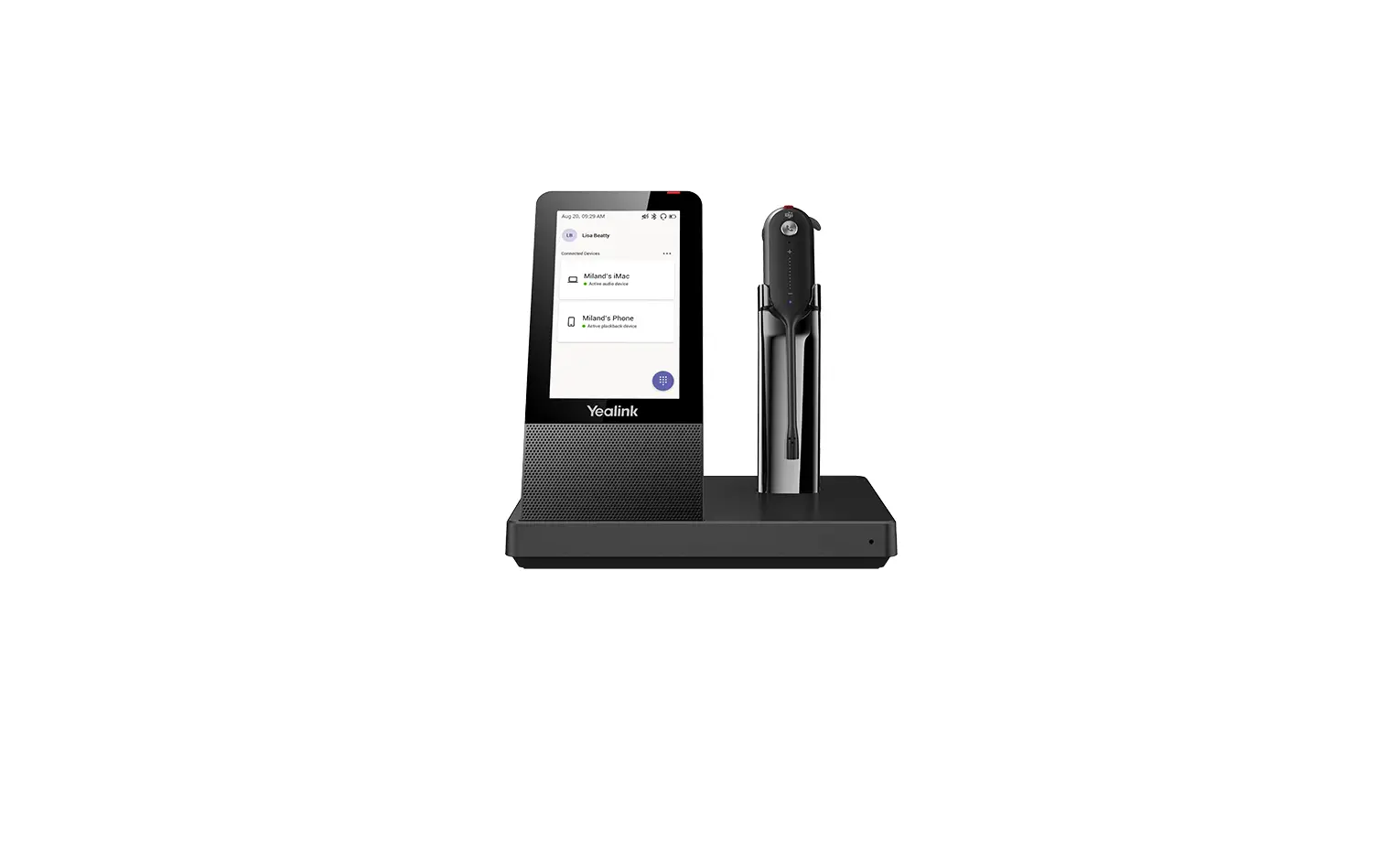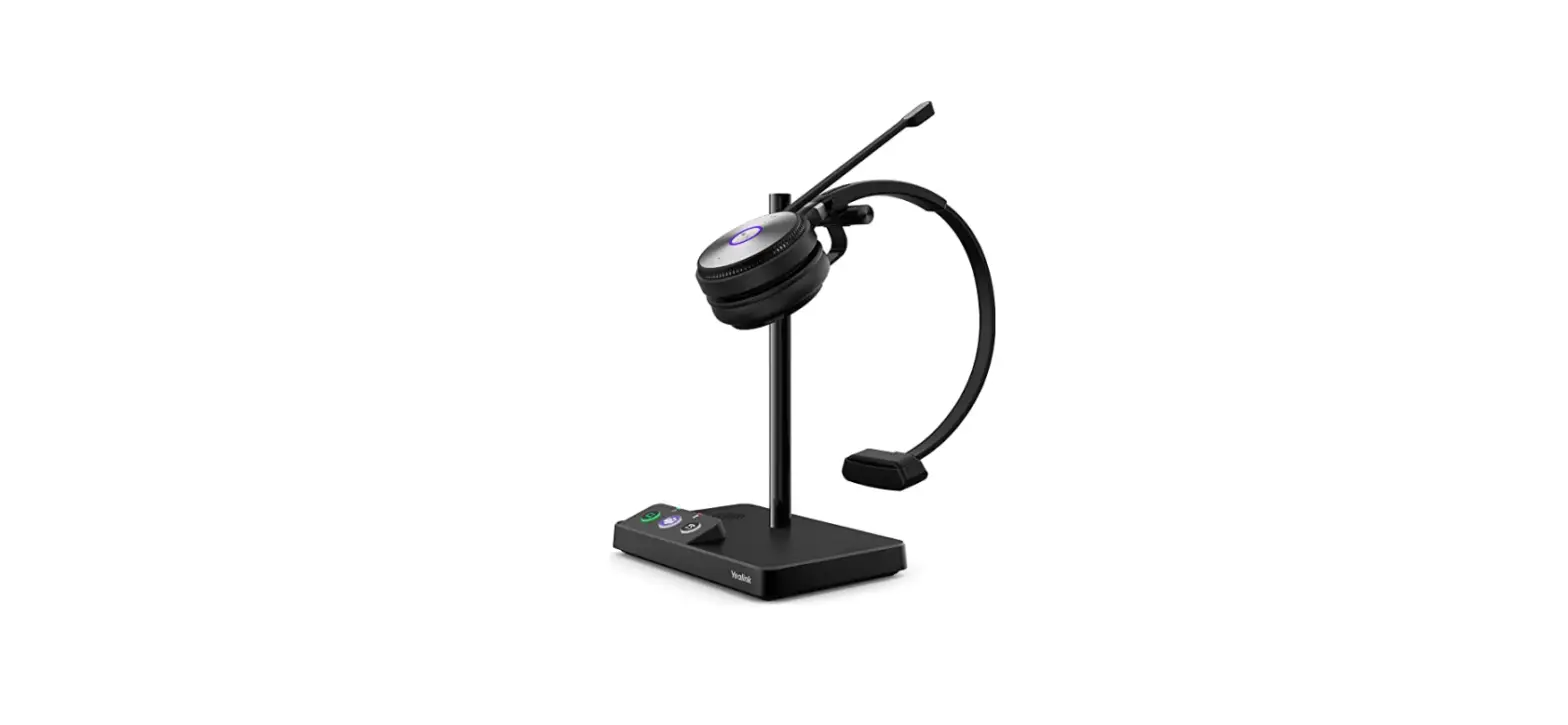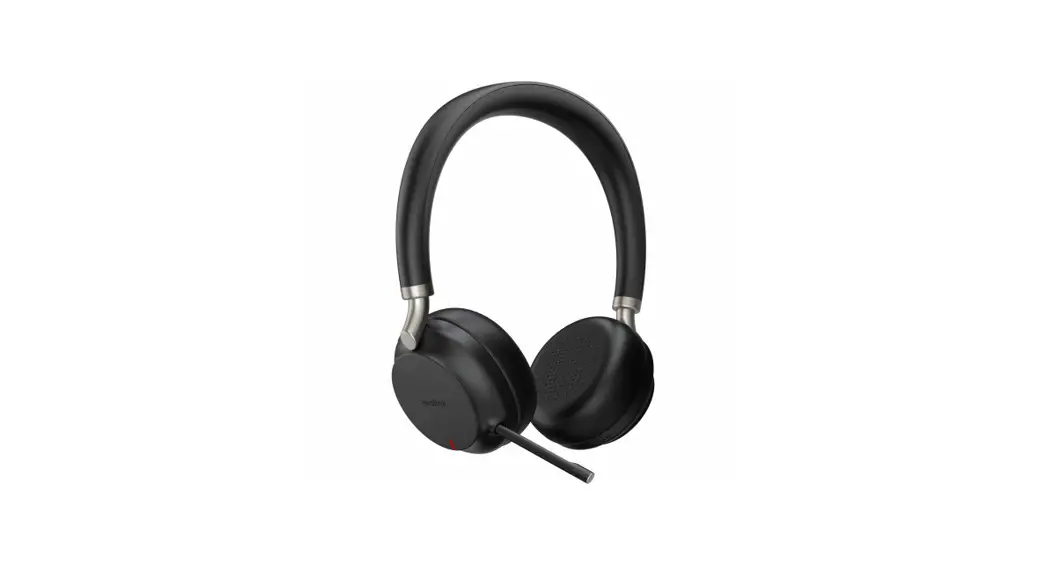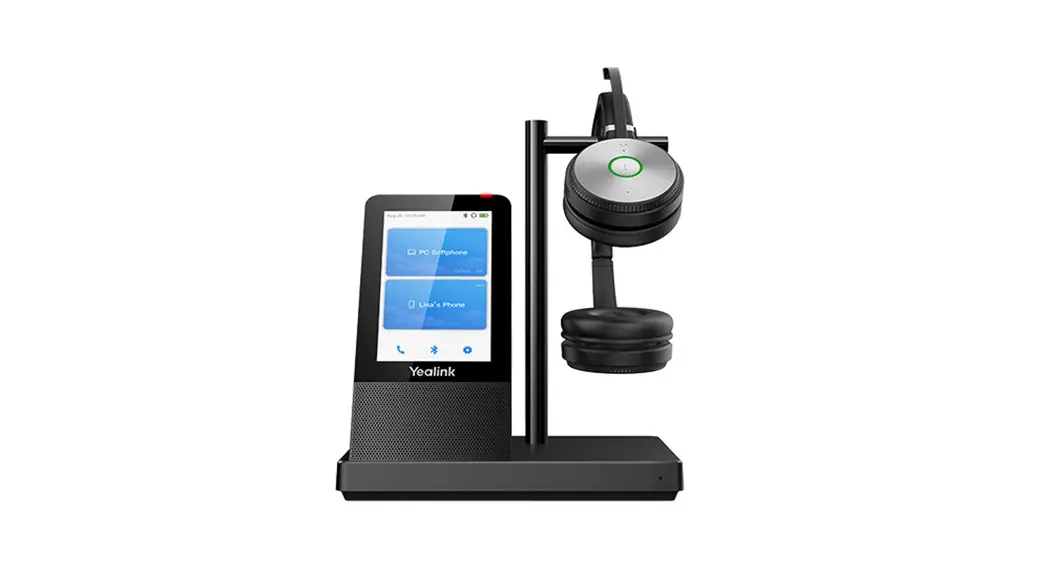

WH66 Wireless Bluetooth Headset
User Manual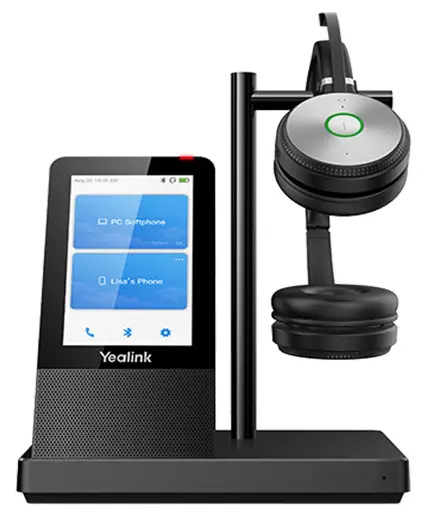
How to solve the problem that other people can’t hear my voice when you talking?
A
- Make sure that do not mute your device.
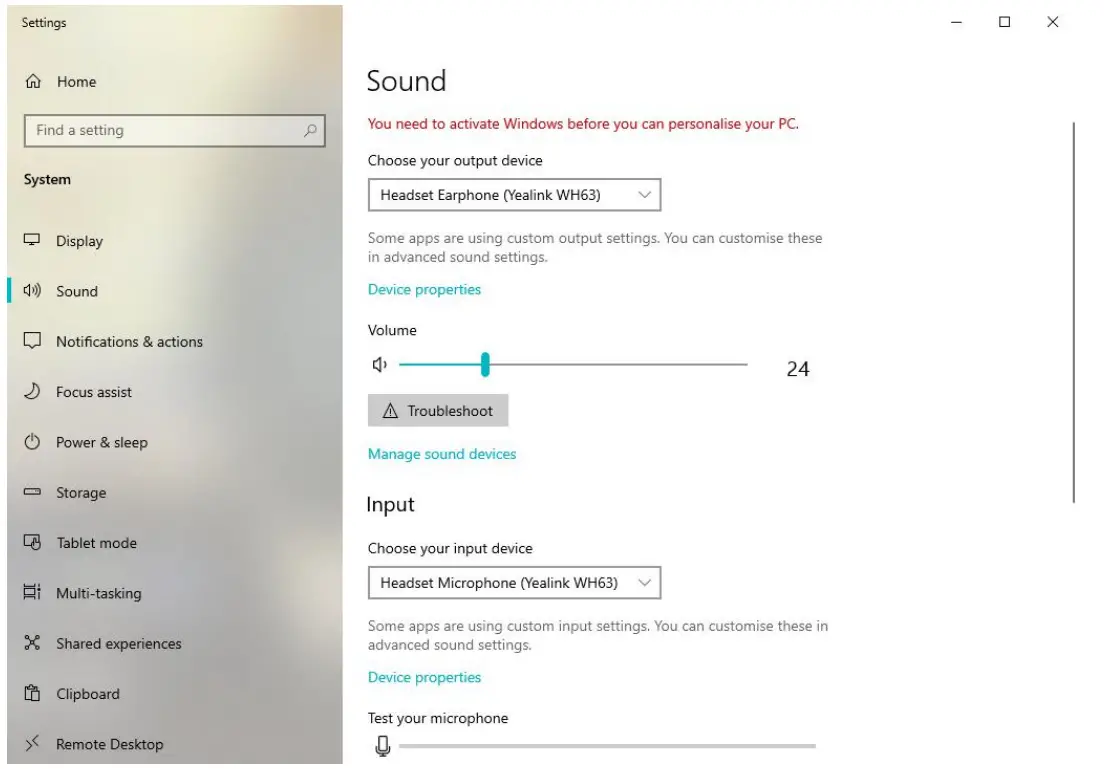
- After connecting the device correctly, ensure the device as the default input and output device in the Windows Sound settings.

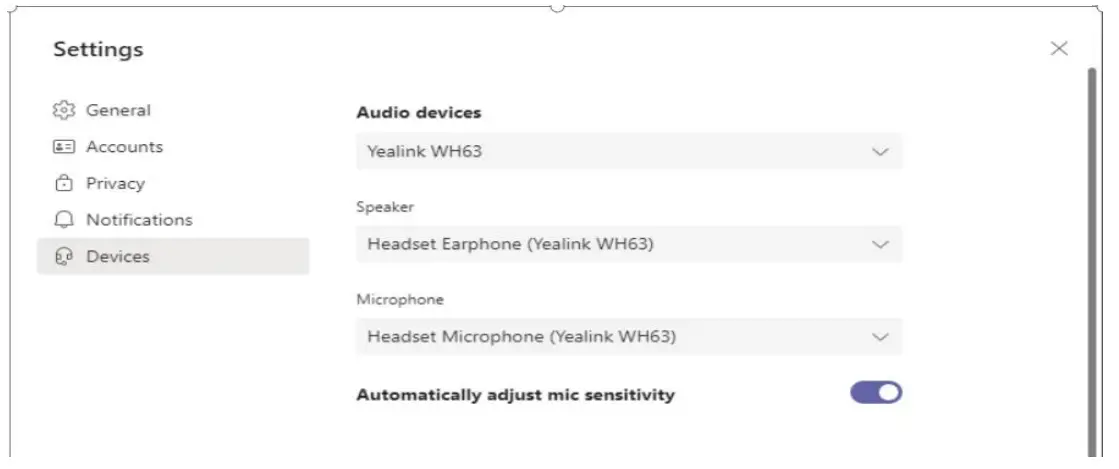
- Ensure the device is set as the default audio device in your preferred UC software.

“why doesn’t it work with my phone? I have plugged in according to the instructions”
A
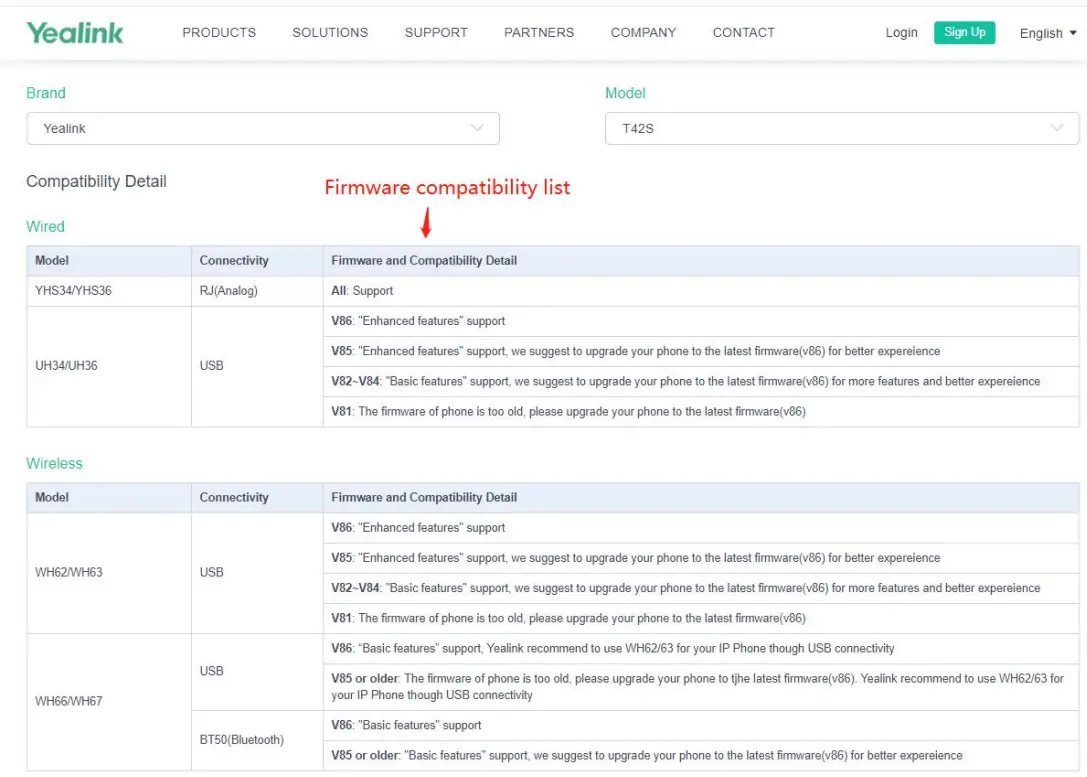
- Make sure your phone’s firmware version is compatible;
- Yealink Compatibility Guide:
https://supporlyealink.com/en/portalhompatible
https://support.yealink.com/en/portal/knowledge/show?id=60d47356076300004a007187
How can I get a longer battery life experience?
A:
- Upgrade device firmware to the most advanced version.
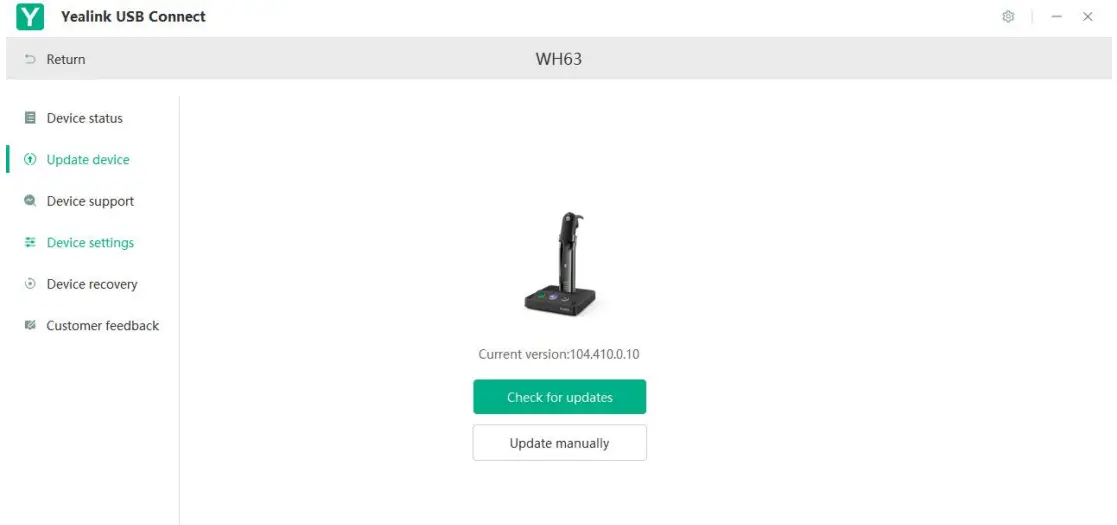
By upgrading your device firmware to the most advanced version, you can effectively extend the battery life and bring a better battery life experience. - Download the installation package of `Yealink USB Connect’ to upgrade your device:
https://www.yealink.com/product/yuc
How to solve the problem of not hearing yourself or hearing too much of your voice when you talking?
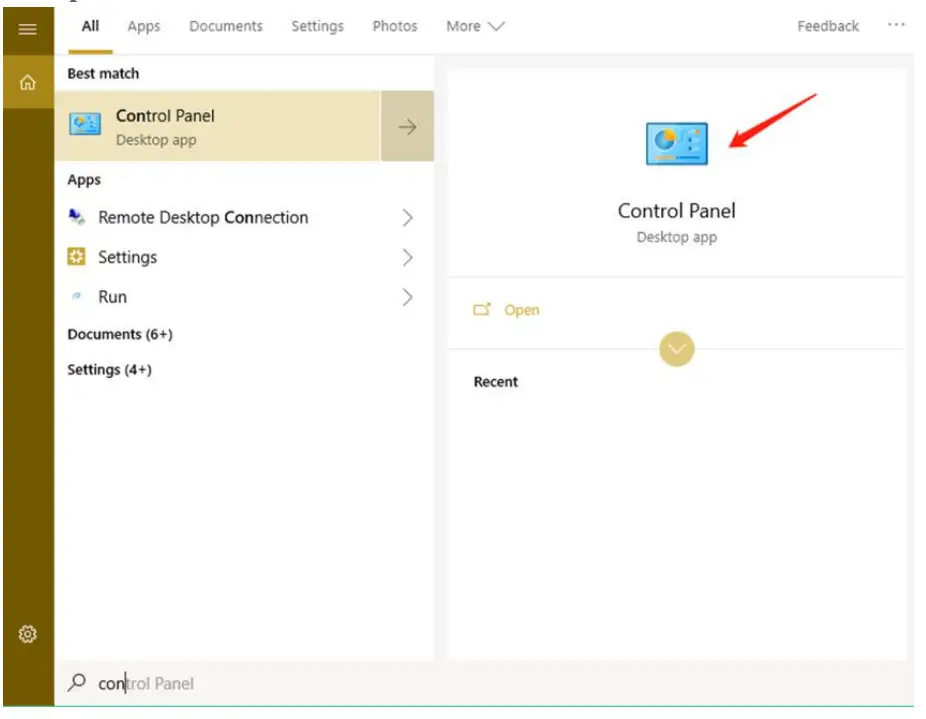
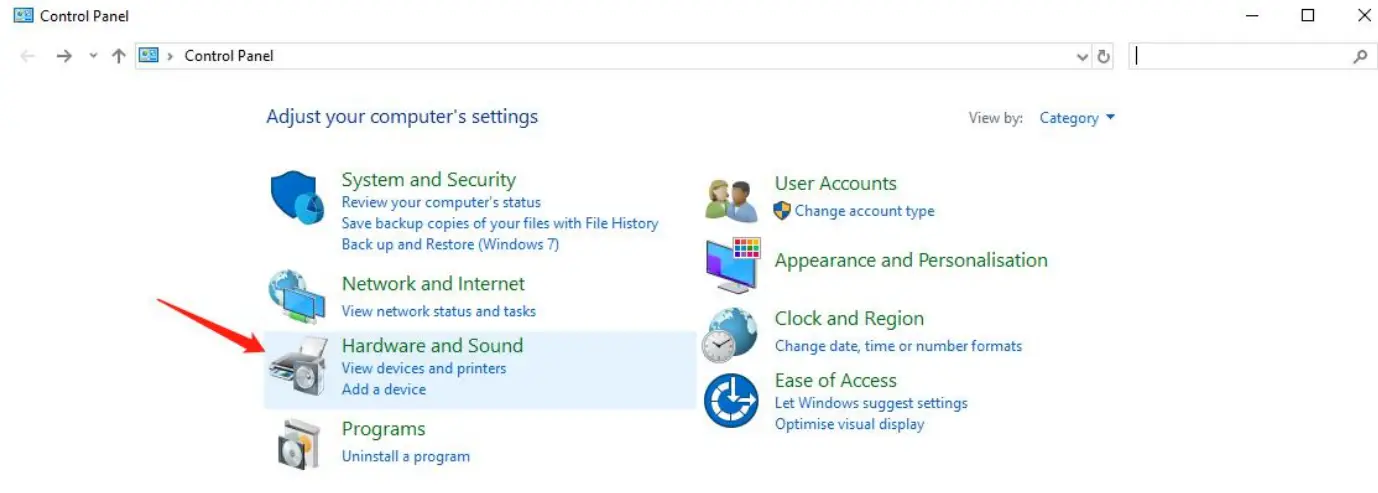
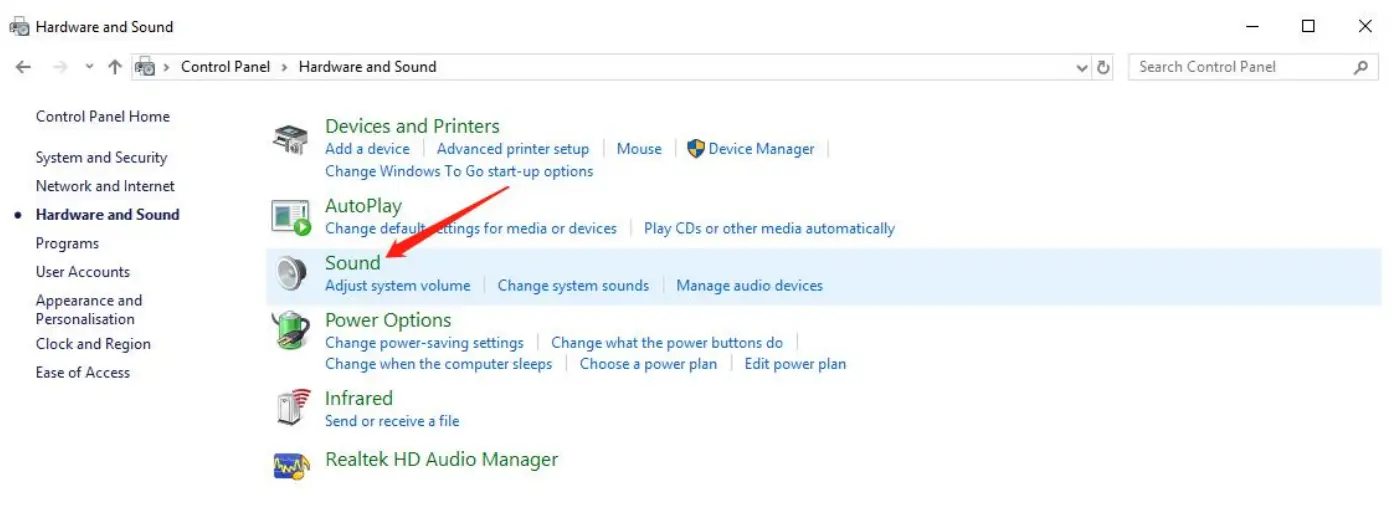
To adjust the sidetone setting of the headset, please follow the steps below:
- Open the Windows Control Panel.

- Click Hardware and Sound.

- Click Sound.

- In the Playback tab, select the headset to be adjusted, and then click Properties.

- Click the Levels tab and adjust the sidetone volume.

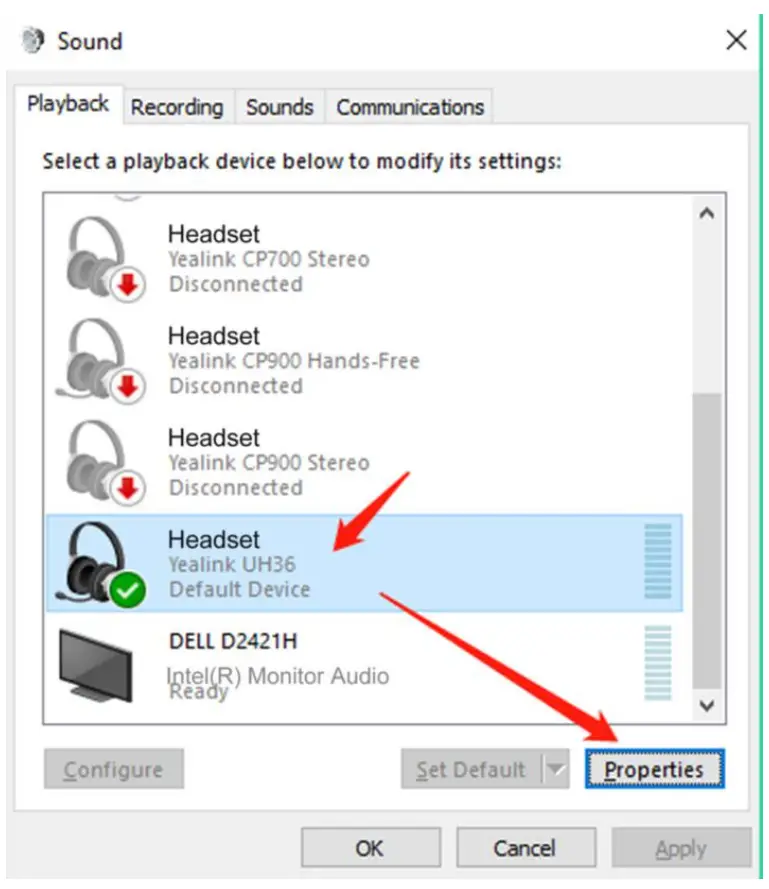
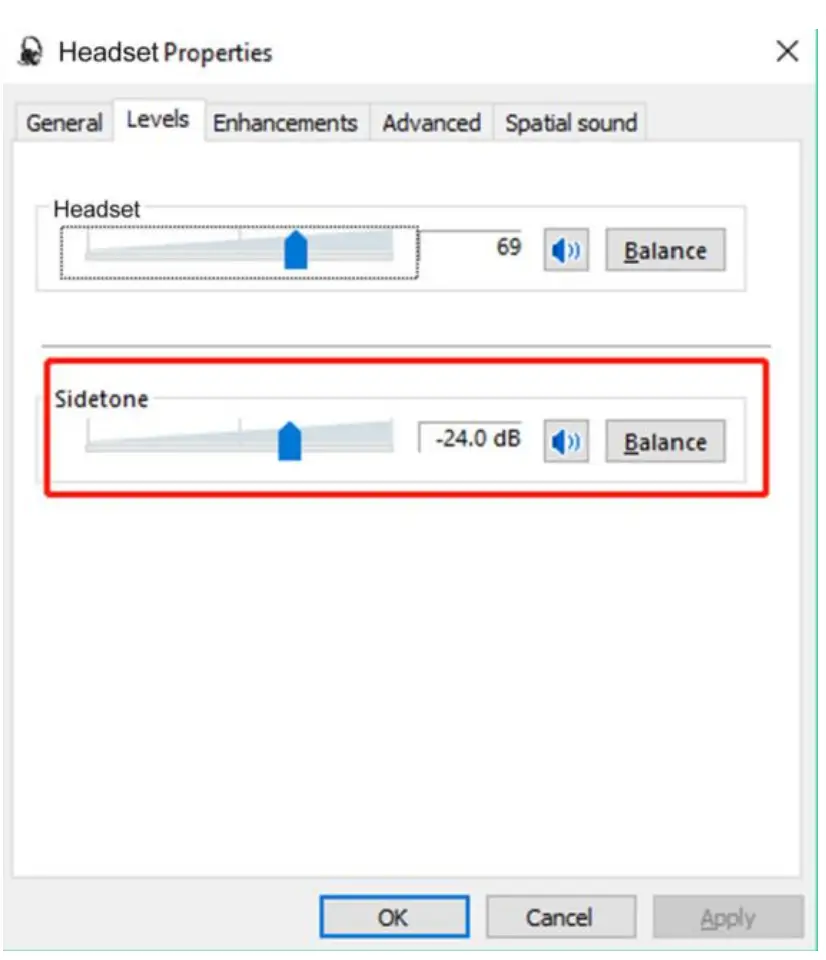
If you cannot hear your own voice, please increase the sidetone volume and if you hear too much of your own voice, please lower the sidetone volume.
When I press the Teams icon on the headset, why it doesn’t open the team’s app on the computer?
A.Please close the “Yealink USB Connect” software on your computer first, and then the button for activating the teams function can work fine.
What should I do if the headset is in recovery mode?
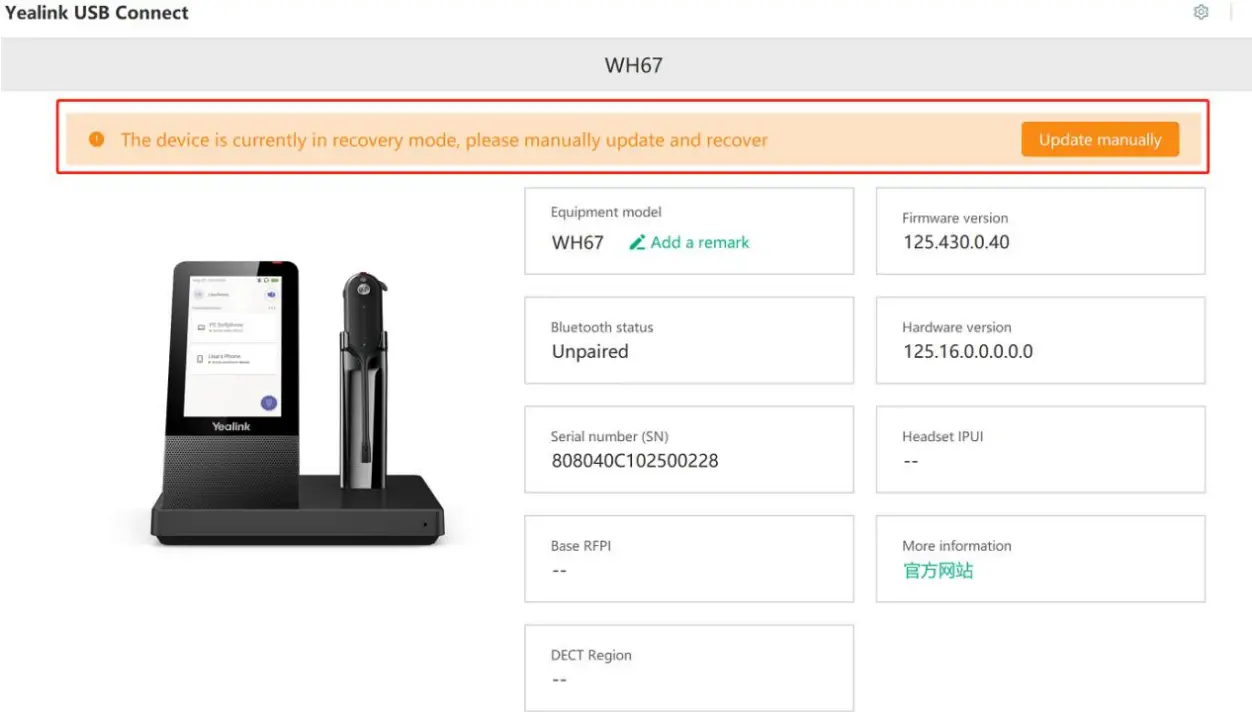
When the headset is in recovery mode, it needs to be upgraded manually. Take WH67 as an example, please refer to the following steps to update manually:
Step 1. First find the latest firmware file of your corresponding headset model through the link below, and then download it on your computer. https://support.yealink.com/en/portal/home?categoryId=32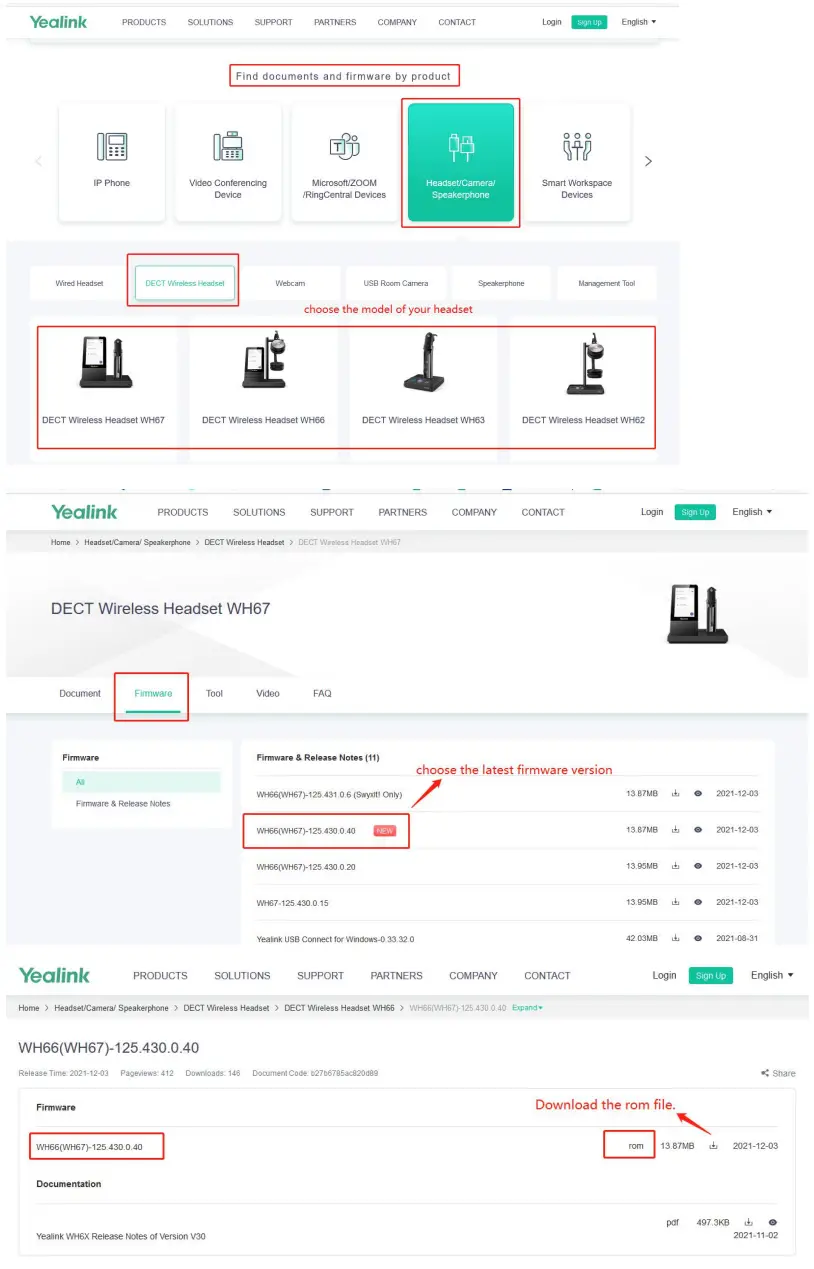 Step 2. Download the upgrade software “Yealink USB Connect” on your computer and open it, then connect the WH67 headset to the computer with USB:
- Click “Update manually”.
- upload the firmware file(Rom. file).
- Click “update now”. The link to upgrade the software: https://www.yealink.com/product/yuc.


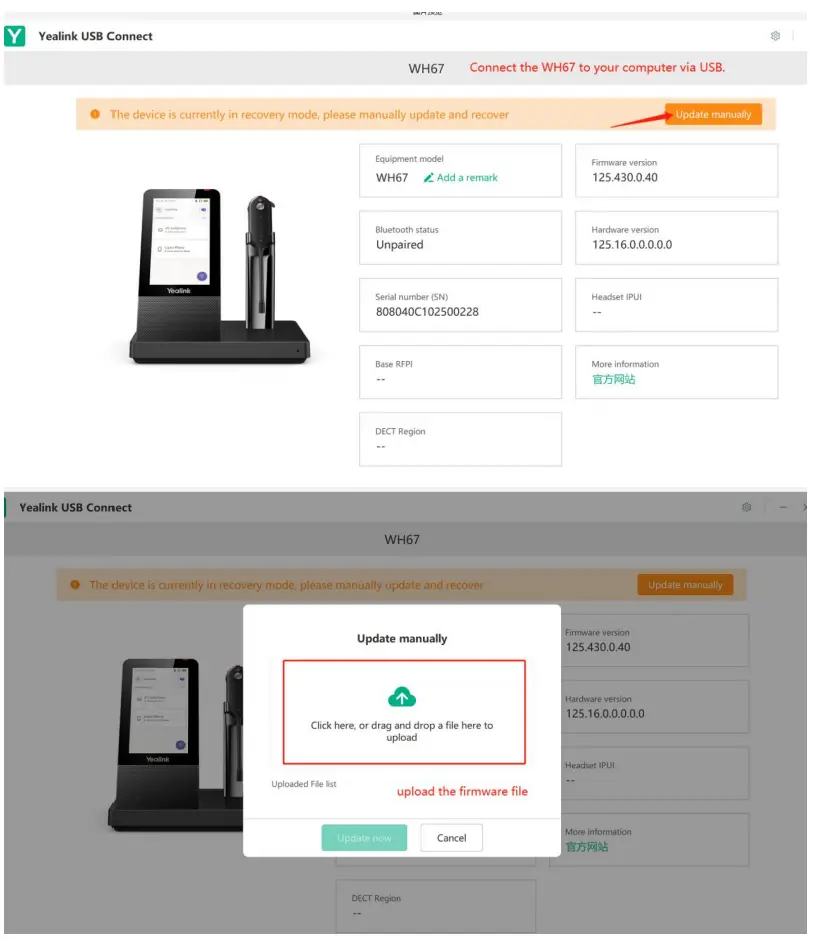
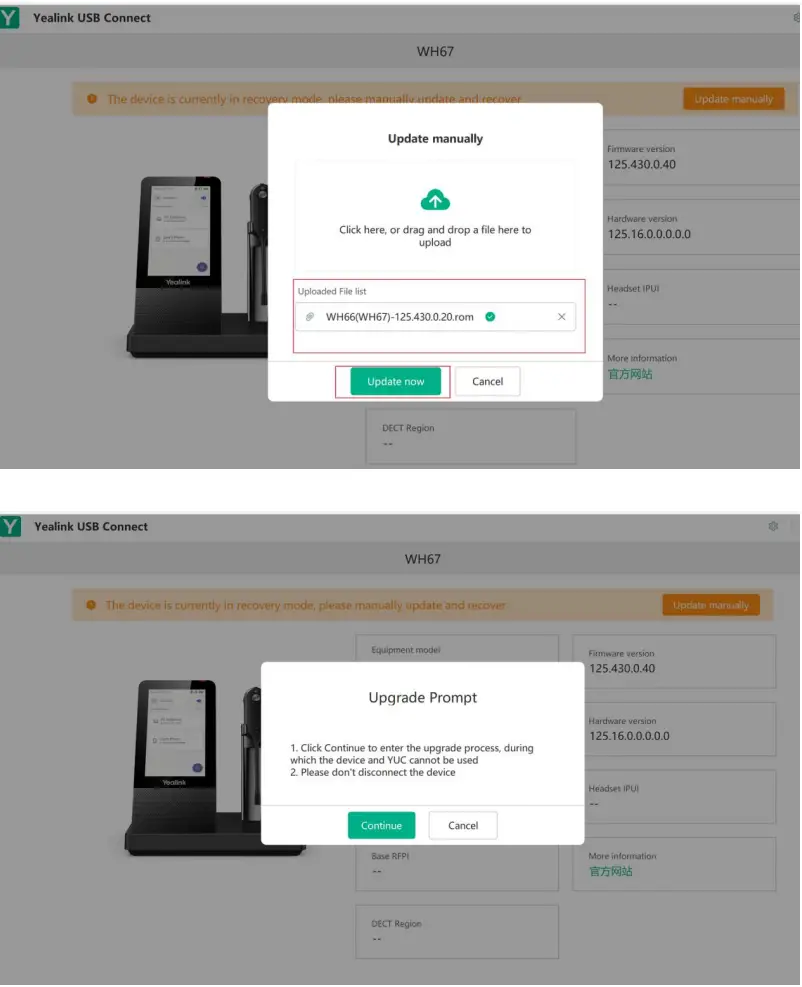
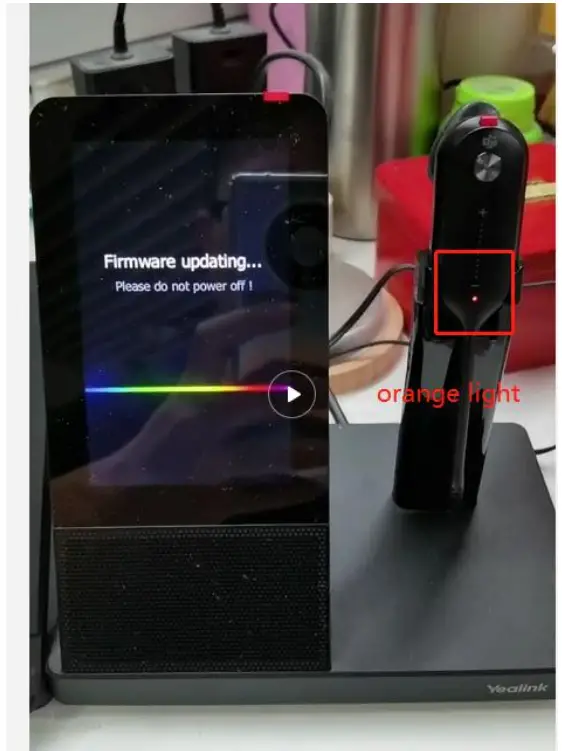
Step 3. The orange light is on, indicating that the upgrade is in progress. The orange light is off, indicating that the upgrade is complete.
Note: Do not disconnect the power supply or remove the headset from the base during the upgrade process, this will cause the upgrade to be interrupted.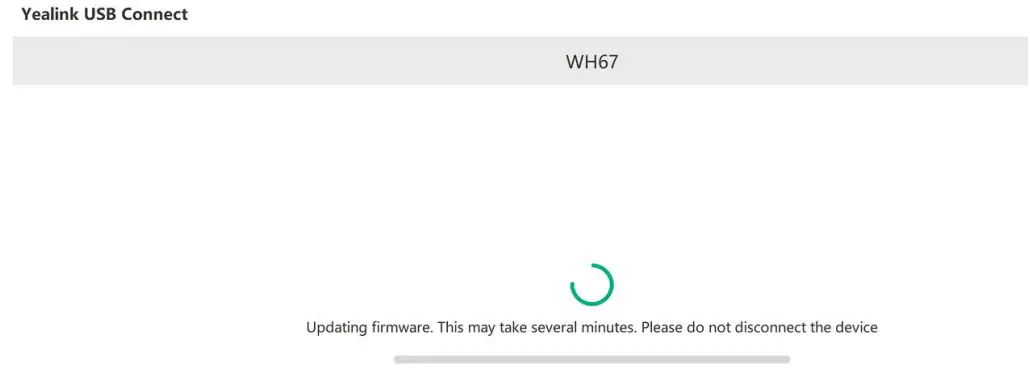
How can I get more features and a better experience when using the Sealink VoIP phone?
If the firmware of your sip phone is too old, we suggest upgrading both your phone and your Yealink Headset to the latest firmware(v86) for more features and a better experience.
Download the software “Yealink USB Connect” on your computer to upgrade both your phone and your Yealink Headset: https://www.yealink.com/product/yuc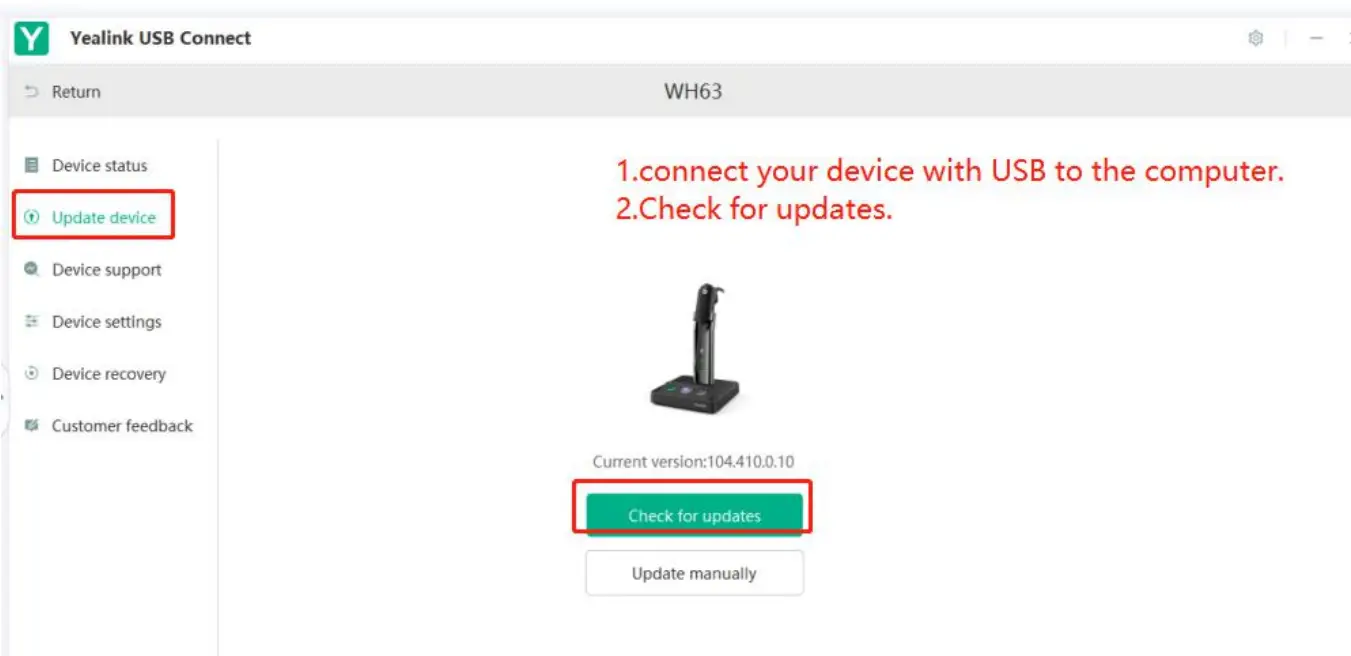
 Yealink Support
 Yealink USB Connect