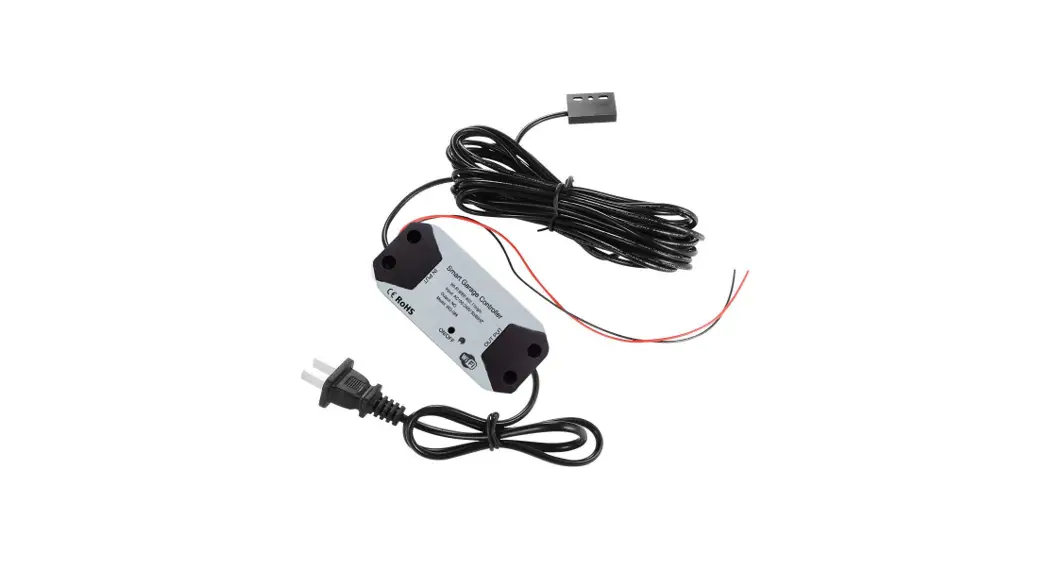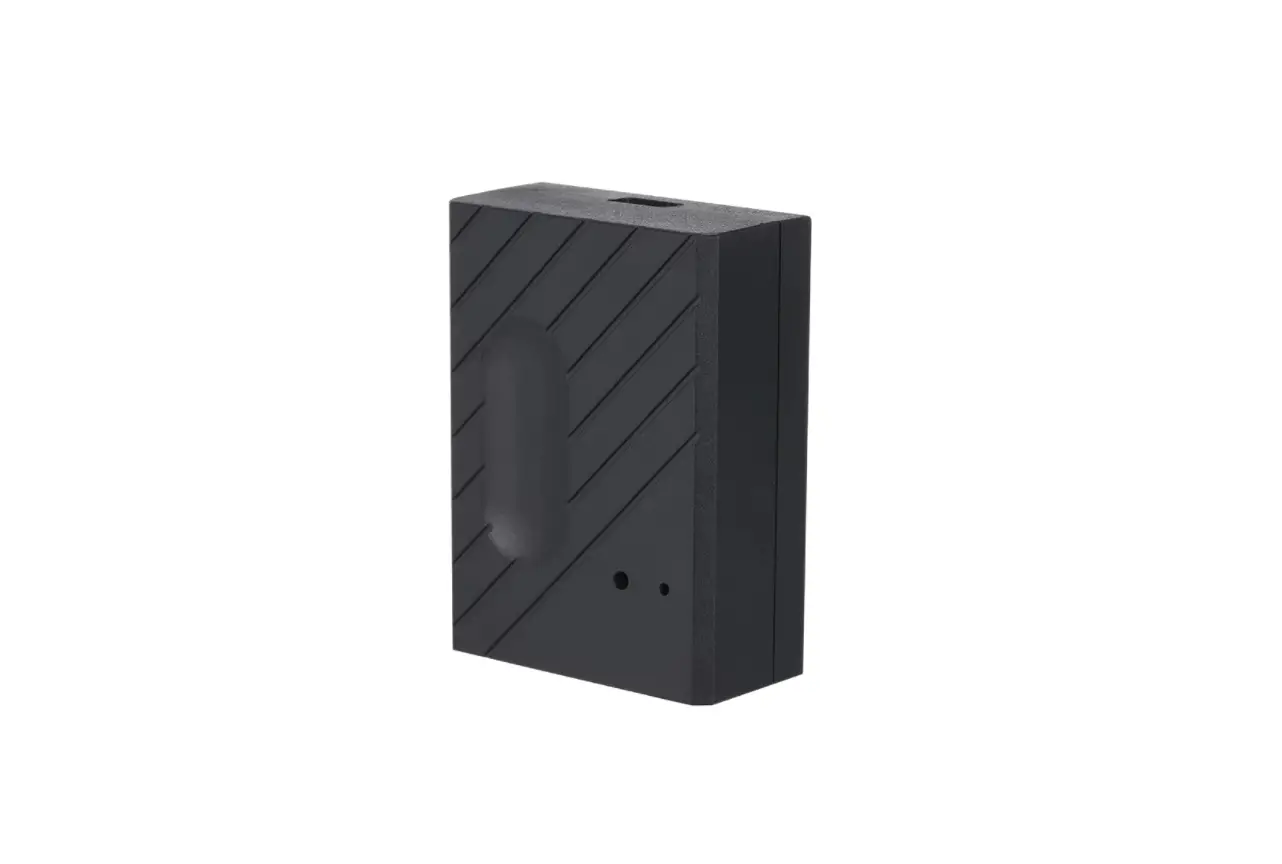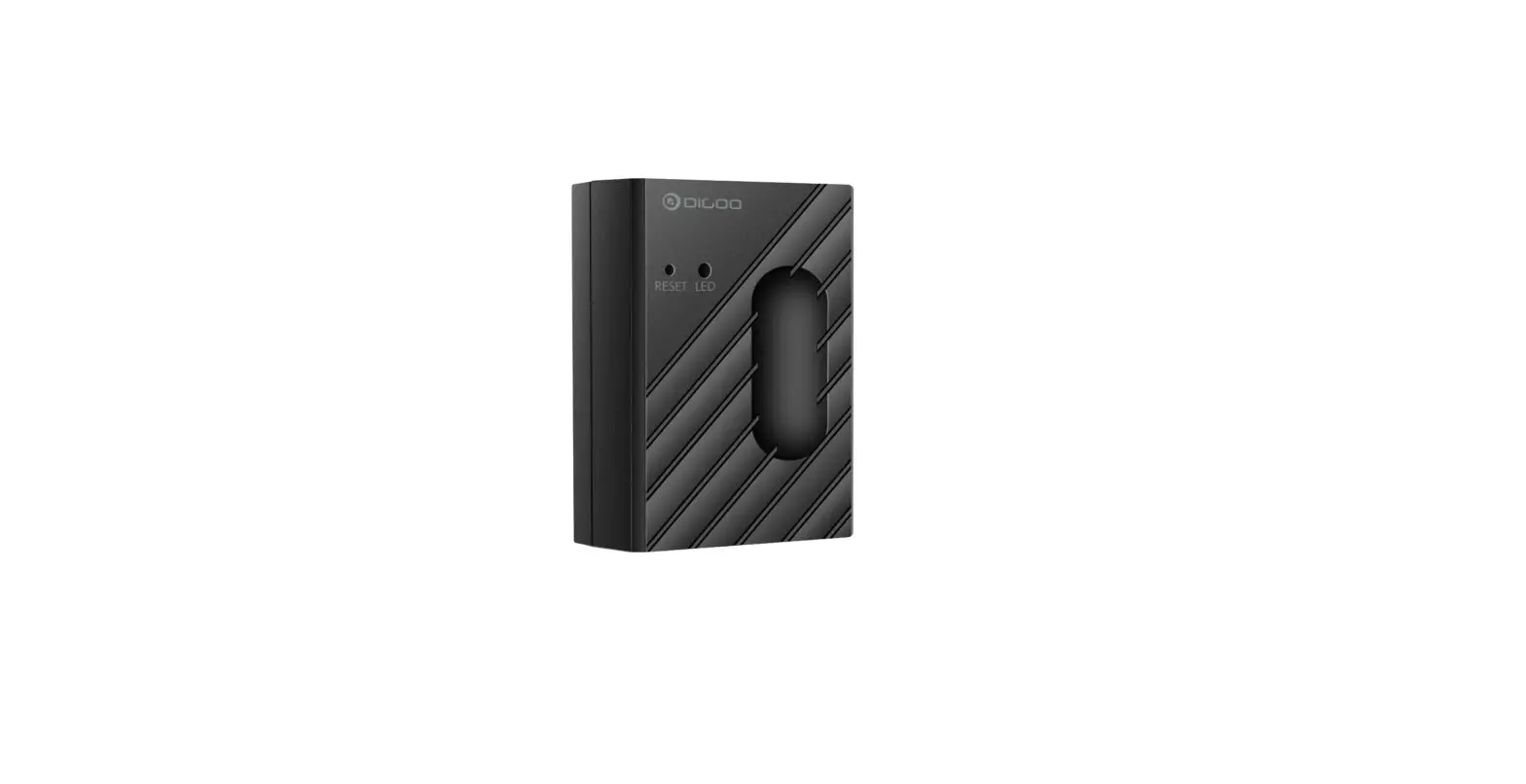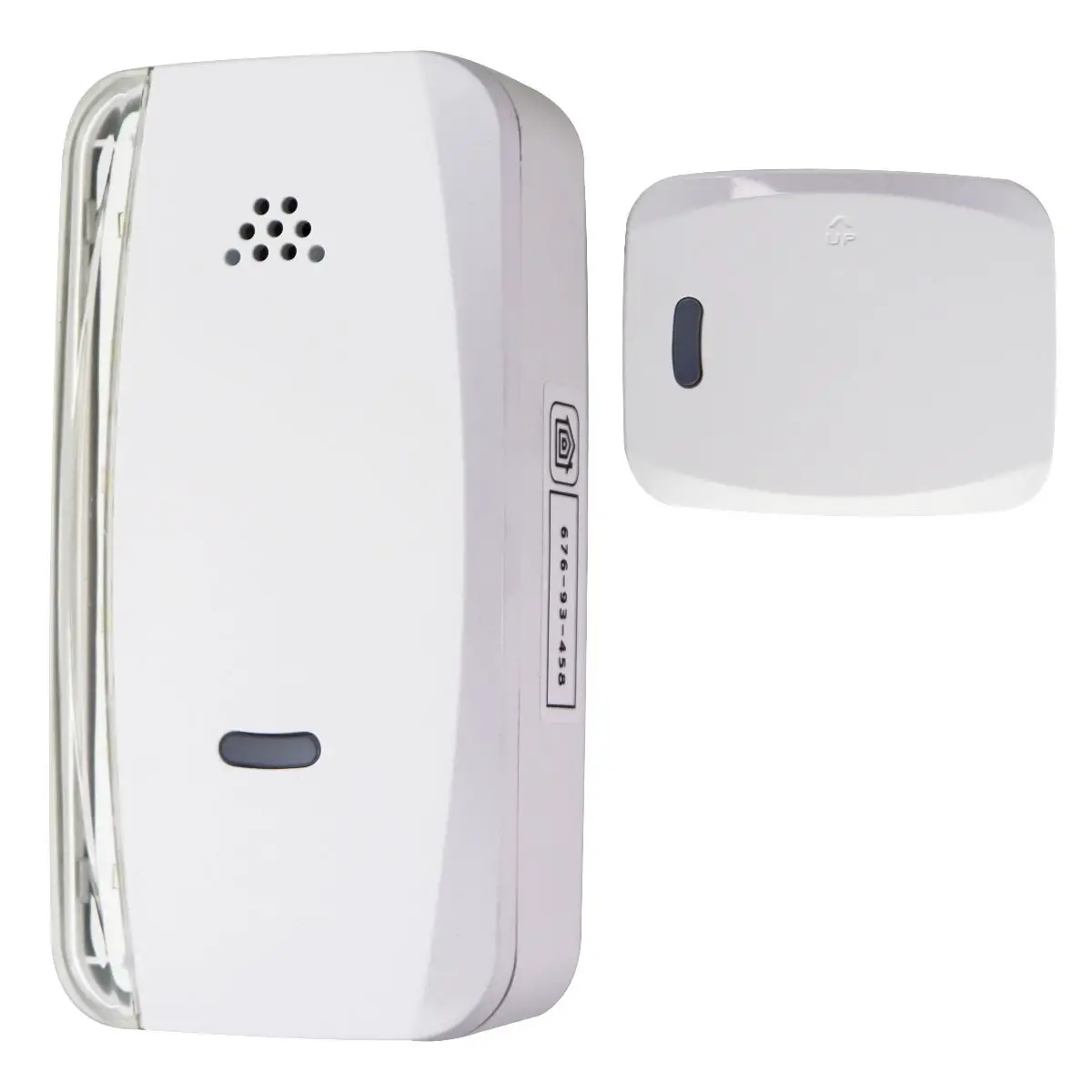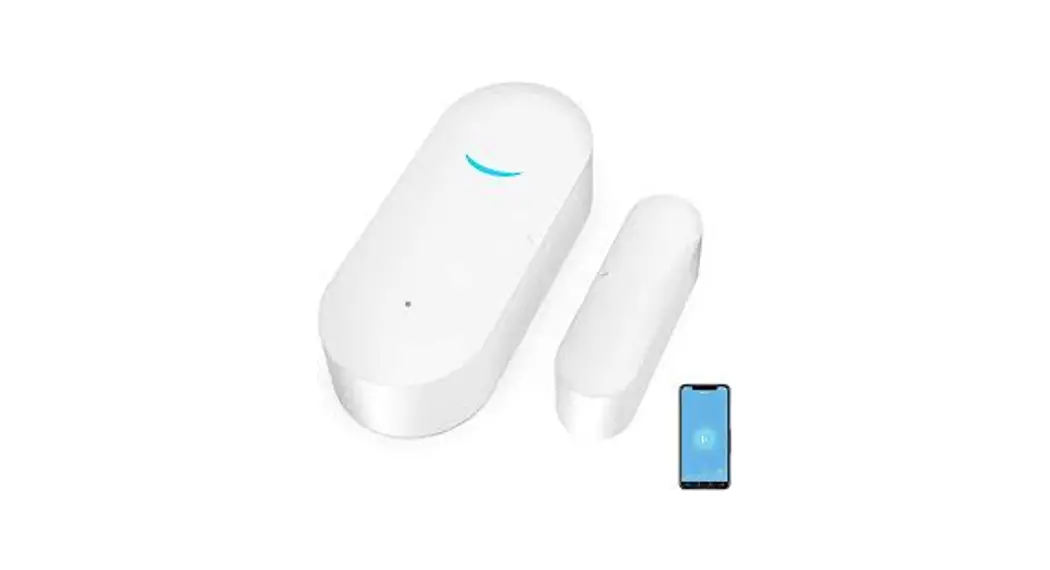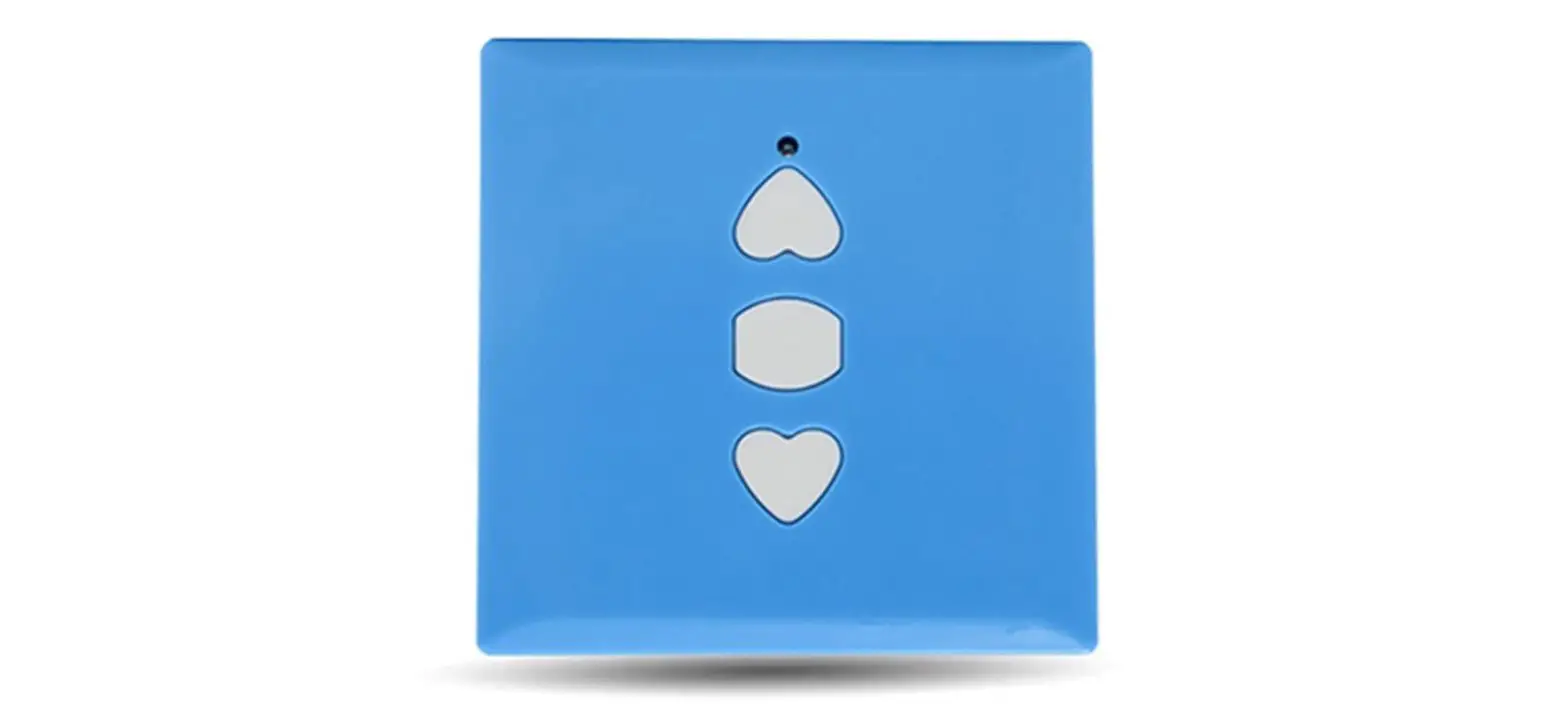

Sinilink XY-WRCU Smart Remote Control for Rolling Door Mobile Wireless WiFi
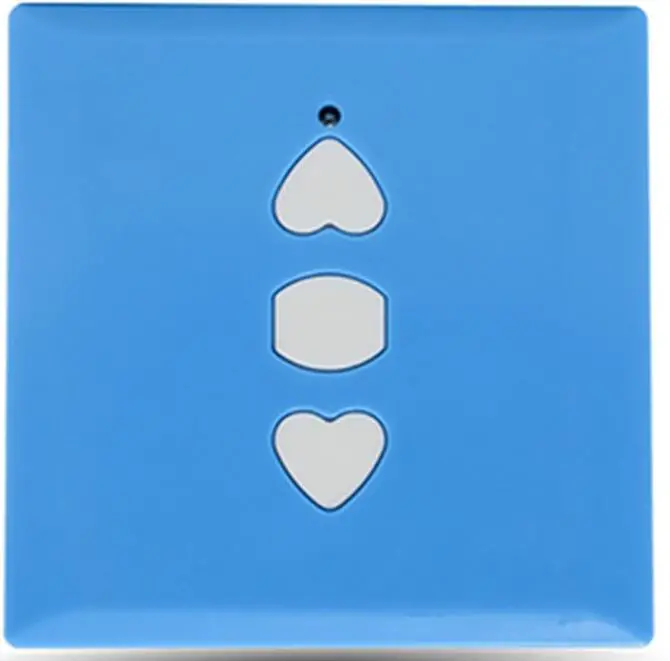
SMART REMOTE CONTROL
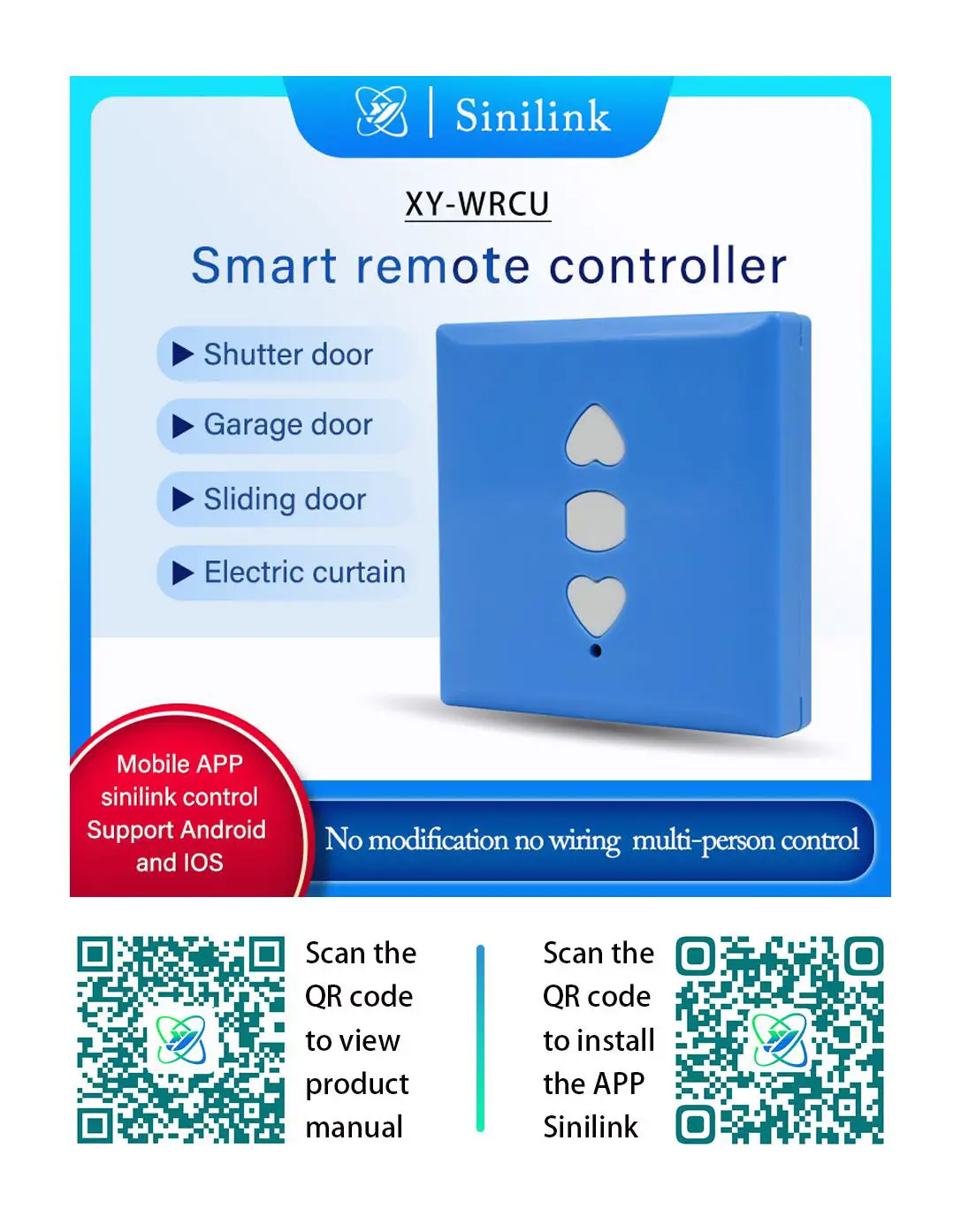
Product Parameter
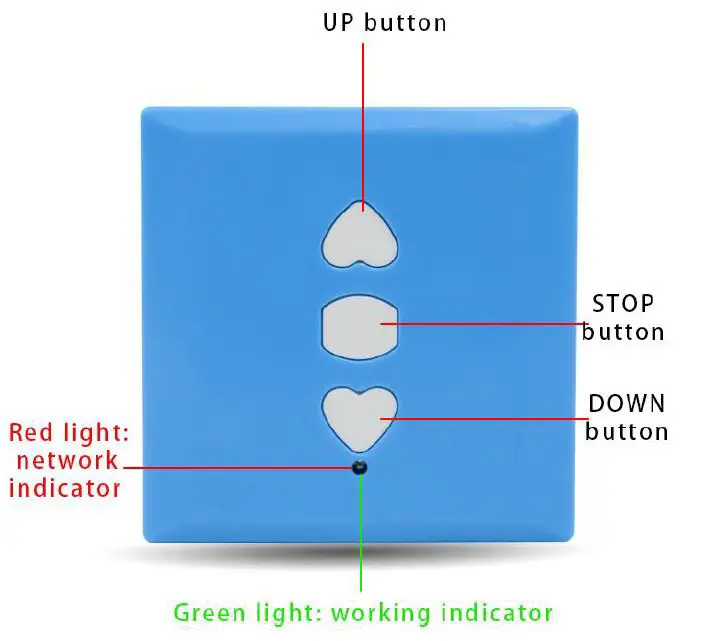
- Power supply voltage: 5V DC;
- Network mode: 2.4G WiFi
- Working distance:> 50m;
- RF Frequency / RF:310,315,330,350,390,418,430,433,580Mhz (OOK);
Device networking tutorial
Network indicator function introduction
Red indicator light
- Network status indicator lamp not connected router: bright 1S out 0.1S so reciprocating;
- link router but not connected: flash once, flash once so repeated;
- Touch pairing mode: quickly flash 4 consecutive times and then wait for 1S to reciprocate;
- AP pairing mode: red light keeps flash;
- networking success: the red indicator light is always on;
How to enter the pairing state
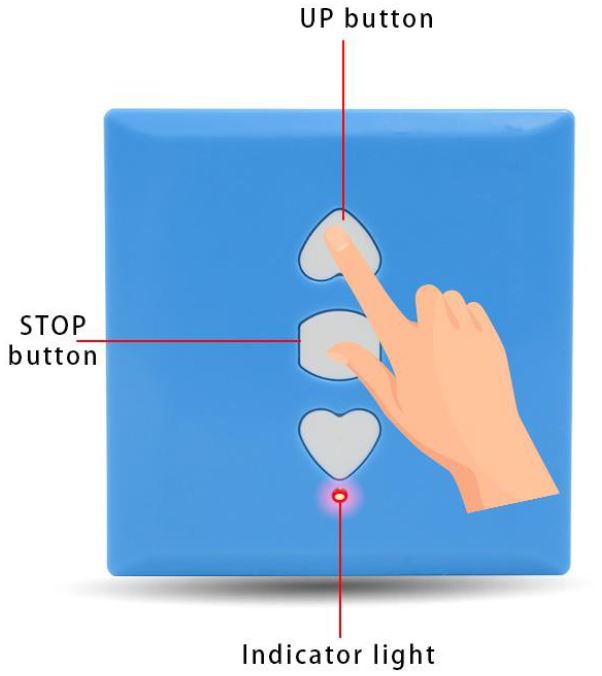
After the product is electrized, the UP and STOP keys are pressed simultaneously until the pr oduct red indicates section 2.1 (Touch and AP pairing mode) mode flashes
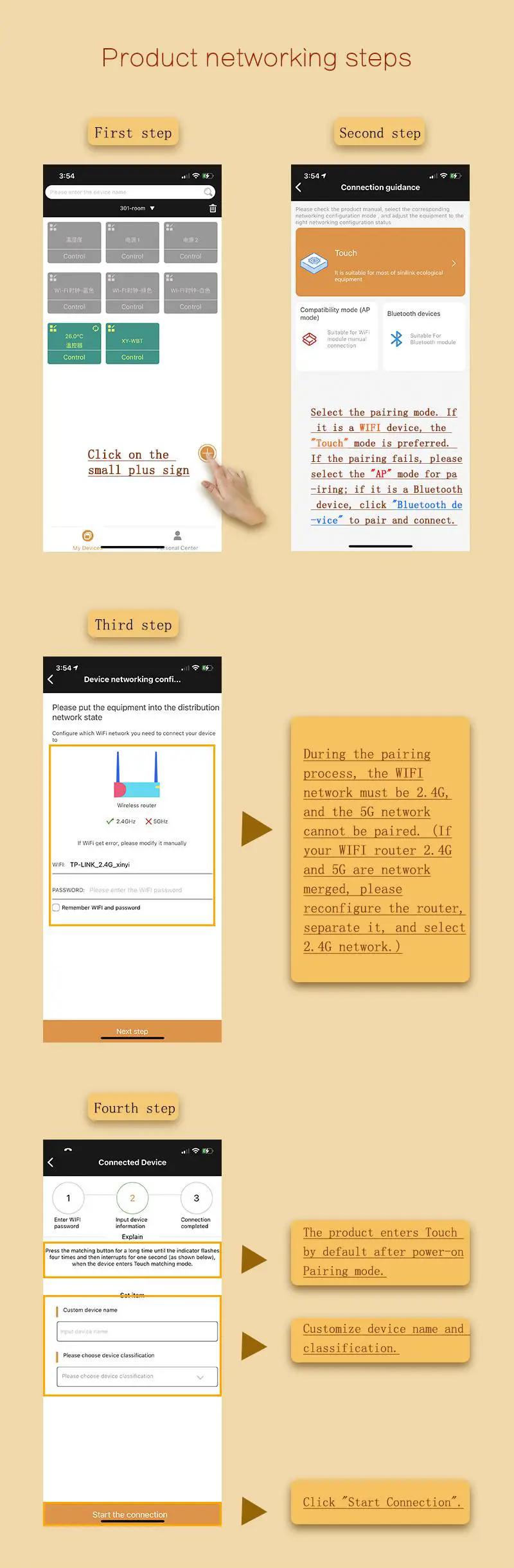
Touch Pair
- Get the product into Touch pairing (red flash 1 second apart)
- APP operation is shown in Fig:

AP Pair
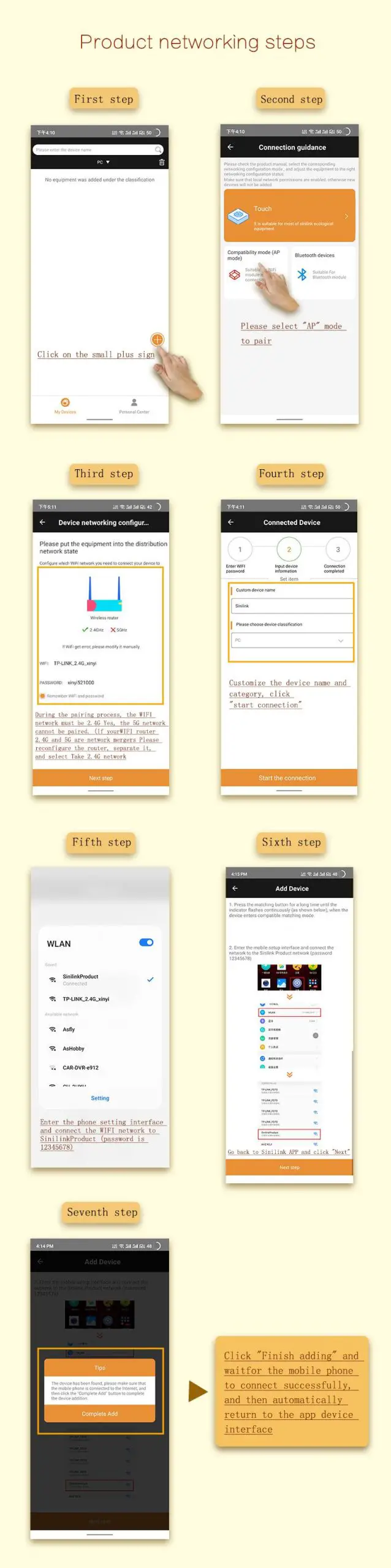
- lets product into AP pairing (red indicator constant flash)
APP operation is shown in Fig: Frequency settings
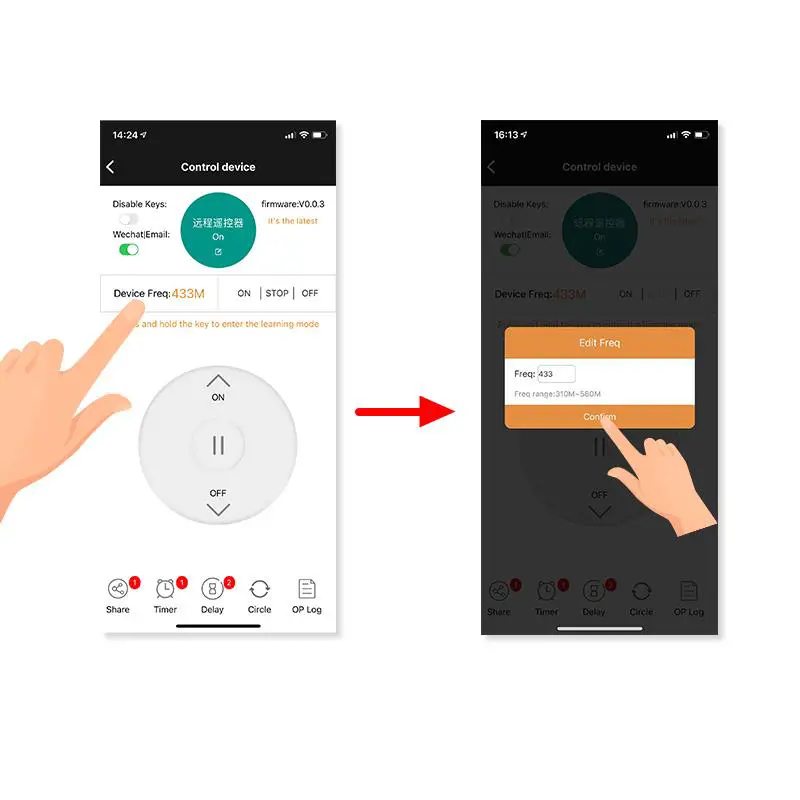
 Frequency settings
- The factory is set to 433Mhz, as skipped if your original remote handle is 433Mhz;
- frequency setting method: Enter the same frequency as the original remote controller handle in the (Figure 2) position;

- Click to confirm to complete the configuration;
Key Learning
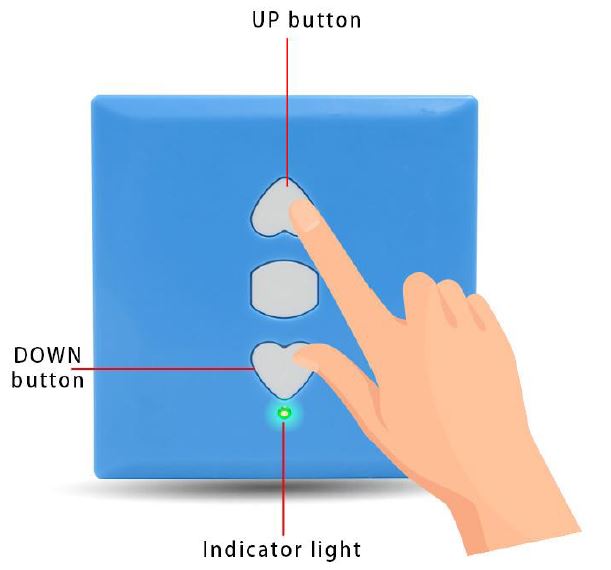
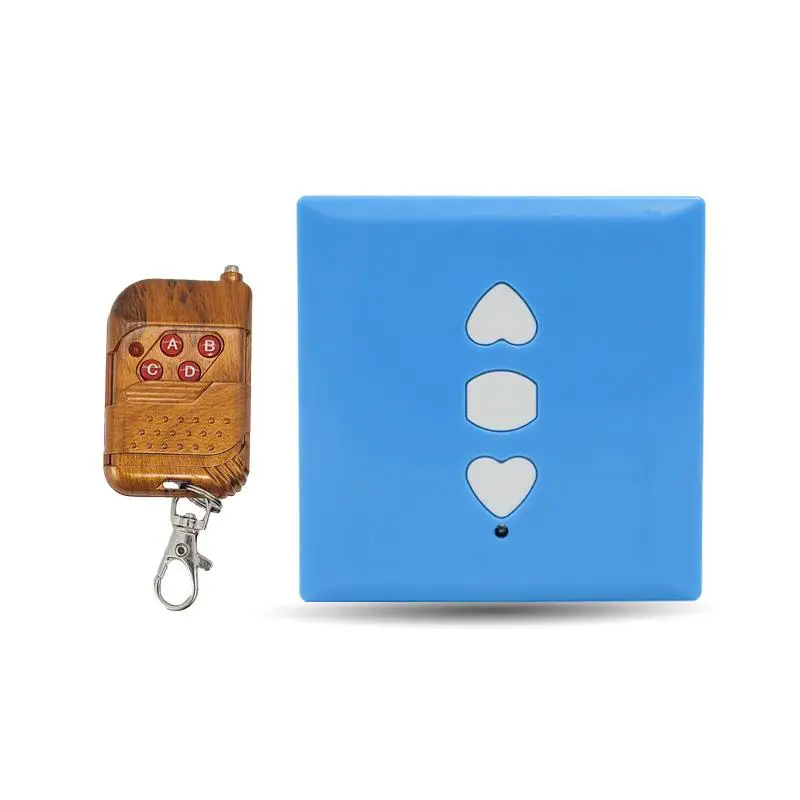
- First, press the UP and DOWN until the product green indicator can flash

- Hold the product closely with the remote control to be learned ( r emote left, pro duct right as shown below
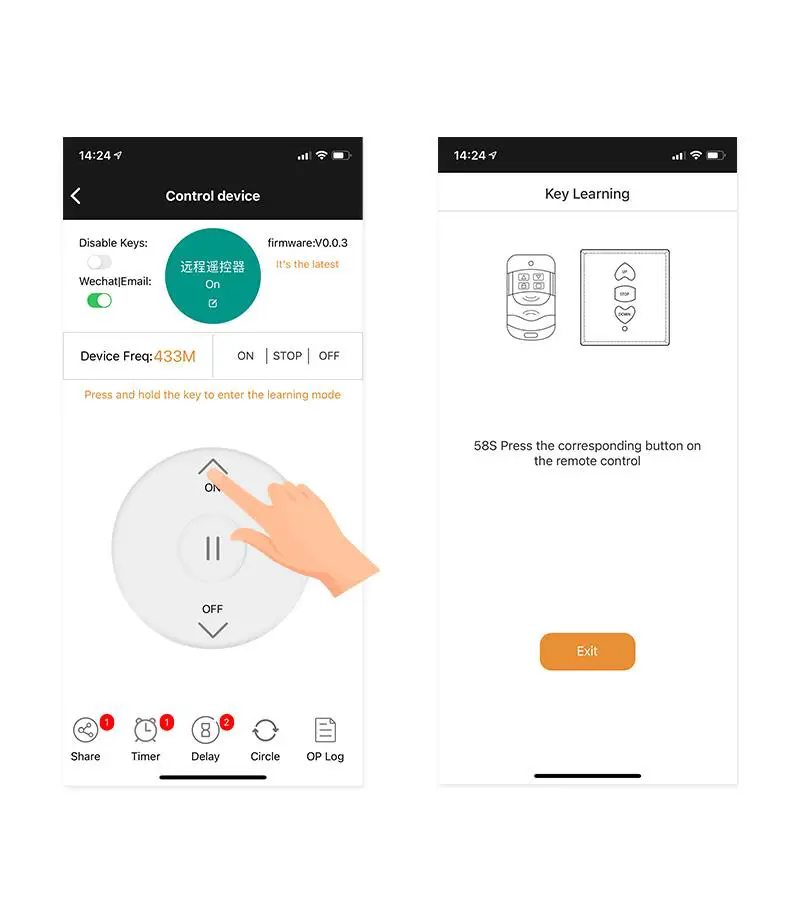
- can first press the UP key of the product, and then press the corresponding button that the remote control needs to learn until the produc t green indicator flashes;
- learns the STOP and DOWN keys, please refer to the method in steps 2,3;
APP Interface function description
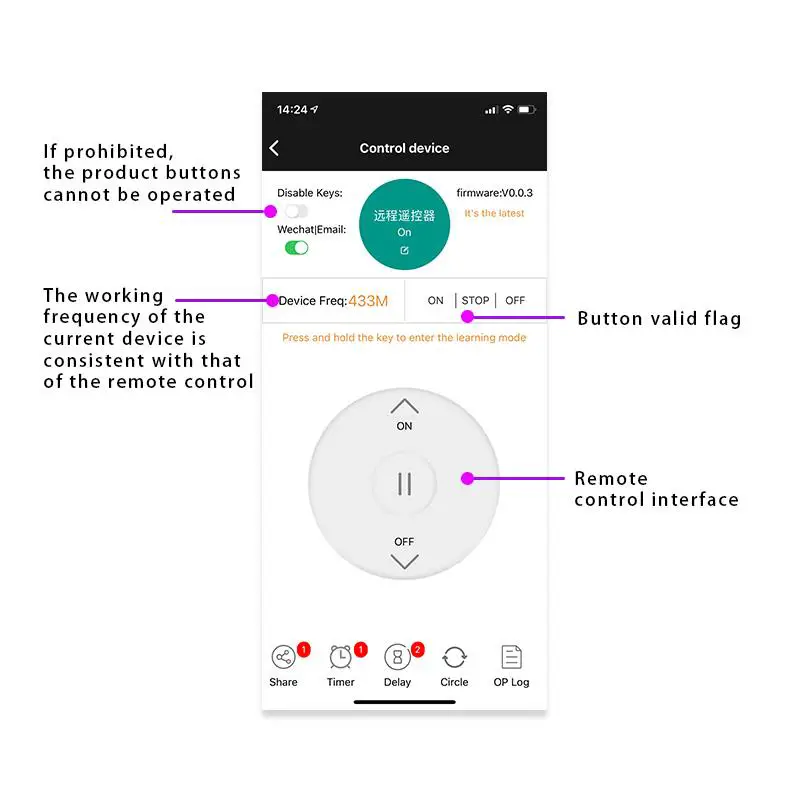
Block button function
After this function is turned on, instructions cannot be sent through the product key, only through the app;
Support for timing | time delay | cycle function
Functions can be added such as timing, delay, cycle and so on through app, which can meet the scene needs of timing on, off, and cycle test;
Key learning status
The App displays the learning status of the three UP STOP DOWN keys, black if completed, otherwise gr ay; instructions can only be sent normally; If you want to learn a key separately, you can long press the keys needed to learn at the APP remote control interface until you enter the learning key interface;
Share Settings
Can be shared with others, to realize multiple people to share a device, can control its functions.
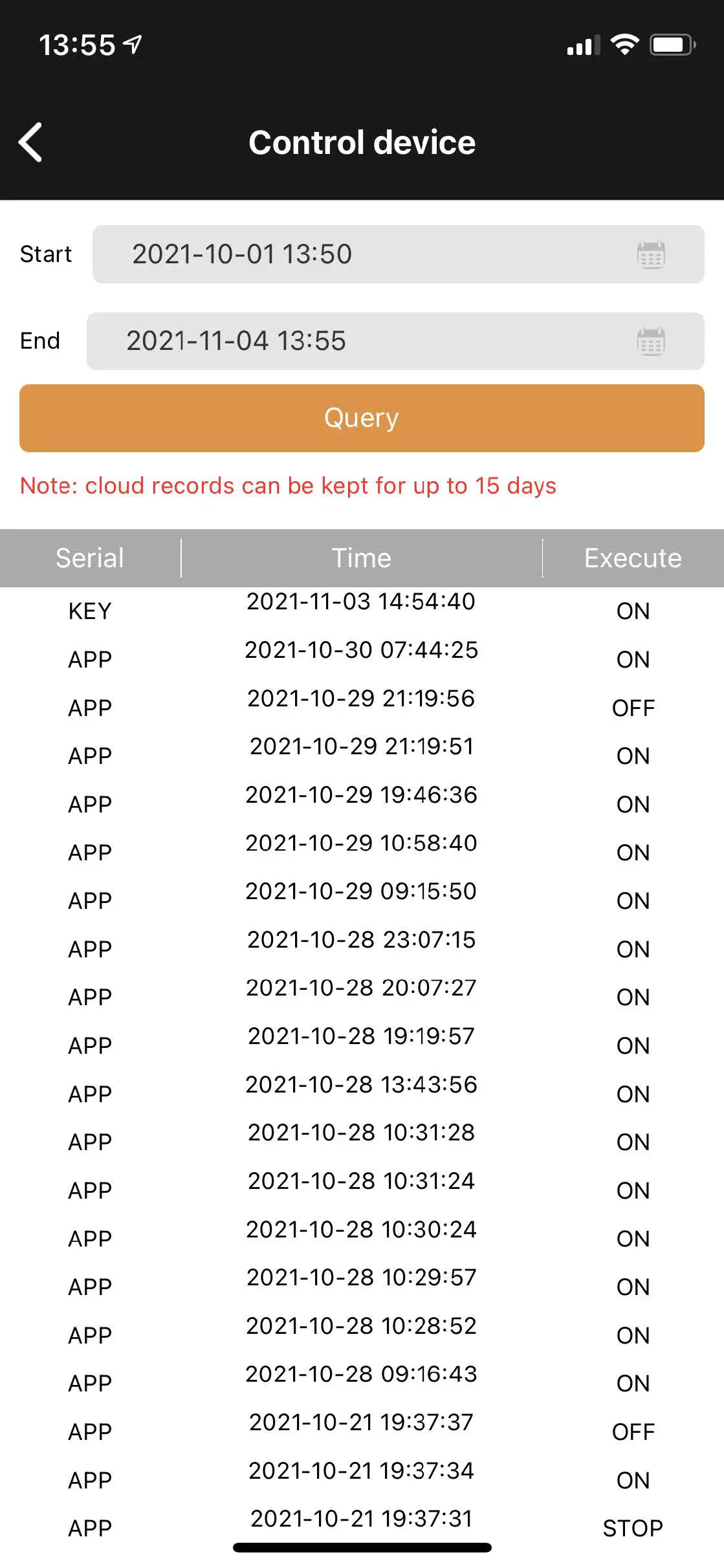
operating record
You can store all operation records in the background, timer + button + APP to facilitate query and control records
Mail notification function
How to bind a mailbox
- Turn on the mail notification

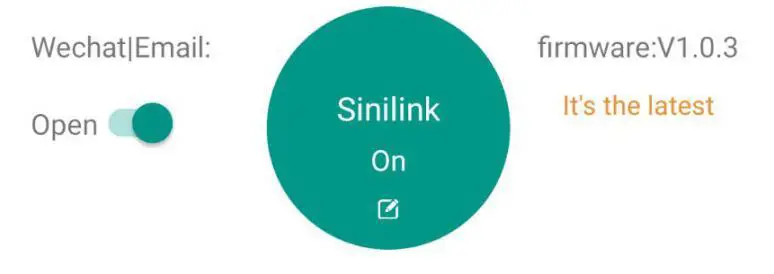
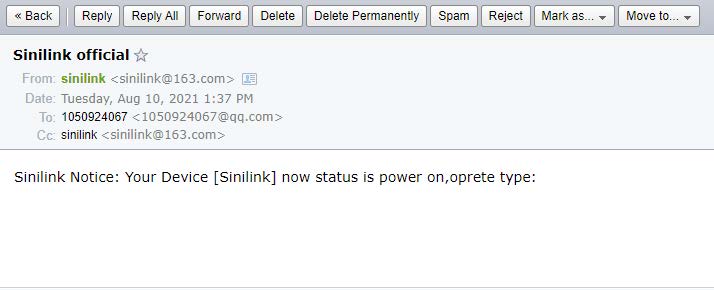
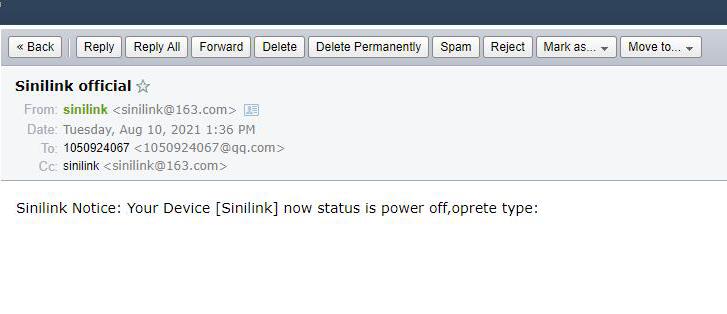
- Open the APP into the device operation interface, the top left corner is the switch of the mail notification function; if the email notification is turned on, when the computer status sends the change will send the latest status and operation type of the computer in real-time through the mailbox used to register the APP; Operation types are divided into five types: 1. Equipment power 2. Key operation 3. Timer operation 4.APP operation 5. Point operation; as shown in the figure below

- Open the APP into the device operation interface, the top left corner is the switch of the mail notification function; if the email notification is turned on, when the computer status sends the change will send the latest status and operation type of the computer in real-time through the mailbox used to register the APP; Operation types are divided into five types: 1. Equipment power 2. Key operation 3. Timer operation 4.APP operation 5. Point operation; as shown in the figure below
How to download a mobile APP
Scan the code to download the APP, foreign customers please download in the Google market, search for ‘sinilink’ download