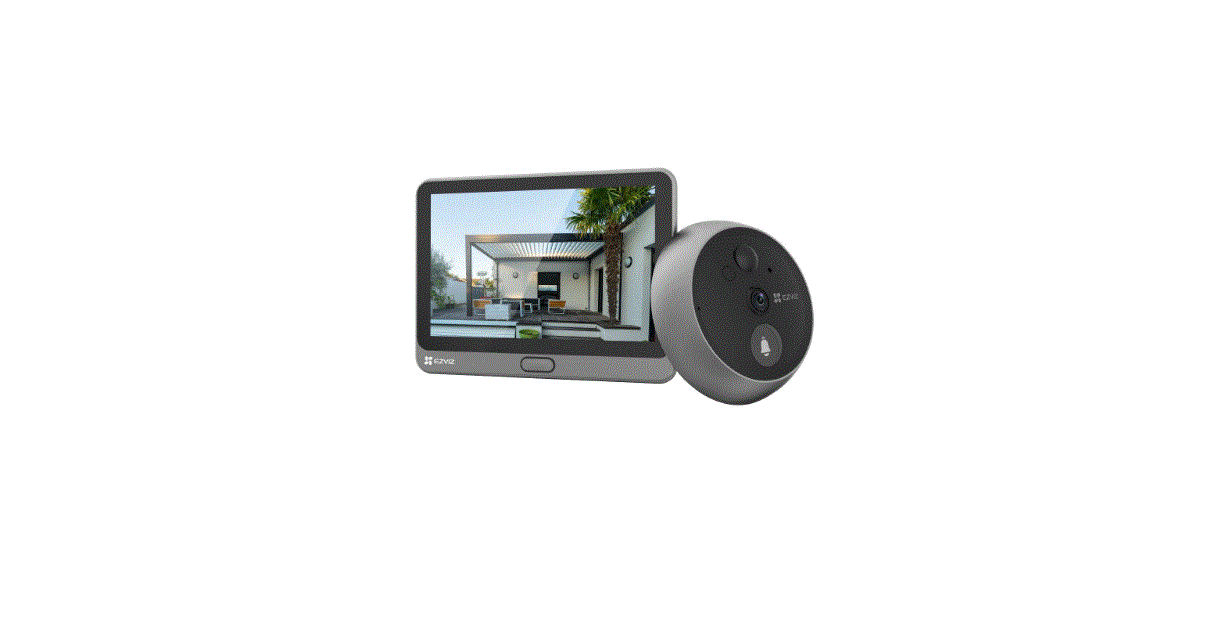
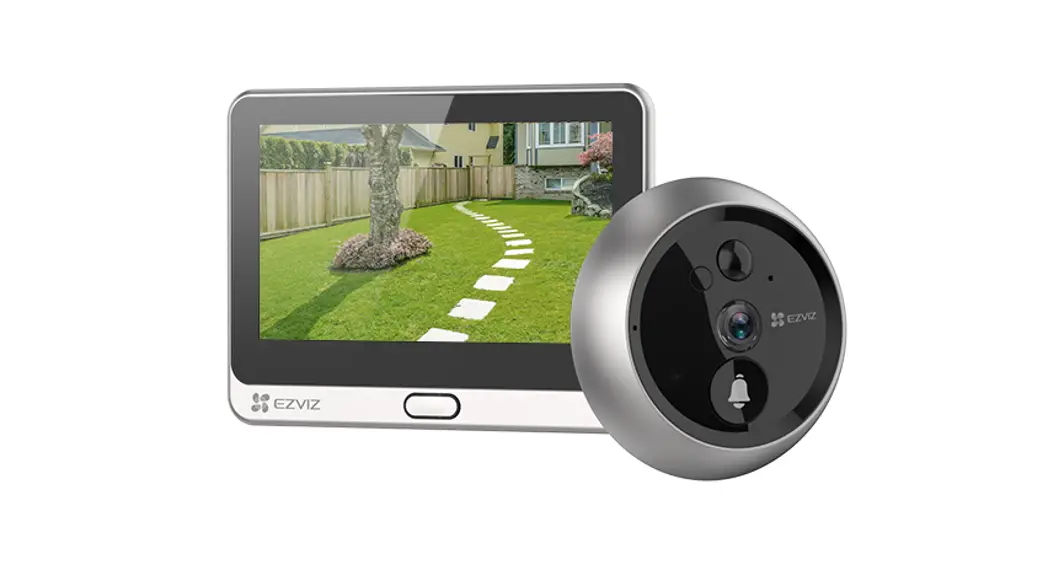
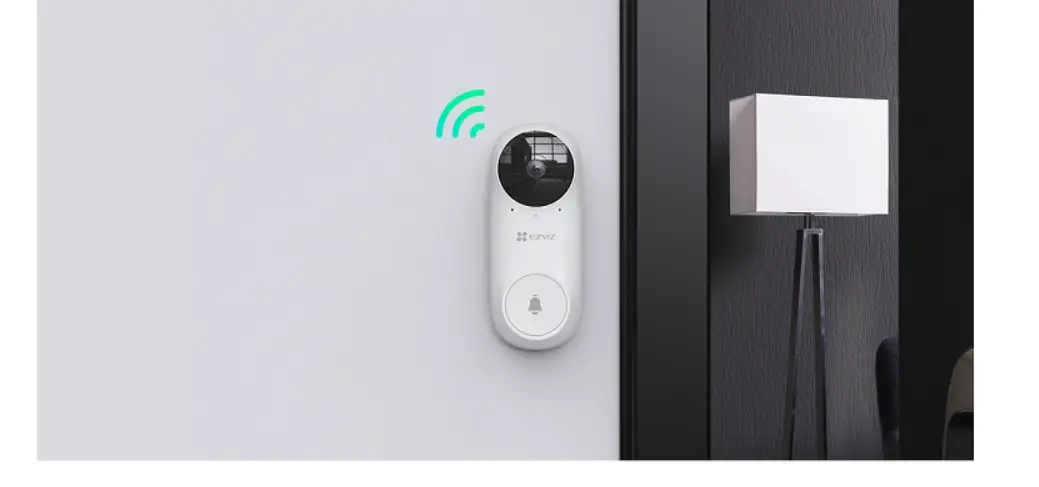
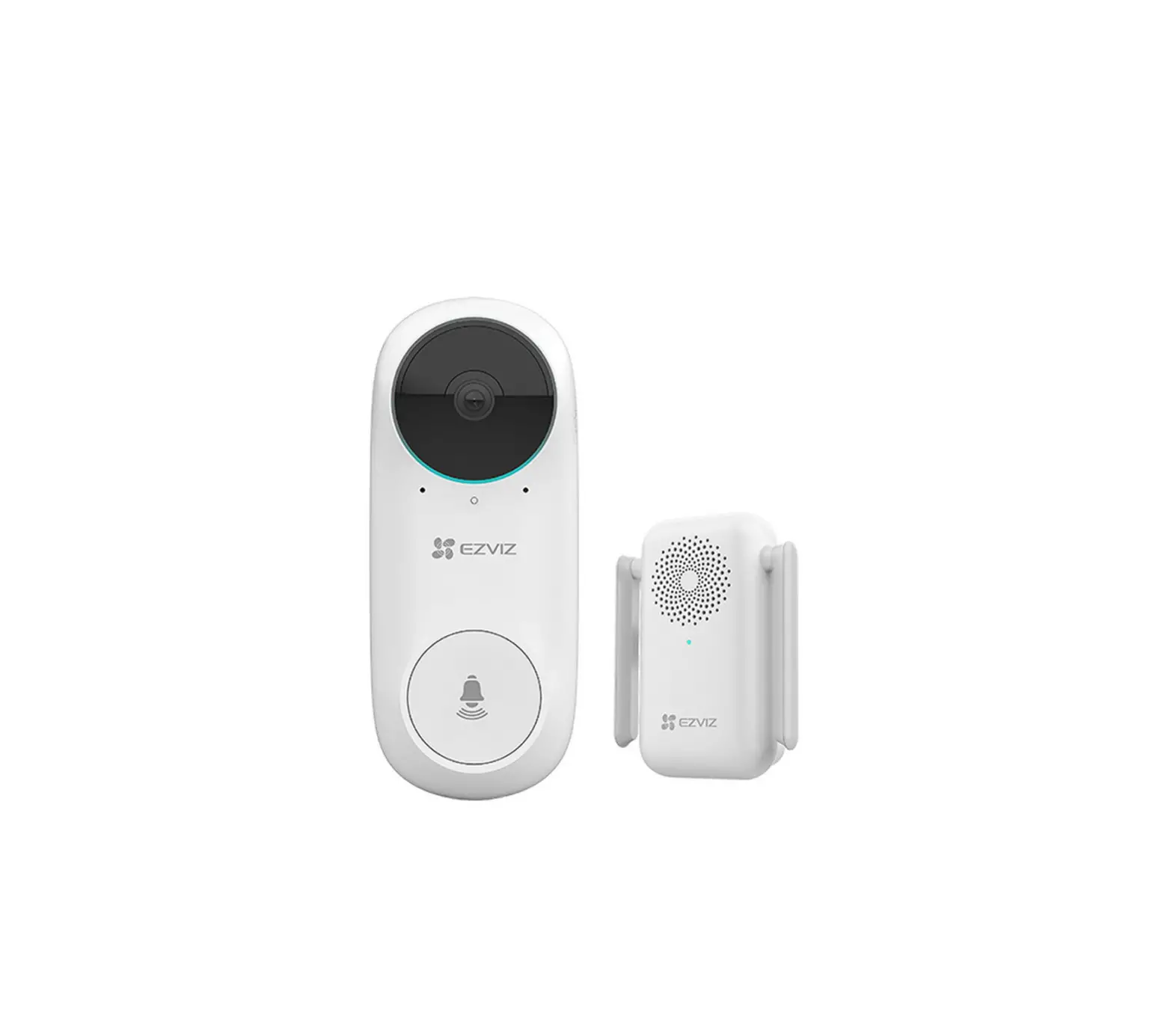
DP2 Wire-Free Peephole Doorbell
Product Information
The product is manufactured by Hangzhou EZVIZ Software Co., Ltd.
(EZVIZ). The user manual contains instructions for using and
managing the product. The manual, including its wordings, pictures,
graphs, and other information, is the property of EZVIZ and cannot
be reproduced, changed, translated, or distributed without prior
written permission from EZVIZ. EZVIZ does not make any warranties,
guarantees, or representations, express or implied, regarding the
manual.
The information in the manual is subject to change without
notice due to firmware updates or other reasons. The latest version
of the manual can be found on the EZVIZ website at http://www.ezviz.com.
Product Usage Instructions
1. Installation: Follow the installation instructions provided
in the manual for proper installation of the product. Ensure that
the product is installed correctly and securely.
2. Usage: Use the product according to the instructions provided
in the manual. Familiarize yourself with the features and functions
of the product to effectively utilize its capabilities.
3. Firmware Updates: Check for firmware updates regularly on the
EZVIZ website. Update the firmware of the product as instructed to
ensure optimal performance and access to new features.
4. Legal Compliance: Before using the product, familiarize
yourself with the surveillance laws and data protection laws
applicable in your jurisdiction. Ensure that your usage of the
product conforms to the applicable law.
5. Internet Security Risks: If the product has internet access,
be aware that using it carries certain risks. EZVIZ shall not be
held responsible for abnormal operation, privacy leakage, or other
damages resulting from cyber attacks, hacker attacks, virus
infections, or other internet security risks. However, EZVIZ will
provide timely technical support if required.
6. Limitation of Liability: EZVIZ’s liability for any damages
related to the product shall not exceed the original purchase price
of the product. EZVIZ shall not be liable for any special,
consequential, incidental, or indirect damages resulting from the
use of the product.
7. Trademarks: The trademarks and logos mentioned in the manual
are the properties of EZVIZ and their respective owners.
COPYRIGHT © Hangzhou EZVIZ Software Co., Ltd. ALL RIGHTS RESERVED.
Any and all information, including, among others, wordings, pictures, graphs are the properties of
Hangzhou EZVIZ Software Co., Ltd. (hereinafter referred to as “EZVIZ”). This user manual (hereinafter
referred to as “the Manual”) cannot be reproduced, changed, translated, or distributed, partially or
wholly, by any means, without the prior written permission of EZVIZ. Unless otherwise stipulated,
EZVIZ does not make any warranties, guarantees or representations, express or implied, regarding to
the Manual.
About this Manual
The Manual includes instructions for using and managing the product. Pictures, charts, images and
all other information hereinafter are for description and explanation only. The information contained
in the Manual is subject to change, without notice, due to firmware updates or other reasons. Please
find the latest version in the
TM website (http://www.ezviz.com).
Revision Record
New release January, 2023
Trademarks Acknowledgement
TM, TM, and other EZVIZ’s trademarks and logos are the properties of EZVIZ in various
jurisdictions. Other trademarks and logos mentioned below are the properties of their respective
owners.
Legal Disclaimer
TO THE MAXIMUM EXTENT PERMITTED BY APPLICABLE LAW, THE PRODUCT DESCRIBED, WITH
ITS HARDWARE, SOFTWARE AND FIRMWARE, IS PROVIDED “AS IS”, WITH ALL FAULTS AND ERRORS,
AND EZVIZ MAKES NO WARRANTIES, EXPRESS OR IMPLIED, INCLUDING WITHOUT LIMITATION,
MERCHANTABILITY, SATISFACTORY QUALITY, FITNESS FOR A PARTICULAR PURPOSE, AND
NON-INFRINGEMENT OF THIRD PARTY. IN NO EVENT WILL EZVIZ, ITS DIRECTORS, OFFICERS,
EMPLOYEES, OR AGENTS BE LIABLE TO YOU FOR ANY SPECIAL, CONSEQUENTIAL, INCIDENTAL, OR
INDIRECT DAMAGES, INCLUDING, AMONG OTHERS, DAMAGES FOR LOSS OF BUSINESS PROFITS,
BUSINESS INTERRUPTION, OR LOSS OF DATA OR DOCUMENTATION, IN CONNECTION WITH
THE USE OF THIS PRODUCT, EVEN IF EZVIZ HAS BEEN ADVISED OF THE POSSIBILITY OF SUCH
DAMAGES.
TO THE MAXIMUM EXTENT PERMITTED BY APPLICABLE LAW, IN NO EVENT SHALL EZVIZ’S TOTAL
LIABILITY FOR ALL DAMAGES EXCEED THE ORIGINAL PURCHASE PRICE OF THE PRODUCT.
EZVIZ DOES NOT UNDERTAKE ANY LIABILITY FOR PERSONAL INJURY OR PROPERTY DAMAGE AS
THE RESULT OF PRODUCT INTERRUPTION OR SERVICE TERMINATION CAUSED BY: A) IMPROPER
INSTALLATION OR USAGE OTHER THAN AS REQUESTED; B) THE PROTECTION OF NATIONAL OR
PUBLIC INTERESTS; C) FORCE MAJEURE; D) YOURSELF OR THE THIRD PARTY, INCLUDING WITHOUT
LIMITATION, USING ANY THIRD PARTY’S PRODUCTS, SOFTWARE, APPLICATIONS, AND AMONG
OTHERS.
REGARDING TO THE PRODUCT WITH INTERNET ACCESS, THE USE OF PRODUCT SHALL BE WHOLLY
AT YOUR OWN RISKS. EZVIZ SHALL NOT TAKE ANY RESPONSIBILITES FOR ABNORMAL OPERATION,
PRIVACY LEAKAGE OR OTHER DAMAGES RESULTING FROM CYBER ATTACK, HACKER ATTACK,
VIRUS INSPECTION, OR OTHER INTERNET SECURITY RISKS; HOWEVER, EZVIZ WILL PROVIDE
TIMELY TECHNICAL SUPPORT IF REQUIRED. SURVEILLANCE LAWS AND DATA PROTECTION
LAWS VARY BY JURISDICTION. PLEASE CHECK ALL RELEVANT LAWS IN YOUR JURISDICTION
BEFORE USING THIS PRODUCT IN ORDER TO ENSURE THAT YOUR USE CONFORMS TO THE
APPLICABLE LAW. EZVIZ SHALL NOT BE LIABLE IN THE EVENT THAT THIS PRODUCT IS USED WITH
ILLEGITIMATE PURPOSES.
IN THE EVENT OF ANY CONFLICTS BETWEEN THE ABOVE AND THE APPLICABLE LAW, THE LATTER
PREVAILS.
Table of Contents
Attention 1
Overview 1
1 Package Contents 1 2 Basics 2
Setup 3
1 Get the EZVIZ App 3 2 Installation 3 3 Power on 5 4 Connect your peephole to the Internet 5 5 Add the peephole to EZVIZ App 5
Maintenance 6
1 Charge the Panel 6 2 Restore to Factory Settings 6
View Your Device on the EZVIZ App 7
1 Live View 7 2 Settings 8
EZVIZ Connect8
1 Use Amazon Alexa 8 2 Use Google Assistant 9
Appendix 10
1 Rechargeable Lithium ion Battery 10 2 INFORMATION FOR PRIVATE HOUSEHOLDS 10
Initiatives on the Use of Video Products 11
Attention
· Do not expose the camera to the harsh environment like high temperature, humid, salt mist or rain, otherwise, the device may be damaged.
· Do not press the sensor or lens of the camera, otherwise, the device may be damaged. · Do not pull the wire of the camera hard, and protect yourself from being cut by the wire. Damage to the wire due to
inappropriate operation is not included in the warranty. · Use the exclusively power adapter to charge the panel, otherwise, the system may be damaged.
Overview
1 Package Contents
Panel (x1)
Mounting Base (x1)
Camera (x1)
Buckle (x1)
Screws (x6)
Power Cord (x1)
Base Cover (x1)
Regulatory Information (x2)
The appearance of product and accessories are subject to the one you have bought.
Quick Start Guide (x1)
1
2 Basics
Panel Micro SD Card Slot
Home Button
Power Port Touch Screen
Name Home Button Micro SD Card (sold separately) Camera
Sensor
Microphone
Bell
Data Interface Loudspeaker Description · Power on/off: Press and hold the button for 3s to 5s to power on or off
the device. · Screen On/Off: Press once to turn on or off the screen. Initialize the card in the EZVIZ app before using it. Recommended compatibility: Class 10, maximum space 512GB.
Sensor Sensor
Loudspeaker
Lens
Mounting Base
Do not block the sensors.
Hook
Hook is for hanging portable charger. 2
Mounting Hole Data Wire Port
Setup
Follow the steps to set your peephole: 1. Get the EZVIZ app, and log in to your EZVIZ app account. 2. Install your peephole and power on. 3. Power on your peephole. 4. Connect your peephole to the Internet. 5. Add your peephole to your EZVIZ account.
1 Get the EZVIZ App
1. Connect your mobile phone to Wi-Fi using your 2.4GHz network (suggested). 2. Download and install the EZVIZ app by searching “EZVIZ” in the App Store or Google PlayTM. 3. Launch the app and register an EZVIZ user account.
EZVIZ App
If you have already used the app, please make sure that it is the latest version. To find out if an update is available, go to the app store and search for EZVIZ.
2 Installation
21 Install the Micro SD Card (Optional) 1. Insert a Micro SD card (sold separately) into the SD card slot as shown in the figure below.
After installing the Micro SD card, you should initialize the card in the EZVIZ app before using it. 2. In the EZVIZ app, tap the Record List in the Device Settings interface to check the SD card status. 3. If the memory card status displays as Uninitialized, tap to initialize it.
The status will then change to Normal and it can store videos.
22 Install the Peephole If you already have a peephole, install the device in the same place. If not, please drill a hole of diameter about 14mm (no more than 45mm) and about 145cm distance from the ground to have a good viewing effect.
3
Measure the door’s thickness and select the appropriate screws.
Thickness
Screw
35 to 60mm
60 to 85mm
85 to 105mm
2. Turn the screws into the back of 3. Tear off the release paper. camera.
4. Pass screws and wire through the door. You can roll up the paper to help
3M 3M 3M M 3M 3M 3M 3M 3M M 3M 3M 3M
M 3M 3M
5. Adjust camera’s position and push it close to the door gently.
6. Take out the base, plug the connector into the slot on the bottom of the base and put the base cover on.
7. Pass screws through the mounting holes.
8. Adjust the mouting base’s position and tighten the screws.
9. Put the wires in th groove and insert the buckle.
10. Slide the panel into the mounting base.
11. Installation completed. Remove the sticker.
4
3 Power on
Hold the power button for 3 to 5 seconds to power on the panel.
4 Connect your peephole to the Internet
Tap the touch screen to choose your language.
English
Language Choose
Magyar
Tap the Home button below to next stop, tap the Power button left to confir m
Follow the wizard to select your Wi-Fi and enter password.
Before using, connect to network Select Wi-Fi of your router, and enter password. Cannot find Wi-Fi of your router? ezviz_xxxxx ezviz_yyyyy ezviz_zzzzz
5 Add the peephole to EZVIZ App
1. Press the home button once to turn on the screen. 2. On your smartphone, log in to your EZVIZ app account, on the Home screen, tap “+” on the upper-right corner to go to the
Scan QR Code interface. 3. Scan the QR code on the screen of the panel.
Scan QR Code
If you failed to get the QR code or want to reconfigure Wi-Fi, please tap Settings -> Firmware on the touch screen to see QR code. 5
Maintenance
1 Charge the Panel
Connect the panel with the power outlet via power adapter (5V 2A, sold separately). · Do not charge through the interface at the bottom. · You can also charge the panel via portable charger and hang it on the hook. · Please do not charge the device when the temperature exceeds 45 degrees or below 0 degrees.
Power Outlet
Power Adapter
2 Restore to Factory Settings
Tap Settings -> Firmware -> Default and cofirm to restore the device to factory settings.
All configuration will be restored to factory settings. Continue?
Cancel
Confirm
6
View Your Device on the EZVIZ App
1 Live View
The app interface may be different due to version update, and the interface of the app you installed on your phone shall prevail.
Launch the EZVIZ app, tap Live View botton, you can view and listen to a live feed, take snapshots, record videos, and choose video definition as needed.
Swipe left and right across the screen to see more icons.
Icon
Description Share. Share your device. Settings. View or change the device settings. Snapshot. Take a snapshot. Record. Manually start/stop recording. Speak. Start using talk and listen. Definition. Select video resolution from Ultra HD, Hi-Def or Standard. Call Log. View call logs. Multi-screen Live. Tap to select live view window layout.
Please refer to the actual interface for specific information.
7
2 Settings
In the settings page, you can set the parameters of the device.
Parameter Name Working Mode Intelligent Detection Notification Audio Settings Image Settings
Description View or tap to customize the name of your device here. You can select one kind of device working modes here. You can select between different detection types for your device. You can manage the device message and EZVIZ APP notification. You can set relevant audio parameters for your device. You can set relevant image parameters for your device. When disabled, the devicell indicator will be off.
Light Settings
Exceptions: The device indicator will still be on, when the device is charging or the device is exception.
Battery
Record List
Security Settings Network Settings Device Information Share Device Delete Device
You can see the battery remaining capacity here. You can see micro SD card capacity, used space and free space here, and also you can enable or disable cloud storage service here. You can encrypt your videos with encryption password and customize the privacy area. You can see the connection status. You can see the device information here. You can share the device to you family members or guests. Tap to delete the device from EZVIZ App.
EZVIZ Connect
1 Use Amazon Alexa
These instructions will enable you to control your EZVIZ devices with Amazon Alexa. If you run into any difficulties during the process, please refer to Troubleshooting.
Before you start, make sure that: 1. EZVIZ devices are connected to the EZVIZ app. 2. In the EZVIZ app, turn off the “Image Encryption” in the Device Settings page. 3. You have an Alexa-enabled device (i.e Echo Spot, Echo-Show, All-new Echo-Show, Fire TV (all generations), Fire TV stick
(second generation only), or Fire TV Edition smart TVs). 4. The Amazon Alexa app is already installed on your smart device, and you have created an account.
To Control EZVIZ devices with Amazon Alexa: 1. Open the Alexa app and select “Skills and Games” from the menu. 2. On the Skills and Games screen, search for “EZVIZ”, and you will find “EZVIZ” skills. 3. Select your EZVIZ device’s skill, then tap ENABLE TO USE. 4. Enter your EZVIZ username and password, and tap Sign in. 5. Tap the Authorize button to authorize Alexa to access your EZVIZ account, so that Alexa can control your EZVIZ devices. 6. You will see “EZVIZ has been successfully linked”, then tap DISCOVER DEVICES to allow Alexa to discover all your EZVIZ
devices. 7. Go back to Alexa app menu and select “Devices”, and under devices you will see all your EZVIZ devices.
Voice Command
Discover a new smart device via the “Smart Home” menu in the Alexa app or the Alexa Voice Control function. Once the device is found, you can control it with your voice. Speak simple commands to Alexa.
Your device’s name for example: “show xxxx camera,” can be changed in the EZVIZ app. Each time you change the name of the device, you will need to discover the device again to update the name.
8
Troubleshooting What should I do if Alexa fails to discover my device? Check if there are any Internet connecting problems. Try to restart the smart device and re-discover the device on Alexa. Why the device’s status is “Offline” on Alexa? Your device might have been disconnected from the network. Restart the smart device and re-discover on Alexa. Check if your router is connected to the Internet and try again.
For details about countries where Amazon Alexa is available, see Amazon Alexa’s official website.
2 Use Google Assistant
With the Google Assistant, you can activate your EZVIZ device and watch live by speaking Google Assistant voice commands. The following devices and apps are required: 1. A functional EZVIZ app. 2. In the EZVIZ app, turn off the “Image Encryption” and turn on the “Audio” in the Device Settings page. 3. A TV with functional Chromecast connecting to it. 4. The Google Assistant app on your phone. To get started, follow the steps below: 1. Set up the EZVIZ device and make sure it works properly on the app. 2. Download the Google Home app from the App Store or Google Play StoreTM and log into your Google account. 3. On the Myhome screen, tap “+” on the upper-left corner, and select “Set up device” from the menu list to go to the Set up
interface. 4. Tap Works with Google, and search for “EZVIZ”, where you will find “EZVIZ” skills. 5. Enter your EZVIZ username and password, and tap Sign in. 6. Tap the Authorize button to authorize Google to access your EZVIZ account, so that Google can control your EZVIZ devices. 7. Tap Return to app. 8. Follow the above steps to complete the authorization. When synchronization is completed, EZVIZ service will be listed under
your list of services. To see a list of compatible devices under your EZVIZ account, tap on the EZVIZ service icon. 9. Now try some commands. Use the name of the camera that you created when you set up the system. Users can manage devices as a single entity or in a group. Adding devices to a room allows users to control a group of devices at the same time using one command. See the link for more information: https://support.google.com/googlehome/answer/7029485?co=GENIE.Platform%3DAndroid&hl=en
For additional information about the device, please refer to www.ezviz.com/eu.
9
Appendix
1 Rechargeable Lithium ion Battery
10. The battery type of the device: Portable battery. 11. The battery of this device is non-removable, which is risky to remove.
Chemical Composition
Lithium Cobait Oxide Nanotubes Polyvinylidene fluorde Aluminum Foil Copper Foil Graphite Super P Styrene Butadiene rubber Carboxymethylcellulose Sodium Lead Cadmium Mercury
Chemical Formula
Co CNT PVDF AL Cu C S-P SBR CMC Pb Cd Hg
CAS No
12190-79-3 308068-56-6 24937-79-9 7429-90-5 7440-50-8 7782-42-5 7782-42-5 61789-96-6 9000/11/7 7439-92-1 7440-43-9 7439-97-36
Weight (%)
44.9% 0.40% 0.58% 4.21% 7.12% 24.62% 0.27% 0.91% 0.40% Not Detected Not Detected Not Detected
2 INFORMATION FOR PRIVATE HOUSEHOLDS
1. Separate collection of waste equipment: Electrical and electronic equipment that has become waste is referred to as waste equipment. Owners of waste equipment must dispose of it separately from unsorted municipal waste. In particular, waste equipment does not belong in household waste, but in special collection and return systems.
2. Batteries and rechargeable batteries as well as lamps: Owners of waste equipment shall, as a rule, separate waste batteries and rechargeable batteries that are not enclosed in the waste equipment, which can be removed from the waste equipment without being destroyed, from the waste equipment before handing them in at a collection point. This does not apply if waste equipment is prepared for reuse with the participation of a public waste management authority.
3. Options for returning waste equipment: Owners of waste equipment from private households can return it free of charge to the collection points of the public waste management authorities or to the take-back points set up by manufacturers or distributors within the meaning of the Electrical and Electronics Equipment Law. Stores with a sales area of at least 400 m² for electrical and electronic equipment and those grocery stores with a total sales area of at least 800 m² that offer electrical and electronic equipment several times a year or on a permanent basis and make it available in the market are required to take it back. This also applies in the case of distribution using means of distance communication, if the storage and shipping areas for electrical and electronic equipment are at least 400 m² or the total storage and shipping areas are at least 800 m². Distributors shall, in principle, ensure take-back by providing suitable return facilities at a reasonable distance from the respective end user. The possibility of returning waste equipment free of charge exists for distributors who are obliged to take it back, among other things, if a new similar device that essentially fulfills the same functions is delivered to an end user.
4. Privacy Notice: Waste equipment often contains sensitive personal data. This applies in particular to devices of information and telecommunications technology such as computers and smartphones. In your own interest, please note that each end user is responsible for deleting the data on the waste equipment to be disposed of.
5. Meaning of the symbol “crossed-out wheelie bin”: The symbol of a crossed-out wheelie bin regularly depicted on electrical and electronic equipment indicates that the respective device is to be collected separately from unsorted municipal waste at the end of its service life.
10
Initiatives on the Use of Video Products
Thank you for choosing EZVIZ products. Technology affects every aspect of our life. As a high-tech company, we are increasingly aware of the role technology plays in improving business efficiency and quality of life, but at the same time, the potential harm of its improper usage. For example, video products are capable of recording real, complete and clear images. This provides a high value in retrospect and preserving real-time facts. However, it may also result in the infringement of a third party’s legitimate rights and interests if improper distribution, use and/or processing of video data takes place. With the philosophy of “Technology for the Good”, EZVIZ requests that every end user of video technology and video products shall comply with all the applicable laws and regulations, as well as ethical customs, aiming to jointly create a better community. Please read the following initiatives carefully:
1. Everyone has a reasonable expectation of privacy, and the installation of video products should not be in conflict with this reasonable expectation. Therefore, a warning notice shall be given in a reasonable and effective manner and clarify the monitoring range, when installing video products in public areas. For non-public areas, a third party’s rights and interests shall be evaluated when installing video products, including but not limited to, installing video products only after obtaining the consent of the stakeholders, and not installing highly-invisible video products.
2. The purpose of video products is to record real activities within a specific time and space and under specific conditions. Therefore, every user shall first reasonably define his/her own rights in such specific scope, in order to avoid infringing on a third party’s portraits, privacy or other legitimate rights.
3. During the use of video products, video image data derived from real scenes will continue to be generated, including a large amount of biological data (such as facial images), and the data could be further applied or reprocessed. Video products themselves could not distinguish good from bad regarding how to use the data based solely on the images captured by the video products. The result of data usage depends on the method and purpose of use of the data controllers. Therefore, data controllers shall not only comply with all the applicable laws and regulations and other normative requirements, but also respect international norms, social morality, good morals, common practices and other non-mandatory requirements, and respect individual privacy, portrait and other rights and interests.
4. The rights, values and other demands of various stakeholders should always be considered when processing video data that is continuously generated by video products. In this regard, product security and data security are extremely crucial. Therefore, every end user and data controller, shall undertake all reasonable and necessary measures to ensure data security and avoid data leakage, improper disclosure and improper use, including but not limited to, setting up access control, selecting a suitable network environment (the Internet or Intranet) where video products are connected, establishing and constantly optimizing network security.
5. Video products have made great contributions to the improvement of social security around the world, and we believe that these products will also play an active role in more aspects of social life. Any abuse of video products in violation of human rights or leading to criminal activities are contrary to the original intent of technological innovation and product development. Therefore, each user shall establish an evaluation and tracking mechanism of their product application to ensure that every product is used in a proper and reasonable manner and with good faith.
11
 EZVIZ - Creating Easy Smart Homes