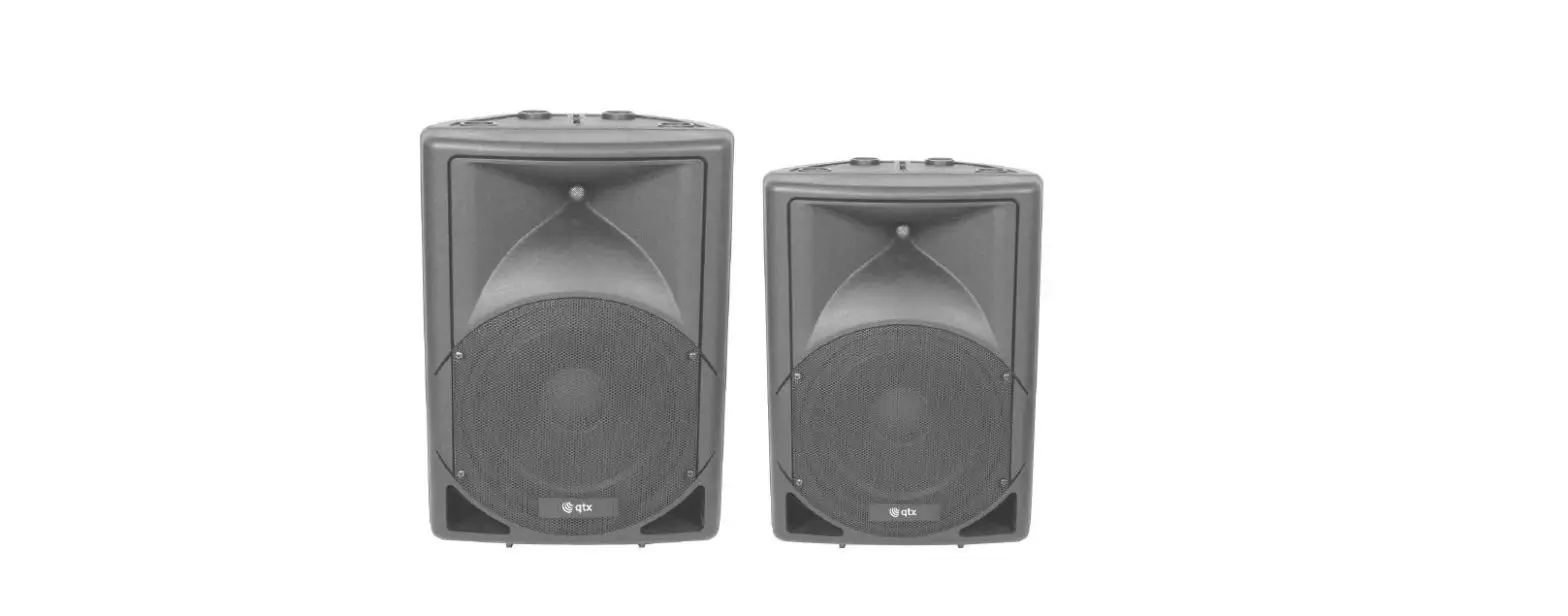
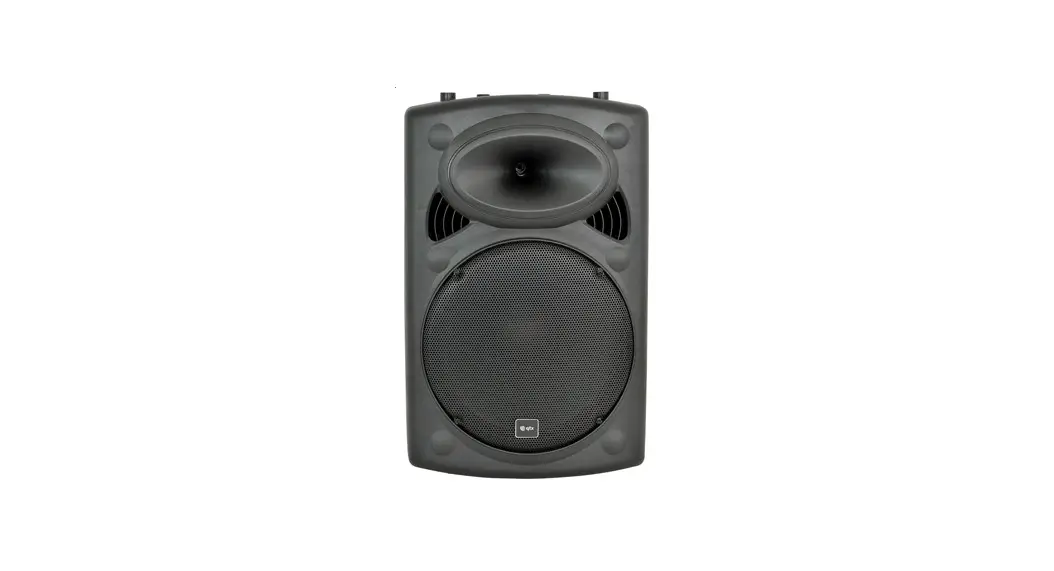
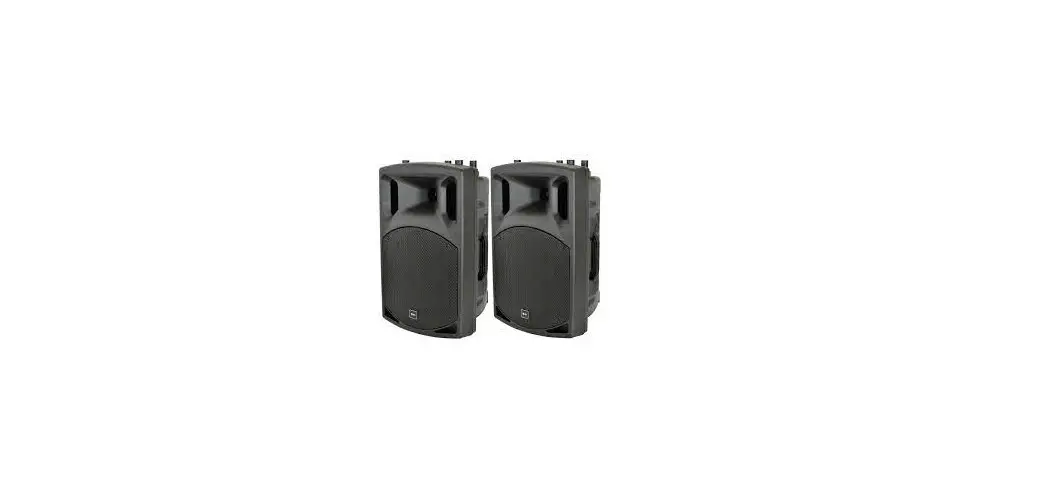
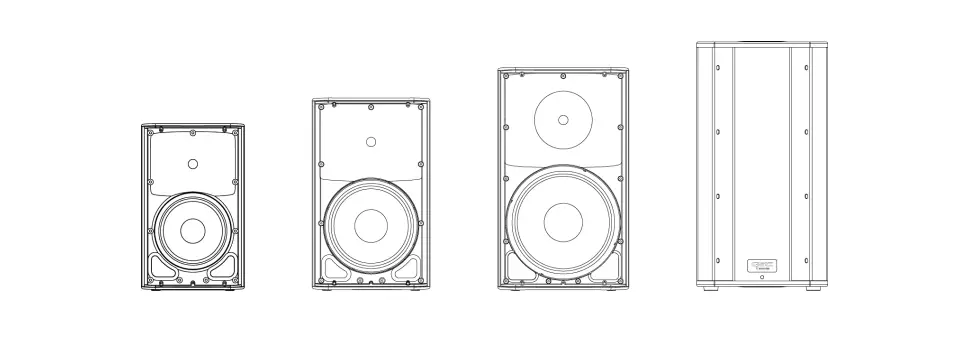
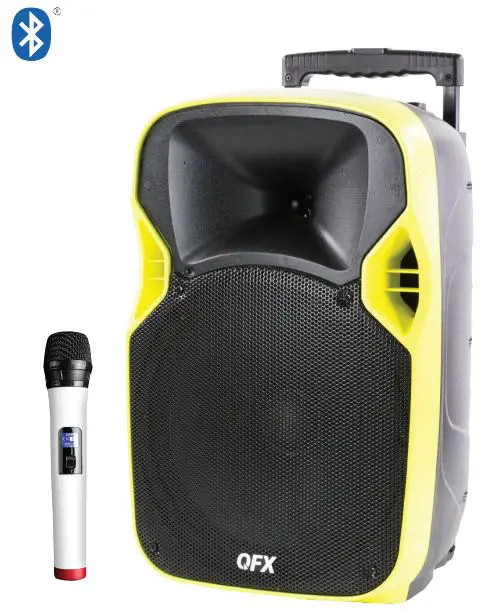
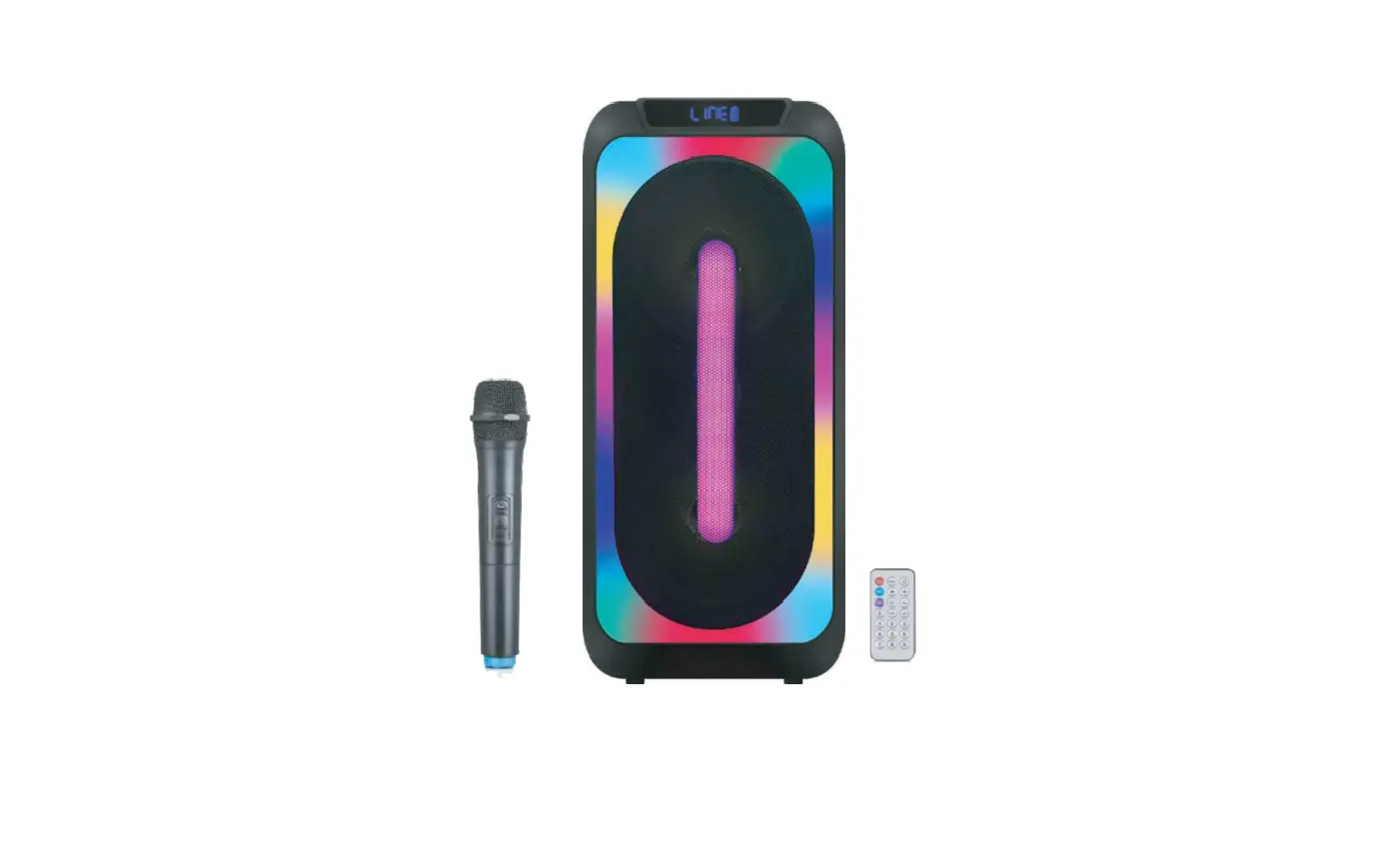
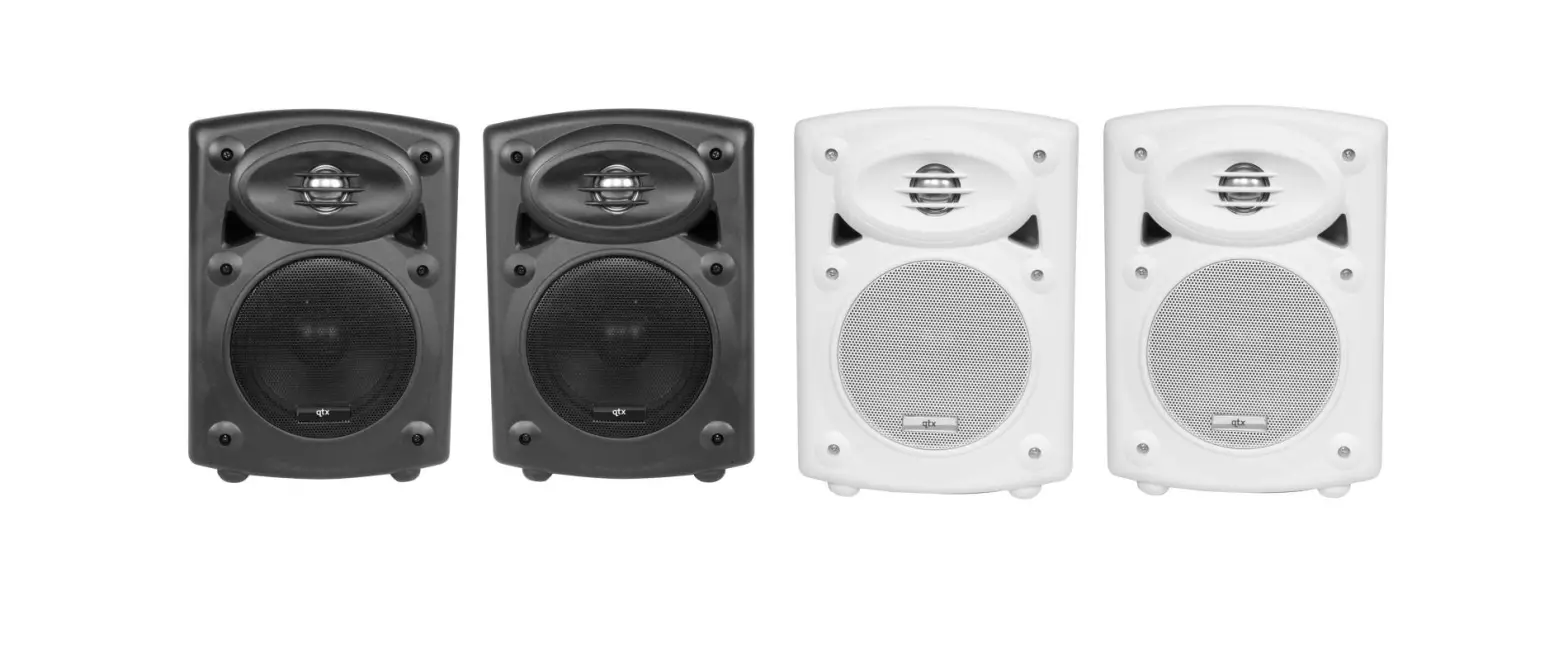
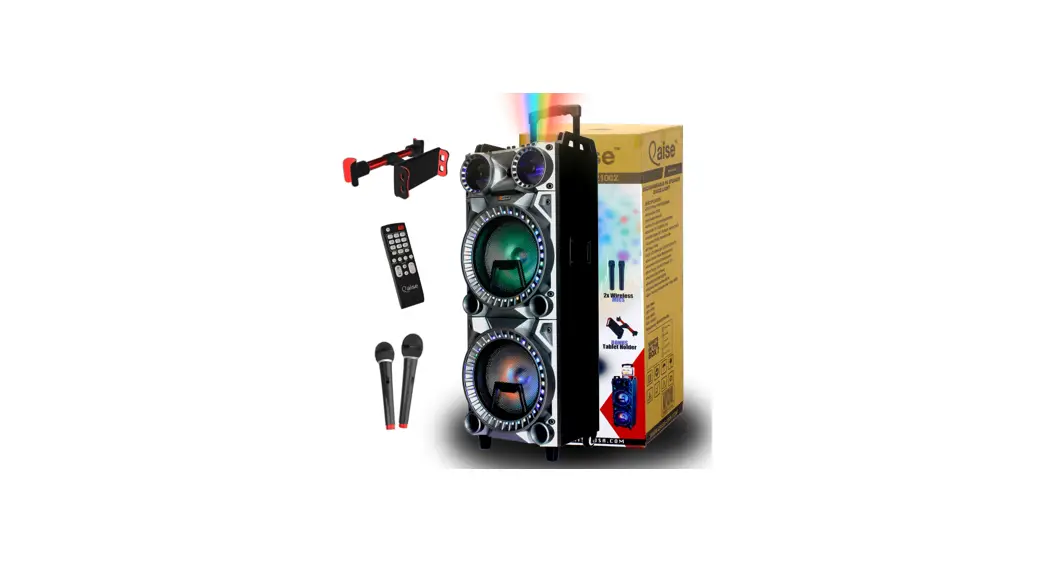
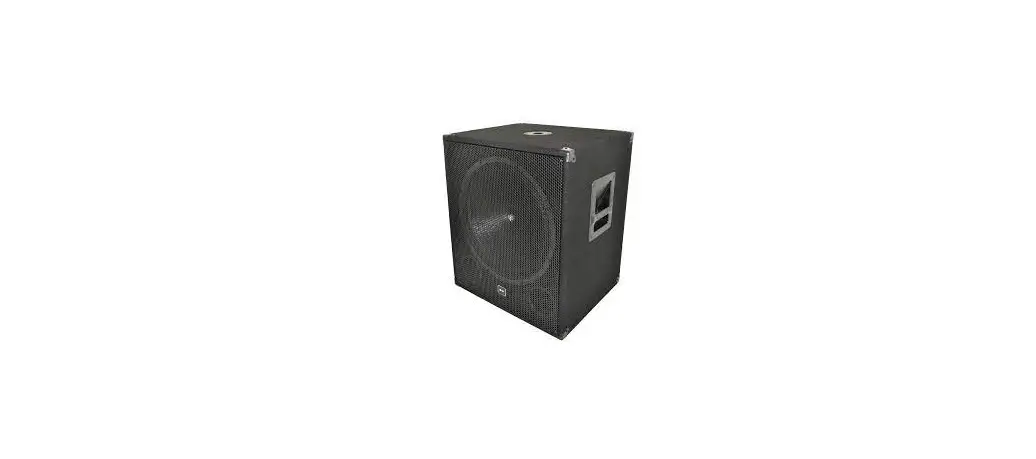
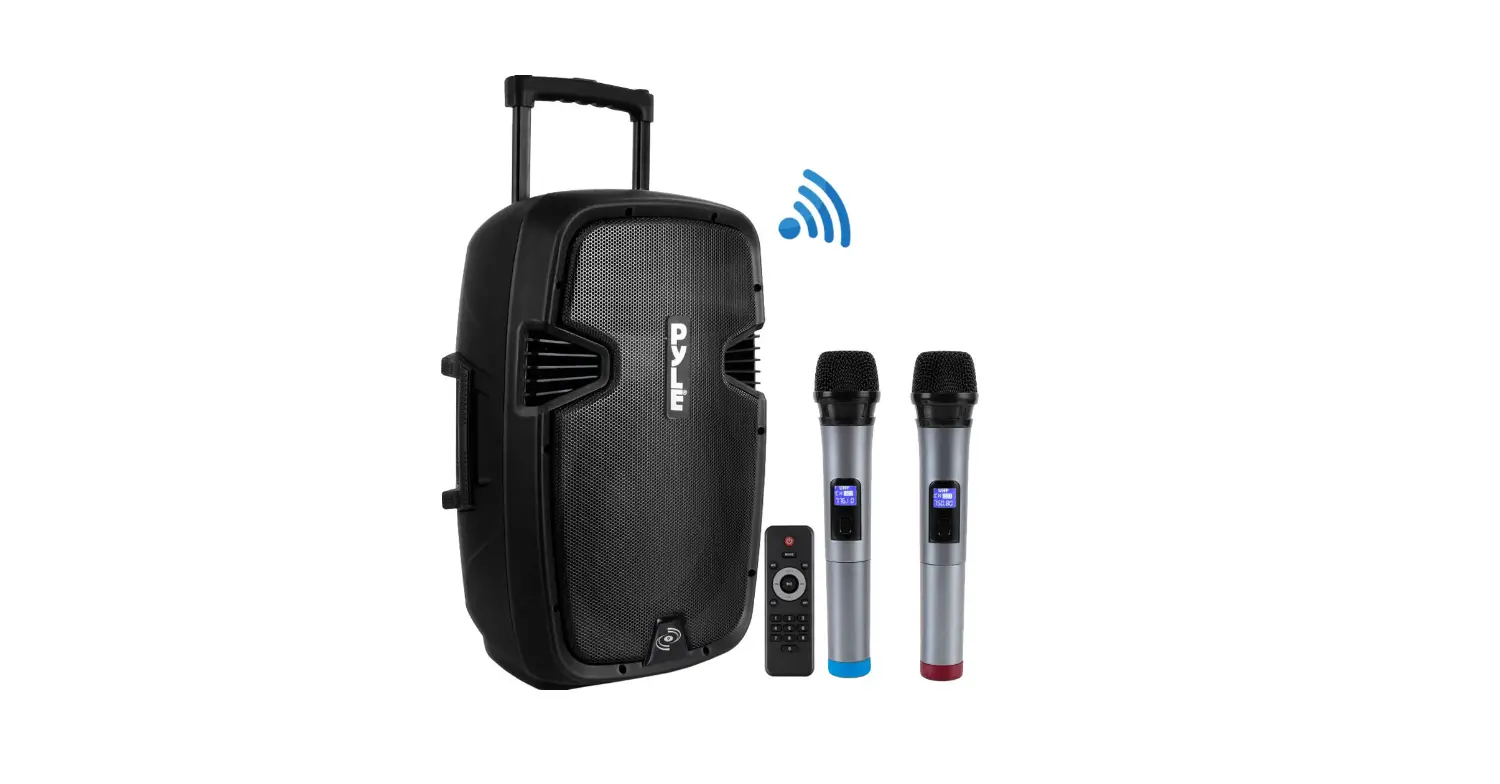
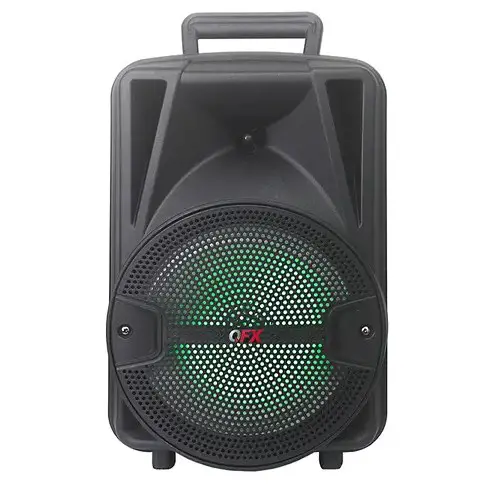
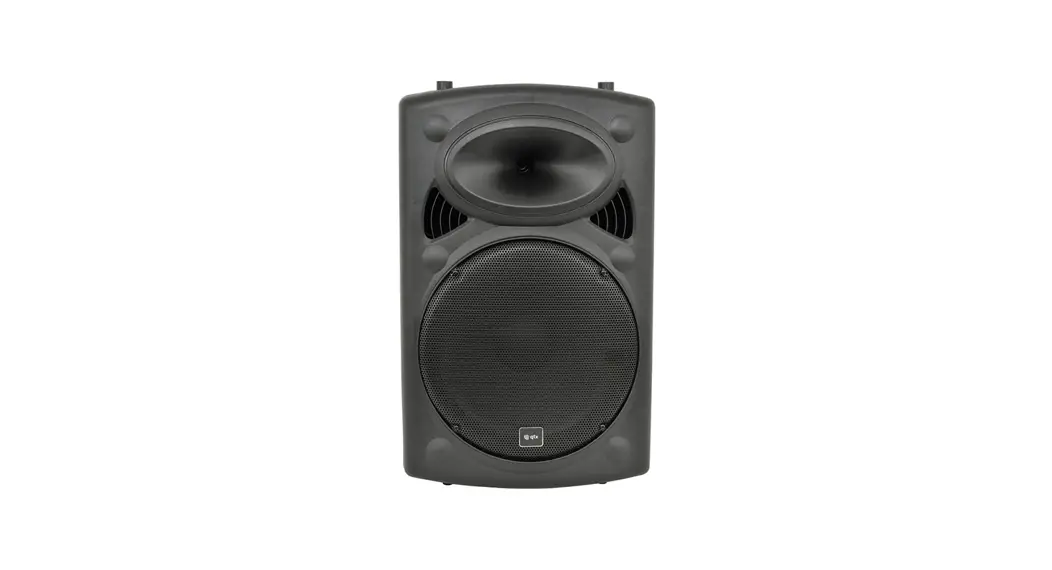
QUEST Series Active PA Cabinet Speaker
Product Information:
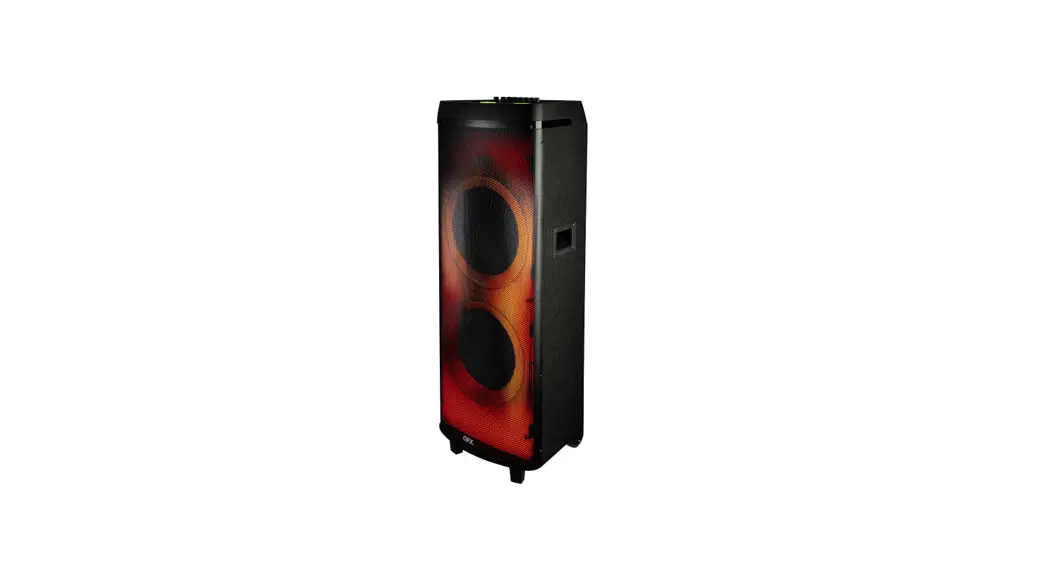
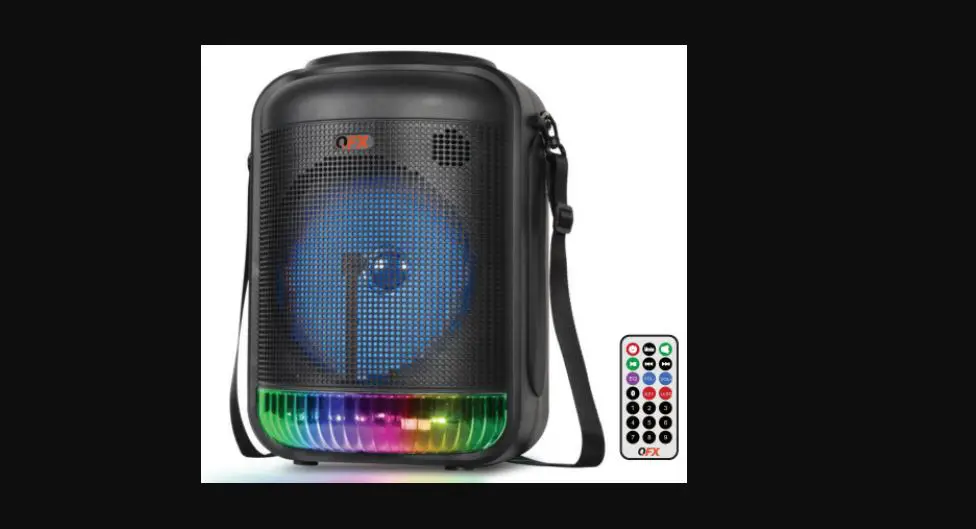
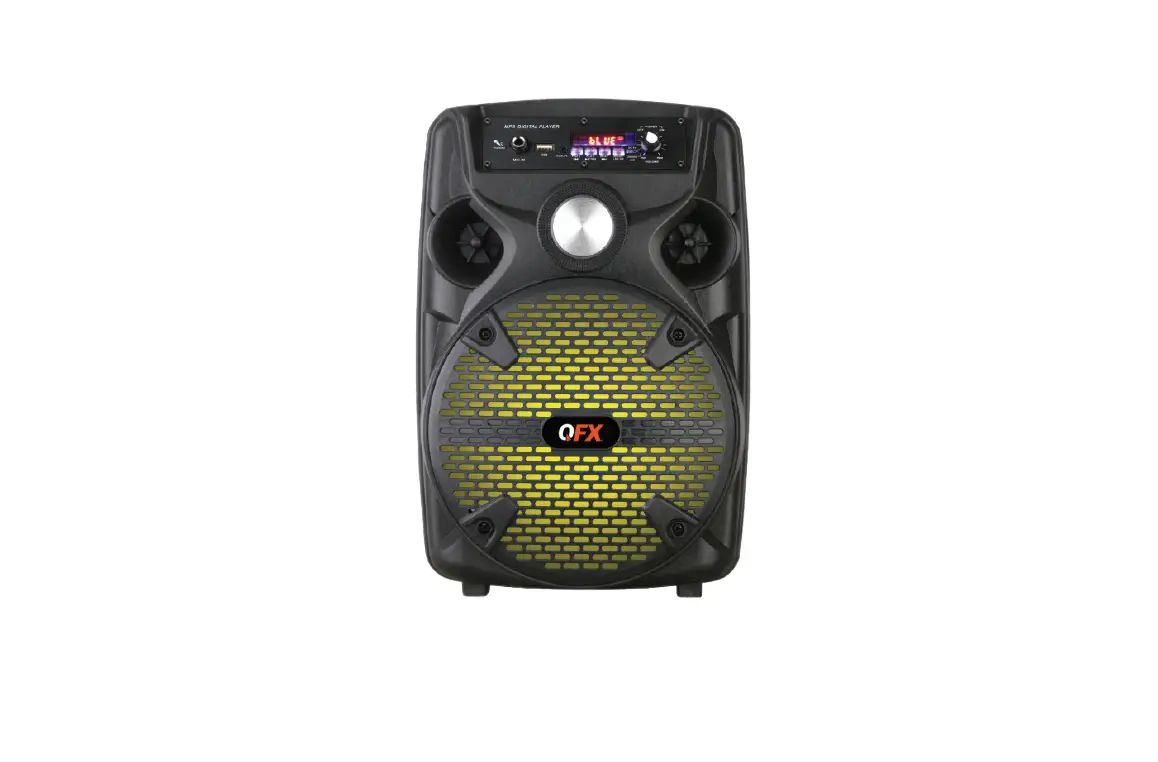
The QUEST series Active PA Cabinets are versatile speaker units
designed for sound amplification in public places and live sound
venues. They offer the convenience of portability and are available
in three different models: 178.510UK, 178.512UK, and 178.515UK.
These cabinets are equipped with various input options and controls
to ensure optimal sound performance.
Package Contents:
- QUEST series active PA cabinet
- User Manual
Warnings and Safety:
It is important to read the user manual carefully before
operating the product to prevent any damage caused by misuse. The
following warnings and safety precautions should be observed:
- Do not expose the appliance to rain or moisture to prevent the
risk of fire or electric shock. - Do not remove the cover as there are no user-serviceable parts
inside. Refer servicing to qualified service personnel. - Check the supply voltage and the IEC mains lead before
connecting to mains. - Avoid ingress of water or particles into the enclosure.
- Keep the unit out of direct sunlight, away from heat sources,
moisture, or dusty environments. - Clean the cabinet, panel, and controls with a soft cloth and
neutral detergent. Do not use solvents.
Product Usage Instructions:
- Check the package contents to ensure that the product has been
received in good condition. If any accessory is missing or the
product has arrived with any problems, contact your retailer
immediately. - Do not attempt to fix or modify the product yourself as it will
invalidate the warranty. - Keep the original packaging and proof of purchase for possible
replacement or return demands. - Place the QUEST series active PA cabinet in an upright position
during use and storage. - To clean the cabinet, panel, and controls, use a soft cloth
with a neutral detergent. Avoid using solvents. - For microphone use, connect the microphone to either the 6.3mm
jack or XLR input on the rear panel. For QUEST-10A model, use the
6.3mm jack only. - For line level input, connect via RCA or XLR. QUEST-12A and
QUEST-15A models also have this input available via a 3.5mm mini
jack. - If using a passive speaker in conjunction with the active
cabinet for a 2-speaker system, ensure that the passive speaker is
8 ohms and can handle the stated output (W). Connect the passive
cabinet with a Speakon lead from the rear panel speaker
output. - If additional active cabinets are to be used, the signal can be
linked from the Line Out XLR, which carries a mix of all inputs
(Mic, Line In & Media player). - Before operation, turn the Microphone, Line in, and Media
volume controls fully down. Set the High (Treble) and Low (Bass) EQ
controls at the vertical or 12 o’clock position. - Switch on the power and adjust the output using either the Mic,
Line in, or Media player. Gradually increase the microphone volume
control while speaking into the microphone until reaching the
required level. Ensure that the CLIP LED does not light
continuously on the loudest peaks of sound. If it does, lower the
level control(s).
QUEST series Active PA Cabinets
Order ref: 178.510UK, 178.512UK, 178.515UK User Manual
VERSION 2.0 Caution: Please read this manual carefully before operating Damage caused by misuse is not covered by the warranty
Introduction
Thank you for choosing a QUEST series active PA cabinet. This speaker unit is designed to provide a flexible solution for sound amplification in public places and live sound venues with the added convenience of portability.
Package Contents
Please check the contents to ensure that the product has been received in good condition. If you find any accessory is missing or the product has arrived with any problems, please contact your retailer at once.
· QUEST series active cabinet · I.R. remote control handset · IEC power lead
This product contains no user-serviceable parts so make no attempt to try to fix or modify this item yourself as this will invalidate the warranty. We recommend you keep the original packaging and proof of purchase for any possible replacement or returned demand.
Warning
To prevent the risk of fire or electric shock, do not expose this appliance to rain or moisture. To prevent electric shock do not remove the cover. No user serviceable parts inside. Refer servicing to qualified service personnel.
Safety
Prior to connecting mains, check the supply voltage is correct and the IEC mains lead is OK. Avoid ingress of water or particles into the enclosure. If the internal IEC fuse blows, refer the unit to qualified service personnel.
Placement
Keep the unit out of direct sunlight and away from heat sources. Place the unit in an upright position during use and storage. Keep the unit away from moisture or dusty environments.
Cleaning
Use a soft cloth with a neutral detergent to clean the cabinet, panel and controls. To avoid damage, do not use solvents to clean this equipment.
QUEST Series Active Cabinets User Manual
Control panel
1 I.R. remote control receiver 2 Media player controls 3 3.5mm AUX input 4 Microphone input volume control 5 Microphone input 6.3mm jack 6 Microphone input XLR 7 Optional 8 speaker output 8 Power on/off switch 9 Media player display 10 SD card slot 11 USB port 12 Line/Aux input volume control 13 High EQ control 14 Line input 2 x RCA 15 Low EQ control 16 Power on and Clip LED indicators 17 Media player volume control 18 Line input XLR 19 Line output XLR (mix of all inputs) 20 IEC power inlet & fuse holder
NOTE: QUEST-10A connections and controls are arranged differently.
Connections
If a microphone is to be used directly with the QUEST active cabinet, this may be connected to either the 6.3mm jack or XLR input (5, 6) on the rear panel. (6.3mm jack only for QUEST-10A)
For a line level input, this may be connected by RCA (14) or XLR (18) QUEST-12A and QUEST-15A also have this input via 3.5mm mini jack (3).
Each QUEST active cabinet is capable of sharing its output with a passive cabinet for a 2speaker system. Ensure that the passive speaker is 8 and can handle the stated output (W). Connect the passive cabinet with a Speakon lead from the rear panel speaker output (7).
If additional active cabinets are to be used, the signal from the QUEST active cabinet can be linked from the Line Out XLR, which carries a mix of all inputs (Mic, Line In & Media player).
With power switched off (8), use the IEC lead provided to connect to the 230Vac supply (20).
QUEST Series Active Cabinets User Manual
Operation
Start with Microphone, Line in and Media volume controls (4, 12, 17) turned fully down and High (Treble) and Low (Bass) EQ controls (13, 15) at the vertical or 12 o’clock position.
Switch on the power (8) and check the output using either the Mic, Line in or Media player.
To check with a microphone, speak into the microphone whilst gradually increasing the microphone volume control (4) and continuing to the required level, whilst checking that the CLIP LED (16) does not light any more than very briefly on the loudest peaks of the sound. If the CLIP lights more continuously than this, the level control(s) needs to be turned down.
Note: point microphone(s) away from the speaker output to avoid feedback (loud howling or squealing caused by the microphone “hearing” its own output through the speakers)
To use the line input for checking, play a signal from the audio source connected to the line input and gradually increase the line volume control (12) and continue to the required level. Again, check that the CLIP LED does not light continuously and reduce volume if this happens.
Adjust the High (Treble) EQ (13) up or down to boost or cut the treble content. Adjust the Low (Bass) EQ (15) up or down to boost or cut the bass. 12 o’clock is neutral.
Media player
Each QUEST series active cabinet has an inbuilt media player, which is operated by a row of controls with a display at the top of the rear panel.
Pressing the MODE button will step through the options for USB, SD, FM tuner and Bluetooth. During playback, gradually increase the Line or Media Vol. control (17) to the required level.
The media player can play standard mp3 or wma audio tracks from USB or SD card media. Ensure that the USB or SD media are no larger than 32GB and formatted to FAT32 for the QUEST media player to be able to recognize the device.
Warning: do not attempt to charge a mobile phone or other device from the USB port, as this can cause damage to the media player.
Inserting a USB stick or SD card will automatically start playback of mp3 or wma tracks that are stored on the device. If this does not happen, press MODE until the display shows USB or SD media with the track and time information and press play/pause (). If still no playback, check the device formatting and the files that are stored on it are standard mp3 or wma type.
Pressing the button will play or pause the current track and the and buttons will navigate to previous or next tracks. Pressing the button will stop playback completely.
The button will set the repeat mode to replay the SINGLE current track, all tracks in a FOLDER, all tracks at RANDOM or ALL tracks on the storage device, as shown on the display.
QUEST Series Active Cabinets User Manual
The inbuilt media player can tune to FM radio stations by pressing the MODE button until the display shows “Radio” and a frequency in MHz. the radio stations may be tuned by pressing the play/pause () button, which will initiate auto-tuning and store the stations with the strongest reception into memory as presets. These can then be selected using and .
The QUEST media player can also pair with a smart phone or tablet via Bluetooth® for wireless streaming of audio files stored on the sending device. Press the MODE button until the display shows “Bluetooth… Unconnected”.
In the Bluetooth menu of the smart phone or tablet, search in the list for a device called “QUEST**A” (where “**” is the speaker size). Select to pair with the QUEST active cabinet and once pairing is successful, the display will show “Connected” and any tracks played on the smart phone or tablet will then be heard through the QUEST active cabinet via its media player, again governed by the
MEDIA VOL or LINE VOL control.
Remote control (QUEST-12A & QUEST-15A only)
QUEST-12A and QUEST-15A are supplied with a remotecontrol handset for the media player. Remove the clear plastic tab from the bottom to activate the CR2025 battery and aim towards the I.R. remote control receiver (1) on the rear panel. Controls are similar to the rear panel buttons and are described opposite.
Specifications
Model Power supply Amplifier: construction Audio source Sensitivity Frequency response Woofer Tweeter Output power: peak Output power: rms Dimensions Weight
QUEST-10A
QUEST-12A
230Vac, 50Hz (IEC)
Class-AB
USB/SD/FM/BT media player
94dB
96dB
55Hz – 19kHz
50Hz – 19kHz
250mmØ (10″)
300mmØ (12″)
25mmØ Ti Comp driver
35mmØ Ti Comp driver
600W
720W
150W
180W
460 x 305 x 280mm
590 x 380 x 335mm
10.2kg
15.2kg
QUEST-15A
97dB 45Hz – 19kHz 380mmØ (15″) 35mmØ Ti Comp driver 880W 220W 680 x 415 x 380mm 19.0kg
Disposal: The “Crossed Wheelie Bin” symbol on the product means that the product is classed as Electrical or Electronic equipment and should not be disposed with other household or commercial waste
at the end of its useful life. The goods must be disposed of according to your local council guidelines.
Hereby, AVSL Group Ltd. declares that the radio equipment types 178.510UK, 178.512UK and 178.515UK are in compliance with Directive 2014/53/EU
The full text of the EU declaration of conformity for 178.515UK is available at the following internet address: http://www.avsl.com/assets/exportdoc/1/7/178515UK%20CE.pdf
The full text of the EU declaration of conformity for 178.515UK is available at the following internet address: http://www.avsl.com/assets/exportdoc/1/7/178515UK%20CE.pdf
The full text of the EU declaration of conformity for 178.515UK is available at the following internet address: http://www.avsl.com/assets/exportdoc/1/7/178515UK%20CE.pdf
Errors and omissions excepted. Copyright© 2023. AVSL Group Ltd. Unit 2-4 Bridgewater Park, Taylor Rd. Manchester. M41 7JQ AVSL (EUROPE) Ltd, Unit 3D North Point House, North Point Business Park, New Mallow Road, Cork,
QUEST Series Active Cabinets User Manual