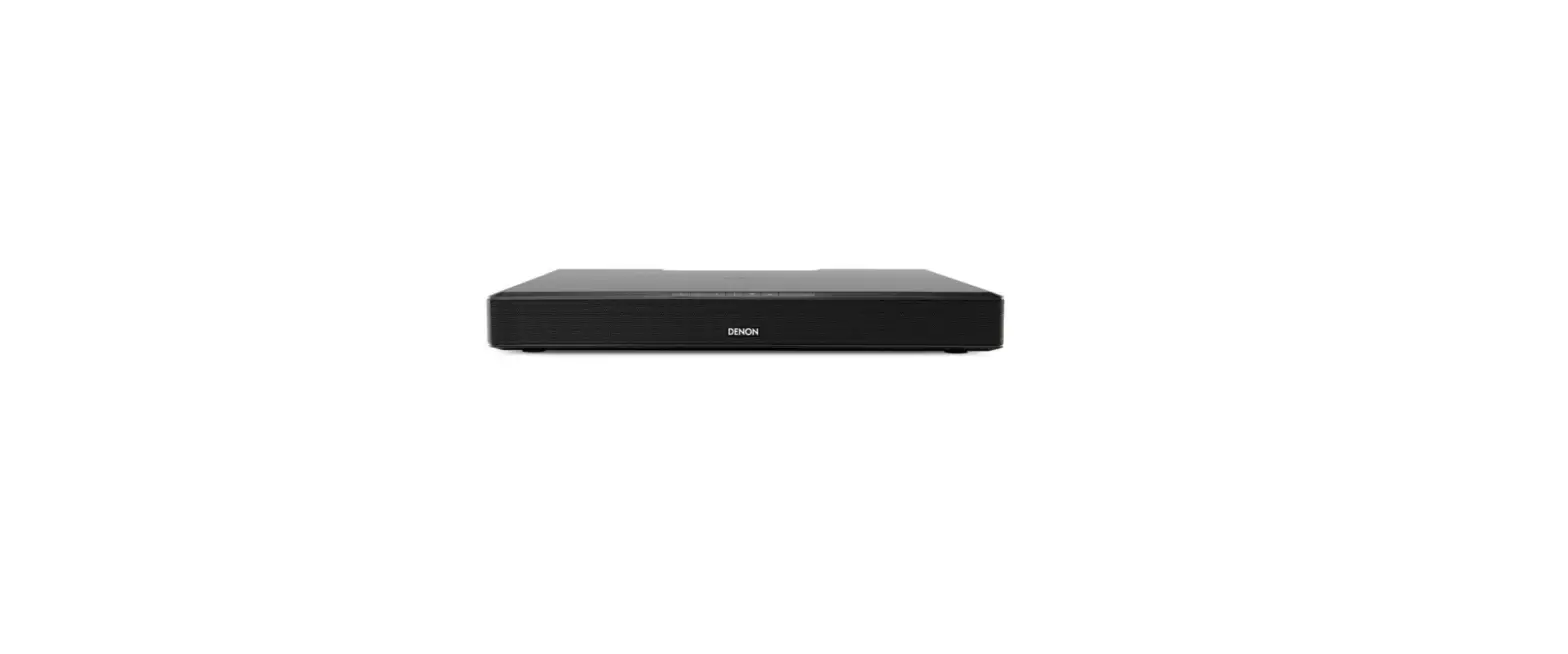

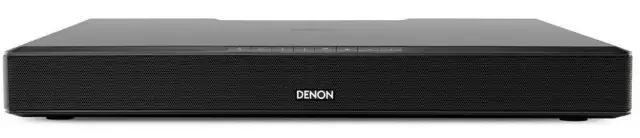
Denon DHT-T-110 TV Speaker Base with Bluetooth
Introduction
Thank you for choosing Denon. Modern flat-panel televisions are wonders of digital video, but leave little room for serious sound reproduction. The Denon-engineered DHT-T110’s accurate, dynamically wide-range sound bridges the gap, with spacious audio reproduction from Music and Movie modes, including Dolby Digital surround decoding, that bring television and movie sound to life. DHT-T110’s inputs adapt to any television or system arrangement, with wireless Bluetooth® streaming for convenient audio playback from mobile devices. What’s more, an ingenious remote control learning solution lets you continue using your familiar television or cable/satellite remote. We’ve worked hard to make DHT-T110 the best performing product of its kind—and just as diligently to ensure it is the simplest to set up and easiest to use.
Specifications
IMPORTANT SAFETY INSTRUCTIONS
- Do not defeat the safety purpose of the polarized or groundingtype plug.
- A polarized plug has two blades with one wider than the other.
- A grounding-type plug has two blades and a third grounding prong.
- The wide blade or the third prong is provided for your safety.
- If the provided plug does not fit into your outlet, consult an electrician for replacement of the obsolete outlet.
- Protect the power cord from being walked on or pinched particularly at plugs, convenience receptacles, and the point where they exit from the apparatus.
- Only use attachments/accessories specified by the manufacturer.
- Unplug this apparatus during lightning storms or when unused for long periods of time.
- Refer all servicing to qualified service personnel. Servicing is required when the apparatus has been damaged in any way, such as power-supply cord or plug is damaged, liquid has been spilled or objects have fallen into the apparatus, the apparatus has been exposed to rain or moisture, does not operate normally, or has been dropped
- No open flame sources, such as lighted candles, should be placed on the apparatus.
- The apparatus shall not be exposed to dripping or splashing.
- Either the power inlet connector on the rear of the apparatus or the power plug at the wall must remain accessible, to be able to disconnect power from the apparatus.
- To completely disconnect this apparatus from the AC Mains, disconnect the power supply cord plug from the AC receptacle.
- Use only with the cart, stand, tripod, bracket, or table specified by the manufacturer, or sold with the apparatus. When a cart or rack is used, use caution when moving the cart/apparatus combination to avoid injury from tip-over.
- These servicing instructions are for use by qualified service personnel only. To reduce the risk of electric shock, do not perform any servicing other than that contained in the operating instructions unless you are qualified to do so.
- Only use attachments/accessories specified or provided by the manufacturer
- Please refer the information on exterior bottom enclosure for electrical and safety information before installing or operating the apparatus.
- When not in use and during movement, please take care of the power cordset, e.g. tie up the power cordset with cable tie or something like that. It shall be free from sharp edges that can cause abrasion of the power cordset. When put into use again, please make sure the power cordset is not damaged,
- If any damage is found, please contact customer service
Locating DHT-T110
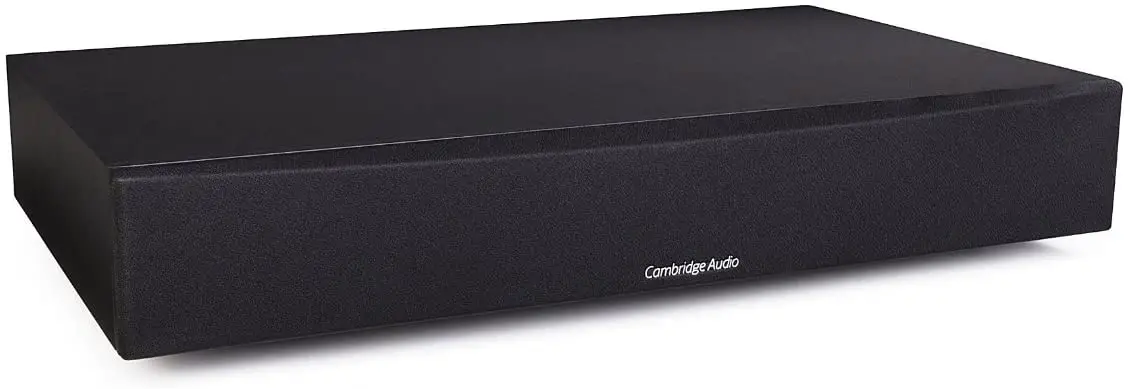
DHT-T110 is designed to support most large flat-panel televisions up to 50″ (with a foot base diameter up to 21 1/2 x 12 1/8” (546 x 308 mm)) and 60 lbs (27 kg). The television’s base needs to fit entirely within the flat top area of the DHT-T110. There is a “+” mark on the top center of the cabinet. Use that to get the television base centered on DHT-T110. You may also place DHT-T110 on a shelf, or furniture, above or below the screen. However, it should be centered left/right with the screen, and ideally no more than a few inches above or below. DHT-T110 is not suitable for direct on-wall mounting. DHTT110 will often sound its best when the DHT-T110’s front grille is close to or flush with the front edge of the furniture or shelf on which it rests (this eliminates unwanted sound reflections).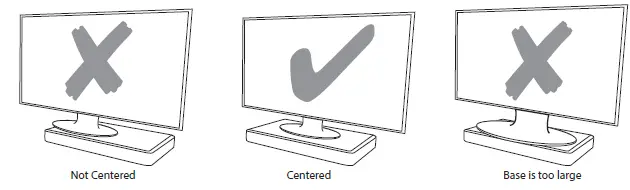
Panel
Front Panel Controls
- power on/standby
- Television Input—select to watch television.
- Bluetooth wireless input—select for Bluetooth pairing or playback.
- remote Learning—engages remote control learning.
- Listening Mode—changes Listening Mode, stepping through the three Modes in sequence.
- Mute sound—Press to mute the audio, press again to unmute. (Pressing either Volume key also unmutes.)
- Volume down—press-and-hold to continuously decrease the volume
- Volume up—press-and-hold to continuously increase the volume
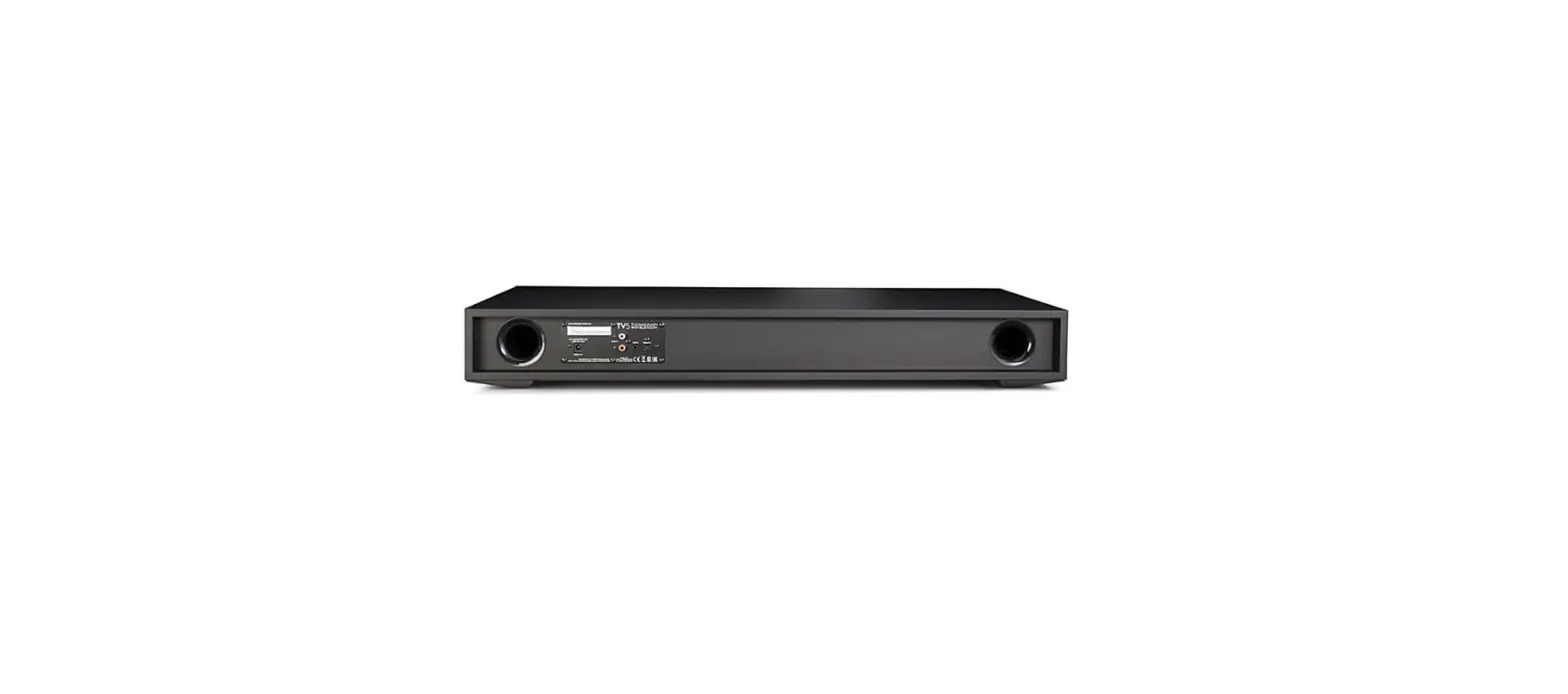
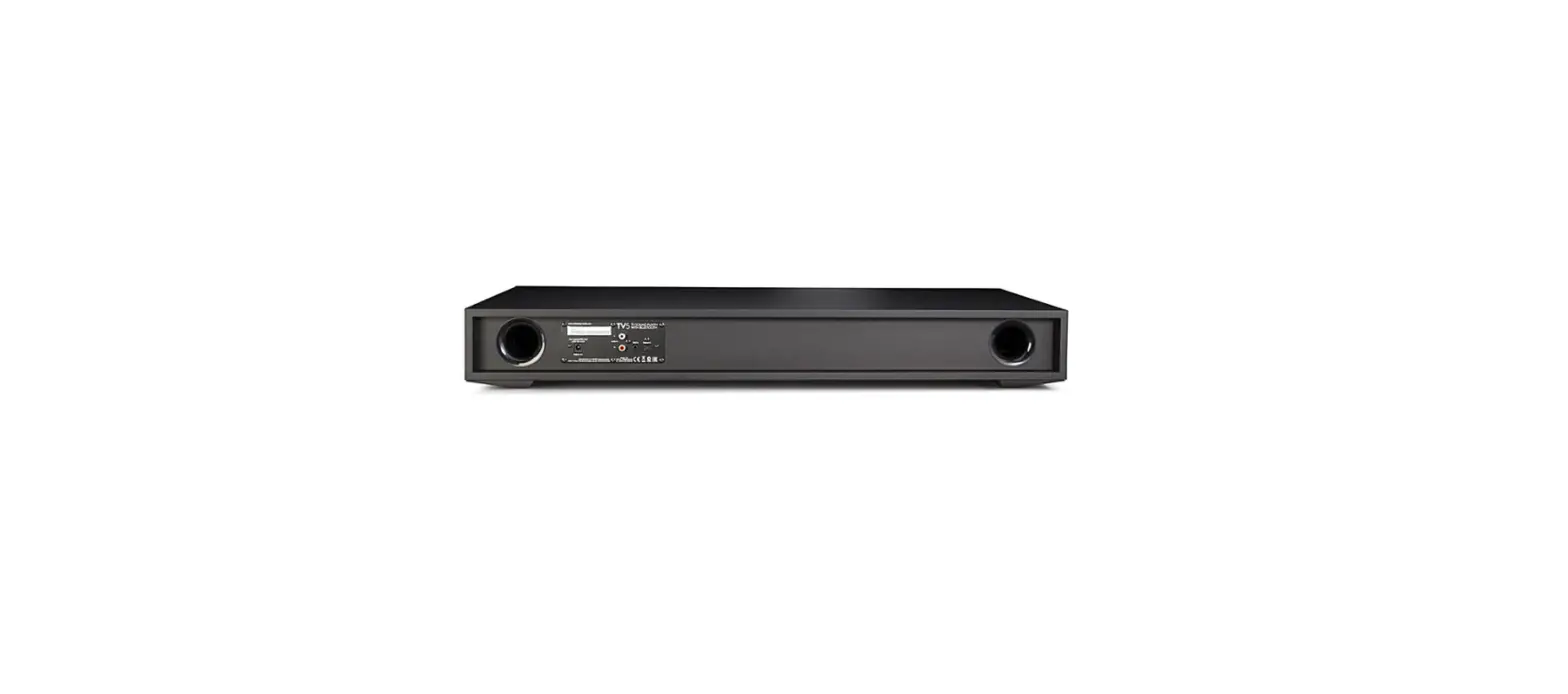
Rear Panel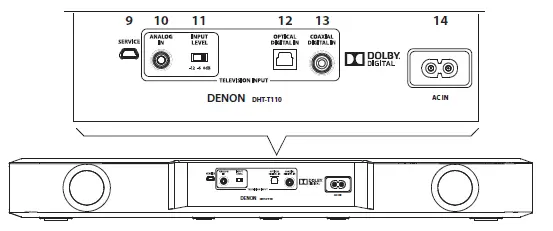
- Service port—for service only, do not use.
- analog In 1⁄8″ (3.5 mm) mini plug stereo—connects to television’s rear panel audio out or headphone output if no digital out available.
- Input Level—input sensitivity for the Analog In.
- Optical Digital Input (S/pDIF)—connects to television’s optical digital out.
- Coaxial Digital In (rCa jack)—connects to television’s coaxial digital audio, if available.
- power Input—connect the supplied power cable here
Accessories

- remote Control—supplied remote control with included battery.
- power Cable—DHT-T110 power cable.
- Optical Digital Cable—best choice for connecting digital audio sources to DHT-T110.
- 1⁄8″ (3.5 mm) Stereo Cable—for connecting a source to the Analog Input, if needed.
- rCa to 1⁄8″ (3.5 mm) adapter—adapts a left/right RCA output to a stereo 1/8″ (3.5 mm) output.
Connecting DHT-T110 to your television
Connect only one type of audio cable at a time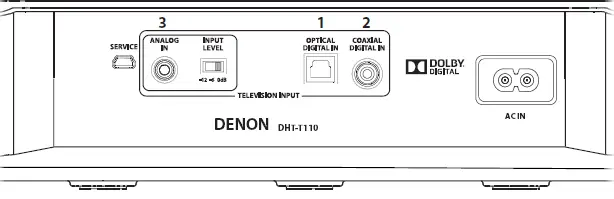
- BEST Optical Digital Input (S/PDIF) —Connects to television’s optical digital out.
- ETTER Coaxial Digital In (RCA jack)—Connects to television’s coaxial digital-audio.
- GOOD Analog In 1/8″ (3.5 mm) mini plug stereo—Connects to television’s rear panel audio out or headphone output if no digital out available.
Optical Digital In – BEST
Use the supplied optical cable to connect your television’s optical digital output to DHT-T110’s Optical Digital Input. Other components connected to the television, such as a DVD/Blu-ray player or cable/satellite tuner, will automatically play through DHT-T110.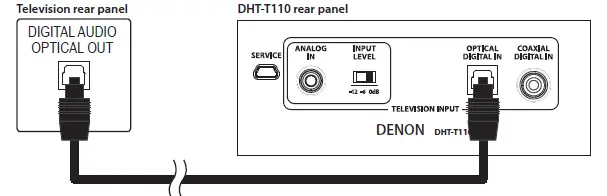
Coaxial Digital In – BETTER
If your television lacks an optical digital out it will probably include a coaxial digital output. Use an “RCA”-type cable (not included) to connect your television’s coax digital audio output to DHT-T110’s Coaxial Digital In. Other components connected to the television, such as a DVD/Blu-ray player or cable/satellite tuner, will automatically play through DHT-T110.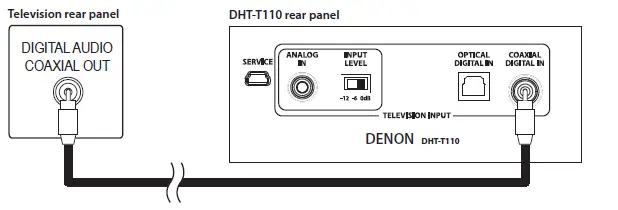
Analog In 1/8″ (3.5 mm) mini plug analog audio – GOOD
If your television has no digital audio outputs, connect its analog stereo audio output using the supplied 1/8″ (3.5 mm) stereo cable; if this output is in the form of dual RCA jacks (typically red for right and white or black for left), use the supplied adapter. If no other audio output is available, connect the set’s headphone jack to the analog input using the supplied cable.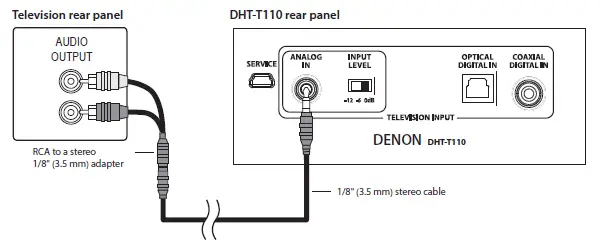
Disable Your Television’s Speakers
Disable your television’s built-in speakers when using DHT-T110. Usually, this is accomplished via an on-screen setup menu on your television. Look for an “Audio” or “Sound” sub-menu, and a “Speakers Off”, “Disable Speakers”, “External Speakers” or similar menu item. Some televisions have a switch on the rear panel to disable the built-in speakers. If your television does not have these functions, lower the volume of the television all the way down to 0, or mute the television.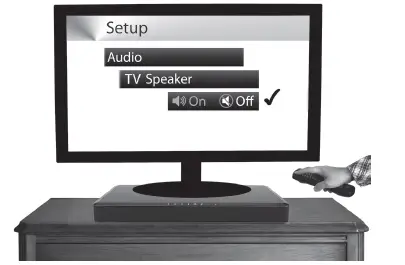
The DHT-T110 Remote Control
A remote control is supplied with DHT-T110. Its keys duplicate DHT-T110’s front-panel buttons (see “The Controls on Top of DHT-T110” on page 13), with one addition (Day/Night), and one deletion (the “Learn” key).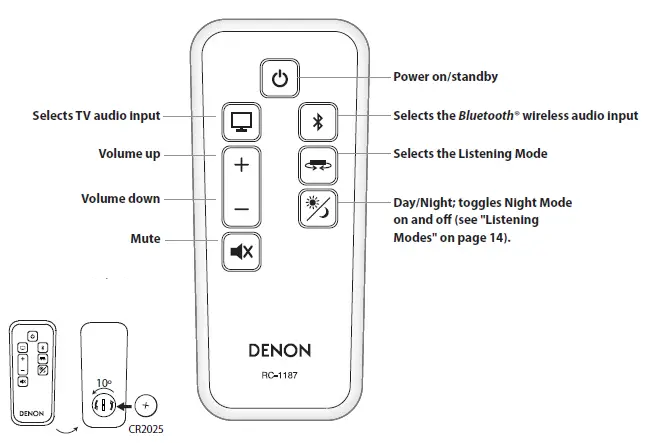
The Controls on Top of DHT-T110
- Power on/standby
- Television Input Listen to sound from the television; auto-selects the active signal.
- Should multiple inputs have signal present, priority is given to optical-digital, coaxial-digital, and 1/8″ (3.5 mm) analog stereo mini plug, in that order.
- Bluetooth® Input Listen to wireless audio streamed from your Bluetooth enabled mobile device. (see “Using Bluetooth®” on page 15).
- R emote Learning Press to engage Learning Mode. (see “Use Any Remote to Control your DHT-T110” on page 16).
- Listening Mode Toggles through the three Listening modes (see “Listening Modes” on page 14).
- Mute sound Mutes the audio; press again to unmute. (Pressing either Volume key also unmutes).
- Volume down Press-and-hold to continuously decrease the volume.
- Volume up Press-and-hold to continuously increase the volume.
Troubleshooting DHT-T110
- DHT-T110 Does not power on
- Is the DHT-T110 plugged into a proven-live wall outlet? Try a lamp or other known-good appliance. Avoid using outlets that are connected to switches or dimmers.
No television sound
- Is DHT-T110’s volume turned up? (Don’t laugh; we do this one ourselves all the time.)
- Is DHT-T110 muted (if so, the front panel Mute key LED will be flashing).
- Is the DHT-T110 set to the correct source? A flashing Bluetooth® key LED on the front panel indicates DHT-T110 is trying to “pair” to Bluetooth; press the Television Input key to interrupt this and switch to television sound.
- Is the audio source a volume-controlled television or cable/satellite box output? If so, you must turn up the volume of the television or cable/satellite box to send adequate signal-level to DHT-T110. (For this reason it is best to choose fixed-level outputs where possible; some televisions have separate physical outputs, other employ on-screen menu settings to manage this.)
- Check connections: remember that DHT-T110 auto-prioritizes multiple incoming signals, selecting optical-digital, coaxial- digital, and analog-mini plug, in that order. Confirm that the television is routing audio to the appropriate output; there may be TV-menu settings to manage this.
- Check the signal format. Dolby Digital (5.1ch), PCM (32kHz-96kHz) is supported.
Distorted sound from the DHT-T110
- If the signal source is a volume-controlled output, turn it down a couple of steps from maximum.
- If using the analog stereo input, check the rear-panel Input Sensitivity switch setting (see page 11).
- Check the signal source to be sure the distortion is not originating there.
- If DHT-T110’s volume is set to its maximum, turn it down a few steps.
Trouble teaching DHT-T110 remote control commands
- Make sure the source remote is working properly in the first place; check batteries; confirm direct operation.
- Move the DHT-T110 and source remote out of bright sunlight or powerful room lighting (too-bright light will impede infrared-signal transmission).
- Be sure to hold the “source” remote steady, 12 – 18″ (0.3 – 0.5 m) in front of the DHT-T110, on its level, with the remote’s
- IR emitter (usually a smooth black-plastic area across the end you point toward the television) aimed straight and level at the center of DHT-T110’s front panel.
- Press and release source-remote keys deliberately; hold each keypress down for a half-second or so, and pause a second between repetitions.
- Remember that while DHT-T110 can learn almost all IR (infrared) remote commands, there remain a few rare code formats that cannot be taught (much like some engineers we know).
Television speakers keep getting turned back up
- Disable the television’s speakers (usually a setup-menu option, but a rear-panel switch on some televisions). If this is not possible, the problem is likely that the television responds to press-and-hold (ramping) volume commands more quickly than the DHT-T110; in this rare case use DHT-T110’s front-panel or supplied remote to turn the DHT-T110’s volume up.
Trouble Pairing Bluetooth®
- Make sure DHT-T110 is in Bluetooth pairing mode (Bluetooth key LED should be flashing).
- Make sure your Bluetooth source is in Bluetooth pairing mode (see the source’s instructions).
- Bluetooth source device must support A2DP (Advanced Audio Distribution Profile); some Bluetooth products (some tablets, some GPS units, for example) will thus work with Bluetooth keyboards or headsets but are not capable of high-fidelity audio playback.
- Keep your Bluetooth source within 10 ft (3 m) of DHT-T110 while pairing.
- Power cycle the Bluetooth device (complete power off and “hard-reboot”), and try to pair again
FCC
This product has been tested and found to comply with the limits for a class B digital device, pursuant to Part 15 of the FCC Rules. The limits are designed to provide reasonable protection against harmful interference in a residential installation. This product generates, uses and can radiate radio frequency energy and, if not installed and used in accordance with the instructions, may cause harmful interference to radio communications. However, there is no guarantee that interference will not occur in a particular installation. If this equipment does cause harmful interference to radio or television reception, which can be determined by turning the equipment OFF and ON, the user is encouraged to try to correct the interference by one or more of the following measures:
- Reorient or relocate the receiving antenna.
- Increase the separation between the equipment and receiver.
- Connect the equipment to an outlet on a circuit different from that to which the receiver is connected.
- Consult the dealer or an experienced radio or television technician for help.
FAQS
This appears to be the exact same product as the Boston Acoustics TVee One . Any differences?
They are identical, with the Denon brand name being used to market units outside the United States.
compatible with an older Sony Bravia flatscreen TV?
The DHT-T110 works on 110V. Not sure if that answers your question but hope it does!
Does anyone know where to get another remote or battery for the remote?
checked my remote and it uses a CR2025. It is a common battery available at most grocery stores, drug stores, and hardware stores.
How does this compare with the BOSE solo 15?
The Bose solo 15 adds a universal remote and more detailed control of treble and bass, whereas the Denon has preset sound modes.
what is input power 110 or 220V?
110 volts.
Can you teach it to recognize your tv remote to control the volume? or does the tv volume automatically control the sound output?
The Denon speaker comes with simple instructions to program your existing tv remote to be used.
What is the voltage range?
As an authorized USA dealer the manufacturer provides us access only to 120VAC products.
can you connect an AV receiver with this Denon sound base?
You can not add a sub woofer. But I have found the frequency range very impressive. I gladly packed up my multi speaker ( and multi wire ) $700.00 surround system for the Demon
Can you add wireless subwoofer to this sound bar?
This is an all in one solution with a built-in subwoofer. You cannot add an additional subwoofer to it
Can I add a Bluetooth speaker to my TV?
Put the speaker into Bluetooth pairing mode and make sure it is discoverable. See the product’s user manual for how to do this
Can you run a Bluetooth speaker off a smart TV?
If your TV came with a Smart Remote, it supports Bluetooth. If you are not sure, you can also check by going to Settings > Sound > Sound Output.
What is a sound base for TV?
A soundbase or sound base is a special loudspeaker enclosure designed for a television to stand on
Can I connect speakers directly to my Smart TV?
You can’t connect most speakers to a TV directly. The only speakers that can connect straight to a television are active speakers with a built-in amplifier
The Dual Audio function allows you to pair two Bluetooth devices to one TV. This means that you can have two sets of Bluetooth earphones or two Bluetooth speakers paired at the same time.