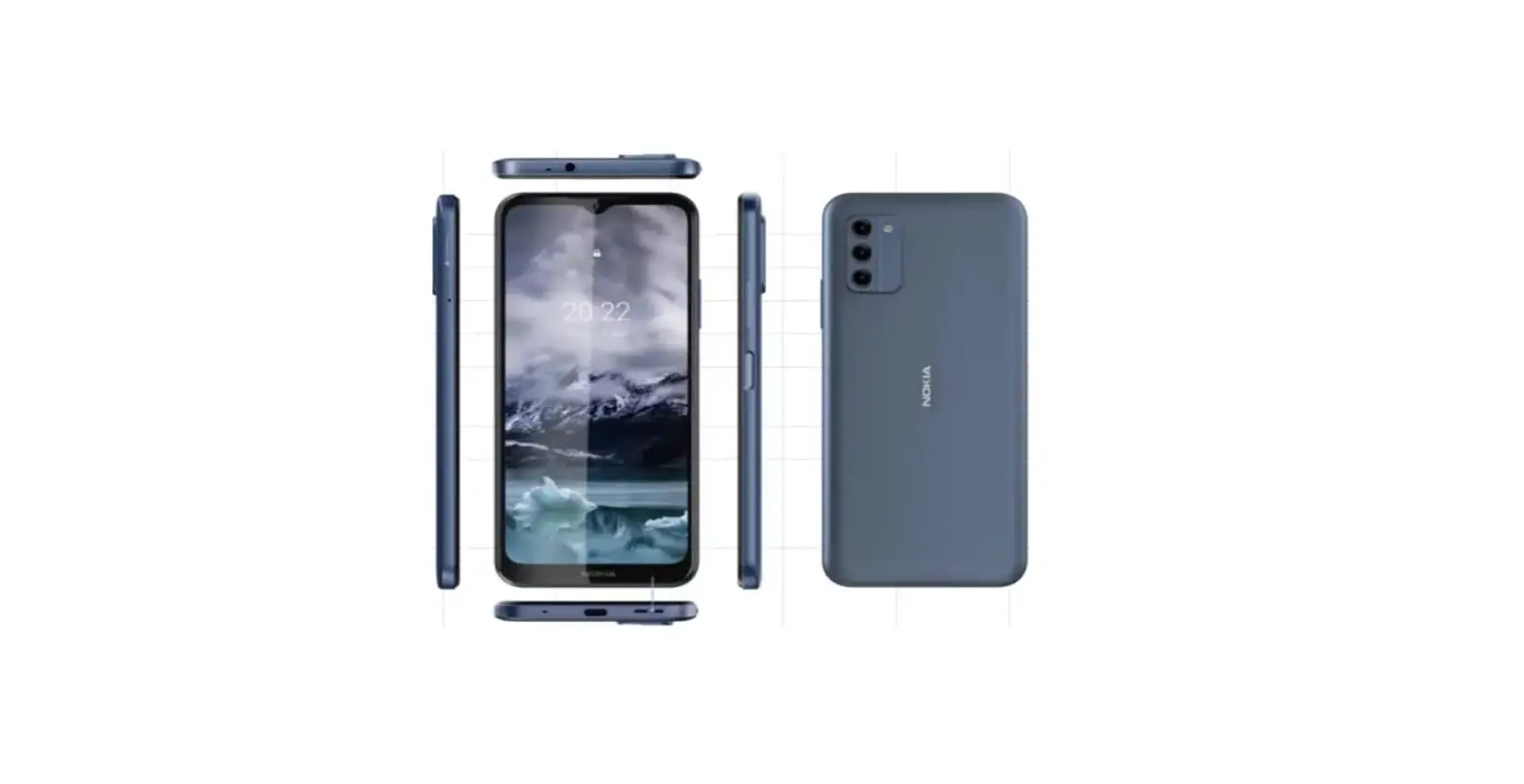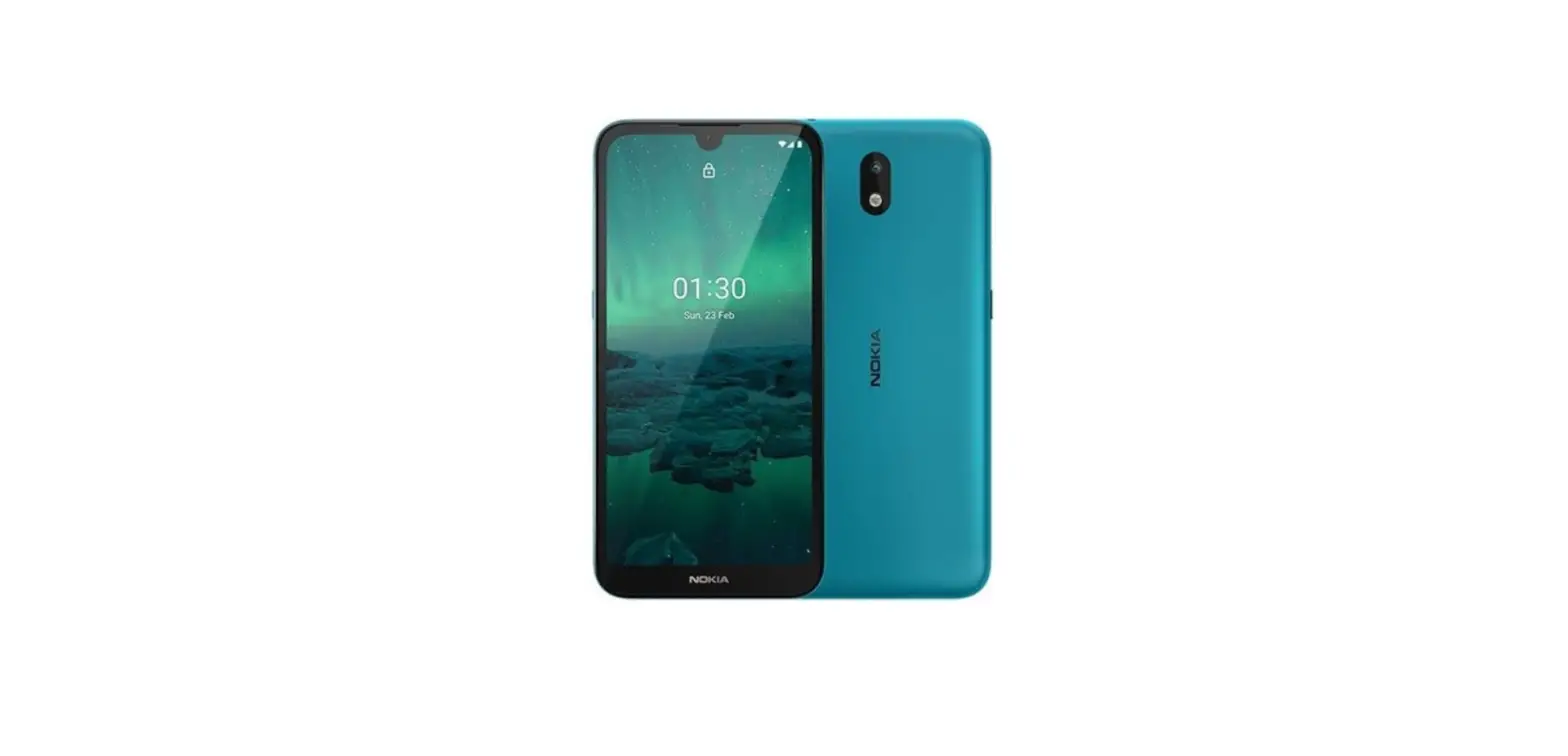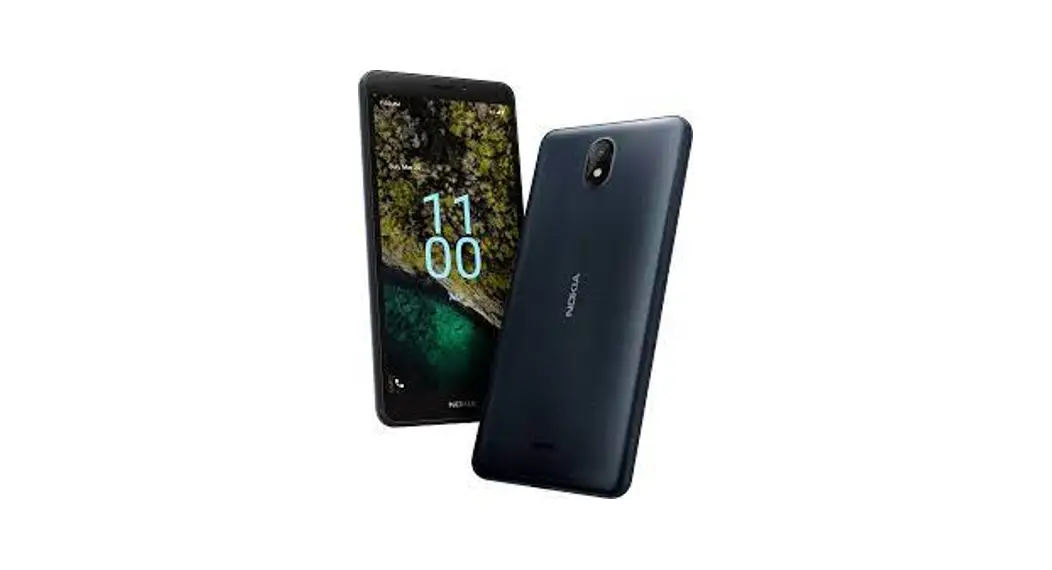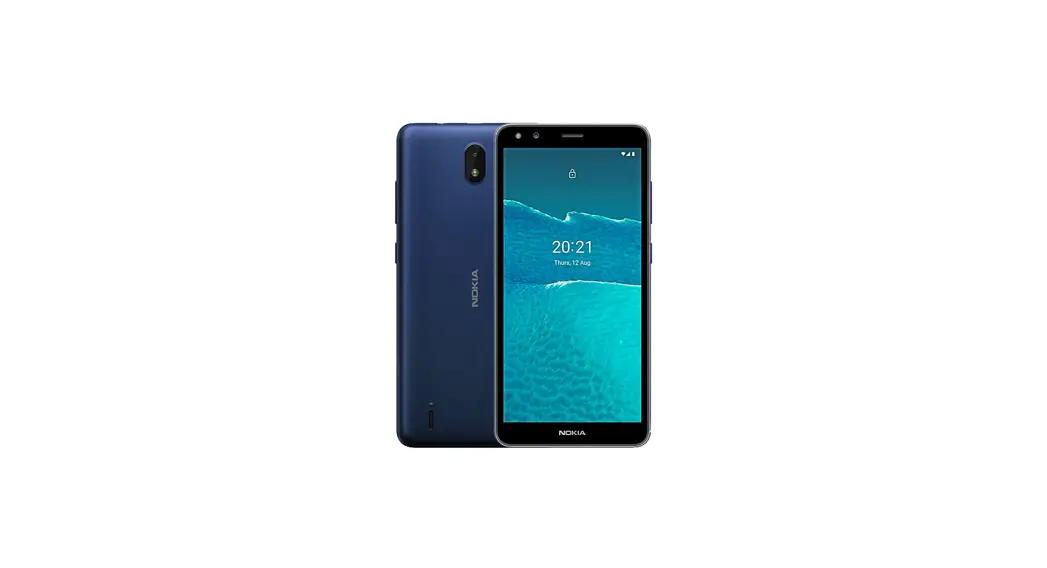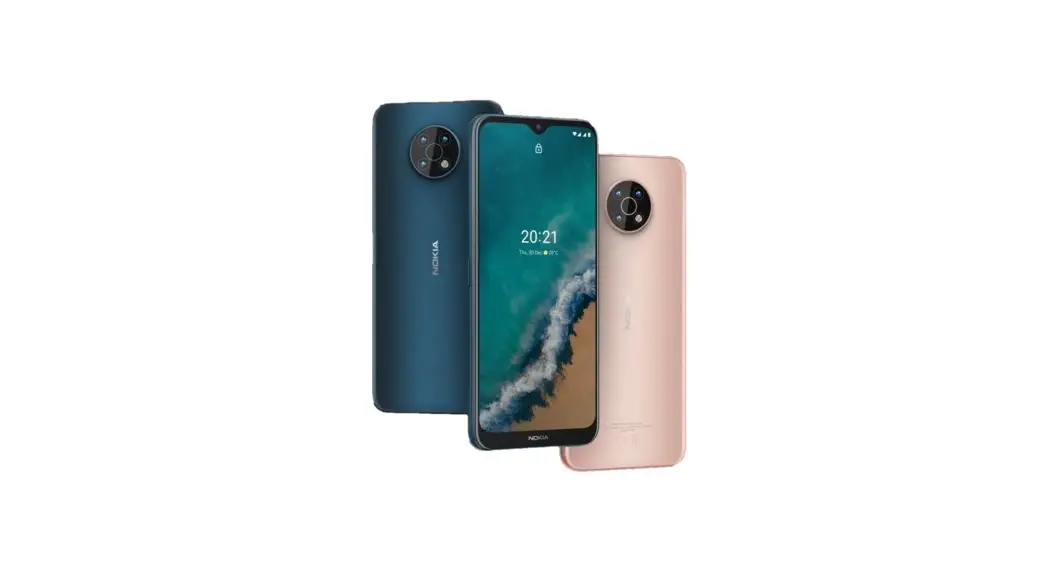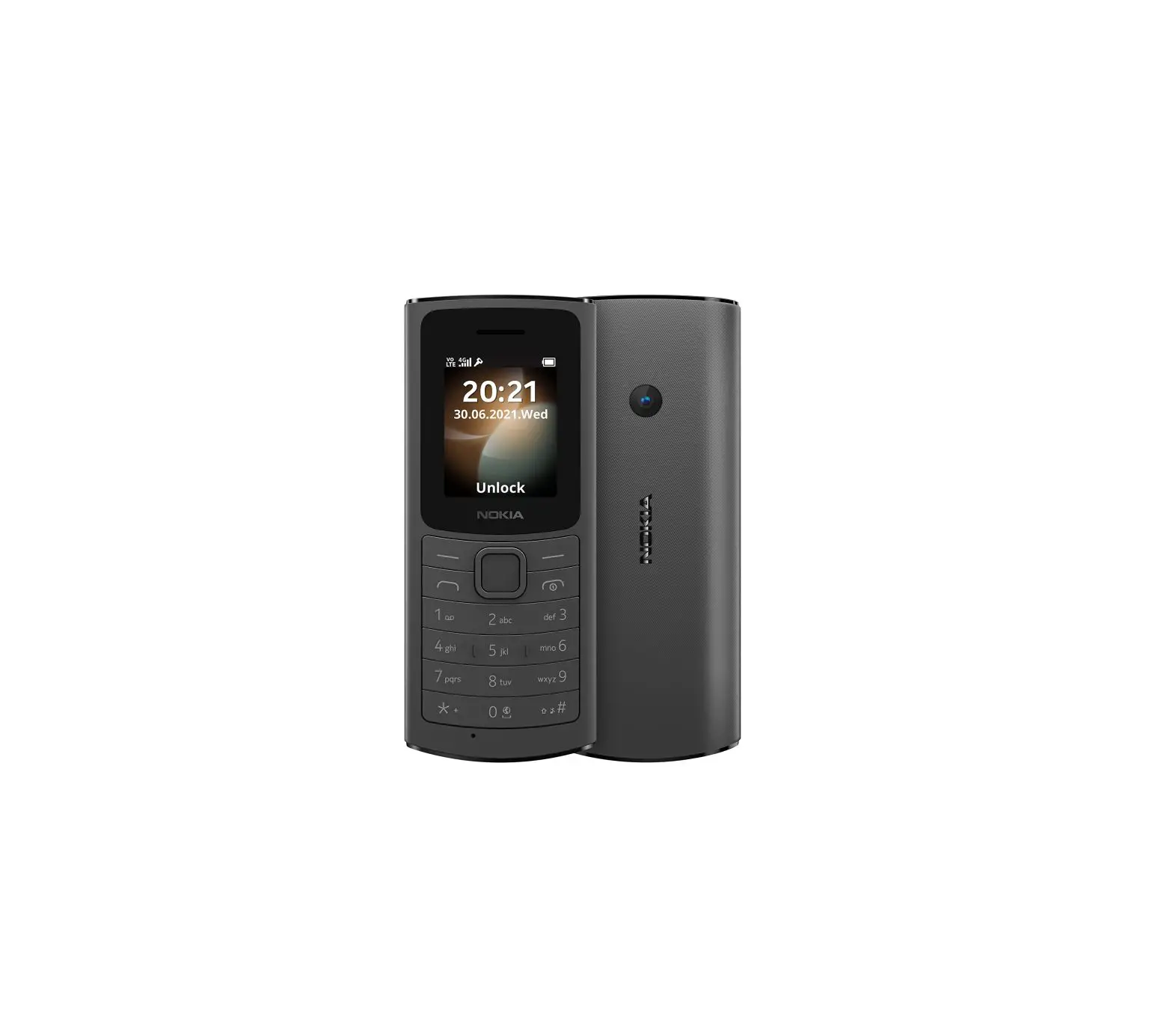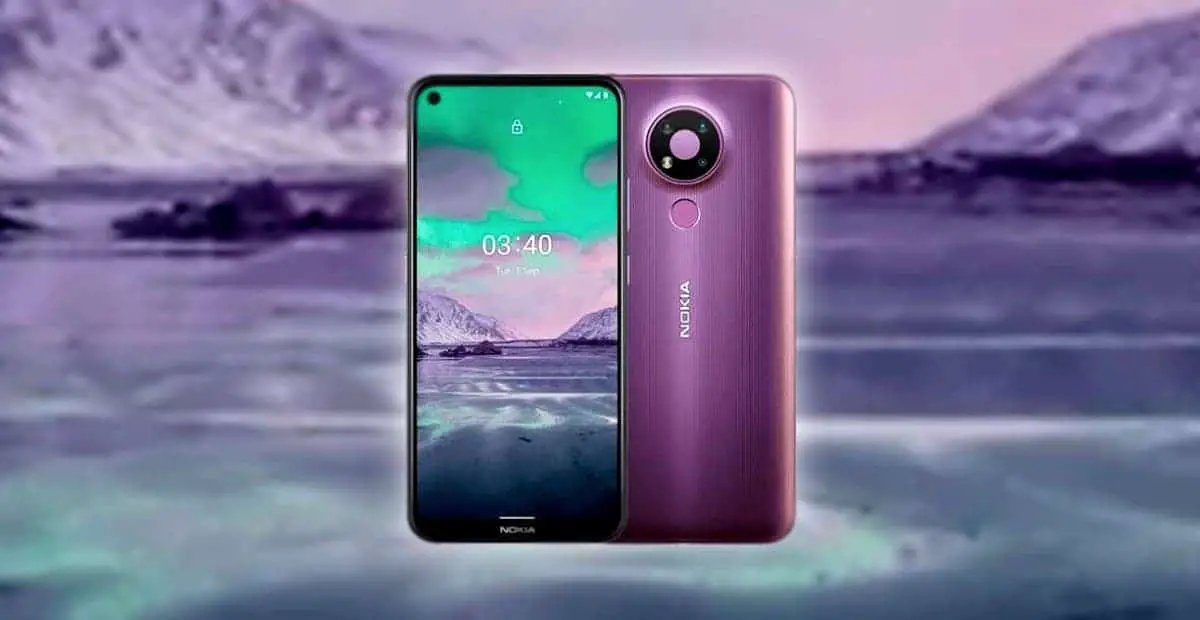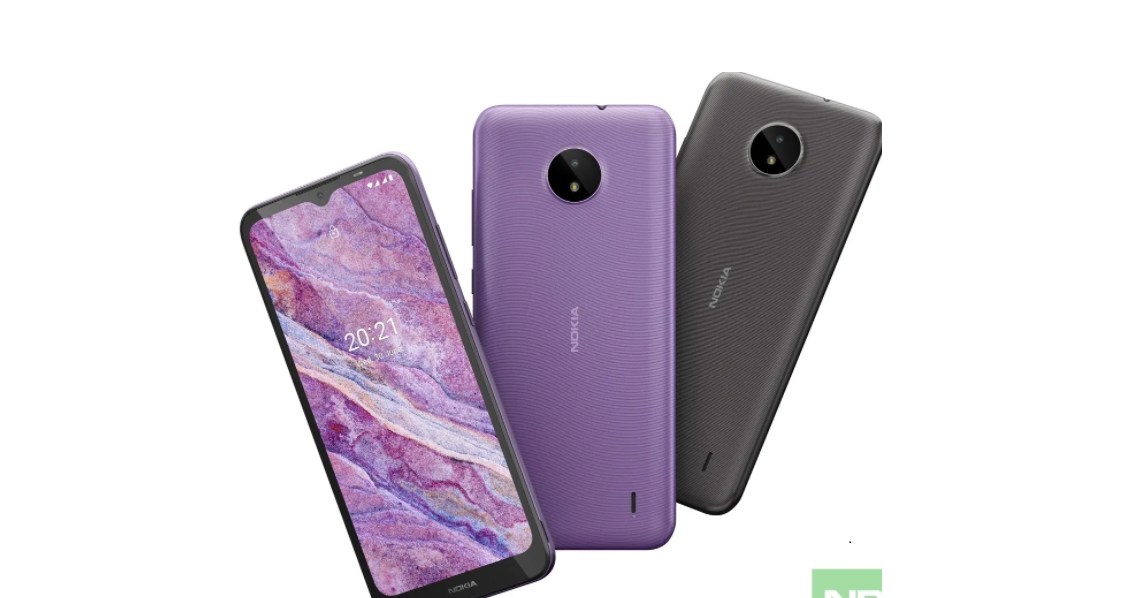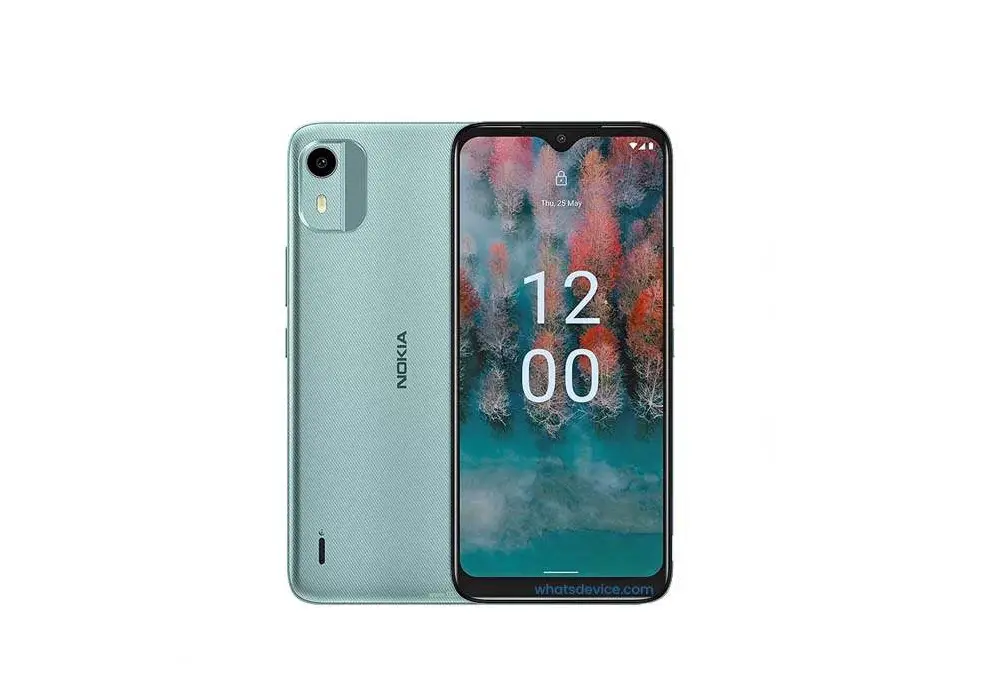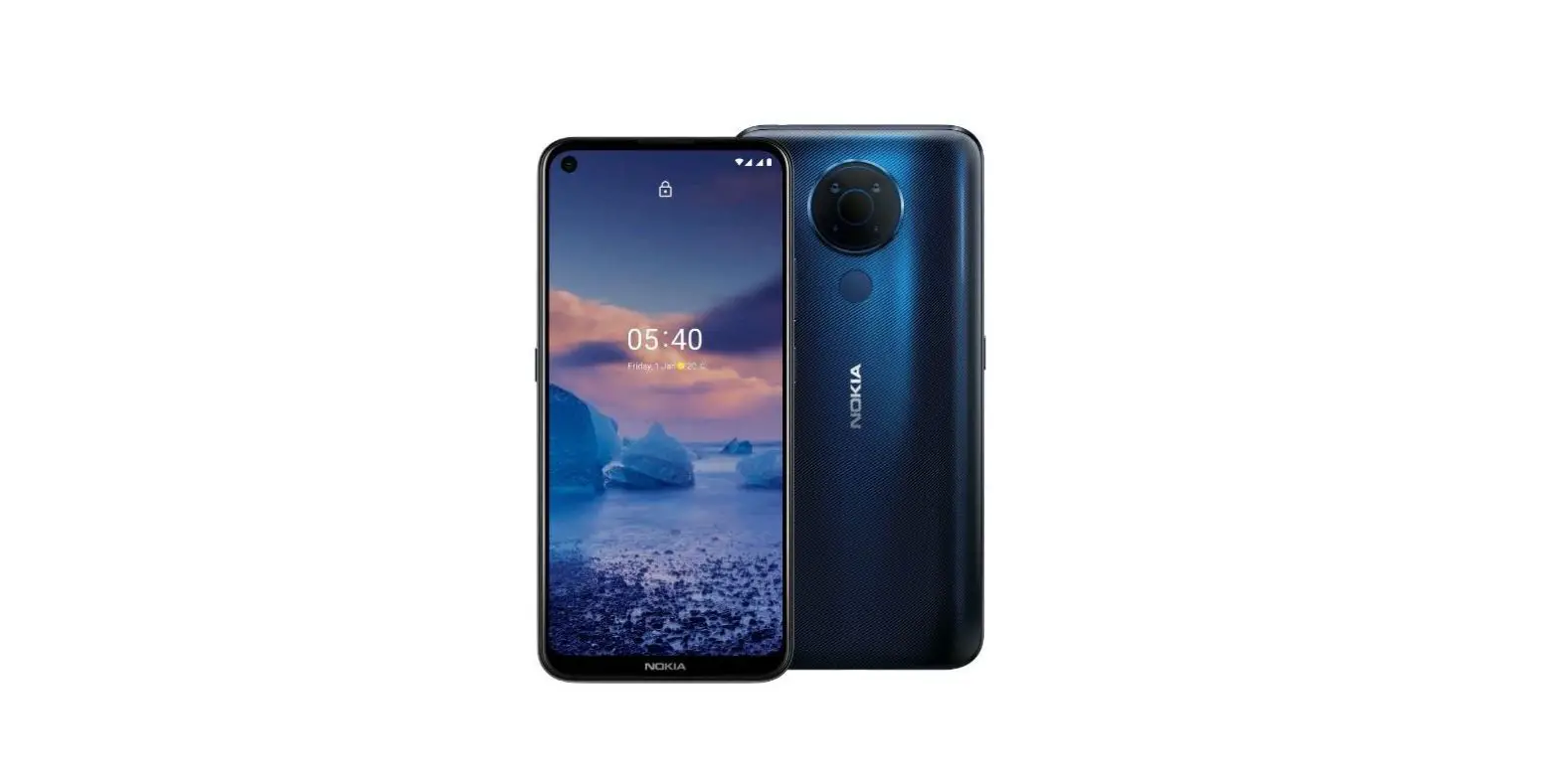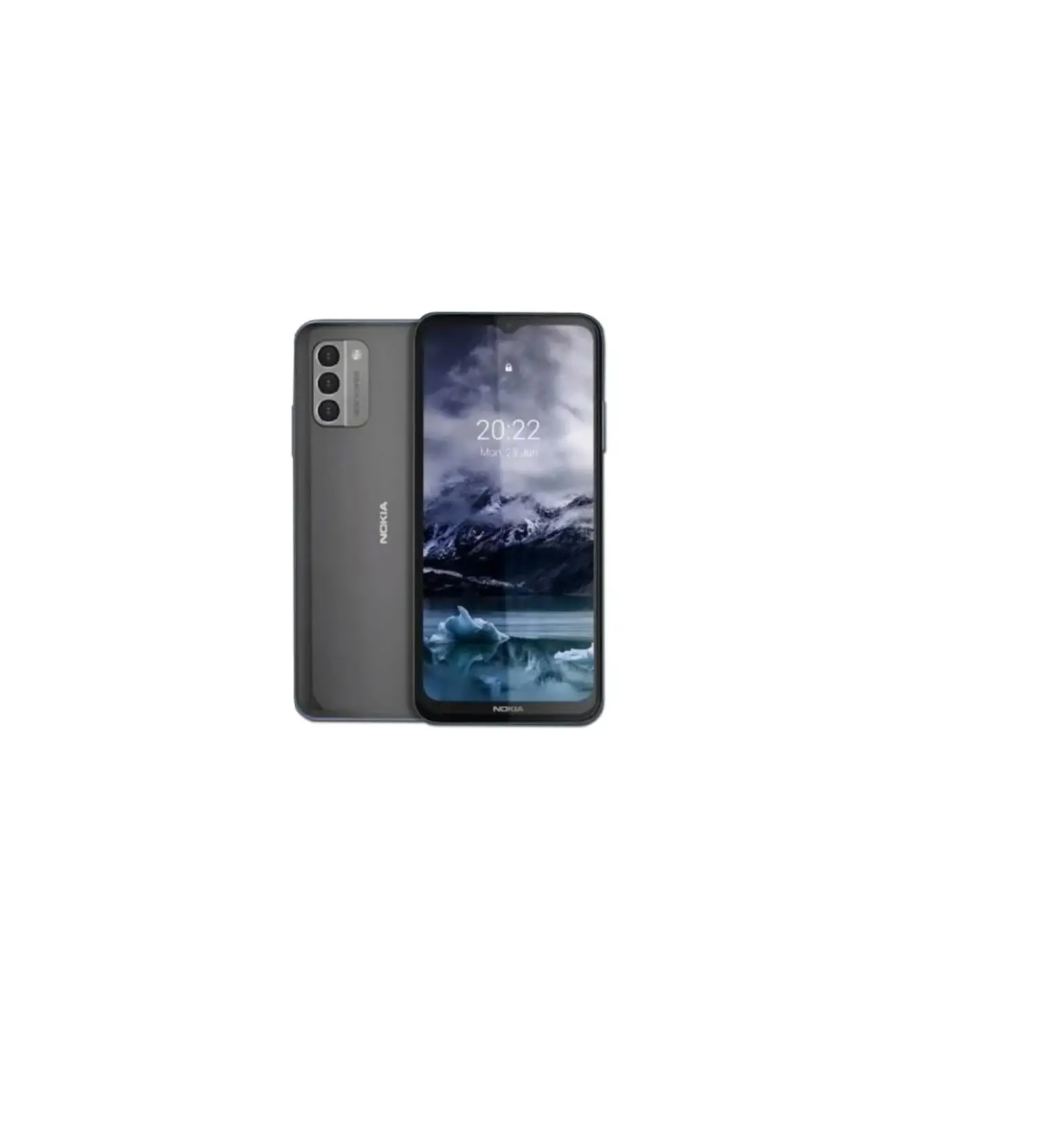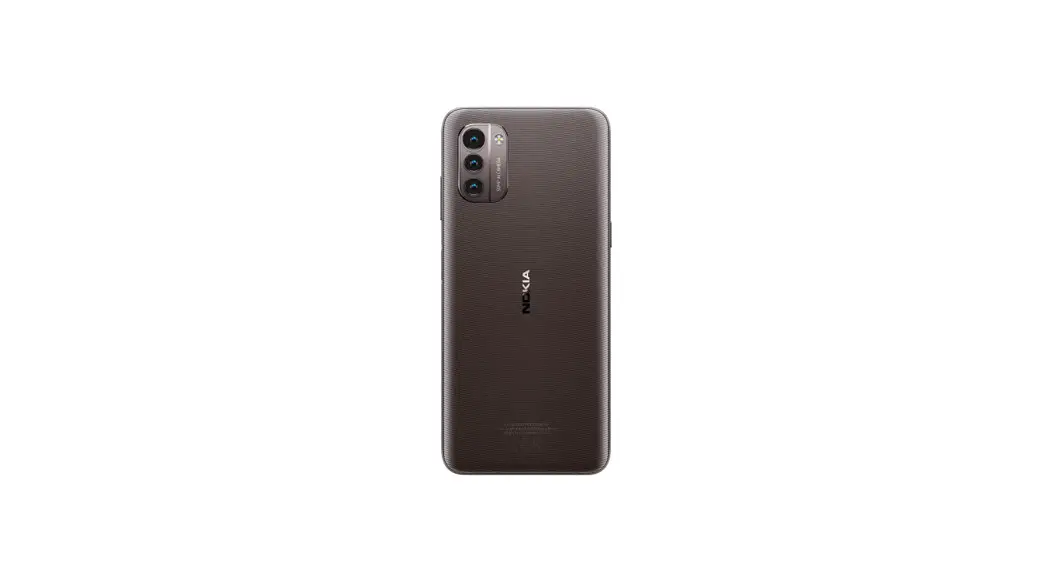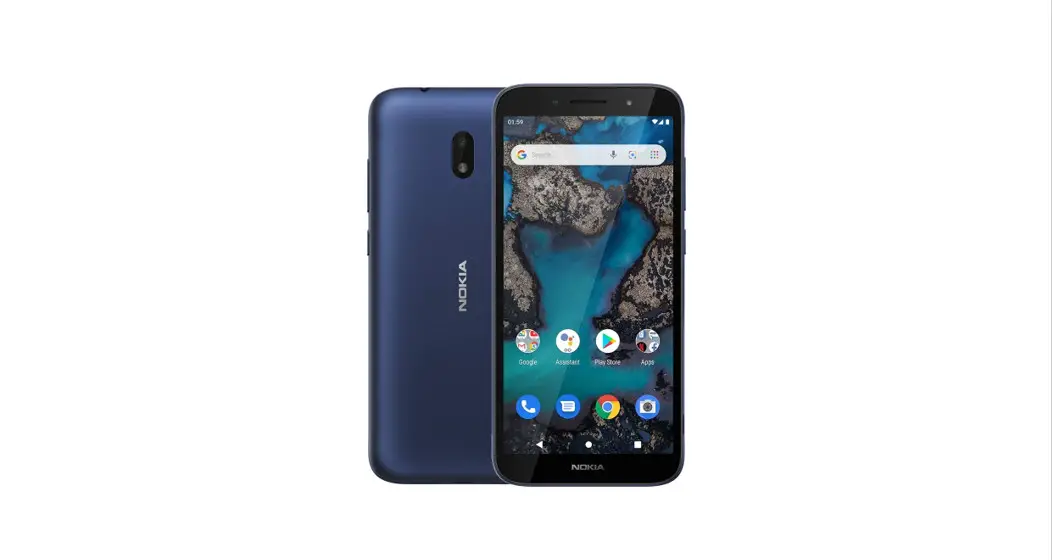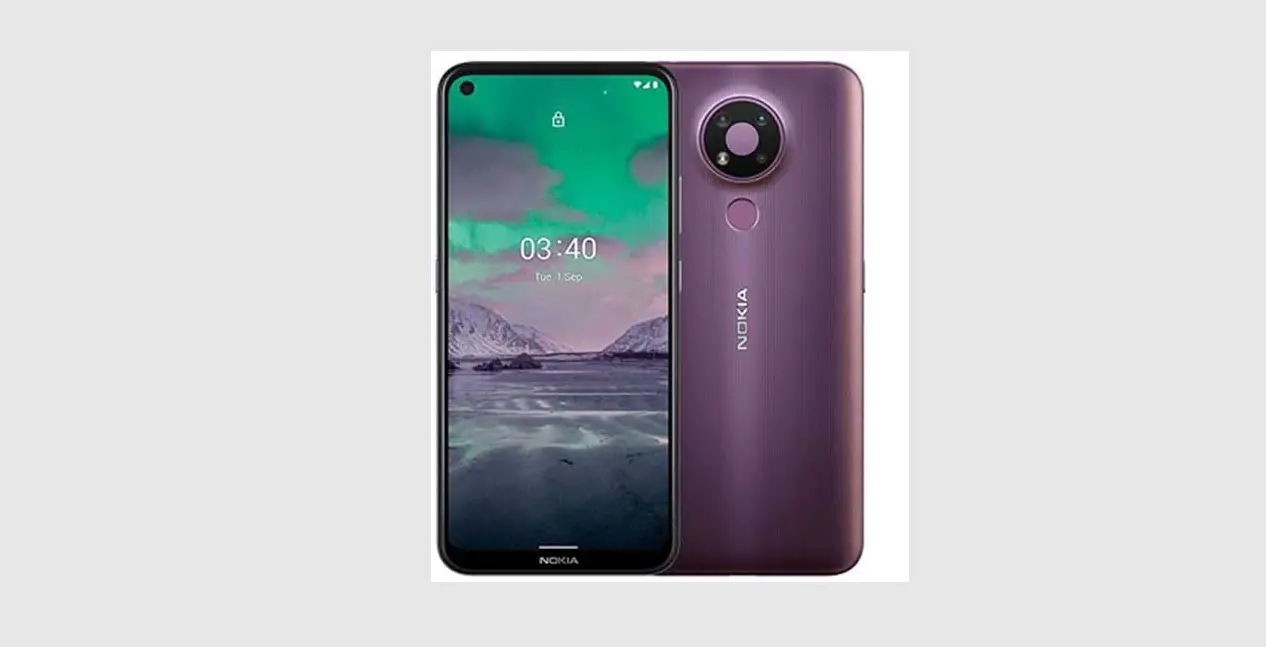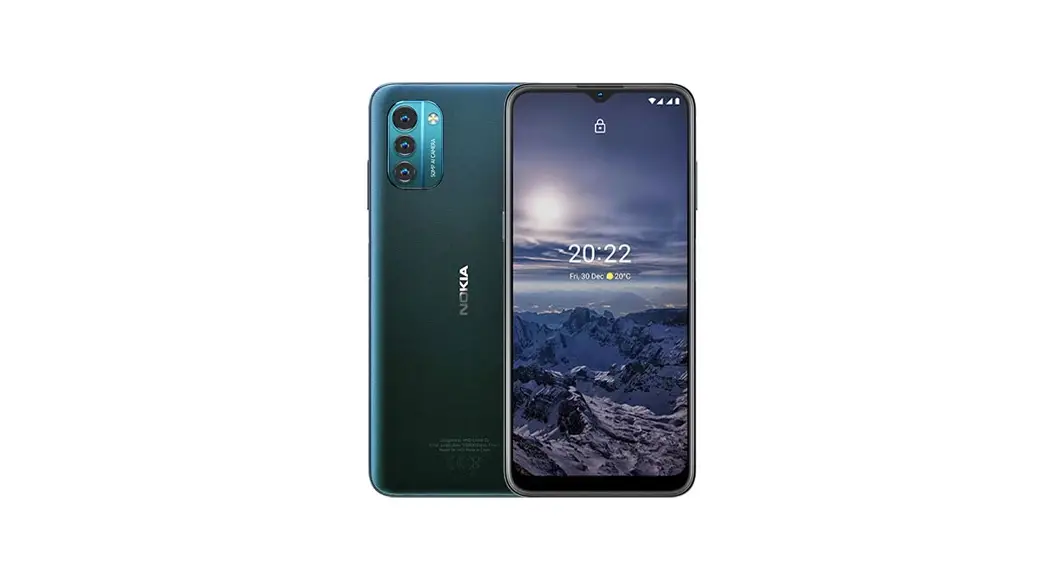
 N150DL Smartphone
User Guide
Included in this package:
- Activation card
- Quick Start Guide
- About Your Phone booklet
- Phone
- Charger
- USB-C Cable
Initial Phone Setup:
Your phone already has a SIM card installed.
Your phone’s battery may not be fully charged.
Use the USB-C Cable and charger included in your package to charge your phone fully before the first use.
To turn your phone ON, press and hold the Power/Lock button. To turn your phone OFF, press the Power/Lock button and the volume up button at the same time.
Set up your Google™ Account:
During your initial phone setup, you will be prompted to log into your Google account. You may skip this step and return to it using the steps below.
- Tap Settings > Passwords & accounts > Add account > Google.
- Type in your Google account credentials and tap Next, or, to create a new account, tap Create an account.
- Follow the instructions on your phone.
Security Settings:
Set a screen lock
During your initial phone setup, you will be prompted to choose a screen lock option. You may skip this step and return to it using the steps below.
- Tap Settings > Security > Screen lock.
- Choose the type of lock and follow the instructions on your phone.
Unlock your phone:
Press the Power/Lock button and enter your screen lock.
Set up fingerprint authentication
- Tap Settings > Security > Fingerprint.
- Select your backup screen lock method and follow the instructions on your phone.
Unlock your phone with your fingerprint
To unlock your phone, place your registered finger on the Power/Lock button.
Make and Receive Calls:
- Tap
 .
. - Tap and type in a number, or tap
 and select a contact you want to call.
 - Tap .
 .
. and select a contact you want to call.
Answer a call
To answer a call when your screen is unlocked, tap ANSWER. To answer a call when your screen is locked, swipe up.
Add a contact
- Tap Contacts >
 .
. - Fill out the information.
- Tap Save.
 .
.Voicemail Setup:
For instructions on how to set up voicemail, contact your service provider. When you have new voice mail appears in the status bar. Swipe down and tap the notification to listen to the voicemail.
Text and Picture Messaging:
- Tap on the Messages icon
 .
. - Tap Start chat.
- To add a recipient, tap
 , type in their number, and tap
  . To add a recipient from your existing contacts, start typing their name, once the contact list appears tap on the desired contact name.
 - To add more recipients, tap
 . After choosing all the recipients, tap Next.
 - Write your message in the text box.
- To add a photo, tap
 , and tap
  to take a new photo, or tap Gallery and select an existing photo.
 - Tap
 .
.
 .
. , type in their number, and tap
  . To add a recipient from your existing contacts, start typing their name, once the contact list appears tap on the desired contact name.
 . After choosing all the recipients, tap Next.
 , and tap
  to take a new photo, or tap Gallery and select an existing photo.
 .
.Notifications and Quick Settings:
When you receive new notifications, such as messages or missed calls, icons appear at the top of the screen. To access your notifications, swipe down from the top of the screen. To close the view, swipe up on the screen.
To activate a feature, swipe down from the top of the screen and choose the quick setting. To see more icons, drag the quick settings menu down.
Turn on Wi-Fi:
- Tap Settings > Network & internet > Wi-Fi.
- Switch Use Wi-Fi ON.
- Select the connection you want to use.
Using your Mobile Internet:
- Tap on the Chrome icon
 .
. - Write a search word or a web address in the search field.
- Tap
 , or select from the proposed matches.
 .
. , or select from the proposed matches.
Bluetooth® Connectivity:
- Tap Settings > Connected devices > Connection preferences > Bluetooth.
- Switch Use Bluetooth to ON.
- Make sure the device you are pairing to is turned on. You may need to start the pairing process from the other device.
For details, refer to the user guide for the other device. - Tap Pair new device and tap the device you want to pair with from the list of discovered Bluetooth devices.
- You may need to type in a passcode. For details, refer to the user guide for the other device.
Notification and Status Icons:
 | Bluetooth connection is on |
 | Wi-Fi is on |
 | Airplane mode is on |
 | Battery status |
| Regulatory Agency Information | |
| FCC ID | 2AJOTTA-1500 |
| Max. SAR (W/kg) – Head | 1.16 W/kg |
| Max. SAR (W/kg) – Body | 1.31 W/kg |
| HAC (Hearing Aid Compatible) & Rating | M4/T3 |
HMD Global Oy is the exclusive licensee of the Nokia brand for phones & tablets. Nokia is a registered trademark of Nokia Corporation. Google and other related marks and logos are trademarks of Google LLC. The Bluetooth word mark and logos are owned by Bluetooth SIG, Inc. and any use of such marks by HMD Global is under license.
References
 Radio Frequency Safety | Federal Communications Commission
 Risk Factors: Radiation - NCI
-
Federal Communications Commission | The United States of America
-
Disability Rights Office | Federal Communications Commission
-
Engineering & Technology | Federal Communications Commission
-
Equipment Authorization | Federal Communications Commission
 U.S. Food and Drug Administration
-
Nokia Corporation
 MWF - SAR Tick
 Radio Frequency Safety | Federal Communications Commission
 Risk Factors: Radiation - NCI
 Federal Communications Commission | The United States of America
 U.S. Food and Drug Administration
 Nokia Corporation
 MWF - SAR Tick