Razer Blade Pro 17” (2021) | RZ09-0368x Support

FAQ
At a Glance: Razer Blade Pro 17″ (2021) | RZ09-0368x
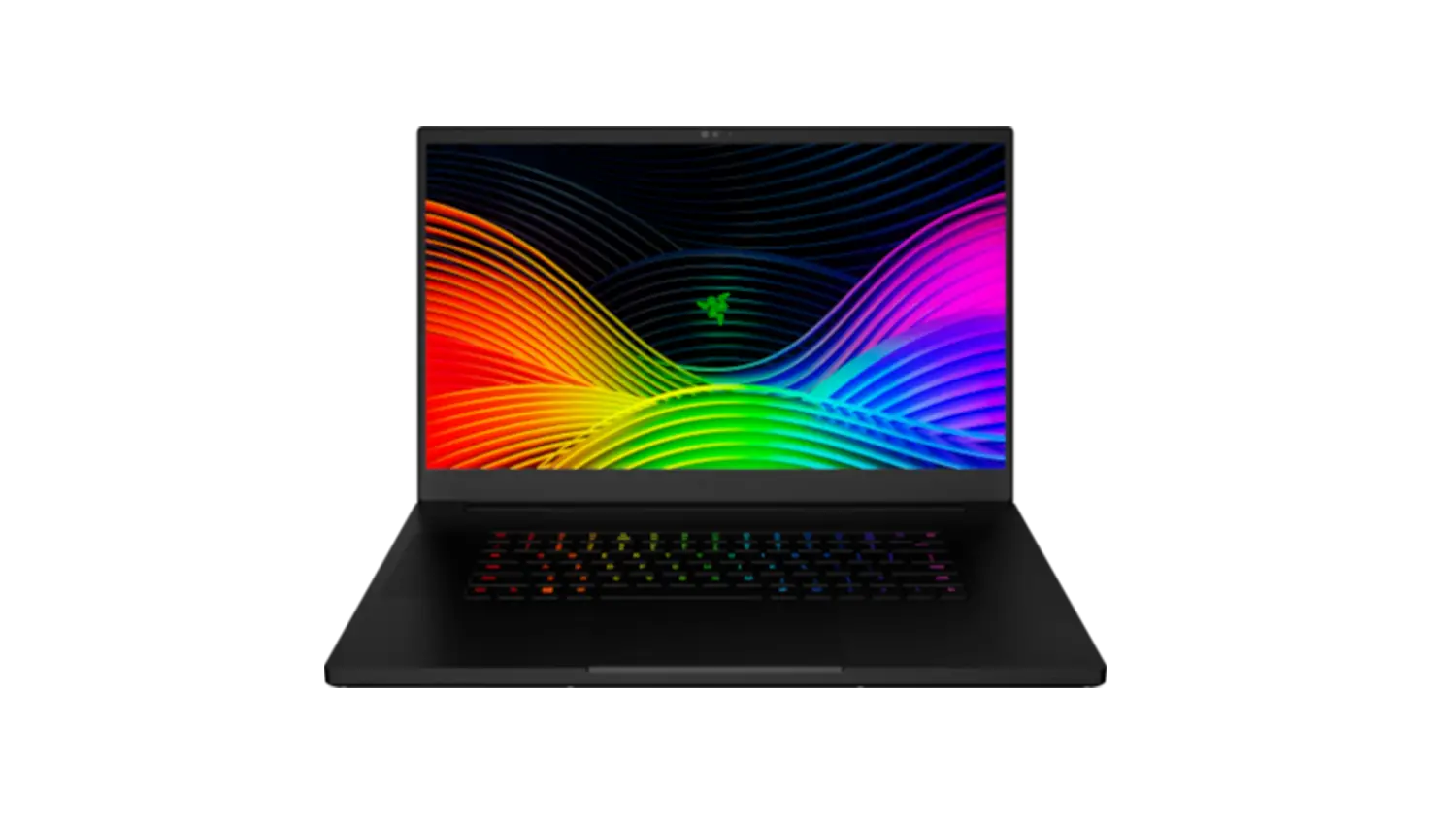
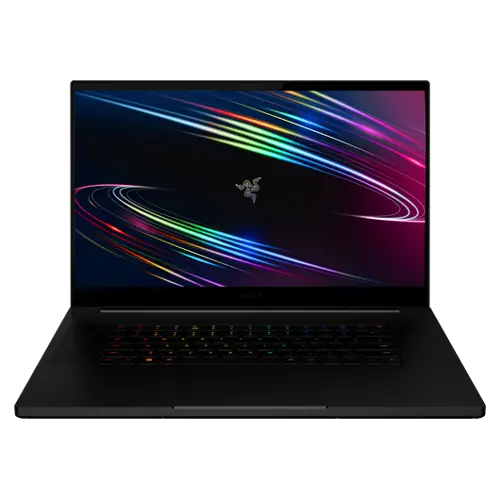
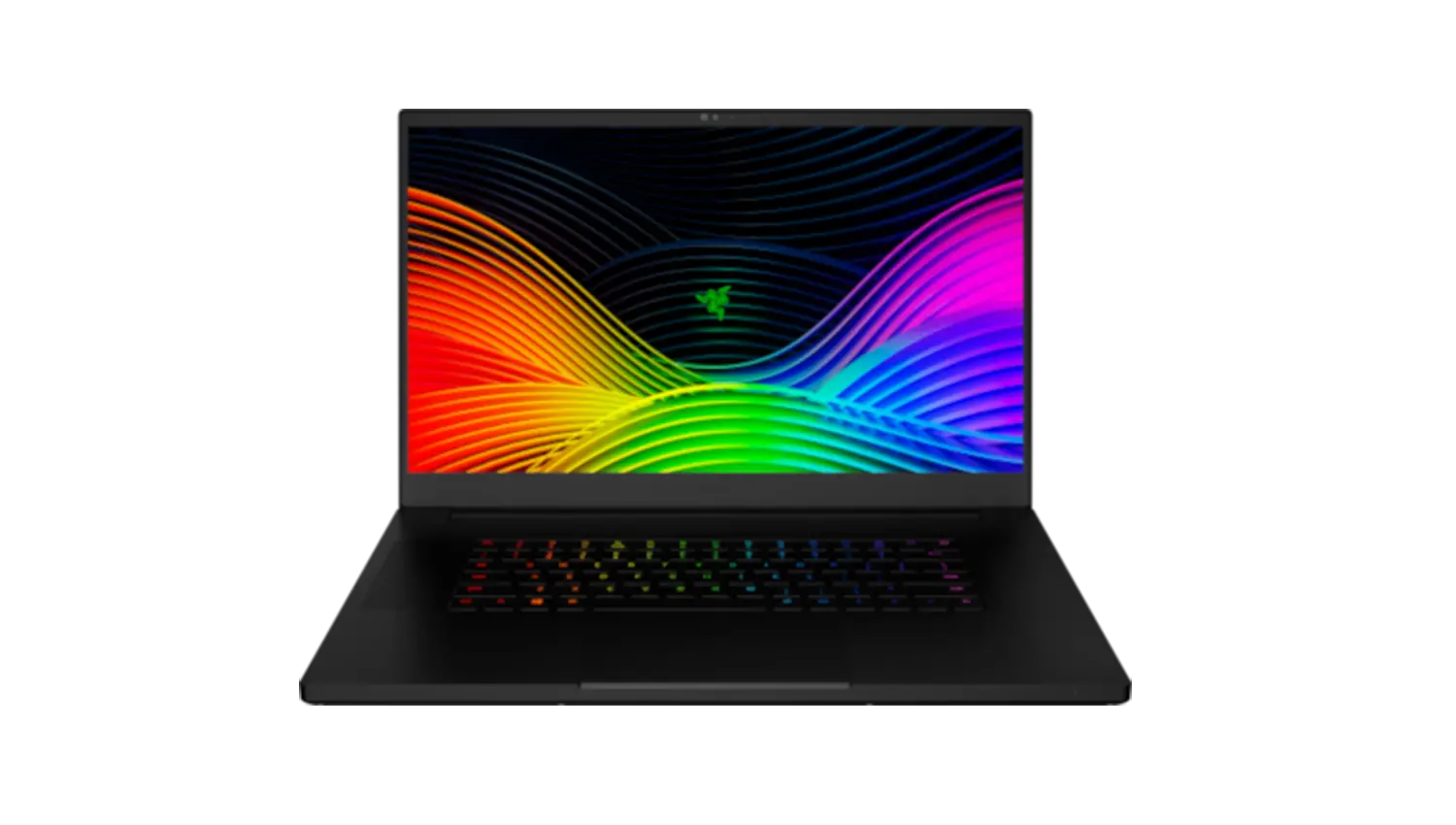
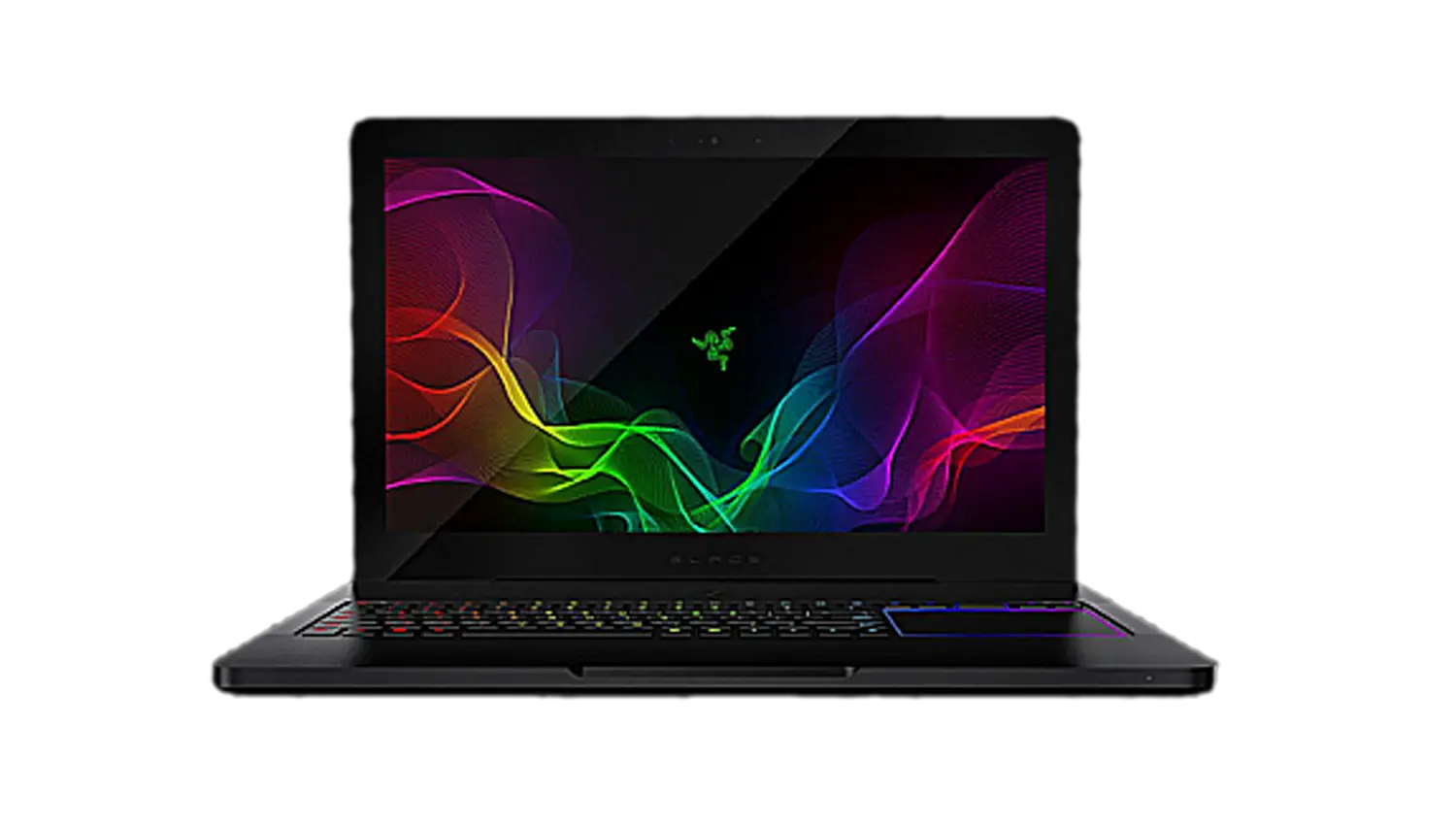
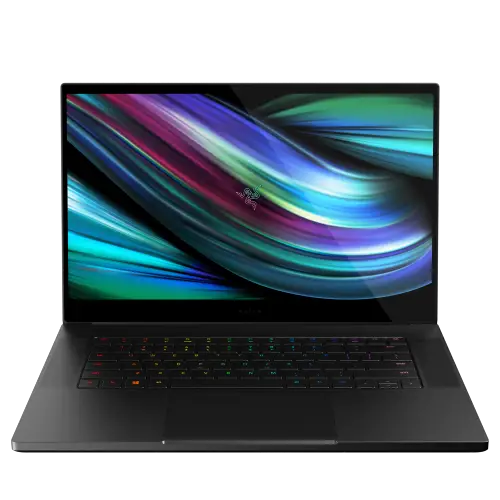
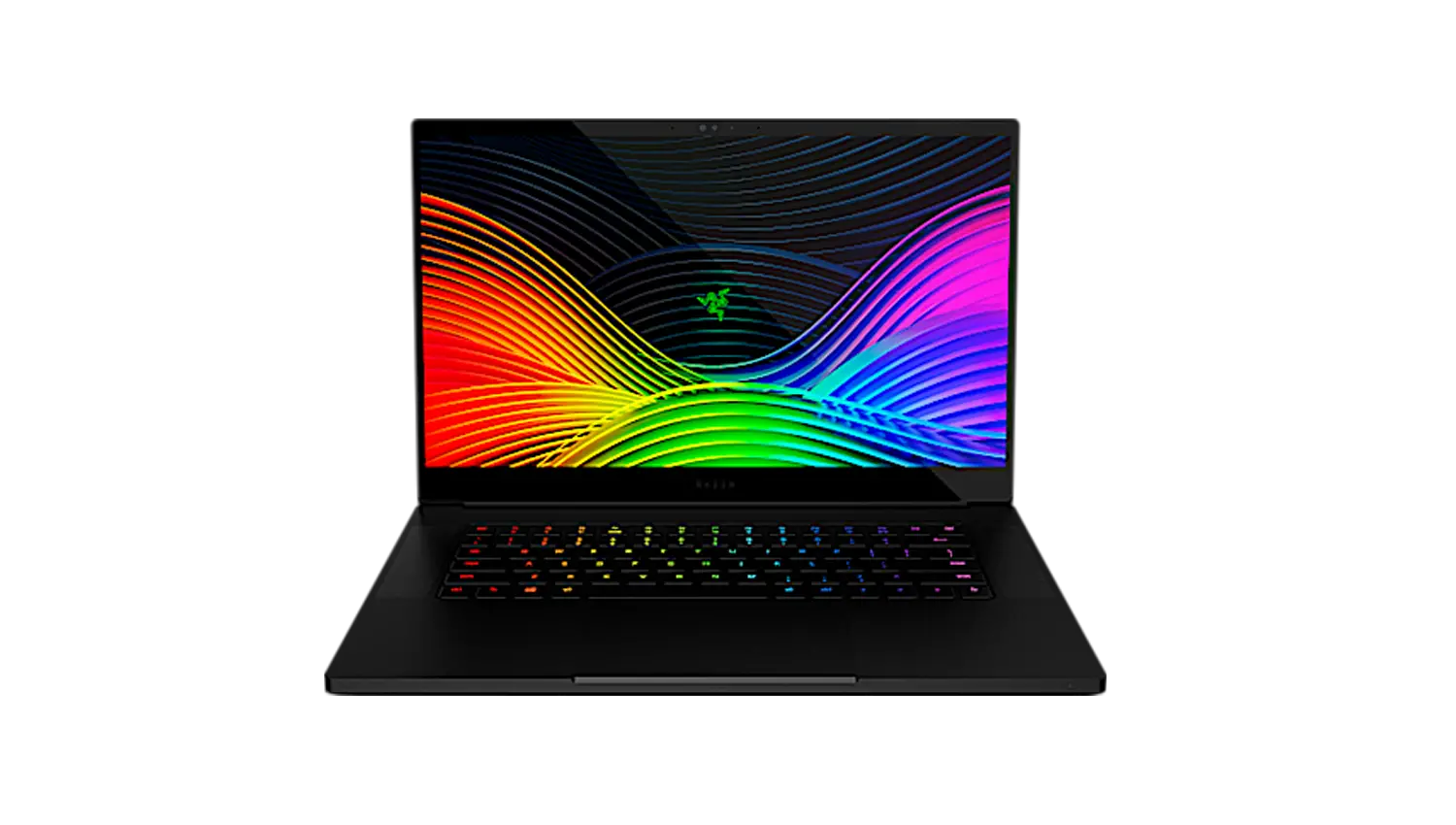
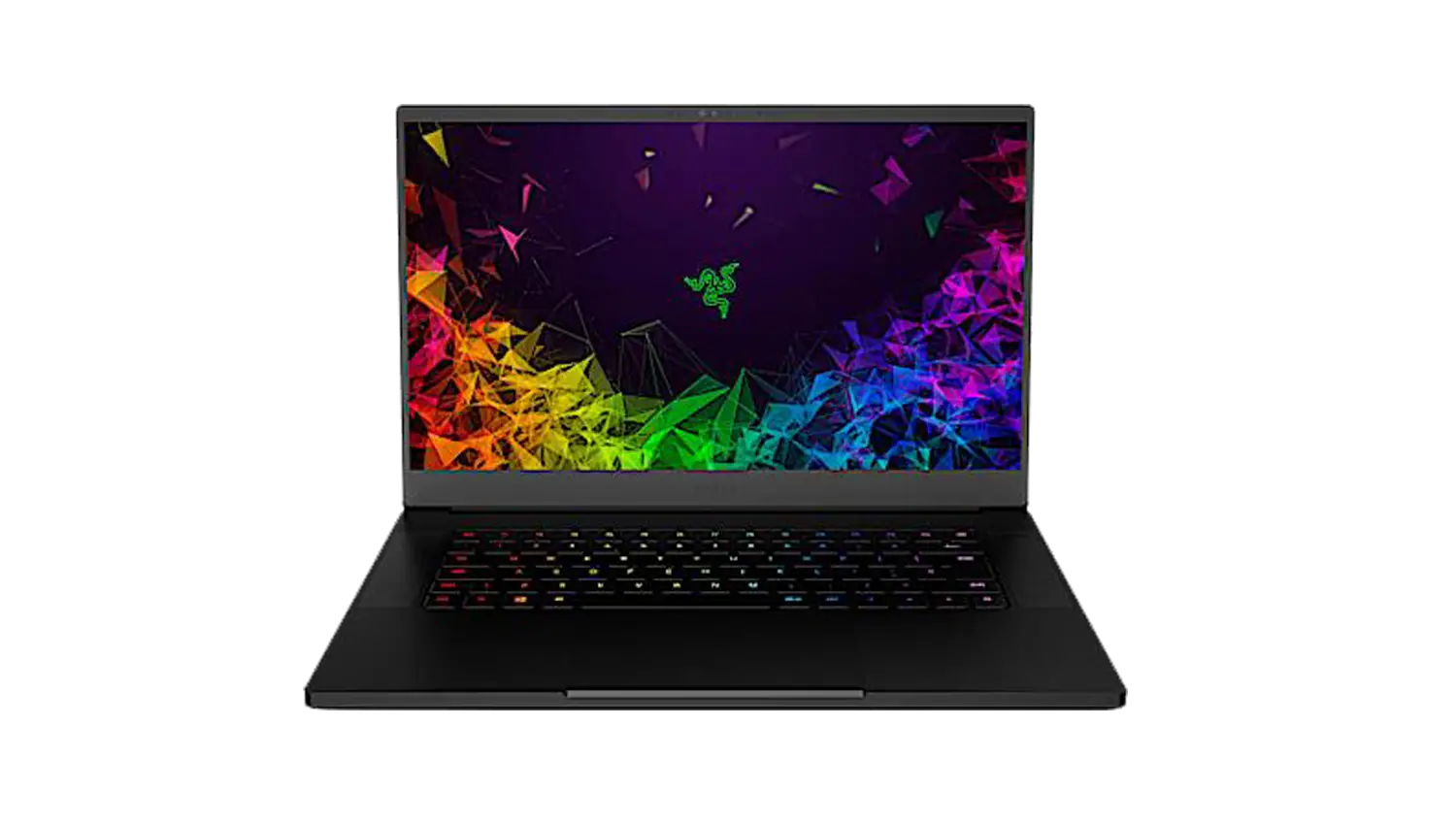
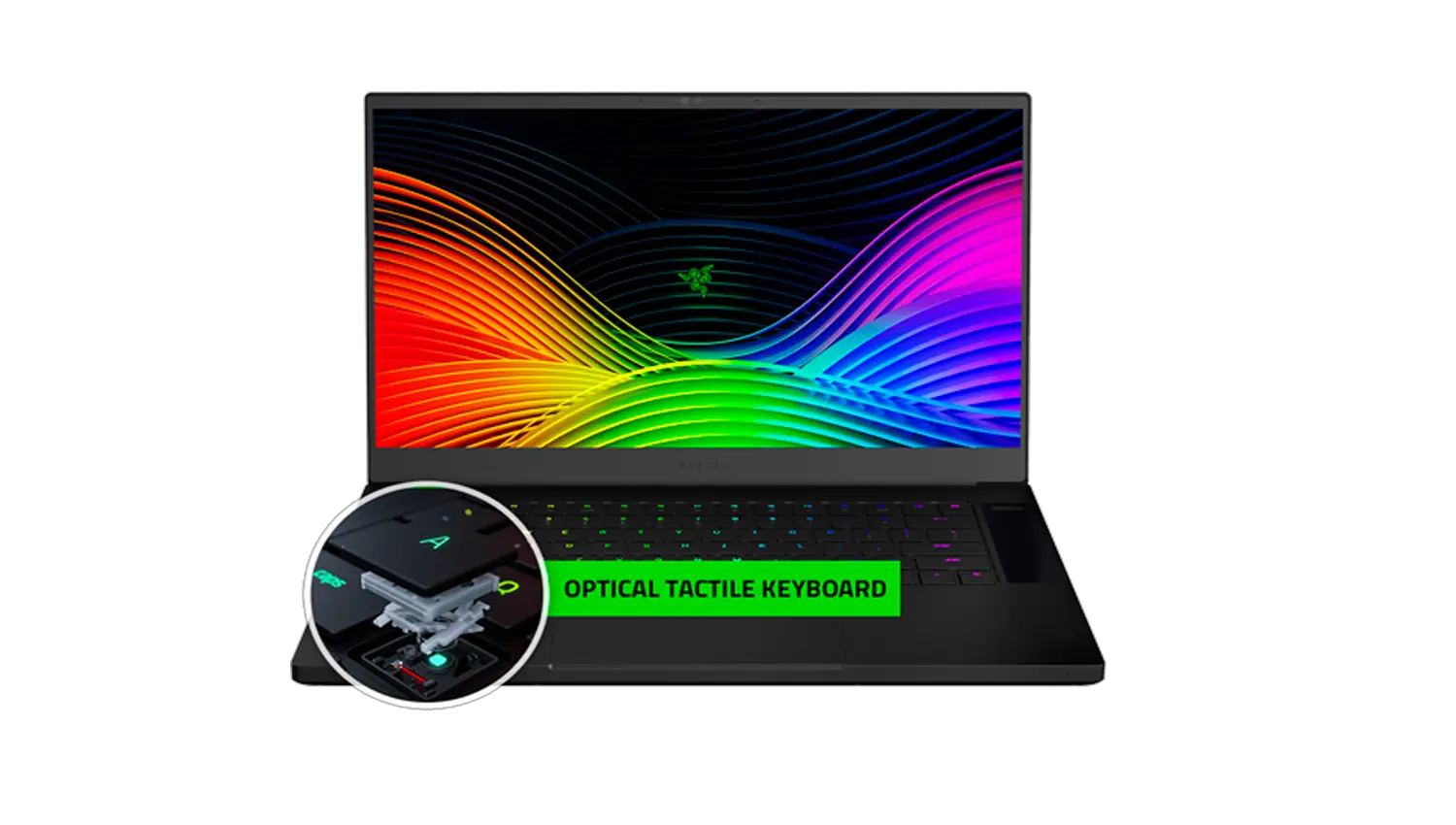
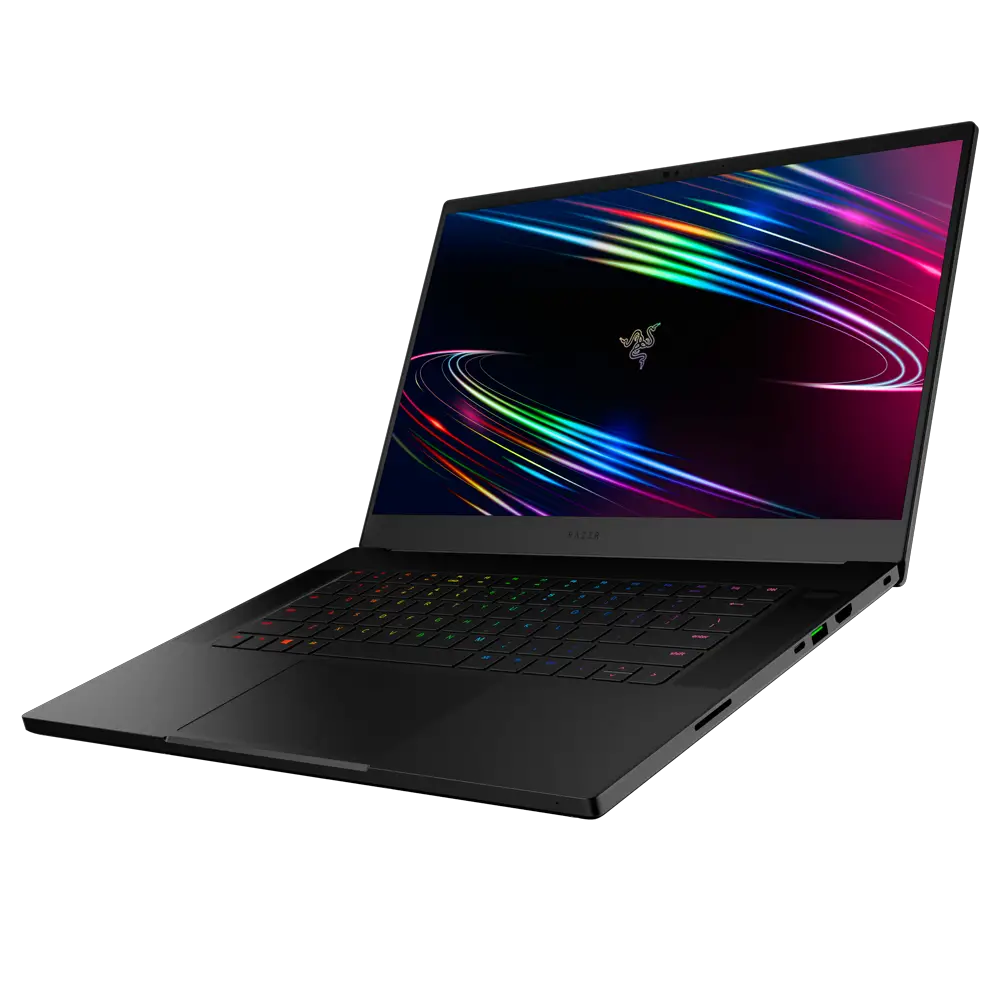
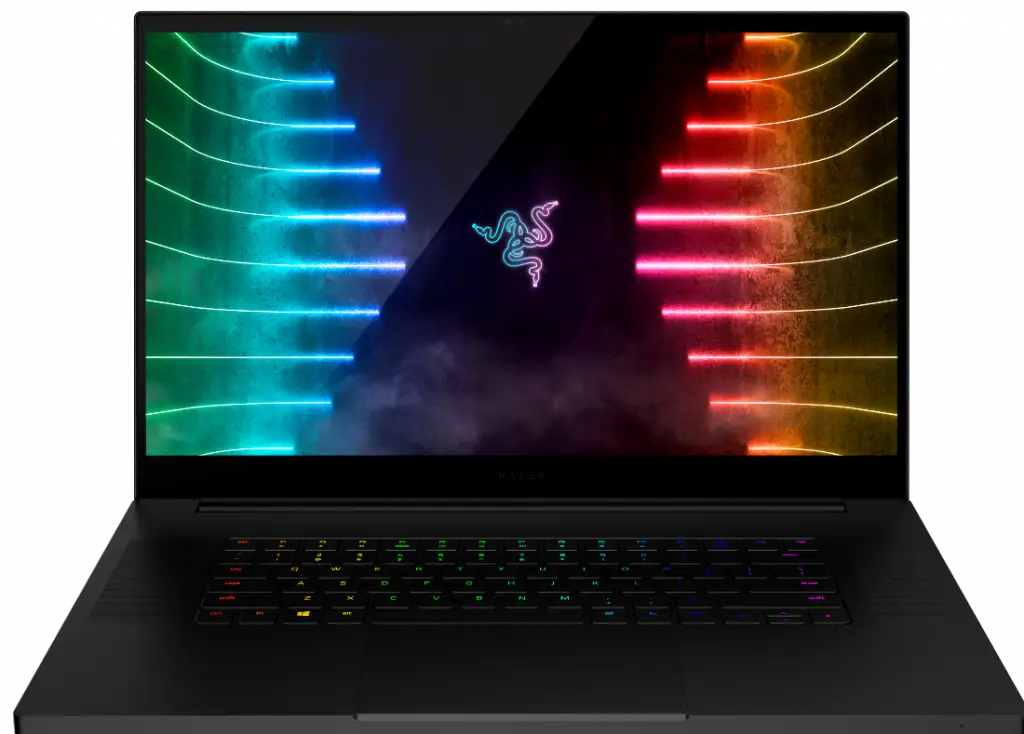
Within its sleek 17” chassis, the new Razer Blade Pro 17″ (2021) | RZ09-0368x packs the latest NVIDIA GeForce RTX 30 Series graphics for stunning visuals that are brought to life with a choice of next-gen displays — offering up to 360Hz, up to 4K resolution, or the best of both worlds with 165Hz QHD. Built on NVIDIA’s award-winning 2nd-gen RTX architecture, these GPUs provide the most realistic ray-traced graphics and cutting-edge AI features for the most powerful graphics in a gaming laptop.
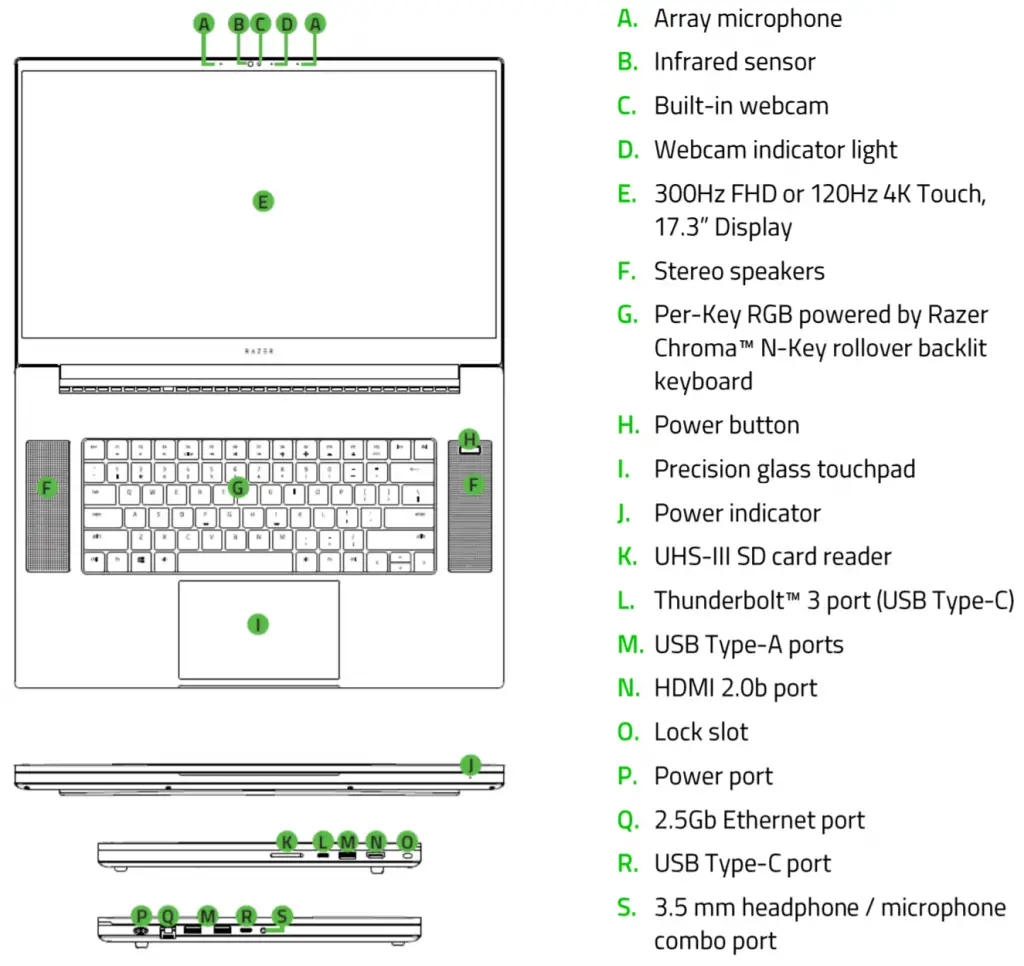
Device Layout
Full Technical Specifications
Select Model Variant:
Graphics
- GeForce RTX™ 3060
- GeForce RTX™ 3070
- GeForce RTX™ 3080
Display
- 165 Hz QHD
- 360Hz Full HD
Storage
Memory
| Operating System | Windows® 10 Home (64-bit) |
| Processor | 10th Gen Intel® Core™ i7-10875H processor, 8 Cores / 16 Threads, 2.3 GHz / 5.1 GHz (Base / Max Turbo), 16 MB Cache |
| Graphics | NVIDIA® GeForce RTX™ 3060 (8GB DDR6 VRAM) |
| Display | 165Hz QHD (2560 x 1440), 300 nits brightness, 100% sRGB Color Gamut |
| Storage | 512GB SSD (M.2 NVMe) upgradable to 2TB SSD |
| Memory | 16GB Dual-Channel DDR4-2933MHz 32GB Dual-Channel DDR4-2933MHz |
| Expandable to 64GB | |
| Battery and Adapter |
|
| Keyboard | Per key RGB  Powered by Razer Chroma™ anti-ghosting backlit keyboard Powered by Razer Chroma™ anti-ghosting backlit keyboard |
| Touchpad | Glass touchpad (Microsoft Precision Touchpad) |
| Connectivity | Wi-Fi 6E (Intel® AX210) – 2.4GHz / 5GHz / 6GHz 802.11ax Wi-Fi wireless networking; IEEE 802.11a/b/g/n/ac/ax compatible |
| Webcam | HD webcam 720p with Windows Hello IR HD webcam |
| Input & Output |
|
| Audio |
|
| Finish | Anodized Matte Black |
| Approx. Dimensions (H x D x W) | 0.78 in x 10.24 in x 15.55 in / 19.9 mm x 260 mm x 395 mm |
| Approx. Weight | 6.06 lbs / 2.75kg |
What are the product variants of the Razer Blade 17” Pro (2021)?
The Razer Blade 17” Pro (2021) has the following variants with their SKUs:
- UHD – RZ09-0368C*63
- QHD – RZ09-0368A*A2 | RZ09-0368B*A2
- FHD – RZ09-0368A*C2 | RZ09-0368B*C2 | RZ09-0368B*C3
Does the Razer Blade 17” Pro (2021) support Nvidia Advance Optimus?
No. The Razer Blade 17” Pro (2021) does not support Nvidia Advance Optimus.
Does the Razer Blade 17” Pro (2021) allow the option of using a dedicated GPU in Synapse 3?
Yes, the Razer Blade 17” Pro (2021) supports this feature.
Can I dual boot, partition, or otherwise modify the Razer Blade’s operating system?
The Razer Blade Pro 17 is designed for compatibility with the as-shipped OS. Should you want to install or modify the OS, please format the boot drive first then install your OS. Razer Warranty and Support is only available for the as-shipped OS.
How To
How to adjust or change the display refresh rate on a Razer Blade
Refresh rate is the number of times per second an image refreshes on the screen measured in Hertz. Therefore, the higher the refresh rate, the better and smoother the gaming or viewing experience will be. However, a higher refresh rate will contribute to higher battery consumption, so adjusting the refresh rate to the lowest value can help maximize the capacity of your Razer Blade’s battery.
Here is a video on how to change the display refresh rate on the Razer Blade.
There are two ways to adjust the monitor or display refresh rate:
Adjusting the refresh rate in Razer Synapse 3
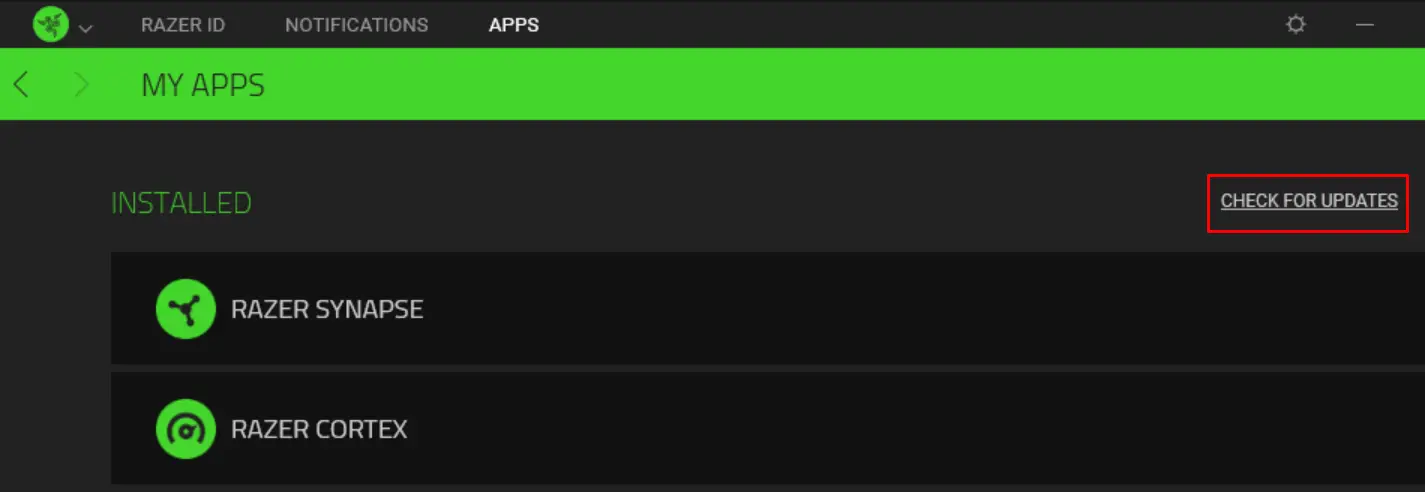
Note: Ensure that your Razer Blade is running the latest version of Razer Synapse 3. Check out How to manually check for updates on Razer Synapse 3.
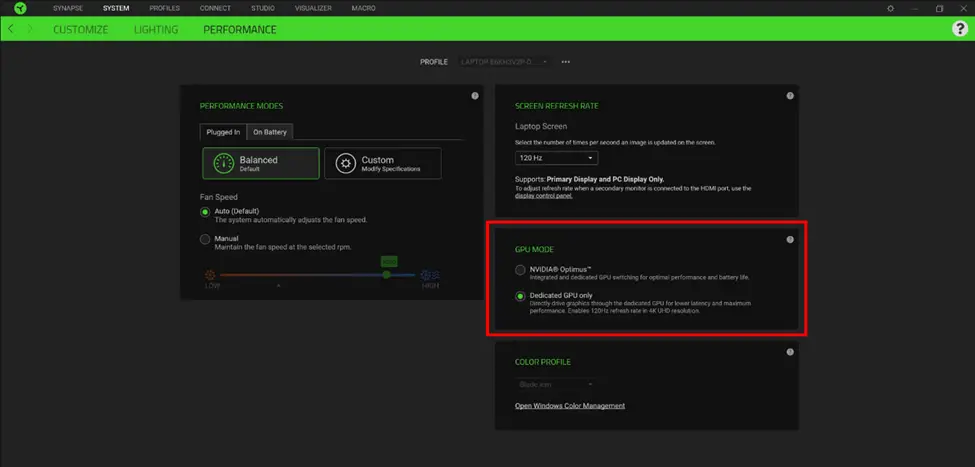
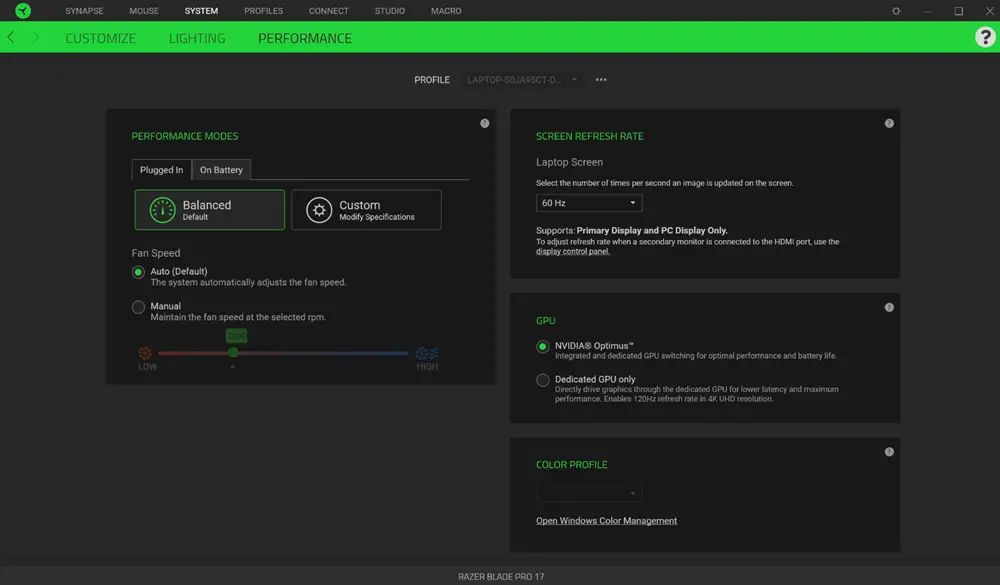
- Launch the Razer Synapse 3 app and go to “SYSTEM” > “PERFORMANCE”.
- Do note that some Razer Blade models require the system to be in “Dedicated GPU” mode before you can adjust the refresh rate. To do so, select the “Dedicated GPU only” option in the “GPU MODE” section.
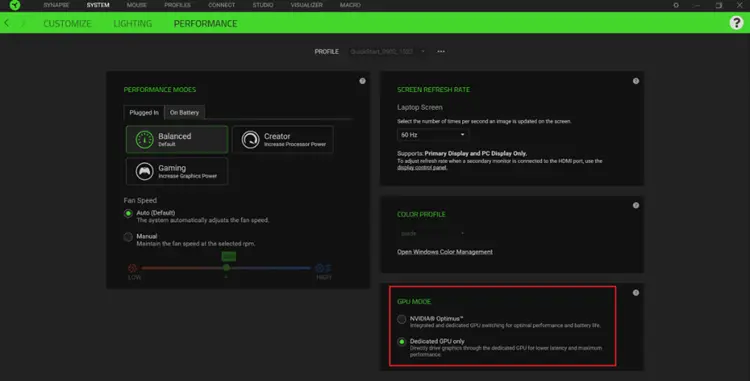
3. Restart your Razer Blade.
4. Relaunch the Razer Synapse 3 app and then go to “SYSTEM” > “PERFORMANCE”.
5. Select your preferred refresh rate from the “Laptop Screen” dropdown menu.
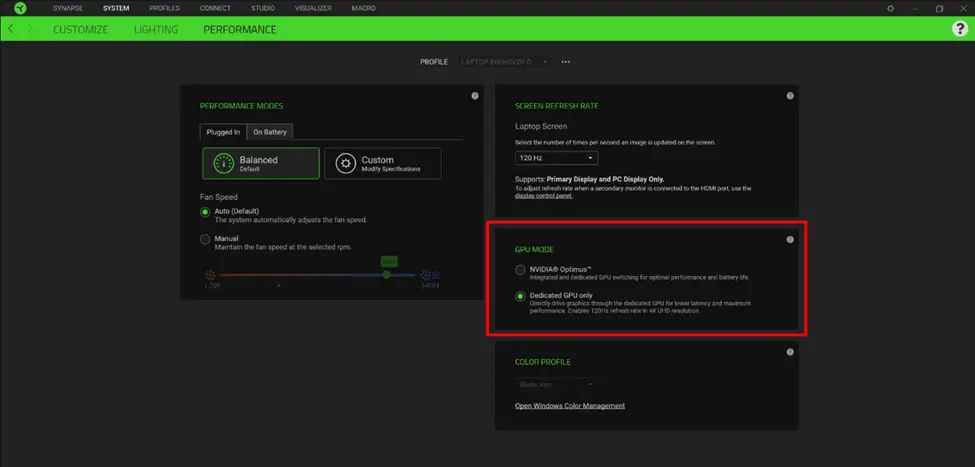
You should now have successfully adjusted the refresh rate on your Razer Blade through Synapse 3.
Adjusting the refresh rate in Windows
- Go to Settings > System > Display > Advanced display settings
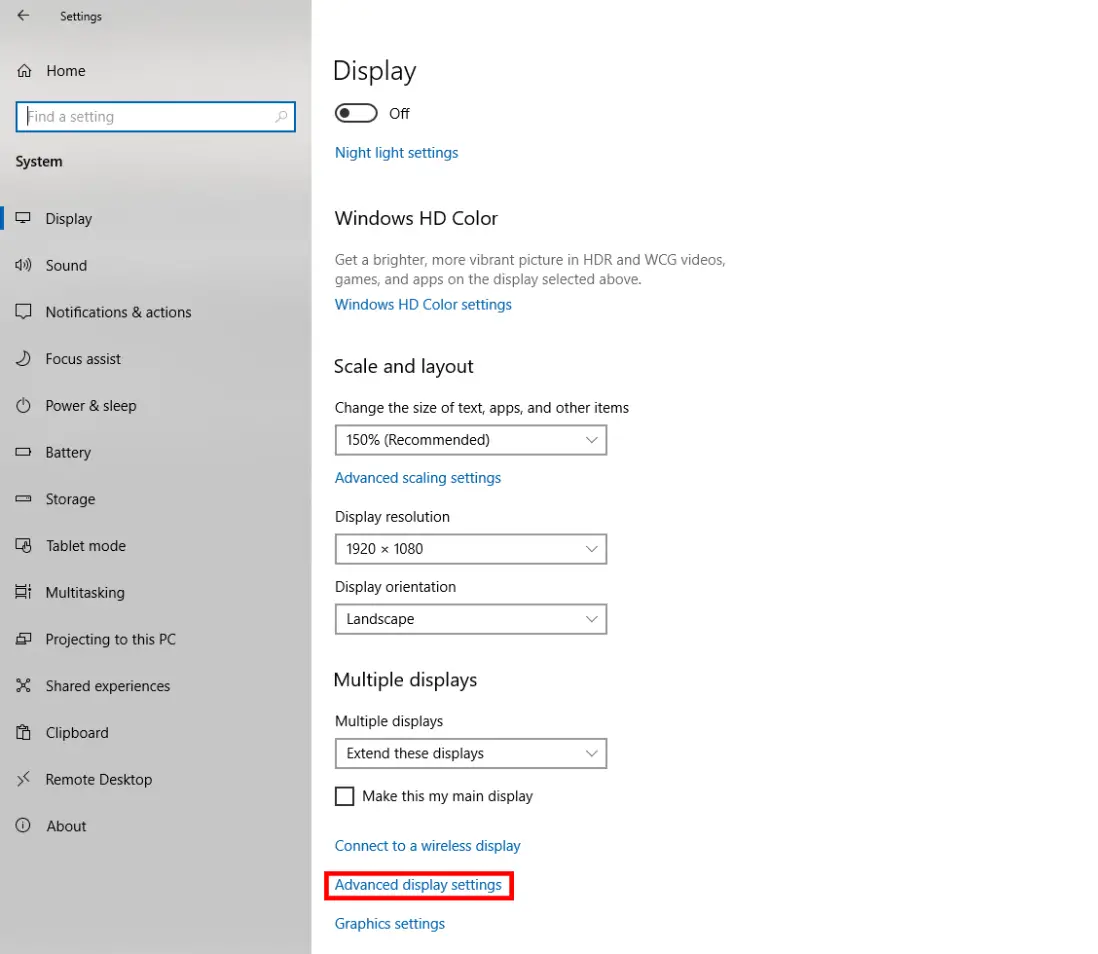
2. Select the display that you want to change settings for and choose your preferred refresh rate from the dropdown menu below.
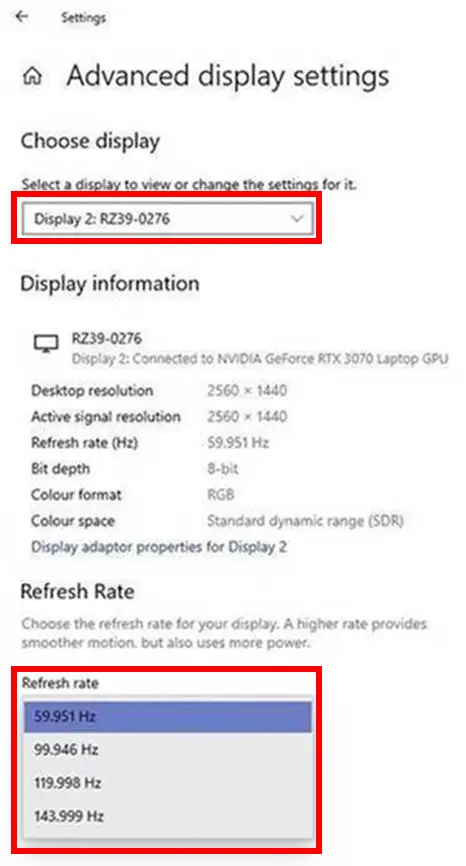
If you are using a dock or adapter to an external monitor, check out the Refresh rate and resolution monitor specifications article.
3. After selecting your preferred refresh rate, click “Keep changes”.
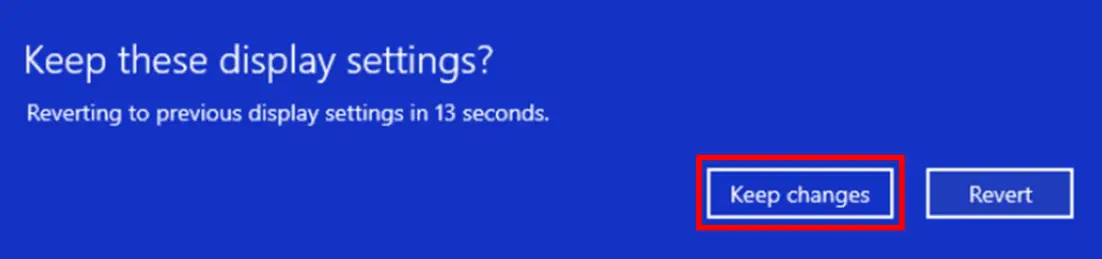
You should now have successfully adjusted the refresh rate on your Razer Blade through the Windows Settings.
How to manually check for updates on Razer Synapse 3
It is important to keep your Razer software updated at all times. These updates contain important changes to improve the Synapse’s performance, bug fixes and new features. To update Razer Synapse 3:
- Expand the system tray by clicking the arrow found on the lower-right side of your desktop, and right-click on the Razer THS icon.
- Select “Check for Updates” from the menu.
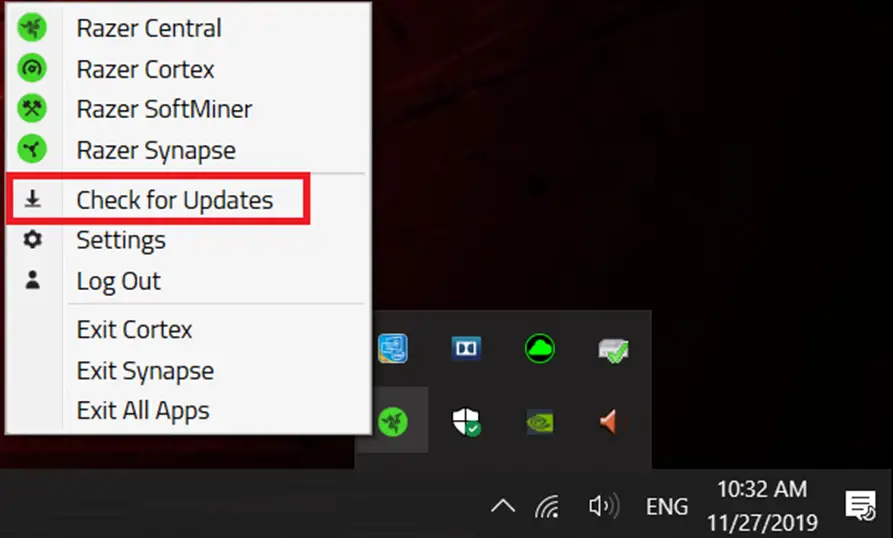
- Click “CHECK FOR UPDATES”. If there is a new update, click “UPDATE” to install.
What Razer Blade model has a “Dedicated GPU only” GPU mode?
Below is a list of Razer Blade models with “Dedicated GPU only” GPU mode:
| Product Name | Product Code |
| Razer Blade 15″ Advanced (2019) | RZ09-03137E02 |
| Razer Blade Pro 17″ (2019) | RZ09-03148E13 |
| RZ09-03148T13 | |
| RZ09-03148J13 | |
| RZ09-03148W13 | |
| RZ09-03148G13 | |
| RZ09-03148F13 | |
| RZ09-03148N13 | |
| RZ09-03148K13 | |
| Razer Blade 15″ Advanced (2020) | RZ09-03304E42 |
| RZ09-03304T42 | |
| RZ09-03304J42 | |
| RZ09-03304K42 | |
| RZ09-03304W42 | |
| RZ09-03304G42 | |
| RZ09-03304F42 | |
| RZ09-03304N42 | |
| RZ09-03305E43 | |
| RZ09-03305T43 | |
| RZ09-03305J43 | |
| RZ09-03305K43 | |
| RZ09-03305W43 | |
| RZ09-03305G43 | |
| RZ09-03305F43 | |
| RZ09-03305N43 | |
| Razer Blade Pro 17″ (2020) | RZ09-03297E42 |
| RZ09-03297T42 | |
| RZ09-03297J42 | |
| RZ09-03297K42 | |
| RZ09-03297W42 | |
| RZ09-03297G42 | |
| RZ09-03297F42 | |
| RZ09-03295E42 | |
| RZ09-03297N42 | |
| RZ09-03295T42 | |
| RZ09-03295J42 | |
| RZ09-03295K42 | |
| RZ09-03295W42 | |
| RZ09-03295G42 | |
| RZ09-03295F42 | |
| RZ09-03295N42 | |
| RZ09-03295E63 | |
| RZ09-03295T63 | |
| RZ09-03295J63 | |
| RZ09-03295K63 | |
| RZ09-03295W63 | |
| RZ09-03295G63 | |
| RZ09-03295F63 | |
| RZ09-03295N63 | |
| Razer Blade 15″ Base (2021) | RZ09-0369BEA2 |
| RZ09-0369BEA2 | |
| RZ09-0369BEA2 | |
| RZ09-0369BEA2 | |
| RZ09-0369BEA2 | |
| RZ09-0369BTA2 | |
| RZ09-0369BJA2 | |
| RZ09-0369BKA2 | |
| RZ09-0369BWA2 | |
| RZ09-0369BGA2 | |
| RZ09-0369BFA2 | |
| RZ09-0369BNA2 | |
| RZ09-0369B1A2 | |
| Razer Blade 15″ Advanced (2021) | RZ09-0367BEC3-R3U1 |
| RZ09-0367BEC3-R341 | |
| RZ09-0367BEC3-R3B1 | |
| RZ09-0367BEC3-R3C1 | |
| RZ09-0367BEC3-R3E1 | |
| RZ09-0367BTC3-R3T1 | |
| RZ09-0367BJC3-R3J1 | |
| RZ09-0367BKC3-R3K1 | |
| RZ09-0367BWC3-R3W1 | |
| RZ09-0367BGC3-R3G1 | |
| RZ09-0367BFC3-R3F1 | |
| RZ09-0367BNC3-R3N1 | |
| RZ09-0367B1C3-R311 | |
| RZ09-0367CEC3-R3U1 | |
| RZ09-0367CEC3-R341 | |
| RZ09-0367CEC3-R3B1 | |
| RZ09-0367CEC3-R3C1 | |
| RZ09-0367CEC3-R3E1 | |
| RZ09-0367CTC3-R3T1 | |
| RZ09-0367CJC3-R3J1 | |
| RZ09-0367CKC3-R3K1 | |
| RZ09-0367CWC3-R3W1 | |
| RZ09-0367CGC3-R3G1 | |
| RZ09-0367CFC3-R3F1 | |
| RZ09-0367CNC3-R3N1 | |
| RZ09-0367C1C3-R311 | |
| Razer Blade Pro 17″ (2021) | RZ09-0368CE63 |
| RZ09-0368CE63 | |
| RZ09-0368CE63 | |
| RZ09-0368CE63 | |
| RZ09-0368CE63 | |
| RZ09-0368CT63 | |
| RZ09-0368CJ63 | |
| RZ09-0368CK63 | |
| RZ09-0368CG63 | |
| RZ09-0368CW63 | |
| RZ09-0368CF63 | |
| RZ09-0368CN63 |
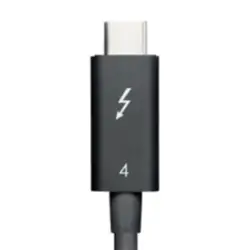
Refresh rate and resolution monitor specifications when connecting a USB-C/Thunderbolt™ cable from a Blade system to a monitor HDMI, Display, or USB-C port
- USB-C/Thunderbolt™ to HDMI Monitor
- USB-C/Thunderbolt™ to Display Port Monitor
- USB-C/Thunderbolt™ to USB-C Port Monitor
| Connection Protocol | Version | Resolution | Refresh Rate |
| HDMI Alt Mode | 1.4b | 720p HD (1280×720) | 30Hz, 60Hz, 120Hz |
| 1080p FHD (1920 x 1080) | 30Hz, 60Hz, 120Hz, 144Hz | ||
| 1440p QHD (2560 x 1440) | 30Hz, 60Hz, 75Hz | ||
| 4K UHD (3840 x 2160) | 24Hz, 25Hz, 30Hz | ||
| 4K (4096 × 2160) | 24Hz | ||
| 2 | 720p HD (1280×720) | 30Hz, 60Hz, 120Hz | |
| 1080p FHD (1920 x 1080) | 30Hz, 60Hz, 120Hz, 144Hz, 240Hz | ||
| 1440p QHD (2560 x 1440) | 30Hz, 60Hz, 75Hz, 120Hz, 144Hz | ||
| 4K UHD (3840 x 2160) | 30Hz, 60Hz with 24 bit/px color depth |
| Connection Protocol | Version | Resolution | Refresh Rate |
| DP Alt Mode | 1.2 | 1080p FHD (1920 x 1080) | 60Hz, 85Hz, 120Hz, 144Hz, 240Hz |
| 1440p QHD (2560 x 1440) /1440p | 30Hz, 60Hz, 85Hz, 120Hz, 144Hz, 165Hz | ||
| 4K UHD (3840 x 2160) 4K | 30Hz, 60Hz, 75Hz | ||
| 1.4 | 1080p FHD (1920 x 1080) | 60Hz, 85Hz, 120Hz, 144Hz, 240Hz | |
| 1440p QHD (2560 x 1440) | 30Hz, 60Hz, 85Hz, 120Hz, 144Hz, 165Hz, 240Hz | ||
| 4K UHD (3840 x 2160) | 30Hz, 60Hz, 75Hz, 120Hz | ||
| Single 4K UHD display (3840 × 2160) with 24 bit/px RGB color | 120Hz | ||
| Single 5K UHD display (5120 × 2880) with 30 bit/px RGB color | 60Hz | ||
| Single 8K UHD display (7680 × 4320) with 24 bit/px RGB color | 30Hz |
| Connection Protocol | Version | Resolution | Refresh Rate |
| DisplayPort | 1.2 | 1080p FHD (1920 x 1080) | 60Hz, 85Hz, 120Hz, 144Hz, 240Hz |
| 1440p QHD (2560 x 1440) | 30Hz, 60Hz, 85Hz, 120Hz, 144Hz, 165Hz | ||
| 4K UHD (3840 x 2160) | 30Hz, 60Hz, 75Hz | ||
| 1.4 | 1080p FHD (1920 x 1080) | 60Hz, 85Hz, 120Hz, 144Hz, 240Hz | |
| 1440p QHD (2560 x 1440) | 30Hz, 60Hz, 85Hz, 120Hz, 144Hz, 165Hz, 240Hz | ||
| 4K UHD (3840 x 2160)* | Up to 2 monitors: 30Hz, 60Hz 1 monitor only: 75Hz, 120Hz | ||
| 5K UHD (5120 x 2880) | 24Hz, 30Hz, 60Hz | ||
| 8K UHD (7680 x 4320)* | 24Hz, 30Hz, 60Hz |
*Display Stream Compression (DSC) support required
How do I defrag the SSD on the Razer Blade Pro 17?
Solid State Drives cannot be defragmented. Unlike Hard Disk drives that use a physical magnetic disk to write and read data, SSDs can read blocks of data that are spread out over the drive just as fast as they can read those blocks that are adjacent to one another. There is no need to defrag an SSD Drive.
How do I upgrade the memory, SSD, HDD or hard drive on my Razer Blade 17?
Most Razer Blade Pro 17 models can be upgraded. Check the technical specifications of your Razer Blade model on its upgradability. Detailed steps on how to upgrade components are not available. Instructions from other sources may be available but we cannot be responsible for their content.
Note: Any damage or issues caused during installation or as a result of incompatible parts being used is not covered under the warranty and may void the warranty coverage. Razer will not be liable for any warranty coverage on any third-party part you may install and we cannot guarantee compatibility or performance of any third-party parts.
What should I do to maintain the power adapter’s good condition and extend its life span?
To keep your power adapter in good condition and extend its life span, check this Taking proper care of your Razer Blade power adapter_EN_v1.0 [PDF]
Updating Windows OS
It is important to keep your Microsoft OS updated to ensure that you can receive the latest software updates for your system.
Follow the steps below to check for updates on your Windows 10 Razer Blade
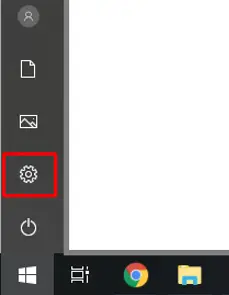
- Click the “Start” button, and then go to “Settings”.
- Select “Update & Security”.
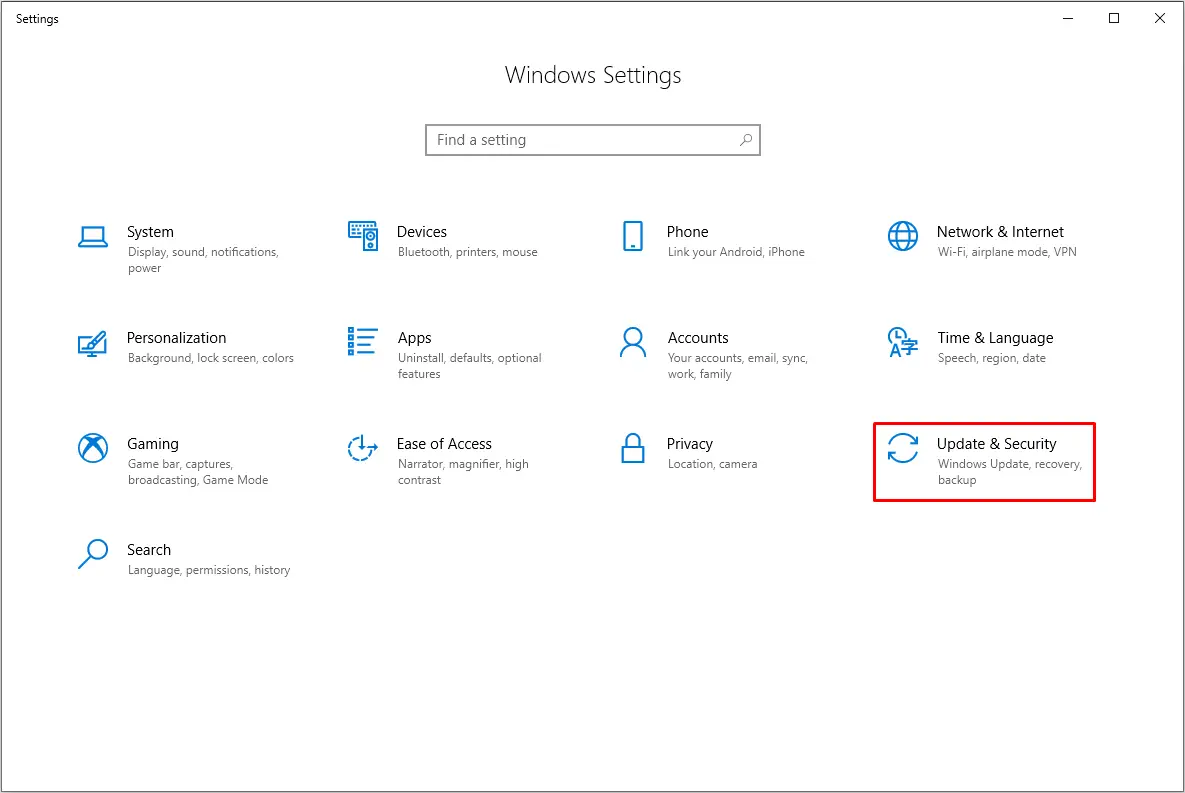
3. Select “Windows Update”, and click “Check for updates”.
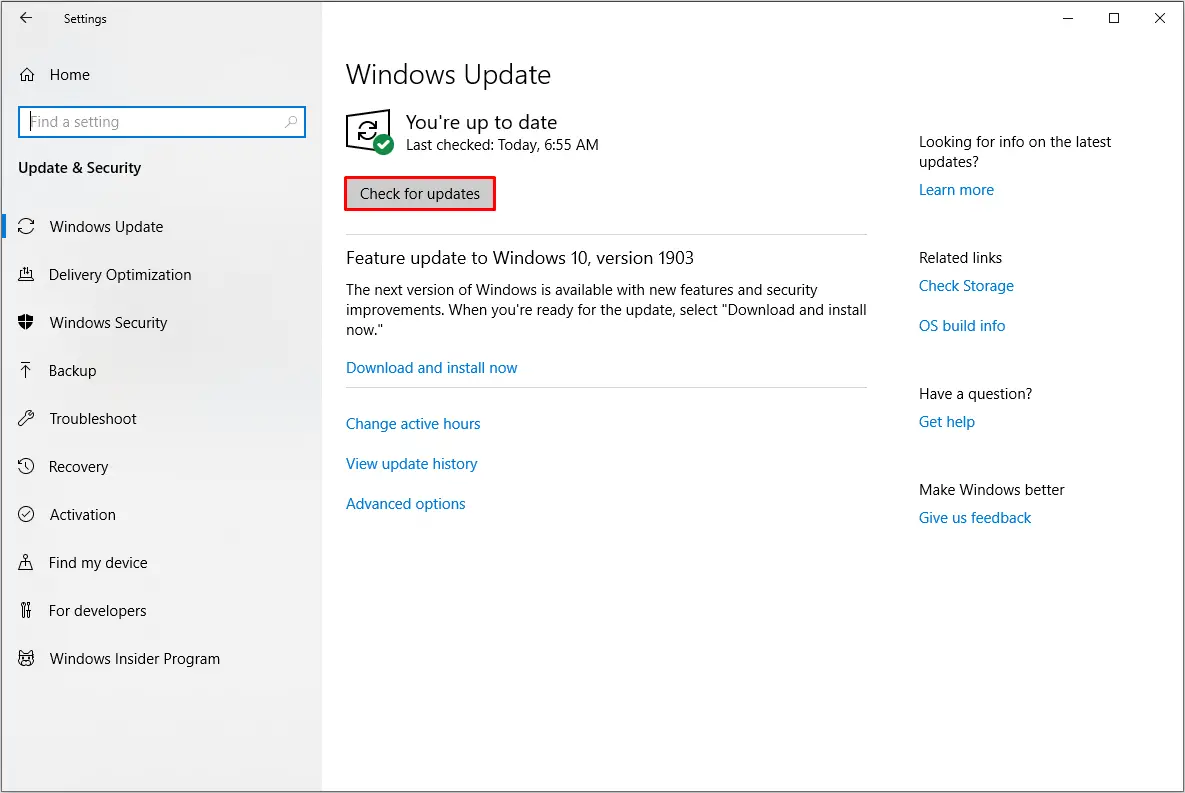
Your system should automatically prompt you of any missing update or if the device is currently up to date.
Troubleshooting
BIOS error message during installation
When downloading the proper BIOS firmware updater for your Razer Blade laptops, you may run into the following issue when installing: “This firmware tool is for use only with Blade and compatible system. The application will now close.”.
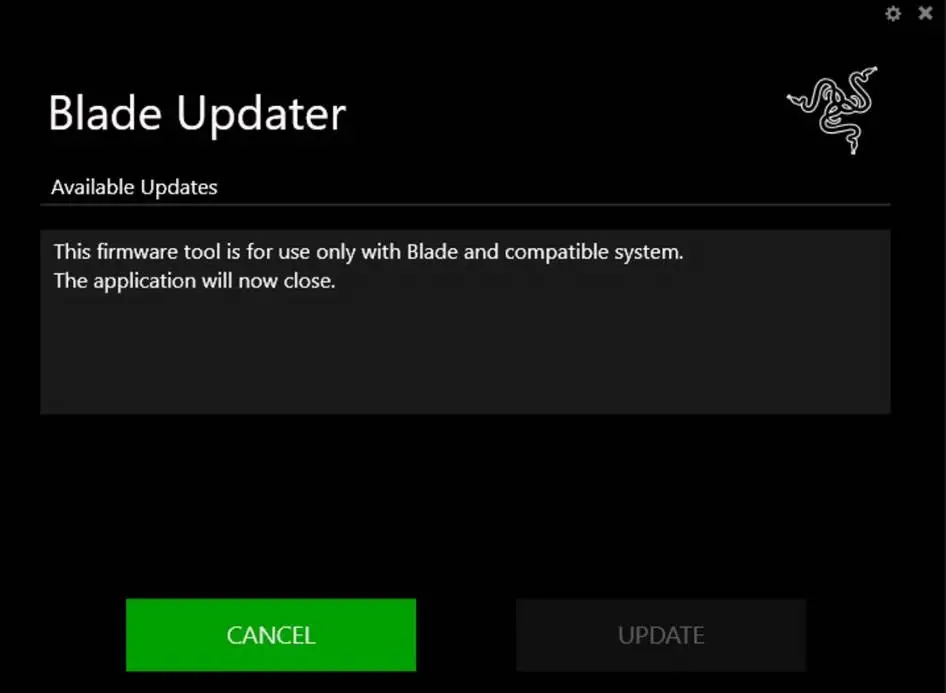
The issue is related to the product code of some devices, found in the BIOS. The firmware is correct but may not install because the product code embedded in the BIOS does not match the firmware updater.
The firmware houses a list of applicable product codes so that it knows which units to allow itself to install on. If the product code in the BIOS of the laptop does not match that of the updater’s list of approved devices, it will return an error.
Display error on Razer laptops when using GPU-intensive programs or games
If you experience image issues or the display driver stops working when playing GPU-intensive applications, programs or games, follow the steps below to resolve the problem:
- Restart the device and test if the issue is still present after the reboot.
- Ensure that you have updated to the latest version of Windows.
- Make sure your graphics driver is up to date:
- Intel Graphics driver for Blade Stealth – Download
- NVIDIA Graphics driver for Blade Stealth, Blade and Blade Pro –
Note: Choose the appropriate graphics card for your Razer Blade model.
- Check if the issue persists on all games or on a specific game.
- If the issue only occurs on a certain application or game, the issue may be caused by the game itself.
- Make sure the device specifications fit the system requirements of the game or application.
- Attempt to reinstall the game or application.
- If the issue persists, check if this is a common issue with other owners of the same game or application to see if a fix is available on their end.
- Restart the device and test if the issue is still present after the reboot.
- Adjust your screen resolution to match the screen resolution of the game or application.
- If the issue is still present, attempt to reinstall the updated graphics driver and test the device again to eliminate the possibility of a corrupt installation.
- If the steps above did not resolve the issue attempt to perform a system recovery or factory reset.
Software & Downloads
Where can I find the latest drivers for my Razer Blade Pro 17?
To enhance the user experience, drivers for your Razer laptop are available through Windows Updates. Simply navigate to Settings > Update & Security > Windows Update and select “Check for updates” to ensure that you have the latest drivers installed on your Razer Blade Laptop.
Where can I get information on MS Windows update and end-of-support info?
All our Razer Blade models operate using Windows operating systems. Any updates, upgrades, and changes to Windows servicing and support come directly from Microsoft Corporation.
- Check out the Windows product lifecycle page to know more.
- Check out the Windows IT Pro Blog to find out more about Windows changes to Office and Windows servicing and support.
Hardware
Can I custom overclock my Razer Blade Pro 17?
Custom overclocking on the newer versions of your Razer laptops is not possible since the CPU is locked. Razer laptops are carefully crafted, and its components are tuned to give the best performance under the most demanding gaming conditions. There is an associated risk of damage to crucial components if unauthorized changes are made, which will result in voiding the manufacturer’s warranty.
Can I use a lower-watt power adapter on my Razer Blade laptop?
Yes, the Razer Blade Pro 17″ (2021) | RZ09-0368x supports USB-C power adapters (up to 100 W) which output less power than the provided 230 W AC adapter. However, using a lower-watt power adapter may affect the performance of your laptop, and your laptop may charge slower or not charge at all while the system is running. To avoid any of these issues, we recommend using only the power adapter that comes with the laptop.
Will I overcharge my battery if I leave it plugged in even when it is at 100%?
The Razer Blade Pro 17″ (2021) | RZ09-0368x series uses a lithium-ion (Li-On) polymer battery. Though this is not exactly a Windows feature, overcharging Li-ion batteries is not a problem and does not affect the battery life span. The Blade laptops have an internal circuit to stop charging at full charge to avoid overcharging and will only start recharging when the battery hits 95%.
How can I extend the battery life of my Razer Blade Pro 17 when on-the-go?
Most of the battery improvement options are part of the Windows OS. Follow the following tips below to extend the battery life of your Razer Blade Pro 17″ (2021) | RZ09-0368x when on-the-go:
- Temporarily turn off the keyboard backlighting
- Try dimming the screen brightness
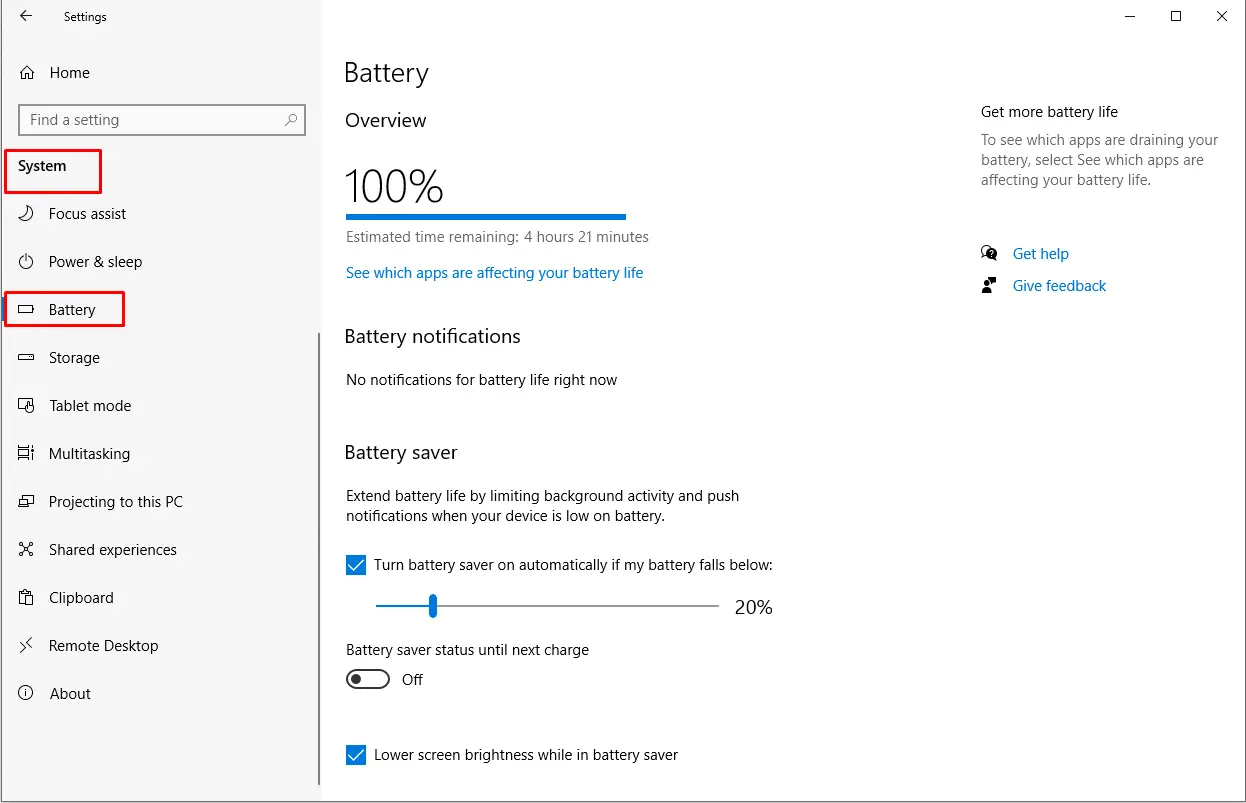
- Check the “Battery Saver” settings for the most effective means of conserving battery when on-the-go.
- The battery life may be extended further by turning down the display brightness, adjusting the power settings in Windows Setting > System > Battery and adjust the power configuration to your liking.
- Changing the performance mode in Synapse 3
- Close applications when not in use.
- Dim or turn off the keyboard lighting.
Can I use third-party power adapters with the Razer Blade Pro 17″ (2021)?
We only recommend using Razer power supplies with the Razer Blade Pro 17″ (2021) | RZ09-0368x. Third-party adapters have not been tested to meet our standards and may lead to damage to the system. You can purchase replacement or spare 230W AC adapters from the RazerStore.
Downloads
Razer Blade Pro 17″ (2021) Master Guide (Japanese) – Download
Razer Blade Pro 17″ (2021) Master Guide (German) – Download
Razer Blade Pro 17″ (2021) Master Guide (French) – Download
Razer Blade Pro 17″ (2021) Master Guide (Traditional Chinese) – Download
Razer Blade Pro 17″ (2021) Master Guide (Simplified Chinese) – Download
Razer Blade Pro 17″ (2021) Master Guide (Russian) – Download
Razer Blade Pro 17″ (2021) Master Guide (Portuguese-Brazilian) – Download
Razer Blade Pro 17″ (2021) Master Guide (Korean) – Download
Razer Blade Pro 17″ (2021) Master Guide (Spanish) – Download
Razer Blade Pro 17″ (2021) Master Guide (Arabic) – Download
Razer Blade Pro 17″ (2021) Master Guide (English) – Download