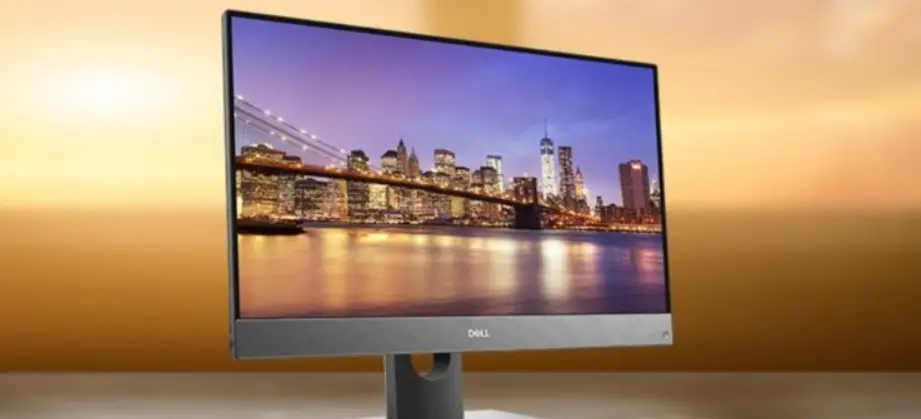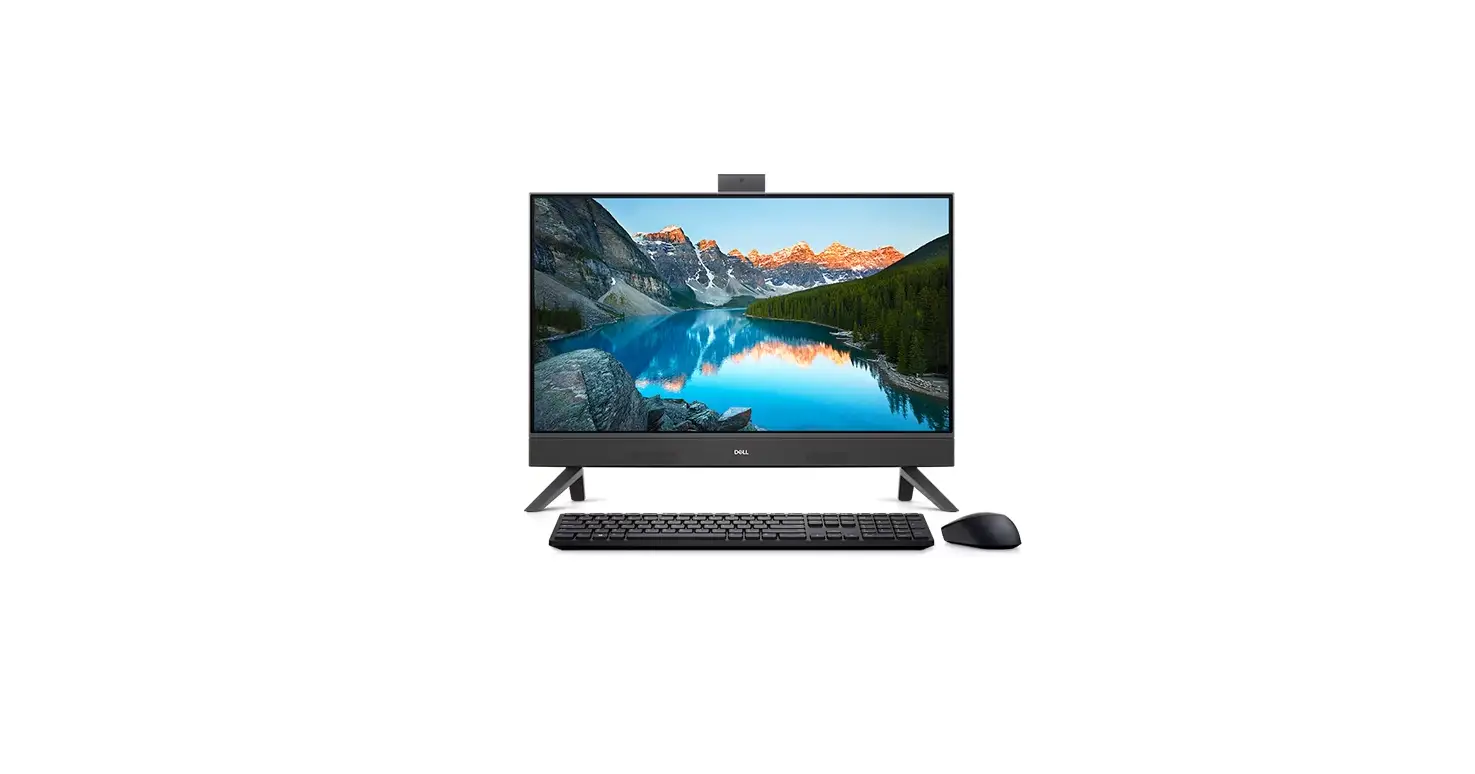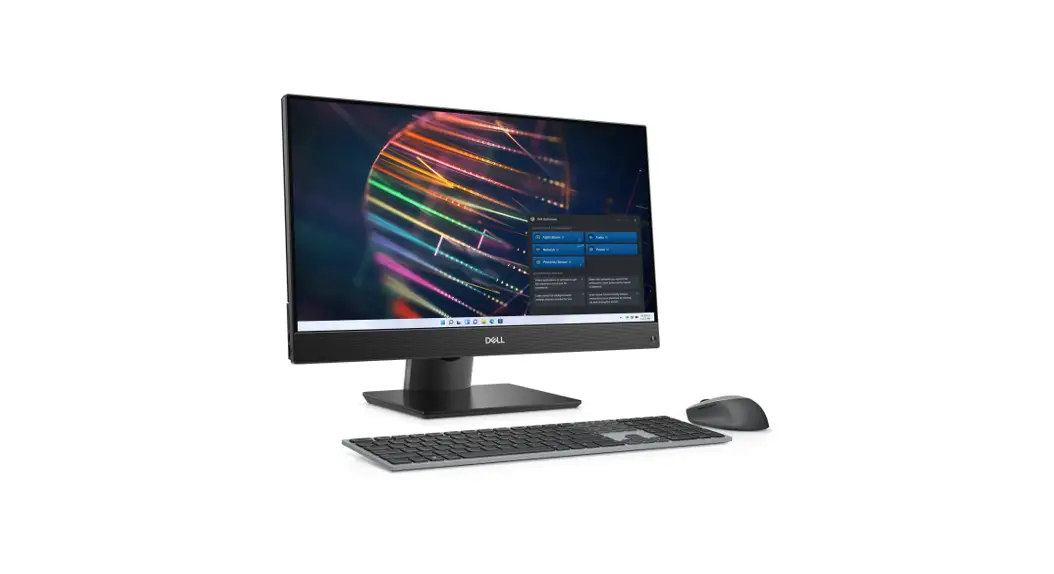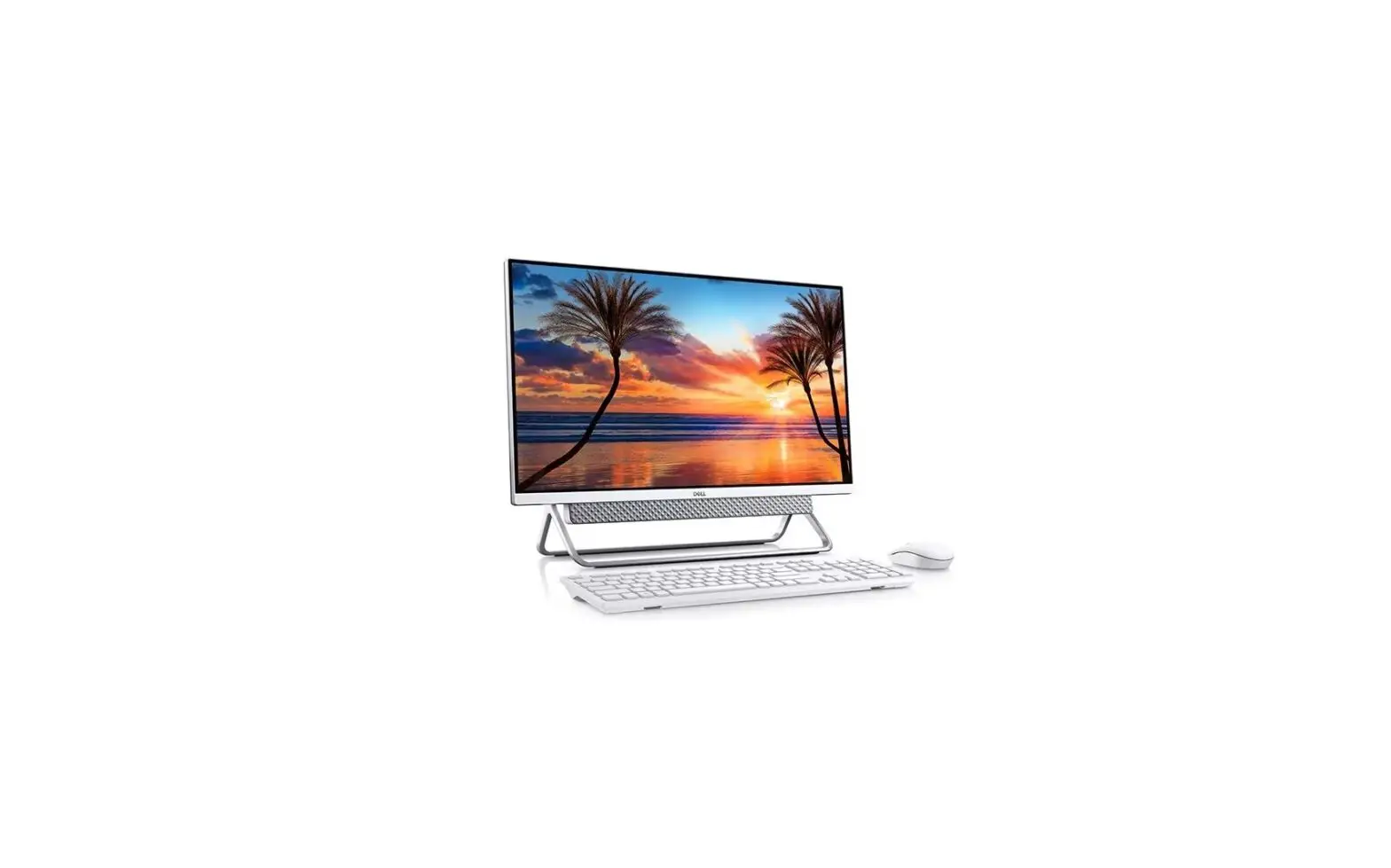

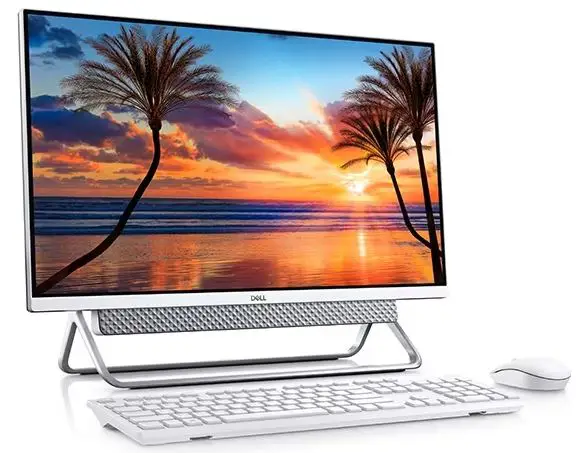
DELL Inspiron 27-7700 All In One Desktop
Notes, cautions, and warnings
NOTE: A NOTE indicates important information that helps you make better use of your product.
CAUTION: A CAUTION indicates either potential damage to hardware or loss of data and tells you how to avoid the problem.
WARNING: A WARNING indicates a potential for property damage, personal injury, or death.
Set up your computer
- Set up the keyboard and mouse.
NOTE: For setup instructions, see the documentation shipped with the keyboard and mouse. - Connect the power cable.

- Press the power button.

- Finish Windows setup.
Follow the on-screen instructions to complete the setup. When setting up, Dell recommends that you:- Connect to a network for Windows updates.
NOTE: If connecting to a secured wireless network, enter the password for the wireless network access when prompted. - If connected to the internet, sign-in with or create a Microsoft account. If not connected to the internet, create an offline account.
- On the Support and Protection screen, enter your contact details.
- Connect to a network for Windows updates.
- Locate and use Dell apps from the Windows Start menu—Recommended
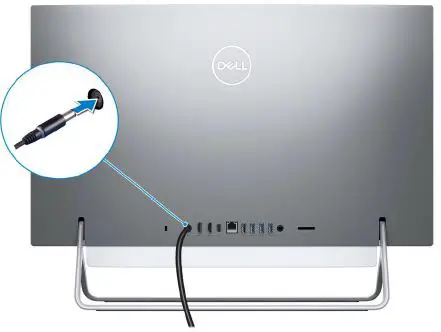
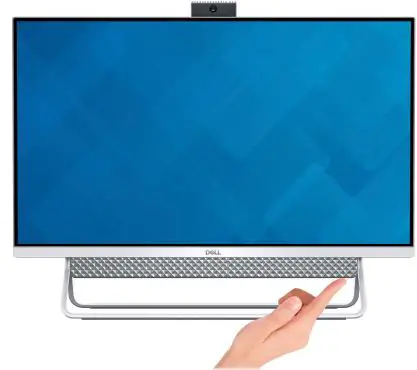
Table 1. Locate Dell apps
| Resources | Description |
 | My Dell Centralized location for key Dell applications, help articles, and other important information about your computer. It also notifies you about the warranty status, recommended accessories, and software updates if available. |
 | Dell Update Updates your computer with critical fixes and latest device drivers as they become available. For more information about using Dell Update, see the knowledge base article 000149088 at www.dell.com/support. |
 | Dell Digital Delivery Download software applications, which are purchased but not preinstalled on your computer. For more information about using Dell Digital Delivery, see the knowledge base article 000129837 at www.dell.com/support. |

| SupportAssist SupportAssist proactively and predictively identifies hardware and software issues on your computer and automates the engagement process with Dell Technical support. It addresses performance and stabilization issues, prevents security threats, monitors, and detects hardware failures. For more information, see SupportAssist for Home PCs User’s Guide at www.dell.com/ serviceabilitytools. Click SupportAssist and then, click SupportAssist for Home PCs. NOTE: In SupportAssist, click the warranty expiry date to renew or upgrade your warranty. |
Views of Inspiron 27-7700
Front
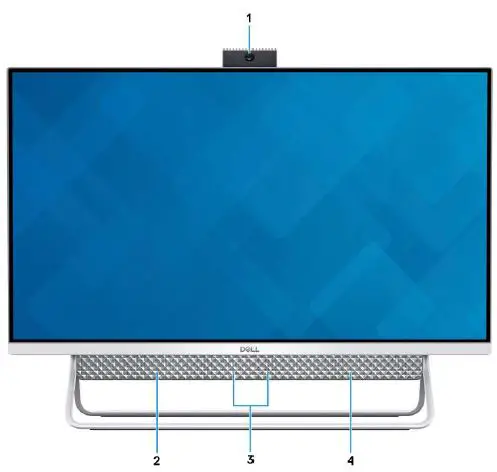
- Retractable-camera assembly
Enables you to videochat, capture photos, and record videos. This camera can be retracted to protect your privacy. - Left speaker
Provides audio output. - Digital-array microphones (2)
Provide digital sound input for audio recording, voice calls, and so on. - Right speaker
Provides audio output.
Retractable camera
Retractable camera for computers shipped with IR camera
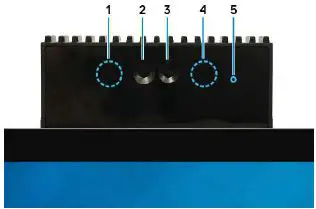
- Infrared emitter
Emits infrared light, which enables the infrared camera to sense and track motion. - Infrared camera
Enhances security when paired with Windows Hello face authentication. - Camera
Enables you to video chat, capture photos, and record videos. - Infrared emitter
Emits infrared light, which enables the infrared camera to sense and track motion. - Camera-status light
Turns on when the camera is in use.
Retractable camera for computers shipped with HD camera
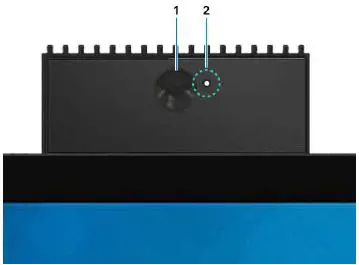
- Camera
Enables you to video chat, capture photos, and record videos. - Camera-status light
Turns on when the camera is in use.
Back
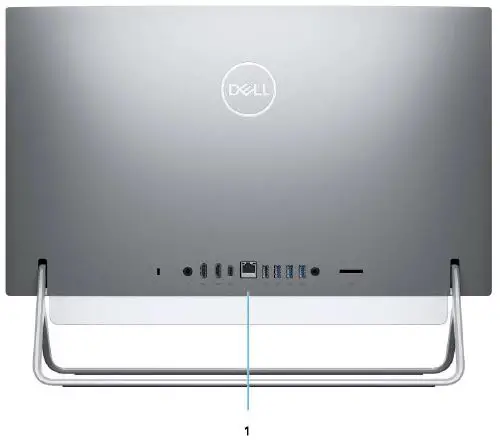
- Back panel
Connect USB, audio, video, and other devices.
For more information on the rear ports, see Back panel.
Back panel
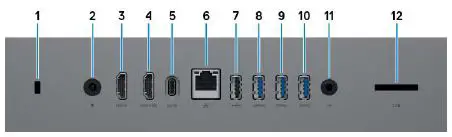
- Security-cable slot (for Kensington locks)
Connect a security cable to prevent unauthorized movement of your computer. - Power-adapter port
Connect a power adapter to provide power to your computer. - HDMI port
Connect to a TV, external display or another HDMI-in enabled device. Provides video and audio output. - HDMI-in port
Connect a gaming console, Blu-ray player, or other HDMI-out enabled device. - USB 3.1 Gen 2 Type-C port
Connect peripherals such as external storage devices and printers.
Provides data transfer speeds up to 10 Gbps. PowerShare enables you to charge connected USB devices.
NOTE: Connected USB devices will not charge when the computer is turned off. Please set BIOS Deep Sleep control to disabled to start charging when the computer is powered off. - Network port
Connect an Ethernet (RJ45) cable from a router or a broadband modem for network or Internet access, with a transfer rate of 10/100/1000 Mbps. - USB 2.0 port with Power on/Wake-up support
Connect peripherals such as external storage devices and printers. Provides data transfer speeds up to 480 Mbps. Wake the computer from standby with the keyboard or mouse connected to this port.
NOTE: Set the BIOS Deep Sleep control to disabled to enable Wake up when the computer is powered off. - USB 3.1 Gen 1 port with Power on/Wake-up support
Connect peripherals such as external storage devices and printers. Provides data transfer speeds up to 5 Gbps. Wake the computer from standby with the keyboard or mouse connected to this port.
NOTE: Set the BIOS Deep Sleep control to disabled to enable Wake up when the computer is powered off. - USB 3.1 Gen 1 port
Connect devices such as external storage devices and printers. Provides data transfer speeds up to 5 Gbps. - USB 3.1 Gen 1 port with PowerShare
Connect peripherals such as external storage devices and printers.
Provides data transfer speeds up to 5 Gbps. PowerShare enables you to charge connected USB devices.
NOTE: Connected USB devices will not charge when the computer is turned off. Please set BIOS Deep Sleep control to disabled to start charging when the computer is powered off. - Audio-out port
Connect audio-output devices such as speakers, amplifiers, and so on. - SD-card slot
Reads from and writes to the SD card, supporting the following cards:- SD card
- SD High Capacity (SDHC) card
- SD Extended Capacity (SDXC) card
- micro Secure Digital (mSD)
- micro Secure Digital High Capacity (mSDHC)
- micro Secure Digital Extended Capacity (mSDXC)
Bottom
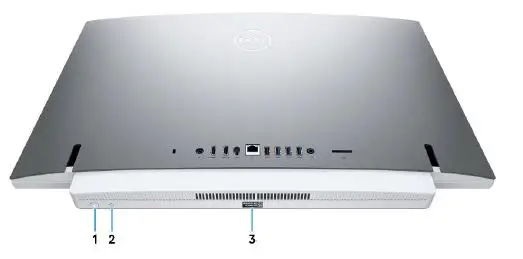
- Power button
Press to turn on the computer if it is turned off, in sleep state, or in hibernate state.
When the computer is turned on, press the power button to put the computer into sleep state; press and hold the power button for 10 seconds to force shut-down the computer.
NOTE: You can customize the power-button behavior in Windows. For more information, see Me and My Dell at www.dell.com/support/manuals. - Display Built-in Self Test button/Input-source selection button
This button has two functions:- When the computer is on, use this button to select the video input source.
Press the button to switch the display between the internal system display and HDMI input. - When the computer is off (there is no power; neither is it in sleep state nor hibernate state), use this button to run the built-in self-test for the display.
Press and hold down this button, and then press the power button to turn on the computer. The built-in color pattern for the LCD monitor will appear on the screen.
For more information, see the Troubleshooting section in the Service Manual at www.dell.com/support/manuals.
- When the computer is on, use this button to select the video input source.
- Service Tag label
The Service Tag is a unique alphanumeric identifier that enables Dell service technicians to identify the hardware components in your computer and access warranty information.
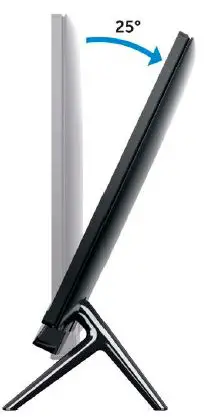
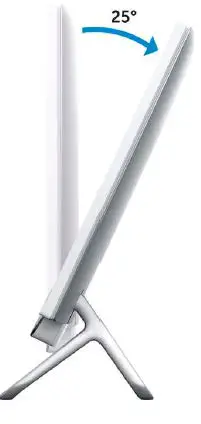
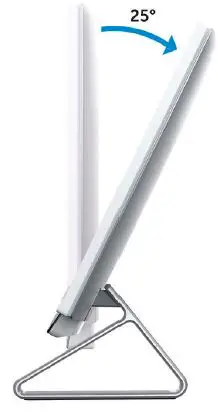
Tilt
- Bipod stand

- Arch stand

- A-Frame stand

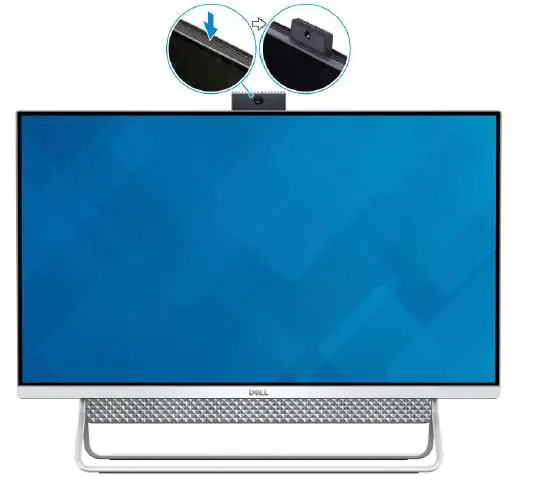
Retractable camera
Push the top of camera to extend or retract the camera. Extend the camera before use and retract the camera to protect your privacy when not in use.
Specifications of Inspiron 27-7700
Stand
Table 2. Stand
| Description | Bipod stand | Arch stand | A-Frame stand |
| Height | 132.20 mm (5.20 in.) | 127.71 mm (5.02 in.) | 135 mm (5.31 in.) |
| Width | 477 mm (18.77 in.) | 462 mm (18.18 in.) | 531.8 mm (20.93 in.) |
| Depth | 193.4 mm (7.61 in.) | 182 mm (7.16 in.) | 202.3 mm (7.96 in.) |
| Weight | 0.38 kg (0.84 lb) | 0.59 kg (1.30 lb) | 0.62 kg (1.36 lb) |
Bipod stand
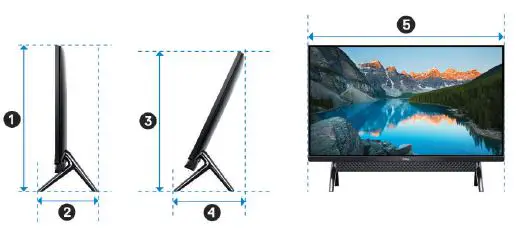
Table 3. Bipod stand dimensions
| Description | Dimensions |
| 1 | 453.20 mm (17.84 in.) |
| 2 | 193.40 mm (7.61 in.) |
| 3 | 432.35 mm (17.02 in.) |
| 4 | 232.64 mm (9.15 in.) |
| 5 | 611.70 mm (24.08 in.) |
Arch stand
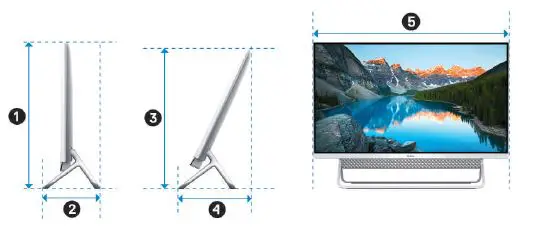
Table 4. Arch stand
| Description | Dimensions |
| 1 | 453.20 mm (17.84 in.) |
| 2 | 182 mm (7.16 in.) |
| 3 | 432.35 mm (17.02 in.) |
| 4 | 233.40 mm (9.18 in.) |
| 5 | 611.70 mm (24.08 in.) |
A-Frame stand
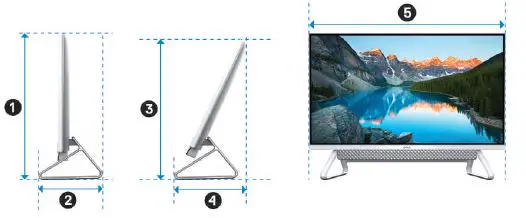
Table 5. A-Frame stand dimensions
| Description | Dimensions |
| 1 | 453.20 mm (17.84 in.) |
| 2 | 202.3 mm (7.96 in.) |
| 3 | 432.35 mm (17.02 in.) |
| 4 | 234.95 mm (9.25 in.) |
| 5 | 611.70 mm (24.08 in.) |
Dimensions and weight
Table 6. Computer dimensions and weight
| Description | Values | |
| Height | 395.40 mm (15.56 in.) NOTE: The height of your computer varies depending on the stand installed. | |
| Width | 611.70 mm (24.08 in.) with Bipod stand, A-Frame stand and Arch stand NOTE: The width of your computer varies depending on the stand installed. | |
| Depth | 42 mm (1.65 in.) | |
| Weight: | ||
| Touchscreen | 7.16 kg (15.78 lb) | |
| Non-touchscreen | 6.73 kg (14.83 lb) | |
| NOTE: The weight of your computer varies depending on the configuration ordered and the manufacturing variability. | ||
Processor
The following table lists the details of the processors supported by your Inspiron 27-7700.
Table 7. Processor
| Description | Option one | Option two | Option three |
| Processor type | 11th Generation Intel Core i3 (1115G4) | 11th Generation Intel Core i5 (1135G7) | 11th Generation Intel Core i7 (1165G7) |
| Processor wattage | 15 W | 15 W | 15 W |
| Processor core count | 2 | 4 | 4 |
| Processor thread count | 4 | 8 | 8 |
| Processor speed | Up to 4.1 GHz | Up to 4.2 GHz | Up to 4.7 GHz |
| Processor cache | 6 MB | 8 MB | 12 MB |
| Integrated graphics | Intel UHD Graphics | Intel Iris Xe Graphics | Intel Iris Xe Graphics |
Chipset
The following table lists the details of the chipset supported by your Inspiron 27-7700.
Table 8. Chipset
| Description | Values |
| Chipset | Integrated in the processor |
| Processor | 11th Generation Intel Core i3/i5/i7 |
| DRAM bus width | 64 bit |
| Flash EPROM | 16 MB |
| PCIe bus | PCIe 3.0 |
Operating system
Your Inspiron 27-7700 supports the following operating systems:
- Windows 11 Home, 64-bit
- Windows 11 Pro, 64-bit
- Windows 10 Home, 64-bit
- Windows 10 Pro, 64-bit
Memory
The following table lists the memory specifications of your Inspiron 27-7700.
Table 9. Memory specifications
| Description | Values |
| Memory slots | Two SODIMM slots |
| Memory type | Dual-channel DDR4 |
| Memory speed | 2666 MHz |
| Maximum memory configuration | 32 GB |
| Minimum memory configuration | 4 GB |
| Memory size per slot | 4 GB, 8 GB, 12 GB, and 16 GB |
| Memory configurations supported | ● 4 GB, 1 x 4 GB, DDR4, 2666 MHz ● 8 GB, 1 x 8 GB, DDR4, 2666 MHz |
| ● 8 GB, 2 x 4 GB, DDR4, 2666 MHz ● 12 GB, 1 x 8 GB + 1 x 4 GB, DDR4, 2666 MHz ● 16 GB, 1 x 16 GB, DDR4, 2666 MHz ● 16 GB, 2 x 8 GB, DDR4, 2666 MHz ● 32 GB, 1 x 32 GB, DDR4, 2666 MHz ● 32 GB, 2 x 16 GB, DDR4, 2666 MHz |
Ports and connectors
The following table lists the external and internal ports available on your Inspiron 27-7700.
Table 10. Ports and connectors
| Description | Values |
| External: | |
| Network | One RJ-45 port |
| USB | ● Two USB 2.0 port with Power on/Wake-up support ● One USB 3.1 Gen 1 port ● One USB 3.1 port with Power on/Wake-up support ● One USB 3.1 Gen 1 port with PowerShare ● One USB 3.1 Gen 2 (Type-C) port |
| Audio | Audio-out port |
| Video | ● One HDMI 1.4b port NOTE: The maximum resolution supported by the HDMI port is 1920 x 1080 at 60 Hz (24-bit). ● One HDMI-in port |
| Media-card reader | One SD-card slot |
| Power port | One 4.5 mm x 2.9 mm DC-in adapter port |
| Security | Kensington slot |
| Internal: | |
| PCIe expansion card slots | Not supported |
| M.2 | ● One M.2 slot for Wi-Fi and Bluetooth combo card ● One PCIe M.2 2230 slot for solid-state drive NOTE: To learn more about the features of different types of M.2 cards, see the knowledge base article 000144170 at www.dell.com/support . |
Ethernet
The following table lists the wired Ethernet Local Area Network (LAN) specifications of your Inspiron 27-7700.
Table 11. Ethernet specifications
| Description | Values |
| Model number | Realtek RTL8111HSD-CG PCIe Gigabit Ethernet controller (integrated on system board) |
| Transfer rate | 10/100/1000 Mbps |
Wireless module
The following table lists the Wireless Local Area Network (WLAN) modules supported on your Inspiron 27-7700.
Table 12. Wireless module specifications
| Description | Option one | Option two |
| Model number | Intel 9462 | Intel AX201 |
| Transfer rate | Up to 433 Mbps | Up to 2400 Mbps |
| Frequency bands supported | Dual band 2.4 GHz/5 GHz | Dual band 2.4 GHz/5 GHz |
| Wireless standards | ● Wi-Fi 802.11a/b/g ● Wi-Fi 4 (WiFi 802.11n) ● Wi-Fi 5 (WiFi 802.11ac) | ● WiFi 802.11a/b/g ● Wi-Fi 4 (WiFi 802.11n) ● Wi-Fi 6 (WiFi 802.11ax) |
| Encryption | ● 64-bit/128-bit WEP ● AES-CCMP ● TKIP | ● 64-bit/128-bit WEP ● AES-CCMP ● TKIP |
| Bluetooth | Bluetooth 5.0 | Bluetooth 5.1 |
Audio
The following table lists the audio specifications of your Inspiron 27-7700.
Table 13. Audio specifications
| Description | Values |
| Audio controller | Realtek ALC3289-CG |
| Stereo conversion | Supported |
| Internal audio interface | High definition audio interface |
| External audio interface | Universal Audio Jack/HDMI 1.4 port |
| Number of speakers | 2 |
| Internal-speaker amplifier | Supported |
| External volume controls | Not supported |
| Speaker output: | ||
| Average speaker output | 5 W | |
| Peak speaker output | 6 W | |
| Subwoofer output | Not supported | |
| Microphone | Digital-array microphones | |
Storage
This section lists the storage options on your Inspiron 27-7700.
Your computer supports one of the following configurations:
- One 2.5-inch hard-disk drive
- One M.2 2230 solid-state drive
- One 2.5-inch hard drive and one M.2 2230 solid-state drive
Table 14. Storage specifications
| Storage type | Interface type | Capacity |
| One 2.5-inch hard-disk drive | SATA AHCI 6 Gbps | Up to 2 TB |
| One M.2 2230 solid-state drive | PCIe Gen3.0x4 NVMe, up to 32 Gbps | Up to 1 TB |
Media-card reader
The following table lists the media cards supported by your Inspiron 27-7700.
Table 15. Media-card reader specifications
| Description | Values |
| Media-card type | One SD-card slot |
| Media-cards supported | ● SD card ● SD High Capacity (SDHC) card ● SD Extended Capacity (SDXC) card ● micro Secure Digital (mSD) ● micro Secure Digital High Capacity (mSDHC) ● micro Secure Digital Extended Capacity (mSDXC) |
| NOTE: The maximum capacity supported by the media-card reader varies depending on the standard of the media card installed in your computer. | |
Camera
The following table lists the camera specifications of your Inspiron 27-7700.
Table 16. Camera specifications
| Description | Values | |
| Number of cameras | One | |
| Camera type | ● FHD RGB camera ● FHD RGB + infrared camera | |
| Camera location | Front camera | |
| Camera sensor type | CMOS sensor technology | |
| Camera resolution: | ||
| Still image | ● 2.07 megapixels (FHD camera) ● 0.30 megapixels (HD camera) | |
| Video | ● 1920 x 1080 (FHD) at 30 fps (FHD camera) ● 640 x 480 at 30 fps (HD camera) | |
| Infrared camera resolution: | ||
| Still image | 0.3 megapixel | |
| Video | 640 x 480 (VGA) at 30 fps | |
| Diagonal viewing angle: | ||
| Camera | ● 77.4 degrees (FHD RGB camera) ● 77.5 degrees (FHD RGB + infrared camera) | |
| Infrared camera | ● 77.4 degrees (FHD RGB camera) ● 82.9 degrees (FHD RGB + infrared camera) | |
Display
The following table lists the display specifications of your Inspiron 27-7700.
Table 17. Display specifications
| Description | Values | |
| Display type | Full High Definition (FHD) | |
| Display-panel technology | Wide Viewing Angle (WVA) | |
| Display-panel dimensions (active area): | ||
| Height | 336.31 mm (13.24 in.) | |
| Width | 597.89 mm (23.53 in.) | |
| Diagonal | 686 mm (27 in.) | |
| Display-panel native resolution | 1920 x 1080 | |
| Luminance (typical) | 250 nits |
| Megapixels | 2.07 |
| Color gamut | 72% (NTSC) |
| Pixels Per Inch (PPI) | 81 |
| Contrast ratio (min) | 600:1 |
| Response time (max) | 25 msec rise/fall |
| Refresh rate | 60 Hz |
| Horizontal view angle | +/- 85 degrees |
| Vertical view angle | +/- 85 degrees |
| Pixel pitch | 0.3114 x 0.3114 mm |
| Power consumption (maximum) | 18.80 W |
| Anti-glare vs glossy finish | Anti-glare (non-Touch) / Truelife (Touch) |
| Touch options | Yes |
Power adapter
The following table lists the power adapter specifications of your Inspiron 27-7700.
Table 18. Power adapter specifications
| Description | Option one | Option two | |
| Type | 90 W | 130 W | |
| Connector dimensions: | |||
| External diameter | 4.5 mm | 4.5 mm | |
| Internal diameter | 2.9 mm | 2.9 mm | |
| Input voltage | 100 VAC-240 VAC | 100 VAC-240 VAC | |
| Input frequency | 50 Hz-60 Hz | 50 Hz-60 Hz | |
| Input current (maximum) | 1.50 A | 2.50 A | |
| Output current (continuous) | 4.62 A | 6.70 A | |
| Rated output voltage | 19.50 VDC | 19.50 VDC | |
| Temperature range: | |||
| Operating | 0°C to 40°C (32°F to 104°F) | 0°C to 40°C (32°F to 104°F) | |
| Storage | –40°C to 70°C (–40°F to 158°F) | –40°C to 70°C (–40°F to 158°F) | |
GPU—Integrated
The following table lists the specifications of the integrated Graphics Processing Unit (GPU) supported by your Inspiron 27-7700.
Table 19. GPU—Integrated
| Controller | Memory size | Processor |
| Intel Iris Xe Graphics | Shared system memory | 11th Generation Intel Core i5/i7 |
| Intel UHD Graphics | Shared system memory | 11th Generation Intel Core i3 |
GPU—Discrete
The following table lists the specifications of the discrete Graphics Processing Unit (GPU) supported by your Inspiron 27-7700.
Table 20. GPU—Discrete
| Controller | External display support | Memory size | Memory type |
| NVIDIA GeForce MX 330 | Not applicable | 2 GB | GDDR5 |
Operating and storage environment
This table lists the operating and storage specifications of your Inspiron 27-7700. Airborne contaminant level: G1 as defined by ISA-S71.04-1985
Table 21. Computer environment
| Description | Operating | Storage |
| Temperature range | 5°C to 35°C (32°F to 95°F) | –40°C to 65°C (–40°F to 149°F) |
| Relative humidity (maximum) | 20% to 80% (non-condensing) | 5% to 95% (non-condensing) |
| Vibration (maximum)* | 0.26 GRMS | 1.37 GRMS |
| Shock (maximum) | 40 G† | 105 G‡ |
| Altitude range | 3048 | 10668 |
Measured using a random vibration spectrum that simulates user environment.
Measured using a 2 ms half-sine pulse when the hard drive is in use.
Getting help and contacting Dell
Self-help resources
You can get information and help on Dell products and services using these self-help resources:
Table 22. Self-help resources
| Self-help resources | Resource location |
| Information about Dell products and services | www.dell.com |
| My Dell app | |
| Tips |  |
| Contact Support | In Windows search, type Contact Support, and press Enter. |
| Online help for operating system | www.dell.com/support/windows |
| Access top solutions, diagnostics, drivers and downloads, and learn more about your computer through videos, manuals and documents. | Your Dell computer is uniquely identified by a Service Tag or Express Service Code. To view relevant support resources for your Dell computer, enter the Service Tag or Express Service Code at www.dell.com/support. For more information on how to find the Service Tag for your computer, see Locate the Service Tag on your computer. |
| Dell knowledge base articles for a variety of computer concerns | 1. Go to www.dell.com/support. 2. On the menu bar at the top of the Support page, select Support > Knowledge Base. 3. In the Search field on the Knowledge Base page, type the keyword, topic, or model number, and then click or tap the search icon to view the related articles. |
Contacting Dell
To contact Dell for sales, technical support, or customer service issues, see www.dell.com/contactdell.
NOTE:
- Availability varies by country/region and product, and some services may not be available in your country/region.
- If you do not have an active Internet connection, you can find contact information about your purchase invoice, packing slip, bill, or Dell product catalog.
Regulatory Model: W23C
Regulatory Type: W23C002
January 2022
Rev. A04
References
 Computers, Monitors & Technology Solutions | Dell USA
-
Computers, Monitors & Technology Solutions | Dell USA
-
Contact Support | Dell US
-
Support | Dell US
-
Manuals | Dell US
-
Windows Operating Systems | Dell US
-
Computers, Monitors & Technology Solutions | Dell USA
-
Contact Support | Dell US
-
Support | Dell US
-
Support | Dell US
-
What is Dell Digital Delivery? | Dell US
-
Dell Update and Alienware Update - Overview and common questions | Dell US
-
Find your Service Tag or Serial Number | Dell Singapore
-
Support for SupportAssist for Home PCs | Documentation | Dell US
-
How to distinguish the differences between M.2 cards | Dell US
-
Manuals | Dell US
-
Windows Operating Systems | Dell US
 Computers, Monitors & Technology Solutions | Dell USA