User Manual
CARPLAY
M/N:T95
1. Product overview
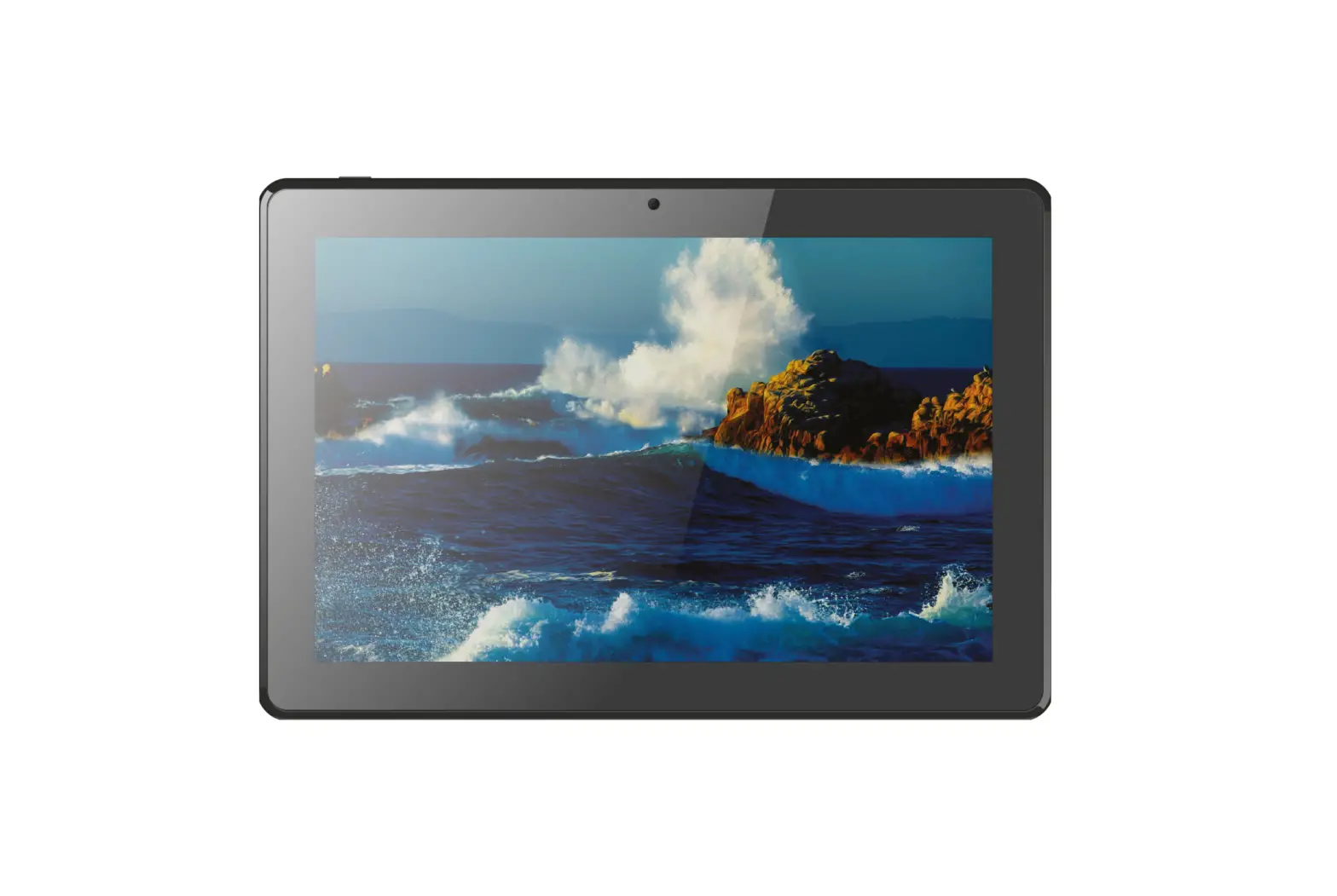
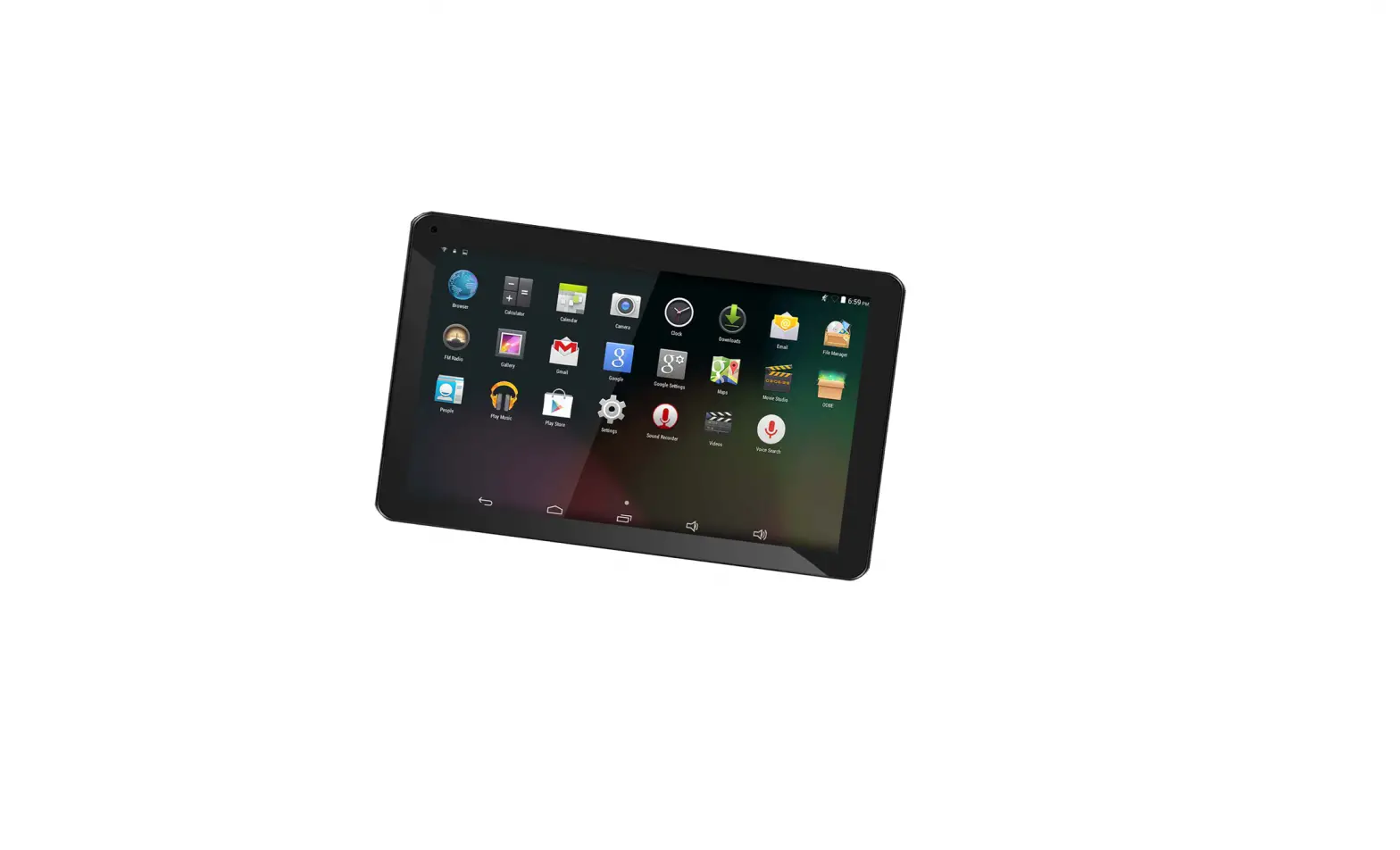
T95 has a variety of mobile phone interconnection modes, this product can also play movies and music in SD card. You can listen to music while driving and watch a movie while taking a break.
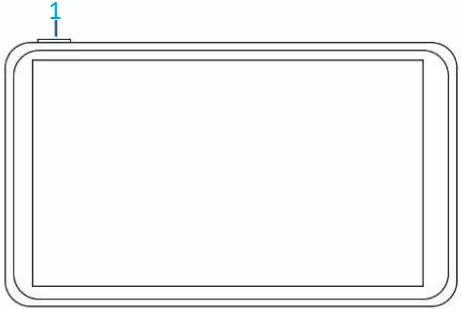
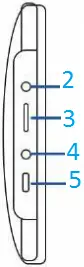
- power button
- AUX
- SD card slot
- Rear camera hole
- Power hole
2. Product composition list
List of Accessories:
| name | graphic | instructions | number |
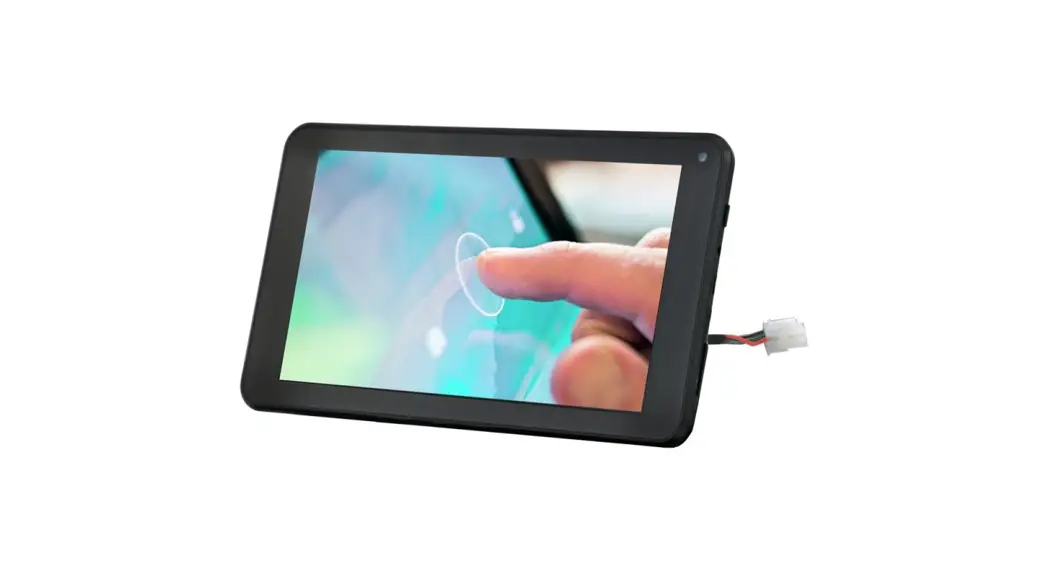
| The host | 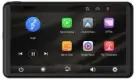 | 7 -inch FHD display (1024*600) / touch control/Bluetooth Type C interface power supply | 1 |
| Monitor base |  | To support the display and fix it on the center console | 1 |
| Monitor base | 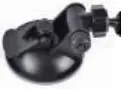 | In combination with the display, attach the display to the windshield of the car | 1 |
| Project | Function introduction | Performance indicators |
| System | Language | Simplified Chinese / Traditional Chinese / English / Russian / Spanish / French / Germa / Japanese / Korean |
| Operation interface | Graphical menu operation | |
| Mode of operation | Touch | |
| Video display | Real-time display | 7-inch FHD IPS screen, 1024 x 600 |
| The screen saver | Screen savers can be set to: off / 1 min / 5 min | |
| Smart connected | Bluetooth | Support Bluetooth music playback |
| The video store | SD card | Play movies and music |
| Audio part | The microphone | Support voice control, menu can be set to turn off |
| Power part | The power input | The voltage drop line supports 7V~32V wide voltageand has power protection circuits such as surge, overload, overvoltage, undervoltage and short circuit |
| Other | Working temperature | -4~149 ℉ |
4. specification requirements of SD card
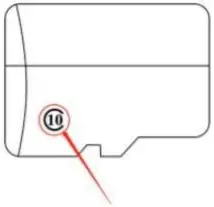
SD card can be used to store movies and music, which can be played after being inserted into the machine. lease use SD cards from major brands such as SanDisk, Kingston, Toshiba, and Samsung, Speed certification must be at least Class10.
5. Interface specification
1.Screen off: tap to turn off the screen
2.Brightness: tap to adjust screen brightness
3.Mobile Internet: Click to enter the mobile Internet interface
4.Volume: Click to adjust the volume
5.Settings: Click to enter the settings interface
6.Previous song: Click to switch to the previous song
7.Play/Pause: Tap to play/pause music
8.Next song: Click to switch to the next song
9.Apple CarPlay: Special connector for iPhone
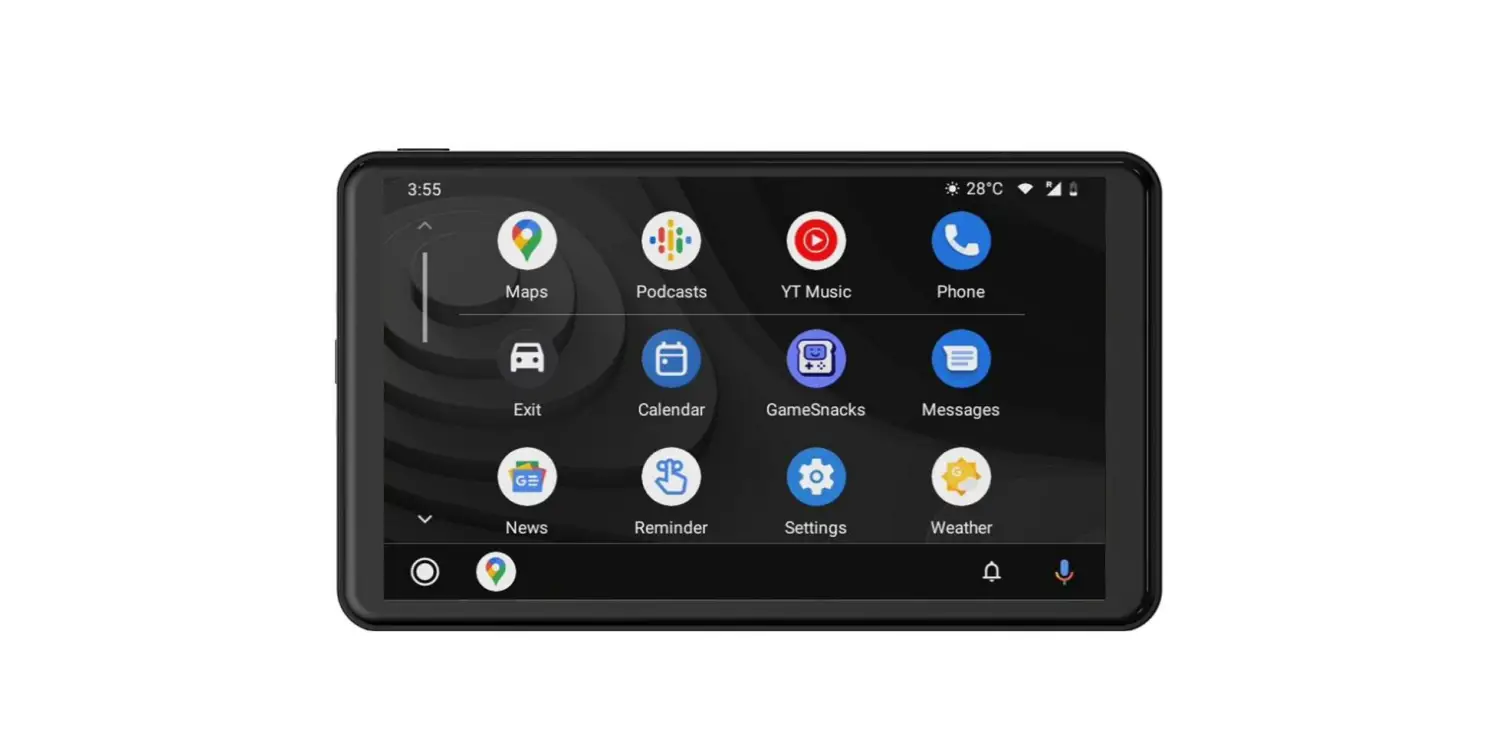
10. Android Auto: Special connector for Android mobile phone
11. AirPlay: Apple mobile phone can mirror screen
12.Mirror Cast: Android phone can mirror screen
13.Media Player: Click to play video or music
A. Andorid Auto
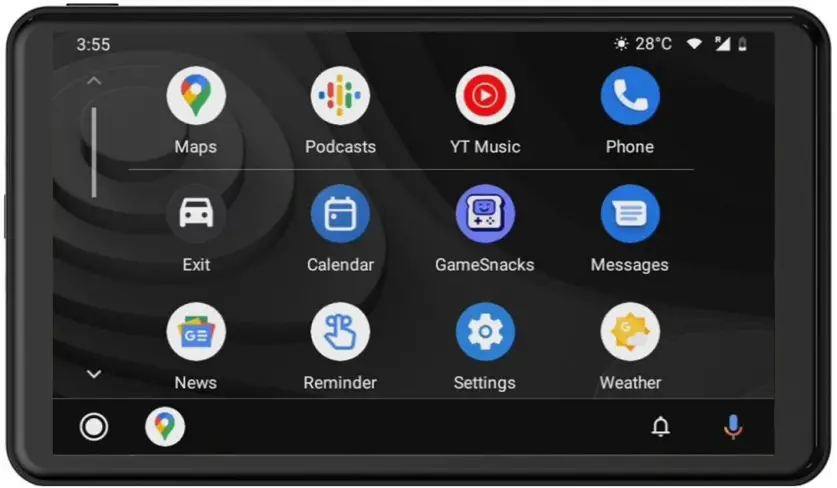
As shown in the figure, click the [Android Auto] button to enter the Android auto. Turn on the Bluetooth of the mobile phone first, then as shown in the figure below, select the [Android auto] option, click the [BT Manage] option of the interface, connect Bluetooth with the phone, you can open the application. When the machine is powered on, it will try to automatically connect to the last connected phone.
After replacing the mobile phone, the connection data of the previous mobile phone will be erased.
B. Bluetooth Music
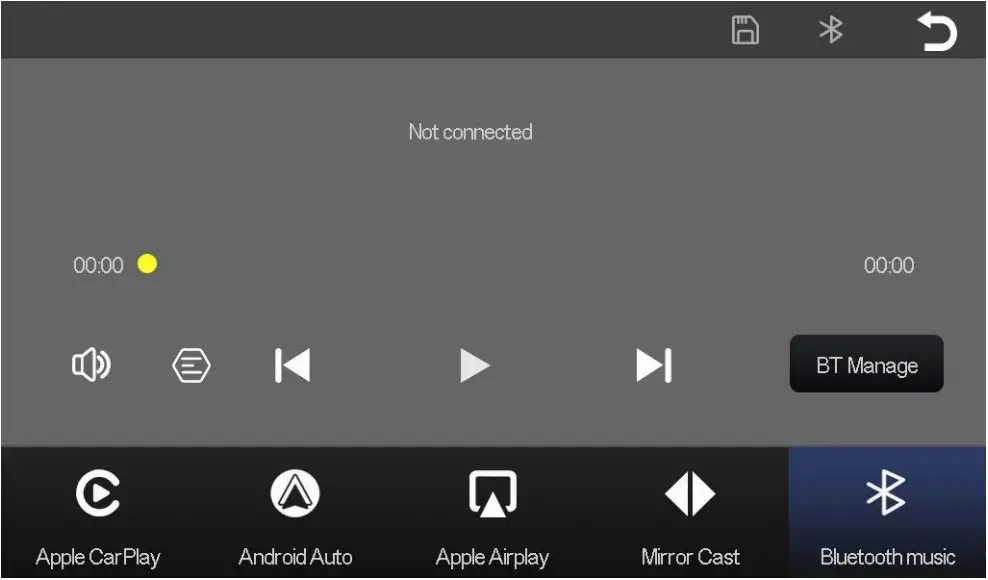
Turn on the Bluetooth of the mobile phone first, and select [Bluetooth Music] option. Click the [BT Manage] option on the interface to connect Bluetooth to the mobile phone and start playing music.

The buttons correspond to “previous song”, “play/pause” and “next song” respectively.
Click on the Lyrics button [ ] to display the lyrics.
C. Media Player
As shown in the figure above, click the [media player] button to enter the movie and music playing interface.
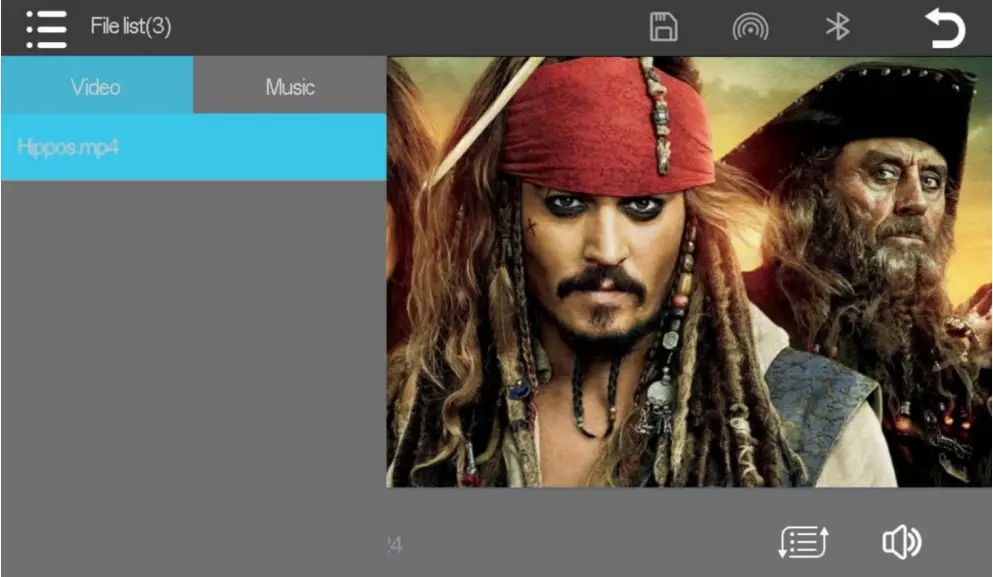
Click the [ file list ] to select the music playing mode and play the music on SD Card.
The lower left corner buttons correspond to: “Play / Pause” and “Next paragraph” respectively. [ ]
]
Click the Return button in the top right corner [ ] to return to the main interface.
Slide the volume bar in the lower right corner to adjust the volume.
| Video support format | Coding format |
| F4V | AVC(H.264) |
| MOV | AVC(H.264) |
| MP4 | AVC(H.264) |
| TS | AVC(H.264) |
FCC Statement
This device complies with part 15 of the FCC rules. Operation is subject to the following two conditions: (1) this device may not cause harmful interference, and (2) this device must accept any interference received, including interference that may cause undesired operation.
Caution: Changes or modifications not expressly approved by the party responsible for Compliance could void the user’s authority to operate the equipment.
NOTE: This equipment has been tested and found to comply with the limits for a Class B digital de vice, pursuant to part 15 of the FCC Rules. These limits are designed to provide reasonable protec tion against harmful interference in a residential installation. This equipment generates uses and ca n radiate radio frequency energy and, if not installed and used in accordance with the instructions, may cause harmful interference to radio communications. However, there is no guarantee that inter ference will not occur in a particular installation. If this equipment does cause harmful interference t o radio or television reception, which can be determined by turning the equipment off and on, the u ser is encouraged to try to correct the interference by one or more of the following measures:
– Reorient or relocate the receiving antenna.
– Increase the separation between the equipment and receiver.
– Connect the equipment into an outlet on a circuit different from that to which the receiver is connected.
-Consult the dealer or an experienced radio/TV technician for help important announcement .
Radiation Exposure Statement
To comply with FCC RF exposure compliance requirements, this grant is applicable to only mobile configurations. The antennas used for this transmitter must be installed to provide a separation distance of at least 20 cm from all persons and must not be co-located or operating in conjunction with any other antenna or transmitter.
ISED Statement
– English: This device complies with Industry Canada license-exempt RSS standard(s).
Operation is subject to the following two conditions: (1) This device may not cause interference, an d (2) This device must accept any interference, including interference that may cause undesired op eration of the device. The digital apparatus complies with Canadian CAN ICES-003 (B)/NMB-3(B).
Radiation Exposure Statement
To comply with FCC RF exposure compliance requirements, this grant is applicable to only mobile configurations. The antennas used for this transmitter must be installed to provide a separation distance of at least 20 cm from all persons and must not be co-located or operating in conjunction with any other antenna or transmitter.