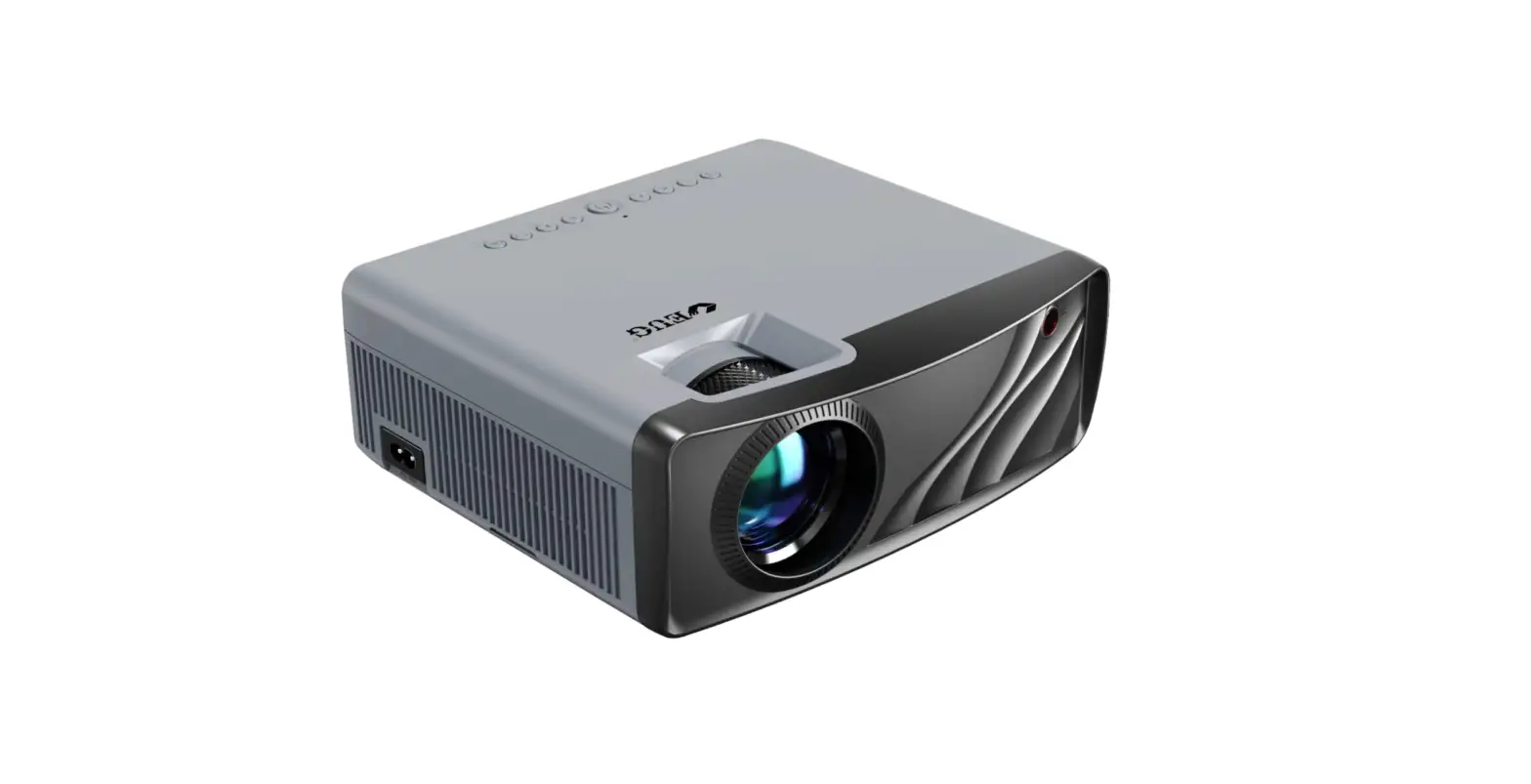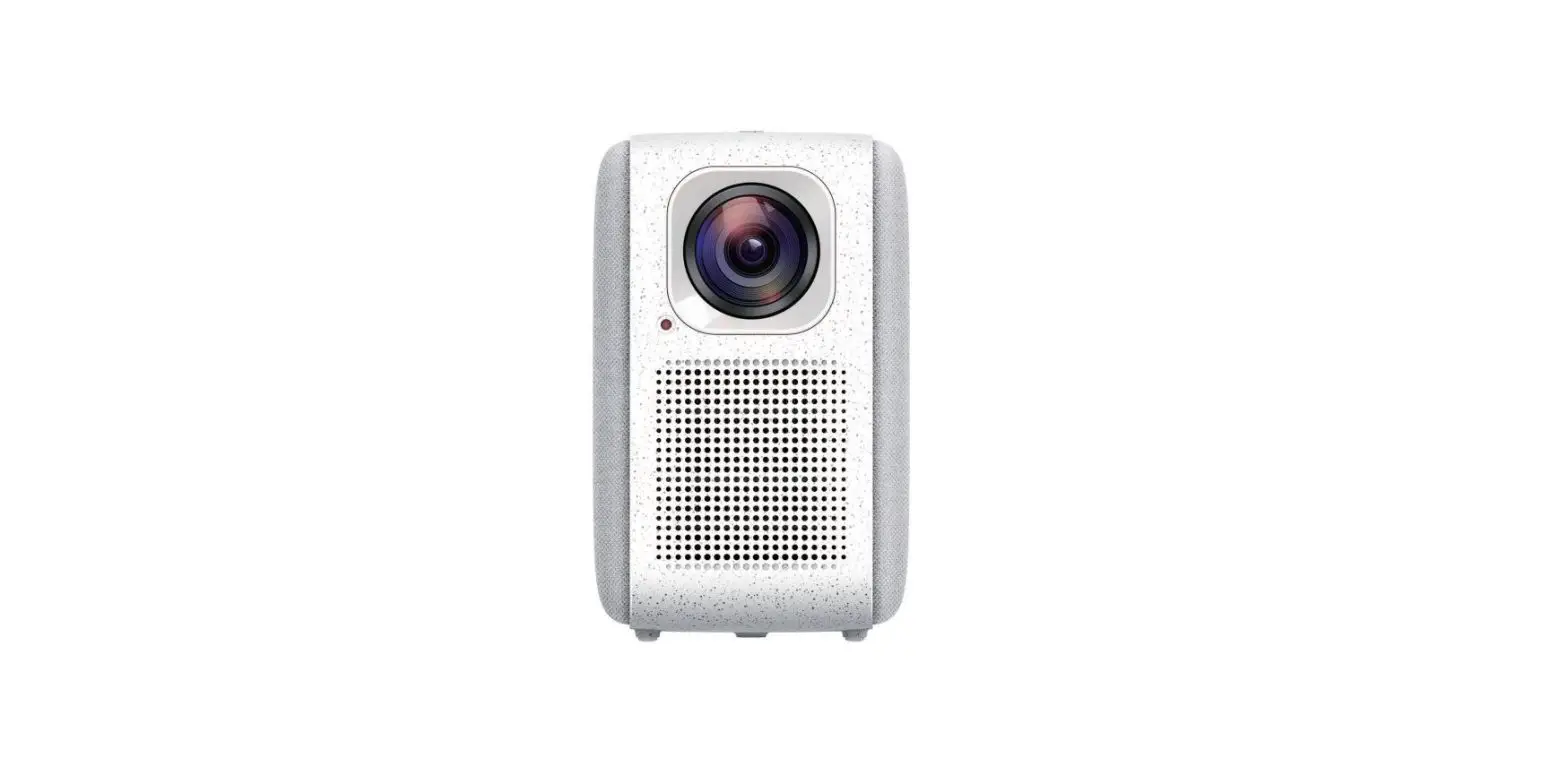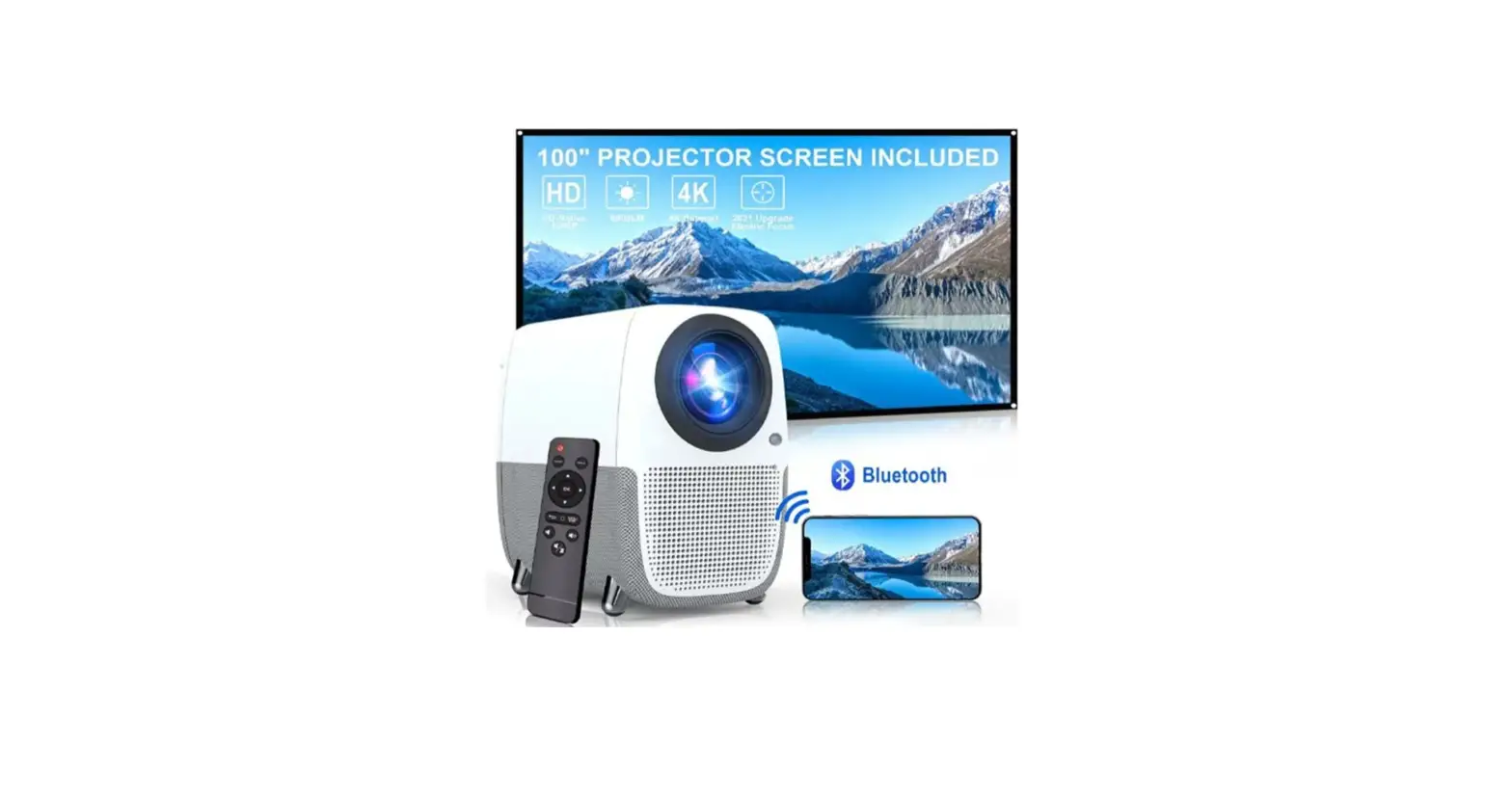

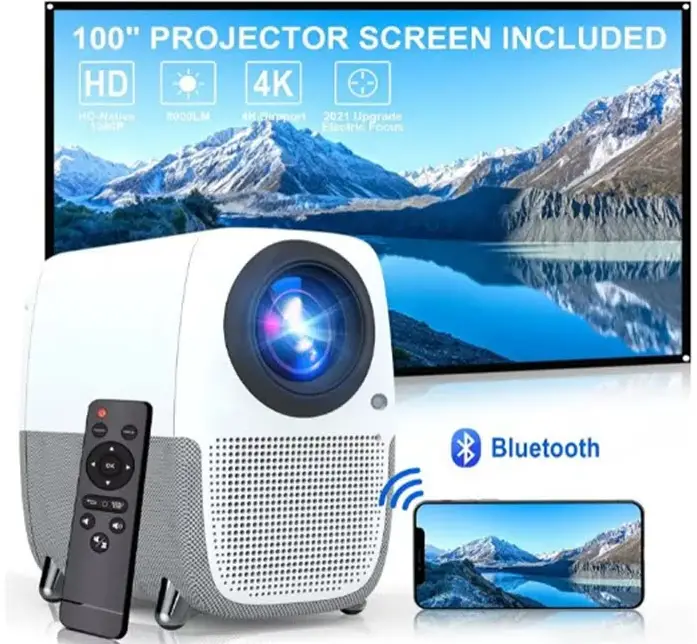
WayGoal E5b9 Portable Bluetooth-Projector
Specifications
- Brand Name: WayGoal
- Item Weight: 4 pounds
- Product Dimensions: 7.87 x 5.12 x 7.67 inches
- Color Name: Grey
- Speaker Type: Surround, Stereo
- Display Resolution Maximum: 1920 x 1080 Pixels
Introduction
Hi, dear valued customer, for your first use of this projector, we have a few suggestions mentioned as follow, if you have further questions or problems with WayGoal projector, please send email to our customer service email: [email protected]. Please attach X5 WiFi projector, we will help you sort out any problem. Thank you! Best Regards WayGoal Team
What’s in the box?
- Projector
- A1 wireless remote control
- HDMI cable
- Power adapter
- Projector Screen
- Manual
User guidance
- User manual is just for reference, due to different software version of each product batches,you might find difference between user interface and user manual.
- For user guidance:
- It is normal that the projector will be turned on and show up the main menu, when connected with power adaptor.
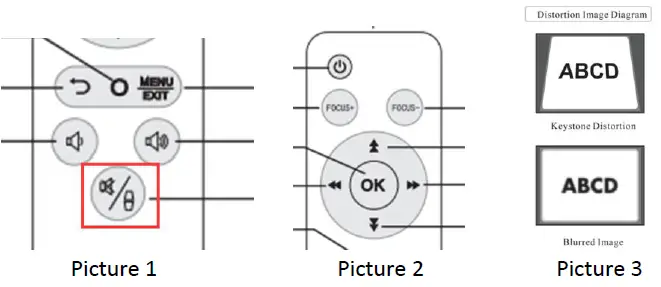
- You need to adjust the focus & Keystone first, in order to get a clear and no distortion projection image. (Might need to adjust every time due to moving position of your projector)
Note: Place the projector horizontally or make it face the ceiling.
See reference photos as below:- Picture 1: Press the key “Keystone”, projector is mute in this mode. Keystone 0 (the degree of keystone) will show up on the projection screen. Press the up/down key in Picture 2 to adjust keystone, until no distortion projection image shows up.
- Picture 2: Press the “focus” key on remote control to adjust focus: Focus+ or Focus

- Multiple connection methods:
- Connect with media player via HDMI cable/USB interface
- b) 2 kinds of wireless connection as follow:
- Wireless Mirroring Wi-Fi Connection
- Steps: Connect your phone with the Projector Wi-Fi
Choose icon  in the main menu and press OK button > Wait for completion of initial setup > The Wi-Fi name of the projector shows up on the screen (“Display_6F6A” — Name might be different due to different software batches, just refer the one shows on the screen.) > Connect the Wi-Fi of the projector
For iOS System: Open the Screen Mirroring (Airplay function) > Find the projector Wi-Fi name > Click and connect > your phone screen displayed on the projection screen.
Please note: In this case, you need to use mobile traffic/data to access the Internet for online video play. (You can choose DLAN connect (user guidance mentioned in next page) to save mobile traffic.)
For Android System: Open the Multi-screen (Mira cast) function > Find the projector Wi-Fi name > Click and connect >your phone screen displayed on the projection screen.
Note: Not all smart phones support Multi-Screen/Wireless Display. If your phone can’t find the projector Wi-Fi name, please restart the projector and try again.
DLAN Connection (Use Wi-Fi traffic to access Internet and to save mobile traffic spend)
Step 1: Connect your phone with the projector Wi-Fi Choose icon and press OK button > Wait for completion of initial setup > The Wi-Fi name of the projector shows up on the screen. (“Display_6F6A” — Name might be different due to different software batches, just refer the one shows on the screen.) > Connect the Wi-Fi of the projector. Please make sure your phone is connected with the Projector Wi-Fi, otherwise you couldn’t open the QR code in step 2.
Step 2: Connect projector with the Wi-Fi in your own place, like home or office.
Download a browser APP that supports QR scan function on your phone.
Scan QR code on the bottom of the projection screen via the browser on your phone> the browser will open a new page and it will show all available Wi-Fi Name on this page > Choose the right Wi-Fi Name > Enter password > Wait for connection > until connected
Projection screen will show the status of the Wi-Fi connection, failed or successful. If the top of the projection screen shows up the connected Wi-Fi name, it means the connection is successful.
Note: NOT support 5G Wi-Fi
Step 3: Then you can connect your phone with your own Wi-Fi again. Open the Wi-Fi setting on your phone > Connect your own Wi-Fi
Step 4: DLNA Display
Some APPs have TV/Project Screen function. Please find and click on it in video playback page. Find the name of the projector (“Display_6F6A” — Name might be different due to different software batches, just refer the one shows on the screen.) in your phone > Connect it > Projector will display the video from your phone to projector screen.
Note: Dute to privacy protection, some video APPs reject this projection way. If you want to watch films/videos from these APPs, please use Mirroring Wi-Fi Connection
Note: Because DLNA connection supports only up to 2.4G Wi-Fi, we suggest you watch video with resolution up to 720P, to avoid that the video doesn’t play or get stuck.
Step 5: How to change Wi-Fi on the projector or change another phone connected with projector If you would like to change the Wi-Fi, please enter the IP address of the projector (It is on the side of the projection screen), or scan the QR code to access setting page to choose a different Wi-Fi.
If you would like to use a different smart phone to connect with the projector, please disconnect the first connected phone first and use another phone connect with the projector.
FAQ’s
Wirelessly connecting your smartphone to your projector, you may effortlessly stream music files over Bluetooth to the projector’s speakers or from the projector to a Bluetooth speaker outside the device.
Any tiny projector can be wirelessly connected to an Android phone, but your options will rely on the projector’s capabilities. Although some projectors come with inherent screen mirroring or streaming capabilities, you normally require an additional device, such as a Chromecast.
It varies. Many portable projectors come equipped with built-in batteries that can operate for two to three hours without the need for an electrical outlet. Some can connect to external USB battery packs so they can run without plugging anything in.
Your present cabled projector may become wireless with one of the several wireless adapters that are available. Making your projector wifi is simple using Airtame. Install the app on your computer, connect the Airtame to your WiFi network, and then plug it into the projector’s HDMI connection.
USB-C video output port is present on almost all Android devices. The majority of projectors still use HDMI as their primary input port, but with a straightforward adapter like this one from Monoprice, you can use a standard cable to connect to your projector.
The experience will be better if you use Wi-Fi, but you may screen mirror without it by utilising a wireless display technology like Miracast or Chromecast. Your sending and receiving devices will now be directly connected as a result.
Bluetooth connections can still be used by projectors without built-in access. Only a Bluetooth adaptor is required. You can connect your projector to other Bluetooth-enabled devices using the Bluetooth adapter. It establishes a connection devoid of cables.
After there is no activity or when the maximum use time has passed, projectors automatically switch off. Using the projector’s bulbs for an extended period of time might harm them.
These gadgets have a lifetime, much like other electronics. Although projectors are made to endure a long period, the type of bulb will be the main determinant of longevity. Halide bulbs have a 3,000-hour lifespan. The longest-lasting LED lights may operate for up to 60,000 hours.
Some of the parts might not work correctly, for example, the fan can sound louder than usual and ruin your movie. The motor and other parts are susceptible to damage. Additionally, the projector bulb has a typical lifetime.
An image from a computer, television, or gaming system is simply projected onto a screen using a projector. It projects images onto a screen by shining and filtering light through a tiny, transparent lens.
You can utilise a cable connection if a wireless alternative is unsuitable. Every Android smartphone has the choice of a microUSB or USB-C port. Your Android device can be connected to a projector that utilises an HDMI connection directly if the proper cable is used. The MHL standard, which is also supported, communicates via HDMI ports.
These inexpensive handheld projectors typically produce images that are larger than what you would get from a phone, but the image itself is largely unwatchable because of the available low brightness and resolutions.