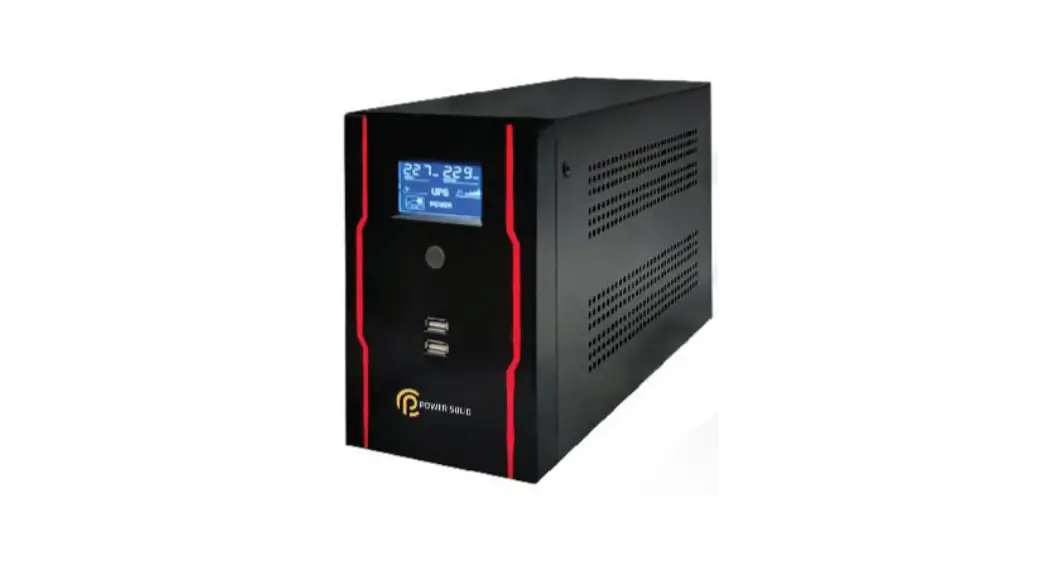
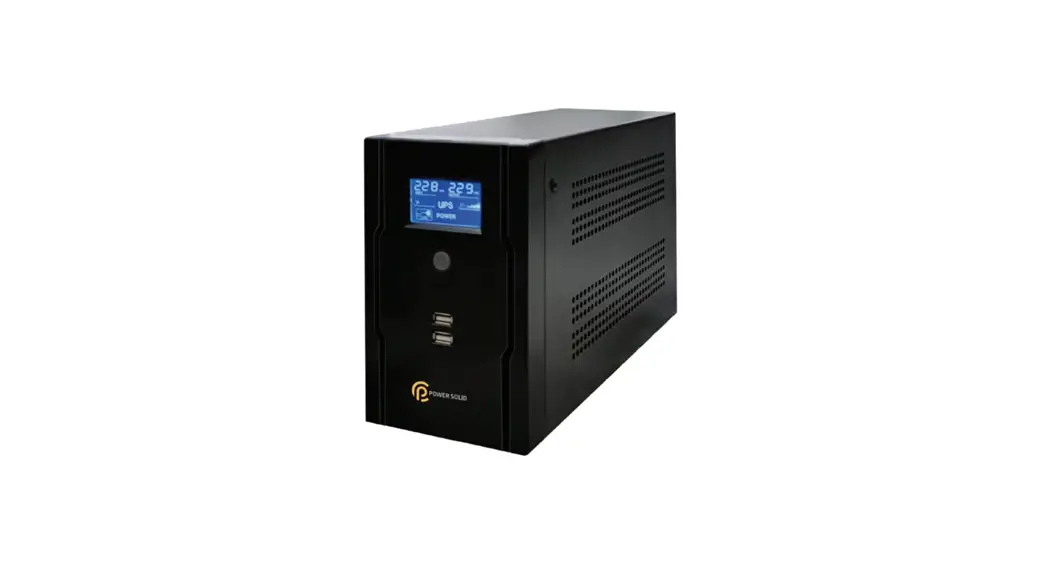
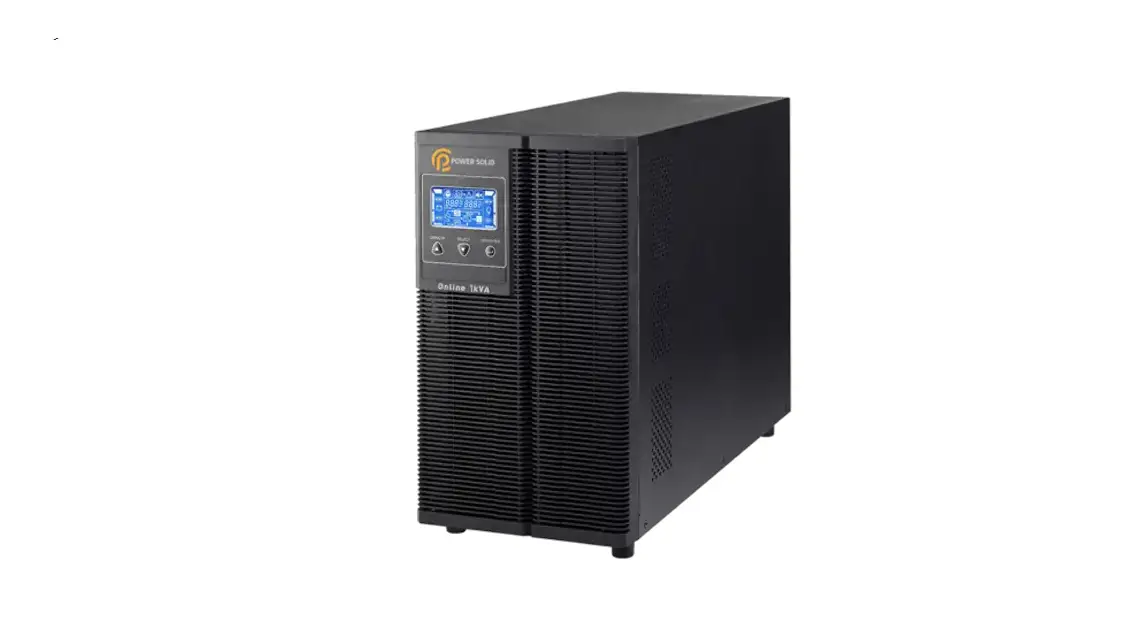
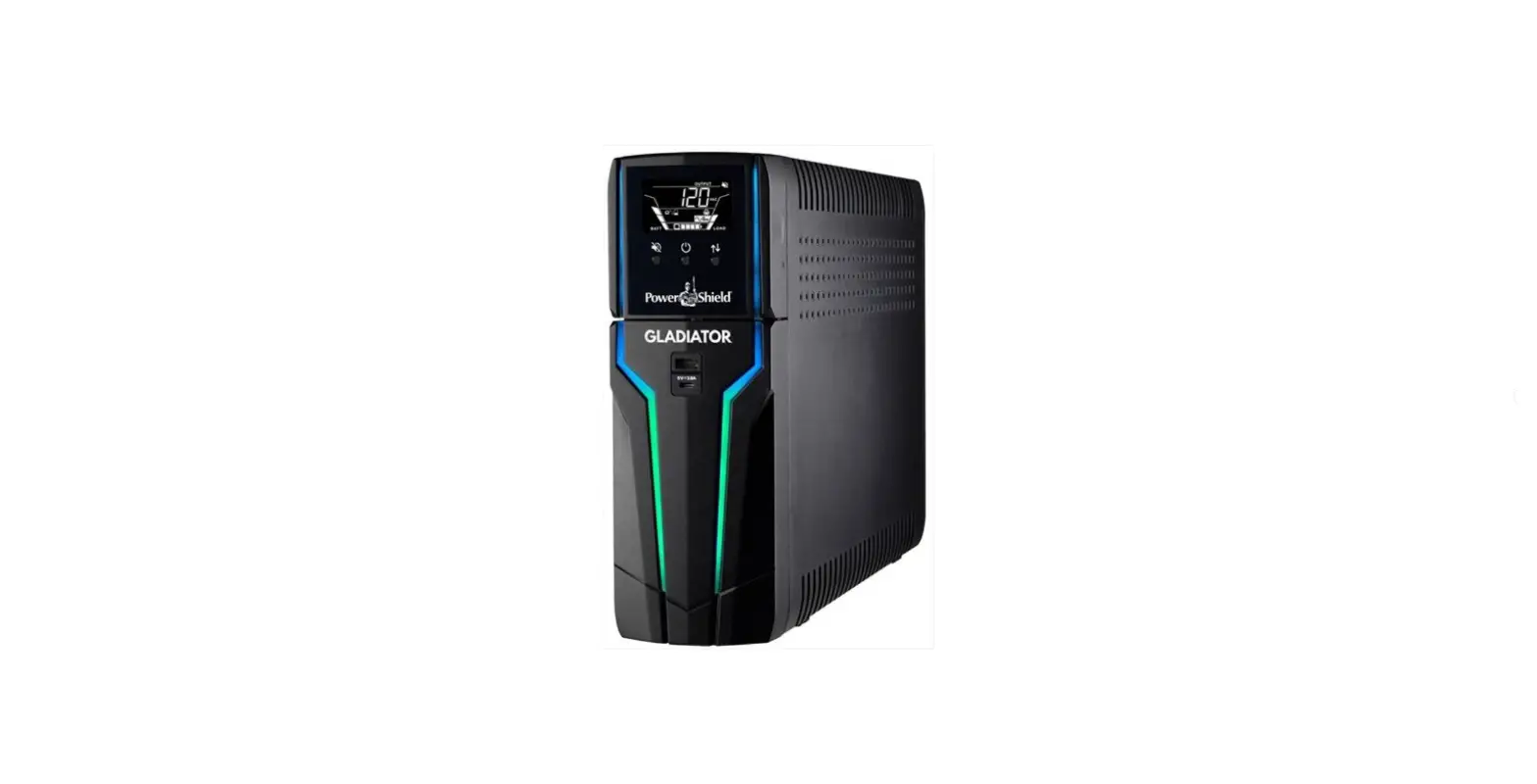
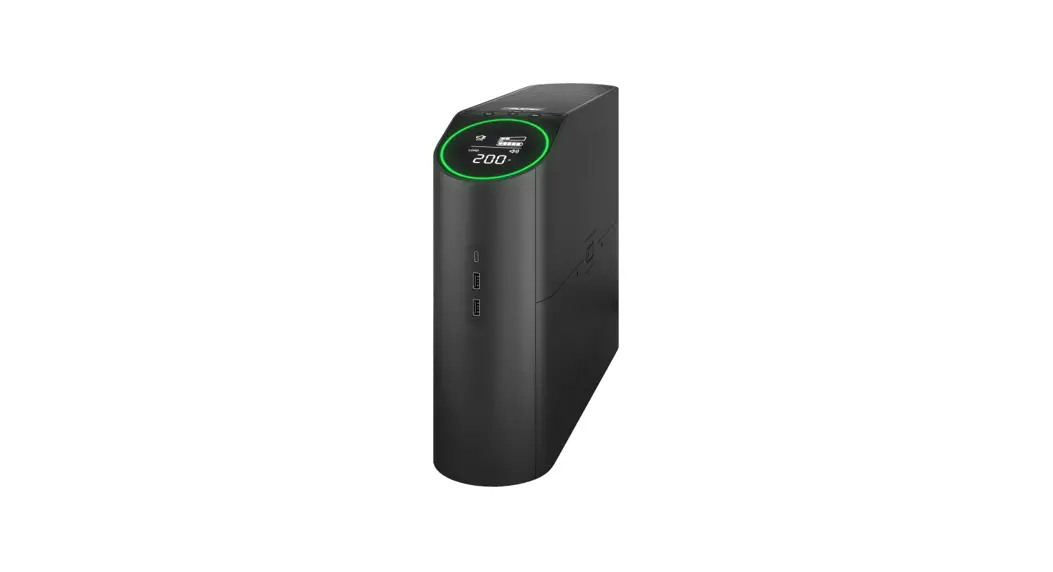
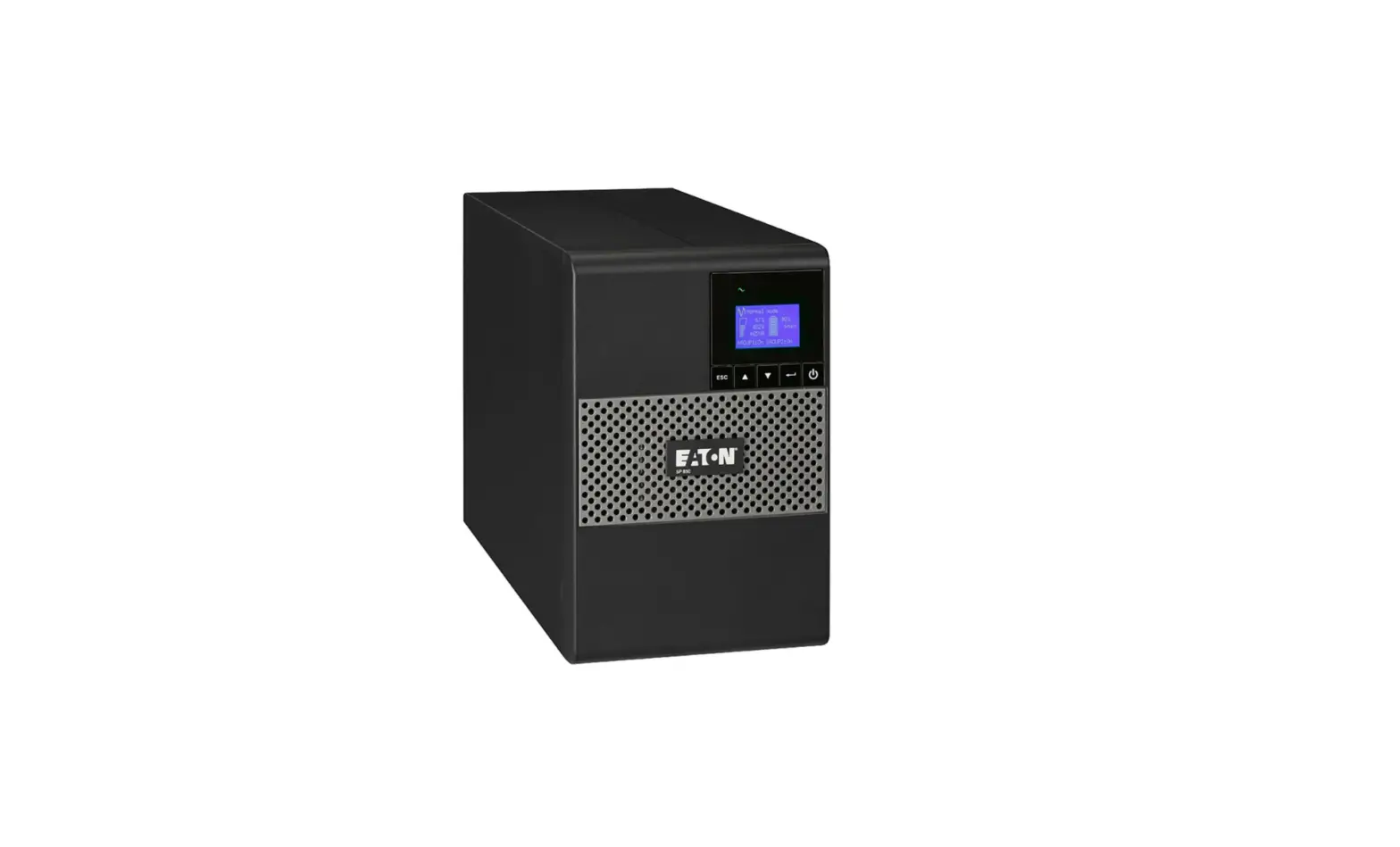
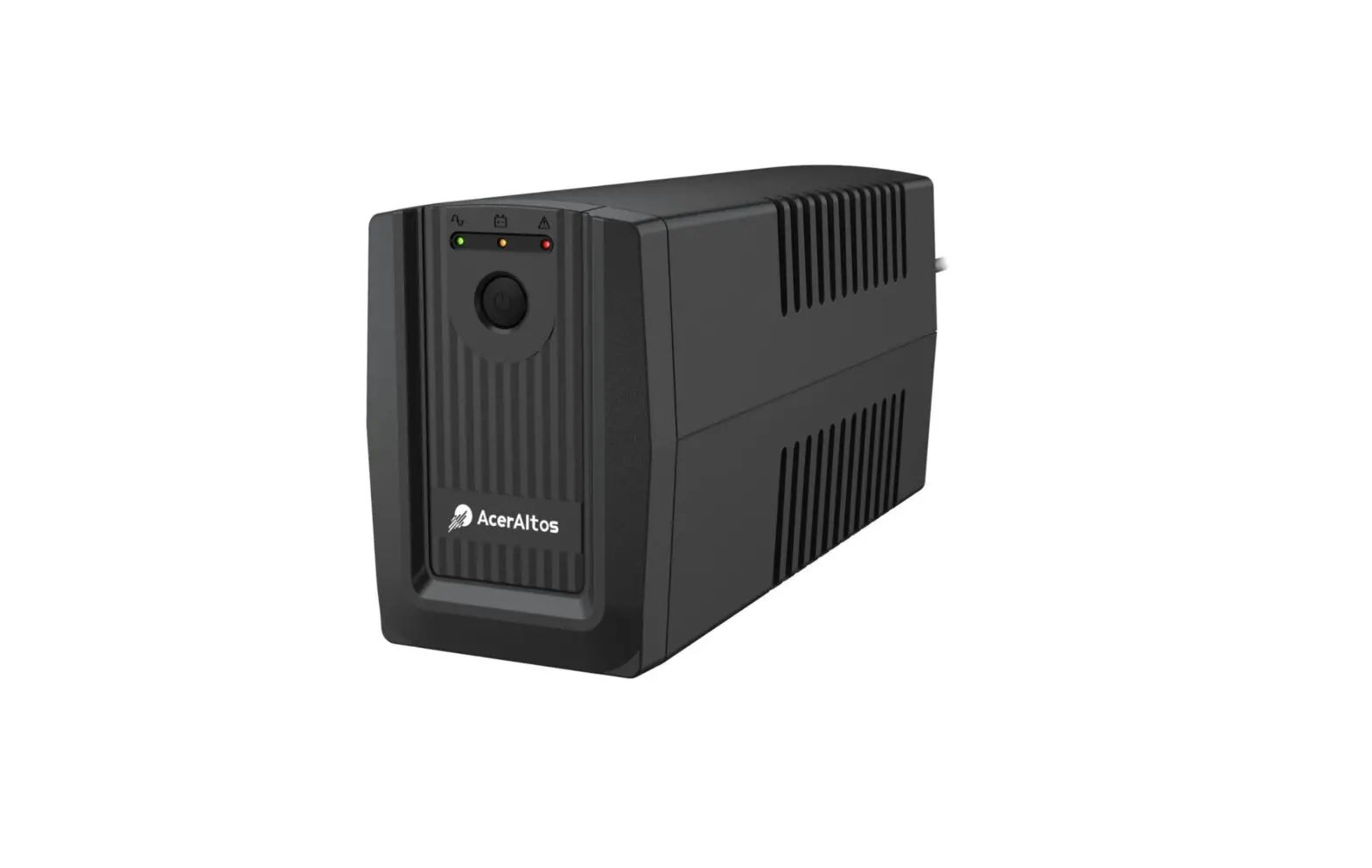
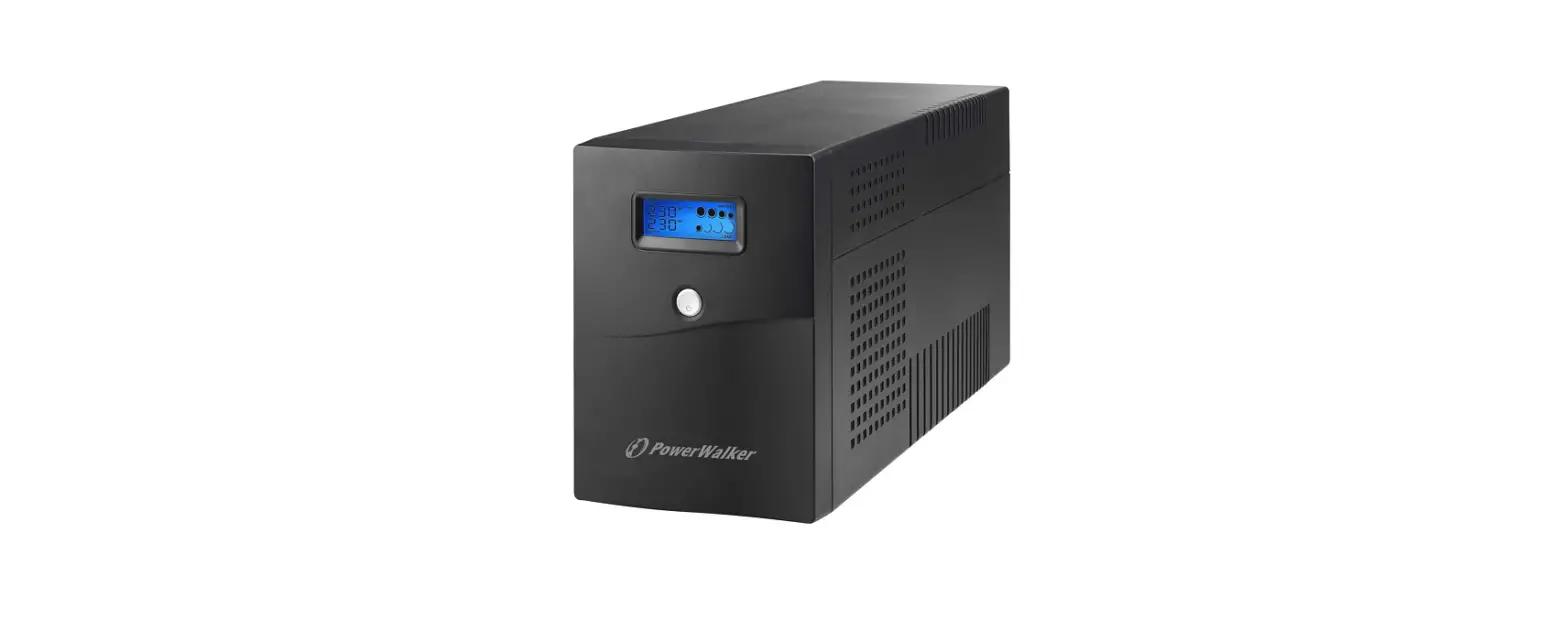
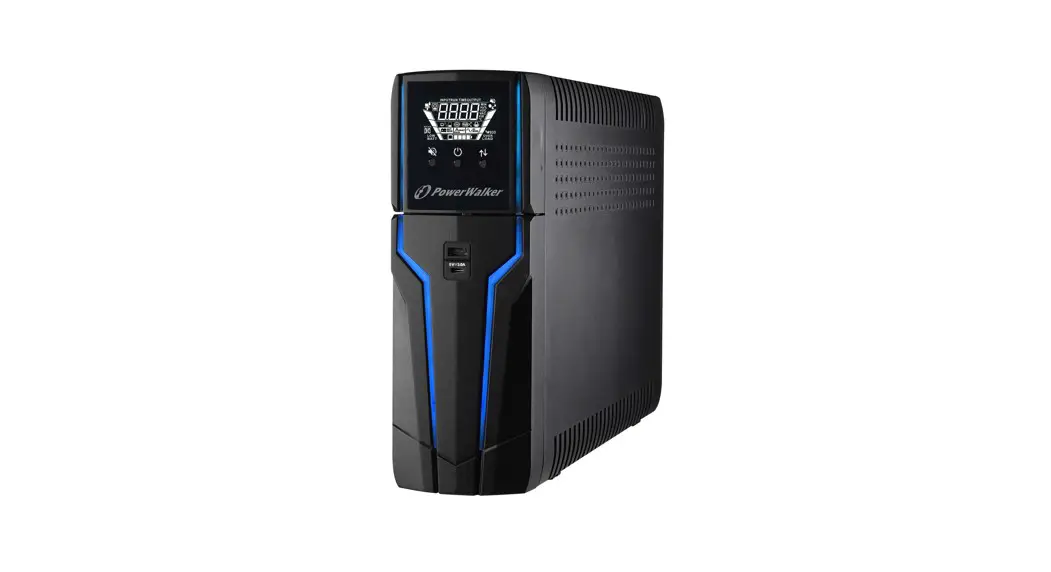
PS-PGU1500VA2B9A Line Interactive Gaming UPS
Product Information: UPS
Installation & Operation
Package Contents
- UPS unit
- AC power cord
- Communication cable
- User manual
Connect to Utility Power
Connect the AC power cord to the utility power and the UPS will
start charging the inside battery. For optimal performance, charge
the battery for 24 hours prior to initial use.
Plug in Equipment
Plug the equipment into the Battery Backup Outlets on the rear
panel of the UPS. Ensure that the UPS is powered on to protect all
important devices from data loss during power failure.
Note: Never connect a laser printer or scanner
to the battery backup outlets of UPS. This may cause damage to the
unit.
Connect Communication Cable
To allow for unattended UPS shutdown/start-up and status
monitoring, connect one end of the communication cable to the USB
port and the other end to the communication port of your PC. With
the monitoring software installed, you can schedule UPS
shutdown/start-up and monitor UPS status through PC.
Turn On/Off the UPS
Turn on the UPS unit by pressing the power switch. The LCD will
display UPS status. Turn off the UPS unit by pressing the power
switch again. The LCD display will shut off.
Turn On/Off the LCD Screen
When the UPS is in AC mode, press the power switch once to turn
off the LCD screen. Press the power switch once again to turn on
the LCD screen.
Mute Function
In battery mode, press the power switch once to turn off the
buzzer. However, when the UPS is low battery or overloaded, the
buzzer will turn on to remind you that the UPS will be shut down
immediately.
RGB Lights
All RGB lights will light up when the UPS is in AC mode. The RGB
light above will light up when the UPS is in battery mode. Press
the power switch twice to turn off the RGB lights. Press the power
switch twice again to turn on the RGB lights.
Placement & Storage
Placement
The mains socket outlet that supplies the UPS shall be installed
near the UPS and shall be easily accessible.
Storage
When storing the UPS for an extended period, ensure that the UPS
is stored in a cool and dry place.
Front Panel
Product Overview
- LCD display
- RGB lights
- Power switch
- 5V USB port
Rear Panel
- Output socket
- USB port
- Circuit breaker
- AC input
Operation Display
| UPS Mode | LCD Display | Description |
|---|---|---|
| UPS Power on | AC Mode | UPS is powered on. LCD information will be displayed in the following order when LCD is touched. 1) Output voltage 2) Input voltage 3) Load level 4) Battery capacity. |
| Overload in AC mode | AC Mode | When overload occurs, the alarm will beep every 0.5 seconds. |
| Battery Mode | Battery Mode | Alarm will beep every 10 seconds and LCD information will be displayed in the following order when LCD is touched. 1) Output voltage 2) Input voltage 3) Load level 4) Battery capacity. |
| Overload in Battery mode | Battery Mode | When overload occurs, the alarm will beep every 0.5 seconds. |
Safety Caution
Save these instructions. This manual contains important
instructions that should be followed during installation and
maintenance of the UPS and batteries.
- This UPS utilizes voltage that may be hazardous. Do not attempt
to disassemble the unit. The unit contains no user replaceable
parts. Only factory service personnel may perform repairs. - This pluggable type a equipment with battery already installed
by the supplier is operator installable and may be operated by
laymen. - During the installation of this equipment, it should be assured
that the sum of the leakage currents of the UPS and the connected
loads does not exceed 3.5mA.
INSTALLATION & OPERATION
Package Contents
Before installation, please read and understand the following items are inside the box: ·UPS unit ·User manual ·Communication cable ·Software for UPS
Connect to Utility Power
Connect AC power cord to utility power. Then, the UPS will start to charge inside battery. For best result, charge the battery for 24 hours prior to initial use.
Plug in Equipment
Plug your equipment to Battery Backup Outlets on the rear panel of the UPS.
NOTE: Make sure that the UPS is powered on to protect all important devices from data loss during power failure.
CAUTION: NEVER connect a laser printer or scanner to the battery backup outlets of UPS. This way cause the damage of the unit.
Connect Communication Cable
To allow for unattended UPS shutdown/start-up and status monitoring, connect the communication cable one end to the USB port and the other to the communication port of your PC. With the monitoring software installed, you can schedule UPS shutdown/start-up and monitor UPS status through PC.
Turn On/Off the UPS
Turn on the UPS unit by pressing the power switch. Then, the LCD will display UPS status. Turn off the UPS unit by pressing again the power switch. Then, LCD display will shut off.
Turn On/Off the LCD screen
When the UPS in AC mode. Press on the power switch once, the LCD screen will shut off. Press on the power switch once again, the LCD screen will be on.
Mute function
In battery mode, press on the power switch once, the buzzer will be off. But when the UPS is low battery or overloaded, the buzzer will be on to remind the UPS will be shut down immediately.
RGB Lights.
All RGB lights will be lighting when the UPS in AC mode. The RGB light on above will be lighting when the UPS in battery mode. Press on the power switch twice, the RGB lights will be off. Press on the power switch twice again, the RGB lights will be on.
PLACEMENT & STORAGE Placement
Install the UPS in a protected area that is free of excessive dust and has adequate air flow. Place the UPS away from other units at least 20 cm to avoid interference. For best performance, keep the indoor temperature between 0° C and 40° C.
Storage
All connected equipment should be turned off, then disconnect from the UPS to avoid battery drain. Unplug the UPS from the wall outlet. Then turn off the UPS for storage. Store the UPS unit covered and upright in environments where the ambient temperature is -20° C to 50° C with its battery fully charged.
FRONT PANEL
PRODUCT OVERVIEW
1)LCD display 2)RGB lights 3)Power switch 4)5V USB port
REAR PANEL
1)Output socket 2)USB port 3)Circuit breaker 4)AC input
Operation Display
UPS Mode UPS Power on
LCD DISPLAY
LCD
AC Mode
Overload in AC mode
Battery Mode
Overload in Battery mode
Description
UPS is powered on.
LCD information will be displayed in the following order when LCD is touched. 1)Output voltage 2)Input voltage 3)Load level 4)Battery capacity
When overload occurs, alarm will beep every 0.5 second.
Alarm will beep every 10 seconds and LCD information will be displayed in the following order when LCD is touched. 1)Output voltage 2)Input voltage 3)Load level 4)Battery capacity
When overload occurs, alarm will beep every 0.5 second.
SAFETY CAUTION
SAVE THESE INSTRUCTION-This manual contains important instructions that should be followed during installation and maintenance of the UPS and batteries.
1) This UPS utilizes voltage that may be hazardous. Do not attempt to disassemble the unit. The unit contains no user replaceable parts. Only factory service personnel may perform repairs.
2) This pluggable type a equipment with battery already installed by the supplier is operator installable and may be operated by laymen.
3) The mains socket outlet that supplies the UPS shall be installed near the UPS and shall be easily accessible.
4) During the installation of this equipment it should be assured that the sum of the leakage currents of the UPS and the connected loads does not exceed 3.5mA.
5) Connection to any other type of receptacle other than a two-pole, three-wire grounded receptacle may result in shock hazard as well as violate local electrical codes.
6) In the event of an emergency, press the “OFF” button and disconnect the power cord from the AC power supply to properly disable the UPS.
7) Do not allow any liquids or any foreign object to enter the UPS. Do not place beverages or any other liquid-containing vessels on or near the unit.
8) This unit intended for installation in a controlled environment (temperature controlled, indoor area free of conductive contaminants). Avoid installing the UPS in locations where there is standing or running water, or excessive humidity.
9) Do not plug the UPS input into its own output.
10) Do not attach a power strip or surge suppressor to the UPS.
Do not attach non-computer-related items, such as medical equipment, life-support equipment, microwave ovens, or vacuum cleaners to UPS.
11) Do not dispose of batteries in a fire as they may explode.
12) A battery can present a risk of electrical shock and high short circuit current. The following precautions should be observed when working on batteries:
Remove watches, rings, or other metal objects from the hands.
Use tools with insulated handles.
Wear rubber gloves and boots.
Do not lay tools or metal parts on top of batteries.
Disconnect charging source prior to connecting or disconnecting batteries terminal.
13) Servicing of batteries should be performed or supervised by personnel knowledgeable of batteries and the required precautions. Keep unauthorized personnel away from batteries.
14) When replacing batteries, replace with the same number and type of sealed lead-acid battery.
15) Do not open or mutilate the battery or batteries. Release electrolyte is harmful to the skin and eyes. It may be toxic.
16) Attention, hazardous through electric shock. Also with dis- connection of this unit from the mains, hazardous voltage still may be accessible through supply from battery. The battery supply should be therefore disconnected in the plus and minus pole at the connectors of the battery when maintenance or service work inside the UPS is necessary.
17) To reduce the risk of overheating the UPS, do not cover the UPS’ cooling vents and avoid exposing the unit to direct sunlight or installing the unit near heat emitting appliances such as space heater or furnaces.
18) Unplug the UPS prior to cleaning and do not use liquid or spray detergent.
Specification
Model
Capacity(VA) Input Voltage range(V) Input Frequency(Hz) Output Voltage range(V) Transfer time Waveform Battery Type Typical recharge time Dimension(mm) Weight(Kg) Humidity Noise Level USB Communication Port 5V USB RGB light
PS-PGU1500VA#2B9A
1500VA/900W 145Vac-290Vac 50Hz±1% OR 60Hz±1%
220V±10% Typical 4-6ms Simulated Sine Wave
12V9AH*2 8 hours recover to 90% capacity
330*115*265 20kg
0-90%RH @ 0-40(non-condensing) Less than 50dB YES 2pcs 2pcs
TROUBLESHOOTING
Problem
Possible Cause
Solutions
The UPS is not on.
Nothing is
displayed on LCD
panel.
Battery voltage is too low.
Battery fault.
The UPS always Power cord loose. on battery mode.
Press the power switch again to turn on the UPS.
Charge the battery at least 6 hours.
Replace the battery.
Re-plug the power cord.
Battery voltage is too low.
Charge the battery at least 6 hours.
Backup time too Overload. short.
Remove some unnecessary loads. Before reconnecting equipment, please verify that the load matches the UPS capability specified in the specs.
Battery defect.
Replace the battery.
If any abnormal situations occur that are not listed above, please call for service immediately.