LIVE OnePOD Sensors and Brackets
Product Information
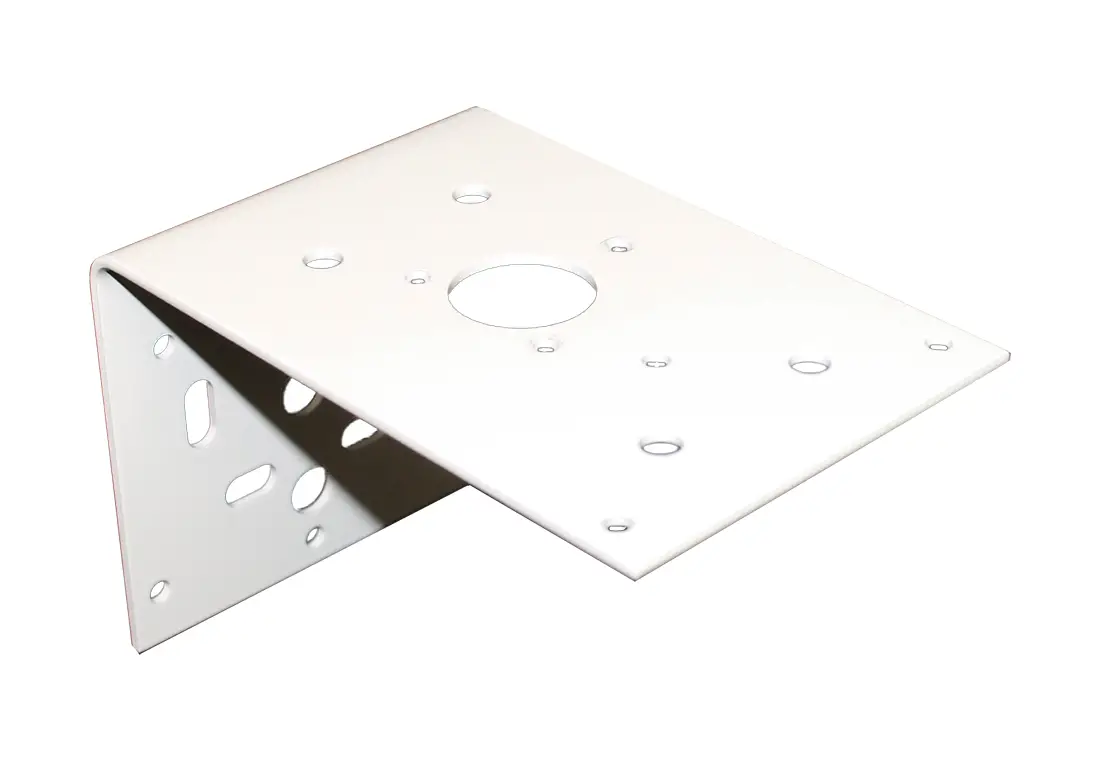
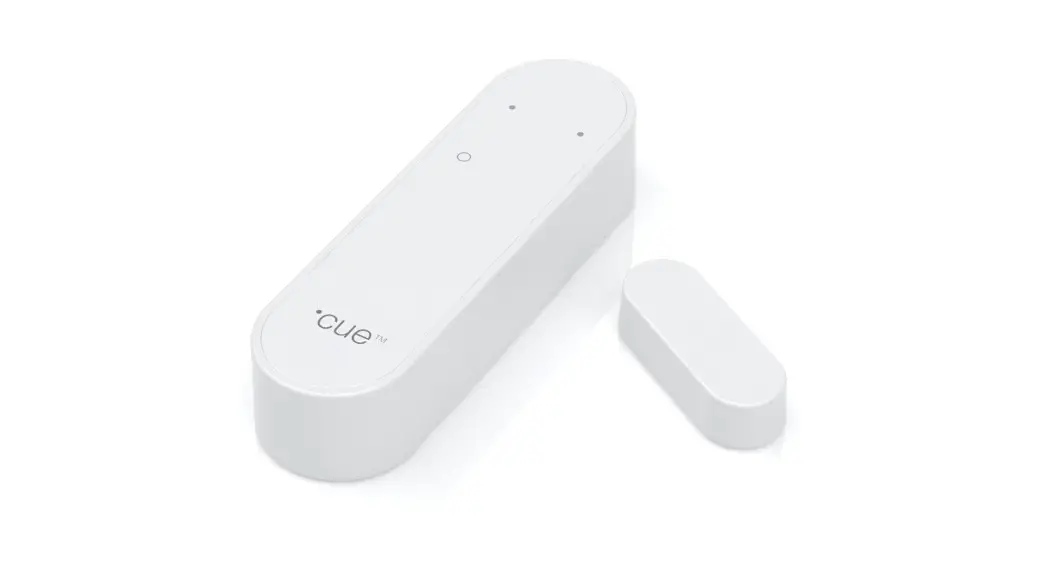
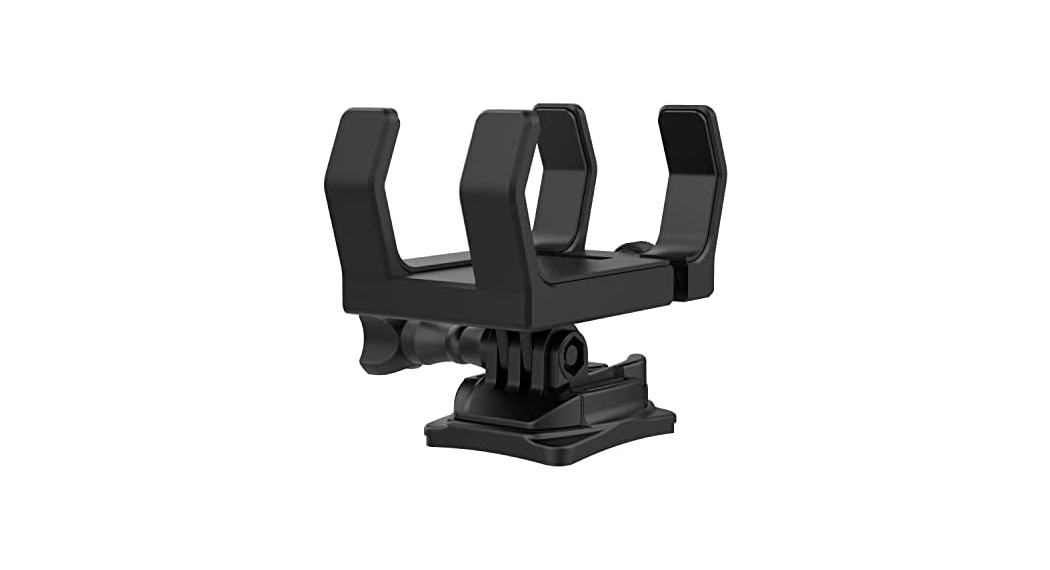
The LIVE OnePOD Quick Release Sensors & Brackets is a system
designed for installation and secure display of devices such as
smartphones and tablets. It includes brackets of different sizes
and sensors for detecting unauthorized removal. The system
integrates with the InVue LIVE web portal and app for configuration
and monitoring.
Bracket Sizes
| Order Code | Description | Width Range | Height Range |
|---|---|---|---|
| DLH291 | HH Brackets – Medium | 63.5mm – 84.9mm | 133mm – 157mm |
| DLH292 | HH Brackets – Large | 63.5mm – 84.9mm | 158mm – 182mm |
| DLT291 | Tablet Brackets – Small | 120.0mm – 141.5mm | 197mm – 222mm |
| DLT292 | Tablet Brackets – Medium | 154.0mm – 175.5mm | 236mm – 259mm |
| DLT293 | Tablet Brackets – Large | 178.7mm – 200.2mm | 264mm – 288mm |
| DLT294 | Tablet Brackets – Extra Large | 204.3mm – 225.8mm | 263mm – 288mm |
Product Usage Instructions
- If you don’t have the InVue LIVE Display app, download it from
the Google Play store or iOS app store. Log in using the provided
information from your manager or admin. - Open the InVue LIVE Display app and press the Add or Scan InVue
Device button. - Scan the barcode on the sensor using your smart phone or
tablet’s camera. Alternatively, you can enter the Device ID
manually. Follow the prompts in the app to set up the sensor. - Once the enrollment process is complete, select OK, GOT IT to
return to the LIVE Display dashboard. - Clean the flat side of the sensor using the provided alcohol
wipe and let it dry. - Peel the backing from the included foam pad and place it onto
the sensor, aligning the yellow plunger with the cut out in the
pad. Press and hold the pad onto the sensor for at least 10
seconds. - Plug the power connector into the sensor.
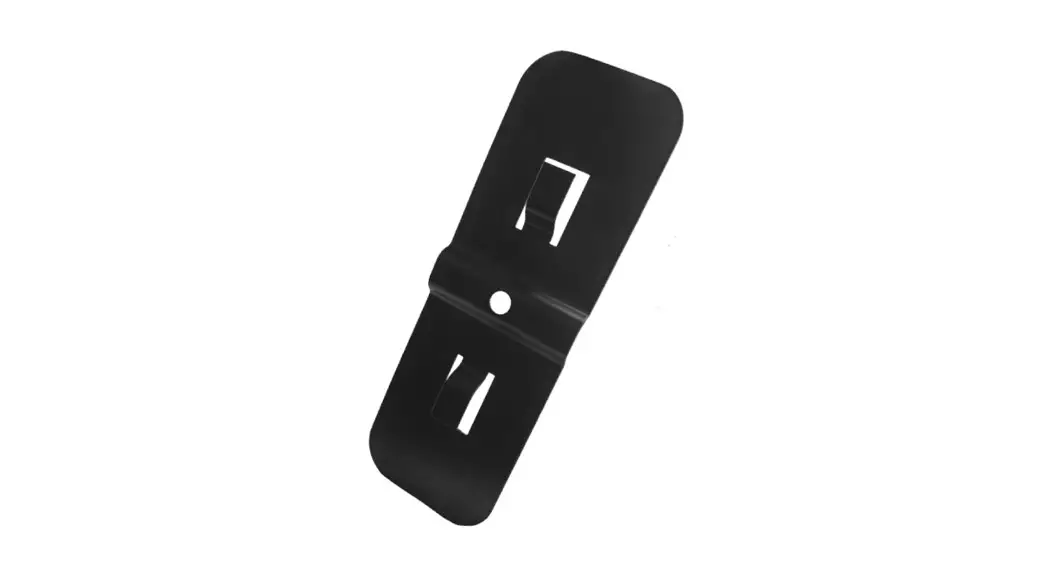
- Identify the 4 bracket arms according to the size range table
at the beginning of this guide. - Insert the top bracket arm on the side opposite of the power
connector, aligning the groove with a small post in the sensor’s
opening. - Insert the bottom bracket arm into the opening above the power
connector. - Slide the device onto the sensor, between the bracket arms.
Ensure that the power port on the device is facing towards the
power connector. - Place the device on a flat surface and adjust the sensor to
center it as best as possible.
If you need technical assistance, you can call:
EMEA: +31.23.8900150
APAC: +852.3127.6811
LIVE OnePOD Quick Release Sensors & Brackets Installation
IMPORTANT:
Ensure that the LoRa
LIVE OnePOD QR Bracket Arm Sizing Guide
!
Gateway and the InVue Alarm Nodes have been
configured with the InVue
If you already have login information for the app proceed
Check the table below to ensure your bracket arm kit is correctly sized for your device.
LIVE app before beginning the installation. The stand should NOT be powered at
to the next step. Otherwise, see below.
Order Code Description
DLH291
HH Brackets – Medium
Width Range 63.5mm – 84.9mm
Height Range 133mm – 157mm
this point.
First time setup Before using the app, users and site
DLH292
HH Brackets – Large
63.5mm – 84.9mm
158mm – 182mm
information must be set up within the InVue LIVE web portal.
DLT291
Tablet Brackets – Small
120.0mm – 141.5mm
197mm – 222mm
DLT292
Tablet Brackets – Medium
154.0mm – 175.5mm
236mm – 259mm
This should be completed by a manager or
admin using the information sent by InVue
DLT293
Tablet Brackets – Large
178.7mm – 200.2mm
264mm – 288mm
Customer Service.
DLT294
Tablet Brackets – Extra Large 204.3mm – 225.8mm
263mm – 288mm
If you are a manager or admin and have not received this information via email from InVue Customer service, please submit a service request.
1 If not already installed on your
smart phone or tablet, download the InVue LIVE Display app from the Google Play store or iOS app store. Log in using the information provided by your manager or admin.
2 With the InVue LIVE Display app
open on your smart phone or tablet, press the “Add or Scan InVue Device” button.
3 Use the smart phone or tablet’s
camera to scan the barcode on the sensor (the Device ID can also be entered manually). Follow the prompts in the app to set up the sensor. Note: App may display “install pending” at this point.
4 Once the enrollment process
is complete, the app will show this screen. Select “OK, GOT IT.” to return to the LIVE Display dashboard.
For technical assistance call
NA / LATAM // 704.752.6513 · 888.55.INVUE
1
EMEA // +31.23.8900150
APAC // +852.3127.6811
LIVE OnePOD Quick Release Sensors & Brackets Installation
5 Use the provided alcohol wipe to
clean the flat side of the sensor. Allow it to dry completely.
6 Peel the backing from the included
foam pad.
7 Place the foam pad onto the
sensor, aligning the yellow plunger with the cut out in the pad. Smooth the pad onto the sensor for at least 10 seconds.
8 Plug the power connector into the
sensor.
Top Side
Side Bottom
9 Identify the 4 bracket arms.
Note: For detailed information on the size ranges for each arm set, please consult the table at the beginning of this guide.
10 Insert the top arm on the side
opposite of the power connector. There is a groove in this arm that aligns with a small post in the sensor’s opening. Tip: It helps to angle the arm upwards first.
11 Insert the bottom arm into
the opening above the power connector.
12 Slide the device onto the sensor,
between the arms. Ensure that the power port on the device is facing towards the power connector.
For technical assistance call
NA / LATAM // 704.752.6513 · 888.55.INVUE
2
EMEA // +31.23.8900150
APAC // +852.3127.6811
LIVE OnePOD Quick Release Sensors & Brackets Installation
13a
Place the device down on a flat surface and adjust the sensor so that it is centered as best as possible.
13b
!
IMPORTANT!
Adjust the arms and sensor until the red line is no longer visible (on left side of the top arm). If you can’t insert the arm far enough, the system wont function properly. Please use a shorter bracket arm.
14 Insert the 2 side arms into the
sensor. The arms should be close to the sides of the device without being tight against the sides.
15 Tip: In most cases, centering the
power port on the device between the prongs on the forked arm will help center the sensor on the back of the device.
16 Insert the 2 provided screws into
the holes in the sensor. Press down on the sensor and tighten the screws using a TT20 bit.
17 Check the fit.
Unhook the top arm and slide the device out. If the device does not slide out freely (or if it is TOO loose) loosen the screws and adjust the side arms as needed
18 Hook the top arm onto the device.
19 Plug the power connector into the
device.
For technical assistance call
NA / LATAM // 704.752.6513 · 888.55.INVUE
3
EMEA // +31.23.8900150
APAC // +852.3127.6811
LIVE OnePOD Quick Release Sensors & Brackets Installation
20 Pull the sensor cable from a
previously installed OnePOD stand and plug it into the sensor.
21 Optional: If using a DLD211
sensor with the lock-out screw, use a TT8 bit to raise the screw to the sensor surface to lock the sensor to the sensor cable.
22 Place the device and sensor onto
the stand.
23 Plug the stand’s power cable into
the power supply. Plug the power supply into a power outlet.
24 After a few moments the LED on
the side will illuminate and the top arm will lock. If this does not occur, consult the troubleshooting steps at the end of this guide.
25 Navigate to the sensor’s action screen*
in the LIVE Display app and press “UNLOCK BRACKET”. The app will confirm once the command is inprogress. *This screen may look different depending on your setup.
26 Once the gold LED on the stand
turns off, the bracket is unlocked for 30 seconds.
Note: The sensor must be sitting on the stand and power must be present for the arm to release.
27 Unhook the top arm from the
device.
For technical assistance call
NA / LATAM // 704.752.6513 · 888.55.INVUE
4
EMEA // +31.23.8900150
APAC // +852.3127.6811
LIVE OnePOD Quick Release Sensors & Brackets Installation
28 Unplug the power connector.
29 Slide the device out from the
brackets.
30 Once complete, slide the device
back into the brackets.
31 Plug the power connector back
into the device.
32 Hook the upper arm onto the
device. It will automatically re-lock itself.
TROUBLESHOOTING:
TROUBLESHOOTING:
33 Once the arm is re-locked and the
position has rearmed, the app will return to this screen.
If gold LED does not illuminate, this means the sensor is not able to arm.
Check the following: · Is the stand plugged in? · Is the power connector plugged in to
the device? · Is the sensor fully seated on stand? · Is the red line fully hidden (see step 13b)?
If “UNLOCK BRACKET” button is gray, it is likely that the top arm is not installed correctly. Loosen screws and return to step 13b.
Note: The sensor may still be armed and could alarm if device is removed. Disarm the sensor from the app and remove the black sensor cable from the sensor to avoid this.
For technical assistance call
NA / LATAM // 704.752.6513 · 888.55.INVUE
5
EMEA // +31.23.8900150
APAC // +852.3127.6811
LIVE OnePOD Quick Release Sensors & Brackets Installation
FCC Compliance This device complies with Part 15 of the FCC Rules. Operation is subject to the following two conditions: (1) this device may not cause harmful interference, and (2) this device must accept any interference received, including interference that may cause undesired operation. Changes or modifications not expressly approved by the party responsible for compliance could void the user’s authority to operate the equipment. This equipment has been tested and found to comply with the limits for a Class B digital device, pursuant to Part 15 of the FCC Rules. These limits are designed to provide reasonable protection against harmful interference in a residential installation. This equipment generates, uses and can radiate radio frequency energy and, if not installed and used in accordance with the instructions, may cause harmful interference to radio communications. However, there is no guarantee that interference will not occur in a particular installation. If this equipment does cause harmful interference to radio or television reception, which can be determined by turning the equipment off and on, the user is encouraged to try to correct the interference by one or more of the following measures: — Reorient or relocate the receiving antenna. — Increase the separation between the equipment and receiver. — Connect the equipment into an outlet on a circuit different from that to which the receiver is connected. — Consult the dealer or an experienced radio/TV technician for help.
ISED Regulatory Compliance This device contains licence-exempt transmitter(s)/receiver(s) that comply with Innovation, Science and Economic Development Canada’s licence-exempt RSS(s). Operation is subject to the following two conditions: (1) This device may not cause interference. (2) This device must accept any interference, including interference that may cause undesired operation of the device. This equipment complies with IC RSS-102 radiation exposure limits set forth for an uncontrolled environment. L’émetteur/récepteur exempt de licence contenu dans le présent appareil est conforme aux CNR d’Innovation, Sciences et Développement économique Canada applicables aux appareils radio exempts de licence. L’exploitation est autorisée aux deux conditions suivantes : (1) L’appareil ne doit pas produire de brouillage; (2) L’appareil doit accepter tout brouillage radioélectrique subi, même si le brouillage est susceptible d’en compromettre le fonctionnement. Cet équipement est conforme aux limites d’exposition aux radiations IC CNR-102 établies pour un environnement non contrôlé.
SD0909 Rev3 07/31/23
For technical assistance call
NA / LATAM // 704.752.6513 · 888.55.INVUE
6
EMEA // +31.23.8900150
APAC // +852.3127.6811