
CityGrows CG100HTH-IR Wireless Air-Conditioner IR Control Kit
Disclaimers and Copyright
Nothing contained in this publication is to be construed as granting any right, by implication or otherwise, for the manufacture, sale, or use in connection with any method, apparatus, or product covered by letters patent, or as insuring anyone against liability for infringement of letters patent. Efforts have been made to ensure the accuracy and reliability of the data contained in this publication; however, CityGrow Energy Systems Limited makes no representation, warranty, or guarantee in connection with this publication and hereby expressly disclaims any liability or responsibility for loss or damage resulting from its use or from the use of any product or methodology described herein; for any violation of any federal, state, or municipal regulation with which this publication may conflict; or for the infringement of any patent from the use of this publication. Nothing contained in this publication should be viewed as an endorsement by CityGrow Energy Systems Limited of any particular manufacturer’s products.
CAUTION
- RISK OF ELECTRIC SHOCK DO NOT OPEN
- CAUTION: TO REDUCE THE RISK OF ELECTRIC SHOCK,
- DO NOT REMOVE COVER (OR BACK) NO USER-SERVICEABLE
- PARTS INSIDE REFER SERVICING TO QUALIFIED SERVICE PERSONNEL
- The lightning flash with arrowhead symbol within an equilateral triangle is intended to alert the user to the presence of uninsulated “dangerous voltage” within the product’s enclosure that may be of sufficient magnitude to constitute a risk of electric shock to persons.
- The exclamation point within an equilateral triangle is intended to alert the user to the presence of important operating and maintenance (servicing) instructions in the literature accompanying the product.
IMPORTANT SAFETY INSTRUCTIONS
This product was designed and manufactured to meet strict quality and safety standards. There are, however, some installation and operation precautions which you should be particularly aware of.
- Read these instructions.
- Keep these instructions.
- . Heed all warnings.
- Follow all instructions.
- Do not use this apparatus near water.
- Clean only with dry cloth.
- Do not block any ventilation openings. Install in accordance with the manufacturer’s instructions.
- Do not install near any heat sources such as radiators, heat registers, stoves, or other apparatus that produce heat.
- Do not defeat the safety purpose of the polarized or grounding-type plug. If the provided plug does not fit into your outlet, consult an electrician for replacement of the outlet.
- . Protect the power cord from being walked on or pinched particularly at plugs, convenience receptacles, and the point where they exit from the apparatus.
- . Only use attachments/accessories specified by the manufacturer.
- Use only with the cart, stand, tripod, bracket, or table specified by the manufacturer, or sold with the apparatus. When a cart is used, use caution when moving the cart/apparatus combination to avoid injury from tip-over.
- Unplug this apparatus during lightning storms.
- Refer all servicing to qualified service personnel. Servicing is required when the apparatus has been damaged in any way, such as power-supply cord or plug is damaged, liquid has been spilled or objects have fallen into the apparatus, the apparatus has been exposed to rain or moisture, does not operate normally, or has been dropped.
Introduction
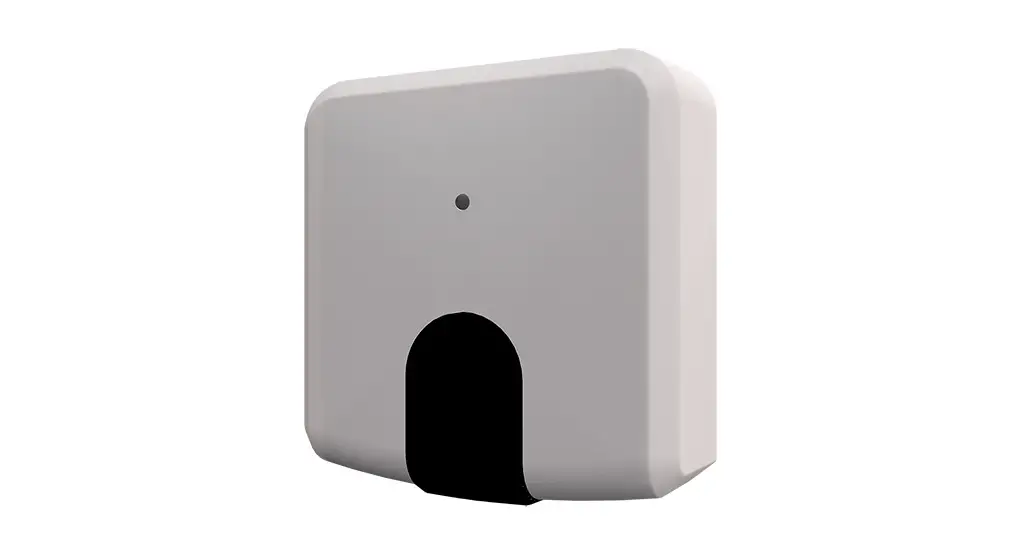
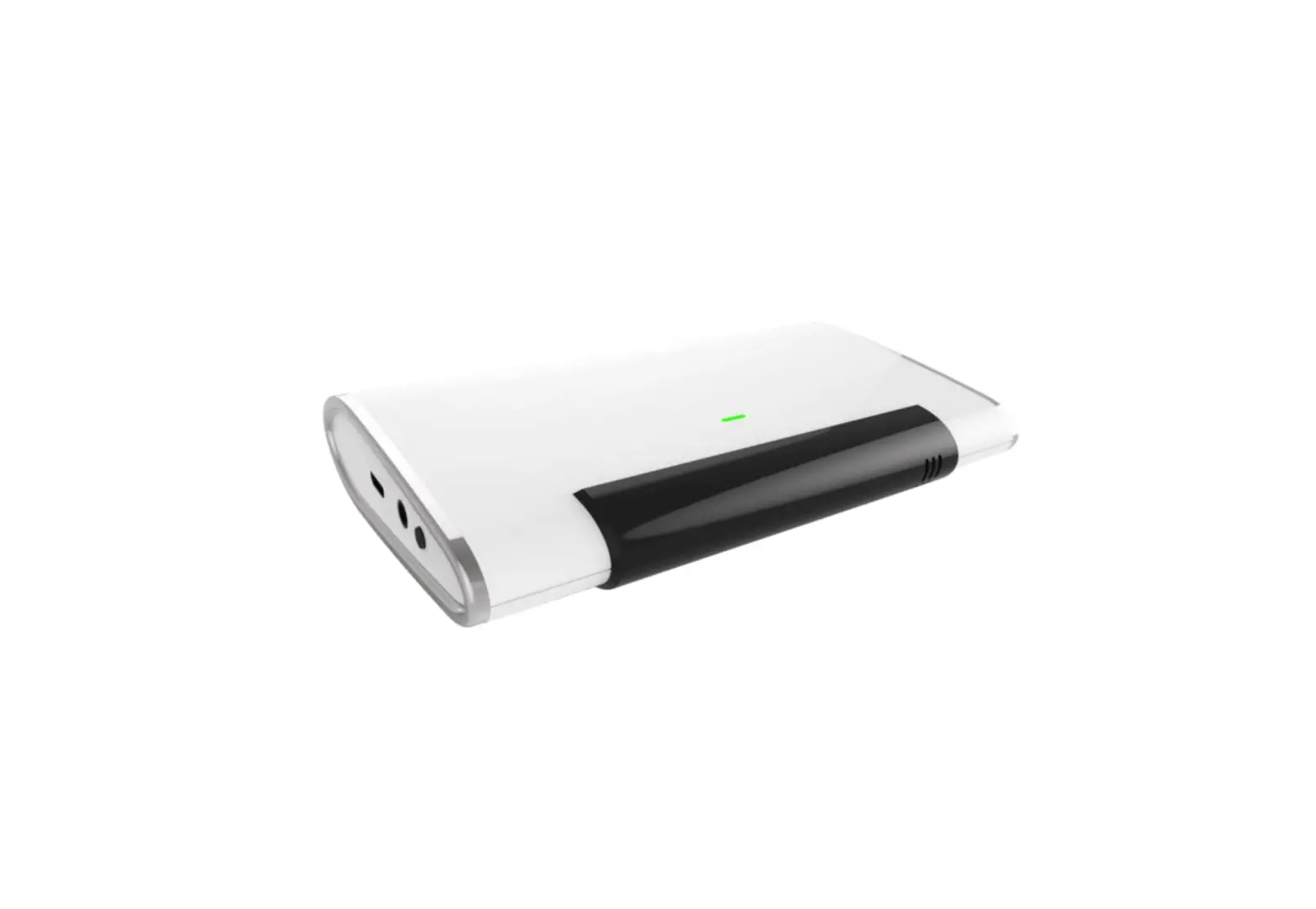
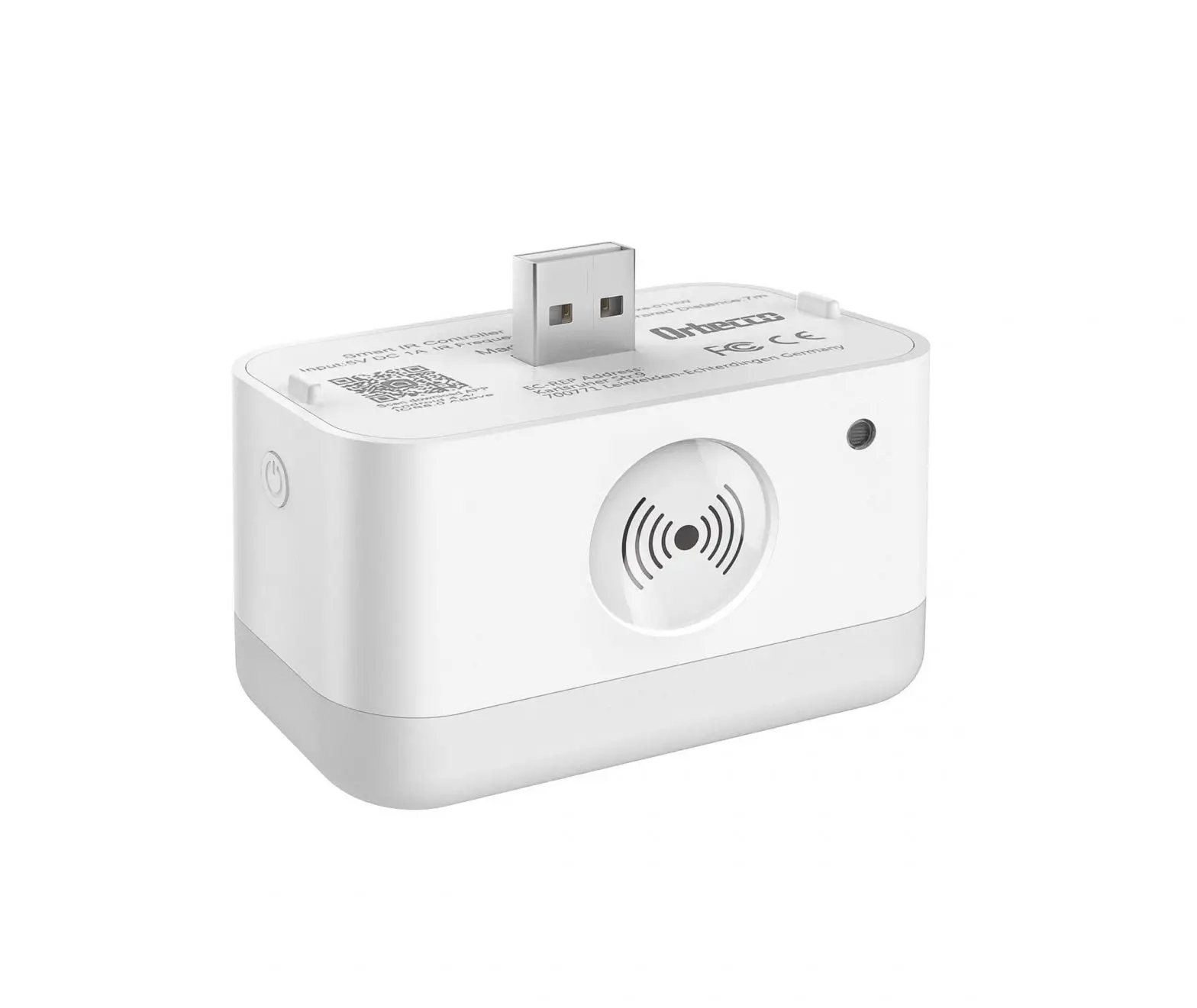
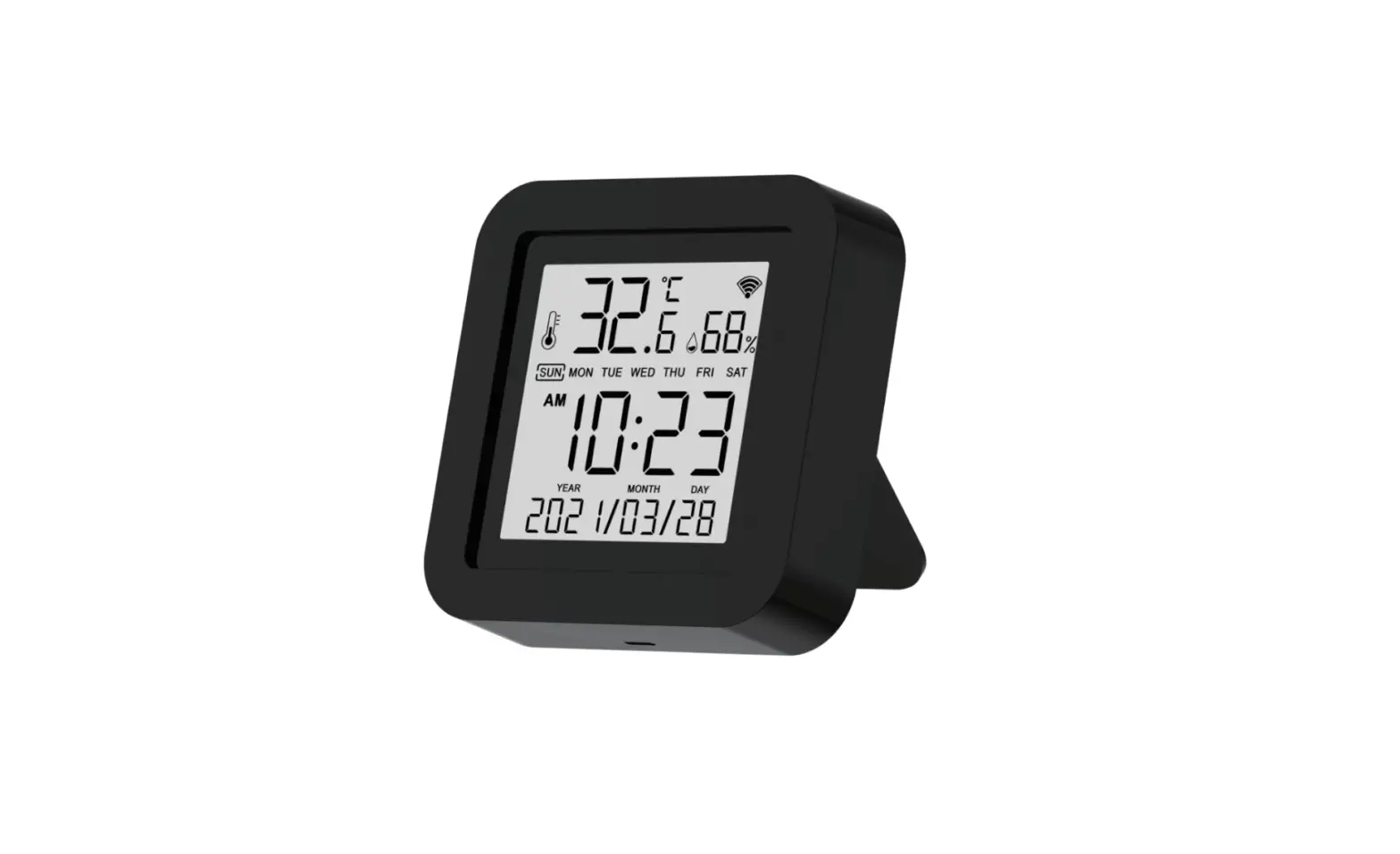
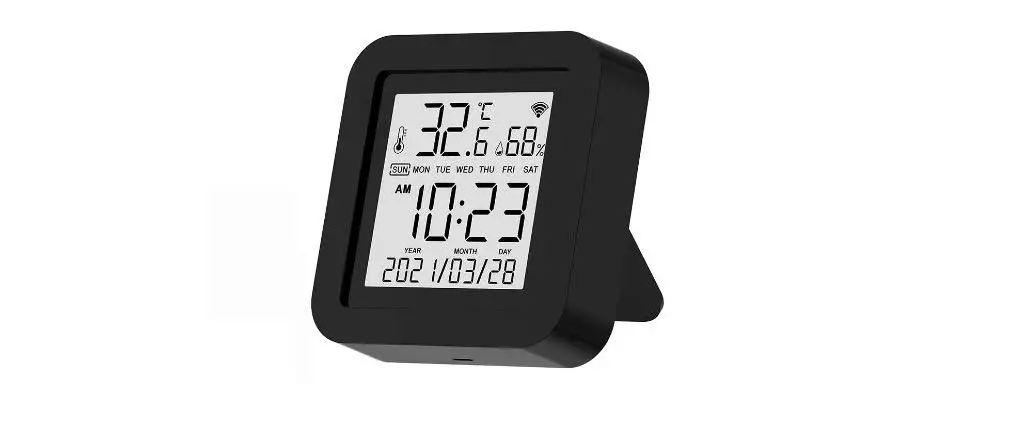
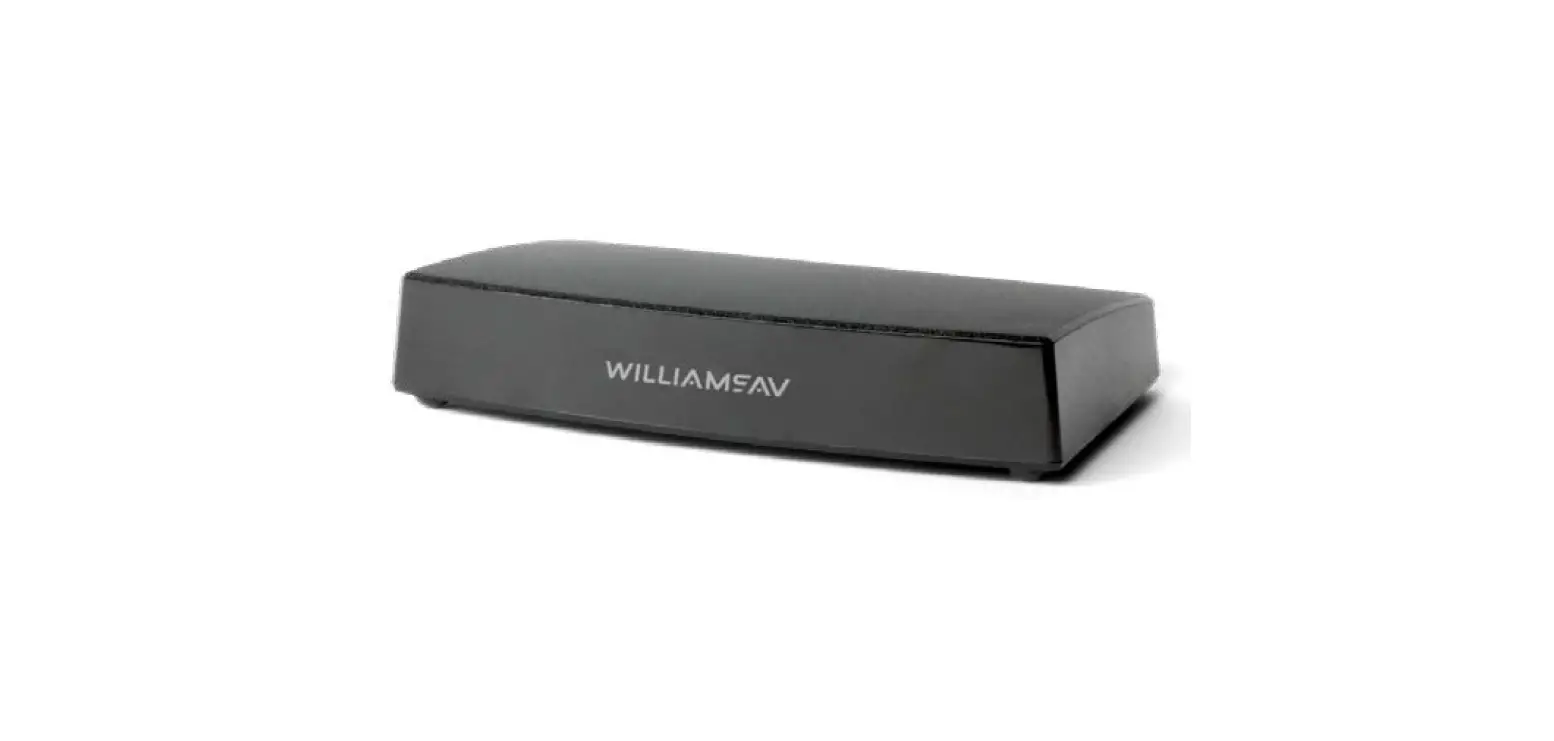
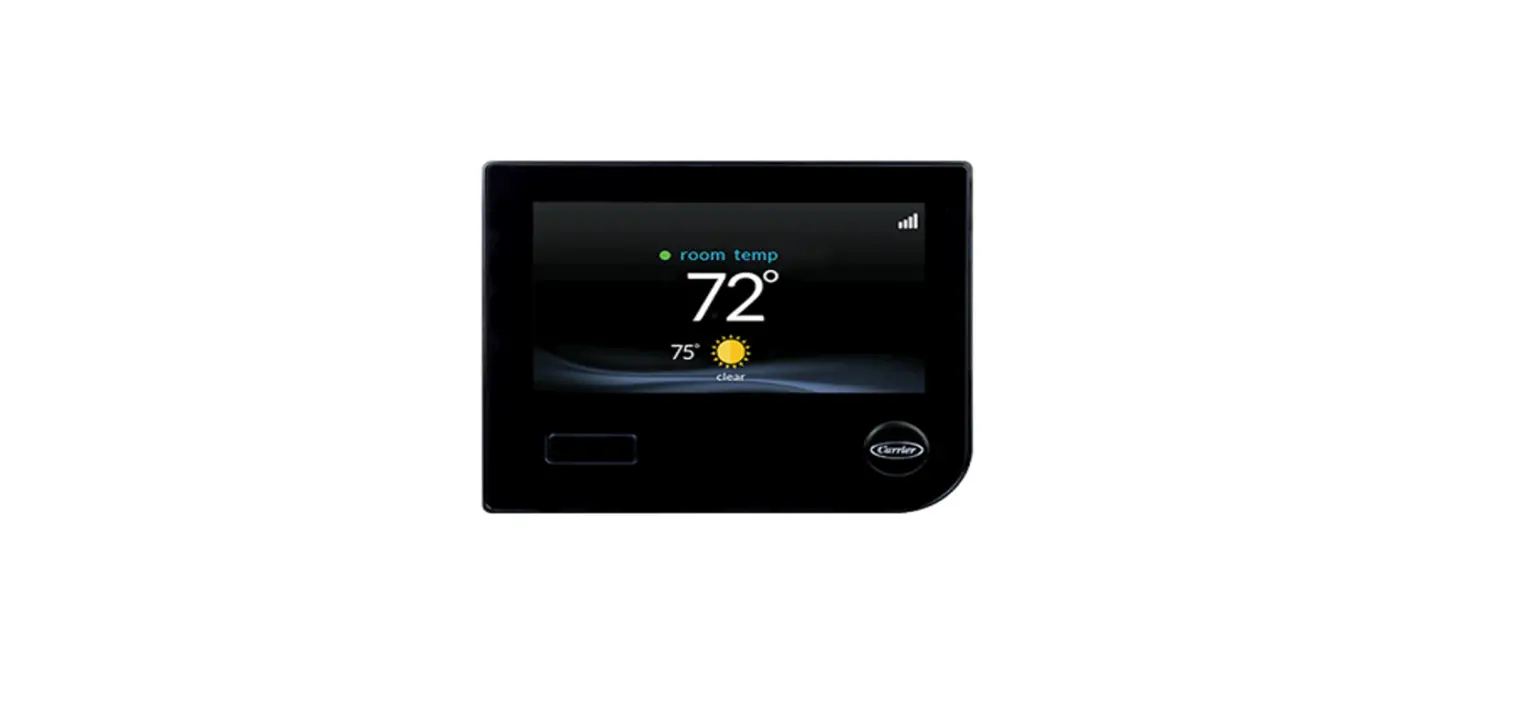
Thank you for choosing CityGrow’s product. The Air-Conditioner IR Control Kit consists of CG100HTH and CG102IR-AC. CG100HTH-IR is a wall-mounted thermostat control plate for controlling the temperature and setting. CG102IR-AC should be mounted close to the air-conditioner for transmitting the air-conditioner infrared signal.
Description
- ZigBee wireless remote control.
- Based on IEEE 802.15.4.
- 2.4GHz radio frequency.
- CG100HTH-IR – thermostat for user to adjust temperature and fan speed.
- CG102IR-AC – ZigBee IR transmitter for transmitting infrared signal of the air-conditioner according to user settings on CG100HTH-IR.
- LED indicator for status indication.
- Plate button can perform two-way function.
- Powered by CG101AD external DC6V Mini Power Supply. (Purchase separately)
- Button graphics can be customized.
- With CG102BS-R Base Station, all devices support iOS/Android App control.
- Easy to install.
Understanding the product – CG102IR-AC
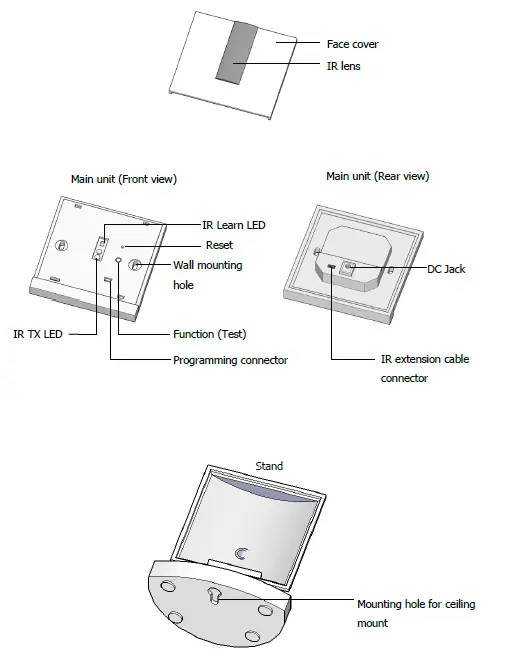
Dimension of CG102IR-AC
Main unit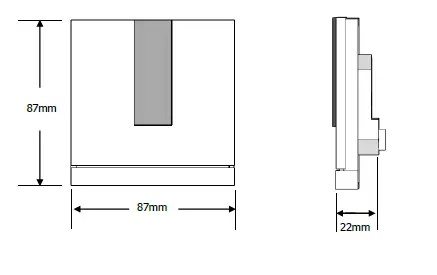
Stand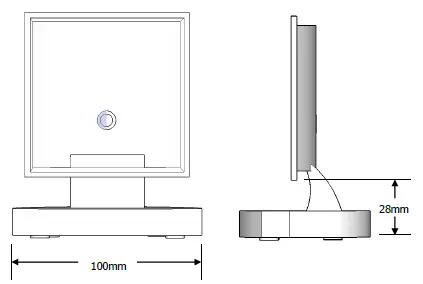
Understanding the product – CG100HTH-IR
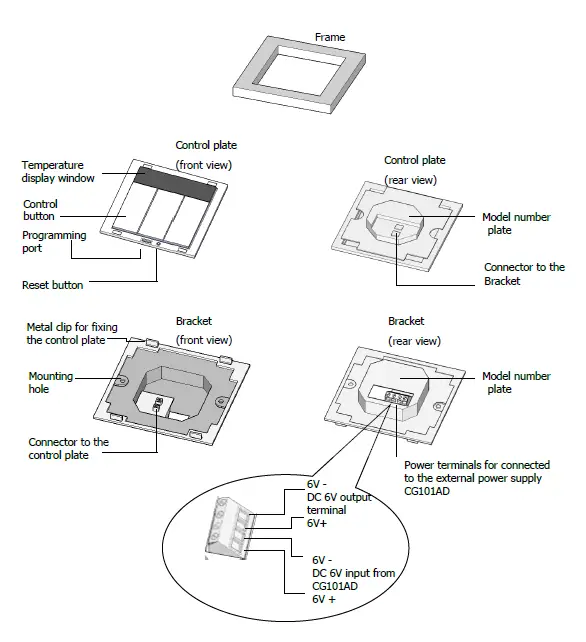
Dimension of CG100HTH-IR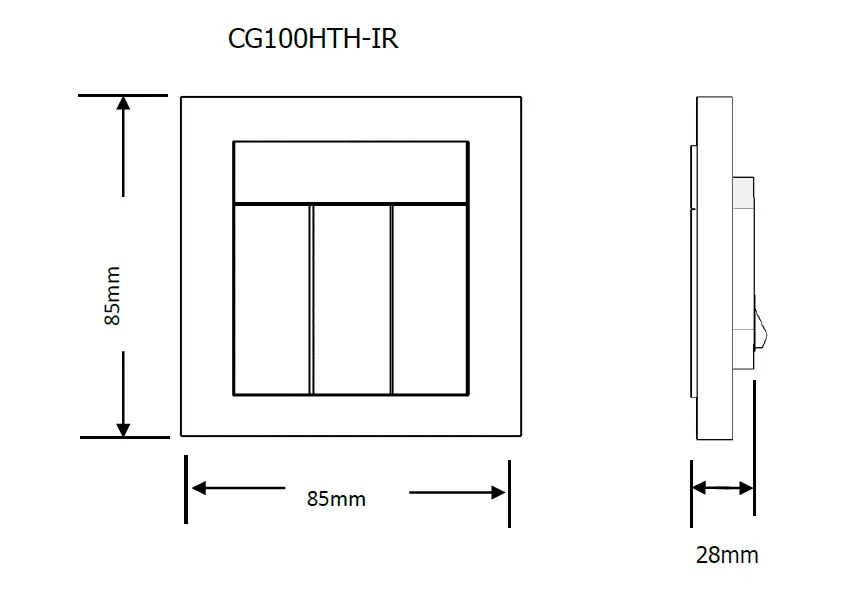
Configuration of CG100HTH-IR and CG102IR-AC
Apply network information to the devices
- Add the CG100HTH-IR and CG102IR-AC to the project of the HomeNET Planner 2 Software. (Refer to HomeNet Planner 2 software user manual)
- Set the network information of CG100HTH-IR and CG102IR-AC by using the “Set” button on the “Device List” of HomeNET Planner 2 with CG101UTC cable, CG101UTU cable (for CG102IR-AC) and CG101UT5 cable (for CG100HTH-IR).
Pairing the CG100HTH-IR and CG102IR-AC
- Interconnect the CG100HTH-IR and the CG102IR-AC by using CG101UT5.
- Power up the CG102IR-AC with the AC power adaptor.
- Hold any button on the CG100HTH-IR then press and release the reset button at the same time to perform Pairing.
- If the pairing process is successful, “OK” will be shown on the LED display of the CG100HTH-IR.
- If the pairing process is failed, all the buttons will blink at the same time. In this case, please repeat step 2.1 to 2.5 to retry pairing.
IR Learning signal process
Before installing the CG102IR-AC, the user is recommended to complete the IR learning signal process from the original remote of the air-conditioner to the CG102IR-AC in prior.
Step 1: Remove the front cover of CG102IR-AC, you will see the IR learning head.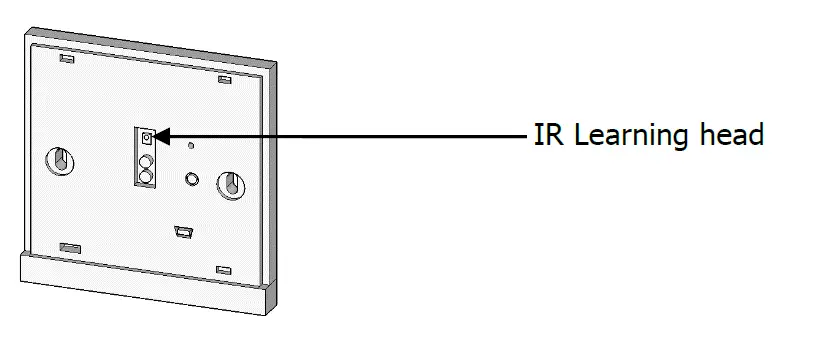
Step 2: Download the “CG102IR Planner 1.2” software from the link below and install the software onto the computer.
Link to download the “CG102IR Planner 1.2” software: https://citygrowsys.com/en/download/#software-download
Install the “CG102IR Planner 1.2” software on any Windows PC. Connect the CG102IR-AC to the PC with the CG101UTU cable (NOT INCLUDED) through the CG102IR-AC USB port. The CG102IR-AC will be powered up by the PC, no AC power adaptor will be required in this procedure. Run the CG102IR Planner 1.2 PC software now.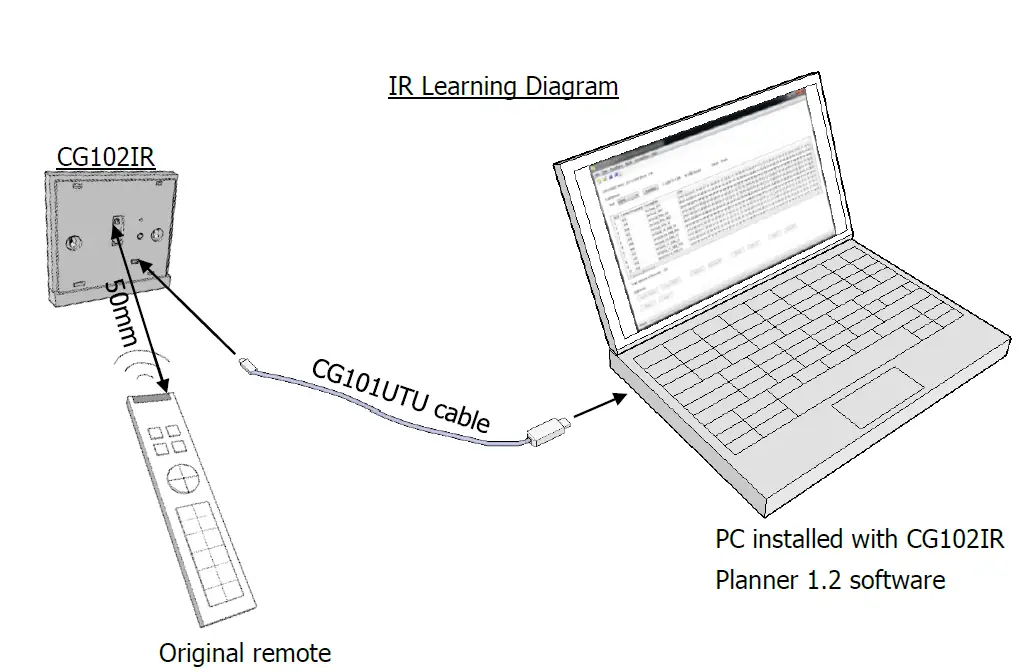
Step 3: Start a “New Project” on the CG102IR Planner 1.2 software.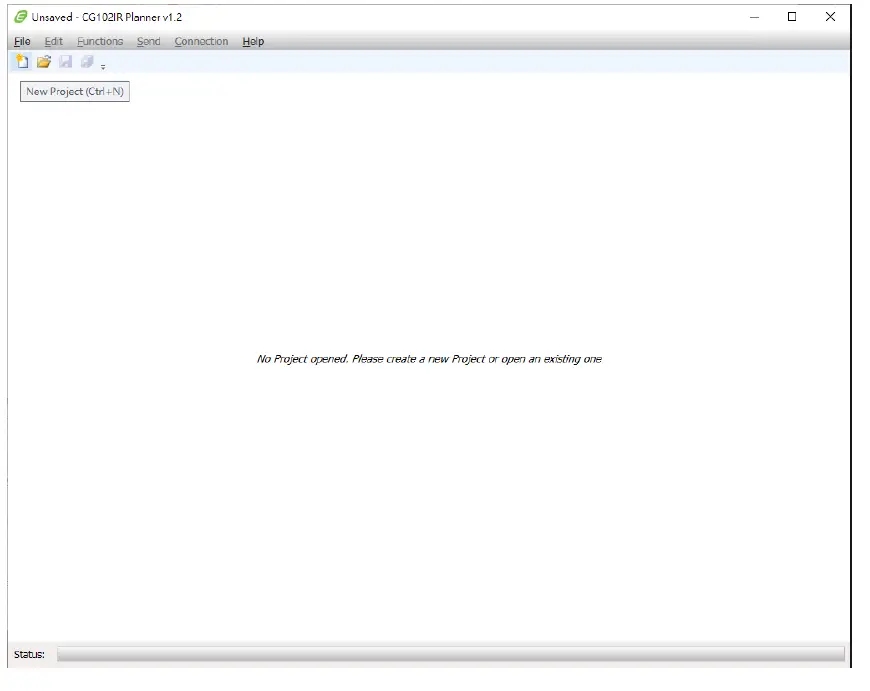
Step 4: Select the correct “Port” and click “Connect” to connect the CG102IR-AC with the PC.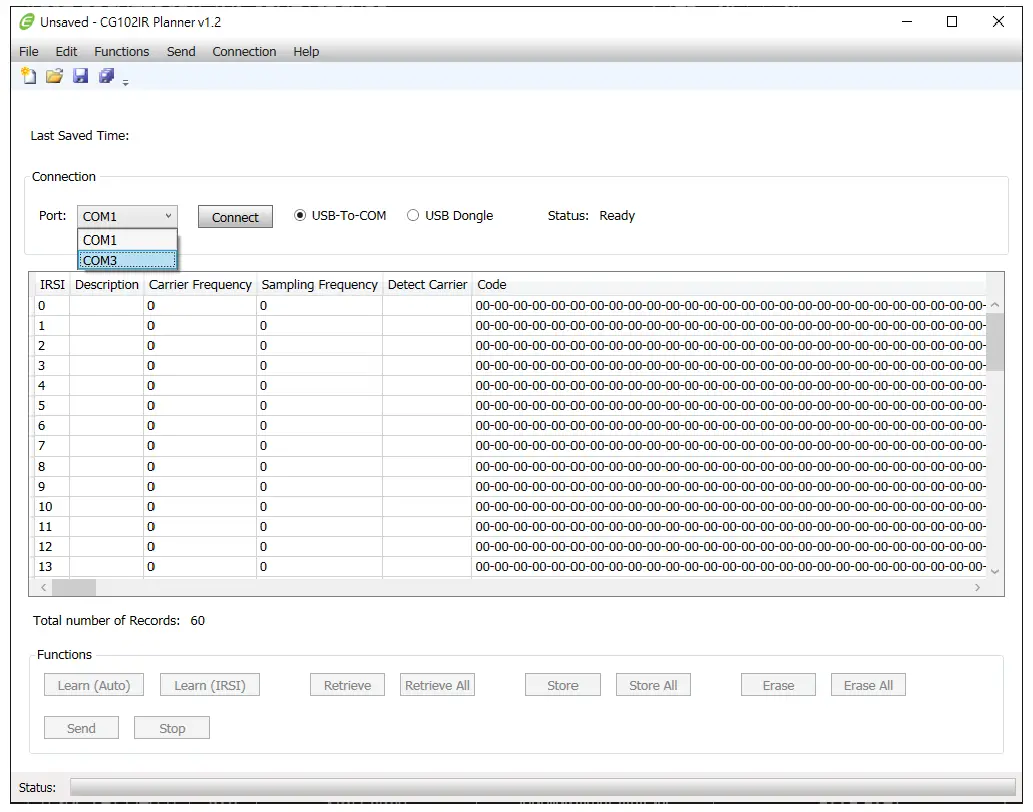
Step 5: “Status: Connected” is shown, the connection is successful.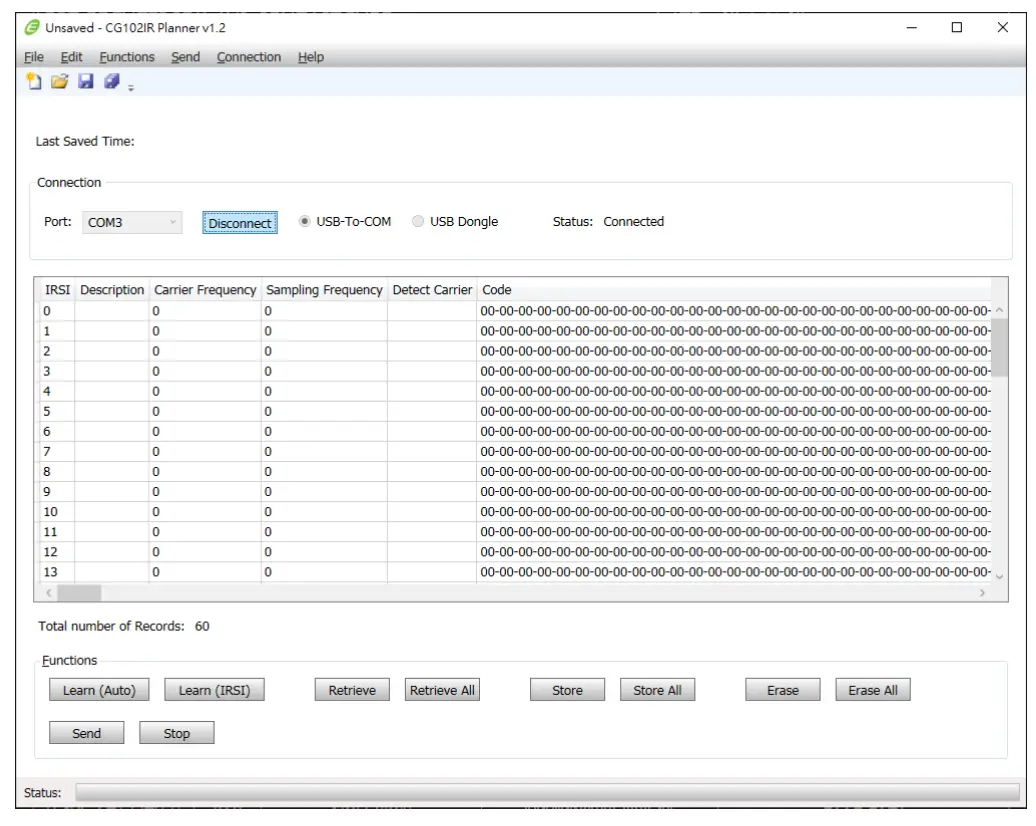
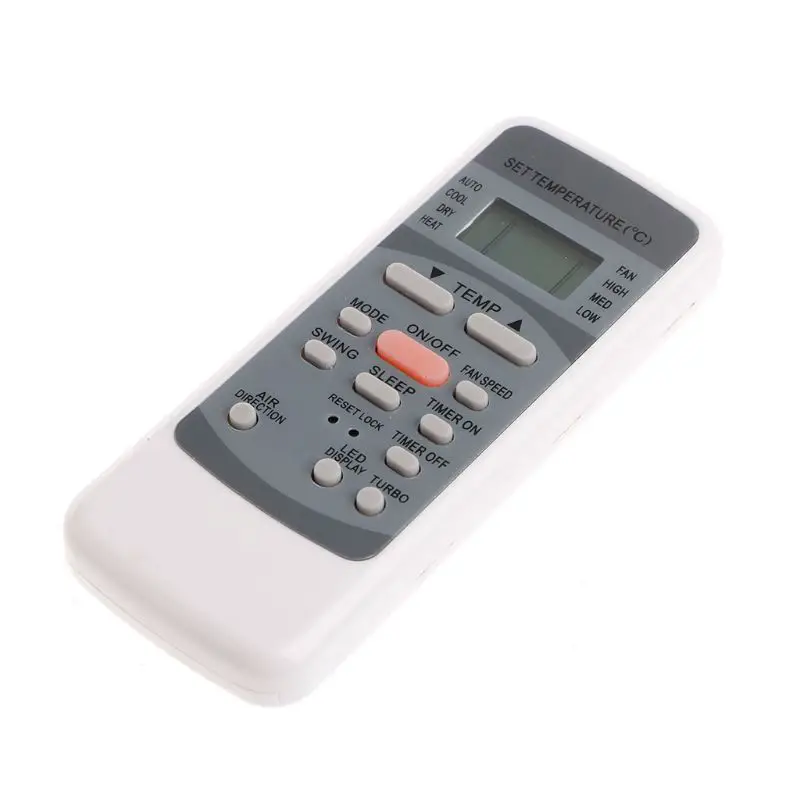
Step 6: Now place the original IR remote controller in front of the CG102IR-AC IR learning head, the best distance is 50mm from the IR learning head.
Step 7: Option 1 – Learn (Auto) On the Functions List of the CG102IR Planner 1.2 PC user interface, choose “Learn (Auto)” to learn the IR signal automatically. You are required to learn the IR signal one by one.
Learn (IRSI)
User can also choose “Learn (IRSI)” on the CG102IR Planner 1.2 PC user interface to perform IR signal learning manually.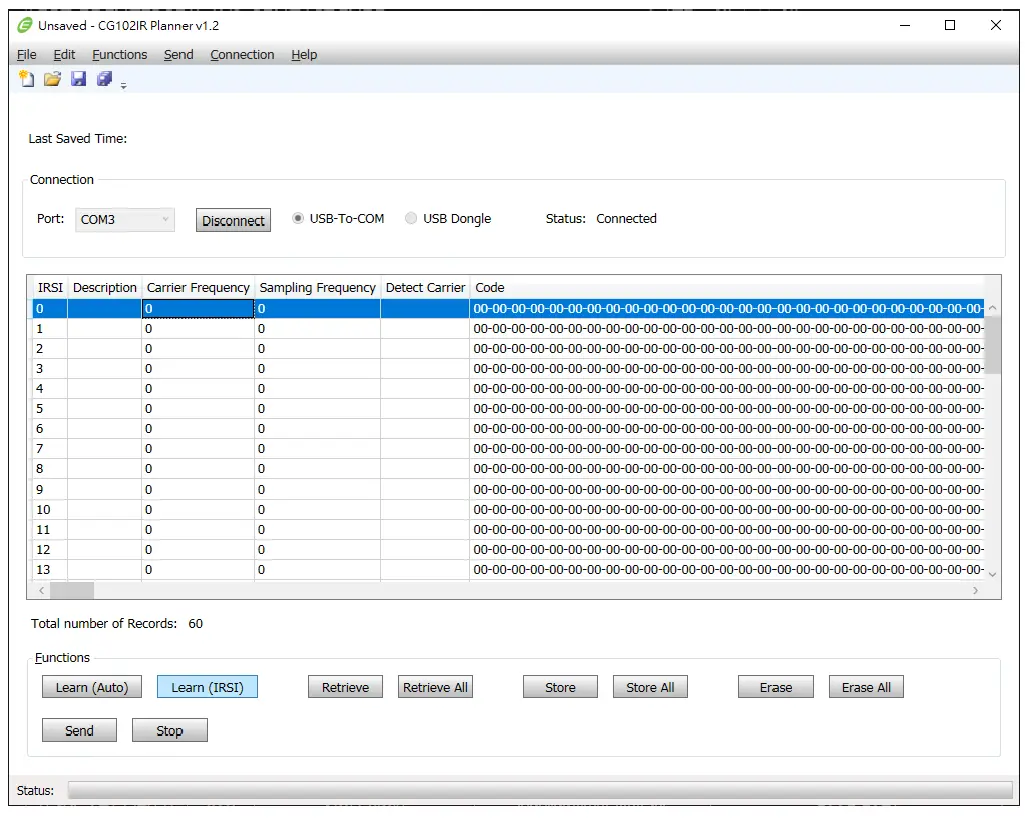
Step 8: Following the instruction and press the button on the remote controller to learn the code. 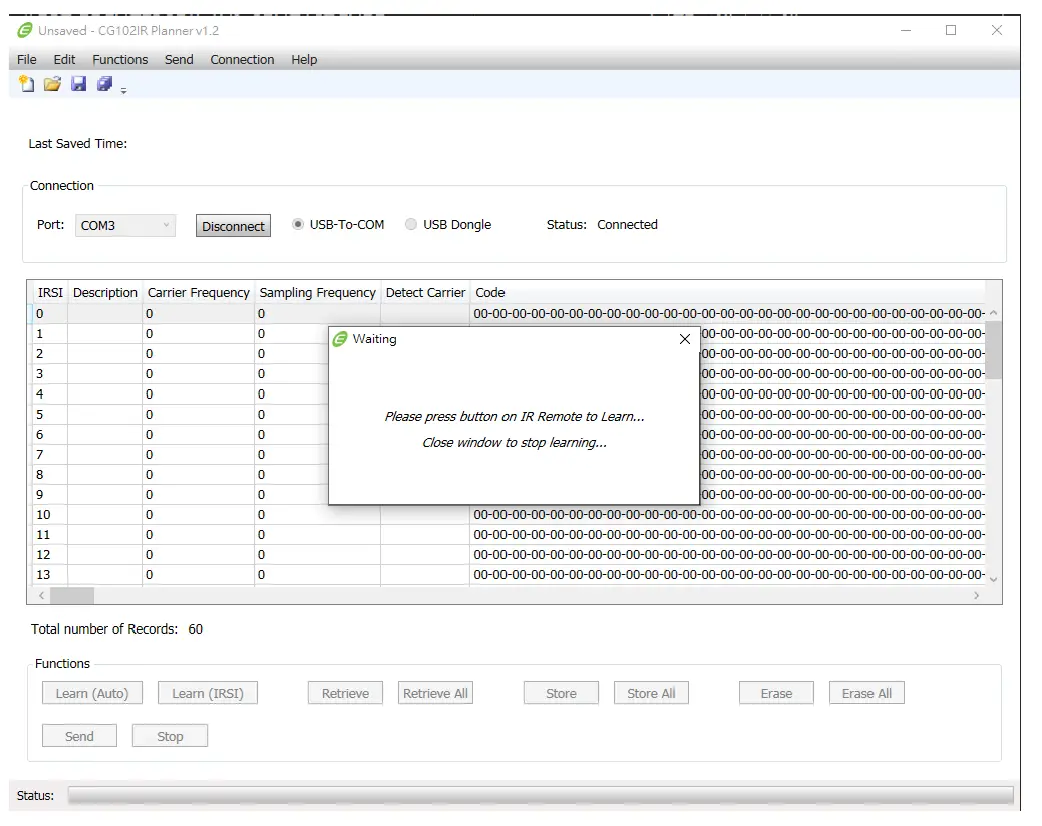
Step 9: When the learning process is successful, you will see the notification as below. Repeat Step 7 and Step 8 to learn all the IR codes onto the CG102IR-AC. You can store up to a maximum of 60 IR codes onto the CG102IR-AC. 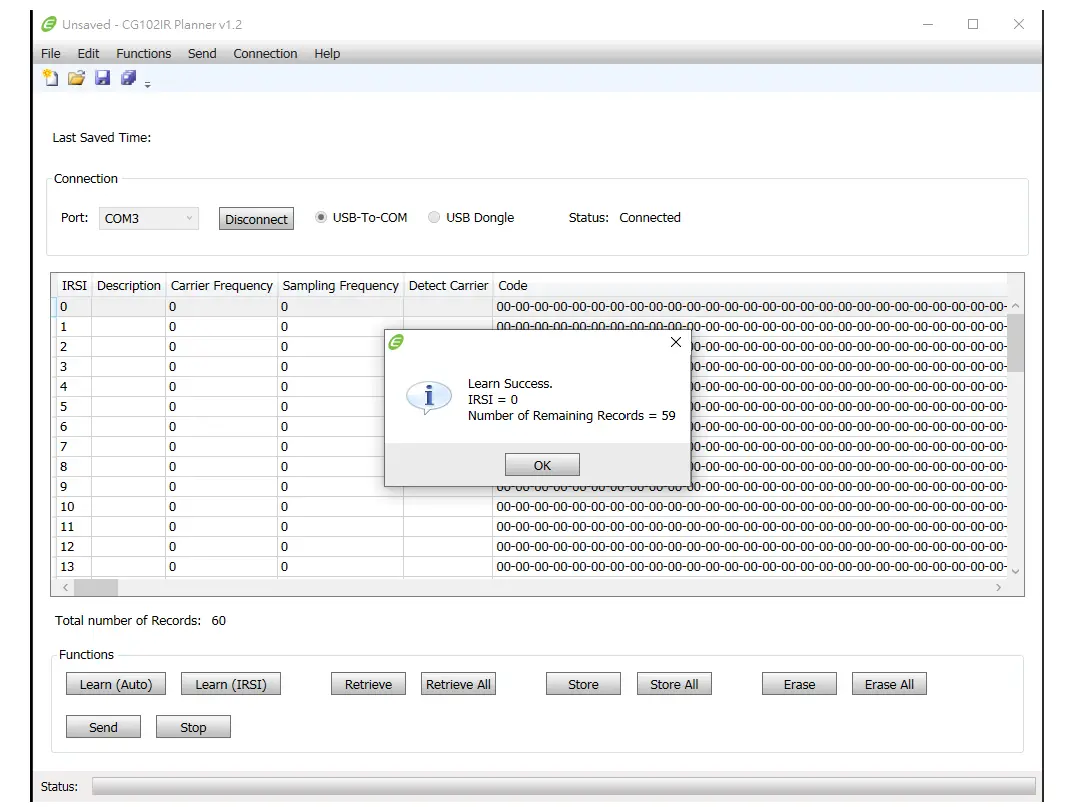
Step 10: When all the learning processes are completed, please save the Project file with filename.
Step 11: Optional (Personalize the Description on the IR table) User can personal the Description of the IR codes on the IR table. Choose an IRSI and double click, now you can personalize the Description of the learnt IR code on the table. 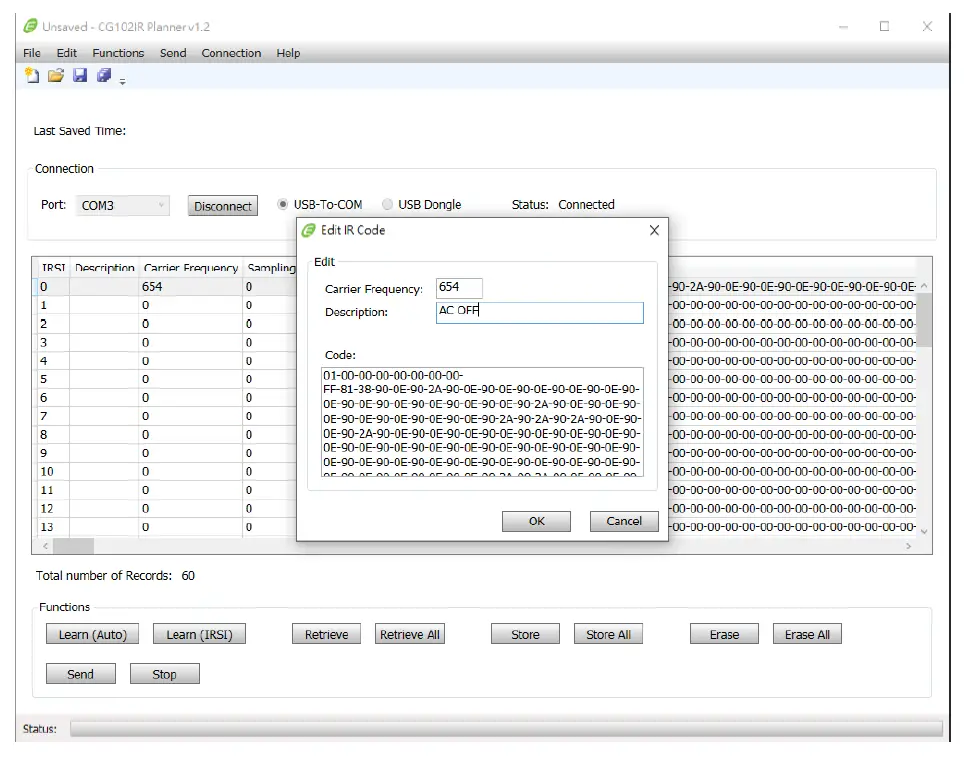
Personalize all the Descriptions and you will see a complete IR table.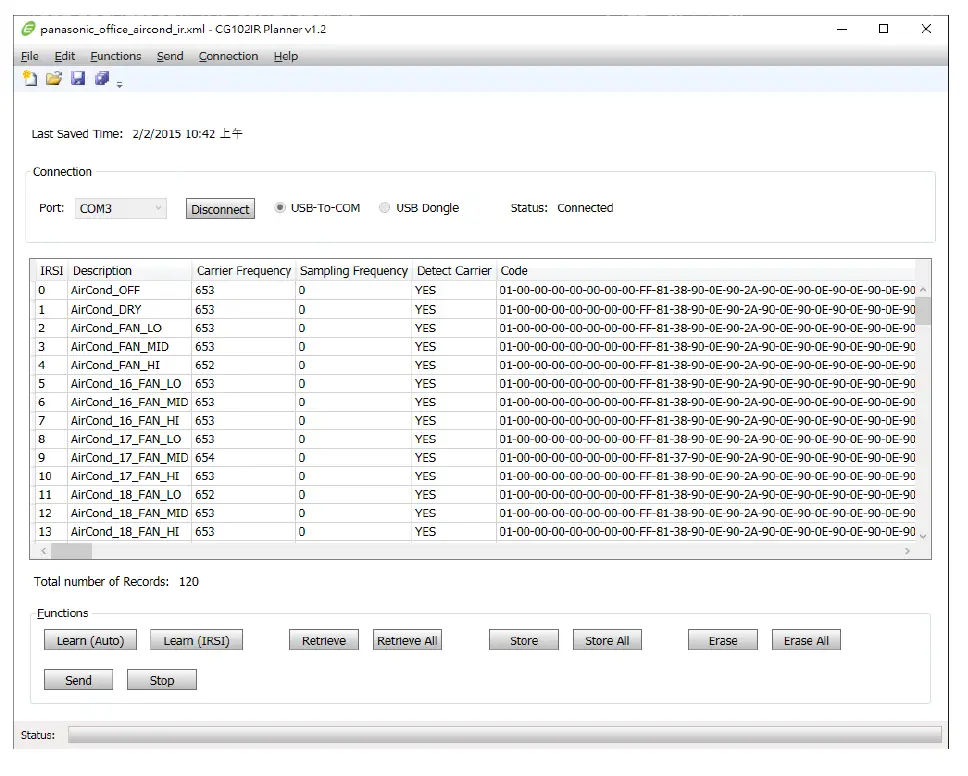
Guide to Learn (IRIS) the air-conditioner IR signals
- Learning “OFF” signal
- Cover the IR head of the remote controller and press the Power button to turn the air-conditioner to “ON” status.
- Select the “0” row on the IR table to learn the “OFF” onto the “0” row.
- Press the “Learn (IRSI)” button to command the CG102IR-AC to start learning the IR signal from the remote controller.
- Now place the remote controller in front of the CG102IR-AC, make sure the IR emitter aligned with the receiver of the CG102IR-AC. Press the Power button of the remote controller to learn the “OFF” signal.
- If the IR signal is successfully learned onto the CG102IR-AC, a Learn Success Dialog will be displayed on the screen and then content of the learn IR code will be shown onto the IR table.
- Learning “DRY” mode
- Press the Mode button of the air-conditioner remote controller and set the next press to be running the “DRY” Mode.
- Select the “1” row on the IR table to learn the “OFF” onto the “1” row.
- Press the “Learn (IRSI)” button to command the CG102IR-AC to start learning the IR signal from the remote controller.
- Now place the remote controller in front of the CG102IR-AC, make sure the IR emitter aligned with the receiver of the CG102IR-AC. Press the Mode button of the remote controller to run the “DRY” mode. Learn the “DRY” signal.
- If the IR signal is successfully learned onto the CG102IR-AC, a Learn Success Dialog will be displayed on the screen and then the content of the learn IR code will be shown on the IR table.
- Learning “FAN LOW” mode
- Press the Mode and Fan Speed button of the air-conditioner remote controller and set the next press to be running the “FAN LOW” Mode.
- Select the “2” row on the IR table to learn the “OFF LOW” onto the “2” row.
- Press the “Learn (IRSI)” button to command the CG102IR-AC to start learning the IR signal from the remote controller.
- Now place the remote controller in front of the CG102IR-AC, make sure the IR emitter aligned with the receiver of the CG102IR-AC. Press the Mode button of the remote controller to run the “FAN LOW” mode. Learn the “FAN LOW” signal.
- If the IR signal is successfully learned onto the CG102IR-AC, a Learn Success Dialog will be displayed on the screen and then content of the learn IR code will be shown onto the IR table.
- Repeat Step 3 to learn “FAN MID” and “FAN HIGH” modes onto the “IRSI 3” and “IRSI 4”.
- Learning temperature in different fan speeds (LOW/MID/HIGH)
- Press the Temperature and Fan Speed button of the air-conditioner remote controller and set the next press to be running the “FAN LOW” Mode at 16°C.
- Select the “5” row on the IR table to learn the “16°C FAN LOW” onto the “5” row.
- Press the “Learn (IRSI)” button to command the CG102IR-AC to start learning the IR signal from the remote controller.
- Now place the remote controller in front of the CG102IR-AC, make sure the IR emitter aligned with the receiver of the CG102IR-AC. Press the Mode button of the remote controller to run the “FAN LOW” mode at 16°C. Learn the “16°C FAN LOW” signal.
- If the IR signal is successfully learned onto the CG102IR-AC, a Learn Success Dialog will be displayed on the screen and then content of the learn IR code will be shown onto the IR table.
- Repeat the above steps to learn IR signals from 16°C to 30°C in different fan speeds (LOW/MID/HIGH) respectively onto the “IRIS 6” to “IRIS 49”.
- Rename the Description of each learn IR code as Table 2.
Table 1 IR Signal learning table sample
| IRSI | Function |
| 0 | OFF |
| 1 | DRY |
| 2 | FAN LOW |
| 3 | FAN MID |
| 4 | FAN HIGH |
| 5 | 16°C FAN LOW |
| 6 | 16°C FAN MID |
| 7 | 16°C FAN HIGH |
| 8 | 17°C FAN LOW |
| 9 | 17°C FAN MID |
| 10 | 17°C FAN HIGH |
| 11 | 18°C FAN LOW |
| 12 | 18°C FAN MID |
| 13 | 18°C FAN HIGH |
| 14 | 19°C FAN LOW |
| 15 | 19°C FAN MID |
| 16 | 19°C FAN HIGH |
| 17 | 20°C FAN LOW |
| 18 | 20°C FAN MID |
| 19 | 20°C FAN HIGH |
| 20 | 21°C FAN LOW |
| 21 | 21°C FAN MID |
| 22 | 21°C FAN HIGH |
| 23 | 22°C FAN LOW |
| 24 | 22°C FAN MID |
| 25 | 22°C FAN HIGH |
| 26 | 23°C FAN LOW |
| 27 | 23°C FAN MID |
| 28 | 23°C FAN HIGH |
| 29 | 24°C FAN LOW |
| 30 | 24°C FAN MID |
| 31 | 24°C FAN HIGH |
| 32 | 25°C FAN LOW |
| 33 | 25°C FAN MID |
| 34 | 25°C FAN HIGH |
| 35 | 26°C FAN LOW |
| 36 | 26°C FAN MID |
| 37 | 26°C FAN HIGH |
| 38 | 27°C FAN LOW |
| 39 | 27°C FAN MID |
| 40 | 27°C FAN HIGH |
| 41 | 28°C FAN LOW |
| 42 | 28°C FAN MID |
| 43 | 28°C FAN HIGH |
| 44 | 29°C FAN LOW |
| 45 | 29°C FAN MID |
| 46 | 29°C FAN HIGH |
| 47 | 30°C FAN LOW |
| 48 | 30°C FAN MID |
| 49 | 30°C FAN HIGH |
Installation
When the IR Learning signal process is completed, install the CG102IR-AC.
Control the Split type of air-conditioner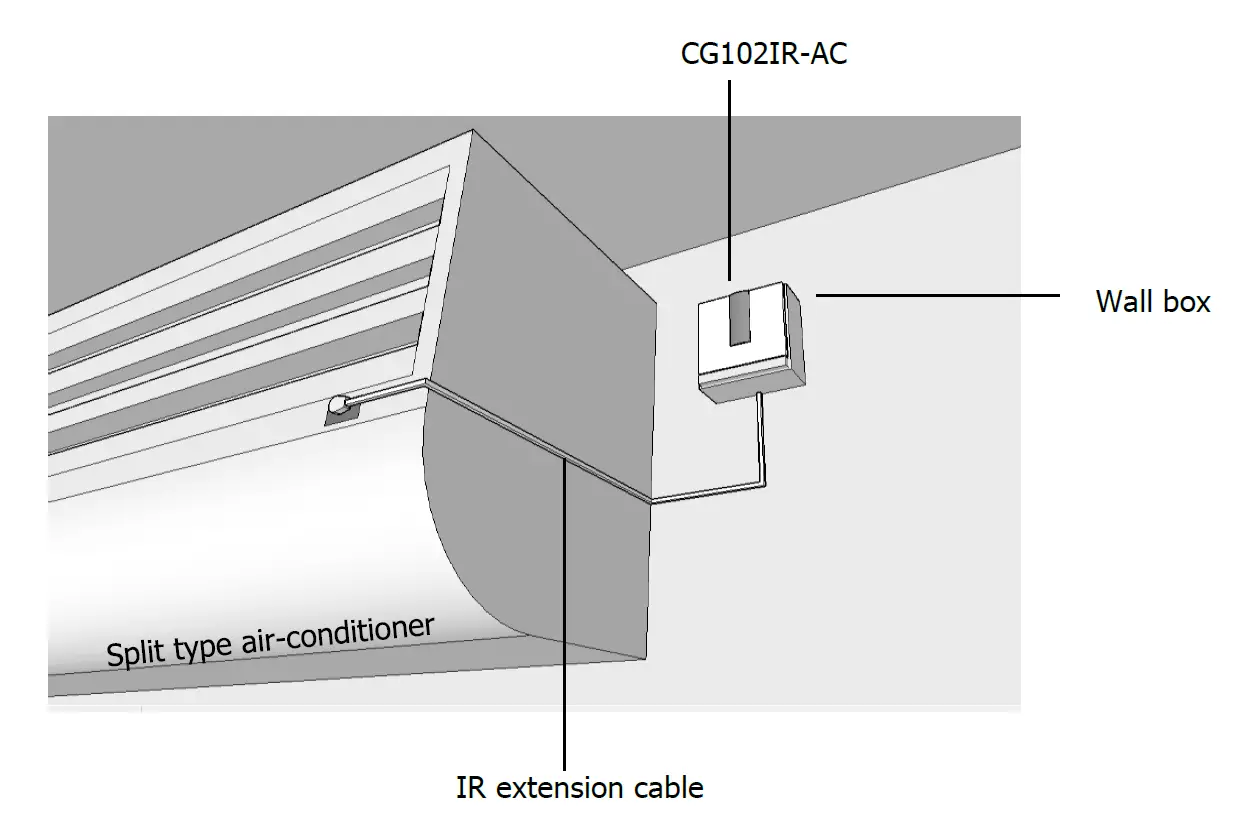
Before getting started
- WARNING! It must be installed by a qualified electrician in accordance to all applicable regulations and building codes. Improper wiring can result in personal injury or damage to control units or other equipment. Always turn off circuit breaker or remove main fuse from power line before doing any work. To avoid overheating and possible damage to equipment.
- WARNING! Do not operate when any lamps removed or burned out; replace any burned out lamps immediately; use only transformers that incorporate thermal protection or fused primary windings. This product is designed for residential and commercial use, for indoor use only. WARNING! Install in accordance to all national and local electrical codes.
- IMPORTANT! CityGrow® is not liable for any damage incurred with the misuse of the product. IMPORTANT! Pre-setup can only be done by a professional technician or manufacturer agent.
STEP 1: IMPORTANT! Turn off main power at the main switch board.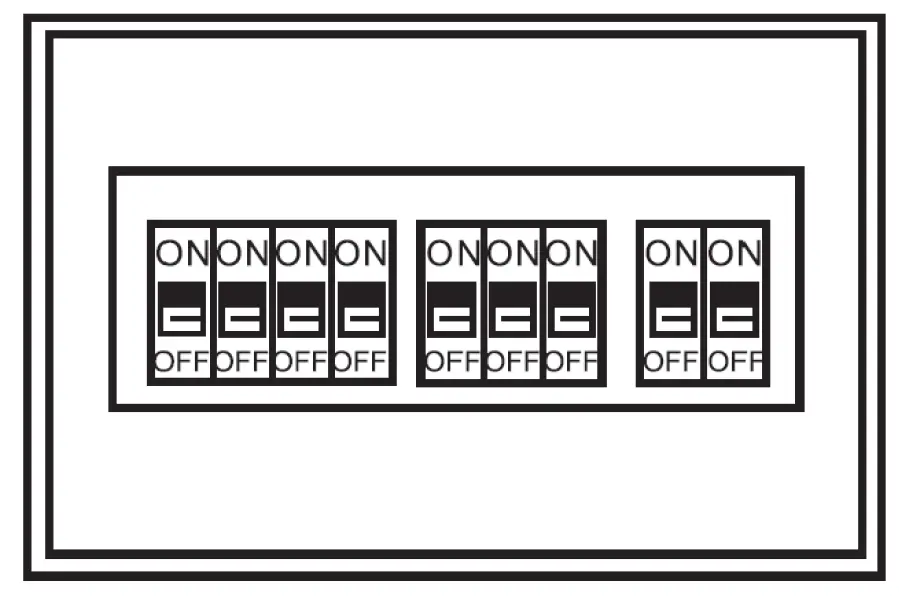
STEP 2: Connect the main power cable to the Live and Neutral terminals of the CG101AD Mini Power Supply. The Live (Brown) wire and Neutral (Blue) wire should be connected to the CG101AD Mini Power Supply.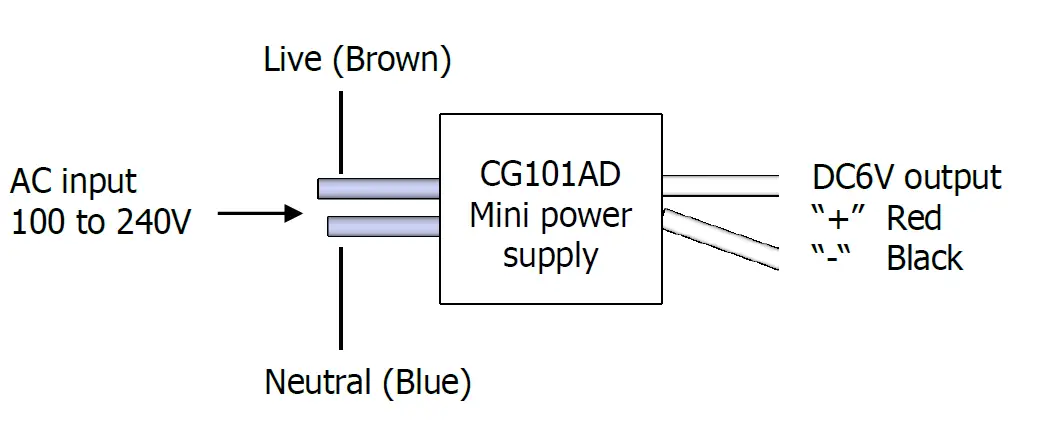
STEP 3: The Positive (Red) wire and Negative (Black) wire should be properly connected to the DC plug from the power adaptor. Please refer to the following diagram.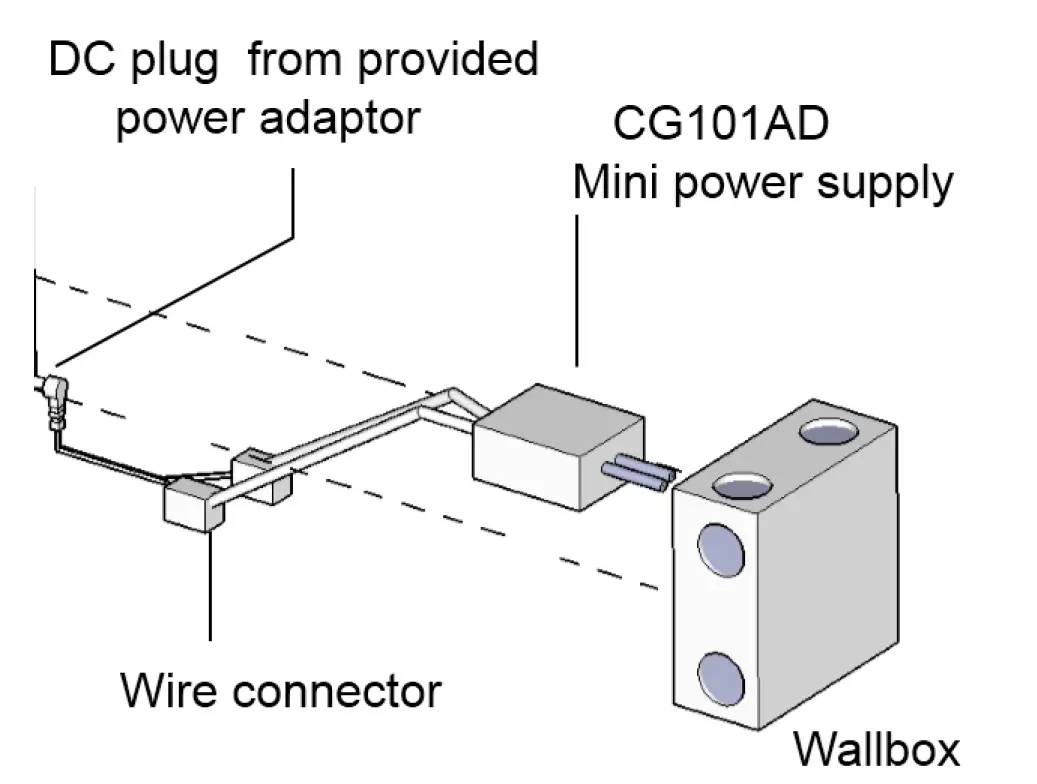
STEP 4: Plug the DC plug into the DC jack input of the CG102IR-AC, plug the IR extension cable into the CG102IR-AC IR port on the rear side. Retrofit the CG102IR-AC into the wall box and mount it onto the wall by fastening the two screws at the rear of the switch box.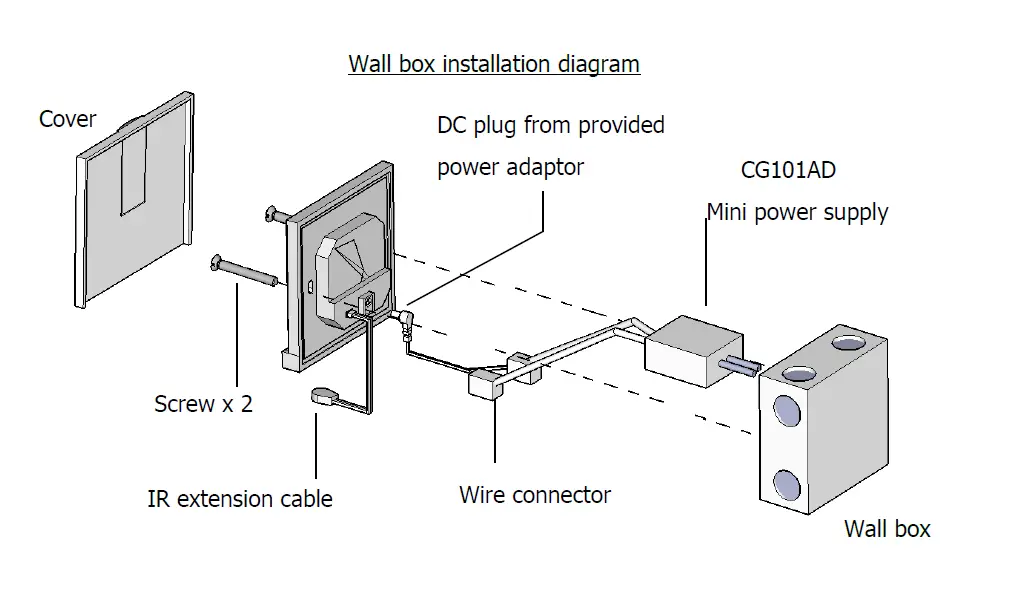
STEP 5: Route the IR extension cable to the IR receiver window of the air-conditioner.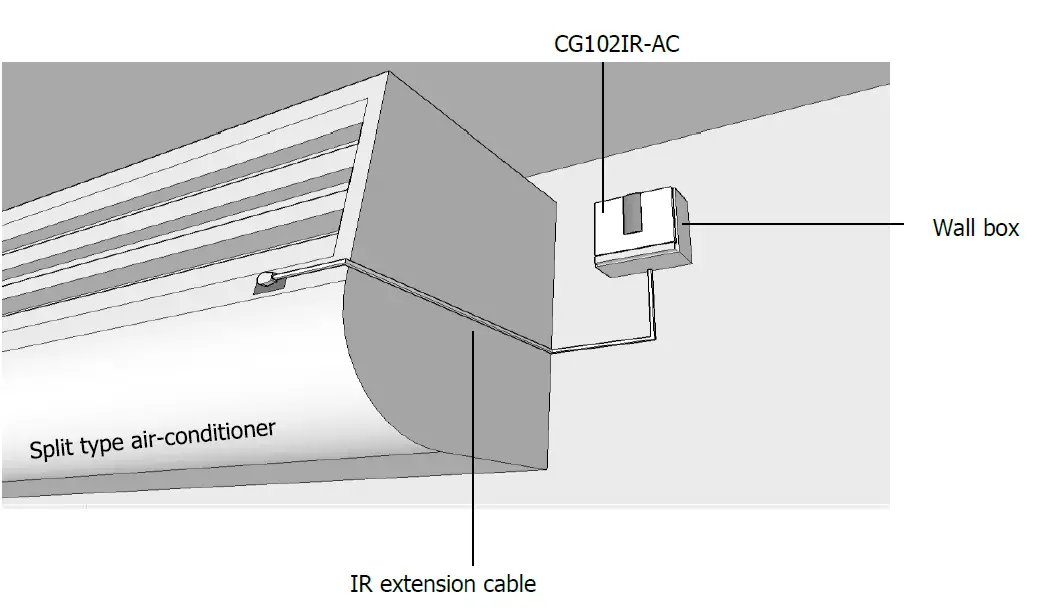
Operation instruction
The CG100HTH0IR is ready for operation if
- the CG100HTH-IR and the CG102IR-AC are successfully paired,
- the IR Learning Signal process is completed, and
- the installation completed properly.

- When “OFF” mode is enabled, press and release the ‘ON’ button of the CG100HTH-IR, to toggle between “COOL”, “DRY” and “FAN” Mode through the CG102IR-AC.
- When the air-conditioner is in “DRY” mode, the temperature and fan speed buttons on the CG100HTH-IR will be disabled.
- When the air-conditioner is in “FAN” mode, the temperature button of CG100HTH-IR will be disabled. The Fan Speed buttons can only control the Fan Speed of the air-conditioner in “FAN” mode.
- When the air-conditioner in “COOL” mode, control the preset temperature with the TEMP button and control the fan speed with the FAN SPEED buttons.
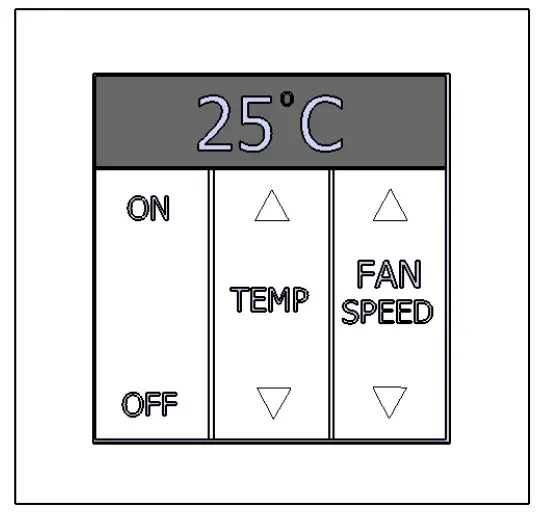
There might be a 2-second delay for the air-conditioner to response to CG102IR-AC.
Specification
| Item | CG100HTH-IR Thermostat CG102IR-AC ZigBee IR Transmitter |
| Power supply | Powered by CG101AD external DC6V Mini Power Supply |
| IR transmission range | 8M |
| IR transmission angle | +/- 60 degree |
| Best IR learning distance | 15 to 80mm from the IR learn LED |
| Maximum storage for IR learning code | 60 codes |
| RF frequency | 2.4GHZ |
| RF control distance (line of sight) | 100M |
| Operational temperature | 0°C to 40°C |
| Humidity | 5% to 95% non-condensing |
| Storage | -20°C to 70°C |
 Download - CityGrow