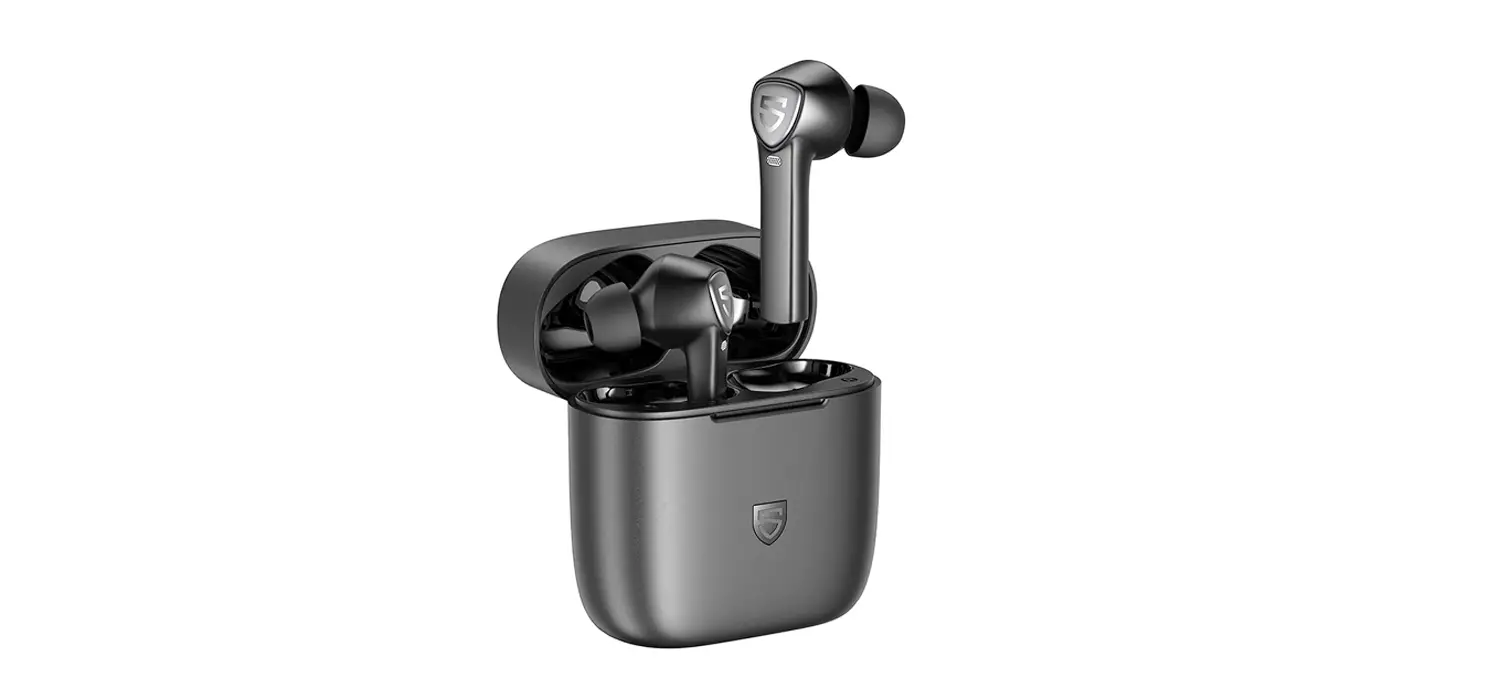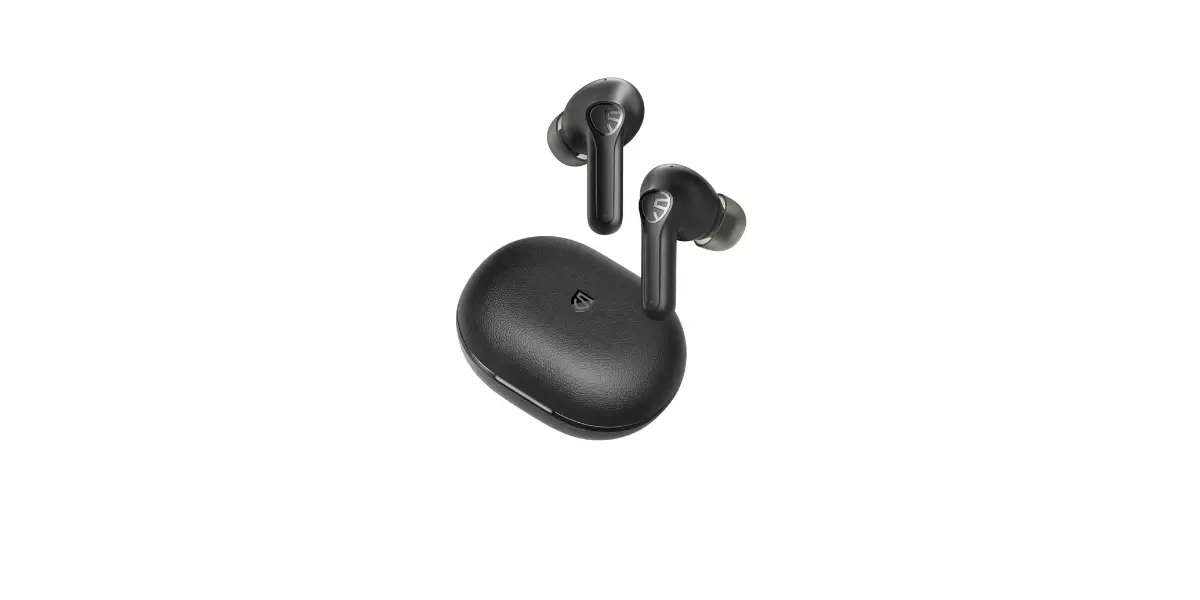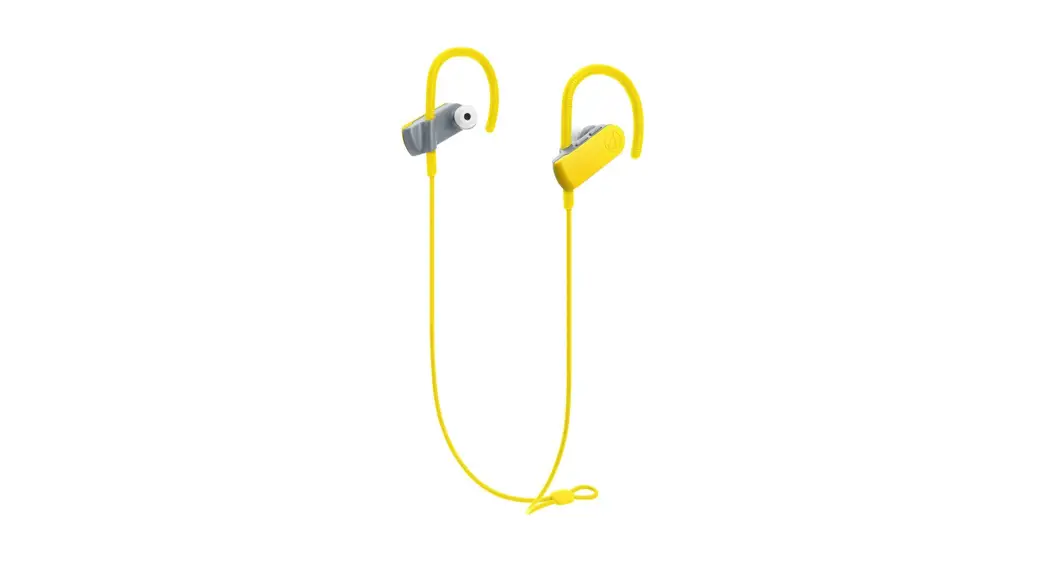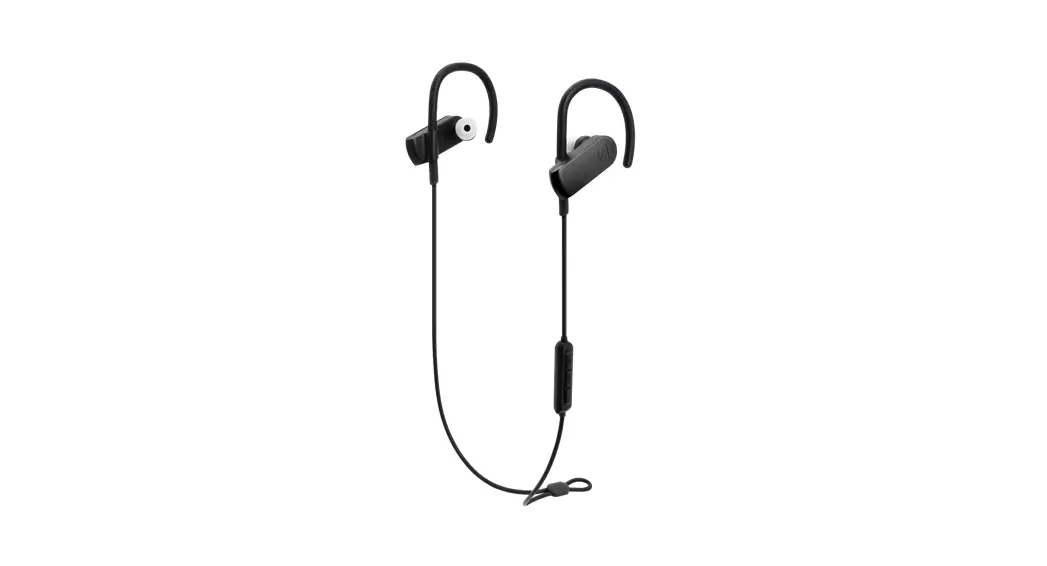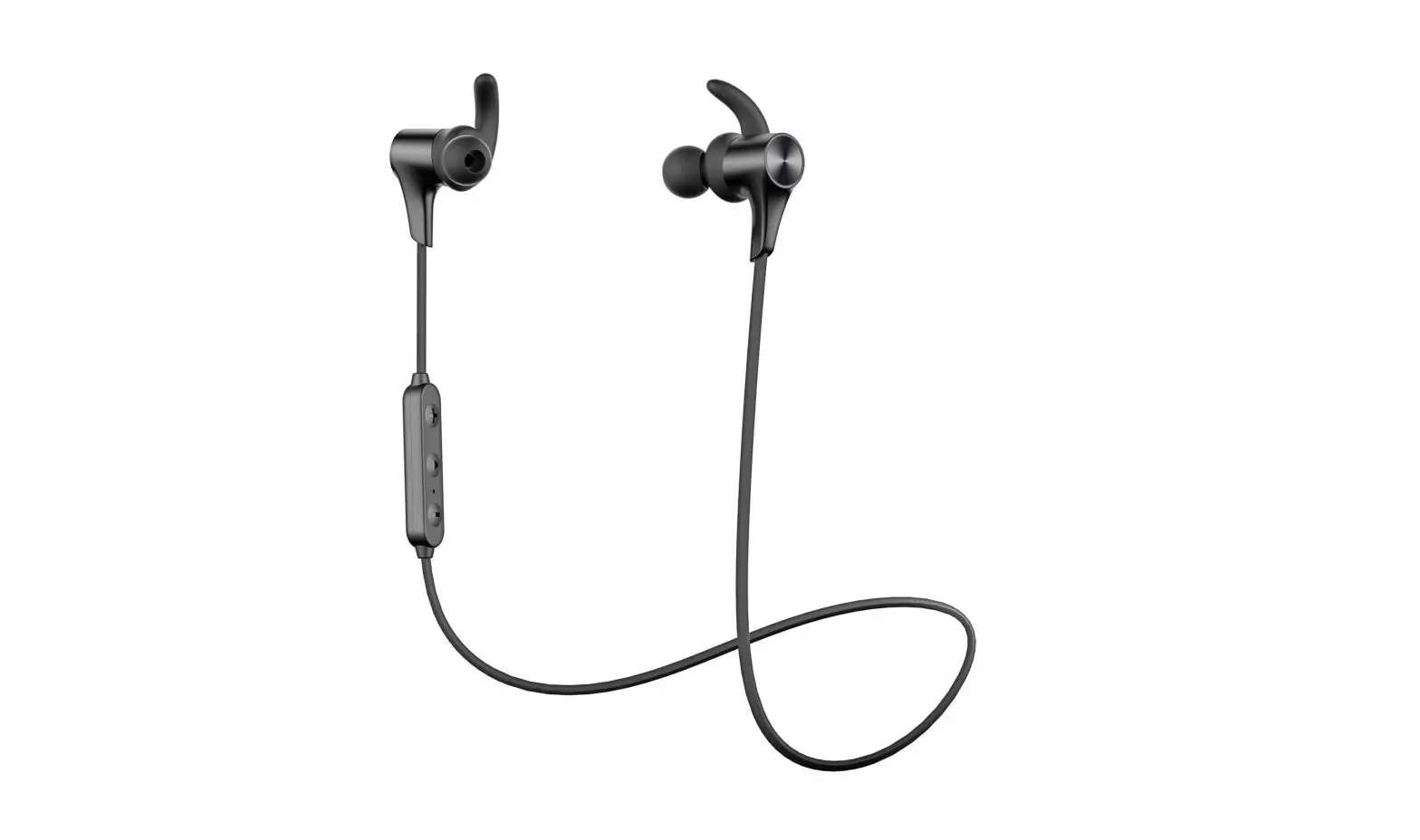
SOUNDPEATS HD Wireless Headphones User Manual
Introduction
Thank you for choosing SOUNDPEATS Q30 HD Wireless headphones. Please read the manual carefully, and keep it for further reference. If you need any assistance, please contact our customer support team by emailing [email protected]
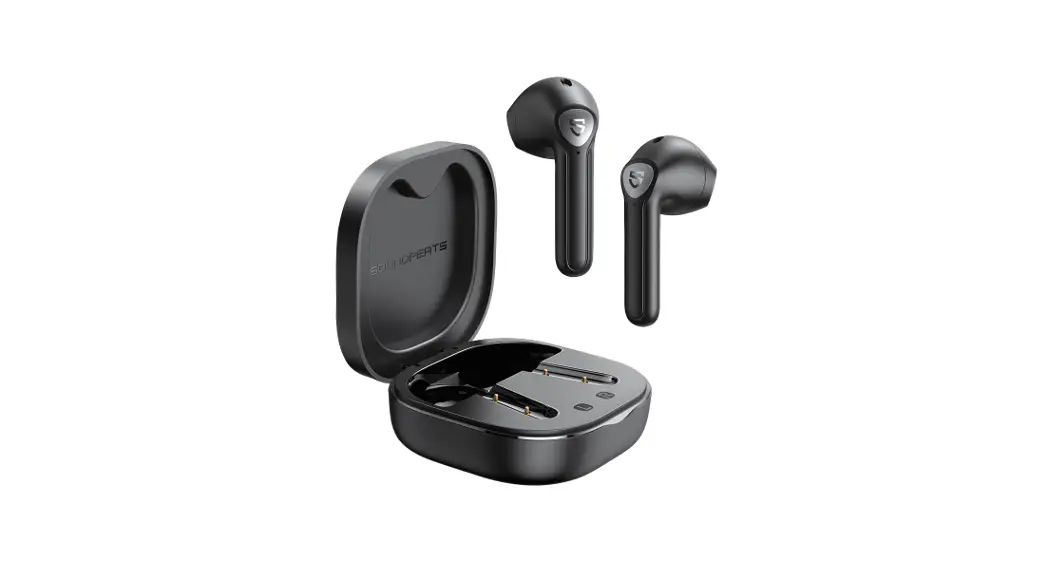
Package Content
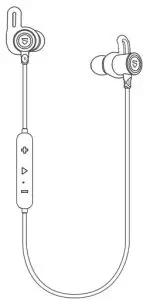
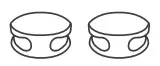
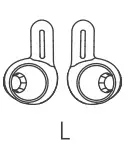
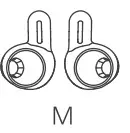
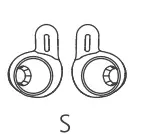
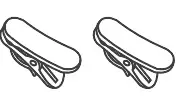
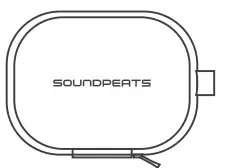
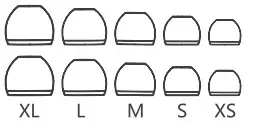

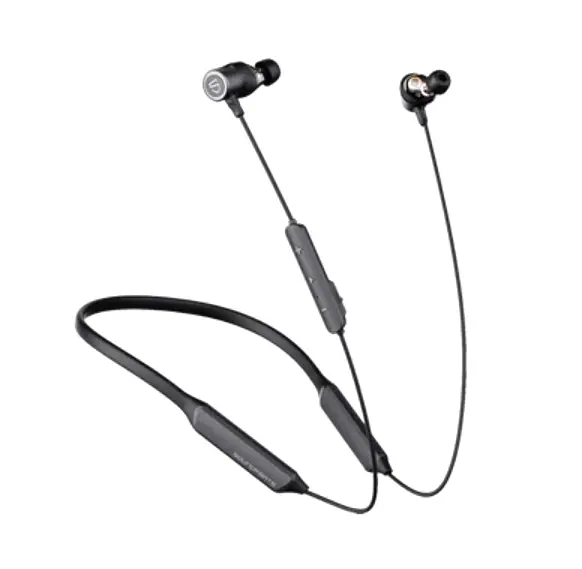
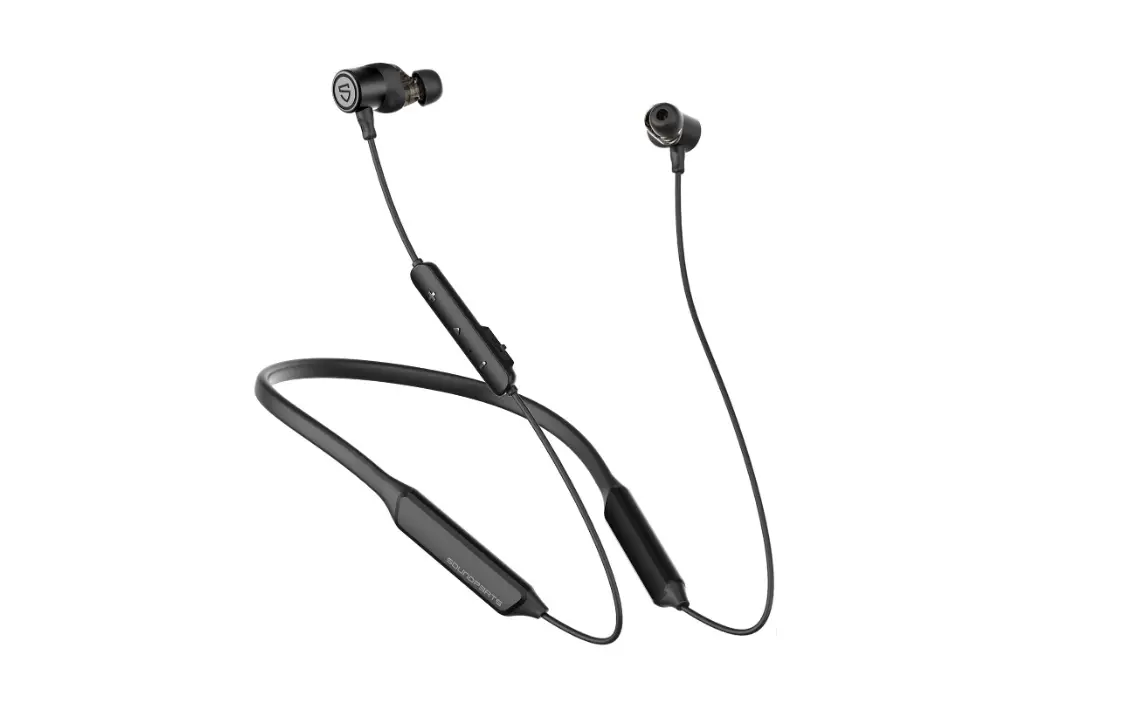
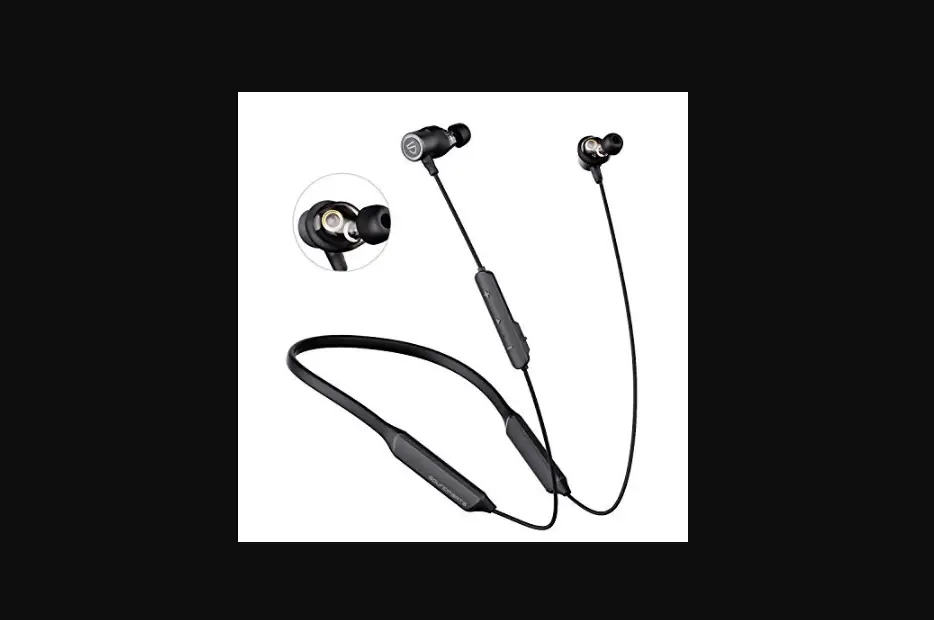
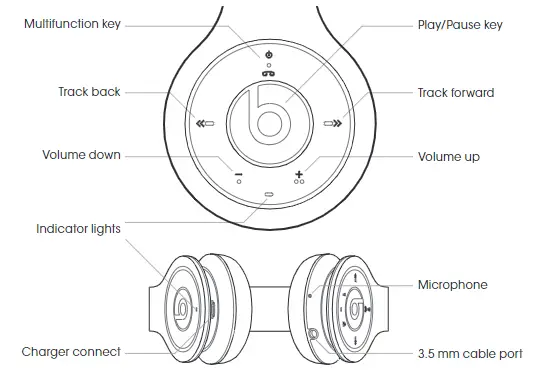
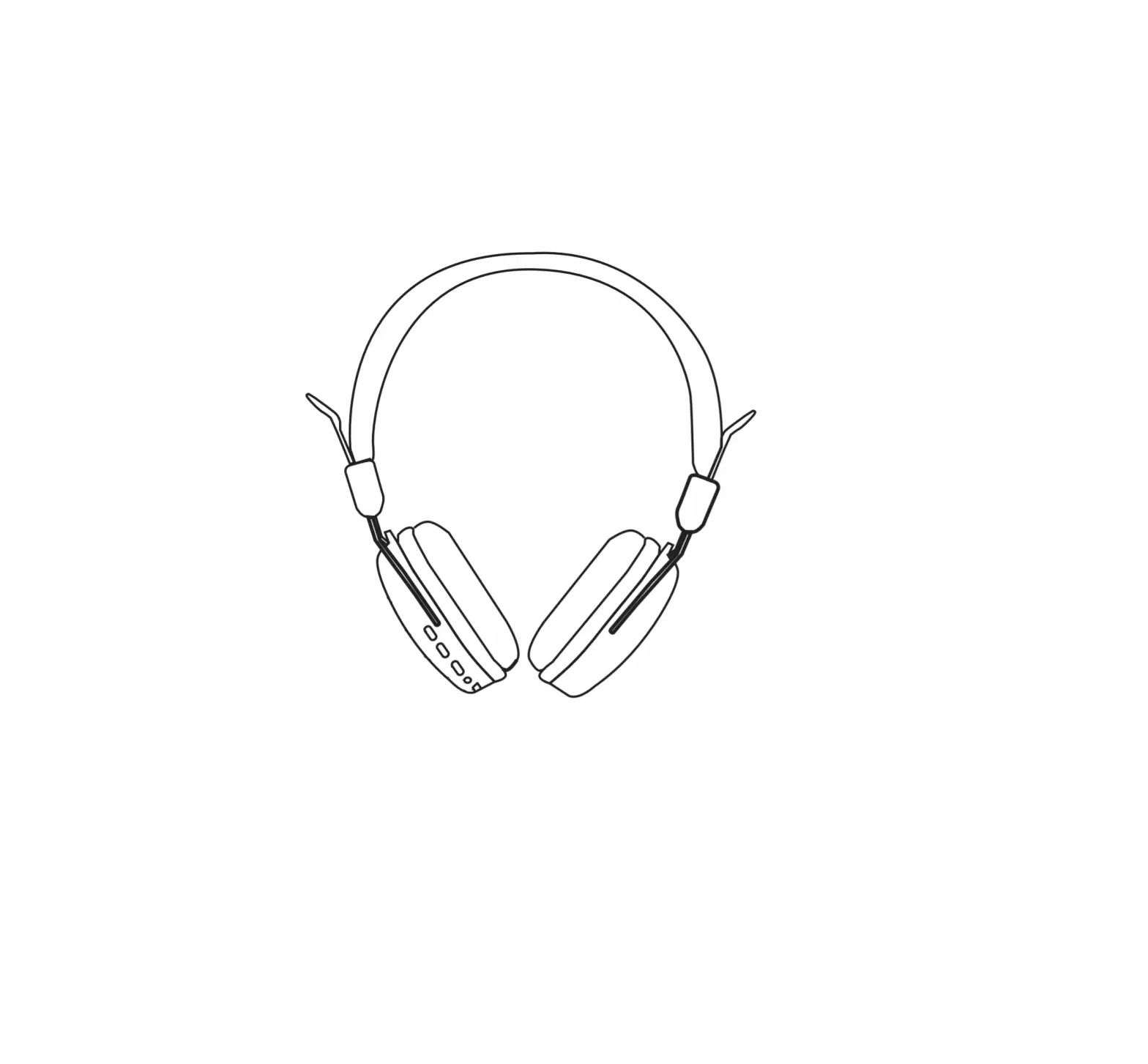
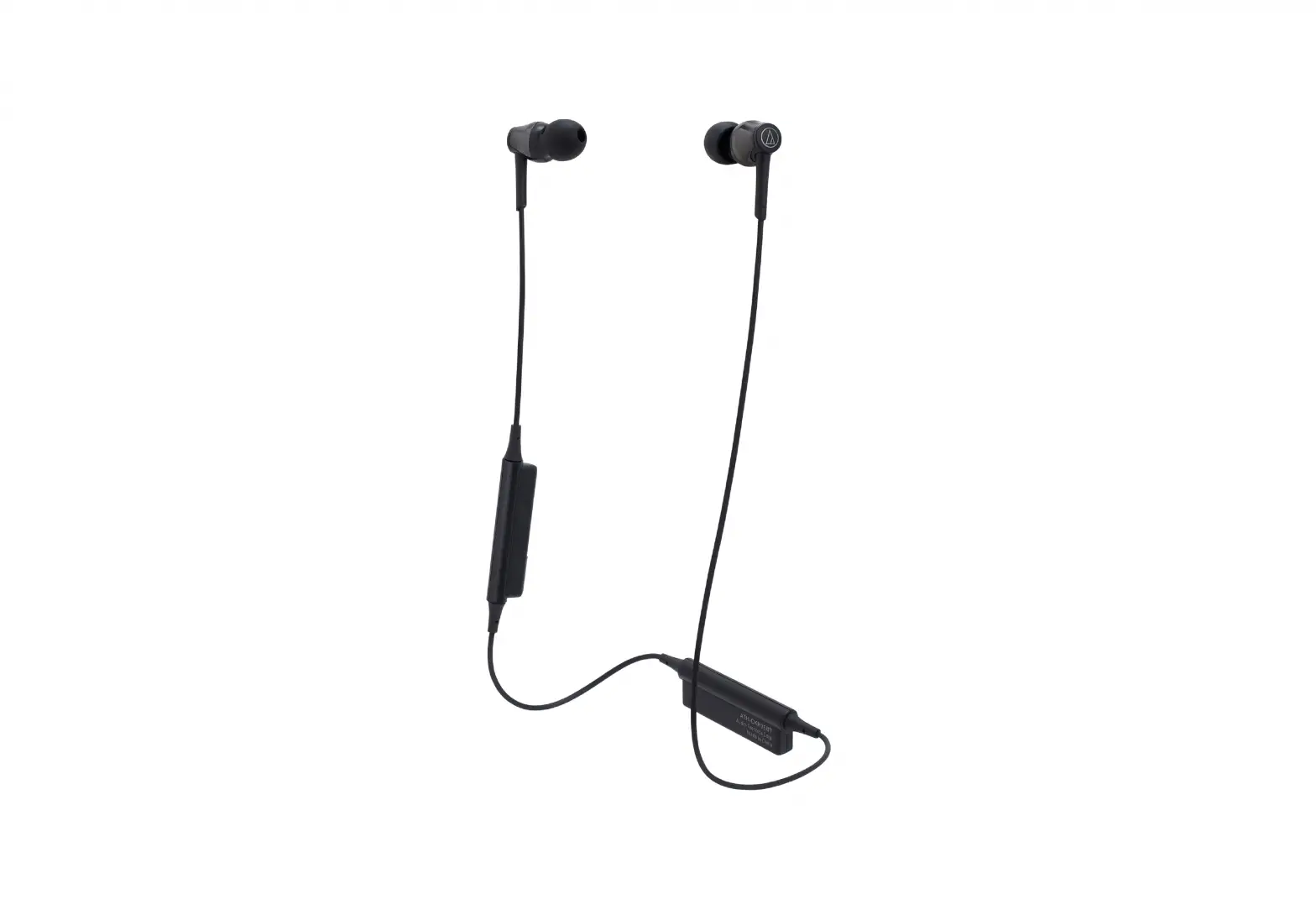
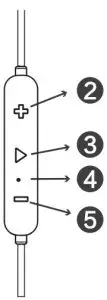
Product Diagram
- USB Charging Port
- Volume+/Next Track
- Multifunctional Button
- LED Indicator/Microphone
- Volume-/Previous Track
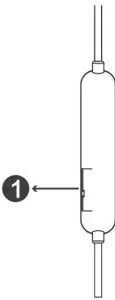
Specifications
| Bluetooth Profile | BT5.0、HSP、HFP、A2DP、AVRCP |
| Bluetooth Chipset | Qualcomm® Qcc 3034 |
| Audio Codec | SBC、Qualcomm® aptX™ HD |
| Play Time | Up to 13 hours(Varies by volume level and audio) |
| Charging Time | About 1.5 hours |
| Maximum Working Range | 10m |
| Earbud Dimension (L * W * H) | 626 x 21.5 x 29.5 mm |
| Earbud Weight | 16.1g |
| Power On | Press and hold the Multifunctional Button for 3s until the led light flashes blue |
| Power Off | Press and hold the Multifunctional Button for 3s until the led light flashes red |
| Play / Pause | Short press the Multifunctional button |
| Volume +/- | Short press the +/-button |
| Play Next/Previous | Long press the +/- button for 2 seconds |
| Answer Phone Call | Short press the multifunctional Button |
| Hang Up | Short press the Multifunctional Button in an active call |
| Reject Phone Call | Press the Multifunctional button for 1.5s |
| Switch Phone Calls | Double Tap the MFB during a call |
| Activate Voice Assistant | Double press the Multifunctional button while in playing or pausing mode |
| Factory Reset | Press the Multifunction button for 3s when the headset is charging |
LED Indicators
| Status | Earbuds LED Indicator |
| Charging | LED indicator is solid red |
| Fully charged | LED indicator is solid blue |
| Low battery | LED indicator flashes red once every 6 seconds |
| Reset | LED indicator flashes blue twice quickly |
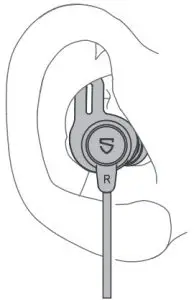
Wearing
- Identify the right and leN earpieces.
- Insert the earbuds into your Adjust the ear fins direction and put them into your ears.
- Adjust each earpiece until it fits flush in your ear and the ear tip seals in the ear
Get Started
Pairing
- Power on the headset, press and hold the Multifunctional button for approximately 3 seconds until the LED indicator flashes blue quickly(you will hear the voice prompt “power on” first, just keep holding the multifunctional button ). Now the headset is in pairing mode.
- Activate the Bluetooth on your device and search for the nearby Bluetooth connection: For iPhone/iPad/iPod®: Settings -> Bluetooth -> On For Android™: Setting ->Wireless & Networks -> Bluetooth -> On -> Scan for devices For Windows® Phone devices: Settings -> Bluetooth -> On
- “SOUNDPEATS Q30 HD” should be listed in the search Select the name to connect. Once connected, the indicator will be solid blue. You will hear a voice prompt“Your headset is connected”.
Notes:
- When you want to unpair the headset with the device, just press the volume buttons + and – simultaneously for about
- The Q30 HD headset will stay in pairing mode for 3 minutes at most if no pairing device is ANerwards, it will power off automatically.
Charging
- Connect the charging port with any USB charging adapter or charging port Charging starts automatically with LED indicator turning red and the headset turns off.
- The headset is fully charged when the LED indicator turns
Notes: When charging with a USB adapter, the charging current should not be greater than 1A. Please do no use quick charger to charge the headphones.
Care and Maintenance
- Keep the headset away from heat and humidity.
- Do not put the product under direct sunlight or hot areas. High temperatures will shorten lifespan of the headset, battery and / or the internal circuit board.
- Power off the headset when not in use and before storing. Do not try to take the product apart.
- Do not drop or knock your headset on hard surfaces.
- Do not use chemicals or detergents to clean the product. Do not scrape the surface with sharp objects.
Warranty
We warrant this device 12 MONTHS from date of the original purchase for manufacturer defects. [email protected]
 www.soundpeatsaudio.com
Please scan the QR code or search the link below for detailed PDF manual.

https://soundpeatsaudio.com/downloads/
Qualcomm
Qualcomm aptX, Qualcomm TrueWireless and Qualcomm cVc are products of Qualcomm Technologies, Inc. and/or its subsidiaries.
Qualcomm and Qualcomm TrueWireless are trademarks of Qualcomm Incorporated, registered in the United States and other countries.
FCC Statement
This equipment has been tested and found to comply with the limits for a Class B digital device, pursuant to Part 15 of the FCC rules. These limits are designed to provide reasonable protection against harmful interference in a residential installation. This equipment generates uses and can radiate radio frequency energy and, if not installed and used in accordance with the instructions, may cause harmful interference to radio communications. However, there is no guarantee that interference will not occur in a particular installation. If this equipment does cause harmful interference to radio or television reception, which can be determined by turning the equipment off and on, the user is encouraged to try to correct the interference by one or more of the following measures:
- Reorient or relocate the receiving antenna.
- Increase the separation between the equipment and receiver.
- Connect the equipment into an outlet on a circuit different from that to which the receiver is connected.
- Consult the dealer or an experienced radio/TV technician for help.
This device complies with part 15 of the FCC rules. Operation is subject to the following two conditions:
- This device may not cause harmful
- this device must accept any interference received, including interference that may cause undesired operation.
Changes or modifications not expressly approved by the party responsible for compliance could void the user’s authority to operate the equipment.
 SOUNDPEATS TrueWireless Earbuds & Headphones for Sound.
 Downloads - SOUNDPEATS