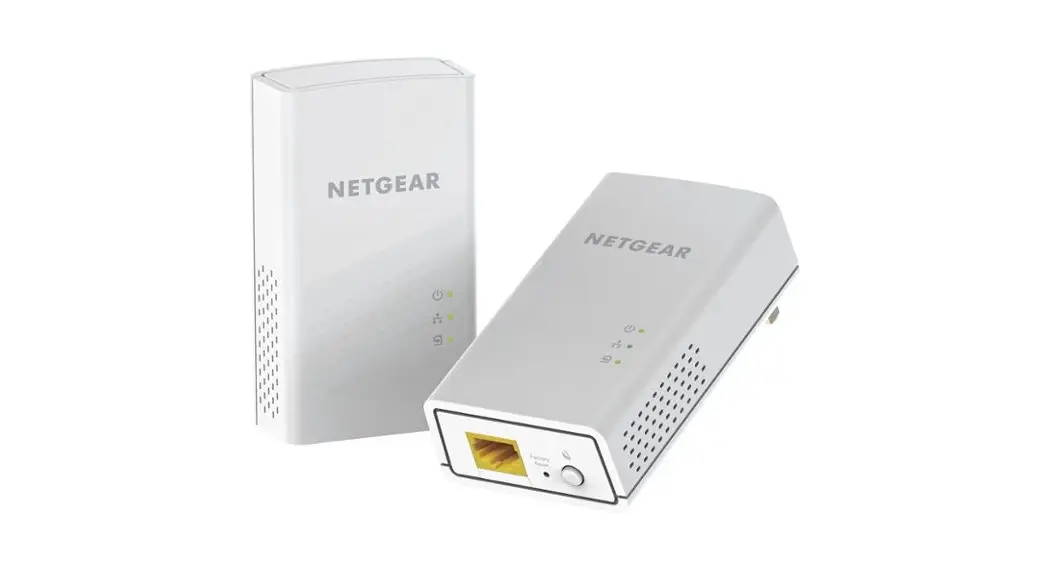
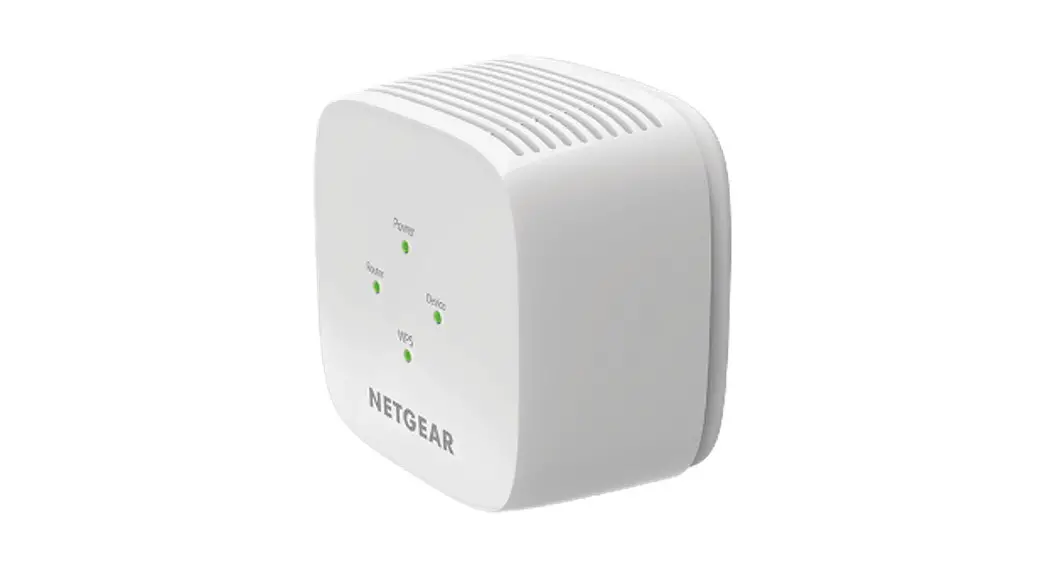
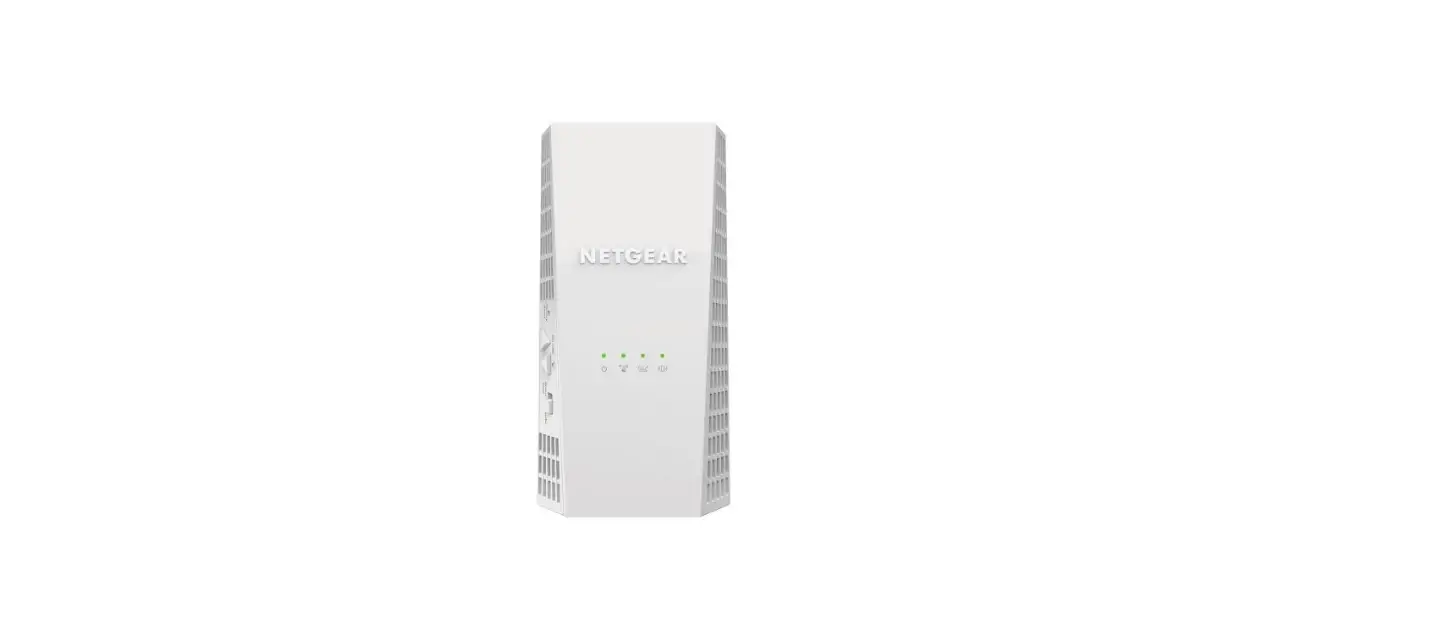
NETGEAR EX6120-100NAS Coverage Up to 1500 Sq Ft

Specifications
- BRAND: NETGEAR
- WIRELESS TYPE: 802.11a/b/g/n/ac
- DATA TRANSFER RATE: 1200 Megabits Per Second
- FREQUENCY BAND CLASS: Dual-Band
- COLOR: White
- INCLUDED COMPONENTS: Quick start guide, WiFi Mesh Extender (EX6120-100NAS)
- ADDED WIFI COVERAGE: 1,500 sq. ft.
- CONNECTED DEVICES: Up to 25
- BANDWIDTH: Dual-Band Up to 1200Mbps
- BEST FOR INTERNET SPEED: Up to 25Mbps
- ITEM WEIGHT: 4.6 ounces
- PRODUCT DIMENSIONS: 2.64 x 1.54 x 2.17 inches
- ITEM DIMENSIONS LXWXH: 2.64 x 1.54 x 2.17 inches
- VOLTAGE: 120240 Volts
Introduction
It Connects up to 25 devices, including laptops, smartphones, speakers, IP cameras, tablets, loT devices, and more, and increases WiFi range coverage to 1500 square feet. It offers patented FastLane (TM) technology and dual band WiFi speeds of up to 1200 Mbps for casual gaming and video streaming.
It works with any Wi-Fi cable modem or wireless router. For best speed, simply plug in adjacent wired devices like game consoles, streaming devices, or other computers. supports the wireless security protocols WPA/WPA2 and WEP. NOTE: For installation and troubleshooting instructions, see the PDF attachment below.
GETTING STARTED
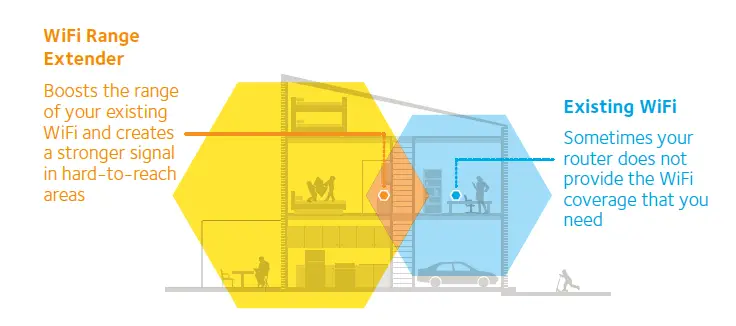
The NETGEAR WiFi Range Extender increases the distance of a WiFi network by boosting the existing WiFi signal and enhancing the overall signal quality over long distances. An extender repeats the signals from an existing WiFi router or access point.
MEET YOUR EXTENDER
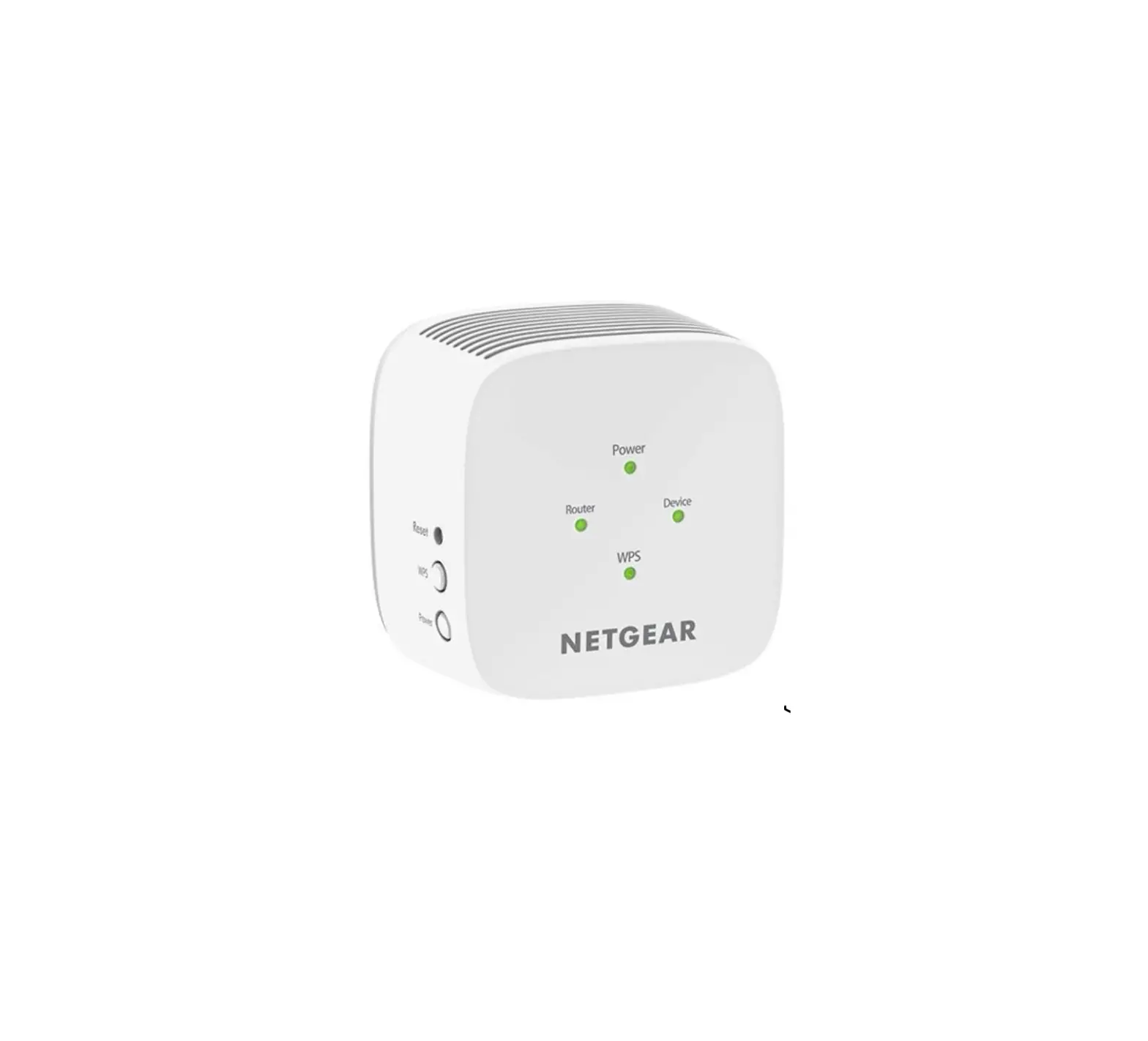
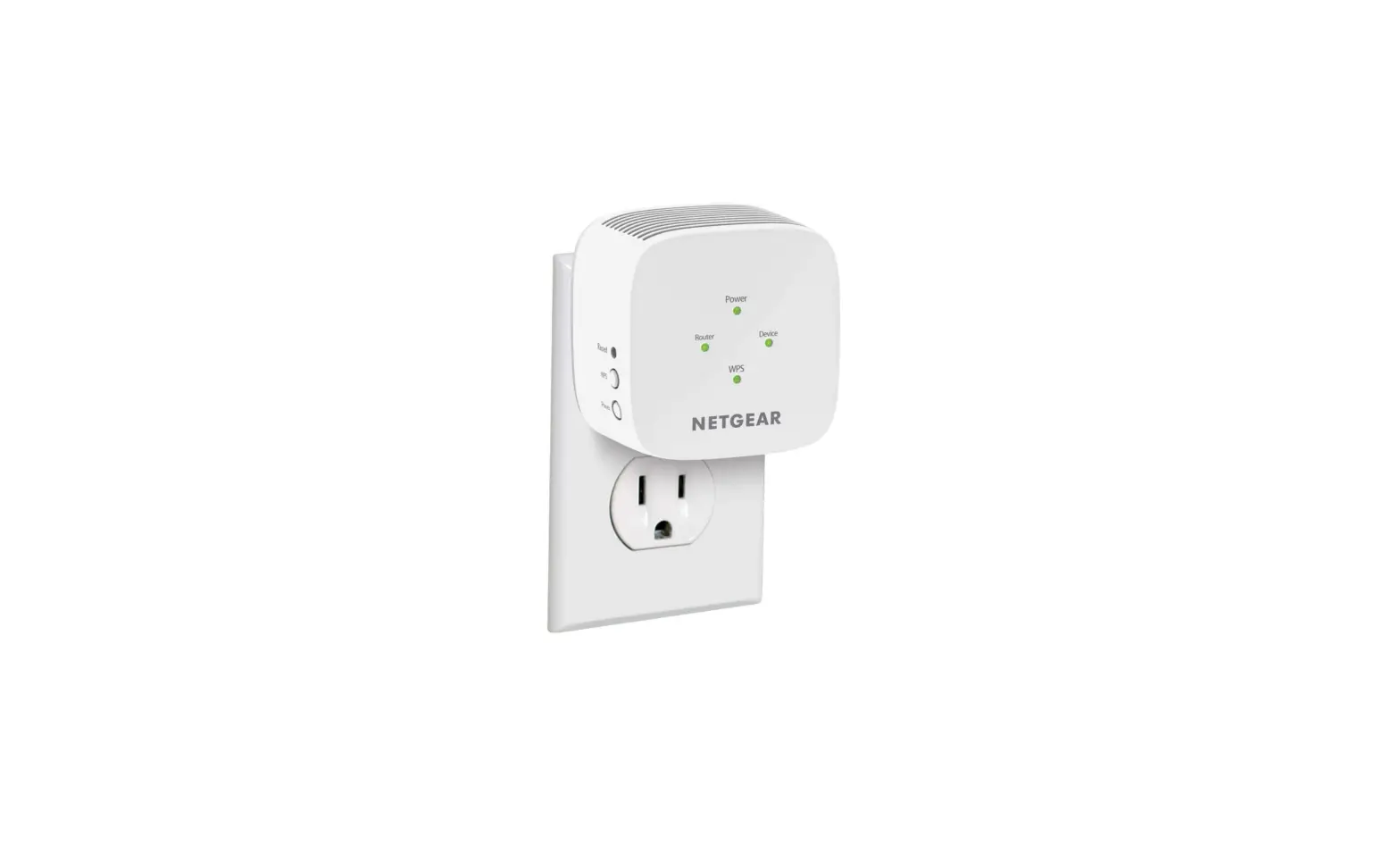
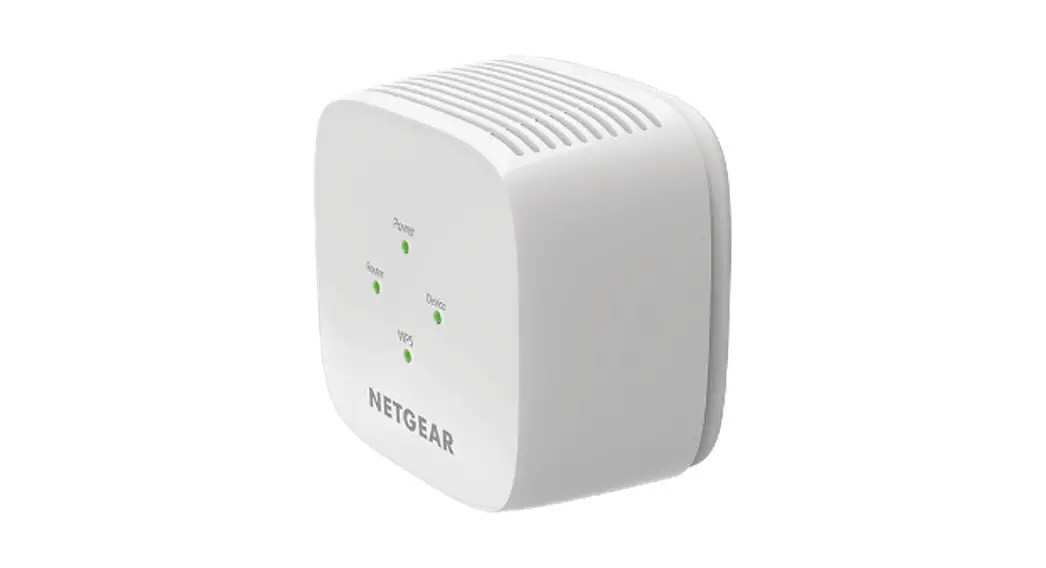
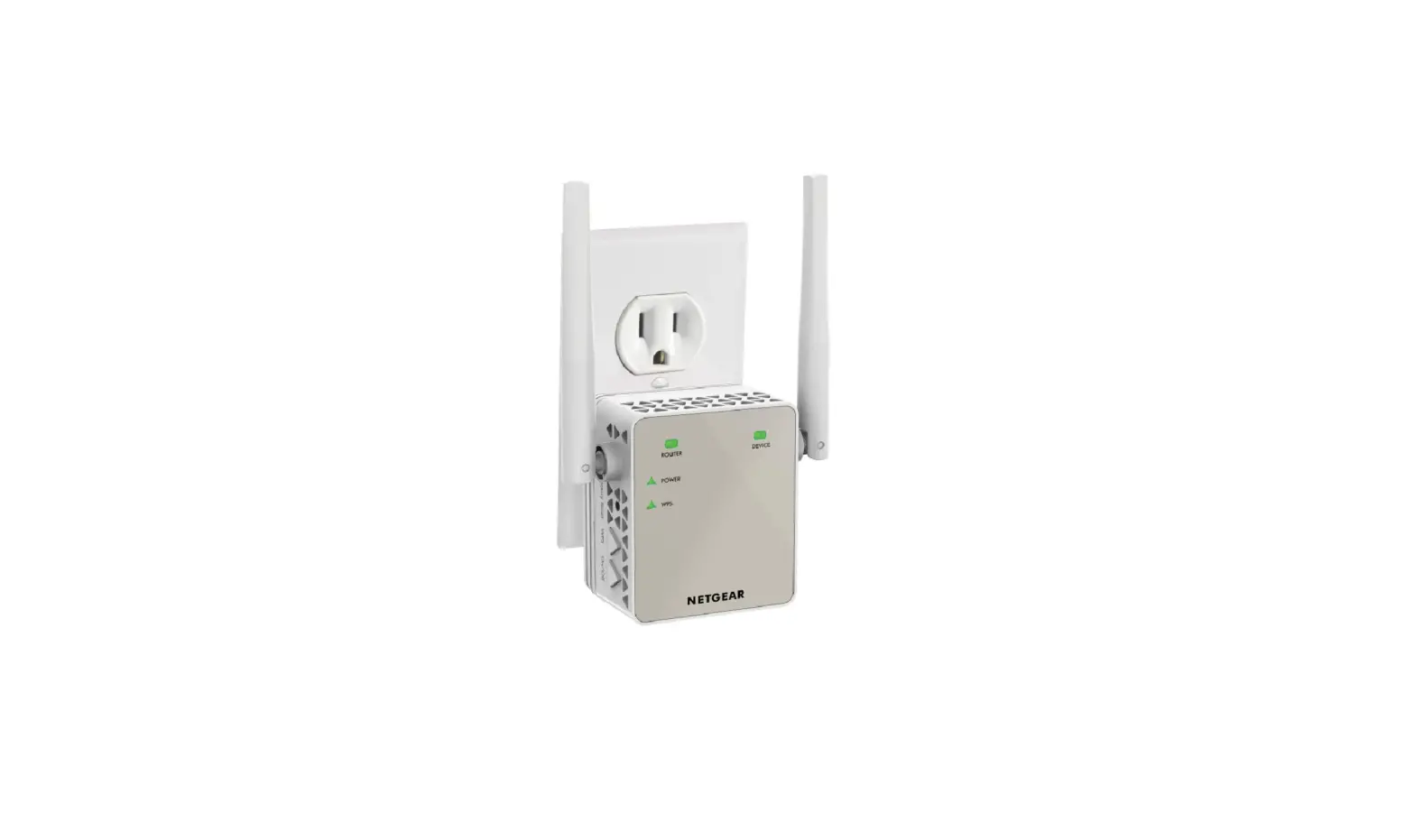
Before you install your extender, familiarize yourself with its LEDs, buttons, and port.
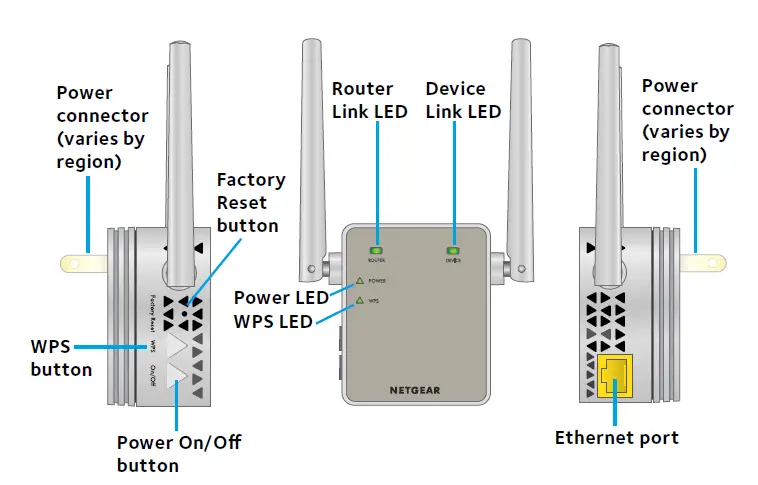
LED DESCRIPTIONS

This LED indicates the connection between the extender and the router or access point. Solid green. Best connection. Solid amber. Good connection. Solid red. Poor connection. Off. No connection.

This LED indicates the connection between the extender and a computer or WiFi device. Solid green. Best connection. Solid amber. Good connection. Solid red. Poor connection. Off. No connection.
Solid amber. The extender is booting. Solid green. The extender is powered on. Off. The extender is powered off.

Solid green. WiFi security is enabled (WPA or WPA2). Blinking green. A WPS connection is being established. Off. WiFi security is not enabled.
USE THE EXTENDER IN EXTENDER MODE
Place the extender, apply power, and connect it to your WiFi network.
Place the Extender and Apply Power
- Place your extender in the same room as your WiFi router. Proximity to the WiFi router is required only during the initial setup process.
- Plug the extender into an electrical outlet and wait for the Power LED to light green. If the Power LED does not light, press the Power On/Off button on the extender.
CONNECT TO AN EXISTING WIFI NETWORK
To extend the range of your WiFi network, you must connect the extender to your existing WiFi network. You can do this in one of two ways:
- Connect with WPS. For more information, see Connect with WPS on page 6.
- Connect with web browser setup. For more information, see
Connect with Web Browser Setup on page 9.
CONNECT WITH WPS
Wi-Fi Protected Setup (WPS) lets you join a secure WiFi network without typing the network name and password.
NOTE: WPS does not support WEP network security. If you are using WEP security, follow the instructions in Connect with Web Browser Setup on page 9.
- Press the WPS button on the side panel of the extender. The WPS LED blinks.
- Within two minutes, press the WPS button on your router or access point. The WPS LED on the extender lights solid green, the Router Link LED lights, and the extender connects to your existing WiFi network. If the Router Link LED does not light, try again. If it still does not light, see Connect with Web Browser Setup on page 9.
- If your WiFi router supports the 5 GHz band, repeat Steps 1 and 2 to connect the extender to the 5 GHz band.
- Unplug the extender and move it to a new location that is about halfway between your router and the area with a poor router WiFi signal. The location that you choose must be within the range of your existing WiFi router network.
- Plug the extender into an electrical outlet and wait for the Power LED to light green. If the Power LED does not light, press the Power On/Off button on the extender.
- Use the Router Link LED on the front panel to help you choose a spot where the extender-to-router connection is optimal.
- If the Router Link LED doesn’t light amber or green, plug the extender into an outlet closer to the router and try again. Keep moving the extender to outlets closer to the router until the Router Link LED lights amber or green.
- On your computer or WiFi device, find and connect to the new extended WiFi network. The extender creates two new extended WiFi networks. The extender’s new WiFi network names are based on your existing WiFi network name, with _2GEXT and _5GEXT at the end of the name.
FOR EXAMPLE:- Existing WiFi network name. MyNetworkName
- New extended WiFi network names. MyNetworkName_2GEXT and MyNetworkName_5GEXT Use the same WiFi password that you use for your WiFi router.

- Test the extended WiFi range by moving your computer or WiFi device to the area with a poor router WiFi signal:
- Leave your computer or WiFi device in the area with a poor router WiFi signal and return to the extender.
- Check the Device Link LED on the extender:
- If the Device Link LED is solid green or amber, your extended WiFi network reaches the area with a poor router WiFi signal and your network setup is complete.
- If the Device Link LED is red, your extended WiFi network does not reach the area with a poor router WiFi signal.
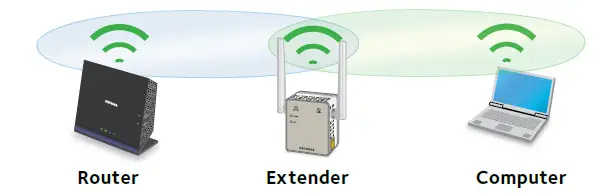
You must move the computer or WiFi device closer to the extender until the Device Link LED turns solid green or amber.
CONNECT WITH WEB BROWSER SETUP
- Use a WiFi network manager on a computer or WiFi device to find and connect to the NETGEAR_EXT (SSID) WiFi network. After the connection with the computer or WiFi device is established, the Device Link LED lights.
- Launch a web browser.
- Enter www.mywifiext.net in the address field of the browser. The New Extender Setup page displays.
- Click the NEW EXTENDER SETUP button.
- When prompted, complete the fields on the page to set up your login credentials and click the NEXT button.
- Click the WIFI RANGE EXTENDER button. The extender searches for WiFi networks in your area and displays a list.
- Select a WiFi network to extend and click the NEXT button. If you do not want to extend both WiFi bands, clear the 2.4GHz WiFi Networks or the 5GHz WiFi Networks check box.
- In the Password (network key) field, type the existing WiFi network password (also called passphrase or security key) and click the NEXT button.
- Set the network name (SSID) and password for your extender and click the NEXT button. Wait for the page to show a list of available extended WiFi networks, which might take up to one minute.
- Use a WiFi network manager on the computer or WiFi device to connect to the new extended WiFi network. You must connect your computer or WiFi device before you click the Continue button.
- Click the Continue button. A message displays confirming that the extender is connected to the existing WiFi network.
- Click the Next button. The registration page displays.
- Complete the registration fields and click the Finish button to complete the setup. If you do not want to register your extender, click the Skip Registration link. Note that you must register your extender before you can use NETGEAR telephone support. The Status page displays.
- Unplug the extender and move it to a new location that is about halfway between your router and the area with a poor router WiFi signal. The location that you choose must be within the range of your existing WiFi router network.
- Plug the extender into an electrical outlet and wait for the Power LED to light green. If the Power LED does not light, press the Power On/Off button on the extender.
- Use the Router Link LED to help you choose a spot where the extender-to-router connection is optimal.
- If the Router Link LED doesn’t light amber or green, plug the extender into an outlet closer to the router and try again. Keep moving the extender to outlets closer to the router until the Router Link LED lights amber or green.
- Reconnect your computer or WiFi device to the new extended WiFi network.

- Test the extended WiFi range by moving your computer or WiFi device to the area with a poor router WiFi signal:
- Leave your computer or WiFi device in the area with a poor router WiFi signal and return to the extender.
- Check the Device Link LED on the extender:
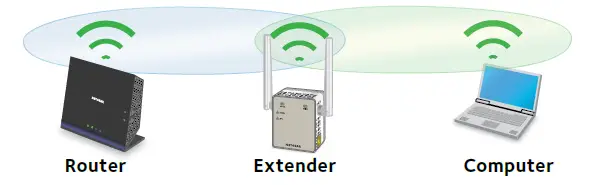
- If the Device Link LED is solid green or amber, your extended WiFi network reaches the area with a poor router WiFi signal and your network setup is complete.
- If the Device Link LED is red, your extended WiFi network does not reach the area with a poor router WiFi signal. You must move the computer or WiFi device closer to the extender until the Device Link LED turns solid green or amber.
CONNECT AN ETHERNET-ENABLED DEVICE
After the extender is connected to your existing WiFi network, you can connect a wired device to the extender using an Ethernet cable. That device can then access your existing network through the WiFi connection.
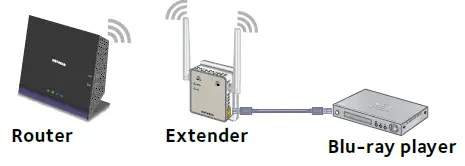
USE THE EXTENDER IN ACCESS POINT MODE
You can use the extender as a WiFi access point, which creates a new WiFi hotspot by using a wired Ethernet connection.
- Plug the extender into an electrical outlet and wait for the Power LED to light green. If the Power LED does not light, press the Power On/Off button.
- Use an Ethernet cable to connect the Ethernet port on the extender to a router Ethernet LAN port or a remote Ethernet LAN jack with LAN access. The extender joins the LAN and creates a WiFi hotspot.
- Use a WiFi network manager on a computer or WiFi device to find and connect to the NETGEAR_EXT (SSID) WiFi network. After the connection with the computer or WiFi device is established, the Device Link LED lights.
- Launch a web browser and enter www.mywifiext.net in the address field. The New Extender Setup page displays.
- Click the NEW EXTENDER SETUP button.
- When prompted, complete the fields on the page to set up your login credentials and click the NEXT button.
- Click the ACCESS POINT button. The extender checks for an Internet connection.
- Click the HOME NETWORK or PUBLIC NETWORK button.
- When prompted, set the network name (SSID), security option, and password for each access point network, and click the NEXT button. Your settings are applied and the extender is ready to be used as an access point.
- Use a WiFi network manager on your computer or WiFi device to connect to the new access point WiFi network.
- Click the Continue button. A screen displays that says you successfully created an access point.
- Click the Next button. The registration page displays. Follow the onscreen instructions to register your extender.
LOG IN TO ACCESS EXTENDER SETTINGS
After installation, you can log in to the extender to view or change the extender’s settings.
- Use a WiFi network manager on a computer or WiFi device to find and connect to the new extended WiFi network. After the connection with the computer or WiFi device is established, the Device Link LED lights.
- Launch a web browser.
- Enter www.mywifiext.net in the address field of the browser. A login page displays.
- Type your email address and password and click the LOG IN button. The Status page displays.
- Make any needed changes.
Frequently Asked Questions
The extender is probably placed at the borderline of the range covered by the router or access point. For more information, see Place the Extender and Apply Power on page 5.
If you are using WEP security, make sure that you are typing the network password in the correct field.
No. The extender is designed to connect wirelessly to the router or access point if it is in extender mode. If the extender is in access point mode, you can connect it to the router or access point with an Ethernet connection. For more information about access point mode, see Use the Extender in Access Point Mode on page 13.
On the login page, click the Username & Password Help link to answer the security questions that you set up during the initial setup.
If you forgot the answers to your security questions, do the following to set up your login credentials again:
Restore the extender to its factory default settings.
Launch a web browser.
Enter www.mywifiext.net in the address field of the browser. The New Extender Setup page displays.
Click the NEW EXTENDER SETUP button.
When prompted, complete the fields on the page to set up your login credentials again.
Use a sharp object such as a pen or straightened paper clip to press and hold the Factory Reset button on the extender for at least five seconds until the Power LED lights amber.
Release the Factory Reset button and wait for the extender to reboot.
The extender resets and returns to the factory default settings.
When a device connects through the extender to your router, the MAC address of the device shown on the router is translated to another MAC address. If your router’s MAC filter, wireless access control, or ACL is enabled, the device connects to the extender but cannot get an IP address from the extender and cannot access the Internet.
To allow your device to receive an IP address from the extender and access the Internet, you must provide the translated MAC address to the router.
Log in to your router and disable the MAC filter, wireless access control, or ACL.
For more information about how to disable your router’s MAC filter, wireless access control, or ACL, see your router’s documentation.
Power on the extender and connect all of your devices to the extender network.
Make sure that the Router Link LED remains lit.
Log in to your extender:
a. Launch a web browser.
b. Enter www.mywifiext.net in the address field of the browser. A login page displays.
c. Type your email address and password and click the LOG IN button.
The Status page displays.
Select Settings > Connected Devices.
The Connected Devices page displays the MAC addresses and virtual MAC addresses for the extender, wired devices, and WiFi devices that are connected to the extender.
On the router, add the extender’s virtual MAC addresses and all of the virtual MAC addresses of the devices connected to the extender to your router’s MAC filter table.
Enable the router’s MAC filter, wireless access control, or ACL.
Try these troubleshooting steps:
• Make sure that your computer is set up to use DHCP (most are).
• Make sure that the Device Link LED is green and that you are using a valid IP address.
• Relaunch the web browser and type www.mywifiext.net in the address field. Type your email address and password and click the LOG IN button.
Your choice as to whether to leave your Wi-Fi range extender on or turn it off while not in use is entirely up to you. It uses very little power, practically none at all. For instance, my TP-Link TL-WA850RE uses only 3 W. (504 Wh weekly, or 26, 28 kWh yearly).
How can I tell whether my NETGEAR
To see whether your extender is connected to the internet, go to Settings > Status. If everything seems good as shown below, your extender has connected to your router successfully. Your devices can be wired or wirelessly connected to the extender using Ethernet cables.
NETGEAR wireless extenders are “universal” extenders in general. This indicates that they work with the vast majority of wireless routers available on the market, regardless of whether they were bought independently or provided by an ISP.
How durable are NETGEAR extenders?
Every three to five years, or if you observe a decline in performance, you might want to think about upgrading your Wi-Fi extender if it serves a crucial purpose.