
ION SnapCam Wearable Digital Camera
Introduction
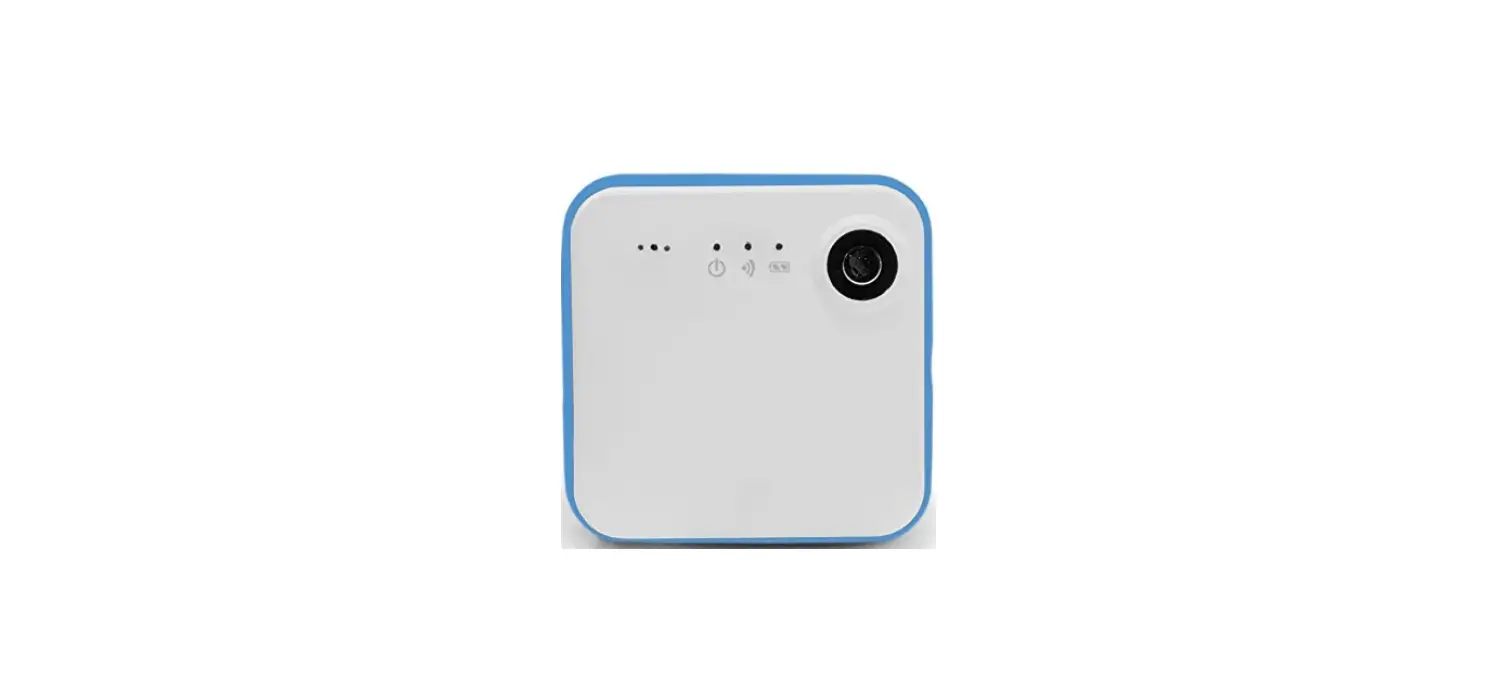
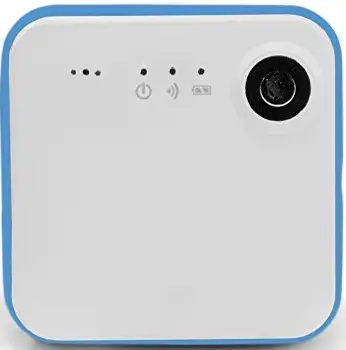
SnapCam is a HD wearable camera. It allows users to take and share photos and videos on social media.
Key Features
- Ultra Slim and Light-weight
- HD Video (720p @ 30fps)
- 8mp Photos
- Auto rotate.
- Upload and Share Photos and Videos using built-in Wi-Fi
- Magnetic Clip included to wear on clothes, bags, hats etc.
Function
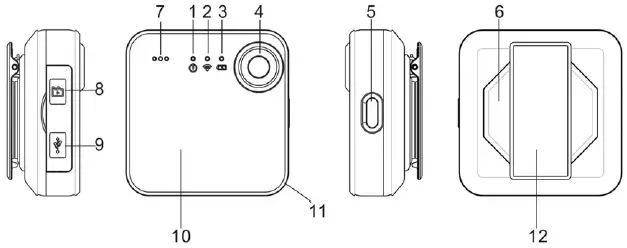
| 1. | Camera LED (Red) | Indicate the cameras reaction |
| 2. | Wi-Fi LED (Blue) | Indicate Wi-Fi status |
| 3. | Battery LED (Green) | Indicate the camera battery status |
| 4. | Lens | Wide angle lens |
| 5. | Power Button | Turn on and off the camera Turn on and off the Wi-Fi Reset the camera |
| 6. | Magnet | For attaching your SnapCam to clothing etc. |
| 7. | Microphone |
| 8. | MicroSD Card Slot | For MicroSD card |
| 9. | Micro USB Port | Connection for charging and mass storage |
| 10. | Touch Panel | activate video, photo and live streaming. |
| 11. | Silicon Bumper | Protect the camera and decoration |
| 12. | Back Clip Mount | To clip to clothing and accessories to make SnapCam wearable. |
First Time Use
Charging your SnapCam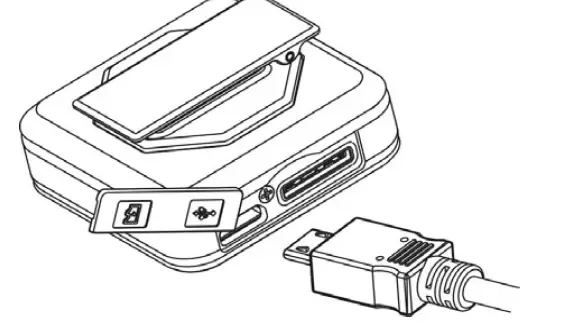
Charge the built-in battery before starting to use your SnapCam. When the SnapCam is off, the charging time from empty to full is approximately 1.5 hours. The LED will turn solid GREEN once the SnapCam is fully charged.
Inserting a MicroSD Memory Card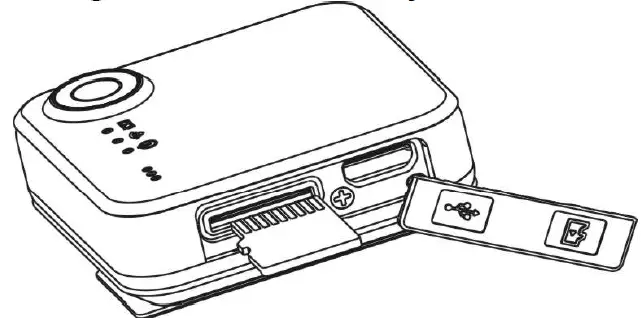
You must insert a MicroSD Card (required, not included) before using the SnapCam. The SnapCam supports MicroSD Card from 2GB to 32GB Class 6 or higher is recommended.
Note:
- There is only one direction to insert the MicroSD Card into the slot. Do not force the MicroSD Card into the slot as this may damage both the scanner and the MicroSD Card.
- The MicroSD Card must be formatted before first time use.
Setting Date & Time
When the SnapCam is used for the first time, or it has been restored to default settings, it is necessary to set the SnapCam’s clock to ensure the captured photo and video files are saved with correct date and time information.
To set-up the SnapCam’s clock:
- Insert a formatted MicroSD Card into the SnapCam.
- Connect the SnapCam to a PC as mass storage device (please refer to Section 5.9).
- Open the MicroSD file folder, create a file in any format (eg. txt file) and name it with the format “set-YYYYMMDD-HHMM”, YYYY, MM, DD, HH, MM represent the year, month and day, hour, minute of existing time. (eg : set-20150618-1100.txt)
- Disconnect the SnapCam from the PC, and tap once on SnapCam touch panel, the SnapCam will scan the file and write it to system clock.
Using the SnapCam
Please ensure you are running the latest firmware to get the best from your SnapCam, visit www.ioncamera.com for firmware updates.
Wearing your SnapCam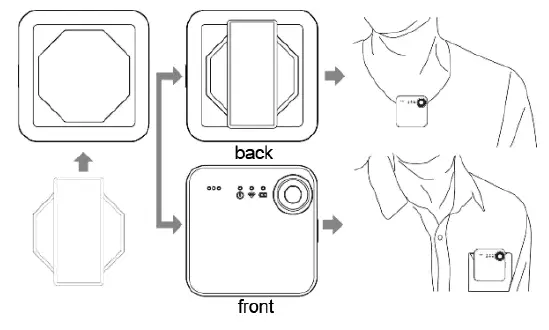
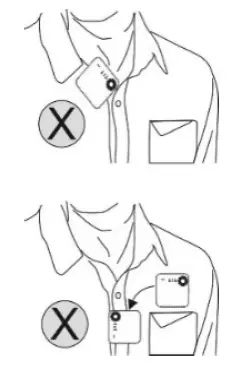
- This method is suitable for wearing your SnapCam on a jacket or relatively thick clothes.
- Note: Wear your SnapCam vertically, otherwise, the SnapCam may slip and produce a tilted view.
- Disclaimer: Please do not put the magnet clip too close to magnetic card strips (credit/debit cards) or smartphones to avoid malfunctions.

- Note: Please remove the sticker on the surface of your SnapCam before use.
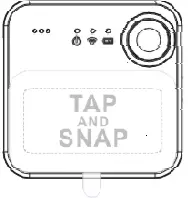
Power On your SnapCam
Press the Power On button for 3-4 seconds, the SnapCam will automatically search for a Wi-Fi network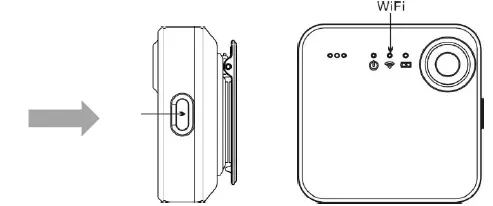
Take a Single Photo
Simply tap the touch panel of your SnapCam to take a photo. The red LED will flash once to indicate the photo was taken. You may also take a single photo using iON SnapCam App by clicking “Take Photo” icon.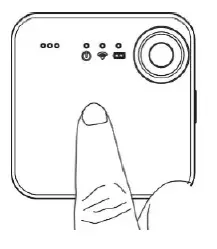
Use Time Lapse to take Photos
- Set your SnapCam to Time Lapse Photo function using the iON SnapCam App and smart device.
- Simply click “Start Time Lapse Photo” on the iON SnapCam App, then your SnapCam will start to take photos at the set time intervals.
- You may cancel the Time Lapse Photo function using the iON SnapCam App
Video Recording
- Simply tap the touch panel of your SnapCam twice to start video recording. The red LED will stay solid for the duration of recording.
- You may also start video recording through iON SnapCam App by clicking “Start Video” icon.
- Tap the touch panel of your SnapCam twice to stop video recording, or click “Stop Video” icon on iON SnapCam App.
Note: Please note changing video or photo resolution will decrease battery life
Short Video Recording
- Set the duration of Short Video Recording using iON SnapCam App and a smart device. (Default is 15 seconds)
- Simply touch and hold the touch panel of your SnapCam to start short video recording. You may also start/stop short video recording through iON SnapCam App by clicking “Start Short Video” icon.
Live Streaming
Your SnapCam is capable of live streaming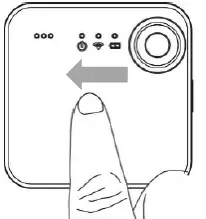
- Make sure your SnapCam is connected to a Wi-Fi network
- Open the iON SnapCam App and select your SnapCam in the Device Page.
- Swipe the touch panel of your SnapCam from left to right to start live streaming.
- To stop live streaming, swipe the touch panel of your SnapCam from right to left.
Connecting your SnapCam to a smart device.
You may control your SnapCam using the iON SnapCam App and a smart device.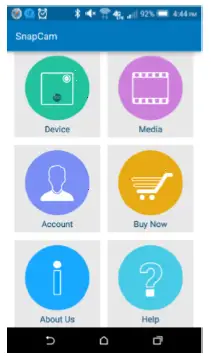
- Open the iON SnapCam App and select Device Icon to enter to the Device Page.
- Click “Device\Add New”. Automatic device search will begin.
- Select your SnapCam from the list of available devices.
Note : Minimum operating system requirement for iON SnapCam App: Android 4.3, iOS 4.0
Connecting your SnapCam to PC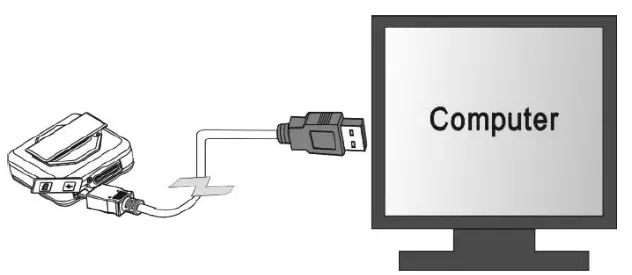
The SnapCam can be connected to computer as mass storage device (MS Mode) and transfer the photos and video files for storage, if it is not under recording. If the SnapCam is recording when connected to a PC, it will not enter to the mass storage mode but will begin charging.
Specifications
| Lens | Wide angle lens |
| Water Resistance | IPX4 |
| Still Image resolution | 8MP (Default), 2MP |
| Video Resolution | 720p 30fps , WVGA : 848 x 480 |
| Video Format | MPEG4 (H.264) .MP4 File |
| Photo Format | JPG |
| Memory Slot | MicroSD card |
| Support System | Windows XP, Vista, 7, and 8 ; Mac OS X 10.6 or later |
| Microphone | Built-in |
| Battery Life | 2 hours continuous recording |
| Dimension (L x H x W) | 40 x 40 x 12.5 mm |
| Weight | 32g |
| Operation Temperature | -10°C – 45°C |
| Storage Temperature | -20°C – 70°C |
Troubleshooting
| Problem | Cause | Solution |
|
Unable to record videos or photos |
1. MicroSD card is not inserted. 2. Memory is full. Camera malfunction. | 1. Insert a MicroSD card. Supports 2GB – 32GB class 6 or higher. 2. Replace a memory card with space available for content. 3. Reset the camera. |
| Cannot find removable disk after connecting the camera to the computer |
Connection failure. | 1. Check all cable connections. 2. Restart the computer if necessary. |
| Blurry images | The lens of camera is dirty | Clean the lens with soft and dry cloth |
FCC
Warning: Changes or modifications to this unit not expressly approved by the party responsible for compliance could void the user’s authority to operate the equipment. NOTE: This equipment has been tested and found to comply with the limits for a Class B digital device, pursuant to Part 15 of the FCC Rules. These limits are designed to provide reasonable protection against harmful interference in a residential installation. This equipment generates, uses and can radiate radio frequency energy and, if not installed and used in accordance with the instructions, may cause harmful interference to radio communications. However, there is no guarantee that interference will not occur in a particular installation. If this equipment does cause harmful interference to radio or television reception, which can be determined by turning the equipment off and on, the user is encouraged to try to correct the interference by one or more of the following measures:
- Reorient or relocate the receiving antenna.
- Increase the separation between the equipment and receiver.
- Connect the equipment into an outlet on a circuit different from that to which the receiver is connected.
- Consult the dealer or an experienced radio/ TV technician for help.
This device complies with Part 15 of the FCC Rules. Operation is subject to the following two conditions:
- This device may not cause harmful interference.
- This device must accept any interference received, including interference that may cause undesired operation
Specific Absorption Rate (SAR) information:
This equipment meets the government’s requirements for exposure to radio waves. The guidelines are based on standards that were developed by independent scientific organizations through periodic and thorough evaluation of scientific studies. The standards include a substantial safety margin designed to assure the safety of all persons regardless of age or health. FCC RF Exposure Information and Statement The SAR limit of USA (FCC) is 1.6 W/kg averaged over one gram of tissue. Device types: FCC ID: NW71045 has also been tested against this SAR limit. The highest SAR value reported under this standard during product certification for use when properly worn on the body is 1.288 W/kg or head is 1.478 W/kg. This device was tested for typical body-worn operations with the back of the handset kept 0 cm from the body or head. The use of accessories that do not satisfy these requirements may not comply with FCC RF exposure requirements, and should be avoided.
TRADEMARK INFORMATION
- © 2015 World Wide Licenses Limited.
- ® The iON logo is a registered trademark of World Wide Licenses Limited
Questions?
Need Some Help?
This manual should help you understand your new product.
If you still have questions,
visit our website: www.ioncamera.com
Like Us:
www.facebook.com/ioncamera
Tweet Us:
www.twitter.com/ioncamera
Learn more.
Learn more about iON camera features at http://www.ioncamera.com
For instructions and safety information, see the iON User Guide. Download the PDF at http://www.ioncamera.com/user-manuals/
Get support. (i.e. Warranty)
Visit https://www.ioncamera.com/support/ for all iON camera support. If you are located in the United States of America, please contact Customer Service at 855-411- 4466. If you are located in Canada, please contact Customer Service at 905-513-7733.
If you are located outside of the United States of America or Canada please visit www.ioncamera.com for your local support service