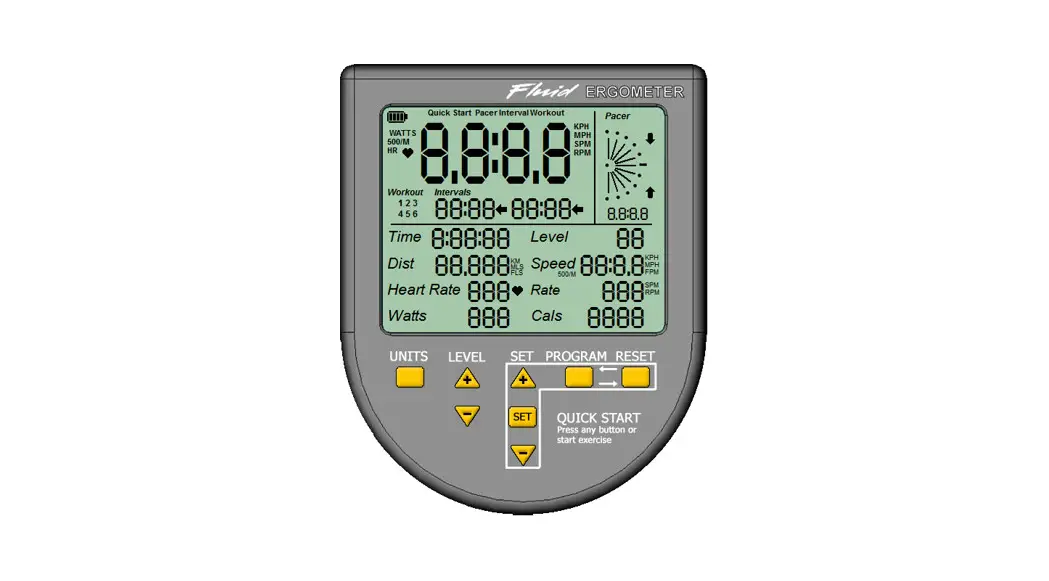

 USB Connectivity for
FDF Consoles
User Guide
USB CONNECTIVITY
Setting up USB Connectivity
- Download and Install the USB Device Driver (CDM2xxxx_Setup.exe for 32 and 64-bit Windows 10/8.1/7/Vista/XP) from the FDF Website
- Download and install Fluid Coach from the FDF Website
- Download and Install NetAthlon 2 XF for Rowers from http:/hvww.webracIng.org/downloads.htrn
Connecting your Console
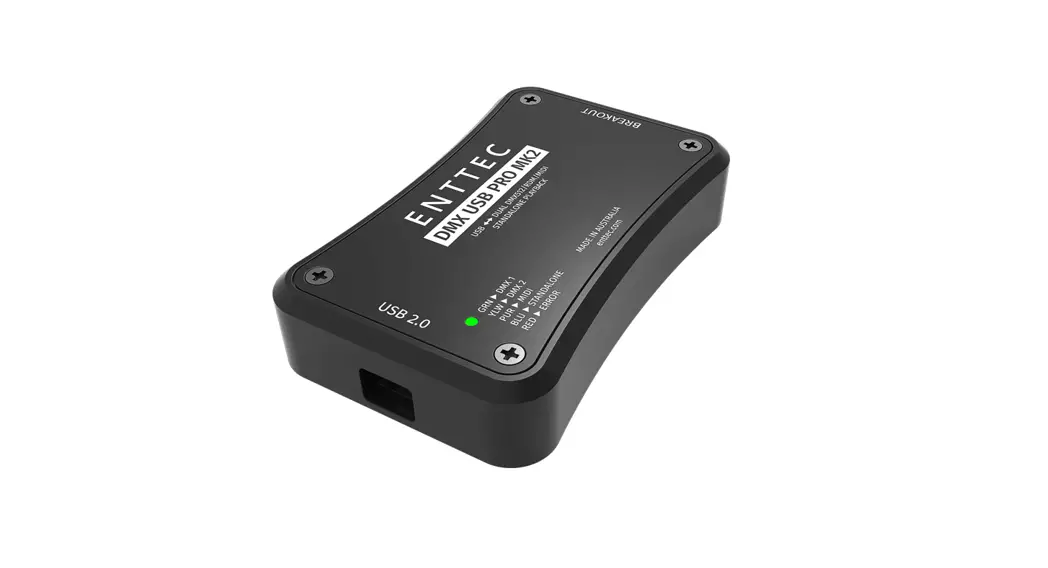
- The USB Connector is located on a flying lead at the rear of the Console, along with the Sensor and Heart Rate Monitor Connectors
- Connect to a Laptop or PC using a standard USB cable, you may need to wait while Windows starts the USB Device Driver
- Note, that newer IPM Consoles provide an enclosed USB connector at the rear of the console
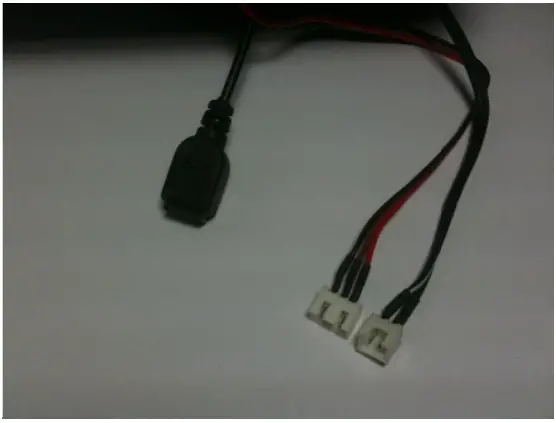 | 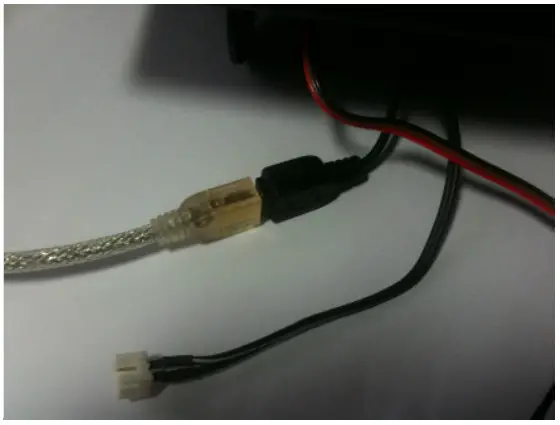 | 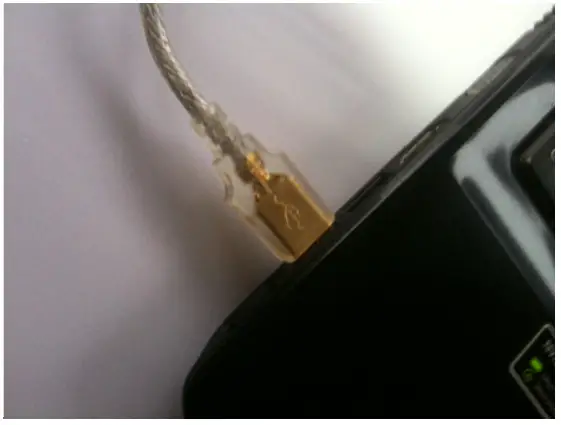 |
| USB with Sensor and HR Connectors | Console Connected using Standard USB Cable | Connected to Laptop USB Port |
NETATHLON 2 XF FOR ROWERS QUICK START
- Install the USB Serial Device Driver (CDM2xxxx_Setup.exe).
- Install NetAthlon 2 XF for Rowers.
- Ensure your Console is turned on.
- Connect your Console to your PC or Laptop via the USB port.

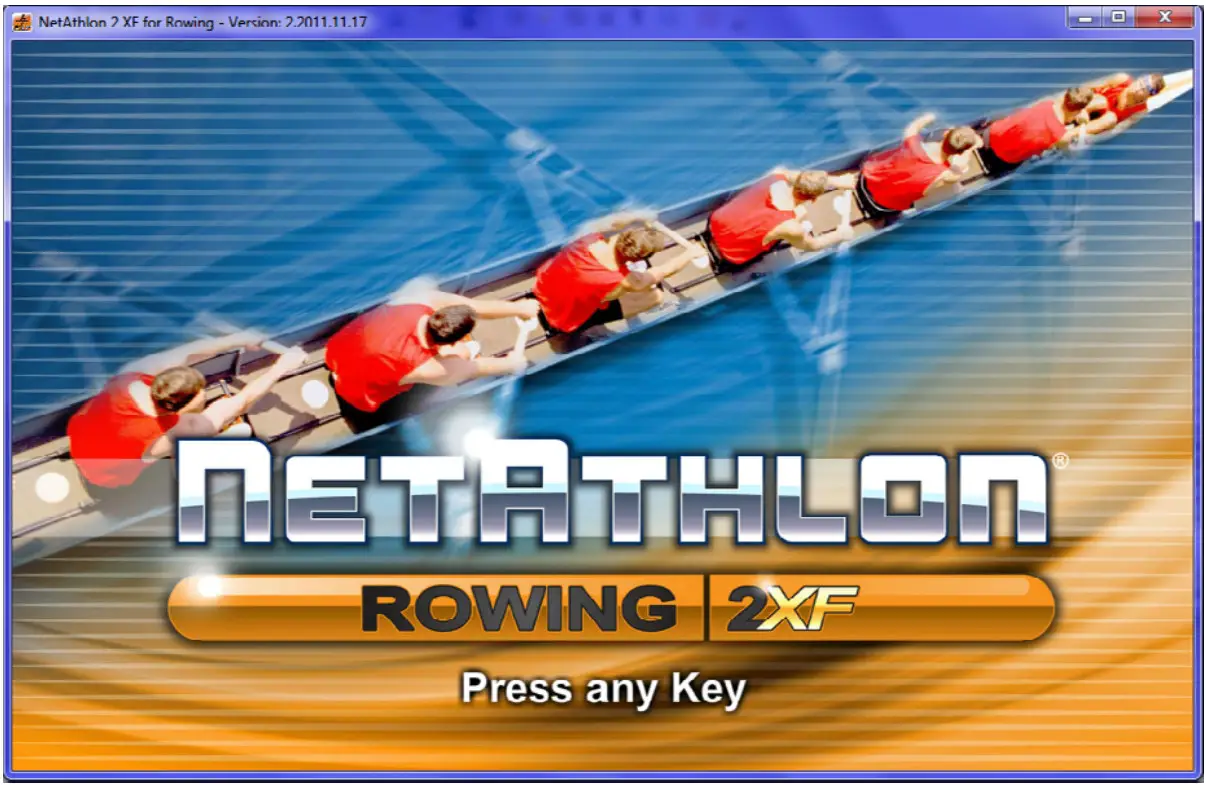
- Run NetAthlon XF for Rowing.
- Press any key to continue.

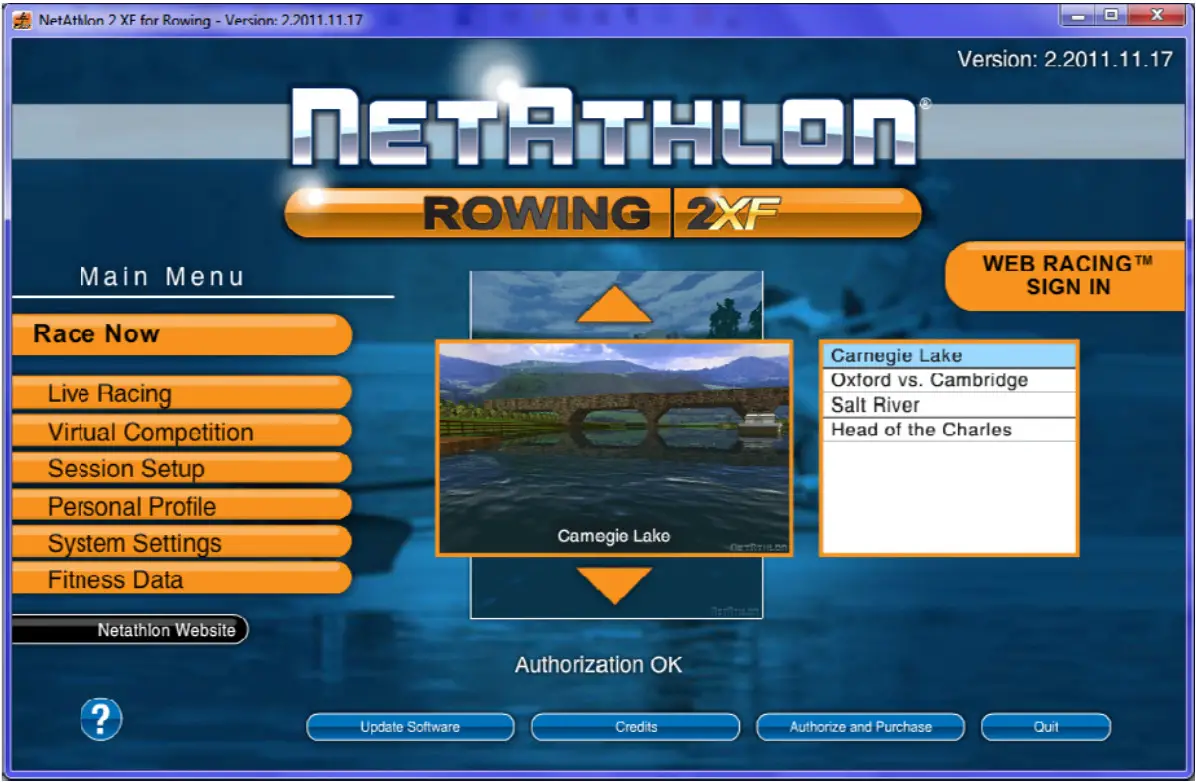
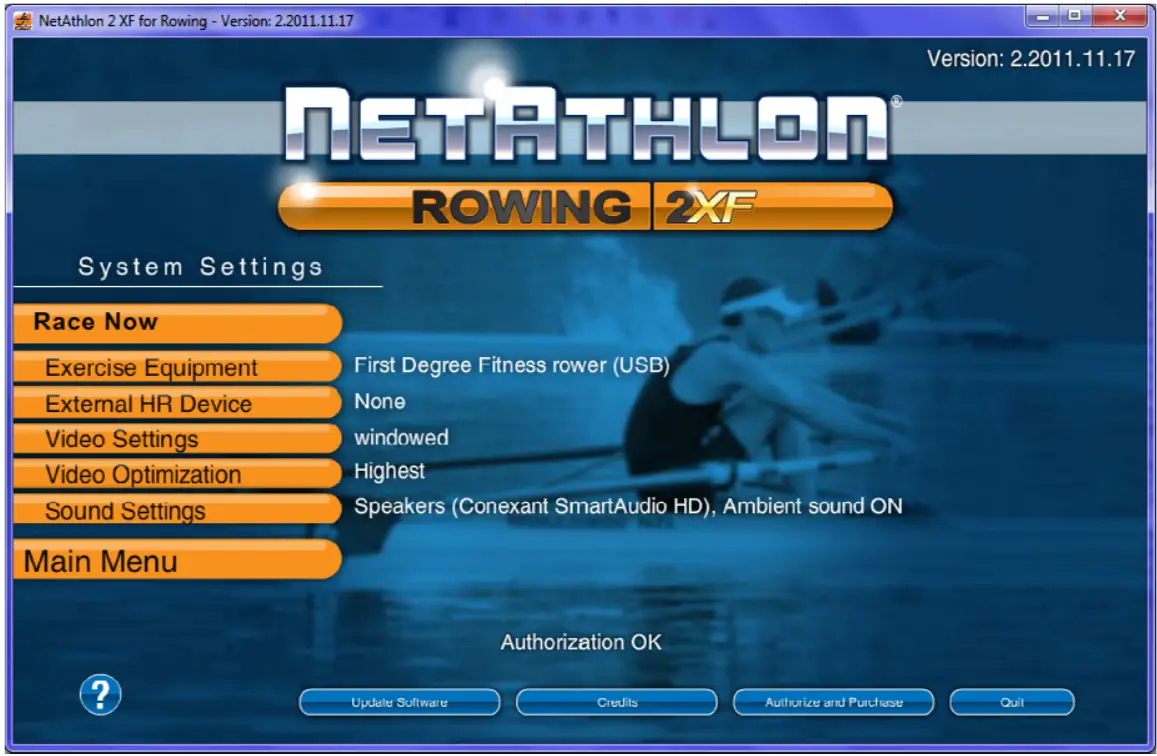
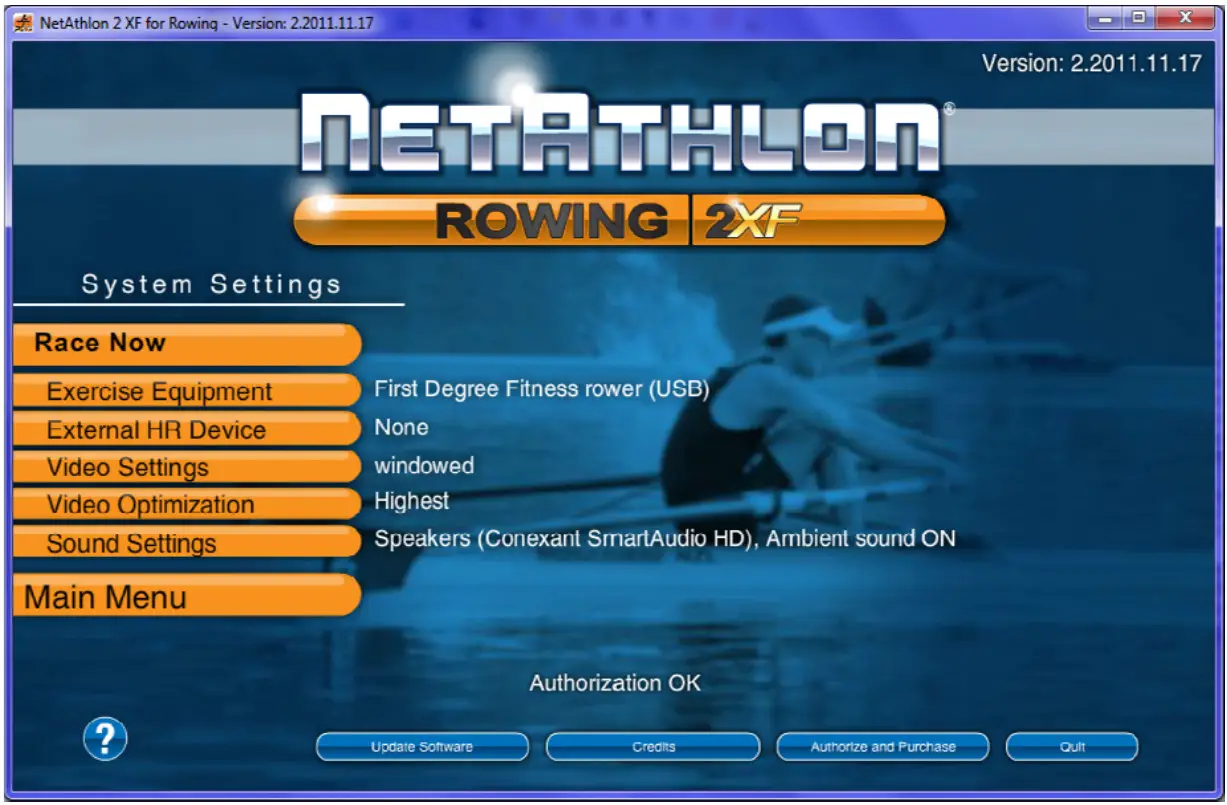
- Click System Settings.

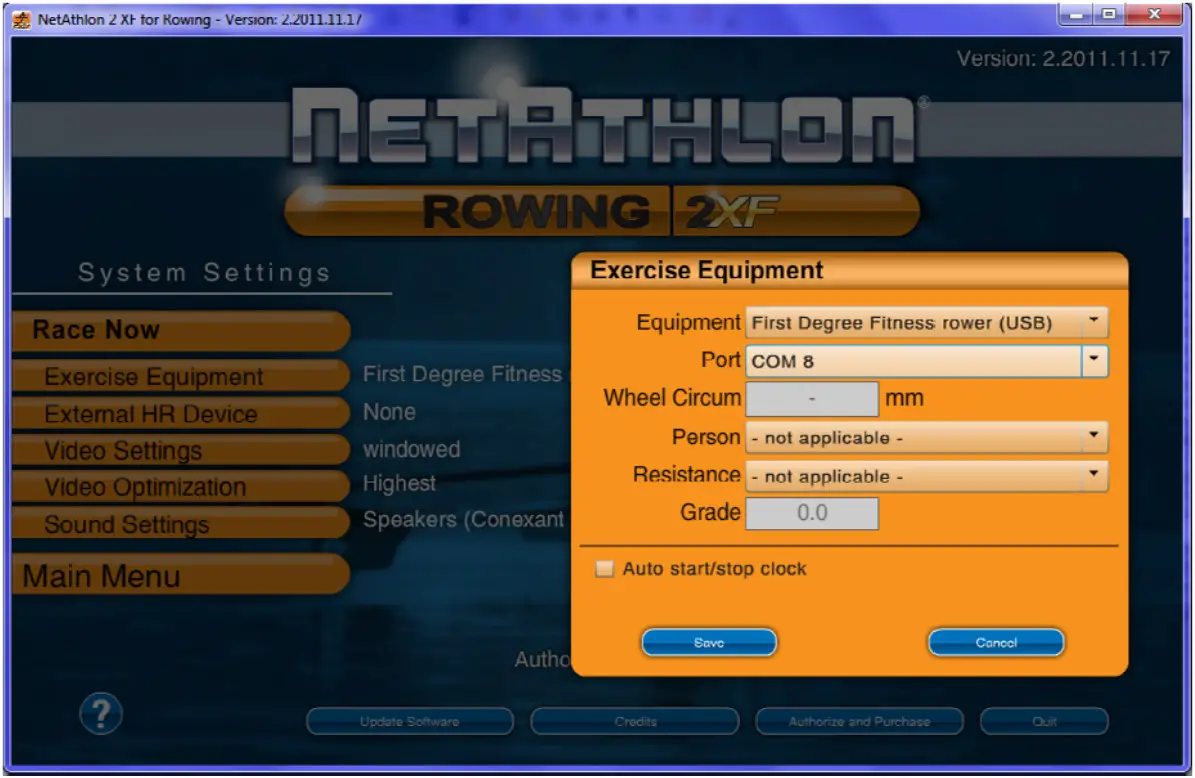
- Click Exercise Equipment.

- Select First Degree Fitness. Rower (USB).
- Select Port (COMx).
- Click Save.
*You may need to repeat this procedure…
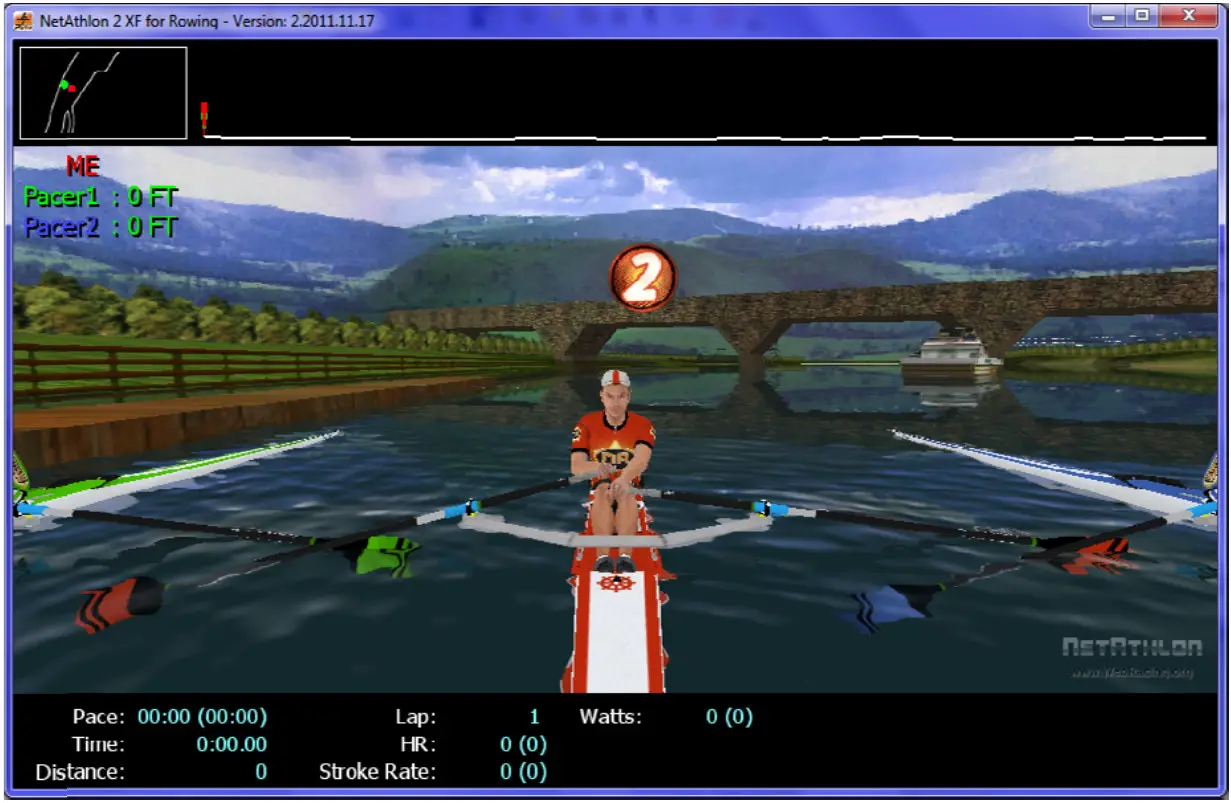
- Click Race Now.

- Start Rowing!
Please be noted that FDF does not directly support this Third Party Software. See NetAthlon 2 XF documentation at:
http://www.webracinginc.com/ for further information and support