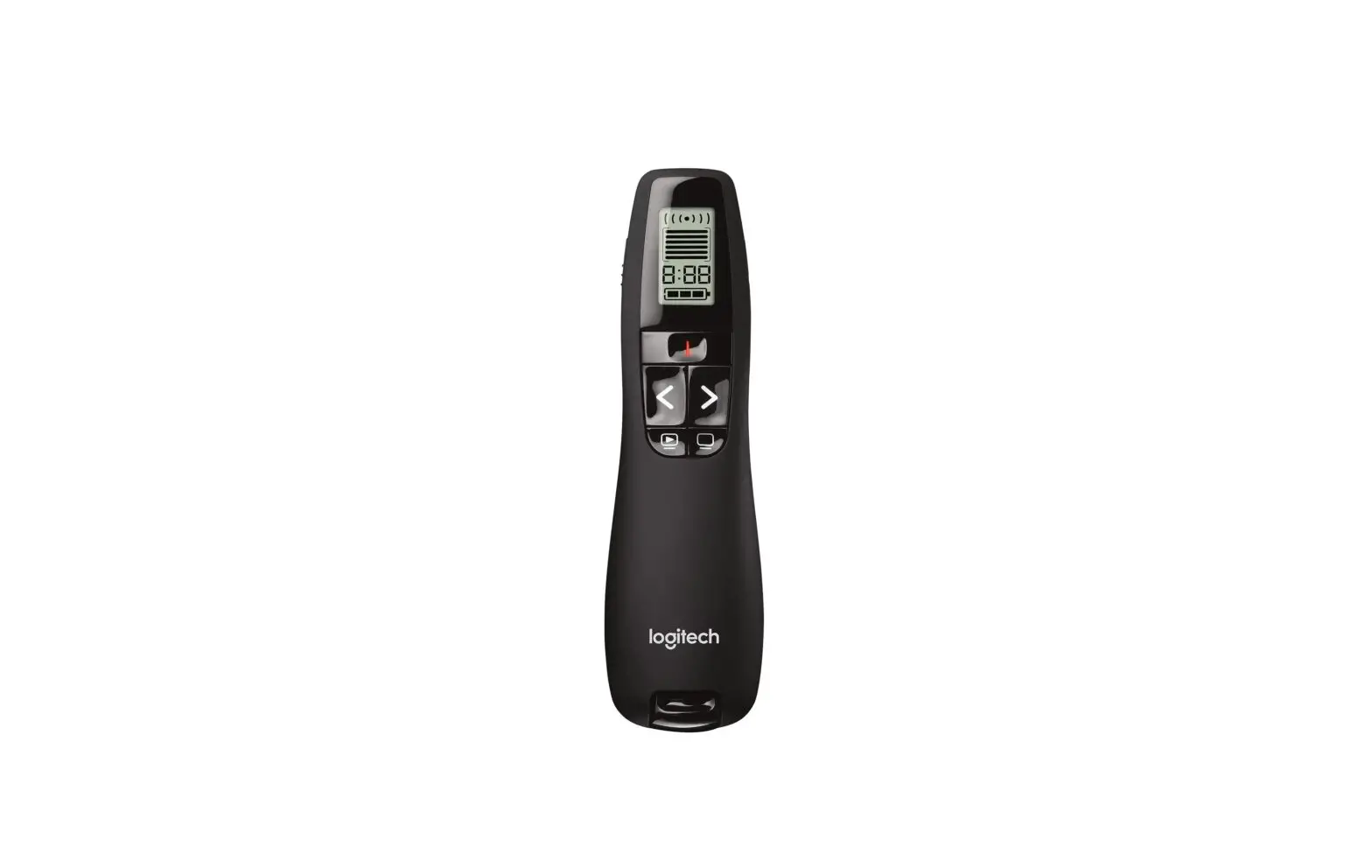
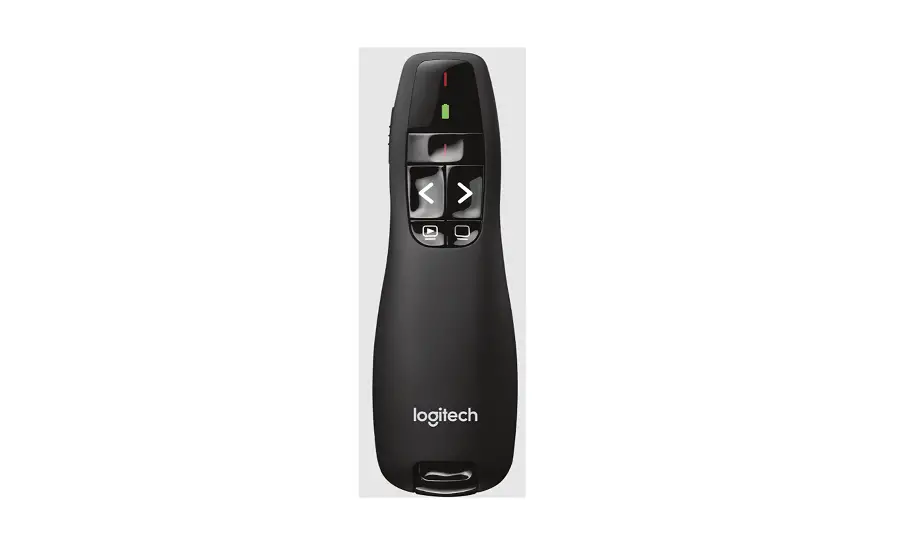
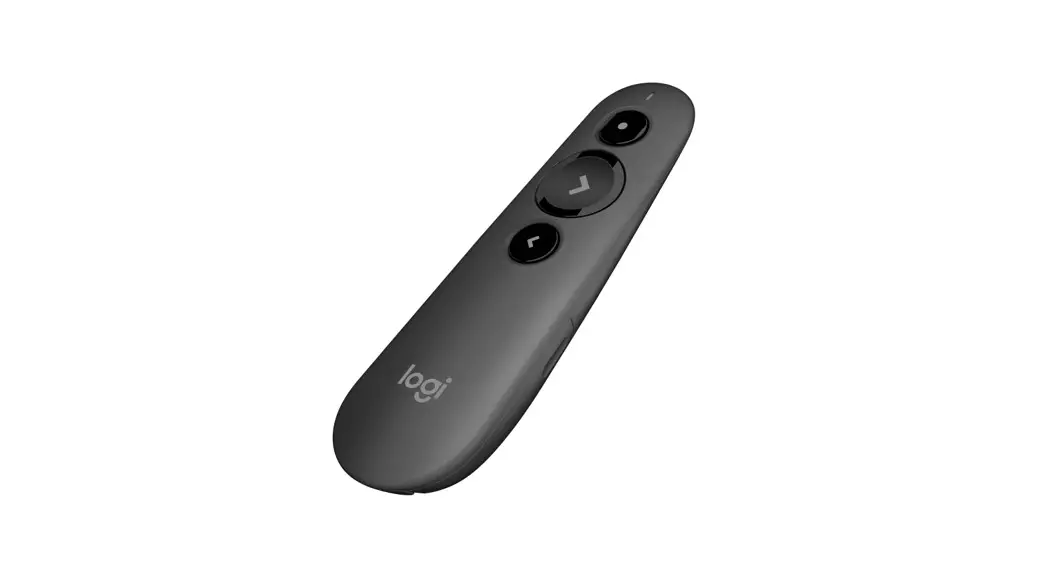
R400 Presenter Disassembly
Logitech R400 Presenter Disassembly
Guide ID: 75431 – Draft:
2022-05-23
Short disassembly instructions for the Logitech R400
Presenter
TOOLS:
- Phillips #0 Screwdriver (1)
- Flathead 3/32 or 2.5 mm Screwdriver (1)
INTRODUCTION
Quick and easy disassembly of the presenter. This guide is
specifically for the Logitech R400 Presenter. Similar steps may
apply to the R700 and R800 models, but this guide does not cover
those models.
Product Usage Instructions:
- Step 1 – Remove the unnecessary parts:
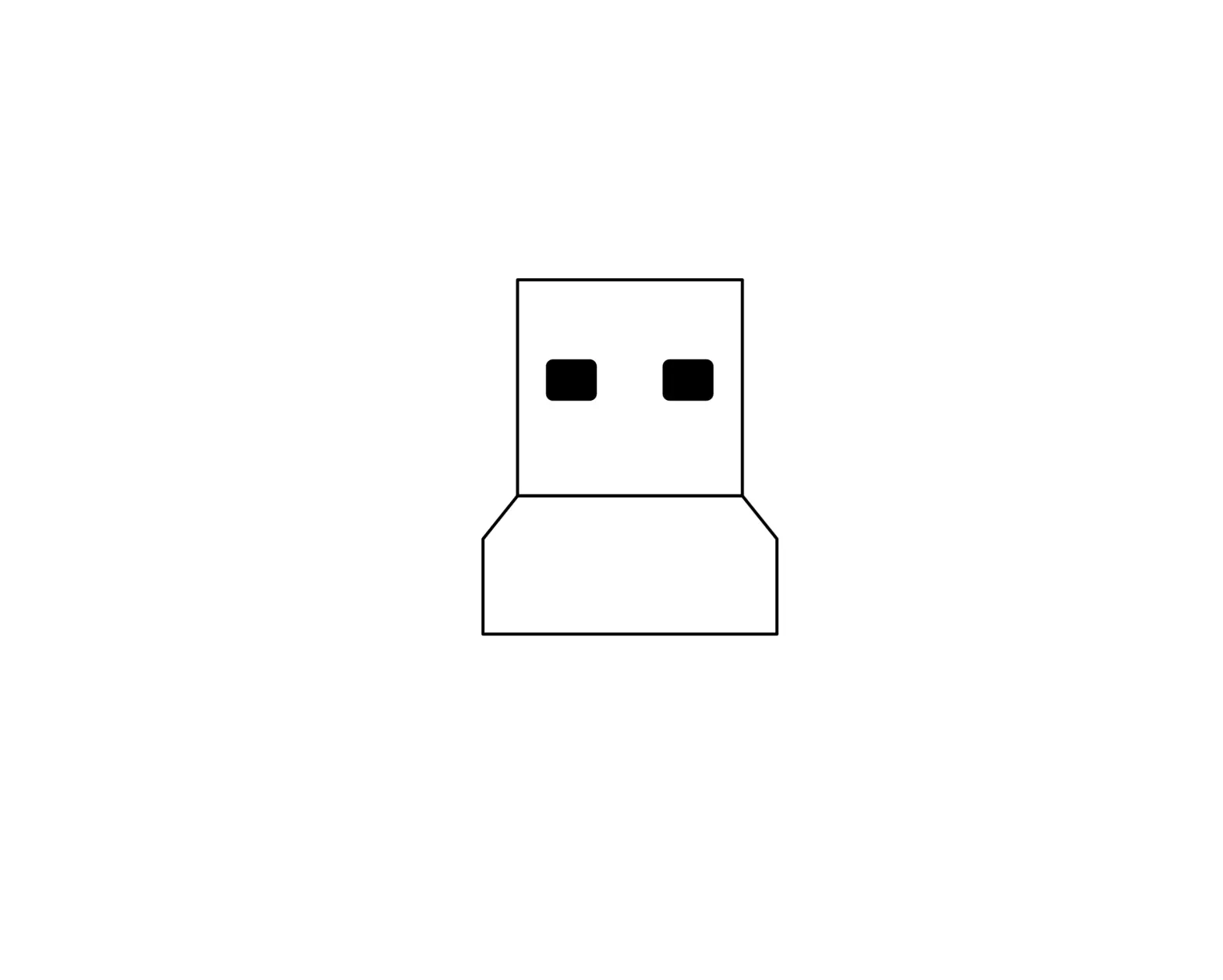
- Remove the USB-Receiver.
- Open the battery compartment.
- Remove the batteries.
- Step 2 – Remove the sticker:
- To remove the sticker that’s covering the next screws, use a
small slot screwdriver and carefully insert it at the shown
position. There is a little notch here that guides you in.
- To remove the sticker that’s covering the next screws, use a
- Step 3 – Remove 2 screws
- Step 4 – Just another screw:
- Below the sticker, there are two Philips screws (red). Unscrew
them. - In the yellow slot, there is a tab that is to be pushed down to
unlatch it. If you insert a pick in the seam between the top and
the bottom half of the device, it should open easily when downward
pressure is applied to the latch. - Now carefully pry apart the two halves of the cover, starting
from the side of the battery compartment. - The green board is where all the application logic is in, so be
careful not to scratch it. - There is one single screw. Unscrew it.
- Carefully take out the green board. The connectors for the
batteries are attached here, so make sure not to break them.
- Below the sticker, there are two Philips screws (red). Unscrew
- Step 5 – Finished: At this point, the disassembly is
complete. - Step 6 – Not actually part of the disassembly:
- The reason for disassembling the presenter in this guide was
that the laser diode (red) did not project out of the case anymore.
You can clearly see the laser being at a very odd angle. - The yellow marker shows the battery connectors that should not
be broken during step 4. - In the last image, you can see the fixed laser diode. It was
gently pushed down to restore its functionality.
- The reason for disassembling the presenter in this guide was
To reassemble your device, follow these instructions in
reverse order.
Logitech R400 Presenter Disassembly
Guide ID: 75431 – Draft: 2022-05-23
Logitech R400 Presenter Disassembly
Short disassembly instructions for the R400 Presenter
Written By: Stephan
This document was generated on 2022-05-25 02:46:23 PM (MST).
© iFixit — CC BY-NC-SA
www.iFixit.com
Page 1 of 6
Logitech R400 Presenter Disassembly
INTRODUCTION
Quick and easy disassembly of the presenter. I ended up breaking a part, but it does not seem to be needed… Should be similar for the R700 & R800, but I don’t have one…
TOOLS:
Phillips #0 Screwdriver (1) Flathead 3/32″ or 2.5 mm Screwdriver (1)
Guide ID: 75431 – Draft: 2022-05-23
This document was generated on 2022-05-25 02:46:23 PM (MST).
© iFixit — CC BY-NC-SA
www.iFixit.com
Page 2 of 6
Logitech R400 Presenter Disassembly
Step 1 — Remove the unnecessary parts
Guide ID: 75431 – Draft: 2022-05-23
Remove the USB-Receiver. Open the battery compartment. Remove the batteries.
Step 2 — Remove the sticker
To remove the sticker that’s covering the next screws, I used a small slot screwdriver and carefully inserted it at the shown position. There is a little notch here that guides you in.
This document was generated on 2022-05-25 02:46:23 PM (MST).
© iFixit — CC BY-NC-SA
www.iFixit.com
Page 3 of 6
Logitech R400 Presenter Disassembly
Step 3 — Remove 2 screws
Step 4 — Just another screw.
Guide ID: 75431 – Draft: 2022-05-23
Below the sticker we have two Philips screws (red). Unscrew them.
Edit according to Simon (see comment): In the yellow slot there is a tab that is to be pushed down to unlatch it. If you insert a pick in the seam between the top and the bottom half of the device it should open easily when downward pressure is applied to the latch..
Now carefully pry apart the two halves of the cover, starting from the side of the battery compartment.
The green board is where all the application logic is in, so don’t scratch it.
There is one single screw. Unscrew it.
Carefully take out the green board. The connectors for the batteries are attached here, don’t break them (though they are quite sturdy). Step 6 has an image how the board looks from the other side.
This document was generated on 2022-05-25 02:46:23 PM (MST).
© iFixit — CC BY-NC-SA
www.iFixit.com
Page 4 of 6
Logitech R400 Presenter Disassembly
Step 5 — Finished
Guide ID: 75431 – Draft: 2022-05-23
This should be the end product.
This document was generated on 2022-05-25 02:46:23 PM (MST).
© iFixit — CC BY-NC-SA
www.iFixit.com
Page 5 of 6
Logitech R400 Presenter Disassembly
Step 6 — Not actually part of the disassembly…
Guide ID: 75431 – Draft: 2022-05-23
The reason why I disassembled my presenter was, that the laser diode (red) did not project out of the case any more. You can clearly see the laser being at a very odd angle. I can not imagine how that happened.
The yellow marker shows the battery connectors you are not supposed to break in step 4. In the last image you see the “fixed” laser diode. I just gently pushed it down, now it’s working
again.
To reassemble your device, follow these instructions in reverse order.
This document was generated on 2022-05-25 02:46:23 PM (MST).
© iFixit — CC BY-NC-SA
www.iFixit.com
Page 6 of 6
 iFixit: The Free Repair Manual
 store.ifixit.fr/products/flathead-3-32-or-2-5-mm-screwdriver