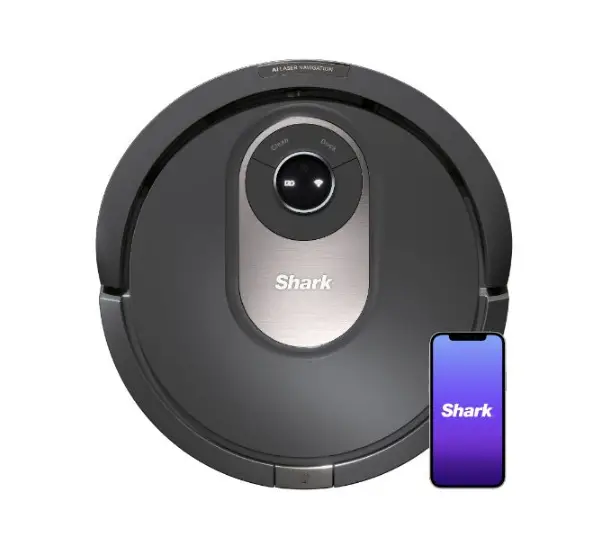
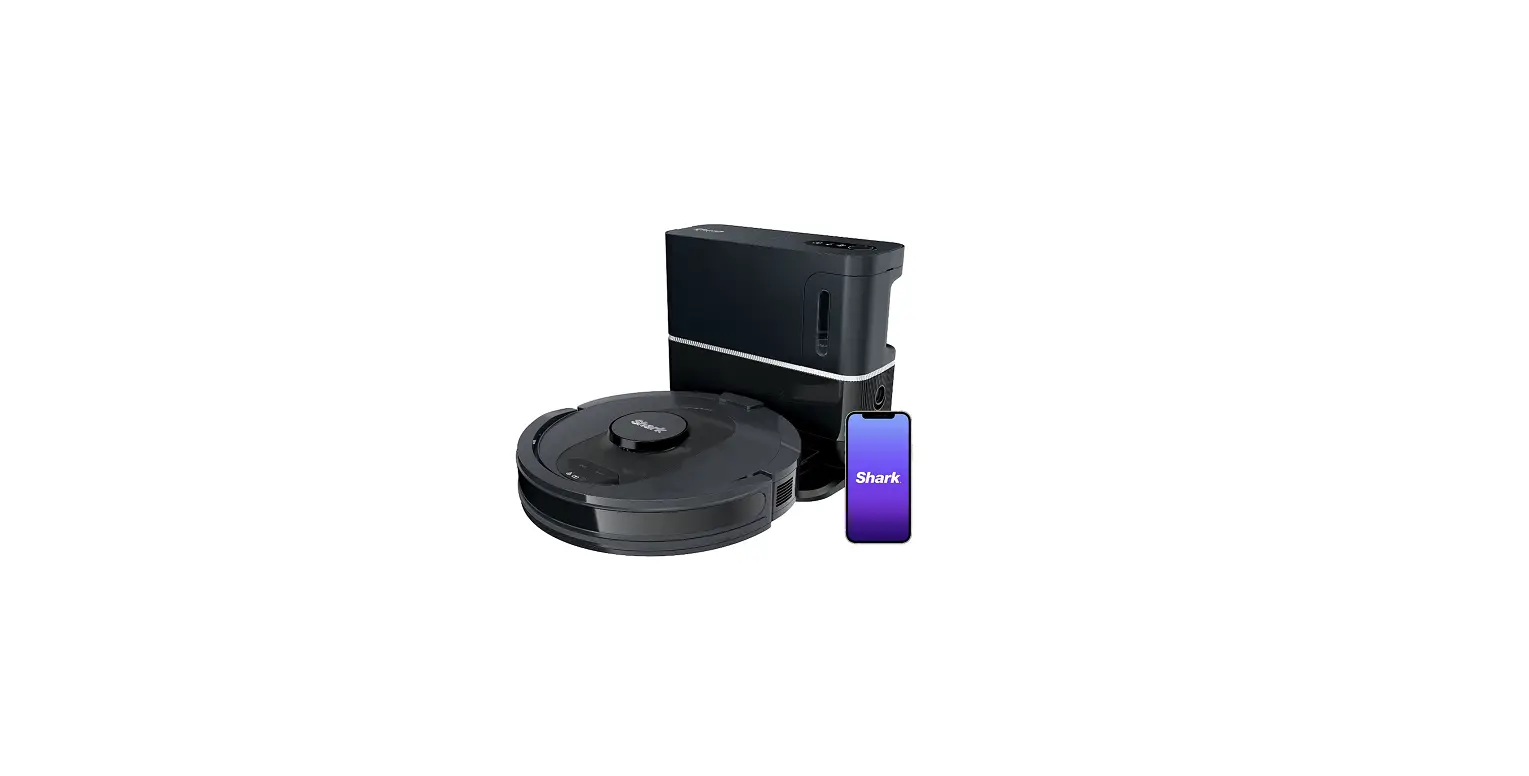
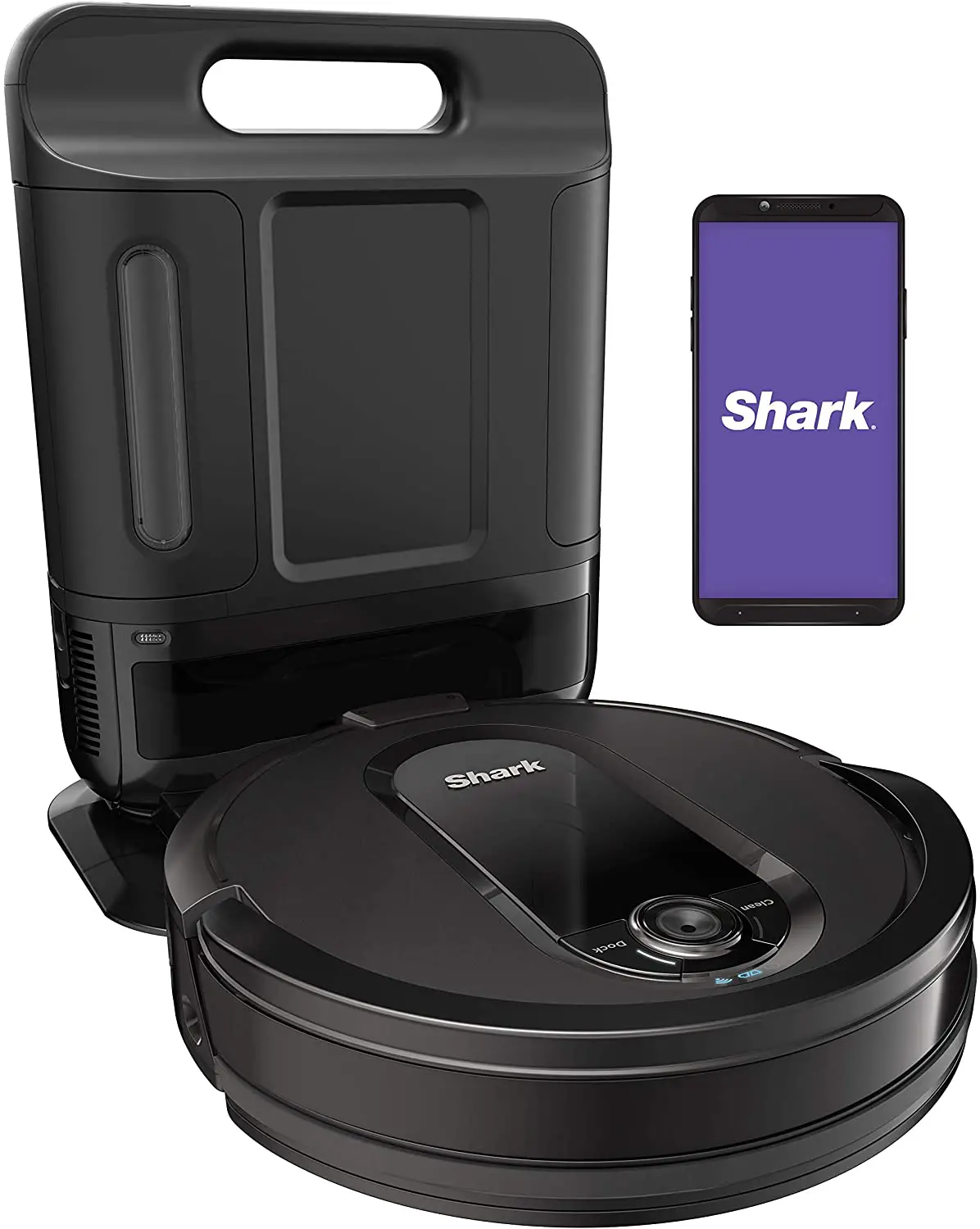
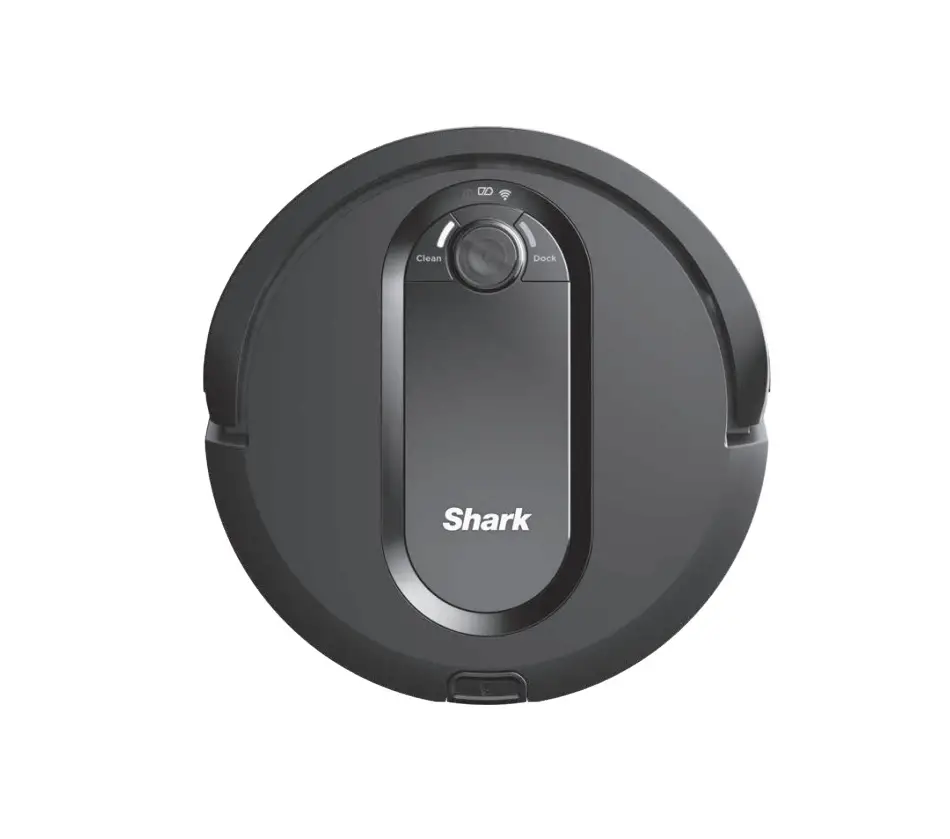
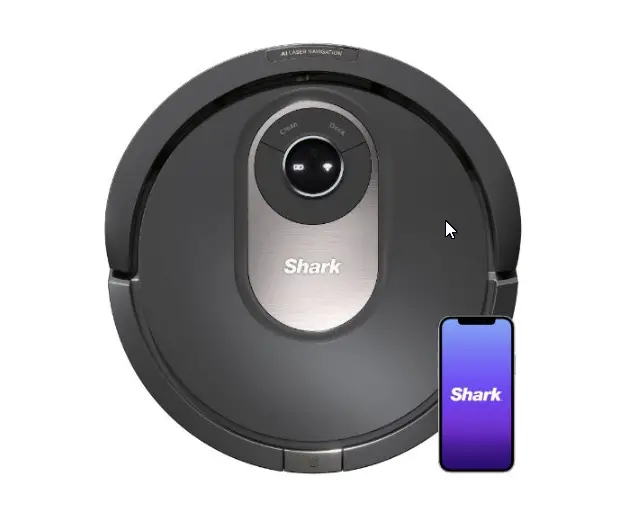
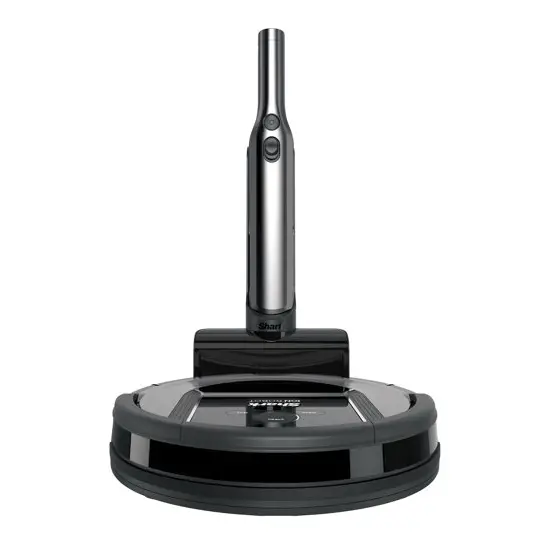
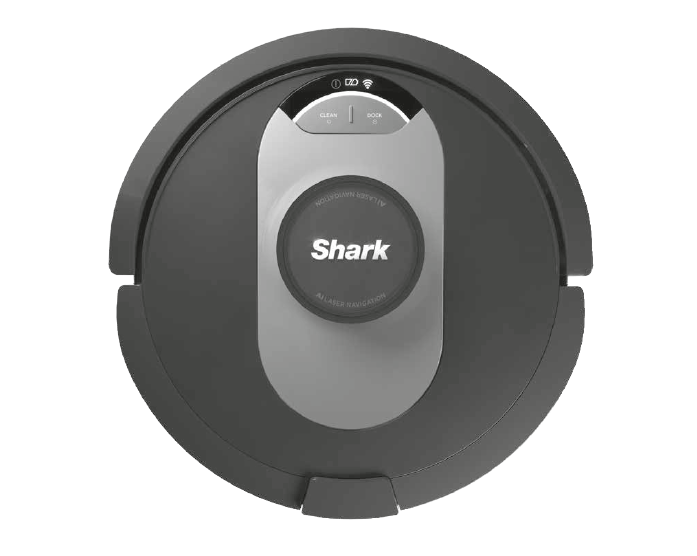
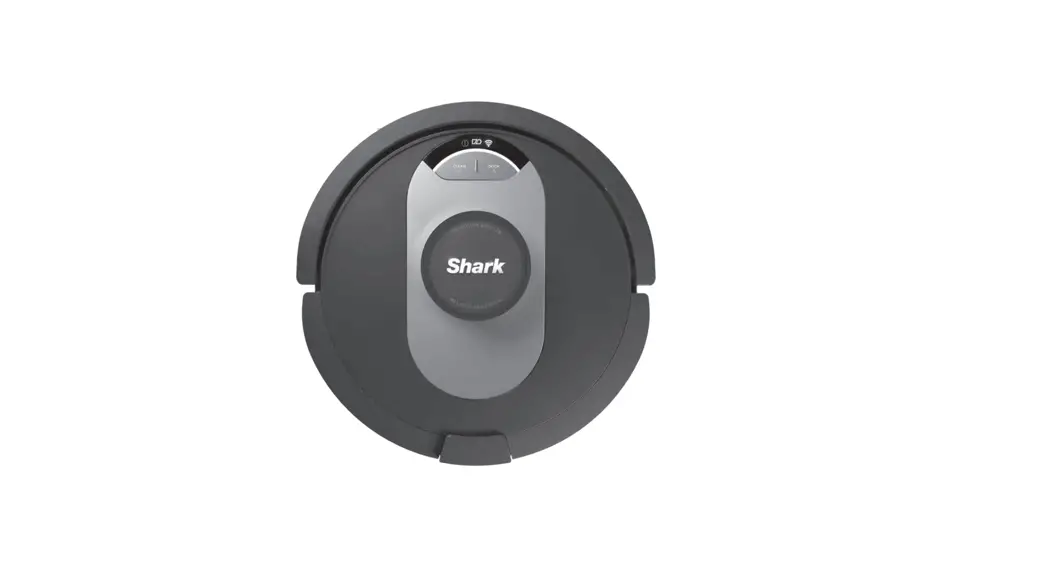
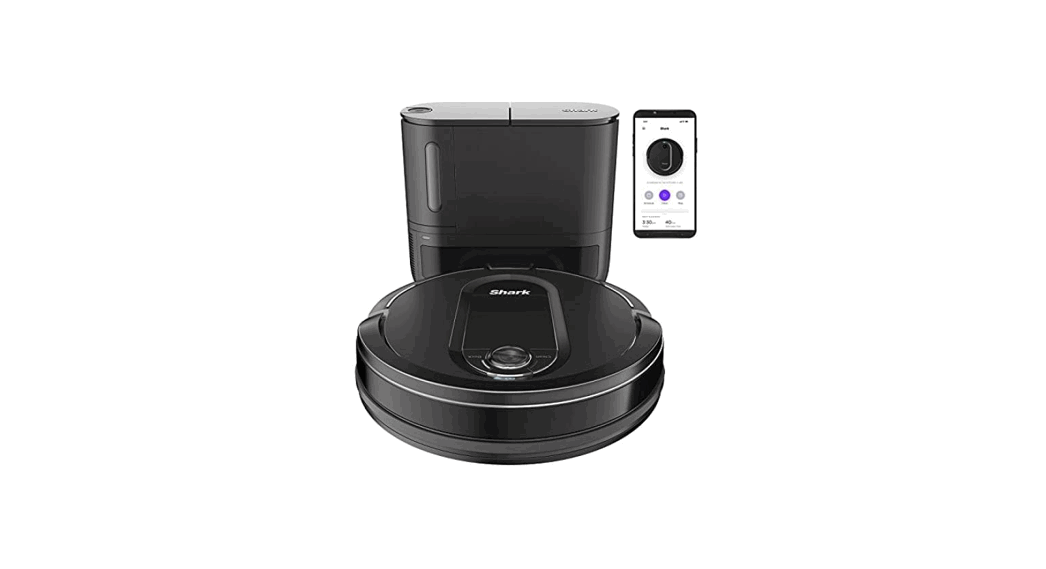
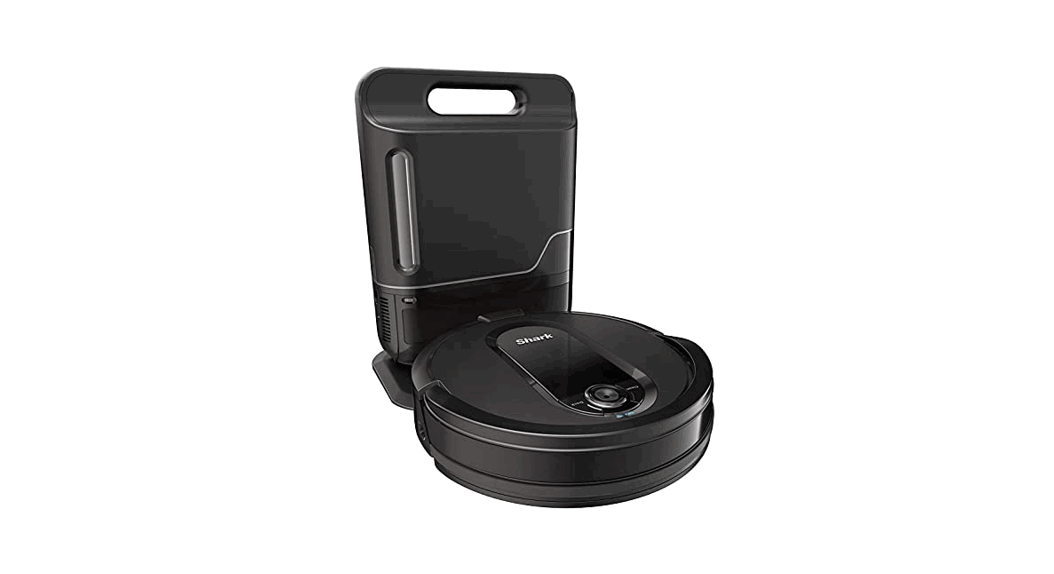
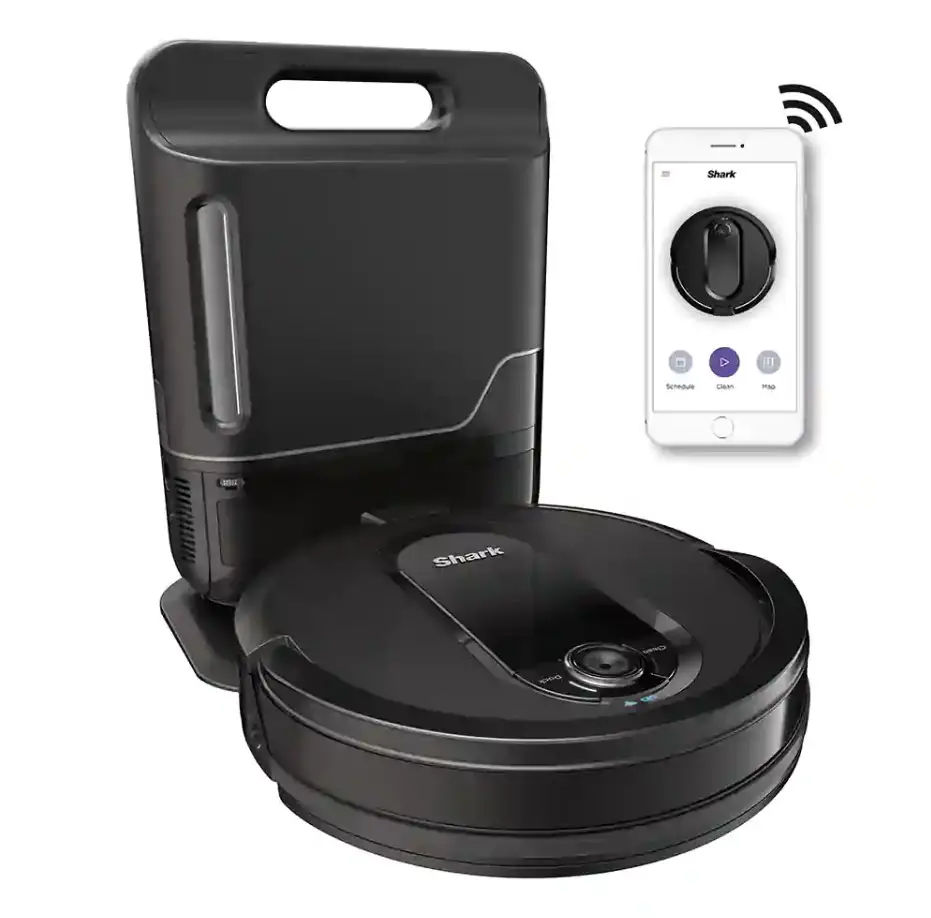
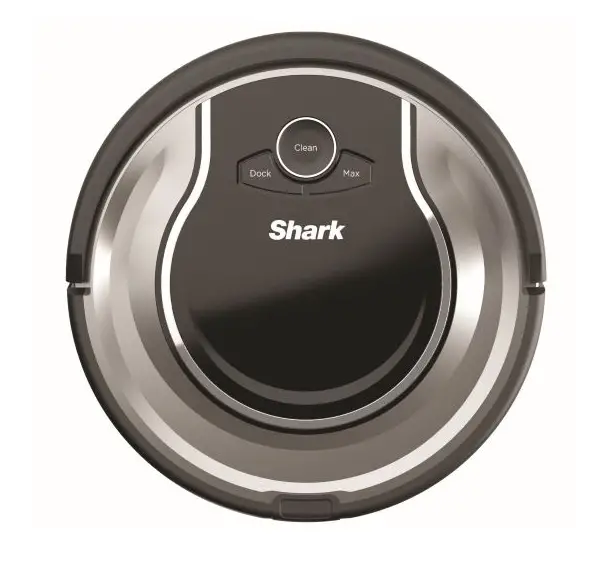
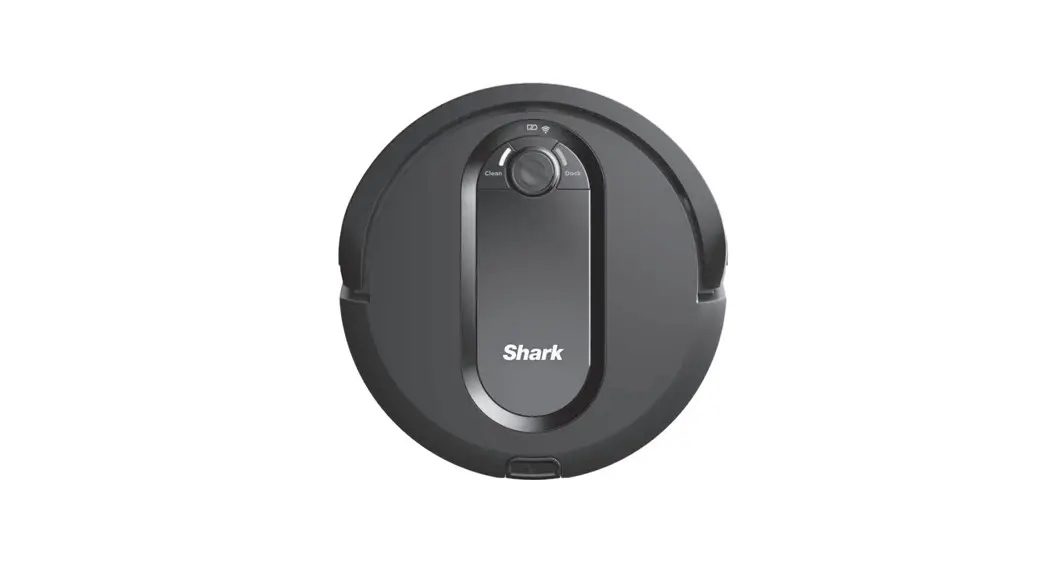
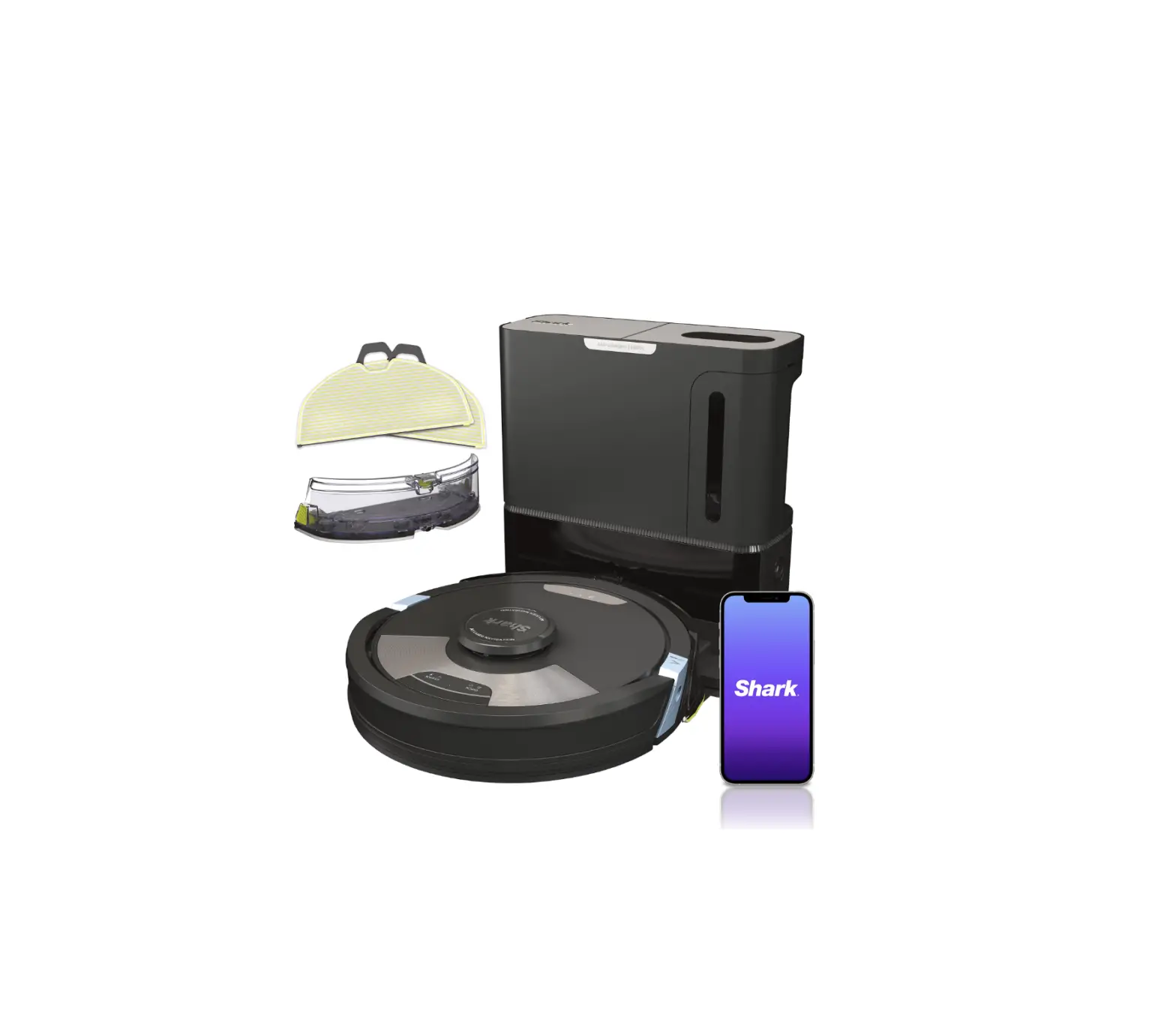
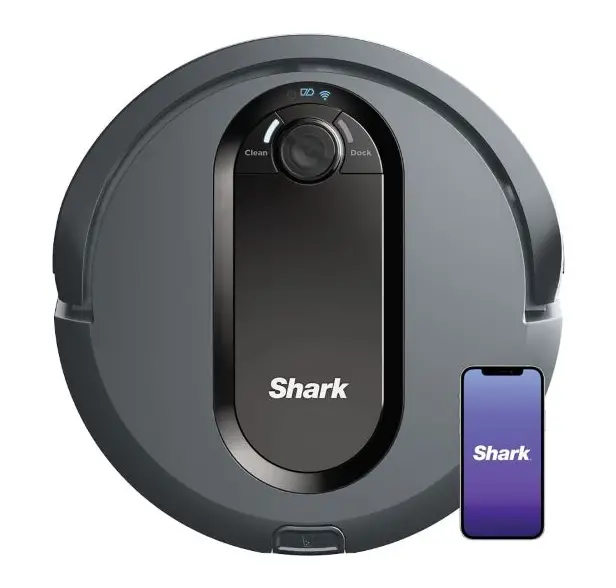
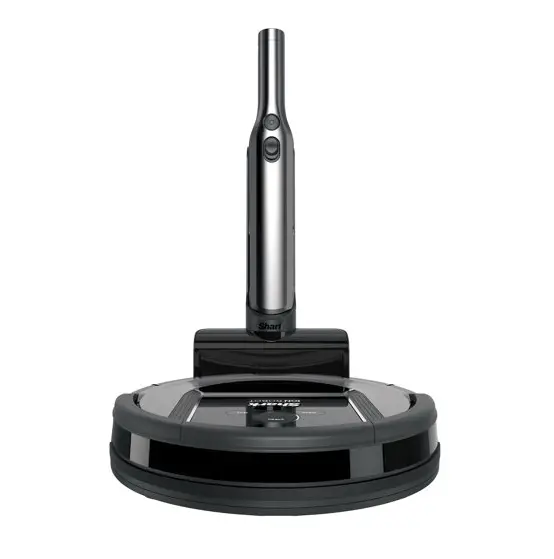
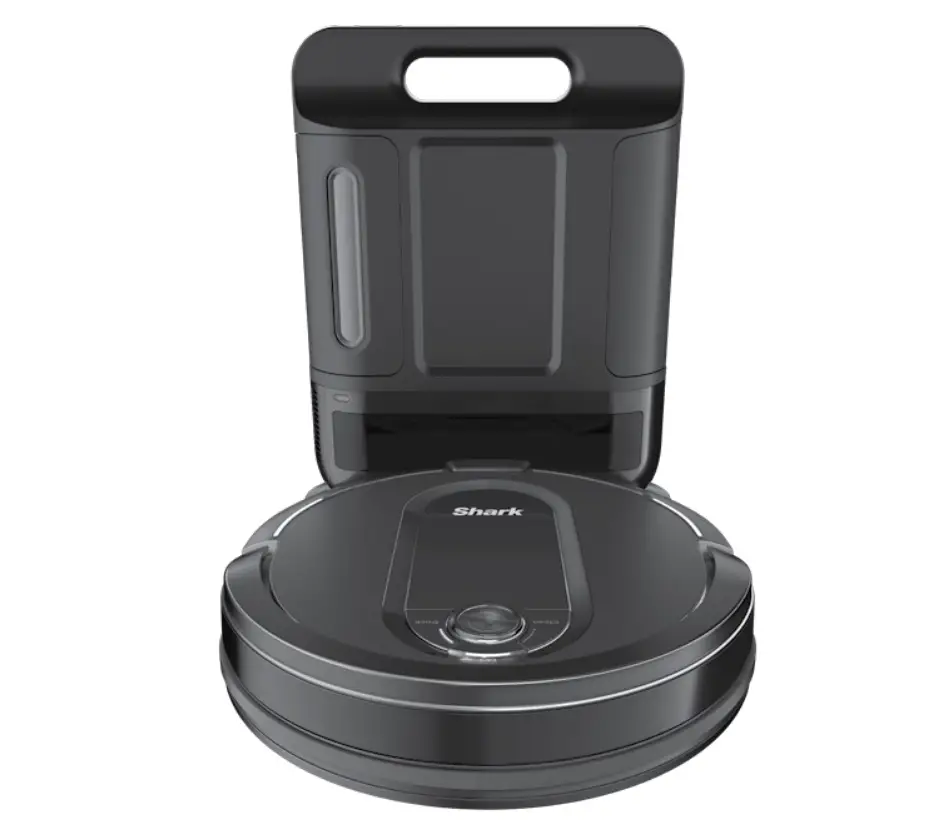
RV2502AE AI Ultra Robot Vacuum
Product Information:
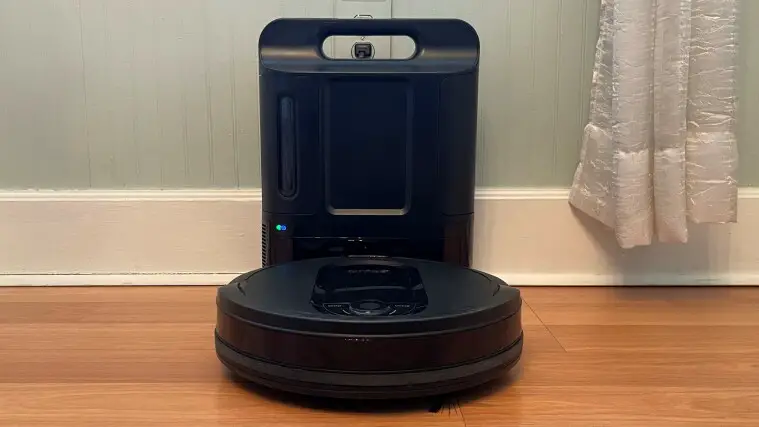
- The product is a robot vacuum cleaner with self-empty
base. - It has side brushes for effective cleaning.
- The robot can be controlled and monitored through the
SharkClean app. - Features of the app include UltraClean ModeTM, Spot Cleaning,
Scheduling, No-Go Zones, and Room Select. - The dust bin has a capacity to hold up to 60 days of
debris. - The robot is designed to easily climb over most
thresholds. - The robot’s ability to map your home can be affected if it is
moved or if the charging base is moved while the robot is
cleaning. - The robot may encounter various error codes which indicate
specific issues that need troubleshooting. - The battery level can be monitored through the battery icon on
the robot. - No-go zones can be set up using the mapping feature in the app
to prevent the robot from traveling beyond unsafe boundaries.
Product Usage Instructions:
- Prep the robot by setting up the side brushes.
- Set up the self-empty base by placing it on a bare floor
against the wall. - Charge your robot for approximately 6 hours using the charging
base. - Prep your home by ensuring there are no obstacles or hazards
that may interfere with the robot’s cleaning. - Download the SharkClean app to unlock additional features and
control options for your robot. - Regularly check the fill level of the dust bin and empty it
when necessary. - Avoid moving the robot or the charging base while the robot is
cleaning to maintain accurate mapping of your home. - If you encounter any issues, refer to the troubleshooting
section of the user manual or contact customer support. - Ensure that no hands or objects are inserted into any openings
in the dock or robot.
STEP 1
PREP THE ROBOT ……….Side Brushes……….
SETUP
STEP 2 SET UP THE SELF-EMPTY BASE
· Remove protective film from robot and base. · Attach the side brushes to the posts on the
bottom of the robot.
STEP 3 CHARGING YOUR ROBOT
6h
First Charge INDICATOR
3 ft.
3 ft.
Place
5 ft.
base on
bare floor
against the
wall.
· Find a permanent location for the base in a central area with a strong Wi-Fi signal.
· Remove any objects that are closer than 3 ft. from either side of the base, or closer than 5 ft. from the front.
· Plug in the base. The Base Power Indicator Icon on the top right side of the base will illuminate when the base has power. Make sure the power switch on the back of the base is in the (I) ON position.
STEP 4 PREP YOUR HOME
· Place robot on base to charge for 6 hours.
· When the robot is properly aligned with its BACK against the base, the Charging Icon on the top right side of the base will illuminate and the Battery icon on the robot will illuminate.
· Make sure the robot is properly aligned on the base.
· TO TURN ON ROBOT: Place robot on base or press and hold the CLEAN button for 5 to 7 seconds until the indicator lights turn on.
· Before cleaning, clear cords and remove small obstacles like clothing or toys that are less than 3.5″ tall.
· Open interior doors in rooms you want your robot to clean.
STEP 5
DOWNLOAD THE SHARKCLEAN APP TO UNLOCK YOUR BEST CLEAN
App Features
UltraClean ModeTM Spot Cleaning Scheduling No-Go Zones Room Select
NOTE: For more information on connecting your robot, see back page.
LIVING WITH YOUR ROBOT
Questions? For how-to videos, FAQs, troubleshooting, and tips & tricks, call 1-888-228-5531 for robot support or visit: sharkclean.com/AIRobotSE
CHECK BASE FILL LEVEL
DOORWAYS AND THRESHOLDS
The dust bin is designed to hold up to 60 days of debris. During initial use, you may have to empty it more frequently while the robot finds more debris than usual. Check the fill level regularly to know when to empty.
AVOID MOVING THE ROBOT OR BASE
Your robot can easily climb over most thresholds, but if one is higher than 0.75″, set up a no-go zone in the app to block it off.
CAN’T CONNECT TO WI-FI?
!
While your robot is cleaning, DO NOT pick it up and move it, or move the charging base–this will impact the robot’s ability to map your home.
Restart your phone · Turn off phone, wait a few minutes, then turn it back on
and connect to Wi-Fi.
Reboot your robot · Make sure the power switch on the back of the base is
in the ON position. · Take robot off base and press and hold down the
CLEAN button on the robot for 12 seconds. Turn your robot back on by placing it on the base.
Reboot your router · Unplug the router power cable for 30 seconds, then
plug it back in. Allow several minutes for your router to reboot completely.
TROUBLESHOOTING
TROUBLESHOOTING
ERROR CODE
ERROR #
SOLUTION
CLEAN (RED) + ! (RED) alternating or
CLEAN (WHITE) + ! (RED) flashing
Blockage in brushroll. Remove any debris from 2 around and inside the brushroll so that it can spin freely.
Side brush is stuck.
DOCK (RED) + ! (RED) flashing
2
Remove any debris from around the side brushes so
they move freely.
A drive wheel is stuck.
CLEAN (RED) + DOCK
Clean the wheels and
(RED) + ! (RED)
2 remove any debris
flashing
wrapped around the axles
so they can move freely.
DOCK (RED) flashing
Front bumper may be
6
jammed. Clean the bumper and make sure it moves in
and out freely.
Cliff sensor error. Move
CLEAN (RED) + DOCK (WHITE) flashing
7
your robot to a new location and clean its cliff
sensors.
Robot may be stuck on an
CLEAN (RED) flashing
10
obstacle. Move robot to a new location on a level
surface.
ERROR CODE
ERROR #
SOLUTION
Battery is critically low and
needs recharging. Please
pick up your robot and place
BATTERY ICON (RED) flashing
24
it on the base. Make sure the charging indicator on the top right side of the base is
illuminated to confirm your
robot is placed on the base
correctly.
DOCK (RED) FLASHING + ! (RED) solid
Blockage in dust bin. Check base and robot dust bin for 26 clogs. Clear any debris and reinstall the dust bin, ensuring that it clicks into place.
WARNINGS
To minimize the risk of the robot traveling beyond an unsafe boundary (stair/cliffs edges, fireplaces, water hazards), establish these areas as “no-go zones” using the mapping feature in the SharkCleanTM mobile app. Upon setting the boundary, run the vacuum and visually confirm that the settings effectively prevent the robot from passing beyond the set boundary. Adjust settings as necessary. DO NOT put hands into any opening in the dock or robot.
© 2021 SharkNinja Operating LLC. SHARK is a registered trademark of SharkNinja Operating LLC. SHARKCLEAN and ULTRACLEAN MODE are trademarks of SharkNinja Operating LLC.
RV2502AE_QSG_E_MP_Mv12