Indigi
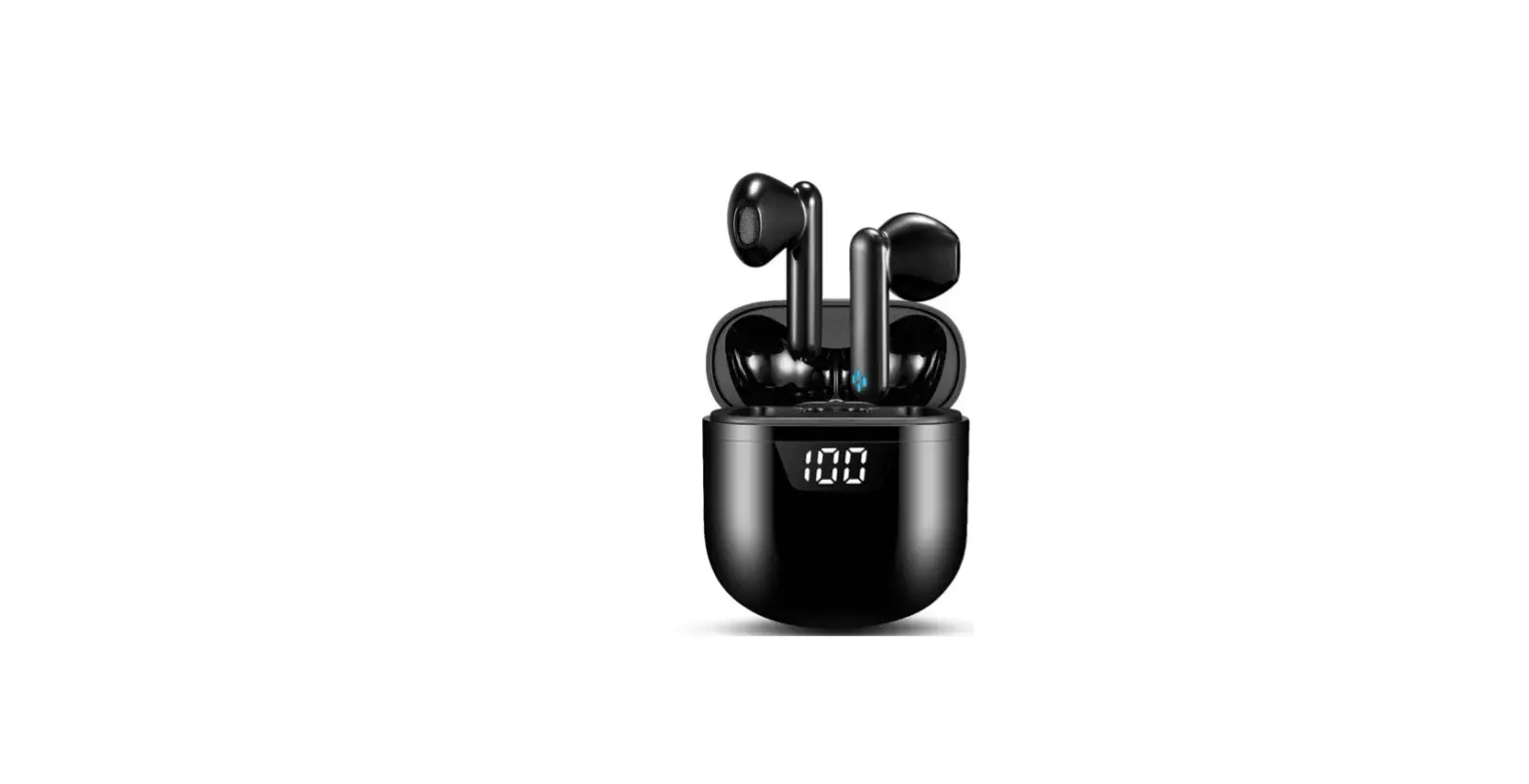
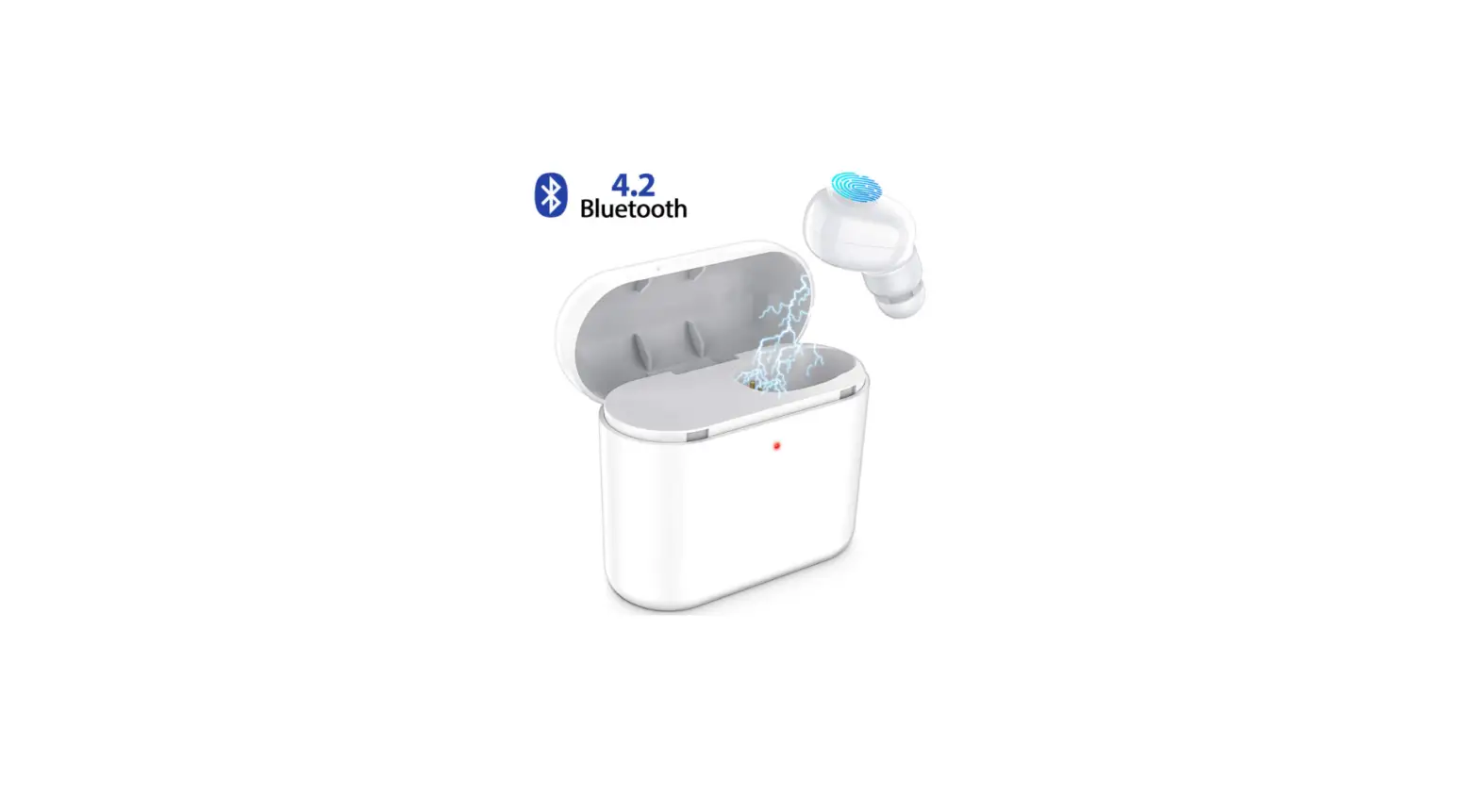
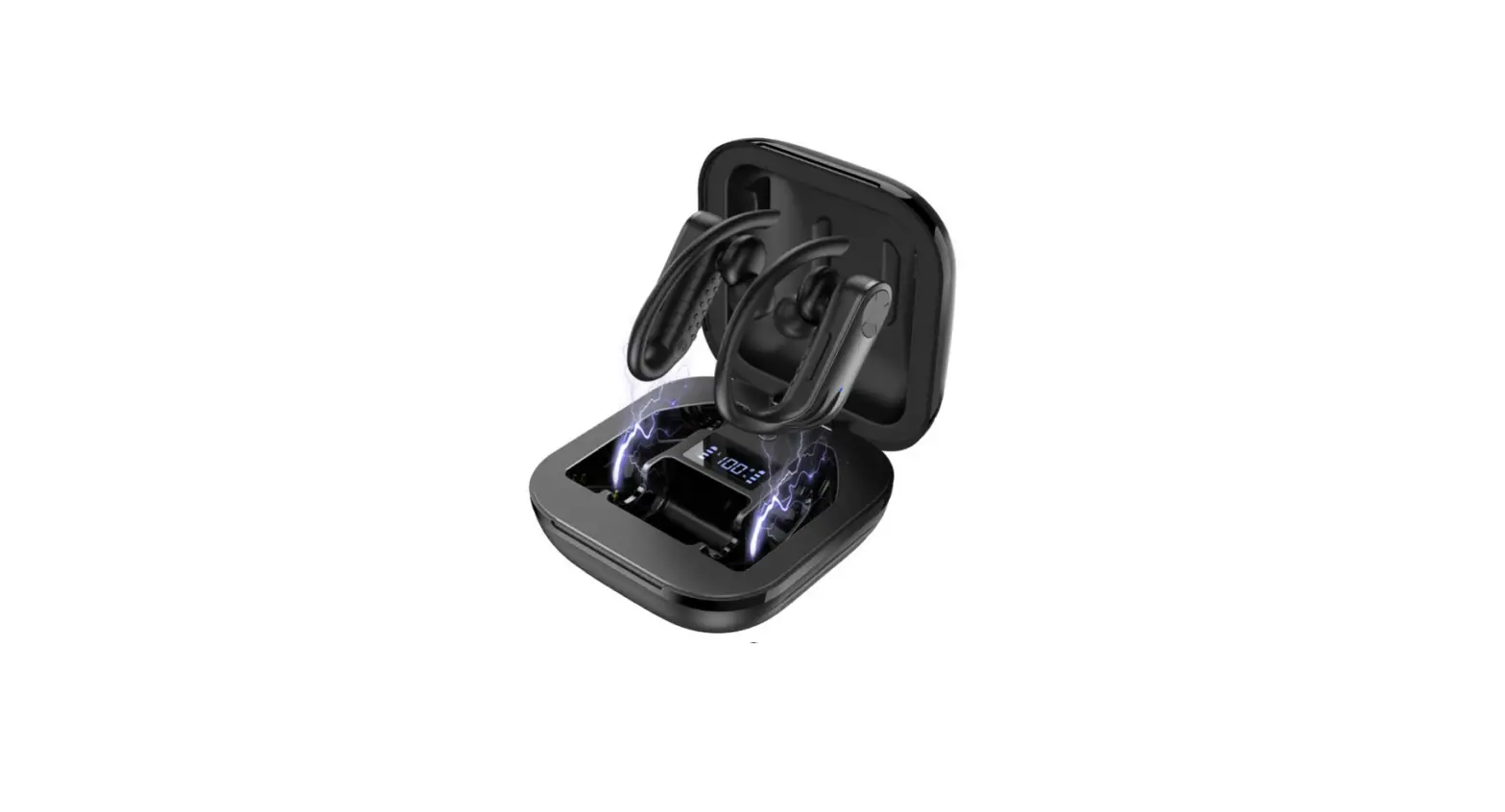
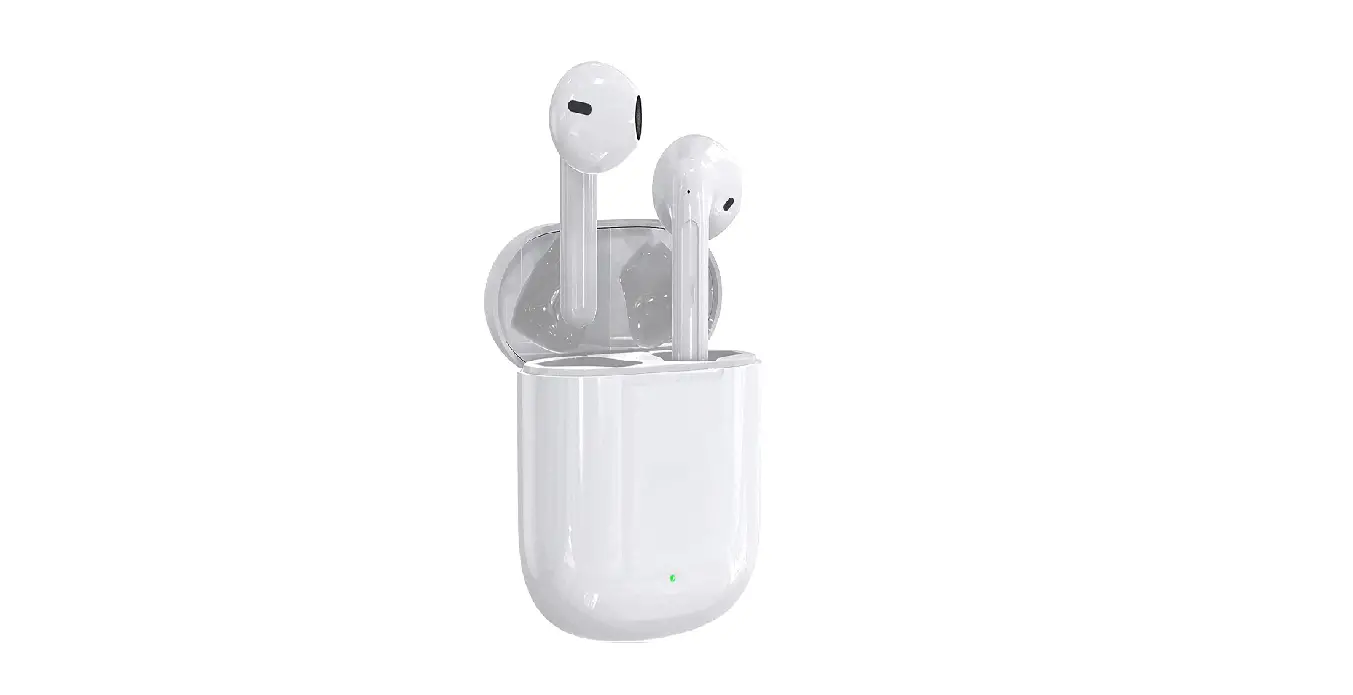
Great Gift Idea! Total Wireless Universal Bluetooth Earphone EarBuds
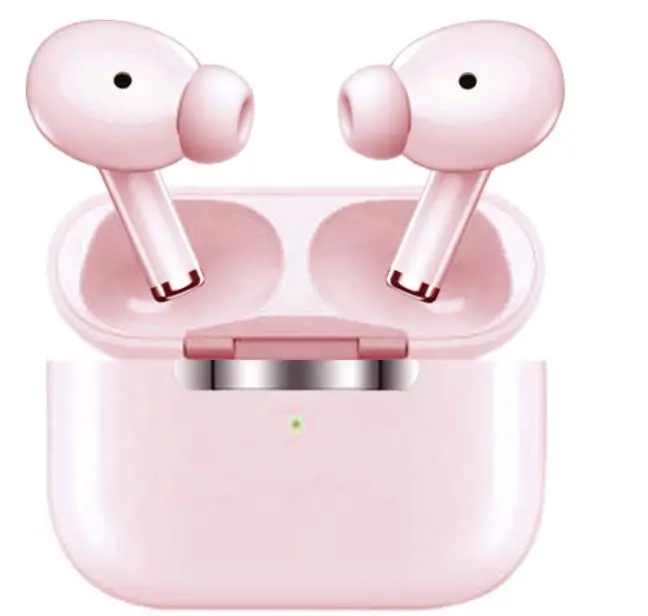
Specifications
- DESIGN: Universally Compatible, Lightweight Design
- WIRELESS VERSION: Bluetooth V 5.0+EDR
- CAPACITY: Up to 5hrs of use & 100hr standby
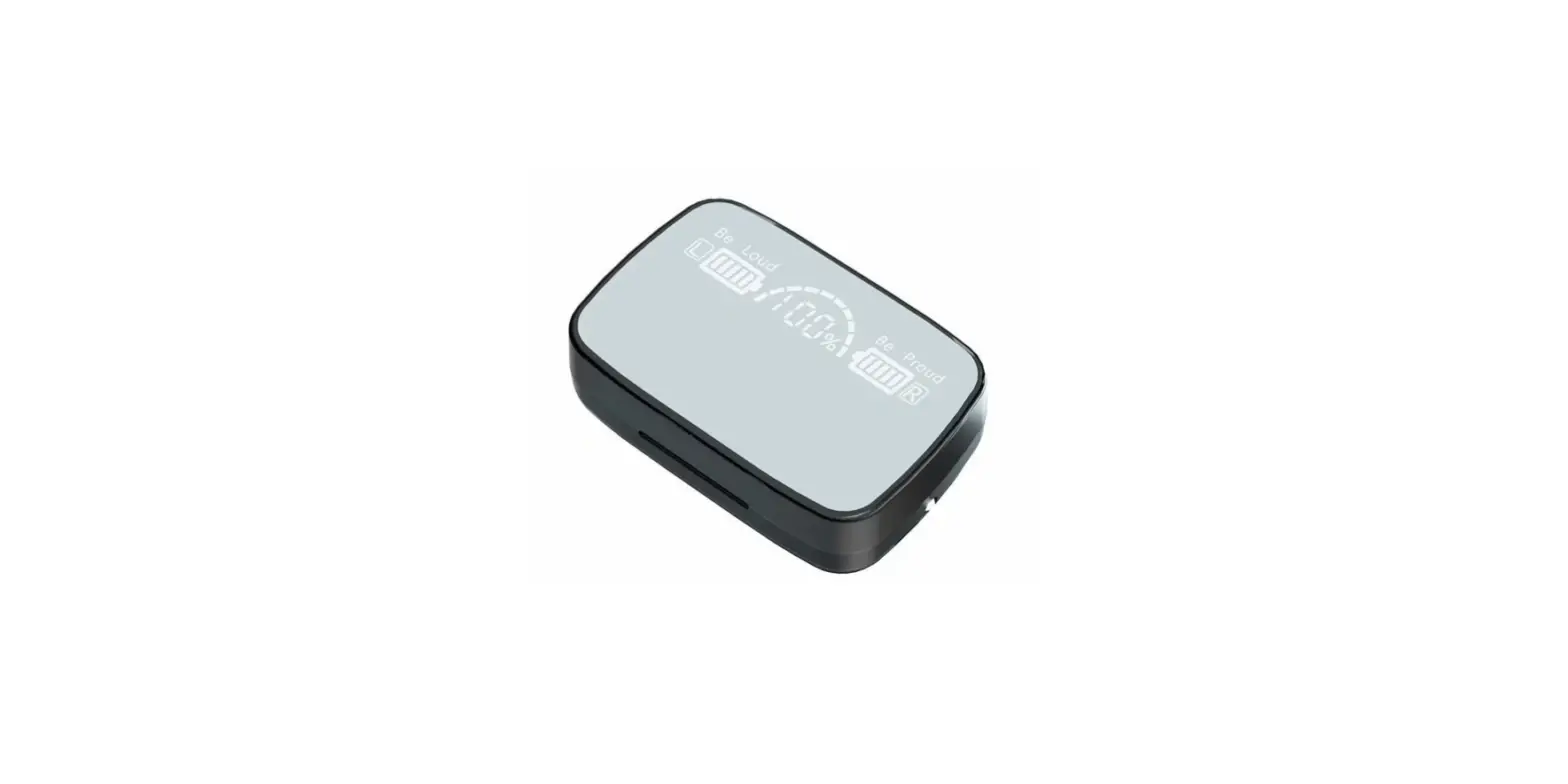
- FEATURES: Smart Touch controls, Automatic Pairing, Magnetic Charging Case, LED Charge Indicator, Noise Cancelling Silicone Ear Tips,
- BRAND: Indigi
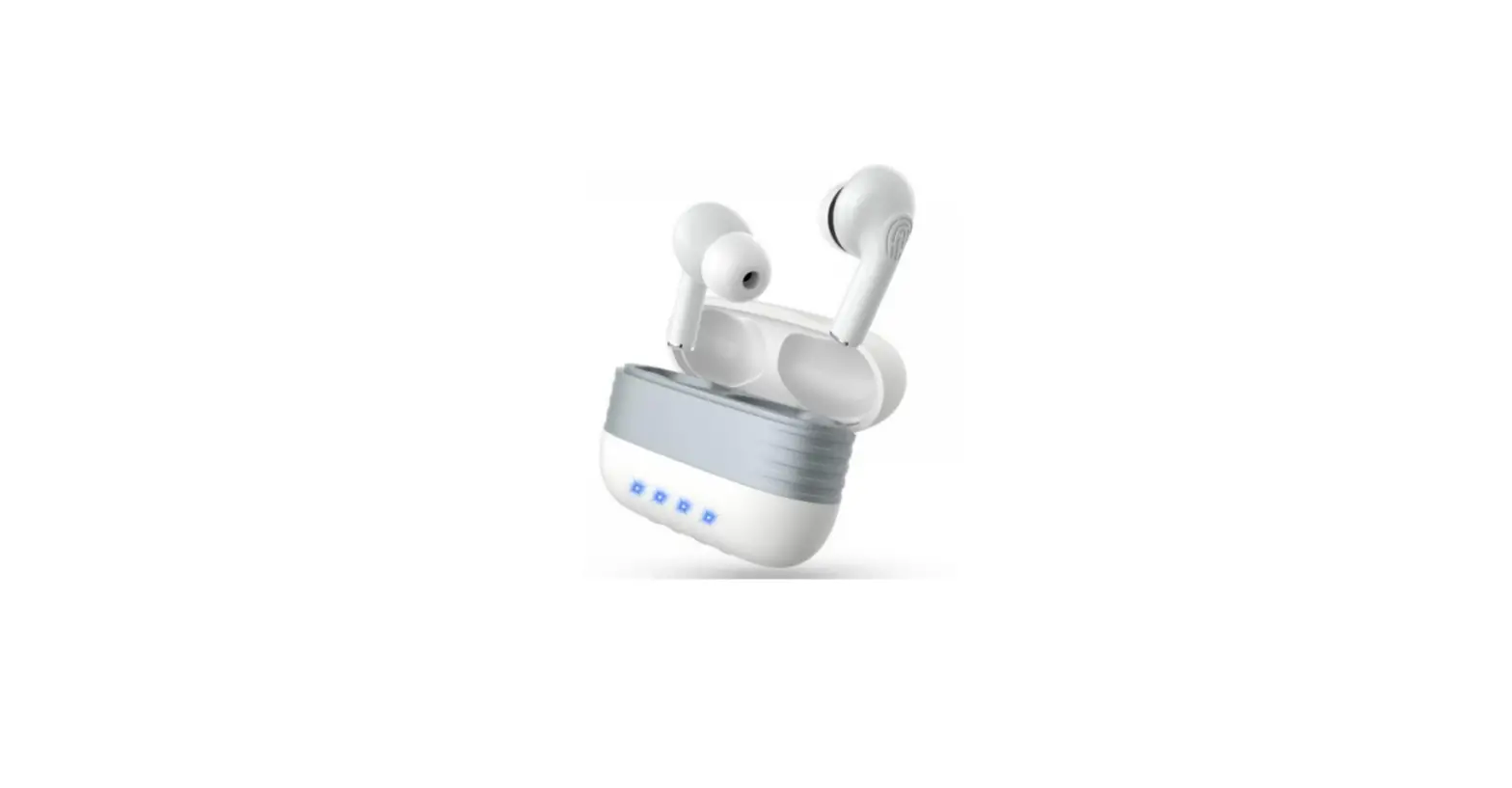
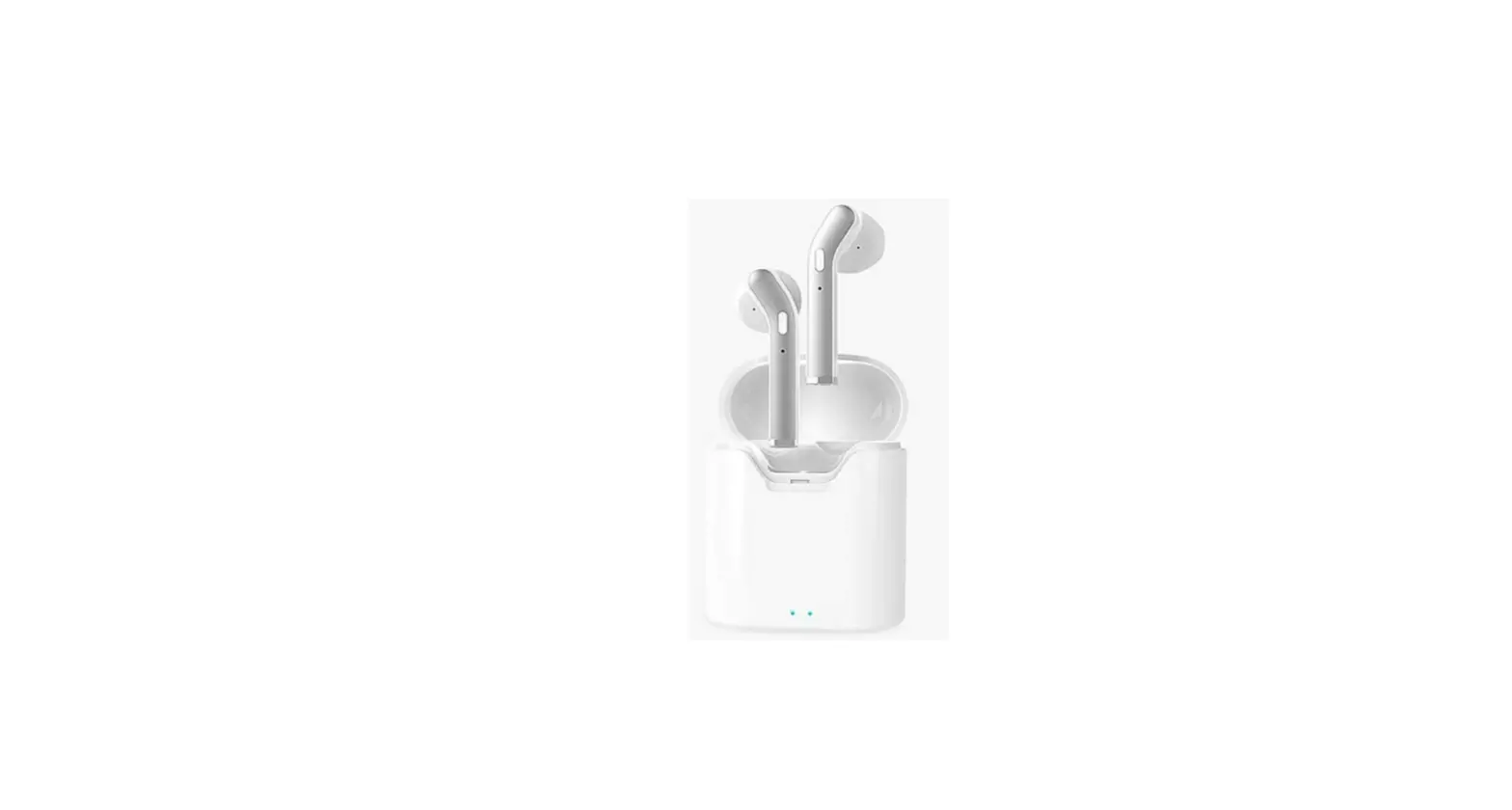
- COLOR: White
Introduction
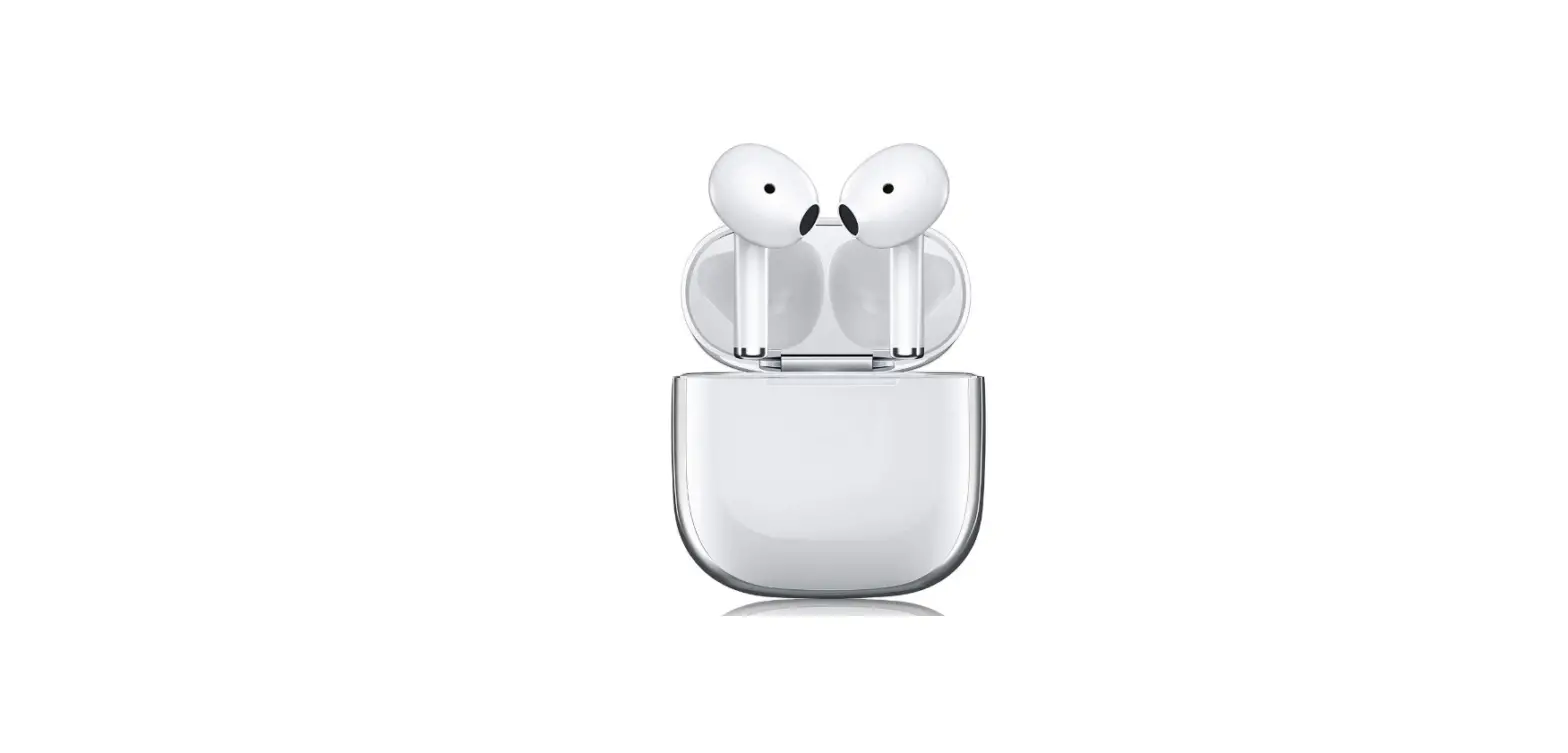
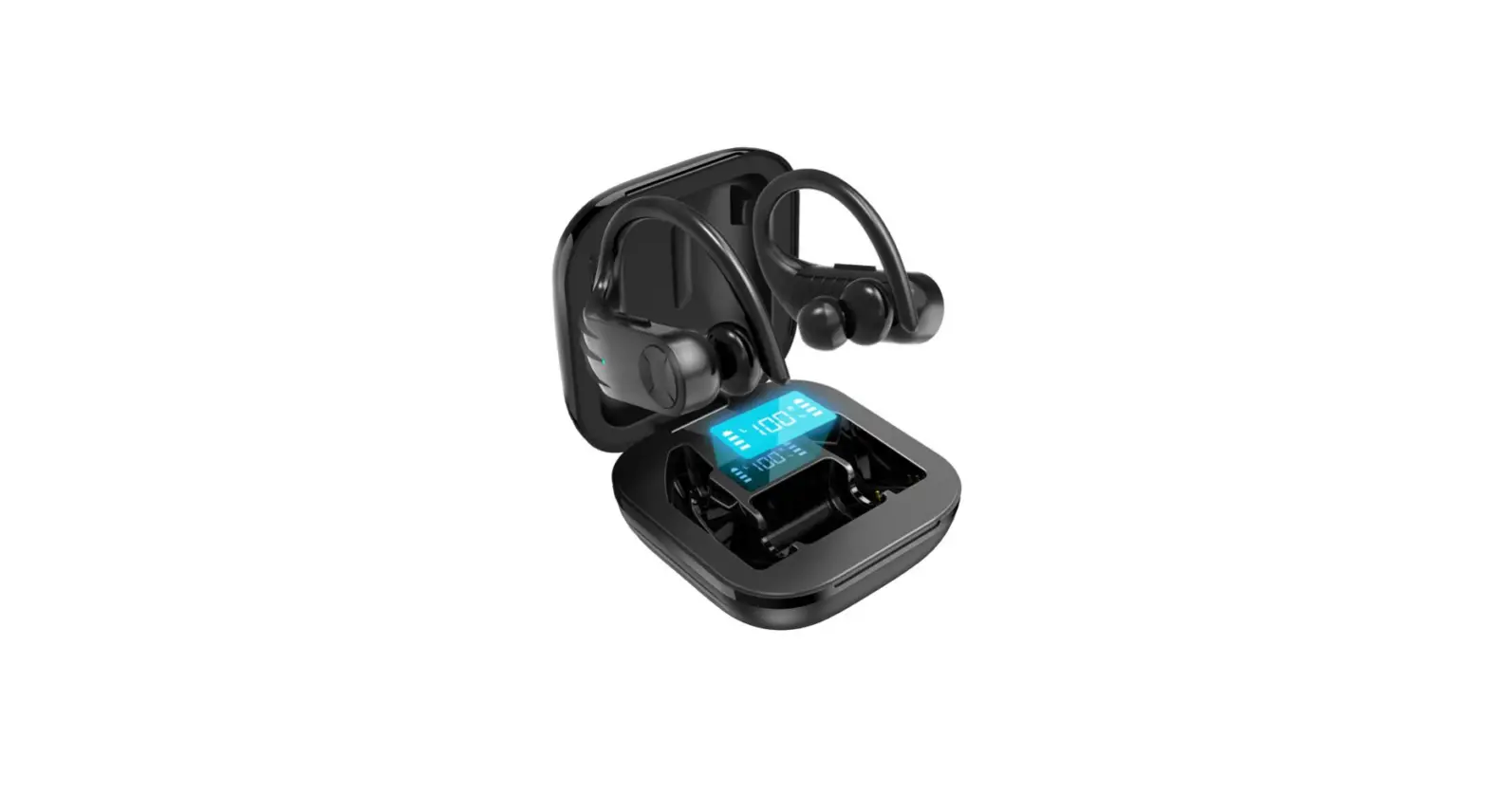
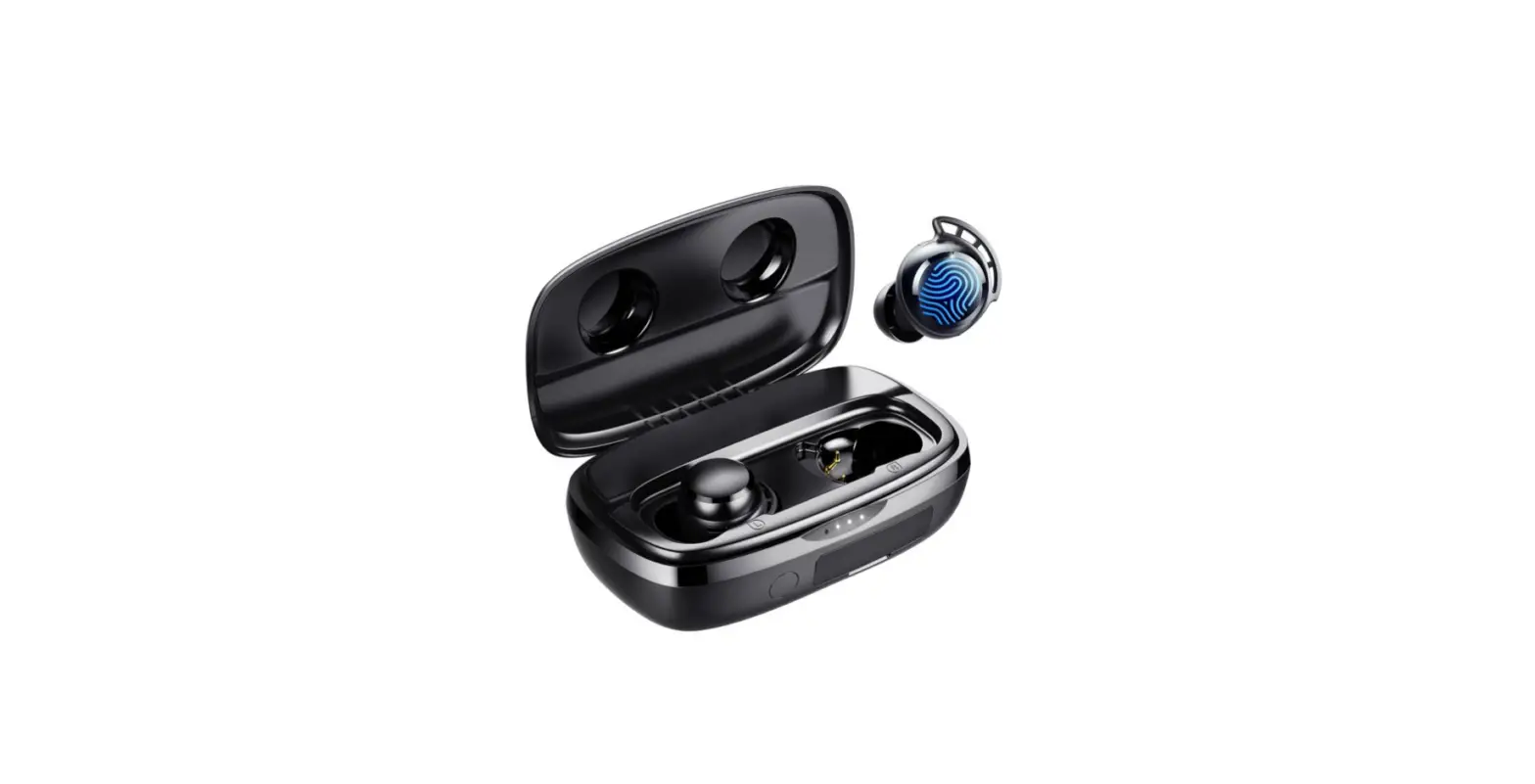
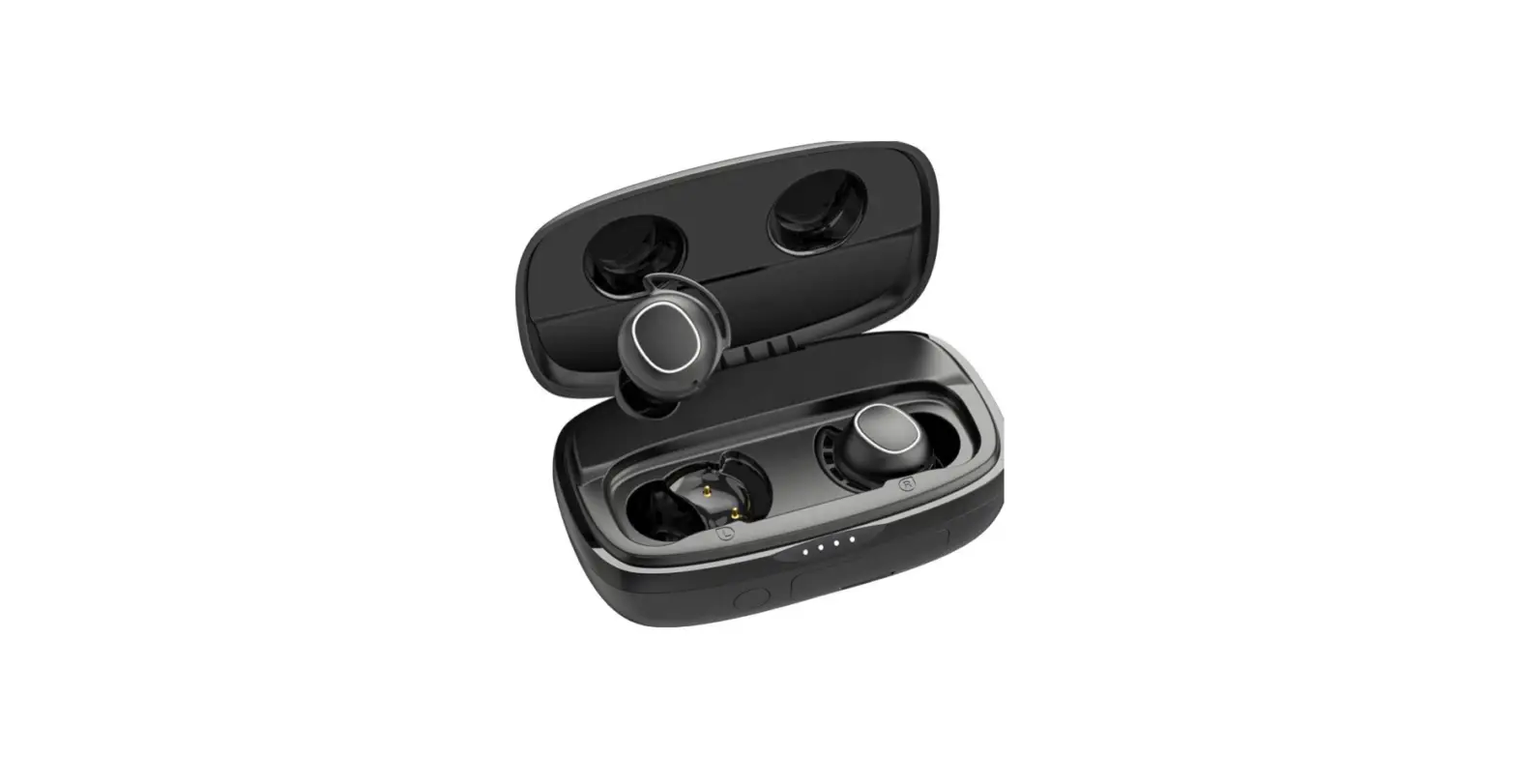
The earbuds are small and built for comfort, weighing only 4 grams apiece and providing stability when jogging, riding, or exercising. It has Universal Compatibility – Compatible with the newest iPhone 11 pro/ 11 / X / XR / XS / XS Max / 8 / 8 Plus / Android Smartphones or Any device with Bluetooth True HD HiFi Sound. The 500mAh Rechargeable Battery in the Quick Charge Box allows you to charge your headphones up to four times.
WHAT’S INCLUDED
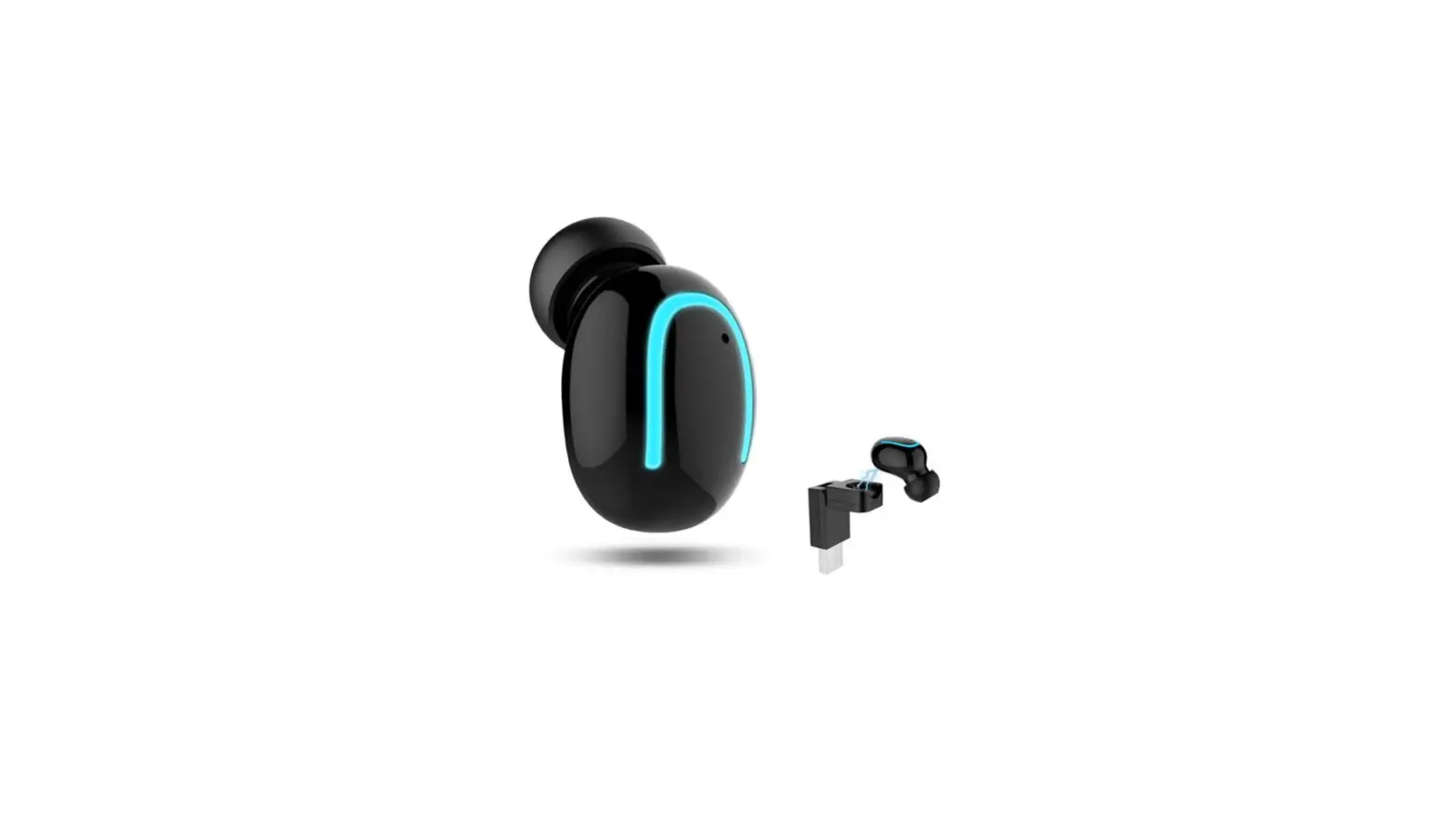
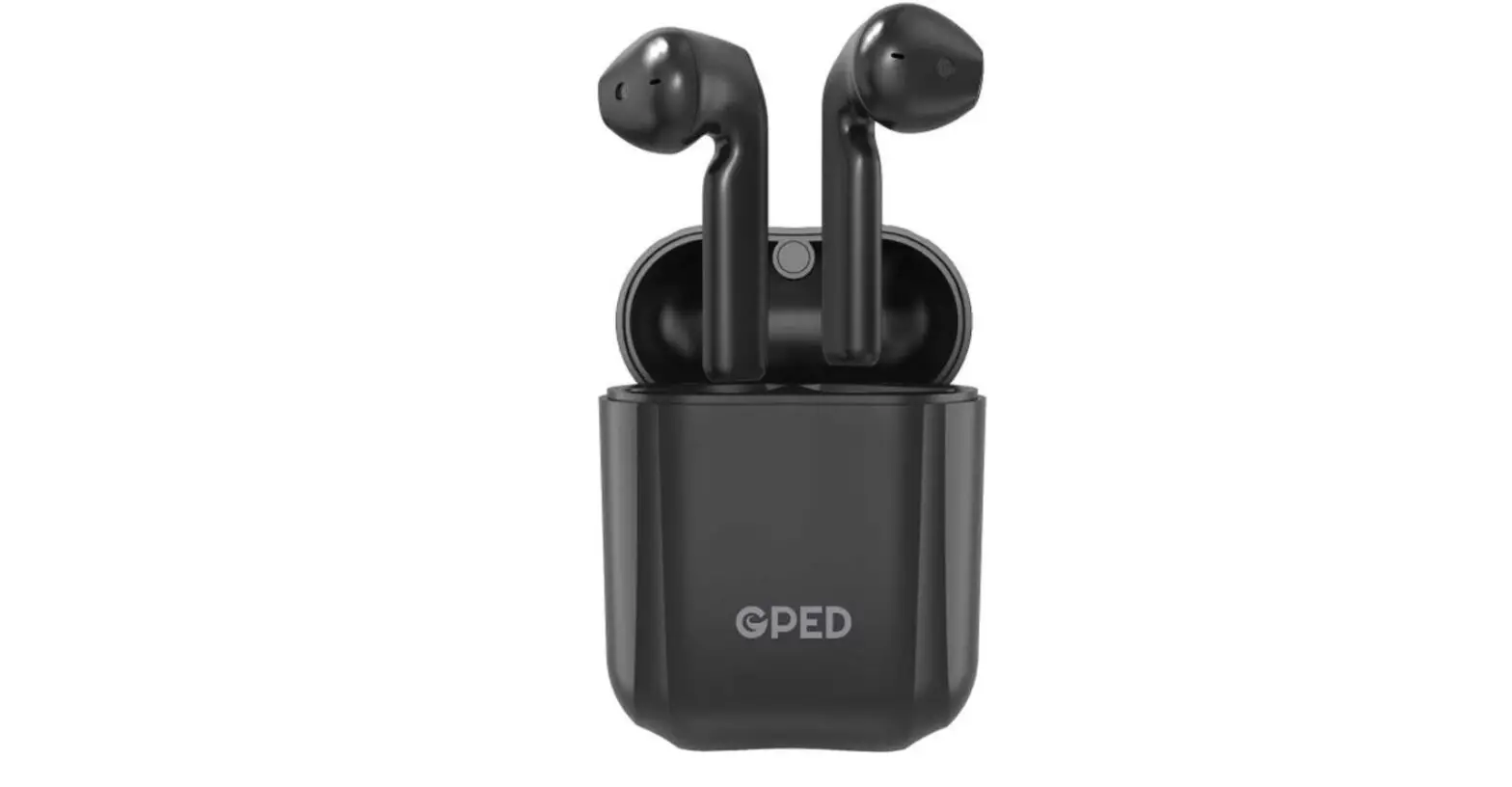
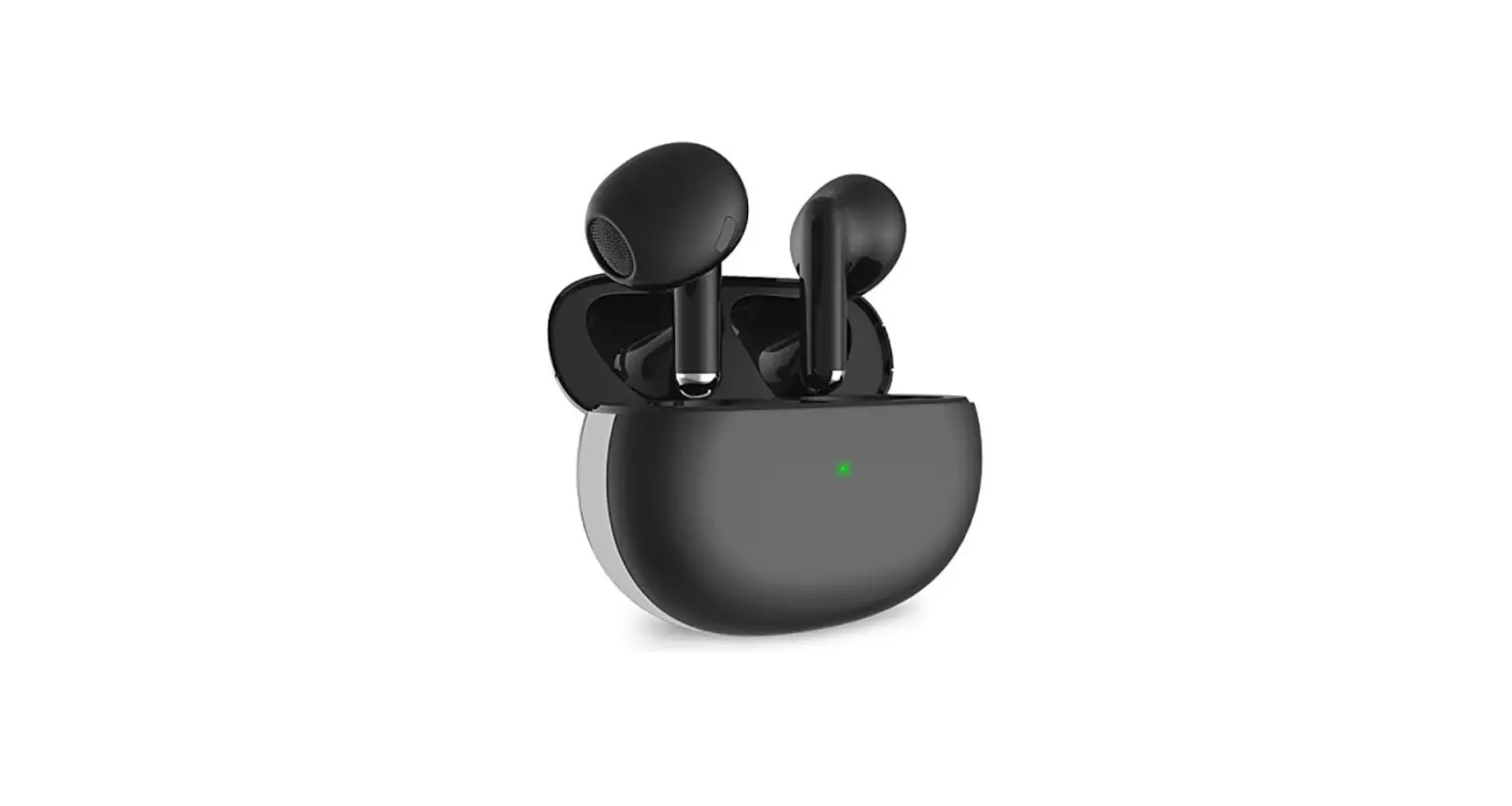
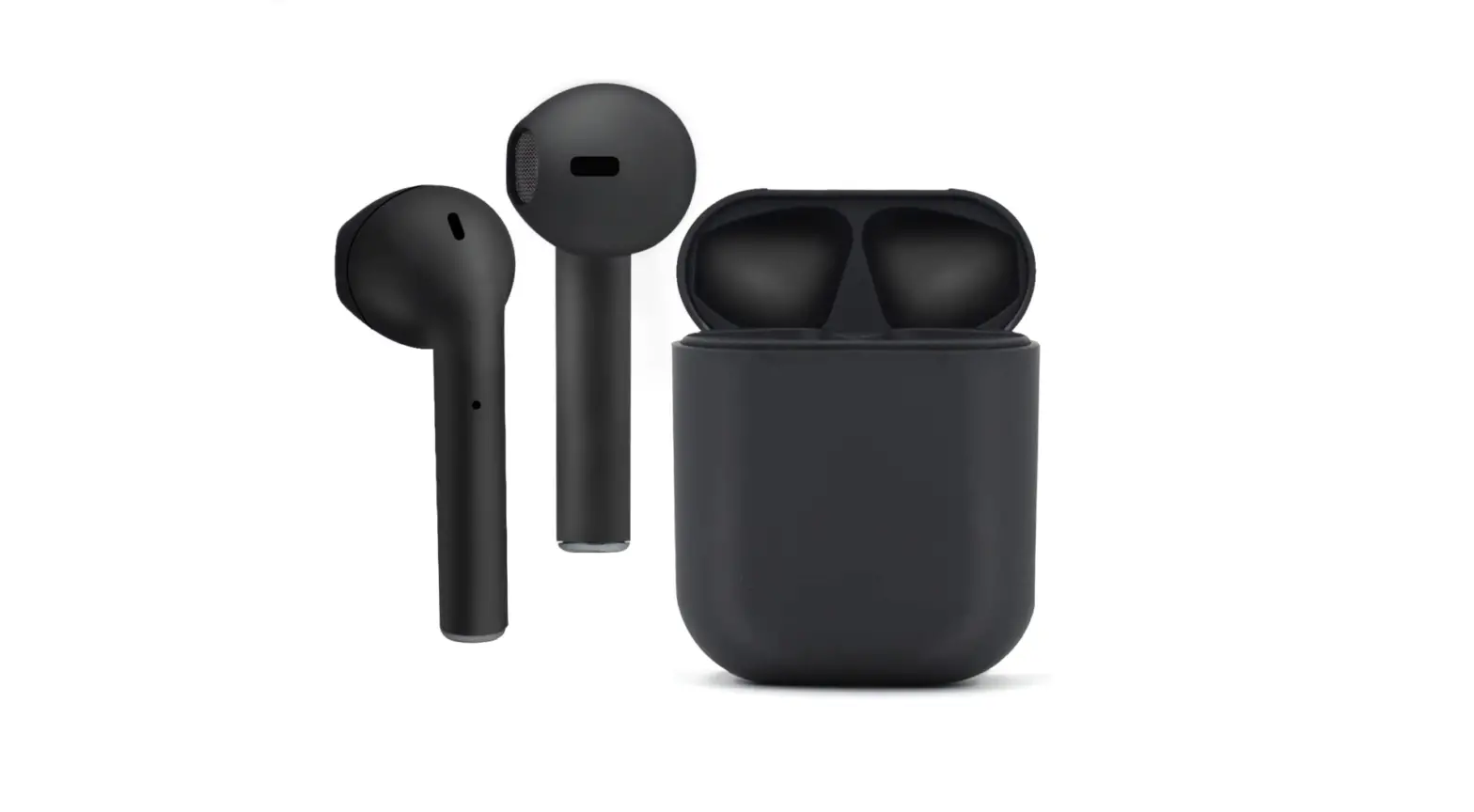
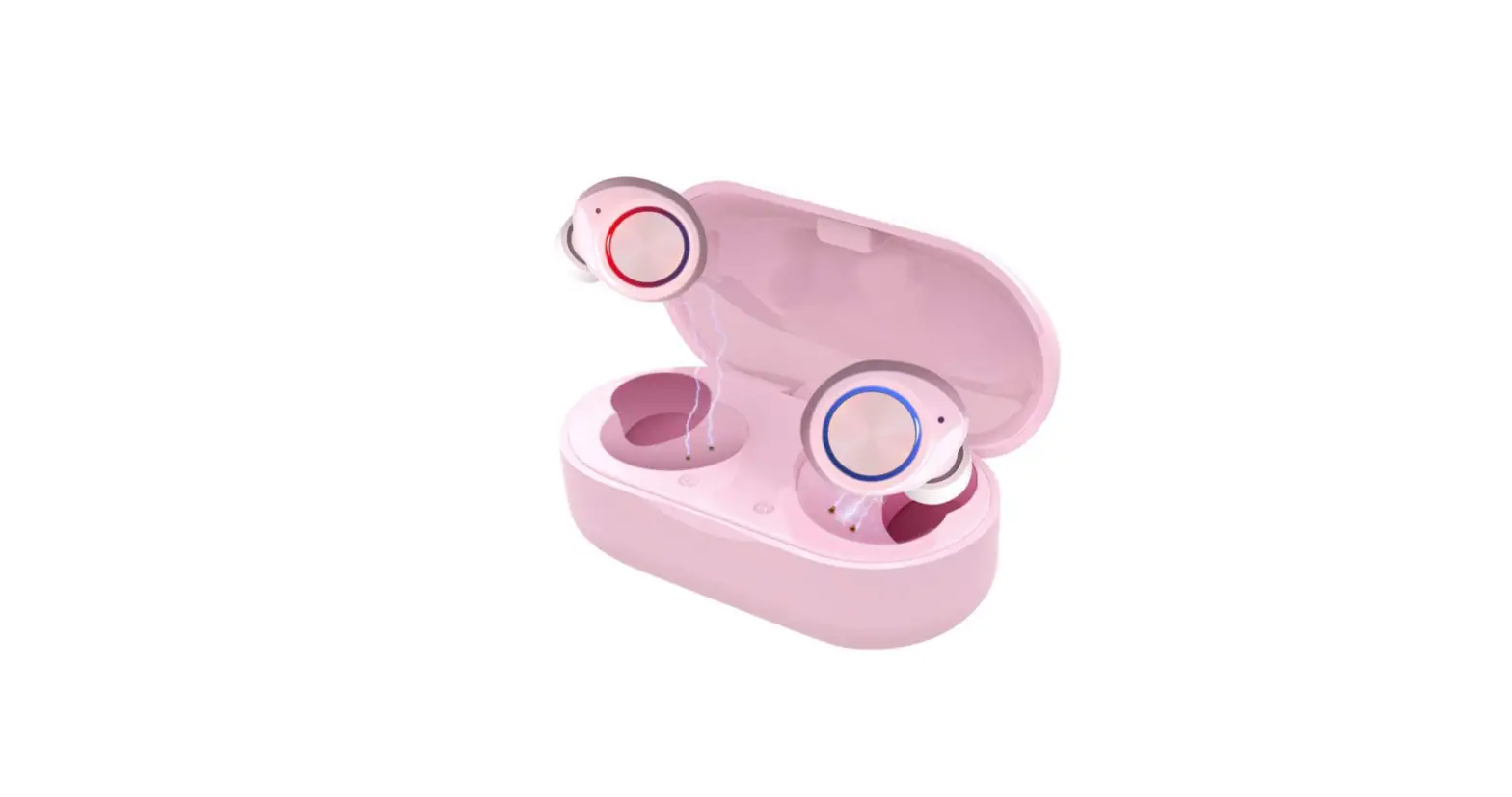
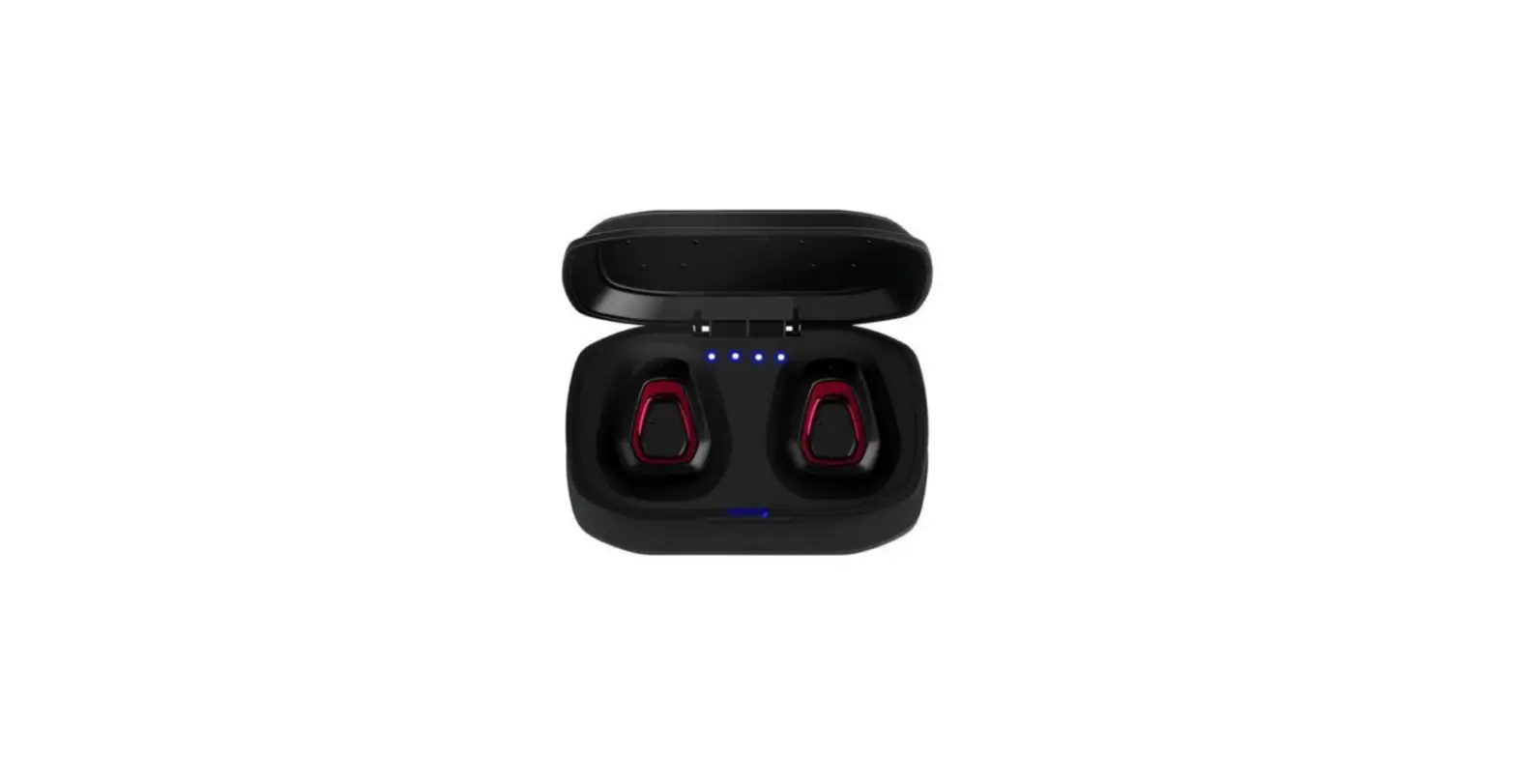
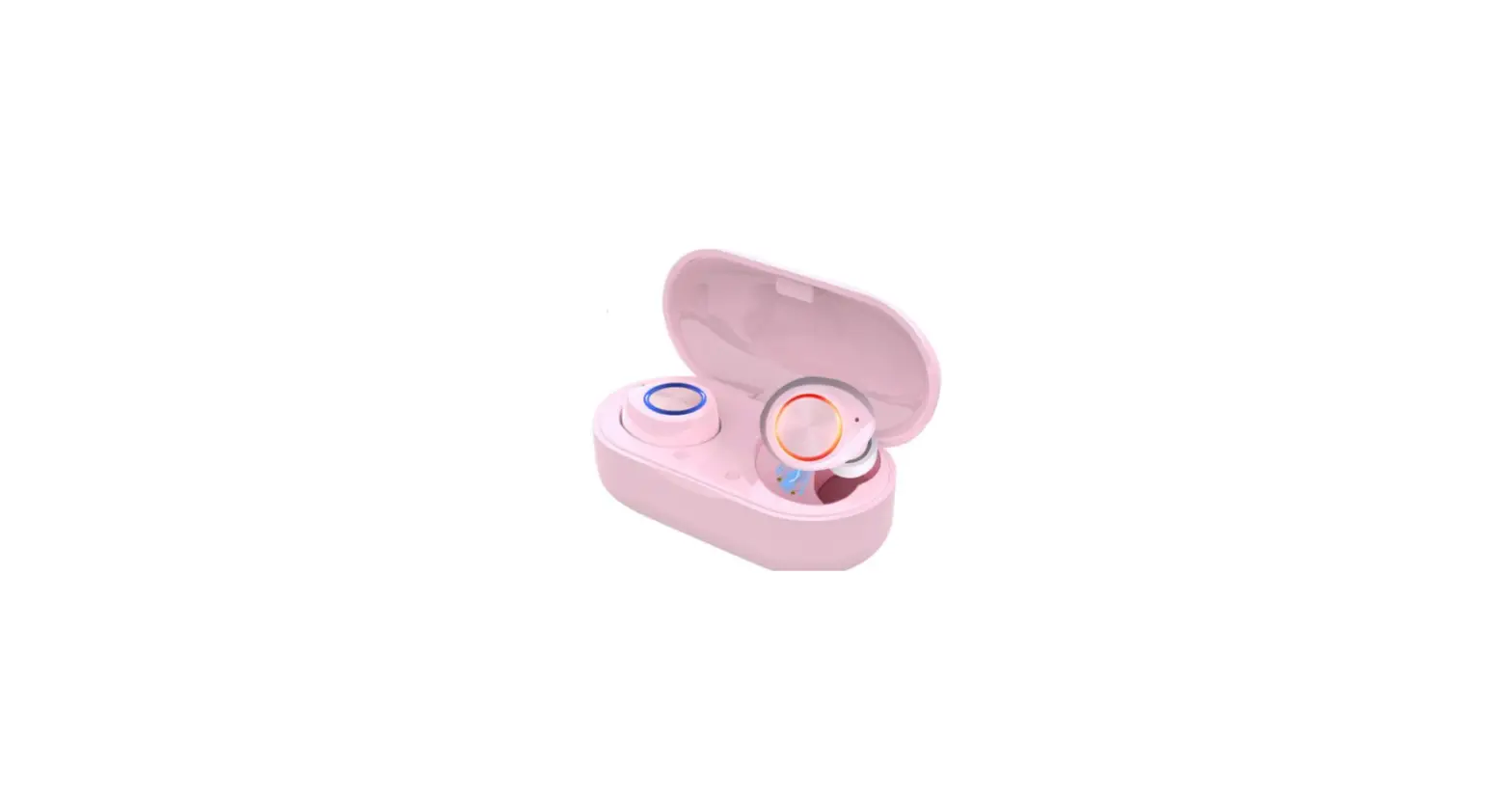
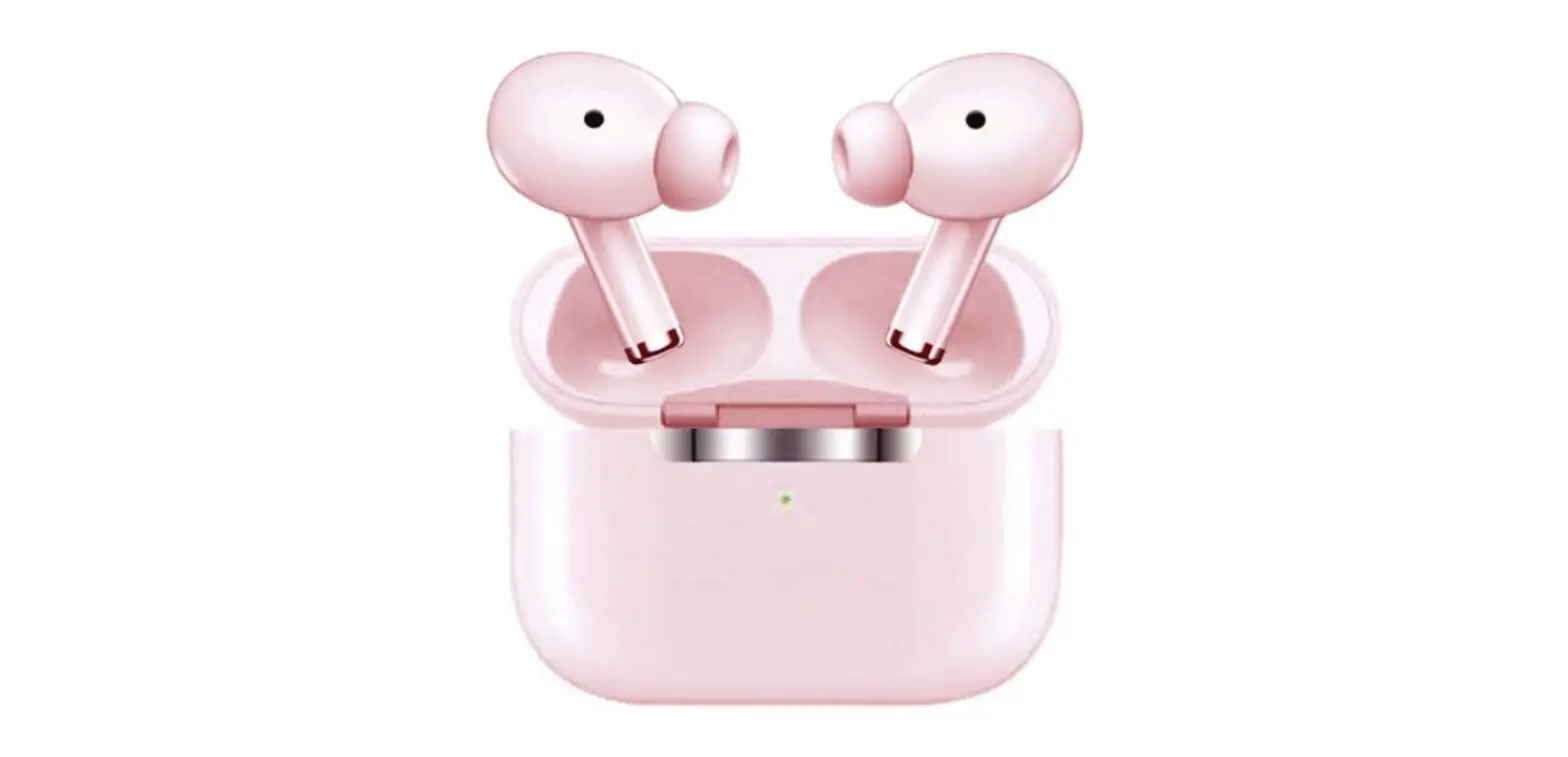
- 2x EarPods (Left and Right)
- 1x USB Charging Cord
- 1x Manual
- 1x Charging Dock / Carrying Case
HOW TO CONNECT TO ANDROID
- To begin, go to Settings…
- Then choose Connections.
- Then choose Bluetooth…
- Then, in the top-right corner of your screen, hit Scan.
- Then, on your headphones, hit and hold the power button.
- Finally, locate and tap your headphones.
HOW TO PAIR
Select the headphones from the list. Pull down the shade from the top of your Android smartphone and long-press the Bluetooth symbol. It will immediately take you to the Bluetooth menu, where you may switch it on and then search for devices. Select the headphones you want to link by tapping their name.
HOW TO ACTIVATE GOOGLE ASSISTANT ON YOUR WIRED HEADPHONES
- Say “Hey Google, open Assistant settings” on your Android phone or tablet. Alternatively, go to Assistant’s settings.
- Wired headphones are selected under Devices.
- Turn on Use Google to assist you.
HOW TO CONNECT NOISE FROM EARBUDS TO PHONE
- On your phone, press and hold the Bluetooth icon.
- Bluetooth should be turned on.
- Make sure your phone and Bluetooth headphones are within a 1-meter range of one another.
- For around 7 seconds, press and hold the multifunction button on your Bluetooth headphone.
- You’ll see that the LED light begins to flash.
- Choose Tune ELITE.
- On the pop-up, tap Pair.
HOW TO RESET THE CONNECTION
- Remove the headset from your phone’s associated devices list.
- After you’ve removed everything, turn your phone off and on again. This clears the Bluetooth stack in the phone’s Bluetooth software.
- Re-pair your phone with the headset.
Frequently Asked Questions
- What exactly does the MFB button do?
The mfb stands for multi-function button, which may be used to take calls, play or pause an audio track, and launch a voice command. The arrow on the front right side plays the next audio track, while the arrow on the rear right side allows you to restart or go back to the previous track! - Why won’t my Bluetooth connect?
Go to Settings > System > Advanced> Reset Options > Reset Wi-Fi, Mobile, and Bluetooth on an Android phone. To unpair all of your devices on iOS and iPadOS, go to Settings > Bluetooth, tap the info icon, then choose Forget This Device for each device, then restart your phone or tablet. - My Bluetooth headphones aren’t connecting to my phone.If your Bluetooth devices won’t pair, it’s probably because they’re out of range or not in pairing mode. Try rebooting your devices or having your phone or tablet “forget” the connection if you’re encountering persistent Bluetooth connection issues.
- On Bluetooth headphones, where is the power button?
On your earbuds, look for the Bluetooth activation button. It must be on the backside of one of the earbuds, or in another location, such as the cable if your earphones have one. For 3 to 5 seconds, press and hold the activation button. - Why won’t my phone recognize my earbuds?Examine the meshes in each earbud for debris. Brush all apertures carefully with a tiny, soft-bristled brush that is clean and dry to eliminate dirt. Re-plug your headphones firmly. Remove the case from your iOS device to ensure a secure connection.
- My Bluetooth headphones are connected, but they aren’t working.
If your Bluetooth headphones aren’t producing any sound, make sure the Media Audio option is enabled. Go to Settings and choose Bluetooth when wearing your Bluetooth headphones. Choose your Bluetooth headphones from the drop-down menu. Make sure Media Audio is switched on on the following screen. - Why aren’t my earphones working?
The headphone jack should be cleaned. This might be the source of the issue since dirt can obstruct the connection between the headphones and the port. If your headphone jack isn’t working, the first thing you should do is inspect it to determine how dirty it is. A torch might be useful in this situation. - What are your thoughts on MFB?
To answer an incoming call, press the MFB button or operate your phone. To end an ongoing call, press the MFB button or operate your phone. To reject an incoming call, press and hold the MFB button for 2 seconds. Press the MFB button on either earbud three times in paired mode. - How can I make a Bluetooth device link automatically?
By going to settings, Bluetooth, and choosing it, you should be able to locate your speaker (there should be a list of Bluetooth devices you have connected to previously). After you’ve tapped on the Bluetooth speaker to connect, switch it on after your device has attempted but failed to connect to it. - What does pairing mode entail?
By pairing, one Bluetooth device may interact with another Bluetooth device. The devices must be discoverable, which means they must transmit a Bluetooth signal that other devices can identify and connect to.