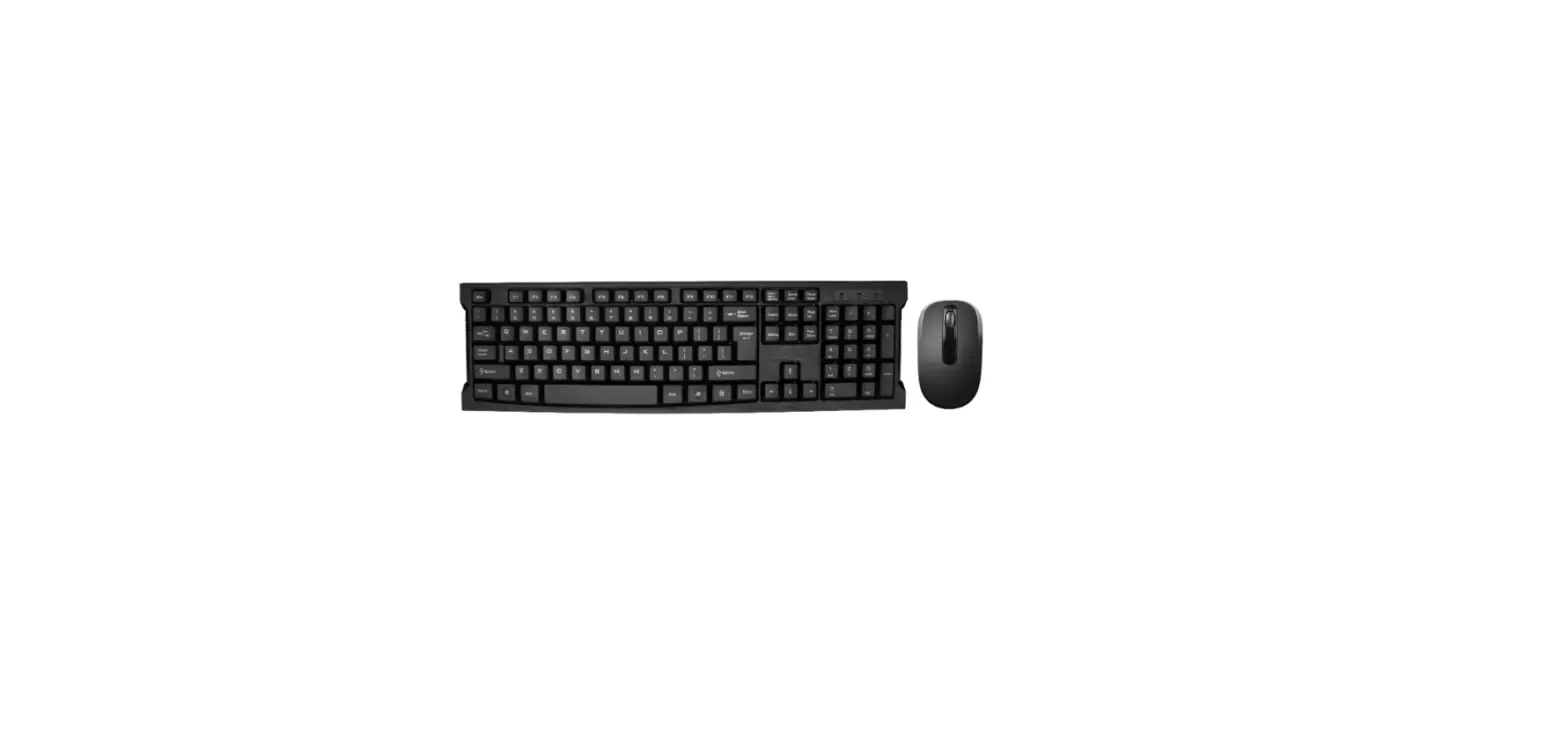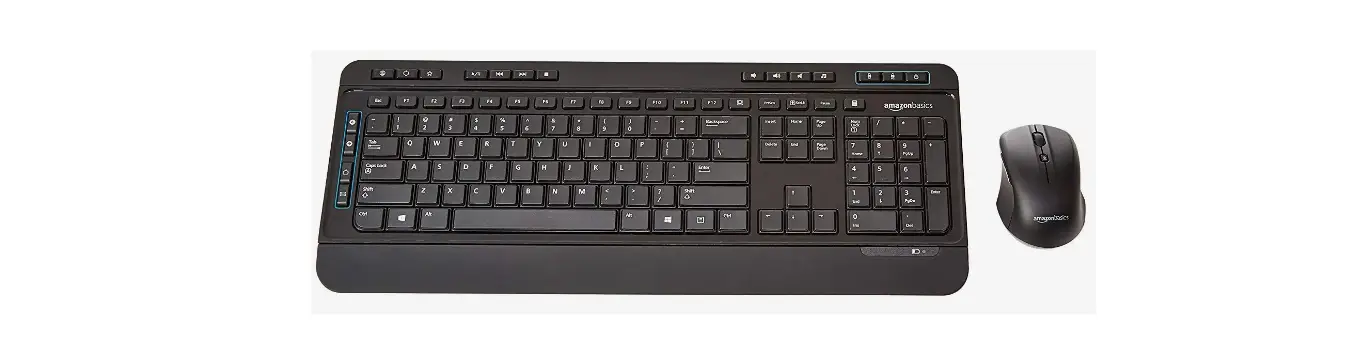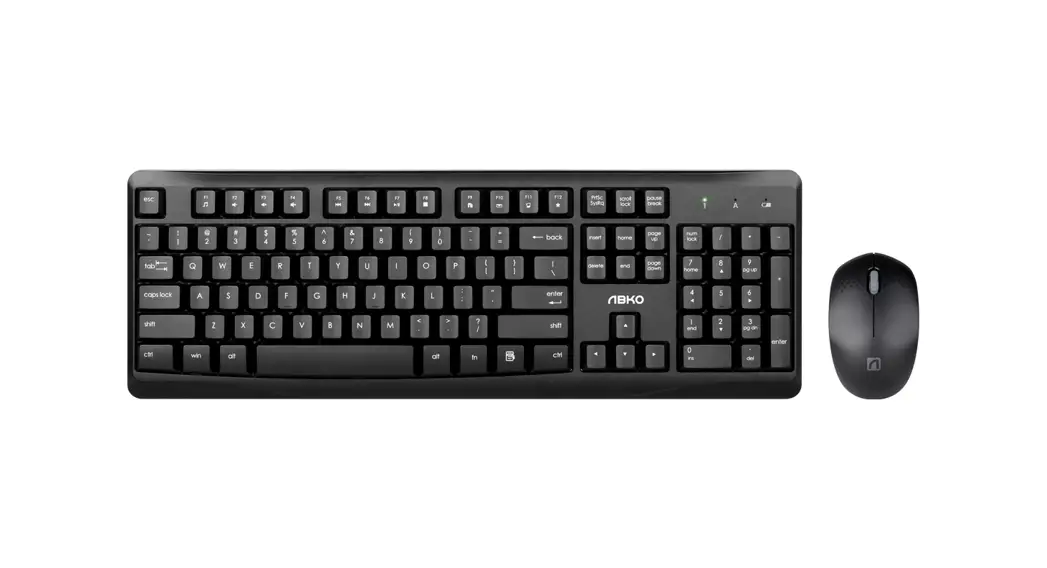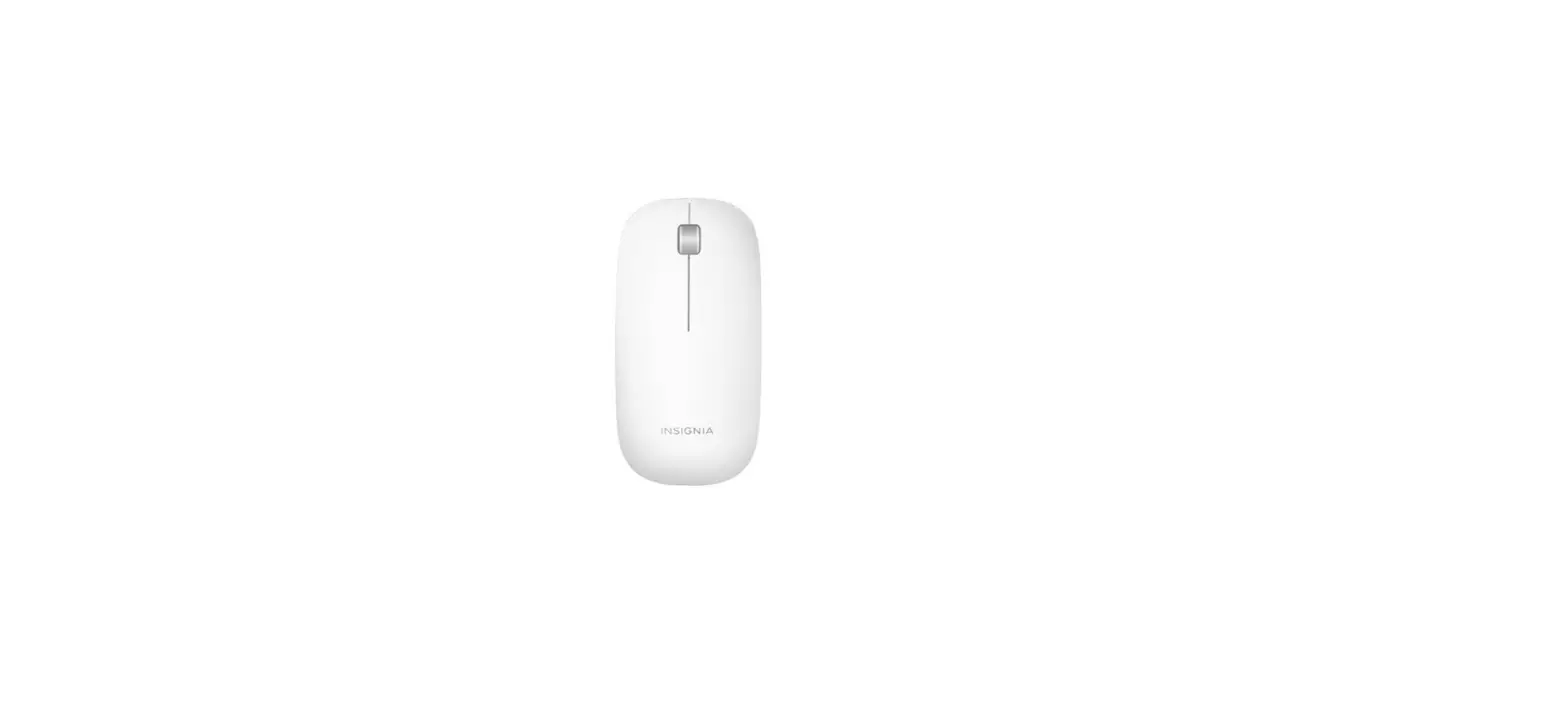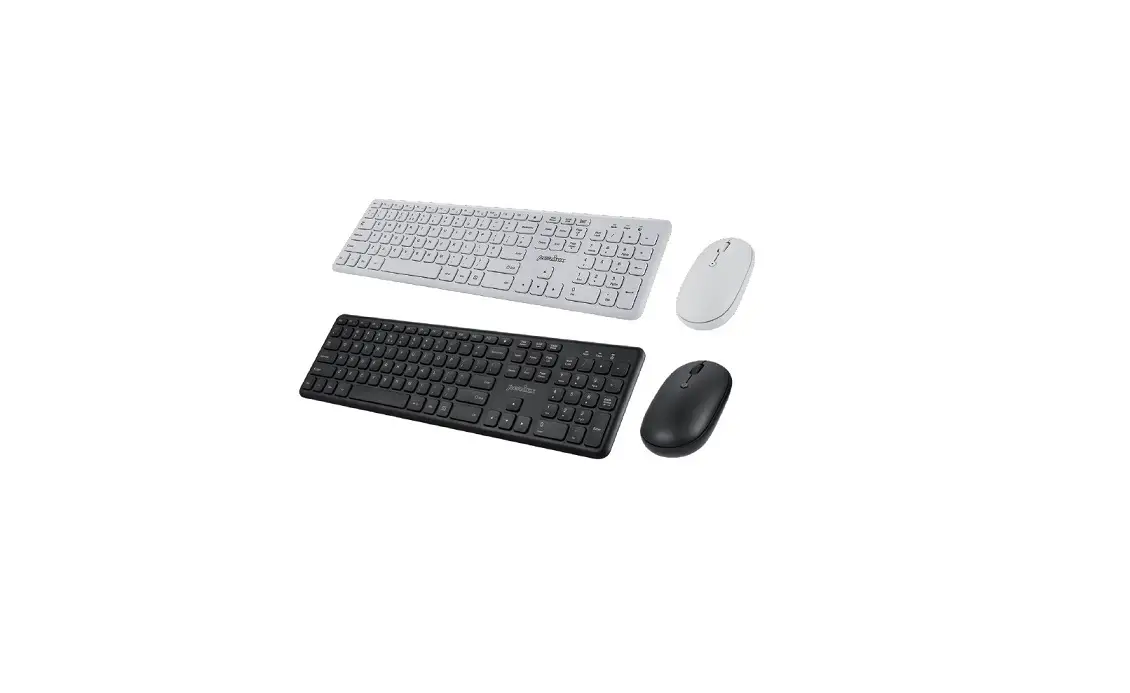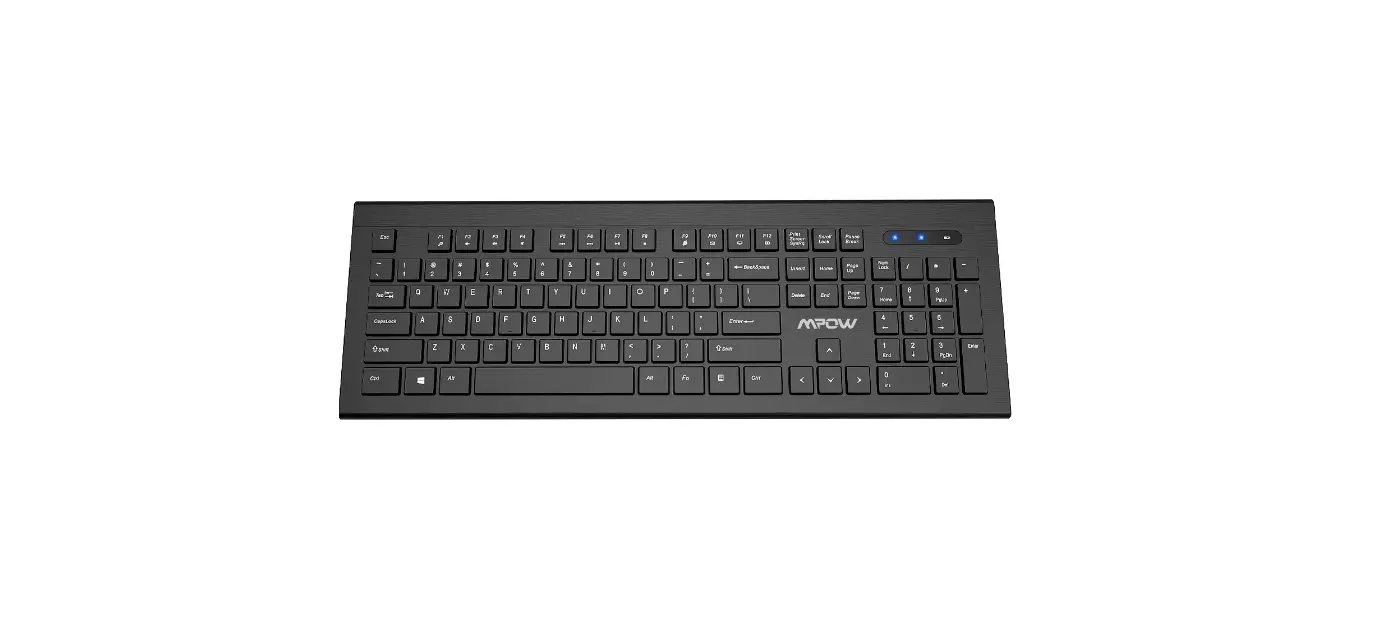

insignia NS-PNC7011 Wireless Keyboard and Mouse Combo
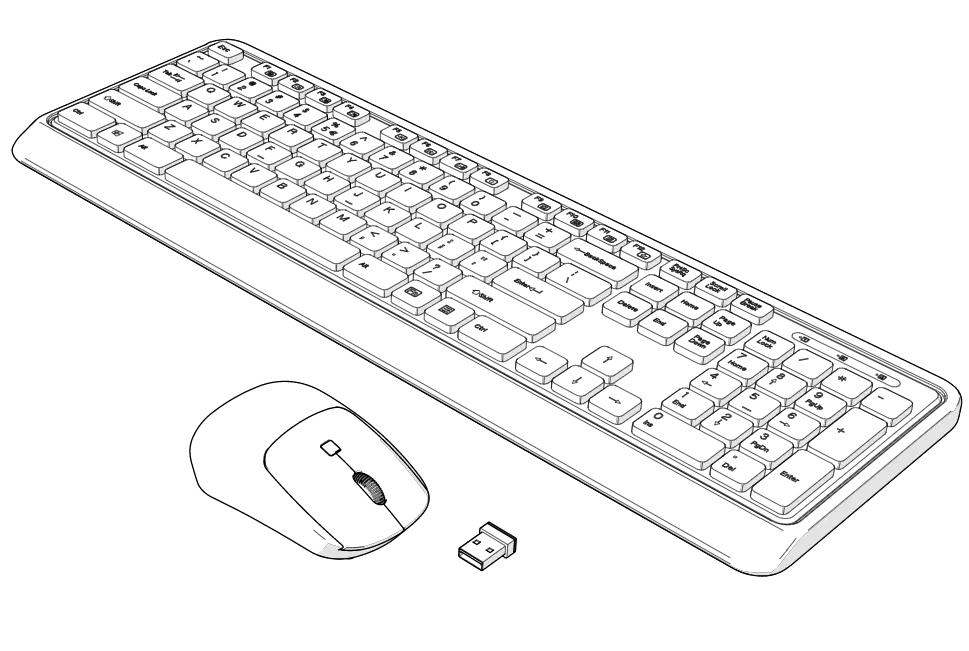
PACKAGE CONTENTS
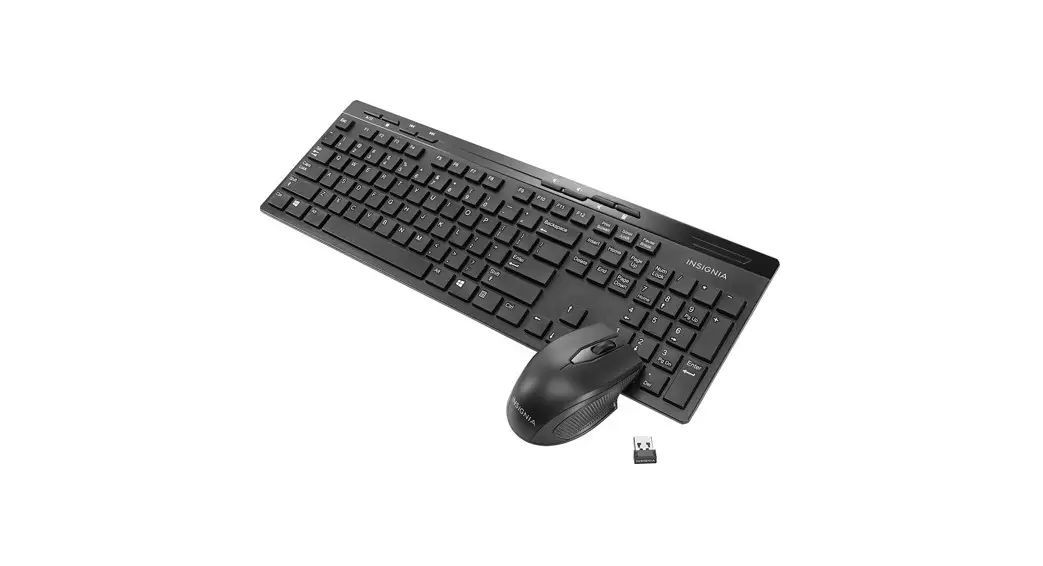
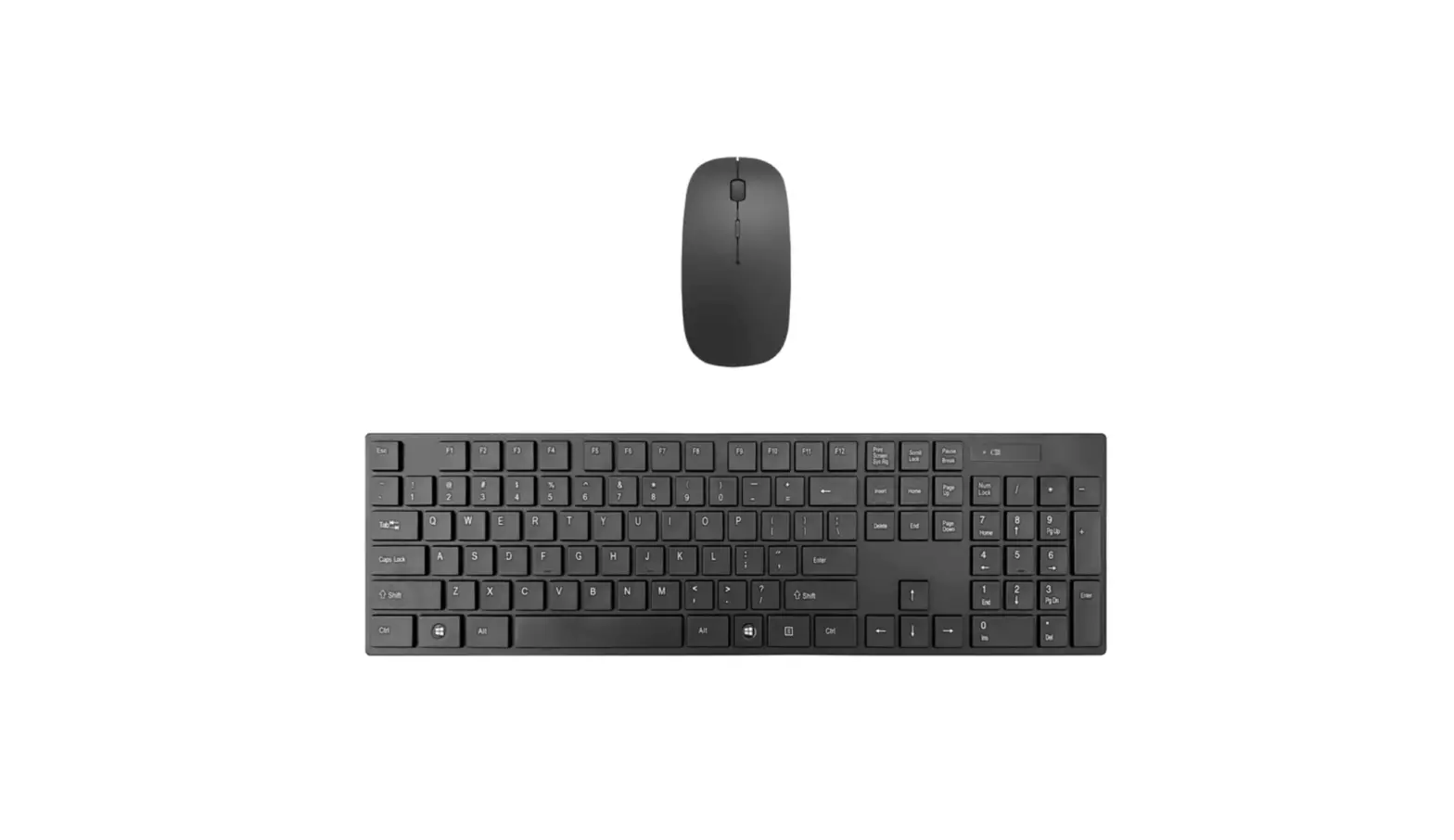
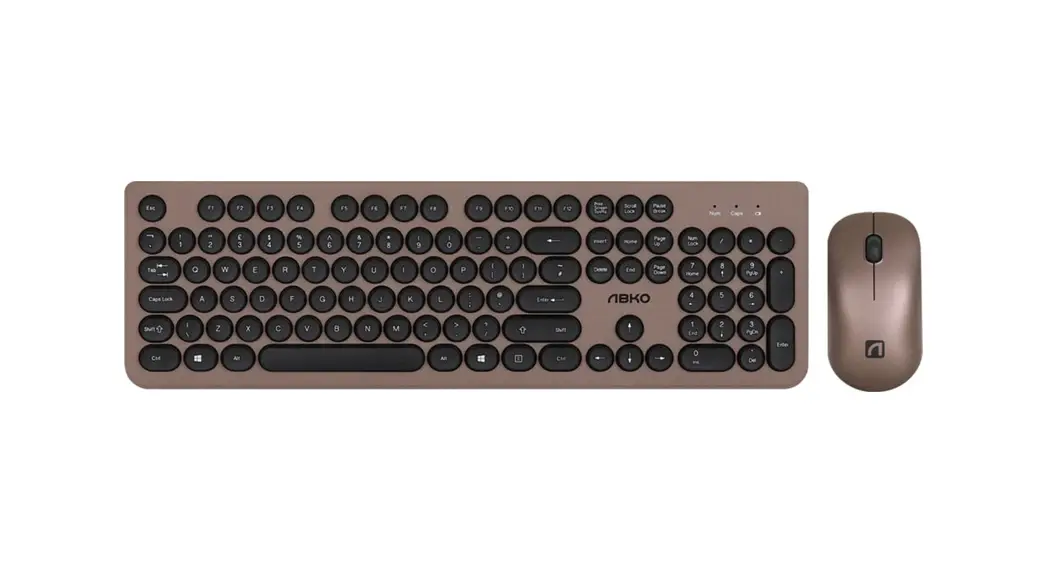
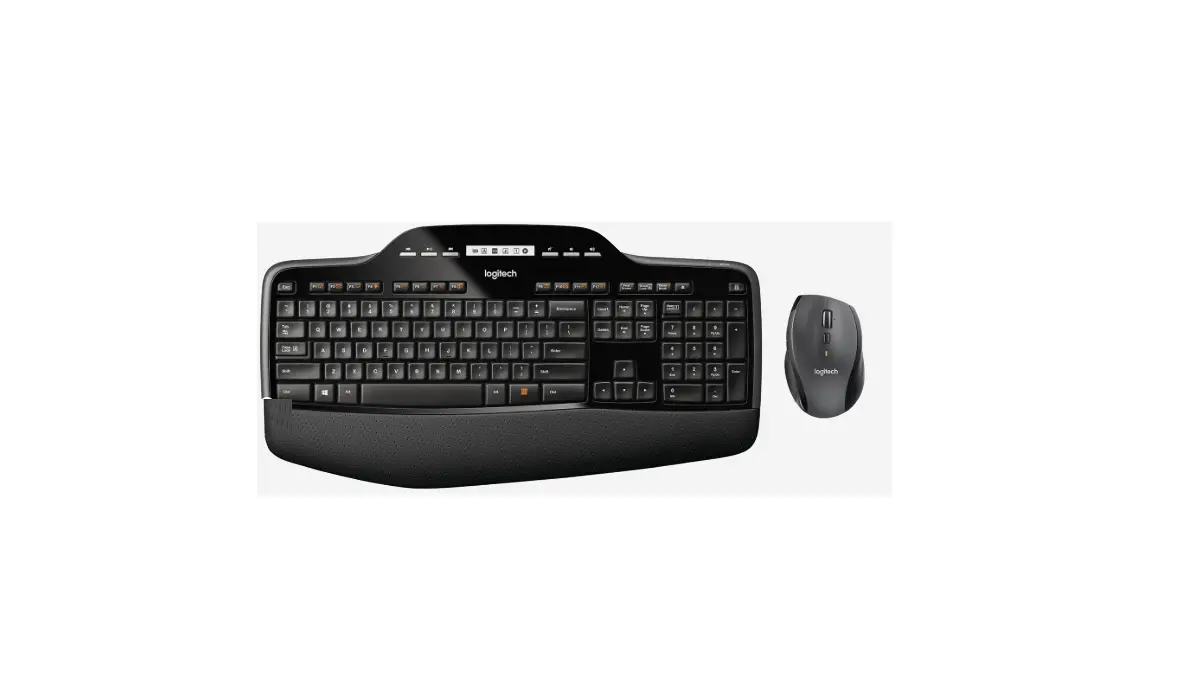
- Wireless keyboard
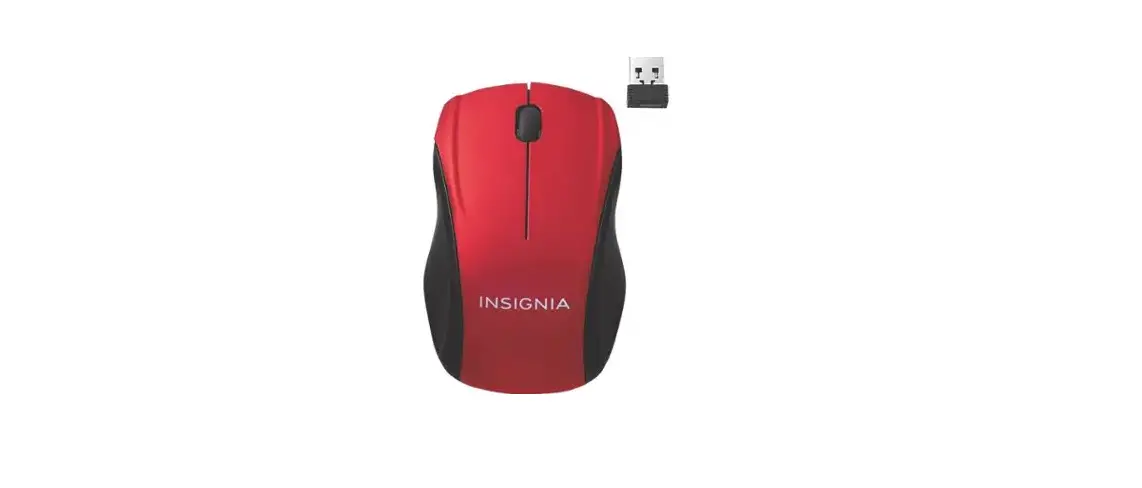
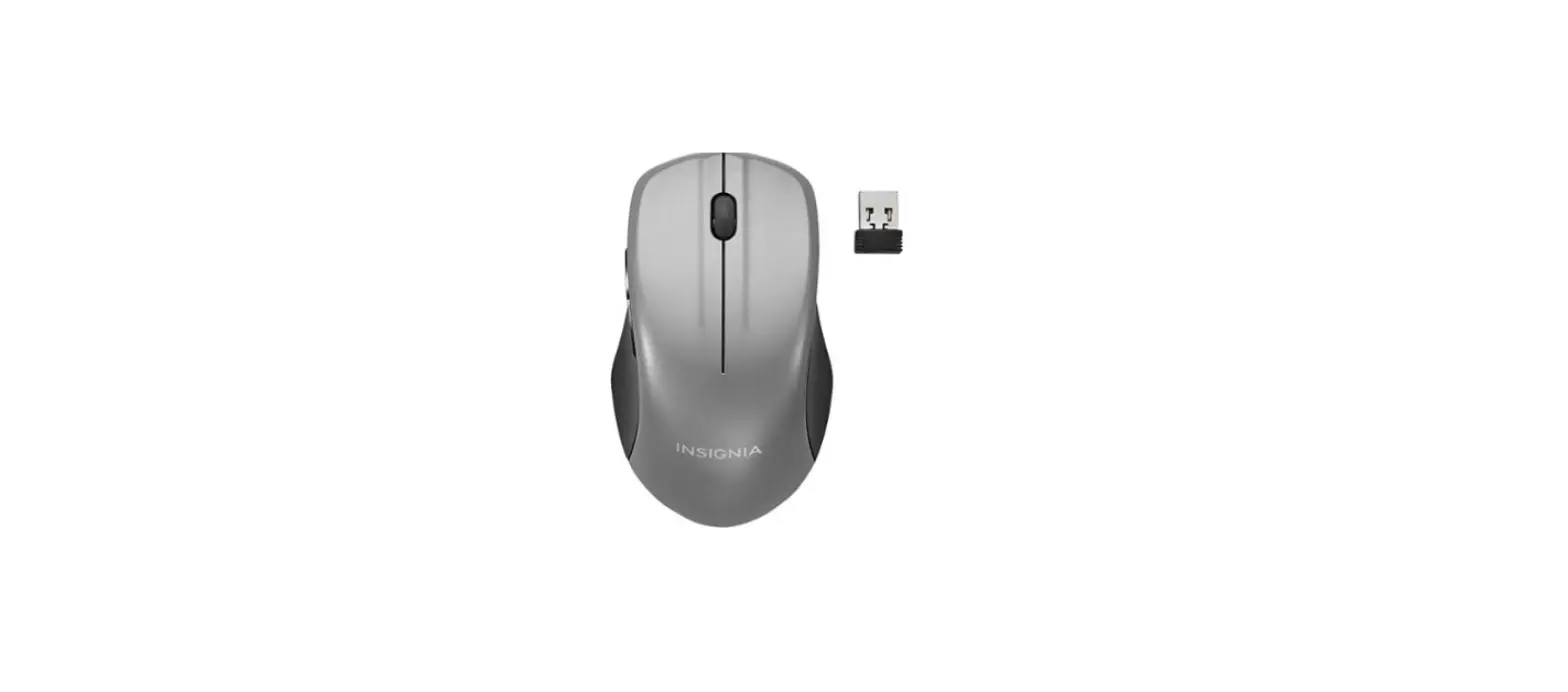
- Wireless mouse
- Nano receiver
- AA battery (1)
- AAA batteries (2)
- Quick Setup Guide
SYSTEM REQUIREMENTS
- Windows® 10, Windows® 8.1, Windows® 8, Windows® 7, or Mac OS 10.X or higher
- One available USB port
MOUSE FEATURES
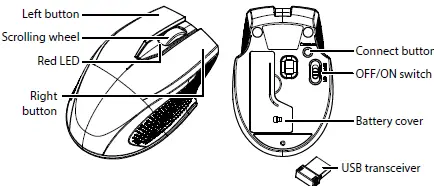
INSTALLING THE MOUSE BATTERIES AND REMOVING THE NANO RECEIVER
- Take the battery cover off.
- Remove the nano receiver

- Insert the included AA battery into the battery compartment. Make sure that the + and – signs match the symbols in the compartment.
- Replace the battery cover.
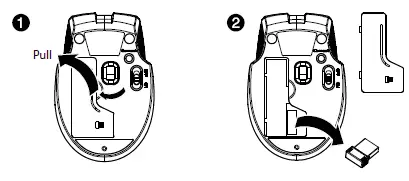
Tip: Store the nano receiver in the mouse when it is not in use.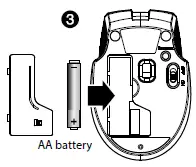
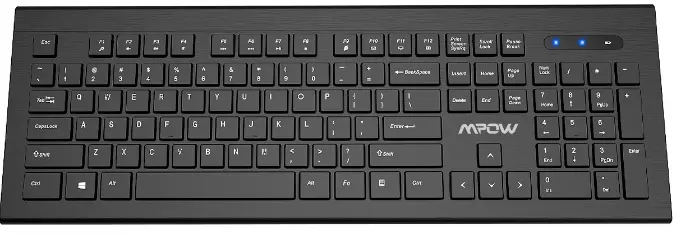
KEYBOARD FEATURES
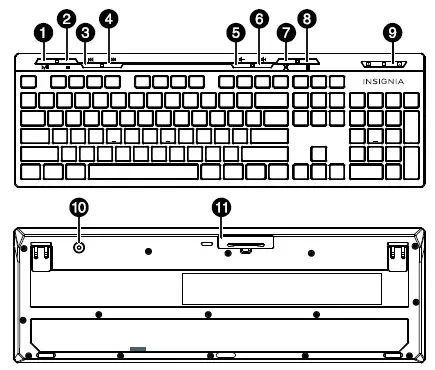
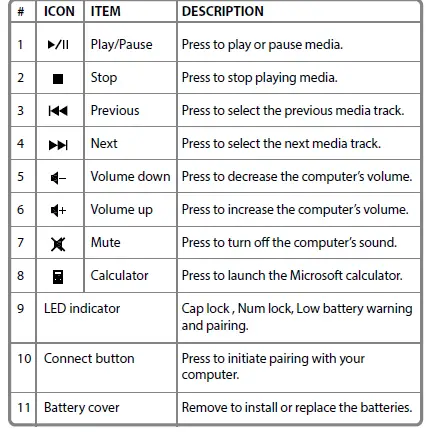
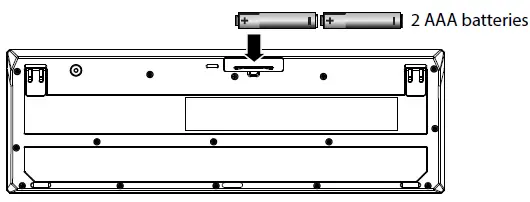
INSTALLING THE KEYBOARD BATTERIES
- Take the battery cover off.
- Insert two AAA batteries (included) into the battery compartment.
- Make sure that the + and – signs match the symbols in the compartment.
- Replace the cover.

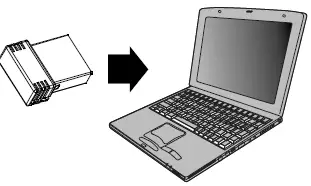
CONNECTING YOUR MOUSE AND KEYBOARD TO YOUR COMPUTER
- Plug the nano receiver into the USB port on your computer.
- Slide the ON/OFF switch on your mouse to ON.
- The computer automatically detects the mouse and keyboard and you can immediately begin using them

If the mouse or keyboard does not work:
- Re-plug the nano receiver into the USB port on your computer, then press the connect button on the mouse and keyboard.
- The LED indicators on the mouse and keyboard flash steadily while in pairing mode (10 seconds). After pairing successfully, the LED turns off.
- Check the batteries in your mouse or keyboard. The LED indicators blink for 10 seconds when the batteries are low.
LED INDICATORS
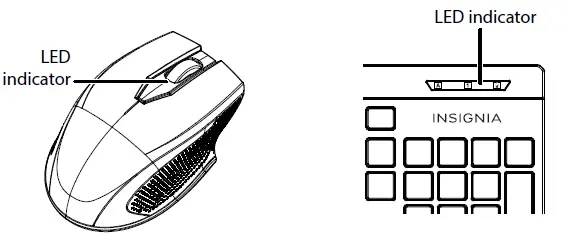
| FUNCTION | DESCRIPTION |
| Power ON | Red LED is on for 10 seconds, then turns off. |
| Low battery warning | Red LED blinks for 10 seconds. |
| Pairing | Red LED blinks for 10 seconds after pressing the Connect button. |
| Pairing failed | After pressing the Connect button, the LED blinks, then lights solid for 10 seconds. |
| Paired successfully | After pressing the Connect button, the LED blinks for 10 seconds, then turns off. |
CLEANING YOUR MOUSE AND KEYBOARD
Wipe the mouse and keyboard with a damp, lint-free cloth.
SPECIFICATIONS
Keyboard:
- Dimension (H×W×D): 5.6 × .9 × 17.1 in. (14.3 × 2.3 × 43.4 cm)
- Weight: 16.9 oz. (.5 kg)
- Rating: 3V C.C. – 4mA
- Radio frequency: 2.4Ghz
- Operating distance: 33 feet (10 meters)
- Key number: 104 keys (US)
- Battery: 2 AAA alkaline batteries
- Battery life: 6 months (based on average usage)
Mouse:
- Dimensions (H×W×D): 1.43 × 2.57 × 3.85 in. (3.64 × 6.53 × 9.78 cm)
- Weight: 1.86 oz. (.05 kg)
- Battery: 1 AA alkaline battery
- Battery life: 6 months (based on average usage)
- Radio frequency: 2.4Ghz
- Operating distance: 33 feet (10 meters)
- Rating: 1.5V C.C. – 10mA
Nano receiver:
- Dimension (H×W×D): .6 × .2 × .7 in. (1.4 × .6 × 1.8 cm)
- Weight: .04 oz. (.001 kg)
- Interface: USB 1.1, 2.0 , 3.0
TROUBLESHOOTING
- My mouse or keyboard is not working.
- Make sure that your mouse and keyboard are turned on.
- Move your keyboard and mouse closer to your computer.
- Make sure that your computer meets the system requirements.
- Only use the mouse on a clean, flat, non-slippery surface to ensure smooth and accurate cursor action.
- Avoid using your mouse on reflective, transparent, or metallic surfaces.
- Make sure that your mouse or keyboard and nano receiver are paired by pressing the connect button on the mouse or keyboard.
- Replace the mouse or keyboard batteries.
- Try connecting your nano reciver into a different USB port on your computer.
- Try removing or moving other wireless devices near the computer to prevent interference.
- If your mouse pointer is too sensitive, or not sensitive enough, or your scrolling wheel needs adjustment, do the following:
- Go to Control Panel > Hardware and Sound > Mouse (Windows 7), PC Settings > PC and Devices (Windows 8) or System Preferences > Mouse (Mac) and adjusting the cursor or scrolling wheel settings.
LEGAL NOTICES
FCC Statement
This device complies with Part 15 of the FCC Rules. Operation is subject to the following two conditions:
- this device may not cause harmful interference, and
- this device must accept any interference received, including interference that may cause undesired operation.
This equipment has been tested and found to comply with the limits for a Class B digital device, pursuant to Part 15 of the FCC Rules. These limits are designed to provide reasonable protection against harmful interference in a residential installation. This equipment generates, uses and can radiate radio frequency energy and, if not installed and used in accordance with the instructions, may cause harmful interference to radio communications. However, there is no guarantee that interference will not occur in a particular installation. If this equipment does cause harmful interference to radio or television reception, which can be determined by turning the equipment off and on, the user is encouraged to try to correct the interference by one or more of the following measures:
- Reorient or relocate the receiving antenna.
- Increase the separation between the equipment and receiver.
- Connect the equipment into an outlet on a circuit different from that to which the receiver is connected.
- Consult the dealer or an experienced radio/TV technician for help.
Warning: Changes or modifications not expressly approved by the party responsible for compliance could void the user’s authority to operate the equipment.
RSS-Gen and RSS-210 statement
This device complies with Industry Canada license-exempt RSS standard(s). Operation is subject to the following two conditions:
- this device may not cause interference, and
- this device must accept any interference, including interference that may cause undesired operation of the device.
ONE-YEAR LIMITED WARRANTY
For complete warranty, visit www.insigniaproducts.com.
CONTACT INSIGNIA
- 1-877-467-4289 (U.S. and Canada) or 01-800-926-3000 (Mexico) www.insigniaproducts.com
- INSIGNIA is a trademark of Best Buy and its affiliated companies
- Distributed by Best Buy Purchasing, LLC 7601 Penn Ave South, Richfield, MN 55423 U.S.A.
- ©2016 Best Buy. All rights reserved.
- Made in China