
Quick Start Guide
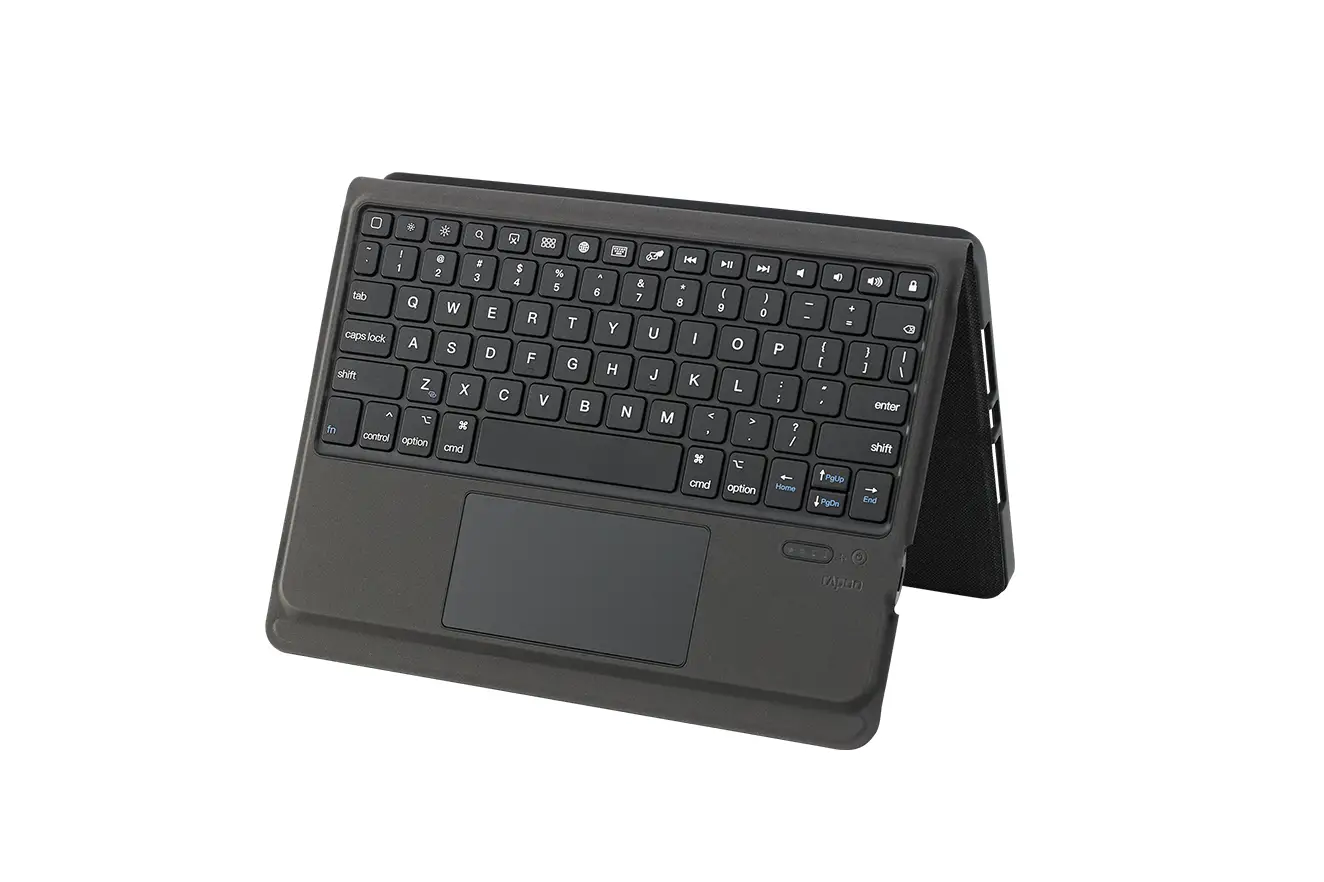
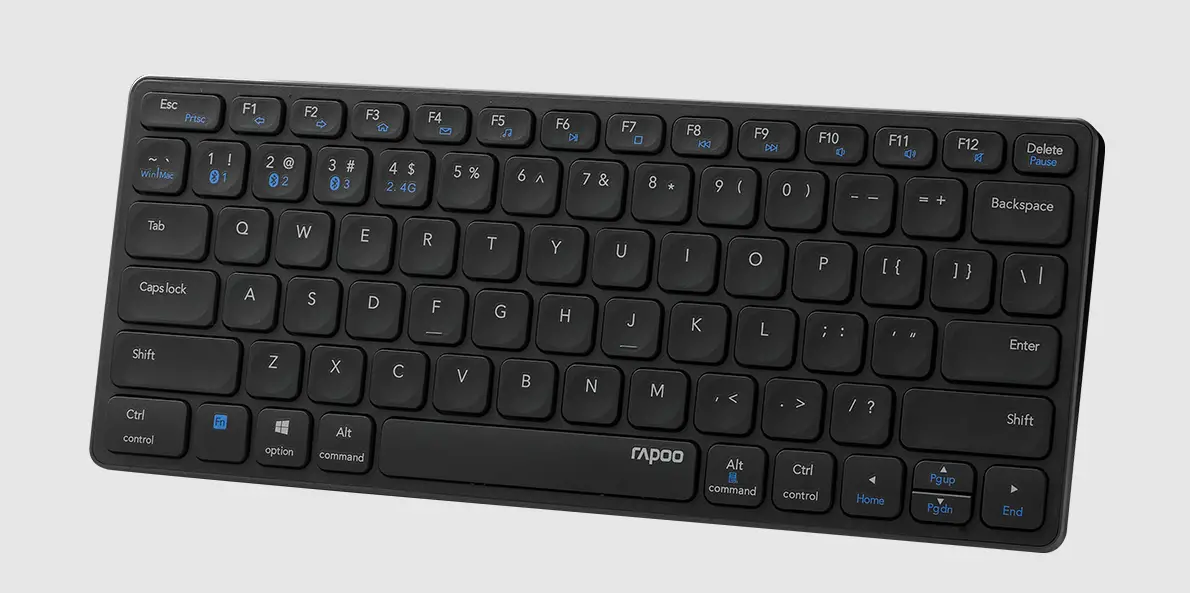
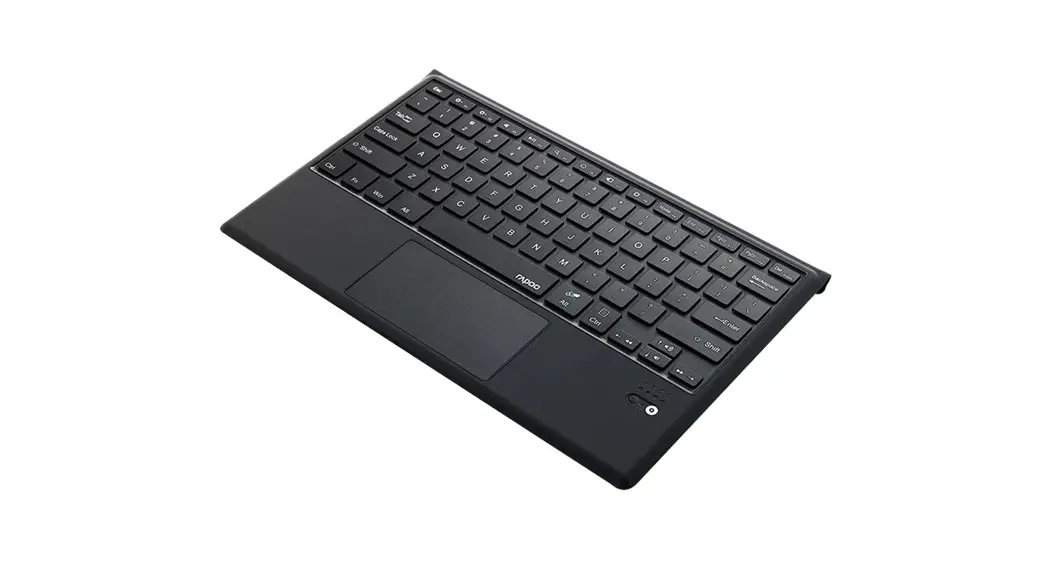
XK200
Bluetooth Keyboard (SF version)
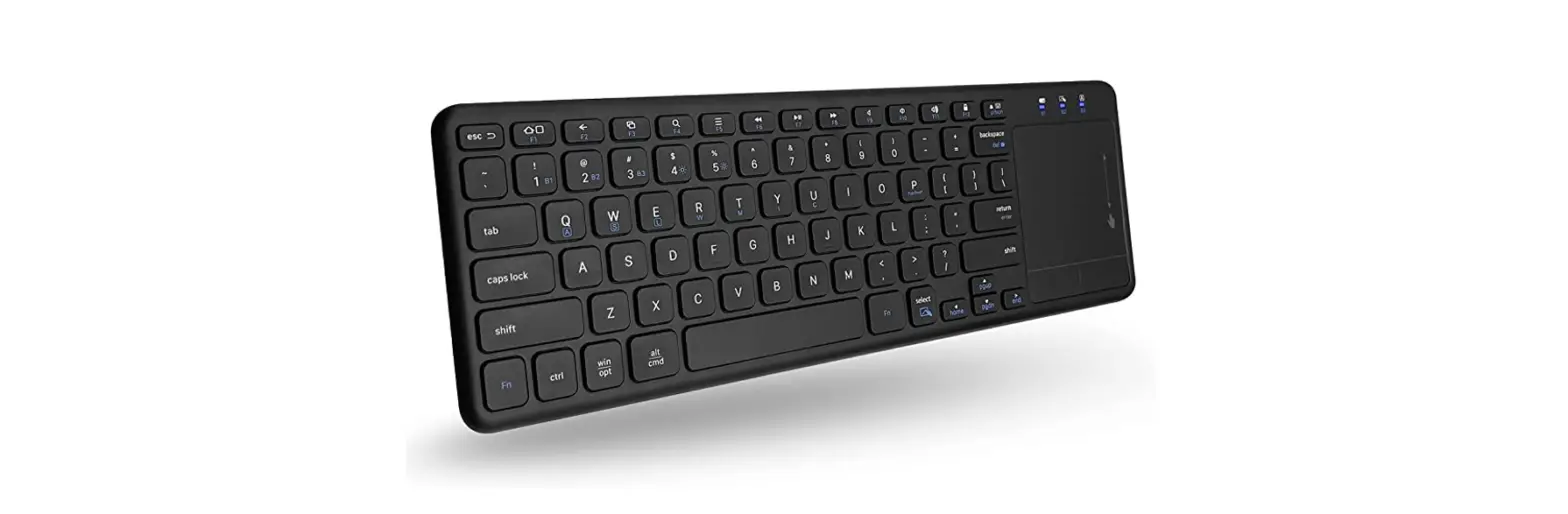
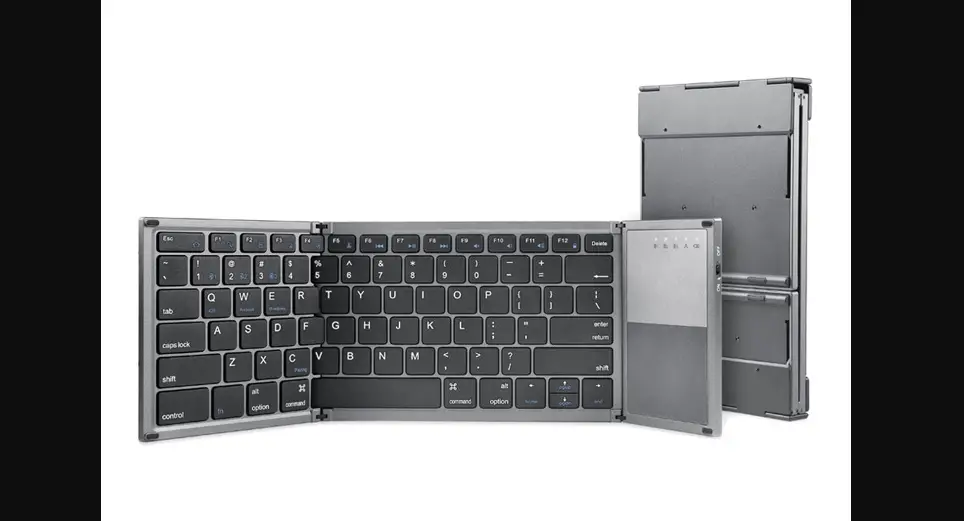
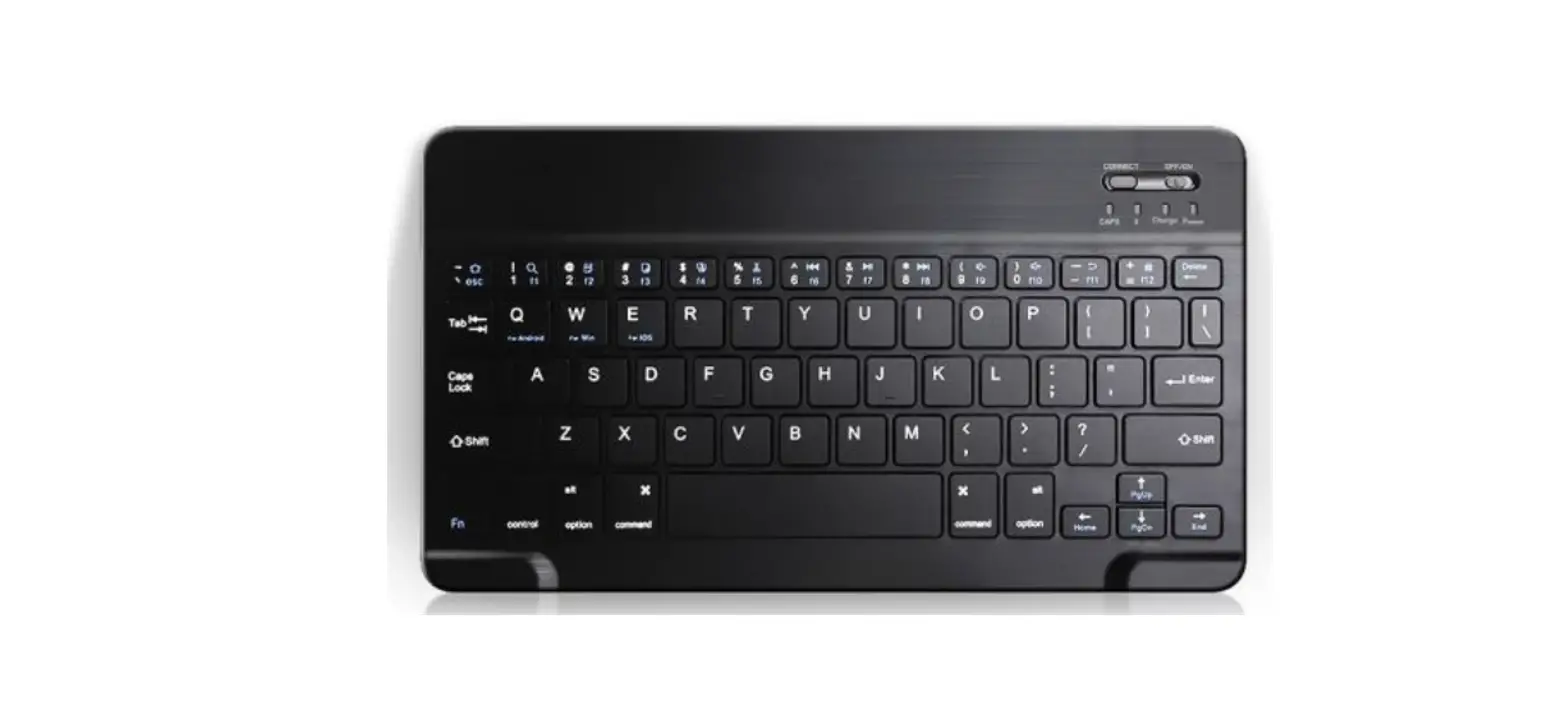
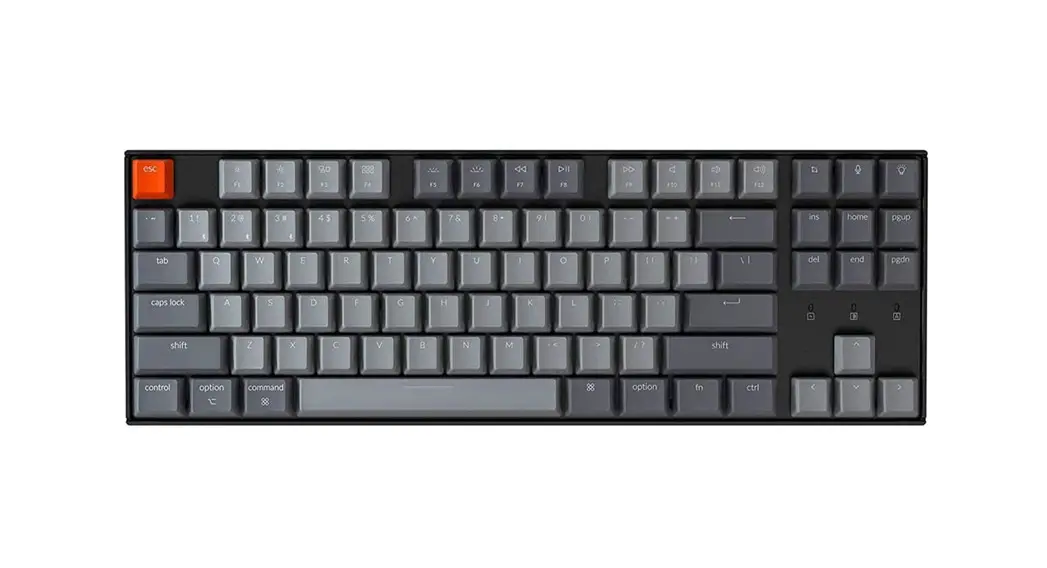
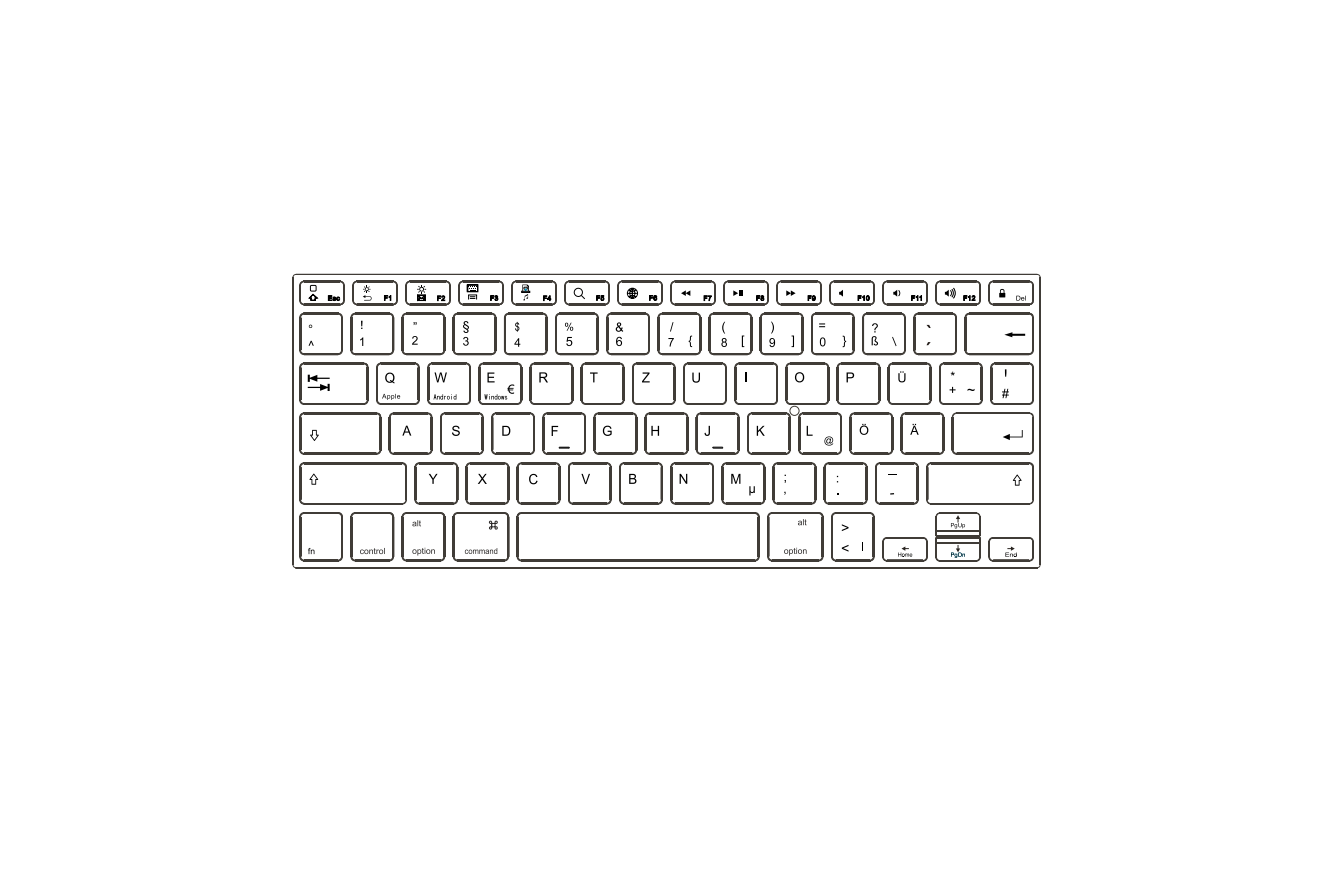
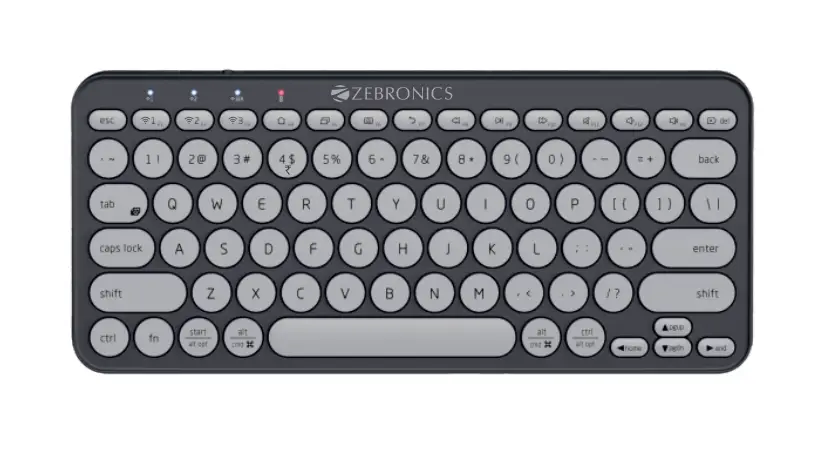
 | Brightness- |
 | Brightness+ |
 | Mute |
 | Play/Pause |
 | Search |
 | Sharing |
 | Device |
 | Set-Up Function Key |
 | Volume+ |
 | Previous track |
 | Volume- |
 | Next track |
 | TouchPad Switch |
Swipe cursor: Move using a single finger
Left-click: Click using a single finger
Right-click: Click using two fingers
Drag: Double click and drag a finger on the touchpad
Vertical scrolling: Swipe up and down using two fingers
Horizontal scrolling: Swipe left and right using two fingers
Zoom in/Zoom out: Two fingers separate/get together
Open Cortana: Click using three fingers (Win+s) (Support Windows 10 only)
Open Action+center: Click using four fingers (win+A) (Support Windows 10 only)
Switch between opened windows: Swipe left using three fingers (ALT+TAB+←)
Switch between opened windows: Swipe right using three fingers (ALT+TAB+→)
Tasks view: Swipe up using three fingers (Win+Tab)
Show/Hide desktop: Swipe down using three fingers (windows+D)
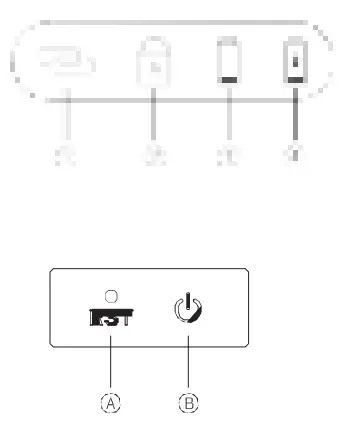
Reset Key: When there is no response when pressing any button, please press this key
Power & Bluetooth pairing button: Long press to turn on or off the device and short press to enter pairing mode
Booting/shutdown/Bluetooth pairing indication
- Hold the power button for 3 seconds, and the blue indicator light is on for 3 seconds and off after the connection is finished.
- Hold the shutdown button for 3 seconds, and the blue indicator light flashes 3 times before shutdown.
- Press the power button to enter the Bluetooth pairing mode lasting for 300 seconds, and the blue indicator light flashes.
Letter case indication
 When the voltage is lower than 3.2V, the red indicator light flashes, indicating the need for charging
Charging indicator
When XK200 is charging, the red LED is on. When it is fully charged, the red LED is off.
Instructions
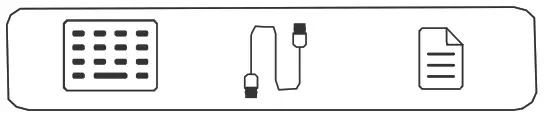
- Hold the power button for more than 3 seconds to boot.
- Press the power button so that the keyboard is searchable in 300 seconds.
- Finish Bluetooth pairing on your device.
Bluetooth pairing
Windows®7 and 8:
- Click the “Start” button, then select Control Panel > Add a device
- Select the RAPOO BT5.0 KB from the list.
- Click Next and follow any other instructions that may appear on the screen.
Windows®10:
- Click the “”Start”” button, then select Settings > Devices > Bluetooth.
- Select the RAPOO BT5.0 KB from the list.
- Click Pair and follow any other instructions that may appear on the screen.
System requirements
 Windows® XP/Vista/7/8/10 or later, Android, Mac, IOS
NOTE: This equipment has been tested and found to comply with the limits for a Class B digital device, pursuant to part 15 of the FCC Rules. These limits are designed to provide reasonable protection against harmful interference in a residential installation. This equipment generates uses and can radiate radio frequency energy and, if not installed and used in accordance with the instructions, may cause harmful interference to radio communications. However, there is no guarantee that interference will not occur in a particular installation. If this equipment does cause harmful interference to radio or television reception, which can be determined by turning the equipment off and on, the user is encouraged to try to correct the interference by one or more of the following measures :
- Reorient or relocate the receiving antenna.
- Increase the separation between the equipment and receiver.
- Connect the equipment into an outlet on a circuit different from that to which the receiver is connected.
- Consult the dealer or an experienced radio/TV technician for help
Changes or modifications not expressly approved by the party responsible for compliance could void the user’s authority to operate the equipment.

This device complies with Part 15 of the FCC Rules. Operation is subject to the following two conditions:
- this device may not cause harmful interference, and
- this device must accept any interference received, including interference that may cause undesired operation.