 Wireless Measurement Read
WiMER10 User Guide
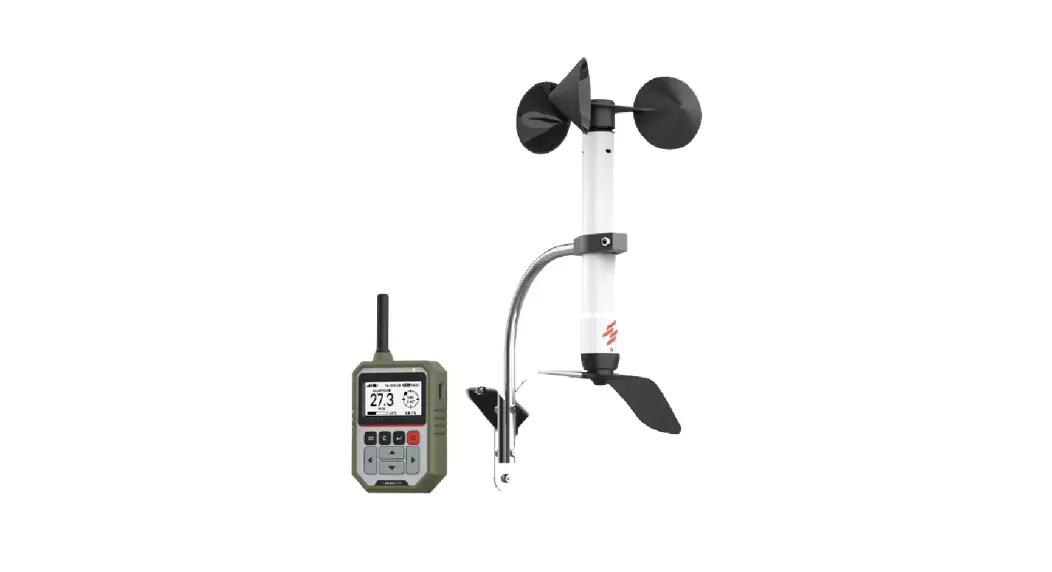
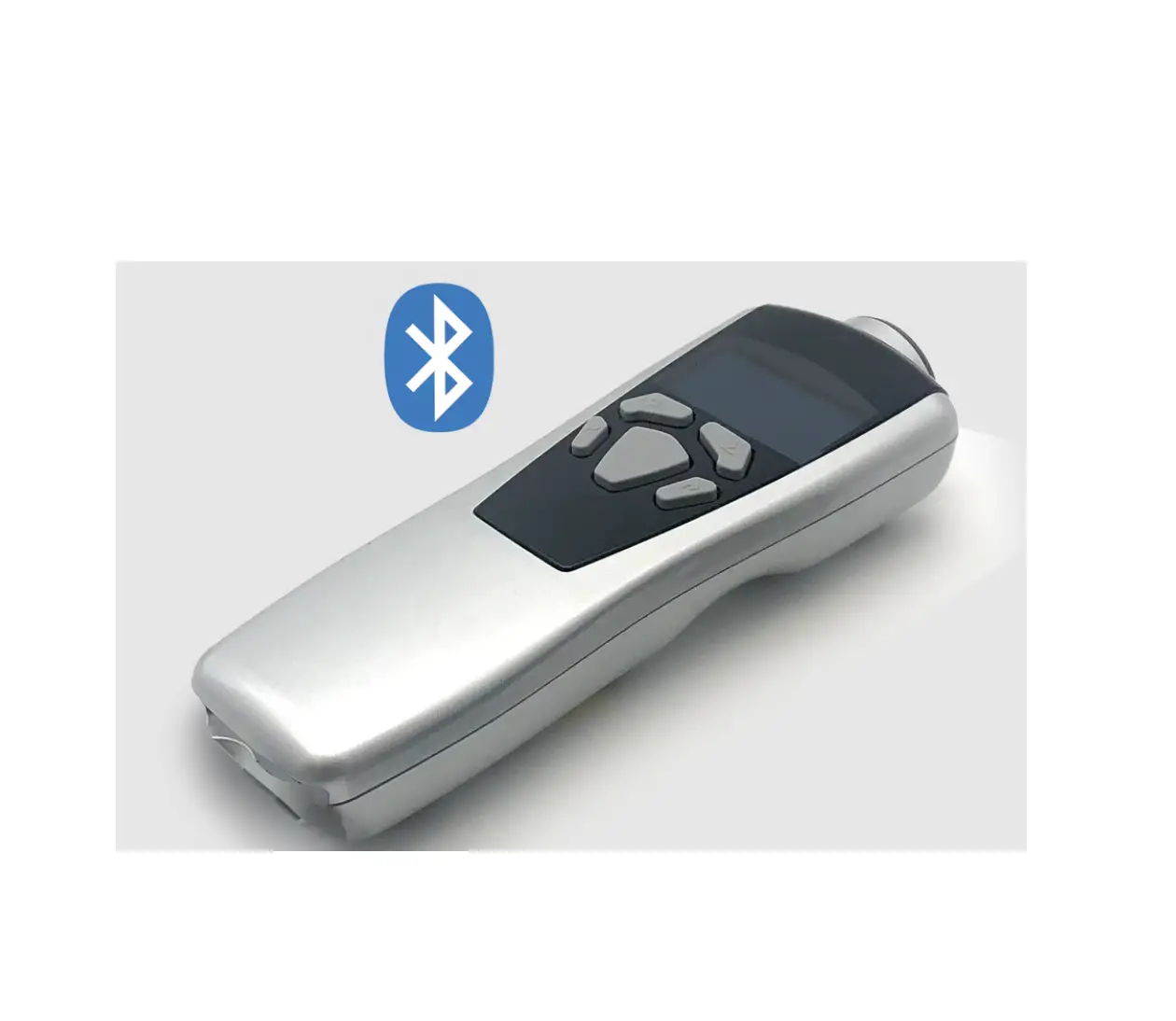
WiMER10 Wireless Measurement Read
 Important Notes
- Turn off the device after use. It will NOT turn off automatically.
- Do NOT open the device. Opening causes permanent damage and voids the warranty.
Description
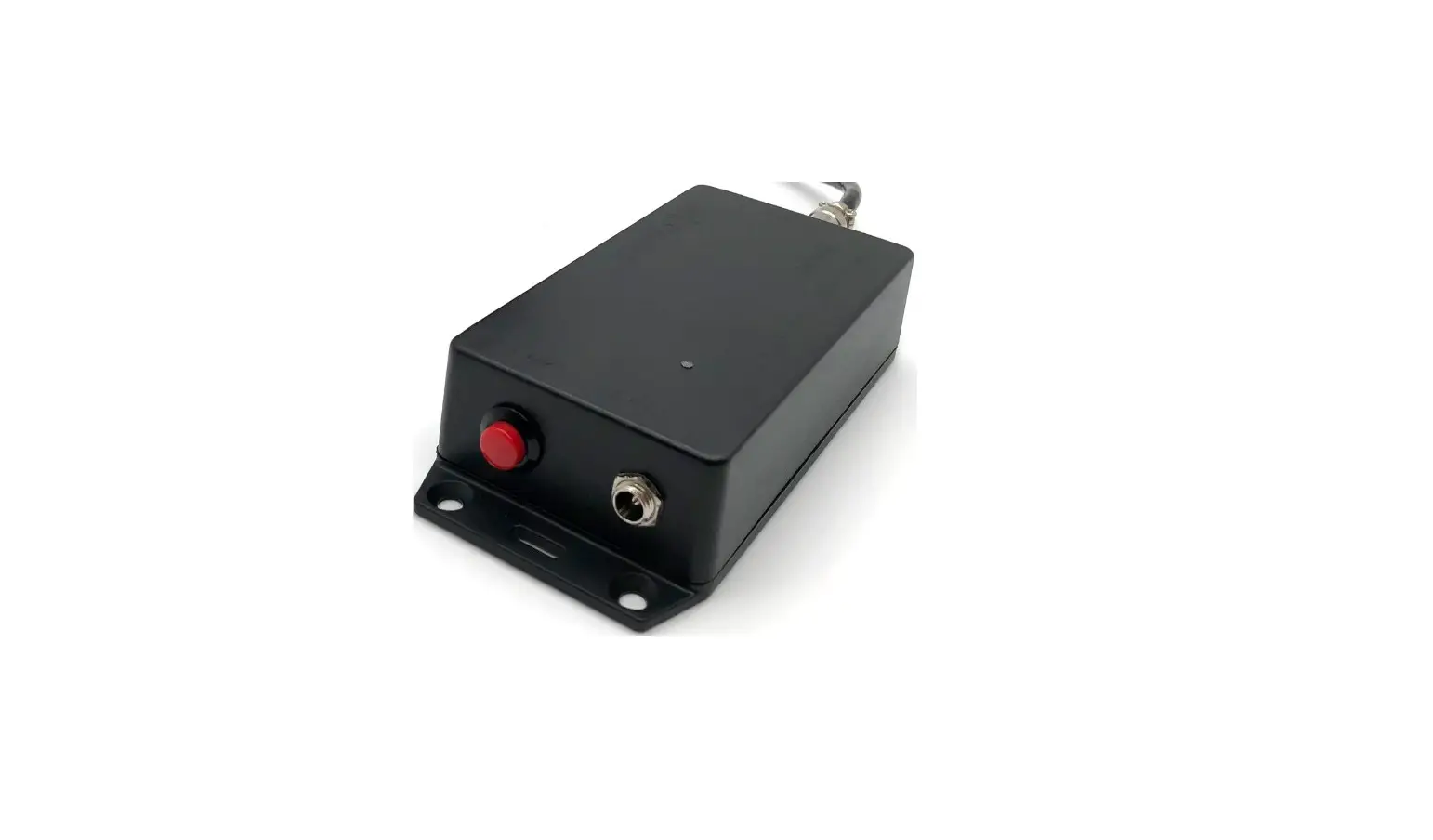
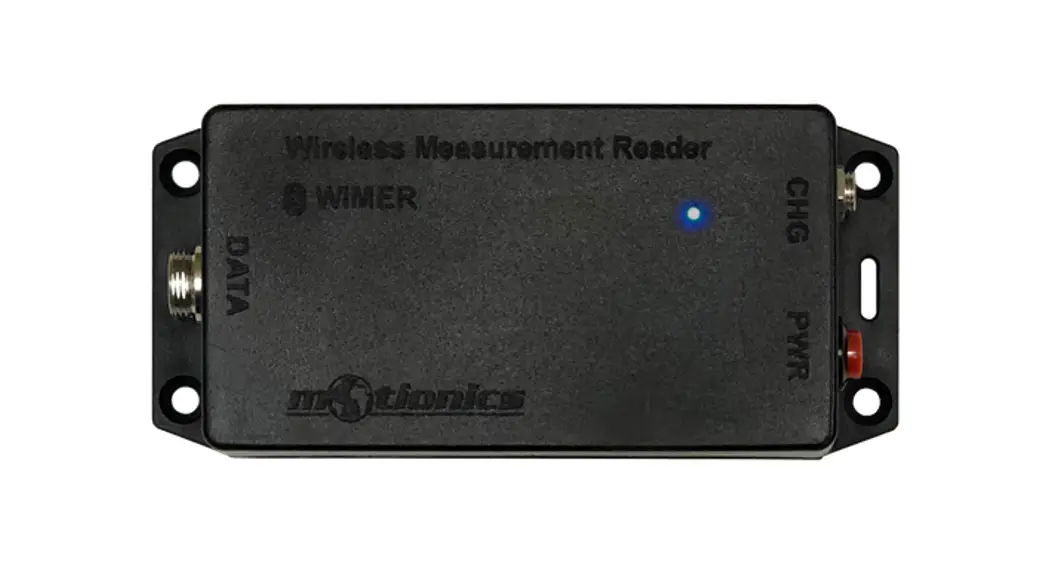
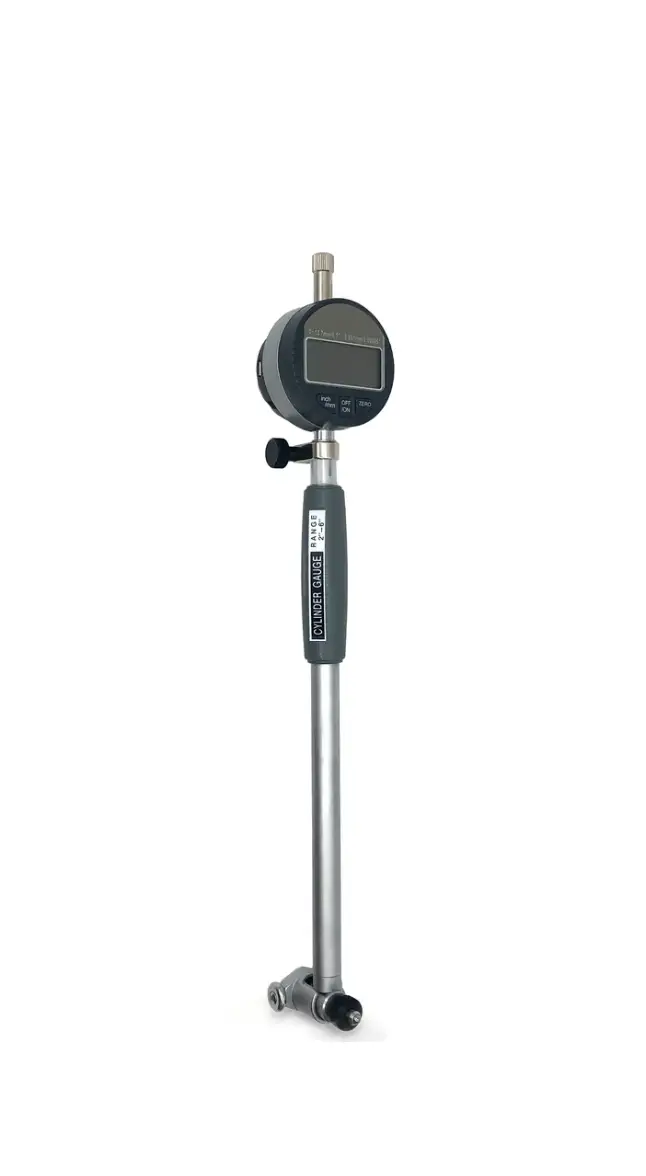
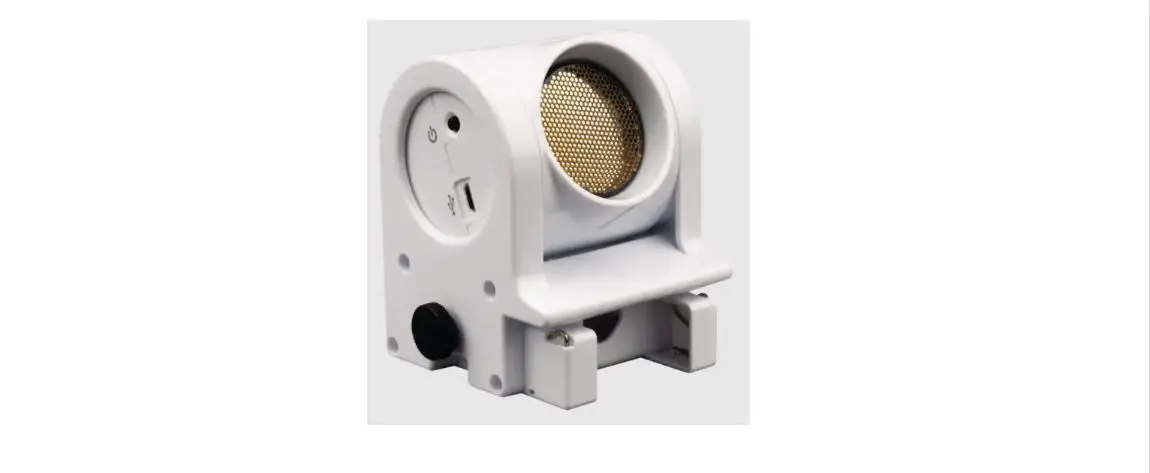
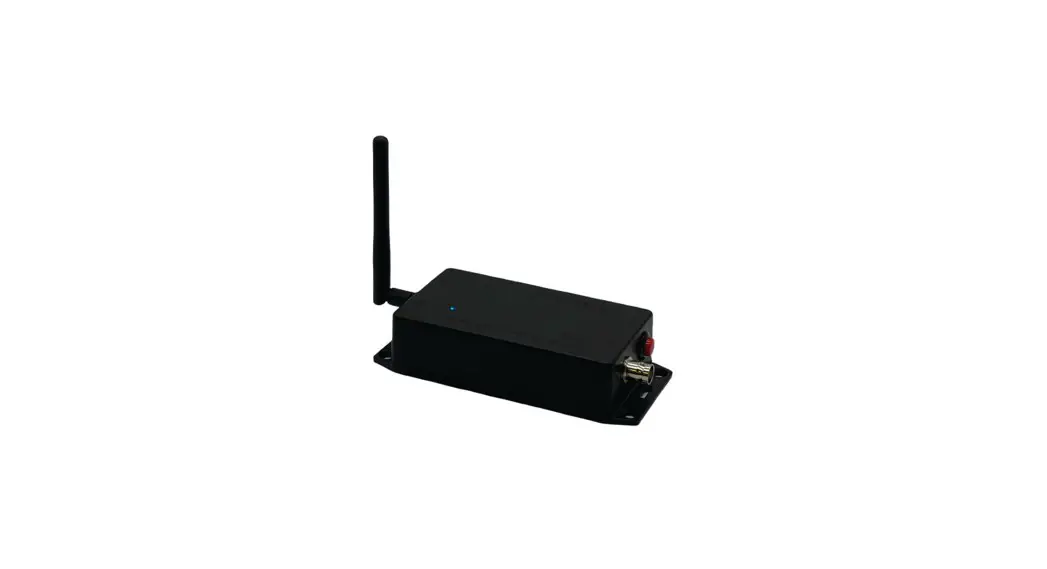
- Sensor Connector - Connect to analog sensor
- Tri Color LED
 – Device is on
  – Device is in charge
  – Device is fully charged
 - Charging Port - Connect to cable to charge WiMER10
- On/Off Button - Press to turn WiMER10 On/Off
- External Antenna
 – Device is on
  – Device is in charge
  – Device is fully charged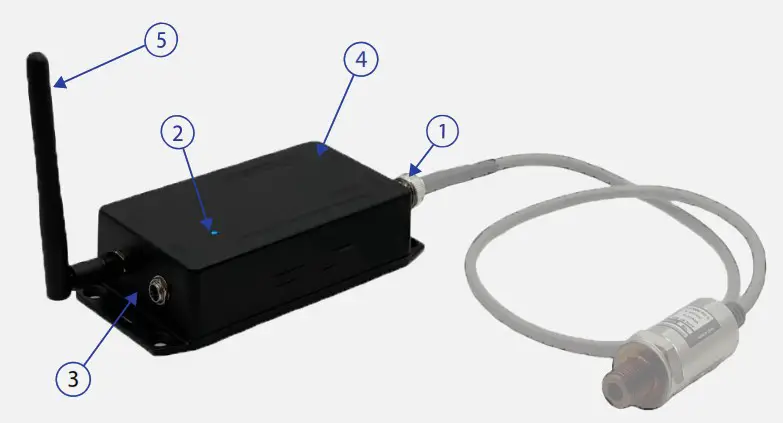
Included in the Package
- WiMER10 Base
- USB Charging Cable
- USB Power Adapter
- User Guide
Compatible Software
- iOS: Multi Gage Reader
- Android: Multi Gage Reader
- Windows: Multi Gage Reader (BLE Dongle Required)
- iOS app can be directly downloaded from the app store for FREE
- Android app can be directly downloaded from the Google Play Store for FREE
- Windows software is available on Motionics website
Quick Start
- Connect analog sensor to WiMER10.
- Turn on your WiMER10.
- Plug in USB Bluetooth dongle, If you are using windows PC.
- Run the software, tap Scan/+button to enter pairing page.
- Wait for the software to finish scanning nearby devices, select WiMERXXXX to connect.
- Connection may take a few seconds, once paired, pressure readings appears in the software.
Motionics, LLC
www.motionics.com
[email protected]
8500 Shoal Creek Blvd Building 4 Suite 209, Austin, TX, 78757
© 2022 Motionics, LLC.
All rights reserved. Made in the U.S.A
 Motionics LLC – Smart Tools for Monitoring and Diagnostics of Machinery