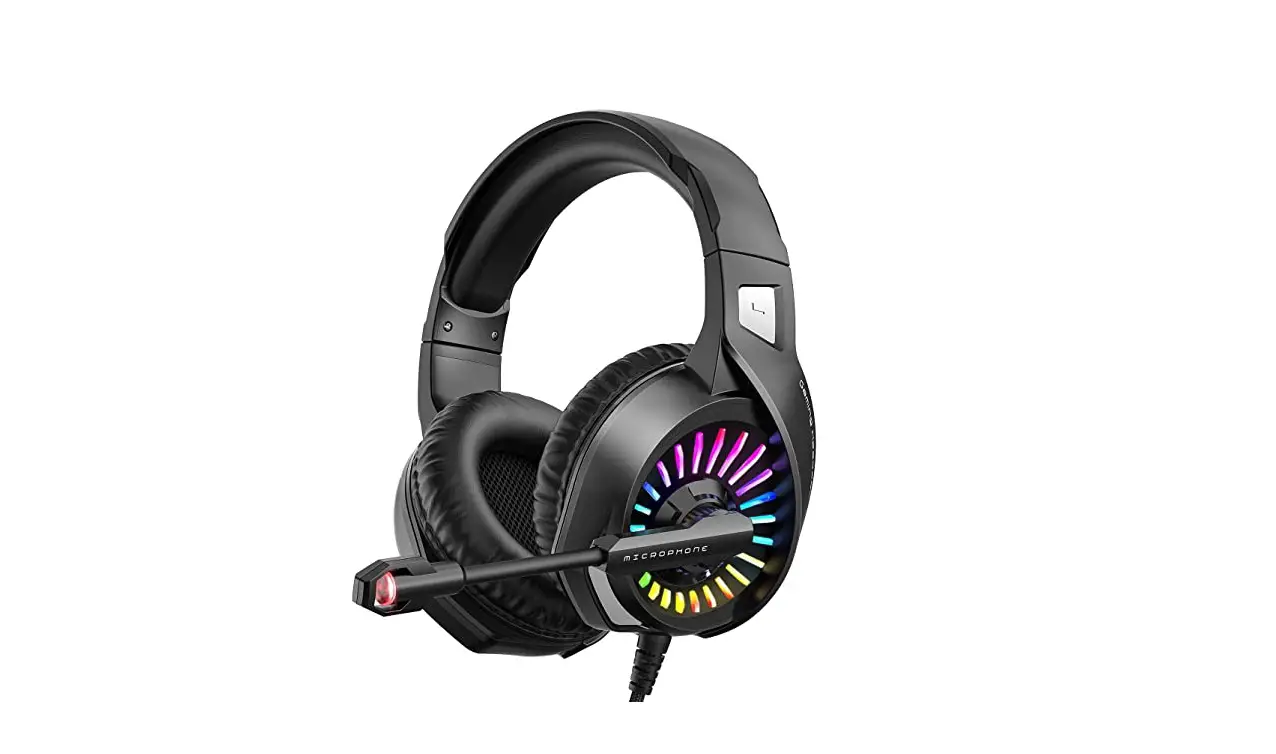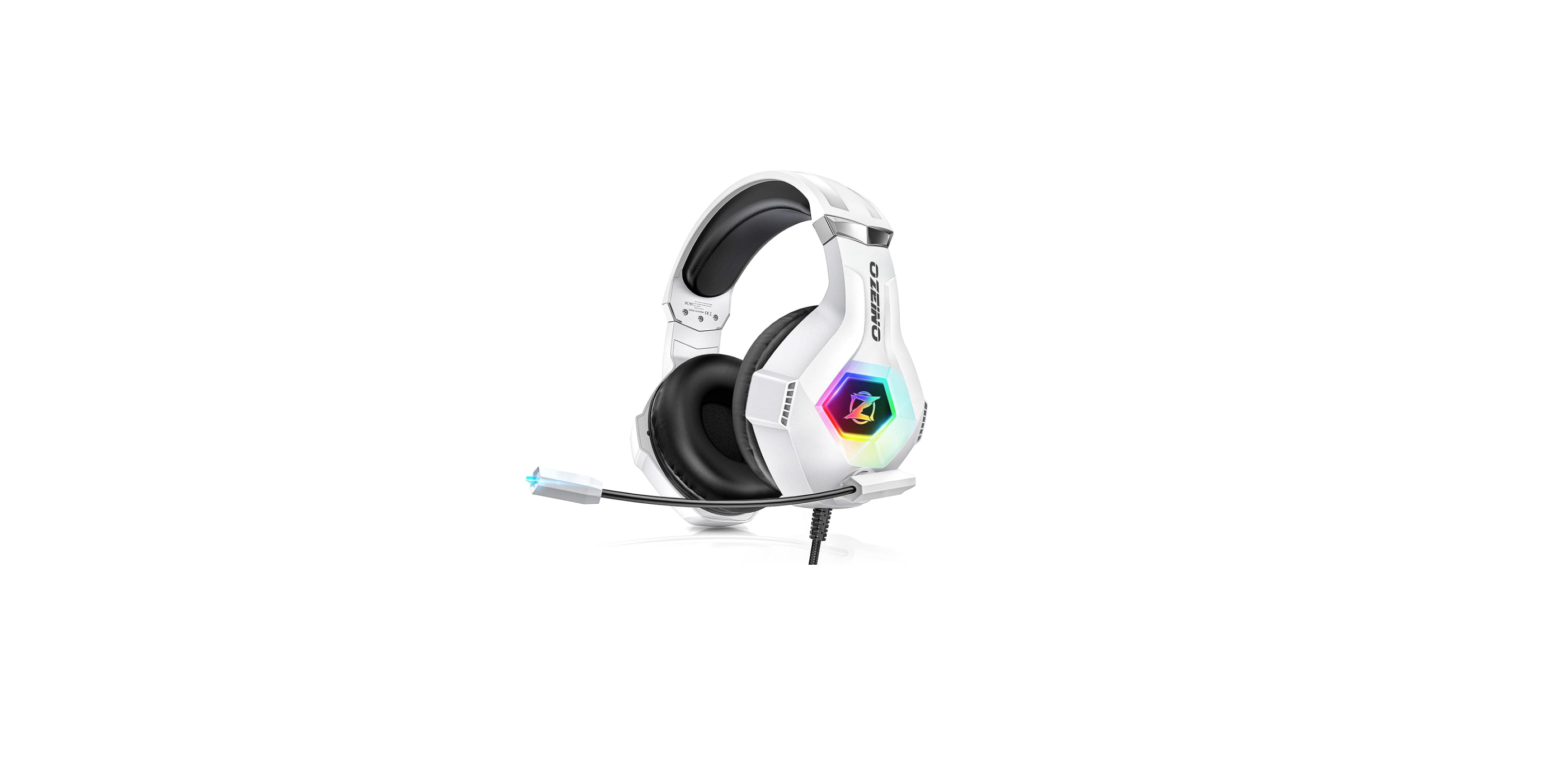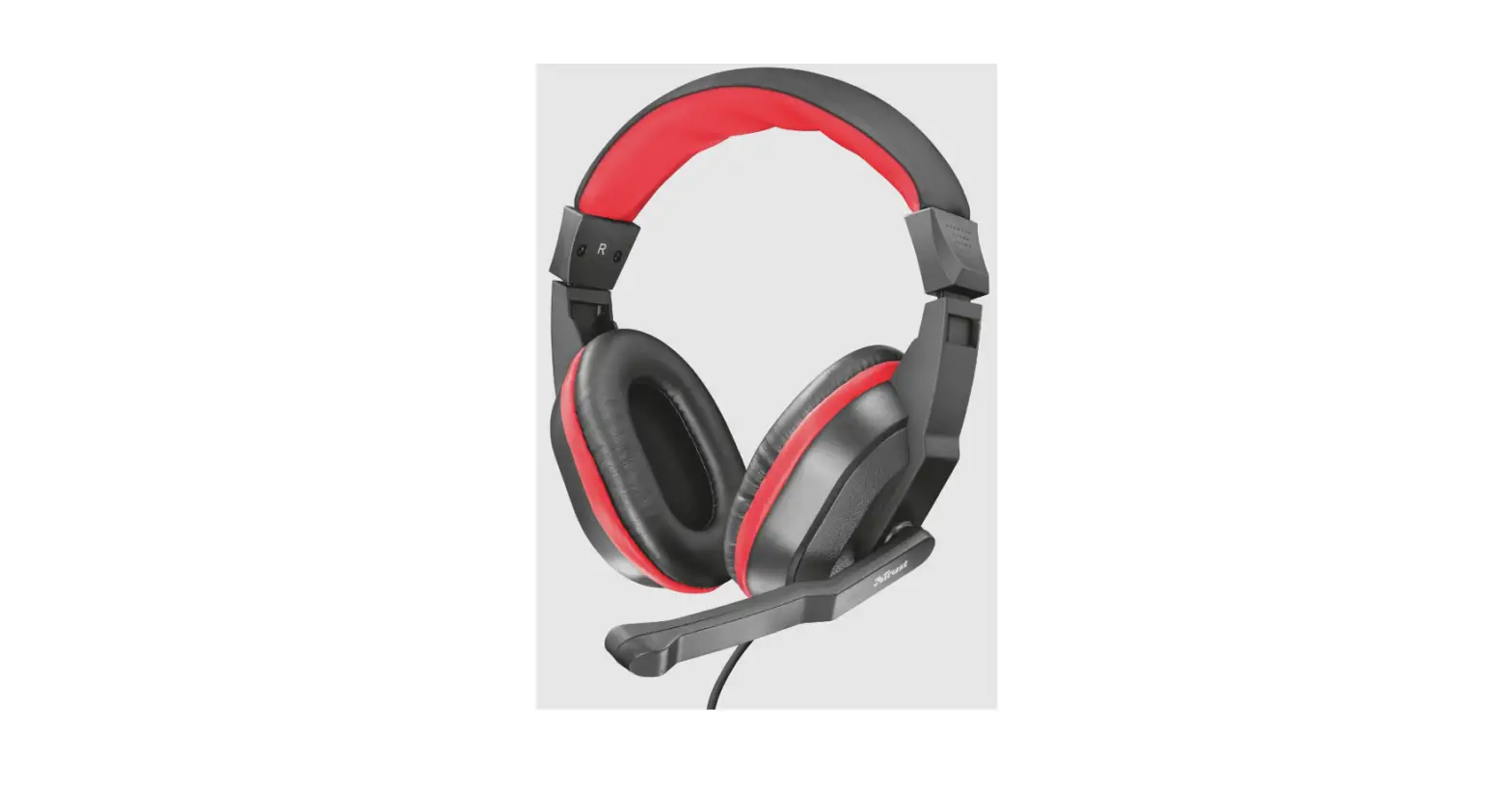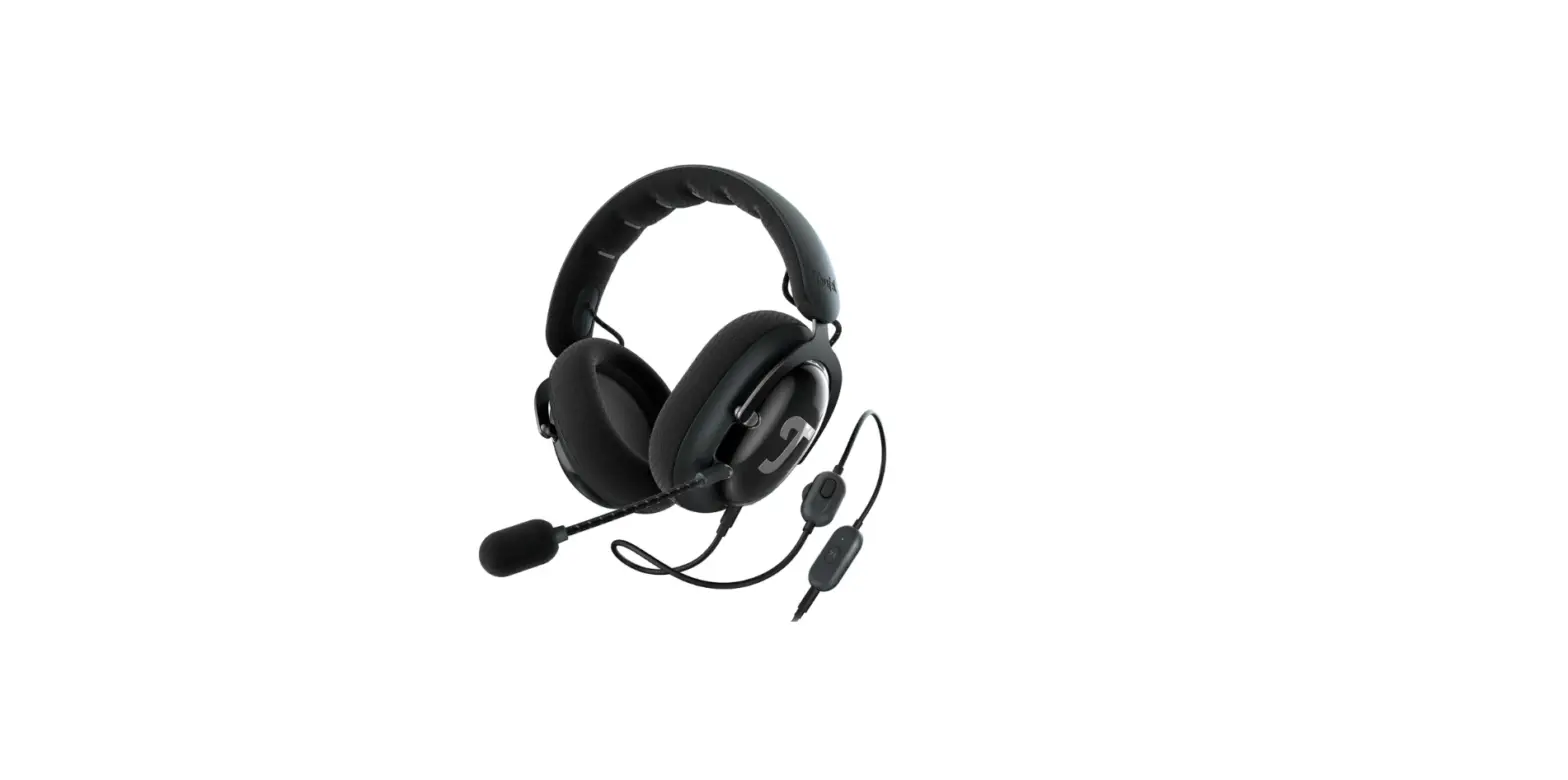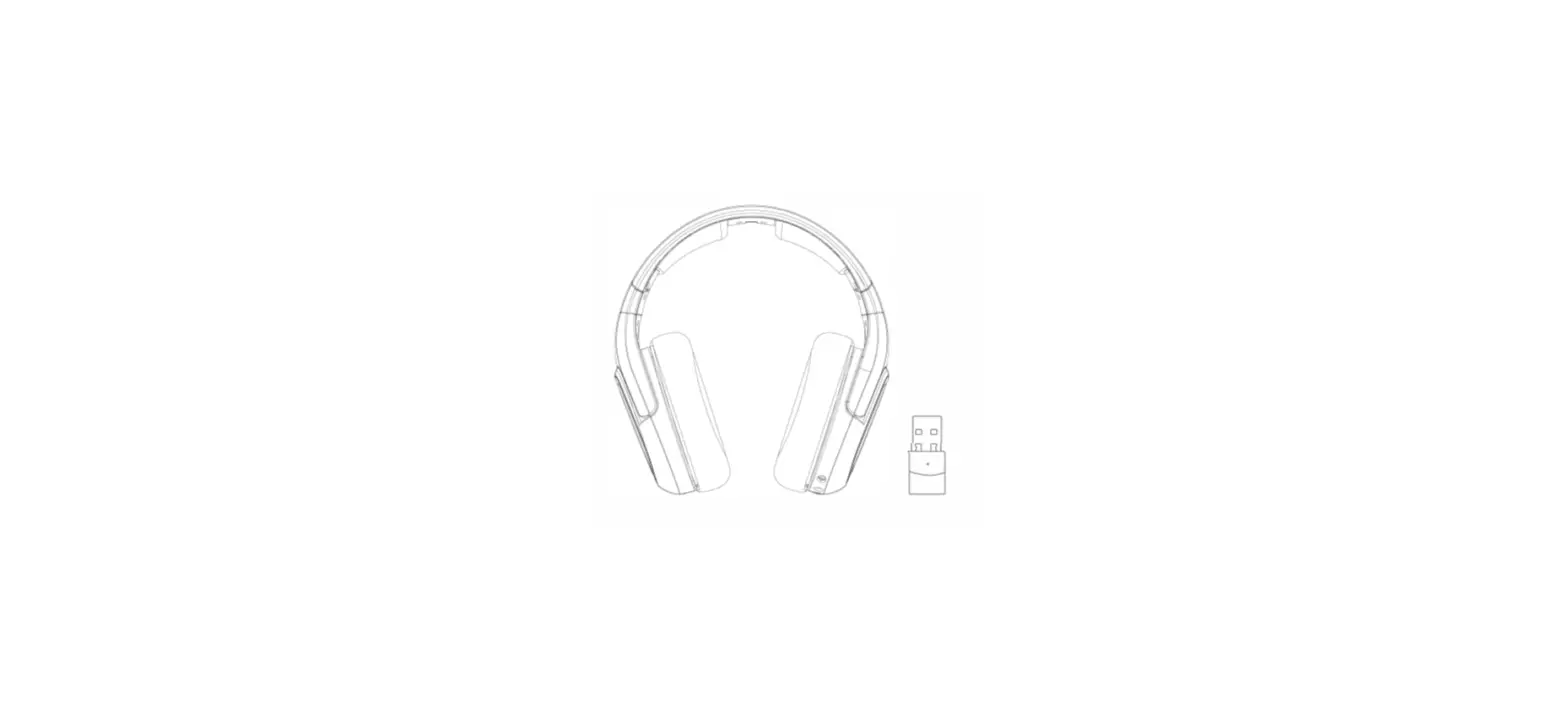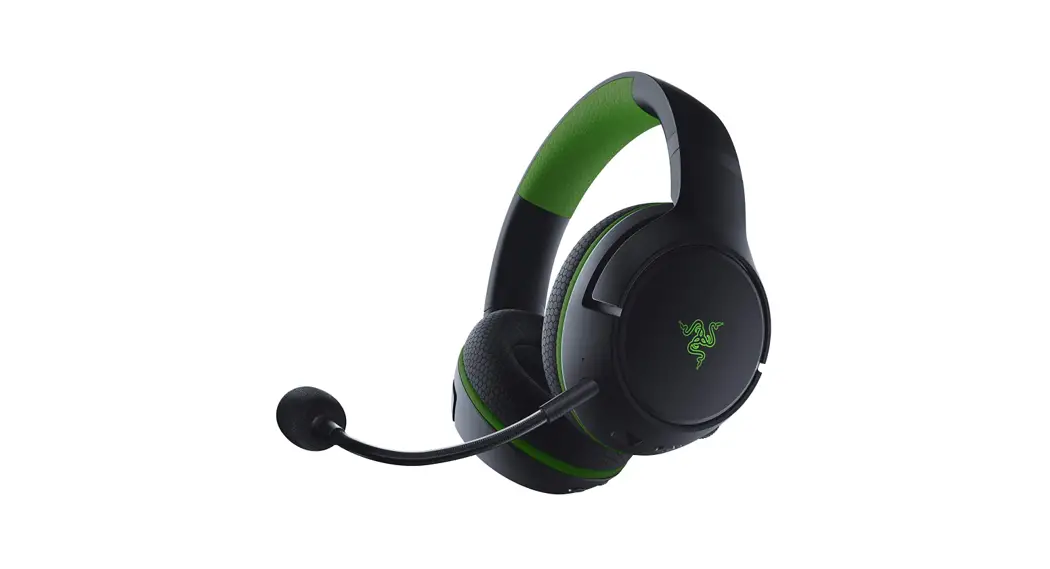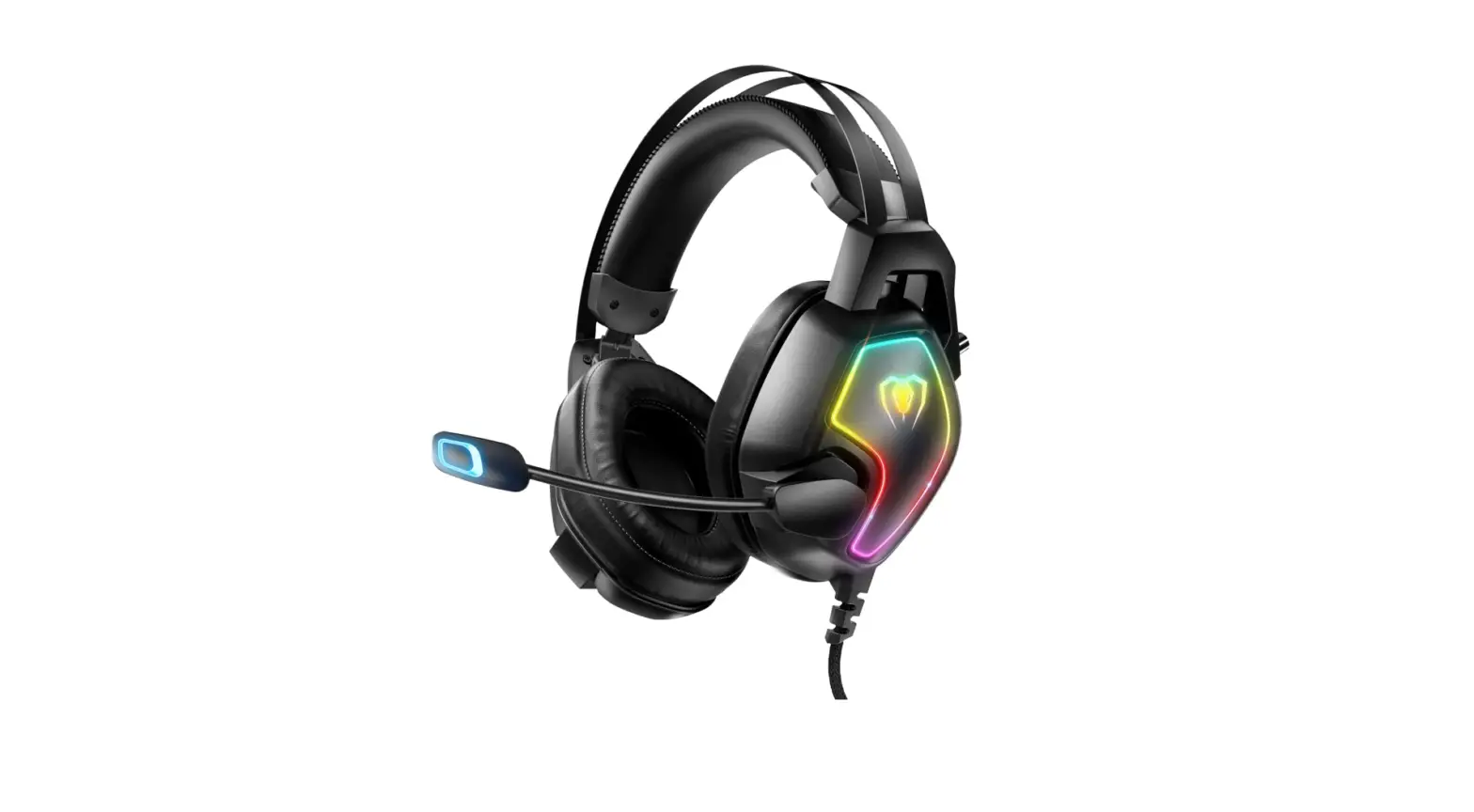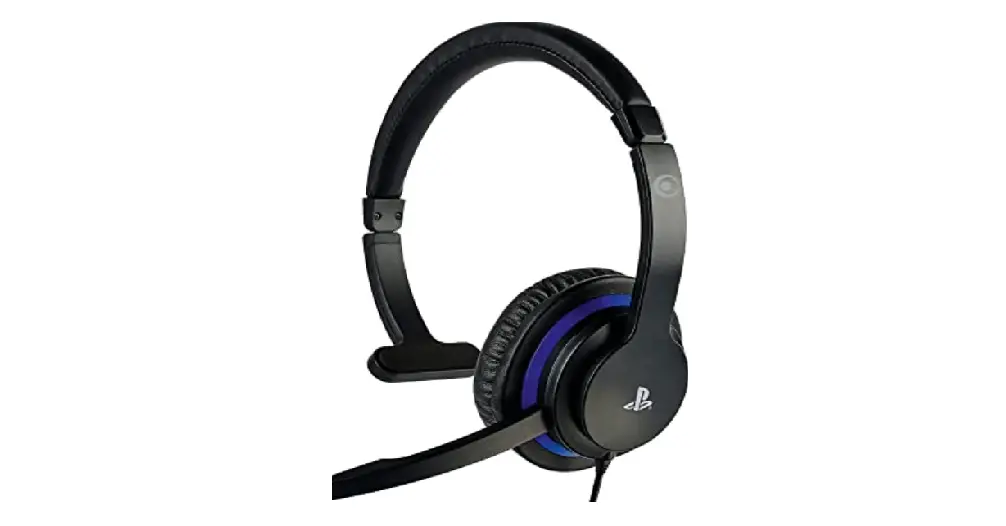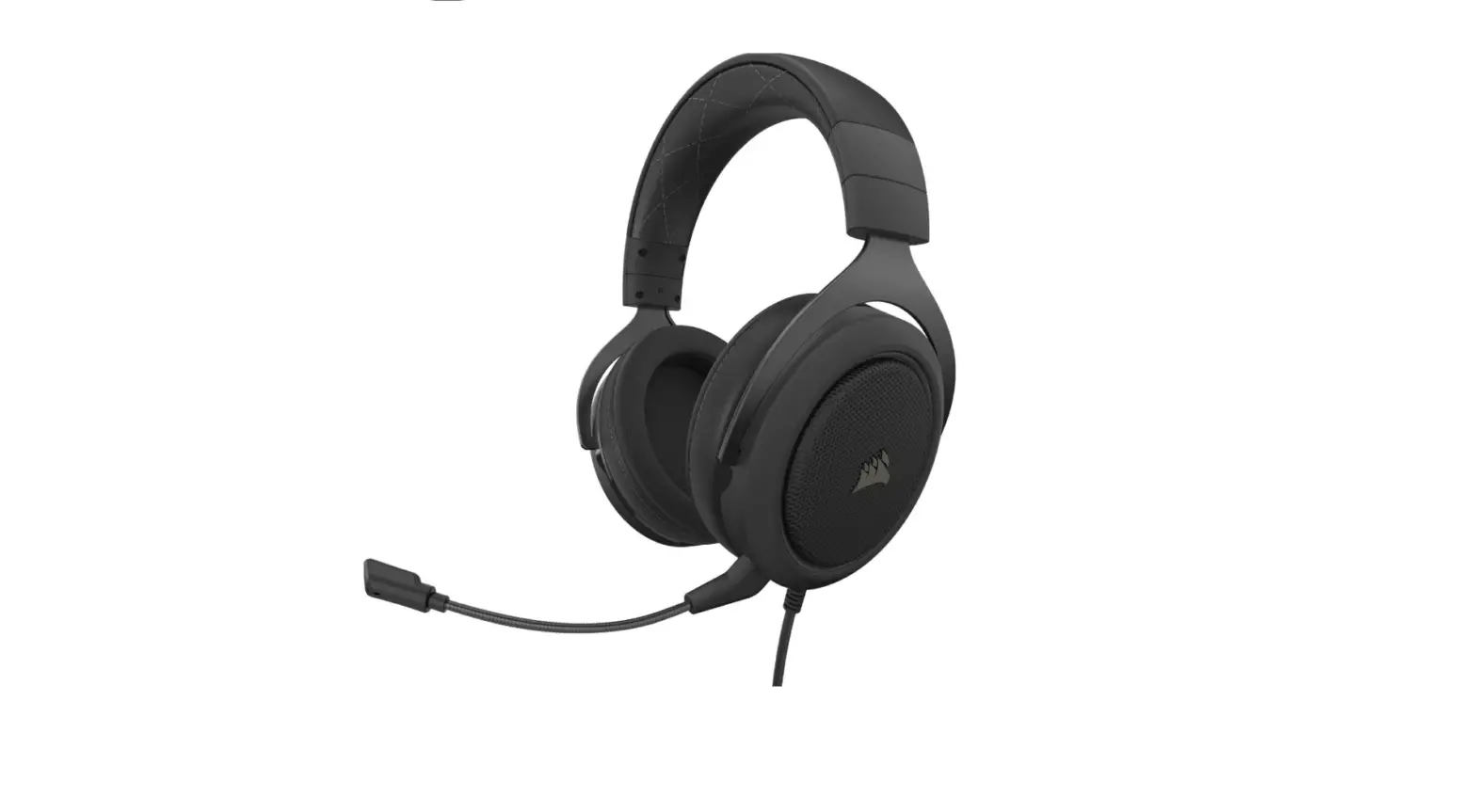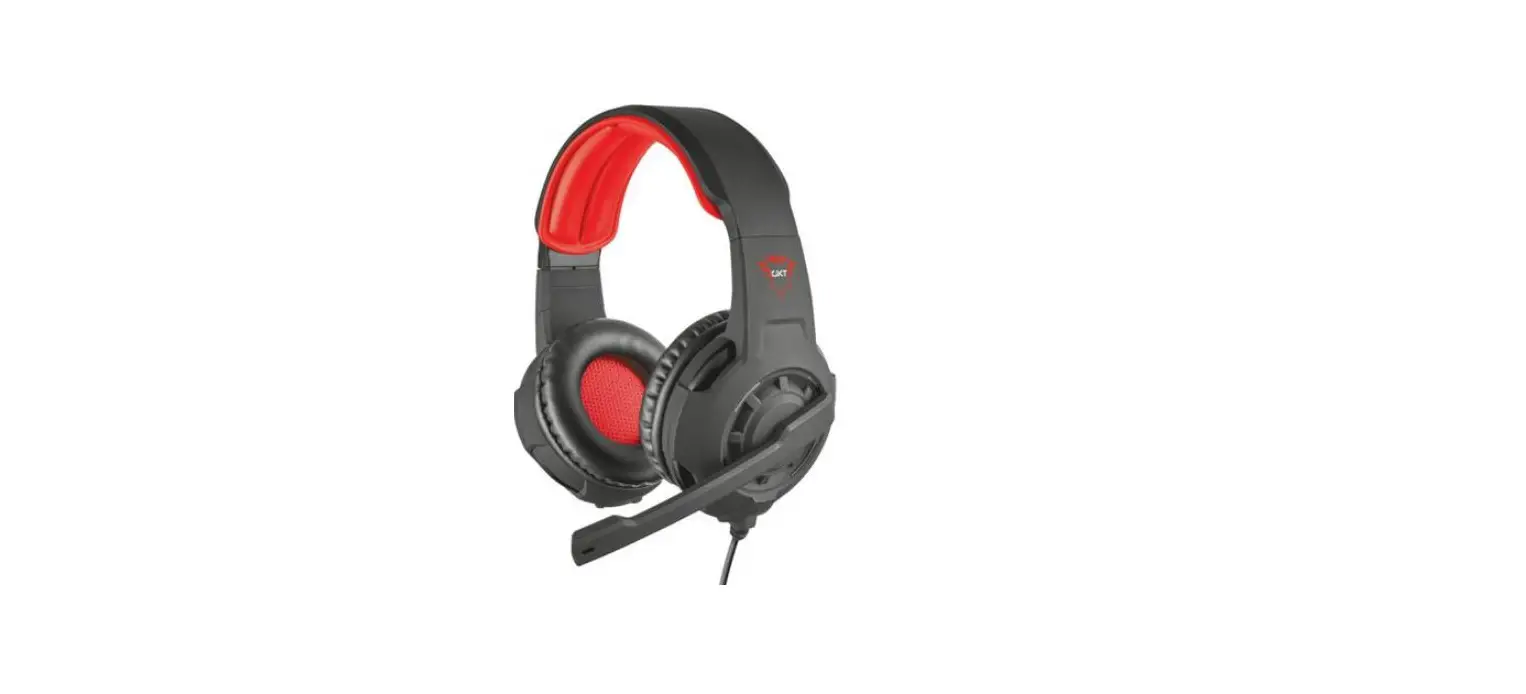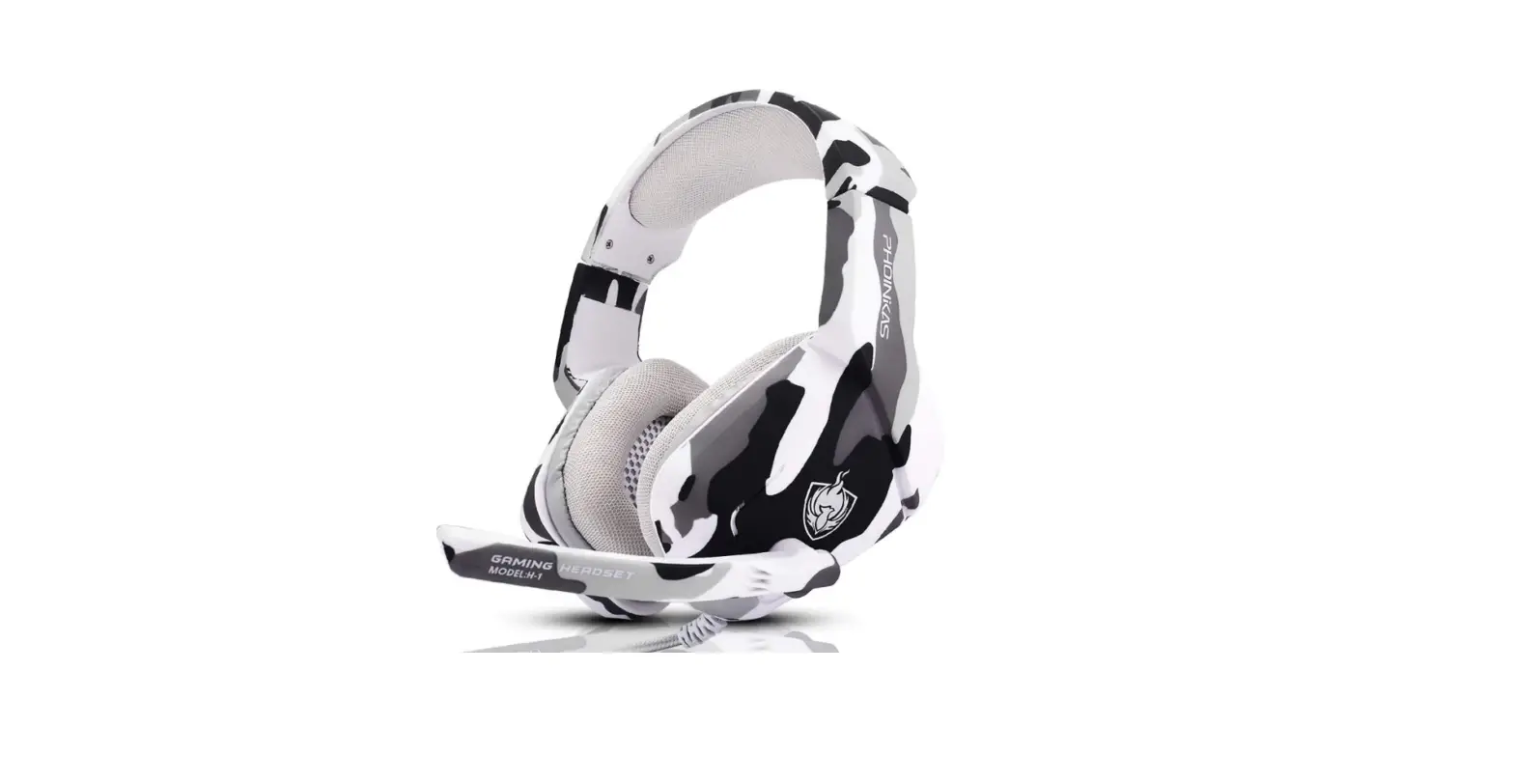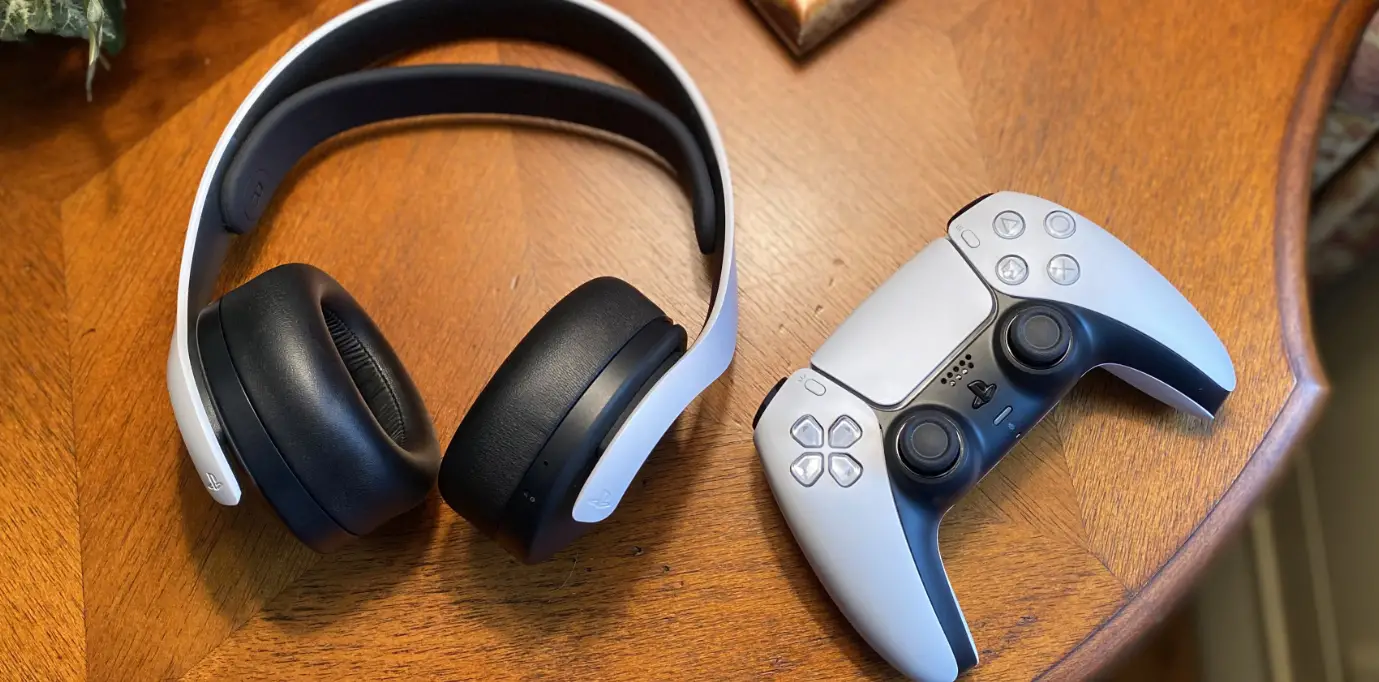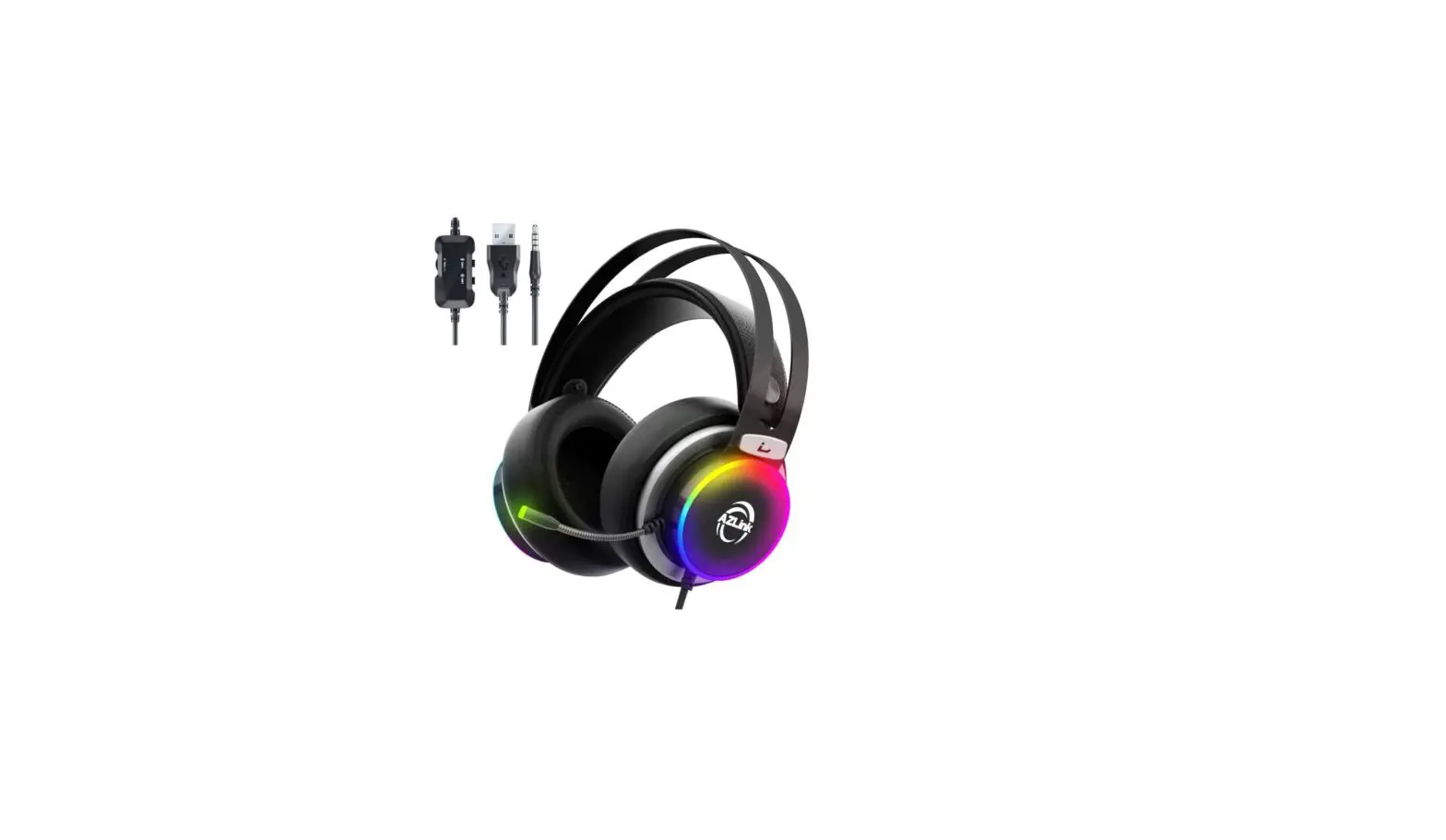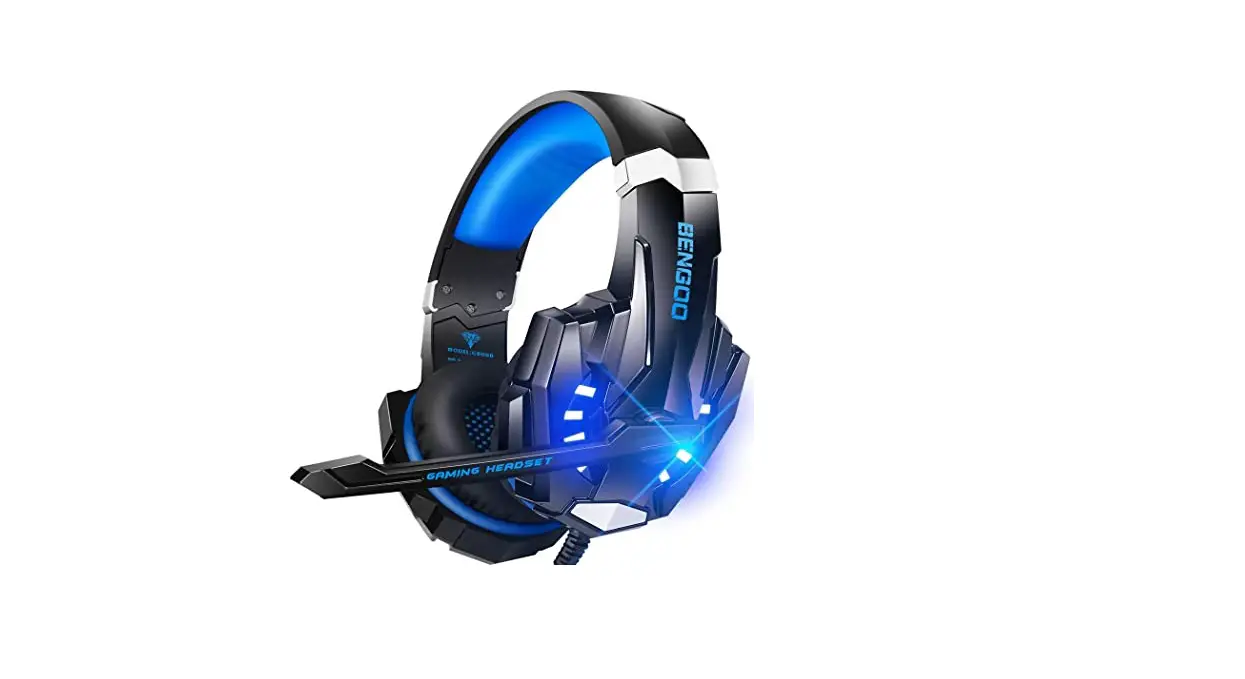

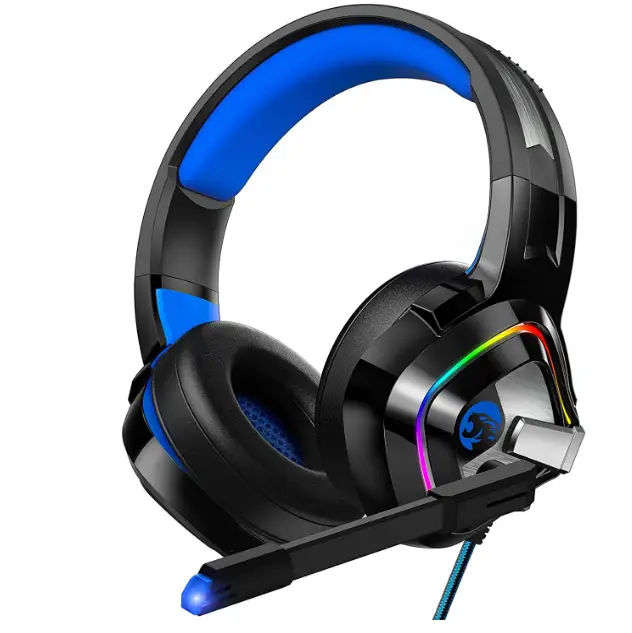
Ziumier Z66 Headset PS4 Headset Xbox
Specifications
- DIMENSIONS:27 x 4.33 x 7.87 inches
- WEIGHT:6 ounces
- MODEL: Z66
- CONNECTIVITY: Wired
- FORM FACTOR: Over Ear
- DRIVER DIAMETER: 50MM
- AUDIO AND MIC CHANNEL:5 mm
Introduction
Ziumier presents the Z66 gaming headset which features wired form of connectivity to provide minimum latency. The headphones are designed to be comfortable so that they can be used for long periods of time without causing any fatigue to the ears. The headset features soft earmuffs that press against the ear. They also have a mic button along with a volume controller. The headphones have two forms of connectivity. One of them is the gold plated 3.5mm plugs for mic and headset. It also has USB plug, which is mainly for lights and to ensure stable sound.
These headphones are built to provide ultimate comfort. They are softly padded. The headband is retractable meaning that it can be adjusted according to different head sizes. This means these headphones are suitable for gamers of any age. The headphones are suitable for any sort of device having a 3.5mm audio port such as PS4, PS5 controller, Xbox One Controller, smartphone/tablet, PC/laptop and Nintendo switch.
What’s in the box?
- Gaming headset x 1
- 1-to-2 MIC/Audio Cable x 1
- User Manual x 1
- 6m USB Extension Cable x 1
How to use Ziumier Headphones with PC
The headset comes with 1 to 2 connector cable which has been specifically designed for PC.
- Plug the 1-to-2 3.5mm splitter cables into the audio input
- Plug the microphone separately into the back side of the host computer.
How to use Ziumier Headphones with PS4
- Insert 3.5mm plug cable into the controller of your PS4.
- Press and hold the PS4 button and go to the setting of the system.
- Go to ‘Peripheral Machine’, and then ‘Adjust Sound and Devices.
- Change ‘Output to the headphones’ to ‘All Audio’.
How to use Ziumier Headphones with Xbox One
If your Xbox controller has a 3.5mm audio interface, you can use the Summer gaming headset with the microphone directly. If not you will need a ‘Microsoft Adapter’.
Frequently Asked Questions
Yes, the LED lights are completely safe to use.
The length of both the cables is 2.2m/7.2 feet.
Yes, the headset comes with volume controller and microphone, it has mic on and OFF button.
Open Sound Settings by selecting the Speakers symbol from the context menu when you right-click it. Activating the sound options
Tap Sound Control Panel. The Sound Control panel is accessed.
Right-click the headset mic and choose the Recording tab. Set as Default Device by clicking. Default Device is set to the headset microphone.
Instead, see if you’re experiencing Bluetooth problems if you’re using a cordless Bluetooth headset. Disconnect the microphone boom and re-insert it if it’s loose. Try connecting your PS4 to a different USB port and see if that resolves the problem, if you’re using a USB connection.
Select “Open Sound Settings” from the context menu when you right-click the sound icon in the taskbar. It’ll bring up a new window. Accessing Sound Settings.
You’ll notice a selection with the title “Choose your output device” under “Output.” Sound Output Preferences.
Select the paired headset. Changing the output device to the headset.
Check your device’s sound settings to see if the call or media volume is extremely low or muted. If so, all you need to do is turn up your device’s media and call volume. As was already said, dust particles can gather and easily clog your device’s microphone.
Connect the USB adapter for your headset to the USB port on your PS4 or gaming console. Put your headphones in pairing mode after turning them on. Your headphones should be connected and play sound after the blue light stops flashing and turns solid blue.
Your PS4 controller’s PS button should be pressed and held down until the options menu appears. Select device management by navigating to it below. From the device list, pick the microphone you want to control. You can see a mic input level meter on this screen, which will record any noise the mic detects.
Your laptop must be compatible with your gaming headset. Headphone jacks are typically included into laptops. If you purchase a wireless gaming headset for a laptop, it should have Bluetooth connectivity, necessitating the usage of a USB port or a Bluetooth module on the laptop.
If your headset isn’t functioning, there can be a driver issue. Remove the drivers for the connected headset from Device Manager. To force Windows to reinstall them, restart the computer and attach the headset once more. It’s the time-tested “turn it off and on again” method, but it still works.
Make sure Headphones are selected and connected for both playback and recording using the dropdown options at the top of the Sounds Settings window that appears when you right-click the Volume icon in the System Tray at the right end of the task bar.
Look for the blue bar that rises and falls when you talk into your microphone under Test your microphone in Sound Settings’ Input section. The bar indicates that your microphone is operational if it is moving. To fix your microphone, choose Troubleshoot if you can’t see the bar move.
Navigate to the System setting and click on Sound in the left sidebar. Next, click on Manage sound devices under the Troubleshoot button in the Input devices settings. Scroll down, locate your device under the Disabled section, and enable your microphone by clicking Enable.
The operating system’s low volume settings or the microphone itself may be to blame for the muted mic output. Make sure the volume buttons on your microphone are not muted if it has any. You can also increase the audio interface’s microphone loudness.