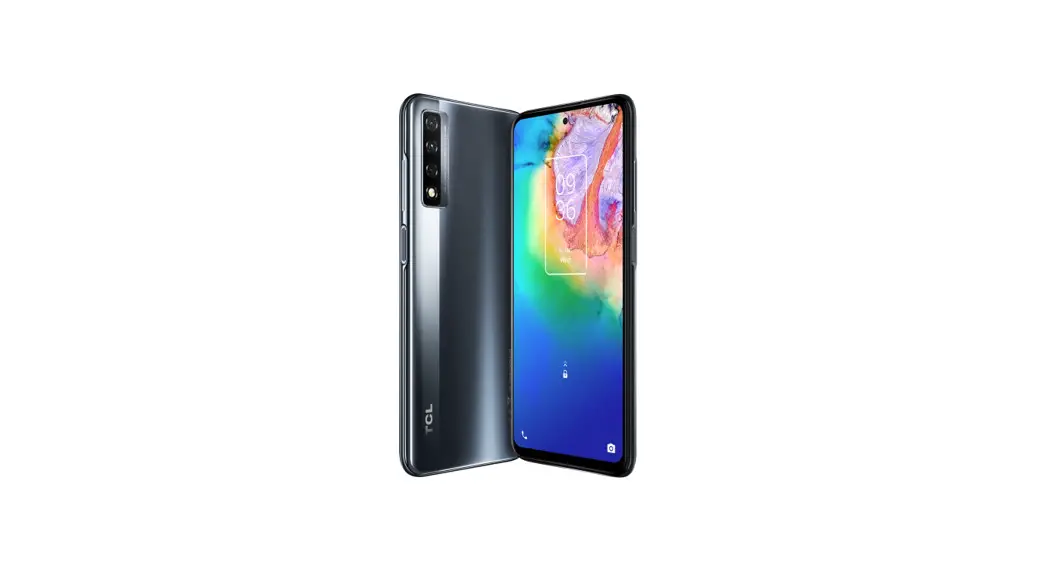

Quick reference guide
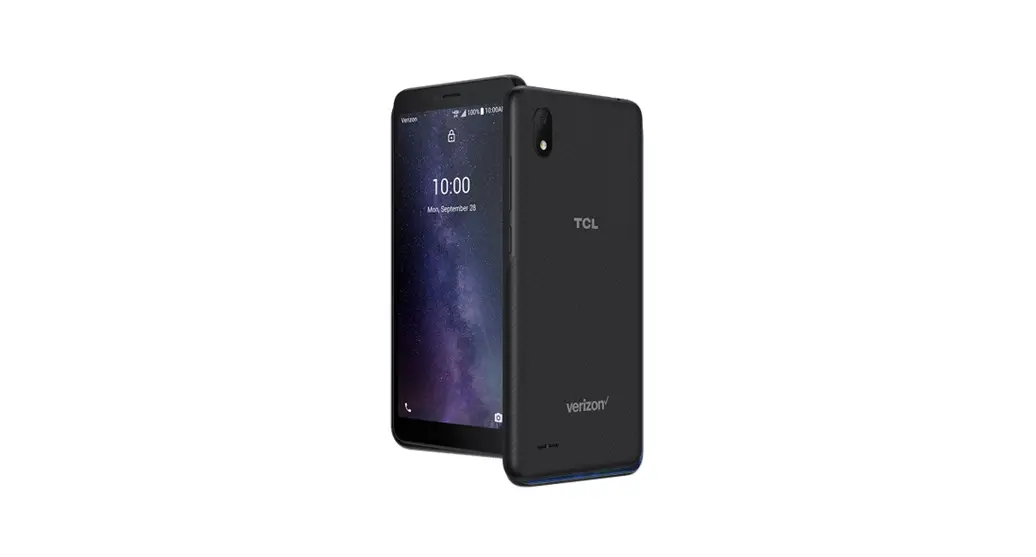
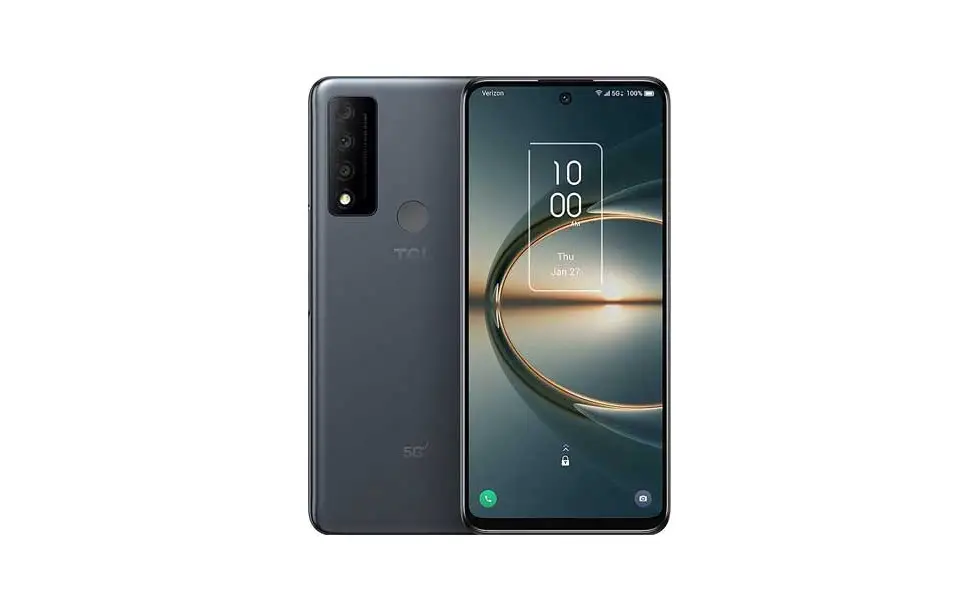
TCL-T781S
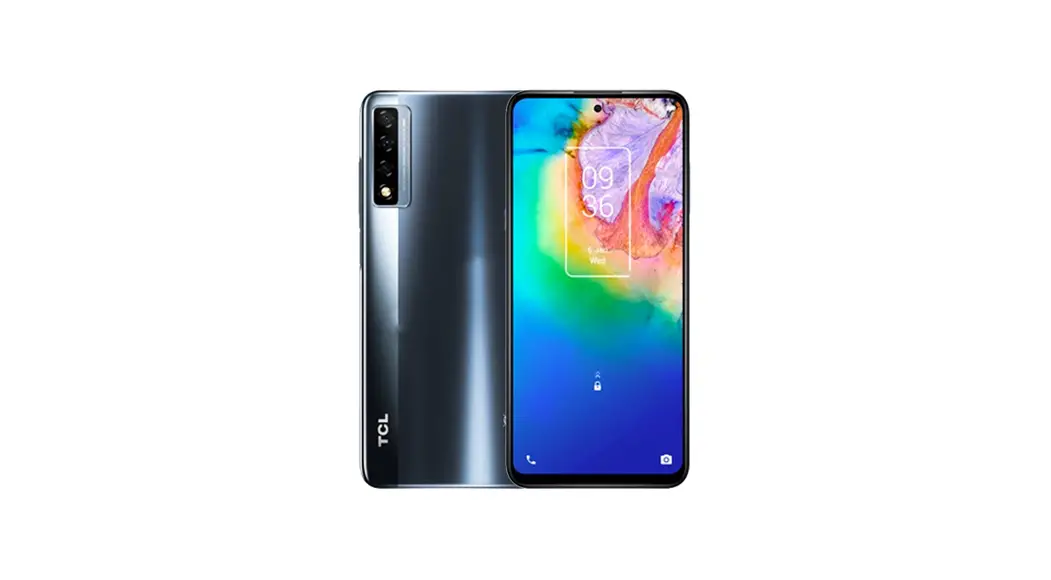
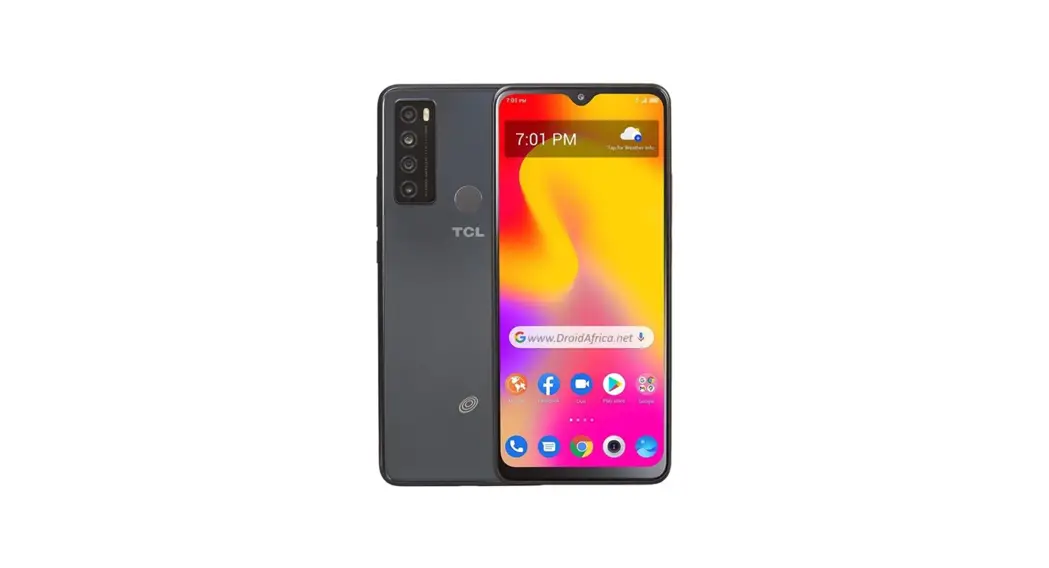
About your phone
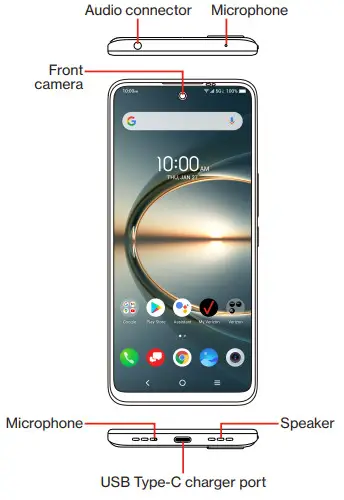
NOTE: Devices and software are constantly evolving—the screen images and icons you see here are for reference only.
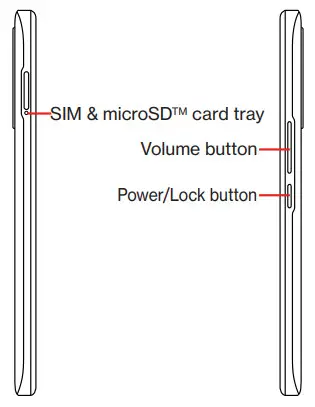
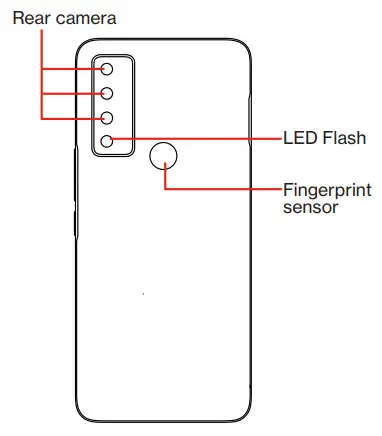
Setting up your phone
Your phone already has a SIM card installed. For an optimal wireless experience, use the SIM installed in your new phone.
1. Insert the SIM/microSD card.
Step 1. If you need to replace the NANO SIM card and/or insert an optional microSD card, use the SIM tool provided in the box to open the SIM tray.
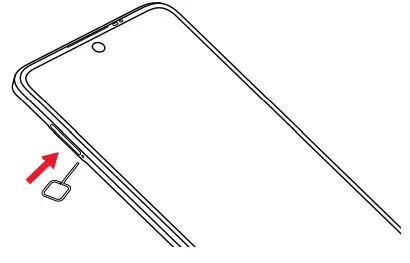
Step 2. Place the SIM card and/or microSD card into the tray, then slide the tray into the slot. It only fits one direction. Do not force into place. Keep the SIM tool in a safe place for future use.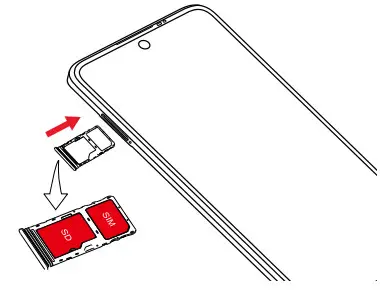
2. Charge your phone.
Before turning on your phone, charge it fully. Insert the small end of the USB cable into the phone. Insert the larger end into the charger and plug the charger into an outlet.
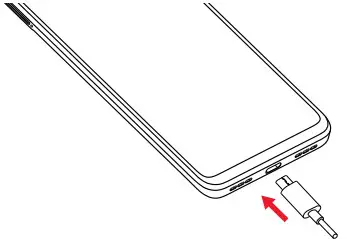
WARNING: Only use approved chargers with your device. Incompatible chargers or tampering with the charger port could damage your device and void the warranty.
Using your phone
Turn your phone on/off
To turn on your phone, press and hold the Power/Lock button.
NOTE: The first time you turn on your phone, you may need to activate it. Follow the on-screen instructions to set up your device.
To turn off your phone, press and hold the Power/Lock button, and tap Power off on the screen when it appears.
Locking/unlocking the screen
To turn on your screen, press the Power/ Lock button. Then swipe up on the screen to unlock it.
To create a screen unlock pattern, touch Settings > Security & biometrics > Screen lock.
To turn off your screen and prevent accidental key presses, press the Power/ Lock button.
Touch screen tips
Use touch gestures to move around the screen, open menus, select items, zoom in and out of web pages, and more.
There are several touch gestures recognized by your phone:
- Tap—Tap the screen with your finger to select items or press buttons on the screen.
- Touch and hold—Touch and hold an item on the screen (such as a link in a web page) to open available options.
- Swipe—Swipe by quickly sliding your finger in any direction.
- Drag—To drag, touch, and hold an item and move it to a new position.
- Double-tap—Double-tap to zoom in/out on a web page or picture.
- Multi-touch—Pinch or spread your thumb and index finger to zoom in or out.
Home screen
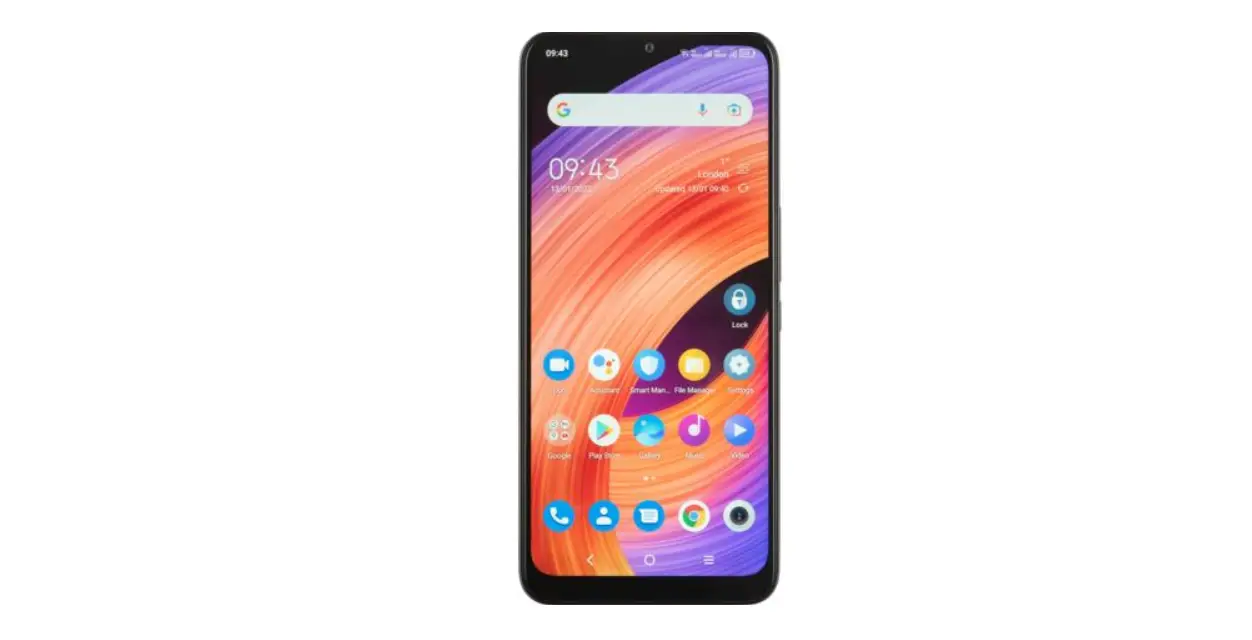
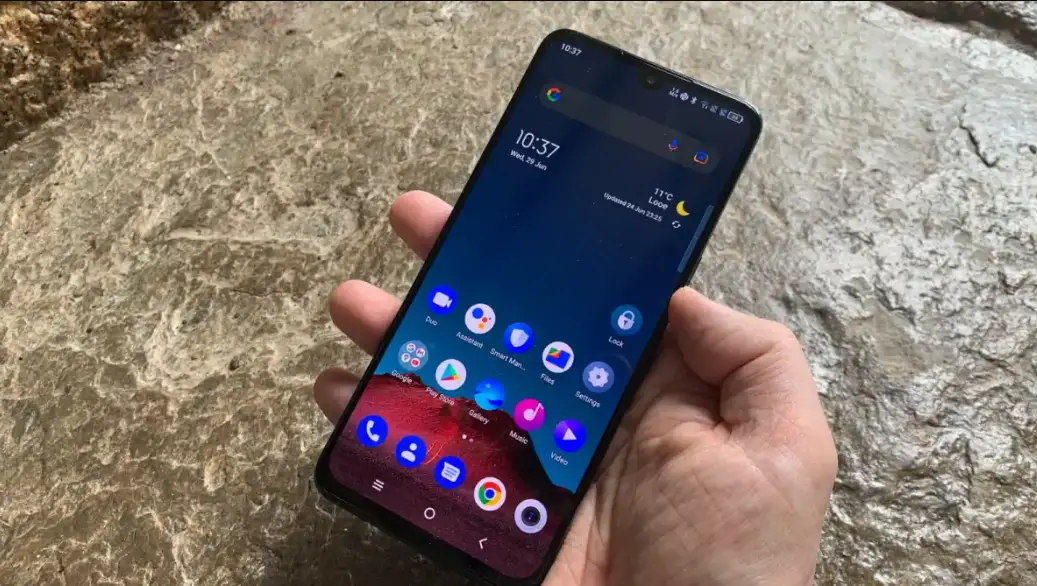
The Home screen provides quick access to all the items (applications, shortcuts, folders and widgets) you like to use most frequently.
Tap the Home symbol to get instant access to the Home screen.
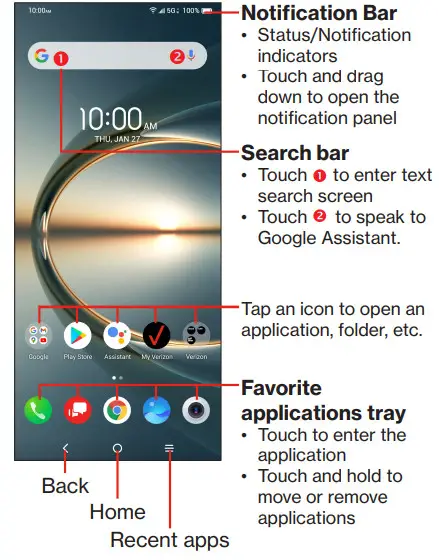
The Home screen offers multiple pages for shortcuts or applications you may download from the Play Store. Simply swipe your finger horizontally to the left.
From the Home screen, swipe right to view a Google news feed page.
Making a call
- From the Home screen, tap Phone
 .
. - Tap,
 enter the desired number from the dial pad, and tap
  or
or to place the call.
 - Or use the Search contacts bar to enter the first few letters of a contact’s name, or select a contact from Favorites, Contacts or Recents call logs by sliding or touching tabs, then make the call.
- To hang up a call, tap
 .
.
 .
. enter the desired number from the dial pad, and tap
  or
or to place the call.
 .
.Receiving or rejecting a call
When you receive a call,
- Press ANSWER, or swipe up the icon
 to answer;
 - Press DECLINE, or swipe down the icon to reject;
- Swipe up the icon
 to reject the call by sending a preset message.
 to answer;
 to reject the call by sending a preset message.
To mute incoming calls, press the Volume button.
Setting up Voicemail
- From the Home screen, tap Phone.
- Tap and dial *86, then tap.
- When you hear a greeting, press # to interrupt
- Follow the instructions to set up your voicemail.
Checking Voice Mail
From your phone:
- From the Home screen, tap Phone.
- Tap and then press and hold 1.
From other phones:
- Dial your wireless number.
- When the greeting begins, press # to interrupt.
- Follow the instructions to listen to, save or discard phone messages.
NOTE: Voice mailboxes not set up within 45 days will be canceled. Your voice mailbox is not password protected until you create a password by following the setup tutorial. Voice Mail may not be available in some areas. Follow the setup instructions to password-protect your Verizon Wireless Voice Mailbox. Verizon Wireless is not responsible for missed messages or deletions of messages from your Voice Mailbox, even if you have saved them.
Services and features
Calling features
- Domestic Long Distance
- Caller ID
- Call Waiting
- 3-Way Calling
- Call Forwarding
Text messaging
- Open the Message+ App by tapping
 on the Home screen or within the App Drawer.
 - Tap
 to start a new text message.
 - Enter the name or number of the recipient, or tap to select a contact from your contacts list.
- Compose the text message in the text box, and tap
 to send.
 on the Home screen or within the App Drawer.
 to start a new text message.
 to send.
NOTE: Data charges will apply when sending and receiving a picture or video message. International or roaming text charges may apply to those messages outside of the United States of America. See your carrier agreement for more details about messaging and related charges.
Picture and video messaging
Take pictures or videos and send them to almost any email address, or to other phones.
- From the Home screen, tap >.
- Enter the name or number of the recipient, or tap to select a contact from your contacts list.
- Tap and choose the pictures or videos you want to send.
- After attaching the pictures or videos, tap to send.
Apps and more
Play it up with music, ringtones, wallpapers, apps, and games.
Keep up with Twitter™ and Facebook. We’ve got apps that help you do it all. Data charges may apply.
Installing apps
From the Home screen, tap Play Store .
.
Web browsing
From the Home screen, tap Chrome .
.
Verizon Cloud
Verizon Cloud offers secure online storage to back up your contacts and sync them with your other Cloud-connected devices.
To learn more, go to vzw.com/cloud.
Transferring data from your previous device
When you activate your new phone, you could see the Copy apps & data options in the Setup wizard, based on the instruction, you could transfer your apps, photos, contacts, Google Account, and more from the previous devices.
Learning more
 Visit verizonwireless.com/support for more information.
 Customer service
Call 800.922.0204
Twitter @VZWSupport Download a User Guide from verizonwireless.com/support.
Spanish User Guide can also be found at www.verizonwireless.com/support.
Managing your account
 My Verizon Mobile app
Manage your account, track your usage, edit account information, pay your bill, and more. Customer service
Call 800.922.0204
Twitter @VZWSupport
Additional information
Your wireless device and third party services
Verizon Wireless is the mobile carrier associated with this wireless device, but many services and features offered through this device are provided by or in conjunction with third parties. Verizon Wireless is not responsible for your use of this device or any non-Verizon Wireless applications, services, and products, including any personal information you choose to use, submit or share with others. Specific third-party terms and conditions, terms of use, and privacy policies apply. Please review carefully all applicable terms, co’
Hearing aid compatibility information
This phone has been tested and rated for use with hearing aids for some of the wireless technologies that it uses. However, there may be some newer technologies that have not been tested yet for use with hearing aids. It is important to try the different features of this phone thoroughly and in different locations, using your hearing aid or cochlear implant, to determine if you hear any interfering noise. Ask your service provider or the manufacturer of this phone for information on hearing aid compatibility. If you have questions about return or exchange policies, ask your service provider or phone retailer. conditions and policies prior to using this wireless device and any associated application, product, or service.
CJB68S001AAA
Printed in ChinaBC © 2021 Verizon Wireless.
© 2021 TCT Mobile Inc.
All rights reserved.
 Verizon Support - Mobile & Home
 Verizon Support - Mobile & Home