QUICK START GUIDE

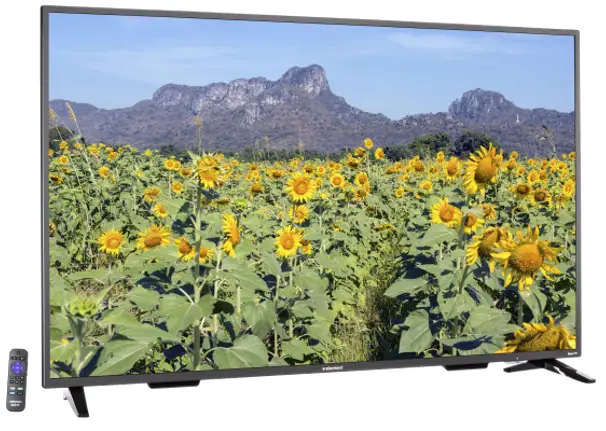
ROKU TV
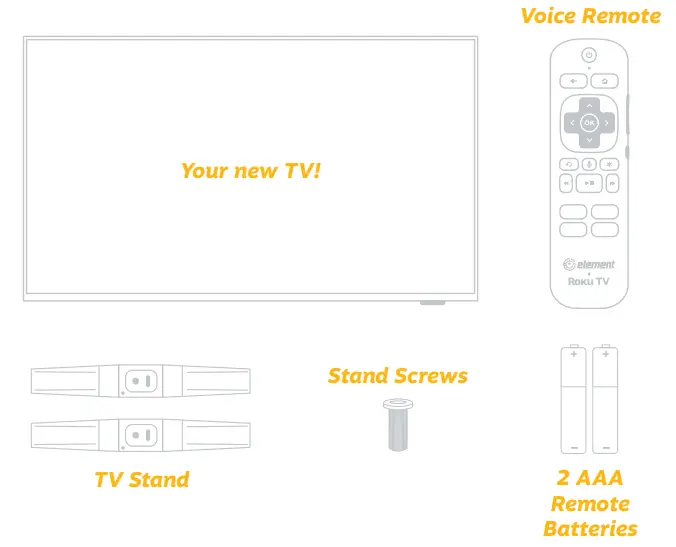
WHAT’S INCLUDED
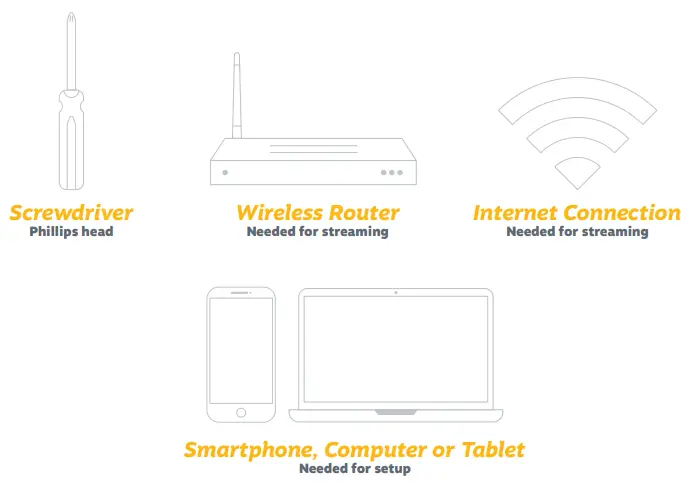
WHAT YOU’LL NEED (NOT INCLUDED)
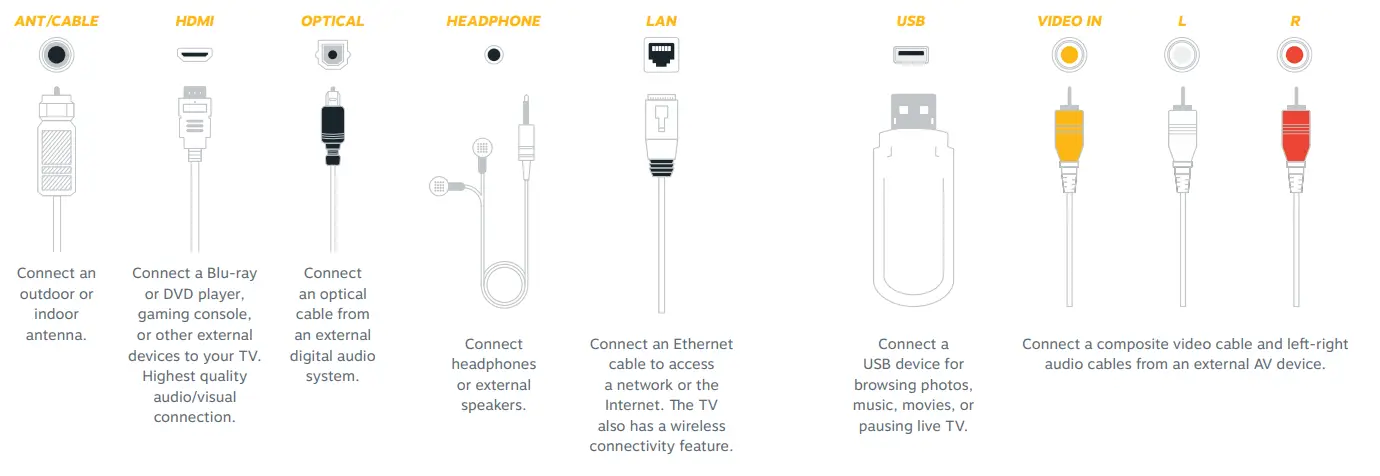
CONNECT DEVICES TO YOUR TV
Check to ensure that you have selected the right cables for the ports and that they are connected securely (cables and external devices not included).
Loose connections can affect your picture and audio quality.
SETTING UP YOUR TV
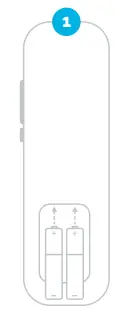
Place Batteries in Remote
Power your TV remote by inserting the included batteries carefully matching (+) and (-) indicated inside the battery compartment.
TIP: Always replace dead batteries with two brand-new batteries from the same manufacturer. Never use damaged batteries.
If your remote gets warm/hot during use, discontinue use and contact customer support immediately.
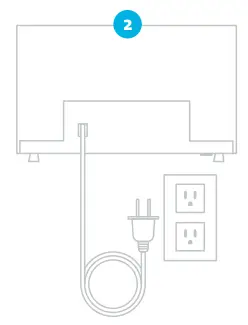
Plugin and Turn on the TV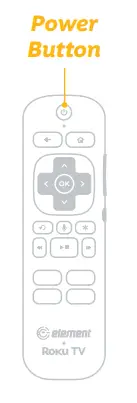 Plug your TV into the wall outlet and press the power button on your remote control.
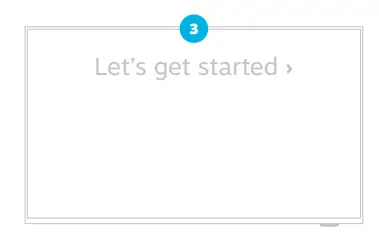
Follow the On-Screen Instructions
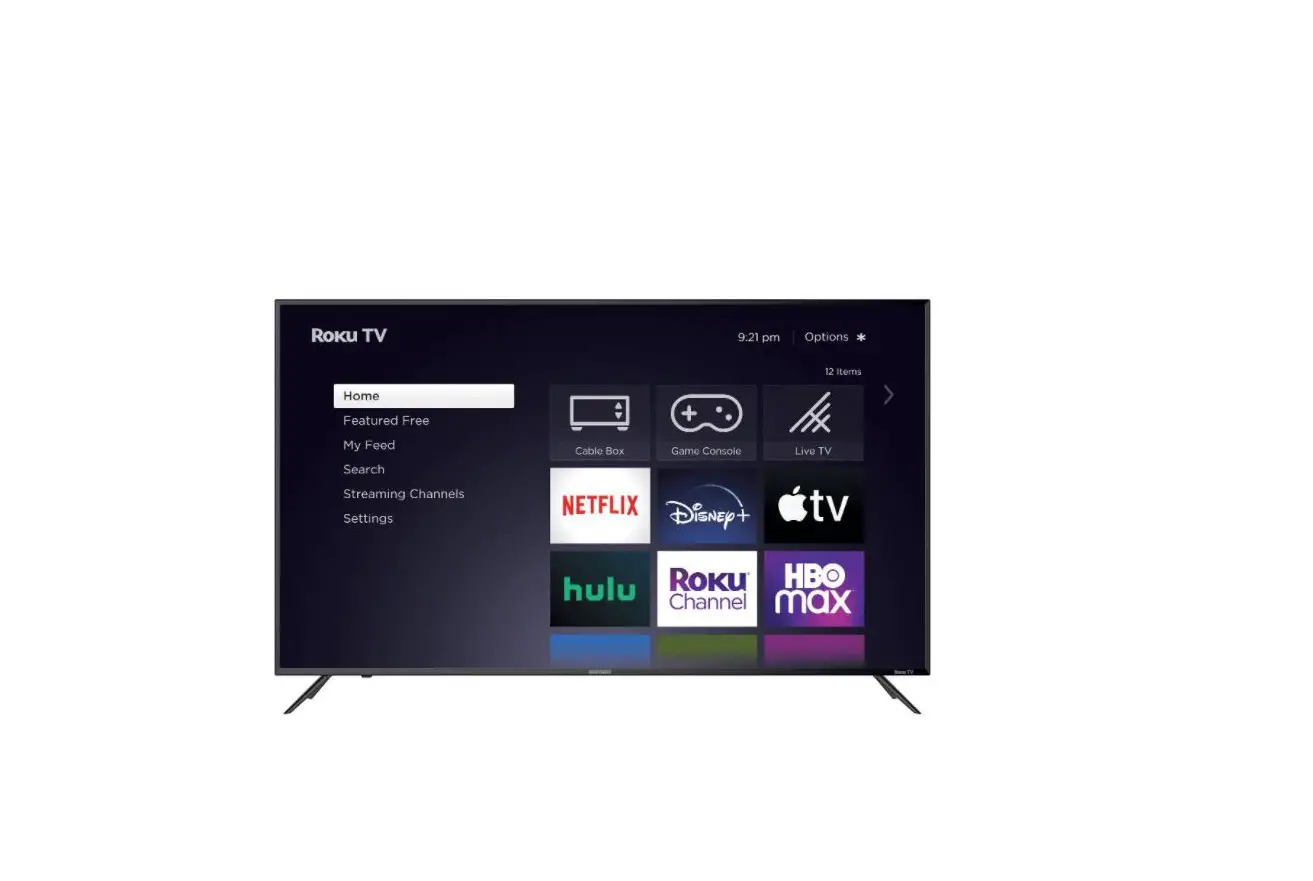
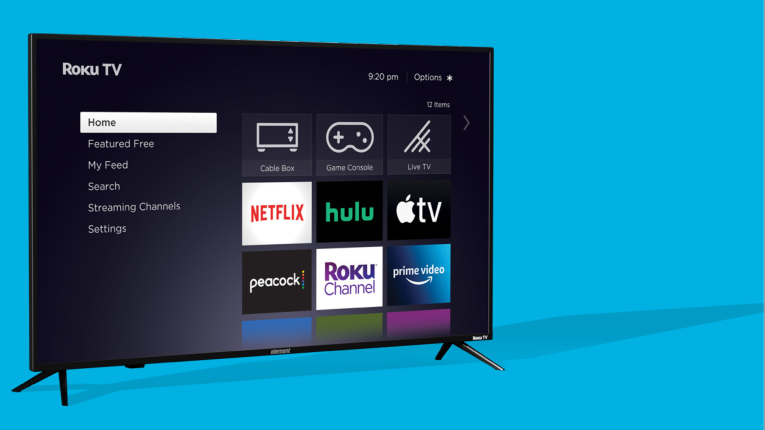
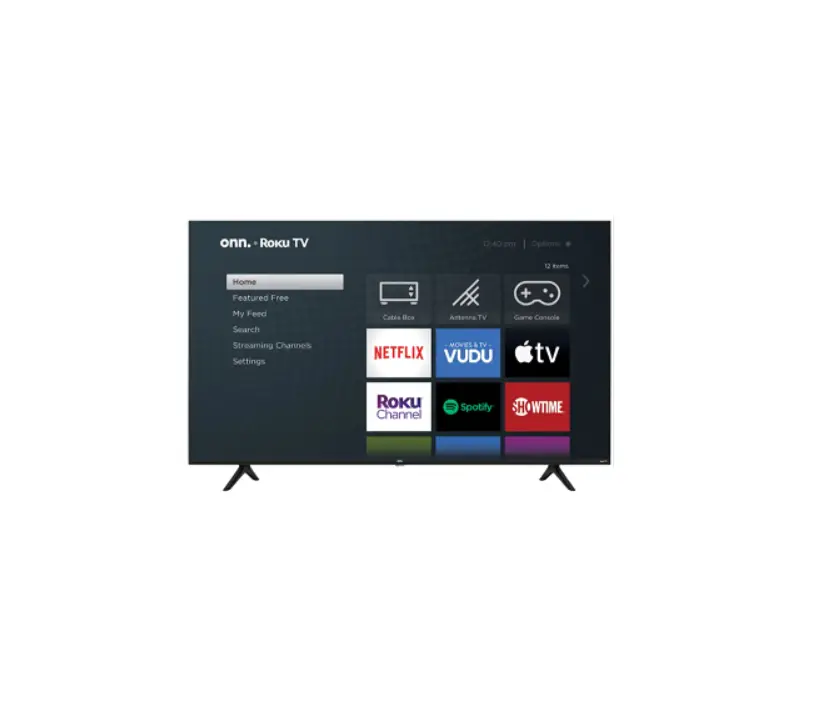
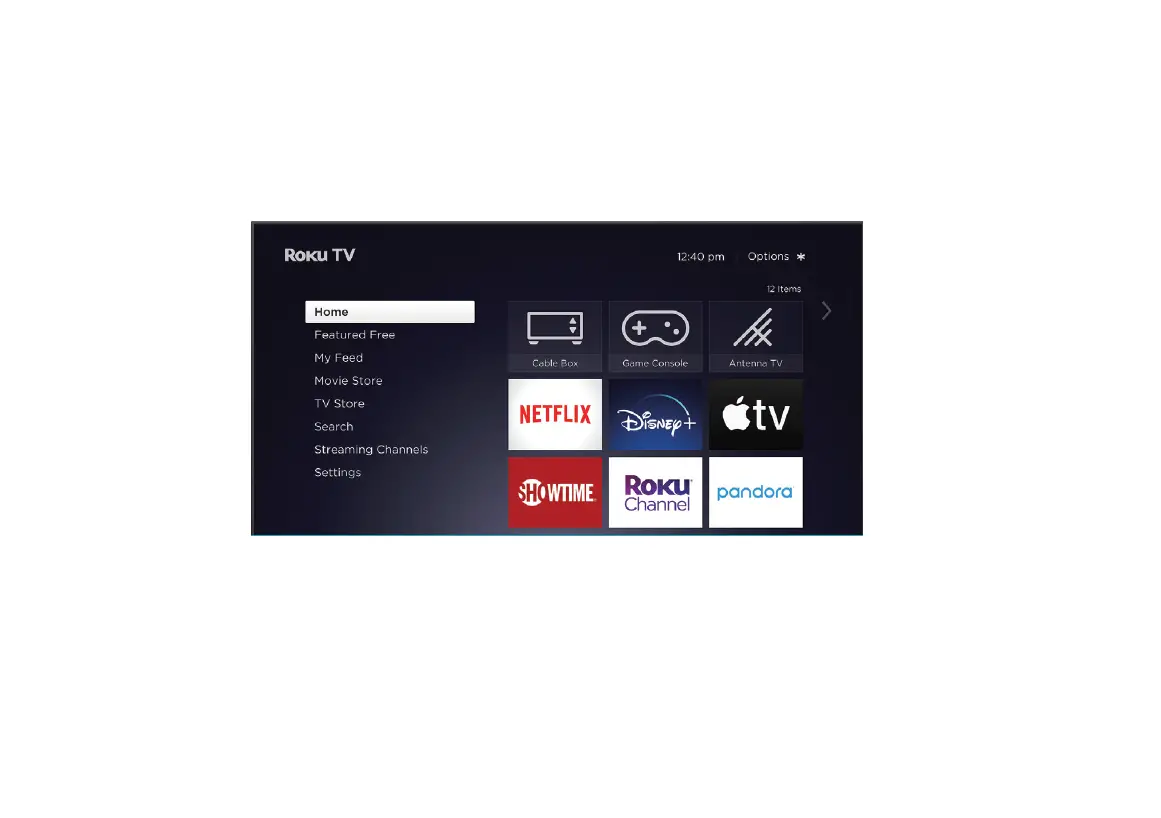
When your TV powers on, follow the easy on-screen instructions for setup.
Your TV will automatically detect wireless networks in your area, so have your network name and password handy. If you aren’t ready to connect to a wireless network you can still use it as a regular TV.
A paid subscription or other payments may be required for some streaming channels.
Channel availability is subject to change and varies by country.
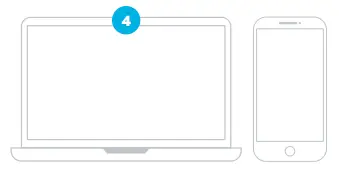
Activate your Smart TV
Activate your TV using your computer, smartphone, or tablet to link to a Roku account. You need a Roku account to activate your TV and access entertainment across thousands of streaming channels.
NOTE: ROKU DOESN’T CHARGE FOR ACTIVATION SUPPORT – BEWARE OF SCAMS.
Roku accounts are free and while a valid credit card number is not required to create a Roku account, saving your credit card information makes renting and purchasing entertainment from the Roku Channel Store fast and convenient.
Once connected to your account, your TV will automatically update with the latest software, and you can start streaming immediately.
USING YOUR REMOTE
The Roku TV remote should feel right at home in your hand. We designed it to be incredibly intuitive for watching TV and navigating on-screen menus.
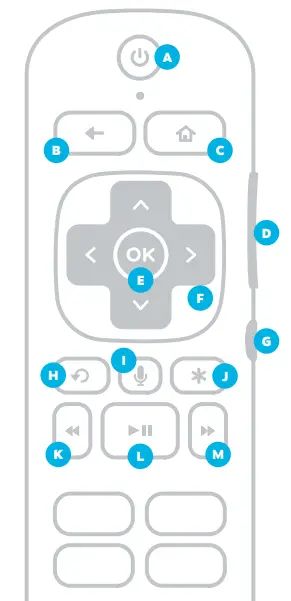
| A | Power Turn TV on and off |
| B | Back Return to the previous screen |
| C | Home Return to Roku Home screen |
| D | Volume Raise and lower volume |
| E | OK Select an option from a menu |
| F | Navigate Move up, down, left, or right |
| G | Mute and restore sound |
| H | Instant Replay Replay the last few seconds of streaming video |
| I | Voice Press and hold while speaking for voice search and commands |
| J | Options Access to picture settings, more streaming channel icons, and more |
| K | RWD Rewind streaming video, scroll left one page at a time |
| L | Play/Pause Start or pause playback |
| M | FWD Fast forward streaming video, scroll right one page at a time |
TIP: The button gives you easy access to picture settings, display options, and more. Try it on every screen.
The actual remote includes pre-set channel buttons with channel logos.
CONNECTING AN ANTENNA
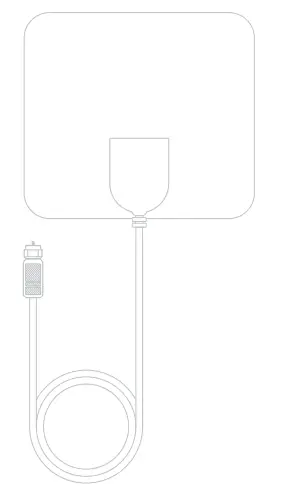
With the built-in tuner, you can connect your TV to an antenna and enjoy over-the-air entertainment.
- When the setup wizard is complete select the Antenna/Live TV icon from the home screen.
- Follow the on-screen instructions.
- Whenever you want to watch antenna TV, select the Antenna/Live TV icon.
- Live TV Pause feature: Pause up to 90 minutes of live antenna TV when you connect a 16 GB or larger USB drive to your TV. All data on the USB drive will be deleted prior to use.
UNIVERSAL REMOTE SETUP
If you prefer to use your cable set-top box or satellite receiver remote as a universal remote, please refer to the manual your cable or satellite service provided. It includes instructions on how to program your remote to your TV.
You can find the most common cable and satellite provider universal remote codes at roku.com/universalremote.
LET’S REGISTER YOUR PRODUCT

It’s super easy, just head on over to elementelectronics.com/register
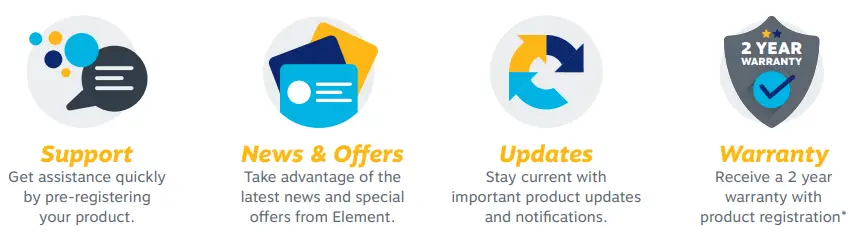
BENEFITS OF REGISTERING YOUR PRODUCT:
WE’RE HERE TO HELP
Find resources and get help with product setup, connecting devices, technical issues, downloading manuals, and more!
We’re available 24 hours a day, 7 days a week at elementelectronics.com
 1.888.842.3577
 [email protected]
To download the full Roku TV User Guide visit go.roku.com/rokutv
QUICK START GUIDE
FOR SUPPORT, VISIT ELEMENTELECTRONICS.COM/SUPPORT
Element, the Element Logo, and Bring it home are trademarks of Element Brand Holding, LLC.
©2021, Element Brand Holding, LLC, All Rights Reserved.
Roku, Roku TV, and the Roku logo are trademarks of Roku, Inc.
All other trademarks are the property of the respective owner who has not sponsored, endorsed or approved this product.
 Element Electronics Home - TVs, Audio, Home Entertainment, Appliances
 How to set up your Roku TV|Set up your Roku TV
 How to set up a cable, satellite, or universal remote to control your Roku TV™|Universal remote codes for Roku TV