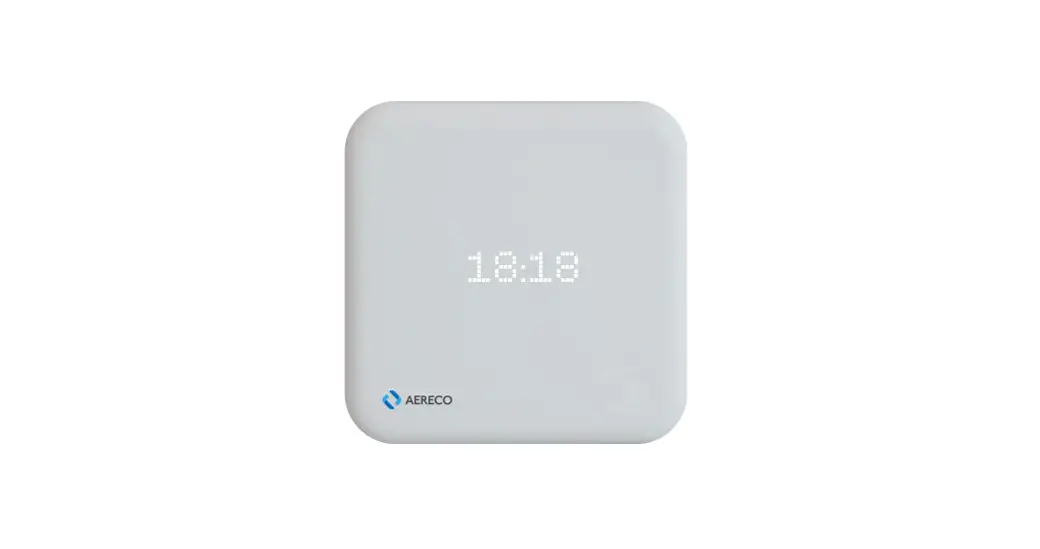
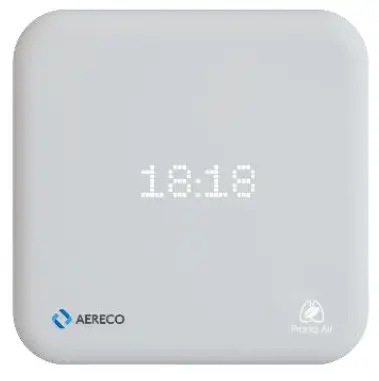
 AirQ² Breathe with Smartness
User Guide
Connectivity guide for Wi-Fi option
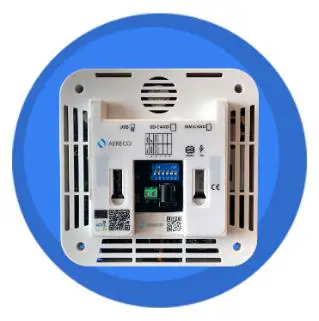 | 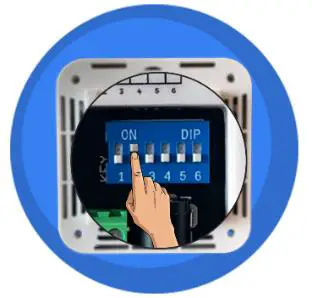 | 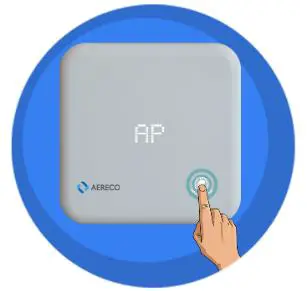 | 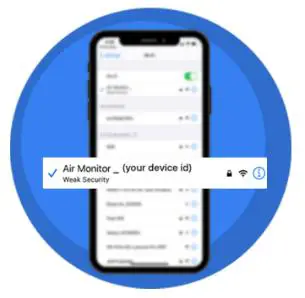 |
| Step:1 First, turn to the backside of the Aereco AirQ² monitor. | Step:2 For Wi-Fi connectivity make sure that “Switch No 2” is ON | Step:3 Long press the feather touch button, until you see “AP on the LED screen of your AirQ² Monitor (approximately 6 seconds). | Step:4 Go to the Wi-Fi settings of your phone (Android or IOS) and search for a network named “Air_Monitor your device Id)”. |
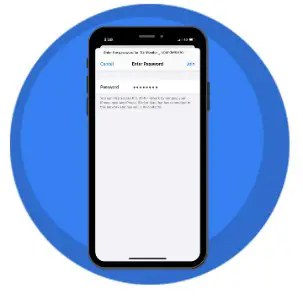 |  | 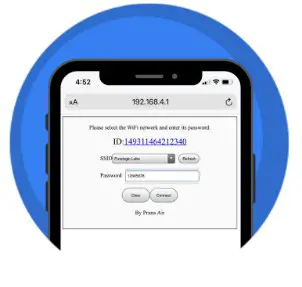 |  |
| Step:5 Enter the password “12345678” | Step:6 Open your phone browser and Type “192.168.4.1” in the address bar. | Step:7 Now select the Wi-Fi network you want your AirQ2 to connect to from the dropdown. Put the Wi-Fi password of the network and connect. | Step:8 Download “AQI APP” on your phone from google play store for android devices and from app store for IOS devices. |
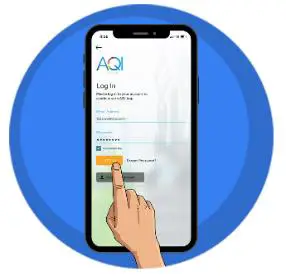 | 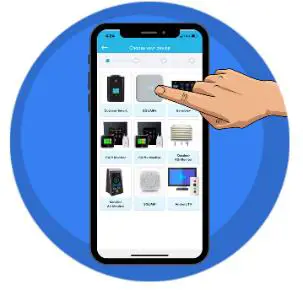 | 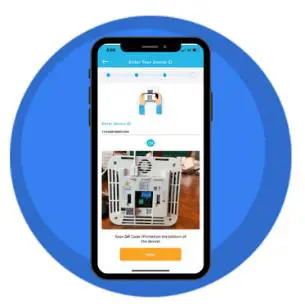 | 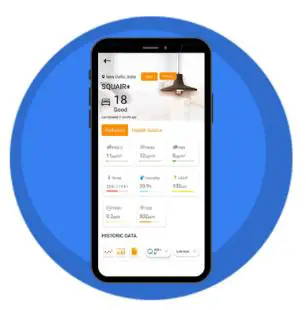 |
| Step:9 Open the “AQI” app on your phone and log into your existing account or create a new account. | Step:10 Click ADD option on the top right corner & select AirQ² device. | Step:11 Enter the device ID manually or just scan the QR code. Printed on the backside of the AirQ² monitor. | Step:12 Now, you can easily access the monitor’s data on your mobile app. |
FLY733GB_NOT_INST_AIRQ2_V1 Copyright Aereco – Images: Aereco, Fotolia – All data and pictures in this document are non-contractual and are subject to change without prior notice.
Connectivity guide for SIM card option
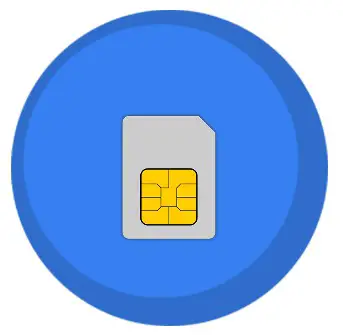 | 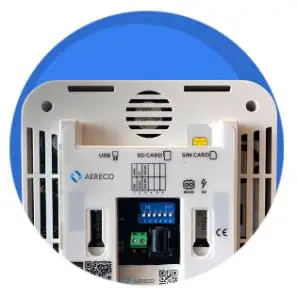 | 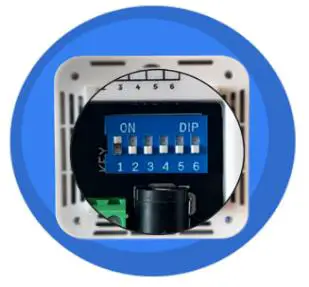 |  |
| Step:1 First, make sure your SIM card is positioned in the right direction (as shown above) | Step 2: Insert the SIM in the SIM card slot | Step 3: For SIM connectivity, make sure that « Switch no.1 » in ON | Step 4: Download « AQI APP » on your phone from google play store for android devices and from app store for IOS devices |
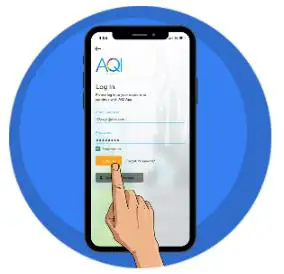 | 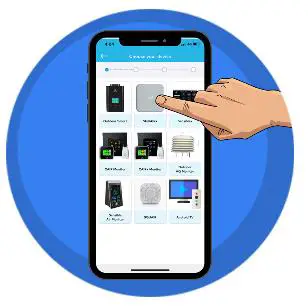 | 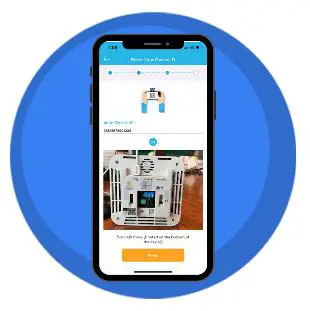 |  |
| Step 5: Open « AQI APP » on your phone and log into your existing or create a new account | Step 6: Click ADD option on the top right corner and select the AirQ² device | Step 7: Then enter the device ID manually or just scan the QR code, printed on the backside of the AirQ² monitor | Step 8: Now, you can easily access the monitor’s data on your mobile app |
Data privacy
In order to benefit from optimal use of the product (AirQ² monitor), you must register on the AQI APP or the website of AQI INDIA (https://www.aqi.in), partner of Aereco. Your personal data are collected on this occasion, such as your last name, first name, telephone number, and email address. If you do not register, you will not be able to access the information provided by the product, such as the real time air quality. AQI INDIA is fully responsible for processing the personal data it collects (including air quality data) in order to resolve any problems you may have with the product or to improve its performance. To learn more about AQI INDIA’s privacy policy, please visit https://www.aqi.in/terms-and-condition. AERECO’s authorized personnel have access, via a dedicated portal, to some of your personal data collected by AQI INDIA and use it solely for the purpose of assisting you in the
use of the product, if you request. These data are your last name, first name, product ID number, and air quality data. ARCO does not store this information and does not share it with anyone. In addition, AERECO collects personal information that is necessary to process your order. In this case, AERECO is responsible for processing the data collected. This data will be stored in our customer database and will be kept for as long as required to process your order and any applicable guarantees. For more information on this subject, please refer to our general terms and conditions. In general, you have the rights of access, rectification, deletion, and portability of the data concerning you, as well as the right to object to the processing for legitimate reasons, you may assert your rights by contacting: (1) to AERECO’s Data Protection Officer: electronically ([email protected]) or by post ; or (2) to AQI INDIA’s Privacy Officer at [email protected], for data collected by AQI INDIA only.
FLY733GB_NOT_INST_AIRQ2_V1 Copyright Aereco – Images: Aereco, Fotolia – All data and pictures in this document are non-contractual and are subject to change without prior notice.
AirQ2 parameter settings
Click on <my Device> and select the AirQ2 monitor then click on <Edit>
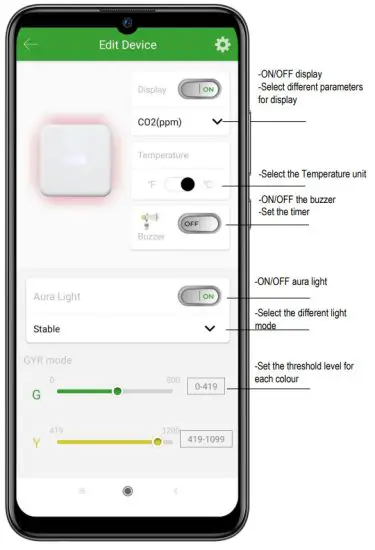
Click on <Save settings>
FLY733GB_NOT_INST_AIRQ2_V1 Copyright Aereco – Images: Aereco, Fotolia – All data and pictures in this document are non-contractual and are subject to change without prior notice.
 AQI : Real-Time Air Quality Index | Air Pollution Level