
User guide and FAQsUser guide and FAQs
WORK SAFER. WORK SMARTER. SMART TOOL. SMART CHOICE. Visual inspections Cable installations MaintenanceRepair work On the job or at home
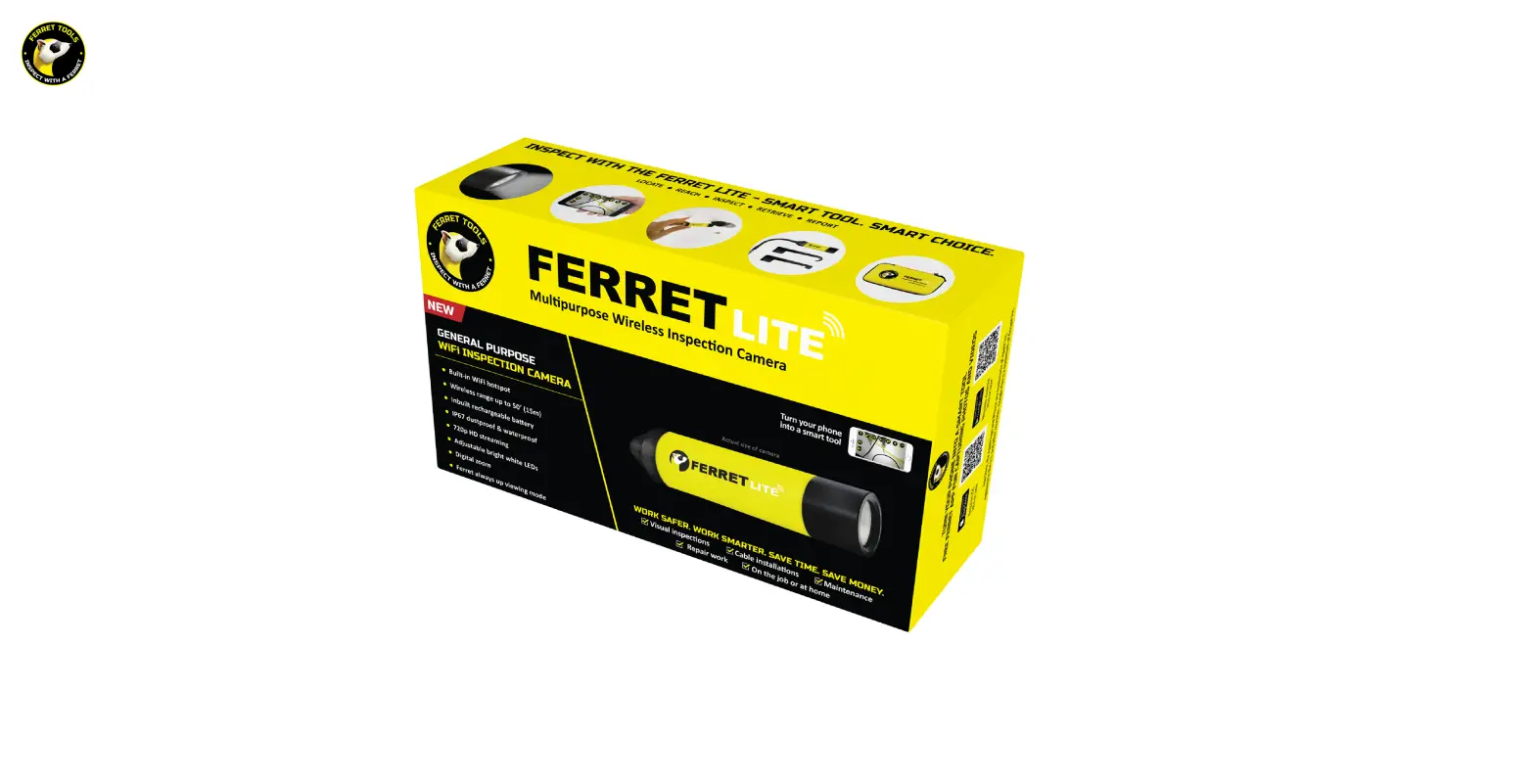
FERRET LITE FEATURES:
 | The built-in WiFi hotspot, wireless & rechargeable |  | Adjustable bright white LEDs |
 | Free and easy to use App |  | Digital zoom function |
 | 720p HD Streaming |  | Ferret is always up in viewing mode |
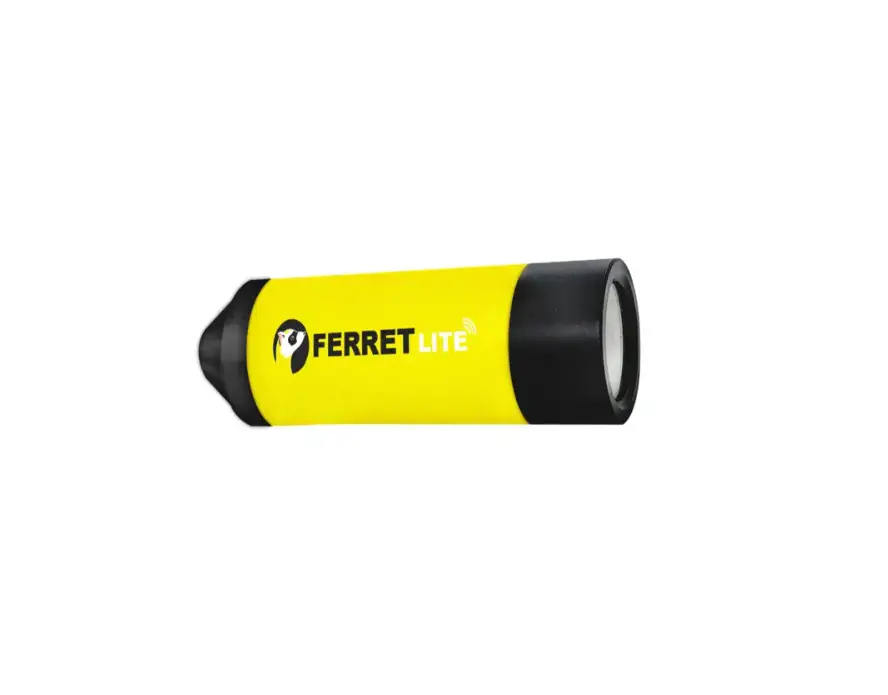
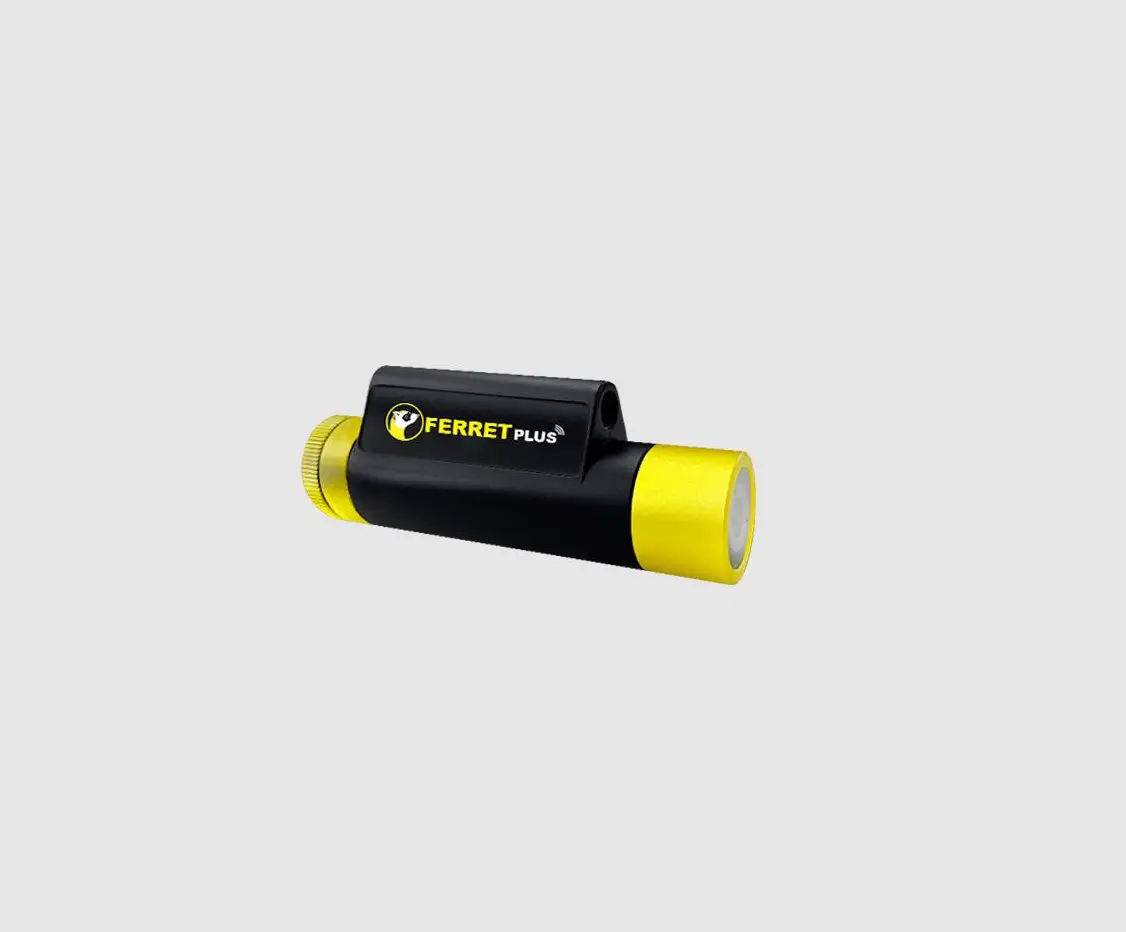
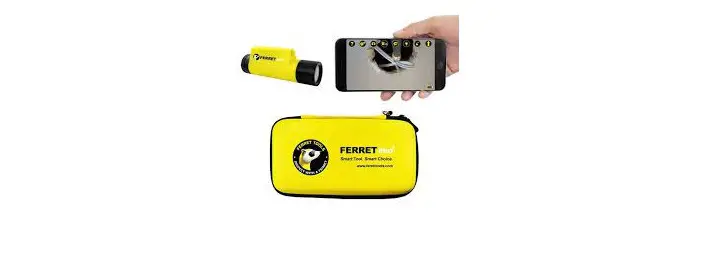
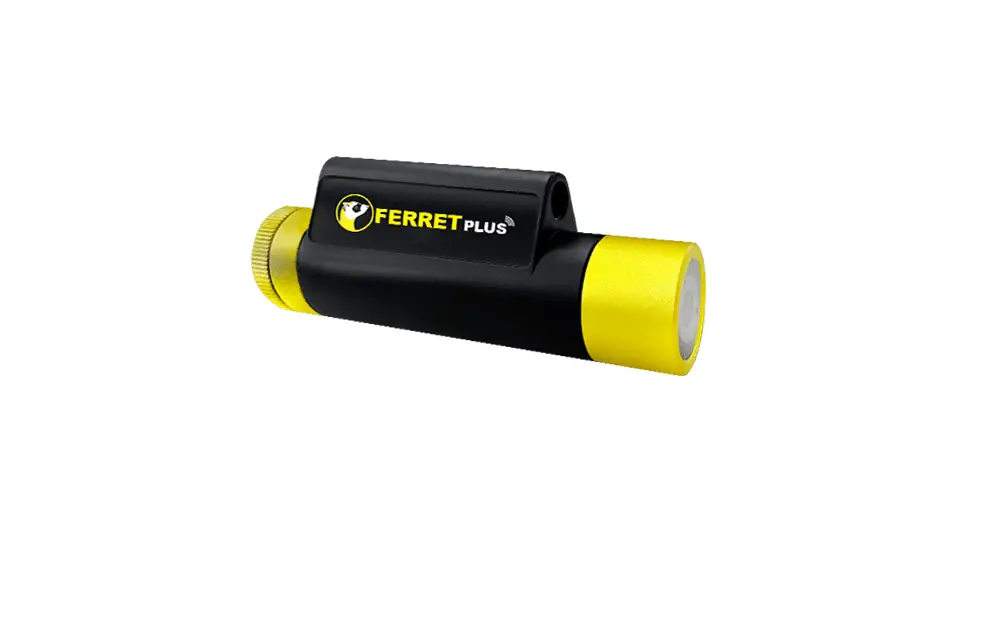
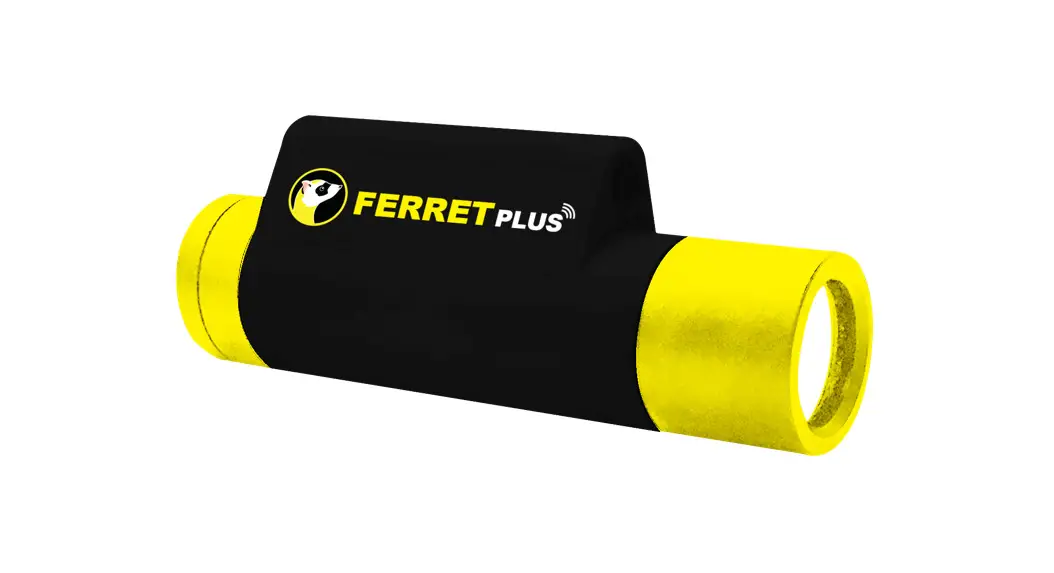
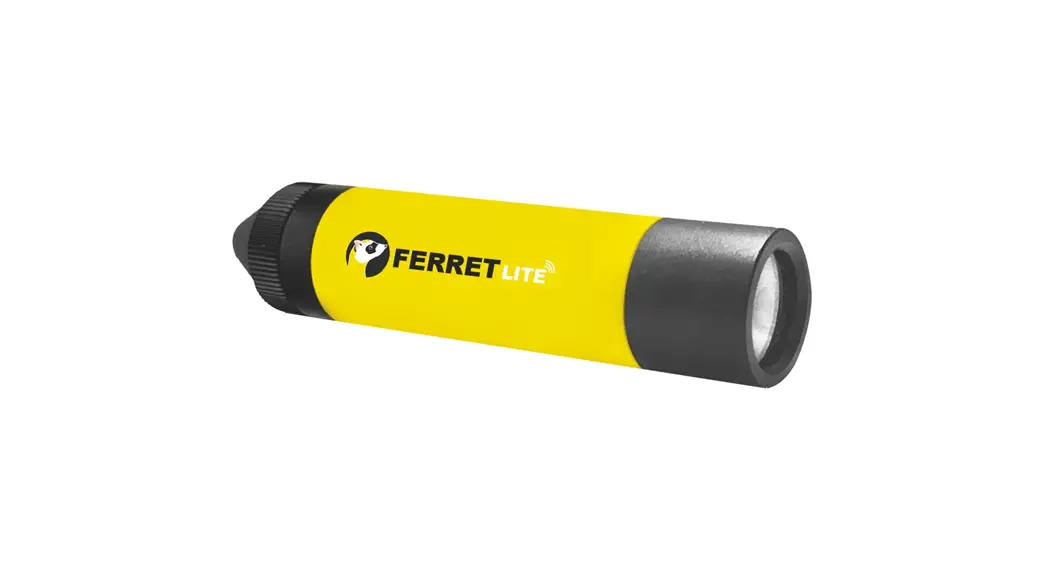
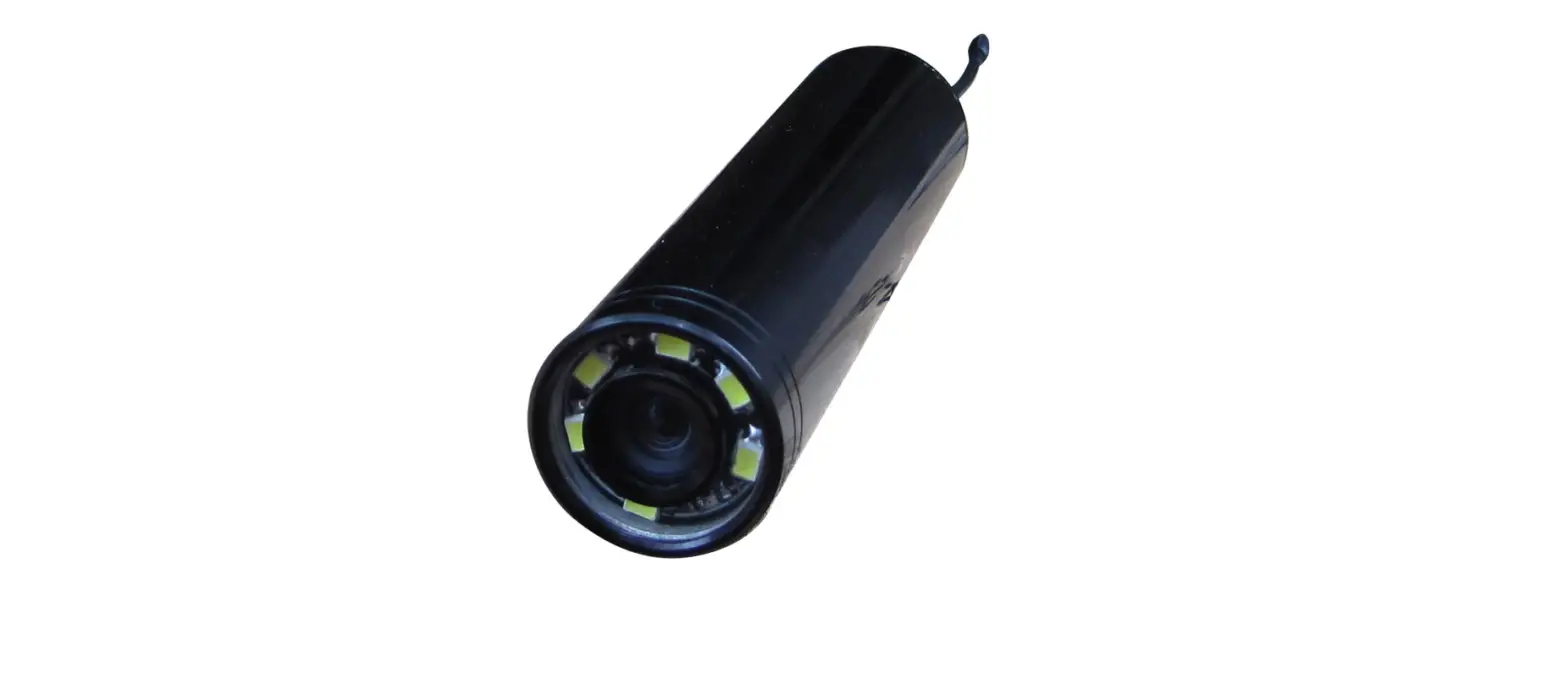
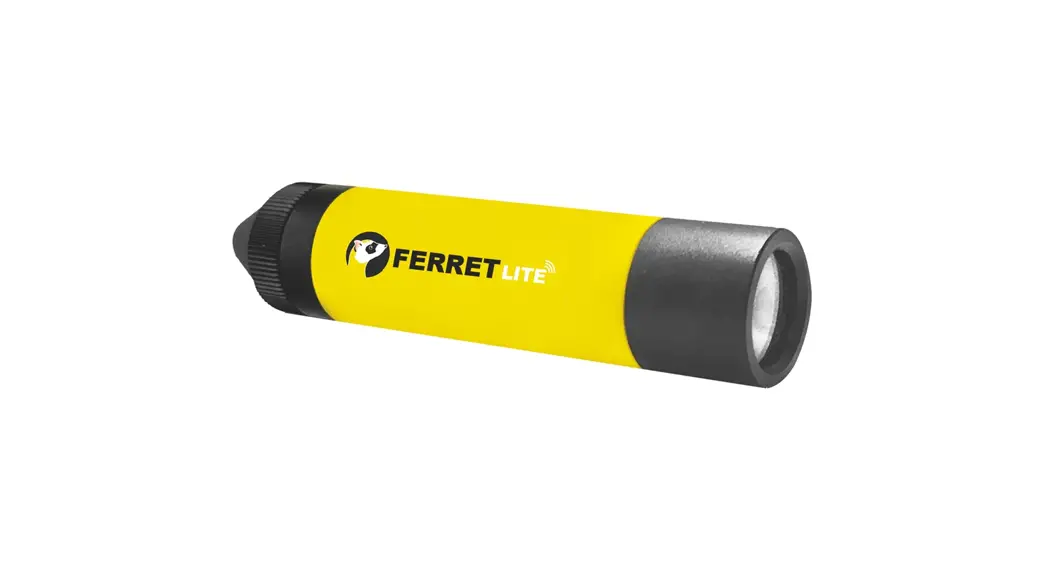
The Ferret Lite is a general-purpose high-quality inspection camera that gives eyes inside hard-to-reach locations. If you like to keep things simple & don’t need all the bells and whistles, the Ferret Lite is the ideal cost-effective solution to help on the job or at home.
Ferret Tools: Creating the future with new thinking and innovation in smart inspection camera technology for Trades & DIY.
Discover the full Ferret Tools product range at www.ferrettools.com
FERRET LITE SPECIFICATIONS
| Model | CFWF5OL |
| Dimensions | 3 %” long x 1″ wide (94mm x 24mm) |
| Weight | 1 % ounces (33g) |
| Camera Resolution | 720p HD |
| Wireless Range | Up to 50′ (15m) line of sight |
| Operating Time | Up to 90 minutes (LEDs on medium brightness setting) |
| Charge Up Time | ∼100 minutes |
| Frequency | 2.4GHz |
| Operating Voltage | 5V DC |
| Operating Temperature | 32°F to 95°F (0°C to 35°C) |
| Storage Temperature | -4°F to 113°F (-20°C to 45°C) |
For the full product manual, please refer to www.ferrettools.com/support
FERRET LITE KIT INCLUDES:
 | Padded EVA Case | 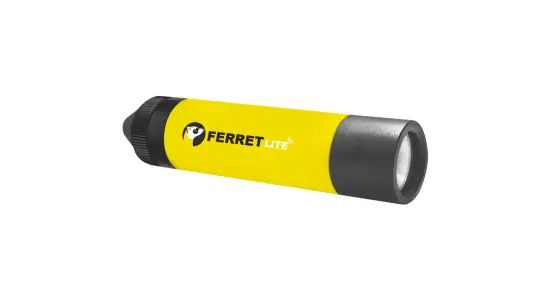 | Ferret Lite IP67 rated camera with the back cap screwed on |
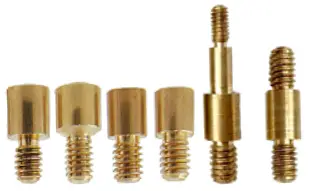 | Thread adaptors | 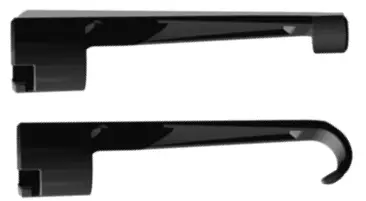 | Turn & click the front hook & magnet |
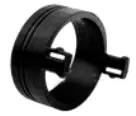 | Locking adaptor |  | Flexible Gooseneck |
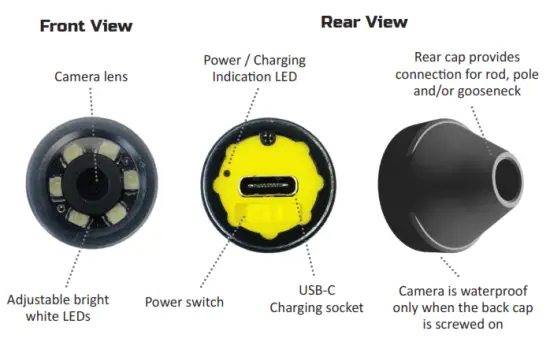
FEATURES OF YOUR FERRET LITE CAMERA
START USING YOUR FERRET LITE
Download the Free Ferret App
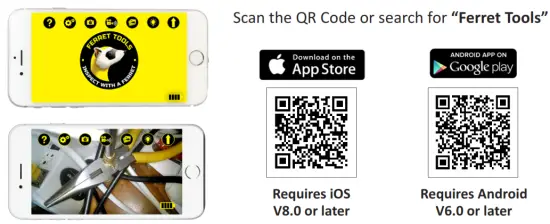
https://itunes.apple.com/nz/app/ferret-wifi/id1275320105?mt=8
https://play.google.com/store/apps/details?id=com.joyhonest.lexinxingye.ferretwifis
NOTE: During installation or first use of the app you must give access to the phone or tablet’s photo gallery to allow you to save photos and video footage.
Connect to your Ferret Camera
Turn on your Ferret camera. The camera power switch is at the back of the camera under the back cap. The camera will take about 2 seconds to boot and power on.
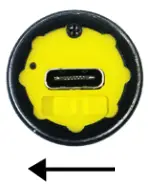
NOTE: The camera is IP67 rated only when the back cap is in place.
On your phone or tablet, turn on WiFi and search for the Ferret-WiFi-XXXX SSID in the WiFi list. The Ferret camera has a built-in WiFi hotspot, so no other WiFi network is needed.
NOTE: The camera will not link via Bluetooth – it is WiFi only.
Enjoy using your Ferret Camera and start saving time & money, working safer & smarter.
ERRET TOOLS APP
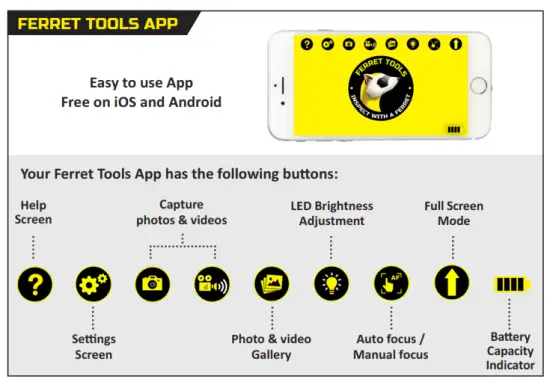
LED BRIGHTNESS ADJUSTMENT
The LED brightness of your Ferret camera can be adjusted in 2 ways:
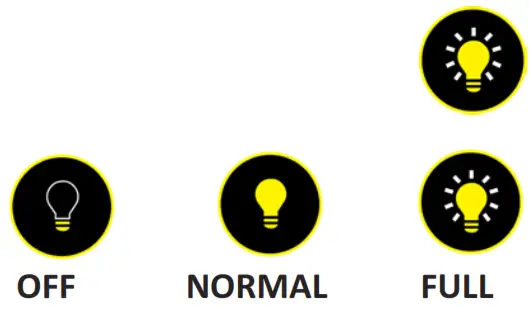
- Tap the LED Brightness Adjustment button to change brightness to one of the three settings:

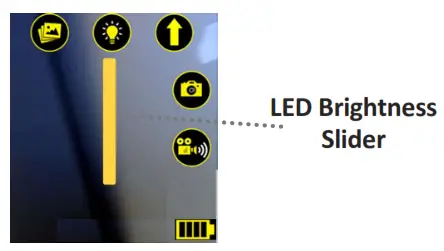
- Press and hold the LED Brightness Adjustment button. A slider appears below the button which you can slide up or down to adjust LED brightness.
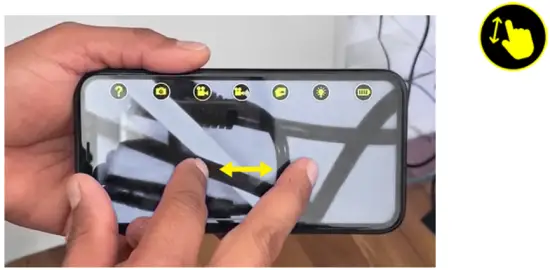
DIGITAL ZOOM
Use 2 fingers to use the digital zoom to bring your image closer.
GALLERY / EXPORTING IMAGES & VIDEOS
View the images and videos taken in your Ferret Tools Gallery.
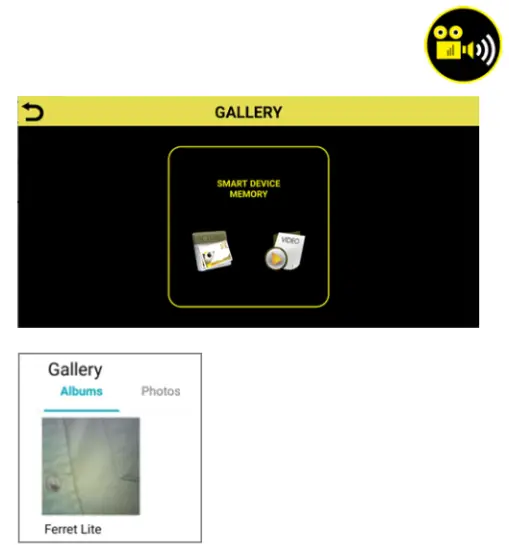
You can access or export your Ferret camera photos and videos directly from your smart device gallery.
Register with www.MyFerretTools.com to see subscription-based cloud storage and warranty options. See the registration card inside your Ferret kit for details.
APP SETTINGS
 To access Settings, tap the Settings button.
If a firmware update for your Ferret camera is available, the “Firmware Update” button will appear on the bottom left of the Settings screen.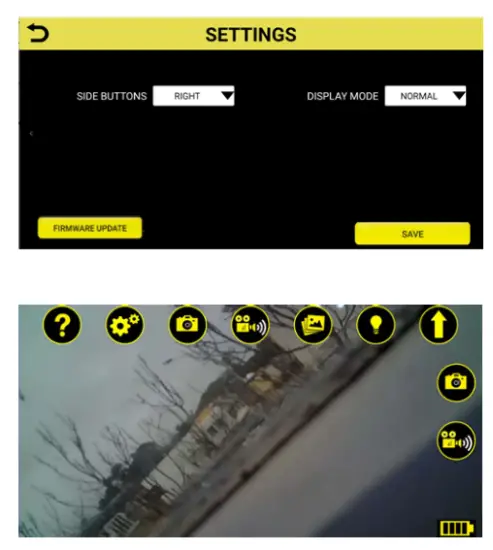
The main screen with the right-hand side buttons enabled
The Settings screen allows you to do the following:
- Set camera and video buttons to appear on the left or right of the main screen in the Ferret Tools App, for easier one-handed operation.
APP SETTINGS – ALWAYS UP VIEWING MODE
2. Change the Display Mode from Normal (picture orientation reflects camera orientation) to an Always UpMode – either Round or Full Screen.
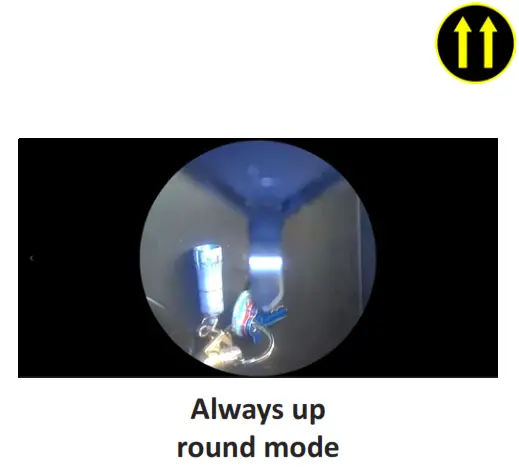 In Always Up mode, the picture orientation remains the right way up on the smart device display, regardless of the camera’s orientation.
In this mode, no matter which way the Ferret camera is rotated, the image on the App is always the right way up.

I can’t connect or see the camera when I search on Bluetooth?
The Ferret camera has a built-in WiFi hotspot. No other network is needed, and the camera does not connect via Bluetooth.
Can I use the camera underground, underwater, or inside a conduit?
No, it will not work underground, underwater, or inside a metallic conduit as these scenarios will block the WiFi signal.
How long can I use my Ferret before recharging the battery?
Your Ferret will give you up to 90 minutes of use, with the LEDs on normal brightness, before it needs recharging.
What does the rear lead indicate? The rear LED indicates:
RED = Charging, OFF = Fully Charged, WHITE = Camera ON
I can’t connect to WiFi or the WiFi won’t stay connected on my Android?
Some Androids don’t understand why you want to connect to a WiFi network without Internet. If a warning alert is displayed, check the box to not ask/show again and click OK/Yes.
I can connect to the WiFi, but it won’t show an image in the App.
Go to Settings -> Data usage -> Cellular data usage and scroll down to find and select the Ferret App. Turn off Background data to prevent the App from trying to use cellular
data.
When I try to download the app it asks for a password – why?
The Ferret App is free – it will never ask for a password or a code. Your phone sometimes will ask for a password due to your App Store not having a payment method.
Why does my Firmware Update not progress, it stays on 0% progress?
Please try placing your phone into Airplane or Flight mode, turn your phone’s WiFi back on (while staying in Airplane mode), restart your Ferret App and Ferret camera, and try the firmware update again.
If your question isn’t covered by the FAQs, please refer to www.ferrettools.com/support or email us at [email protected]
 FERRET WARRANTY
Your FERRET comes with a 12-month replacement warranty.
Extend your warranty at www.myferrettools.com
In the unlikely event that your FERRET develops a fault within 12 months of purchase, please email [email protected], or simply return it to your place of purchase with proof of purchase.
Failure due to physical damage, misuse, neglect, improper use, or moisture is not covered. The camera has no user-serviceable parts inside. Disassembly will void the warranty.
Important Information – Li-Ion Batteries
The Ferret camera contains a Li-Ion battery. For optimal battery life, do not store the camera while the battery is flat, do not store the camera in temperatures of over 35°C (95°F) and if the camera is not being used, top up the charge every 6 months.
 CAUTION
This equipment has been tested and found to comply with the limits for a Class B digital device, pursuant to part 15 of the FCC rules. These limits are designed to provide reasonable protection against harmful interference in a residential installation. This equipment generates uses and can radiate radio frequency energy and, if not installed and used in accordance with the instructions, may cause harmful interference to radio communications. However, there is no guarantee that interference will not occur in a particular installation. If this equipment does cause harmful interference to radio or television reception, which can be determined by turning the equipment off and on, the user is encouraged to try to correct the interference by one or more of the following measures:
– Reorient or relocate the receiving antenna.
– Increase the separation between the equipment and receiver.
– Connect the equipment into an outlet on a circuit different from that to which the receiver is connected.
– Consult the dealer or an experienced radio/TV technician for help.
This device complies with part 15 of the FCC rules. Operation is subject to the following two conditions: (1) This device may not cause harmful interference, and (2) this device must accept any interference received, including interference that may cause undesired operation.
Any changes or modifications not expressly approved by the party responsible for compliance could void the user’s authority to operate the equipment.
RF Exposure The equipment complies with FCC radiation exposure limits set forth for an uncontrolled environment. This device should be installed and operated with a minimum distance of 20cm between the radiator & your body.
Designed and Engineered in New Zealand:
Ferret Tools Limited
Ferret Tools, Inc.
Patent Pending in the USA
Model CFWF50L – Ferret Lite
Version 1.4 © 2020
1-year Manufacturer’s Warranty
Learn more at www.ferrettools.com
Made in China
 Home - Ferret Tools
 - My Ferret Tools