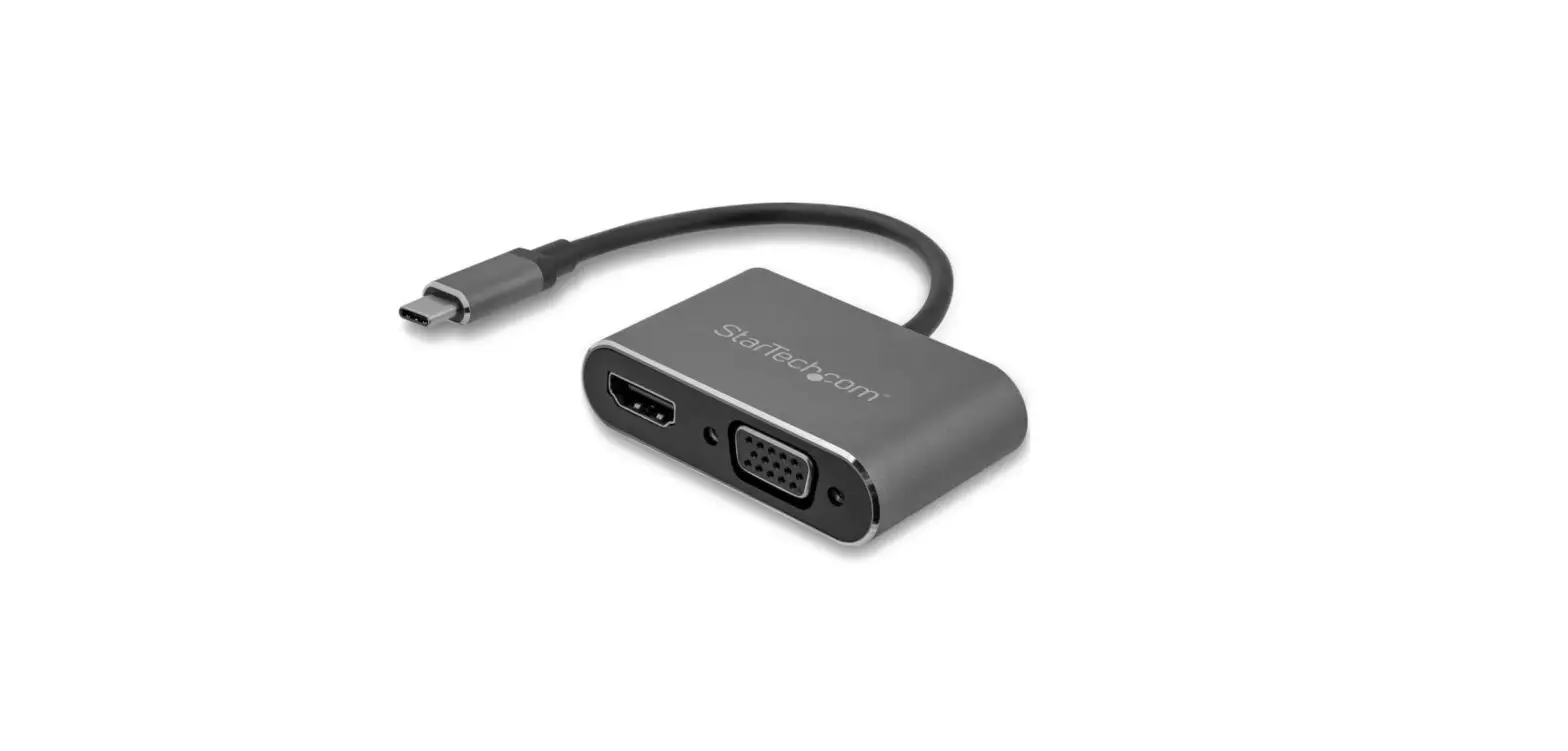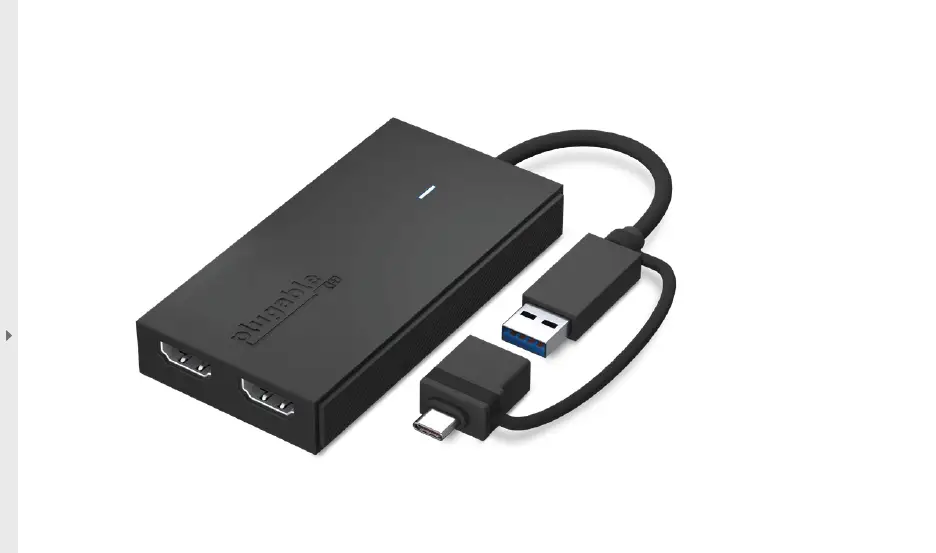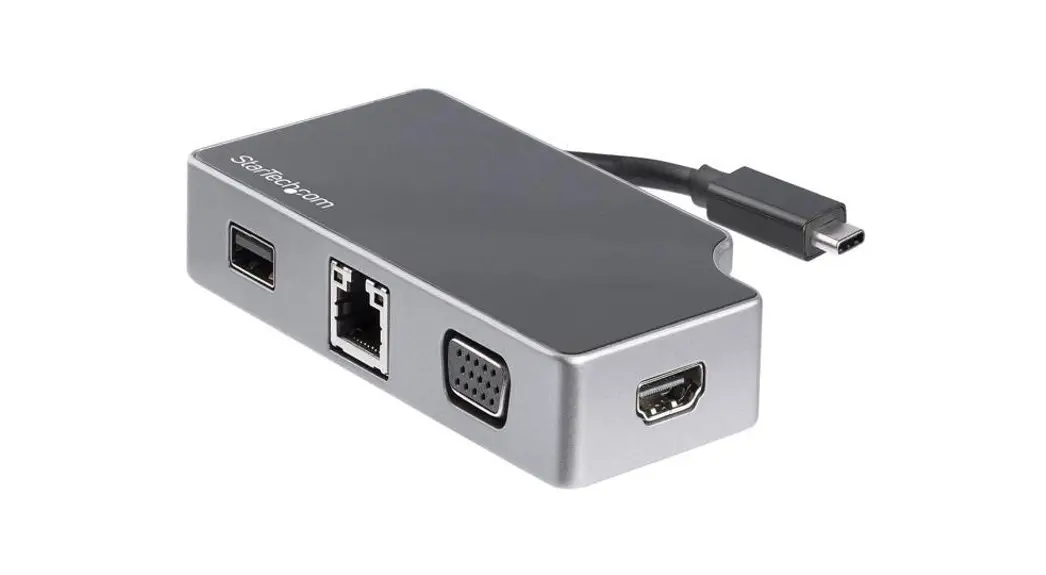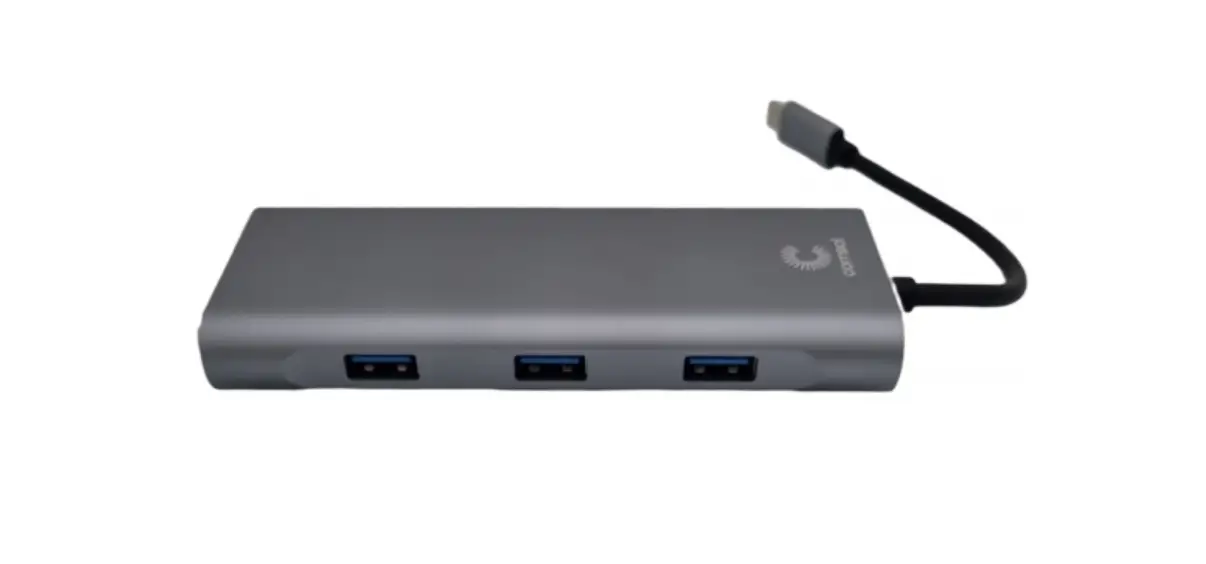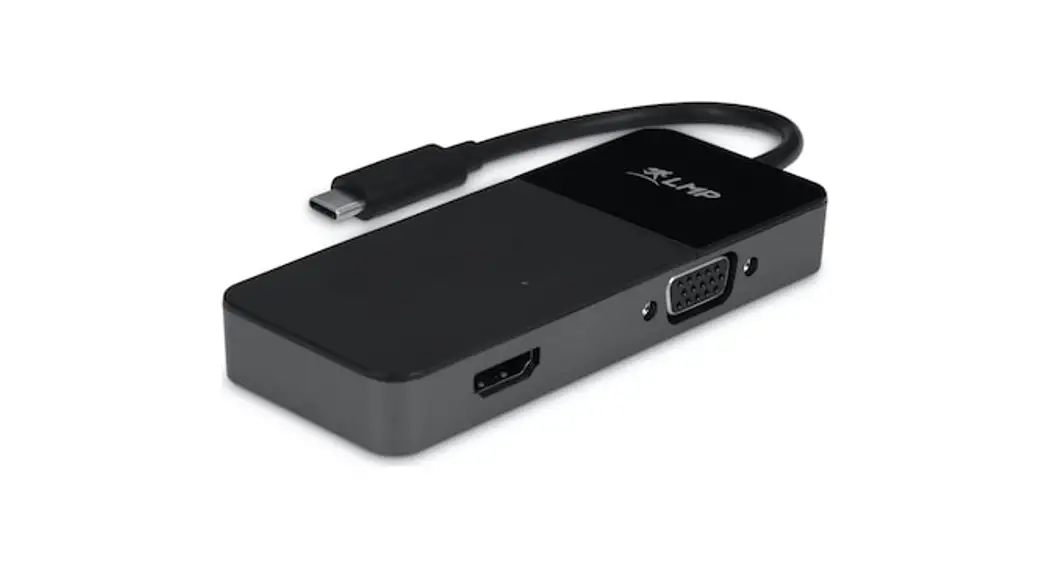

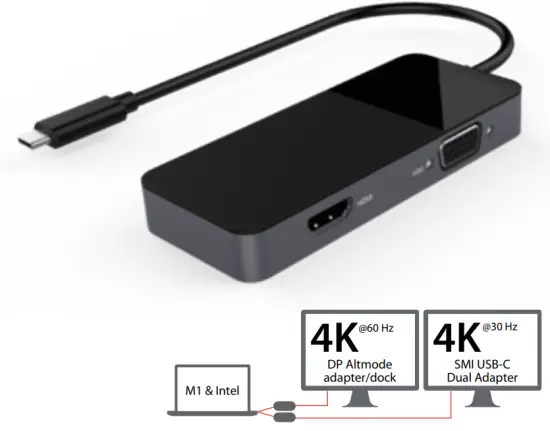

Quick Start Guide: macOS
Step 1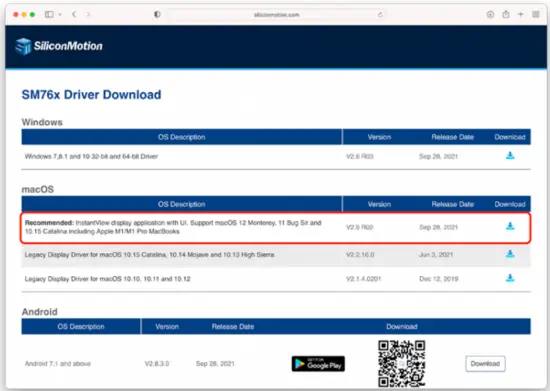
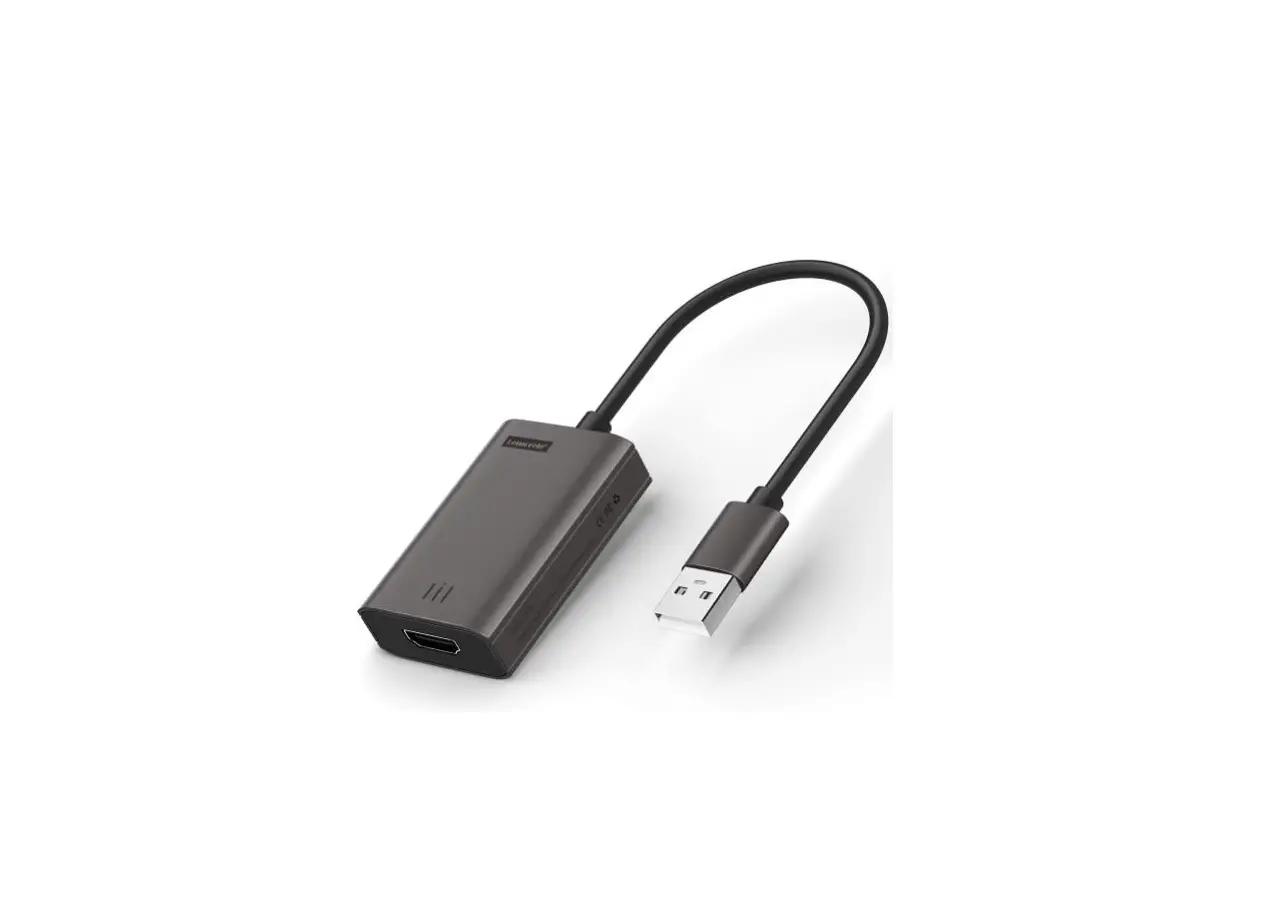
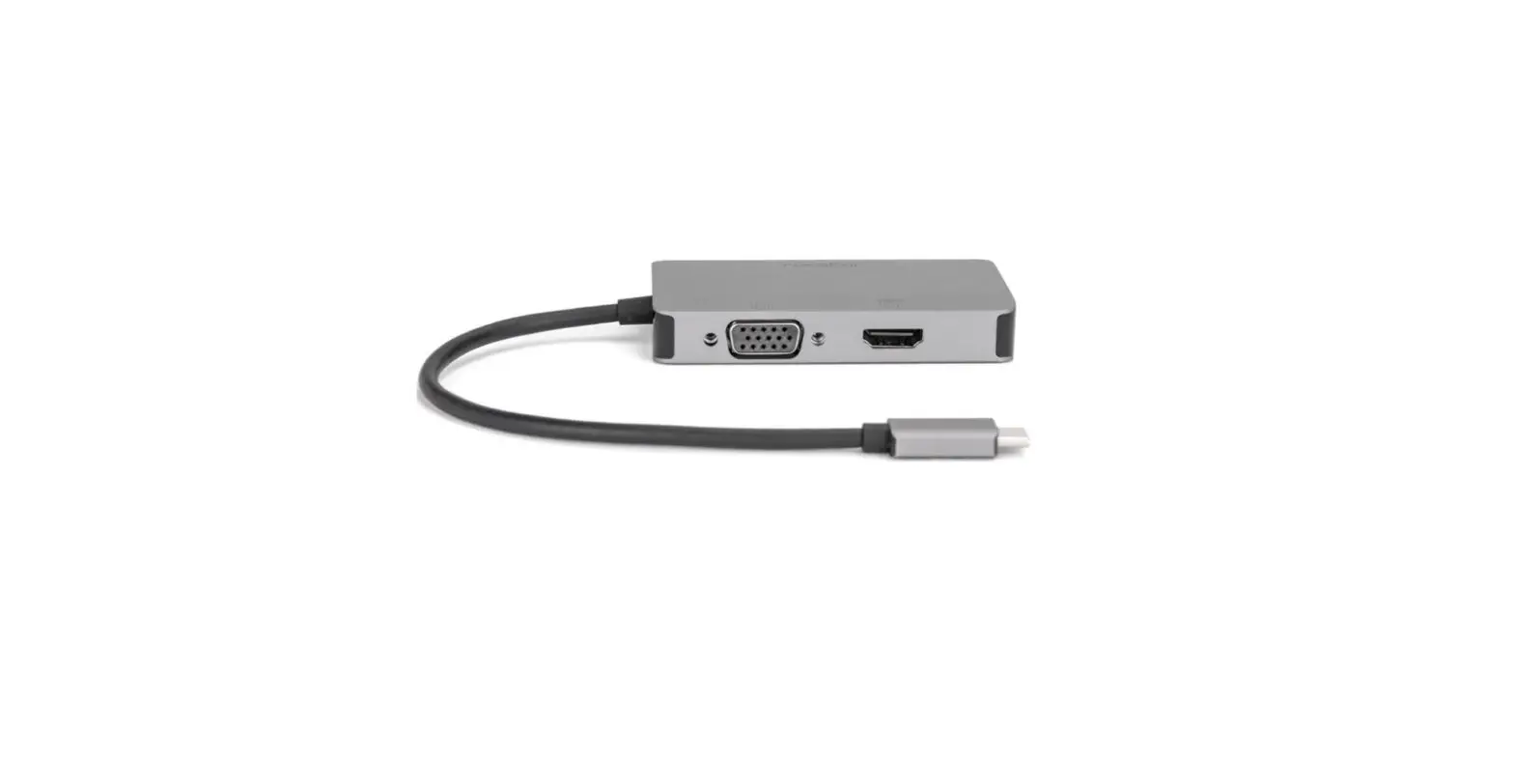
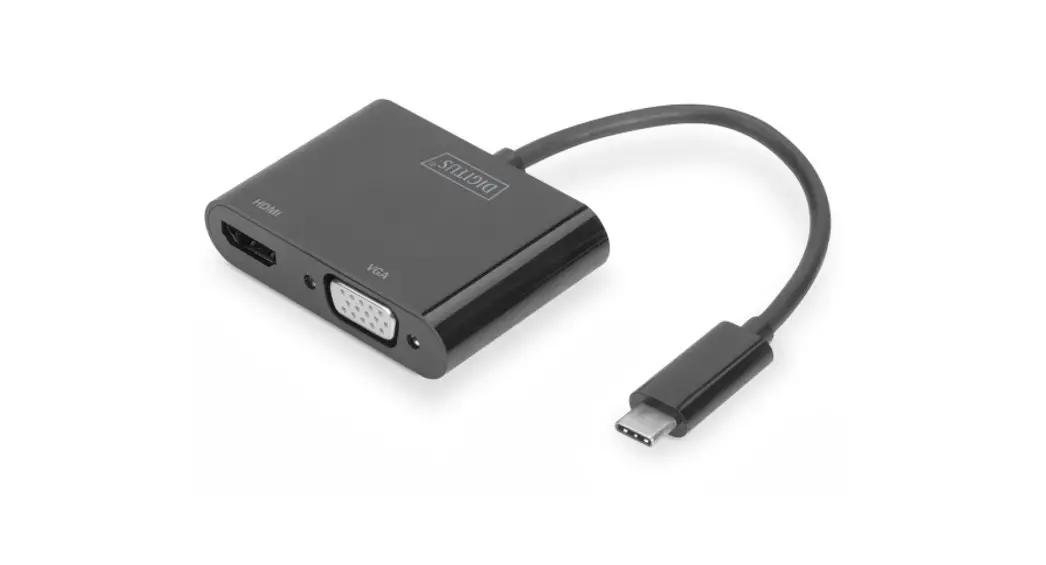
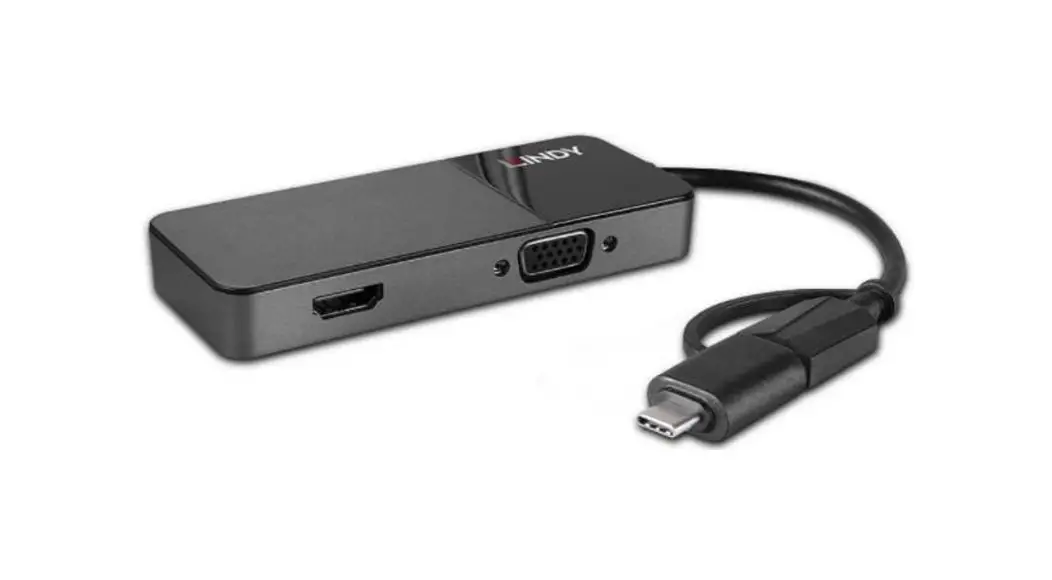
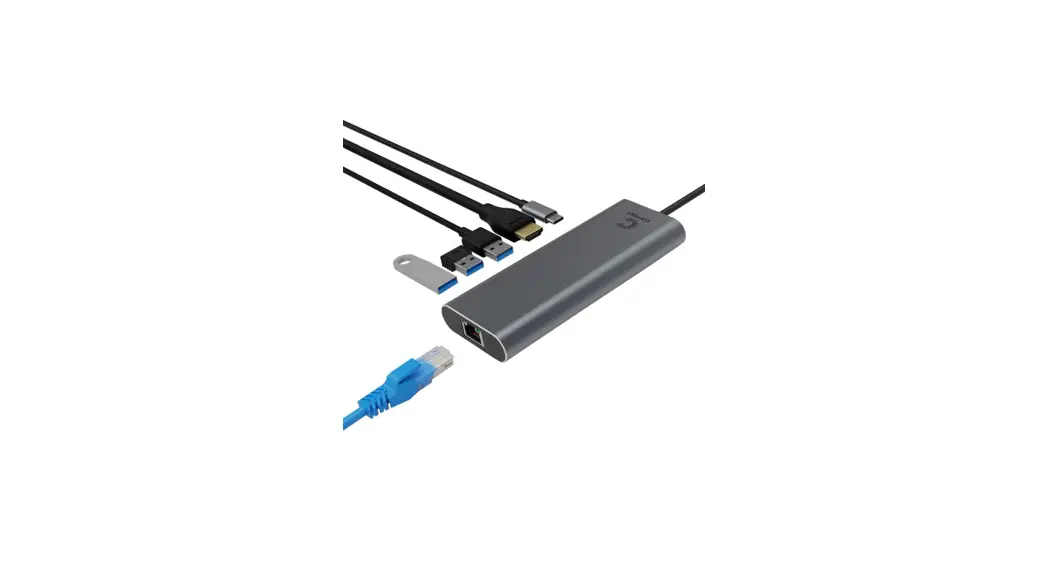
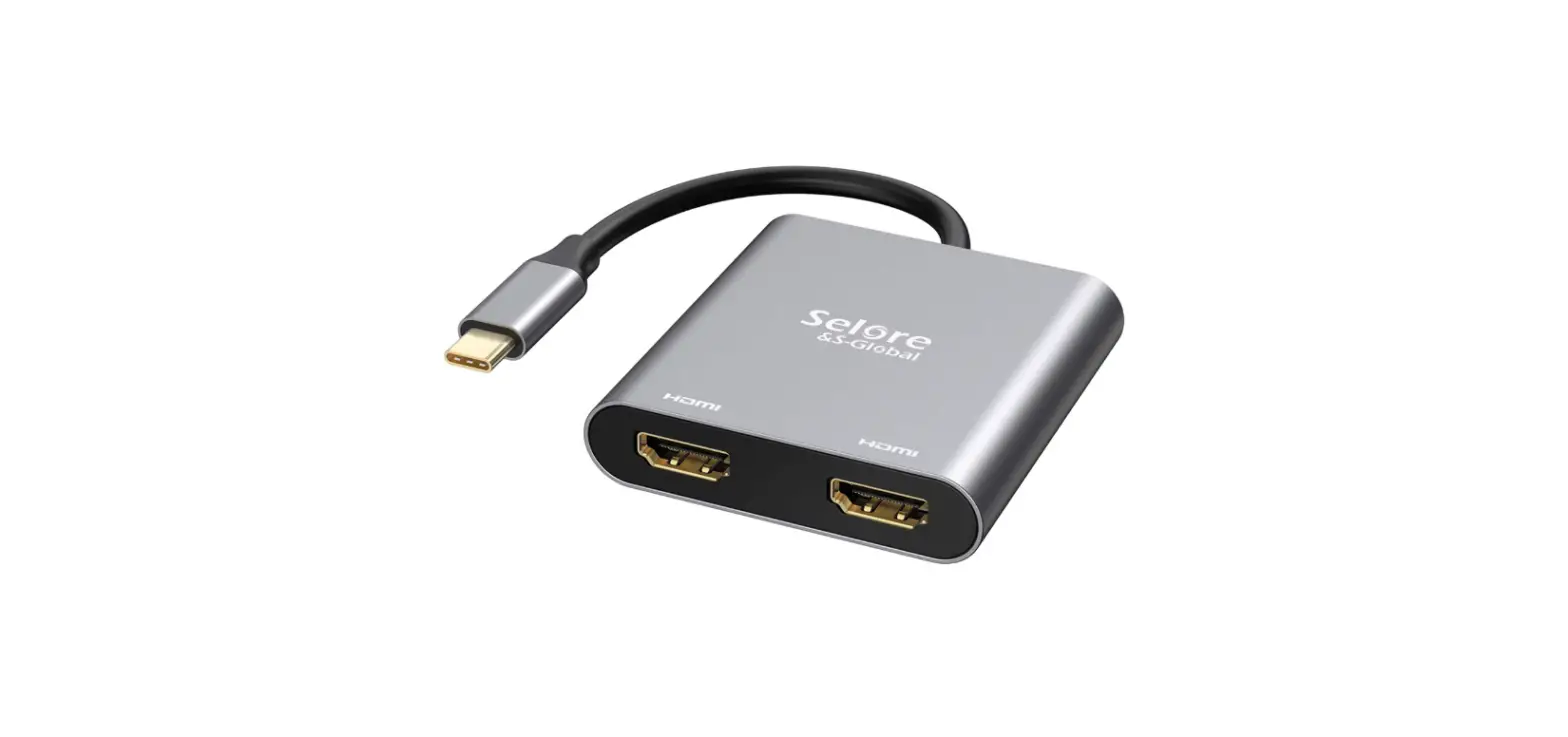
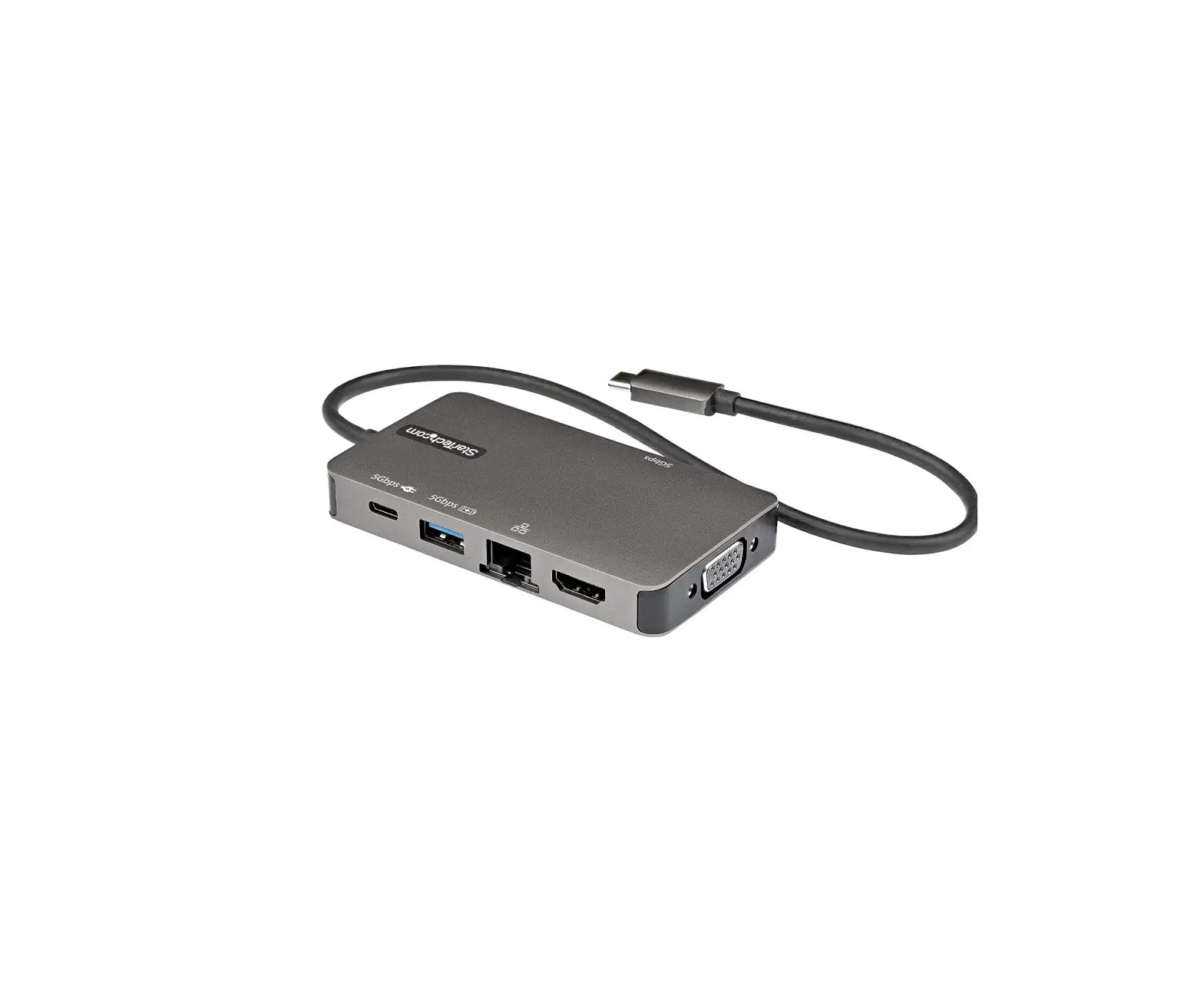
 Please ensure that the adapter is connected to the device.
 Download the latest version of InstantView from this website: https://www.siliconmotion.com/downloads/index.html
Step 2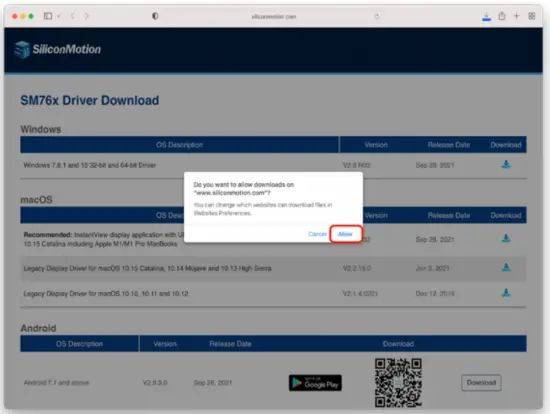
Allow downloads from www.siliconmotion.com.
Step 3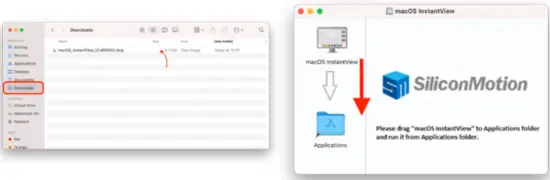
You can find the downloaded file in the „Downloads“ folder. Open it with a double click. Drag „macOS InstantView“ to „Applications“.
Step 4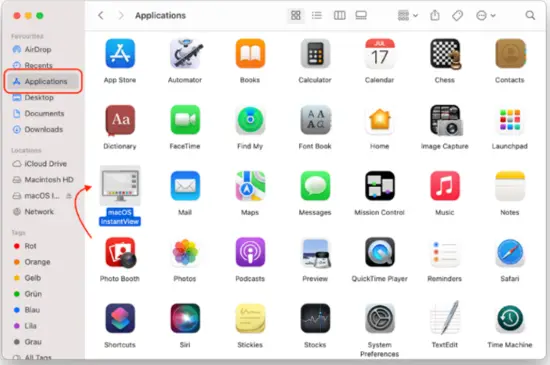
Navigate to the Applications folder in Finder and double-click macOS InstantView.
Step 5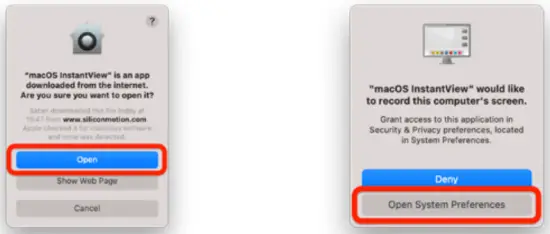
Press „Open“ to launch the application. Click „Open System Preferences“.The LMP Dual Adapter won’t work if you choose „Deny“.
Step 6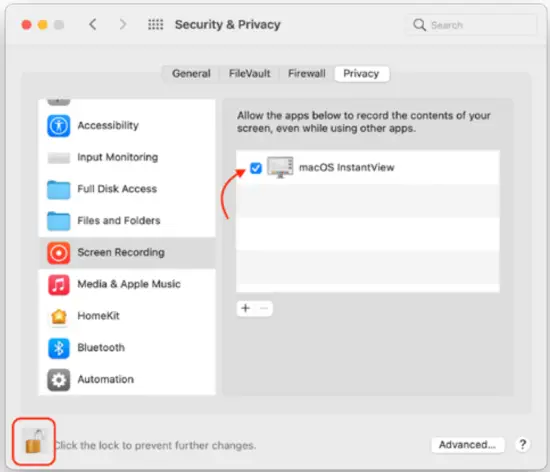
System Preferences will open up in Security & Privacy > Privacy > Screen Recording . Click on the Lock symbol and enter your password. Select the checkbox next to the macOS InstantView icon.
Step 7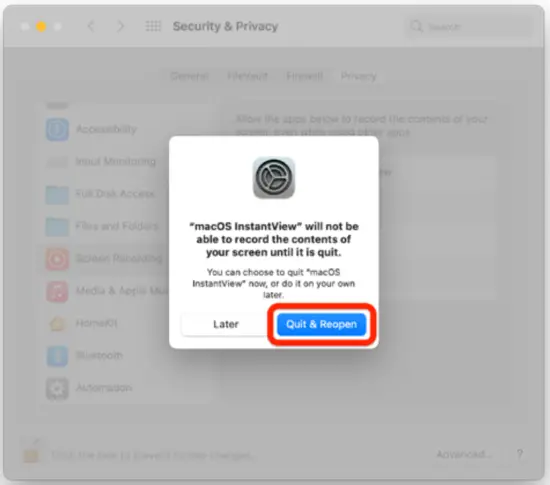 Click „Quit & Reopen“. InstantView is now available to use.
Step 8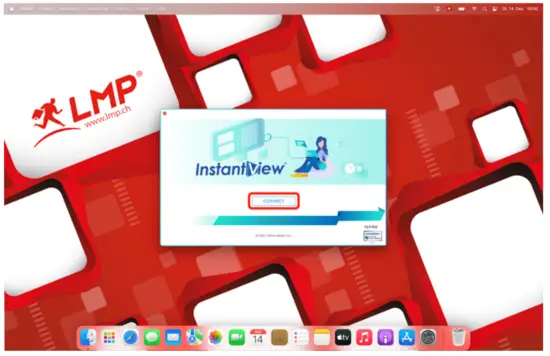
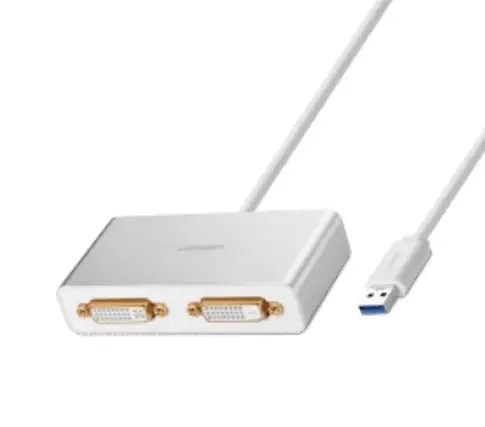
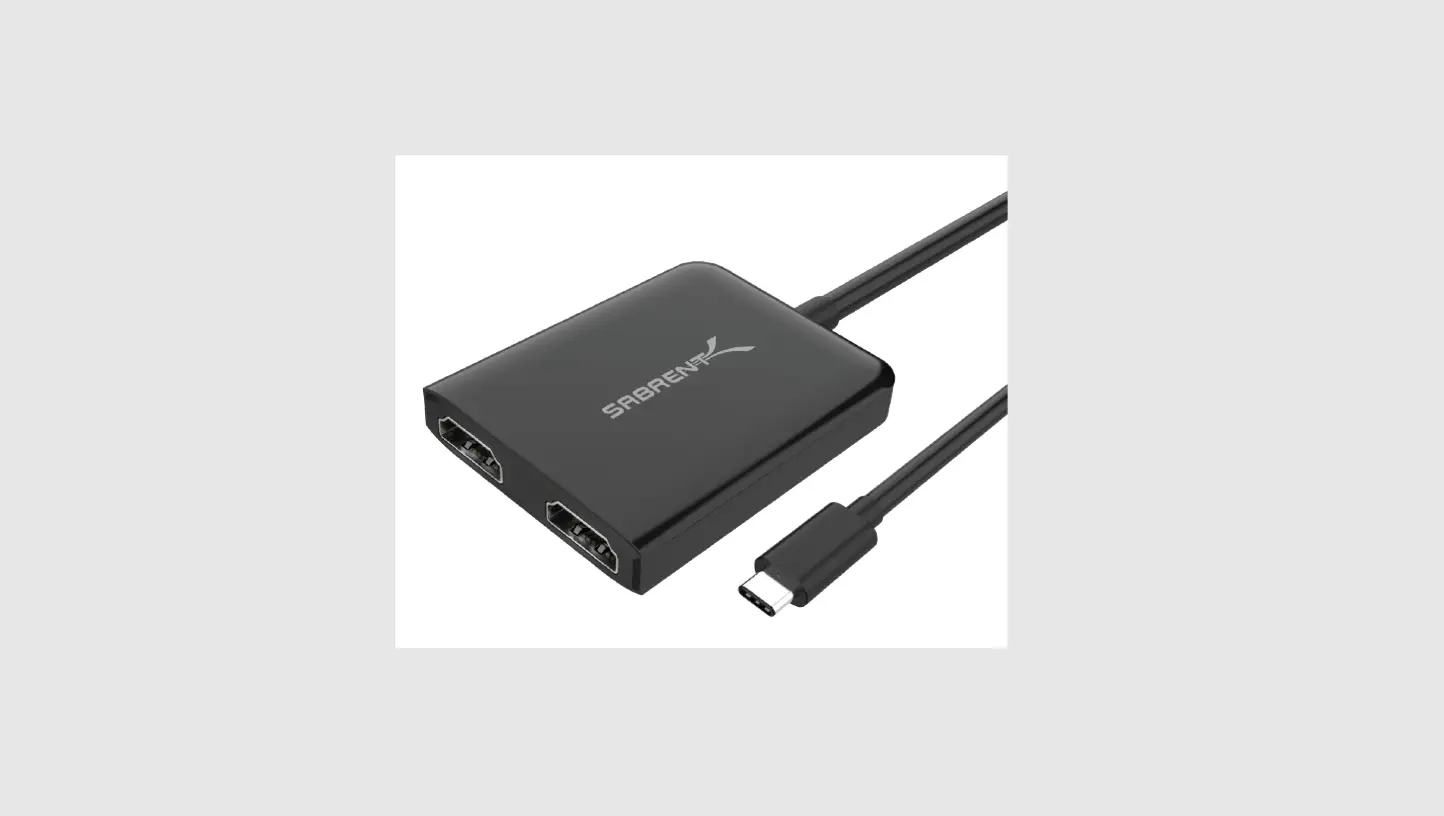
Click „Connect“ and you can now use two external monitors with your Mac M1 computer.
Step 9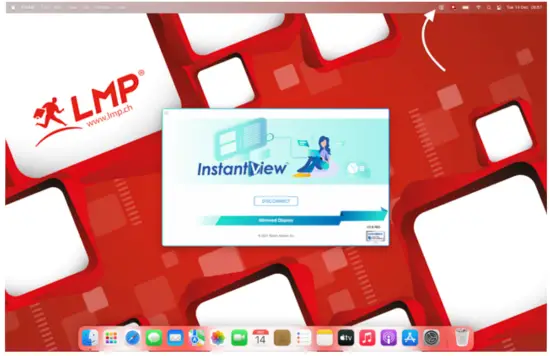
You can disconnect by clicking on the InstantView menu button.
Troubleshooting
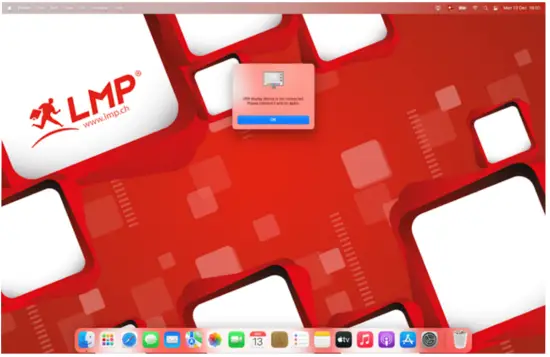
Unplug the adapter and then reconnect it to your computer.
Quick Start Guide: Windows OS
Step 1
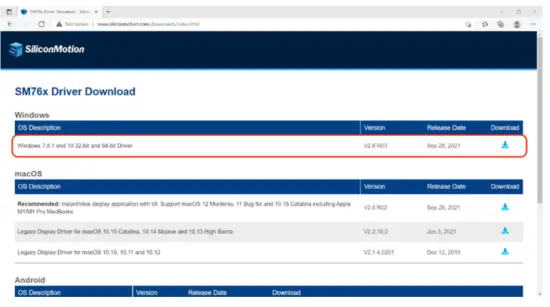
Please ensure that the adapter is connected to your computer. Download the latest version of InstantView from this website: https://www.siliconmotion.com/downloads/index.html
Step 2
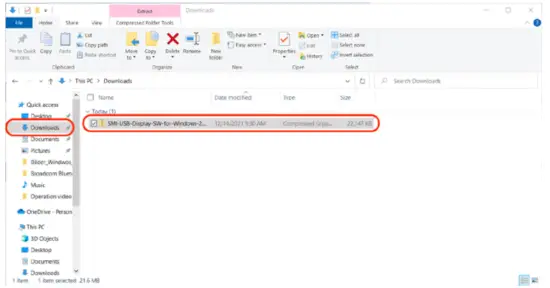
In Explorer, navigate to the „Downloads“ folder and double-click the downloaded ZIP file.
Step 3
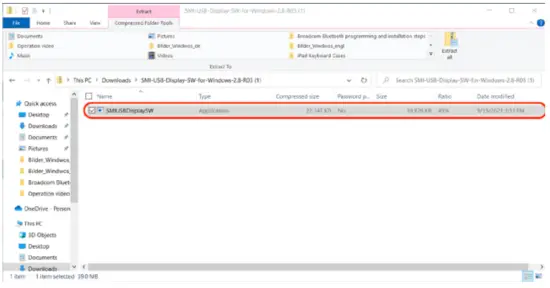
Once you have unzipped the driver, open the application.
Step 4
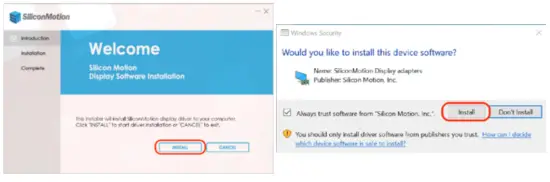
Press „INSTALL“ to start the installation. Mark the checkbox to grant access for „Silicon Motion, Inc“, and click „Install“.The LMP Dual Adapter won’t work if you choose „Don’t Install“.
Step 5
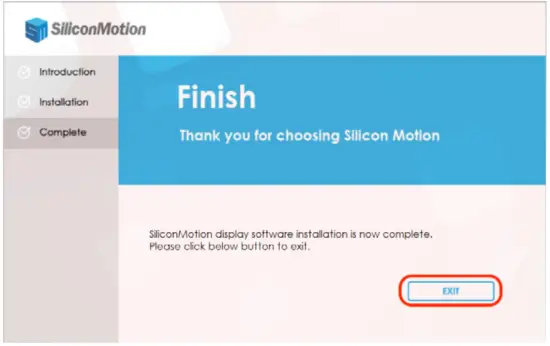
Press „EXIT“ to close the installation menu.The LMP Dual Adapter will now be ready to use.
 SM76x Driver Download - Silicon Motion