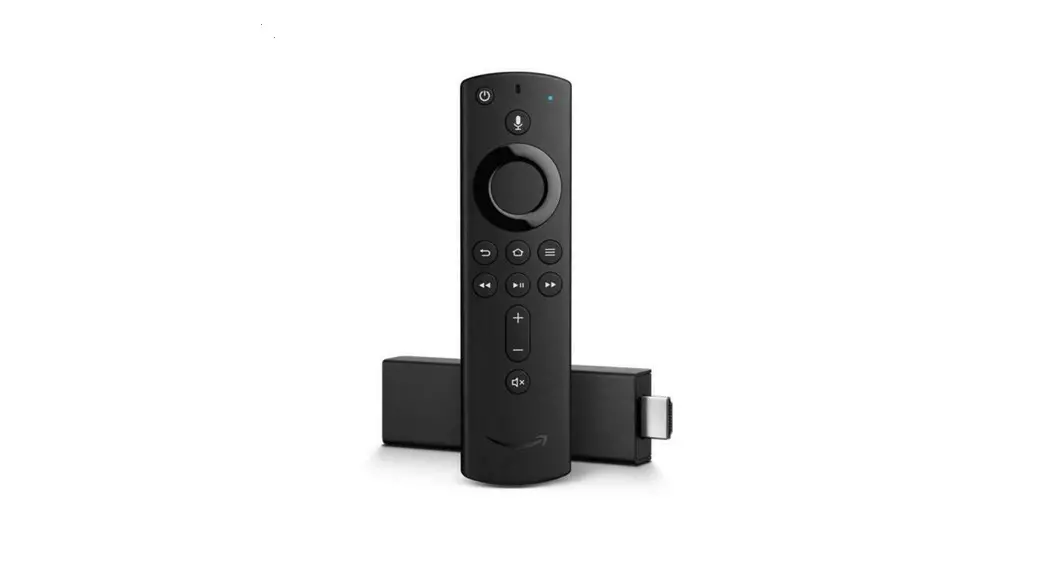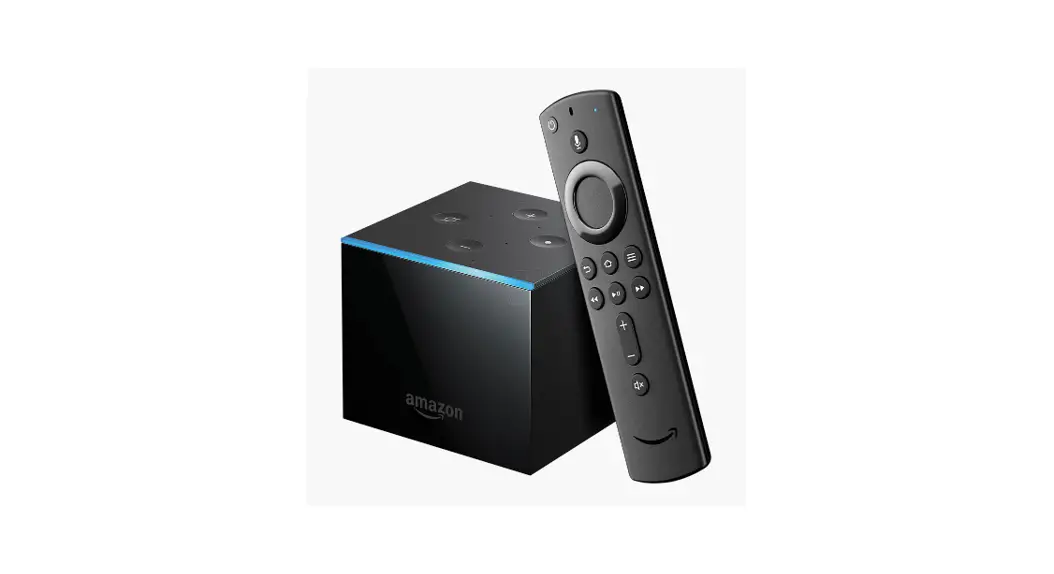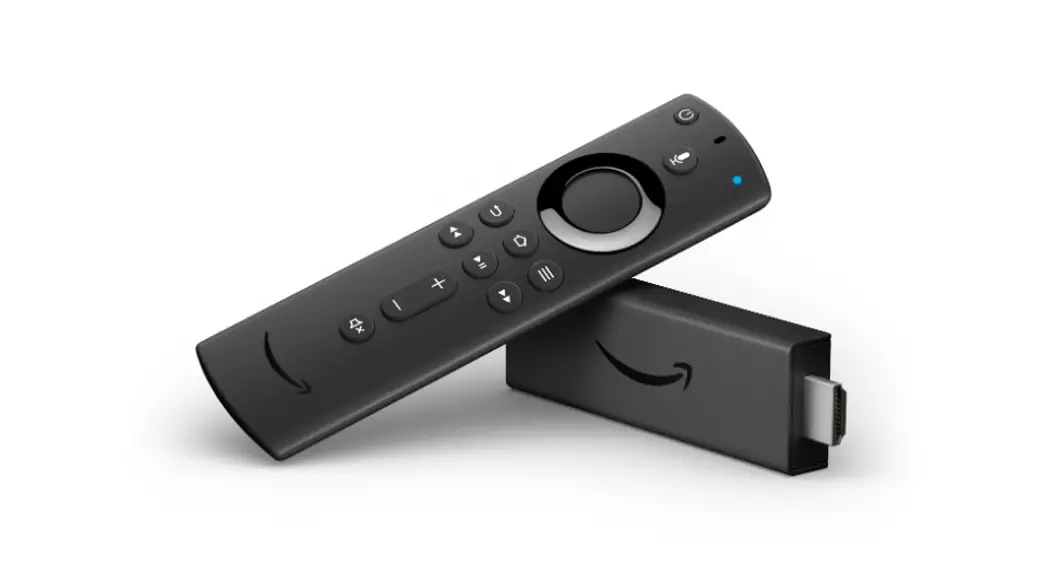
 Fire TV Cube Alexas Streaming Box
User Guide
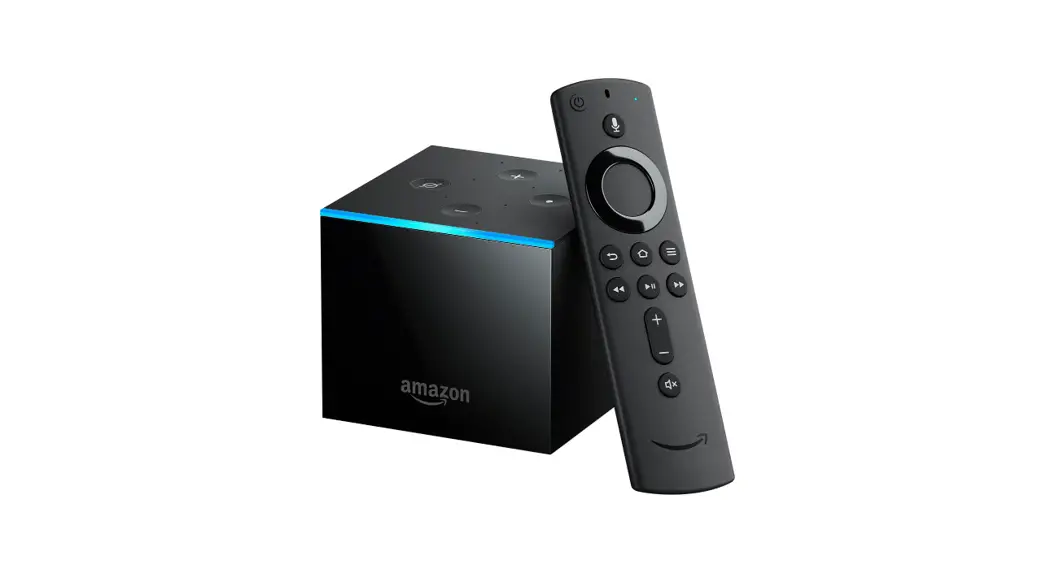
MEET YOUR FIRE TV CUBE
FRONT
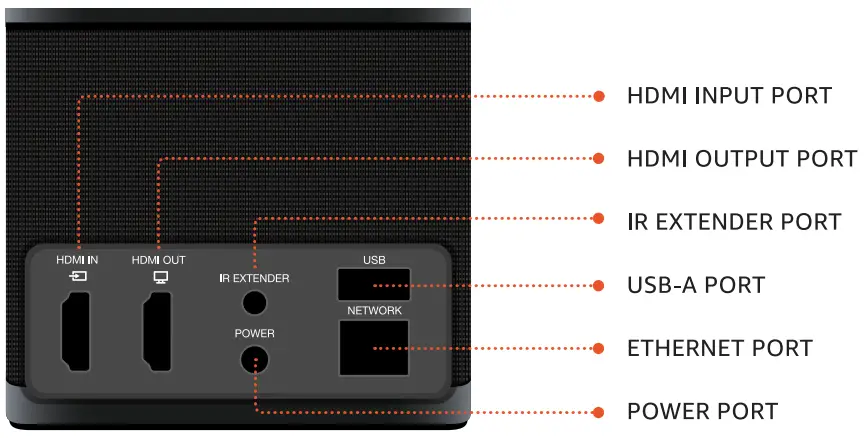
BACK
POSITION YOUR FIRE TV CUBE
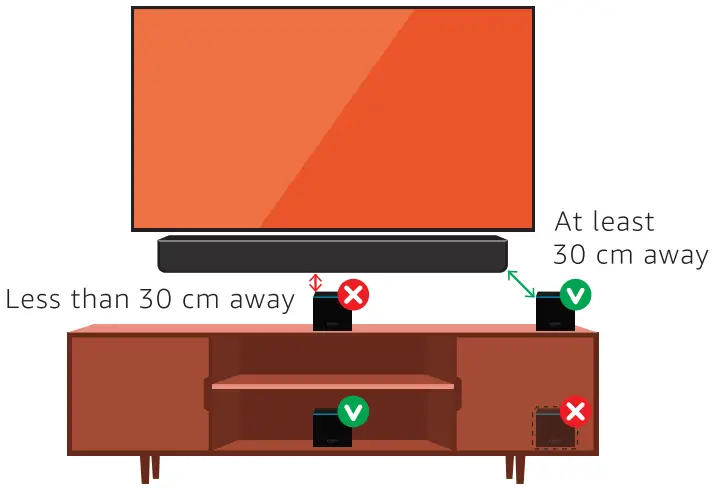
PLACE FIRE TV CUBE 30-60 CM AWAY FROM ANY SPEAKERS, with the ports facing away from you
1T SHOULD NOT BE PLACED IN A CLOSED CABINET.
Fire TV Cube needs to hear your commands.
To control components that are in a closed cabinet, use an IR extender (s0ld separately).
CONNECT YOUR FIRE TV CUBE
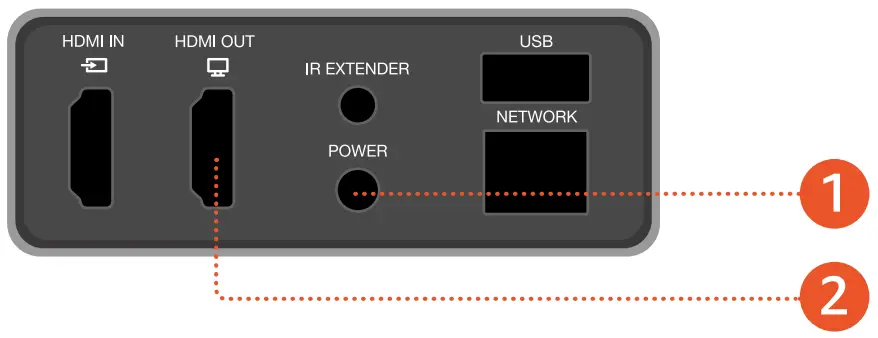
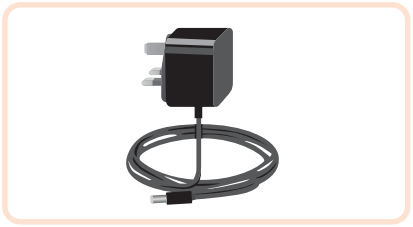 | 1. POWER CABLE Conect the included power adaptor to Fire TV Cube ant plug it into an outlet-socket. |
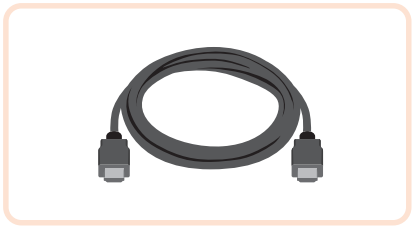 | 2. CONNECT THE HOMI CABLE Use a high-speed HOMI cable (not ncluded) to connect the HDMI OUT port on the Fire TV Cube to HDMI port on your TV. |
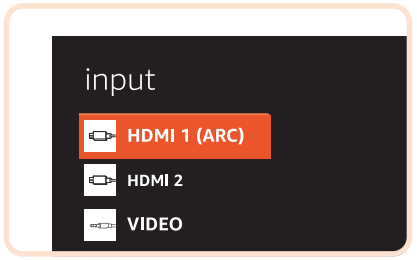 | 3. SELECT INPUT FORTV Turn on your TV, then select the input on your TV that matches the name of the HDMI port you re connected to. |
TIP: Using the included remote control, go to the Settings menu in Fire TV Cube, and select your network from the list displayed. If your network is hidden, enter your network name.
TIP: If you see a lock icon, your Wi-Fi network requires a password, so make sure you have it available. This password is not your Amazon account password.
For more troubleshooting and information, go to www.amazon.com/devicesupport.
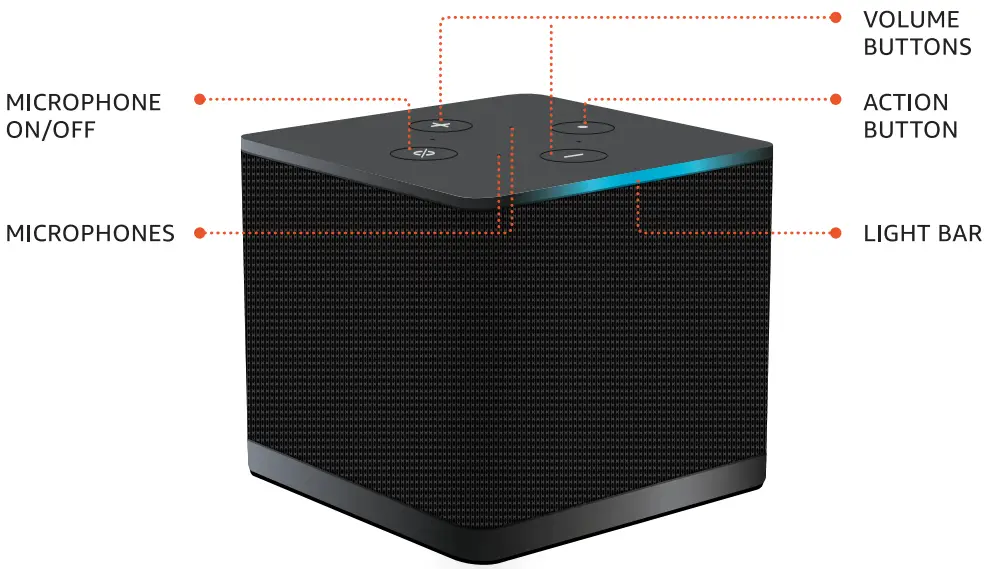
LEARN ABOUT THE BUTTONS
 | ACTION Multi-function button used to wake Alexa. |
 | MICROPHONE ON/OFF Press the microphone on/off button to mute. |
 | VOLUME Control the internal speaker of Fire TV Cube. |
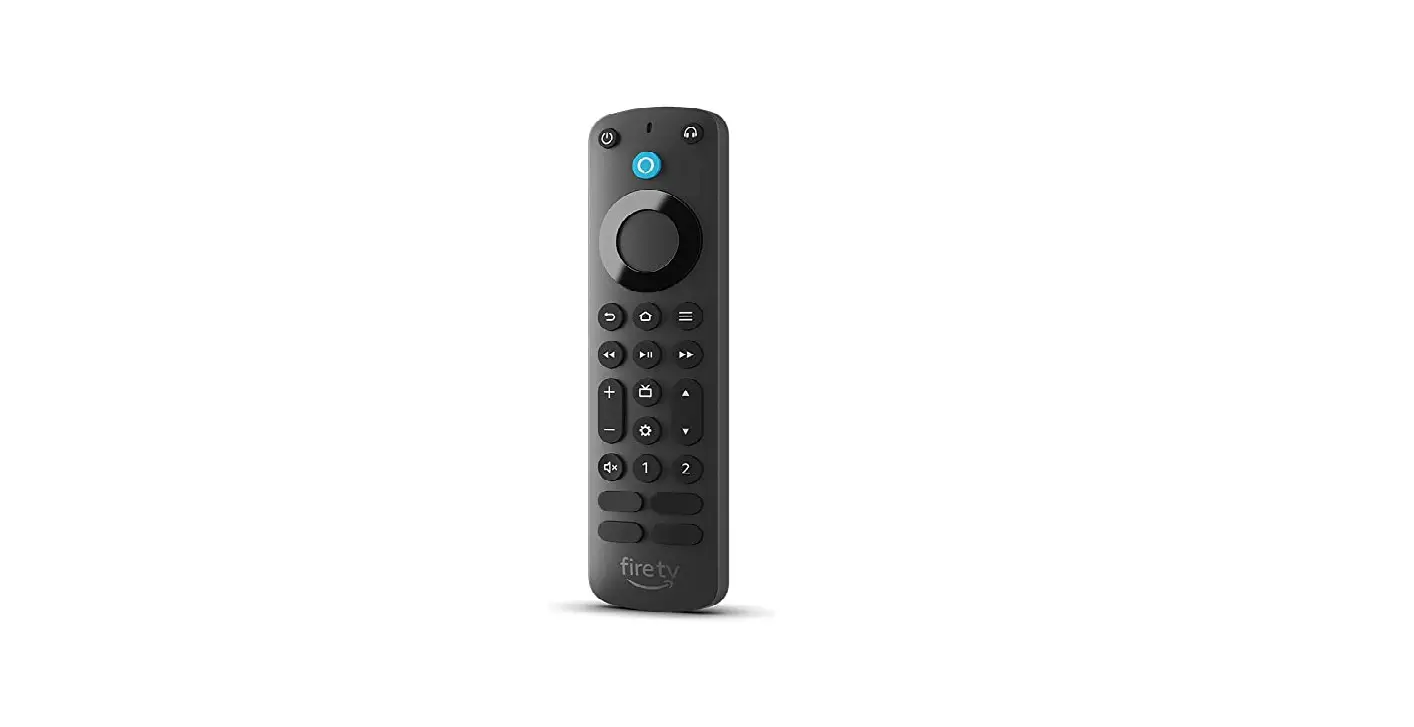
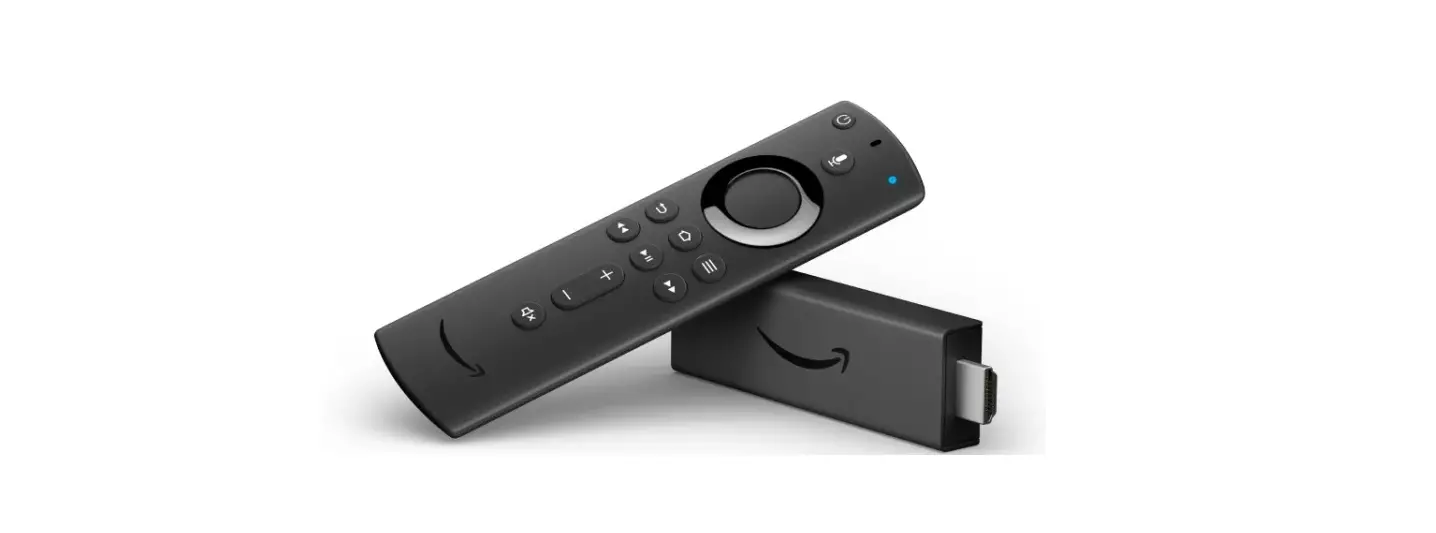
FIRE TV ALEXA VOICE REMOTE
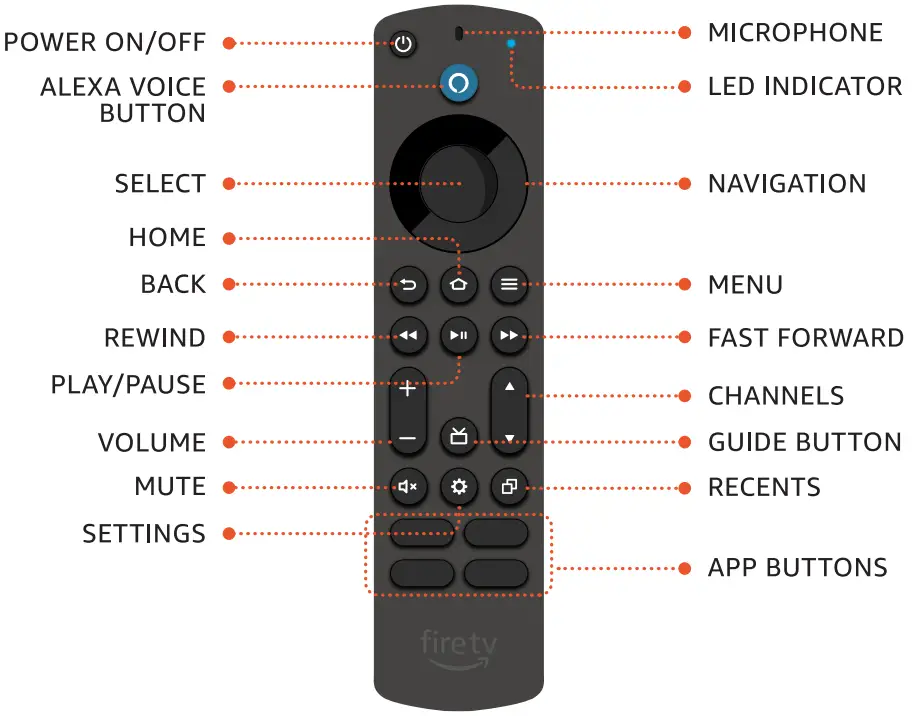
POWER UP YOUR REMOTE
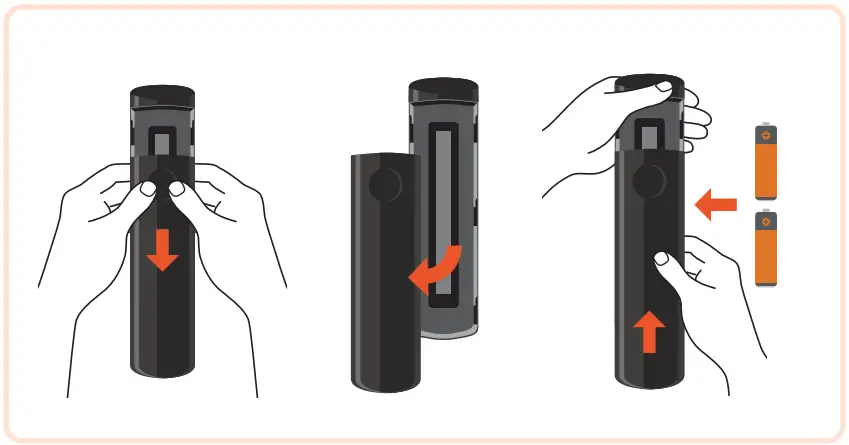
- INSERT BATTERIES
Use your thumbs to slide open the back of remote, then insert the included batteries.
Tip: If remote battery compartment will not open, clean backing with a moist cloth and dry thoroughly.
- USE YOUR REMOTE
The remote can now control Fire TV Cube. To control other devices, follow the on-screen steps.
Tip: If remote isn’t discovered, press and hold Home button until the LED flashes amber.
 button until the LED flashes amber.
WATCH WITH ALEXA
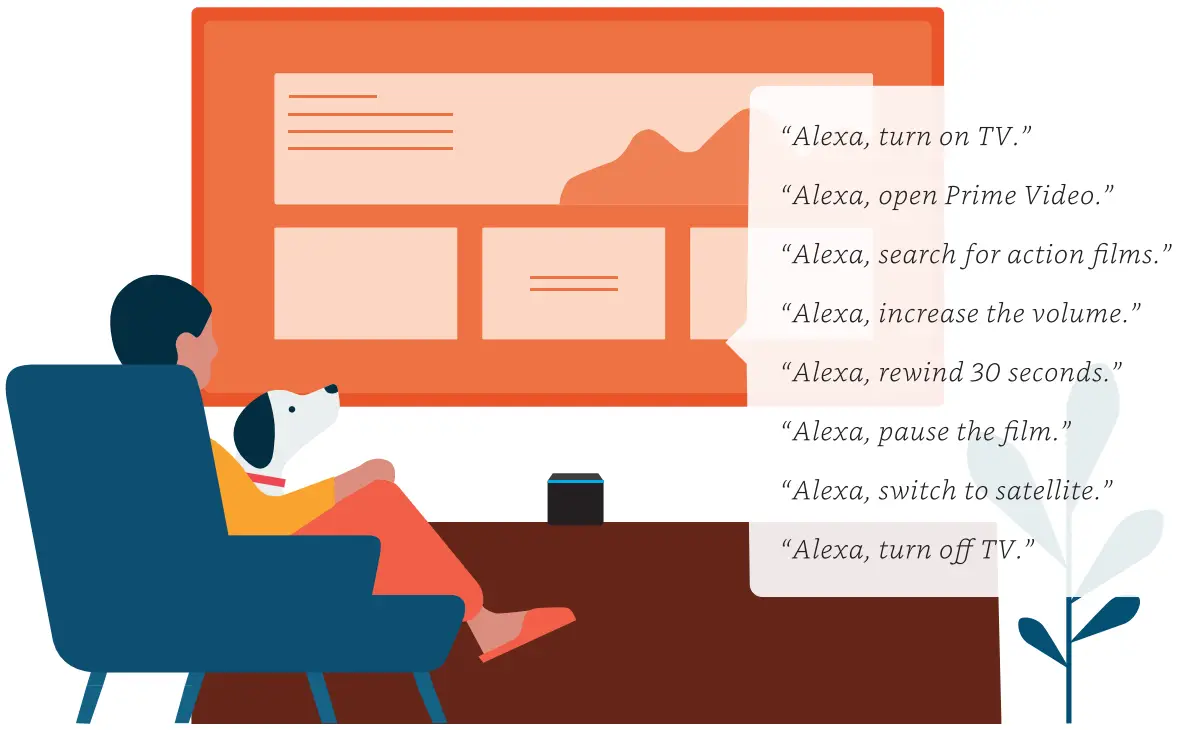
Alexa makes it easy to find, launch and control content. Simply say “Alexa” to Fire TV Cube or press the voice button on your remote.
DO EVEN MORE WITH ALEXA
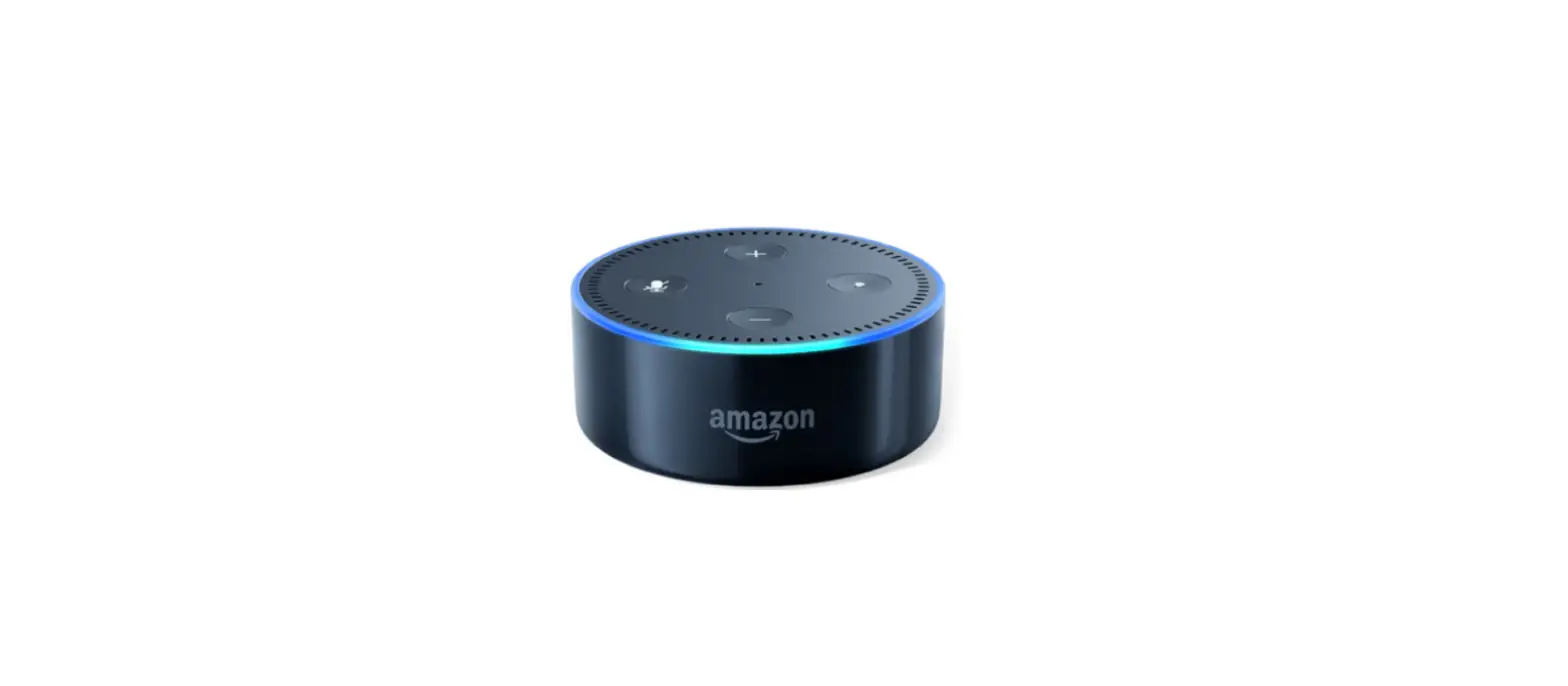
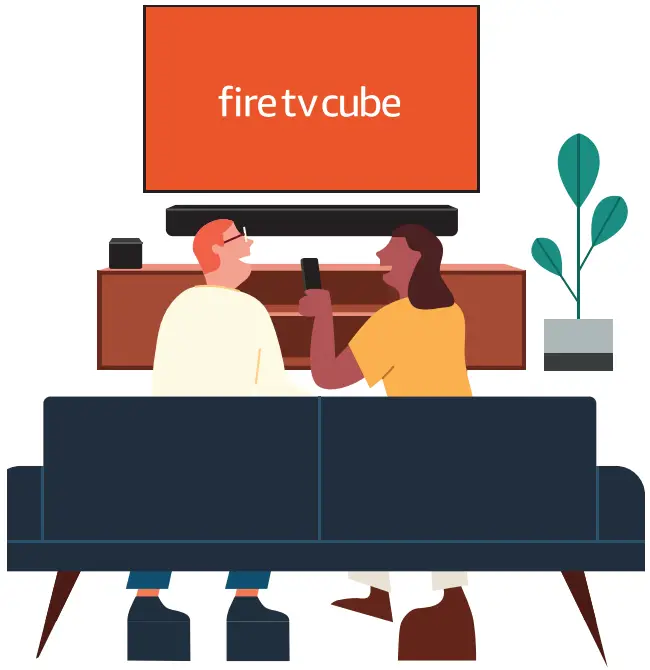
Alexa can help you unwind, control your smart home devices, and keep you better informed, organised and connected. CONTROL YOUR SMART HOME
“Alexa, show me the front door.”
“Alexa, turn on the lights.” LISTEN & UNWIND
“Alexa, play music on Spotify.”
“Alexa, resume my audiobook.” DISCOVER MORE
“Alexa, call Dad.”
“Alexa, show me the weather.”
ENHANCE YOUR EXPERIENCE
ETHERNET CABLE
If you prefer a wired Ethernet connection instead of Wi-Fi, please connect the Ethernet cable (not included) to the network port.
IR EXTENDER
If you are using an IR extender (sold separately) to control devices in a closed cabinet, place the IR extender on the same shelf as the devices you want to control.”
CABLE/SATELLITE BOXES
You can connect your Cable/Satellite set-top box, Gaming console or DVD/Blu-Ray player to the HDMI input port to easily switch input using Alexa and view content from these devices.
ALEXA HOME CINEMA
For an immersive audio experience, wirelessly pair your Fire TV Cube with compatible Echo devices. To learn more, go to www.amazon.co.uk/help/firetv/alexa-home-theater.
VIDEO CALLING
Connect a compatible USB webcam to make two-way video calls. To learn more, go to https://www.amazon.co.uk/help/firetv/twowaycalling/gsg.
PRIVACY CONTROL
 PRIVACY CONTROL
- Turn the mics off by pressing the microphone on/off button.
- See when Alexa is recording and sending your request to Amazon’s secure cloud via the blue indicator light.
 MANAGE YOUR VOICE HISTORY
You can view, hear and delete the recordings associated with your account in the Alexa app at any time.
To delete your voice recordings, say
“Alexa, delete what I just said.”
“Alexa, delete everything I’ve ever said.”
©2022 Amazon.com, Inc. or its affiliates. Amazon, Fire and all related marks are trademarks of Amazon.com, Inc. or its affiliates. Dolby, Dolby Vision, Dolby Audio, Dolby Atmos and the double-D symbol are trademarks of Dolby Laboratories Licensing Corporation. Manufactured under license from Dolby Laboratories. Confidential unpublished works. Copyright © 1992-2022 Dolby Laboratories.
All rights reserved.
ACCESSIBILITY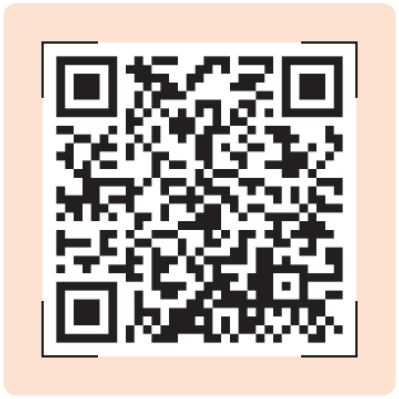 If you need help with accessibility, go to:
www.amazon.co.uk/help/firetv/accessibility