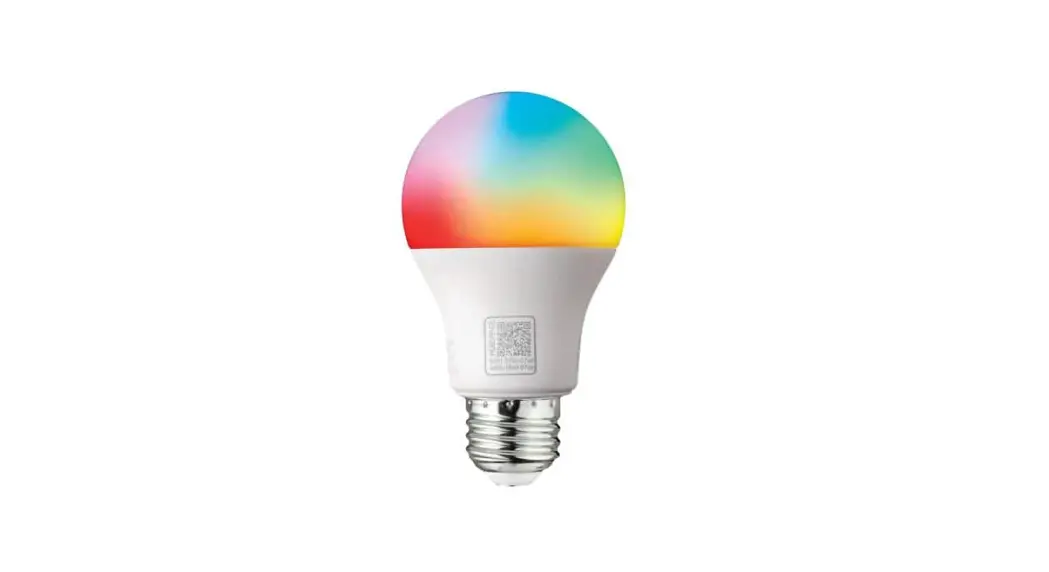
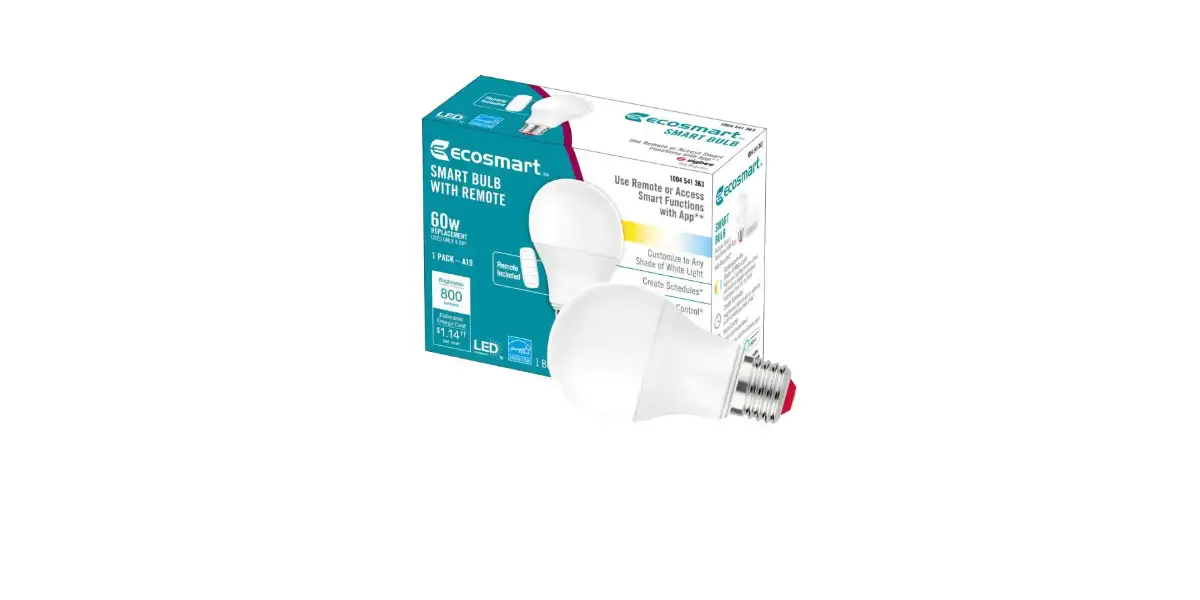
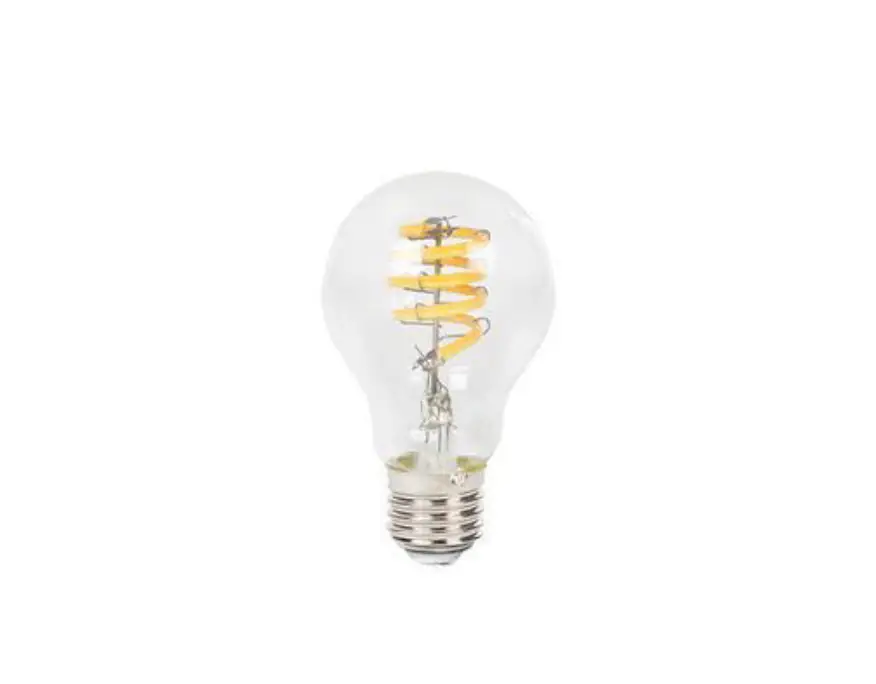
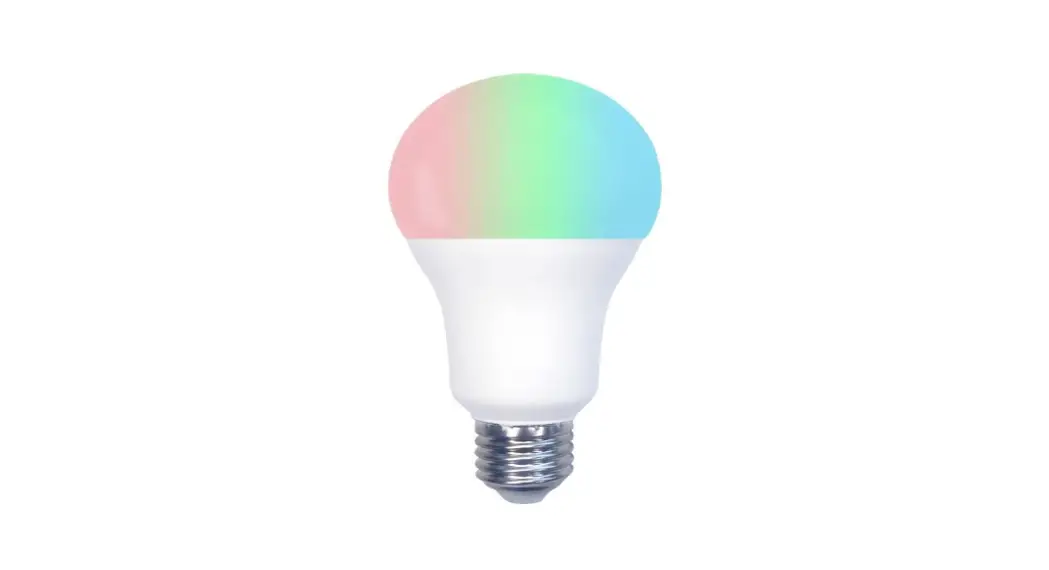
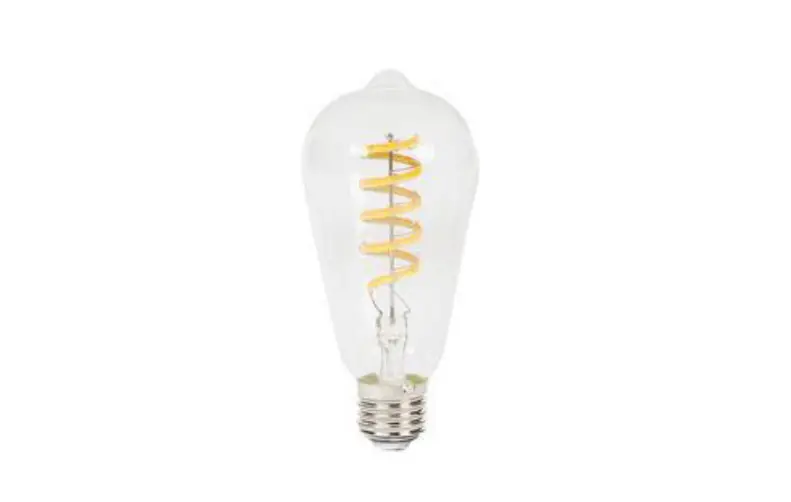
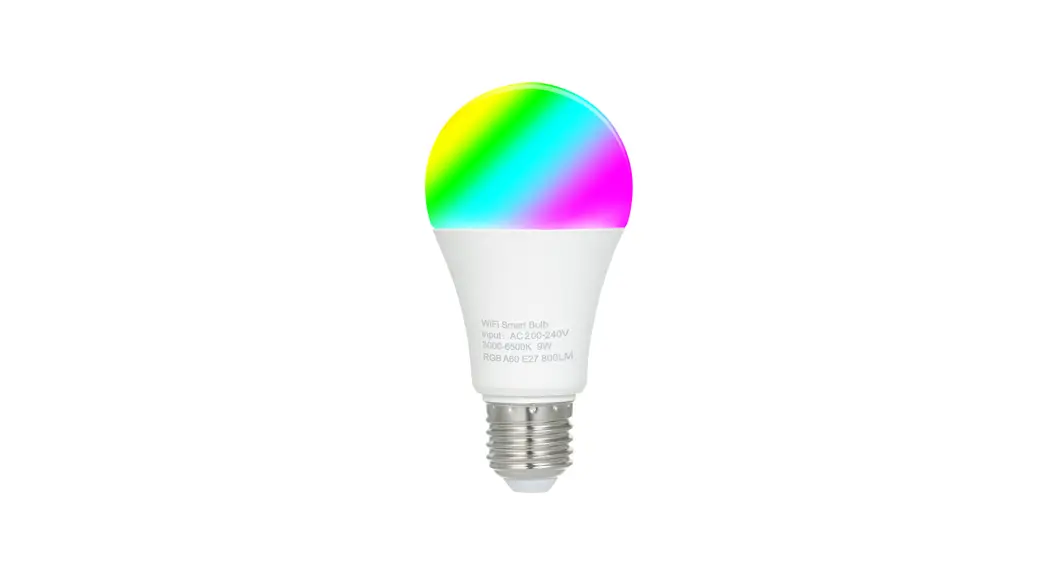
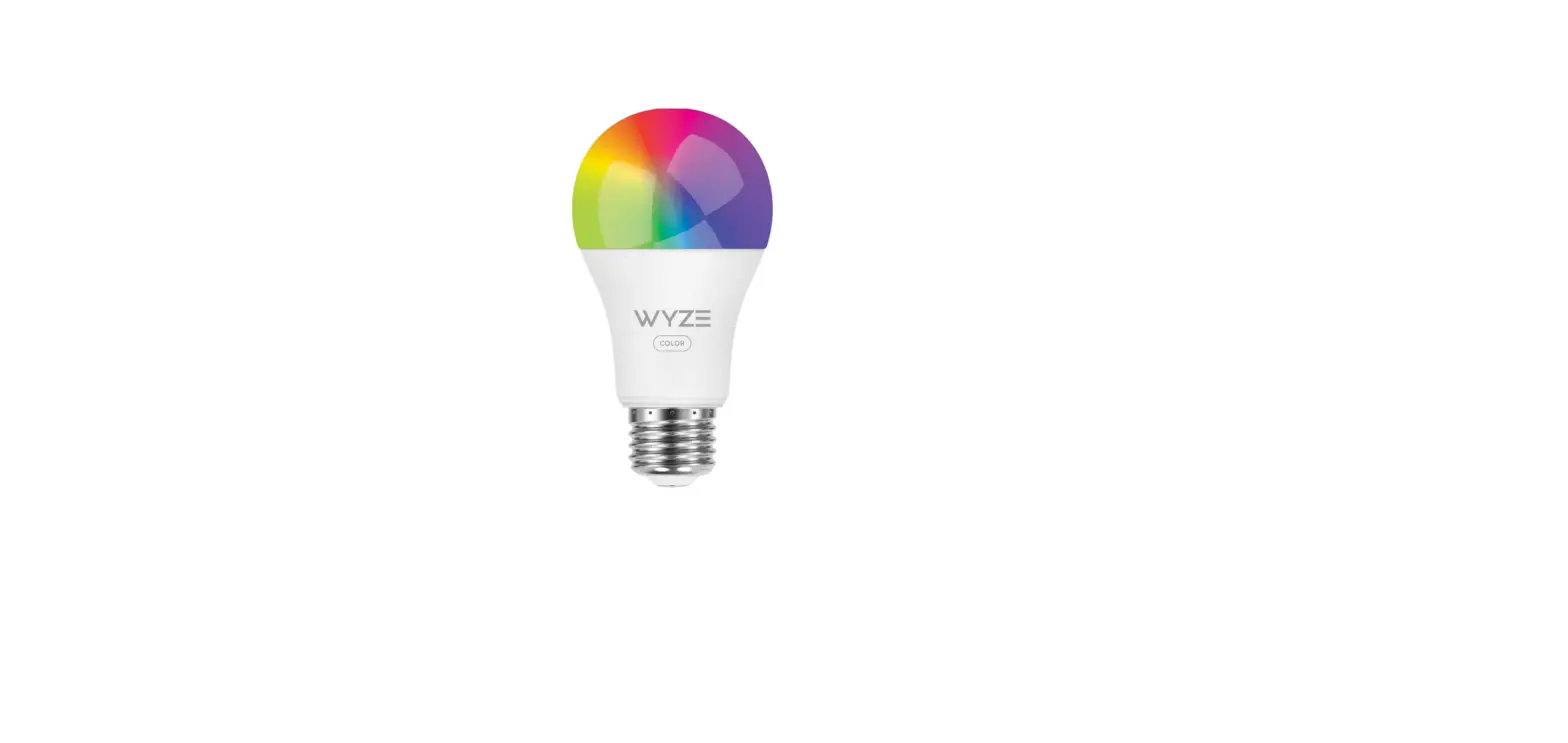
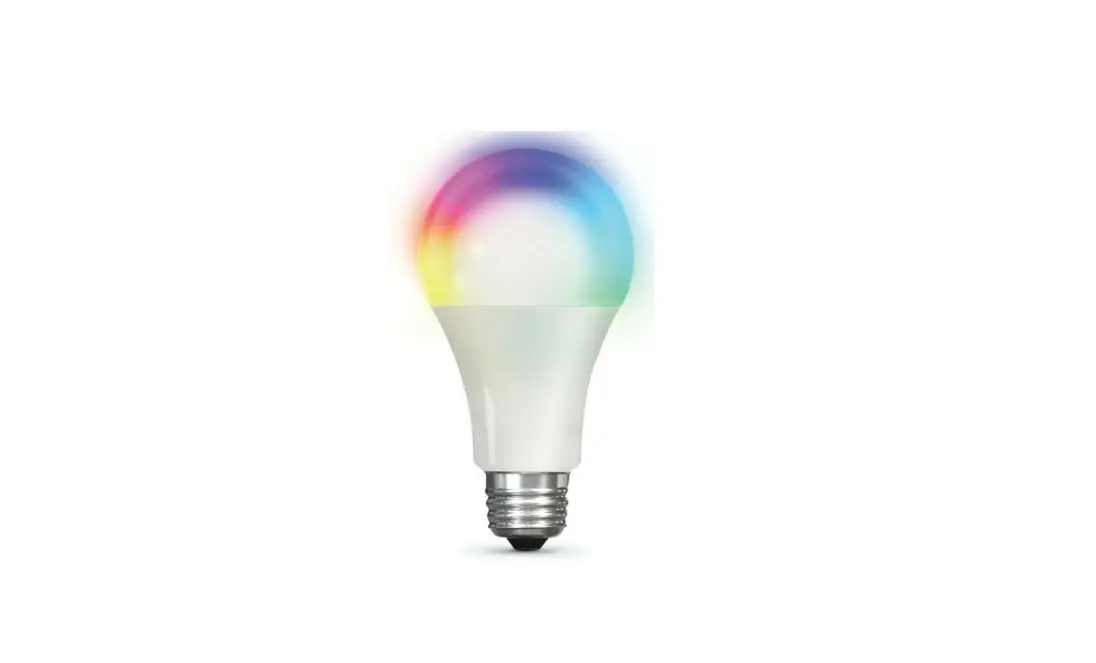
12CFA1960WCCT01 Wireless Controlled A19 Smart Bulb
Product Information
Item #: xxxxxxxxxx
Model #: 12CFA1960WCCT01
Product: Wireless Controlled A19 Smart Bulb
Manufacturer: EcoSmart
Manufacturer Contact: Hubspace Customer Service,
1-877-592-5233
Website: HOMEDEPOT.COM/Hubspace
Warranty: Five-Year Limited Warranty
FCC ID: 2AB2Q-A800SG-G1Z
Product Usage Instructions
- Download the HubspaceTM app from the App Store or the Google
Play Store. - Sign in or tap Register to create a Hubspace account.
- To add your bulb, tap the ‘+’ button in the upper-right
corner. - Bluetooth access is required for product setup. Each smart
Hubspace bulb must be added individually by scanning the QR code or
following the instructions in the app for manual set up. Scanning
the QR code is the fastest method for setup. - If scanning the QR code, locate the QR code printed on either
the bulb or Quick Start Guide and scan it using the app. - Follow the on-screen prompts to complete the setup
process.
If you encounter any issues or have any questions, please
contact Hubspace Customer Service at 1-877-592-5233 for further
assistance.
Item # xxxxxxxxxx Model # 12CFA1960WCCT01
USE AND CARE GUIDE
Wireless Controlled A19 Smart Bulb
Questions, problems, missing parts? Before returning to the store, call Hubspace Customer Service
8 a.m. – 7 p.m., EST, Monday – Friday, 9 a.m. – 6 p.m., EST, Saturday 1-877-592-5233
HOMEDEPOT.COM/Hubspace THANK YOU
We appreciate the trust and confidence you have placed in EcoSmart through the purchase of this bulb. We strive to continually create quality products designed to enhance your home. Visit us online to see our full
line of products available for your home improvement needs. Thank you for choosing EcoSmart!
Table of Contents
Safety Information …………………………….. 2 Wireless Protocol ……………………………….. 2 Warranty…………………………………………… 2 FCC Regulation …………………………………..3 Pre-Installation …………………………………..3 Bulb Specification ………………………………3
Operation …………………………………………. 4 Troubleshooting ……………………………….. 5
Safety Information
WARNING: Only use the control provided with or specified by these instructions to control this lamp. This lamp will not operate properly when connected to a standard (incandescent) dimmer or dimming control.
WARNING: Not for use in totally enclosed fixtures.
WARNING: This device is not intended for use with emergency exits.
Wireless Protocol
The Wi-Fi CERTIFIEDTM Logo is a registered trademark of Wi-Fi Alliance®. The Bluetooth word mark and logos are registered trademarks owned by Bluetooth SIG, Inc. and any use of such marks by The Home Depot is under license. Other trademarks and trade names are those of their respective owners. Apple and the Apple logos are trademarks of Apple, Inc., registered in the U.S., and other countries. App Store is a service mark of Apple Inc. Google, Google Play and the Google Play logo are trademarks of Google LLC.
Warranty
FIVE-YEAR LIMITED WARRANTY
Limited Warranty: Guaranteed to last 5 years based on 3 hours use per day, 7 days per week. If this bulb does not last 5 years after date of purchase (based on 3 hours per day / 7 days per week) due to a defect in materials or workmanship, please bring the defective bulb and a receipt indicating proof of purchase to any Home Depot store. The Home Depot will provide a replacement or, at our discretion, a store credit for the value of the original purchase price. This warranty will be voided for misuse of product per the caution statement. Some states do not allow the exclusion of limitation or consequential damages, so the above exclusion may not apply to you. This warranty gives you specific legal rights and you may also have other rights that vary from state to state and province to province. Please see a store for more details.
2
FCC Regulation
12CFA1960WCCT01(xxxxxxxxxx)
Contains FCC ID: 2AB2Q-A800SG-G1Z
This device complies with Part 15 of the FCC Rules. Operation is subject to the following two conditions: (1) this device may not cause harmful interference, and (2) this device must accept any interference received, including interference that may cause undesired operation. This equipment, if not installed and used in accordance with the instructions, may cause harmful interference to radio communications. Any changes or modifications not expressly approved by the manufacturer could void the user’s authority to operate the equipment. NOTE: This equipment has been tested and found to comply with the limits for a Class B digital device, pursuant to Part 15 of the FCC Rules. These limits are designed to provide reasonable protection against harmful interference in a residential installation. This equipment generates, uses and can radiate radio frequency energy and, if not installed and used in accordance with the instructions, may cause harmful interference to radio communications. However, there is no guarantee that interference will not occur in a particular installation. If this equipment does cause harmful interference to radio or television reception, which can be determined by turning the equipment off and on, the user is encouraged to try to correct the interference by one or more of the following measures: reorient or relocate the receiving antenna; increase the separation between the equipment and receiver; connect the equipment into an outlet on a circuit different from that to which the receiver is connected; consult the dealer or an experienced radio/TV technician for help. This equipment complies with FCC radiation exposure limits set forth for an uncontrolled environment. This equipment should be installed and operated with minimum distance of 20 cm between the radiator and your body.
Pre-Installation
Package Contents
Item # xxxxxxxxxx Model # 12CFA1960WCCT01
USE AND CARE GUIDE
Wireless Controlled A19 Smart Bulb
A
Questions, problems, missing parts? Before returning to the store, call Hubspace Customer Service
8 a.m. – 7 p.m., EST, Monday – Friday, 9 a.m. – 6 p.m., EST, Saturday 1-877-592-5233
HOMEDEPOT.COM/Hubspace
THANK YOU We appreciate the trust and confidence you have placed in EcoSmart through the purchase of this bulb. We strive to continually create quality products designed to enhance your home. Visit us online to see our full line of products available for your home improvement needs. Thank you for choosing EcoSmart!
B
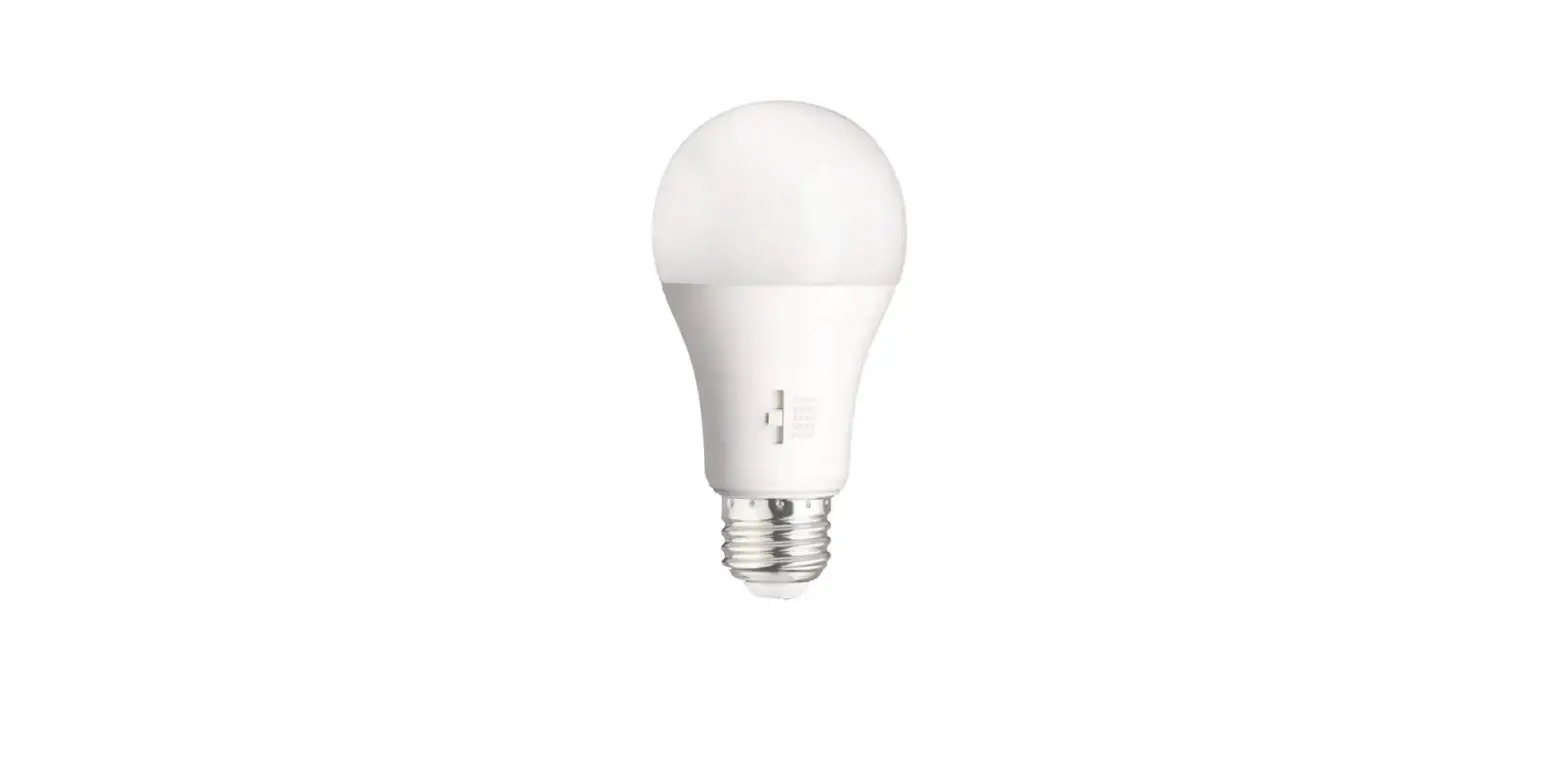
Part Description A A19 LED Bulb B User Guide C Quick Start Guide
Quantity 1 1 1
HUBSPACE APP QUICK START GUIDE
C
Bulb Specification
Model
Input Volts (AC)
Input Frequency (Hz)
Input Watts (W)
Lumens (LM)
Efficacy (LM/W)
CRI
12CFA1960WCCT01
120
60
7
800
114
90
3
HOMEDEPOT.COM/Hubspace
Please contact 1-877-592-5233 for further assistance.
Operation
1 Download the HubspaceTM app from the App Store or the Google Play Store.
2 Sign in, or tap Register to create a Hubspace account. 3 To add your bulb, tap the `+’ button in the upper-right corner.
My Home
NOTE: Bluetooth access is required for product setup. Each smart Hubspace bulb must be added individually by scanning the QR code or by following the
instructions in the app for manual set up. Scanning the QR code is the fastest method for set up.
4 Scan the QR code printed on either the bulb or Quick Start Guide.
HUBSPACE APP QUICK START GUIDE
NOTE: QR code must be scanned from inside the Hubspace app. If the QR code cannot be scanned, you can enter the code manually. Tap Enter Code and follow the
instructions. If you are unable to access the QR code, on the Scan Product screen, tap the Search button in the
lower-right corner and follow the instructions. If you cannot locate the QR code or are having trouble scanning the QR code, please follow
instructions for manual set up.
4
Operation (continued)
5 Connect your bulb to power and follow the instructions on app screen.
NOTE: This Hubspace bulb requires a 2.4GHz Wi-Fi network, which most routers provide. The Hubspace app will only show Wi-Fi networks compatible with this bulb. If you do not see your Wi-Fi network name when you attempt to connect your bulb, please check
your router settings or move your product closer to your Wi-Fi router.
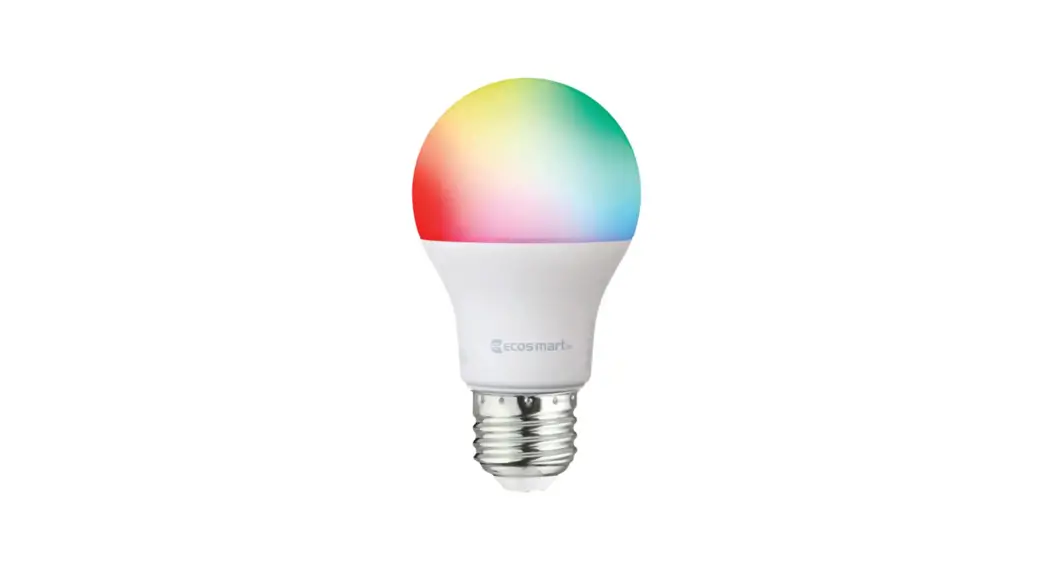
6 Control your lighting using the Hubspace app Control Dimming: choose the brightness you want in the app. Change Colors: select from shades of white from 2700K to 6500K. Group Control: group bulbs so they can be controlled at one time. * Set up groups by tapping the “+” sign on the home screen and select “set up group”. Follow the instructions in the app. * Groups can also be set up by setting up rooms. Select “rooms” from the home screen and follow the instructions in the app. Create Schedules: program bulbs to turn on and off automatically. * Select Schedules from the home screen. Follow the steps in the app to create schedules.
7 Set up your Voice Assistant You can connect your smart bulb to Google Assistant and Alexa from the Hubspace app. Or, you can sign in to Alexa app or Google Assistant and connect to your Hubspace products from there.
If you cannot locate the QR code or are having trouble scanning the QR code, follow below instructions:
Power on the bulb. Tap the `+’ button in the upper right corner on app screen to add your bulb. Tap the Search button in the lower right hand corner and follow the directions in the Hubspace App.
NOTE: QR code must be scanned from inside the Hubspace app.
5
HOMEDEPOT.COM/Hubspace
Please contact 1-877-592-5233 for further assistance.
Troubleshooting Guide
Problem My Hubspace product is not connecting to Wi-Fi. My product cannot find any Wi-Fi networks.
Solution
Make sure your product is connected to a power source. Your internet connection or Wi-Fi network may be down.
Make sure you have a 2.4GHz capable Wi-Fi network within range of the product you are trying to add.
My product is in a location that does not have Wi-Fi. Can I still use it with the Hubspace app?
Yes. Use the app on a phone with an internet connection like LTE. The phone must be within Bluetooth range of your Hubspace product.
I cannot find the QR code.
It is on the bulb housing. A copy of the QR code is also included in your product’s documentation.
The QR code has become damaged. How do I add the product?
I lost my QR code. How do I add a product?
A product is on another account. How do I transfer it?
Under the QR code are numbers. You can enter those in manually instead of scanning the code.
Make sure the product is connected to power. In the Hubspace app, tap +, then Add Product. On the Scan Product screen, tap the Search button in the lower-right corner. Follow the instructions on-screen.
Scan the QR code and it will transfer to your account.
My product is of ine for long periods of time.
Make sure your Wi-Fi signal strength is sufficient. You may need to move your router, use mesh Wi-Fi, or Wi-Fi extenders.
The product is on and I scanned the QR code, but Turn off Bluetooth on your phone and turn it back on. Then,
the app cannot connect to it.
scan the QR code. If the problem persists, turn your phone
off and on, then try again.
Can I scan the same QR code to add multiple products? No. Each product has a unique QR code.
*$4UBUFNFOU 5IJTEFWJDFDPNQMJFTXJUI*OEVTUSZ$BOBEBnTMJDFODFFYFNQU344T0QFSBUJPOJTTVCKFDUUPUIF GPMMPXJOHUXPDPOEJUJPOT
5IJTEFWJDFNBZOPUDBVTFJOUFSGFSFODFBOE
5IJTEFWJDFNVTUBDDFQUBOZJOUFSGFSFODF
JODMVEJOHJOUFSGFSFODFUIBUNBZDBVTFVOEFTJSFE PQFSBUJPOPGUIFEFWJDF -FQSTFOUBQQBSFJMFTUDPOGPSNFBVY$/3E*OEVTUSJF$BOBEBBQQMJDBCMFTBVYBQQBSFJMTSBEJP FYFNQUTEFMJDFODF-FYQMPJUBUJPOFTUBVUPSJTFBVYEFVYDPOEJUJPOTTVJWBOUFT
MBQQBSFJMOF EPJUQBTQSPEVJSFEFCSPVJMMBHF
FU
MVUJMJTBUFVSEFMBQQBSFJMEPJUBDDFQUFSUPVUCSPVJMMBHF SBEJPMFDUSJRVFTVCJ
NNFTJMFCSPVJMMBHFFTUTVTDFQUJCMFEFODPNQSPNFUUSFMFGPODUJPOOFNFOU
6
Questions, problems, missing parts? Before returning to the store, call Hubspace Customer Service
8 a.m. – 7 p.m., EST, Monday – Friday, 9 a.m. – 6 p.m., EST, Saturday 1-877-592-5233
HOMEDEPOT.COM/Hubspace
Retain this manual for future use.
 Hubspace - Smart Home - The Home Depot