 User Guide
 www.contourdesign.com
What’s in the Box?
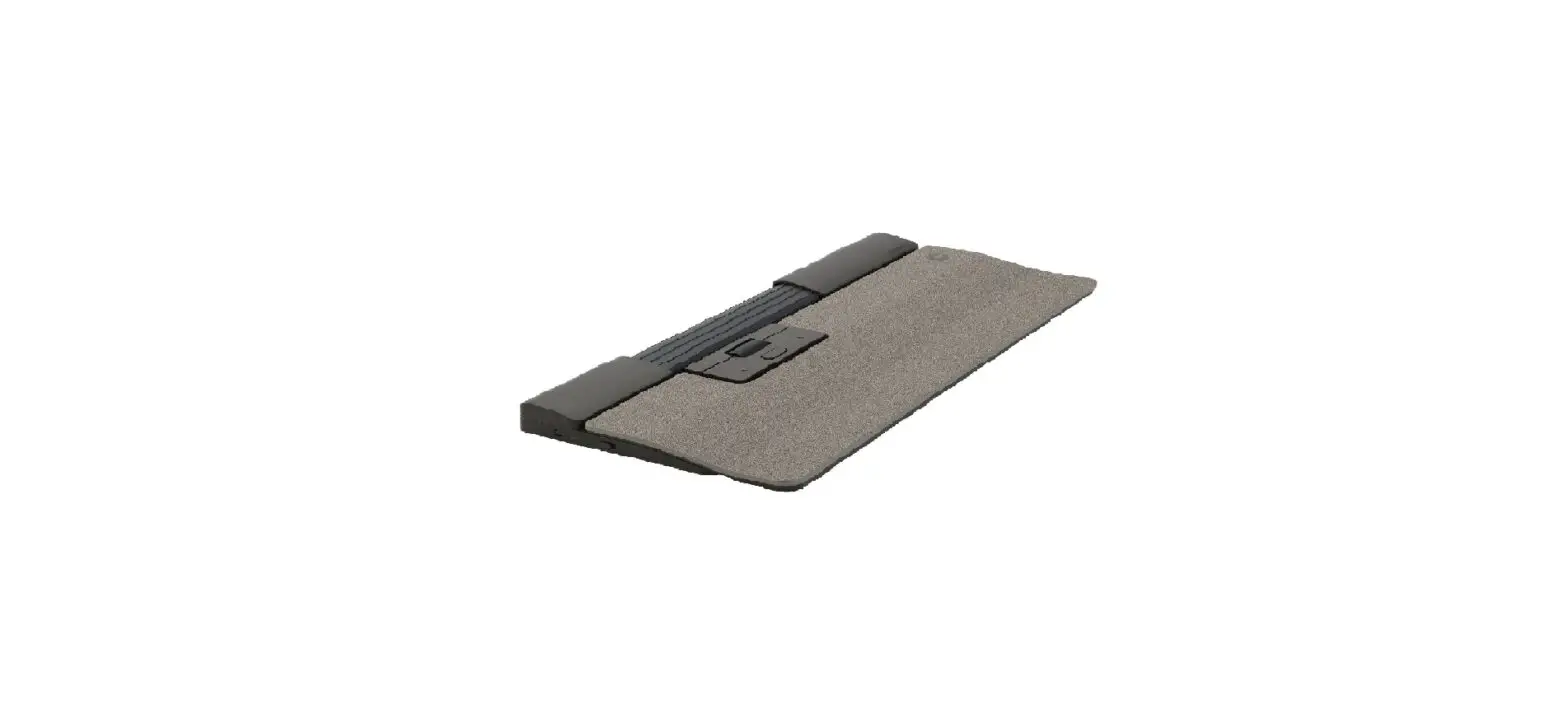
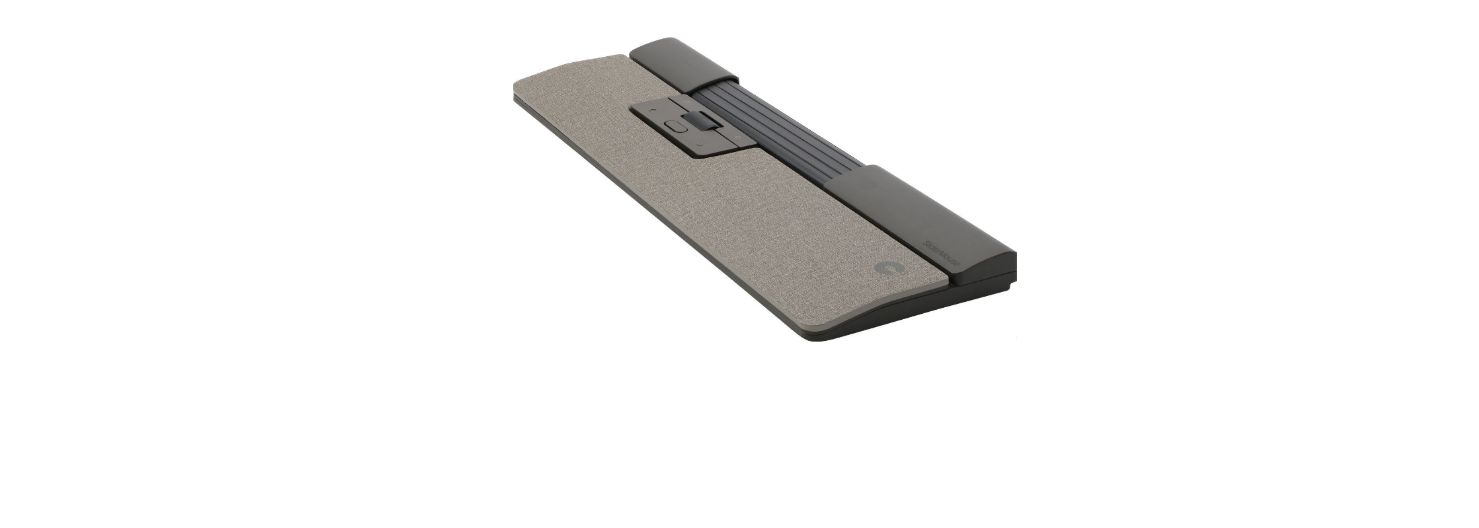
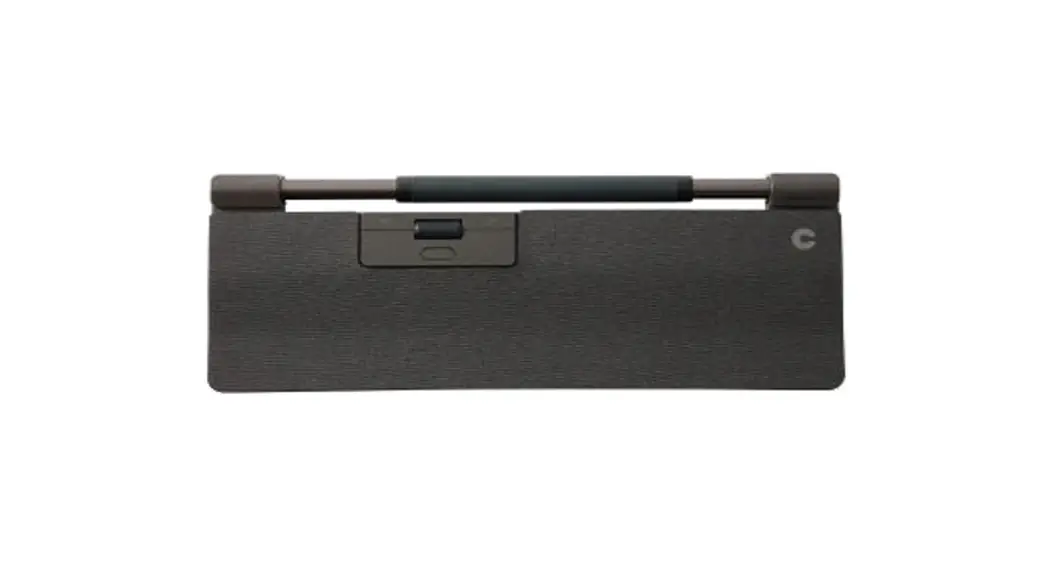
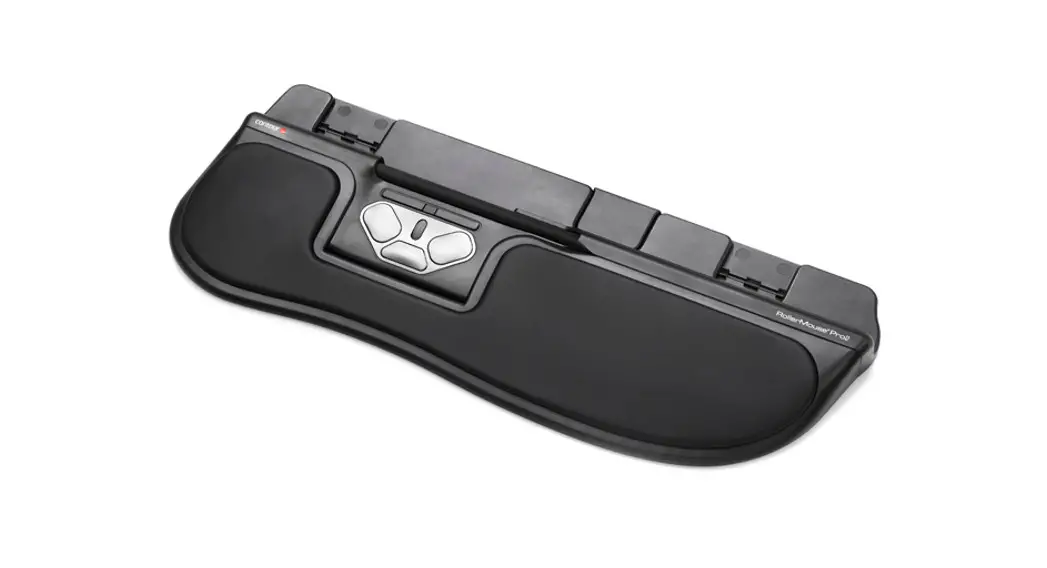
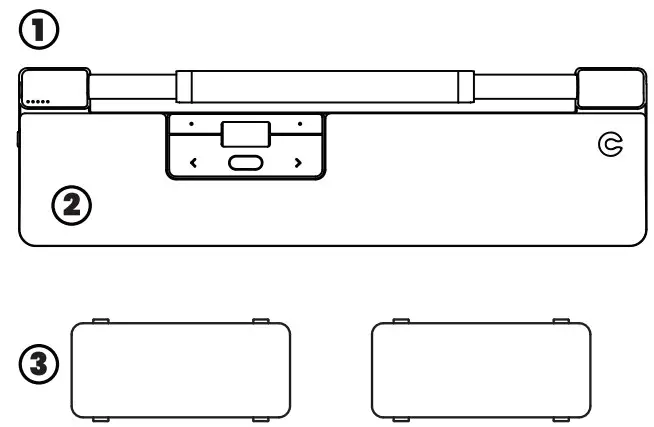
- RollerMouse Pro
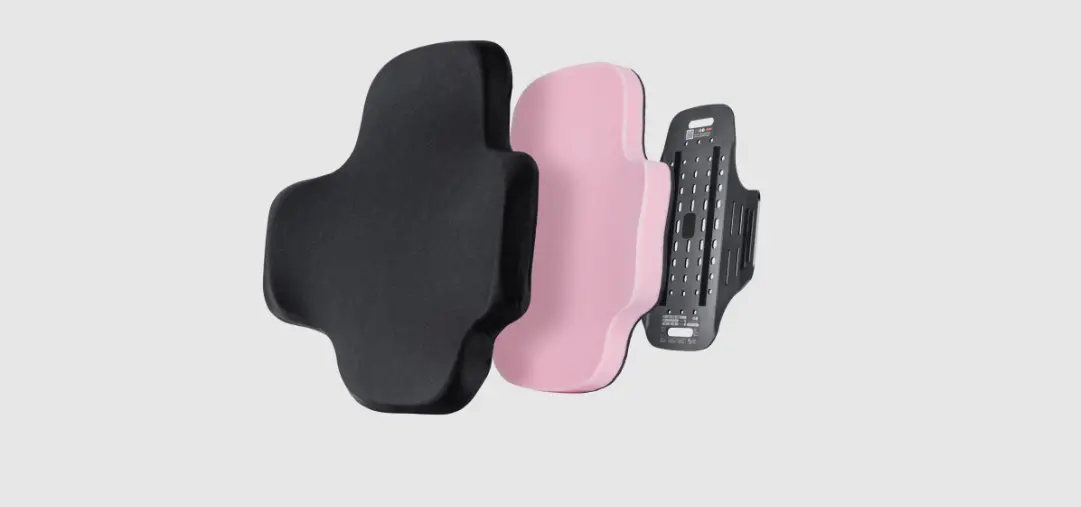
- Wrist rest (if included)
- Two Keyboard risers
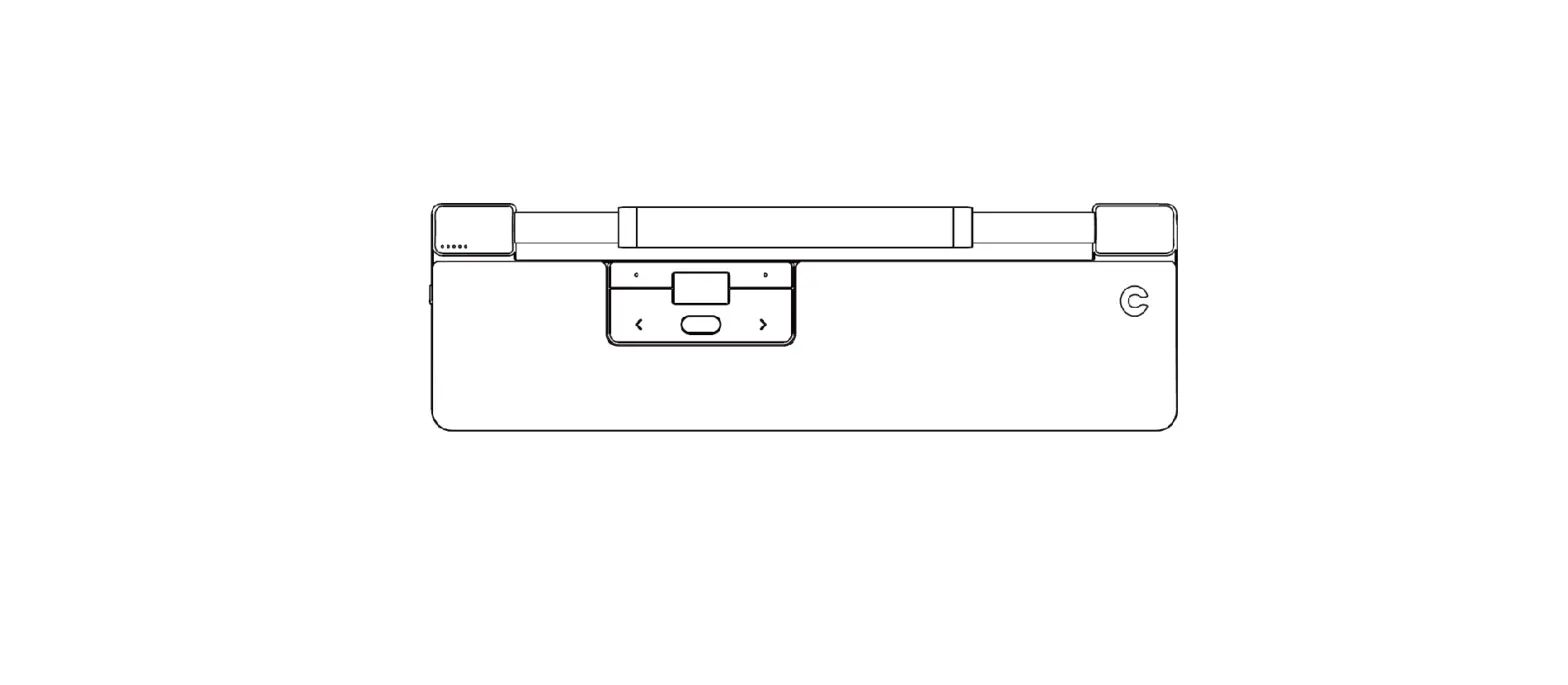
Functions
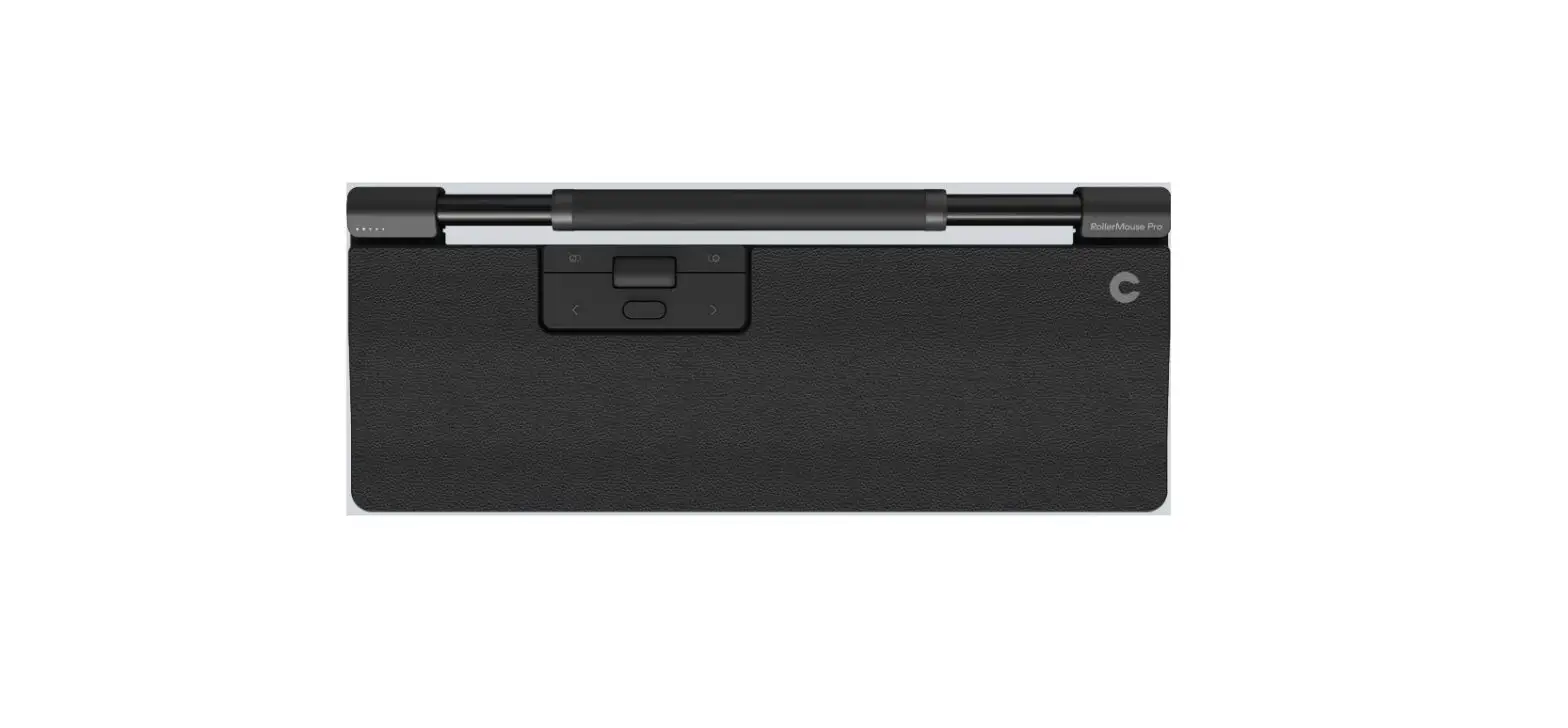
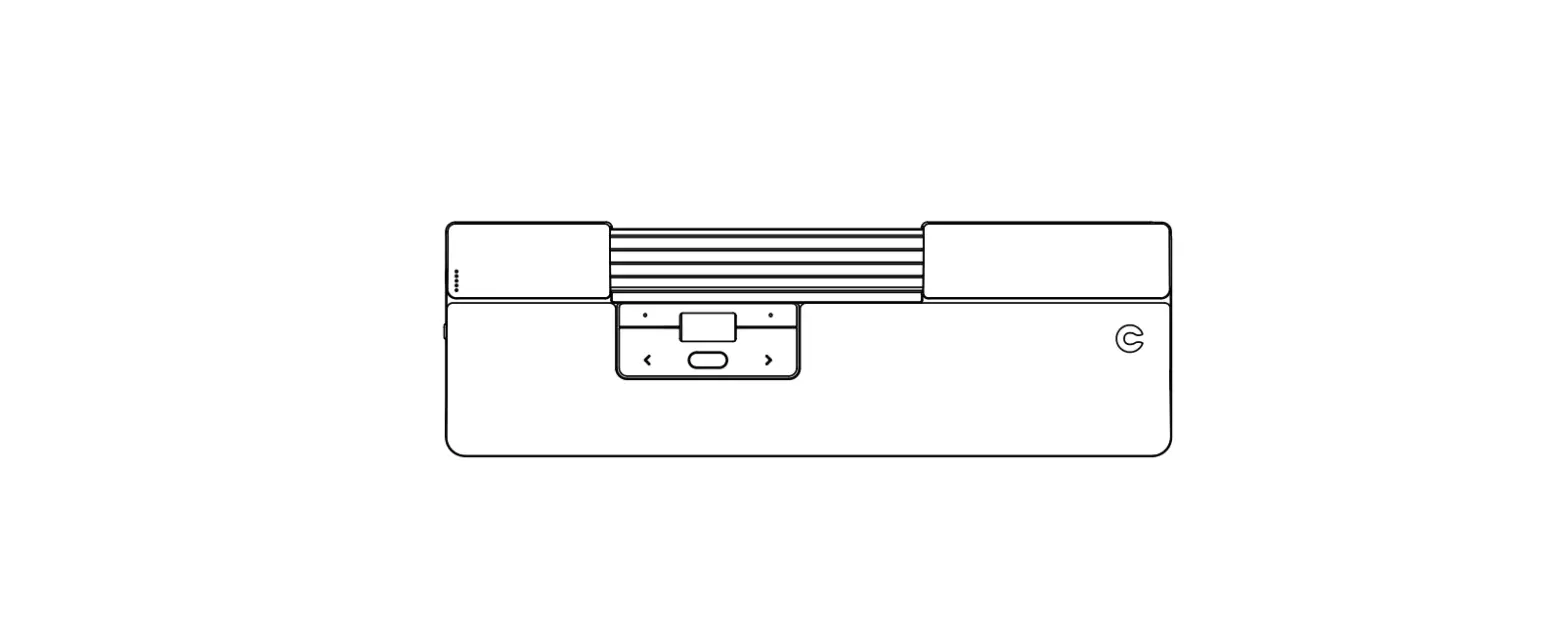
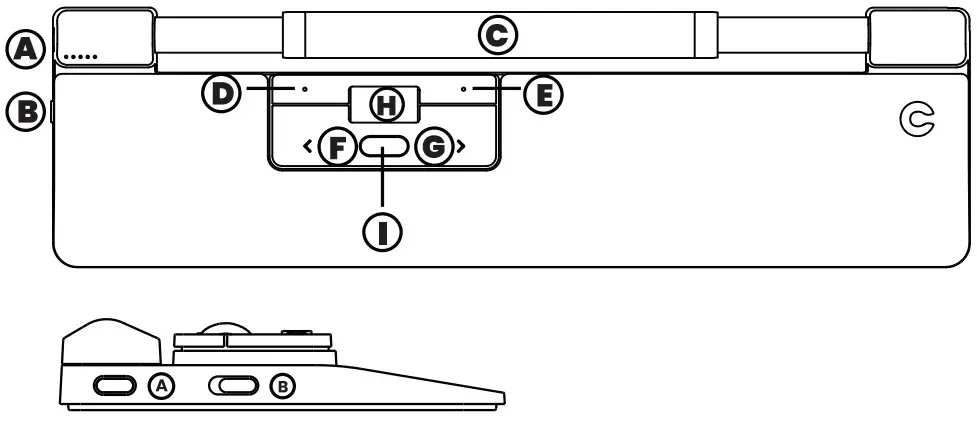
| A. Cursor speed B. Power switch* C. Rollerbar D. Copy E. Paste | F. Left-click G. Right-click H. Scroll wheel I. “One Touch double -click * No function for wired unit. |
 Connecting Device
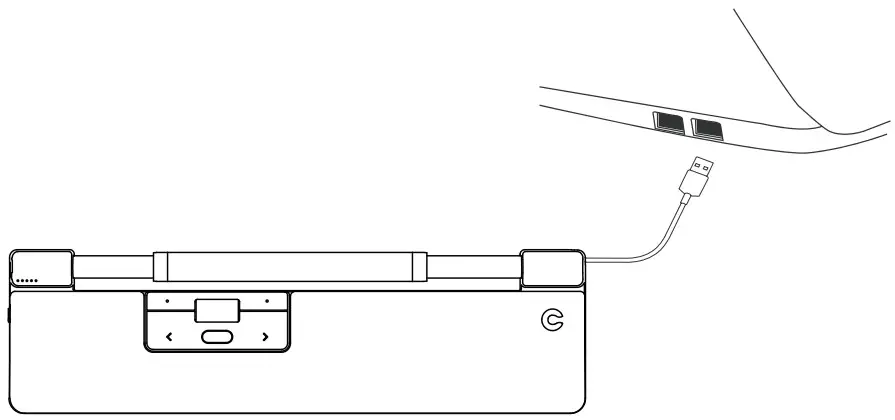
 Connecting Device
 Cursor Speed (DP)
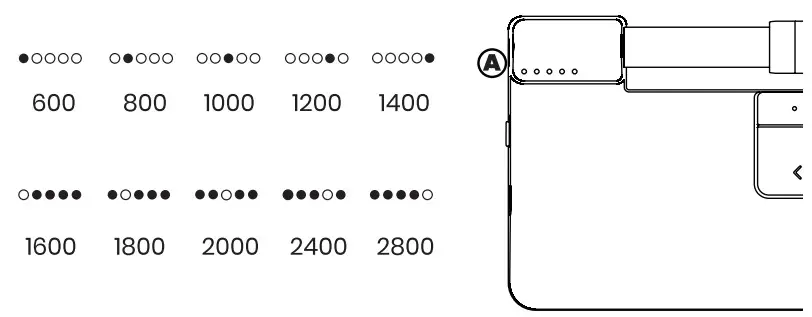
Press the Cursor speed button A to cycle through cursor speeds.
There are speed selections which range from slow (600 DPI) to fast (2800 DP)). Speed can be identified by the LED lights as shown.
Hold Cursor speed button A for 8 seconds to default settings.
Click force adjustment
Click force refers to the level of resistance when clicking the Rollerbar.
To change the click force, press and hold both the A ( Cursor Speed) and the F (Left-click) buttons for two seconds, the LED light will show the current click force setting. While continuing to hold the A button, release the F button and use the scroll wheel ( H) to change click force setting. Let go of A to select click force setting.
Note: The Rollerbar click function can be turned off using the above adjustment method, by moving the scroll wheel until all LEDs are lit.
Click volume adjustment
The Rollerbar has 6 different click volume settings. To change the click volume, press and hold both button A ( Cursor speed) and button G (Right-click) for two seconds, the LED light will show current click volume setting. To adjust volume setting continuing to hold button A and release button G, then move button H (Scroll wheel) up/down to adjust the volume setting. Release button A to confirm adjusted click volume.
Note: The Rollerbar click volume can be turned off using the above adjustment method, by moving the scroll wheel until all LEDs are lit.
Keyboard Risers
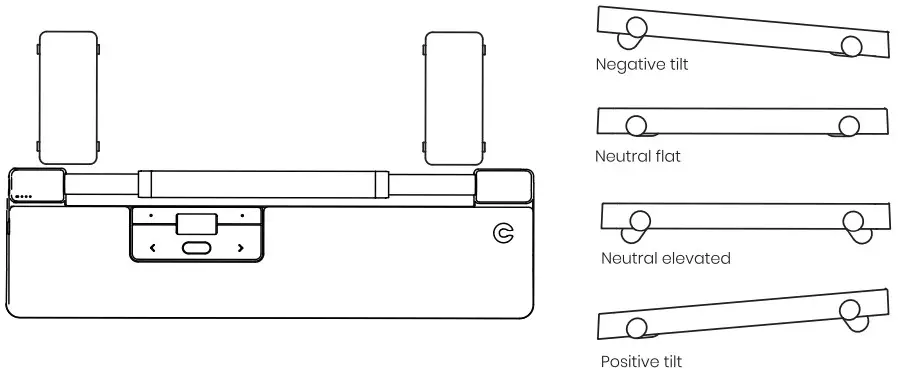
Before using your RollerMouse Pro, take a moment and adjust the keyboard risers to achieve the desired keyboard height and angle.
For a proper ergonomic position, the front edge of the keyboard should be as close to the Rollerbar as possible.
 |  |  |
| 2-year Warranty All Contour Design products come with a 2-year Warranty. | Product Support For information on software drivers. product manuals ,and advanced product settings such as thin client mode. please visit contourdesign.com/support | Sales Support If you have questions about your recent purchase ,email us: United States: [email protected] All other countries: [email protected] |
Contour