Developer Services Application Portal
Product Information
The Developer Services Application Portal is a platform that
allows users to submit applications related to developer services.
It provides a convenient way to apply for various services and
manage the application process.
How to Submit an Application
To submit an application through the Developer Services
Application Portal, follow these steps:
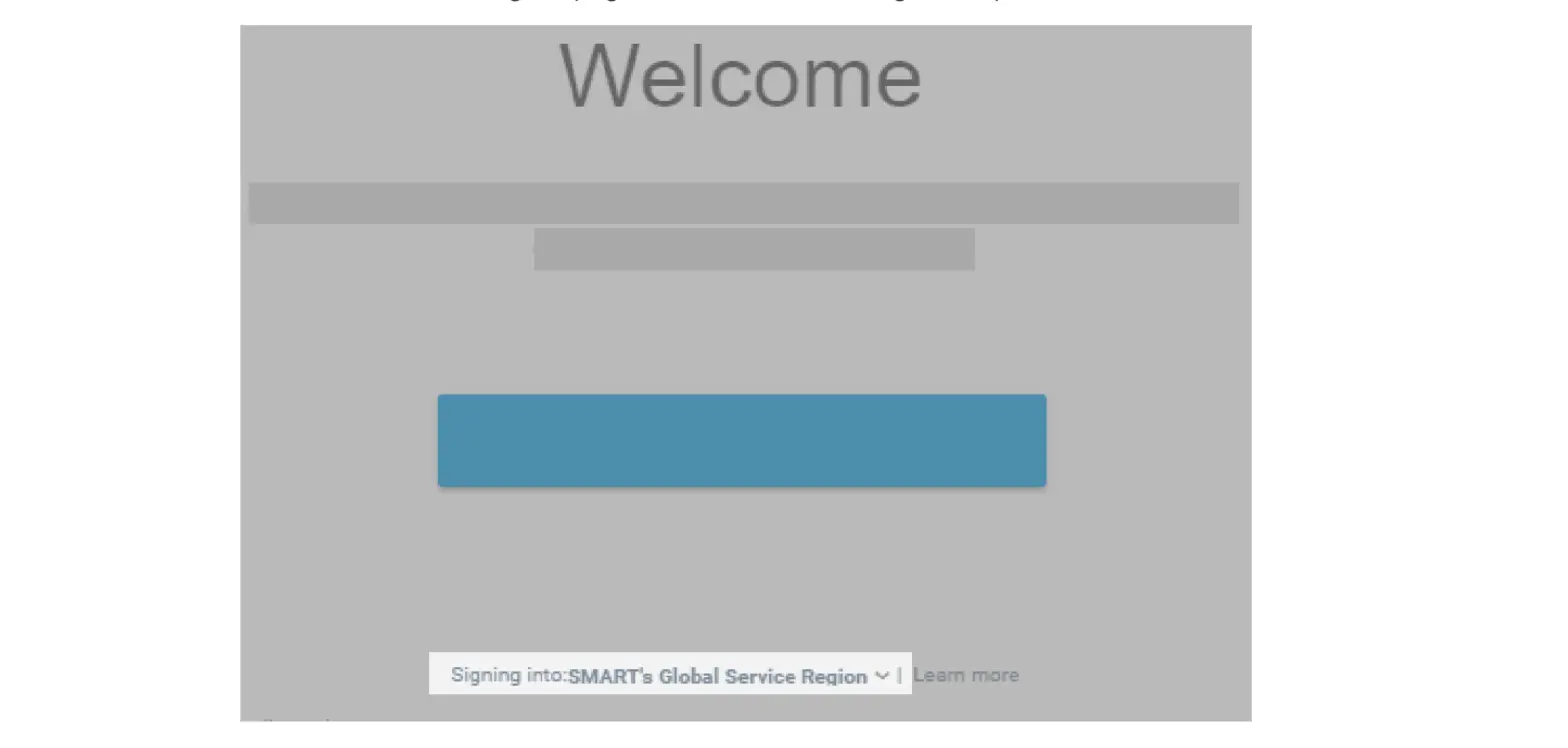
- Click the “Start an Application” button on the Welcome
screen. - Select the desired application type from the drop-down
box. - Review the guidance text under the application type and click
“Start” when ready. - Complete each stage of the application, using the options to
move to the next stage, go back to the previous stage, or save and
exit for later. - Check the summary page to review the information provided, then
click the certification box and “Submit” to finalize the
application. - Track the progress of your application in the application
workflow. - Pay any outstanding fees by clicking the “Pay My Application
Fees” button and following the payment process.
Quick Tip – Uploading Multiple Documents
When uploading supporting documents to your application, you can
upload multiple documents per drop-down category. Follow these
steps:
- Click the “Submit” button.
- Select the relevant Document Category from the drop-down
list. - Choose to either drag and drop files or use the “Upload Files”
button to locate and select multiple files. - Confirm that your files have been successfully uploaded to the
portal.
How to Apply as an Owner or Agent
If you are applying as an Owner or Agent, make sure to follow
these instructions:
- An Owner refers to a registered property owner/s.
- An Agent is someone authorized by the property owner to handle
the water approval application. - The Property Owner and Agent listed in the application must
match the uploaded Property Owners Consent Form (not required for
Services Advice Notice).
To view Charge Notices and Tax Invoices related to your
application, go to the Documents tab in your application. Charge
Notices will be available after submitting the application, and Tax
Invoices will be available after payment is made.
DEVELOPER SERVICES APPLICATION PORTAL QUICK REFERENCE GUIDES
The following document provides you with a Quick Reference Guides for the Developer Services Application Portal.
HOW TO SUBMIT AN APPLICATION
External Portal
How to submit an application
Uploading multiple documents
How to apply as an Owner or Agent
How to apply as an Owner no other contact
How to apply as an Agent, add a Property Owner and other contact
as Billing Entity
How to apply as an Agent and add a Property Owner
HOW TO SUBMIT AN APPLICATION
The following applications can be lodged in the Developer Services Portal:
· Standard Connection · Non-Standard Connection · Services Advice Notice (SAN)
You can now:
· Upload one or multiple supporting documents per category
· Download all documents per application
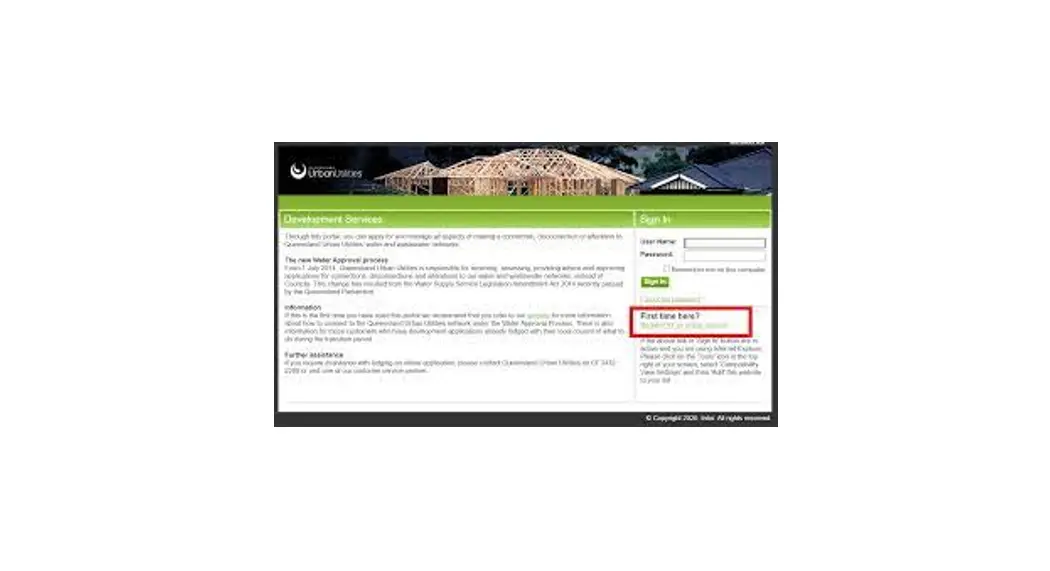
GET STARTED: Click the Start an Application button on the Welcome screen, shown in the red box below
1
Select the application type from the drop-down box (example of Standard Connection in red box above).
View the guidance text under application type before clicking the Start button.
When you are ready to begin, click Start.
3
2
Going through the application stages, you have the option to complete and move to the Next stage, go back to the Previous stage, or click on the Save and exit button to resume the application at another time (red box above).
Guidance text is provided at each stage to assist you.
4
All the information you provided during the application is consolidated in the Summary where you can check your application before clicking on the certification box and then the Submit (red boxes above).
After submitting the application, you can view it’s progress in the application workflow (blue box above).
Next, you are required to pay any outstanding fees. Click the Pay My Application Fees button to go directly to the payment gateway (red box above).
Note: You can check your application status or stage at any time by going to Application in Progress in the banner at the top of the page.
QUICK TIP WHEN
1
UPLOADING MULTIPLE
DOCUMENTS
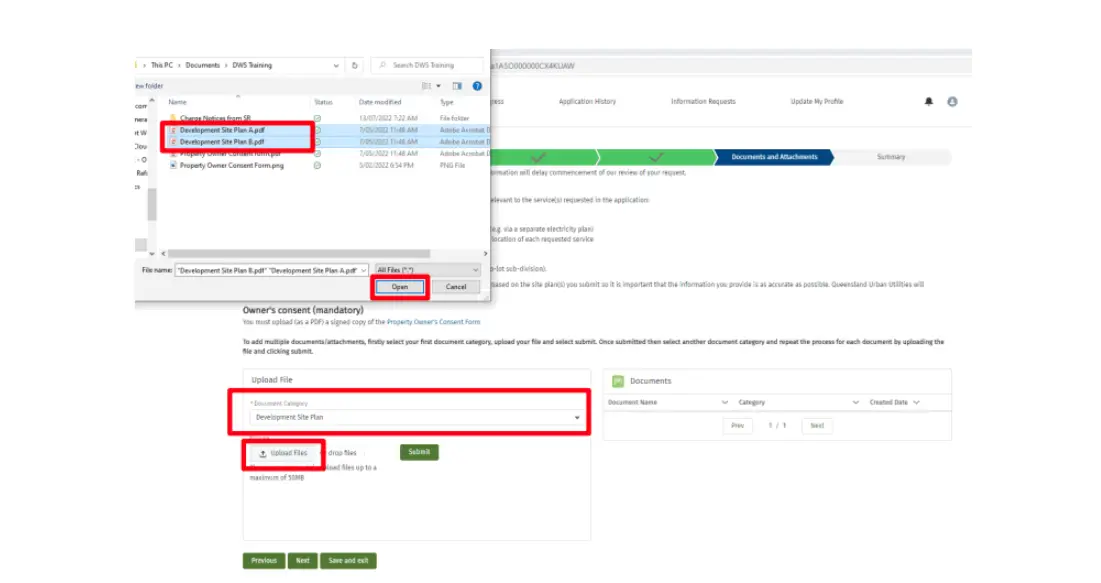
When uploading supporting documents to your application, you can now upload multiple documents per drop-down category.
2
Click the Submit button.
Select the relevant Document Category from the drop-down list. You can either Drag and Drop your files from a files window to the or drop
files button, or use the Upload Files button. When you click on the Upload Files button, the pop-up window appears
for you to find the location of your supporting files. Press the CTRL key on your keyboard and select multiple files and then the
Open button.
3
Your files have now been uploaded to the portal.
ADDRESSEE FOR CHARGE NOTICES AND TAX INVOICES
HOW TO APPLY AS AN OWNER OR AGENT
Who is an Owner? Registered property owner/s. Who is an Agent? Authorised by the property owner as
lawfully responsible for the water approval application, such as a consultant or other third party.
Note: The Property Owner and Agent listed in the application must match the uploaded Property Owners Consent Form (not required for Services Advice Notice).
Please refer to the adjacent table and following quick reference guides for instructions to ensure you have the correct billing addressee for your application.
You can view the Charge Notices and Tax Invoices by downloading them in the Documents tab in your application. (Note: Charge Notices will be available after you submit the application, and Tax Invoices will be available after payment is made).
Who is a Billing Entity? A Billing Entity is the addressee on Charge Notices and Tax Invoices.
Note: Only one Property Owner and one Billing Entity (when required) can be selected per application.
Stakeholder
Owner submits the application. Go to Quick Reference Guide
Additional contacts?
· If you are the owner and you are submitting this application, then you need to click on the `Property Owner’ checkbox on the Application Contacts page of your application and continue to follow application steps.
· You may add additional contacts if needed.
Do I need to add a Billing Entity or contact Developer Services?
1. Do I need to check the Billing Entity checkbox? No
2. Do I need to contact Developer Services? No
You are the Billing Entity and Charge Notices and Tax Invoices will be addressed to you.
Charge Notice and Tax Invoice
Result
To: Property Owner Property Owner Address
Agent submits the application on behalf of owner.
Go to Quick Reference Guide
· As the Agent, check your contact details by clicking the Edit button on the Application
Contacts page. · Add the Property Owner as an additional
contact on the Application Contacts page of
your application by clicking the Add button. In the contact pop-up box click on the `Property Owner’ checkbox for the record. · Continue to follow application steps.
1. Do I need to check the Billing Entity checkbox? No
2. Do I need to contact Developer Services? No
To: Property Owner C/- Agent Agent Address
You are the Billing Entity and Charge Notices and Tax Invoices will be addressed to the Property Owner care of the Agent.
Agent submits the application on behalf of owner and wants the Charge Notice and Tax invoice addressed to a third party (e.g. Developer).
Go to Quick Reference Guide
· As the Agent, check your contact details by clicking the Edit button on the Application
Contacts page. · Add the Property Owner as an additional
contact on the Application Contacts page of
your application by clicking the Add button. In the contact pop-up box click on the `Property Owner’ checkbox for the record. · Add a further additional contact (e.g. Developer) on the Application Contacts page of
your application by clicking the Add button. In the contact pop-up box click on the `Billing Entity’ checkbox for the record. · Continue to follow application steps.
1. Do I need to check the Billing Entity checkbox? Yes, but only for the additional contact who you wish to address the Charge Notices and Tax Invoices to.
2. Do I need to contact Developer Services? No
The Developer (in this example) is the Billing Entity and Charge Notices and Tax Invoices will be addressed to them.
To: Billing Entity Billing Entity Address
* In the event where the Property Owner submits the application and decides they want a third party (Agent) to handle the application on their behalf, please contact [email protected]
** In the event where you need to change the Billing Entity, please follow the How to Add/Update the Billing Entity quick reference guide
ADDRESSEE FOR CHARGE NOTICES AND TAX INVOICES
HOW TO APPLY AS AN 1
2
OWNER NO OTHER
CONTACT
Who is an Owner? Registered property owner/s.
Who is an Agent? Authorised by the property owner as lawfully responsible for the water approval application, such as a consultant or other third party.
Note: The Property Owner and Agent listed in the application must match the uploaded Property Owners Consent Form (not required for Services Advice Notice).
In the Applications Contacts tab, click on the Edit button to update your details
3
When you are on the Application Contacts page of an application, edit your contact details add click on the Property Owner checkbox
Please do not click the Billing Entity checkbox as the system automatically has you as the contact who will receive the Charge Notices/Tax Invoices
In the pop-up screen, click on the Property Owner checkbox Click the Save button
4
Your Charge Notice and Tax Invoice will be addressed to:
Property Owner Property Owner address
Throughout the application stages, you can view any documents that are uploaded (including Charge Notices and Tax Invoices/Receipts) by clicking on the Documents tab and clicking the download button next to the relevant document
ADDRESSEE FOR CHARGE NOTICES AND TAX INVOICES
HOW TO APPLY AS AN 1
2
AGENT AND ADD
PROPERTY OWNER
Who is an Owner? Registered property owner/s.
Who is an Agent? Authorised by the property owner as lawfully responsible for the water approval application, such as a consultant or other third party.
Note: The Property Owner and Agent listed in the application must match the uploaded Property Owners Consent Form (not required for Services Advice Notice).
In the Applications Contacts tab, click on the Edit button to update your details
Click on the Add button to add a new contact to your application
3
If you are an Agent, you must add the property owner as a contact
When you are on the Application Contacts page of an application, check your contact details
Add the Property Owner as an additional and click on the Property Owner checkbox in their contact record
Please do not click the Billing Entity checkbox as the system automatically has you as the contact who will receive the Charge Notices/Tax Invoices
Your Charge Notice and Tax Invoice will be addressed to:
Property Owner C/- Agent Agent Address
In the pop-up screen, add Property Owner information and click on the Property Owner checkbox
Click the Save button
4
Throughout the application stages, you can view any documents that are uploaded (including Charge Notices and Tax Invoices/Receipts) by clicking on the Documents tab and clicking the download button next to the relevant document
ADDRESSEE FOR CHARGE NOTICES AND TAX INVOICES
HOW TO APPLY AS AN AGENT, ADD A 1 PROPERTY OWNER AND OTHER
CONTACT AS BILLING ENTITY
Who is an Owner? Registered property owner/s.
Who is an Agent? Authorised by the property owner as lawfully responsible for the water approval application, such as a consultant or other third party.
If you are an Agent, you must add the property owner as a contact
When you are on the Application Contacts page of an application, check your contact details
Add the Property Owner as an additional and click on the Property Owner checkbox in their contact record
Add the other contact (e.g. Developer) who will need to receive the Charge Notices and Tax Invoices, and click on the Billing Entity checkbox in their contact record
In the Applications Contacts tab, click on the Edit button to update your details
Click on the Add button to add new contacts to your application
3
4
2
In the pop-up screen, add Property Owner information and click on the Property Owner checkbox
Click the Save button. They will receive an email notification
5
In the pop-up screen, add the 3rd party contact details and they will receive an email notification
Click on the Billing Entity checkbox and
Click the Save button
Your Charge Notice and Tax Invoice will be addressed to:
Billing Entity Billing Entity Address
Throughout the application stages, you can view any documents that are uploaded (including Charge Notices and Tax Invoices/Receipts) by clicking on the Documents tab and clicking the download button next to the relevant document