Developer Services Application Portal
Product Information
The Developer Services Application Portal is a platform that
allows users to register and manage their business accounts. It
provides a convenient way for business entities to access and
utilize various developer services.
Registration Process
To register as a Business Entity, follow these steps:
- Select the Business tab on the Developer Services Application
Portal. - Enter the necessary business details.
- Click the Sign Up button. Note that you cannot use an existing
ABN (Australian Business Number) that is already in the
system. - Provide the business address details and phone number in the
pop-up box. - Click the Save button to successfully register your
Business.
Note: If you attempt to use an ABN that is already in the
system, an error message will appear, and you will not be able to
proceed with the registration process.
Administering Business Account
As a business entity, you have the ability to add and disable
users in your Business account. To do so:
- Login to the Developer Services Application Portal and navigate
to the Update My Profile tab. - To add a new user, click on the New button in the Contacts
component. - Fill in the details of the new contact and click the Save
button. Note that you can only add a new contact if they are not
already in the system. - To view and activate the new user, click on the hyperlink of
the newly created user. In the pop-up screen, click the Enable
Customer User button and then click Save in the subsequent pop-up
box. The new contact will receive a confirmation email. - To disable an existing user, select the contact record that
needs to be disabled from the Contacts component under the Update
My Profile tab. Click on the Disable Customer User button and
confirm the action in the popup box. The user’s access to the
Portal will be disabled.
Product Usage Instructions
Follow these instructions to use the Developer Services
Application Portal:
- Visit the Developer Services Application Portal website.
- If you are a business entity, click on the Business tab and
complete the registration process as described in the “Registration
Process” section. - After registering, login to the Developer Services Application
Portal with your credentials. - To add a new user to your business account, go to the Update My
Profile tab and click on the New button in the Contacts component.
Fill in the required details and save them. - To view and activate a newly added user, click on their
hyperlink and enable them using the Enable Customer User
button. - To disable an existing user, select their contact record from
the Contacts component and click on the Disable Customer User
button.
DEVELOPER SERVICES APPLICATION PORTAL QUICK REFERENCE GUIDES
HOW TO REGISTER AND EDIT USERS AS A BUSINESS ENTITY
The following document provides you with a Quick Reference Guides for the Developer Services Application Portal.
External Portal
HOW TO REGISTER AS A 1 BUSINESS ENTITY
You can register as a Business Entity.
2
Select the Business tab and enter the business details.
Click the Sign Up button Note: you cannot use an existing ABN that is current in the system.
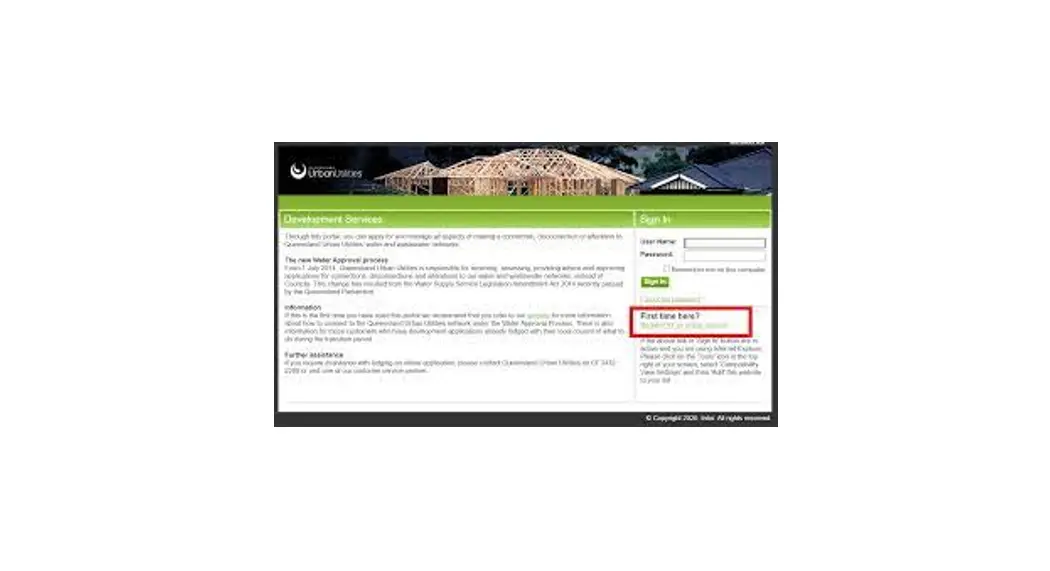
Go to the Developer Services Applications Portal and click the Register here button to Register a Business Entity.
3
4
5
Enter the business address details and phone number in the pop-up box.
Click the Save button.
You have now successfully registered your Business.
Note: If you try to use an existing ABN that is in the system, the above error will appear, and you will not be able to continue with the registration process.
HOW TO ADMINISTER 1
2
BUSINESS ACCOUNT
ACCESS
You can add users to your Business account. You can also disable users from your Business account.
Log into the Developer Services Application Portal and click on the Update My Profile tab.
To onboard a new user, click on the New button in the Contacts component.
Fill in the New Contact details and click the Save button.
Note: you can only add a new contact if they are not in the system already.
3
4
5
View and Activate the New user
Click on the newly created user hyperlink. In the pop-up screen, click
the Enable Customer User button.
This will open a pop-up box where you will need to click on the Save button.
Your new contact will receive a confirmation email.
Disable an existing User
Select the contact record that needs to be disabled from the Contacts component under the Update My Profile tab.
Click on the Disable Customer User button. Then again on the popup box. The user access to Portal is now disabled.