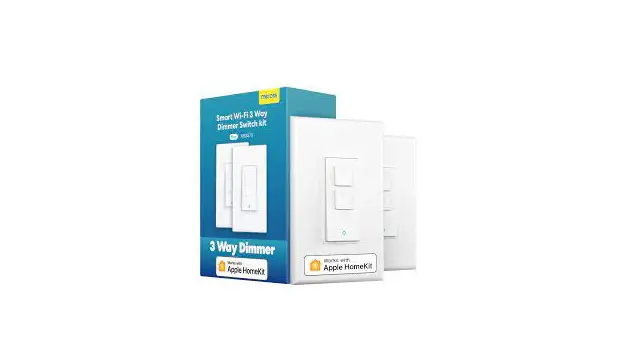
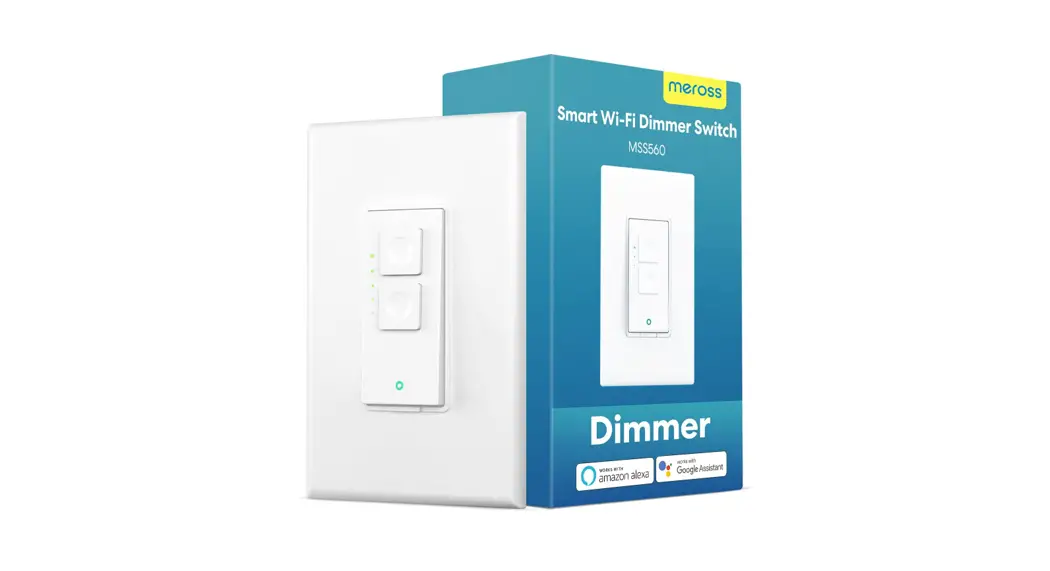
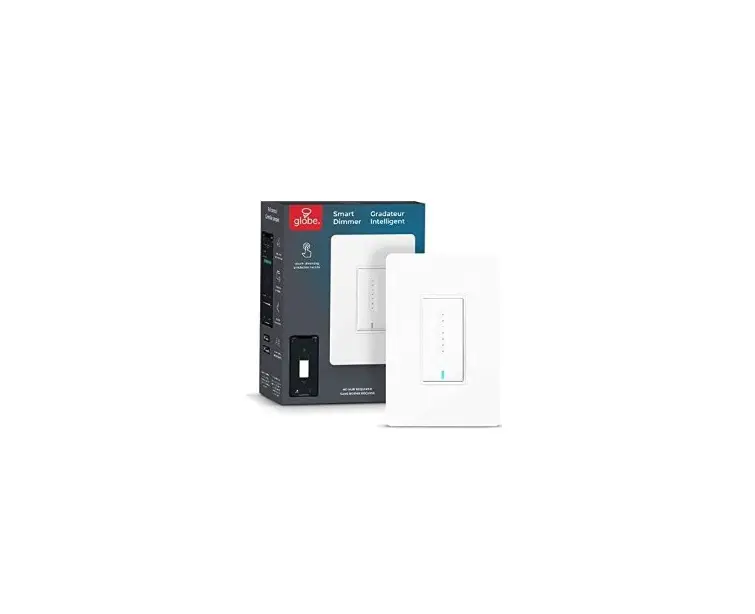
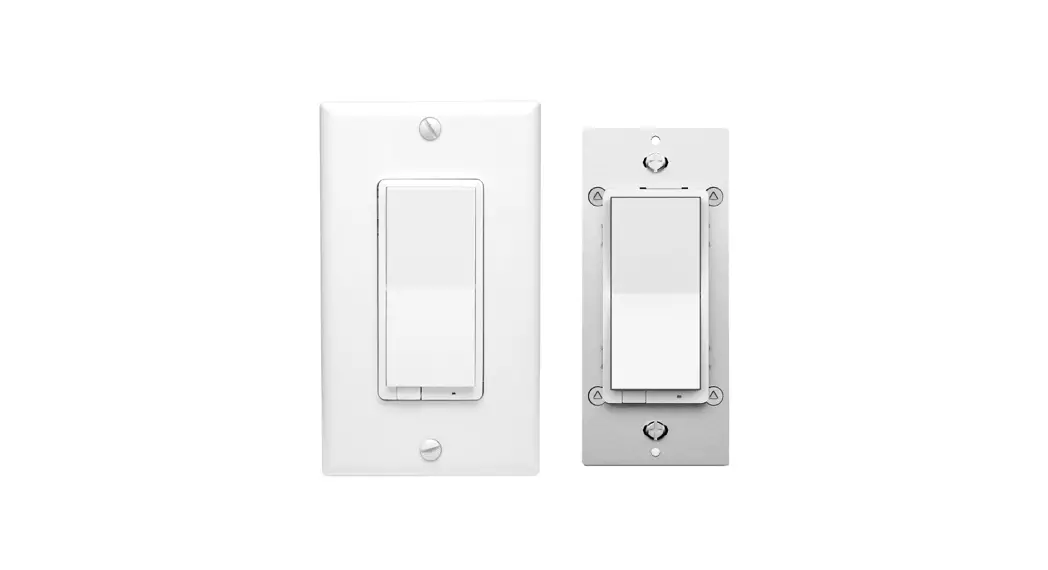
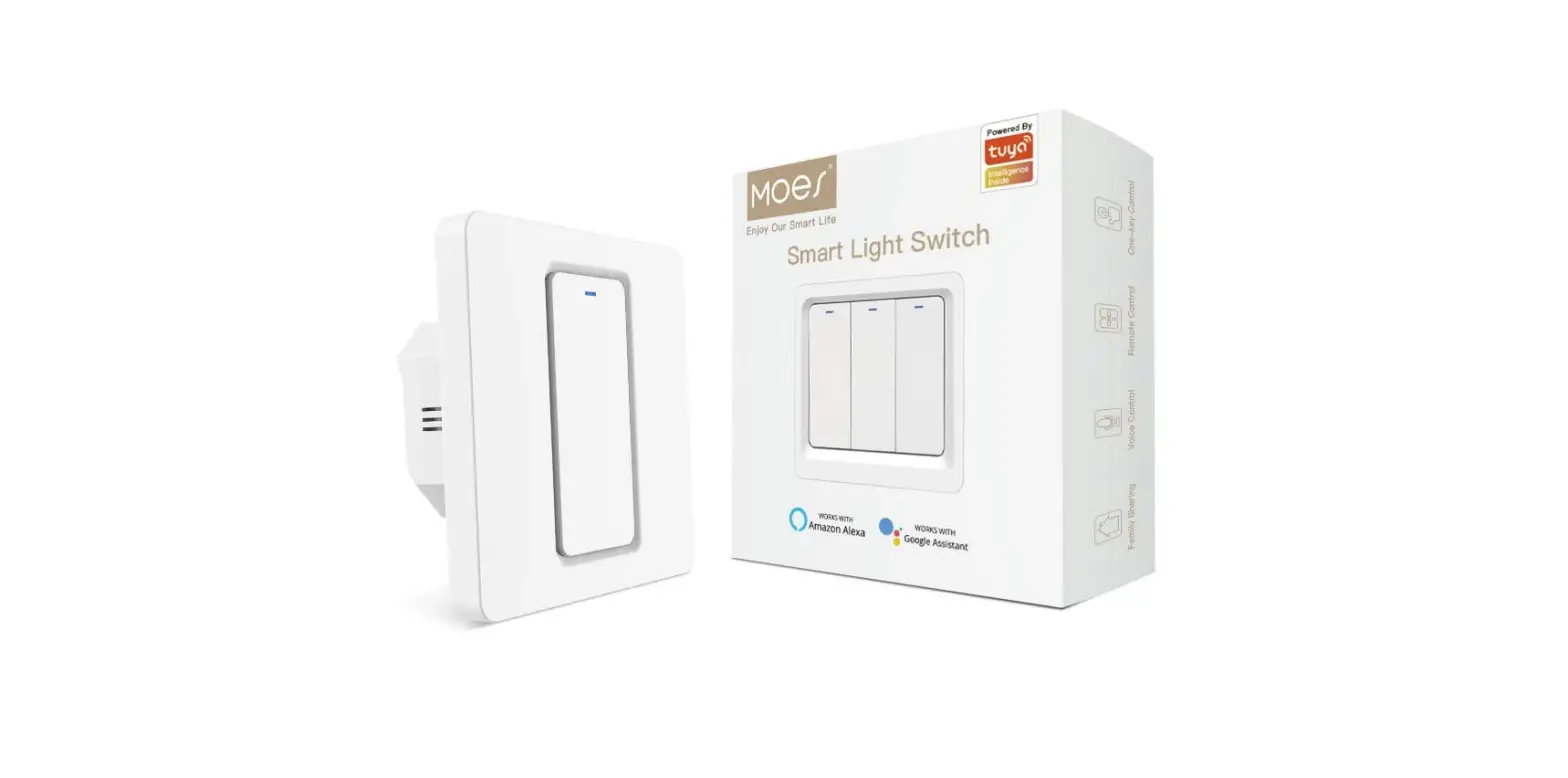
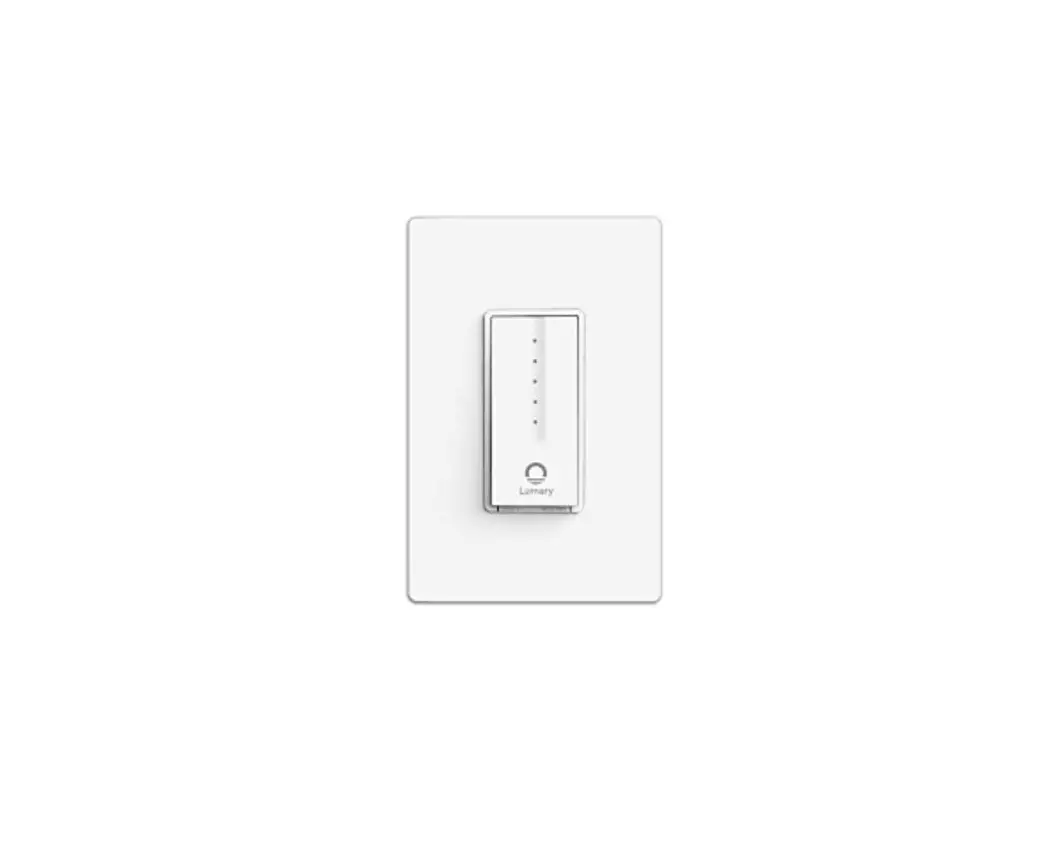
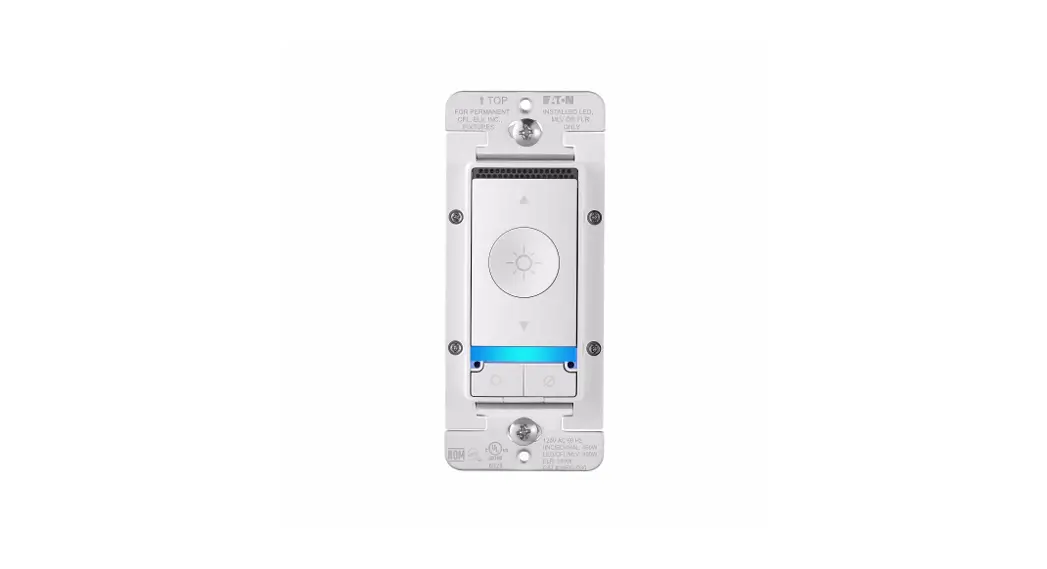
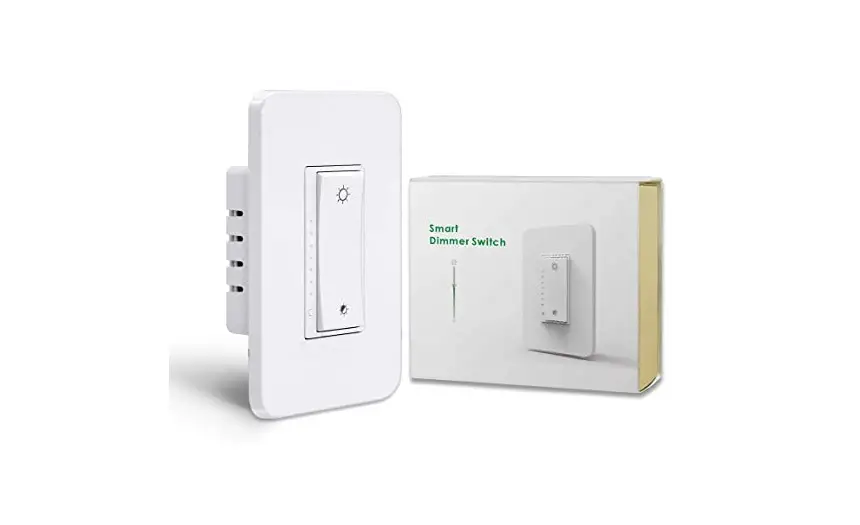
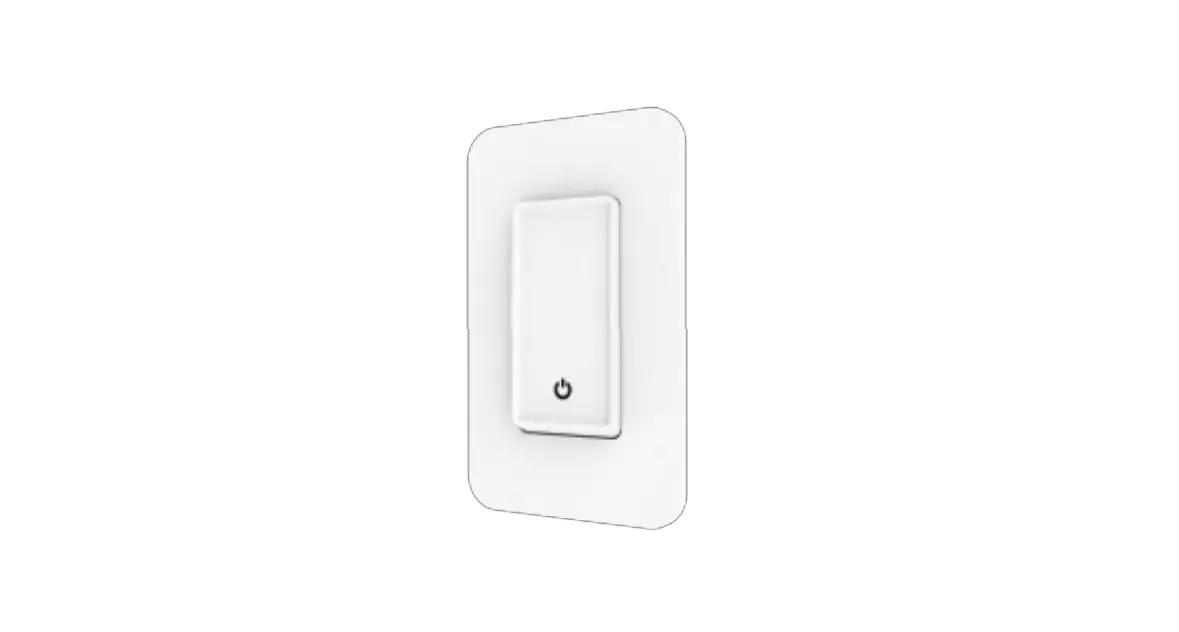
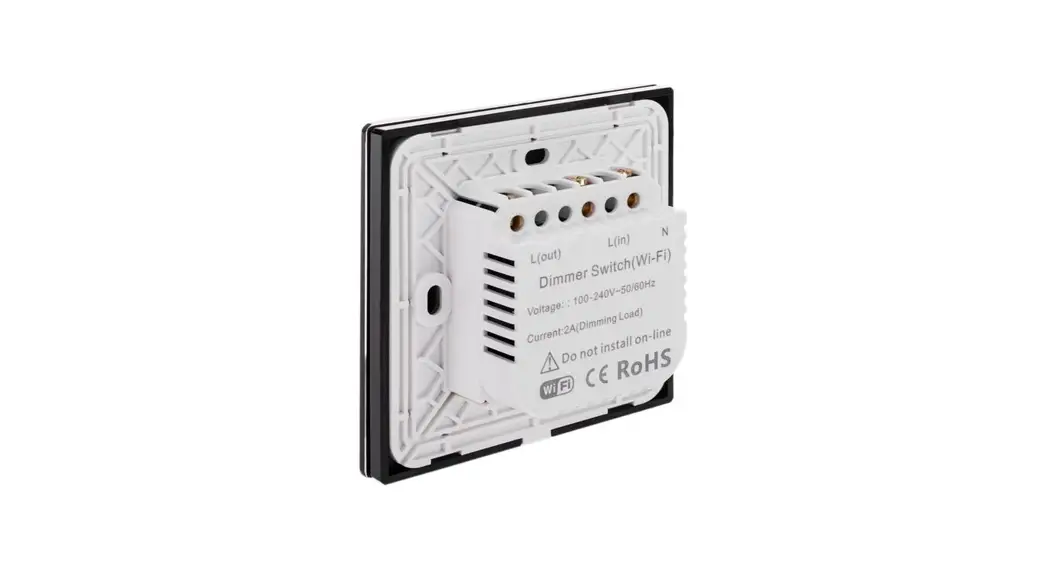
Smart WiFi Dimmer Switch
Product Information
Product Name: Smart Dimmer Switch
Features:
- Wireless Access
- Remote Control
- Voice Control
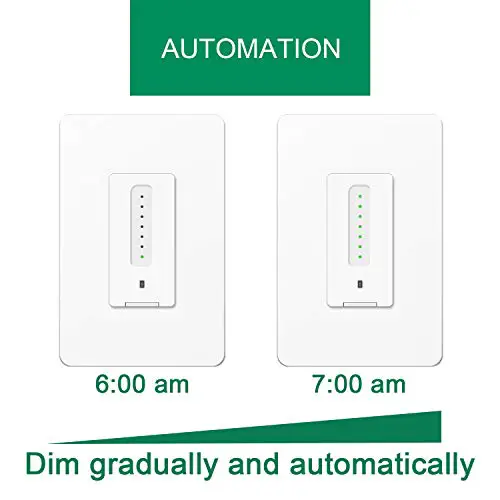
- Dimming Light
- Device Share
- Mechanical Push On/Off Button
Specification:
- Input Power: Inductive load (LED/CFL): 220V AC 50Hz, 220W
Max - Resistive load (Incandescent): 300W Max
- Control Channel: 1 CH
- Standby Power: 0.5W
- Working Temperature: -10°C to 45°C
- Working Humidity: 86%
Product Usage Instructions
- Ensure that the input power is within the specified range of
220V AC 50Hz. - Connect the Smart Dimmer Switch to your desired light
fixture. - Download and install the corresponding mobile application for
wireless access. - Follow the instructions in the mobile application to connect
the Smart Dimmer Switch to your home network. - Once connected, you can control the dimming of the light
through the mobile application or the mechanical push on/off button
on the Smart Dimmer Switch. - To control the Smart Dimmer Switch remotely, use the remote
control feature in the mobile application. - If you have a voice assistant device compatible with the Smart
Dimmer Switch, you can use voice commands to control the
light. - The Smart Dimmer Switch allows device sharing, so you can grant
access to other users for controlling the light. - Ensure that the load connected to the Smart Dimmer Switch is
within the specified limits. For LED/CFL lights, the maximum load
is 220W, and for Incandescent lights, the maximum load is
300W. - The Smart Dimmer Switch has a standby power consumption of
0.5W, which should be taken into consideration. - Operate the Smart Dimmer Switch within the specified working
temperature range of -10°C to 45°C and the working humidity of
86%.
Enjoy Our Smart Life
Smart Dimmer Switch
Features
Wireless Access
Remote Control
Voice Control
Dimming Light
Device Share
Mechanical Push On/Off Button
Specification
Input Power: Inductive load (LED/CFL): Resistive load (Incandescent): Control Channel: Standby Power: Working Temperature: Working Humidity:
86
220V AC 50Hz 220W Max 300W Max 1 CH 0.5W -10~45 <90%
8.7 26
50
86
INC 300W
LED Dimmable 220W
CFL Dimmable 20W
Product Introduction
– Excellent design and high-quality materials to ensure longterm stable and reliable service to users
– Optimized dimming algorithms maximize the compatibility of lights and does not flicker at any brightness
– Stepless touch/rotation dimming makes the brightness adjustment easy and smooth
– Silent mechanical push button design provide the user’s best feedback
(Smart Touch Dimmer Switch) 86
10.5
26
15.6
50
86
(Smart Rotary Dimmer Switch)
Connection & Operation
Panel
On/Off Switch
Status LED
Rotate Dimming
(Smart Rotary Dimmer Switch)
1. Once connect power correctly, turn on circuit breaker, the green LED on the dimmer will turn on, dimmer switch is ready to serve.
2. Push the knob button to turn on/off the light. When dimmer is on, indicator turns white. When dimmer is off, indicator turns green.
3. Rotate the knob to adjust the brightnesscounterclockwise to turn down the brightness, and clockwise to turn up the brightness.
AP setup Mode The AP setting mode is mainly applicable to situations where the network environment is poor, such as multiple network interference or low signal quality. 1. In the smart setting mode, the wifi indicator flashes quickly,
please press and hold the switch for 5 seconds to enter the AP setup mode, LED will flashs slowly. 2. Open Smartlife APP and search WiFi SSID “Smartlife-XXXX” then connect to the device, wait unit the progress to complete, it takes up to 2min. 3. After completing the above process, the device will automatically connect to the router. Reset / Re-pair the product Press and hold ON/OFF button for 5second then release, the indicator will flash, dimmer get into setup mode, please follow setup instruction to complete setup to start smart function. Note: Hub reqired for ZigbBee and Bluetooth version switch
APP Operation
1 Scan QR code and download the app iOS or Android versionn
APP Operation
2 Register and login The user needs to register the user first, and can use the mobile phone number to register. Once you are done, you can use this username to log in to the APP and proceed to the next step. *Support some third-party accounts are directly logged in.
Note:If what you choose is the ZigBee or Bluetooth version, then a ZigBee or Bluetooth hub is required for connection first before successful pairing.
3 Add Devices After the user logs in, click the “+” icon in the upper right corner of the main page to enter the add device interface, select the “Switch” menu and click the switch device icon.
Installation (Smart Touch Dimmer Switch)
L L1 G N
1. Pull out the panel;
2. Wires connecting
3. Screw the dimmer into the 4. Mount switch cover panel
back box.
completed installation.
Installation (Smart Rotary Dimmer Switch)
1. Pull out the knob;
2. Remove nuts and gaskets;
3. Pull out the panel;
Neutral
Load
L L1 G N
Ground
Line
Line in
Load
Ground Neutral Line
4. Wires connecting
5. Screw the dimmer into the 6. Mount switch cover panel
back box.
completed installation.
Installation
Connection & Operation
L L1 G N
Neutral Line
Ground Load Line in
1. Disconnect power by circuit breaker; 2. Check the Line with voltage tester pen, make sure the power is off
to prevent electric shock; 3. Follow the wiring instructions, connect the dimmer wires to each
other leads and check for short circuits; 4. Screw the dimmer into the back box; 5. Mount switch cover panel; 6. Connect circuit breaker restore power.
Note: Please be careful when installing, do not damage the circuit board and components. The color of the wires may be different from the instructions in the manual, please have a qualified person to complete the installation.
Panel
Touch Dimming
On/Off Switch
Dimming Levels Status LED
(Smart Touch Dimmer Switch)
1. Once connect power correctly, the White led on the bottom of dimmer will turn on, dimmer switch is ready to serve.
2. Push on/off button to turn on/off the light. 3. When the light is on, the user can sliding touch the control
panel adjust the brightness of the light, and the status indicator on the panel will change at the same time.
APP Operation
Note:Please choose the right type referring to ZigBee/ Bluetooth/WiFi version in the APP device list.
APP Operation
5 Add Devices Wait system to search the device, connect and configure the device will takes up to 3min. Once the device configure successfully, please also input preferred name and select location.
4 Add Devices To ensure that the new dimmer power LED is flashing, select the Wi-Fi and enter the password then click OK.
Smart Dimmer
APP Operation
Remark: 1. Smart phone and device must connect to same Wi-Fi
during setup mode; 2. The device must be added to the account before it can
be controlled remotely; 3. After the device is successfully accessed, other users
can obtain control of the product through the sharing function.
Troubleshooting 1. Can not connect to Wi-Fi router a) Also make sure you have good Wi-Fi signal strength at
the location of the dimmer b) Metal box and metal surface – wall board may block Wi-Fi
signal c) Make sure input correct Wi-Fi password d) The Dimmer only support 802.11 b/g/n 2.4GHz Wi-Fi signal,
5GHz NOT support
Thank you for your support and purchase at we Moes,we are always here for your complete satisfaction,just feel free to share your great shopping experience with us.
If you have any other need,please do not hesitate to contact us first,we will try to meet your demand.
@moessmart @moes_smart @moes_smart
moes @moes_smart moes.net
WENZHOU NOVA NEW ENERGY CO.,LTD Address: Power Science and Technology Innovation Center, NO.238, Wei 11 Road, Yueqing Economic Development Zone, Yueqing, Zhejiang, China Tel:+86-577-57186815 Email:[email protected] AMZLAB GmbH Laubenhof 23, 45326 Essen Made In China
 MOES Smart WiFi ZigBee Smart 2/3 Way Switch Socket Thermostat Sensor