 Quick Guide
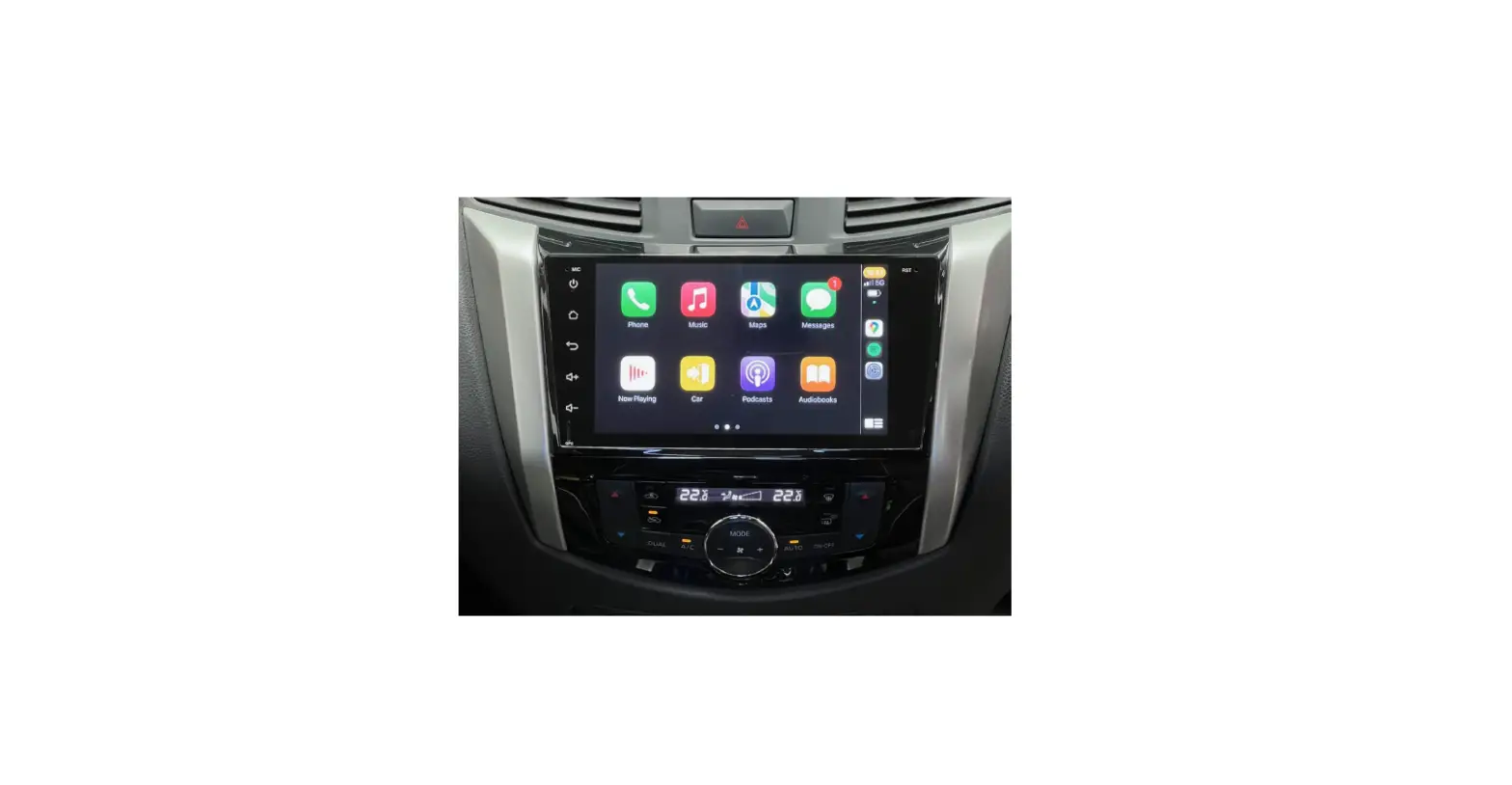
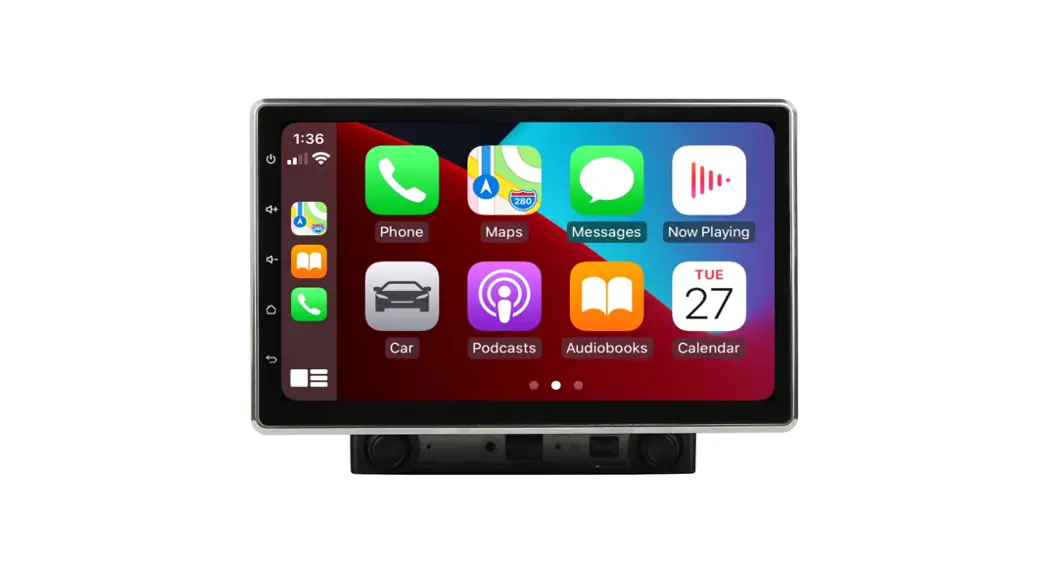
Polaris Android Unit
How to Operate Unit
The unit can be completely controlled via the touch screen:
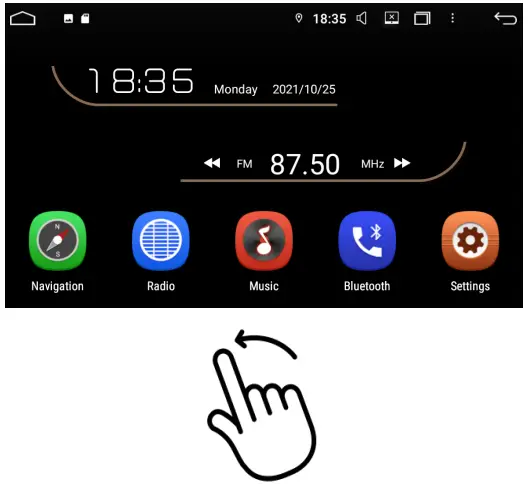 | 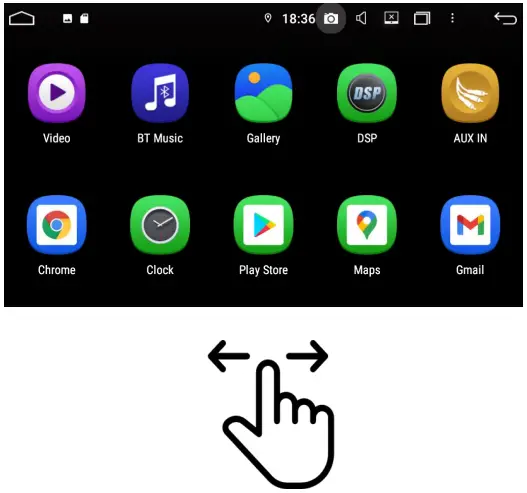 |
| Swipe from right to left to access other apps | Swipe left & right to toggle between the different pages |
How to connect Bluetooth
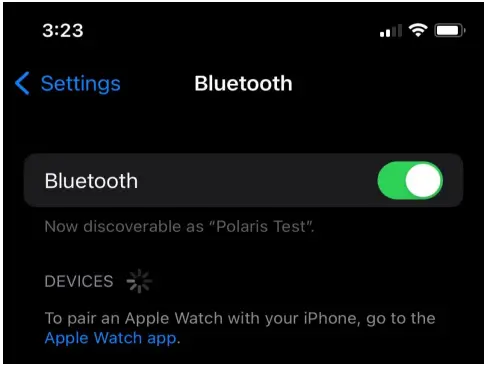 | 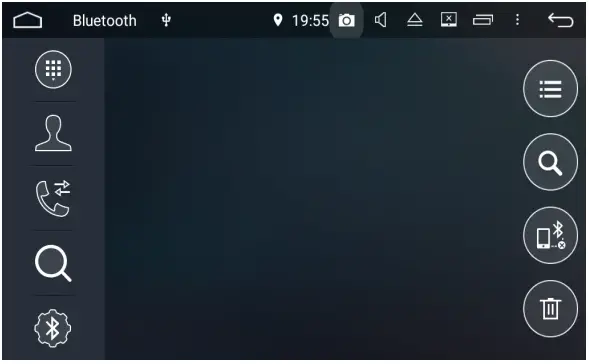 |
| 1. Open up your Bluetooth settings on your phone | 2. Open up the Bluetooth app on the head unit |
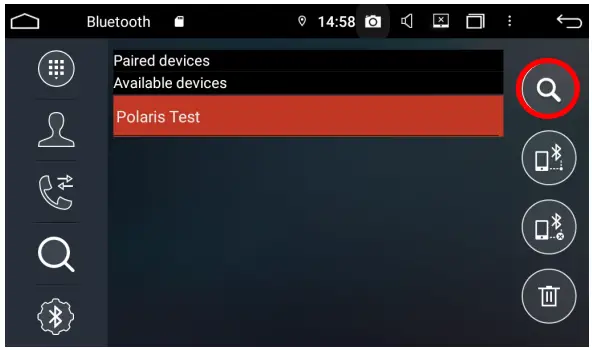 | 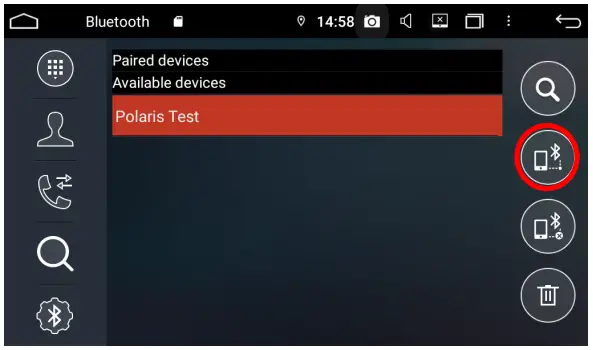 |
| 2. Open up the Bluetooth app on the head unit | 4. Highlight your phone and select pair |
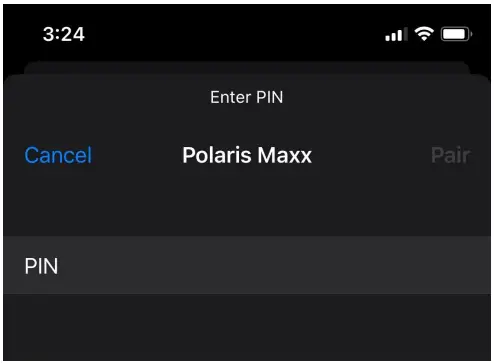 | 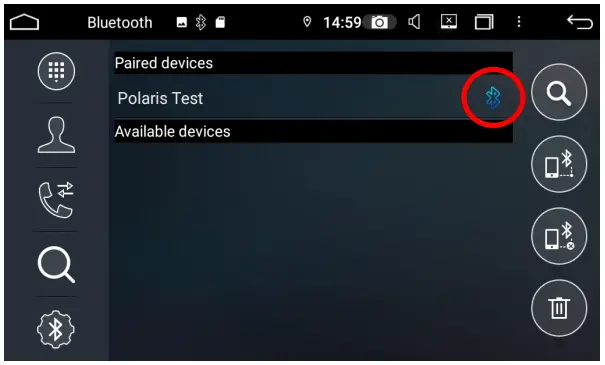 |
| 5. Enter pin no. 0000 on your phone | 6. Pairing is successful if there is a Bluetooth symbol next to your device |
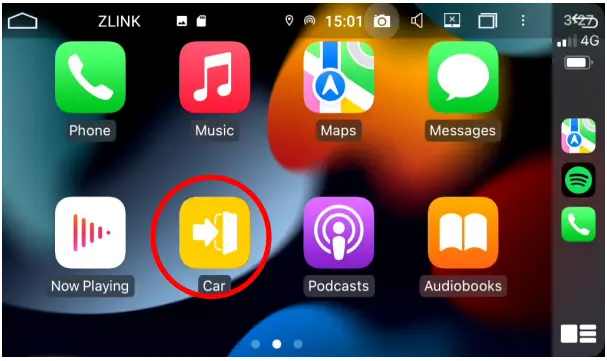
Wireless Carplay
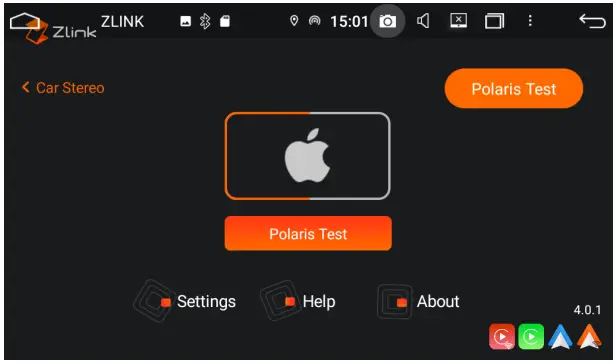
Please connect to Bluetooth and have your Phone’s Wi-Fi on
- Open up the ZLINK app

- Please allow up to 1 minute for carplay to connect

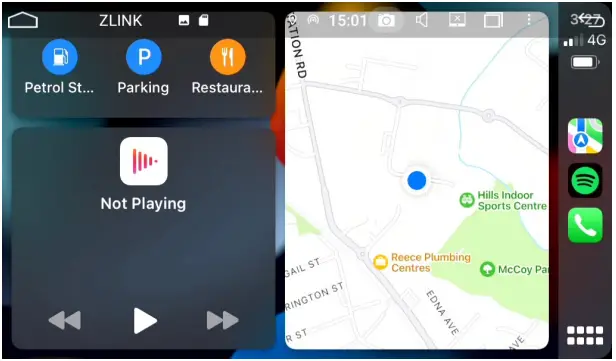
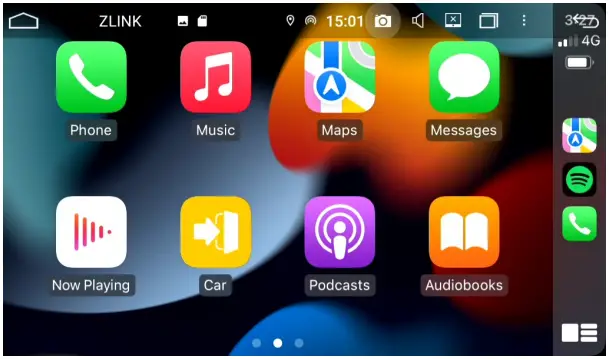
- Once you have connected Carplay wirelessly, Bluetooth will disconnect and it will use Wi-Fi

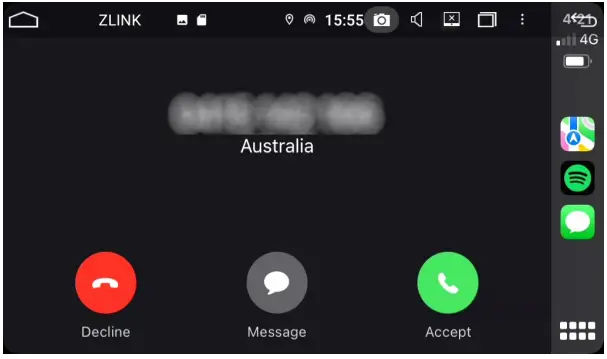
- You will still receive calls…

- Even if you exit out of Carplay

Android Auto
Make sure you have Android Auto on your phone. This can be downloaded via google play store or some of the latest phones have it built in.
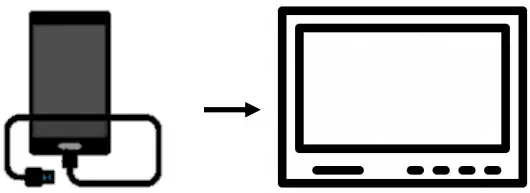 | 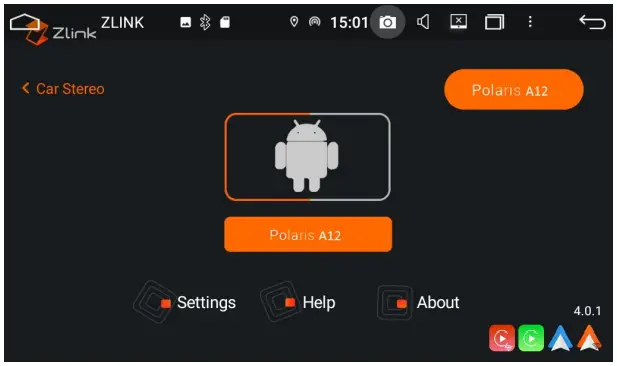 | 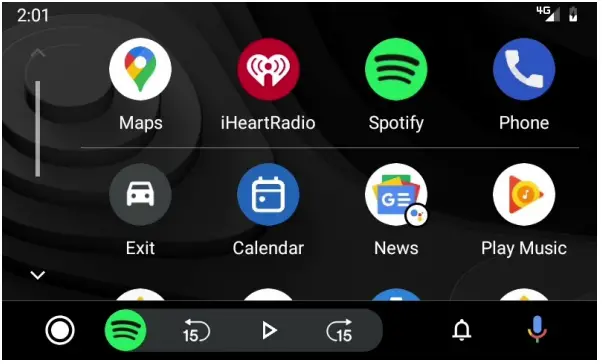 |
| 1. Connect phone to head unit via USB cable | 2. Open up the ZLINK app | 3. Wait for Android Auto to load |
How to connect Wi-Fi
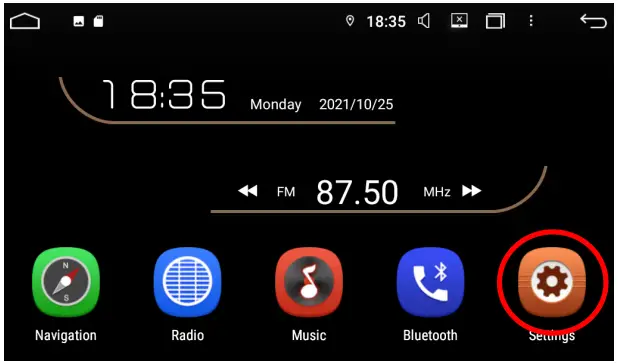 | 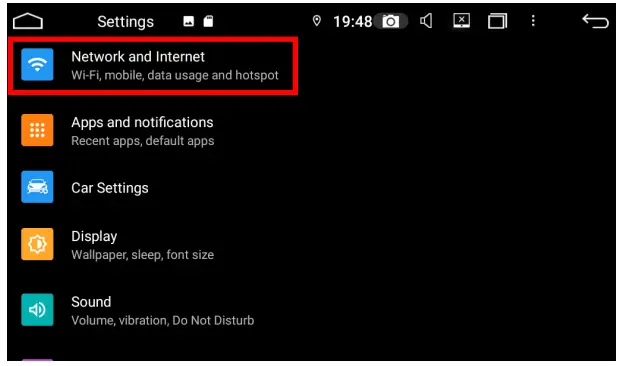 |
| 1. Go into Settings | 2. Select Network & Internet |
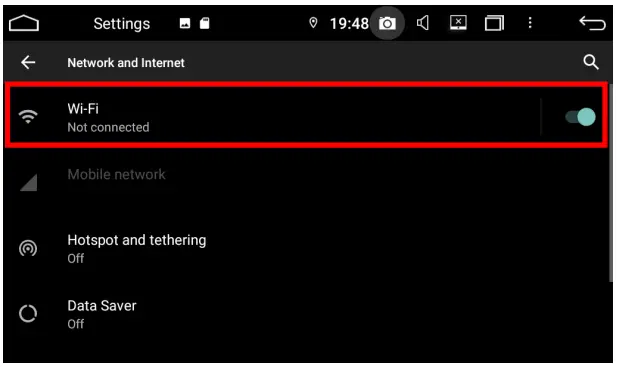 | 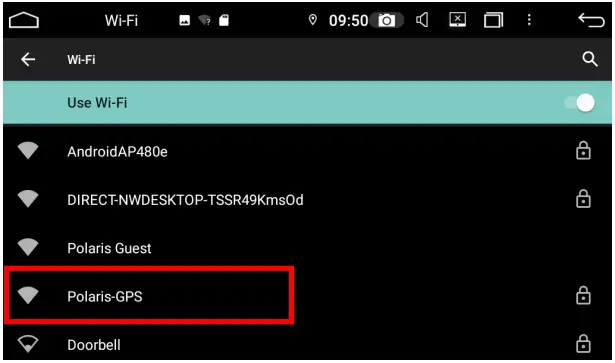 |
| 3. Make sure Wi-Fi is on and select it | 4. Select your chosen Wi-Fi or hotspot |
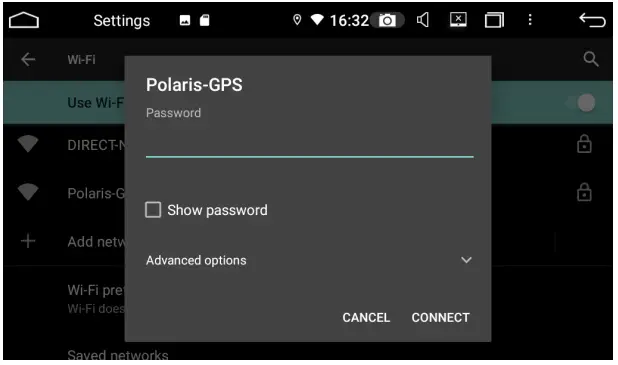 | |
| 5. Enter Wi-Fi password | |
Please note: You will not be able to connect your hotspot if you are using wireless Carplay
Radio Presets
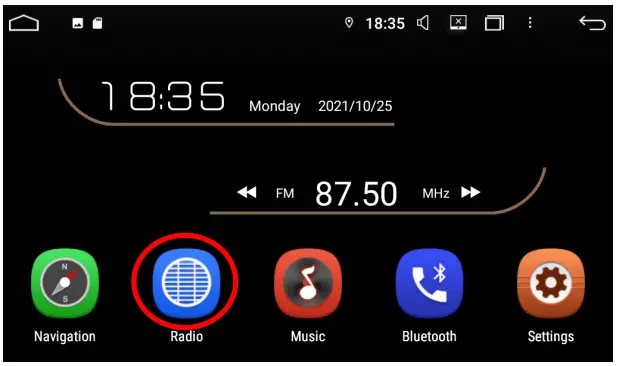 | 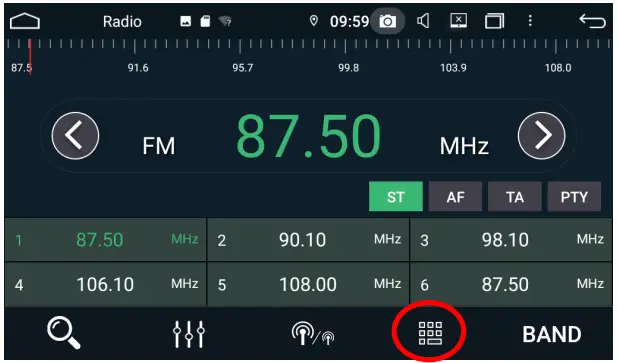 |
| 1. Go into Radio | 2. Select the keypad icon |
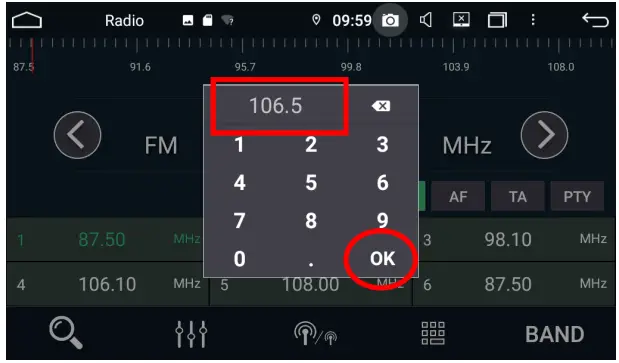 | 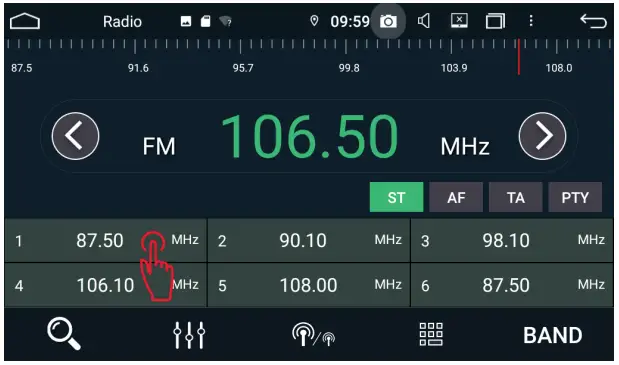 |
| 3. Type in the radio station you wish to set and press OK | 4. Hold your finger down on the radio preset to save |
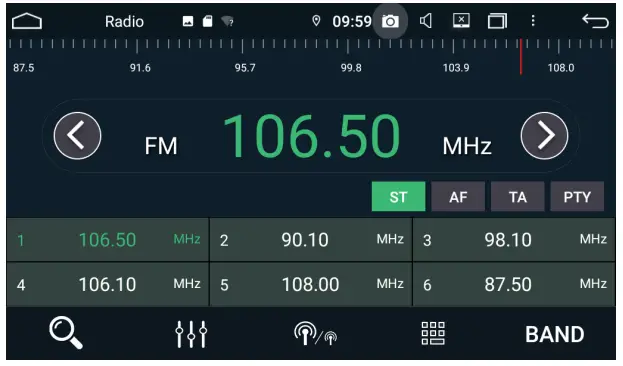 | |
| 5. Follow the same process to set more radio presets | |
How to open Tom Tom & Hema Maps (Optional Extras)
If you have ordered any of these maps, you will have an SD card in the unit and a pre-installed app.
The 2 apps are normally found on the last page of the screen.
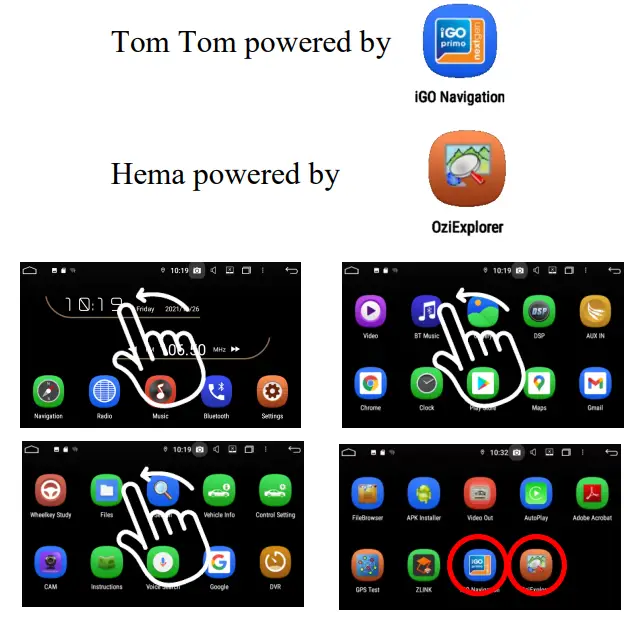
 How to set the Navigation App
 How to set the Navigation App
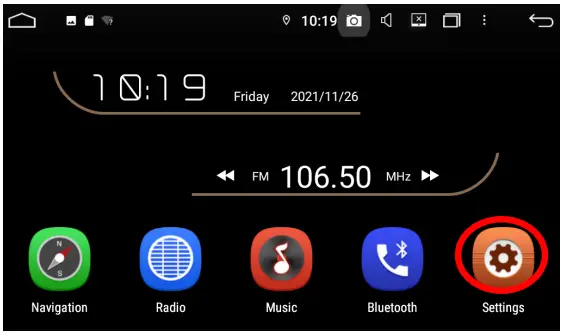 | 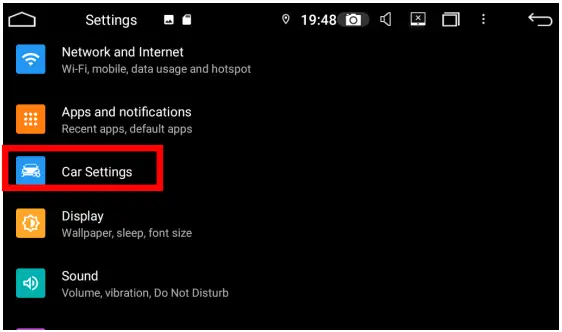 |
| 1. Go into Settings | 2. Select Car Settings |
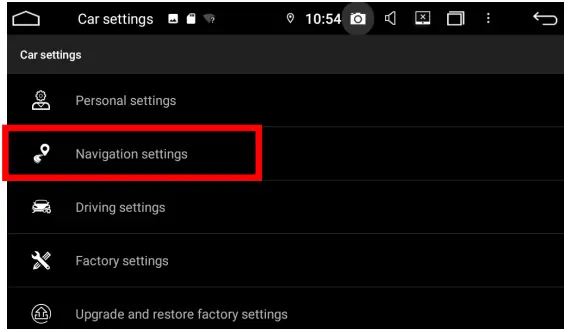 | 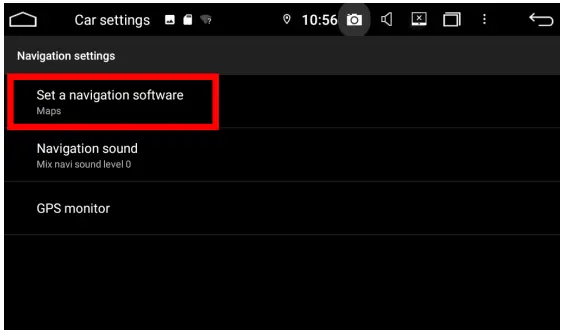 |
| 3. Select Navigation Settings | 4. Select Set a navigation software |
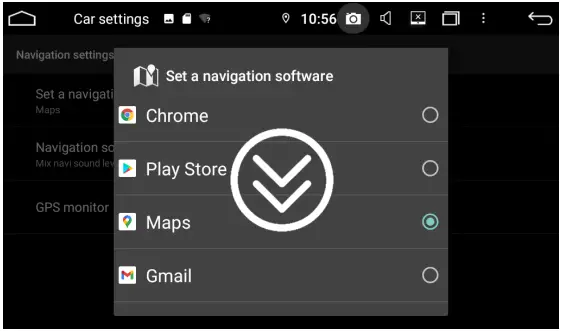 | |
| 5. Scroll down and select the application | |
For a more detailed guide on how to use our system or the specific maps, please head over to our website polarisgps.com.au and look up your specific product to download the user manual.
If you have any questions, please call us on 1300 555 514 or email [email protected]
 Polaris GPSPolaris GPS - Car Accessories Shop Sydney | Vehicle Accessories